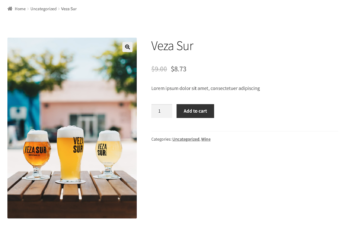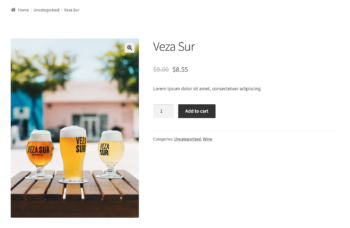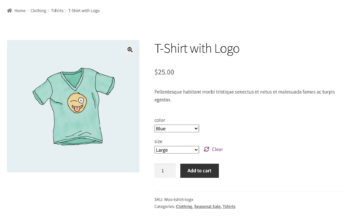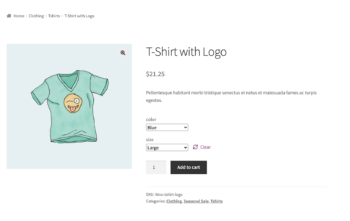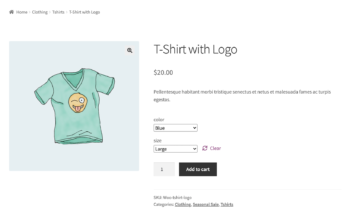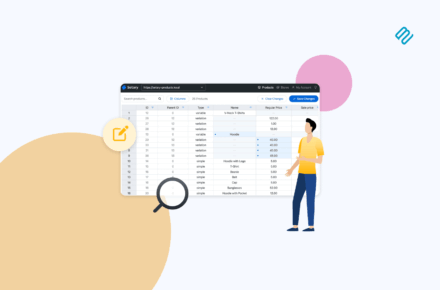

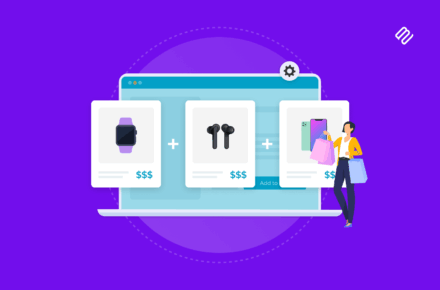




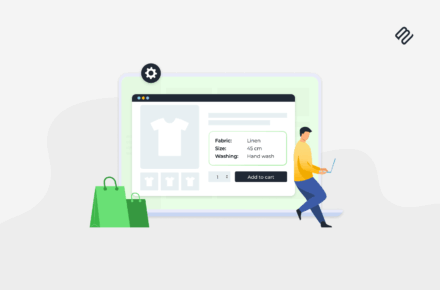
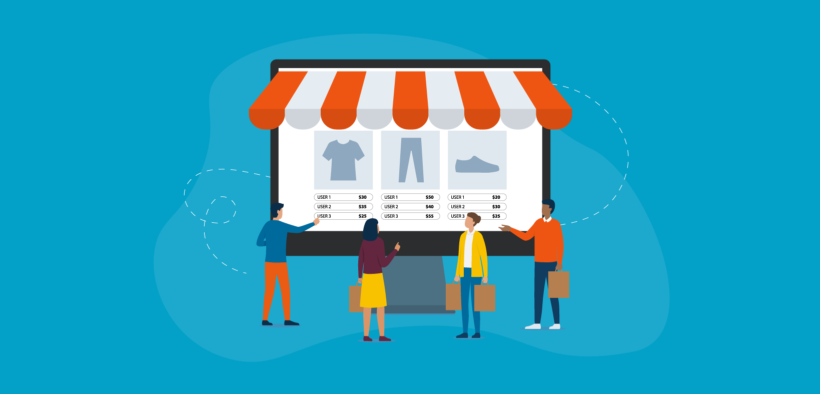
Illustration of a storefront showing different product prices per user role

Discover the best WooCommerce role-based pricing plugins and how to use them to charge unique prices to different groups of users. We'll look at two types of role-based pricing for WooCommerce and which one is right for your store.

Out of the box, WooCommerce lets you add a regular price and a sale price for each product. There are no built-in role-based pricing options.

Luckily, there are several plugins available to add role-based pricing for WooCommerce. In this article, we will explore two of the best:

  • WooCommerce Discount Manager - Create a wide range of discounts and pricing rules, and select which roles - or even individual user accounts - they are available for.
  • WooCommerce Wholesale Pro - Offer flexible role-based pricing specifically for wholesale or B2B stores.

Keep reading to learn how to use each of these WooCommerce role-based pricing plugins to add user group discounts to your store. Whichever plugin you choose, you'll learn how to create multiple user roles and charge role-based pricing. Each user sees the same products, with the correct pricing for their customer group 🪄

Why do you need WooCommerce role-based pricing?

If you sell products to separate groups of customers – such as retail customers and wholesale customers – then you probably need WooCommerce role-based pricing. This is the easiest way to set up customer-specific pricing, in which pricing changes based on a logged in user's role.

Here are some example scenarios where setting WooCommerce prices by user role could save you a lot of time and back-end store management:

  • You sell to both retail customers and wholesale buyersIf you sell to B2B and B2C customers, then you can sell the same product at different prices without having to duplicate products.
  • You sell products to members on various membership subscription plansIf you’re running a membership site, you might consider offering members on higher-priced subscription tiers a larger discount on purchases. This is also great for offering discounts to specific customer groups.
  • You want to hide prices from your public-facing storePerhaps you only allow registered buyers to see prices or purchase. You can do this by hiding prices until login. This way, guest users will have to create an account and become registered users to view product prices.

Implementing role-based pricing also helps with profitability optimization. By carefully structuring discounts for different customer segments, you can maximize your profit margins while still offering competitive pricing. For example, offering higher discounts to bulk buyers can reduce inventory holding costs and improve overall profitability, while maintaining higher margins on retail sales.

These are just some of the reasons why you might need role-based pricing in WooCommerce. Next, I'll tell you how to set it up using the two dynamic pricing WordPress plugins plugins I mentioned above.

Method 1: Use Discount Manager to set up WooCommerce discounts by user role

WooCommerce Discount Manager is my favorite WooCommerce role-based pricing plugin because it's so flexible and suitable for any use case or industry.

Essentially, you should use this plugin for all ecommerce sites except for wholesale stores. For wholesale, skip to Method 2 which is specific to that use case.

Discount Manager is an incredibly flexible discount plugin for WooCommerce. It lets you create absolutely any type of discount or pricing deal, and choose which user role(s) it applies to.

Here's a quick overview of what you get with this role-based pricing plugin:

  • Choice of 6 discount types including fixed or percentage pricing, bulk pricing, tiered pricing, free products (including buy-one-get-one-free), discounts based on order value, and more.
  • Either run each discount storewide on all products, or restrict it to specific categories or even individual products.
  • Choose which user roles each discount applies to so that only logged in users with that role can see the special pricing.
  • Run sales for new customers only by creating discounts for the 'guest' user role.
  • Schedule each role-based pricing rule to start and end on a specific date.
  • Display unique text or other information to display on product pages for users with the correct role.
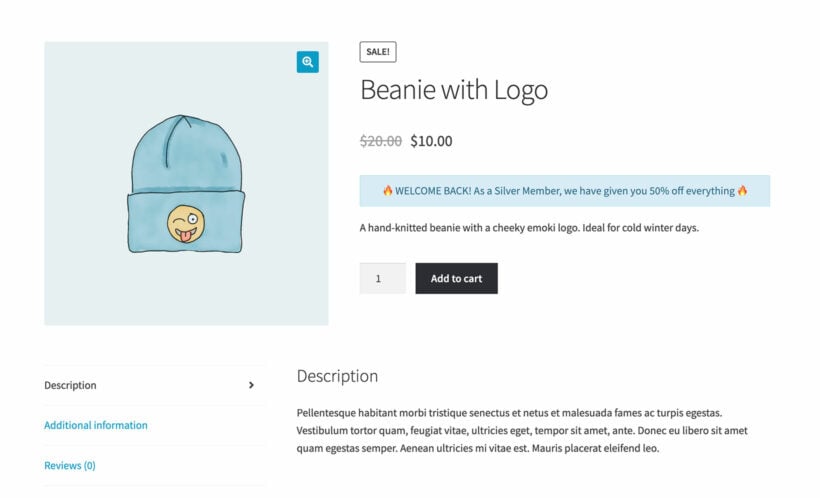
WooCommerce role-based pricing product page content
Display custom messages per role on the product page

Next, I'll show you how to set up WooCommerce role-based pricing with the Discount Manager plugin.

#1. Create your user roles (optional)

The first step is to add any extra roles that you need. WordPress itself comes with a range of built-in user roles, such as subscriber and contributor. WooCommerce adds some additional roles, such as customer and store manager. If these aren't enough, then it's easy to create additional roles.

I recommend the free User Role Editor plugin for this. Simply install the plugin and clone the 'customer' role to create as many new ones as you like.

#2. Set up role-based pricing and discounts

  1. Get the plugin, save the zip file to your computer, and copy the license key from your confirmation email.
  2. Install and activate the plugin on your WordPress site.
  3. Activate your license key in the setup wizard.
  4. Next, go to Marketing → Discounts and click 'Add Discount'.
  5. A popup will appear asking you to choose which type of role-based pricing you'd like to set up. There are examples on the right-hand side to help you decide.
  6. Next, enter the information for the role-based discount. This includes:
  7. Add a name to help you identify the pricing rule in the WordPress admin, e.g. "Role-based pricing for silver users".
  8. Select which products or categories you want the role-based pricing to apply to.
  9. Enter the details of the discount. The exact options will depend on what type of role-based pricing you're creating.
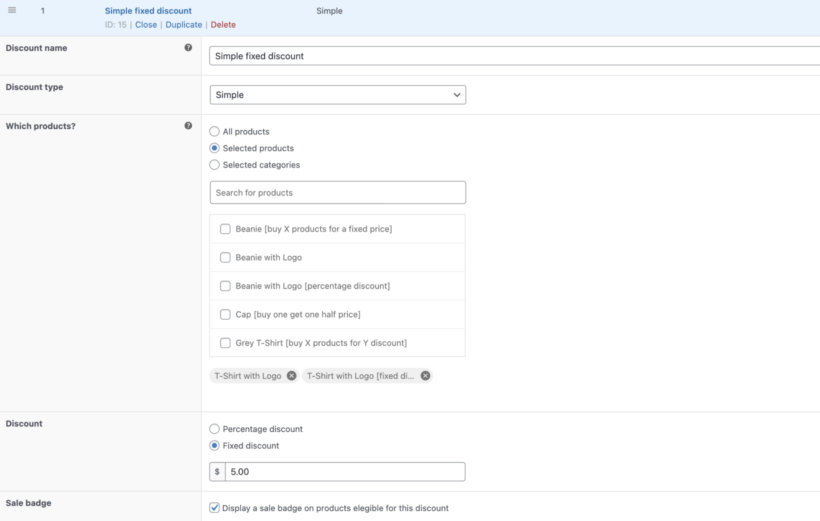
    WooCommerce Discount Manager simple discount
  10. Now click 'Selected roles' and choose one or more that the  will be applied to.
  11. Use the 'Availability' section to schedule the pricing rule, if required.
  12. The 'Product page content' field is an opportunity to display role-based information on the WooCommerce product page. Feel free to enter any fancy styles from your theme, add emojis etc. For example, you might enter: "🔥 WELCOME BACK! As a Silver Member, we have given you 50% off everything 🔥" 
  13. Select a location for the product page content from the dropdown. For example, you can display it at the top of the page or above the add to cart button.
  14. Finally, you can add some text which appears at the top of the cart page. This is a nice way to remind people they're getting special pricing.
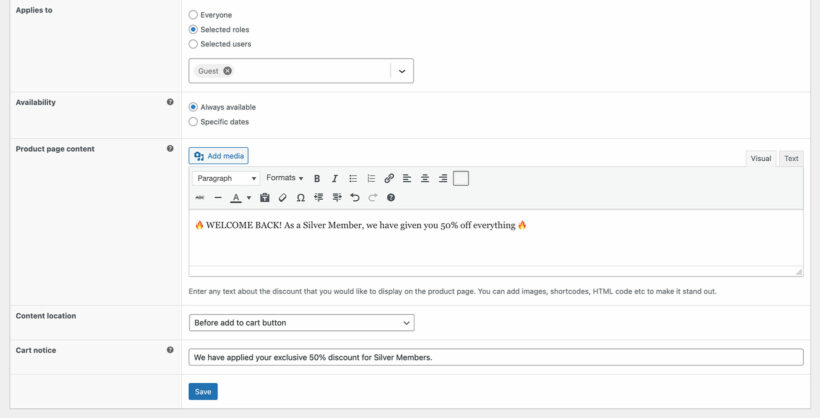
    Settings adding a special pricing notice for a selected user role
  15. Finally, click 'Save'.

Repeat these steps to add as many role-based pricing roles as you like to WooCommerce, each one unique.

How it looks on the front end

When a user logs into their account on your WooCommerce site, they will see the correct pricing for their role. They will also see any additional messages that you set up for them, such as product page content or a cart notice.
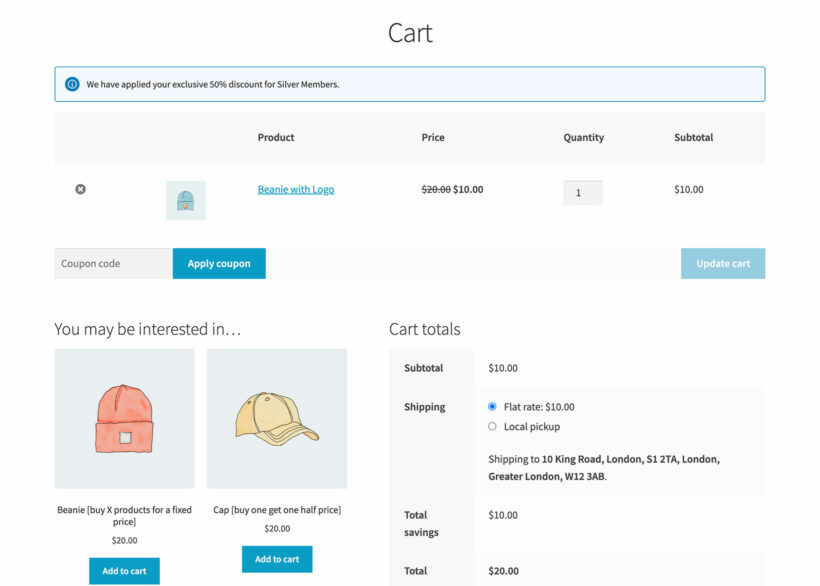
WooCommerce cart with a role-based pricing notice for Silver Members

Of course, users with another role (or logged out users and guests) will continue to see your regular pricing. Only logged in users with the correct roles will ever know that your WooCommerce store offers role-based pricing 🤫

Advanced pricing features for role-based discounts

Beyond the basic role-based pricing functionality, modern WooCommerce discount plugins offer several advanced features:

  • Scheduled promotions: Set start and end dates for your role-based pricing rules, allowing you to run time-limited offers automatically.
  • Inventory threshold controls: Configure discounts to automatically disable when stock levels fall below a specified amount, helping you protect margins on low-inventory items.
  • Bulk price import via CSV: For stores with many products, you can import role-based pricing in bulk using CSV files, saving significant time over manual configuration.

These advanced features help you create more sophisticated pricing strategies while automating much of the management process.

Method 2: Create role-based wholesale discounts with Wholesale Pro

The WooCommerce Wholesale Pro plugin is a role-based pricing plugin designed for a specific use case: trade sales. It lets store owners create a wholesale store which runs alongside their main public-facing shop. When wholesale users log into their account, they receive special role-based pricing - while standard customers continue to see your regular pricing.

Here's a quick overview of what you get with this role-based pricing plugin:

  • Create an unlimited number of wholesale user roles, each with its own pricing.
  • 3 types of role-based pricing: global percentage discounts, category percentage discounts, or manually set role-based prices for specific products or variations.
  • Customizable wholesale registration and login forms (with the ability to hold new accounts for moderation by an administrator before they can start shopping).
  • Role-based payment options, so that you can offer special B2B payment gateways to wholesale users.
  • Role-based shipping options, which you can use to offer different shipping methods to regular and wholesale buyers.
  • Separate tax settings for each wholesale role, so you can charge role-based tax depending on their location or tax status.
  • Use it with its sister plugin - WooCommerce Product Table - to create quick wholesale order forms.
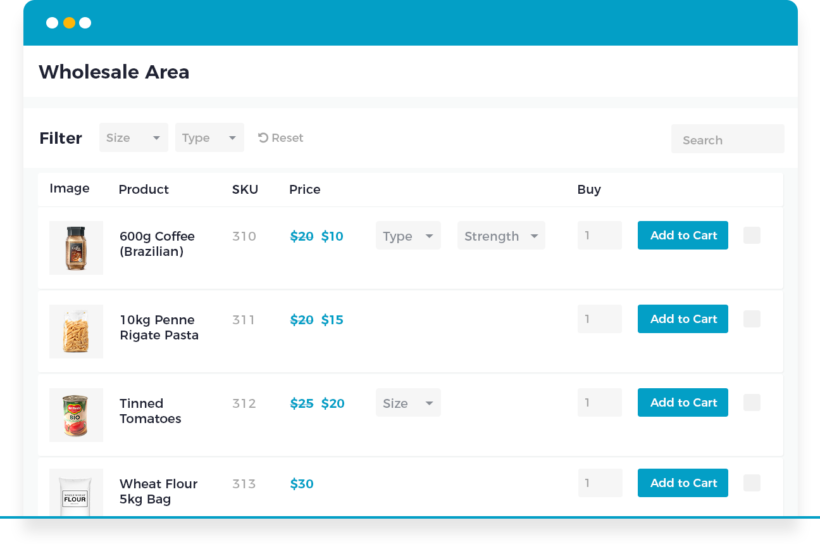
WooCommerce role-based pricing showing discounted prices in a wholesale area

As you can see, Wholesale Pro is a fully featured wholesale plugin for WooCommerce. It has everything you need to run a successful wholesale store, with wholesale role-based pricing at its foundation.

Easy to use and powerful wholesaler plugin
The ability to create different wholesaler roles (like business trades, etc.) with different pricing makes it a powerful plugin. Settings are easy to understand and overall experience is pretty flawless. Support is top notch too, very responsive and really understand the product they are supporting.

Next, I'll tell you how to set it up.

Set up WooCommerce Wholesale Pro for role-based pricing

  1. Get the WooCommerce Wholesale Pro plugin and install and activate it on your WordPress site.
  2. The plugin setup wizard will open automatically. Use it to set up the main settings for your wholesale store.
  3. Next, add as many user roles as you like:
    1. Head over to WooCommerceSettingsWholesaleRoles from the WordPress admin panel.
    2. Click the Add new role button. Enter the display name and percentage role-based discount you’d like to offer users.
    3. Click the Save changes button to continue.

Once you've created a role for each pricing group, you can use WooCommerce Wholesale Pro to add 3 types of role-based pricing:

  1. Create global percentage discounts
  2. Create category percentage discounts
  3. Set exact prices for individual products

Create global percentage discounts

Creating global percentage discounts is useful if you want to offer a specific user role a flat percentage discount on all products. For example, you can use this to give wholesale customers a 5% discount on their orders while retail customers pay the full amount.

You can also use it to offer members on specific subscription plans a percentage discount on all purchases. For example, Silver Members qualify for a 3% discount whereas Gold Members qualify for a 5% discount.

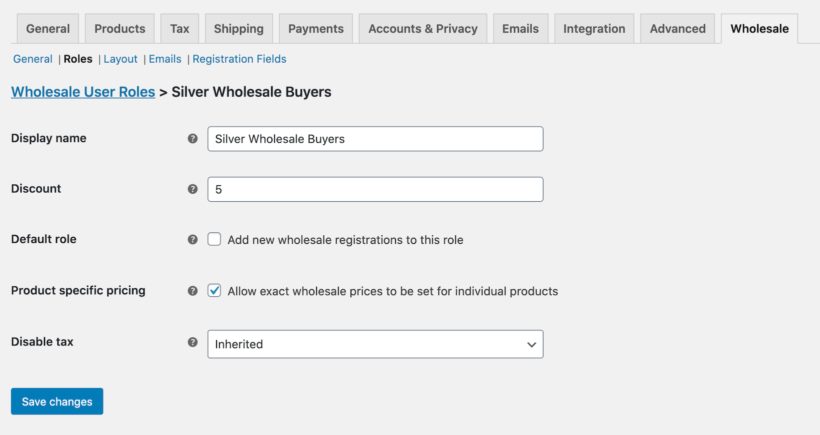
To set up global role-based pricing in WooCommerce, head back toWooCommerceSettingsWholesale → Roles and add a percentage discount for each role:
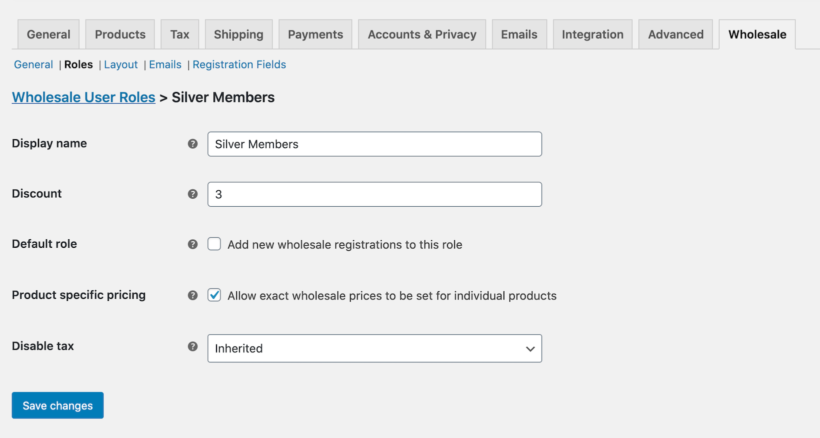
Wholesale role settings with a percentage discount for Silver Members

Your product page will look something like this to different customers:

Notice how the product page display price changes depending on the customer’s user role.

Create category percentage discounts

Some WooCommerce store owners might benefit from creating category percentage discounts. This way, you can offer certain types of users a separate discount for each WooCommerce category.

For example, you might want to offer Silver Members a 15% discount and Gold Members a 20% discount on products in the Seasonal Sale category. These discounts might be bigger than the reductions in your year-round categories.

Here’s what you need to do to set this up in your online store:
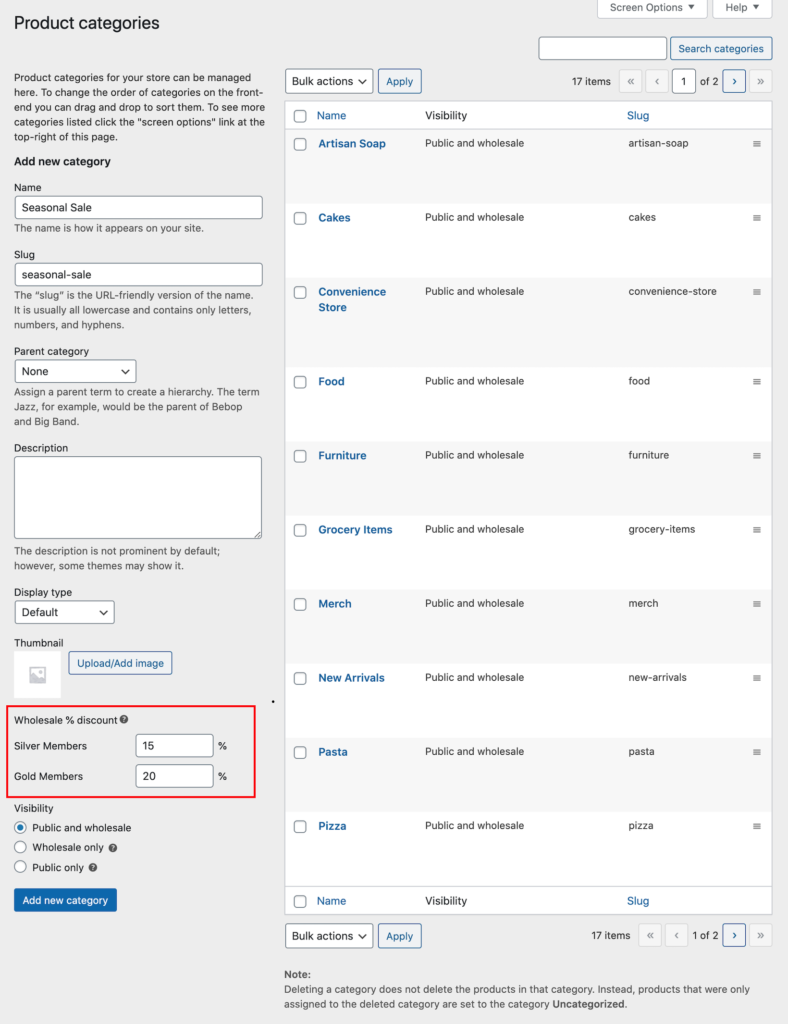
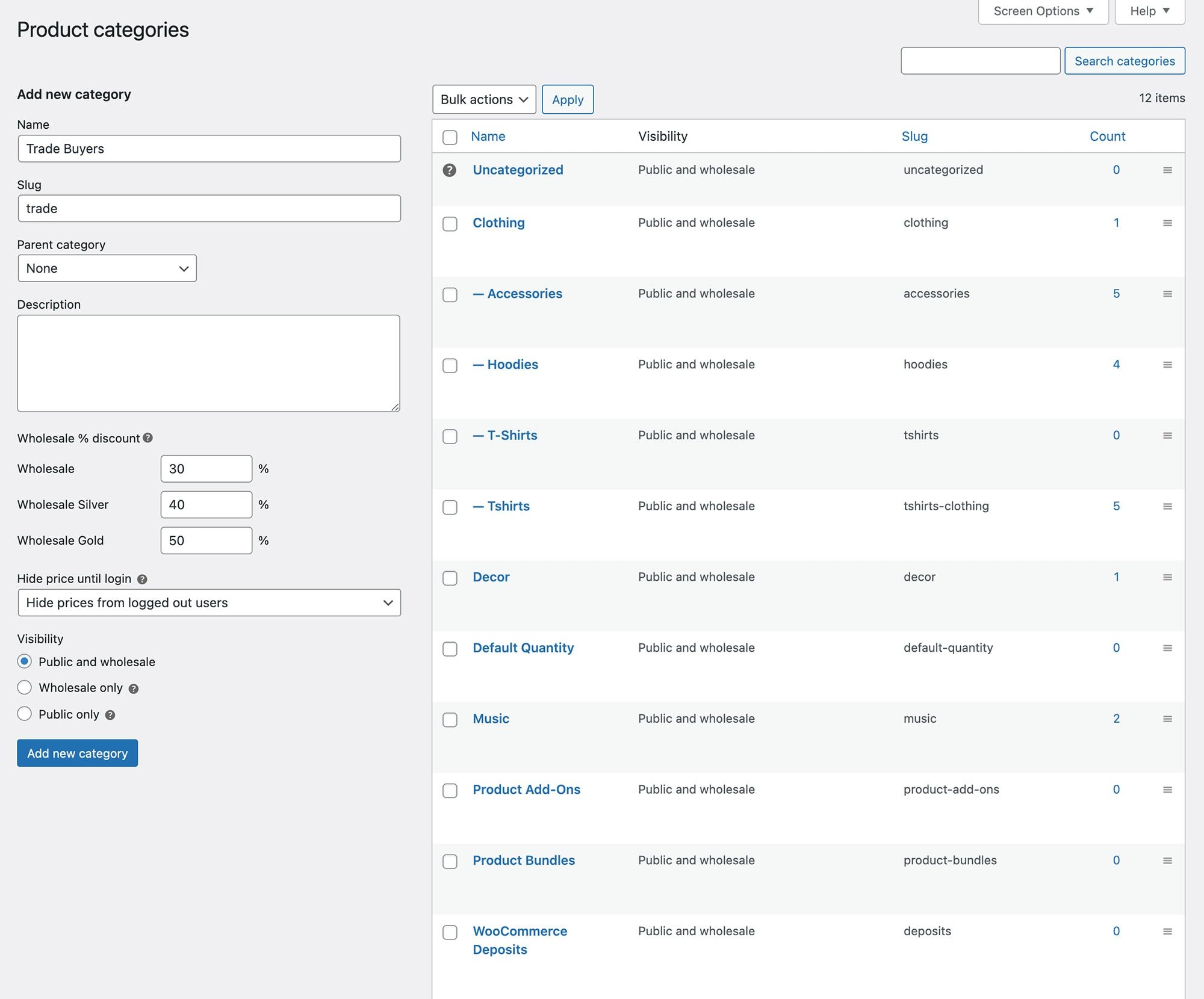
Product category settings with per-role wholesale percentage discounts
  1. From the WordPress admin panel, navigate to Products Categories.
  2. Edit the product category you’d like to set category percentage discounts for or create a new product category.
  3. Use the Wholesale % discount option to set the category percentage product prices by user roles for WooCommerce.
  4. Click the Update button.

In addition to this, you can also make product categories visible to only wholesale users, only guest users, or both wholesale users and guest users. This is an easy way to hide specific products from your public-facing site.

Set exact prices for individual products or variations

There are plenty of scenarios where you might want to set exact prices for specific products instead of offering percentage discounts.

This is possible with the WooCommerce Wholesale Pro plugin. You can use it to set exact wholesale prices for individual products. The best part is that it works for simple products and products with variations.

Here’s how you can set exact prices for individual WooCommerce products:
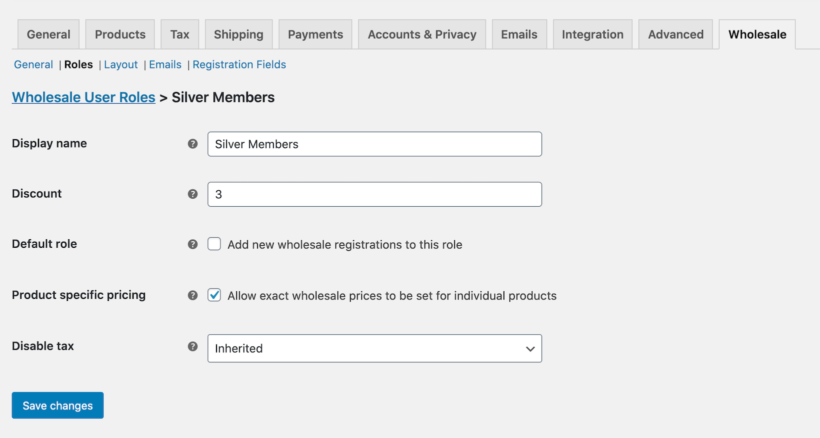
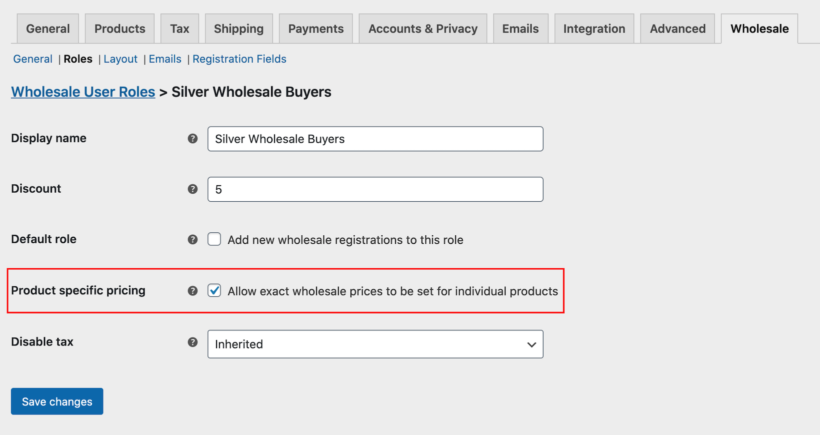
Wholesale role settings enabling product specific pricing for Silver Members
  1. Head over to WooCommerceSettingsWholesaleRoles from the WordPress admin panel.
  2. Edit the user role you’d like to enable exact prices for.
  3. Tick the checkbox next to the Product specific pricing option.
  4. Click the Save changes button to continue.
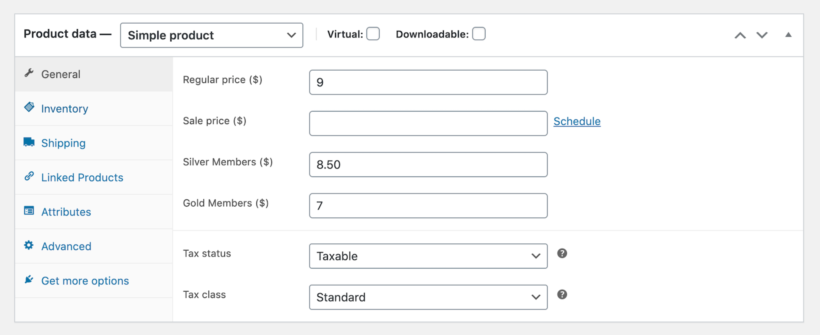
Product data panel with separate Silver and Gold member prices

Now you can set the per-product pricing for each role:

  1. Edit the product or variation that you’d like to set custom prices for.
  2. Scroll down to the Product data section and set the exact product prices by user roles for WooCommerce. This also works for variable products.
  3. Click the Update button to continue.
While we've covered two excellent solutions above (WooCommerce Discount Manager and WooCommerce Wholesale Pro), there are other popular plugins worth considering:

  • WholesaleXThis plugin offers dynamic rules for automated wholesale pricing and lets you change prices based on user roles. It features bulk customer pricing, coupon discounts, and dynamic pricing all in one solution.
  • YITH WooCommerce Role Based PricesThis solution allows you to increase or decrease product prices according to user role, apply role-based price rules to specific products, categories or tags, and even hide prices or the 'Add to Cart' button from unregistered users.

Bonus: Show WooCommerce role-based pricing in a table layout
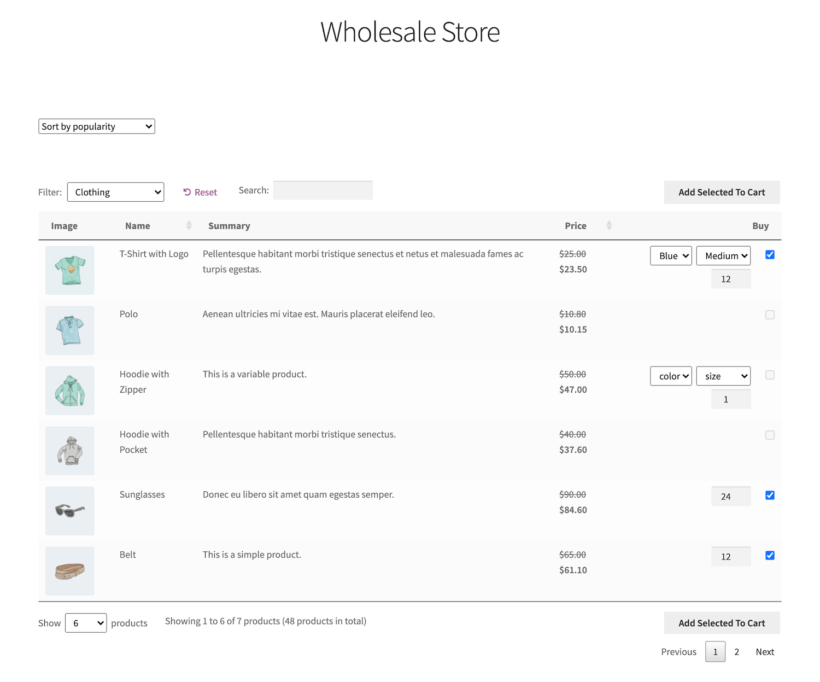
WooCommerce role-based pricing shown in a wholesale order form table layout

One of the key benefits of using the WooCommerce Wholesale Pro plugin for setting up WooCommerce price by user role is that you can list products in a table layout. For this, you’ll need to get the WooCommerce Product Table plugin which integrates seamlessly with WooCommerce Wholesale Pro.

Using the WooCommerce Wholesale Pro plugin with WooCommerce Product Table, you can create quick, one-page order forms that display role-based pricing as well as other product details (such as product ID, image, and description). For example, you can use this to make it easier for wholesale customers to add products to their shopping cart without having to click the add to cart button for each one and quickly and proceed to the checkout page.

Wholesale customers will see wholesale pricing in the table layout and they can simply use the checkboxes to select all of the products they’d like to purchase and add to cart in one go.

To save money, get WooCommerce Product Table in a bundle when you buy WooCommerce Wholesale Pro.

FAQ

What are WooCommerce customer groups?

WooCommerce customer groups are a way of grouping customers into multiple categories, for example in order to charge special pricing or show hidden products.

The most common way to group customers is with the user roles that come with WordPress itself. You can use free plugins like User Role Editor to create additional roles and use them to group customers, for example in order to create role-based discounts with WooCommerce Discount Manager. Or if you use WooCommerce Wholesale Pro then it creates additional user roles for you.

Why should I create multiple user groups in WooCommerce?

You should create multiple user groups if you want elements of your ecommerce store to change depending on the type of user. For the purposes of this article, we have focussed on WooCommerce role-based pricing. However, you might equally create multiple user groups in order to sell user-specific products or show role-based payment and shipping options.

How many customer groups can WooCommerce handle?

WooCommerce can handle an unlimited number of user roles. Simply use a plugin to create as many user roles as you need, and use these to tailor the buying experience for each of your WooCommerce customer groups.

Set up WooCommerce role-based pricing

In this article, we've explored several fantastic role-based pricing plugins for WooCommerce, each suited to different types of stores. Here's a quick comparison to help you decide which one is right for you:

Plugin Best for Key features
Discount Manager General ecommerce stores Flexible discount types, category/product-specific rules, scheduled promotions
Wholesale Pro B2B and wholesale stores Wholesale-specific features, role-based payment/shipping, tax settings
WholesaleX Stores needing dynamic rules Automated wholesale pricing, dynamic rules, bulk customer pricing
YITH Role Based Prices Stores needing granular control Price visibility controls, custom messages, variation pricing

Whichever plugin you use, you can easily add WooCommerce role-based pricing to your store. Each logged-in user will see the correct pricing for their role 🚀

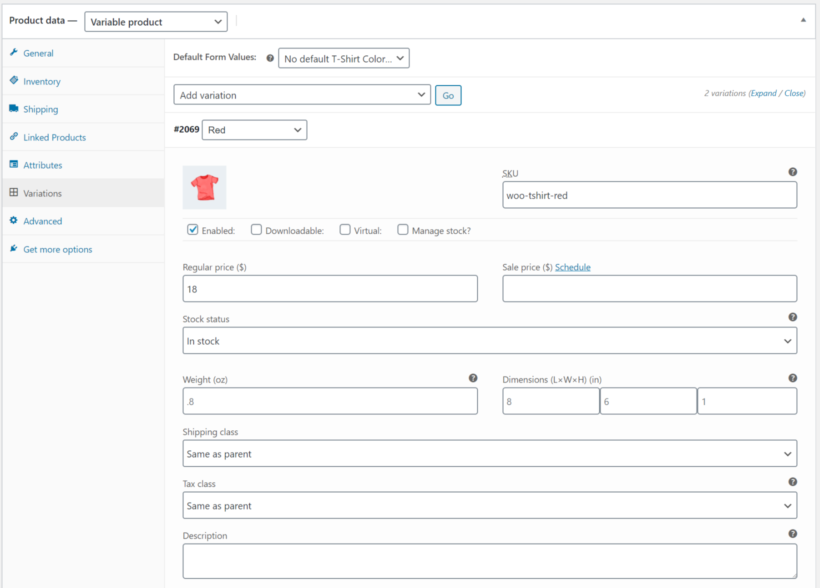
Illustration of a store showing multiple prices per product for different users

The WooCommerce plugin is designed to let ecommerce store owners sell each product at the same price to everyone – regardless of their status or user role. This means that, by default, you can’t set multiple prices per product for different types of customers - but there is a solution.

In this tutorial, I’ll tell you about an easy way to charge different prices for different users. You can use this WooCommerce dynamic pricing solution to have as many user roles as you want – members, wholesale buyers, retail customers – with different pricing for each one. The best part is that you can do this without having to duplicate WooCommerce products.

The easiest way to set WooCommerce multiple prices per product is by using the WooCommerce Wholesale Pro plugin. It lets you create unlimited user roles and add multiple prices per product depending on the user role.

Why charge multiple prices per product?

As a WooCommerce store owner, you might consider setting up customer-specific pricing to different groups of user. This means that when a customer logs into their account on your WordPress site, they see special pricing for their role. This pricing may be different from what public visitors or other user roles see.

There are lots of benefits to setting multiple prices per product in WooCommerce:

  • Expand your target marketSetting different prices for different users allows you to increase the size of your potential audience. As well as selling to public retail customers, you can effectively create a hidden area of your store for other customer groups.
  • Encourage each type of customer to buy morePricing is highly psychological and you need to set prices based on the needs and expectations of each group of customers. Setting multiple prices per product gives you full control to do this.
  • No duplicationThe main alternative to WooCommerce multiple prices per product is cloning each product and charging separately for each version. That creates a big headache for you as store owner, with twice as many products to maintain. It also causes inventory problems because you can't share stock across products.
  • Fully automated and saves you timeAnother alternative to setting multiple prices per product is to take manual orders over the phone. Doing it dynamically on your WordPress site therefore saves you time.

The most common use for multiple prices is for WooCommerce wholesale stores, where retail customers pay full price and B2B users get a discount. This might be very simple with a main public price plus one wholesale price. Alternatively, it might be more complex with large numbers of wholesale pricing tiers for different users.

Membership programs also likely to offer members-only discounts on certain products. This rewards logged in members for their loyalty and provides a powerful incentive to sign up in return for discounts.

How to set up multiple prices per product without a plugin

In theory, it's possible to set multiple prices per product without installing any plugins. The way to do this is to use product variations. Each variation can have a different price.

Setting a separate price on a WooCommerce product variation
Adding price variations to a WooCommerce product

Follow these steps to create new product variations:

  1. In the product data section of any product, change the product type to 'Variable product' using the dropdown list
  2. Navigate to the Attributes tab and list any relevant attributes such as color or size
  3. Go to the Variations and click the button to 'Generate variations from attributes', then confirm this in the dialogue box.

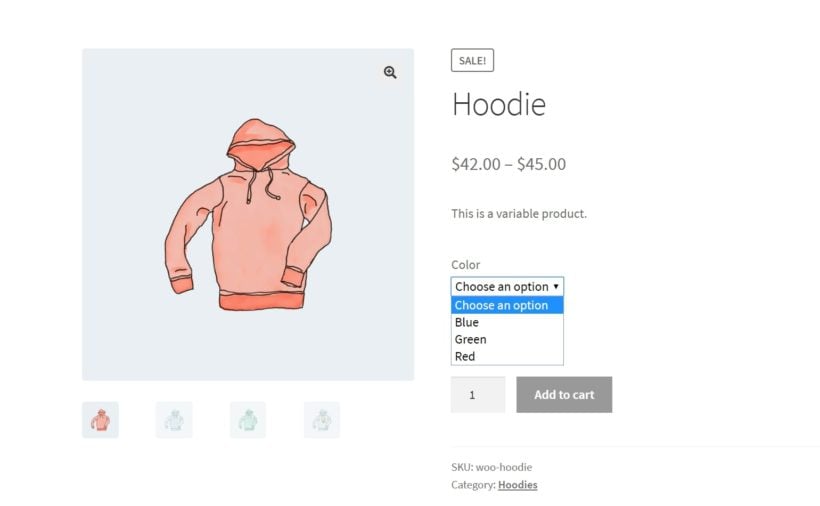
However, this method isn't suitable for most stores that need to charge different prices for the same product. That's because the variations will appear in a dropdown list on the product page which everyone can see, like this:

WooCommerce variations shown in a dropdown on the product page

When the user selects a variation from the dropdown, they will see the price for the selected option.

The problem with this approach is that all users can see all the different price options. That's no use if you want to charge WooCommerce different prices for users.

That's why we recommend using WooCommerce Wholesale Pro instead. I'll tell you about it next.

How to set multiple prices per product with a plugin (Recommended)

Wholesale pricing shown to logged-in customers in WooCommerce Wholesale Pro

Our very own WooCommerce Wholesale Pro plugin is an ideal plugin for setting up flexible pricing options. It comes packed with useful features, such as:

  • Wholesale user roles & registration.
  • Global, category or product discounts.
  • Wholesale visibility options.
  • Access control for product categories, payment methods, taxes and coupons.

With the WooCommerce Wholesale Pro plugin, you can create as many user groups as you’d like, each with their own pricing. For example, if you want to sell to retail customers, wholesale customers and members, you can offer different discounts to each user role. The plugin also lets you set global and category percentage discounts and different prices for specific products.

Although the WooCommerce Wholesale Pro plugin was designed with wholesale stores in mind, you can use it for just about any type of store that offers different pricing per user. It also lets you hide product prices from logged out users.

Below is a step by step guide to setting up the plugin on your site, as well as how to charge different prices for the same product in WooCommerce. I'll assume you already have the WooCommerce plugin set up on your WordPress website and some products added.

Step #1: Get WooCommerce Wholesale Pro

Get the WooCommerce Wholesale Pro plugin. Log in to the WordPress admin and install and activate the plugin. Activate your license key in the setup wizard which opens automatically.

Step #2: Set up new user groups

After the setup wizard, go to WooCommerce → Wholesale → Roles and add as many user roles as you like. The first one has already been created for you. Create a separate role for each user group that you want to add separate pricing for.

Next, you can either add a global percentage discount on all products per user group, set category percentage discounts per role, or set exact prices for each WooCommerce product per role. We'll cover these in steps 3-5 of this tutorial.

Step #3: Set up global percentage discounts

Head over to WooCommerceSettingsWholesaleRoles and click the Add new role button. Enter the percentage discount you’d like to offer that user group.

Wholesale role settings with a global percentage discount for a user group

For example, you can offer different prices for the same product, including:

  • Members a 3% discount
  • Silver Wholesale Buyers a 5% discount
  • Gold Wholesale Buyers a 10% discount

Click the Save changes button to continue.

With WooCommerce Wholesale Pro, you don’t have to set up discount rules. This makes it easy to set up bulk pricing and offer wholesale customers bulk discounts.

Step #4: Set up category percentage discounts

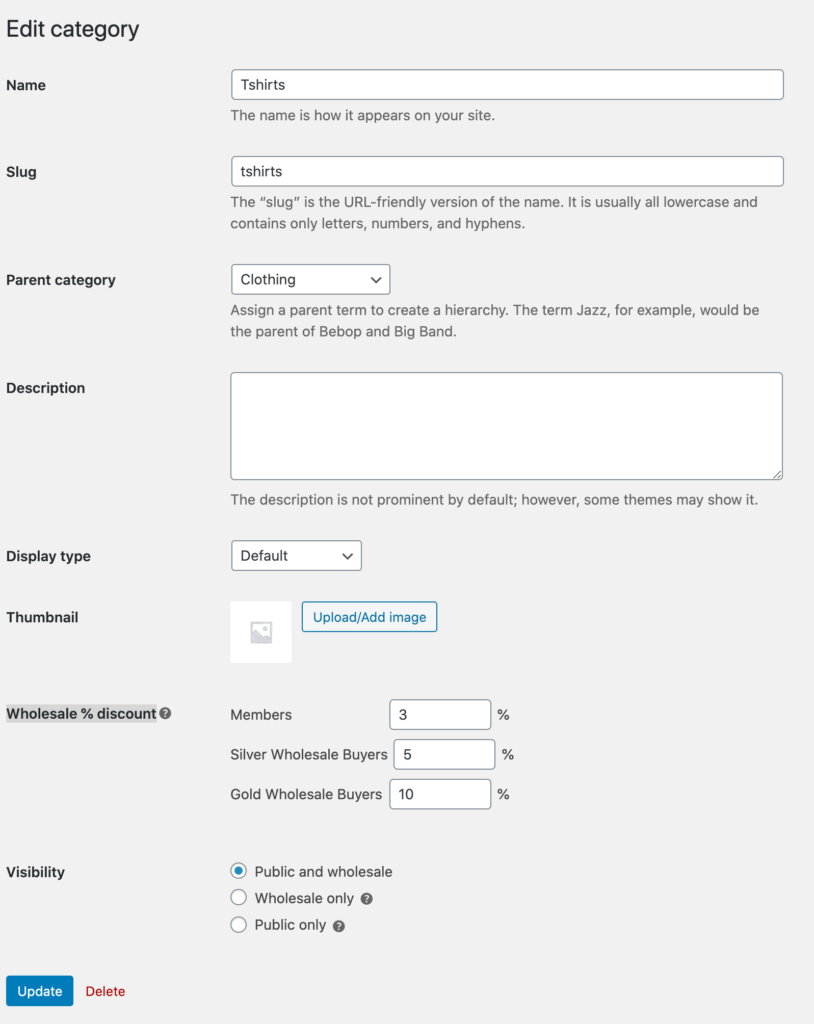
Go to Products Categories from the WordPress admin panel and edit the product category you’d like to set category percentage discounts for.

Editing a product category to set wholesale percentage discounts per role

Next, scroll down to the Wholesale % discount option and set the percentage discounts for each user group. The WooCommerce Wholesale Pro plugin makes it easy to set pricing rules.

Click the Update button to continue.

Using quantity-based pricing to increase order value

Another powerful pricing strategy is to offer tiered pricing based on the quantity purchased. This 'buy more, pay less' approach encourages customers to increase their order size.
WooCommerce Wholesale Pro makes it easy to implement quantity-based pricing:

  1. Navigate to the product you want to set up with tiered pricing
  2. In the Product Data section, locate the 'Quantity Based Pricing' option
  3. Create your quantity tiers (e.g., 1-9 units, 10-24 units, 25+ units)
  4. Set the discount percentage or fixed price for each tier
  5. Save your changes

For example, you could set up your pricing structure like this:

  • 1-9 units: Regular price ($10 each)
  • 10-24 units: 10% discount ($9 each)
  • 25+ units: 20% discount ($8 each)

This pricing structure clearly shows customers that the more they buy, the more they save, which can significantly increase your average order value.

Step #5: Set exact prices for each product or variation

You can also set exact product prices (i.e. fixed prices) for individual products instead of offering a percentage discount. To do this, simply tick the checkbox next to the Product specific pricing option.

Enabling product specific pricing for a wholesale role in the settings

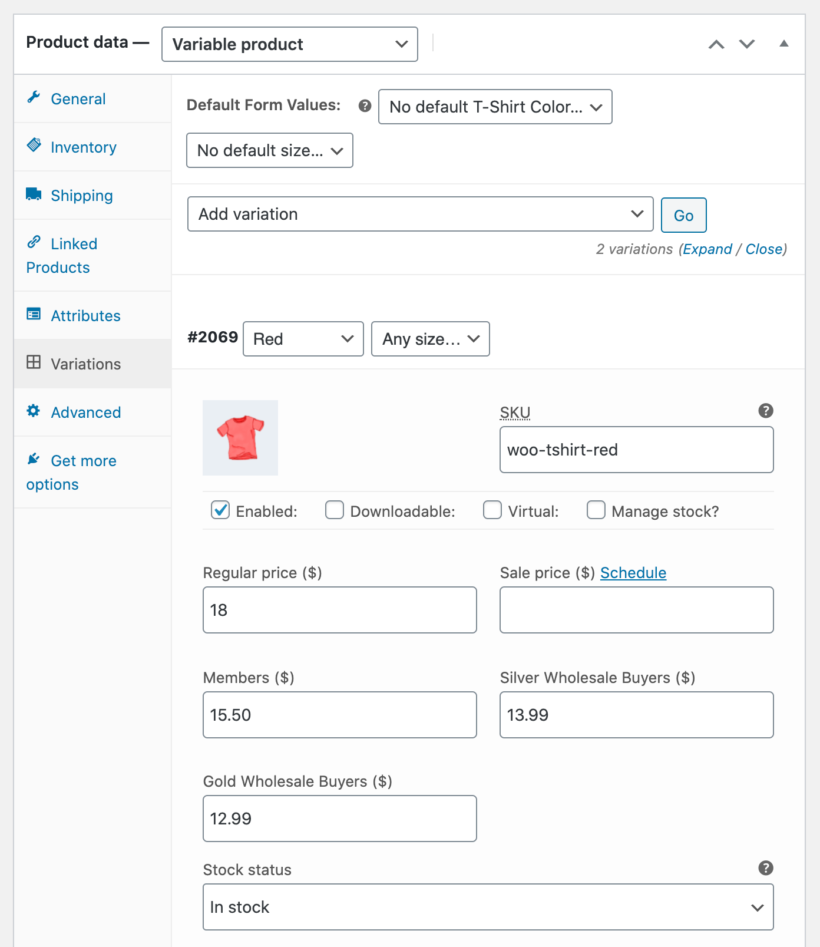
So, if you’re selling a variable product such as t-shirts to retail customers for $18, you could set different per prices per product for other user groups. You can do this from the Product data section. For example:

Product data setting separate prices per user role on a variable product
  • Members can purchase the t-shirt for $15.50
  • Silver Wholesale Buyers can purchase the t-shirt for $13.99
  • Gold Wholesale Buyers can purchase the t-shirt for $12.99

Click the Save changes button to continue.

Using bulk editing and industry-specific pricing strategies

If you have a large catalog of products, setting prices individually can be time-consuming. WooCommerce Wholesale Pro includes bulk editing capabilities to save you time:

  1. Go to Products → Bulk Edit in your WordPress admin
  2. Filter products by category, tag, or other attributes
  3. Select the products you want to modify
  4. Choose the bulk action 'Edit Role Prices'
  5. Set your pricing rules (e.g., 10% discount for all wholesale customers)
  6. Apply the changes

This feature is particularly valuable for stores with hundreds or thousands of products, allowing you to implement store-wide pricing changes in minutes rather than hours or days.
Different industries can benefit from tailored wholesale pricing approaches. Here are some effective strategies:

  • Apparel and fashion: Offer deeper discounts on last season's inventory while maintaining smaller discounts on current lines
  • Electronics: Create tiered wholesale pricing based on order frequency and volume, rewarding regular wholesale buyers
  • Food and beverage: Implement date-based pricing that offers better rates for products with longer shelf life
  • Home goods: Bundle complementary products with special wholesale pricing to increase average order value

By tailoring your wholesale pricing strategy to your specific industry, you can create more compelling offers that resonate with your B2B customers.

Step #6: Preview how the multiple prices are displayed

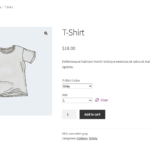
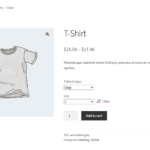
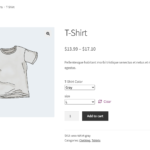
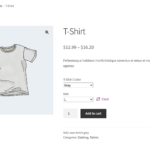
You can now visit the product page to see the pricing structure from the perspective of a customer (note that you may need to log out of your site's admin to view the non-wholesale prices). Here’s what it looks like when different users (with different user groups) see different prices on the same WooCommerce product page (the variable product t-shirt) – guest users, Members, Silver Wholesale Buyers, and Gold Wholesale Buyers – on the front-end:

This is the easiest way to set and display WooCommerce multiple prices per product, changing the price based on user role. The best part is that you don’t have to duplicate products for each user group you want to sell to.

Guest users will see the regular price of the product on the single product page whereas Members, Silver Wholesale Buyers, and Gold Wholesale Buyers will see different prices for the t-shirt based on their user role. They can then click the add to cart button and proceed to the checkout page.

You can do all of this using the WooCommerce Wholesale Pro plugin without having to use HTML/CSS code or adding code to the functions.php file via FTP.

Setting up variable products with multiple prices

While our article briefly mentions that WooCommerce Wholesale Pro works with variable products, let's walk through how to properly set up variable products with different pricing options:

  1. Create the variable product by going to Products > Add New.
  2. In the Product Data section, select 'Variable product' from the dropdown.
  3. Go to the Attributes tab and add your attributes (like Size, Color, etc.).
  4. Enable 'Used for variations' checkbox for each attribute.
  5. Navigate to the Variations tab and click 'Create variations from all attributes'.
  6. For each variation, you can set a different regular price.
  7. When using WooCommerce Wholesale Pro, you'll see additional price fields for each user role.

This approach allows you to manage all variations from a single product page while offering different prices based on both product attributes and user roles.

Start charging multiple prices per product today!

Using the WooCommerce Wholesale Pro plugin, you can create as many user groups as you’d like and set multiple prices per product on your online store. This is a great way to encourage customers to buy more and increase your bottom line.

You get:

  • Quick plug-and-play setup.
  • In-depth documentation (absolutely no way to get it wrong).
  • Technical support is available if you need any help.
  • 30-day money-back guarantee. Love it or get a full refund, zero risk!

Get the WooCommerce Wholesale Pro plugin today and start charging WooCommerce multiple prices per product.

Related resources

Our WooCommerce Wholesale Pro plugin has become hugely popular since it launched a couple of months ago. Today we've released version 1.3, which has lots of exciting new features that our customers have asked for.

B2B trade buyers have completely different needs from retail consumers. When you create a WooCommerce wholesale store, it is therefore essential to configure the trade area according to your buyers' needs. For example:

  • Three loading docks with trailers backed up to a warehouseSince B2B customers are normally registered companies, you might want to disable taxes for some or all of your wholesale users - while still charging tax to public customers.
  • WooCommerce wholesale stores don't tend to offer sales and discounts to trade users, so you might want to remove the coupon code field from the checkout for trade buyers only.
  • As regular customers, your wholesale buyers might benefit from extra payment options that you don't offer to public shoppers. For example, you might allow wholesale users to pay later by invoice or BACS, instead of having to pay when they place their order.
  • Wholesale users often buy in bulk, so you might want to offer different shipping methods that aren't available to public customers. For example, perhaps you're using the Product Shipping plugin to offer weight-based shipping - but only want these options to appear to wholesale users.

Version 1.3 of WooCommerce Wholesale Pro has all these features. Use them to customize your private wholesale area so that B2B and B2C users receive an even more tailored experience.

Illustration of ordering groceries from an online convenience store for delivery

By the time you're done reading this article, you'll know exactly how to start an online convenience store and sell groceries online.

Many people's lives now heavily rely on online purchasing and selling. People can buy at virtual stores in the convenience of their homes . Online markets offer a fresh and more practical setting for the exchange of almost all products and services.

Online sales have gained popularity among both companies and customers as a more affordable and practical method of shopping and  till date remains profitable model.

So, how can convenience stores and grocery stores stay in business in  uncertain times?

The solution

The online business model helps the suppliers and customers to remain in business unaffected during emergency situations. One way to continue selling products to customers is by switching up your business model to selling online. By setting up an online convenience store, you can continue providing essential supplies to the general public while keeping your business going and reach a larger audience beyond your local area.

The easiest way to do this is with a WordPress WooCommerce website, coupled with one of these plugins for displaying your products:

So, if you're looking for a way to sell convenience store products and grocery items, then don't worry! This in-depth guide will show you how to start an online convenience store. As well as making it quick and easy to find and buy groceries and other products, you'll learn how to offer local grocery collection and home delivery options.

And the best part? We'll show you step-by-step how you can set up your online convenience store and sell groceries online. It's quick and easy, and there's absolutely no technical knowledge required to follow this tutorial. You can set everything up and start selling in no time!

Choosing the right plugin for your online convenience store

Before you can start setting up your online convenience store, it's a good idea to take a step back and figure out what sort of layout would be best for the types of products you're selling.

For example:

  • If you sell a dozen grocery items or fresh produce, you'd be better off with a menu-style food order form. This makes online grocery shopping quick and easy.
  • However, if you plan on selling hundreds (or even thousands) of convenience store products, a searchable and sortable product table ordering form with filters would be better suited to your needs.

Take another look at the two options, and choose whichever layout is best for you:

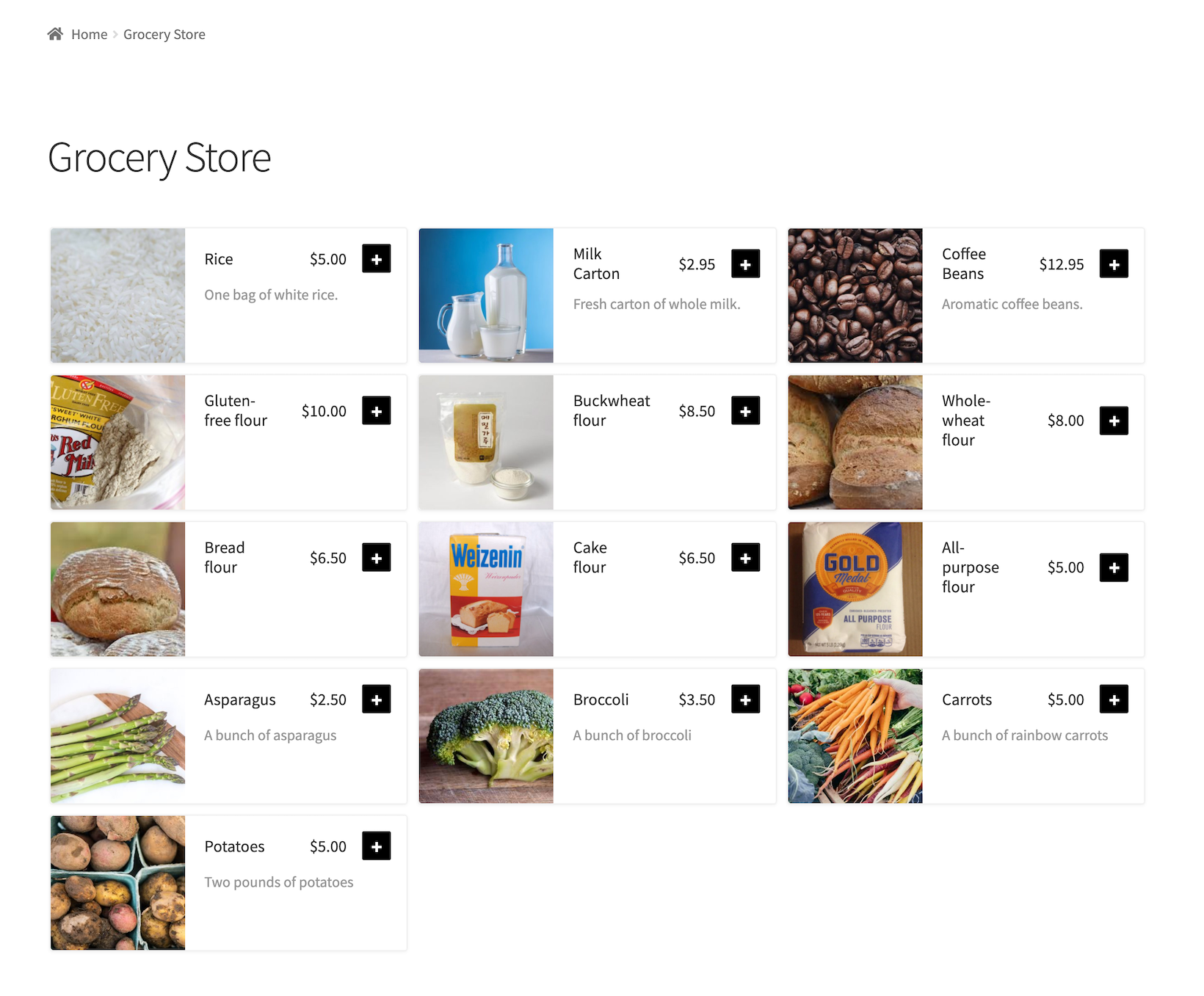
The WooCommerce Restaurant Ordering plugin is designed specifically for selling food products like flour, grains, fruits, and vegetables. The plugin also lets you display food items in a tiled layout on your site's front-end with 1, 2, or 3 columns.

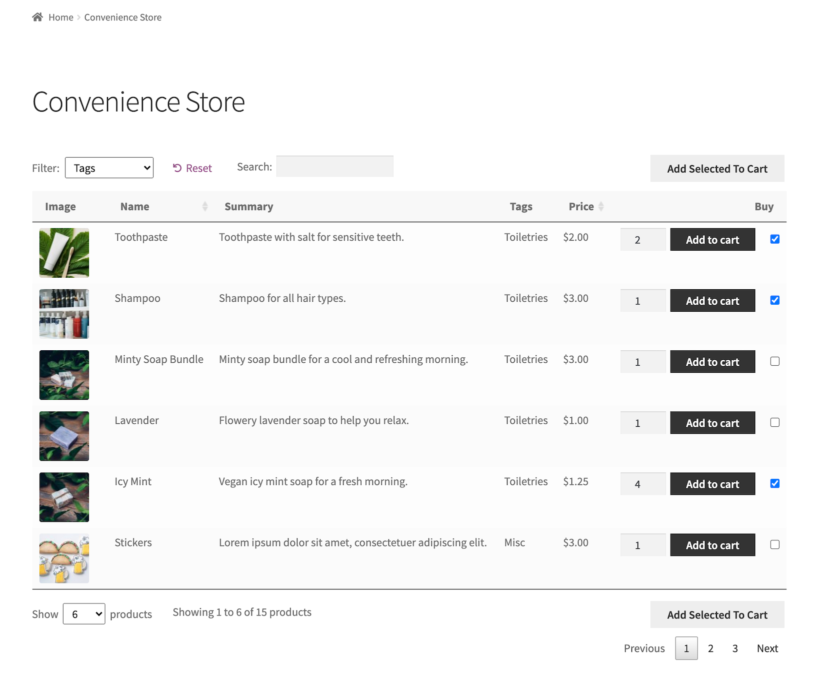
On the other hand, the WooCommerce Product Table plugin is ideal for selling a large number of products, like convenience store products. It comes with searching, sorting, and filtering options out of the box to help people quickly and easily find what they need.

Next, I'll show you how to use each plugin to sell groceries or other convenience store products online.

Before you start

This tutorial assumes that you already have a WordPress website with the free WooCommerce installed, and some products added. If you haven't got that far yet, then checkout this ultimate guide to WooCommerce.

Once you're done, come back here and continue transforming your website into a fully fledged online grocery or convenience store.

Option 1 - How to start selling groceries online using the WooCommerce Restaurant Ordering plugin

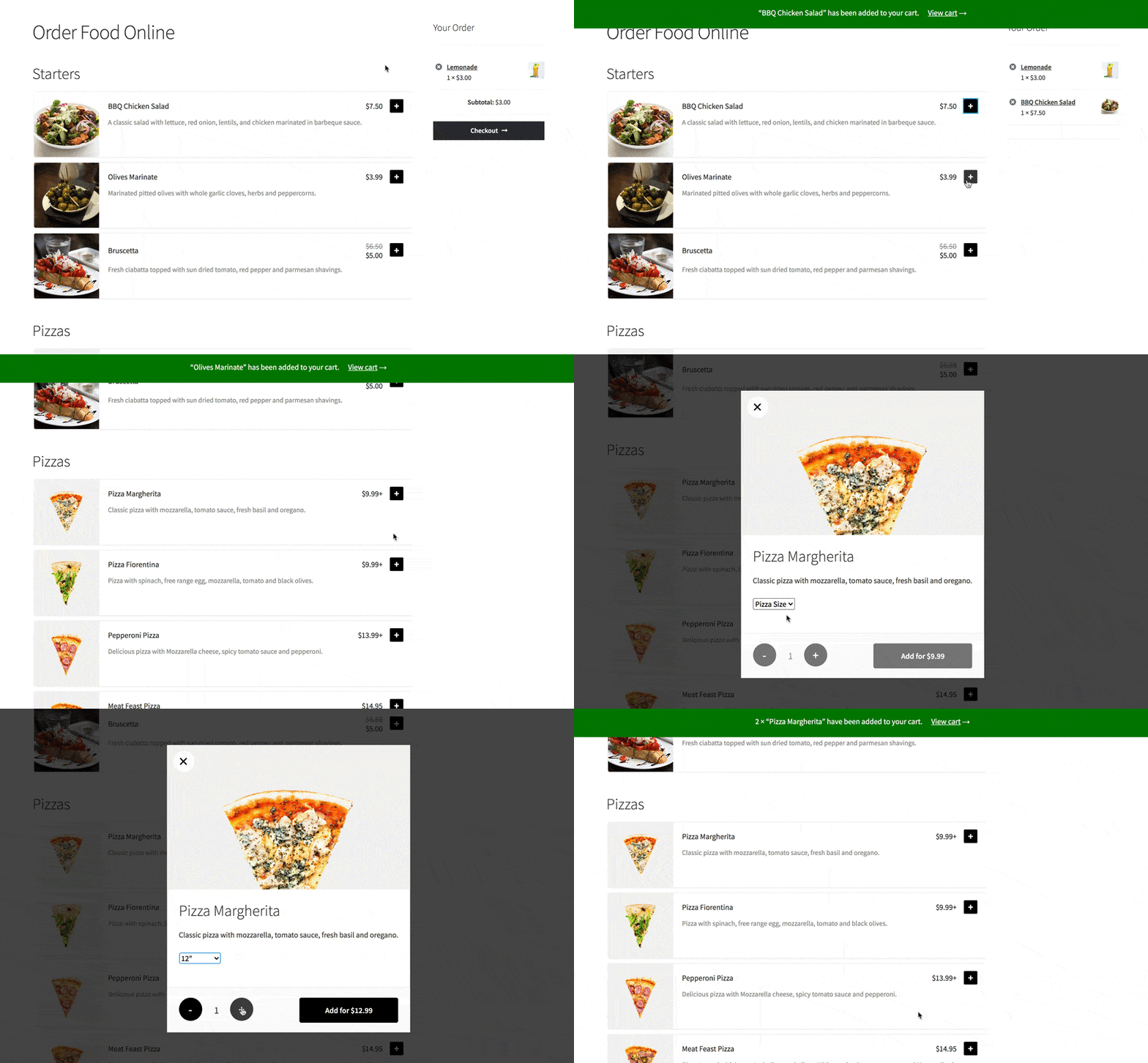
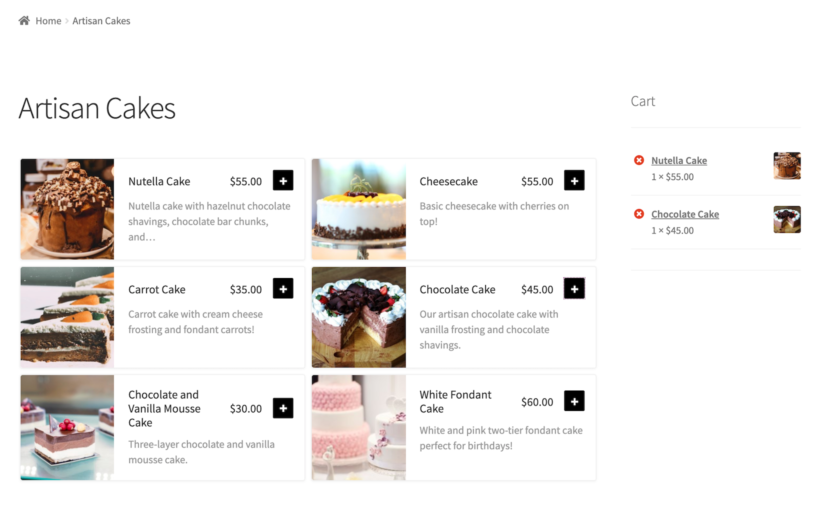
The easiest way to start selling groceries online is by using the WooCommerce Restaurant Ordering plugin. All you have to do is create categories for your grocery food items, and the plugin will automatically list them in a food order form page for you.

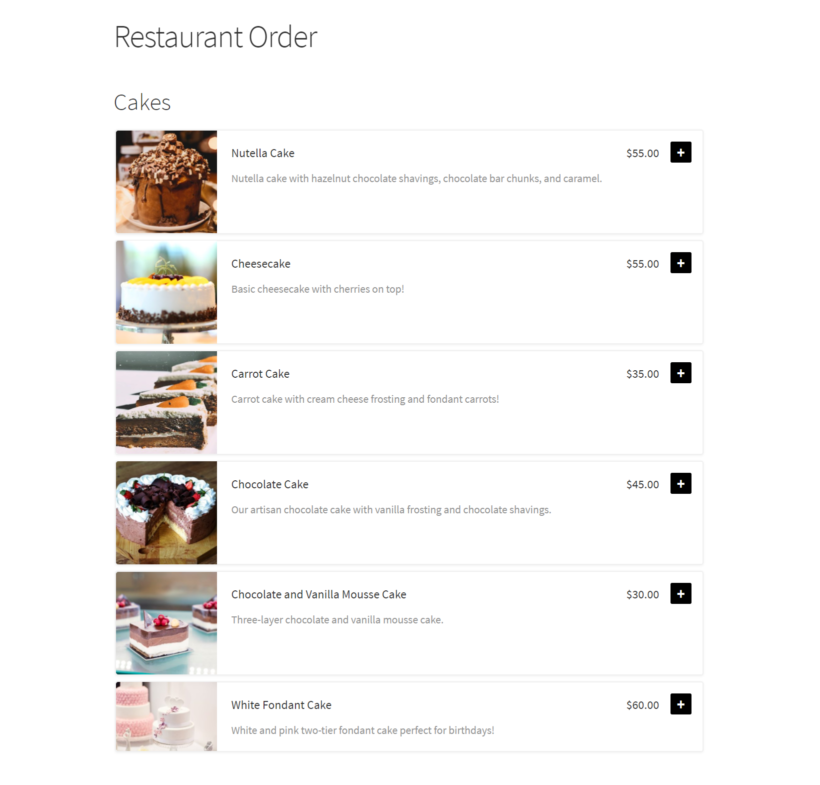
Online grocery store listing food items with prices and add buttons

Here's what you need to do:

  1. Get the WooCommerce Restaurant Ordering plugin and install and activate it to your WooCommerce site.
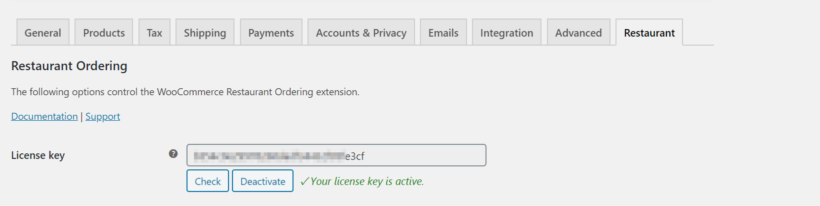
  2. Go to WooCommerce → Settings Restaurant and activate the plugin's license key.
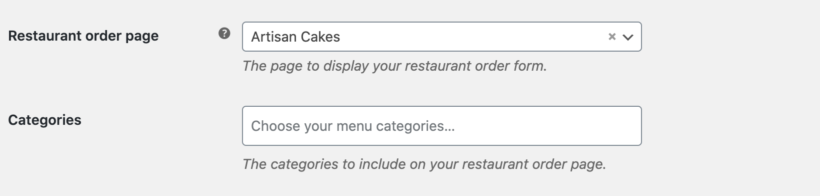
  3. Choose which page you'd like to display the grocery order form on using the Restaurant order page dropdown.
  4. Select which Categories to include in your grocery order form using the dropdown.
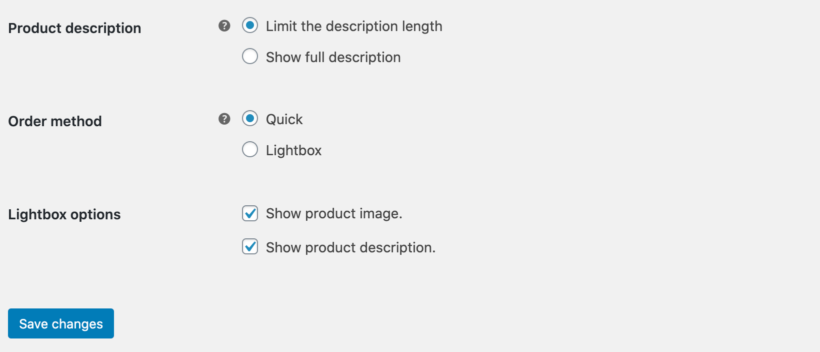
  5. Choose what information you'd like to display about your groceries.
  6. Click the Save changes button at the bottom of the screen to proceed.

Once that's done, go to the main list of Pages in the WordPress admin and find a new page called 'Restaurant Ordering'. Change the name to something more appropriate, and you'll see that this page lists all your grocery products.

Alternatively, you can use the [restaurant_ordering] shortcode to list each grocery category on a separate page or in a tabbed layout or on multiple pages on your website.

You can now start accepting online orders. Customers can view your 'Buy groceries' page and add products to the cart. If you've added variations of your groceries (for example, to provide different size options for the same product) then these will appear in a lightbox. Perfect!

Option 2 - How to set up an online convenience store using the WooCommerce Product Table plugin

Online convenience store product table with search, filters and add to cart

The WooCommerce Product Table plugin makes it easy to set up an online convenience store in WooCommerce in a few simple steps. The first thing you need to do is create categories for your online convenience store items. Do this under Products → Categories.

Once that's done, follow these steps to display your products on the front-end:

  1. Get the WooCommerce Product Table plugin and install and activate it on your website.
  2. Go to WooCommerce → Settings Products Product tables and activate the plugin's license key.
  3. To display the product table on the front-end, either:
    1. Use the [product_table] shortcode to list all the products in a table with a Categories or Tags filter above.
    2. Tick the Table display boxes on the plugin settings page to enable the product table layout throughout your online convenience store. This way, people will see the tables on the shop and individual category pages and can browse the store as needed.
  4. Tick the checkbox next to the Lazy load option under the Loading products section if you plan on selling hundreds of products.
  5. If you have lots of products, then you'll also want to enable the Search and Filter options.
  6. Set the Add to cart button dropdown to either Checkbox only or Button and checkbox. This way, customers can quickly choose quantities, variations, and tick multiple products before adding them all to the cart.
  7. Click the Save changes button at the bottom of the screen to proceed.

Set up local collection and home delivery options

The WooCommerce Restaurant Ordering and WooCommerce Product Table plugins are the perfect way to list grocery and convenience store products in a one-page order form. Once customers add products to their cart, they can proceed to the checkout page.

The WooCommerce plugin handles the entire checkout process. This means that you can give customers the option to collect the grocery items and convenience store products from your physical store, or have them delivered straight to their doorstep like Amazon. You can offer free delivery or charge a delivery fee.

In addition, online grocery and convenience stores can choose to either restrict their customers to a specific local area. Or, they can open up their usual market by offering nationwide (or even international) delivery options.

To take things to the next level, you can let customers choose their collection or delivery time slot. You can easily do this with the WooCommerce Opening Hours & Chosen Times plugin. This way, you can let people choose an exact time slot for their local grocery store delivery or collection.

The delivery slots plugin works seamlessly with WooCommerce Restaurant Ordering and WooCommerce Product Table. Offering delivery services is a great way to enhance the customer's shopping experience.

Set up your online convenience store today!

The WooCommerce Restaurant Ordering plugin makes it easy for customers to purchase grocery items from your e-commerce store. And the WooCommerce Product Table plugin lets you set up an online convenience store and start selling hundreds (or even thousands) of products in no time.

Plus, you can offer grocery delivery services. This gives customers the option to collect their orders from your store or have it delivered to their home the way Amazon does it.

Both plugins come with everything you need to get up and running quickly:

  • Quick plug-and-play setup.
  • In-depth documentation (absolutely no way to get it wrong).
  • Technical support is available if you need any help.
  • 30-day money-back guarantee. Love it or get a full refund - zero risk!

Get the WooCommerce Restaurant Ordering plugin and sell groceries online today through your online grocery store. Or, use the WooCommerce Product Table plugin to set up an online convenience store. Choose the right plugin for your needs, and set it up today!

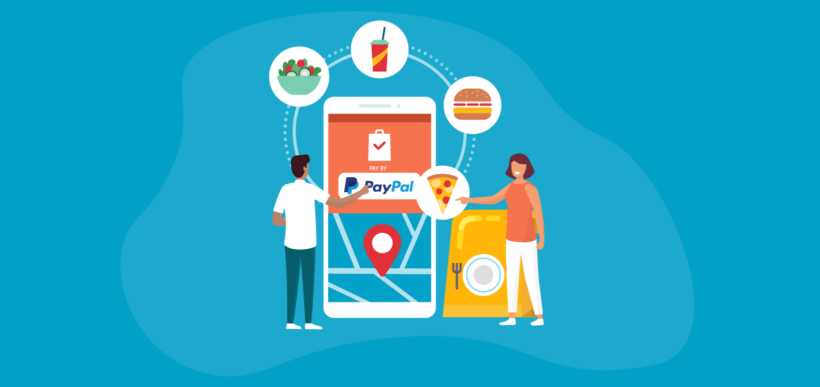
Illustration of ordering food online and paying with PayPal on a phone

By the time you’ve read this article, you’ll know exactly how to set up PayPal for food orders. Your customers will be able to order food using PayPal, just like with hosted services such as Grubhub, Just Eat and UberEats - but with you in control.

Over the past few years, mobile payments have been very popular, and this trend is anticipated to continue as more businesses use this technology. This implies that more restaurants have started accepting cash-less food orders in coming years. Restaurants that set up online food ordering systems have seen a huge increase in takeaway orders! Restaurants are now having to make permanent changes to stay in business longer-term. Online food orders are an important part of this.

Of course, customers LOVE PayPal because it's so easy and they can pay for food orders from their mobiles.

So, how can a restaurant like yours set up online ordering with easy PayPal payments?

By the end of this FREE guide, you’ll walk away knowing EXACTLY:

  • What you need to set up online orders for your restaurant with PayPal payments just like Grubhub, Just Eat or Uber Eats.
  • How to set up all of the components without any technical knowledge or experience.
  • How to do all of this EVEN if you don’t have a website yet!

And the best part? We’ll show you how to automate the whole process.

Why PayPal alone is a terrible way to sell food online

If you’ve used PayPal to accept payments for your products or services, you probably already know that it’s not the best way to sell food online.

The problem with using PayPal for food orders is that you have to log into your PayPal account to create each PayPal payment button individually. After creating the buttons, you paste them on your website. This doesn’t look professional and makes for a terrible user experience.

Order food with PayPal illustration of a tablet menu with PayPal buttons

Further, PayPal doesn't provide a shopping cart system that lets customers order multiple food items at once. This is a major problem since most people need to order more than one food item at a time!

From a back-end perspective, you won’t receive any sort of ‘new order’ notification or customer emails if you use PayPal alone for food orders. You will only receive basic payment notifications from PayPal which may get mixed up with other PayPal emails.

You also miss out on analytics and sales reporting features (like Google Analytics) as well as the ability to integrate with other systems, such as opening hours, delivery slots or the printer in your restaurant’s kitchen.

But what if you could set up PayPal for food orders just like Grubhub - without any of these problems?

The solution – Build a WordPress WooCommerce website for selling food online

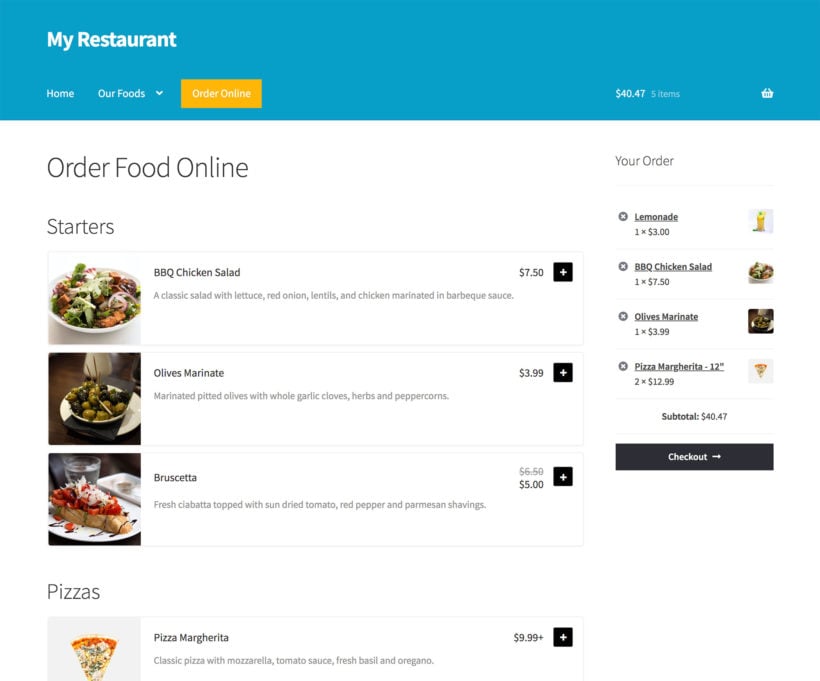
Online food ordering page showing categorised menu items with prices and a live order sidebar for PayPal checkout

A WordPress website with the free WooCommerce plugin is a far better way to sell food online and accept payments via PayPal. The best part is that you can enhance your site’s core functionality using specialized plugins, like WooCommerce Restaurant Ordering. This makes it even easier to showcase your food items and allow customers to place orders.

The WooCommerce plugin offers seamless integration with PayPal as standard, in a much better way than if you were to use PayPal alone to let customers place orders as we described earlier.

It’s incredibly easy to set up. As a result, you can start letting customers order food with PayPal today!

Plus, this is mobile-responsive, which means it will work seamlessly on iOS and Android devices without requiring customers to download a mobile app first.

Setting up PayPal payments for food orders

If you don’t already have a WordPress website set up with the WooCommerce plugin installed, check out this complete guide on how to get started.

Once you’ve set it up and added some food items as WooCommerce products, come back to this tutorial to learn how to set up PayPal payment options for food orders.

Step #1: Get the WooCommerce Restaurant Ordering plugin

Purchase the WooCommerce Restaurant Ordering plugin and install and activate it on your WordPress website. You'll receive a license key with the plugin files.

Entering and activating the Restaurant Ordering license key in settings

Go to WooCommerceSettingsRestaurant and enter the license key in the License key field.

Click the Save changes button at the bottom of the screen to continue.

Step #2: Customize your restaurant food order form

The WooCommerce Restaurant Ordering plugin automatically creates a front-end food order form for you once you activate the license key. However, you can customize the food ordering page in a variety of different ways.

For example, you can set the restaurant order page, select which product categories to showcase in the food ordering form, set the number of columns, choose an order method, and much more. You can also add your opening hours and prevent PayPal food orders from coming in while you're closed.

Check out the plugin's documentation for step-by-step instructions.

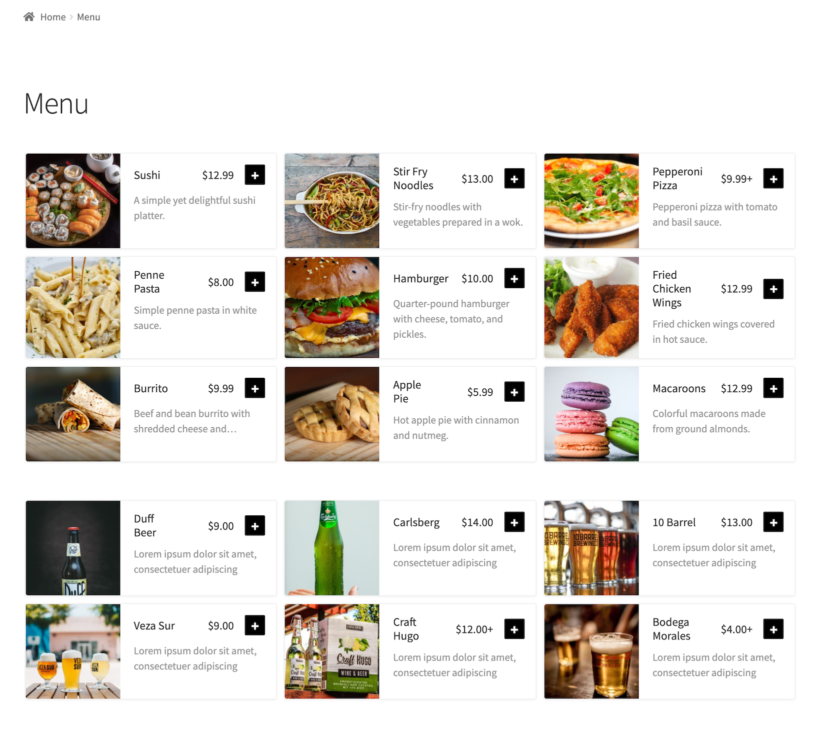
Based on your configuration settings, your food order form might look something like this:

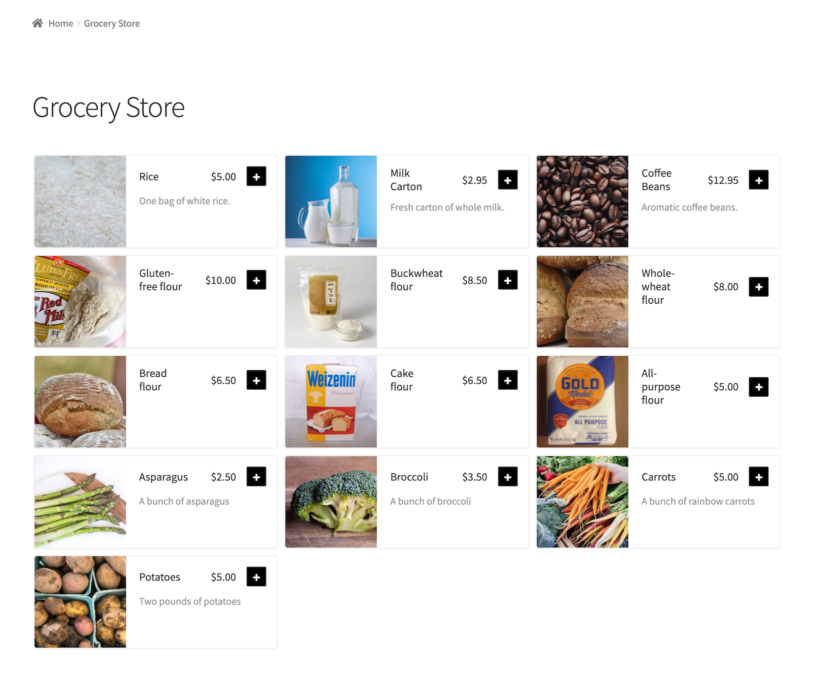
Food order form with menu items and add buttons ready for PayPal payment

Customers can click the (+) icon to add food items to their shopping cart and proceed to checkout.

Step #3: Set up PayPal payments

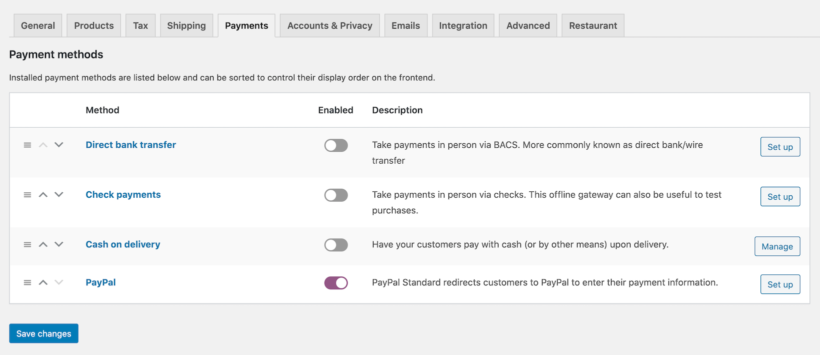
Now that your restaurant food ordering form is set up, the final step is to start accepting payments for food orders via PayPal. For this, head over to WooCommerceSettingsRestaurant from the admin area.

WooCommerce payment methods with PayPal enabled for food orders

Next, enable the PayPal payment method option and click the Set up button to start setting it up. Enter your PayPal email address in the PayPal email field. You can also configure other settings on the same screen based on your preferences.

Click the Save changes button to proceed.

When customers proceed to checkout, they'll be able to make pay for food orders with PayPal:

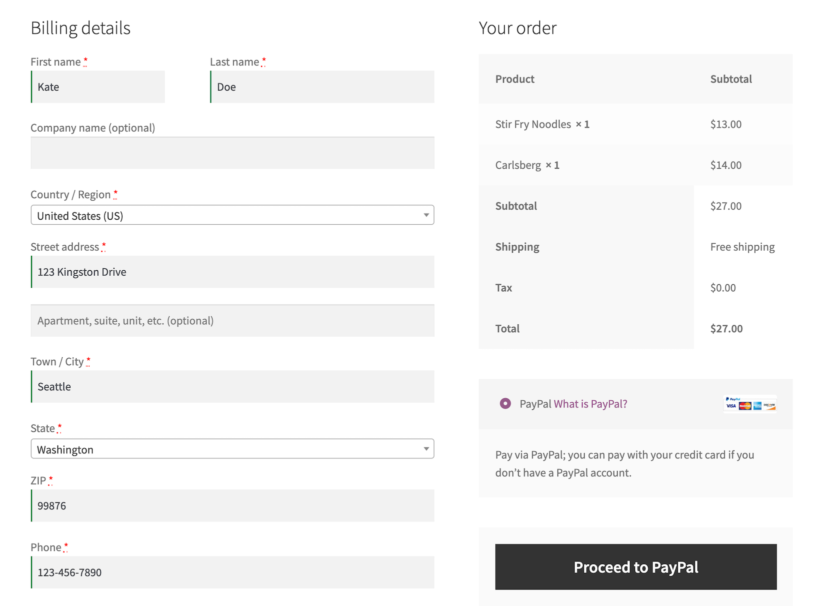
Checkout with billing details and a Proceed to PayPal button for a food order

That's it! Now, you can let customers place food orders and accept payments through PayPal.

Adding extra features to your PayPal-powered food ordering system

The great thing about using WordPress and WooCommerce to set up your PayPal-powered food ordering system is that you can add extra features to it using plugins. For example, you can set up food delivery slots and printing solutions that print orders straight to your restaurant’s kitchen.

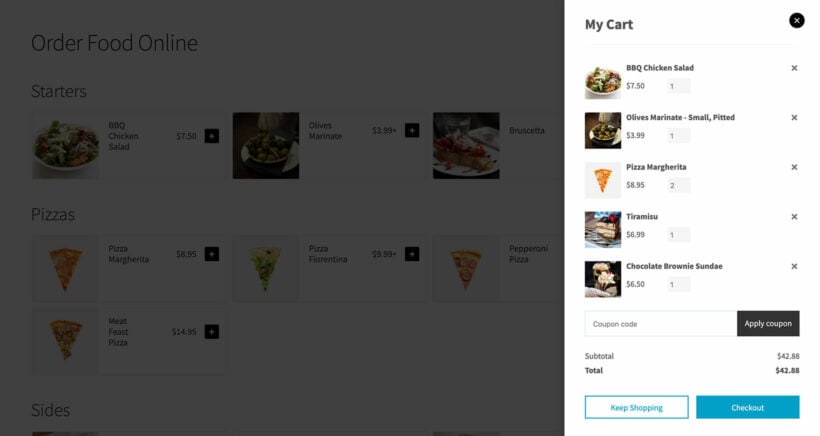
Popup cart and checkout

WooCommerce restaurant floating cart

The WooCommerce Restaurant Ordering plugin lets customers add their food items to the cart from one page. However, WooCommerce itself still takes customers through multiple pages in order to complete their order.

To speed up the cart and checkout, install WooCommerce Fast Cart. This adds an instant floating cart to the page as soon as the customer adds products to their cart. They can then review their selections, enter their details and pay from directly in the popup.

WooCommerce Fast Cart is fully compatible with the WooCommerce PayPal Checkout Payment Gateway. This lets you add PayPal Checkout buttons to the popup cart, making it even easier for customers to 'Buy Now' and place a PayPal food order.

Delivery time slots

The WooCommerce Opening Hours and Delivery Times plugin lets customers choose a delivery time slot for their food delivery orders similar to Eat24 Food Delivery. This makes it easy to manage food orders, especially on high-traffic days.

For example, the plugin gives you the option to restrict the number of food order bookings in each time slot. In addition to this, you can set how far in advance customers should place their food orders before their delivery or takeout time slot. You can also decide how many food orders to accept within each food delivery time slot so that the kitchen doesn’t exceed capacity.

The plugin also lets customers book a delivery time slot before they add food items to their cart in order to avoid disappointment at the checkout page. This is especially useful for local restaurants that want to let customers order online and offer food delivery services.

Print orders to the kitchen

There are a variety of WordPress plugins available that let you send new food orders straight to the kitchen and print them for staff. This is possible with the WooCommerce Automatic Order Printing plugin.

Want to set up online ordering for your restaurant with PayPal payments in 30 minutes?

This plug-and-play solution was specially designed to help stop restaurants from going out of business during the Coronavirus pandemic. PayPal food orders are now essential as part of the ongoing order management of any restaurant.

You can use the WooCommerce Restaurant Ordering plugin to set up your online food ordering system and accept payments via PayPal, credit card, or debit card just like Grubhub or Dominos. No technical knowledge is required:

  • Plug-&-play setup for the plugin.
  • FREE tutorial showing you every step and every click you need to do (absolutely no way to get it wrong).
  • Technical support is available if you need any help
  • 30-day money-back guarantee. Love it or get a full refund, 0 risks.

Get the WooCommerce Restaurant Ordering plugin here and start getting orders TODAY!

Illustration of products showing Log in for price buttons instead of prices

WooCommerce doesn’t hide prices until login by default. You can fix this with the WooCommerce Wholesale Pro plugin, which hides prices and "Add to Cart" buttons from logged-out users. By the end of this guide, you’ll know how to set up custom login prompts for guests while showing authorized pricing to logged-in users.

By default, WooCommerce shows prices to everyone, including visitors who haven't logged in. This guide shows you how to change that using WooCommerce Wholesale Pro, ensuring only registered users can see prices and place orders.

Many store owners, particularly those running wholesale-only shops, need to restrict pricing to a member-facing interface. Restricting visibility ensures that only approved customers or wholesalers can view costs and complete a purchase. Since WooCommerce doesn't offer a native setting to hide pricing from guests, a dedicated plugin is the most effective solution.

We built Wholesale Pro specifically for stores like this. It started when we noticed that the most common use of our Protected Categories plugin was wholesale, and those customers needed more than category restrictions: role-based pricing, wholesale registration, and wholesale-only payment, shipping and tax options. So we built a plugin designed around the wholesale workflow from the start.

If you’re in this situation, the setup is straightforward. In this tutorial, we’ll explain how to configure your store in a few simple steps. There is no technical knowledge required, so you can quickly manage your shop's visibility and protect your margins from unauthorized viewers.

Why hide price until login?

There are many different types of stores that want to let everyone browse their online store and view their product catalog while hiding prices. Many times, these online store owners want to show prices, product options, and purchasing options to logged-in users only. To ensure that only registered users can view product prices and access the add to cart button, it's crucial to implement the login to see add to cart and prices in WooCommerce feature, which will hide prices and 'add to cart' buttons for guest users.

Hiding prices until login can be a powerful strategy for WooCommerce stores that sell to wholesale customers or have a membership-based model. By controlling price visibility, you not only maintain exclusivity but also encourage potential buyers to register, boosting engagement and customer retention

Katie KeithFounder & CEO

Hiding prices from guests is a common need for wholesale and members-only stores, and it's straightforward to set up once you have the right plugin.

Free vs paid plugins to hide prices until login in WooCommerce

When looking to hide prices from guests, you’ll find several free plugins in the WordPress.org repository, such as Hide Price Until User Login For WooCommerce. While these are excellent for simple sites, it’s important to understand where they fall short compared to a professional solution like WooCommerce Wholesale Pro or WooCommerce's own Hide Prices & Private Store plugin.

The Limitations of free plugins

Free plugins generally offer a "one-size-fits-all" approach. They typically hide prices globally across your entire store. This works if you want a basic catalog mode, but it lacks nuance. For example, most free versions don't allow you to:

  1. Target specific categories: You might want to hide prices for high-end machinery but keep them public for small parts. Free plugins rarely offer this level of control.
  2. Support multiple user roles: If you have different tiers (e.g., Retail, Silver Wholesale, and Gold Wholesale), a free plugin usually treats everyone who is "logged in" exactly the same.
  3. Include a registration system: Hiding prices is only half the battle. You also need a way for users to register for access. Free plugins often require you to install additional, separate plugins to manage user approvals.

Why invest in a paid plugin?

A premium plugin like WooCommerce Wholesale Pro is designed for businesses that need to balance public visibility with private pricing. It’s worth the investment if you require:

  • Granular control: You can hide prices globally, by product category, or even for specific user roles while keeping your shop SEO-friendly.
  • A complete ecosystem: It includes a built-in new user registration and moderation system. This means you can vet new customers before they gain access to your pricing, a must-have for B2B and wholesale operations.
  • Role-based pricing: Instead of just showing the "normal" price after login, you can display unique discounts based on the user's role.

If you simply want to hide every price on your site with no exceptions, a free plugin is a fine starting point. However, if you are running a professional store, need to approve your members, or want to offer tiered pricing, a paid solution is the only way to ensure a seamless experience for both you and your customers.

Use cases for a wooCommerce hide price until login plugin

  • Wholesale stores that don’t sell directly to the general public and only want to show prices to wholesale customers. A WooCommerce hide price until login plugin enabled everyone to browse your inventory, while only allowing pre-approved wholesale users to register, see prices or purchases.
  • Manufacturers publish details of their products on their websites but only allow approved resellers to purchase from them.
  • WooCommerce members-only stores where people have to join a club or buy a membership before making a purchase. Letting prospective customers browse products without prices encourages them to create an account via a custom WooCommerce registration form. This allows store owners to build an email list and retarget customers more effectively. In addition, it allows them to let visitors browse their products and increases their store’s online visibility.

Displaying your products publicly, while hiding prices and buy buttons from logged out users, is the perfect solution. You get the SEO benefits of having this important information available to all, and the business benefits of only allowing pre-approved customers to see prices or purchases.

Even though WooCommerce Wholesale Pro is primarily aimed at wholesale stores, it can be an ideal solution for any online store that wants to use the WooCommerce show price after login feature to hide prices and disable purchasing options for logged-out users and guests.

How to use WooCommerce Wholesale Pro to hide prices until login

With the WooCommerce Wholesale Pro plugin, you can easily hide prices until login for your store’s visitors and customers. You can either hide prices completely or display alternate content in their place. For example, you could add a 'Login to view prices and place an order message, linking to your login page. You can also check out the plugin documentation for step-by-step instructions.

For this tutorial, we’ll assume you already have the WooCommerce plugin set up on your WordPress website and some products added to your store.

Step #1: Get the WooCommerce Wholesale Pro plugin

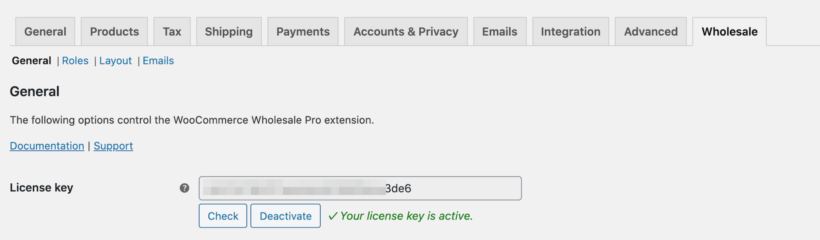
The first step is to get the WooCommerce Wholesale Pro plugin and install and activate it on your WordPress website. You’ll receive the plugin files along with a license key. Copy this to your clipboard.

Activating the Wholesale Pro license key in the WooCommerce settings

Log into your WordPress dashboard and head over to WooCommerce → Settings Wholesale General. Paste the license key in the License key field and click the Save changes button.

Step #2: Configure the plugin’s settings

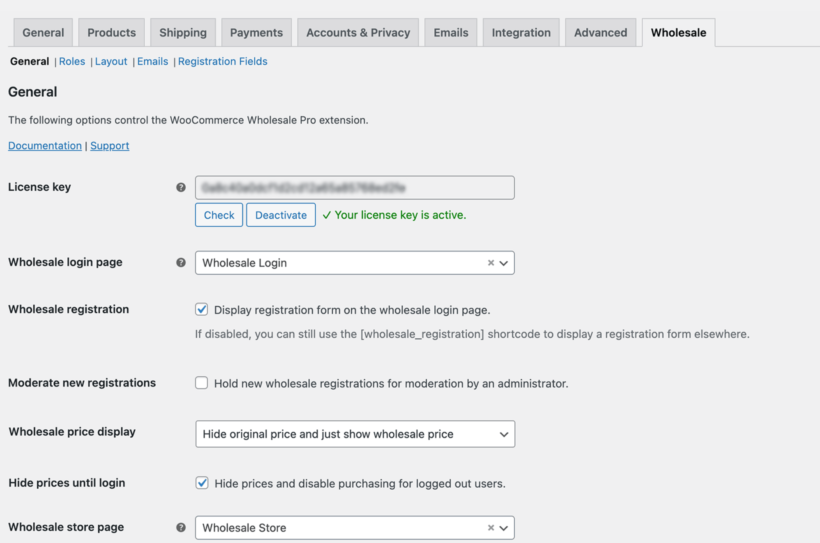
From the same screen (i.e. WooCommerce → Settings Wholesale General), tick the checkbox next to the Hide prices until login option as shown in the screenshot below:

Hide price until login

This will automatically hide product prices and any information in the add to cart area.

More specifically:

  • Logged out users (non-logged-in users) will be able to browse products and view product pages as usual. However, if a user is not logged in and has not used the login to see add to cart and prices in WooCommerce feature, they will not have access to price information or the add to cart option. This also applies to other user roles such as Subscribers. Put simply; they will only be allowed to browse the store in catalog mode.
  • Logged in users with a non-wholesale role (e.g. Customers) will see the normal price for each product.
  • Logged in users with a wholesale role will see the correct wholesale price for their role.

Next, we’ll show you how to create WooCommerce wholesale user roles with wholesale pricing. If you're only utilizing WooCommerce's hide price if not logged in feature to conceal prices from visitors and not creating a wholesale store, you can skip the next steps.

Step #3: Add wholesale user roles and prices (optional)

Go to WooCommerce → Settings Wholesale Roles from the WordPress admin panel and click the Add new role button. From here, you can manage your WooCommerce user roles by either adding a global percentage discount to the default wholesale role or creating extra roles, each with its own specific role-based discounts.

Wholesale user role settings with a display name and percentage discount

If you want all new wholesale registrations to be assigned this user role automatically, tick the checkbox next to the Default role option. In addition, if you want to set exact wholesale WooCommerce prices for specific products instead of offering a percentage discount, tick the checkbox next to the Product specific pricing option.

Click the Save changes button to proceed.

You can create as many wholesale user roles as possible by following the steps outlined above.

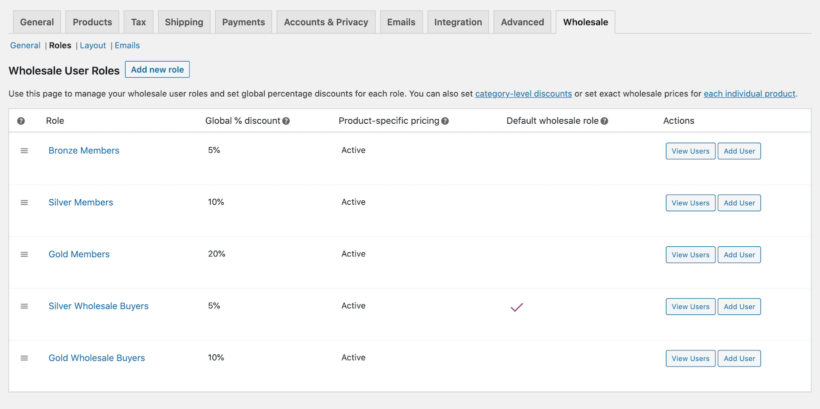
Wholesale user roles list with global percentage discounts for each role

For example, if you want to create a members-only WooCommerce store, you would simply create user roles for the different memberships you offer. You might have user roles for Bronze Members, Silver Members, and Gold Members.

How to hide the add to cart button until login in WooCommerce

By default, WooCommerce is designed to encourage immediate purchases, but many business models require a layer of exclusivity. When you use the WooCommerce Wholesale Pro plugin, the process of hiding the add to cart button is handled automatically. You don't have to worry about configuring separate rules for the price and the add to cart buttons as the plugin is designed to hide both elements simultaneously.

Once you have enabled the "Hide prices until login" option, the plugin automatically removes the "Add to Cart" button from both the single product page and the main shop archives for logged-out users. In its place, the plugin displays your custom lead-in text or a login link, ensuring the call to action is replaced with a prompt to log in or register. This creates a clean, professional catalog appearance that protects your margins while maintaining a high-quality user experience for guest browsers.

This feature also extends to more complex product setups. Any variation selectors, product add-on fields, or booking calendars are automatically hidden from view until the user authenticates, preventing guests from interacting with product options before they are authorized to see the price.

How to show a login to see prices message in WooCommerce

When you hide prices from guest users, it is important to provide a clear call to action so they know how to gain access. Rather than simply leaving a blank space where the price and buy buttons used to be, WooCommerce Wholesale Pro allows you to display a custom "Login to see prices" message.

Once you enable the 'Hide price until login' option, an 'Alternate content' field will appear immediately underneath. This field is fully customizable. While it displays as plain text by default, you can incorporate HTML or shortcodes to make the prompt more functional. For example, you can include a direct link to your login or registration page with a message like: "Please log in to view prices."

By using this feature, you guide prospective customers toward the next step in the journey. In the example below, the message has been placed in a styled box to make it more prominent on the single product page, ensuring visitors don't miss the instructions on how to access your exclusive pricing.

Single product page hiding the price until login with a custom notice
Optionally display alternate content on the single product page

Front-end pricing preview: Guest users vs. logged in users

Let’s take a look at what the online store will look like to guest users, logged in customers, and logged in wholesale users on the front end:

And here’s what the single product page will look like:

It hides prices until login for visitors and guests. On the WooCommerce main shop page, guest users will only be able to see some product detail, including the product image, ratings, sales banners, and a Read More button redirecting them to the single product page. And, on the single product page, you’ll notice that both the product’s price and add to cart options are hidden.

In order to view product prices and purchasing options, customers will have to log into their accounts.

When a user with the Customer user role logs into their account, they’ll see regular product prices (i.e. without discounts). In addition to this, they’ll also see the product prices, purchasing options (including variations), and the add to cart button on the single product pages.

When wholesale user logs into their user account, they’ll be able to see the product prices with the percentage discount applied to it (or the exact wholesale price you’ve set for the individual product). They’ll see the same wholesale rates on the single product page along with product purchasing options.

This way, they can add products to their shopping cart and proceed to the checkout page. All of this is possible without messing around with HTML/CSS code or adding code to the functions.php file via FTP.

How to hide prices for specific product categories for logged-out users

Can I hide prices for specific product categories only?

Yes. WooCommerce Wholesale Pro allows you to hide prices for specific categories rather than your entire store. You can manage these visibility settings per category within the standard WooCommerce category settings in your WordPress admin.

WooCommerce product categories with wholesale discount fields and hide price until login visibility option

If you want to hide the price of certain product categories only for users who are not logged in, follow these steps:

  1. Navigate to the Products → Categories section and select the category you wish to edit.
  2. Look for the 'Hide price until login' option, which offers three settings:
    • Use the global or parent category setting (the default) - this means the global setting (as described earlier) will be applied.
    • Hide prices from logged-out users - this means users who are not logged in will never see the price of products in this category, regardless of the global setting.
    • Show prices to logged-out users - this means users who are not logged in will always see the price of products in this category, regardless of the global setting.
  3. To control what shows up in place of the price for all hidden price categories, use the global 'Alternate content' field. Note that subcategories will inherit the parent category's setting unless you specifically hide the price for the subcategory.

In cases where a product belongs to multiple categories with different WooCommerce hide until price if not lo settings, WooCommerce Wholesale Pro will prioritize the most secure approach and hide the price from users who are not logged in.

List products without prices in quick order forms

If you have implemented the WooCommerce different price for logged in users feature to hide prices from non-registered guests and visitors, it's likely that your customers are already familiar with your products and services. As a result, they need a quicker way to select multiple products, choose variations, and add to the cart.

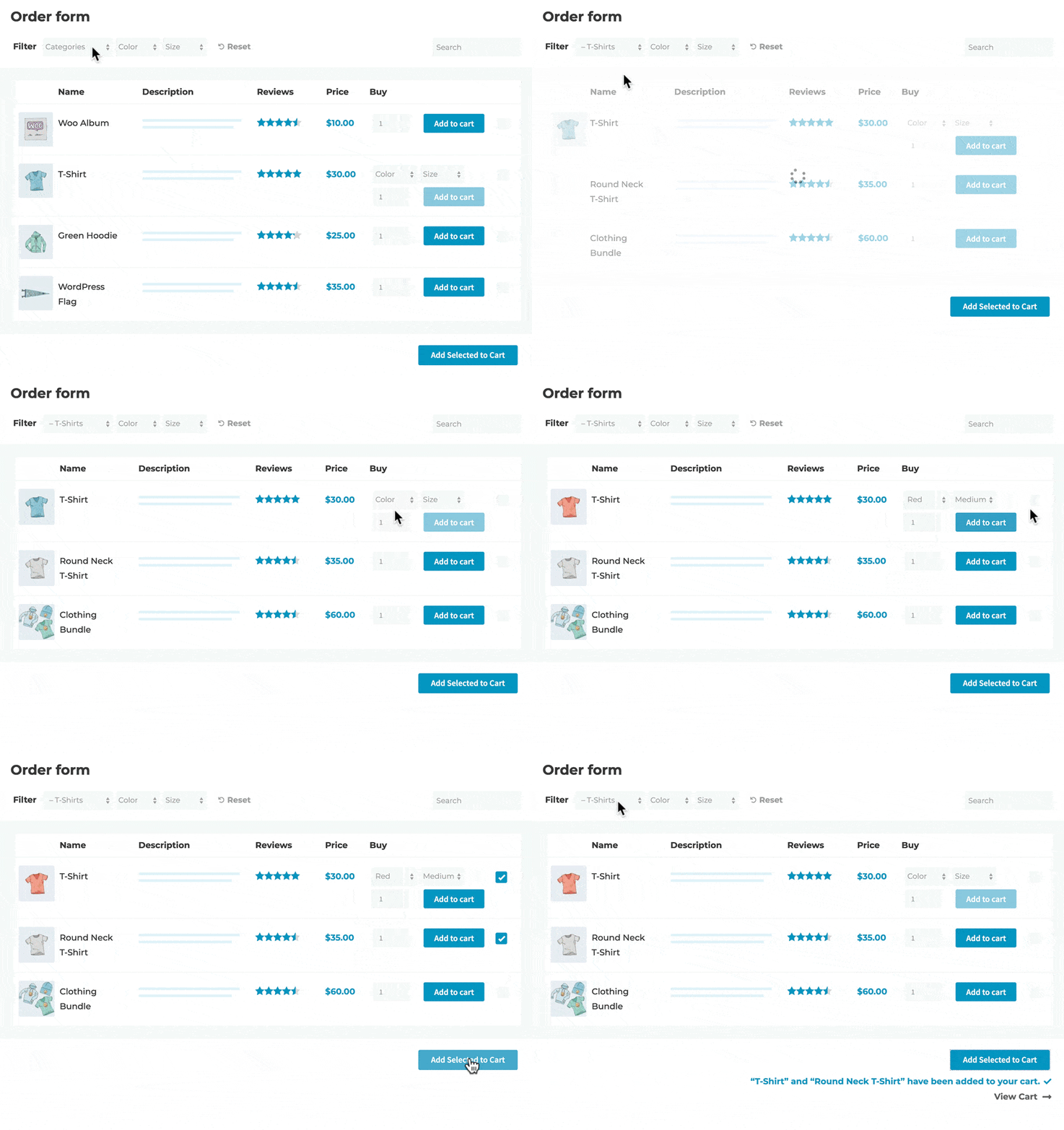
You can do this by using WooCommerce Wholesale Pro with the WooCommerce Product Table plugin, which you can buy together as a two-plugin bundle. It displays any or all of your products in a quick order form layout like this:

Products displayed in a quick order form table with filters and add to cart

You can choose whether to enable the order form layout for guests and/or logged in wholesale users. It's an excellent way to speed up shopping, and therefore to increase your sales and conversions.

How to programmatically hide prices until login

You can also hide prices from guests using a simple code snippet instead of a plugin. This method works well for developers or those comfortable editing theme files.

To get started, add the following code to your child theme’s functions.php file or via a plugin like Code Snippets:

add_filter( 'woocommerce_get_price_html', 'hide_price_for_guests', 10, 2 );
function hide_price_for_guests( $price, $product ) {
    if ( ! is_user_logged_in() ) {
        return '<p class="login-to-see-price">Please <a href="' . esc_url( wp_login_url( get_permalink() ) ) . '">log in</a> to see prices.</p>';
    }
    return $price;
}

This snippet checks whether the current user is logged in. If they’re not, it replaces the product price with a login prompt that links to the WooCommerce login page. Once logged in, users will be able to see the prices as normal.

You can customize the login message or style it with CSS as needed to match your theme. This is a simple way to create a WooCommerce hide price until login experience without a plugin, but there are limitations, and you have to maintain the custom code yourself, through all future updates of WooCommerce and WordPress.

How to allow users to request a quote

Instead of simply hiding prices until login, you might want to offer a more interactive experience by setting up a WooCommerce request a quote system. This is especially useful for stores selling custom products, bulk items, or offering specialized B2B pricing.

Using the WooCommerce Product Options plugin, you can create a "Request a Quote" system by adding custom fields to your product pages. For example, you could add a checkbox labeled Request a quote, a text box for additional notes, or even a file upload field. This gives customers a direct way to ask for pricing information based on their specific needs.

WooCommerce product page showing a Request a quote checkbox, notes field, and photo upload option added via Product Options

While this is a great solution for individual products, it’s worth noting that WooCommerce Wholesale Pro offers a much more complete system. It automatically hides prices from guests, supports role-based pricing, and lets you create a members-only wholesale area. So if you're running a B2B store or need more control over pricing visibility and user roles, it’s a more comprehensive alternative to using a basic code snippet.

How to hide prices for wholesale customers only in WooCommerce

Understanding the distinction between global price visibility and role-based pricing is crucial for maintaining a professional storefront. WooCommerce Wholesale Pro provides two distinct layers of control to manage these scenarios effectively.

When the "Hide prices until login" option is enabled, your store essentially becomes a public showroom. Logged-out guests can browse your product range, but the prices and "Add to Cart" buttons are completely hidden. This is the ideal strategy if you want to protect your pricing strategy from competitors or the general public while still benefiting from SEO by keeping your products crawlable. Once a user logs in, the plugin "unlocks" visibility based on their specific account type.

While the first scenario controls who sees prices, role-based pricing controls what price they see. This is specific to logged-in users. A standard customer will log in and see the retail price, whereas a user assigned a specific Wholesale Role will see the discounted rates assigned to them. You can even customize the display, such as showing the wholesale price next to a crossed-out original price to emphasize the savings.

The plugin allows you to layer these features. You can hide all prices from the public to eliminate doubt about your market positioning, then automatically reveal standard prices to retail customers and exclusive discounts to wholesale partners upon login. This ensures a seamless, "plug-and-play" experience for every user segment.

Next step: Hide price until login with WooCommerce Wholesale Pro

Transform your store into a private wholesale portal with the "Hide Prices Until Login" feature. This setting protects your competitive margins by ensuring that only verified, registered customers can access your pricing.

By tailoring visibility based on user roles, you not only build a high-quality, professional shopping experience but also rapidly grow your member database. It’s a sophisticated way to manage a hybrid B2B and B2C store without the need for a second website.

Get Started Risk-Free:

  • Plug-and-play setup: Built with clean, optimized code for immediate compatibility.
  • Comprehensive documentation: Clear, step-by-step guides to get you running in minutes.
  • Expert support: Our technical team is ready to assist if you have any questions.
  • 30-day money-back guarantee: Love the results or get a full refund, completely risk-free.

Get the WooCommerce Wholesale Pro plugin today to hide prices until login!

Illustration of a printer producing a printed WooCommerce product list

By the time you’re done reading this article, you’ll know exactly how to print a WooCommerce product list with whatever product information you’d like.

Having a printed list of your WooCommerce products – on paper or PDF – makes it easy to manage inventory, especially for brick and mortar stores. For example, you can cross off items you’ve already ordered from suppliers, add notes, and share it with your team.

However, WooCommerce doesn’t offer features out of the box that let you print WooCommerce product lists. Additionally, WooCommerce makes it difficult to print a list of products because the products are split across multiple pages with large images and very little product information. Most of the product information is only available on single product pages.

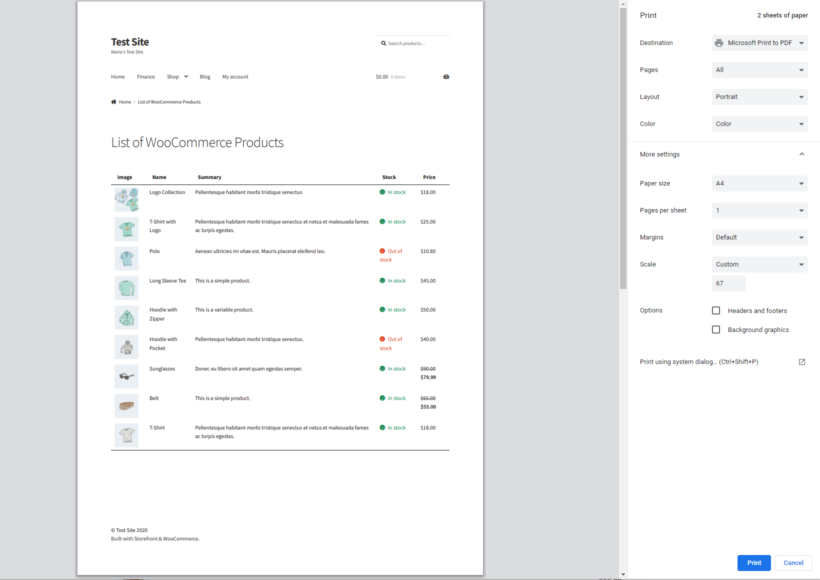
Browser print option

If you’re looking for a way to print your list of WooCommerce products then don’t worry! This in-depth guide will teach you how to print a WooCommerce product list in a few simple steps:

And the best part? We’ll show you step-by-step how you can print your WooCommerce product list. It’s quick and easy and there’s no technical knowledge required to follow this tutorial. You can set everything up and print your list of WooCommerce Products in under 10 minutes!

Why you might want to print a list of WooCommerce products?

As a WooCommerce store owner, there are plenty of scenarios where you might need to print a list of WooCommerce products.

For example, if you’re running a brick and mortar store, your customers might ask for a print out of your product catalog. The easy way to do this is by printing it out directly from your website, either on paper or as a PDF that you can email to them.

You can give them a print out of your entire product PDF catalog or the product category they’re interested in, e.g. Shoes and Sandals. This is much easier than printing out several product pages!

Similarly, when you print your WooCommerce product list, it’s much easier to add notes to it and share it with your team. For example, you might need to take stock of your inventory and see which products you need to place orders for. Or, you might need to have a print of your WooCommerce products along with their QR codes. Maybe your sales staff need a printed order form for manual orders.

It’s also important to print a WooCommerce product list that’s easy to read. In other words, you don’t want to simply export your products as a CSV and then print that.

How to print a WooCommerce product list

The WooCommerce Product Table plugin makes it incredibly easy for online store owners to print a WooCommerce product list. We’ll assume you already have the WooCommerce plugin installed on your WordPress site and some products added to it.

Here, we’ll walk you through a step-by-step tutorial explaining how to set everything up.

Step 1: Get the WooCommerce Product Table plugin

The first thing you need to do is purchase the WooCommerce Product Table plugin and install it on your WordPress website. You’ll receive a license key in the confirmation email along with the plugin files.

Step 2: Create a printable WooCommerce product list

To create your first product list, go to ProductsProduct Tables → Add New. You can then use the table builder to configure the printable list of products as needed. I'll walk you through the most important options.

2a. Decide where to display the printable product list

The first step of the table builder asks you how you want to add the printable product list to your WordPress site:

First step of the WooCommerce Product Table builder choosing how to add the table

Select 'Add to a page using a block or shortcode' if you want to create a printable product list without affecting your main shop and category pages. When you do this, then the next page will let you choose exactly which WooCommerce products to list. For example, you can select specific products, categories, and lots more:

Choosing which products to list in the WooCommerce product table builder

Alternatively, select 'Display on a shop page' if you want to replace your default store layouts with the printable product list. However, you probably don't want to do this if you're creating a new page for printing products.

2b. Add data to the printable WooCommerce product list

The next page lets you add columns of product data. Use this to add the product information you’d like to display in your printable product list. Since this will be a printout, you won’t need the add to cart buttons column or any other checkout options.

Choosing which columns to show in the WooCommerce Product Table

For example, if you want to display the product image, SKU, name, product description (or short description), stock, and price, you’d add columns for image, SKU, name, description, stock, and price.

If you decide to include the product image in your printout, you can set the image dimensionsusing the Image Size option. This appears when you edit the image column.

Step 3: Customize the WooCommerce product list

By default, the WooCommerce Product Table plugin adds a variety of table elements to the front-end. This includes a search box, filters, and page length.

While this is incredibly useful for site visitors, you probably don’t need any of these features when you’re printing your WooCommerce product list.

The good news is that you can easily hide the page elements you don’t need from the plugin settings page. Do this at Products → Product Tables → Settings.

Product table controls hiding the search box, pagination and other elements

Scroll down to the Table controls section and set the:

  • Page length option to Hidden using the dropdown menu.
  • Search box option to Hidden using the dropdown menu.
  • Product totals option to Hidden if you want to hide them. Else, you can set it to Above table or Below table if you want to display the product totals.
  • Pagination buttons option to Hidden using the dropdown menu.
  • Make sure the checkbox next to the Reset button option is unticked.

Step 4: Add your WooCommerce product list to a page

The final page of the table builder included a shortcode for adding it to a page. Copy this, or find it later at Products → Product Tables.

You can then add the shortcode (or a 'Product Table' block if you're using the WordPress block editor) to a page. This will insert your printable list of WooCommerce products.

The end result should look something like this:

Printable WooCommerce product list with images, stock and prices

Step 5: Print your WooCommerce product list

The easiest way to print your WooCommerce product list is by using the Control + P option that most web browsers (like Google Chrome) support.

Browser print option

Simply click the Print button to print out the WooCommerce product list.

You can also use the Print, PDF, Email by PrintFriendly WordPress plugin that adds buttons allowing users to print any page in a print-friendly layout, save it as a WooCommerce PDF, or send a link via email.

WooCommerce product table plugin with print and save to PDF

You can configure the plugin’s settings in different ways based on your personal preferences. For example, you can choose from a range of pre-designed buttons or upload your own.

PrintFriendly settings for choosing the print button style and text

There are also some basic styling features available such as text size for your print and PDF layouts. Additionally, you can further style it using CSS.

The WooCommerce Product Table plugin lets you print WooCommerce products lists in a way that’s easy for humans to read.

In addition to this, it lets you choose which information you’d like to showcase in the product list and lets you sort the WooCommerce store product list by SKU, product name, or any other parameter prior to printing. You can also choose to print a list of specific e-commerce products by using the WooCommerce Product Table plugin’s built-in filters.

You get a:

  • Plug-and-play setup for the plugin.
  • In-depth documentation (absolutely no way to get it wrong).
  • Technical support is available if you need any help.
  • 30-day money-back guarantee. Love it or get a full refund, 0 risk!

Ready to print your WooCommerce product list? Get the WooCommerce Product Table plugin today!

Customer ordering food on her phone while seated at an outdoor table

The complete guide to dine-in restaurant ordering - let customers use their phones to order food straight from their table.

As restaurants adapt to the new requirements around social distancing, it's essential to minimize direct contact with customers. An increasingly common way is to allow customers to order food from their mobile phones from their table while they dine-in. This is safer and more convenient than taking orders in person.

This tutorial will teach you how to set up food ordering for dining-in at your restaurant. The system can be hosted on any WordPress website. You can use it to allow customers to order food for dinging in from the table and have their orders sent straight to the kitchen. Staff can also use it to take online POS orders on behalf of your customers.

What you need

Diner viewing an order food to the table menu on a phone in a restaurant

For this tutorial you will need:

  • A website powered by WordPress. If your restaurant already uses WordPress for your main website, then you can add the mobile food ordering system to your existing site.
  • The free WooCommerce plugin to add e-commerce features to your website. This includes the ability to add your food menu, and for customers to place their orders.
  • The WooCommerce Restaurant Ordering plugin. This plugin lists your food products on a page for customers to order from. It looks similar to your traditional printed menu, making it easy for customers to select their foods while they dine-in.
  • The Checkout Field Editor plugin. This allows you to simplify the WooCommerce checkout, removing irrelevant fields such as the food delivery address, and adding extra fields for table number and dietary requirements or allergies.

Before you start, make sure you have the WooCommerce, WooCommerce Restaurant Ordering, and Checkout Field Editor plugins installed and activated.

How it works

Once you've set up the food ordering system in this tutorial, customers can use their cellphones to order food from the table like this:

  1. Your customers arrive at the restaurant and sit at the table.
  2. One member of the party uses their phone or tablet to order food for the table. They do this by viewing the dining in food ordering page on your website. They select their food and drink from a quick one-page order form, and then proceed to the checkout.
  3. They enter some basic information on the checkout and choose whether to pay online or at the end of their meal. Finally, they enter any extra information such as their table number or allergies.
  4. The order is sent to the kitchen via email or you can add a WordPress restaurant plugin to automatically print to the kitchen.
  5. Once the food is ready, the waiting staff bring it to the table or leave it in a safe place for the customer to pick up.
  6. At the end of the meal, if the customer hasn't paid online then you can give them a bill in the usual way.

1. Add products to WooCommerce

The first step is to add each food item from your printed menu as a WooCommerce product. To do this, go to Products → Add New and add all the required information. This would typically include the product name, a short description, a price, and possibly an image.

If you offer a choice of options for particular items, you can add these as product variations or product add-ons:

  • Use variations for dishes that come with a fixed set of options, such as Small, Medium, Large.
  • Use the Product Options extension for dishes where the customer can select from a list of several options. This might include pizza toppings where the customer can add multiple options, each of which will add to the price.
Restaurant item lightbox showing pizza size, crust style options and extra toppings for dining-in customers
Customers can choose extra options from a lightbox

Structure your menu into categories

Go to Products → Categories and create the categories that you'd like to structure the mobile food order form into. This should generally be the same as the categories on your printed menu - e.g. Starters, Main Courses, Desserts, etc. Then add each food product to the correct category.

2. Create a one-page food order form

To create your order form page:

  • Go to Pages -> Add New in the WordPress admin dashboard. Give your page a title, then click Publish.
  • Next, go to WooCommerce → Settings → Restaurant. Under the Restaurant order page option, select the page you just created.
  • Under Categories, select the product categories to show on your restaurant order page.
Restaurant order page settings showing menu categories and order form options

You can drag and drop the categories to change the order. The settings page also includes options to show or hide certain information in the menu, select the number of columns to display, etc.

  • Save the settings, then open your Restaurant Ordering page on your website to se if everything looks correct. It should look something like the following:
Dine-in food order form listing dishes by course with a running order total
An example of a food order form

3. Customize the WooCommerce checkout

The WooCommerce checkout is generic and not designed specifically for taking food orders. To make it perfect for ordering restaurant food at the table, I recommend adding some extra fields and hiding others. You can easily do this with the Checkout Field Editor plugin.

Install the plugin and use it to hide any fields that aren't needed. I'd recommend hiding fields such as the customer address. Since customers are ordering from their cellphones, make the checkout as simple as possible.

You may also want to add some extra fields. The most important ones for ordering food to be delivered to the table are:

  • Table number or location (e.g. inside or outside).
  • Any dietary requirements or allergies.

Dine-in checkout on a phone with a field for the customer's table number

Payment methods

You also need to choose how customers who order food on cellphone will pay for their order. There are two main options:

  • Pay online when they place their orderYou can use any of the payment gateways supported by WooCommerce to let customers pay when they place their order. This is good for social distancing, while saving you time taking payment at the end of the meal. The easiest payment option to set up is PayPal - it's great for customers as there's less information to enter. For credit card payments, I recommend Stripe which supports all major credit cards, debit cards, Apple Pay, etc. Set up your payment gateway under WooCommerce → Settings → Payments.
  • Pay at the end of the mealYou can keep it simple and give customers a printed bill at the end of their meal. They can then pay using your restaurant's existing payment methods (e.g. cash or using your credit card machine). Alternatively, if you want the payment to go through to the website ordering system then you can use a card reader that links with the website. There are 2 main options for this:

Let your customers know

Finally, you need to communicate how to order food from the table to your customers.

There are various options here. One way is to print an instructions sheet and put it on each table, telling customers how to order. This should include the URL (web address) of the food ordering page, for example www.myrestaurant.com/dine-in.

QR code
An example QR code

You could also include a QR code which customers scan from their phone. The QR code links directly to your order page, so gives access without having to type in URLs.

You can easily generate a QR code using QR Code Monkey.

The easy way to take food and drink orders from the table

Dine-in food order form with dishes, prices and a cart ready for checkout

As you can see, it's surprisingly easy to set up your own online food ordering system so that customers can use their cellphone to send food orders straight to the kitchen. It promotes social distancing by minimizing direct contact between waiting staff and hungry customers.

The WooCommerce Restaurant Ordering plugin is perfect for creating a one-page food order form.

  • Quick 10-minute setup
  • Flexible display options
  • Works on any mobile or tablet
  • 30-day money back guarantee

Illustration of two people preparing to sell food online from a home kitchen

By the end of this article, you’ll walk away knowing exactly how to sell food online from home.

It’s no secret that the online food industry is booming. You might be thinking of starting your own food business to sell food online from home. For this, you’ll need a website that lets customers browse your menu and place their orders.

If you’re in a similar situation, then don’t worry! This in-depth guide will teach you how to sell food online from home in a few simple steps:

  • Set up your small startup food business website using WordPress and WooCommerce.
  • Use the WooCommerce Restaurant Ordering plugin to sell food online.
  • Offer your customers home delivery options.

And the best part? We’ll show you step-by-step how to sell food online from home. It’s incredibly quick and easy and there is absolutely no technical knowledge required to follow this tutorial. This means that you can set everything up and start selling food online from home today!

Introducing WooCommerce Restaurant Ordering

WooCommerce Restaurant Ordering is a WordPress plugin that makes it easy for small food businesses and mom and pop style shops to start selling food online from home. The plugin lets you create an intuitive, front-end food order system complete with a food order form. It’s the easiest way to start selling food online from home.

Order form selling cakes and wines online with an add-to-cart sidebar

You can add simple food products or add variations and extra product options to your food ordering system. For example, if you sell pizzas, you might want to give customers the option to select the size or extra toppings. You can also add text boxes for dietary requirements or allergens, or for letting customers add notes like Hold the pickles!.
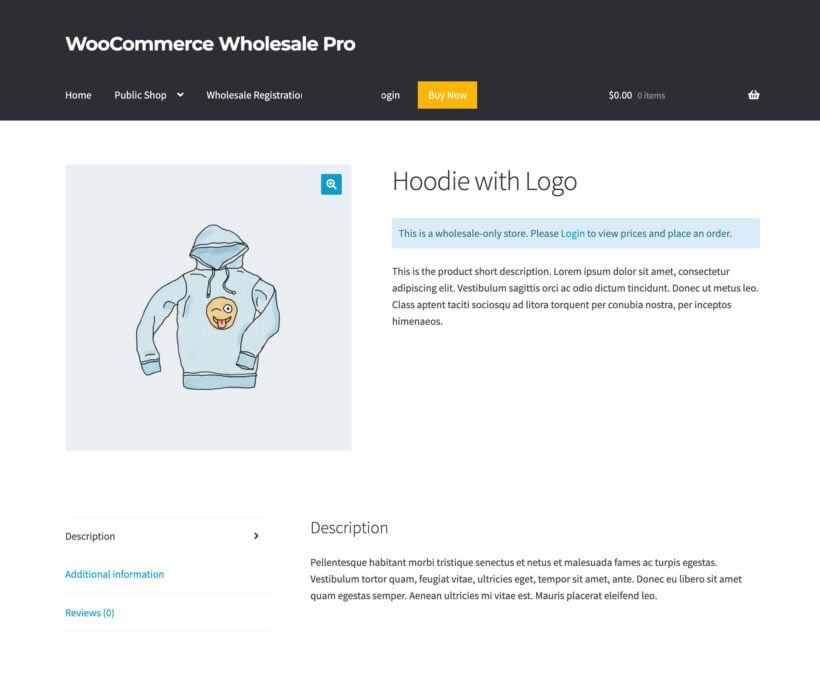
In addition to this, you can add a sidebar to your food ordering page that contains information about the customer’s cart. This is a great way to give patrons and customers a quick overview of their order before they proceed to the checkout page.

Two chefs plating dishes in a commercial kitchen

The WooCommerce Restaurant Ordering plugin is designed to help small food businesses deliver an exceptional user experience through their website and better manage customer orders in WooCommerce.

How to sell food online from home using WooCommerce Restaurant Ordering

Here, we’ll walk you through a step-by-step tutorial on how to sell food online from home. You might also like to sign up to our free online course, which has even more advice and tips:

Step #1: Set up WordPress and WooCommerce

If you’re just getting started then chances are you don’t already have a website set up. So, the first step is to choose a hosting provider for your food business website. Our best advice is to go with Kinsta, but you can use any hosting provider.

Next, you’ll need to install WordPress and WooCommerce (an e-commerce platform to set up your online store) on your website. If you choose to go with Kinsta, the team will install the WordPress content management system for you. However, if you’d like to take the DIY approach, we recommend checking out these helpful articles:

Once you’ve set up your basic WooCommerce-powered food business website, you can set up your basic food ordering website by installing a WordPress theme. And once your basic website is set up, come back to this tutorial for details on how to start selling food online from home.

Step #2: Add food items as WooCommerce products

Now that your WordPress site is set up, it’s time to add food items to it as WooCommerce products. To do this, head over to Products → All Products from the WordPress admin panel and click the Add New button.

Next, enter the following information for each food item you want to sell through your food business website:

Adding a fondant cake as a WooCommerce product to sell food online
  • Name of the food item
  • A product image
  • Brief description
  • Product categories (e.g. desserts, cupcakes, snack bars, sweets)
  • Price

Click the Publish button to proceed. Add all of the food items to your food website in the same way. You can also add food variations and extra options.

Step #3: Get the WooCommerce Restaurant Ordering plugin

Get the WooCommerce Restaurant Ordering plugin and install and activate it on your WordPress website. You’ll receive the plugin’s license key in an order confirmation email.

Activating the Restaurant Ordering license key in the plugin settings

From the WordPress dashboard, head over to WooCommerce Settings Restaurant and enter the license key in the License key field. Click the Save changes button at the bottom of the screen to continue.

Once you activate the license key, the WooCommerce Restaurant Ordering plugin automatically creates a Restaurant Order page for you. You can access this by going to Pages All Pages from the WordPress dashboard.

If you preview the page on the front-end of your website, it should look something like this:

One-page food order form listing cakes with prices and add buttons

Next, we’ll show you how you can configure the plugin’s settings to customize the food ordering page.

Step #4: Configure the plugin’s settings

To configure the WooCommerce Restaurant Ordering plugin’s settings, head over to WooCommerce Settings Restaurant from the admin area.

Food order page

The Restaurant order page dropdown lets you choose the page to display the food order form on.

Choosing the page that displays the food order form in the plugin settings

You can leave it as is or select a new page if required. The WooCommerce Restaurant Ordering plugin adds the shortcode [restaurant_ordering] to whichever page you select.

Categories

By default, the food ordering plugin lists products from all of your product categories on the food ordering form. You can use the Categories option to add the product categories you’d like to include in your food order form.

You can organize different types of food under a separate category. If you have multiple product categories selected, you can drag and drop them to change the order in which they’re listed on the front-end.

The Order form options setting lets you select the information you’d like to display in your food order forms. You can choose to display:

  • Category titles
  • Category descriptions
  • Product images
  • Product descriptions
  • Buy button

Order form options

If you’re selling products from a single category (e.g. only Cakes), you can untick the checkbox next to the Show category titles and Show category descriptions option.

Food order form display options

However, if you’re selling products from multiple product categories, we recommend leaving all of the checkboxes ticked.

Number of columns

The Number of columns option lets you choose how many columns to display food items in on the front-end. This is particularly useful for online food businesses that sell a variety of food items.

Setting the number of columns and image position for the food order form

It’s also a great way to enhance the look and feel of your food order form and make it more like a real-world menu.

Order method

We recommend going with the Quick order method option to let customers quickly add food items to their cart and place their order.

Order method settings

If you’re selling food items with variations or extra product options, the WooCommerce Restaurant Ordering plugin will automatically display a lightbox to let customers select options.

Lightbox options

Ideally, you want to display both the product image and full product description in the lightbox. We recommend leaving both checkboxes ticked.

Step #5: Preview the food ordering system

Once you’ve configured the WooCommerce Restaurant Ordering plugin’s settings, you can preview the food ordering system on the front-end. It should look something like this:

Front-end food order form listing cakes ready to sell online from home

To further enhance the customer’s shopping experience, we’ve added the WooCommerce cart widget to the sidebar. This way, customers can preview their orders before proceeding to the checkout page.

Step #6: Set up home delivery options (optional)

The WooCommerce Restaurant Ordering plugin lets you list products in a quick, one-page food ordering form. The rest of the checkout process is provided by WooCommerce. This means that you can use WooCommerce’s built-in options to let customers order food for home delivery.

We recommend setting up WooCommerce delivery zones to offer food delivery options within a specific area only. This is much easier to manage (especially when you’re just getting started) than offering country-wide shipping options.

To take things further, you can set up a free delivery area and multiple paid delivery areas. All of this is possible with WooCommerce Shipping Zones.

Selling food gifts

Lots of small food businesses sell foods that are also perfect as gifts. Some examples of food gifts include chocolate brownies, food hampers, or gourmet marshmallows.

These are equally perfect for special occasions like Mother’s Day, Father’s Day, Valentine’s Day, and birthdays as well as for situations where you’re looking for a gift that isn’t too personal, for example, for a coworker.

To sell food gifts through your small food business website, you can use the WooCommerce Opening Hours & Chosen Times plugin to allow customers to choose an exact delivery date. This helps them rest assured that the food gift arrives at the exact right time!

You can also use the Checkout Field Editor plugin to add a Gift message field to the WooCommerce checkout. To take things further, you can create any additional fields such as a checkbox to let customers mark the order as a gift so that you don’t include any price information with their order.

Bonus tips

As a new food business owner, there are many things you’ll need to think about before you can start selling food from home.

For example, it’s a good idea to check out your local legislation (e.g. the FDA) and cottage food laws to see whether you need to apply for a business license, food licensing, or a food hygiene certificate. Food safety and kitchen inspection laws vary from state to state. You should be able to find out most of this information through Google.

In addition, we recommend checking out shipping rules (e.g. labeling requirements) for perishable items. For example, let’s say you’re based in New York, United States, and want to accept cross-border orders. You might want to check to see if you’re allowed to send gourmet marshmallows to your patrons and customers in Toronto, Canada.
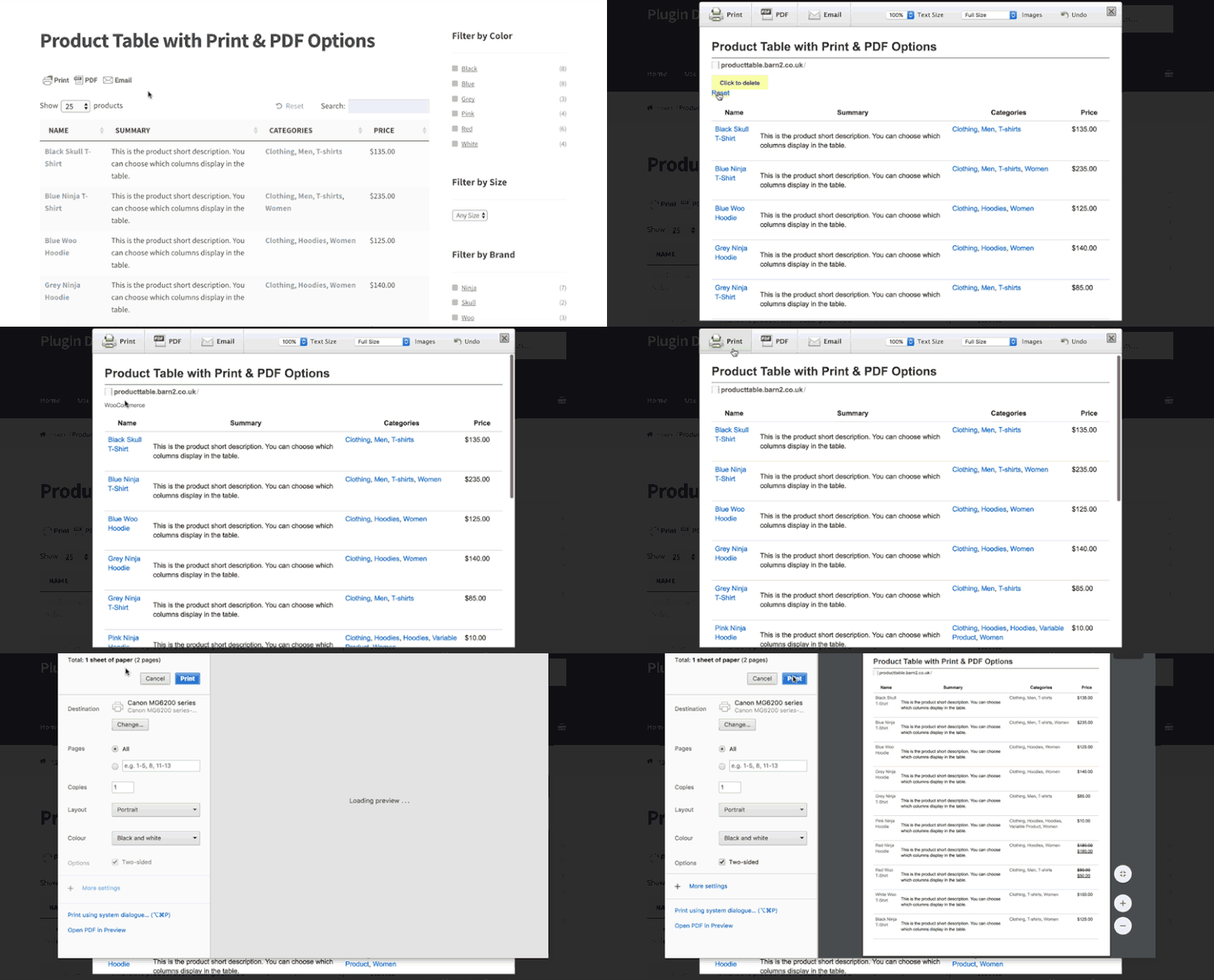
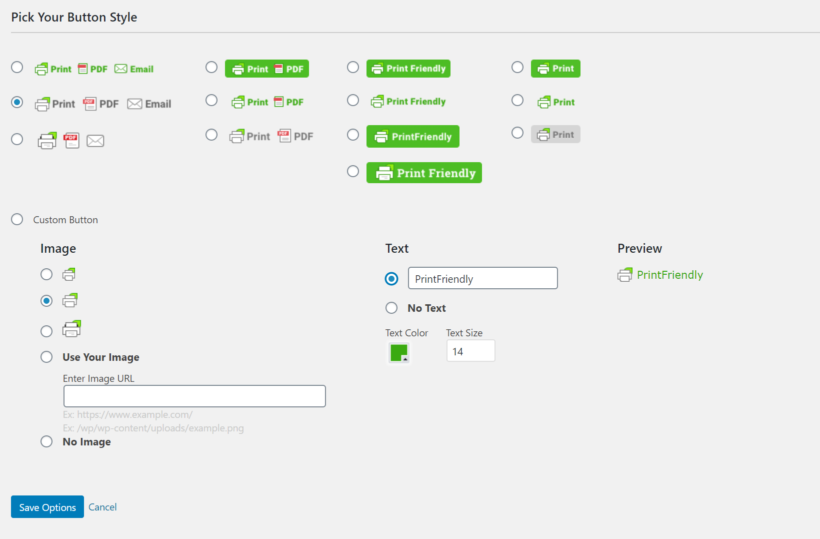

Sell food online from home in less than 30 minutes!

Selling food online from your home kitchen or commercial kitchen is a great way to launch a small business and generate income through food sales. All you have to do is set up your small food business website, create a menu, and start accepting orders!

The WooCommerce Restaurant Ordering plugin can help you sell food online from home by creating a one-page food order form. You can then promote your food store on social media to spread the word. We encourage you to try it out for yourself!

You get a:

  • Plug-and-play setup for the plugin.
  • In-depth documentation (absolutely no way to get it wrong).
  • Technical support is available if you need any help.
  • 30-day money-back guarantee. Love it or get a full refund, 0 risk!

Get the WooCommerce Restaurant Ordering plugin today to start selling food online!