How to add frequently bought together in WooCommerce

WooCommerce has no native "frequently bought together" feature, but you can easily add this with a plugin.
Amazon's "Frequently bought together" widget is widely cited as one of its highest-performing on-page features. The concept is simple: show customers what other people buy alongside the product they're viewing, and a meaningful number will add those items too.
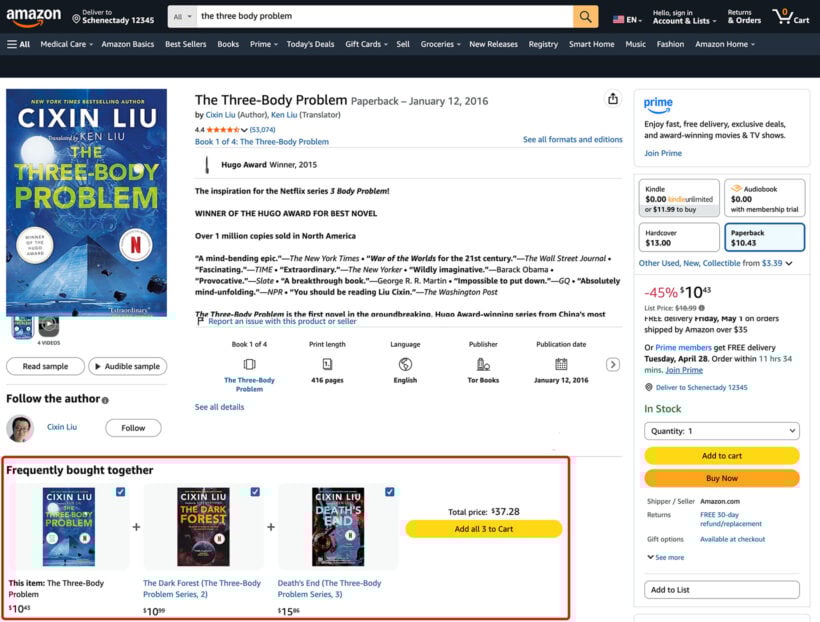
WooCommerce doesn't include this feature out of the box. It has upsell and cross-sell fields, but these appear in limited, low-visibility locations. Neither replicates the "frequently bought together" experience that Amazon made famous.
There are two main ways to add this to a WooCommerce store:
- The first is a dedicated plugin like YITH Frequently Bought Together, which adds a traditional FBT widget below the Add to Cart button.
- The second is WooCommerce Product Options, which places related items inside the product form, above the Add to Cart button, so customers see them before they buy.
This article covers both approaches, explains why placement matters for maximizing average order value, and helps you decide which method best suits your store.
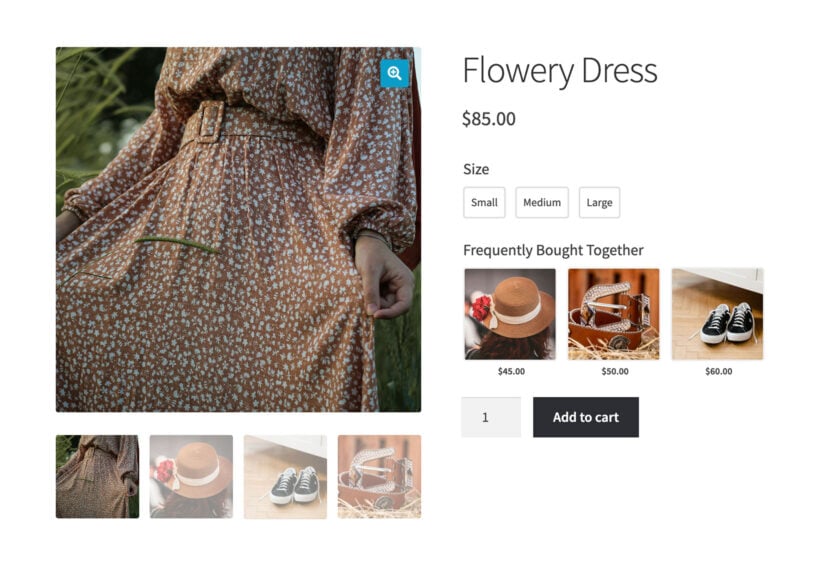
What "frequently bought together" means in WooCommerce
A "frequently bought together" WooCommerce plugin display products that customers commonly purchase alongside the current product. These appears on the product page to encourage bundle purchases.
WooCommerce has three native product relationship types. It helps to understand what each one does before picking a plugin.
- UpsellsUpsells appear on the product page under "You may also like." They suggest a better or more expensive version of the product the customer is viewing. For example, a premium model shown alongside a standard one.
- Cross-sellsThese appear in the cart and suggest complementary items after the customer has already decided to buy. They're useful, but the timing is less effective. The customer has already finished the decision-making process.
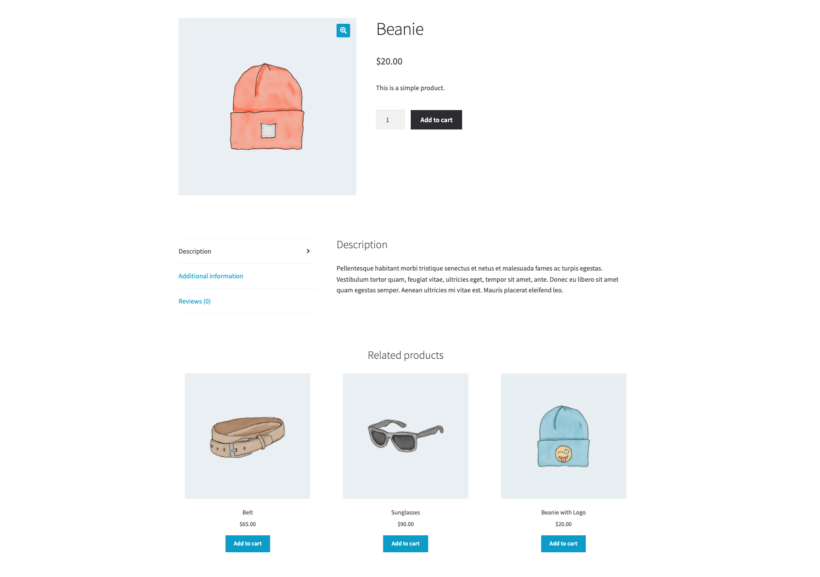
- Related productsMany WooCommerce themes display related products in other parts of the store.
None of these fully replicate Amazon's "frequently bought together" placement or interaction model. They don't let you display curated complementary items on the product page before the customer adds to cart.
That's the gap that dedicated FBT plugins and WooCommerce Product Options both address. The difference between them comes down to placement and how much control you want.
The placement problem: Above vs. below the add to cart button
Most WooCommerce frequently bought together plugins display suggested products below the Add to Cart button. They might appear directly under it, or lower down the page under the description, reviews, and additional information tabs. By that point, the customer has mentally committed to the main product and is ready to move on. The related items become something to scroll past (or never see in the first place) rather than actively consider.
Placing complementary items above the Add to Cart button changes this dynamic. The customer must see and interact with the suggestions before they can complete their action. They make a conscious choice whether or not to add the extras.
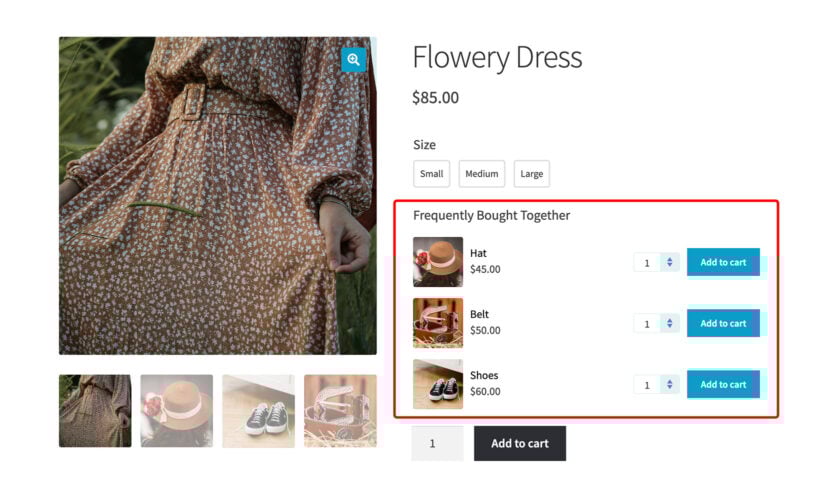
This is the same principle behind pre-cart upsells being more effective than post-cart ones. Earlier in the decision process means a higher consideration rate.
These two approaches produce two different placement results:
- Dedicated frequently bought together plugins (YITH, WPC, etc.): Display a standalone "Frequently bought together" widget below the Add to Cart button.
- WooCommerce Product Options: Adds a product selector field directly inside the product form, above the Add to Cart button, so the customer interacts with it before buying.
Neither approach is the right choice for every store. The best option depends on how you want to present the relationship, whether you need bundle pricing, and how much control you want over the display.
Most stores using dedicated FBT plugins don't realize their customers are seeing those suggestions after the buying decision is already made. Showing the same items above the Add to Cart button is a straightforward change that puts the offer at the right moment.
Katie KeithFounder and CEO
Option 1: Using WooCommerce Product Options to show items above add to cart
How it works
WooCommerce Product Options is a Barn2 plugin that adds custom fields and option sets to WooCommerce product pages. Its 'Products' field type lets you display a curated list of related products directly inside the product form, above the Add to Cart button.
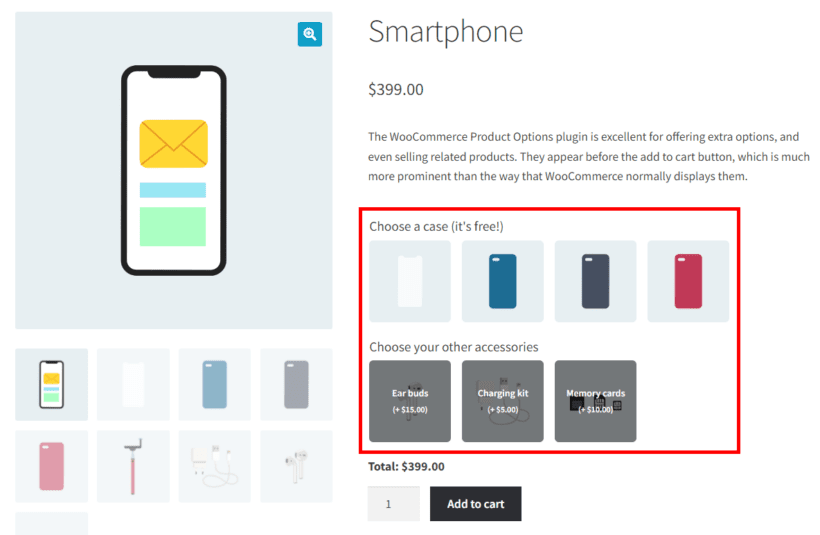
Because the related items appear inside the product form, customers must interact with or consciously ignore the suggestions before adding the main item. This is the key difference from every dedicated frequently bought together plugin.
When a customer selects an additional product, it is added to the order alongside the main product. No separate add-to-cart click is needed.
Setting it up
The setup process is straightforward. Here's how to add frequently bought together products using WooCommerce Product Options:
- Install the plugin.
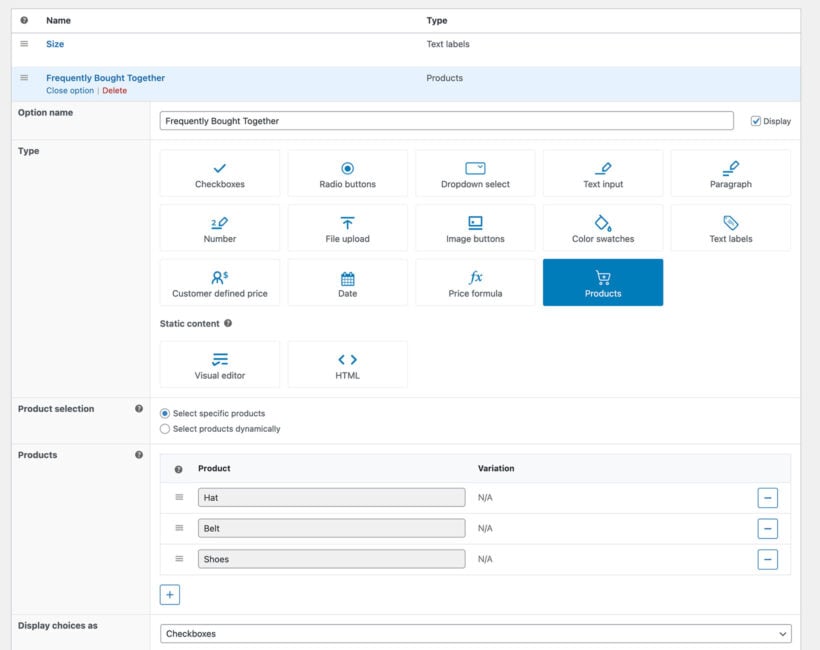
- Create a new option group at Products → Product Options and give it a memorable name (only you will see this). Assign it to the relevant products or categories.
- Add a 'Products' option type to the set.
- Choose how to populate the product list. Select products manually or by category.
- If you chose to display frequently bought together products by category, then you should also choose the sort order: by Title, Price (highest or lowest), Rating (highest or lowest), Date (newest or oldest), or Popularity.
- Choose a display style (see below) and save the option group.
Display styles
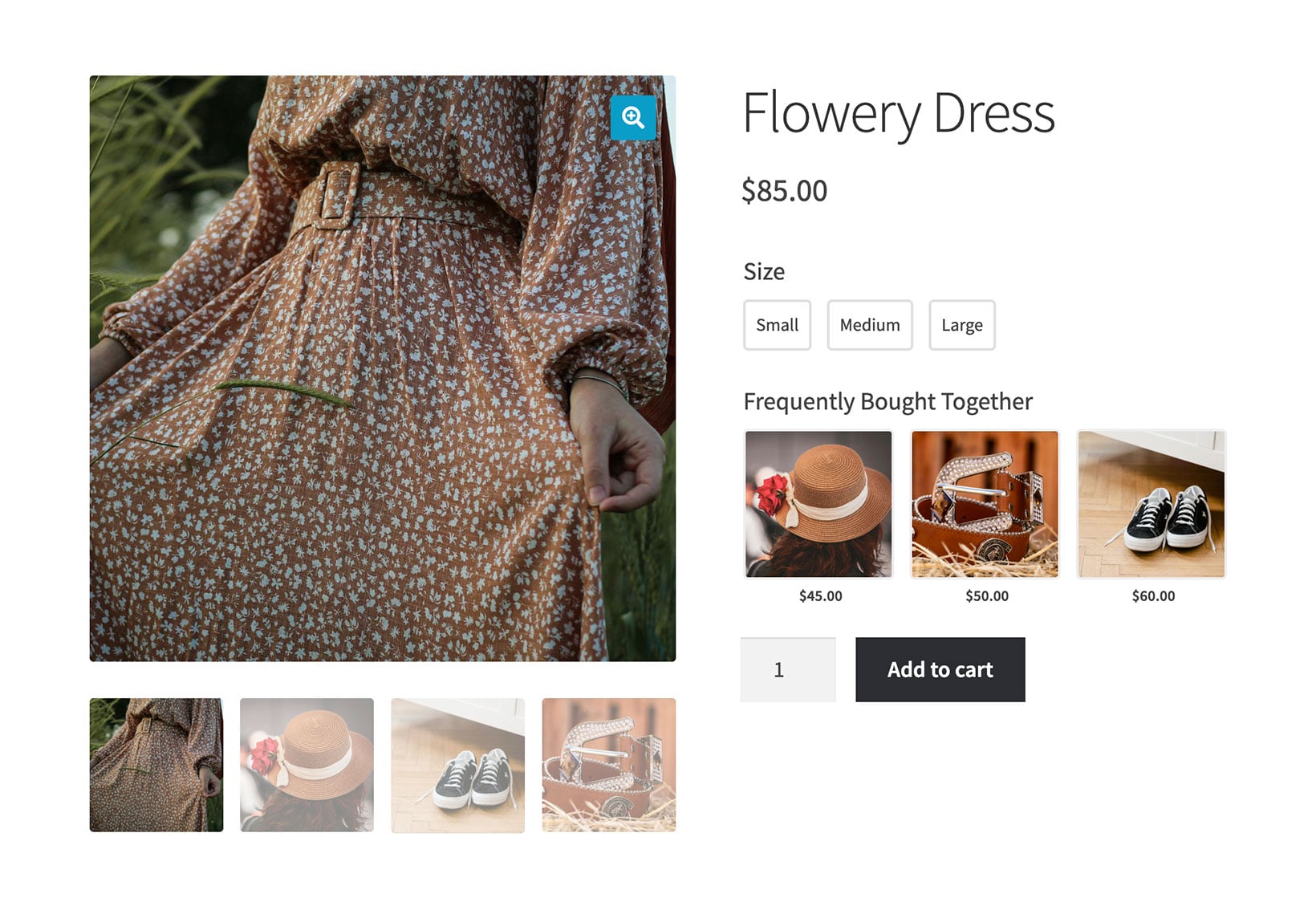
WooCommerce Product Options gives you five ways to display the related products:
- Image buttonsShows products as clickable images, either with the product name overlaid on top or just the price. Good for visually distinct products like accessories or color variants.
- ProductsShows each item in an ecommerce-style card with an image, name, price, and button. This is the most similar to Amazon's FBT widget. Best for stores where visual presentation matters.
- CheckboxesLists items as multi-select checkboxes. Clean and minimal, and a good fit for text-heavy or technical product pages.
- Radio buttonsDisplays items as radio buttons. Customers can only select one at a time. Useful when you want to offer a "choose one add-on" scenario rather than "add any combination."
- Dropdown selectShows items in a dropdown list. Recommended for saving space on the page, or when there are many options to choose from.
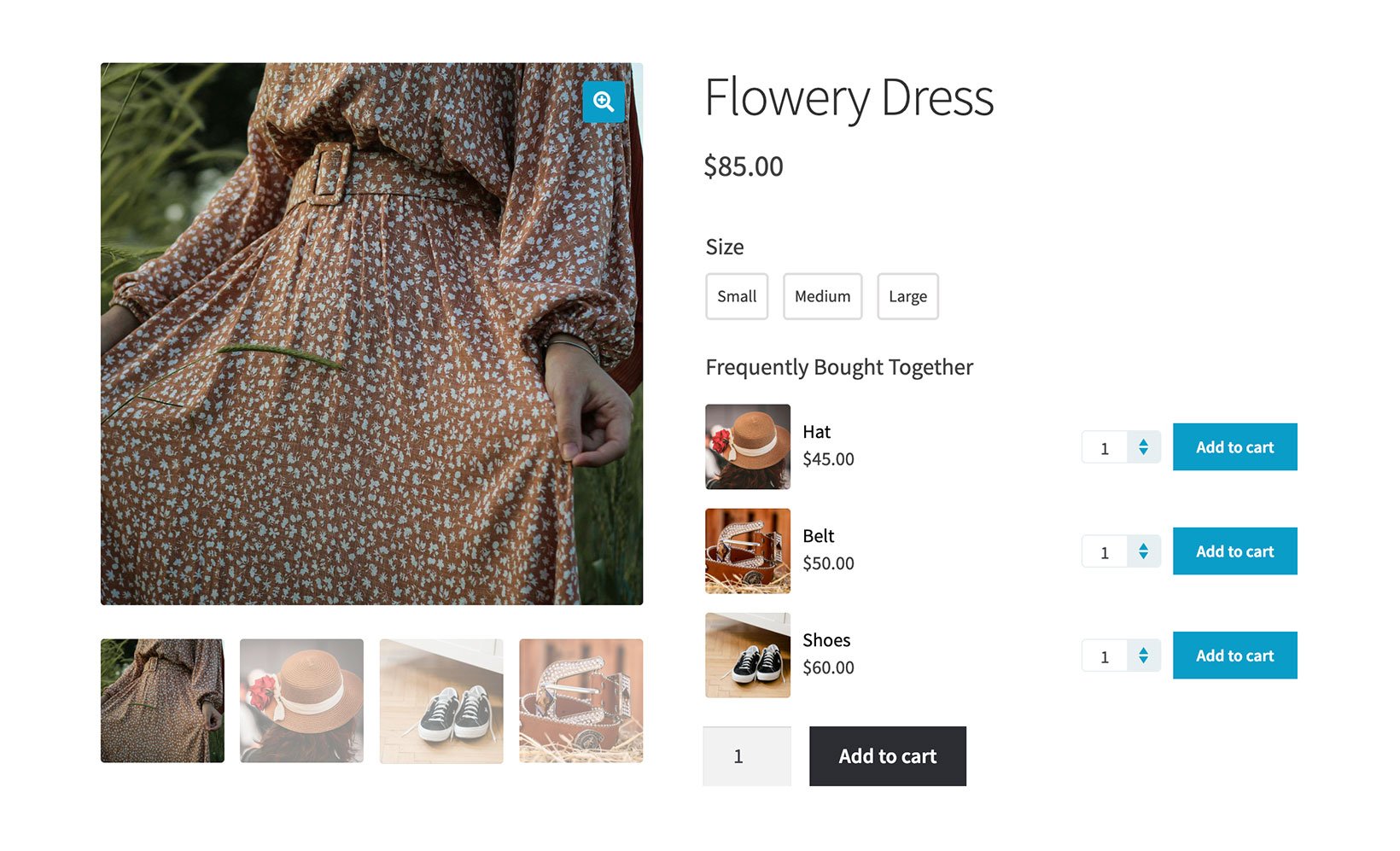
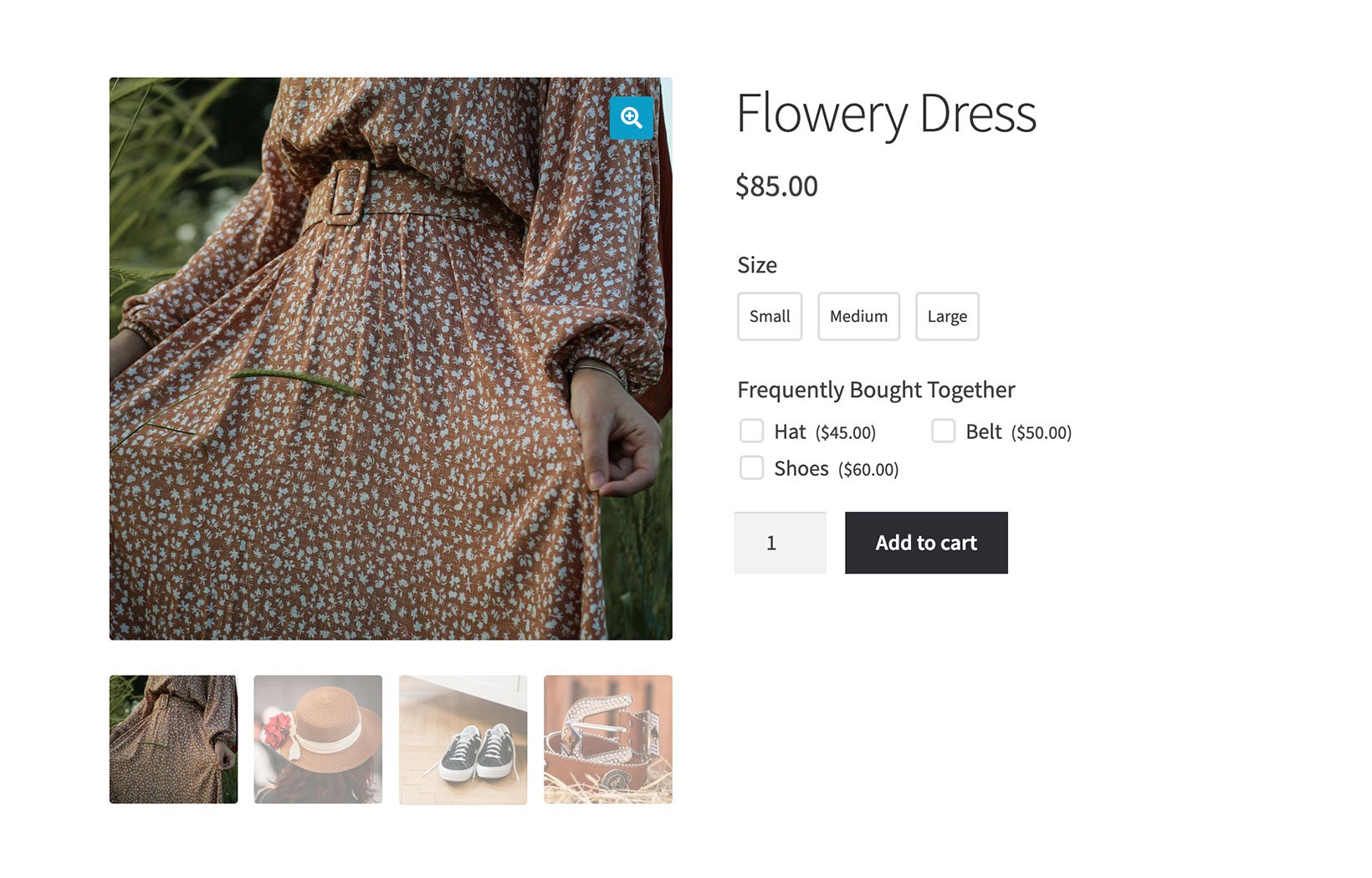
Giving a discount for frequently bought together products
WooCommerce Product Options also comes with a 'Price formula' field type, allowing you to create custom pricing rules. This is perfect for giving discounts as an incentive for bundling one or more of the frequently bought together items with the main product.
Setup example
To give a 10% bundle pricing discount on each product from the accessories category purchased alongside a t-shirt, follow these steps:
- First, ensure that each product in the Accessories category has a price and is purchasable and publicly visible.
- Go to Products → Product Options, create an option group and create a "Products" Option Type. Select the "Accessories" category to populate the choices automatically.
- Now add a Price Formula option to the same option group. Either use the price formula bot to generate a custom formula that meets your exact requirements, or use the example formula as a starting point:
[Accessories.sum] * -0.1
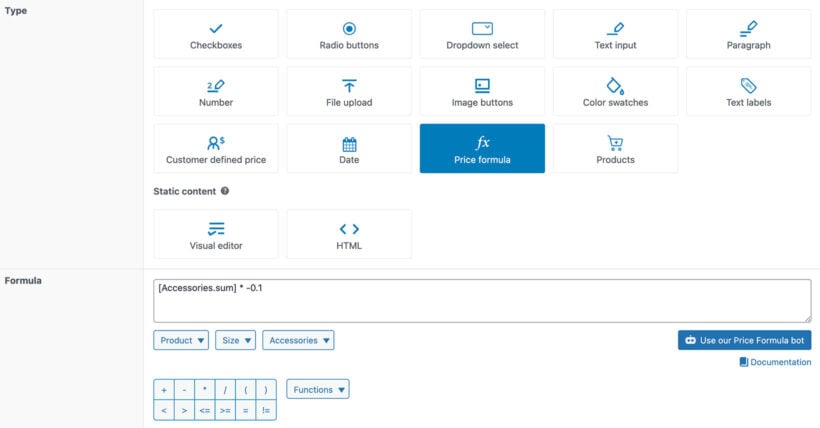
Formula explanation
The formula given above calculates the discount by referencing each selected product's price and applying a 10% discount. It works like this:
[Accessories.sum]fetches the total value of all the selected accessory products.* -0.1multiplies the total value by -0.1 to apply a 10% discount (equivalent to reducing the price by 10%).
Important notes
- The name "Accessories" refers to the label or title you've given the 'Products' option within your option group. You can name it anything, but you'll need to reference it correctly in your formula.
- This will only work if your frequently bought together items use a display style where the customer can select one or more items. Don't set the Display Choices As setting to "Products" because that will give each item its own add to cart button instead of providing a way to select the accessories.
- Since you are applying a discount, make sure your plugin settings don’t have "Ignore main product price" enabled, as you want the discount to complement the original t-shirt price, not replace it.
For full instructions, check out the price formula documentation.
Option 2: Using a dedicated frequently bought together plugin
YITH WooCommerce frequently bought together (recommended paid option)
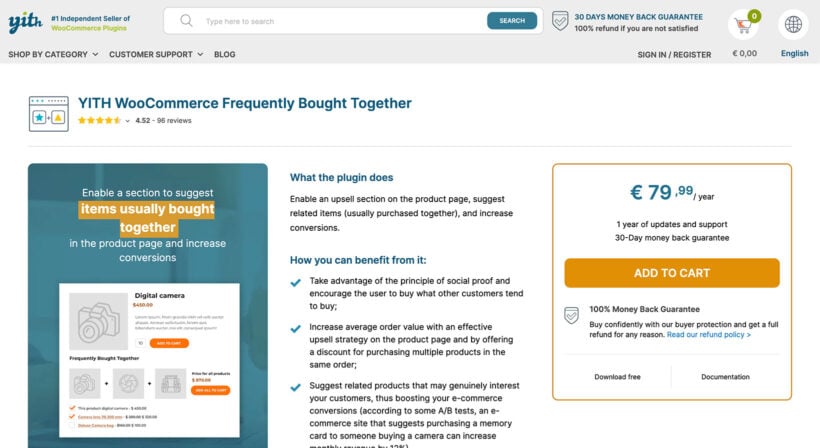
YITH WooCommerce Frequently Bought Together is the most established dedicated plugin for this feature. It displays a "Frequently bought together" section below the product description, with an image, price, and single-click add-to-cart for the bundle.
Key features include:
- Manually assign related products per product or use cross-sells or upsells from WooCommerce.
- Set a discounted bundle price to incentivize the add-on purchase.
- Customize the widget title and layout.
- Choose whether customers add the whole bundle or individual items.
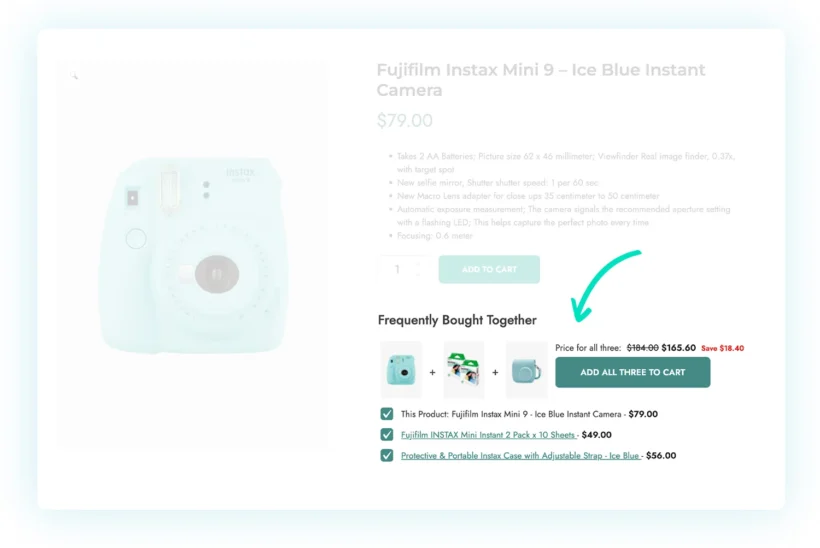
The bundle discount is a meaningful differentiator. A small saving for adding the complementary item reduces friction at the decision point.
Just remember that items display below the Add to Cart button. The customer sees them after they've already decided to buy the main product. That's a lower-intent moment compared to the WooCommerce Product Options approach, but the dedicated widget and bundle pricing make the offer feel intentional and compelling.
WPC frequently bought together (free option)
WPC Frequently Bought Together is a solid free alternative, available on WordPress.org. It provides manual product assignment and a checkbox-style add-to-cart widget, displayed below the Add to Cart button.
The free version covers the basics for most stores. A premium version adds features like AJAX loading and additional layout options.
For stores with a tight budget, this is a reasonable starting point. However, I believe that YITH is worth the investment if bundle discounts or a polished presentation are important to you.
Which approach is right for your store?
Choosing the best WooCommerce frequently bought together plugin comes down to three factors: where you want the suggestions to appear, how much control you need over product selection and display style, and whether you want bundle pricing.
| WooCommerce Product Options | YITH Frequently Bought Together | WPC FBT (free) | |
|---|---|---|---|
| Placement | Above Add to Cart | Below Add to Cart | Below Add to Cart |
| Display styles | Products, checkboxes, radio buttons, dropdown, and image buttons | Widget with images and pricing | Checkbox widget |
| Product selection | Manual or by category | Manual / category / cross-sells | Manual per product |
| Bundle discount | Yes (via price formulas) | Yes | No (paid version only) |
| Algorithmic recommendations | No | No | No |
| Cost | Paid (Barn2) | Paid (YITH) | Free / freemium |
- If maximum visibility before the buying decision matters most, then WooCommerce Product Options is the stronger choice.
- If a traditional FBT widget are the priority, YITH is the recommended pick.
- If budget is the main constraint, start with WPC FBT for free.
FAQ
Does WooCommerce have a built-in frequently bought together feature?
No. WooCommerce includes upsell and cross-sell fields, but cross-sells only display in the cart and upsells appear below the product description. There is no native "frequently bought together" widget. You need a plugin to add this feature to your product pages.
Can I select frequently bought items automatically?
I'm not aware of any WooCommerce frequently bought together plugin that uses purchase-history data to generate recommendations automatically. Whichever plugin you use, product selection is either manual or category-based.
What is the best free frequently bought together plugin for WooCommerce?
WPC Frequently Bought Together (available free on WordPress.org) is the most popular free option. It allows manual product assignment and adds a checkbox-style FBT widget to your product pages. A paid upgrade is available for additional layout and loading options.
What is the difference between upsells and cross-sells in WooCommerce?
Upsells are shown on the product page and suggest a better or higher-priced alternative. Cross-sells are shown in the cart and suggest complementary products after the customer has already decided to buy. Neither is the same as a "frequently bought together" section, which appears on the product page before the customer adds to cart.
Can I display frequently bought together items above the add to cart button?
Yes, using WooCommerce Product Options. Its 'Products' field type lets you add a curated list of related products directly inside the product form, above the Add to Cart button. This is different from dedicated frequently bought together plugins, which all display their widgets below the button.
Display frequently bought together items at the right moment
The biggest mistake most stores make is showing related products after the buying decision. A customer who has already clicked "Add to cart" is thinking about checkout, not accessories.
If you want complementary items to appear before that click, then WooCommerce Product Options is built for that. Conversely, if you want a traditional FBT widget that appears lower down the page, then YITH Frequently Bought Together is the stronger choice.