

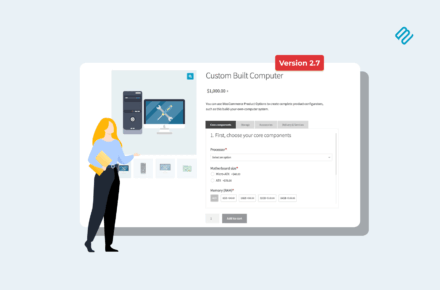




WooCommerce paywall locking premium content behind a login

Are you looking for a way to set up a WooCommerce paywall to start charging for content? Keep reading to learn how (and why) setting up a paywall is a sure-fire solution for monetizing your content 🔥.

Subscription revenue is something that every online creator can benefit from, whether you're a blogger or a course creator. Paywalls are used to generate revenue by many large publishers, including The Wall Street Journal, The New York Times, and The Washington Post. And for a reason!

Paywalling is one of the quickest and easiest methods of monetizing a WordPress website. While online subscriptions and paywalls are not new to the publishing industry, they are becoming more widespread across the content creation industry.

In this post, we'll explain the concept of the WooCommerce paywall and discuss how you can quickly implement it on any WordPress website. You'll learn how to:

  • Use WooCommerce to charge for access to any type of content on your website (e.g. an exclusive members-only or subscribers area).
  • Charge for access to a hidden area of your ecommerce online store (e.g. a members-only purchasing club).
  • Use subscriptions to generate sustainable ongoing revenue from your WooCommerce paywall.

What is a WooCommerce paywall, and why set one up?

A paywall, in essence, is a mechanism to limit who can access the information on your website. Depending on the use case, the company's branding, and other factors, you may find several different names for this type of content restriction. You could find this referred to as a content locker, gated content, a WordPress paywall, a WooCommerce paywall, or another name.
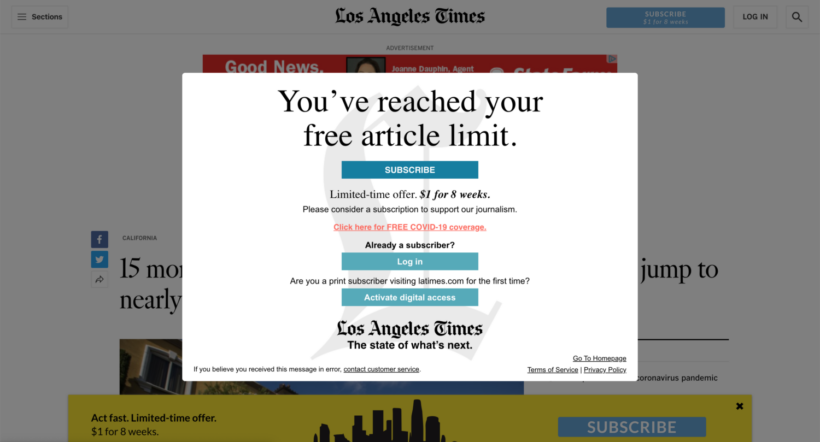
Los Angeles Times paywall popup telling readers they have reached their free article limit
Newspapers often use paywalls to restrict access to premium-only content

As the world's leading ecommerce solution, WooCommerce is an excellent way to charge for access to your website content. That's why we're focussing on WooCommerce paywalls in this article.

To set up your paywall, you need a WordPress website plus the following plugin stack:

  • The free WooCommerce plugin to get the essential ecommerce functionality, such as taking payments online.
  • A paywall solution to prevent non-paying visitors from accessing the premium material.
  • Finally, you might install a subscriptions plugin to take recurring payments for ongoing access to the WooCommerce paywall.

The benefits of setting up a WooCommerce paywall

Understanding paywalls and their importance

Content paywalls offer a straightforward yet efficient approach to monetizing your blog or WordPress site. If your audience likes the content you create, they will gladly pay $5 a month (or more) to access your finest work.

1,000 subscribers to your premium material would provide you with a full-time monthly revenue. Pro Tip: As your blog scales into a full-time business with regular subscribers, staying organized with your financial documentation becomes essential. Using a professional pay stub generator can help you maintain clean records for yourself or any virtual assistants you hire to manage your new community.

If you still doubt it, here is a quick comparison to other forms of blog monetization:

  • Ads often bother people and degrade their online experience.
  • A decent ad network requires that your blog has hundreds of thousands of visitors in order to accept it.
  • The process of creating, testing, and launching a product for other forms of revenue might take months.

In contrast, creating a paywall takes just a few minutes and doesn't require hiring a web developer. With a smart WooCommerce paywall plugin, you can accomplish this instantly (and we will show you how below).

A WooCommerce paywall is also a great solution if you offer a course or a membership. Contrary to online course platforms, such as Kajabi or Teachable, setting up a paywall on your course or online program will save you money. Platforms such as Kajabi or Teachable charge either a monthly fee or a fee from every student you add to the course. You can see how quickly it adds up. 

What sorts of sites need a paywall?

A WooCommerce paywall can help to monetize all sorts of websites. All that matters is that you have some sort of content that people will pay to access.

Here are some examples:

  • Media sites and newspapers with subscriber-only content.
  • Educational content, like a course or tutorial-style blog.
  • Private communities for your readers. This enhances community feeling, offers premium content, and improves brand image.
  • Purchasing clubs with products that only paying members can buy.

Paywalls vs memberships

It's worth understanding the difference between paywall and membership plugins. They are both methods which online content providers can use to monetize their offerings. However, they operate under different principles and have distinct characteristics:

Paywalls
  • Definition: A paywall is a feature used on websites to restrict access to content. Users must pay to gain access to specific articles, videos, etc., behind the paywall.
  • Types:
    • Hard paywalls: Users must pay to access any content.
    • Soft paywalls (or metered paywalls): You can access a limited number of articles for free before being required to pay.
    • Freemium paywalls: Some content is free, but premium content requires payment.
  • Access to content: Typically, access to individual pieces or groups of content, possibly time-limited or pay-per-view.
  • Target audience: Often used by news sites and other content-heavy platforms and apps.
Memberships
  • Definition: A membership site involves users subscribing to a service, often for a recurring fee. In return, they receive various benefits, including access to content, exclusive features, community engagement, etc. You might have one or multiple membership levels.
  • Access to content: Members usually get unlimited access to content or special benefits as part of their membership. It can include member-only forums, discounts, newsletters, and other add-on benefits.
  • Target audience: This model is often employed by content creators looking to cultivate an engaged community around their work, or services like streaming platforms that offer various content for a monthly fee. Memberships focus on building long-term relationships with customers beyond simply giving access to restricted content.

In general, paywalls are generally used to monetize individual pieces of content or groups of content. Memberships, on the other hand, focus on building a community and offering ongoing value to subscribers beyond access to content. WordPress paywall plugins therefore offer slightly different functionality from membership plugins. For example, these plugins might include MemberPress, WooCommerce Memberships, Restrict Content Pro or Paid Memberships Pro.

You can run both models on the same platform, for example offering paywall access as part of a membership plan.

In this article, we will focus specifically on setting up a WooCommerce paywall for access to restricted content. However, you can extend the information in the tutorial to add wider membership functionality.

Will a WooCommerce paywall have a negative impact on my SEO?

Lots of people worry that having a paywall will damage their SEO. After all, search engines can't crawl restricted content.

Luckily, the assumption that a paywall will drastically reduce visitors and revenue is false. A paywall may give you a stronger feeling of community and higher-quality traffic, which can actually help your SEO. This may seem counter-intuitive, so here's how it works:

  • Because your new users have paid to be there, they will really value your work.
  • Because your existing users are paying to stay, they will be more loyal to your brand and site.
  • You now have two groups of users who value your content so much that they are willing to pay for it. This increases the value of any hits you receive behind the paywall, and it can be seen in your comment sections, social media engagement and promotion, and much more.

Remember, you won't be putting all your content behind a paywall. You can still have plenty of search engine friendly content which everyone can read. This shows people the value you're offering, convincing them to sign up for the premium-only content.

Recommended plugins for your WooCommerce paywall

As you can see, there are many benefits to creating a WooCommerce paywall. Moreover, making a paywall is easy. You can do it without having to deal with complicated content restriction plugins, merchant accounts, building payment gateway integrations, or managing 1,000's of member accounts.

Now it's time to learn how to set one up. To do this, you need the following stack of plugins:

  1. The free WooCommerce plugin - this adds the basic ecommerce functionality to your site.
  2. Password Protected Categories - this restricts access to your website content, hiding it behind the paywall.
  3. YITH WooCommerce Subscriptions (optional) - this lets people make regular recurring payments to access the premium content. (Skip this step if you only require one-time payments.)

Tip: If you want to include pages within the paywall (rather than posts or a custom post type), then you'll also need to install a free plugin to categorize WordPress pages. I recommend the free Add Category to Pages plugin.

How the paywall works

People pay for premium access to your content and receive a login for your website. When they login, the unlock the paywall and can see links to the premium area in your website navigation menu. They can then navigate freely within the paywall.

You can use Password Protected Categories to hide any type of WordPress category or taxonomy. Only specific users, roles, or people with the password can get through the paywall.

Tutorial: Setting up a paywall on your WooCommerce site

Here, I'll show you how to set up a paywall on your WordPress pages easily in 3 simple steps. It's completely customizable so you can adapt it to your business.

First I'll provide a quick summary of all the steps, and then tell you how to implement them step-by-step.

How do I create a paywall in WooCommerce?

  1. Install the free WooCommerce plugin and set up your payment methods.
  2. Create the content that you plan to hide behind the paywall, then use the Password Protected Categories plugin to restrict access to certain user roles.
  3. Create a 'Paywall' product and set the price.

Keep reading for full details on each of these 3 steps.

Step 1: Install WooCommerce

  1. Log into the WordPress admin for your site, and go to Plugins → Add New.
  2. Search for 'WooCommerce' and install it. Don't confuse it with other plugins with a similar name. The main WooCommerce plugin is easy to spot as it has millions of installs!
  3. Once installed, disable 'Guest Checkout' under WooCommerce Settings Accounts & Privacy. This way, WooCommerce will create an account for each person when they subscribe.
  4. Use the other settings to configure whatever you need, such as taxes and payment options for accepting payments to the paywall. For example, you can easily set up online payments via PayPal or credit card (via Stripe).

Step 2: Set up the WooCommerce paywall plugin

Before you start putting content behind the paywall, it's worth thinking about what sort of content you'll be using. The options are:

  • Normal WordPress pages. This is a good option, but you'll need to use the free Add Category to Pages plugin to categorize your pages. 
  • WordPress posts. Do this if you're creating a paywall for blog or news posts. However, if you also have a public blog then I'd recommend using a custom post type instead.
  • A custom post type. If you want a dedicated area for the paywall-restricted content in the WordPress admin, then create a custom post type. You can easily do this with our free Easy Post Types and Fields plugin. For example, you might create a post type called 'Members Content'.

Once you've added some content and structured it into one or more categories, then you can start hiding it behind the paywall. To do this:

  1. Purchase and install Password Protected Categories.
  2. Go to edit one of the categories that will go inside the WooCommerce paywall. For example, if you're putting blog posts behind a paywall then go to Posts → Categories.
  3. Find the visibility section, select 'Protected' and then select the user role(s) that will have access to the paywall.
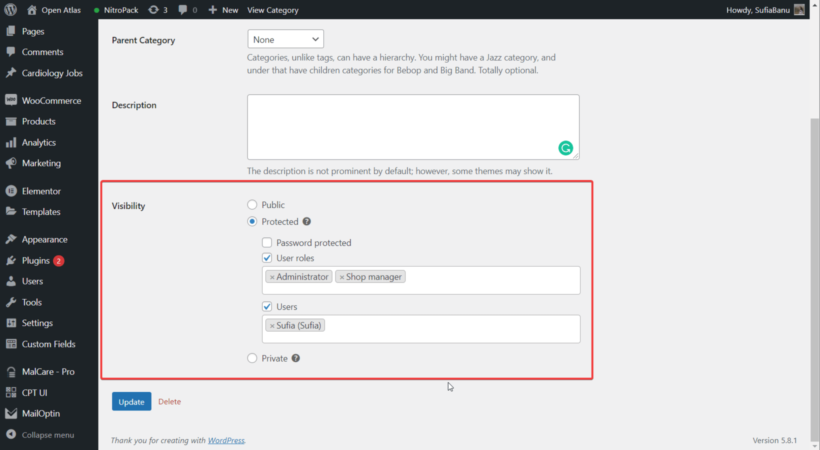
Restricting WooCommerce paywall access to selected user roles

Which user roles need access to the paywall?

If you're only planning to use WooCommerce to sell access to the paywall, then you can just use the built-in 'customer' role. People will automatically be added to this role when they make a purchase, so that way they will get instant access to the restricted content.

However, that won't work if you're selling other types of products too. In this case, then you should use the free User Role Editor plugin to create a dedicated role for users with paywall access. Select this custom role for all the categories that will be hidden inside the paywall.

(Tip: I also recommend selecting 'Administrator' too, so that you have access to the payroll for testing purposes.)

Step 3: Create a paywall product

Finally, you need to create a product which people will purchase in order to access the premium content.

  1. Go to Products → Add New, and add information such as the product description and price. For example, the name of this product might be "Premium Access".
  2. Now go to Appearance → Menus and add the product you just created to your website navigation menu. People will go to this page in order to pay to access the paywall.
  3. If required, then install YITH WooCommerce Subscriptions and use it to set up a Subscription plan product for the premium content. Or if you just want to charge once for access to the paywall area, then create a standard WooCommerce product instead.

Once you have done this, then customers will immediately have access to the paywall area as soon as they buy your paywall product from its product pages. If you created a dedicated user role for paywall access in Step 2 above, then to make this work then you must use the Automatic User Roles Switcher plugin to change people's roles when they purchase the paywall product.

Bonus steps

The steps described above cover all the essentials to setting up your WooCommerce paywall. To make it even more professional and user-friendly, consider adding these extra features too.

Create a login form

WordPress itself provides a basic login form, but it's not very professional and doesn't match your website. If your WordPress theme/template provides a nice front-end login form, then I recommend using that. Add a prominent 'Login' link to your header or menu.

Alternatively, you can use the free Theme My Login plugin to create a professional-looking login page.

Add your paywall categories to the menu

Navigate to Appearance   Menus and add links to the paywall-restricted categories to the menu. These links will only appear to logged-in paying customers.

Edit the 'Welcome' email to customers

In the previous steps, I showed you how to disable guest checkout in WooCommerce. This means that when someone pays for premium access, a user account will automatically be created for them. WooCommerce will send their login details by email.

You can edit this email in WooCommerce → Settings → Emails → New Account Email.

Create a WooCommerce paywall today!

As you can see, setting up a WooCommerce paywall is an easy and quick solution to start monetizing your WordPress site. Setting up a paywall or membership subscription is the ideal choice if you want to make money from your blog but don't want to spam your readers with ads and affiliate links.

.There are more benefits than drawbacks to locking away and charging for some of your content. While you could lose some visits and non-paying users, you will also gain more devoted customers and perhaps even build a strongly engaged community. Whether you offer online courses, membership or simply want to lock away your blog content, the best paywall plugin for WordPress is Password Protected Categories.

Try out the Password Protected Categories plugin today. Use it with the other plugins mentioned in this tutorial to take payment for accessing the paywall (either one-off or as a monthly subscription), and give paying customers access to the premium content. 

Shopper checking out with the WooCommerce cart and checkout on one page

WooCommerce takes users through multiple pages before they can complete their orders. If a customer wants to buy one product, they have to go through four pages! That's definitely not ideal. It's better to put the WooCommerce cart and checkout on the same page.

Yes, the situation really is that bad for customers. First, they go to the shop page, then the product page, then the cart page, and then finally, the checkout page. The process involves even more pages for customers buying multiple products.

One way to improve the user experience and shorten the customer journey is by bringing product selection, the cart page, and the checkout page all into one page.

In this article, we’ll show you two easy ways to set up the WooCommerce cart and checkout on the same page. By the end of this article, you'll be able to create a fully functioning one-page checkout in either of these two ways:

Best ways to set the WooCommerce cart and checkout on the same page

There are two easy ways you can display the WooCommerce cart and checkout on the same page and create a better checkout flow. This can help you make your online store more user-friendly and boost sales.

The popup cart and checkout method

My favorite way to speed up the purchase flow is by using the WooCommerce Fast Cart plugin to display the cart and checkout form in a popup on the same page. Keep reading to learn more about this method or skip ahead to the instructions.

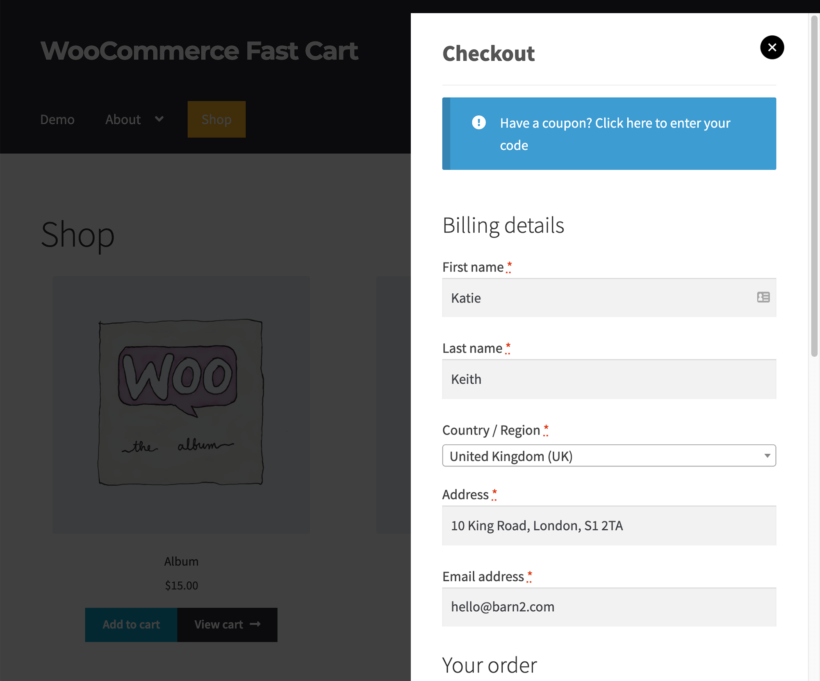
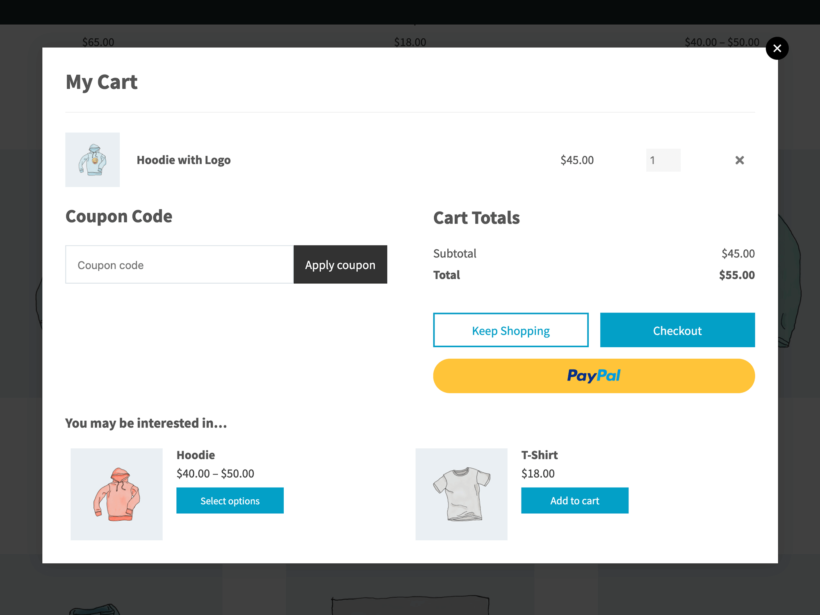
WooCommerce Fast Cart lets you show the cart and checkout on any page of your WooCommerce site. This means that if a customer wants to purchase a product when browsing your store’s catalog, they can simply click on the “Add to cart” button to open the cart and checkout page in a popup. That way, customers can quickly order products from any page they’re on - without leaving the page.

WooCommerce cart and checkout combined on the same page in a popup

Display a popup checkout - either alone, or with a popup cart

As a result, customers can review their orders, add more products, make changes to their orders, and checkout using the fast cart popup screen.

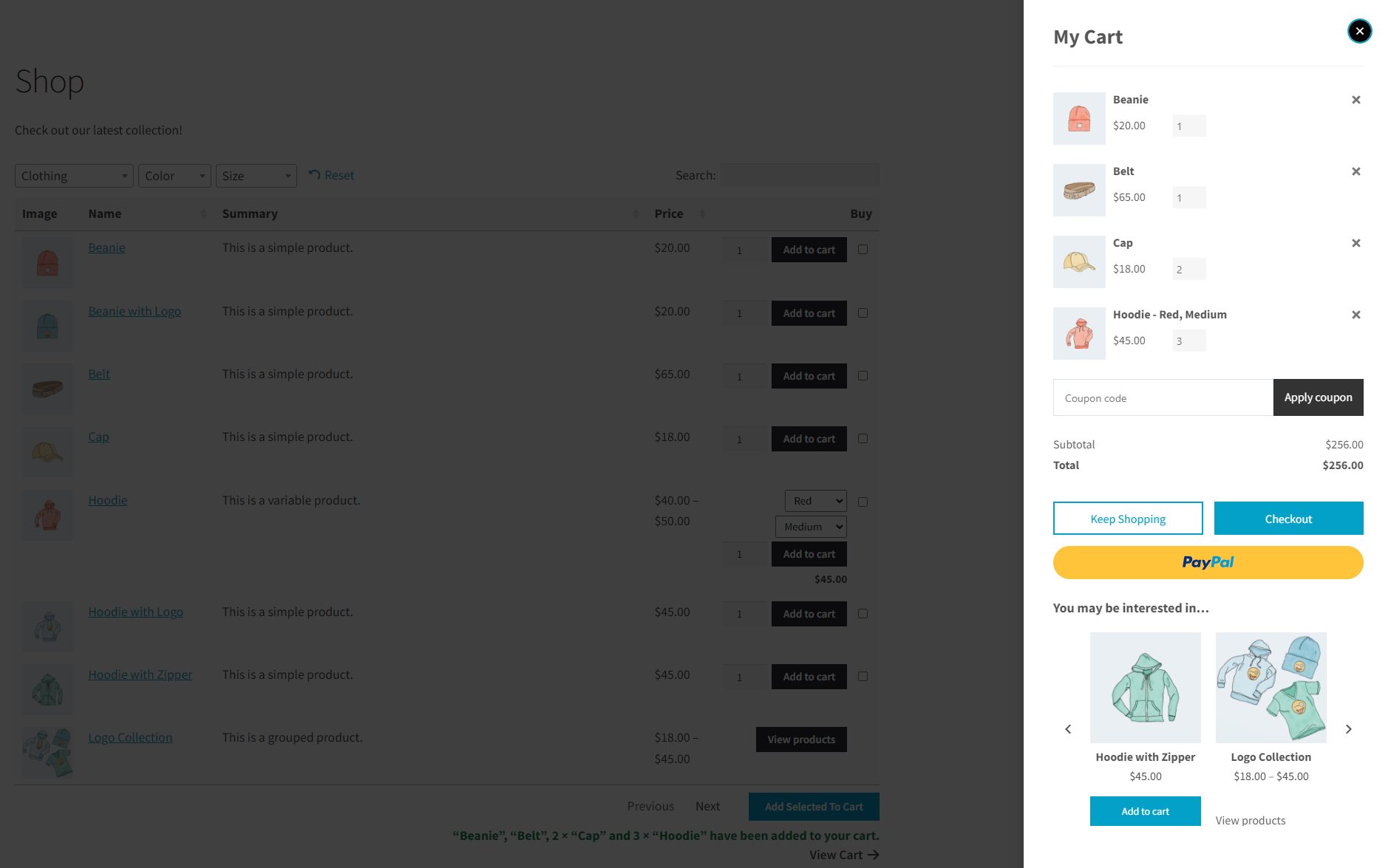
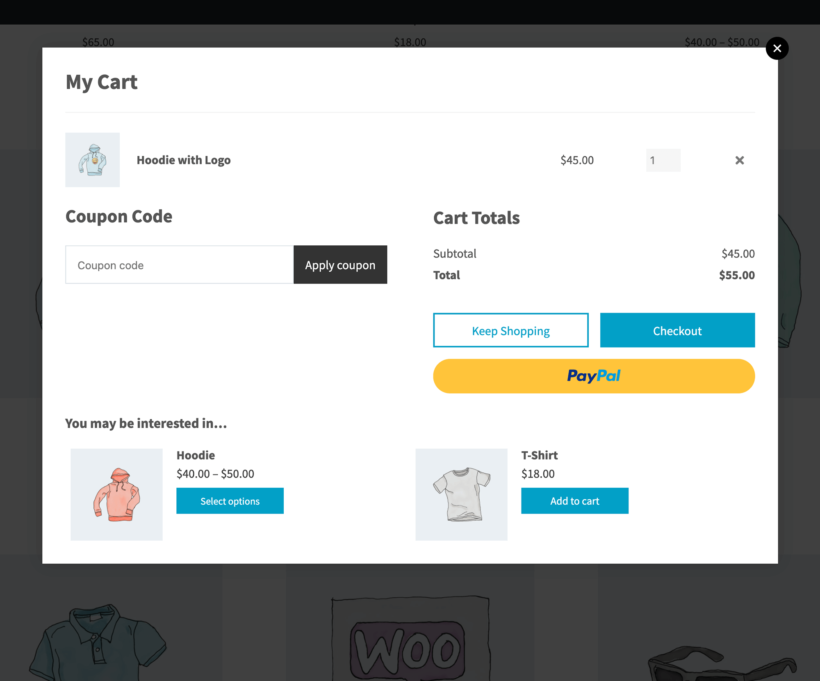
The WooCommerce Fast Cart plugin lets you display the cart and checkout in a side cart or a popup that appears in the center of the user’s screen. Either way, the entire shopping experience on your WooCommerce site is brought to a single page. It's a true one-click WooCommerce checkout.

Fast Cart popup showing cart contents and cross-sell products on one page
A central on-page popup WooCommerce cart

As a result, you’ll get happier customers who are less likely to abandon their cart when shopping from your WooCommerce site.

The one-page checkout method

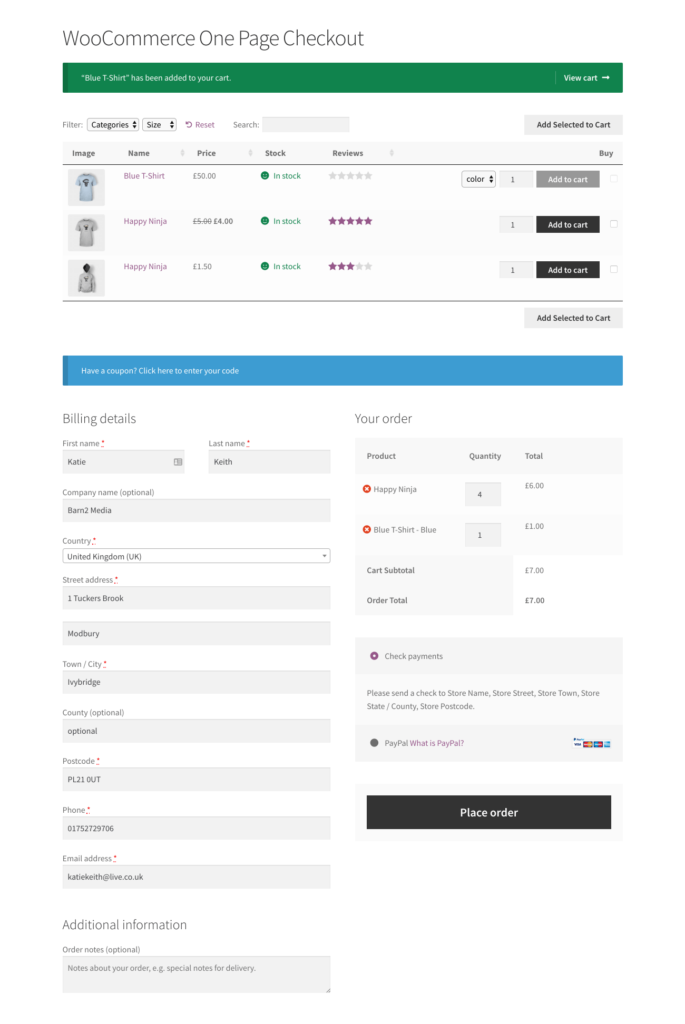
There's a second way to put the WooCommerce cart and checkout on the same page. It involves listing your products at the top of the page, and then a combined cart and checkout below. Customers can add products to the cart and see them in the cart at the bottom of the page. They can remove products, edit quantities, and complete the checkout fields - all on the same page.

You can achieve this by combining the WooCommerce Product Table plugin with the WooCommerce One Page Checkout plugin. Keep reading to learn more about this method, or skip ahead to the instructions.

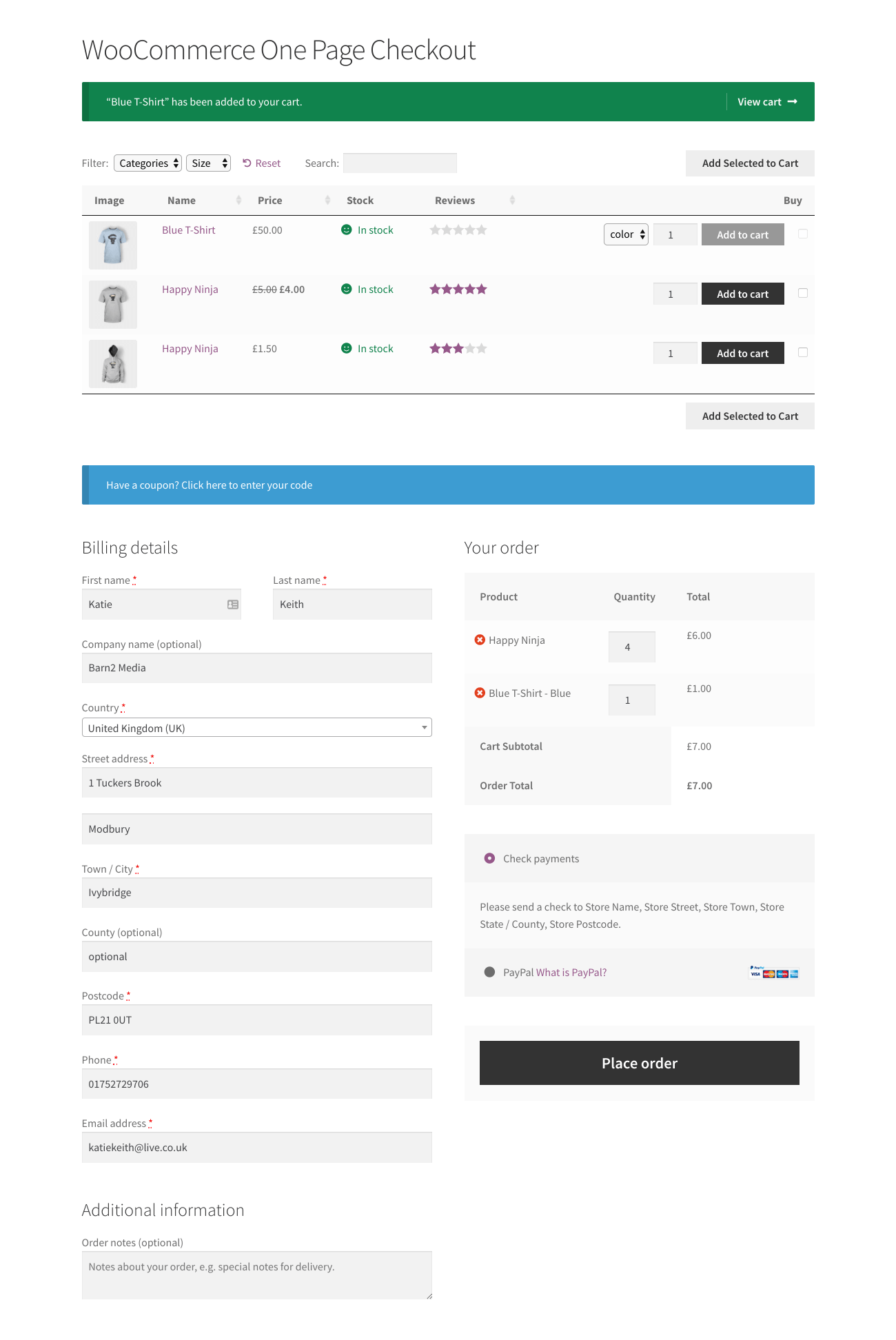
Together, these two plugins shorten the order process and create a custom cart page on your online store. This way, you speed up the customer journey by giving users a quick and easy way to select products and checkout from your WooCommerce site:

WooCommerce store showing products, cart and checkout form on one page
A WooCommerce store with the products, cart and checkout on the same page

Why have a product table on the same page as the WooCommerce cart and checkout?

Used alone, the one-page checkout plugin puts the cart and checkout on the same page. However, it's not ideal because shoppers will still have to browse multiple product pages to find what they’re looking for.

This is why we recommend using the WooCommerce Product Table plugin. It lets you showcase products in a tabular layout so customers can quickly select products using sortable and filterable product tables. You can then use the WooCommerce One Page Checkout plugin to show cart and checkout options on the same page.

This way, shoppers can quickly find the products they want to buy and add them to their cart at once using a single button. Once that’s done, they can fill out their billing details and checkout from the same page. In addition to this, customers can even edit their orders from the same page.

This simplifies the one-page checkout process on your WooCommerce store and is a great way to encourage more sales.

Setup instructions

Method 1: WooCommerce Fast Cart

You can use the WooCommerce Fast Cart plugin to display the cart and checkout in a popup on the same page.

You can use the plugin to allow customers to use the popup cart and checkout. That way, the cart opens first so the customer can review their order before progressing to the on-page popup checkout. You can also speed things up further by skipping the cart completely and immediately initiating the same page checkout.

How to set up the WooCommerce Fast Cart plugin

  1. To get started, install and activate the WooCommerce Fast Cart plugin on your WordPress site.
  2. Use the plugin setup wizard to choose the main settings for your same page popup WooCommerce cart and checkout.
    • You can select from two different layouts. These include showcasing the cart and checkout in the side cart or using a centered popup using the Layout section. The Auto open checkbox will automatically open the cart and checkout popup as soon as a user adds the product to their cart.
    • Make sure to enable the Allow fast checkout checkbox. This will let customers quickly checkout with their order using the fast cart popup.
    • You can also choose to skip the cart page entirely and showcase the checkout options instantly. Do this by enabling the Direct checkout checkbox.
    • In addition to this, the plugin lets you select what to display in the popup, including product images, product prices, quantity pickers, item delete buttons, coupons, cross-sells, and shipping information.

Now when customers are finished adding products to their shopping cart, they can quickly checkout using a popup cart and checkout popup.

Fast Cart popup combining cart and checkout on the same page

Method 2: WooCommerce Product Table

If you don't want to display the cart and checkout in a side cart or popup on the same page, then use method 2 instead. This displays a combined WooCommerce cart and checkout on the same page as a searchable product table.

Here's what you need to do to set the cart and checkout on the same page with WooCommerce Product Table. Either watch this video or follow the instructions underneath:

Step 1: Set up the WooCommerce Product Table plugin

  1. To get started, install and activate the WooCommerce Product Table plugin on your WordPress site.
  2. The setup wizard will open automatically - use it to set up your first product table. For example:
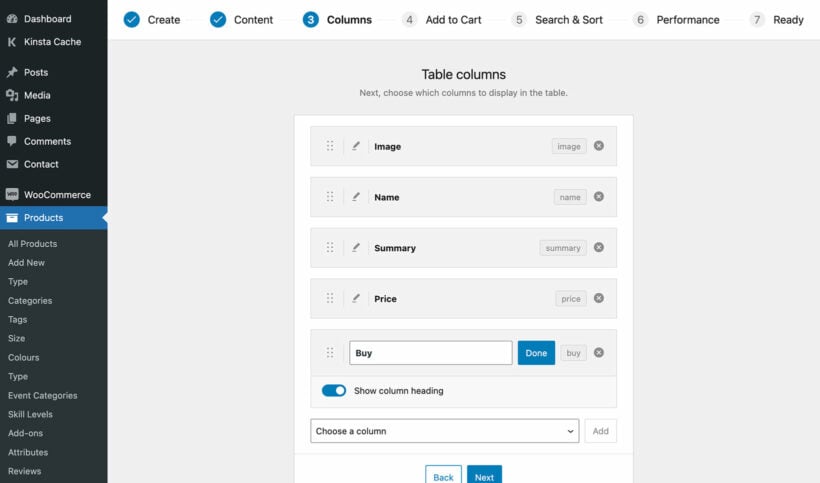
    • Specify all the columns that you want to show in your product table using the Columns field.
      Choosing which columns to show in the WooCommerce Product Table
    • Select the Quantities checkbox to let users purchase multiple products without having to leave the page.
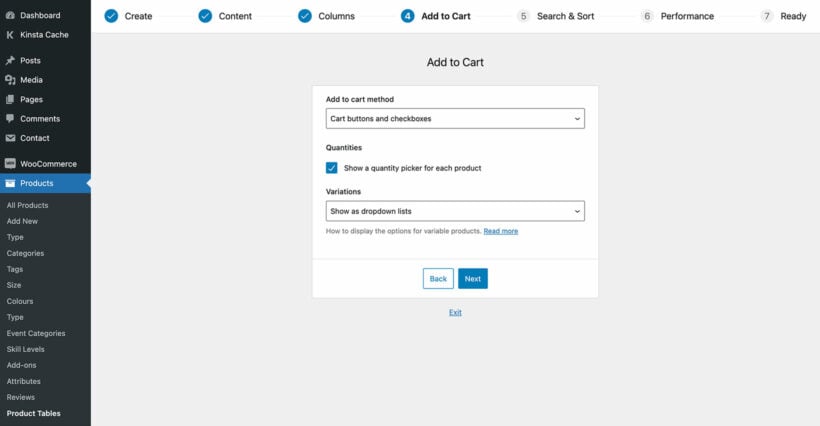
    • In addition to setting other product table options, such as sorting options and filters, you can also let your customers select multiple products and add them all at once to their shopping cart using the Add to cart section. Simply select Add to cart checkboxes using the Adding products to cart dropdown menu. Choose where you want to display the “Add all to cart” button using the Multi-select cart button dropdown.
      Add to Cart settings in the WooCommerce Product Table builder
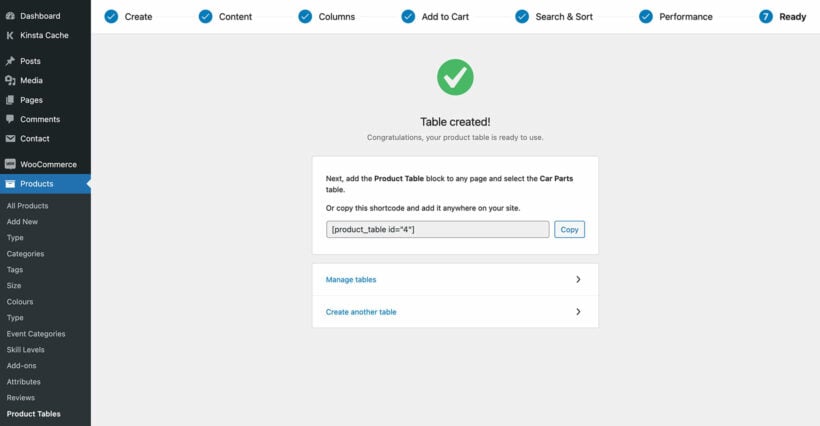
  3. If you're not using the Gutenberg editor then copy the shortcode from the last page of the wizard.
    Final step of the table builder showing the product table shortcode
  4. Now go to the page where you want to list the WooCommerce cart and checkout on the same page. Either insert a 'Product Table' Gutenberg block and select your table, or paste the shortcode.

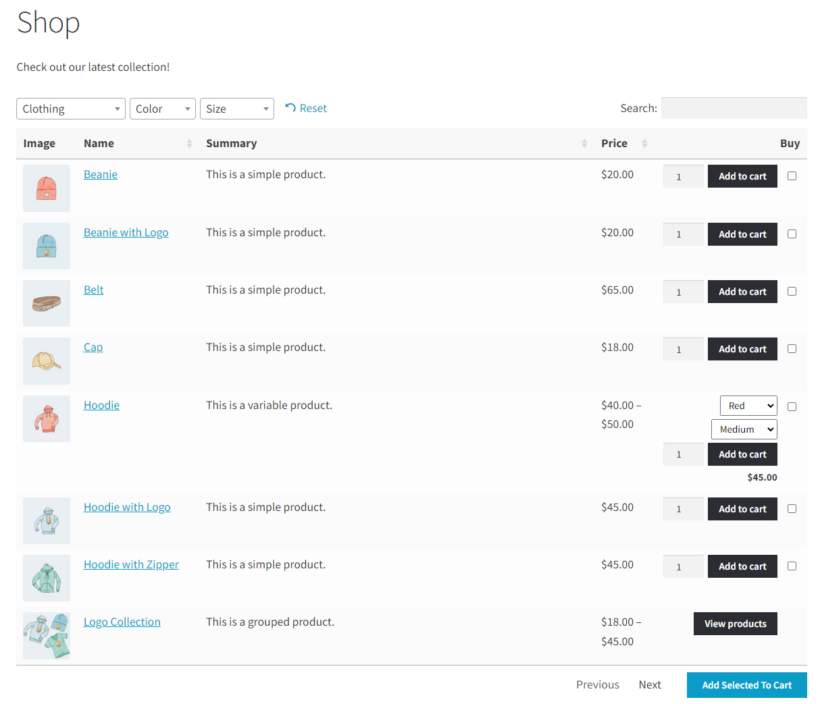
Used alone, your product tables might look like this. Keep reading to learn how to add a WooCommerce checkout underneath.

WooCommerce product table with filters and add to cart buttons before adding one-page checkout
A product table before adding the one-page checkout

Step 2: Create a page for your products, cart and checkout

In Step 1, you added a product table to a page. Next, you need to add the WooCommerce cart and checkout on the same page. You can do this with the WooCommerce One Page Checkout plugin, which add a checkouts form below the table. The checkout is editable, so it acts just like the WooCommerce cart in which customers can edit and delete quantities without leaving the page.

  1. Install and activate the plugin on your WooCommerce site, then head to the page we created earlier with the product table.
  2. Add a Shortcode block and paste the [woocommerce_one_page_checkout] shortcode before clicking on the Update button.
    Adding the woocommerce_one_page_checkout shortcode in a WordPress Shortcode block

Now view the page. Customers can browse the product table to find what they’re looking for. They can add multiple products to their cart at once, edit their selections in the cart, and checkout – all from the same page.

Shoppers add to cart and complete checkout without leaving the order form page

Set up WooCommerce cart and checkout on the same page

The WooCommerce purchase flow is quite lengthy and overwhelming. It’s much better to use a same page WooCommerce cart and checkout plugin to improve the ordering process. Letting customers add products to their cart and checkout from the same page can help you reduce cart abandonment rates and increase conversion on your online store.

As we have seen, there are two excellent ways to do this:

Get your chosen plugin today, and start showing the WooCommerce cart and checkout on the same page 😀

Two people managing WooCommerce variation stock quantities on screen

WooCommerce has various options for managing stock at variation level. It lets you set the stock status or manage stock by setting stock quantity, allowing backorders, and setting a low stock threshold. However, WooCommerce's options to manage stock at variation levels aren't perfect for all stores.

In this article, we’ll learn how to use the core WooCommerce features for variation stock control. We'll also discover the best to manage and display stock for product variations. These will allow you to:

  • Easily manage variation stock in bulk, instead of having to make manual stock updates per product.
  • Show variation stock information directly on WooCommerce product, shop and category pages.
  • Display a lead time or waiting time for each variation.

How to use WooCommerce to manage stock at variation level

WooCommerce has some built-in options to manage stock for variable products (as well as simple products) on your online store. These are pretty basic and I'll share some tools for improving on them in a minute. However, first look at what you can do in WooCommerce as it comes.

  1. To enable the default stock management feature, simply navigate to WooCommerce → Settings → Products and clicking on the Inventory link from the top:
    WooCommerce inventory settings under Products with stock management enabled
  2. Enable the Manage stock checkbox and set basic stock management settings. You can select the low stock level display and set a low stock threshold. This lets you show or hide out-of-stock variations. And, whenever a specific product variation is low on stock, a notification will be sent to the store manager about the stock level.

In addition to this, WooCommerce also lets you manage stock at the product variation level. To do this:

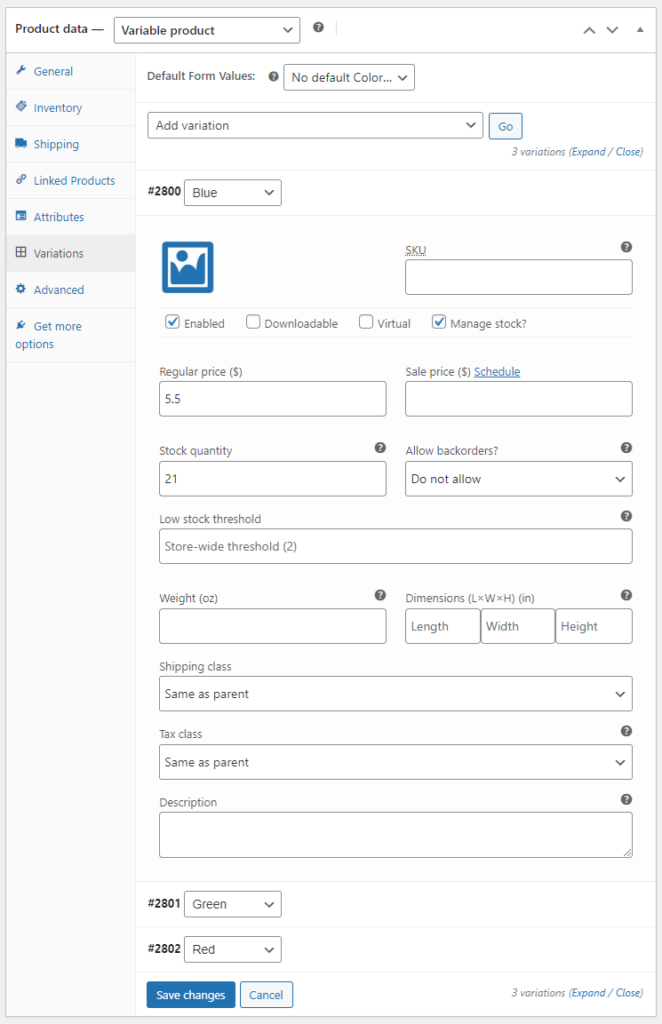
  1. Navigate to the variable product’s edit page. Then click on the Variations tab under the Product data meta box.
    Variations tab in the product data panel with stock quantity per variation
  2. From here, you can choose the variation you want to manage stock for and tick the Manage stock? checkbox to view the Stock quantity field. You can manage stock for each variation following this method and click on the Save changes button once you’re done.
  3. This displays a stock status on the front-end when customers select the product variation they’d like to purchase.

3 ways to better display and manage stock at variation level

While WooCommerce lets you display stock information for product variations, it's not ideal. Here’s why:

  • There's no way to bulk edit variation stock - you have to do it individually for each product, which takes forever 😫
  • WooCommerce only displays stock status after a customer selects a variation from the variation dropdown menu on the product page. This means your customers have to select a variation before they find out if it’s in stock or not, which wastes their time. WooCommerce doesn’t do anything helpful like grey out out-of-stock variations to help shoppers identify out-of-stock variations. The only alternative is to hide out of stock variations completely. However, this may lead customers to believe you don’t sell the variation, so they won’t check back later.
  • The product pages only display the stock status or number of items in stock. It's not possible to add relevant information about lead times or waiting times.
WooCommerce only showing variation stock after a color is selected on the product page
WooCommerce only displays variation stock information AFTER you select a variation

As you can imagine, these issues cause frustration for both merchants and customers. Luckily, you can easily solve them by installing the best WooCommerce variation stock plugins. I'll tell you about them next.

Manage stock at variation level in bulk

As we saw earlier, it's very time-consuming to change stock settings and add stock quantities to each product individually. It's much better to install a WooCommerce bulk edit plugin and do it from a central interface.

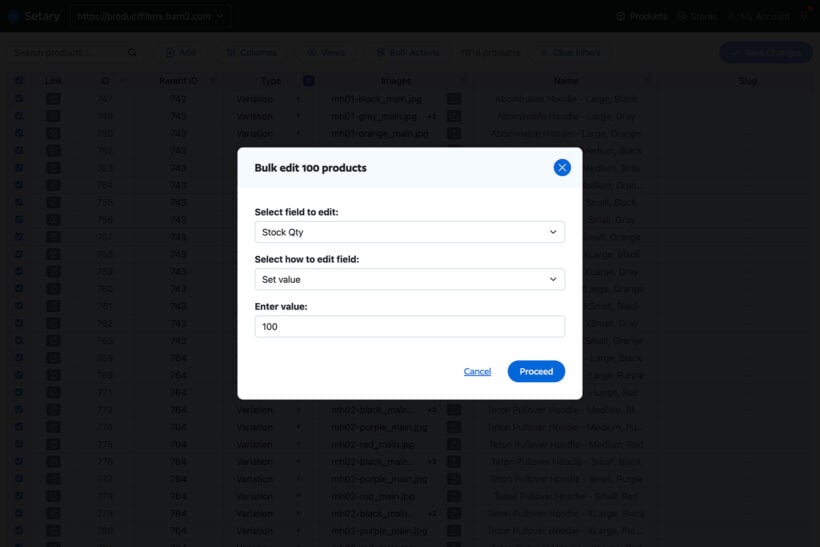
Setary is by far the best option for this. This bulk stock editor provides a spreadsheet-style interface for updating stock and other types of product data. You can quickly manage variation stock either inline or by selecting multiple variations and performing bulk actions.

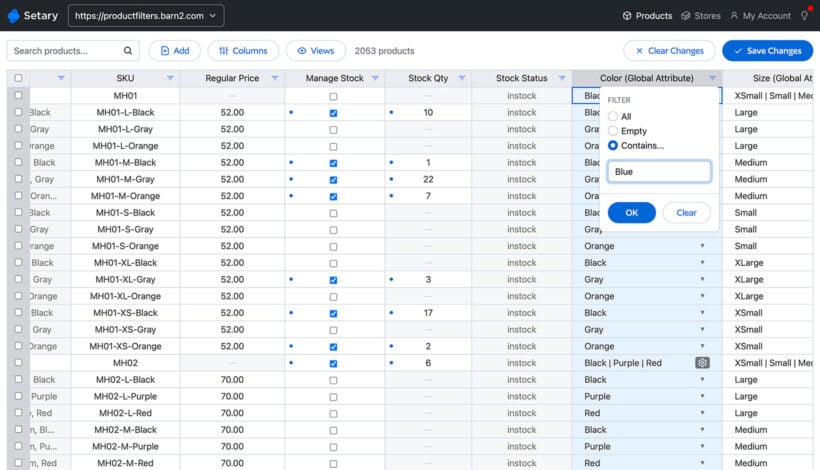
First, you view all variations in the spreadsheet and use the search and filters to find specific ones. For example, you can view all variations with a particular attribute like this:

Setary spreadsheet filtered by attribute to manage stock at variation level for specific WooCommerce product variants

You can then make the changes inline - as shown above - or apply bulk actions like this:

Setary managing stock at variation level with a bulk edit action

As well as setting individual stock levels, you can edit other stock-related data. For example, you can mark each variation as "In stock", "Out of stock" or "On backorder", or enable the "Manage stock" checkbox.

If you're looking for a faster way to manage stock at variation level in WooCommerce, then Setary will save you a huge amount of time.

List variations in a quick order form with stock information

So far, you're learned how to bulk update variation stock in WooCommerce. Next, let's look at ways to improve how variation stock is displayed in the front end.

The WooCommerce Bulk Variations plugin creates quick order forms which replace the standard variation dropdowns on the single product page. This provides customers with essential information about variations without needing to select an option first.

Manage variations grid stock information

You can choose to include stock information in the bulk variations order form for each product. This can either be the exact stock quantity for each product, or just the stock status. It also greys out of stock variations to make it clear to customers when a variant is unavailable.

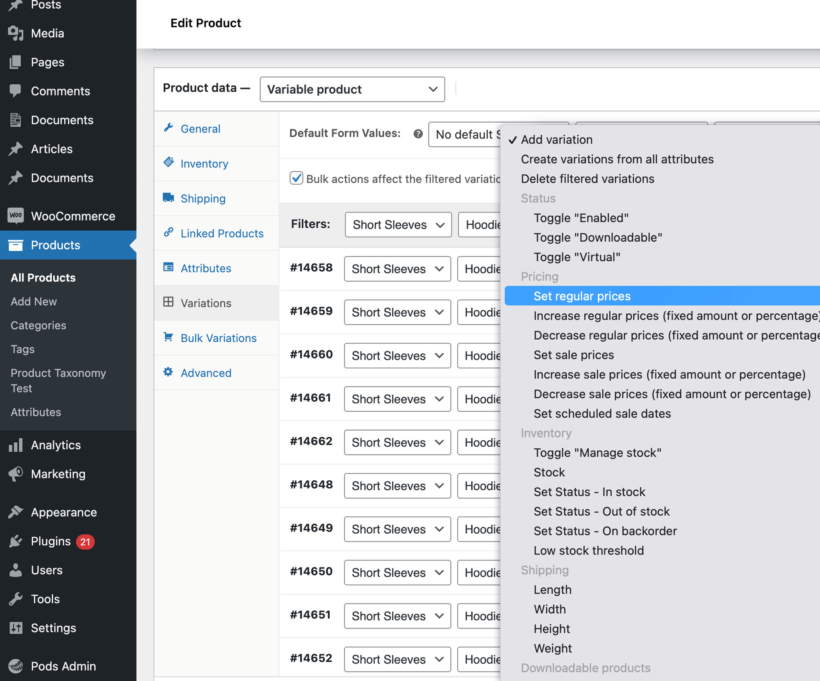
As well as the front end order form, WooCommerce Bulk Variations also makes it easier to manage variations for each product. It does this by adding filters and extra bulk actions to the Add/Edit Product screen:

Bulk actions menu for managing stock across selected variations at variation level
Select specific variations and quickly update the stock levels

For example, let's say that you sell a custom printed hoodie and have received a delivery of 5 units of all the Small variations. You can select all the variations with the 'Small' attribute and bulk-update the stock to 5.

While you'll still need Setary to manage variations across multiple products, WooCommerce Bulk Variations is a useful time-saver within the product editor.

WooCommerce Bulk Variations tutorial

Once you install the WooCommerce Bulk Variations plugin, the setup wizard will open. This lets you choose the main options for your variation order forms, including whether to display stock information in the variations grid.

You can also set variation grid display options for each product individually. To do this, navigate to the product’s edit page and scroll down to the Bulk Variations tab:

Bulk Variations settings tab in the WooCommerce product data panel

Enable the Product-level control checkbox and the Enable checkbox to display a variations grid for the new product instead of the default WooCommerce dropdowns.

Bulk variations grid

This is how to use the bulk variation stock management features:

  1. Install the WooCommerce Bulk Variations plugin.
  2. In the plugin setup wizard, activate your license key and then skip the remaining steps.
  3. Go to the 'Edit' screen for the variable product that you want to bulk-edit the stock levels for.
  4. Open the Variations tab in the Product Data section.
  5. Select the variations that you want to manage stock for. To select variations with specific attributes only, use the filters above the list of variations.
  6. Use the bulk actions dropdown to change the stock status for all the selected variations.
  7. Save the variable product.

Show the lead time for each variation

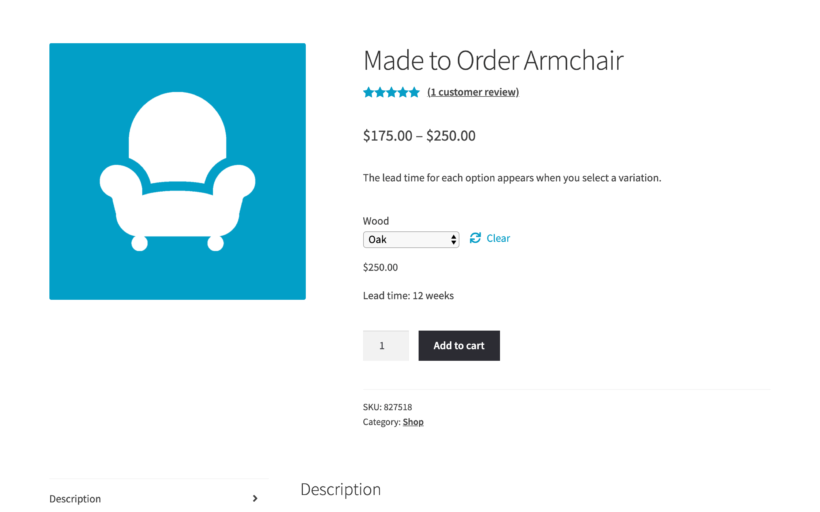
WooCommerce variable product page showing a 12-week lead time after selecting the Oak wood variation

While WooCommerce and the above plugins can display stock information in your store, it doesn't tell customers how long they'll be waiting. You can do this with the WooCommerce Lead Time plugin.

WooCommerce Lead Time does this in two ways:

  1. Displays exact waiting times on product pages, in addition to the usual stock status.
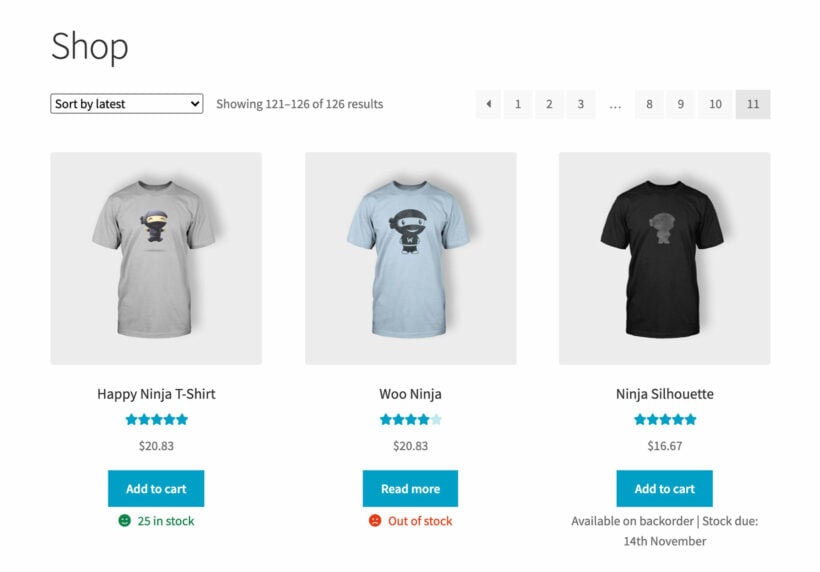
  2. Optionally displays stock information on the shop and category pages, without changing your store's layout.
Stock information shown on WooCommerce shop and category pages

It's possible to show different messages for each stock status. For example, if a variation's stock reaches zero and it goes on backorder, then you can display the number of days or weeks until it will be despatched. All you need to do is set a date for when the variation will be back in stock. After that, the plugin will automatically calculate a lead time for you. This allows customers to order backorder products immediately, safe in the knowledge of how long they will be waiting.

WooCommerce Lead Time tutorial

Once you get the plugin, the setup wizard will open. Use it to choose how to display lead times in your store.

Here, you can select when to display lead times on your WooCommerce site as well as specify what to display as the lead time message to customers on the front-end. These settings will be applied to all products on your WooCommerce site.

You can choose between static lead times and dynamic lead times:

  • Static lead times are used when the information stays the same. For example, you can display a static lead time such as “Handling time: 10 days” for a variation.
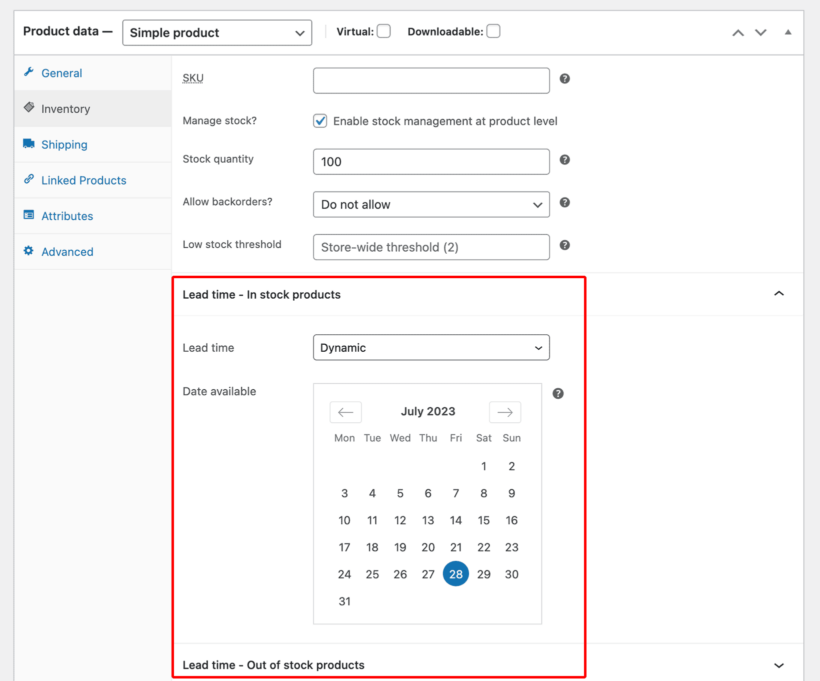
  • Dynamic lead times specify when out-of-stock products will come back in stock on a particular date. For instance, a dynamic lead time might look something like “Back in stock in 8 days”. You can specify a particular date and WooCommerce Lead Time will calculate the remaining number of days before it comes back in stock.

In addition, you can set lead times for individual products and variations. Simply navigate to the product’s Edit page and click on the Inventory tab under the Product data meta box.

Inventory tab with lead time

Set the lead time for each product or variation using the Lead time text field and click on the Update button to save changes.

Product page showing an out of stock variation with a lead time message

Other variation stock plugins to consider

The plugins and tools mentioned above are my top recommendations for managing WooCommerce stock at variation level. Here are some additional options for you to consider, depending on your store's requirements:

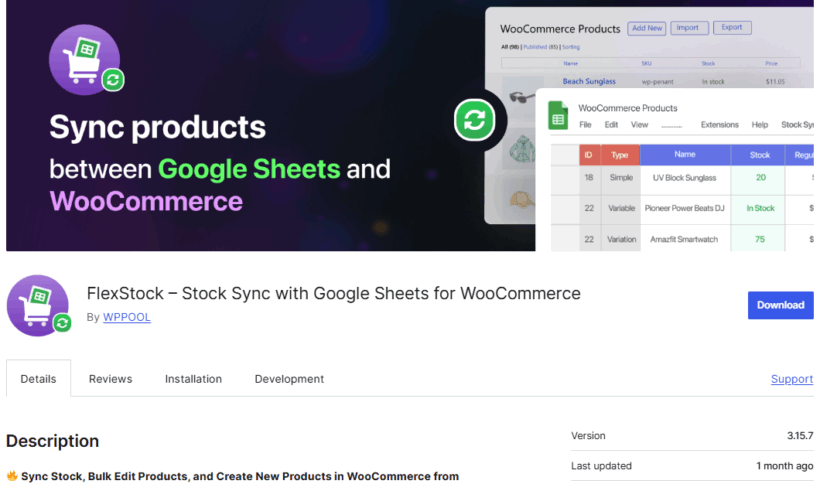
1. FlexStock

FlexStock Stock Sync with Google Sheets for WooCommerce plugin page

FlexStock - WooCommerce Stock Sync with Google Sheets enables you to effectively manage your entire store inventory, bulk edit products, and create new listings directly from a spreadsheet. This extension provides a complete inventory management system that allows you to bypass the WordPress dashboard for every update by syncing SKUs, images, and variable product data to your fingertips via Google Sheets.
The extension comes with a two-directional synchronization engine that ensures your site and your spreadsheet always reflect the same data in real-time. Whether you update the sheet or the site dashboard, the data auto-syncs instantly, allowing you to view a clear picture of stock status, pricing history, and sales counts from a single Google Sheet. This eliminates "dashboard fatigue" and provides a reliable command center for both simple stores and high-volume multi-vendor marketplaces.

Bidirectional Real-Time Sync: Changes reflect instantly both ways, eliminating the need for manual CSV imports or exports.

API Dependency: Real-time updates rely on a stable connection between Google and your server to maintain the bidirectional handshake.


2. Stock Manager for WooCommerce

image_border style="browser" align="center" caption=""]FME Addons WooCommerce plugin for managing product stock from the front end[/image_border]

Stock Manager for WooCommerce is a powerful plugin that allows store owners to easily manage their stocks from the front end. You can manage stock in a pop-up on the shop front end, and set up the product stock, Name, SKU, tax class, and prices, and even hide the product if it's out of stock.

Keeping track of the stock from the shop’s front end is made easy by assigning specific colors - such as red, yellow and green - to the manage stock buttons.

Pros & cons:

  • Modern, intuitive interface
  • Ratings are not clearly displayed on the plugin's sales page

3. Product Stock Manager for WooCommerce

Product Stock Manager for WooCommerce listing on the WooCommerce marketplace

Product Stock Manager is a versatile extension that enables you to manage your product and variation stocks using a simple list view. You can filter the list by products type, category name, price, stock quantity, stock status, and more.

The plugin maintains a log file to view all changes to stock levels and it also comes with a dashboard that displays your current stock quantities and their values.

Pros & cons:

  • Stock list view and filters for fast and easy stock management
  • Mixed reviews from users

4. Inventory Management for WooCommerce

Inventory management for WooCommerce plugin

Shelf Planner’s Inventory Management for WooCommerce aims to solve the costly problem of accurately predicting customers’ daily demand for products.

They offer a plug-and-play forecasting engine that helps you optimize your inventory, improve your margins and reduce waste. The plugin analyses your store’s performance and creates a live order recommendation for every product on a daily basis.

Pros & cons:

  • Powerful analytics dashboard
  • Can be tricky to set up and learn at first

5. Multi Inventory Management for WooCommerce

Multi Inventory Management for WooCommerce listing on the Woo Marketplace

WooCommerce Multi Inventory Management extension by Addify enables you to effectively create and manage inventories across different locations, warehouses and stores. You can add multiple stocks for each product based on type, location and suppliers.

The extension comes with a smart stock listing page that allows you to view stock and edit products stock from a single dashboard. From which you can see a clear picture of the current stock status, change history and a list of out-of-stock, low stock and over stock products.

Pros & cons:

  • Extremely comprehensive set of features and options
  • Most expensive option on this list of plugins

6. ATUM WooCommerce Inventory Management and Stock Tracking

ATUM WooCommerce inventory management plugin

For online store owners in need of powerful stock management, ATUM is a standout solution for WooCommerce. This free inventory management tool offers an intuitive dashboard and "Stock Central" interface that provides complete control over product inventory, suppliers, SKUs, locations, weights, and pricing.

The user-friendly layout seamlessly integrates with the WordPress admin, making it easy to quickly edit all aspects of your WooCommerce stock. ATUM's dashboard displays key business statistics and allows customization of widgets for personalized insights.

Pros & cons:

  • Free and highly rated by users
  • Does not change the stock display on your site's front end

The better way to manage stock at variation level in WooCommerce

Used as it comes, you can use WooCommerce to manually manage stock at variation level and display information about out-of-stock variations. However, this doesn’t quite cut it. It takes ages to change the stock status and stock level for each variation individually. And even worse, it's very hard for customers to see the stock status of each variation.

Luckily, there are some amazing plugins to fix this for you:

  • Setary is the ultimate bulk editor for products and variations.
  • The WooCommerce Bulk Variations plugin creates quick variation order forms with stock information.
  • WooCommerce Lead Time displays extra information about the waiting time for each variation, based on stock status. It also shows stock information on the shop and category page.

Together, these plugins help you display your online store stock at the variation level.

We hope that this article has provided lots of useful information about the different options for using WooCommerce to manage stock at variation level. Let me know which plugins you chose in the comments!

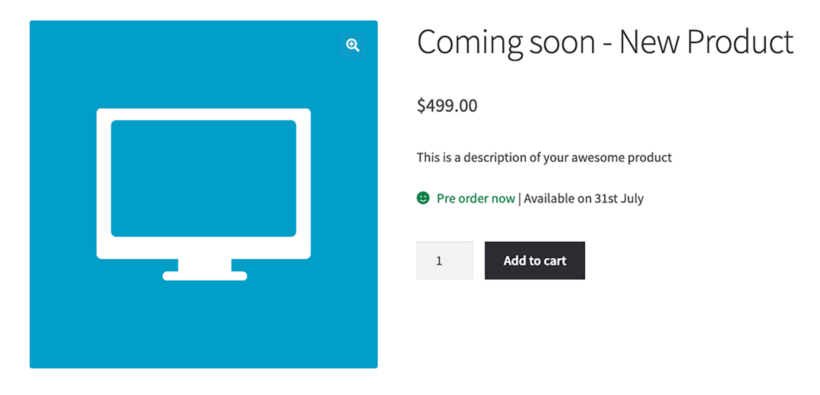
WooCommerce product page showing a pre-order button and release date

Are you looking for a way to set up WooCommerce pre order for your upcoming product launch? Keep reading to learn how (and why) setting up pre orders on your WooCommerce store will spark interest among your clients, help you validate your product idea, and streamline your inventory process.

When it comes to launching new products, the vast majority of stores get it wrong. Most businesses either don't inform customers about new items, add a waitlist plugin, or only notify them when the product is released. However, if you can get more sales by accepting orders before the launch, while clearly letting clients know when the new product will be delivered.

You can use WooCommerce pre orders to promote interest in new items. It will help you evaluate demand and collect cash before manufacturing. This way, you can decide how many items to make on your first production run and get cash upfront.

In this article, we will show you how to set up pre orders on WooCommerce and present you with the best solution to do it - WooCommerce Lead Time. This plugin allows you to easily add a pre order time to a single product page. It will keep them informed of the exact release date. As a result, customers can buy your product before it is launched.

How can your WooCommerce store benefit from WooCommerce pre order?

It doesn't matter how many views, followers, and email subscribers you have. Nothing validates a concept like having someone place a purchase for your goods in advance. Some of the most significant incentives you can have come from a consumer paying you money for your concept or product before it is fully developed.

WooCommerce pre ordering involves providing customers with the choice to pre order things that haven't yet been released. When done correctly, it can assist you in the following ways:

  • With actual sales, build momentum before the product's debut.
  • Analyze the current market demand for a certain product or service.
  • Engage existing consumers and assist in acquiring new ones.
  • If you state that you will only release a certain quantity, you will create urgency.
  • Streamlines the configuration and follow-up stages of the WooCommerce pre ordering>

Why should you include WooCommerce pre order option?

WooCommerce pre ordering is an effective sales tactic that helps businesses convert leads to clients, improve client relationships, and upgrade the customer experience. Presales require time and effort to implement well. But they can significantly benefit a company's sales efforts. By prioritizing communication and focusing your sales on including pre ordering, you can achieve your business objectives way faster.

WooCommerce product page showing a pre order now availability date

WooCommerce pre orders are also important because they help customers understand how a product or service can meet their specific business needs. Companies can guarantee clients receive the greatest and most accurate information. All thanks to improved communication at the start of the sales process. Preordering is particularly vital for businesses since it helps them to properly grasp their customers' goals and offer the greatest viable solutions for their specific needs. As a result, the sales experience is typically more tailored, with relevant solutions, streamlined procedures, and meaningful delivery.

How about physical products?

When it comes to physical products, implementing WooCommerce pre order techniques in your business can help you estimate the exact amount of products to manufacture. In this way, you won’t end up with too many or too few items.  Meeting your demand perfectly will decrease your inventory and keep costs low simultaneously.

Best plugin for Woocommerce pre orders - WooCommerce Lead Time

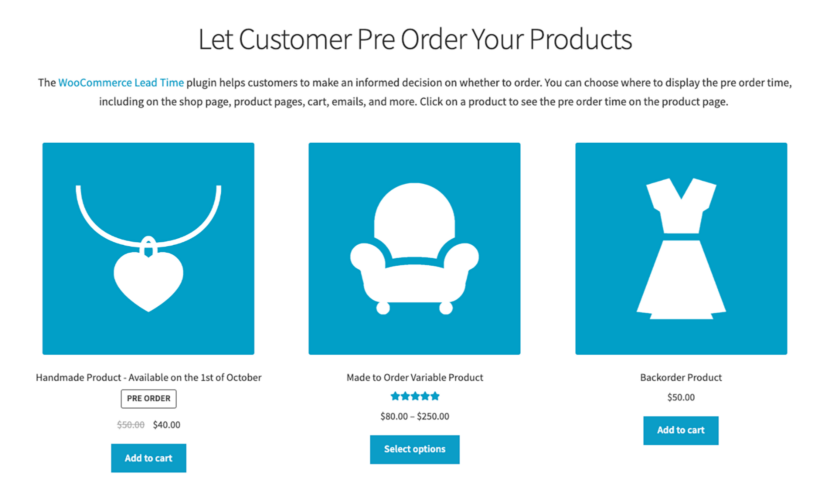
Shop page showing pre order products with WooCommerce Lead Time

Even if you are a developer, putting up pre orders on your WooCommerce site without a specific pre orders plugin is challenging. Adding custom code to your theme and altering the default WooCommerce templates will be necessary. However, this way, there is a significant chances of mistakes in terms of setup, sales, and fulfilment of pre orders.

In the case of a standard WooCommerce setup, WooCommerce comes with the ability to indicate goods as in stock, out of stock, or on backorder. It does not, however, allow you to enter a lead time for out-of-stock or new items.

This information should ideally be shown on the single product page so that buyers can make an educated decision about pre ordering the product. Even though preordering usually means a longer wait time for the product, it also offers a bunch of benefits, such as discounts or bundles for the buyers. Ideally, you want this information to be obvious to the customer at the moment of purchase.

Currently, the default WooCommerce product classifications (in stock, out of stock, or on backorder) are not a good fit for preordering with a defined lunch date. Setting your new product as “out of stock” will make your customers leave your store empty-handed and go search for Google alternatives.

Our solution - WooCommerce Lead Time

WooCommerce Lead Time is the only WordPress plugin that displays pre order times on the product page, facilitating your WooCommerce product launches. The plugin streamlines the WooCommerce pre order process and eliminates the possibility of human mistakes in collecting payment information, maintaining pre order inventories, and fulfilling orders.

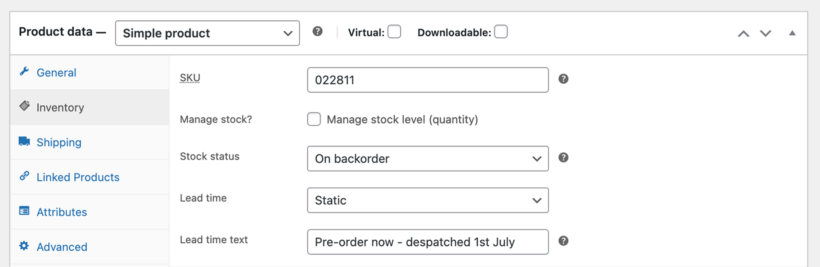
Instead of marking the product as Out of Stock until it is available, you can make it available for pre order straight away (e.g. using the backorder status) and clearly display the launch date or the number of days until the launch. WooCommerce will mark the pre-orders as 'Processing' in the WordPress admin until the product is launched. At that point you can remove the pre order wording and 'Complete' the orders.

WooCommerce Lead Time enables you to:

  • Show the WooCommerce stock status and lead time right on the shop and category pages. Customers may view this important information before clicking on any product.
  • Display a clear indication of when each item will be available to the buyer.

WooCommerce Lead Time is ideal for selling new not-available-yet-to-the-public items, as well as providing customers with accurate information before they make a purchase. The plugin is extremely light and works with any theme you already have on your online store.

It allows you to have total control over the stock state of WooCommerce and customise it depending on your launch dates. You will also get access to top-rated customer care, which will assist you at every step of the journey.

Before you set up WooCommerce pre order with WooCommerce Lead Time

Before you set up WooCommerce Lead Time on your online store, there are a few things you should think about:

  • When (day and time) will you begin taking online pre orders?
  • How long should your presale last?>
  • Will you offer some additional bonuses for customers who order during preordering phase?
  • When will the product be available for purchase and shipping?
  • Which payment gateways are you going to use?

Your customers will be charged upfront, so you will receive advance revenue during the pre-ordering period. We also suggest planning a bigger marketing campaign for your new item preordering to build momentum for your product launch and achieve the best results.

How to set up WooCommerce pre orders for your product

#Step 1: Get the WooCommerce Lead Time plugin

If you haven't already, install the WooCommerce Lead Time plugin. In a confirmation email, you will receive the plugin files and license key. Install and activate the plugin on your WordPress website. From the admin panel, navigate to WooCommerce → Settings → Products → Lead time.

The setup wizard will launch on activation of the plugin. It will take you through the main settings for displaying pre-order information.

Step #2: Show WooCommerce pre order status and lead times in your store

You may use the WooCommerce Lead Time plugin to display pre order status and lead times in prominent locations throughout your e-commerce business. It will display the product launch date on the cart, checkout and in the customer emails, so your customers will be very clear about when they will receive it.

However, we do suggest further highlighting your preorders by creating a special “New” or “Limited availability” category for them in your store.

Step #3: Set the WooCommerce pre order time

Depending on your launch and the number of products you want to include in your presale, you may set the processing time for WooCommerce Lead Time for the category of items, simple products, or variable products.

By going to WooCommerce → Settings → Products → Lead time  and entering the lead time in the Global lead time field, you can set the processing time globally

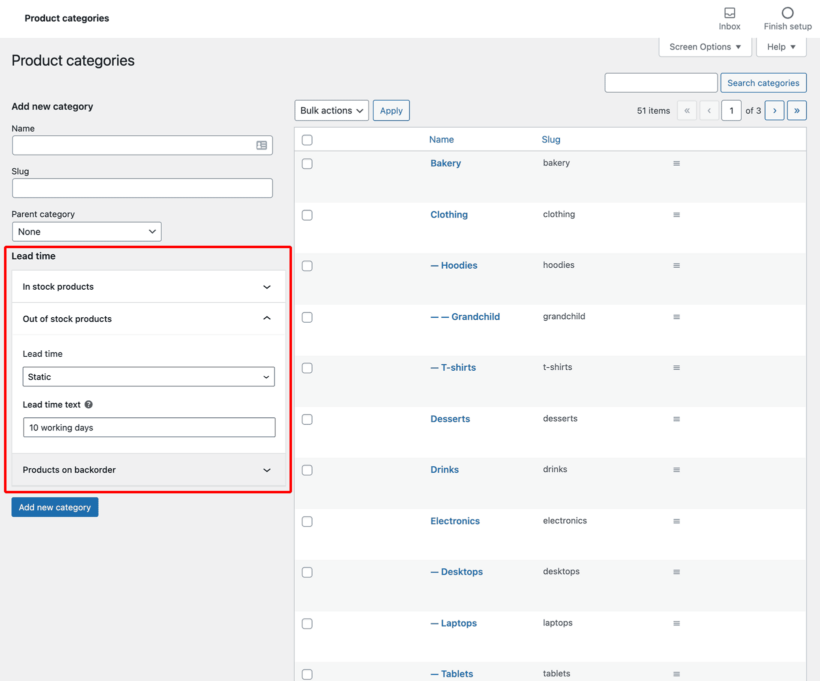
Setting a global lead time on a WooCommerce product category
[/image_border]
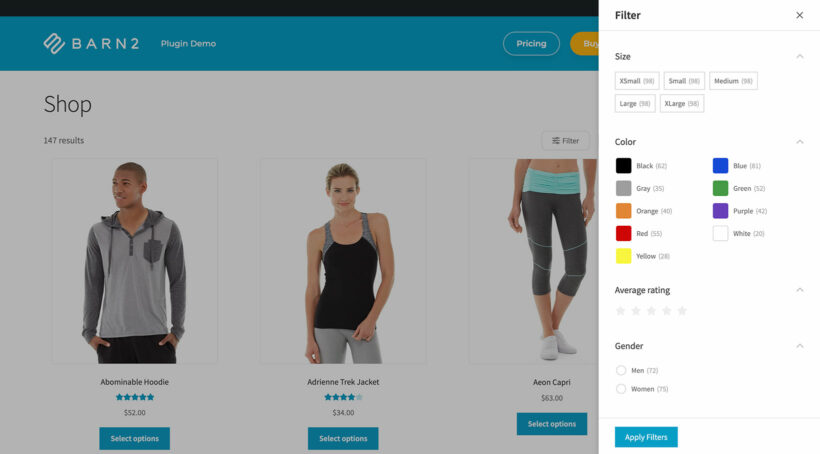
To define the processing time for a certain product category, go to Products → Categories and select either Static (input static lead time text) or Dynamic (compute the processing time dynamically) from the Lead time selection.

Setting a dynamic lead time and availability date on a WooCommerce product

You can also adjust the processing time for specific goods with WooCommerce Lead Time (and variations). On the Edit Product page, choose the product for which you want to establish a pre order time. Scroll down to the Product information section and select the Inventory tab. You may set the product's pre order time from here. This is also applicable to variable products.

Adding a pre order despatch message to a WooCommerce product

Step #4: Customize the pre order text and color

One of the most useful aspects of the WooCommerce Lead Time plugin is the ability to change the text and text color. This means you can fine-tune it to achieve the exact look and feel you desire when displaying pre order products.

For instance, you might change the custom status phrase to something like:

  • Preorder ends in X days
  • Available in X days
  • Waiting time:
  • Coming soon
  • Dropping in X days

To change the text color, go to the plugin's settings page (WooCommerce → Settings → Products → Lead time) and pick a new color from the Lead time text color option.

Managing pre orders in WooCommerce

WooCommerce Lead Time makes it easy to manage your WooCommerce preorders. Once a customer purchases the product, the order is saved as "Processing", and the only thing you need to do is to mark them as "Complete" when you finally launch.

You can then despatch the product once you close your pre-order period and manufacture the needed amount.

As the payments are processed straight away, you won't need to worry about any complicated multi-step payment process or delayed payments.

Using WooCommerce Lead Time with other plugins

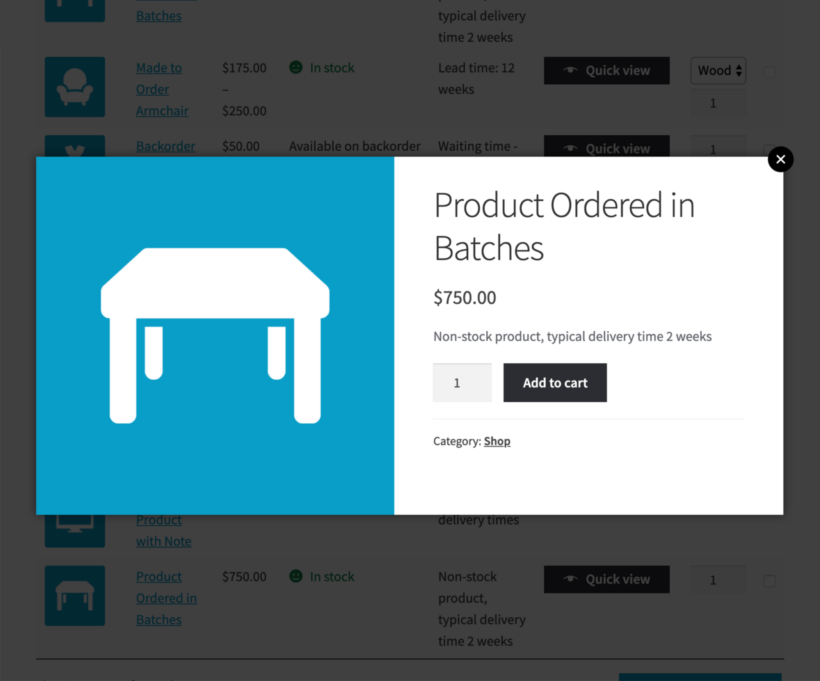
Customers should ideally be informed of the product lead time on the product information page. You may, however, utilize the plugin to display the lead time on your main store pages. When used with other plugins such Quick View Pro, you may display lead times in a quick view lightbox. This is particularly useful if you run a presale for multiple items in your store. This way, customers can see more information about the item they want to purchase without the need to leave the store, which increases the chances of conversion.

WooCommerce Lead Time with Quick View Pro (below)

WooCommerce Lead Time shown in a Quick View product popup

Another plugin to consider for your WooCommerce pre orders is YITH WooCommerce Waiting List. This plugin displays an 'add to waiting list' button for items that are not yet available. When consumers add themselves to the waitlist, they receive an email as soon as the product is released. Everything is automated.

YITH WooCommerce Waiting List plugin banner

This is a good option if you don’t want to collect money before the release date of your new item. By using WooCommerce Lead Time and YITH WooCommerce Waiting List together, you can inform your customers about the lead time of your new product. And collect their email addresses at the same time.

Set Up WooCommerce Pre Orders for Products in Your Store Today

The WooCommerce Lead Time plugin may benefit your online store in various ways. It supports you in the marketing of your products or services by creating momentum before the product launch. It is also an excellent strategy to enhance income. Not only that, but also it helps your business with the technical and logistical management of the inventory on the back end.

A high-quality WooCommerce pre order plugin for your online shop allows you to manage the complexity of presales properly. Allowing customers to pre order things can help you generate income upfront for the manufacturing. It will also boost the likelihood of future product success.

WooCommerce Lead Time is the only WordPress plugin that displays lead times on the product page. It makes it easier to highlight the release date of your WooCommerce products. This plugin allows you to clearly communicate with customers when a product will be released. So that, they can order straight away (i.e. pre order) while knowing how long they will be waiting.

Ready to launch a WooCommerce pre ordering campaign? Get the WooCommerce Lead Time plugin right away!

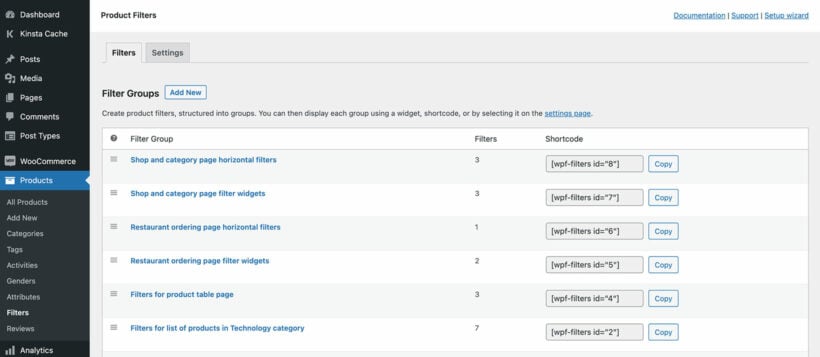
There are lots of ways to add WooCommerce product filtering to your store. You can do it very effectively, or very badly! Discover our top tips on the best way to provide filtering options for your customers.

While designing our WooCommerce Product Filters plugin, we did a lot of research and analysis into what makes effective product filtering. Today I'm going to share my top tips on how to use WooCommerce product filtering in a way that will delight your customers and maximize your sales.

We'll cover various areas of filtering products, including subtle but important details that people normally overlook.

Tip 1: Choose WooCommerce product filtering styles that suit your product data

If you look at the basic filter widgets that come with WooCommerce yourself, you'll see that they're very limited. Compare them with the world's top e-commerce stores (many of which don't use WordPress) and you'll see a huge difference. The best stores have a much more creative approach to WooCommerce product filtering, with a huge range of filter styles.

But don't go crazy! Think carefully about the types of product data that your customers will be filtering by. Choose a filter style that suits each type of data and will create a logical experience for customers.

Filtering types and style options

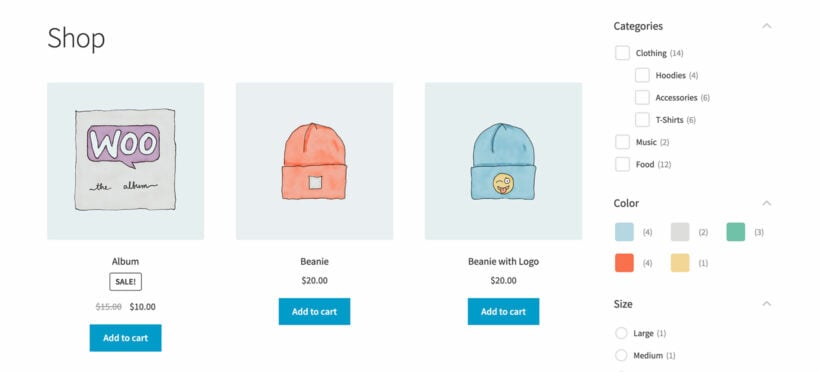
The WooCommerce Product Filters plugin comes with a big choice of filter styles. This includes checkboxes, dropdown lists, radio buttons, text labels, images (with or without text), and color filters. Which one you choose for each type of product data can make a big difference to your customers' experience.

Here's a summary of the different filtering styles that you can choose from:

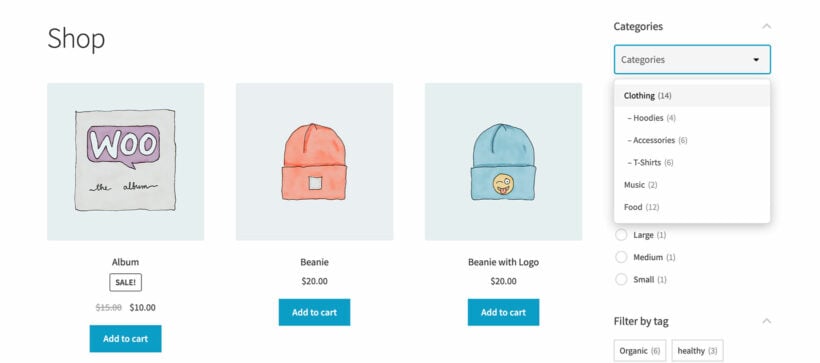
Dropdown filters

WooCommerce category filter dropdown
  • What is a dropdown filter?: A dropdown list, which customers click to open the list of options.
  • Hierarchical?: Yes - sub-categories are indented under their parent categories.
  • Selection method: Single choice.
  • Recommended for: Product filtering where there is lots of options. That's because a dropdown doesn't take up much space on the page. Only use dropdowns where the customer only needs to choose one option at a time.

Checkbox filters

WooCommerce category filter plugin checkbox
  • What is a checkbox filter?: A list of tick boxes.
  • Hierarchical?: Yes - sub-categories are indented under their parent categories.
  • Selection method: Multiple choice.
  • Recommended for: Non-visual types of product data where customers need to select more than one WooCommerce product filtering option at a time.

Radio buttons

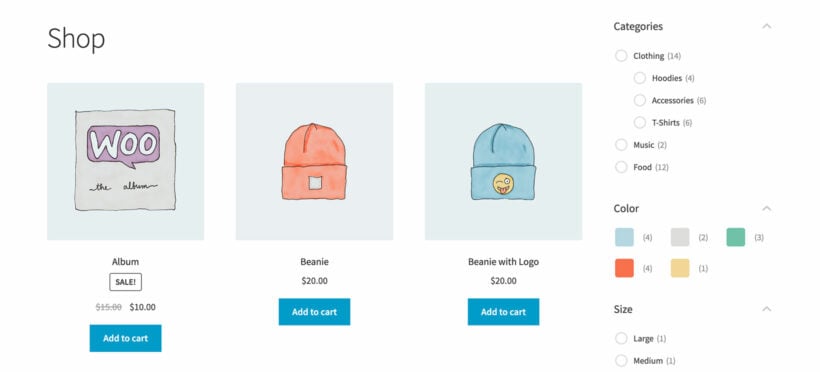
WooCommerce category radio button filters
  • What is a radio button filter?: A list of options, each with a circle that customers can click on.
  • Hierarchical?: Yes - sub-categories are indented under their parent categories.
  • Selection method: Single choice.
  • Recommended for: Filters where customers must make an either-or choice to select one option at a time.

Text labels

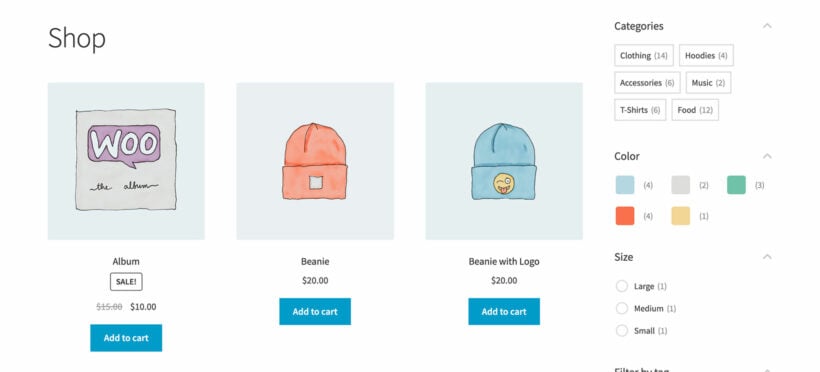
WooCommerce filter by category label
  • What are label filters?: A cluster of small boxes, each containing the name of the option - similar to a tag cloud.
  • Hierarchical?: No - only top level options are included (e.g. parent categories).
  • Selection method: Multiple choice.
  • Recommended for: Types of product data which don't have images, but where customers will benefit from a more visual way to display the options. For example, size options (e.g. Small, Medium and Large) look good displayed as text labels. This is a particular good way to display WooCommerce tag filters.

Images

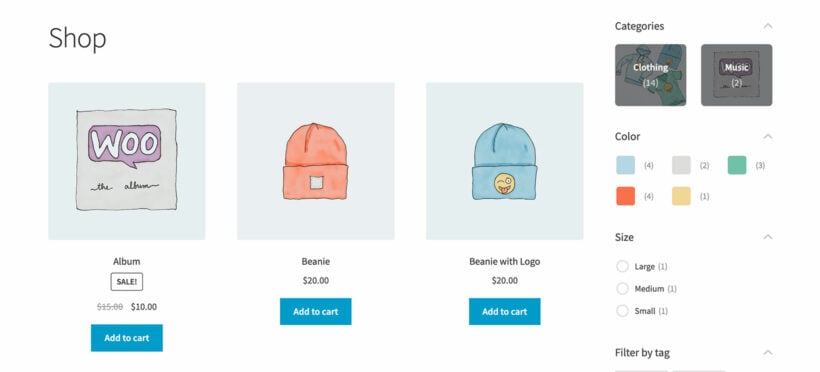
WooCommerce category filter image with name
  • What are image filters?: A grid of images, each representing one of the filter options (e.g. a category or an attribute). You can choose whether to show the image on its own, or to add a dark overlay with the option name over the image.
  • Hierarchical?: No - only top level options are included (e.g. parent categories).
  • Selection method: Multiple choice.
  • Recommended for: Visual types of product data where customers will appreciate being able to click on an image of what they are looking for, instead of having to read through a list of text options. For example, categories often work well when displayed as image filters.

Color swatches

WooCommerce faceted search filters
  • What are color swatch filters?: A grid of coloured squares, each representing a color attribute option. Customers click on a color to filter for products of that color. You can display the colors on their own, or with the name of each color alongside.
  • Hierarchical?: N/A
  • Selection method: Multiple choice.
  • Recommended for: Color attributes.

Choosing the right product filtering styles

Think about whether you're using the most appropriate style for each filter on your site. If not, then head over to Products → Filters and change it - it only takes a second!

Tip 2: Show WooCommerce product filtering in the right parts of your store

Did you know that there are 3 different ways that you can add filters to different parts of your store?

Method 1: Above your shop

WooCommerce add category filter above shop products

The most obvious way to show filters on your site is by displaying a filter group above your shop. You can enable this in the setup wizard, or on the plugin settings page at Products → Filters → Settings.

This method displays the filters as dropdowns above your default store pages (shop, category pages, etc.). But what if you want to add filters to the sidebar, or to pages other than your default store pages? That's when you need Methods 2 and 3.

Method 2: As sidebar widgets

WooCommerce sidebar widget filters

Lots of e-commerce stores display filters in the left or right sidebar of their shop pages. That's a great option because the customer can see all the options at once.

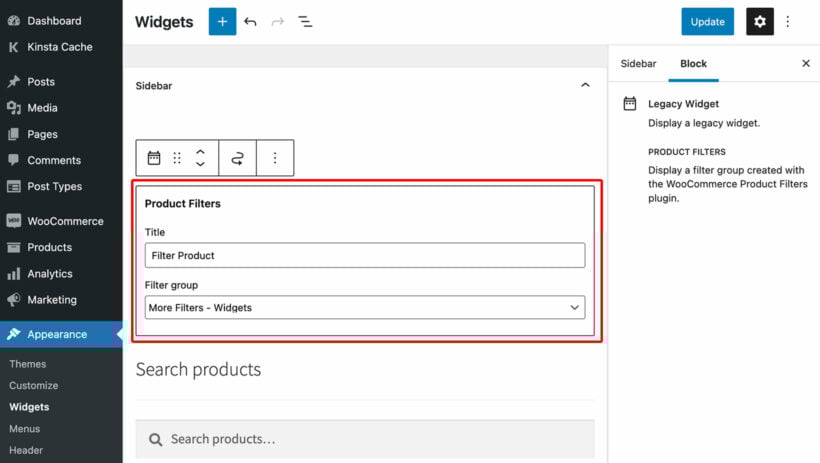
To add a filter group to the sidebar, go to Appearance → Widgets and use the 'Product Filters' widget. To show the widget on some pages but others, you can use a free plugin like Widget Options.

Method 3: As a shortcode

The final way to insert filters is a bit more technical than the others, but also the most flexible. You'll need this if you're creating custom pages to list products and want to display filters above - for example, if you're using a page builder plugin or our WooCommerce Product Table plugin.

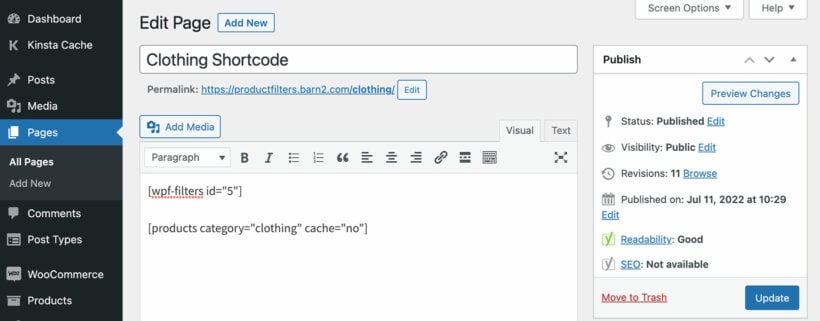
To find the shortcode, go to Products → Filters and copy the shortcode for the relevant group. Paste it wherever you want the filters to appear - for example, above a product table shortcode, in a Gutenberg text or shortcode block, in an Elementor or Divi block, or anywhere else.

You can either use the shortcode as it comes, or configure it using the shortcode options.

Choose the right location for your WooCommerce product filtering

Armed with this information, think about whether you have added filters to all the locations where they would be helpful to your customers.

Tip 3: Choose between horizontal, vertical and hidden filters

Amazingly, the WooCommerce Product Filters plugin provides three layout options for your filters.

That's right - you can choose between:

  • Horizontal layout - This normally appears horizontally above the list of products, with each filter hidden within a dropdown.
  • Vertical layout - This is normally use for sidebar widget filters.
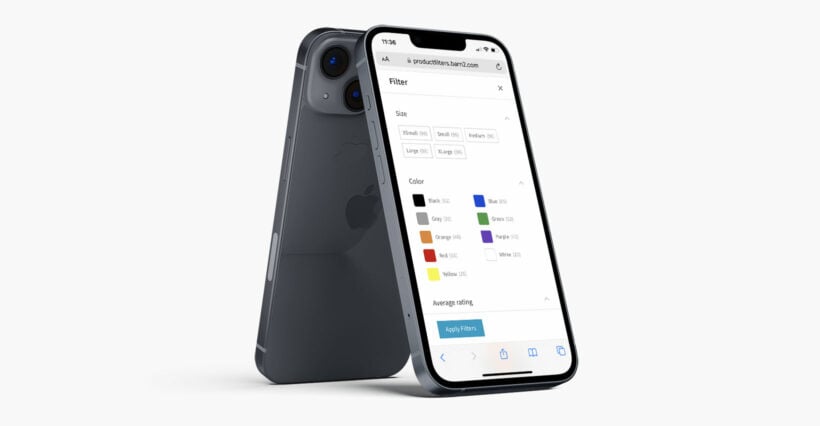
  • Hidden filters - You can also display a 'Show filters' button above the list of products, which opens the filters in a slide-out panel.
Show hidden filters button

So, how can you choose which layout(s) to use in your store? Here are my top tips to help you decide:

  • Do your shop pages have a sidebar? If not, then you should definitely use the horizontal or hidden layout!
  • Do you want customers to be able to see all the filter options all the time? If so, then the vertical layout is best.
  • Do you have large numbers of filters? Consider using a combination of both layouts, as in the above screenshot.
  • Are you worried about cluttering up the page? Hide the filters so that customers must click a button to view them.

What about mobile?

WooCommerce filter plugin with mobile slide-out panel

So far, we've only considered desktop users. Most mobile sites don't have a sidebar so even if you add filter widgets on desktop, WooCommerce Product Filters will automatically hide these and display a 'Show filters' button on mobile instead.

This means that for mobile users, your only choices are to either show the 'Show filters' button, or to show the horizontal filters above the list of products. I recommend using the 'Show filters' button if you have lots of filters, and making them visible above the list of products if you just have a few.

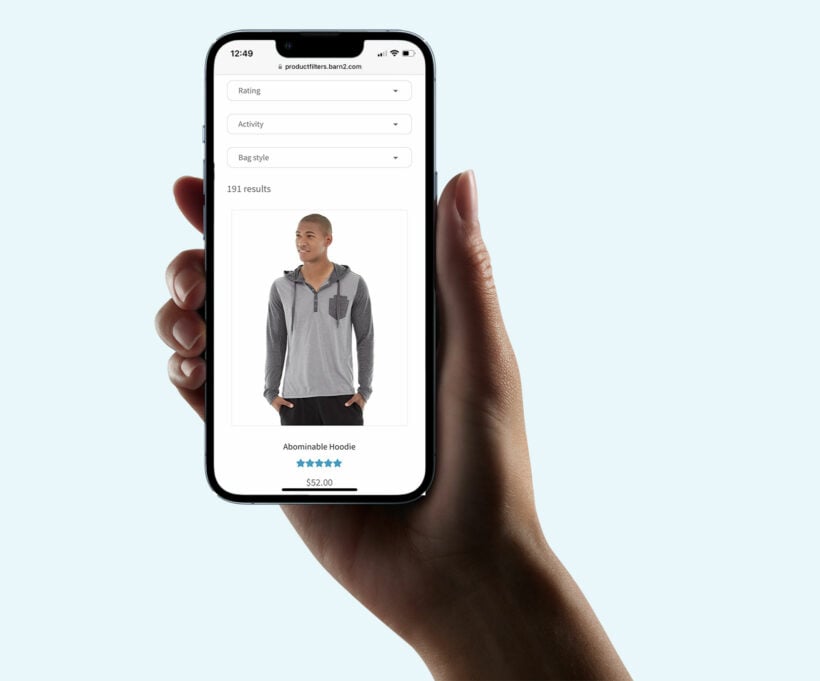
WooCommerce mobile filters above shop

Use these options to plan the best possible locations for the filters in your store - whatever devices your customers are using.

Tip 4: List products in a structured order form with filtering

If you use product filters on your e-commerce site, chances are that you have lots of products. After all, that's why you need filters!

And when you have lots of products, the default store layout often isn't good enough. Each product takes up a lot of space, and even after using the filters, it's still difficult for customers to compare products and make quick buying decisions. It's also a pain for customers to have to visit a separate page for each product in order to choose quantities and variations, and add to the cart.

You can solve all these problems by using WooCommerce Product Filters with our other plugin, WooCommerce Product Table:

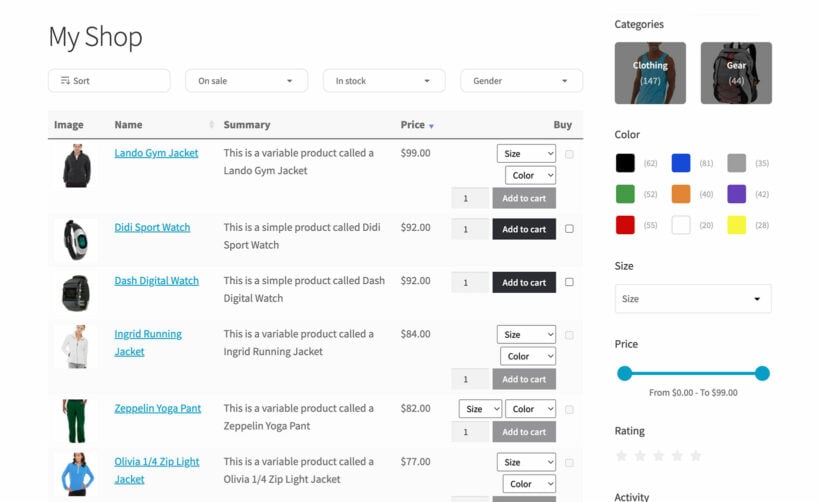
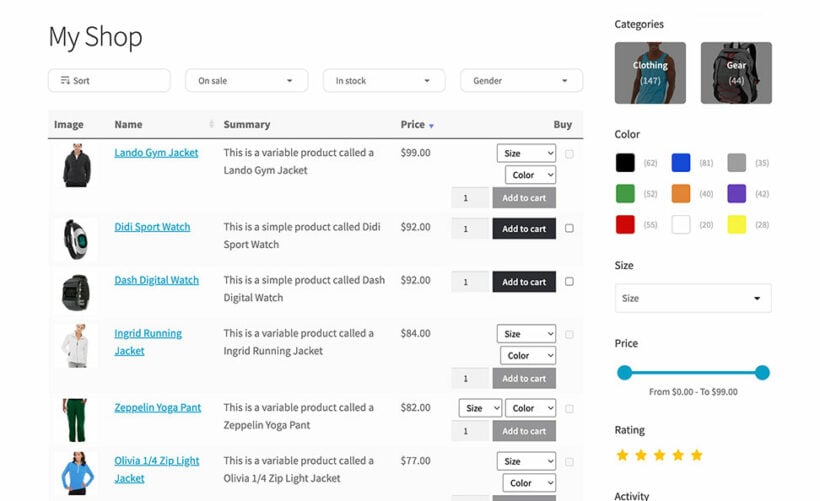
WooCommerce Product Table combined with WooCommerce Product Filtering in the sidebar
A product table with WooCommerce product filtering

WooCommerce Product Table lists your products in a conversion-optimized one-page order form. Customers can view more products per page, and choose quantities and variations without leaving the page.

It's a much faster way to buy. And as everyone knows, faster shopping means more sales for you!

Tip 5: Decide whether to hide the product filtering

Next, let's look at whether your store will be better if you show or hide your product filters.

Most WooCommerce stores show the filters all the time. However, if you look at some of the world's leading e-commerce sites outside of WordPress - particularly clothes stores - then you'll see that this isn't always the best option. Depending on the layout of your store and the type of products, it's often better to hide the filters so that customers can choose whether to see them.

The WooCommerce Product Filters plugin provides several ways to do this:

Slide-out panel

WooCommerce Product Filters slide-out panel

You can hide filters from the page on mobile and/or desktop. When you do this, customers can click a button to view the filters in a user-friendly slide-out panel.  That way, customers can still filter your products - but you keep the page clean and clutter-free.

Add open/close toggles

Maybe you don't want to hide the filters all the time, but you want them to take up less space on the page.

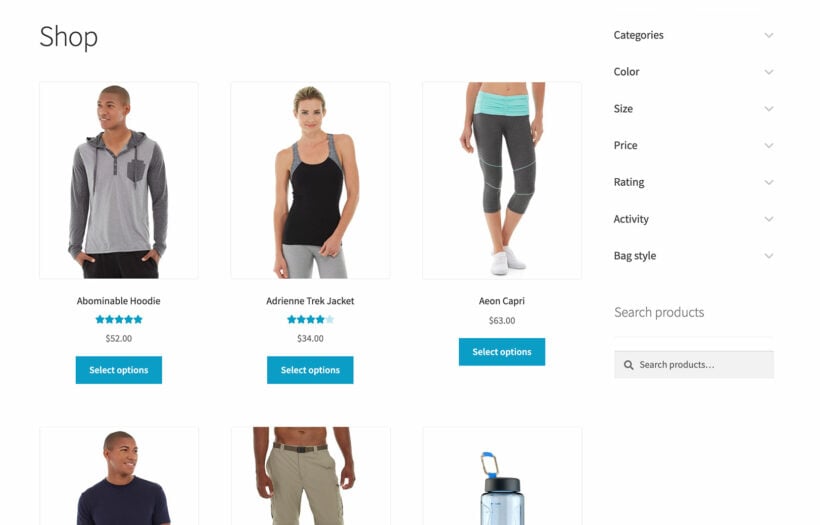
You can achieve this by enabling the Toggle option in WooCommerce Product Filters. Either show the toggles as open or closed by default, and customers can click on a filter heading to show and hide the options within:

WooCommerce toggle product filters open closed

Take a look at your store and think about whether you're using the visibility options in the best possible way for your customers. It can make a big difference!

Tip 6: Should you use AJAX filtering?

When people first install the WooCommerce Product Filters plugin, they tend to select the "Instant" filtering option without really thinking about it. But is it definitely best option for your store?

Now I'm going to tell you a bit about the "Button click" option and help you think about which filter mode you should be using.

WooCommerce Product Filters comes with a choice of 2 filter modes:

  • Instant - This uses AJAX to filter the list of products as soon as the customer clicks on an option.
  • Button click - Customers can select as many options as they like from the filters, and then click an 'Apply' button to view the results.

Most of the world's top e-commerce stores use AJAX filtering. That's because it reduces the number of clicks for the customer, and shows results without reloading the page.

However, AJAX filtering can sometimes create a worse user experience. This can happen when you sell the sort of products where customers want to make all their choices in one go, and only view the results at the end of the process. ]
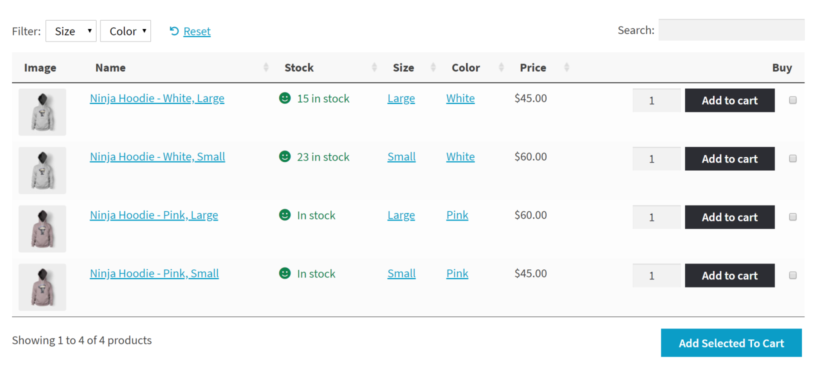
Some examples

To illustrate this, let's look at two possible use cases:

  • Clothes websiteI'd generally recommend AJAX filtering for this because the customer wants to see some products after selecting some initial filters, and then might select additional options to fine-tune the results. When they start shopping, they don't know the exact combination they're looking for. They'll keep selecting filters one at a time until they find items they like.
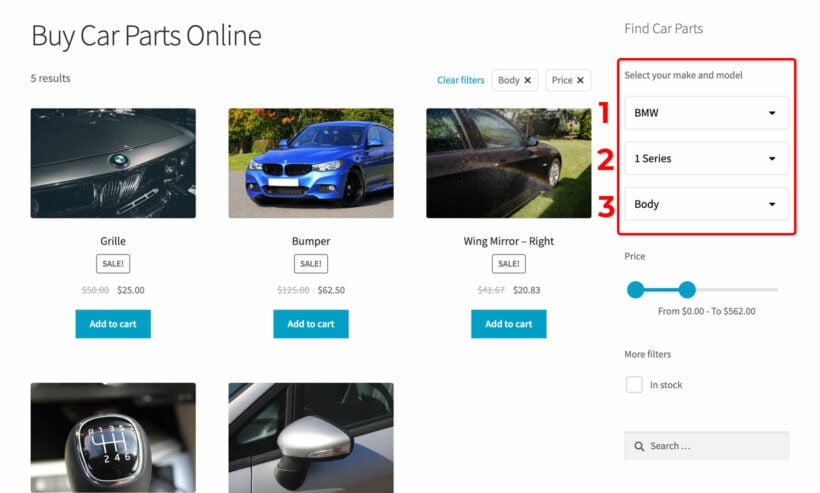
  • Car parts websiteWith this type of product, customers know exactly what they need. They want to select all the criteria from faceted search filters and then view the results all at once. As a result, I'd recommend the button click method for this type of store.

Based on the above, which filter mode do you think is best for your store? It's easy to change - just head to Products → Filters → Settings.

Tip 7: Check the order of your filtering options

And finally - another thing to check is the order of your filters. There are two things to check here:

Are your filters in the right order?

When you created your WooCommerce product filtering options you might have added them to the end of the group without considering the order. Edit the filter group and drag and drop the sort icons to put them in the best possible order.

I recommend putting the most high level filters first to create a logical journey for your customers. For example, it would make sense to put the category filter first. Next, you can have the most important attribute filters, and then general data such as price filter and average  rating.

Are the options within each filter ordered correctly?

It's also worth checking the order of the options within each individual filter. For example, if you have created a filter using the 'Size' attribute then you may want to order the attributes in size order instead of alphabetically.

Category, Attribute, Color and Taxonomy filters are ordered via the term_order option that is built into WordPress. While WordPress doesn't have a built-in way to re-order taxonomy terms, you can change the order using free plugins such as Category Order and Taxonomy Terms Order.

Once your filters are up to date and ordered logically, it will be easier then ever for customers to find what they're looking for.

Where to get the plugin

We built the Product Filters plugin to allow any store owner to add professional-quality product filtering to WooCommerce.

There's no one-size-fits-all approach, and different stores work best with different types and configurations of filtering.

As a result, use the above tips when adding WooCommerce product filtering to your store. Think about the types of products you sell, and what will create the best possible experience for your customers. Create logical filtering options that suit your products and guide customers to the products they're looking for. As a result, they're much more likely to find what they're looking for - resulting in more sales for you!

How to Filter Products by Category

If you run a WooCommerce store with lots of categories, then it's essential for customers to have a quick way to find products by category. Discover the easy way to add a WooCommerce category filter to your store, and watch your sales grow!

Product filters add value to online stores and help customers to find products quickly and easily. It's no surprise that more and more store owners are adding product filters to their online stores.

However, the filters that come with the WooCommerce plugin are pretty basic and don't include a category filter. There's a basic categories widget that simply lists the categories in your store with links to each one, but no actual category filter widget.

AJAX filters are real-time filtering systems that update product results instantly without requiring a page reload. These filters provide a smoother shopping experience compared to traditional filters.

When your customers shop in popular non-WordPress online stores, they're used to being able to filter by category. So why is this so difficult in WordPress and WooCommerce?!

An e-commerce site with category filter checkboxes

Fortunately, there's an easy solution. Keep reading to learn how to add a category filter in WooCommerce. You'll discover how to add WooCommerce filter by category using checkboxes, just like in the example above. And for even more flexibility, you'll learn how to create other types of category filter. This might include clickable images, radio buttons, dropdown lists, text labels, and more.

Why do you need product filters and how does filtering by category help?

A WooCommerce category filter is a navigation tool that allows customers to refine product searches by selecting specific categories. Category filters help customers find products faster by narrowing down search results to show only products from selected categories.
Faceted search is a filtering method that allows users to apply multiple filter criteria simultaneously. This creates a more refined search experience by combining categories, attributes, and other product data.
WooCommerce faceted search filters
Display category filters as images, dropdowns, checkboxes - whatever you like!

WooCommerce is the best e-commerce platform to sell online with ease. It's also the most popular.

However, the built-in widgets for filters are pretty limited. You can only filter products by basic information such as attribute, price or rating. The page refreshes every time a customer chooses an option from a filter. And even worse - there's no built-in WooCommerce category filter. As a result, there's no way for customers to refine their search by category and see more specific types of products.

By adding WooCommerce category filters to your store, you make it easy for customers to narrow down their search and find the products they want to buy faster. The faster they find the products, the faster they'll move to checkout.

Research shows that 61% of users will leave a site if they can't find products quickly. Additionally, sites with effective filtering see up to 26% higher conversion rates compared to those without.

Let's step through some of the main benefits of filtering by category in WooCommerce:

And the best thing about filtering by category?

The best part is that WooCommerce category filters are most effective when used alongside other types of filters. For example, if you set up a category filter with a price filter, attribute filter, and in-stock status filter, customers will be able to refine their search even more.

Picture this: a customer is looking to buy a red t-shirt and has a $40 budget.

Scenario 1: You're not using category filters – The customer will use the category widget to see all T-shirt products. They'll see a product catalog of dozens of t-shirts to browse through to find a red one that's under $40.

Scenario 2: You're using category filters – The customer will use category filters to make the following selections and refine their search:

  • Category: T-shirt
  • Color: Red
  • Price range: $20 to $40

And the result? They'll only see red t-shirts that are within their budget.

Introducing WooCommerce Product Filters

WooCommerce Product Filters cropped
WooCommerce Product Filters

The WooCommerce Product Filters plugin makes it easy for store owners to set up AJAX product filters, including by category, product attributes, or taxonomies. It lets you create different types of filters and display multiple filters on your WooCommerce shop pages and category pages at a time.

WooCommerce Product Filters is a plugin that provides an easy solution for non-coders to add customized product category filters to their WooCommerce store. The plugin enables store owners to create filters based on categories, attributes, custom taxonomies, product tags, colors, and price sliders.

The product filters can be based on categories, attributes, custom taxonomies, product tags, colors, price sliders, and more. You can also display the total product count next to each filter option. It's perfect for anyone looking for a WooCommerce category filter plugin.

Different options for adding a category filter to WooCommerce

Using the WooCommerce Product Filters plugin, you can add a category filter to your store in a variety of different ways:

Dropdowns

WooCommerce category filter dropdown

A dropdown category filter is a collapsible menu that displays categories in a hierarchical list. Customers can select a single category at a time to filter their search results. This is useful for stores that sell lots of different products organized into a few different categories and sub-categories. The parent-child category relationships are visible at a glance.

You can create dependent category filter dropdowns, where only one dropdown appears when the page first loads. Additional dropdowns appear as the customer makes their selections. Linked filters like this are popular for websites that structure products in a hierarchical way, for example when selling car parts online:

Hierarchical category filter for a car parts shop using stepped dropdowns

Checkboxes

WooCommerce category filter plugin checkbox

A checkbox category filter is a list of categories with checkboxes next to each one. Customers can select multiple categories simultaneously. This is useful for stores that sell lots of similar types of products such as clothing. Customers can tick the checkboxes next to Blouses, T-shirts, Tunics, and Dress shirts to find a suitable top.

Category checkbox filters are probably the most popular way of filtering by category. That's because it's so easy for customers to select multiple categories at a time.

Radio buttons

WooCommerce category radio button filters

Radio button category filters display categories with circular selection buttons next to each one. Customers can view available categories at a glance and select one category to filter by.

With radio button filters, you can only select one category at a time.

Text labels

WooCommerce filter by category label

Text label category filters display WooCommerce categories like a tag cloud. Customers can quickly click on a label to view products from that category only.

Like the category checkbox filtering, you can filter by multiple text labels at a time.

Images

Image category filters display category thumbnails, with or without the category name. Customers can click on the category image to refine their search. It's a much more visual way to filter by category in WooCommerce.

As with WooCommerce category checkbox and label filters, image filters support multiple selections.

Add a category filter the list of products

WooCommerce add category filter above shop products

All of the screenshots above show WooCommerce category filters as sidebar widgets. However, that's not the only option. You can also show each type of category filter at the top of your shop.

With this option, the filters appear as dropdowns at the top of the main Shop page, category pages, and so on. You can display any of the category filter styles (checkboxes, radio buttons, images etc.) within the dropdown. For example, the screenshot above shows how a category checkbox filter looks at the top of the shop.

Mobile category filters

Mobile category filters are filter interfaces optimized for small screens. The majority of e-commerce purchases now take place on mobile devices. However, filtering requires careful thought on mobiles because of the small screen size. You don't want the filters to take up the whole page!

The WooCommerce Product Filters plugin handles mobile category filters perfectly. You can either show the mobile filters as dropdowns above the shop, or in a mobile-friendly slide-out panel:

Organizing WooCommerce category filters

Filter groups are collections of related filters that work together to help customers refine their product search. You can organize multiple filter types (categories, attributes, price) into a single group for better user experience.

One of the standout features of this WooCommerce category filter plugin is that it lets you create individual filters and then structure them into groups. The groups can then be added anywhere on your WordPress website or automatically be enabled on store pages.

The plugin lets you customize filters to offer dependent items, hide invalid filters, and hide products that are uncategorized. It also enhances the customer experience by offering the option to clear filters and scroll to the top of the page at the click of a button.

Finally, WooCommerce Product Filters lets you display the product count against each filter option. This means that you can show the number of products in each category next to the category name in the filter.

How to add WooCommerce category filters using the Product Filters plugin

Here's what you need to do to add WooCommerce category filters to your online store:

Step #1: Install and activate the WooCommerce Product Filters plugin

Get the WooCommerce Product Filters plugin if you haven't done so already. Install and activate it on your WordPress site.

The filter plugin setup wizard will now open. Use it to activate your license key and choose other options to configure your filters. For example, you can:

  • Choose whether to use instant AJAX category filters or whether to apply filters when the customer clicks a button.
  • Configure filter visibility to deliver a good user experience to your customers. You can show or hide filters by default, either on mobile or desktop.
  • Customize the text - you can change the text that appears on your filters to make it more relevant to your store, and in your language.
  • Hide filters within space-saving toggles like this:
WooCommerce toggle product filters open closed

Step #2: Create filters and group filters together

The WooCommerce Product Filters plugin makes it easy to create a category filter:

  1. Navigate to Products Filters in the WordPress panel.
  2. Either open the default filter group or create a new one.
  3. On the 'Edit filter group', page, click the 'Add new filter' button.
  4. Fill in the details to add a new filter. You can set the name, filter by, filter type, and assign to group options. Set the filter data option to Categories to create a category filter.
  5. When you select a category filter, an option appears letting you choose the style of the WooCommerce category filter. This is where you choose whether you want checkboxes, a dropdown, images, etc.
  6. Repeat this step to create more filters. For example, you might want to create an attributes filter and price filter to go with the categories filter. This way, customers will be able to narrow down their search even further.
WooCommerce category filter type selector showing dropdown, checkboxes, radio buttons, labels, and images
Choose a style for your WooCommerce product categories filter

Tip: If you're creating category dropdown filters, then you can choose whether they will always be visible, or whether additional dropdowns will appear as the customer makes their selections. (Like in a car parts shop.) To do this, select the "Display categories and sub-categories as separate dropdowns" option.

Setting categories and sub-categories to display as separate dropdowns

Step #3: Add filters to shop pages

It's easy to display a group of filters anywhere on your WooCommerce site.

You can configure the WooCommerce Product Filters plugin's settings to enable filters on the shop page and archive pages. The filter group you select will appear on the product list pages that WooCommerce creates – including the shop pages, categories page, and product tag archives.

By default, the category filter will appear in a horizontal layout above the list of products. Optionally, you can choose to display the filters in a sidebar or on specific pages using shortcodes. Simply go to Appearance → Widgets, add a 'Product Filters' widget to the sidebar, and select the group containing your category filter:

Adding a Product Filters widget to the sidebar in the block editor

Alternatively, the category filter plugin comes with a shortcode which you can use to display filters anywhere. This is useful if you're listing your products in custom ways, for example using Gutenberg, Elementor, Divi Builder, or the [products] shortcode that comes with WooCommerce. Just copy the shortcode from the main list of filter groups in the admin, and add it where you want the filters to appear. (See the plugin documentation for a list of shortcode options.)

A filter group displayed above products added with the WooCommerce shortcode
An example of a store which has added a filter group above the products shortcode which comes with WooCommerce

This method is also useful when you're using WooCommerce Product Filters with third party plugins. For example, it integrates with the WooCommerce Product Table plugin so that you can create one page order forms with category filters:

WooCommerce product table with category image filters and other attribute filters in the sidebar
Using WooCommerce Product Filters with the Product Table plugin

Add category filters to WooCommerce today

WooCommerce category filters are navigation tools that help customers narrow down their product search and quickly find the products they want. The easiest way to add category filters is by using the WooCommerce Product Filters plugin.

This well-designed plugin makes it incredibly easy for non-coders and developers to add product category filters. It can save you valuable time and effort, while also enabling you to have a professional and organized store. And the end result? More sales for you.

Ready to set up a category filter in WooCommerce? Get the WooCommerce Product Filters plugin today!

WooCommerce Product Table is our bestselling plugin of all time. We've been working hard to make it even better. Keep reading to learn what's new.

We've just released version 3.0 of our WooCommerce Product Table plugin. Here's a summary of the new features and improvements.

Show hidden products

The top item on our feature request list is an option to display hidden products in the table.

Until now, WooCommerce Product Table always respected the WooCommerce visibility settings for each product. These are:

  • Shop and search results
  • Shop only
  • Search results only
  • Hidden

Lots of our customers have asked for a way to display hidden products in the product table. For example, you might need this if you use product tables to sell specific products which aren't available in your main shop.

In version 3.0, we've added a new option to the plugin settings page which lets you show hidden products in the table.

Variation name options for variable products

Prices for multiple products listed in a table
A product table with each variation listed on its own row

When you use the 'separate variations' option to list each variation on its own row in the table, until now the name of each variation would include both the product name and its attributes. For example, "Organic T-Shirt - Small, White".

Some of our customers want the flexibility to only show the product name or attributes, but not both. This is useful if a table already includes separate columns for the attributes; or if you're listing variations on the single product page and don't need to repeat the product name in every row.

You can now choose the variation name format on the plugin settings page.

New 'Date modified' column

We've also had requests for a 'Date modified' column which shows when the product was last updated. Previously, our knowledge base contained a code snippet on how to do this. We have now added it as a column, so you can add a date_modified column without needing to edit any code.

No more empty short descriptions

If you've included the product short description in the table, then it's a shame when this appears empty for products that don't have a short description. To stop this from happening, the main product description will now appear if no short description is available. This matches the logic in our other plugins, such as WooCommerce Restaurant Ordering.

As well as these new features, you'll benefit from many other fixes and improvements - check out the full list in the WooCommerce Product Table changelog.

Where to get WooCommerce Product Table version 3.0

If you're already using WooCommerce Product Table then you can update to version 3.0 via the WordPress dashboard. Otherwise, get the plugin and transform the way you display your products today!

How to set up smart advanced search for your WooCommerce website Complete Plugin Guide

Want to replace the default search in your online store with WooCommerce advanced search? Keep reading to learn how.

The product search that comes with WooCommerce out of the box is pretty limited. It doesn’t let customers search for products by category, price, or attributes. Smart advanced search is all about helping customers find products quickly and easily, especially in larger stores.

So, instead of expecting customers to know exactly which search queries to run, you can help them narrow down their search to quickly find the exact products they’re looking for.

With this in mind, in this article, we’ll talk about how to:

  • Add advanced search to your online store, and;
  • How to further enhance this by adding advanced product filters.

The search functionality that comes with WooCommerce is pretty basic:

  • When a customer runs a search query, it doesn’t look for matches in the product description, attributes, custom fields, or reviews. It's just not very smart.
  • In addition to this, the default WooCommerce search is slow. After a customer runs their search query, they have to wait for a page refresh to see the search results.

This means that customers will have a difficult time finding what they’re looking for in your online store.

The solution is to use a WooCommerce advanced search plugin that can build on the default search with AJAX and advanced search logic. This way, you’ll be able to deliver a better user experience to customers - without refreshing the page.

You can add a WooCommerce search bar on its own but for best results, we recommend using it alongside a filtering plugin. A WooCommerce filter plugin lets customers narrow down their search and gives them a clearer idea of the types of products you sell.

Keep reading to learn how to add advanced search to WooCommerce, along with advanced filtering - the perfect combination.

WooCommerce advanced search box with autocomplete and sidebar product filters
A smart search box complete with advanced filter widgets (keep reading to learn how to add these to your own site!)

While regular WordPress sites can benefit significantly from implementing advanced search, WooCommerce stores are a beast of their own. As an online store owner, you need to add advanced search and product filter widgets to your WooCommerce store.

This is particularly useful for stores that sell dozens or hundreds of products such as grocery stores, clothing stores, cookware stores, hardware stores, and arts and crafts stores.

Here’s what you need to do to improve search on your WooCommerce store:

Step 1: Add a WooCommerce search bar to your store

First, you need to install an advanced WooCommerce search plugin. We recommend the YITH WooCommerce AJAX Search plugin.

It adds a predictive search engine to your WooCommerce store making it easier for customers to find the products they’re looking for. The search results load in real-time so customers won’t have to wait for a page refresh.

In addition to this, this advanced search plugin lets users search within specific product categories or tags as well as search by SKUs.

Get the YITH WooCommerce AJAX Search plugin and install it on your WordPress site.

YITH WooCommerce AJAX Search settings for choosing which fields to search

Go to YITHAjax Search from the WordPress admin panel to configure the plugin’s settings.

General settings

You can set the WooCommerce advanced search input label and submit label here. The plugin also lets you set the minimum number of characters required to trigger autosuggest. For example, if you set it to 3, the plugin will start showing results to customers after they’ve entered three letters in the search box. You can also set the maximum number of results to show in the autosuggest box.

Search settings

The search settings tab lets you refine how the search functionality works on your online store. You can set which element types to search when a customer runs a search query and which metadata to search. For example, you can choose to have the plugin search in titles, excerpts, product categories, product tags, and content.

In addition to this, you can also show items for multiple-word searches, hide out-of-stock products from search results, and much more.

Output settings

The output settings tab lets you configure how the search results appear to customers on the front-end. You can choose where to show the product’s thumbnail, show or hide the product price, including product variations in search results, and more.

Once you’re done setting it up to your liking, preview the shop page on the front-end. The WooCommerce advanced search bar will look something like this when you run a search query:

YITH AJAX search dropdown showing product suggestions on a shop front end

Step 2: Add filter widgets

As mentioned earlier, online stores can benefit from having both a WooCommerce advanced search and filter widgets. They work together to help customers find what they’re looking for.

This gives customers the option to run a search query if they know exactly what they want or use the filter options to narrow down their search if they’re looking for a specific type of product. For example, customers looking for t-shirts within $20 to $50 can use a price filter widget to narrow down their search.

Install and activate the WooCommerce Product Filters plugin

Get the WooCommerce Product Filters plugin and install and activate it on your WordPress site.

You’ll receive the plugin files along with the license key in a confirmation email. Head over to WooCommerce SettingsFilters from the admin panel. Enter your license key.

Finally, click the Save changes button at the bottom of the screen to validate your license key.

Create filters and group filters

The next step is to create filters and group them together in a logical way.

To do this, head over to WooCommerce SettingsFilters from the WordPress admin panel and click on the Filters tab. Fill in the details to create a new filter.

Set the name, filter by, filter type, and assign to group options. Repeat this step to create as many filters as you’d like. Depending on the types of products you sell, you might want to create:

  • Categories filter
  • Attributes filter
  • Colors filter
  • Tags filter
  • Custom taxonomy filters
  • Price filter
  • Ratings filter
  • In stock filter
  • On sale filter

Once you’ve created all of the filters you need, structure the individual filters into logical groups. This makes it easy to add a widget for a group of filters on your WooCommerce site.

WooCommerce Product Filters also lets you choose the filter style. You can display the WooCommerce category filters as dropdowns, checkboxes, radio buttons, labels, or images. Think about which types of filter will work best with the WooCommerce advanced search field so that customers can easily find what they need.

Add filters to the page

Finally, it's time to decide whether to display the product filters in your store.

WooCommerce advanced search box with autocomplete alongside category and price filters

There are two options, so think about which location(s) will look best under the WooCommerce advanced search:

  • Filter widgetsThese can appear in any sidebar area, for example the left or right column of the WooCommerce Shop page. To add filter widgets, go to Appearance Widgets in the WordPress admin and add
  • Horizontal filtersHorizontal filters appear below the advanced search field and above the list of products. On the plugin settings page, you can select which filter group you want to display above the products in the store.

It's time to add advanced search and filters to WooCommerce

Setting up smart advanced search for your store involves adding an advanced search bar and filter widgets to your WooCommerce website.

This way, customers can choose to search for products using the search bar if they know exactly what they’re looking for and also narrow down their search using filter options. That way, they can quickly narrow down the results by factors such as price and attribute.

To recap, we recommend using the following plugins to set up smart, advanced search in WooCommerce:

Ready to set up an advanced WooCommerce search on your online store? Get WooCommerce Product Filters today!

Shopper filtering products on a mobile store catalog

With online shopping the most convenient it's ever been, a WooCommerce store should be as organized and user-friendly as possible. Keep reading to learn how to make it easy for your customers to find what they want and increase your revenue. All you need is WooCommerce plus the best product filter plugin to allow customers to filter by attribute and other criteria.

If you sell multiple types of products, you'll know that it's ideal to let shoppers search for what they want - it should be fast and easy for them to find things to buy.

However, there are plenty of products a customer might like, but they might not know how to find it or won't even know it exists yet. This is where product filters and attributes come in!

What is an attribute filter and why do customers love them?

A product filter (also known as faceted search) is a tool on a shop page to help customers discover new products by searching by any criteria. This means that if a customer is looking for a blue T-shirt, they can apply "T-shirt" and "Blue" on a product filter to find every blue T-shirt in the store.

Most WooCommerce stores use attributes to store data about their products. This might be size, color, brand, and so on. As a result, WooCommerce product attribute filters are an excellent opportunity to help customers to find products using this important data.

Product attribute filters benefit stores in a variety of ways:

  • Increase time spent in the shop.
  • Add to discoverability of all products (it's easier for any product to be seen by a customer).
  • Increase conversion rate.
  • A user-friendly store creates more customer loyalty.

Adding attribute filters to your shop page allows customers to find items that match their personal preferences faster. This is how they can find all kinds of great new products.

Further reading: The best AJAX product filter plugins for WooCommerce

Native WooCommerce filter by attribute options

WooCommerce includes a built-in Filter Products by Attribute widget. This widget displays attribute options as checkboxes or dropdowns. The native widget works with global product attributes.

To set up the native attribute filter widget, navigate to Appearance → Widgets in your WordPress dashboard. Click the plus (+) button to add a new block to your desired widget area, typically a sidebar or footer. Search for and select "Product Filters" from the available blocks. Once added, you'll need to configure the widget settings.

WordPress Widgets editor showing the Product Filters block being added to a sidebar widget area

The configuration options include selecting which attribute to display (such as color, size, or brand), choosing the display type (dropdown or list), and setting the query type (AND or OR logic). The widget will then appear on your shop pages, allowing customers to filter products based on the selected attribute values.

When customers interact with the native widget, it filters the product display to show only items matching their selected attributes. The widget automatically updates based on the products visible on the current page, hiding attribute options that don't apply to the displayed products.

While the native widget handles basic filtering, it has limitations for complex product catalogs.

Limitations of the native filter widget

The native WooCommerce attribute filter has several significant limitations that affect user experience. First, it struggles with variable products, often displaying all variations rather than filtering intelligently. This creates confusion when customers see products that don't actually match their selected attributes.

WooCommerce product filter sidebar rendered on the shop page with price, rating, color, and stock filters

Page reloads are another major issue. Every time a customer selects a filter option, the entire page refreshes, disrupting their browsing flow and potentially losing their place on the page. This becomes particularly frustrating on mobile devices with slower connections.

The styling options are extremely limited, making it difficult to match the widget's appearance with your store's design. You're stuck with basic checkboxes or a simple dropdown, with minimal control over colors, fonts, or layout.

For stores with large catalogs, these limitations create a poor user experience that can directly impact conversion rates. Customers expect smooth, instant filtering that helps them find products quickly without constant page refreshes or confusing results.

Enhanced filtering with WooCommerce Product Filters

Enhanced WooCommerce filter plugins provide advanced attribute filtering capabilities. These plugins support AJAX filtering, custom styling, and better variable product handling. WooCommerce Product Filters offers comprehensive filtering solutions with six display styles.

WooCommerce faceted search filters
A WooCommerce store with attribute filters for gender, color, size, and activity

Fortunately, there's a beginner-friendly WordPress plugin that lets you add professional-level WooCommerce attribute filters to any shop page. The best all-in-one product filter plugin on WordPress is WooCommerce Product Filters. It's the perfect mix of full customization power, plus an easy-to-manage back end with drag-and-drop options and straightforward settings.

If you want to add attribute filters to WooCommerce, then there are 6 professional-looking filter styles to choose from:

  • Dropdown - The product attributes are listed in a dropdown/select list. Customers can select one at a time.
  • Checkboxes - Attributes are listed as a series of tick boxes. Customers can select as many attributes as they like, e.g. red, green and blue.
  • Radio buttons - The product attributes are listed as radio buttons, where the customer can select one at a time.
  • Labels - Attributes are displayed as text labels, similar to a tag cloud. This is a nice visual way to display a small number of attributes, for example 3-5 size options.
  • Images - For an even more visual way to add attribute filters to WooCommerce, you can display them as images. Select an image on the edit page for each attribute term, and they will appear in the filter. Customers click on an attribute image to filter by that. They can filter by as many attributes as they like. You can choose whether to show the image on its own, or with the name of the attribute term as an overlay.
  • Color swatches - Finally, you can display color attributes as square blocks of color - either with or without labels. Customers filter by all the color attributes that they wish to see results for.

The filters are also 100% mobile friendly, so customers can easily filter by attribute from any device!

WooCommerce filter by attribute plugin with mobile slide-out panel

And there's more!

As well as having a choice of styles for your WooCommerce product attribute filters, you have full control over how the filters behave:

  • Choose whether to use AJAX to load results instantly, or select multiple filters and then apply them together.
  • Add filters anywhere on your site, including as a widget or shortcode.
  • Filter by product attributes like size, color, brand, and more - in a better way!
  • Add additional filters such as price, rating, On Sale, In Stock, custom taxonomy, and much more.
  • Visually engaging and intuitive design.
  • Works with Elementor, Divi Builder, mobile, and any WordPress themes.
  • No technical experience needed!

Custom product attribute filters can be easy to set up and manage even without any technical experience. We'll show you how to set up product filters for any WooCommerce store in just 5 minutes, and how to filter by product attributes in a cleaner, user-friendly manner.

As you can see, using WooCommerce Product Filters is a powerful plugin that would take you a long time to code from scratch. That's why you can save a lot of time and money compared to coding a WooCommerce product filter programmatically.

How to add your own WooCommerce product attribute filters

Now we get to the tutorial part of our article. First, I'll give you the super-fast way to add WooCommerce attribute filters plus a video where you can copy us setting it up. Below, I'll provide a more in-depth step-by-step tutorial.

How do I filter by attribute in WooCommerce?

Install and activate the WooCommerce Product Filters plugin. Navigate to Products → Filters and create a new filter group. Add attribute filters to your filter group. Place the Product Filters widget in your sidebar via Appearance → Widgets.

Start with your basic WooCommerce store

Before we add filters, you'll need to have a WooCommerce store. Simply install the WooCommerce plugin on any WordPress website, then add some products to start.

At this point your customers will see all the items you have available in the WooCommerce default product layout, without filters. You'll have a main shop homepage, plus a separate page for each category.

However, displaying WooCommerce products by category is only the very beginning. As we saw earlier, you need attribute filters to help customers to find products more easily.

Next, let's take a look at how you can enable this plugin and apply custom filters in your website in minutes with or without any experience. We will:

  1. Install the product filter plugin
  2. Create filters so that customers can filter by attribute
  3. Place product filters anywhere on your site

1. Install the best WooCommerce product filter plugin

First, buy the WooCommerce Product Filters plugin. Download the plugin from your Order Confirmation page or confirmation email, then install and activate it on WordPress.

The setup wizard will open, asking you to enter your license key and choose the main settings for your product filters. Here's a summary of some of the most important settings for your attribute filters:

Filter mode

  • Button - You can choose to let users manually apply their filter options by clicking a button with your custom text. When "Button" under Filter Mode is selected, a text box will appear where you can input your own button text.
  • Instant / AJAX - To add an automatic product filter to WooCommerce, select "Instant" under Filter Mode.
    • What is an AJAX product filter? - An AJAX product filter is a filter that will apply each selection immediately — no other clicking required.
    • Should you use an instant filter or button? - A WooCommerce AJAX product filter can be beneficial to your store because it decreases the amount of clicks for a customer as well as the time it takes to see the products they want. When a selection is made, items will be filtered automatically with no extra refresh time, making this option generally more user-friendly.
      However, in some cases, it's best to have the manual button available — for example, when there are a lot of filters on one page, and it could take a while for a shopper to select all the product attributes and filters they want to apply before they are ready to browse products.

Filter visibility

  • Display on shop pages or archive - All of your filter groups are automatically available in this dropdown. Simply pick one to display above the product area on your shop pages, or leave this blank if you'd rather manually place filters in other places in your shop.
  • Hide filters by default - As a 100% mobile-friendly product filter, WooCommerce Product Filters offers this option that allows filters to be minimized right when the page loads. This means that a customer will need to click on a button to view them. By default, this will be enabled on mobile and disabled on desktop, but you can choose whether to hide your filters on both or neither.

Here's a great example of what hidden filters can look like on mobile:

Play around with these options until you're happy, and then click 'Save changes.'

Other options

  • Product count - Display the number of products within each filter option. Knowing how many items are in each option can be helpful for the customer. Or you can hide the product count by un-checking the box.
  • Button text - There are several options for changing the button text that appears in your filters. Change it to whatever you like, in your language.
  • Toggle filters - If this option is enabled, customers can click to manually open or close each option in your filters. A plus (+) icon will appear on the right side of each filter option.
  • Default status - You'll see this option if Toggle filters are enabled. 'Open' will show all filter options when a page first loads. When 'Closed' is selected, customers will need to click on filter headings to see what options are available.

Play around with these options until you're happy, and then click 'Save changes.'

Once you've done that, you're just a few minutes away from having live product attribute filters on your store!

2. Create WooCommerce attribute filters

WooCommerce attribute filters display product characteristics as selectable options for customer filtering. Now that the WooCommerce product filter plugin is set up, it's time to make your first attribute filter! You can easily create a few simple filters or tons of totally unique filters. Whatever the needs of your store - it can be done right here.

  1. Start at Products → Filters.
  2. Click on the default filter group or create a new one.
  3. Use the 'Add new filter' form on the left side of the page to enter your filter's information:
    • WooCommerce filter by product attribute
      Filter name - Add any name for customers to identify this filter. For example: "Drinks" or "Filter by color".
    • Filter by - Let shoppers filter your products by one or more of the following filter options:
      • Categories
      • Product Attributes (you'll want to choose this if you're creating a WooCommerce attribute filter)
      • Colors
      • Tags
      • Custom taxonomy
      • Price
      • Ratings
      • In stock
      • On sale
      • Sort by
    • Filter type - You'll see this field if you've selected to filter by categories, attributes, taxonomies, or tags. These types of filters can be displayed as:
      • Dropdown
      • Checkboxes
      • Radio buttons
      • Labels
      • Images (available for categories, attributes, or custom taxonomies)
    • When you create WooCommerce attribute filters, some additional options will appear. These let you choose whether to automatically display filters based on the attributes of the current page, or whether to select a specific attribute (e.g. color or size). If different products have different attributes then I recommend the automatic option.
    • Finally, click the 'Add new filter' button.
  4. Repeat step 3 to make as many filters as you want!

3. Place product filters anywhere on your site

Every store layout has different places where a product filter will look and perform best. Of course, you should be able to put your filters anywhere you want to, and you absolutely can!

Once you have your groups and individual filters, easily put them anywhere on your site. The options are to automatically display a filter group on all your store pages, or to add filters using a sidebar widget or shortcode.

On your shop pages

horizontal product filter dropdowns added above WooCommerce shop products

To display horizontal filter dropdowns above all your shop pages, select a filter group on the plugin settings page (Products → Filters) or in the setup wizard.

Attribute filter widgets

Adding the Product Filters widget and selecting a filter group for the sidebar

You can add the Product Filters widget to a page sidebar. Similar to other widgets, find it in Appearance → Widgets in WordPress and drag the Product Filters widget to where you want it.

Shortcode placement — anywhere!

Display your default filter group anywhere using this shortcode:

[wpf-filters id=1]

Display the filter group of your choice by following these steps:

  1. Go to Products → Filters, then the 'Filter Groups' tab.
  2. Find the group you want on the right side of the page. Click the 'Copy' option next to that group.
  3. Finally, paste its shortcode anywhere you want your group to show up!
WooCommerce product attribute filter groups
Attribute filters shown above a WooCommerce products shortcode block

It's time to test your attribute filters!

Now that the WooCommerce attribute filters are set up, it's important to test them out on your WordPress site. Click around your shop to make sure that:

  1. The filters are in the perfect locations.
  2. Types of filters and filter behaviors are to your liking. For example, if you've created an attribute filter, make sure all your product attributes are correctly named and added and are being displayed accurately.
  3. Your products are organized by the correct filters.

WooCommerce product filters that work with Elementor and Divi Builder

Page builders like Elementor and Divi Builder make it possible to construct a website completely visually, with or without any coding experience. Tools like these create an accessible space for pros and total beginners alike to design the websites of their dreams. While Elementor and Divid are the most popular WordPress page builders, there's a surprising number of WooCommerce plugins that are not compatible with them.

With the option to display any filter group as a shortcode, WooCommerce Product Filters is the best and most flexible WooCommerce product filter for Elementor and Divi. Use it with either to create a space where you can fully design a WooCommerce store with custom product attribute filters by using mostly visual and drag-and-drop methods.

Bonus: Display product attributes in a table for faster orders - perfect for wholesale and more

In some cases, it's more convenient for customers to see products in a list-style catalog. The WooCommerce Product Table plugin works perfectly with WooCommerce Product Filters, displaying filtered results in an efficient table format ideal for wholesale, B2B, and quick ordering.

WooCommerce Product Table with Attribute Filters
WooCommerce Product Table used together with the WooCommerce Product Filters plugin

Set up your custom product filters to filter by attribute for WooCommerce in just 5 minutes

WooCommerce is a truly flexible e-commerce platform with a wide variety of custom options and plugins for any store. Overall, WooCommerce Product Filters is the best plug-and-play answer for store owners with a variety of products to show off. Enjoy increased revenue and loyalty from customers who know how to navigate your shop every time.

It's fast, easy, and totally customizable for beginners and pros alike. Your WooCommerce store is now more user-friendly than ever!

Next steps

In this article, we explored the most important aspects of custom attribute filters:

  • How to add a WooCommerce AJAX product filter on top, on the side, or anywhere on your site as a widget or shortcode.
  • Allow filtering by product attributes, price, product category, color, tags, custom taxonomies, stock, sales, ratings, sorting, and more.
  • Choosing the right look for your filters: dropdowns, checkboxes, radio buttons, labels, color swatches, or images.
  • Adding a clickable button or using instant filtering.
  • Creating filter groups and how to change any setting in seconds.

If you're looking for a WooCommerce product filter with 100% custom options, that allows you to add filtering by attributes and more anywhere on your website, with collapsible product filters for mobile friendliness - WooCommerce Product Filters is perfect for you!

Your customers will love it as much as you do. Get your store the best WooCommerce store filters available →