How to set up WooCommerce related products

WooCommerce related products are extra items suggested alongside the product a customer is viewing. You can control them using WooCommerce's default linked products, product-page add-ons, popup cart recommendations, or by hiding them altogether when they're not useful.
Related products work by suggesting items based on what the customer is currently viewing, has recently viewed, or already added to their cart, which can encourage them to buy more from your store.
In this tutorial, I will tell you:
- How to set up the basic related products feature which comes with WooCommerce itself, and why there are better ways to do it.
- How you can sell more by using the best WooCommerce related product plugins. I'll share two plugins with you: One to display related items above the add to cart button on your product pages; and one to display them in a popup cart.
- Step-by-step instructions on how to add related products using these two WooCommerce plugins.
- How to hide related products altogether, if you'd rather not show any.
What are related products (with examples)?
Related products in WooCommerce are extra items suggested to customers alongside the main one they're viewing. This suggestion can be based on the current product, items in the cart, or the customer's browsing history. The aim is to gently prompt the customer to buy more without feeling pushy.
Most ecommerce categories use related products in slightly different ways. Here are five concrete examples:
- Fashion: A customer viewing a dress sees recommended shoes, a handbag, or a matching jacket.
- Beauty: A customer adding mascara to their cart sees a recommended primer, makeup remover, or coordinating lipstick.
- Electronics: A customer buying a smartphone sees recommended cases, screen protectors and chargers.
- Home goods: A customer ordering a sofa sees recommended cushions, throws or coffee tables.
- Food and drink: A customer ordering coffee beans sees recommended grinders, filters or milk frothers.
The right related product feels like a natural next step from the customer's primary purchase decision.
Why should you display related products?
Offering personalized WooCommerce product recommendations can make customers feel valued and engaged with your brand, and it's one of the best ways to increase your average order value.
Research from Barilliance shows that customers who click on related products convert at a 5.5x higher rate than those who don't. Customers who click on related products are also more likely to purchase multiple items, which increases your average order value further.
What can you achieve with related products in WooCommerce?
In practical terms, you can use the idea of related products to do a couple of things:
- Make it easier for customers to find additional products that are relevant. For example, someone looking at guitar strings will likely also want guitar picks, capos, slides, straps and other accessories, and WooCommerce related products are where you show them all this.
- Use related products to upsell variations or customizations customers might not think of themselves. For example, a store selling hand-made jewelry could offer a custom engraving upsell to increase average order value.
- Encourage customers to buy a more expensive or special version of the current product, showing options they might not have considered on their own.
This only scratches the surface of how you can use related products in your store, whatever you sell. Next, let's look at how WooCommerce displays related products by default.
Before you start, make sure you have:
- Admin access to your WooCommerce store.
- A clear idea of which products naturally pair with each other.
- WooCommerce Product Options and/or WooCommerce Fast Cart installed, if you plan to use Method 2 or Method 3 below.
Method 1: Use default WooCommerce related products
WooCommerce includes a basic related products feature by default. However, it's a little limited in how it's presented and how it works overall.
First things first, WooCommerce lets you assign two main types of related products: upsells and cross-sells.
- Upsells are products related to the current one but more expensive or with higher margins.
- Cross-sells are products that "are frequently bought together".
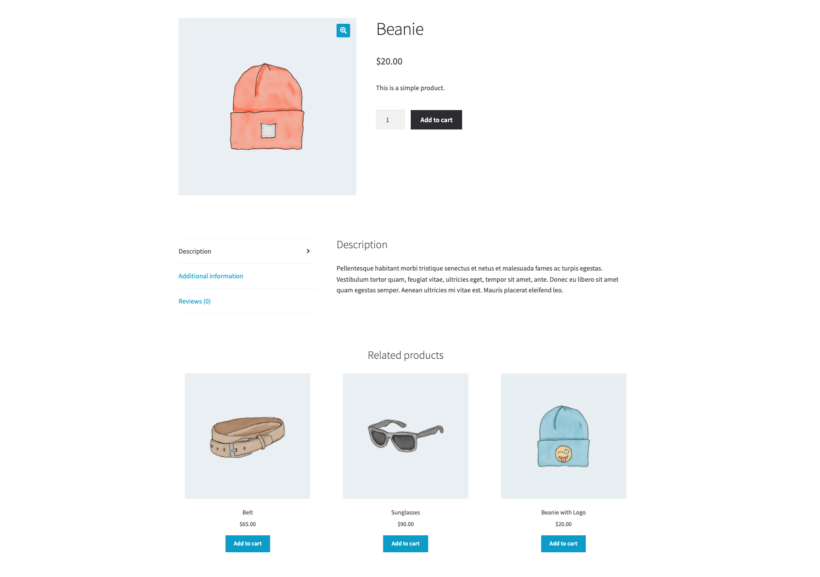
WooCommerce displays upsell products right on the front-end product page and cross-sell products in the shopping cart (similarly to how Amazon does this).
Here's what upsells look like in default WooCommerce:
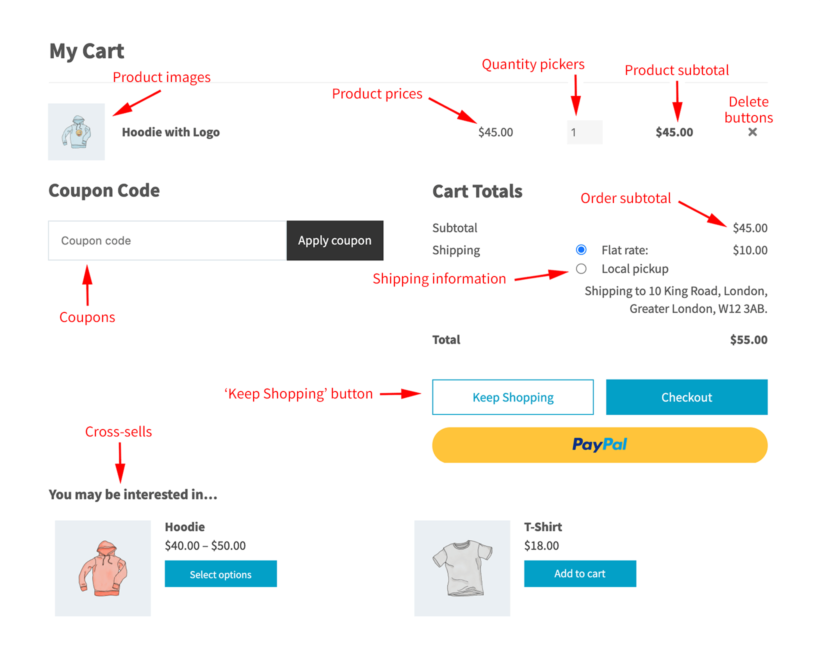
And here's what cross-sells look like by default in the shopping cart:
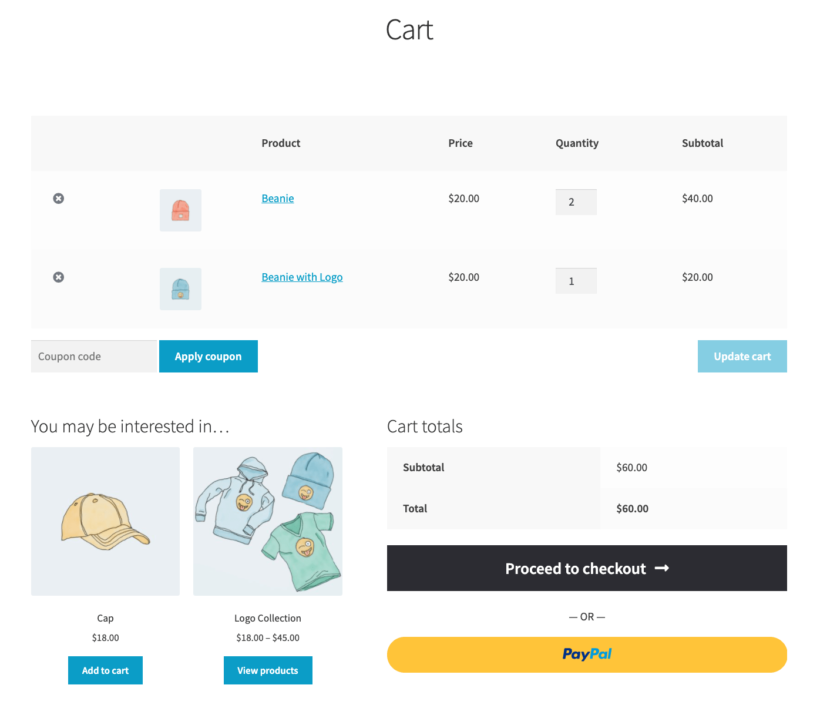
You can enable both of these on the 'Edit Product' screen. Just go to the 'Product Data' part of the page and open the 'Cross-Sells' tab.
Apart from these, WooCommerce will also show a small related products section automatically on each product page. Those are lined up based on the product category or product tags they share with the currently viewed item.
You'll usually find those listings at the very bottom of the product page or you can add them via shortcode. For the full settings reference, see WooCommerce's documentation on related products, upsells and cross-sells.
Comparing the related product methods
The table below compares how each method works, so you can see which one fits your store before you set anything up.
| Method | Where it appears | How products are chosen | Best use case | Main limitation |
|---|---|---|---|---|
| Default related products | Bottom of the product page | Automatic, by shared category or tag | Stores that just want something in place with no setup | Easy to miss, and some themes don't display it at all |
| Upsells | Product page | Manually assigned per product | Promoting a pricier or upgraded version of the product | Only shows one type of alternative, not complementary items |
| Cross-sells | Cart page | Manually assigned per product | Suggesting complementary items once a customer has committed to buying | Appears low down the default cart page |
| Product Options add-ons | Above the add to cart button | Chosen manually, by category, or dynamically | Making related items part of the buying decision | Requires setting up option groups per product or category |
| Fast Cart recommendations | Popup mini cart | Uses the existing cross-sells you've assigned | Giving customers a second prompt before checkout | Depends on cross-sells already being set up for each product |
If you want a free way to tweak the default display, a plugin such as Related Products for WooCommerce adds minor styling options. However, it won't give you the placement control of the methods below.
The downside of how WooCommerce displays related products
Now, even though I'm showing you examples here, this doesn't mean that it's all going to work the same on your WordPress website. The way upsells, cross-sells, or related products are displayed all depends on the theme (or child theme) your WooCommerce store uses. Some templates ignore related products completely and don't display them.
However, even for themes that do display them, they typically appear quite low down on the single product page or in the cart. This can be problematic for store owners with long product descriptions. As a result, those related products are easy to miss.
The most common issues with the default way of displaying related products in WooCommerce are:
- Related products are buried on the product pages or in the shopping cart.
- Not all themes support the native way of handling WooCommerce related products settings.
- It's easy for customers to miss your related products.
- Related products cannot be added to the cart quickly.
- There's no way to customize the presentation of your related product listings.
How to hide WooCommerce related products
Sometimes the default related products or cross-sells don't fit a particular product, or you'd simply rather not show any suggestions at all. You can turn them off in a few different ways depending on what you want to achieve.
To remove the automatic related products that WooCommerce shows based on category or tag, add this to your theme's functions.php file: remove_action( 'woocommerce_after_single_product_summary', 'woocommerce_output_related_products', 20 );
This only removes the related products block from the product page; it doesn't affect upsells or cross-sells, which you control separately on the 'Edit Product' screen's Linked Products tab. If you only want to stop one product from being suggested as a related item, remove it from the shared category or tag instead of hiding it store-wide.
That's different from hiding the product from your catalog altogether, which would stop customers from finding it even when they browse or search. If you want to hide specific products from view entirely, rather than just drop them from related-product suggestions, see my guide to hide WooCommerce products.
For more control, a plugin like WooCommerce Product Options lets you decide exactly which related items appear on each product. You can switch off the default feature and replace it with hand-picked suggestions instead.
If you'd rather make related products more effective instead of hiding them, the right plugins can help. Next, I'll share two recommendations for displaying related products far more effectively than the built-in upsells and cross-sells.
Method 2: Show related products above the add to cart button
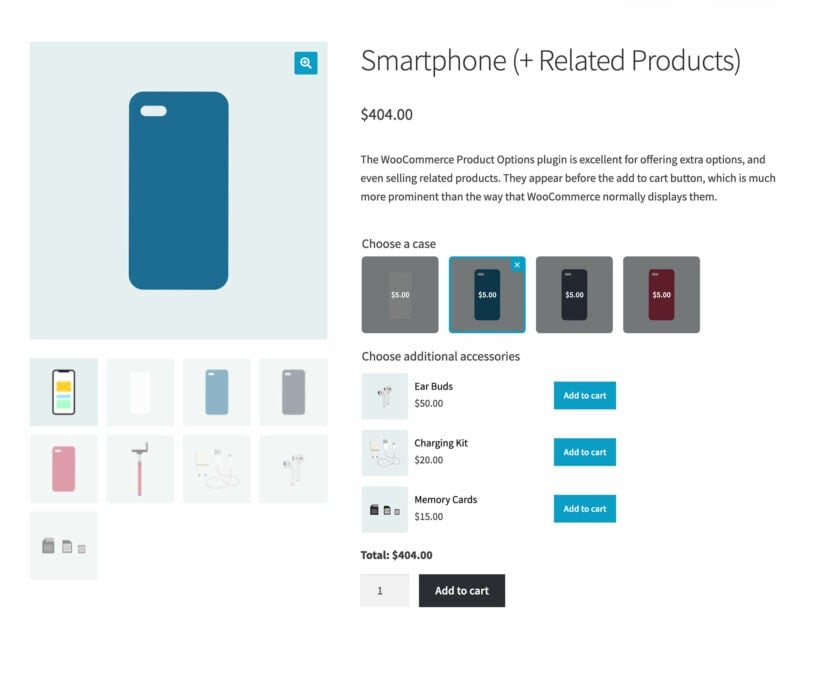
Look at the smartphone product in the screenshot above: The related products sit directly above the add to cart button, making them hard to miss.
Instead of placing related products at the bottom of the page, this layout puts them above the add to cart button so customers make a decision on them as part of the purchase. First, they're asked to select a case. Next, they're asked to add accessories. They then click one 'Add to cart' button to add the phone and the related products together.
Presenting related products this way is far more likely to generate sales than hiding them at the end of the page, and you can set it up with the WooCommerce Product Options plugin. This plugin lets you add extra add-on options to your products, including the ability to display products from other parts of your store as options.
How to display related products above the add to cart button
- Install the WooCommerce Product Options plugin on your WordPress site.
- Go to Products → Options.
- Click 'Add new' to create a new options group for the product that you wish to display related products on.
- Select the product, either just one product or an entire category if you want to show the same related products on every product in it.
- Click 'Add Option' and choose the 'Products' option type.
- Configure and select each specific product that you wish to display, or let the plugin select related products dynamically from a certain category.
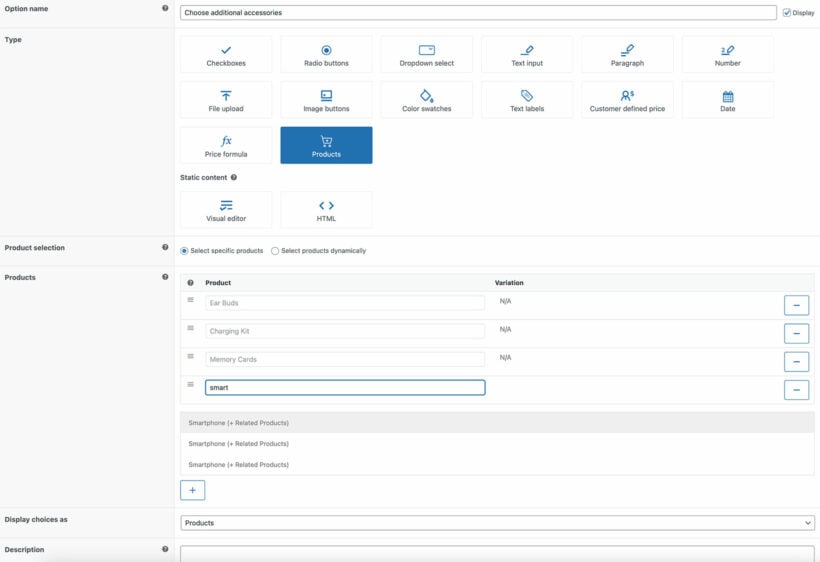
When you add the new option, there are lots of other options to customize it as you like. For example, you can choose from a wide range of styles for displaying the related products. These include checkboxes, radio buttons, clickable images, and so on. You can also set them as required fields, or set minimum and maximum quantities. There's even a conditional logic option so that you can show and hide different related products based on the customer's other selections.
Once you've saved your product options group, view the product page. You'll see the related products neatly displayed above the add to cart button. Perfect!
Method 3: Show related products in a popup cart
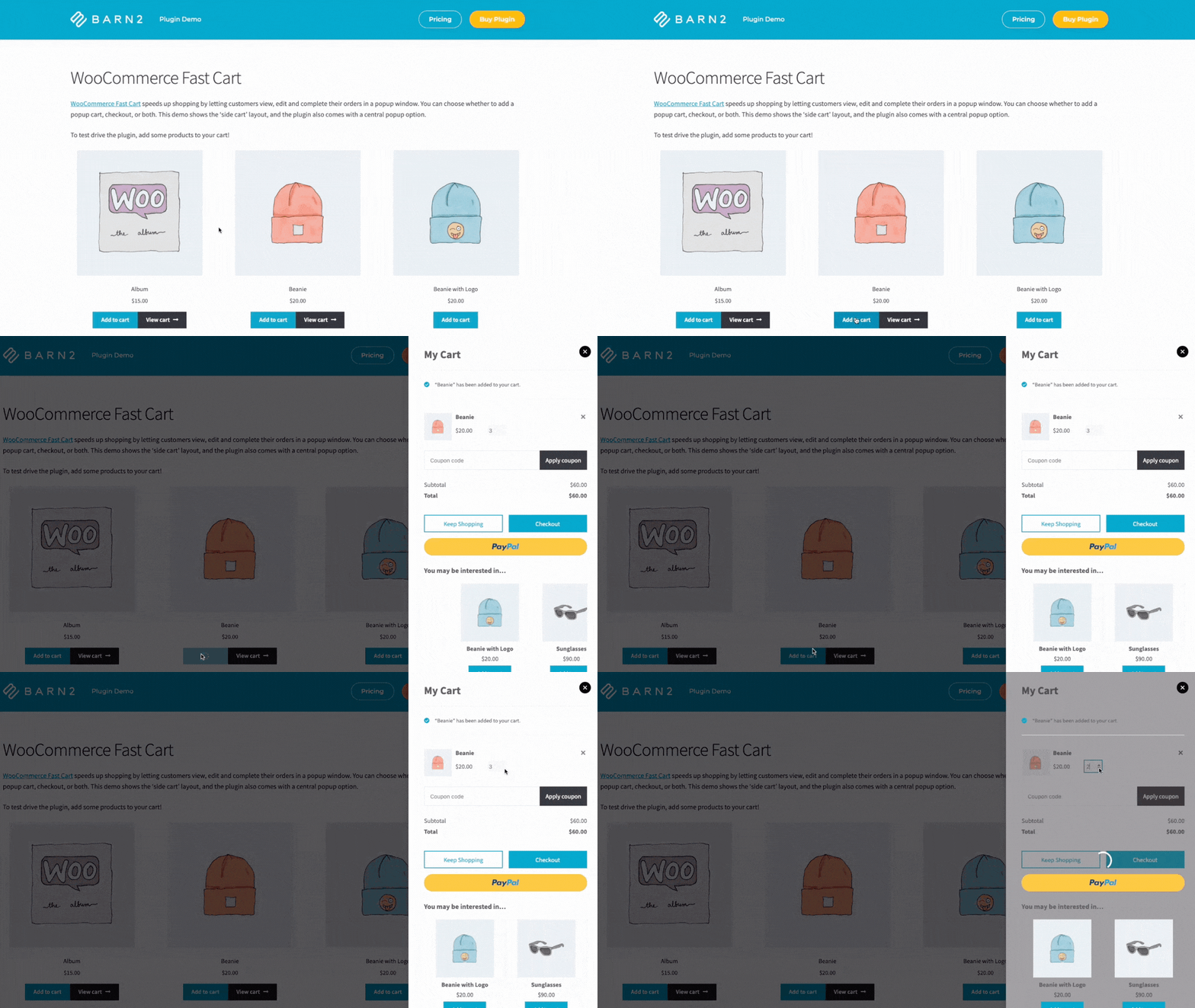
Method 2 shows related products on the product page, but not every customer will add one at that point. Displaying related products again in the cart gives you a second chance to convince them.
WooCommerce's own cross-sell feature already does this on the cart page, but it's placed low down where customers often miss it. Instead, you can use WooCommerce Fast Cart to display related products in a popup mini cart.
Why is a mini cart a better way to display related products?
The popup cart replaces the main cart page, which brings many benefits:
- Prominently displays related productsThe popup cart includes related products in a "You may also like" section. This appears as a "You may be interested in..." carousel. It's powered by the cross-sells feature which comes with WooCommerce itself, and simply displays the products in a better way that is more likely to convert.
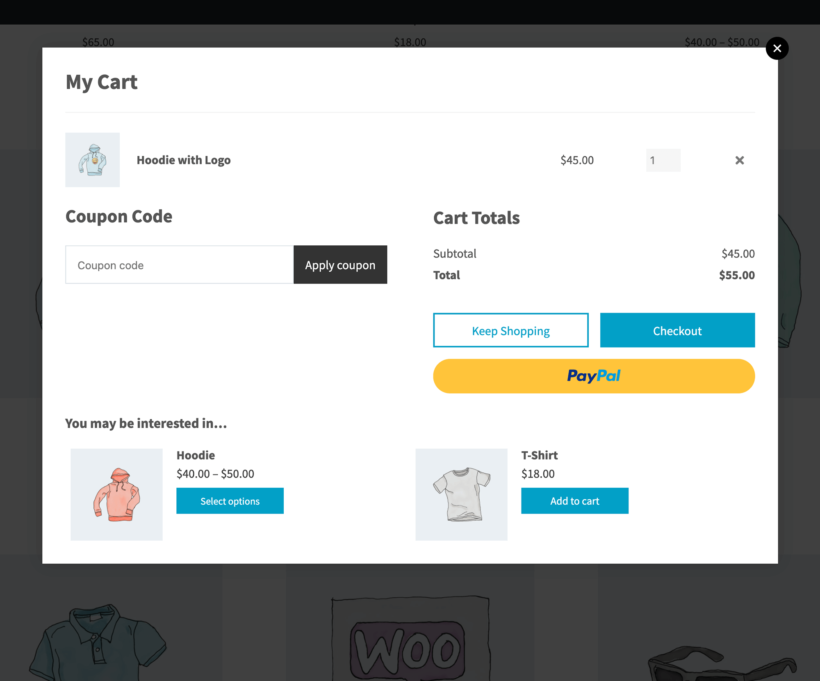
A fast cart popup containing related products - Easy to review cartYou can either launch the mini cart as soon as customers add items to their cart, or they can click a floating cart icon. Either way, the popup cart provides a quick and easy way for shoppers to review their order, make changes, add related products, and proceed to the checkout page.
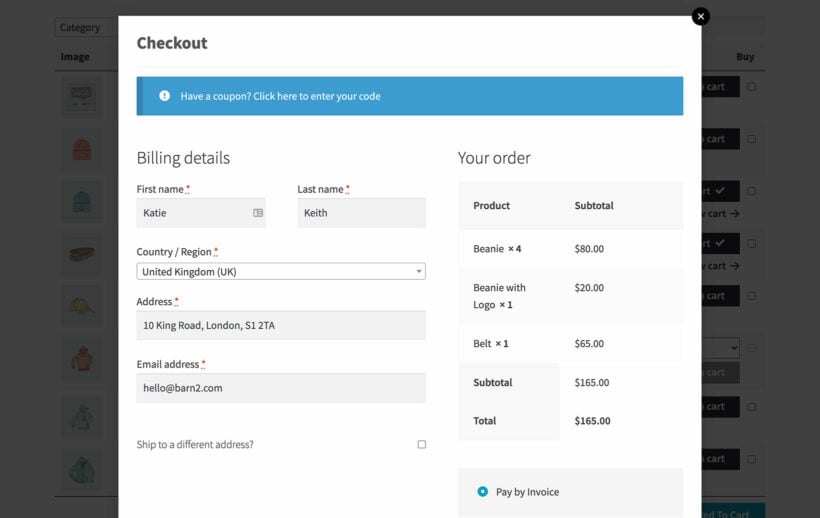
- Fast on-page checkoutWooCommerce Fast Cart also adds a fast on-page checkout, so customers can complete their order without leaving the page, which reduces friction and speeds up conversion.
How to show WooCommerce related products in a popup cart
Step 1. Add cross-sells to your products
As I mentioned above, the related products in WooCommerce Fast Cart use the cross-sell feature which is part of WooCommerce. This means that in order to display related items in the add to cart popup, you need to add some cross-sells.
I recommend doing this manually for each product so that you can choose the most relevant similar products for each one. For example, let's go back to our smartphone example from earlier, where customers were prompted to choose a case and accessories on the product page. In this case, I'd recommend adding the most popular case and accessories as cross-sells to display in the popup cart.
How to add product cross-sells to appear in the WooCommerce cart:
- Go to the 'Products' section of your WordPress dashboard, and click on a product that you want to add upsells to.
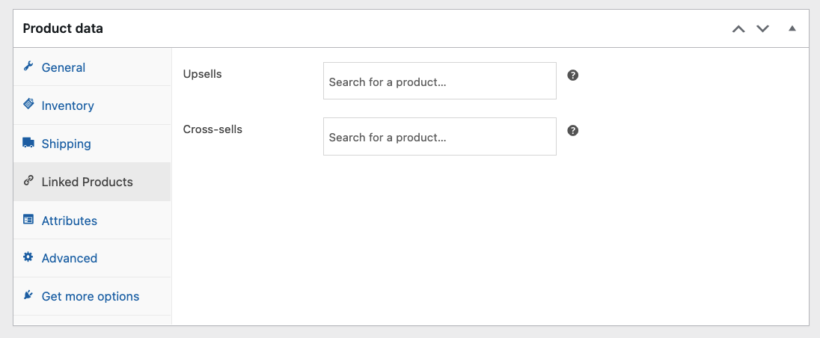
- Scroll down to the 'Product Data' panel and open the Linked Products tab.
- Start typing a product name or ID (not SKU) in the 'Cross-sells' field. WooCommerce will display some suggestions for you to click on.
- Add as many cross-sell products as you like, and then click Update.
Step 2. Set up WooCommerce Fast Cart
Next, it's time to install the WooCommerce Fast Cart plugin and use it to display the cross-sells in a popup cart:
- Install WooCommerce Fast Cart and activate the plugin.
- In the setup wizard, choose the content that you want to appear in the fast cart. Make sure that you enable WooCommerce related products.
- Choose whether or not to enable the popup checkout, and other features like whether to open it automatically when customers add products to their cart.
Here are the elements that you can customize in the popup cart, and where they appear. As you can see, you can include a product image and choose what to include in the product data section:
What's great about all this is that WooCommerce Fast Cart adapts the appearance and layout of related products based on how many such products are available for the items already in the cart.
For example, here's a case where there are just two WooCommerce related products assigned to the main product in the cart:
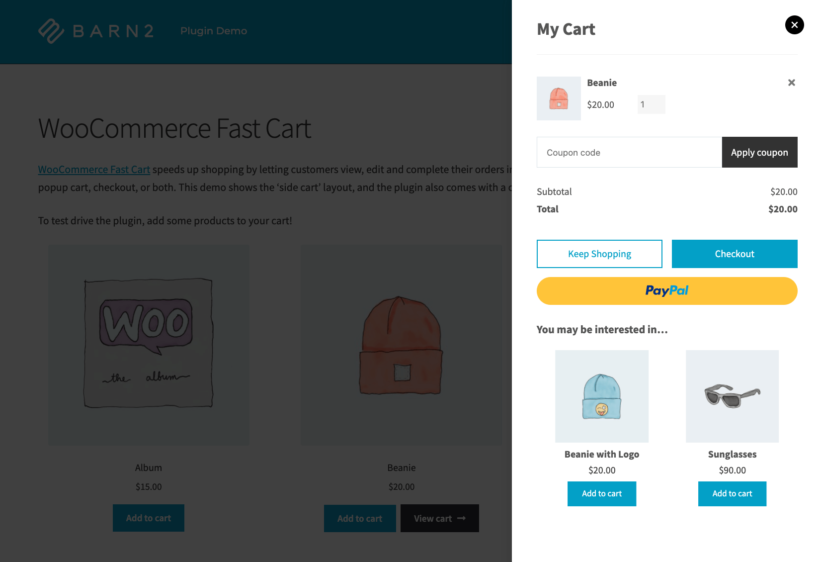
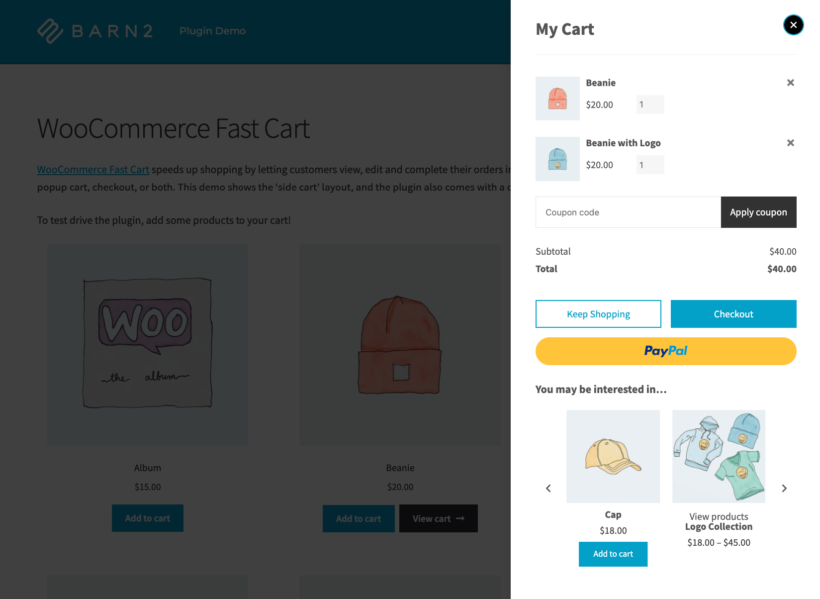
As you can see, the plugin displays custom related products straight up under the main buy button. However, if there's a higher number of related products available, WooCommerce Fast Cart will add a slider/carousel feature to show them all:
How to choose the right related products
Before we finish, I will give you some bonus tips to help you to choose the right related products for each item in your store. This is important because it makes a huge difference to whether customers buy the extra items. And when shopping online, I see a lot of ecommerce stores get this wrong!
You shouldn't pick related products at random. Think carefully about which products really are a fit with the current one. Also consider which customers are most likely to buy.
A good way to think about this is to consider a couple of types of related products:
- First, gather the products that are a natural upgrade over the current one - maybe they're of better quality, come from a better-known manufacturer, or are simply more profitable for you.
- Think of all the products that will improve the customer's experience with the current product (make it easier or more enjoyable to use).
- List all the products that previously customers have commonly bought together with the current product.
- List all the products that would make a nice set or bundle with the current one for whatever reason.
Use this to prioritize which related products to display on the product page. Once you've done that, display the top few in the popup cart to give them an extra boost.
Remember to check your related products regularly, as these may benefit from being tweaked over time. For example, if you have a new product then you can boost sales by displaying it for other products in your store.
What should you do when WooCommerce related products are not showing?
If related products aren't appearing on your product pages or in the cart, a few things are usually to blame.
Your theme might not support WooCommerce's related products template at all. Some themes override the default product page layout and simply don't include the related products block. In that case, you'd need to add it back with a shortcode or switch to a method like WooCommerce Product Options that doesn't depend on the theme.
Check that the product has a category or tag in common with others in your store. WooCommerce's default related products rely entirely on shared categories and tags, so a product sitting alone in its own category won't have any matches to show.
Out-of-stock products are hidden from related products by default, so if every related item happens to be out of stock, the section won't display anything.
Finally, check for plugin conflicts. Caching plugins can serve an outdated version of the page, and other product-display plugins can sometimes override the same template hooks WooCommerce uses for related products. Deactivating other plugins one at a time is the fastest way to find the culprit.
Test your related products
Before you consider the job done, view each product page and the cart on both desktop and mobile to confirm the related products display correctly.
Check that clicking through to a related product works, that any conditional logic shows and hides the right options, and that the popup cart or add-on fields load without errors. If you're using more than one method, make sure the combination doesn't feel repetitive or overwhelming to the customer.
Frequently asked questions
What's the difference between related, cross-sell and upsell products?
A related product is any item suggested alongside the main one a customer is viewing. Cross-sells and upsells are two specific types. A cross-sell is a complementary product, like a phone case for a phone.
An upsell is a more expensive or upgraded version of the product the customer is already considering. In WooCommerce, "Related products" specifically refers to items linked by shared category or tag. Cross-sells and upsells are different and are picked manually per product.
How many related products should I show?
Three to six is a sensible range for most product pages. Fewer than three can feel sparse. More than six often becomes visual noise and dilutes the customer's attention from the main product. If you're using the popup cart approach with WooCommerce Fast Cart, two to four works well. The popup is smaller and you want the customer to keep moving toward checkout.
Where on the page should related products appear?
The default WooCommerce position is at the bottom of the product page, but that's the worst place. Customers are most likely to engage with related products that appear above the add to cart button. That makes them part of the buying decision.
The second-best position is inside the cart or popup cart. The customer has already committed to buying there and is open to adding more. Avoid placing related products below the fold on the product page where they're easy to miss.
How do I turn off related products in WooCommerce?
To remove the automatic related products block from the product page, add remove_action( 'woocommerce_after_single_product_summary', 'woocommerce_output_related_products', 20 ); to your theme's functions.php file. This doesn't affect upsells or cross-sells, which you turn off separately on each product's Linked Products tab. See the "How to hide WooCommerce related products" section above for the full breakdown.
Can I choose specific related products in WooCommerce?
Yes. You can manually assign upsells and cross-sells to each product on the Linked Products tab. Or use a plugin like WooCommerce Product Options to hand-pick exactly which products display as related items above the add to cart button.
Why are my WooCommerce related products not showing?
The most common causes are a theme that doesn't support the related products template, a product with no shared category or tag, or every related item being out of stock. A plugin conflict can also be to blame. See the "What to do when WooCommerce related products are not showing" section above for how to check each one.
Set up WooCommerce related products properly!
WooCommerce related products can be a great way of increasing your store's revenue without any additional investments needed. This is a really cost-effective strategy and can be incredibly powerful.
For maximum results, use the following plugins together to make related products super-prominent in your store:
- Use WooCommerce Product Options to force customers to make an active decision on which related products to buy. The related products appear above the add to cart button, making them impossible to miss rather than an afterthought.
- Also use WooCommerce Fast Cart to display the most important related products in a popup cart window. This gives you a second chance to convince customers to add them to their cart, maximizing your chances of conversion!
Questions about how to craft your strategy with related products for WooCommerce? Let us know in the comments below.