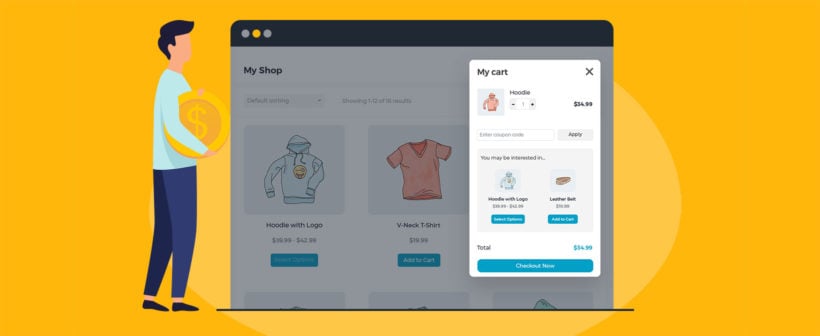

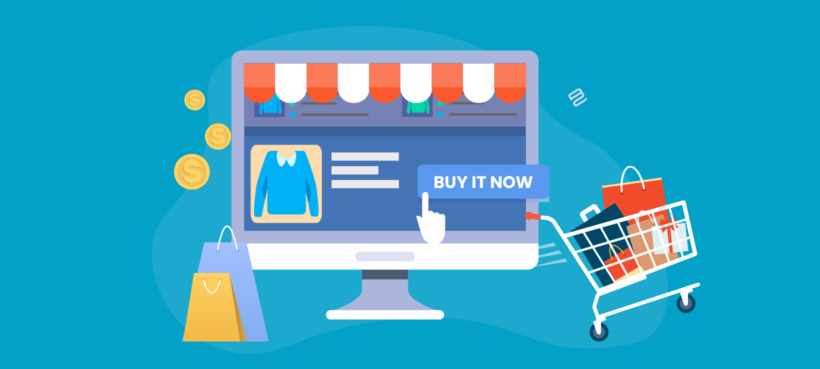
Online store with a Buy It Now button being clicked to add a product to the cart

By default, WooCommerce stores are built around a relatively slow purchase process. By using a WooCommerce buy now plugin, you can cut minutes off the purchase time for every customer. This will make a huge difference to your conversion rate and bottom line.

When you use WooCommerce as it comes, the customer journey is spread across multiple pages. Customers visit a separate page for each product, choose options, and add the product to their cart. When they’re done, they progress to a cart page to review their order. And, finally, they reach the checkout page to enter their shipping and billing information.

As you can imagine, such a long process will inevitably lose some customers along the way. This hurts your conversion rate, reducing your sales and revenue.

Fortunately, there's a better way. In this article, I’ll show you how to add WooCommerce buy now buttons to your store with a plugin called WooCommerce Fast Cart. 'Buy It Now' speeds up the customer journey, helping to boost your conversion rate. I'll also share some tips on how to speed up shopping even more.

You can also watch this video, which shows you how to add WooCommerce buy now from start to finish:

How does WooCommerce Buy Now work?

The WooCommerce Fast Cart plugin adds a ‘Buy now’ option to WooCommerce. Basically, it opens the checkout in a pop-up on the same page as soon as you add a product to the cart. Customers can either continue shopping or complete their purchase straight away.

Here’s how it works:

  1. The customer starts by adding a product to their cart.
  2. The checkout automatically opens in a pop-up window. It’ll either be on the right-hand side of the page or in the center.
  3. Existing customers who are logged into their accounts will see their address and billing information already filled out in the form. So, they simply need to click the Complete button to complete their order and buy now. If you’re using a payment gateway that allows customers to save their credit card details then customers will be able to Buy Now without re-entering payment information.
  4. Guest users can log in to their accounts and have their information populated automatically. Or, they can enter it straight into the pop-up and complete the WooCommerce Buy Now process.

WooCommerce Buy It Now with PayPal Checkout

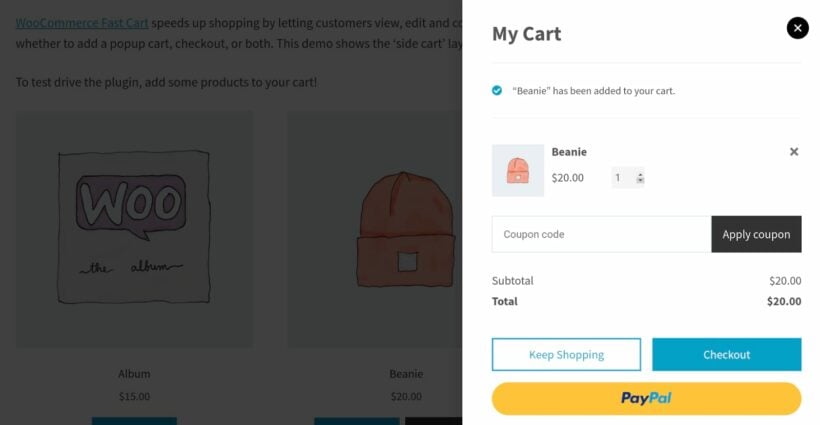
If you prefer, you can show the cart contents in the pop-up instead of the checkout. All you have to do is install the PayPal Checkout plugin and it will display a PayPal Checkout button in the pop-up.
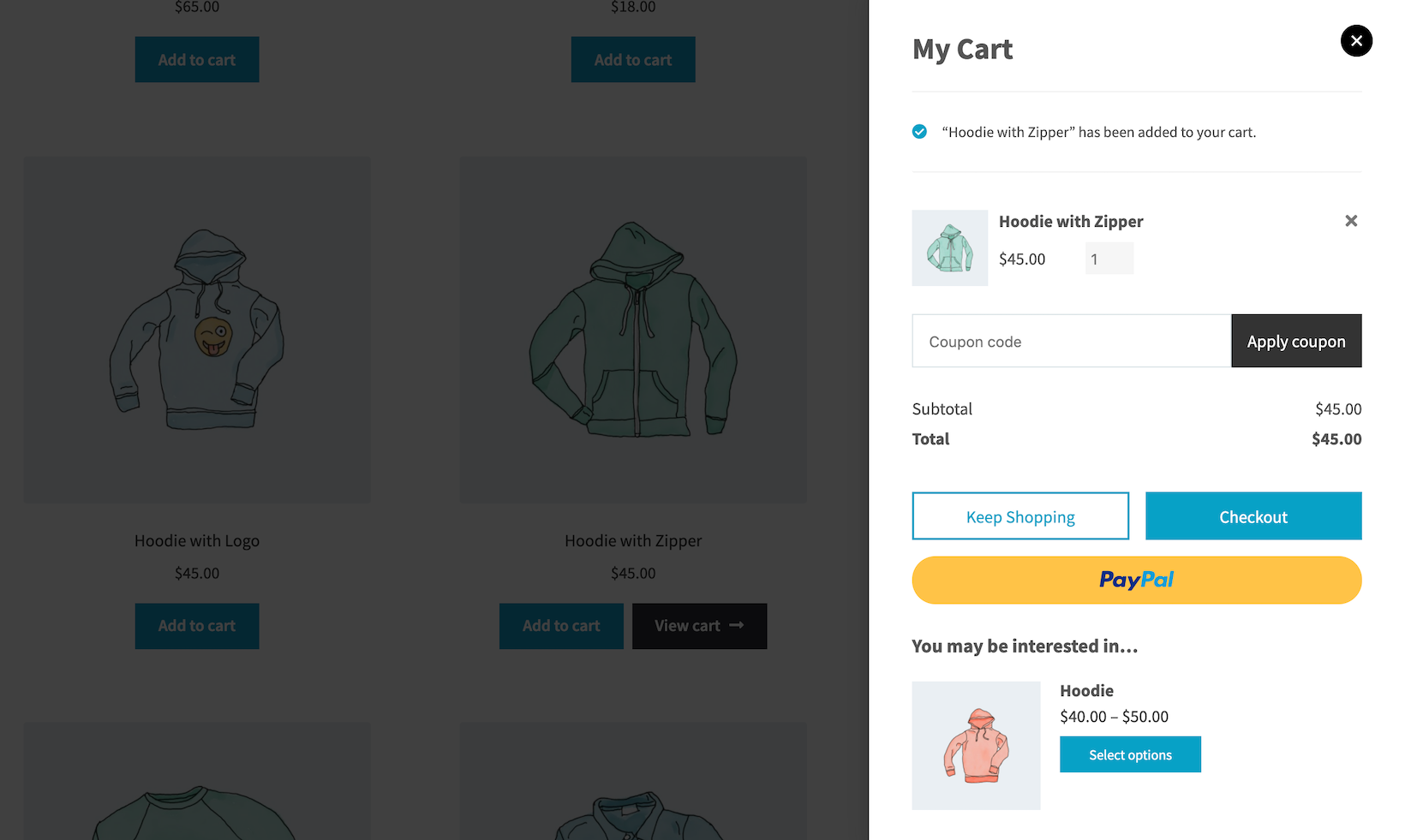
Slide-out cart with a buy now PayPal button beside the shop products

That way, customers can Buy It Now with PayPal instead of using the WooCommerce checkout.

How can WooCommerce Buy Now improve my sales?

Speeding up the purchase process is incredibly important. In fact, according to the Baymard Institute, 18% of US online shoppers have abandoned an order solely due to a “too long or complicated checkout process”.

With the WooCommerce Fast Cart plugin, you can speed up your store's purchase process and deliver a good user experience to shoppers. This makes them more likely to complete their order, without getting lost, fed up or abandoning their cart.

Tutorial: How to add Buy It Now to your store

Next, I'll explain how you can set up the WooCommerce Fast Cart plugin to let customers Buy Now from your online store.

Start by getting the WooCommerce Fast Cart plugin if you haven’t done so already. You’ll receive a license key in the confirmation email.
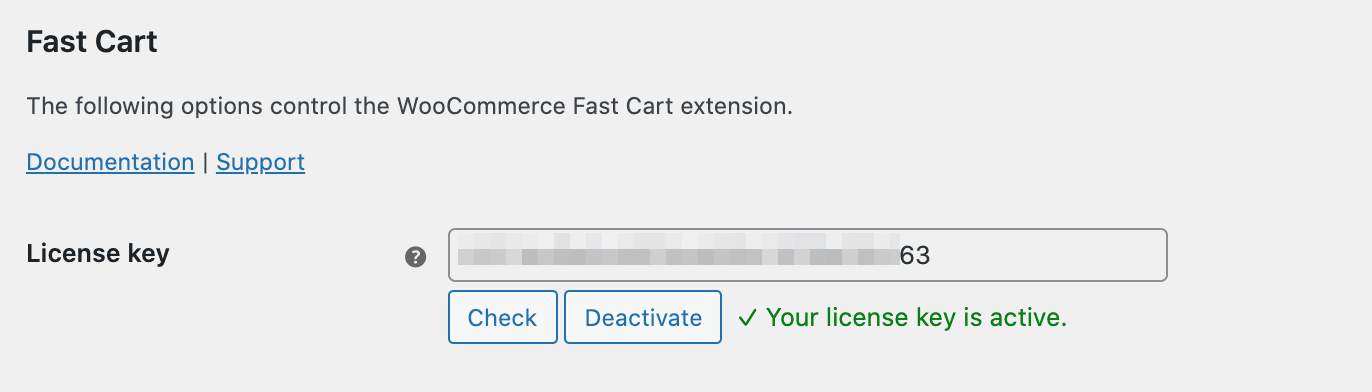
Fast Cart license key

Install the plugin on your WordPress website and activate it. Next, head over to WooCommerce Extensions from the admin panel to activate the license key and start using the plugin.
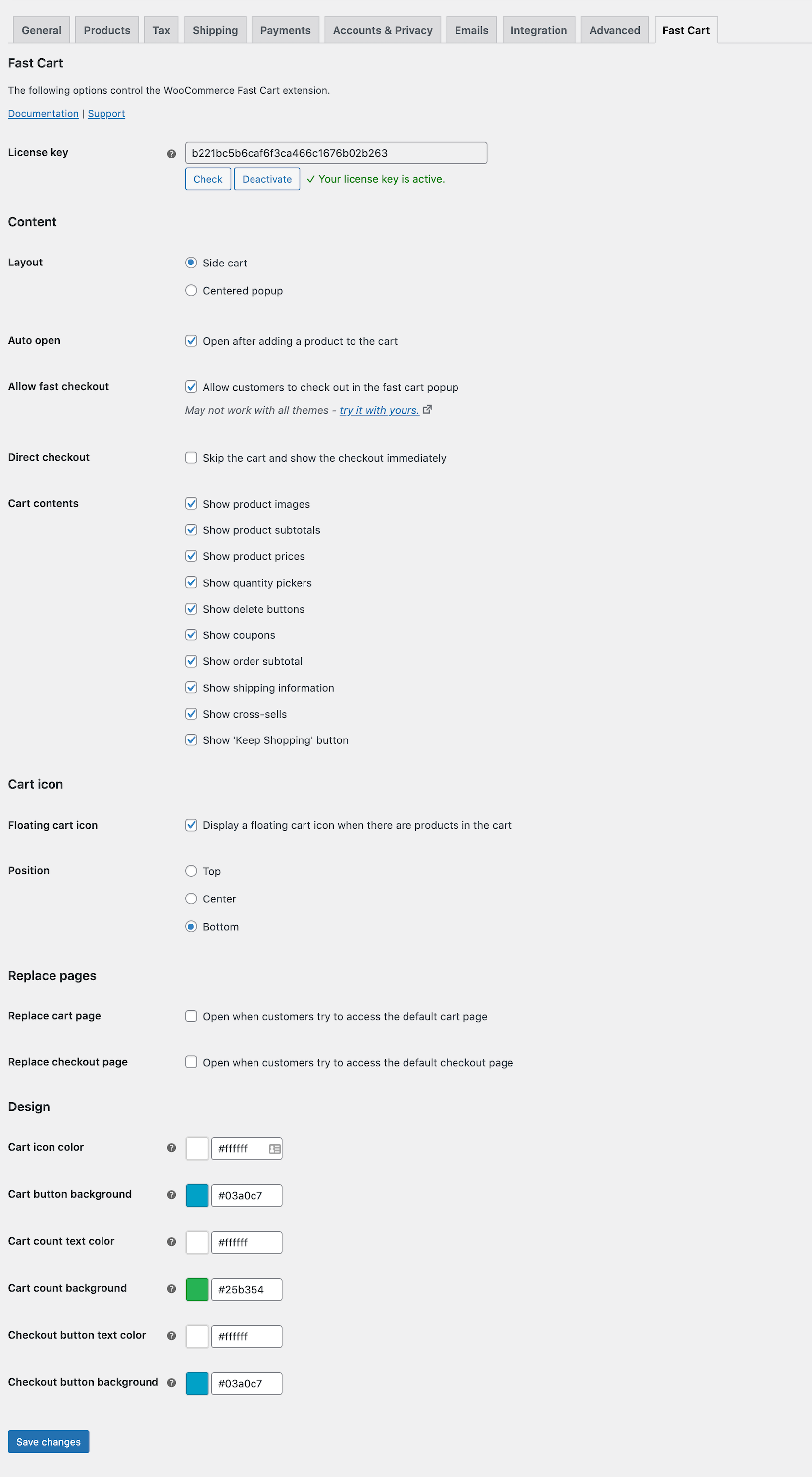
WooCommerce Fast Cart settings page

Once that’s done, here’s what you need to do to add WooCommerce Buy Now buttons to your store:

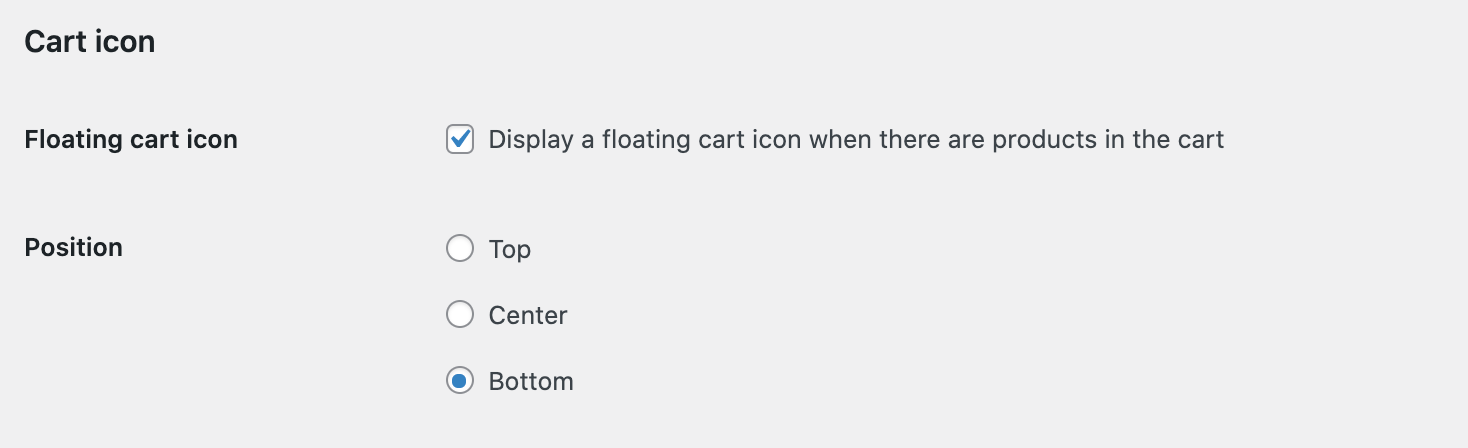
  1. Enable the floating cart icon by ticking the checkbox next to the Floating cart icon option. You can also set the position of the WooCommerce floating cart icon using the Position option.
  2. Next, scroll down to the Auto open section to decide when to open the buy now buttons pop-up. You can set it to auto-open whenever products are added.
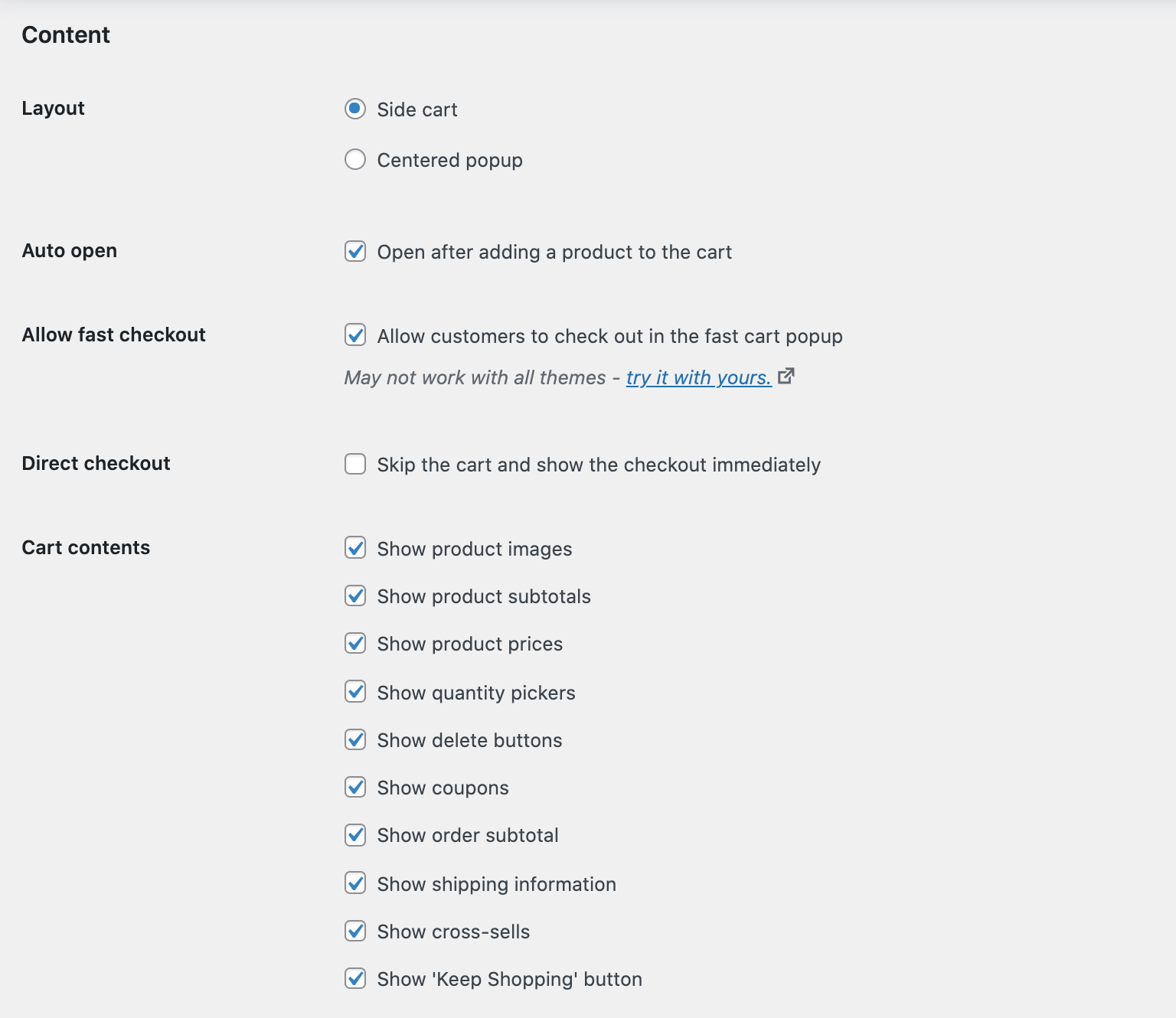
  3. The WooCommerce Fast Cart plugin lets you choose the layout of the checkout pop-up. You can select either Side cart or Centered popup.
  4. To let customers check out in the fast cart pop-up, tick the Allow fast checkout checkbox. You can also choose to show or hide the Direct checkout option.
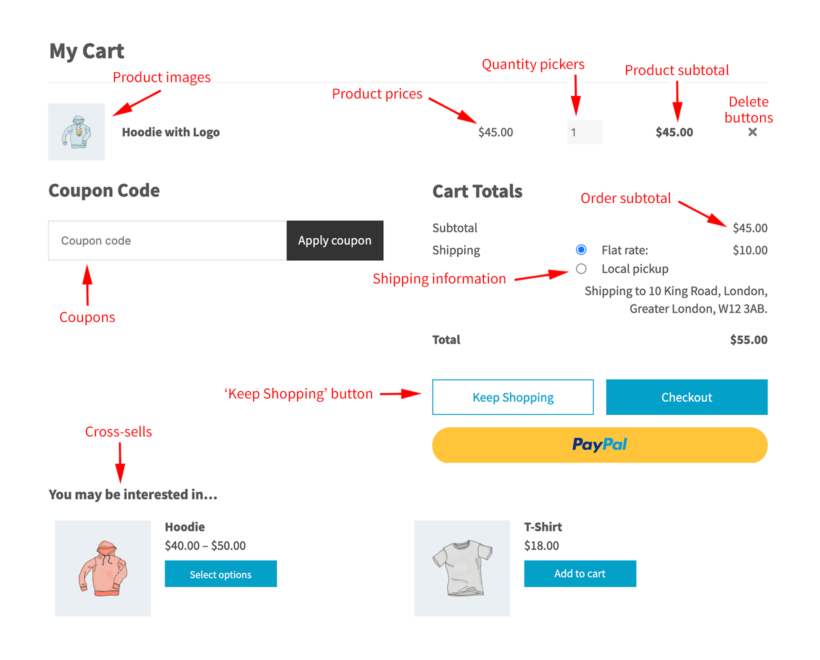
  5. The WooCommerce Fast Cart plugin also lets you choose what to show in the checkout pop-up. You can choose to include product images, subtotals, prices, quantity pickers, delete buttons, coupons, 'Keep Shopping' button and cross-sells.
  6. Finally, you can design and style the checkout pop-up to match your theme and brand colors. And, once you’re done configuring the plugin settings, click the Save changes button to continue.

Changing the 'Add to Cart' button text

So far, we've added a mechanism to trigger the checkout process upon clicking the Add to Cart button. But the text on the button is still displayed as 'Add to Cart'. Let's see how you can change this to 'Buy Now', 'Book Now', or any other custom CTA text.
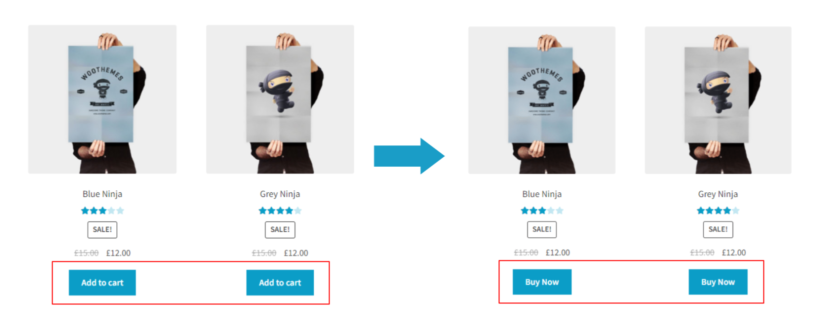
Changing the add to cart button text to Buy Now in WooCommerce

For this, you'll need our WooCommerce Custom Add to Cart Button plugin. You can get this plugin from the WordPress repository for free and install and activate it on your website.

Once you have activated the plugin, here's how you can change the Add to Cart button text.

  1. In the WP admin dashboard, go to Appearance → Customize. This will load the WordPress live customizer.
  2. Go to WooCommerce → Add to Cart buttons and change the Add to Cart button text with your custom text. Here, I'm changing it to Buy Now.
  3. You can also enable/disable the shopping cart icon in the buttons to make them look more appealing using the checkbox below.
  4. After making the required changes, hit the Publish button.
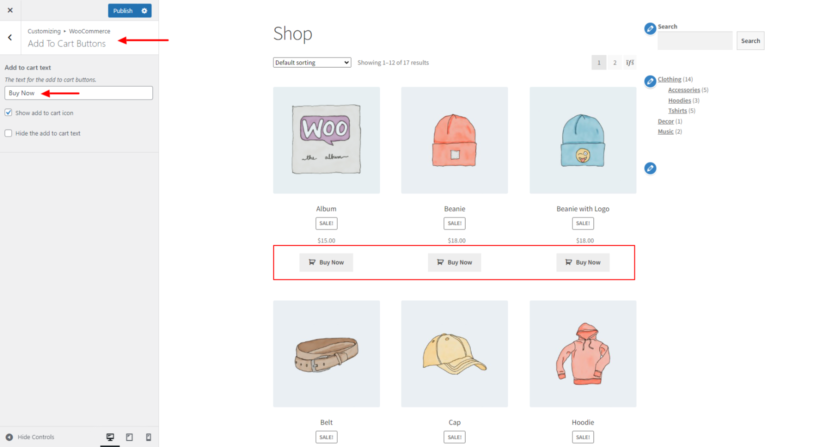
Changing add to cart buttons to Buy Now in the WordPress Customizer

Let customers find and add products to the cart more quickly

So far, we’ve talked about how to display a WooCommerce buy now option after customers add products to the cart. However, out of the box, WooCommerce still doesn’t make it easy for customers to find and add products in the first place.

You can speed up the early parts of the purchasing process and grow your sales even further. The best way to do this is by allowing customers to find products, select options, and add to the cart without having to visit a separate page for each product.

I recommend the following WooCommerce plugins for this – you can use them alone, or together for best results:

WooCommerce Product Table

The WooCommerce Product Table plugin is perfect for letting customers ‘Buy It Now’ with multiple products at once.

The ‘Buy It Now’ feature makes it quicker for customers to complete their purchases. However, a downside can be that they only buy one product at a time. This is bad for your average order value.

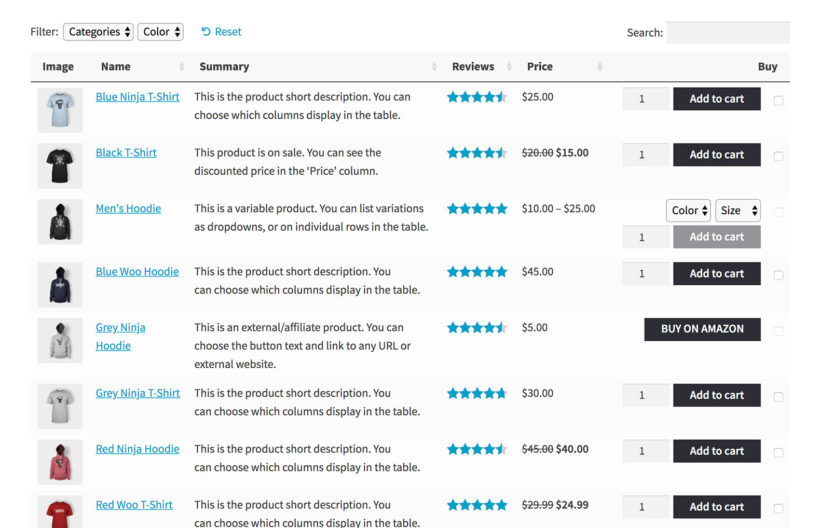
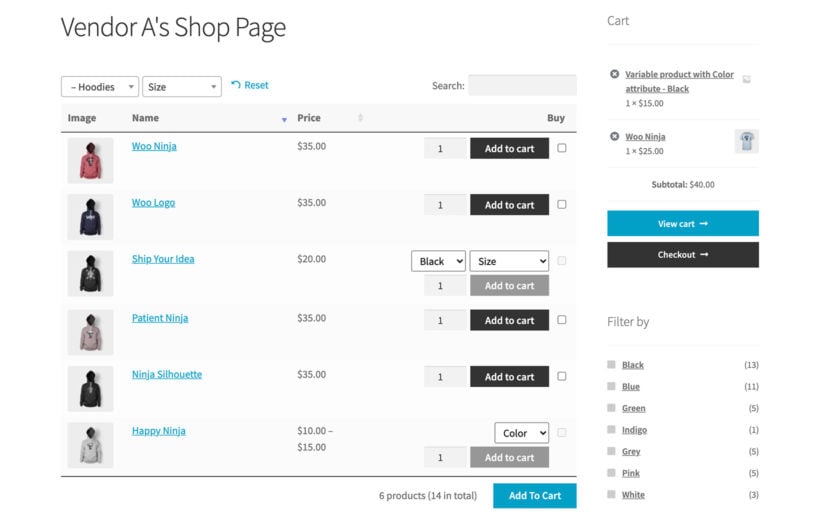
If you sell lots of products, you can easily get around this problem by using the WooCommerce Product Table plugin. The plugin lists products in a one-page order form layout:
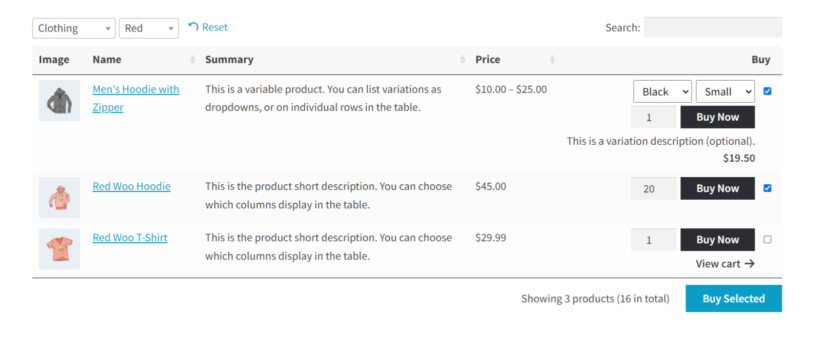
WooCommerce product table with Buy Now buttons in an order form layout

I recommend configuring the WooCommerce Product Table plugin to display multi-select checkboxes so that customers can set quantities, choose variations, and tick multiple products before adding them all to the cart at once.
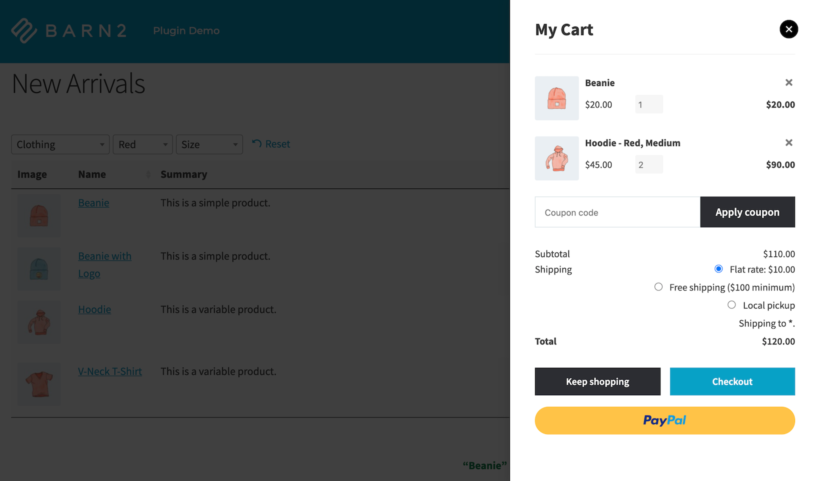
Slide-out cart letting shoppers buy multiple products at once without leaving the page

WooCommerce Fast Cart then takes over and allows customers to Buy It Now.

WooCommerce Quick View Pro

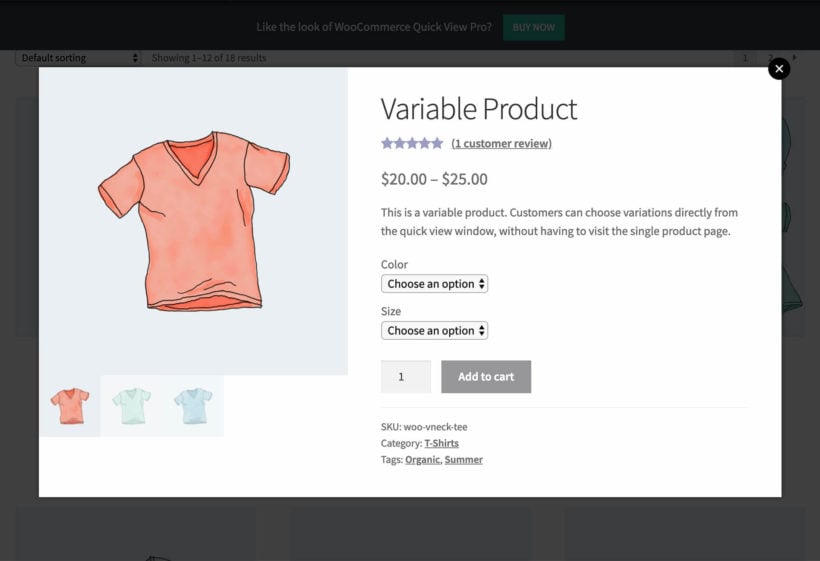
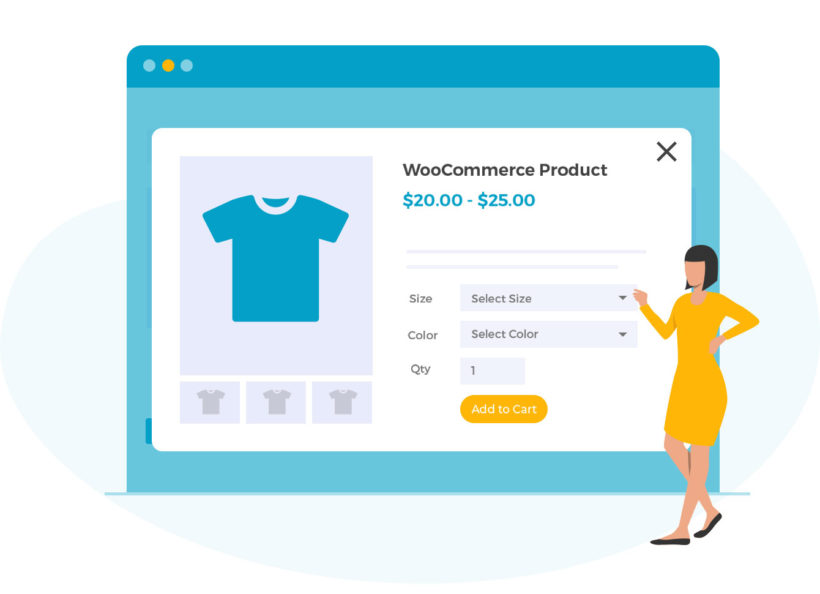
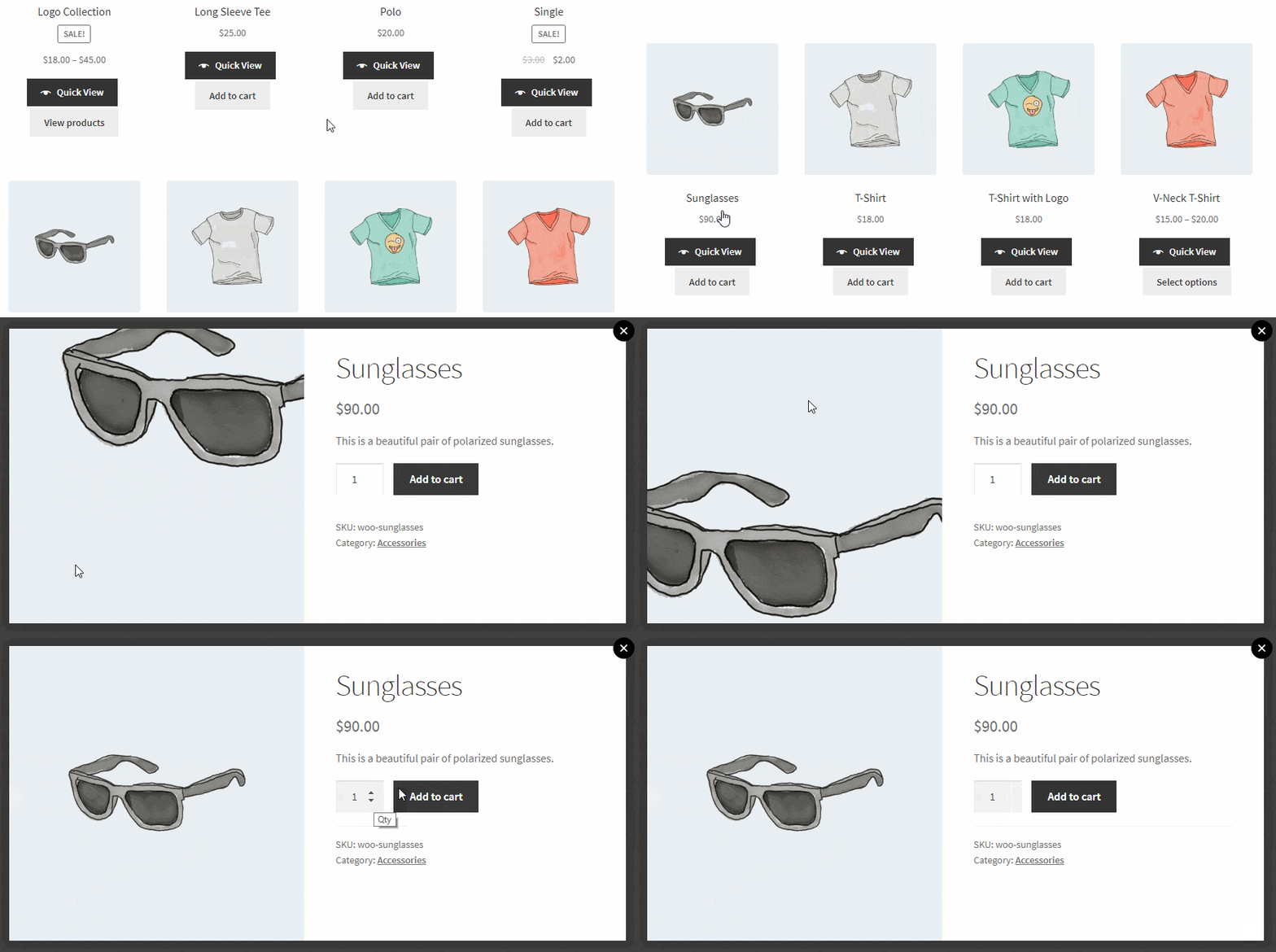
The WooCommerce Quick View Pro plugin provides another way of adding products to the cart without having to leave the page. It displays a quick view lightbox for each product. Customers can view more information about each product and add it to their cart instead of having to visit the single product page.
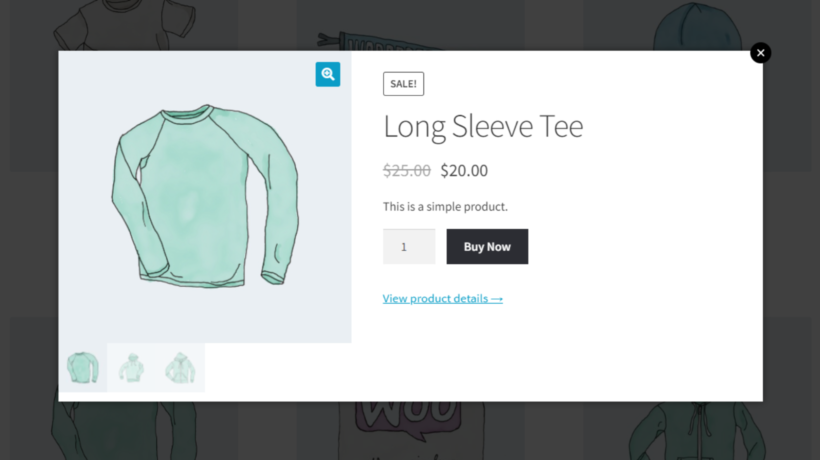
Quick view lightbox with a Buy Now button instead of add to cart

This is a simple and neat way of cutting an extra page out of the buying journey.
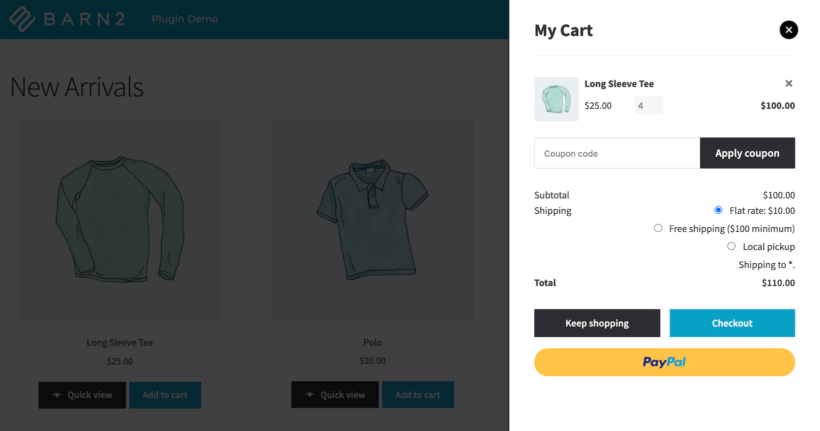
Quick view popup feeding the slide-out cart to skip a step in the buying journey

You can use whichever plugin you’d like to speed up adding products to the cart. Once the customer adds the products they’d like to purchase to their cart, the WooCommerce Fast Cart plugin takes over and allows customers to Buy It Now.

Where to get the plugins

WooCommerce is fantastic, but doesn't always make things easy for the customer. You can easily fine-tune the customer journey by speeding up each stage of the process:

  1. Use Product Table and/or Quick View Pro to make it easier for customers to find products and add them to the cart, all from one page.
  2. Use WooCommerce Fast Cart to add WooCommerce buy now buttons to your online store. It lets customers skip the cart page and fill out the checkout form from a pop-up. They remain on the same page throughout the process.
  3. Use WooCommerce Custom Add To Cart Button plugin to change the Add to Cart button text with any custom text.

That way, customers can quickly buy multiple products and place their orders in the fewest number of steps.

Ready to add WooCommerce buy now buttons to your store? Get the WooCommerce Fast Cart plugin today.
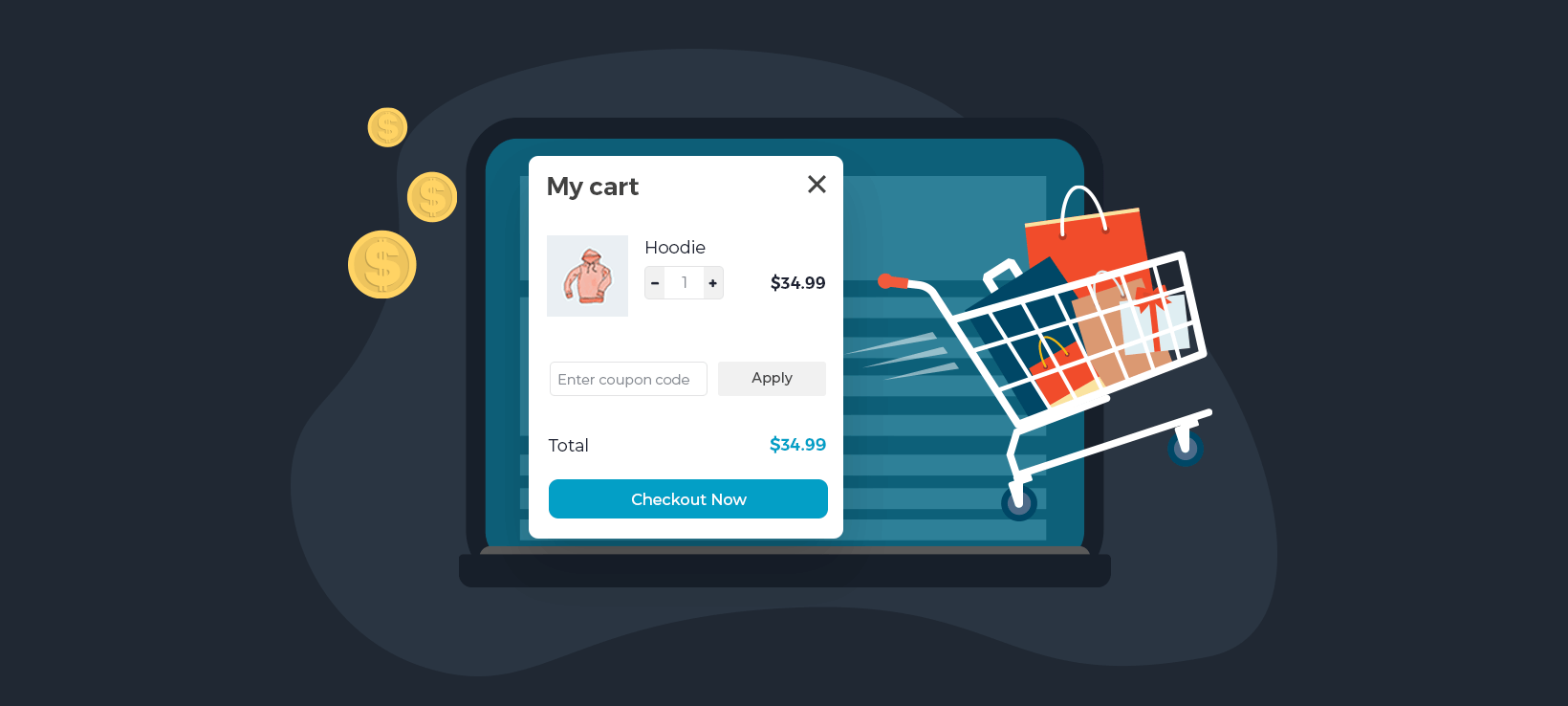
WooCommerce Fast Cart showing a mini cart popup with checkout button

If you run a WooCommerce-powered online store, the standard purchasing user flow involves taking customers through a multi-page process to purchase products. Now there's a better way.

The usual WooCommerce process goes something like this: customers add products to their cart, click through to the cart page, then click through to the checkout page to add their billing and shipping details and make their payment.

The problem with this multi-page process is that you can lose sales by wasting the customer’s time. One way to improve your sales and conversions is by displaying the cart and checkout in a popup WooCommerce mini cart. That way, customers can complete their purchases and place their orders all on one page.

In this tutorial, I’ll show you how to use the WooCommerce Fast Cart plugin to add a popup floating cart. This keeps the entire buying process on one page.

Why a WooCommerce mini cart can increase your sales

According to the Baymard Institute, 18% of US online shoppers have abandoned an order solely due to a “too long / complicated checkout process”.

WooCommerce mini cart sliding out with two products and checkout buttons

Having a WooCommerce mini cart on your online store is a great way to increase sales and boost conversions. Here are some of the main benefits of adding a WooCommerce side cart to your store:

  • Speeding up shopping user flows. A WooCommerce floating cart speeds up the shopping process for customers. Customers don’t have to go through multiple pages to view their cart and place their order.
  • Improving user experience. By allowing customers to choose products and purchase from a single screen, you can improve the overall user experience your online store delivers.
  • Websites that sell one product at a time. A WooCommerce minicart is perfect for websites that sell one product at a time. It allows you to deliver a No cart - buy as you go experience where customers buy one product at a time. Customers can buy multiple products in a fast cart if they’d like. But, if you set it up to automatically open when a product is added to the cart then it provides an easy way to quickly buy one product at a time. You can even disable the cart and open the checkout in a popup as soon as products are added, creating a true 'WooCommerce buy now' experience.

A WooCommerce minicart plugin is a great way to enhance your online store whatever types of products you sell.

Why WooCommerce Fast Cart is the best minicart plugin

If you’re looking for a professional mini cart plugin for your online store then WooCommerce Fast Cart has you covered. WooCommerce Fast Cart has several unique features that other mini cart plugins on the market don’t have.

Most WooCommerce mini cart plugins just add a basic popup side cart without actually removing the original or and checkout pages. This means that you’re essentially only speeding up shopping for customers who choose to click on the WooCommerce floating cart icon.

While you can certainly do this with WooCommerce Fast Cart, it has options to actually replace the default WooCommerce cart and checkout pages so that all customers use the fast cart. This way, you can speed up the purchasing flow for all of your customers.

Additionally, most of the WooCommerce cart plugins out there just display the cart in a popup window with a button that links to the standard checkout page. While this is still possible with the WooCommerce Fast Cart plugin, it also lets you display the full WooCommerce checkout experience directly in the popup.

It’s also worth mentioning that most WooCommerce shopping cart plugins have one layout option which is typically a narrow cart on the right-hand side of the page. WooCommerce Fast Cart, on the other hand, has a central popup for stores that want a larger popup cart as well as a cart tray on the right-hand side of the page.

How to set up a WooCommerce mini cart

Get the WooCommerce Fast Cart plugin to get started. You’ll receive the plugin files and license key in a confirmation email. Install and activate the plugin on your WordPress website.

Next, head over to WooCommerce Extensions from the WordPress admin panel to activate the plugin’s license key.

Activating the Fast Cart license key in the WooCommerce settings

From the same screen, you can configure the plugin’s settings.

To enable the floating cart icon, tick the checkbox next to the Floating cart icon option. You can also set the position of the WooCommerce floating cart icon using the Position option.

Setting the floating cart icon position in the mini cart settings

Scroll down to the Auto open section to decide when to open the WooCommerce mini cart. You can choose to auto-open it whenever products are added, or replace the default Cart page with the mini cart.

Mini cart content settings choosing layout and which elements to show

The WooCommerce Fast Cart plugin also lets you choose the layout of your mini cart. You can select either Side cart or Centered popup.

If you want customers to check out in the fast cart popup, tick the Allow fast checkout checkbox. You can also choose to show or hide the direct checkout option.

Next, use the Cart contents option to choose what to show in the WooCommerce minicart. You can choose to include product images, subtotals, prices, quantity pickers, delete buttons, coupons, 'Keep Shopping' button and cross-sells.

Finally, you can design and style the WooCommerce mini cart to match your theme and brand colors.

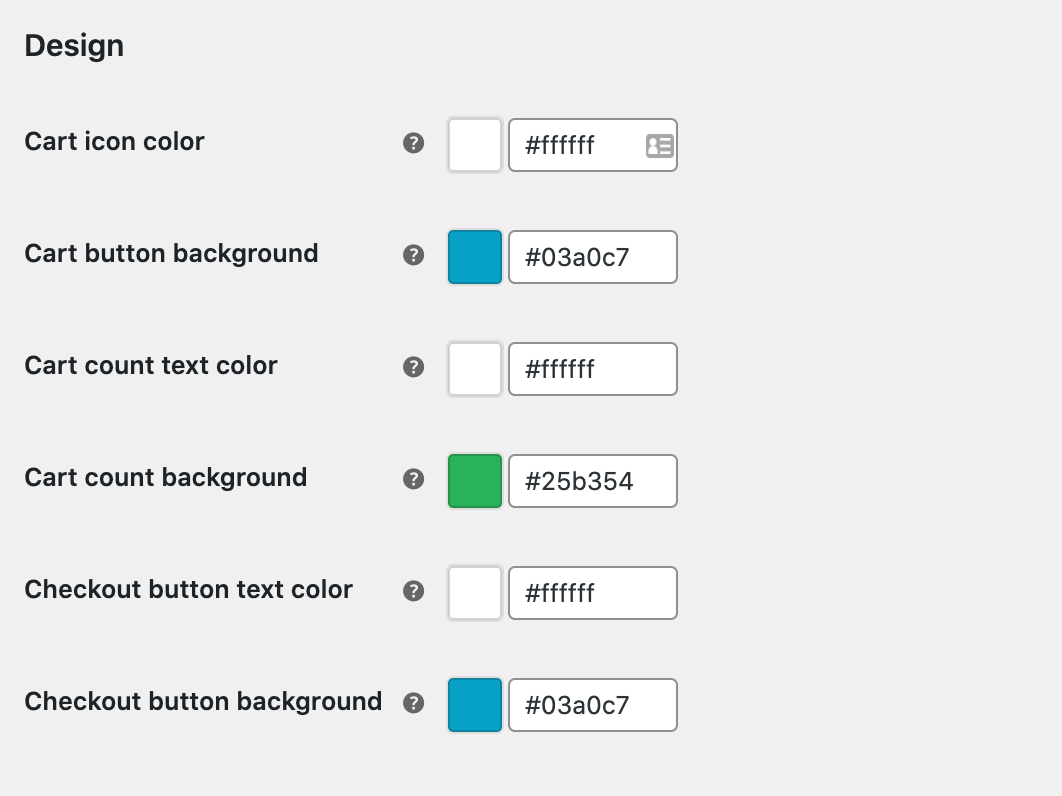
Mini cart design settings with colour pickers for icons and buttons

Once you’re done configuring the plugin settings, click the Save changes button to continue.

WooCommerce mini cart showing items, subtotal and checkout options

More ways to speed up shopping

You can really increase your conversion rates by reducing the number of pages that customers have to visit in order to make a purchase.

So far, we’ve looked at how WooCommerce Fast Cart can speed up the cart and checkout part of the process. But what about adding products to the cart in the first place?

Depending on the types of products you sell, these plugins will speed up the earlier parts of the customer’s buying journey.

WooCommerce Quick View Pro - perfect for all types of products

The WooCommerce Quick View Pro plugin is perfect for all types of products. It speeds up shopping by displaying extra product data and purchasing options. This way, customers can view product details, select variations, set quantities, and add the product to their cart – without having to visit the single product page.

WooCommerce Quick View Pro

Customers can simply open a quick view lightbox, choose quantities and variations, and add to the cart. The lightbox then closes and they can either immediately use WooCommerce Fast Cart to complete their purchase or continue adding more products to their cart. In this way, WooCommerce Quick View Pro with the Fast Cart plugin can help you increase your online store’s average order value.

WooCommerce Product Table - perfect for stores with lots of products

The WooCommerce Product Table plugin lets you list products in a quick, one-page order form layout. This way, customers can quickly tick all the products they want, choose quantities and variations, and add everything to the cart in a single click. Once that’s done, they can use WooCommerce Fast Cart to quickly complete the purchasing process.

WooCommerce Product Table listing products with add to cart buttons

The WooCommerce Product Table plugin is perfect for online stores that sell lots of products like wholesale stores or grocery stores.

WooCommerce Bulk Variations - perfect for variable products with many variations

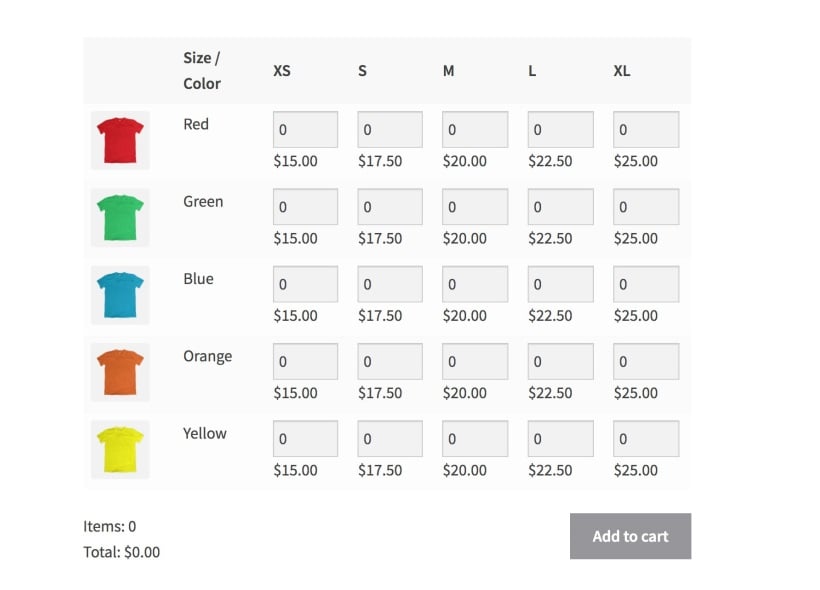
With the WooCommerce Bulk Variations plugin, customers can buy variable products faster. The plugin speeds up the purchasing user flow by letting customers select quantities for all the variations they want to buy from a single page instead of having to add each combination to the cart individually.

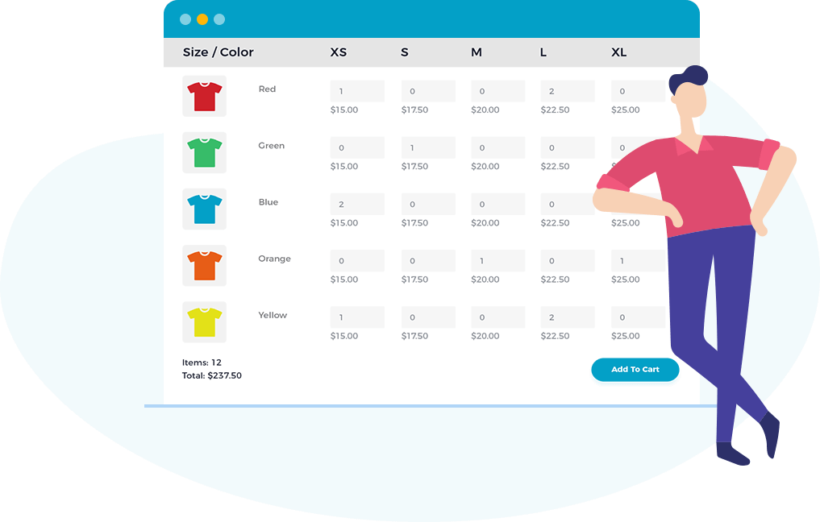
Variations order form matrix

So, if you sell t-shirts in a variety of different colors and sizes, customers can place their order from a single screen without having to refresh the page for each variation they’d like to purchase.

Used alone or in combination, the above-mentioned plugins really speed up shopping for customers. They speed up product selection and adding products to the cart. You can pair them up with the WooCommerce Fast Cart plugin to speed up the final stages of the buying process.

Together, this is the perfect way to create a super-streamlined user experience and potentially increase your average order value.

Where to get the WooCommerce mini cart plugin

Now that you know how to speed up the shopping process for customers, it’s time to get the WooCommerce Fast Cart plugin.

  • Easy to use - no technical skills or knowledge needed.
  • Speeds up the purchasing process on your online store.
  • Increases conversions and sales.
  • 100% flexible and customizable.
  • Love it or your money back!

Follow the steps in this tutorial to speed up the purchasing process, increase sales and conversions, and boost your store’s average order value.

Ready to start speeding up the shopping user flows on your store? Get the WooCommerce Fast Cart plugin today.
WooCommerce Fast Cart showing a slide-out side cart popup

If you struggle with cart abandonment on your WooCommerce store — and which online seller doesn't! — you need WooCommerce Fast Cart, our WooCommerce side cart plugin.

With Barn2's WooCommerce side cart plugin, your customers' carts — along with the typical WooCommerce cart functionalities like adding or removing items, changing quantities, applying coupons, and checking out, among others — move as your customers move across your online store.

WooCommerce side cart with coupon field and checkout button

With our WooCommerce side cart plugin, as soon as a user adds a product to their cart, a side cart appears, using which users can easily: 

  • View the items in their carts
  • View the product price(s), shipping costs, subtotal, total, etc.
  • Change quantities 
  • Delete products
  • Apply coupon codes
  • Do a one-click checkout
  • Check out similar products (if you enable them on the side cart) 
  • And continue shopping — you can add a "Continue Shopping" CTA to your side cart; each time a product is added to the cart, the cart gets refreshed automatically.

As the admin, you can have a side cart open automagically as soon as a user clicks the "Add to cart" option anywhere on your shop. Plus, you can set up a floating cart icon that opens the side cart if users close it for any reason. The side cart loads in a flash and remains accessible all the time.

A WooCommerce side cart plugin fixes a key issue with the default WooCommerce cart and checkout workflow

As you would know, WooCommerce provides a Cart and Checkout page. Typically, after adding products to the cart, customers must view the cart page to check their order. Here, they can edit their order, change quantities and remove items. Once happy with the order, they click a button to proceed to the Checkout page. On the checkout they enter their name and email, select a shipping method, enter their address, enter payment information (plus optional billing address) before they click to confirm the order. That's quite a lot of work!

A WooCommerce side cart plugin fixes this. It brings the entire order process onto the Shop page a customer is already viewing. With WooCommerce Fast Cart, your customers never leave your Shop or product pages as their cart is with them right on it.

A WooCommerce side cart plugin also improves your cart value

Another issue with the default WooCommerce cart and checkout process is that it doesn't help you upsell or cross-sell products and increase your cart value. When you add products to the default cart in WooCommerce, you can either direct customers to the cart page to view their items or keep them on the same product page that they're already viewing. Neither of these approaches is ideal:

  • Redirecting customers to the cart page makes them less likely to add more products, thus decreasing your average order value.
  • Keeping customers on the same product isn't great as they've already added that product! They need to go back to the Shop to add more products, and there's nothing to encourage them to Checkout. The customer loses momentum and is more likely to abandon their purchase.

A WooCommerce side cart plugin fixes this and lets customers keep shopping while having their cart with the checkout options and all right in front of their eyes all the time.

Meet WooCommerce Fast Cart: Our WooCommerce side cart plugin

WooCommerce Fast Cart adds a popup or side cart and/or checkout to your store. WooCommerce Fast Cart makes it easy for customers to review their orders, change quantities, remove items, and redeem discount codes. It works with WooCommerce's powerful product recommendation engine, encouraging customers to spend more by displaying related products based on what is already in the cart.

When the customer is ready, they can proceed to the checkout. This could either be the standard checkout page, or you can actually display the WooCommerce checkout within the popup mini cart.

This fast checkout is quite unique. There are other plugins (although very few that we would recommend) that add a basic side cart to your site, but it's very unusual to display the WooCommerce checkout as a popup. We believe this is an important feature that makes it much quicker and easier to buy products.

You can display the popup cart as either a side cart on the right of the screen or as a larger lightbox at the middle.

Aren't popups in WooCommerce checkout annoying?

I couldn't agree with you more! There's nothing worse than trying to view a web page and being interrupted by a popup that you didn't ask for.

Our WooCommerce side cart plugin is different because it only shows information that the customer is actively interested in. It doesn't nag them to sign up to a newsletter, and it doesn't appear when the customer is trying to leave the page. It simply displays the products that they have chosen to add to the cart, in a convenient side cart that will save them time.

You can customise this WordPress plugin's settings to make the WooCommerce side cart as unobtrusive as you like. You can either have it open automatically when products are added to the cart; or you can display a floating side cart icon so that customers can choose when to open it.

Three WooCommerce side cart use cases

WooCommerce Fast Cart is a very flexible WooCommerce side cart plugin. It has lots of options so that you can configure the side cart to meet your WordPress website's needs.

To show you how diverse the plugin is, here are some examples of different customer journeys that you can create which use WooCommerce side carts. The first example is the most unobtrusive option, and the last one forces customers to complete their purchase as quickly as possible.

Use case 1: Adding an optional WooCommerce side cart as an alternative to the regular WooCommerce cart

This use case provides a user-friendly way for customers to access the carts, while allowing them to access the WooCommerce cart and checkout pages if they choose to do so.

  • The customer visits your e-commerce website and adds a product to their cart.
  • A subtle yet prominent cart icon appears on the top right or bottom right of their screen, indicating the number of items in the cart. The customer can continue shopping as usual.
  • When they are ready, the customer clicks on the cart icon to launch a floating side cart on the right hand side of their screen.
  • The customer can use the side mini cart to view and modify their order, and to add recommended products (cross-sells) to the cart. Or if they prefer, they can access the main WooCommerce cart page and review their order there.
  • Finally, the customer clicks on the 'Checkout' button in the side cart or on the cart page. This takes them to the standard WooCommerce checkout page to complete their order.

Use case 2: Replacing the default WooCommerce cart and checkout

This use case is slightly more proactive because it opens automatically when the customer adds products to the cart. It also displays a larger 'Added to cart' popup in the center of the page instead of a small side cart, and fully replaces the usual cart and checkout pages.

  • The customer visits your e-commerce website and adds a product to their cart.
  • An 'Added to cart' popup appears in the center of the page, displaying the cart contents and displaying recommended products that the customer may also be interested in.
  • The customer can add the recommended products to the cart, change the quantity, or close the window and continue browsing the shop.
  • The 'Added to cart' popup will launch each time they add a product to the cart. When they are ready, they can make any final changes to the cart and click the 'Checkout' button.
  • This will open the WooCommerce checkout directly in the popup window. The customer can review their order, enter their details, choose shipping options and make payment directly in the popup.

Use case 3: Selling products individually with one-step direct checkout

This use case is ideal for WooCommerce stores wanting a quick and easy way for customers to buy one product at a time. While it's less good than the other use cases for increasing the average order value, it is excellent for conversions because it's so fast.

  • The customer visits your shop and adds a product to their cart.
  • Immediately, the WooCommerce checkout opens as a popup - either as a side cart on the right hand side of the page, or as a larger floating cart in the center.
  • The customer enters their details, selects shipping options, pays and completes their order - directly in the popup checkout.

Now that we’ve seen how WooCommerce Fast Cart can be used, let’s look at how you can set it up and create your very own WooCommerce side cart!

How to create a WooCommerce side cart using WooCommerce Fast Cart

Installing the plugin: 

  • Download your plugin zip file and copy your license key from your order confirmation page  
  • Activate the plugin using your license key by navigating to WooCommerce → Settings → Products → Fast cart

Customise your settings:

Once your plugin is activated, you can customise the settings according to your requirements. Customisations include:

  • Setting where the floating cart appears - on the right hand side or at the center
  • Whether the cart automatically appears upon adding to cart or is displayed an option
  • Checkout directly from the cart or checkout directly after adding to cart
  • Cart elements and layout like the product image, pricing, quantities, coupon codes, shipping details, order total amount, recommended products, etc.
  • Designing - the font, colors, buttons, cart icon display, background and overall layout of your WooCommerce side cart
Annotated WooCommerce side cart showing each cart element

Offering a better shopping experience with a WooCommerce side cart

As you have seen, WooCommerce Fast Cart speeds up the final stages of the buying process. Specifically, it jumps in after customers start adding products to their order.

To optimize the full customer journey and maximize conversions, you can use this WooCommerce side cart plugin alongside our other plugins to make it easier to find and organise your products.

Here are some WordPress plugins that work great with WooCommerce Fast Cart:

WooCommerce Quick View Pro

WooCommerce Quick View Pro lightbox showing a product image and variations

You can lose out if customers are forced to visit a separate page for each product. Instead, let them view extra product details and add to the cart from a lightbox.

Our Quick View Pro integrates directly with WooCommerce Fast Cart. When you use the plugins together, the related products in the side cart will include 'Quick View' buttons. This lets customers learn more about the related products and choose options, without closing the WooCommerce side cart.

WooCommerce Product Table

WooCommerce products listed in a table beside a side cart layout

WooCommerce Product Table lists products in a super-quick order form. It comes with variation dropdowns, filters, quantity pickers, images and multi-select checkboxes.

Customers can add multiple products to the cart at once, before completing their purchase with the WooCommerce side cart.

WooCommerce Restaurant Ordering

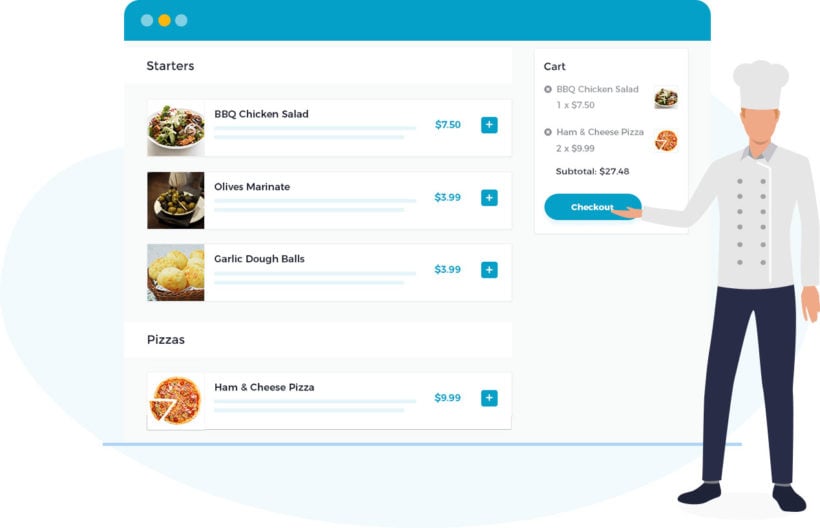
Food order form with a side cart listing selected dishes and a checkout button

Food and takeaway stores are great examples of sites that would benefit from quick one-page ordering. Instead of wasting customers' time with separate pages for each item, WooCommerce Restaurant Ordering provides a much faster ordering experience.

Customers select their items, choose options or toppings, and add to the order from one single page. They can complete their purchase using WooCommerce Fast Cart itself.

WooCommerce Bulk Variations

Bulk variations grid letting shoppers buy multiple sizes and colours at once

WooCommerce Bulk Variations is ideal for any customers wanting to buy multiple variations of the same product at once. Instead of choosing a variation and adding them one at a time, they enter a quantity for each and add them all in one go!

After adding the variations in bulk, they can view related products and complete their purchase in the WooCommerce side cart.

Where can I get WooCommerce Fast Cart?

WooCommerce Fast Cart, our WooCommerce side cart plugin, is available as a standalone WooCommerce side cart plugin or as part of our WooCommerce Bundle.

Like all our other plugins, even WooCommerce Fast Cart comes with:

  • In-depth documentation and tutorials.
  • Export support from our friendly team.
  • Full 30-day money back guarantee.

Adding a multi-step checkout to your WooCommerce store can have a massive impact on your conversions and sales. You can't create a multistep checkout with a standard WooCommerce install, so let's solve that.

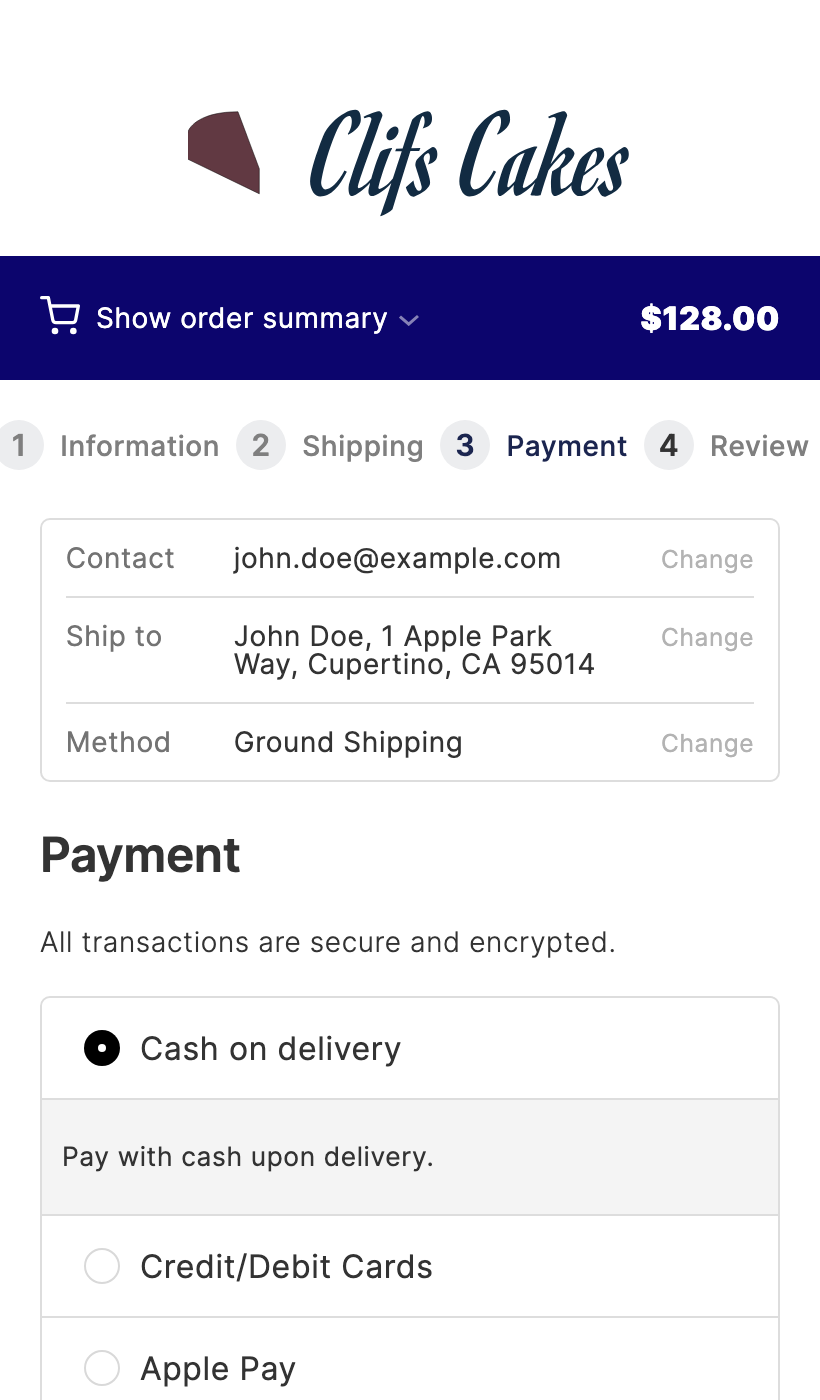
CheckoutWC four-step multistep checkout at the Payment step, with Apple Pay, Google Pay and PayPal express options

In this article, you'll learn why a multistep checkout works and how to add one to your store. I'll use CheckoutWC, a popular WooCommerce multistep checkout plugin.

If your store has the standard one-page checkout, it can feel overwhelming and distracting.

A multistep checkout breaks the process into clean stages. You reduce cart abandonment and lift your conversion rate.

So, before we jump into the how, let's address the why.

Why add a multistep checkout to WooCommerce?

As a store owner, you work hard to make every part of your business run smoothly. The goal is to add value through your products.

The last thing you want is for someone to give up on your store because of friction at the final step.

That's why the checkout experience matters. With a multistep checkout plugin like CheckoutWC, you deliver a clean, focused process.

Let's break down the main benefits of a multistep checkout.

A multistep checkout reduces checkout abandonment

A long, complicated checkout makes people leave.

According to Baymard Institute data, 18% of users abandon carts due to long or complicated checkouts. A multistep checkout helps because it:

  • Removes unnecessary fields and keeps each step focused.
  • Auto-completes addresses so customers don't have to type every line.
  • Adjusts sizing and layout for mobile devices.

A multistep checkout removes distractions

CheckoutWC creates an app-like experience. It strips the site navigation so customers can fully focus on buying.

Imagine your store being so easy to buy from and clutter-free that customers don't think twice about completing the purchase. Their focus stays on the screen at hand.

CheckoutWC removes your site's standard navigation, sidebars, banners, and more. Customers see only the simplified steps they need to complete.

A straightforward checkout is key to higher sales.

A multistep checkout guides the customer to purchase

A multistep checkout plugin walks customers through the checkout in clear, manageable stages.

CheckoutWC templates usually break the flow into three logical steps: Details, Shipping, and Payment.

Sectioning each step keeps the customer focused and removes the bulk of the default checkout.

The last stage of the customer journey is the most fragile. Each step in a multistep checkout is designed to keep them moving forward.

A multistep checkout is mobile friendly

Customers want simplicity. Most online shopping happens on smartphones.

Overcomplicating the checkout costs you sales. A multistep checkout like CheckoutWC gives mobile customers a polished, focused experience.

So now we've covered the benefits. Let's look at why CheckoutWC is a strong way to add a multistep checkout.

Add a multistep checkout with CheckoutWC

Here's why CheckoutWC is a strong choice for adding a multistep checkout to WooCommerce.

What is CheckoutWC?

CheckoutWC is a WooCommerce checkout plugin that replaces the standard checkout with a polished, conversion-focused design.

The plugin offers Shopify-inspired templates and supports both multistep and single-page layouts. You pick the template that works for your store.

When the checkout feels modern and simple, cart abandonment drops and sales go up.

Here's a brief overview of the key features that CheckoutWC offers:

  • Customers fill out fewer fields, making the checkout quicker.
  • Address autocomplete saves customers from typing every line.
  • Sizing and layout adjust automatically for mobile devices.
  • The plugin is compatible with WooCommerce themes and most third-party plugins.
  • Setup is straightforward — install, pick a template, and customize.

Not only is CheckoutWC easy to set up, you can fully customize it to fit your brand.

Customizations available include:

  • Personalize the checkout header text.
  • Change font, button, and accent colors to fit your theme.
  • Enable or disable the upgraded checkout on desktop or mobile.
  • Add a side cart to let customers adjust quantities mid-checkout.

How to add a multistep checkout to WooCommerce

Below are the steps to add a multistep checkout to your store. The process has two parts:

  1. Install the multistep WooCommerce checkout plugin (CheckoutWC).
  2. Customize it to fit your store.

Let's get it up and customized.

Step 1: Install CheckoutWC

Purchase CheckoutWC from checkoutwc.com. You'll get a download link and a license key.

Once you've purchased CheckoutWC, take the following steps:

  1. Go to Plugins → Add New → Upload Plugin.
  2. Choose the zip file you downloaded, upload, and click 'Activate'.
  3. Enter your license key when prompted.

With CheckoutWC installed, we can move on to customizing your multistep checkout.

Step 2: Customize CheckoutWC for your store

CheckoutWC is now active. Adjust the settings so customers get the most from your new checkout.

To customize the plugin, do the following:

  1. Go to WooCommerce → CheckoutWC in your WordPress dashboard.
  2. Open the 'General' tab.
  3. Pick a template that matches the look you want. Each template comes with the multistep flow built in.
  4. Open the 'Branding' tab. Upload your logo and adjust colors, fonts, and button styles to match your theme.
  5. Open the 'Side Cart' tab if you want a slide-in cart on every page.
  6. Click 'Save Changes' when you're happy with the settings.

That's it. Your multistep checkout is now live.

Display the multistep checkout in a quick popup cart

There are lots of reasons to add multistep checkout to WooCommerce. It breaks the process into logical chunks.

However, sending customers across multiple pages still slows them down. The fix is to display the multistep checkout inside a popup modal.

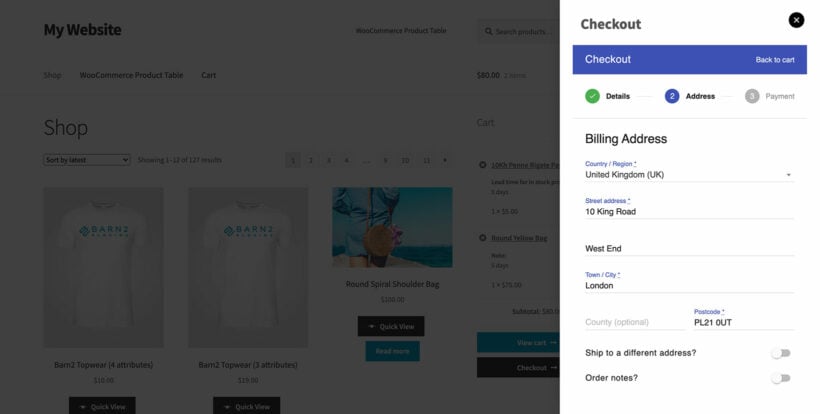
Multistep WooCommerce checkout inside a Fast Cart popup
Use a multistep checkout with the WooCommerce Fast Cart plugin for quicker shopping.

In this screenshot, the multistep checkout is shown inside the WooCommerce Fast Cart popup. Fast Cart turns the cart and checkout into a true one-page shopping experience.

Fast Cart is compatible with multistep checkouts. The customer moves through each step inside the popup. They get the benefits of a structured checkout without leaving the page.

Add a multistep checkout for WooCommerce today

With these steps complete, your multistep checkout is live.

Customers can now move through your checkout faster and with less friction. You'll see fewer abandoned carts and stronger conversion rates.

The sooner you install CheckoutWC, the sooner you'll see the results.

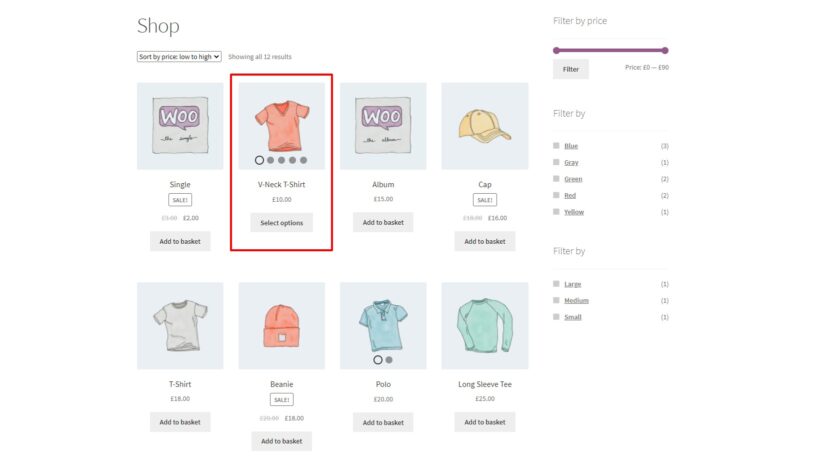
A product gallery slider lets your customers browse multiple product images quickly, with a smoother experience than the default WooCommerce gallery. In this article, I'll show you how to add a variation-aware product gallery to your WooCommerce store using a free plugin.

The default WooCommerce gallery stacks thumbnails below the main product image. It works, but it doesn't give your customers a great way to see different views or variations of the same product.

A product gallery slider improves that experience. Customers can swipe through multiple images, see a different gallery for each variation, and get a much clearer picture of what they're buying.

In this guide, I'll walk you through adding a product gallery to your WooCommerce store. I'll use the free Additional Variation Images Gallery for WooCommerce plugin by Emran Ahmed.

There are several reasons to upgrade the default product gallery.

Show every angle of your product

A single product image rarely tells the full story. A gallery lets you show multiple angles, zoom-ins on details, lifestyle shots, and packaging.

This is especially useful for products where look and feel matter — clothing, jewelry, homewares, and craft items.

Show different images per variation

If you sell variable products, each variation often needs its own images. A red shirt and a blue shirt should show different gallery photos when customers pick the color.

A gallery slider that supports variation images solves this problem. The plugin we'll use today does this out of the box.

Improve the mobile experience

On mobile, swipe gestures feel more natural than tapping through thumbnails. A gallery slider gives customers a familiar, smooth way to browse images on a phone.

So now we know the main benefits. Let's look at how to add a product gallery slider to your store.

Additional Variation Images Gallery for WooCommerce is a free plugin on the WordPress.org repository. It has over 20,000 active installations.

The plugin extends the default WooCommerce gallery in two important ways:

  • It turns the gallery into a slider, so customers can swipe through multiple images.
  • It lets you assign a separate gallery to each variation of a variable product.

Key features:

  • Multiple images per variation. Each variation can have its own gallery of additional images.
  • Slider-style gallery navigation with thumbnails, dots, or arrows.
  • Lightbox support so customers can view images full-size.
  • Mobile-friendly swipe gestures.
  • Works with any WooCommerce theme.
  • Free on WordPress.org, with a Pro version available for advanced features like video and zoom.
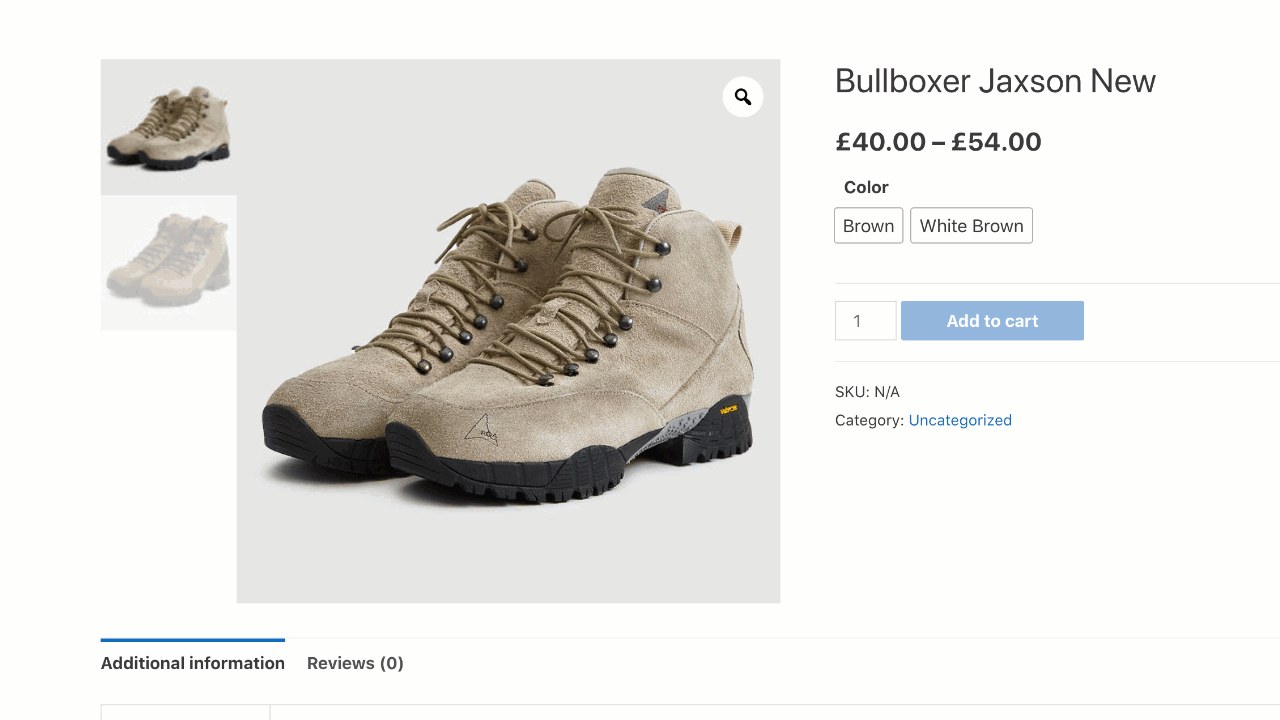
WooCommerce product page for a hiking boot showing per-variation gallery thumbnails and color variation buttons

The setup takes two steps:

  1. Install the plugin.
  2. Add gallery images to your variations.

Let's walk through them.

Step 1: Install Additional Variation Images Gallery

Install the plugin from your WordPress dashboard:

  1. Go to Plugins → Add New.
  2. Search for 'Additional Variation Images Gallery for WooCommerce'.
  3. Click 'Install Now', then 'Activate'.

The plugin is now active. There's no separate license key to enter because it's free.

Step 2: Add gallery images to your variations

With the plugin active, you can add multiple images to each variation of a variable product.

  1. Go to Products and open the variable product you want to update.
  2. Scroll down to the 'Product data' section and click the 'Variations' tab.
  3. Expand the variation you want to add images to.
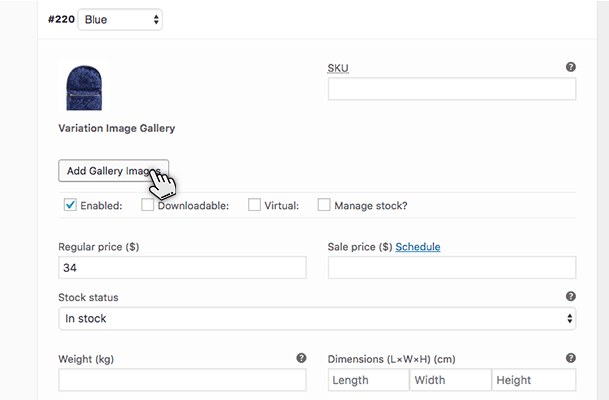
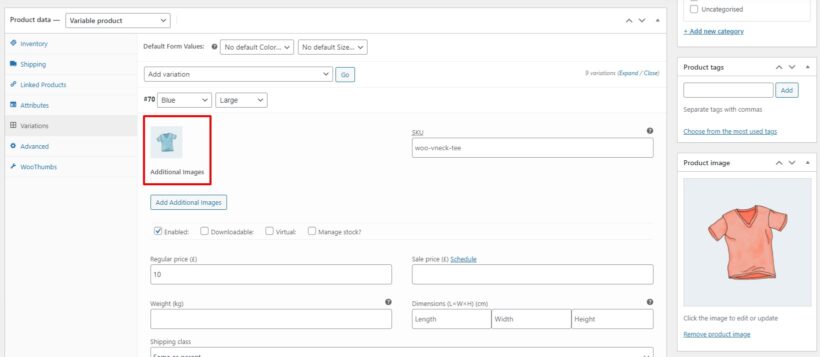
  4. Find the new 'Additional Variation Images' field added by the plugin. Click to upload or select images for that variation.
  5. Save the variation, then publish or update the product.
WooCommerce variation editor for a blue bag showing the Add Gallery Images button provided by the plugin

That's it. When customers select that variation on the front end, the gallery updates to show the images you uploaded.

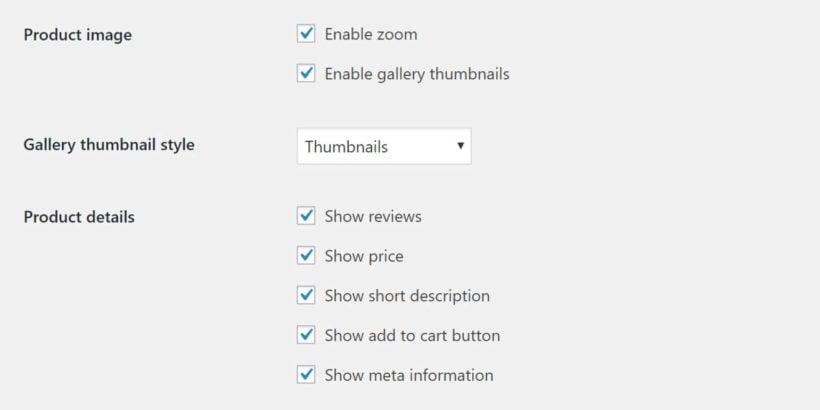
Step 3: Adjust the gallery settings (optional)

The plugin includes a settings page so you can fine-tune the gallery behavior.

  1. Go to WooCommerce → Settings → Products → Variation Images Gallery.
  2. Choose whether to show thumbnails, arrows, or dots.
  3. Toggle the lightbox on or off.
  4. Save your changes.
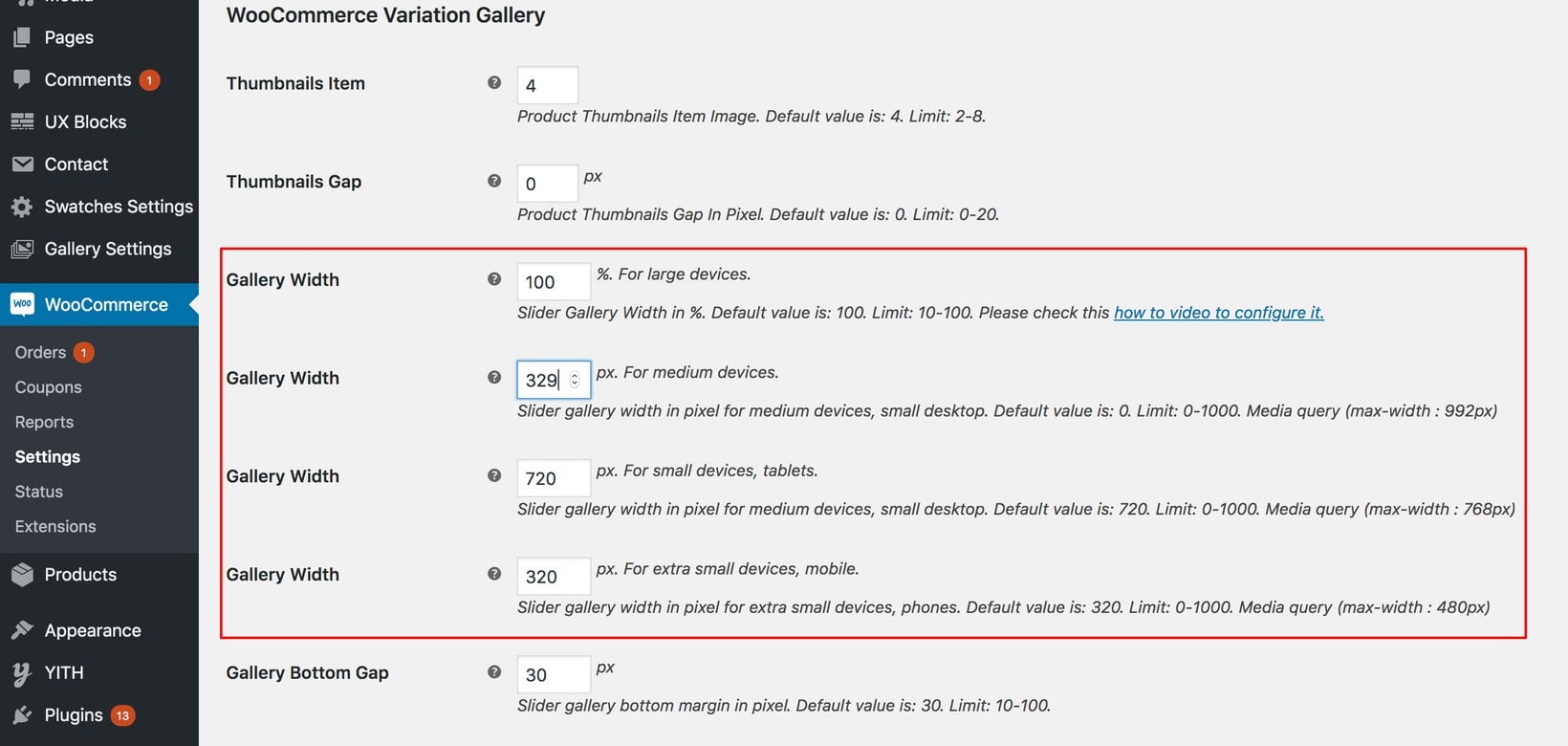
WooCommerce Variation Gallery settings panel with gallery width fields for desktop, tablet and mobile breakpoints

Visit a product page on the front end to see the gallery in action.

A product gallery slider gives customers a better view of what they're buying. With Additional Variation Images Gallery for WooCommerce, you can add one to your store in minutes without any cost.

For variable products, the per-variation gallery is the killer feature. Customers see exactly the right images for the color, size, or style they pick.

Install the plugin from the WordPress.org repository and upgrade your product pages today.
Variable product price being inspected on a store page with a magnifying glass

If a product has variations with different prices then WooCommerce always displays the price as a range. This could be losing you sales. That's why you need the WooCommerce Variation Prices plugin.

Imagine that a product has variations that are priced between $10 and $25. WooCommerce will display the price as $10.00 – $25.00 throughout your store. The problem is that this often isn’t the best way to sell your products and can put customers off, resulting in lost sales.

Keep reading to discover the easy way to take control over how variation prices are displayed in your store. You'll learn how to list all variation prices separately, replace the price range with a "From" or "To" price, or even create your custom variation price format.

What's the best way to set different prices for product variations in WooCommerce?

Out of the box, if a product has variations that have different prices then WooCommerce will always display the price as a range. There's absolutely nothing you can do to change this, short of writing custom PHP code. It doesn't matter that displaying a price range might not be the best way to attract customers - that's the only option.

Fortunately, you can easily fix this by installing the WooCommerce Variation Prices plugin. This lets you replace the default variation price range with an alternate price format of your choosing.

You can choose to display the minimum variation price only, maximum variation price only, list all variation prices, or choose a custom format. Here's a list of all the different variation price formats that you can choose from:

  • Price range e.g. $50 - $100.
  • Starting price (long) e.g. From $50.
  • Starting price (short) e.g. $50+.
  • Maximum price e.g. Up to $100.
  • List all variation prices at once.
  • Hide the price at the top of the product page until a variation is selected.
  • Create your own custom variation price display format, with whatever wording you choose. As part of this, you can also change the price range separator from a dash to anything else, such as colon or other symbol.

As you can see, this variation price plugin for WooCommerce gives online store owners complete flexibility in how to display variable prices. You can even hide the price for variable products on the front-end. It also has extras such as automatically updating the main product price when the customer selects a variation.

Further reading: How to Edit Variation Prices in Bulk

Step-by-step: How to set up variable prices in WooCommerce

In this tutorial, I'm going to show you exactly how to change how your variable product prices are displayed. The new price format will be used wherever WooCommerce normally displays the default price range. This includes on your main Shop page, category pages, related products, and on individual product pages.

1. Set up the WooCommerce Variation Prices plugin

To start using WooCommerce Variation Prices straight away, watch the video at the start of this article. Alternatively, follow the step-by-step instructions below:

  1. Get the WooCommerce Variation Prices plugin. You’ll receive the plugin files and license key in a confirmation email. Install the plugin on your WordPress website and activate it.
  2. Once that’s done, the plugin setup wizard will open automatically. Activate your license key on the first page.
  3. Next, you can start changing the format for your variation prices. You can do this in the setup wizard, or do it later on the settings page at WooCommerce → Settings → Products → Variation prices.

2. Set the price display format

Use the Options dropdown to select a price format. The available options include:

  • Price range
  • Starting price (short)
  • Starting price (long)
  • Maximum price
  • List all variation prices
  • Hide the price until a variation is selected
  • Custom

If you choose the Price range option, you'll see the Price range separator field.

Setting the price range separator in WooCommerce Variation Prices

Here, you can enter a character to use as the price range separator. By default, this is set to a hyphen/dash character.

And, if you choose the Custom option, you'll see a Custom format field.

Setting a custom variation price format with min and max price placeholders

You can add any text you'd like to display here. It supports %min% and %max% tags. For example, from %min% to %max% + VAT would display the price as: "from $50 to $100 + VAT".

3. Choose product types

The option lets you choose the products types you want to apply the variation price format to.

Grouped product showing a price range for each child product

You can choose to apply it to variable products, grouped products, or both.

4. Show selected variation price

Normally, the price range at the top of the WooCommerce product page remains visible even after the customer selects a variation. That's pretty limited, so you can use the WooCommerce Variation Prices plugin to change this.

When the Show selected variation price option is enabled, it changes the product price to show the cost of the selected variation. This is much more user-friendly than always showing the low and high prices.

5. Bonus: Change the variation price format in the WordPress admin

So far, we've only looked at how to change the variation price format in the front end of your e-commerce store. You can also choose to show the modified variation price formats in the WordPress admin dashboard. This option is enabled by default, but you can disable it if you prefer.

Hoodies product list showing the custom variation price format in the WordPress admin

When is it a good idea to change the variation price format?

To help you decide whether you need the WooCommerce Variation Prices plugin, let’s take a look at some use case scenarios. These are examples of products that can benefit from displaying variation prices in a different type of price format:

Show the lowest variation price instead of the range

Online courses and other subscription products that have plenty of add-on option fields might want to show the lowest price (the base cost) only on the front-end. This is especially useful for anyone that has add-ons that significantly increase the cost of the base product.

For example, if the online course costs $99 and you give customers several add-ons such as:

  • A one-on-one session for $39 per month.
  • Access to the Discord community for $9.99 per month.

Then you wouldn’t want to display the online course’s price in a range like $99 – $147.99. That’s a huge difference. Potential learners might be put off by the highest price thinking they can’t afford the online course.

Using a WooCommerce variation prices plugin, you can instead use wording like ‘Starting at $99’ or ‘Starts from $99’.

Show the highest variation price instead of the range

Restaurants might want to display the highest price instead of the range for each item. This is particularly useful for pizzerias that sell single slices, half pies, and full pies as options. This way, the customer won’t be led to believe that a full pizza pie costs $5 when that’s the price of a single slice.

In this sort of scenario, you’d be better of displaying the prices using a separator like ‘$5 / $11.99 / $23’ to display the prices of single slices, half pies, and full pies.

Sell variations by weight

Stores that sell products by weight might want to list all variation prices or choose a custom format depending on the product. For example, meat shops that sell meat in pre-packaged variations might want to display the cost of each variation.

You can list prices on the front-end:

  • 500 grams - $5.40
  • 1 kilogram - $10.20
  • 1.5 kilogram - $15.99
  • 2.0 kilograms - $20.00

You can list the prices of all variations on the single product page.

Hoodie product page listing every variation price in a grid by colour and size

This is particularly useful if you want to sell product variations at different prices or offer a discount on specific variations.

Display the maximum price

Some stores might want to display the maximum price because the lowest variation price might be the price of a sample rather than the actual, full-size product. In this scenario, only the highest price matters.

For example, bakeries that sell cookies by the dozen might want to display the price of a full dozen instead of a price range that shows the price of one cookie and a dozen cookies. You could show the price as ‘Up to $25’ indicating that lower price options are also available.

Hide the WooCommerce variation price display

Other store owners want to hide or remove the WooCommerce variation price display from the product page. For example, maybe you want to hide the variation price range when customers first visit the product page. The price of the selected variation then appears when they choose a variation.

WooCommerce variable price FAQs

What's a WooCommerce variable product?

So far in this article, I've assumed you already know what is a product variation. Sorry about that!

In case you don't already know, WooCommerce comes with a choice of product types. One of these is called 'Variable product'. It allows you to create two or more options for customers to choose from.

WooCommerce product variations are useful for any type of product that is sold with a defined list of choices. For example, a t-shirt might be sold in a range of sizes and colors - so you would create a variation for each combination.

What’s wrong with the way WooCommerce normally displays variation prices?

As I mentioned earlier, WooCommerce displays product variation prices in a range that lists the lowest and the highest price. Here’s what’s wrong with this:

Showing the highest possible price

The problem with showing a range that includes the highest possible price is that it can be bad for buyer psychology. This is because you’re drawing attention to the highest possible price.

As a result, it can lose you sales and reduce your conversion rate – a disaster for any store owner!

Think of it this way: if the top of the range is above budget, the customer is likely to leave your store. Unless they select a variation with a lower price, they’ll never know which options are within their budget.

The solution is to use the WooCommerce Variation Prices plugin to change the variation price format into something more buyer-friendly.

Select a variation to see the actual price

WooCommerce requires customers to select a variation to see the actual price. If you sell products that have lots of variations, customers might be clicking around for a long time to find one with a price they’re happy with.

The solution is to use WooCommerce Variation Prices to list all variation prices at once.

Not suitable for all types of products

The default way WooCommerce displays variable product prices may simply not fit with the nature of the products you sell. For example, the lowest or highest price may be the norm and you only want to display this. Or, you might sell products by weight and need to add a ‘per KG’ price or something similar.

In this case, you’re better off using the WooCommerce Variation Prices plugin to create a custom price format that meets your exact requirements.

How many variations are allowed in WooCommerce?

WooCommerce works with unlimited numbers of variations. Once you get above a certain number of variations, they are loaded using AJAX to ensure fast load times regardless of the number.

However, I find that variations can be a pain to work with if you have a lot per product. That's because to create variations, you need to add your product attributes first (e.g. size and color). Next, you create a separate variation for every possible combination of attributes, and add a price, image, stock level etc. for each one. The number of variations quickly multiplies up exponentially if you have lots of attributes and variations.

In some cases, it's easier to use the WooCommerce Product Options option instead of variations. This provides an alternative way of adding options to products, and is much simpler than working with variations. It's also more flexible because instead of just displaying the options as dropdowns, you can choose from a wide range of styles such as checkboxes, file upload fields and clickable image buttons.

How to set different prices for product variations in WooCommerce?

When you create a variation for a WooCommerce product, it will have its own price field. Use this to add a different price for each product variation.

If you have lots of variations, then consider using the WooCommerce Bulk Variations plugin to bulk-select variations and set the price in bulk. For example, you can select all products with a 'Large' size attribute and set the price for all the large variations at once.

Next steps: Take your WooCommerce variation pricing to the next level

WooCommerce Variation Prices is perfect for store owners that don’t want to display variable product prices in the default range. It lets you choose from different options including displaying the minimum (or maximum) price only, listing all variation prices, and choosing a custom format.

Like all Barn2 plugins, WooCommerce Variation Prices comes with a full 30-day money back guarantee. This lets you try it risk-free on your store and get a refund if you're not happy for any reason.

This super-simple plugin only takes a few minutes to set up. Install it on your WordPress site and follow the simple instructions in the setup wizard to improve the way variable product prices are displayed in your store. It's a simple but important change that will change how customers perceive your pricing, helping to generate more sales for you 🔥

Mobile store product marked with a discontinued status label

WooCommerce, out of the box, doesn’t provide a way of marking products as discontinued while keeping them visible in the store. The easiest way to do this is by using a WooCommerce product discontinued status plugin.

Discontinued products are completely different from out-of-stock products. While WooCommerce lets you mark products as out-of-stock, there’s no built-in option to mark products as discontinued.

The only option is to manually add a notice to the product short description saying that the product has been discontinued. Aside from this, you can either delete the price of the discontinued product or mark the product as out-of-stock.

The WooCommerce Discontinued Products plugin provides an easy way for store owners to mark products as discontinued. In this article, we’ll explain why you might want to do this and how you can get started with the discontinued products plugin.

Why might you discontinue products in your store?

Companies discontinue products for many different reasons.

  • Profitability. One of the most common reasons why store owners discontinue products (or product variations) is that they simply aren’t profitable anymore. This could be due to a drop in product demand or a loss in market share.
  • Availability. Products that are no longer available from the supplier are usually discontinued.
  • Time-limited products. Products that are time-limited are often discontinued when they’re no longer relevant. Examples of time-limited products include seasonal goods and holiday gifts such as New Year’s party glasses from 2010!
  • Obsolete. Products that have been replaced by other products are also discontinued. Tech products are usually discontinued when an upgraded version is launched. Apple, for example, has discontinued the iPhone X.
  • Manufacturing. Products that are no longer manufactured are discontinued. This can also happen due to a shortage of raw materials.

Let’s take a look at some examples of products that are discontinued:

  • T-shirts.
  • Wines from previous years that have sold out.
  • Tickets for past events.
  • Seasonal products e.g. Christmas ornaments with the year printed on them.
  • Limited edition products such as Nike shoes.
  • Tech products such as older iPhone models and accessories. Similarly, DVDs were replaced by Blu-Rays.
  • Makeup products are often reformulated and the older versions are discontinued.

It’s also worth noting that companies bring back previously discontinued products all the time. For this reason, as a store owner, you need a way to mark discontinued products in WooCommerce rather than taking them down.

Why mark products as “discontinued”?

The typical product life cycle goes something like this:

  1. In stock - products are active and in stock, available for purchase.
  2. Out of stock - products are active but currently out of stock, awaiting restock.
  3. Discontinued - inactive, end of life products that are no longer being sold with no plans to restock.

For WooCommerce store owners, the problem is that WooCommerce plugin combines stages 2 & 3 and doesn’t provide a separate option or stock status for discontinued products. In other words, there’s no option available to mark discontinued products.

Until now, there were two main options available to store owners:

  • Mark discontinued products as out of stock. This isn’t a suitable option because it clutters up your store catalog in the front-end (and in the back-end if you hide out of stock products) with unnecessary discontinued products. This leads to a bad user experience since there’s no way to distinguish between out of stock and discontinued products. The out of stock status is normally used for products that are temporarily out of stock. It implies that the product will become available again if you wait. But, if you mark both out of stock and discontinued products as “out of stock”, customers won’t know whether or not to wait for new stock to arrive.
  • Delete discontinued products or change them to private (or draft) status. This is bad for WooCommerce SEO. You lose all the link juice and rankings for your discontinued product pages if you change the page’s status to private or draft.

The solution: the WooCommerce Discontinued Products plugin

Whether you’re dealing with products that are discontinued temporarily or permanently, it’s essential to distinguish out of stock products from discontinued products.

The WooCommerce Discontinued Products plugin was built for exactly this purpose.

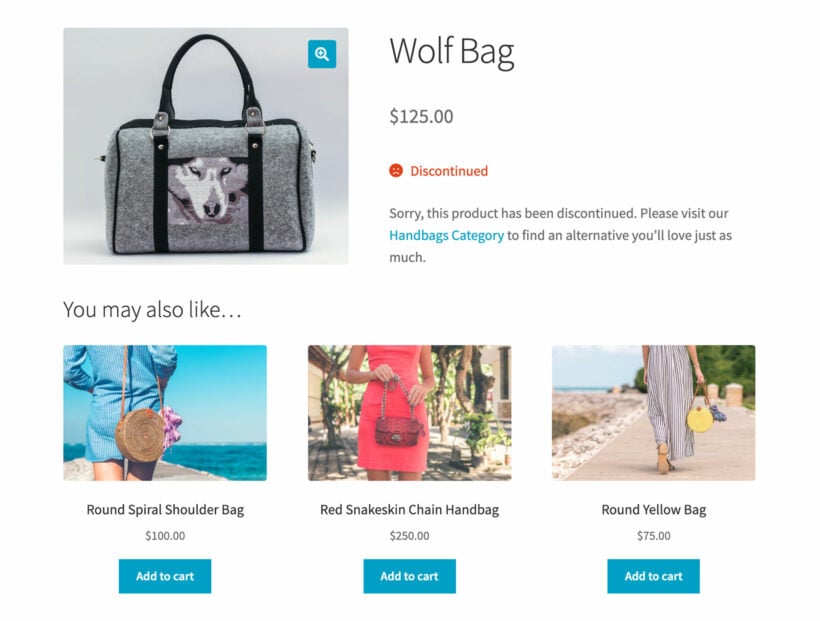
Discontinued Wolf Bag product page suggesting alternative handbags to buy
An example of a discontinued WooCommerce product.

It’s designed to keep your search engine rankings intact for your discontinued product pages while also keeping customers happy and avoiding disappointment. It allows store owners to keep the product while marking it permanently as out of stock i.e. discontinued.

Benefits of marking discontinued products

Let’s step through the main benefits of marking WooCommerce products discontinued:

SEO

Using a WooCommerce discontinued products plugin, you can handle discontinued products on your online store without damaging your SEO.

You might want to disable purchases for discontinued products while keeping them visible on your store’s front-end for SEO reasons. After all, you don’t want to lose your rankings for that product!

Using a WooCommerce discontinued products plugin, you can keep the product page alive without confusing shoppers.

It’s important to keep in mind that, even if an item is discontinued, you can still get a lot of traffic to these pages. Done right, you can use this as an opportunity to encourage customers to purchase other, similar items.

Put simply, the product pages for discontinued products have significant SEO value. There may be backlinks pointing to them and customers still search for them. Deleting them can lead to lost sales of your other products and potentially stop people from finding your store in the first place.

Handled correctly, you can keep discontinued product pages alive to boost your SEO rankings in the long term. It’s an easy way to preserve your product page’s SEO value.

Customer expectations

From a user experience standpoint, customers need to know that a discontinued product will never be available for purchase again. This way, they won’t keep checking back in hopes of placing an order.

You need control over what text to display on the discontinued product page to make things clear to the customer. This way, you can effectively manage customer expectations and prevent disappointment. In addition to this, it also helps you eliminate broken links to your online store.

Even though customers can no longer buy the product, being able to access the discontinued product page has important informational purposes. For example, the product page might contain documentation of downloadable user guides, specification information, and usage tips that might be useful to anyone that purchased the product before it was discontinued.

Existing customers who bought the product before it was discontinued will find links to the product page in places such as their Account area and saved bookmarks. So, they will still need to be able to access the product page. The product page isn’t just for potential new customers but also for existing customers.

Sell alternative products

You can use the Discontinued text field to advise customers to check out related products. For example, you could display a message saying "We're sorry, this product has been discontinued. Please visit our store for similar products."

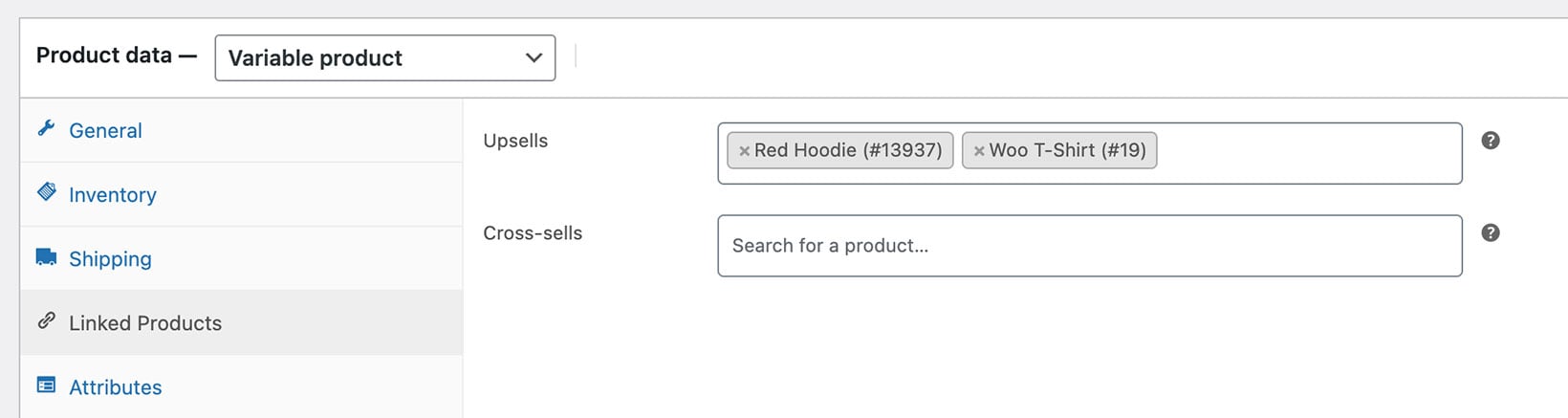
The cross-sells feature in WooCommerce lets you suggest alternatives. Customers will only pay close attention to these if they know the product they’re looking at is permanently discontinued.

Setting upsell products in the Linked Products tab of the WooCommerce product editor

You can manually select suitable related products for each discontinued product. This way, you can point customers to products they can place orders for.

To counter any disappointment, add a coupon code to the short description to encourage customers to continue browsing your store. In addition to this, you can also add an email capture form promising to notify them of similar products.

You can also add a Visit Shop button or link to the short description to direct people to available products they can place orders for.

This way, you can make a sale even if the exact product the customer was searching for is discontinued.

Accurate stock reporting

Store owners need to be able to filter and view discontinued products separately from other statuses (such as in stock products and out of stock products) in the admin area. This allows them to accurately report on discontinued products separately from out of stock products.

This way, the view at WooCommerceReportsStockOut of stock doesn’t clutter up the stock report or stock checks.

Ideally, you don’t want to delete discontinued products from your online store as this could mess up historical sales data and stop customers from viewing the product when they view their past orders in the Account area.

Reliable, quality solution

Using a WooCommerce discontinued products plugin means that you can avoid hacky and error-prone workarounds. It’s the easiest way to mark your products as discontinued while keeping things simple for the store manager.

How the discontinued products plugin works

The WooCommerce Discontinued Products plugin lets you add a ‘discontinued’ stock status to your products. It lets you easily mark products as discontinued, either individually or in bulk.

Keep reading for step-by-step written instructions, or watch this video on how to add a WooCommerce discontinued product status to your store:

Easily select the discontinued stock status for products or variations

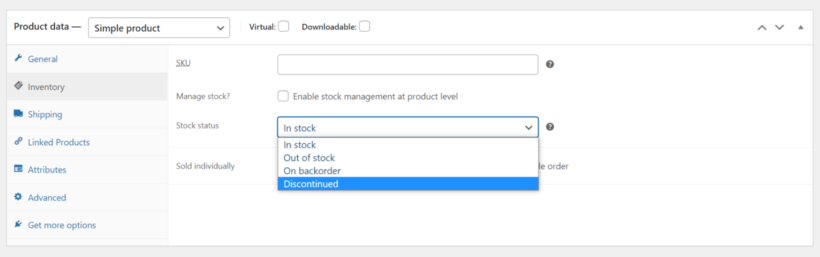
Setting a product stock status to discontinued in WooCommerce

After installing the plugin, simply select the discontinued stock status for all the products and variations that you wish to discontinue. You can do it individually, in bulk for all variations of a particular product, and in bulk for multiple products at once.

Add a discontinued product message

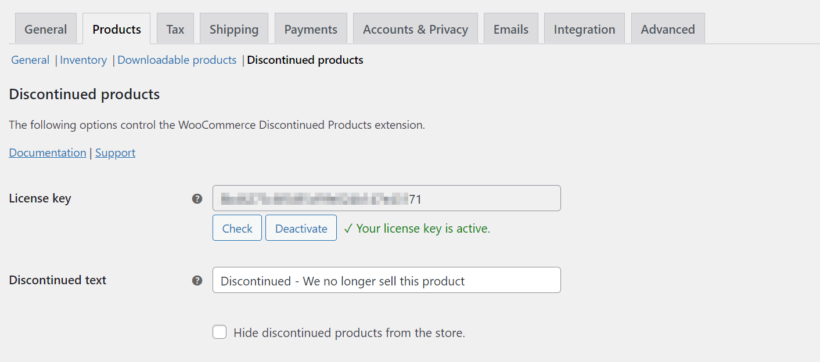
Customers visiting discontinued product pages need to know that the product won't come back in stock. You can easily do this by customizing the 'Discontinued' text that appears on discontinued status products. For example, you can write something like “Discontinued product” or “We no longer sell this product”.

WooCommerce Discontinued Products settings with a custom discontinued text field

In addition, we recommend using features such as cross-sells and related products to display other products that the customer may like. This helps you to recover a sale that would otherwise be lost.

Discontinued product page recommending alternative products to recover the sale
Recommend alternative products and avoid losing the customer!

Show or hide products with a discontinued status

The WooCommerce Discontinued Products plugin lets you choose whether to show or hide discontinued products from your shop and category pages and on-site search. Either way, the page remains visible in the background to search engines. This means that you can keep the page alive without damaging its SEO value.

Charm bracelets product page marked discontinued with no longer sell this product notice

Bonus: list discontinued products on a separate page

You can use the WooCommerce Discontinued Products plugin with our WooCommerce Product Table plugin to list discontinued products on a separate page. This way, customers can quickly see all of the products that you’re no longer selling on a separate page.

  1. First, make sure you have both the WooCommerce Discontinued Products plugin and the WooCommerce Product Table plugin installed and activated on your online store.
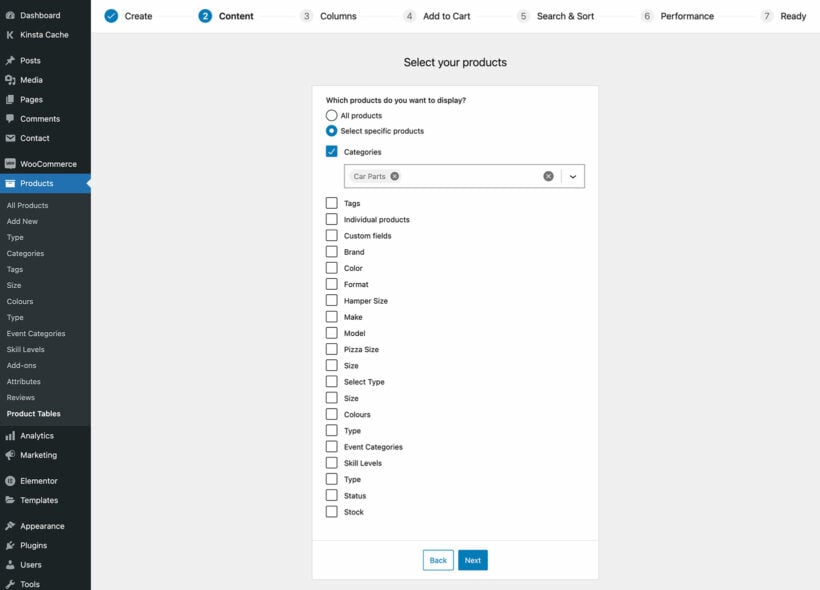
  2. Next, go to Products → Product Tables → Add New and create a table which will list your discontinued products.
  3. On the 'Select your products' screen, select the 'Stock' option at the bottom of the list and then 'Discontinued'.
Choosing which products to include in the WooCommerce Product Table

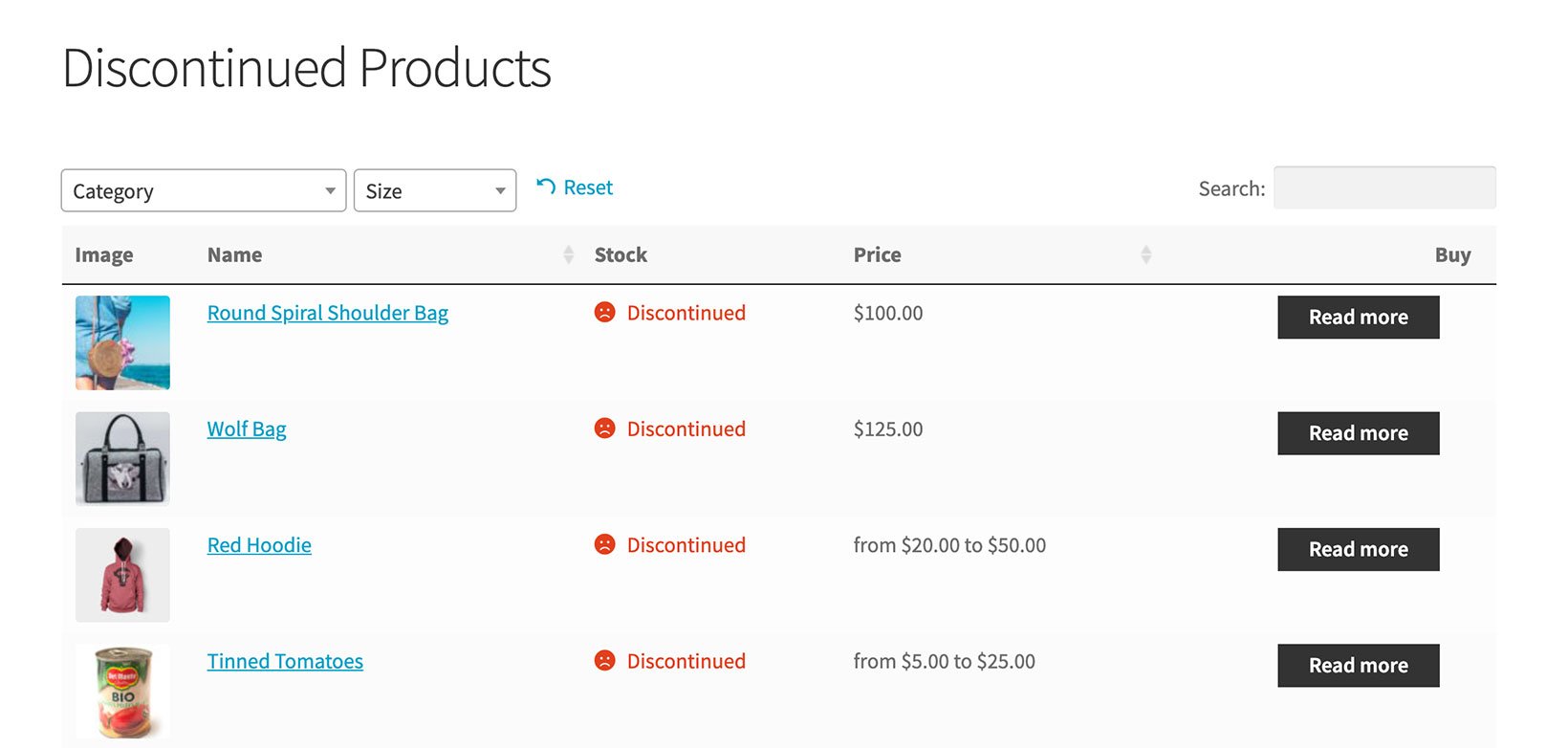
The discontinued products page will look something like this on the front-end:

Front-end table listing discontinued products with their stock status

The WooCommerce Product Table plugin lets you choose which columns to include in the list.

Where to get the plugin

With a WooCommerce discontinued products plugin, you can easily mark discontinued products while retaining the product page’s SEO value. It also makes it easy for shop managers to accurately report on stock.

Get the WooCommerce Discontinued Products plugin today!

WooCommerce product page open on a laptop beside a camera lens and sunglasses

The product images in your WooCommerce store have a major role to play in increasing sales, conversions, and clicks. So when we know how effective they can be on their own, how do we maximize their potential?

While a standard WooCommerce install will help you set up the basics of your store (with a simple product gallery and image settings), you’ll need little help if you’re looking to give your product images a boost.

So in this article, we’ll be discussing the benefits of improving your WooCommerce product images. Then we’ll give you 3 ways you can boost them with the help of some easy-to-use plugins.

These plugins allow you to take control of how your product images are displayed. With an upgraded product gallery, click-saving product lightbox, and image hover effects, you’ll improve customer experience and boost sales at the same time.

The benefits of improving your WooCommerce product images

Improving the product images in your WooCommerce store will have massive benefits for your sales and conversions. Here’s why:

1. It entices your customers to buy your products

It goes without saying that high-quality product images are key when it comes to convincing customers to buy from your store.

While customers browse, it’s often only your product images that will give them the best indication if your product is right for them or not.

In fact, a study from the online marketplace Etsy found product image quality was a decisive factor among 90% of the users when it came to buying.

But what does ‘quality’ mean?

According to Etsy, quality is a combination of the following:

  • An image that’s clear, in focus, and sharp.
  • An image that’s well-lit.
  • A photo that contains enough ‘information’ about the product. In other words, you can see the details, you can see the whole product and the product is the main focus of the image.
  • An image that represents the product well - for example, the colors in the photo shouldn’t be different from the actual product.
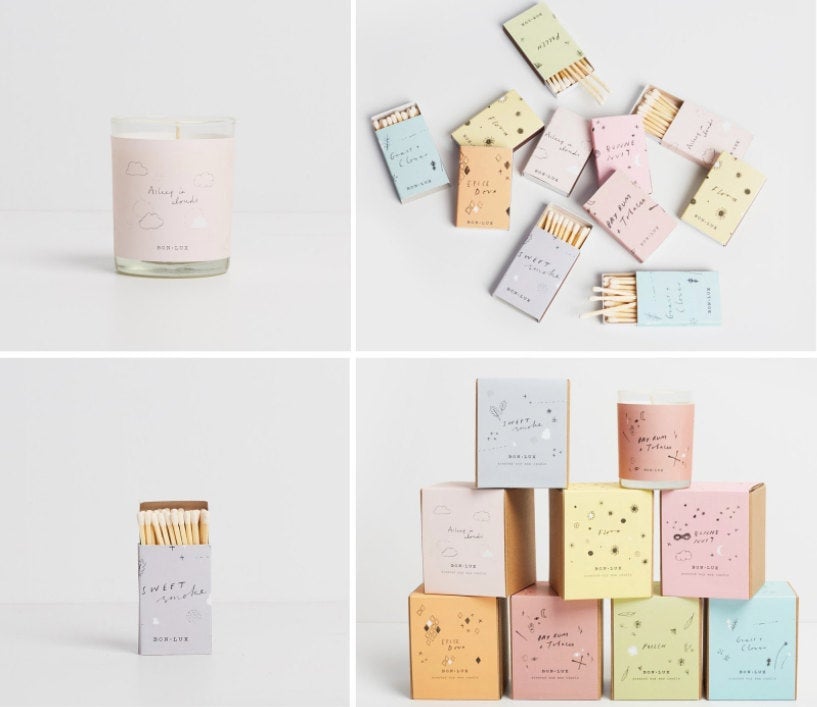
Pastel candle and matchbox product photos shown from several angles
An example of excellent product photography from Etsy/BON LUX

Of course, these are just the basics. Great product images can be so much more than this.

They can show customers what the product will look like in their hands with lifestyle shots. They can show customers how a product can be used with instructional photos. They can also show different angles, closeups, and more to showcase the product to its full potential.

2. It gives your store a competitive edge

The product images you use play a huge role in making you stand out from other stores. When you go beyond a standard product image on a white background, you’ll be providing your customer with way more visual information.

So by improving your product images, you’ll not only catch the eye of potential customers, but you’ll show them you value your products too. The simple act of improving your product images will immediately show customers you can be trusted and valued as a brand.

Plus, you can give your competitive edge a massive boost by using the techniques we’ll list in the next section.

3. It narrates a story about your brand

It’s said an image can speak a thousand words and this absolutely applies to product images too.

Carefully selected product images for your WooCommerce store tell a story. They inform customers, in a simple image, what the product and your brand are all about. In fact, according to data from BigCommerce, 78% of online shoppers want product images that bring products to life.

By getting creative with your photography, you’ll be able to show customers how your product, fits into their life. In particular, lifestyle photography transforms a product that a customer cannot touch, into one they can see slotting into their life with ease.

So, now we know the benefits of improving the actual product images you use in your WooCommerce store, so let’s give them a major boost with some easy-to-use plugins.

You’ve improved your product images, they’re clear, professional, eye-catching, and very clickable, but what now?

Once you’ve uploaded your product images to your WooCommerce store, they’ll be showcased in the standard WooCommerce product gallery. This is fine if you’re looking to keep things basic, but we’re here to give your product images a boost.

That’s where WooThumbs for WooCommerce comes in.

WooThumbs product gallery showing a t-shirt with multiple thumbnail images

WooThumbs for WooCommerce allows you to take complete control over the layout and design of your product gallery. It dramatically improves the look and feel of your gallery, as well as improving the customer experience.

As well as customizing the layout of your WooCommerce product gallery, WooThumbs helps you customize your product gallery in two other major ways. We’ll talk about both of these below.

1. It allows you to include additional variation images

In a standard WooCommerce store, you can’t add additional variation images to your products. This can be a problem if you want to, for example, show the different angles, details, or lifestyle shots of your product variations.

This is where WooThumbs comes in. It allows you to import additional variation images for your product image. Giving you more freedom to show your products from different perspectives.

Adding extra images to a product variation in the WooCommerce product editor

A major benefit of having more variation images is customer satisfaction. Sometimes, to judge the quality of a product, customers want to see the product from different angles. With WooThumbs, customers can see as many variation images as they like. Helping them make a decision.

2. It improves image zoom

Visual cues are a very important factor in generating sales and improving customer experience. Making your WooCommerce product images interactive will help your customers to get a better view of your products.

While a standard WooCommerce store does have image zoom on your product images, it’s hard to customize and could be improved.

Image zoom on a WooCommerce product gallery powered by WooThumbs

With WooThumbs for WooCommerce, you’re able to specify which type of zoom you’d like to use, including:

  • Inner Zoom - This uses the current image bounds as a frame for the zoomed image. When you hover, the zoomed image will be displayed smoothly on the screen.
  • Outer Zoom - This displays the zoomed image beside the main image, on whichever side you choose in the settings.
  • Follow Zoom - This is a ‘magnifying glass’ style of zoom and will display the zoomed image in a circle or square at the mouse position.

Once selected, you can then customize each of these to suit your specific preferences.

Showcase product images in a lightbox

Now we’ve improved your product image gallery, it’s time to show off your improved product images on the shop and category pages.

When browsing your store, customers will likely click through to many different product pages to find the products they’re looking for. All these clicks can end up tiring the customer out, causing them to leave your store - especially if they’ve not found the item they’re looking for.

Let’s fix this by giving customers the option to quickly view product information right from the shop and category pages. This can be done with WooCommerce Quick View Pro.

Quick View buttons on shop products opening product images in a lightbox

Quick View Pro allows customers to see product images, information, options and more, in a popup lightbox, all without leaving the shop page.

Plus, you’ll be able to completely customize what the customer sees within the lightbox for full control. You’ll be able to:

  • Keep things simple by showing just the product images, description, and buy button.
  • Or give customers a full preview by showing all of this and attributes, meta information, reviews, and more.
Quick View settings for product images, gallery thumbnails and product details

With the help of this plugin, your customers can quickly preview items in the product lightbox and add them to the cart. Customers can then quickly return to the product page and continue shopping.

Not only will this save customers clicks, but it will speed up the buying process too. Resulting in more sales and much happier customers.

Change product images on hover

We all know the benefits of an improved product gallery, but what if we could bring those benefits to the shop and category pages of your WooCommerce store?

With Image Swap for WooCommerce in place, you’ll be able to add hover and click image effects to your product images.

Selecting a V-Neck T-Shirt with a hover image effect on the WooCommerce shop page

These effects will replicate the benefits of a product gallery but will apply to the images on your shop and category pages. So when customers browse your products, they’ll be able to do any of the following (depending on which you pick):

  • Fade - When a customer hovers or clicks, the next product image will fade in.
  • Slide - Your customers will be able to use arrows on a slider to flick through your product images.
  • Bullets - Similar to above but instead of arrows, they’ll be able to use bullets or dots.
  • Thumbnails - Customers will see smaller thumbnails of your product images below the main image, much like a product gallery.
  • Zoom - Customers will be able to hover over your product images and see a zoomed-in version.
  • Picture-in-Picture - This will show a small version of the next image in the corner of the first image. Once clicked, it will switch the images around.
  • Modal Gallery - This will allow customers to click the product image and see an enlarged version in a modal popup.
  • Enlarge - When hovered over, this image will increase in size, right on the shop/category page.
  • Flip - Once clicked or hovered over, the first product image will flip over to reveal the next.

By using effects like these, you’ll again reduce clicks by showing customers much more visual information and speed up the buying process at the same time.

Upgrade your WooCommerce product images today

With these three plugins in place, you’ll be able to dramatically improve the sales in your store by using the most up-to-date sales-boosting techniques.

Plus, having improved the quality of your product images, you’ll be able to draw even more attention to them by showcasing them to their fullest.

You can try each of these plugins risk-free by clicking the links below:

Product table WooCommerce archive page template

Version 2.8.3 of our WooCommerce Product Table plugin is now available. You can now enable the order form layout on any type of WooCommerce archive page in your online store. As well as shop and category pages, this includes product tags, attributes and custom taxonomies. This helps you to use it with other plugins.

It has been possible to display product tables on the main shop page, category archives and product search results for a while now. Since we added those features, customers have asked to use product tables on other types of WooCommerce product archive too.

In the new version of the plugin, you can choose whether to automatically enable the product table layout on any page that uses the archive-product.php template in your theme. These are:

  • The main Shop page
  • Product search results (note: this is different from your sitewide search results, which come from WordPress itself. To display those as a table, you need our Posts Table Pro plugin instead.)
  • Product category archive pages
  • Tag archive pages for your products
  • Product attribute archive pages
  • Archive pages for any WooCommerce custom taxonomy, including those created by other plugins such as multi-vendor plugins. (More on this below)

How to show product tables on any type of WooCommerce archive page

It's really easy to enable the product table layout on the various archive pages in your store. Just tick a box for each one!

  1. Install WooCommerce Product Table if you haven't already done so.
  2. The table builder will open when you first activate the plugin.
  3. In the 'Shop templates' section, tick all the boxes where you want to use the product table layout:

Using product tables on archive pages created by other plugins

The best thing about the new features is that they let you use WooCommerce Product Table with other plugins in ways that weren't possible before.

Essentially, if you're using another plugin that lists products on any type of archive template, then you can now use the product table layout.

For example, lots of people have asked us how to use WooCommerce Product Table in a multi-vendor marketplace. (We even have a tutorial about this use case.) Some multi-vendor plugins - including YITH and Product Vendors - create a taxonomy for each vendor, and use this to generate the 'Shop' page for each vendor.

Normally, the vendor's products are listed in a standard grid layout, which is the default for all WooCommerce archive pages. You can make the vendor store pages more user-friendly by using WooCommerce Product Table to list products in a one-page order form layout. This will help to grow their conversions. Simply go to the Product Table settings page and tick the box to enable it for the 'Vendor' taxonomy.

Multi vendor shop page with product table
A vendor shop page with the product table layout

Where to get the new features

Existing WooCommerce Product Table users can update from the WordPress Dashboard. If you're not already using the plugin, get it now and start displaying product tables on all your WooCommerce archive pages.