How to build a nonprofit social media toolkit (with examples)


A nonprofit social media toolkit gives supporters, partners and influencers everything they need to share your campaign in one place. Here's what to put in it, how to host it on any website, and a few real examples.
When a supporter, board member or content creator agrees to share your campaign, the speed of their reply often comes down to whether you've made it easy. A toolkit with the logo, a few approved images, three pre-written posts and a hashtag turns a "maybe I'll get to it next week" into a same-day share.
The hard part is making the toolkit findable, current, and easy to download. A folder of files emailed once and forgotten won't get used. A live page on your nonprofit WordPress site with everything in one place will.
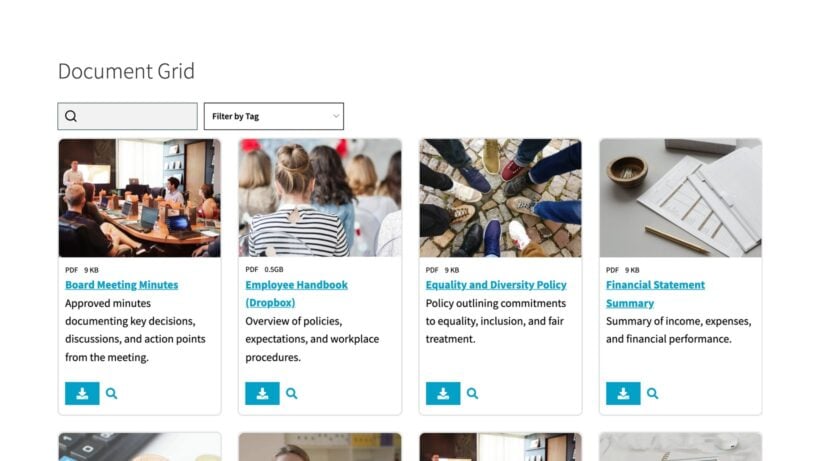
This guide walks through the seven sections every nonprofit social media toolkit needs, then shows how to host it as a searchable library that supporters can self-serve from.
What is a nonprofit social media toolkit?
A nonprofit social media toolkit is a curated set of brand-approved assets, copy, and guidelines that anyone advocating for your organization can pick up and use. It usually lives as a single page or folder structure on your website or nonprofit ecommerce site, with everything available for download.
The toolkit serves two audiences. First, your in-house team uses it to stay consistent across campaigns, including press releases and nonprofit adverts. Second, external advocates (board members, donors, content creators, influencers, partner organizations) use it when they share content about your cause. The second audience is the real lever: a polished toolkit removes every reason for a busy supporter not to post.
A good toolkit answers the question "what do I need to share this?" in one place: the logo, the images, the words, the hashtag, the link.
What to include in your nonprofit social media toolkit
Seven sections cover what most supporters and partners will need.
1. Brand assets
The core elements of your nonprofit brand identity in any context: logo (in multiple formats and sizes), tagline, typography, brand colours with hex/CMYK/Pantone codes, and any approved slogans or campaign names. Provide horizontal, square and stacked versions of the logo so partners can pick the right one for each platform.
If you have a formal brand guidelines document, include a link or a download. If you don't, a one-page summary of the rules ("use these colours, don't stretch the logo, here are the fonts") is enough to keep most contributors on-brand.
2. High-resolution images and video
Provide a mix of approved photography and video for supporters to share. Include images sized for each platform's native aspect ratio (square for Instagram feed, vertical for Stories and Reels, landscape for Facebook and LinkedIn). For video, upload the source file rather than just a YouTube link, since native uploads outperform link shares on most platforms.
Make sure you have permission to use every image, and provide alt text or caption suggestions alongside each one. If you don't have a designer in-house, Canva for Nonprofits is free for qualifying organizations and handles platform-specific sizing automatically. (See more discounted software for nonprofits for similar free tools.)
3. Stories and testimonials
Storytelling sits at the heart of effective nonprofit communication. Include two or three core stories from beneficiaries, volunteers, or partners that bring the cause to life (the same stories that drive donations through your WooCommerce checkout). Each story should have a short version (suitable for a single social post) and a longer version (suitable for a blog post or video).
Pair each story with the visual asset that supports it: a photo of the person, a short clip from an interview, or a quote graphic. Supporters who can grab a story plus the matching visual together are far more likely to share both.
4. Pre-written social posts and captions
For each major campaign, write two or three example posts for each platform you care about (Facebook, LinkedIn, Instagram, Twitter/X, TikTok). Vary tone and angle so supporters have options that suit their voice.
Include character counts that fit each platform's limits, the hashtag(s) to include, accounts to tag (your organization, partner organizations, sponsors), and the call to action (donate link, sign-up link, share link) pointing to your fundraising page (built on a WordPress donation plugin if you collect donations through your own site). The aim is for a supporter to copy, lightly tweak, and post in under sixty seconds.
The exception is when you're working with influencers or content creators. Provide the brand and message framing, but let them write in their own voice. Their audiences engage with their personality, not your boilerplate.
5. Hashtags and campaign tags
Choose a primary campaign hashtag and one or two supporting ones. Search each on every relevant platform before you commit, both to confirm it isn't already in heavy use elsewhere and to spot any uncomfortable existing associations.
Document which hashtag goes with which campaign or post type. Supporters who pick the wrong tag dilute the campaign signal, so a clear table helps everyone tag consistently.
6. Blog post and article ideas
A short list of blog topics that supporters can pick up and write themselves. This is especially useful for partner organizations or membership associations with their own audiences. Provide a one-line angle for each topic plus the key facts or stats the writer will need, and link to the canonical source for anything quotable.
7. FAQs and key facts
The questions your team answers over and over: what your organization does, how donations are spent, who you serve, what makes the current campaign urgent. Supporters need access to the same facts you do when someone replies to their post with a question.
Keep the FAQ versioned. Out-of-date statistics in supporter posts hurt credibility, so update the toolkit at the start of every major campaign and flag what's changed.
How to host your nonprofit social media toolkit online
A toolkit is only useful if supporters can find it, search it, and download what they need without help. Hosting it as a searchable document library on your own site beats every alternative:
- An emailed ZIP file goes stale within a week.
- A Google Drive folder works but lives outside your brand and isn't searchable in the way supporters expect.
- A static page with embedded download links is fine for small toolkits, but breaks down past 10-15 files. (Our roundup of WordPress digital asset management plugins covers a few alternatives if you need broader file management beyond a library.)
Document Library Pro turns a folder of files into a branded, searchable, filterable library. Supporters land on one page, filter by category (logos, photos, videos, pre-written posts), search by keyword, and download what they need in two clicks.
There are two ways to run it. On a WordPress site, it's a resource library plugin you set up yourself. On any other platform, from Google Sites to an internal intranet, it's a document library for any website. You paste an embed code into your existing pages, or let us publish the toolkit as a standalone site.
What Document Library Pro adds
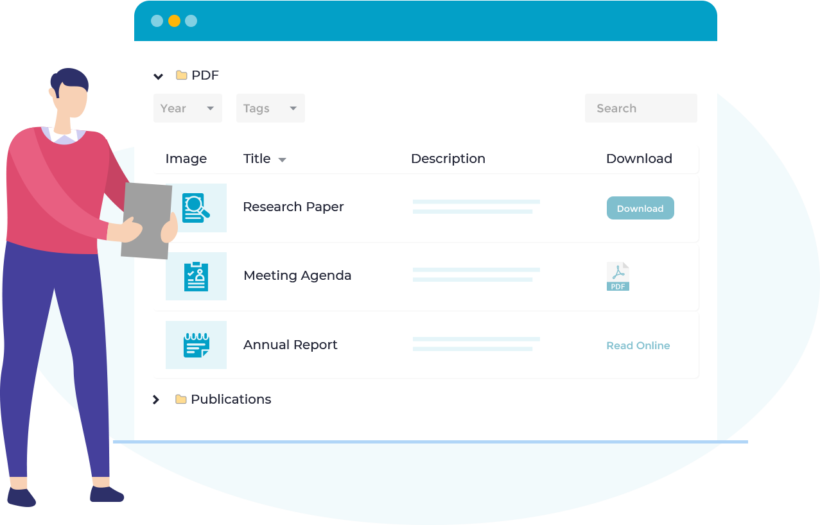
It restructures your toolkit so it scales as content grows:
- Search and filter. Supporters can find an image by topic, a story by speaker, or a logo by format. No scrolling through endless lists.
- Categories and folders. Group brand assets, campaign visuals, story videos and pre-written posts into clear sections.
- Access control. Public-facing materials (logos, hashtags, key facts) stay open to anyone. Donor-only or board-only documents can be locked behind gated content rules tied to user roles.
- Per-document analytics. See which assets are downloaded most so you can prioritise updates.
- Customizable layout. Display the library as a grid, a table, or folders, matching your existing site design.
For a fuller treatment of the build, our step-by-step guide to creating a WordPress resource library walks through the setup. Five real organizations show how they did it in our nonprofit resource library examples roundup.
Examples of nonprofit social media toolkits
A few public toolkits worth studying as starting points:
- GlobalGiving's social media toolkit template for nonprofits. A reusable template covering campaign messages, hashtags, sample posts and content calendars. A good starting point if you're building a toolkit from scratch.
- The CDC's Health Communicator's Social Media Toolkit. A long-running PDF that walks through governance, channel selection and strategy. Aimed at public health communicators but the framework applies to any cause-led organization.
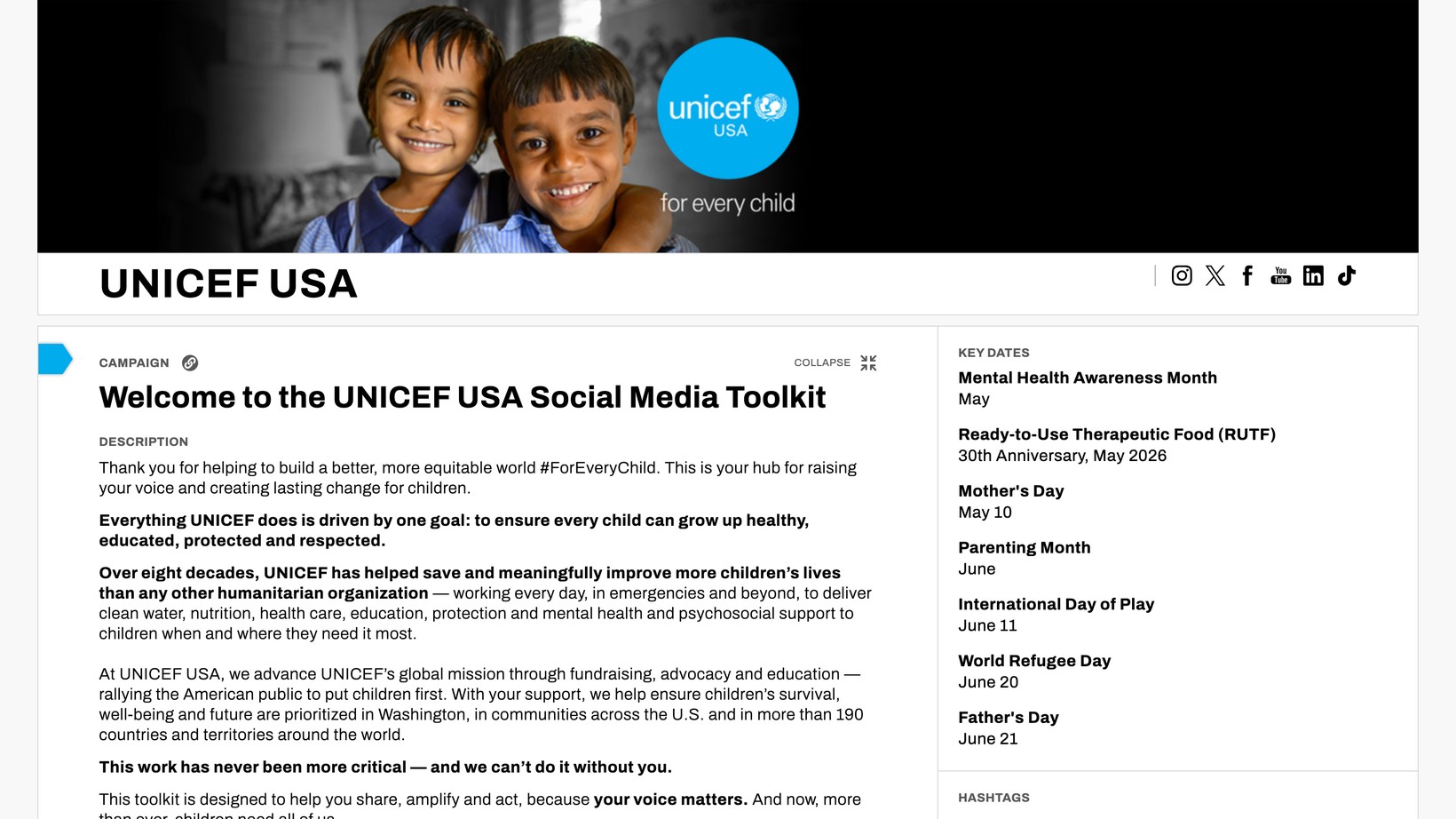
- UNICEF USA's social press kit. A live, supporter-facing toolkit with pre-written posts for Facebook, Instagram, LinkedIn and TikTok, downloadable graphics in multiple aspect ratios, and a hashtag library tied to ongoing campaigns. The single best example of what a finished public toolkit looks like in 2026.
The UNICEF press kit in particular is the format the rest of this guide leads to: a single live page that supporters can self-serve from, with campaign-specific sections updated regularly. The setup that scales best for a nonprofit running multiple campaigns a year is a single library on the main website, with toolkits for each campaign as filtered subsets of that library.
Frequently asked questions about nonprofit social media toolkits
How often should I update the nonprofit social media toolkit?
At the start of every major campaign, or whenever you test new cheap fundraising ideas, at minimum. The brand assets section can stay stable for a year or more, but campaign visuals, pre-written posts and key facts should refresh with each new push. A toolkit with last year's statistics in this year's campaign is worse than no toolkit at all.
Should the toolkit be public or supporter-only?
A mix usually works best. Brand assets, public statistics and hashtag guidance can be open to everyone. Donor-only resources, sponsor packs and board materials can be gated behind a login. Document Library Pro handles both in one library by tying access to user roles.
How do I get supporters to actually use the toolkit?
Email a direct link to the toolkit at the start of each campaign. Include a thirty-second video walking through what's inside. Tag the toolkit URL into every onboarding pack for new advocates. The single biggest predictor of toolkit use is whether the first interaction was easy enough that the supporter feels confident coming back. If you also run fundraising campaigns through WooCommerce, link the toolkit from the campaign launch email.
Further reading: 20 fundraising ideas for your nonprofit.
What's the difference between a social media toolkit and a media kit?
A media kit is for journalists and press: organization background, press releases, fact sheets, leadership bios, contact details. A social media toolkit is for supporters and advocates: brand-approved assets they can share publicly. Some organizations keep both in the same document library with different access permissions, using a file sharing plugin to control who sees what.
Do I need a separate toolkit for each platform?
No. One toolkit with platform-specific image sizes and post variants covers all the major channels. Where platforms diverge significantly (TikTok-only campaigns, LinkedIn-only thought-leadership posts), add a campaign-specific section rather than maintaining parallel toolkits.
Final thoughts
A nonprofit social media toolkit is one of the highest-leverage assets a small communications team can build. The work is upfront: writing the posts, sizing the images, picking the hashtags. The payoff compounds for years as new supporters, partners and influencers come on board and share without needing a custom briefing each time.
Host it well, keep it current, and treat it as living documentation rather than a one-off project. The right hosting choice (a searchable library rather than a static page) is what turns a good toolkit into one that supporters actually use.