WooCommerce checkout add-ons: How to upsell at checkout in 2026


WooCommerce checkout add-ons turn the final step of a purchase into a chance to add extras, capture preferences, and lift order value. Here's what works at checkout, what's better on the product page, and which plugins handle each.
The standard WooCommerce checkout is functional but plain. A customer fills in their address, picks a payment method, hits Place Order, and they're done. There's no chance to offer gift wrapping, optional warranties, a quick tip jar, or any of the small extras that customers happily say yes to.
That's what checkout add-ons solve. By adding optional fields at checkout, you give customers one more way to tailor their purchase, and yourself one more way to raise the average order value.

But not every option belongs at checkout. Some add-ons (gift wrap with pattern choices, engraving with live preview, per-product warranties, or WooCommerce measurement price calculators) work better on the product page where the customer is still deciding what to buy. This guide splits the use cases into the two buckets so you can pick the right home for each.
What are WooCommerce checkout add-ons?
A checkout add-on is any optional field or upsell that appears on the checkout page. It might be a tick-box for gift wrapping, a radio button for shipping insurance, a text field for a personalized message, or a small upsell for a related product.
The defining feature is that the add-on is optional and tied to the order, not the product. Customers can pick it up at the last step without going back to the product page. For the store, it's the lowest-friction way to surface options that aren't core to the product itself.
Compare this to a product variation, WooCommerce conditional variations, or a configuration that changes the SKU. Those belong on the product page where the customer decides what they're buying. The trickier question is everything in between: options that could go either place. That's what the next two sections cover.
Add-ons that belong at checkout
The checkout is the right home when the option is order-level, simple to decide in one click, and independent of which specific products are in the cart. Think small gestures, system-level fees, and UX enhancements.
Tip jar or charity donation
A small "Add a tip" or "Round up for charity" field works well for service-led stores and any brand with a mission narrative. It costs you nothing to offer, and a meaningful share of customers will add a few pounds.
Pair this with a quick line of context explaining what the tip funds or which cause benefits. Generic tip jars perform worse than ones tied to a specific story. For a full charitable donation flow rather than a round-up, a dedicated donation plugin is the better fit.
Why at checkout: it's an order-level gesture, not tied to any specific product. Asking earlier would feel pushy.
Delivery date and time slot selection
For perishable goods, services, or anything time-sensitive, a checkout field that lets the customer pick a delivery date or time slot can be the difference between a confirmed order and an abandonment. It also reduces the back-and-forth that fulfilment teams handle by email.
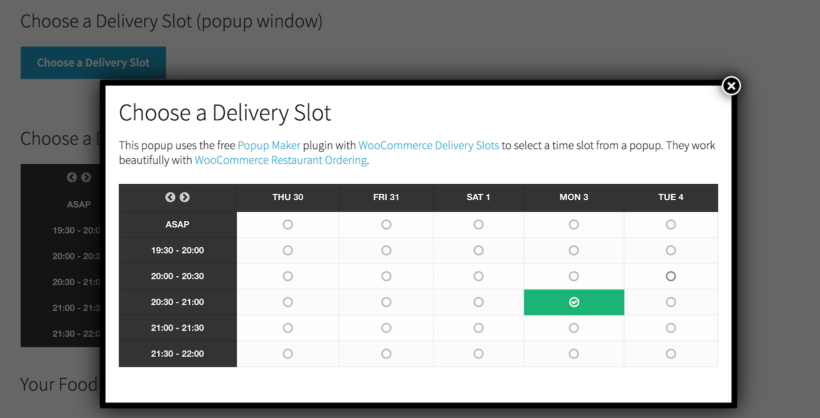
Why at checkout? Delivery applies to the whole order, and the customer needs their address entered first for the slot picker to be relevant.
Required fees and surcharges
Not all checkout add-ons are upsells. Some are non-optional WooCommerce fees that need to appear at checkout: payment processing surcharges, regional taxes, environmental levies. These aren't really "add-ons" the customer chooses, but they live in the same plugin family.
Why at checkout? The customer can't act on them anyway, and they need to be visible in the final total. Showing them on the product page would just confuse the price comparison.
Address autofill and trust signals
These don't add revenue directly, but they reduce the friction that causes abandonment. Google address autocomplete saves a customer thirty seconds of typing. Trust badges signal that payment is secure.
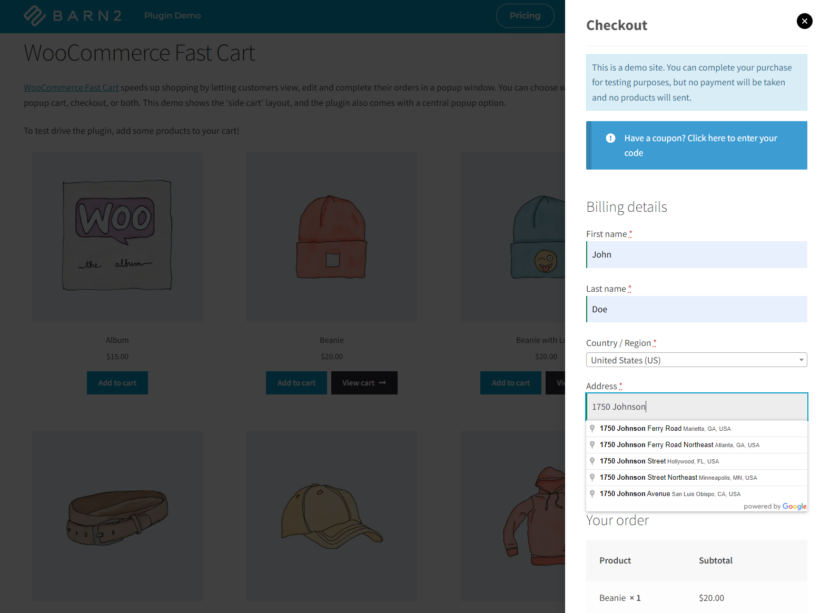
Why at checkout? They only matter at the moment of payment. On the product page they'd be irrelevant or annoying.
Add-ons that belong on the product page
The product page is the right home when the option is tied to the specific product, affects the visual outcome, or needs more than one click to configure. The customer is still making the buying decision here, so they want to see the choices, the price impact, and the visual result before committing.
Gift wrap with pattern selection
A single "Gift wrap +£3.99" tick-box can sit at checkout. But the moment you offer pattern choices, multiple wrap tiers, or a gift message field, the option becomes part of the buying decision and belongs on the product page.
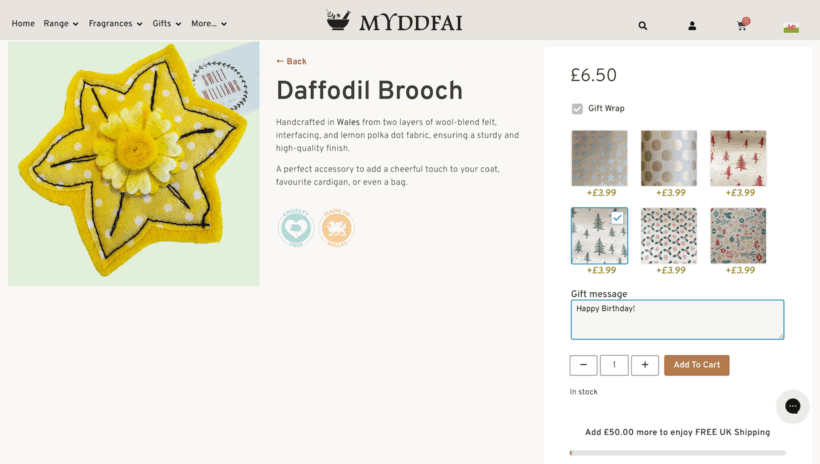
Myddfai's product page is a good real-world example: six wrap patterns, a gift message field, and a single £3.99 add-on price. The customer can see exactly what they're buying before they hit Add to Cart.
Why on the product page? The visual choice matters. Burying six pattern swatches at checkout makes for a cramped, slow decision.
Engraving and personalization with live preview
A text field for a gift message, engraving, or special instructions is a strong fit for engraved or monogrammed products and anything sent direct to a recipient. Pricing is optional: some stores include short messages free, others charge for engraving or longer notes.
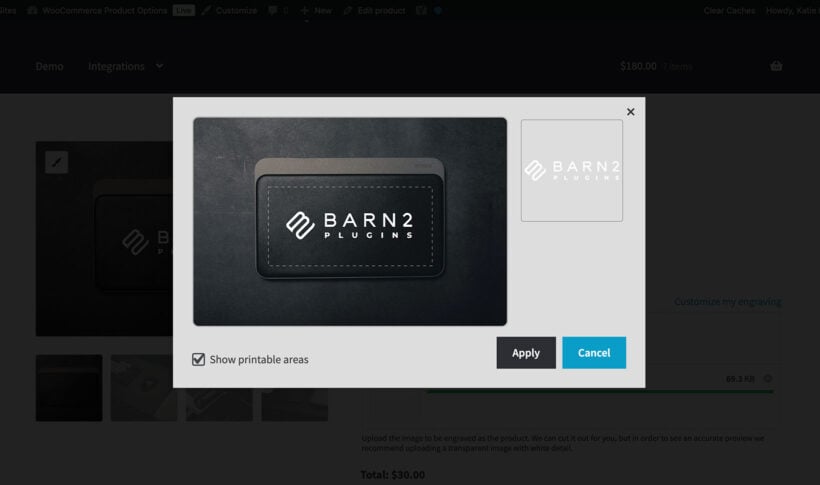
If you let customers see their personalization rendered live as they type, that 100% belongs on the product page.
Why on the product page? the customer wants to see the rendered result before committing. There's no way to do that meaningfully at checkout.
Per-product warranties and protection plans
For higher-ticket items, an optional warranty or protection plan can lift order value meaningfully. The classic Amazon-style "Add 2-year protection for £15" sits next to the product, not at checkout.
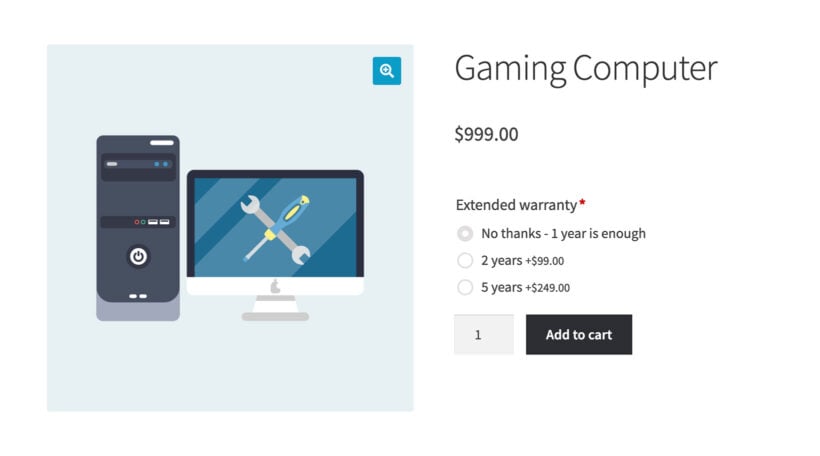
Why on the product page? The cognitive cost of the warranty decision needs to be tied to the product's price. A £15 warranty is reassuringly small next to a £999 computer; the same £15 alone at checkout feels like a surprise charge. An order-wide shipping insurance fee, where the same £2 applies regardless of contents, is different and works fine at checkout.
Custom messages tied to a specific item
A "Note to engraver" or "Special instructions for this item" field belongs with the item, not the order. If the order has three engraved items, three message fields on three product pages is clearer than one merged textarea at checkout.
Why on the product page? It removes ambiguity about which item the note applies to. Fulfilment teams stop having to email customers for clarification.
How to add WooCommerce checkout add-ons
The standard WooCommerce checkout doesn't support add-ons natively. To offer the order-level options listed above (tip jar, delivery slot, simple gift wrap, surcharges), you need a plugin built for that purpose.
The most established option is the official WooCommerce Checkout Add-Ons plugin. It's been on the WooCommerce marketplace for years and is purpose-built for this use case.
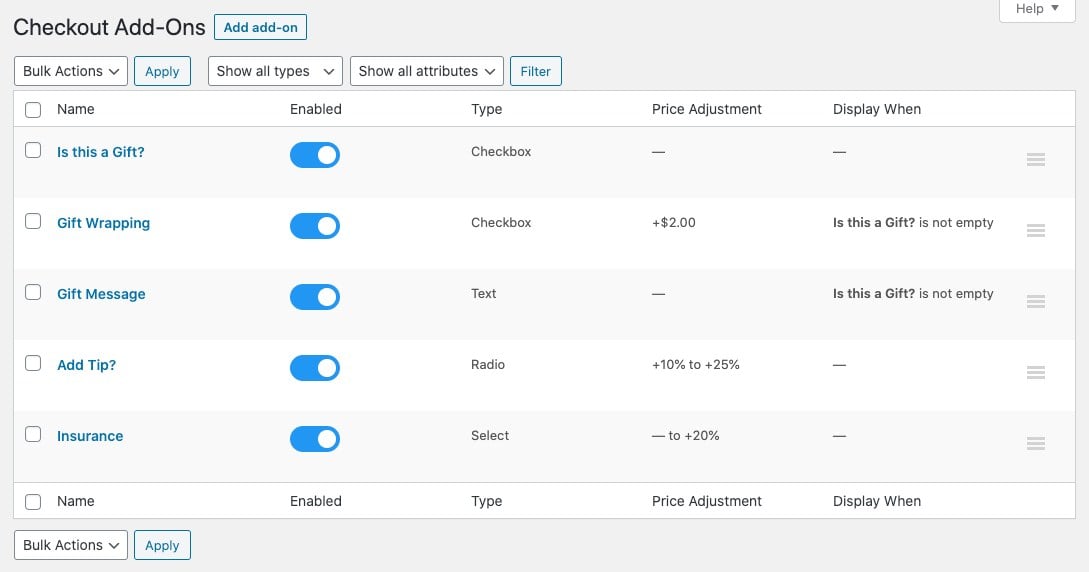
With Checkout Add-Ons you can:
- Add text fields, checkboxes, radio buttons, dropdowns, file uploads and multi-checkboxes to the checkout.
- Set a price on any field, fixed or as a percentage of the cart total.
- Show or hide fields based on cart contents, customer role, or other conditions.
- Make fields required when they need to be (terms acceptance, delivery date) and optional when they don't.
- See the chosen add-ons on the order in your admin and on the customer's invoice.
The conditional logic is what makes it powerful. Gift wrapping doesn't need to show for digital products. A "delivery instructions" field only matters for shipped orders. A surcharge for express shipping only applies if the customer picked that method.
For the product-page add-ons covered above (pattern-picker gift wrap, engraving with live preview, per-product warranties), the strongest tool is WooCommerce Product Options. It adds extra fields directly to the product page with conditional logic, measurement price calculators, WooCommerce variation swatches, and live price updates as the customer chooses. For multi-step builders or conditional option chains, a dedicated product configurator is the right tool.
A typical store ends up running both: product-level customizations on the product page via WooCommerce Product Options, then order-level extras at checkout via a checkout add-ons plugin.
Other ways to boost checkout conversion
Checkout add-ons are one lever among several. A few related patterns worth knowing:
- Order bumps are pre-selected upsells that appear on the checkout, often visually distinct, designed to be added with a single tick. Different mechanic from add-ons, similar goal.
- Cart upsells nudge customers to add related products before they reach checkout.
- Popup checkouts shorten the path from product to purchase, which makes any checkout-page add-ons sit even closer to the buying moment.
- A solid payment gateway lineup matters too. The smoothest checkout add-ons can't save a failed payment step.
WooCommerce checkout add-ons FAQ
Do checkout add-ons work with the block-based checkout?
The official Checkout Add-Ons plugin supports both the classic shortcode checkout and the newer block-based checkout. Confirm compatibility on the plugin's product page if you're on the very latest WooCommerce release, since block-checkout features evolve quickly.
Can I make a checkout add-on required?
Yes. Most checkout add-on plugins let you mark fields as required, so the customer can't complete the order without making a choice. This is useful for terms acceptance, delivery date selection, or any field your fulfilment team needs filled in.
Will checkout add-ons affect tax and shipping calculations?
A paid add-on can be configured as taxable or non-taxable depending on local rules. Shipping calculations usually ignore add-on fees, but check your specific shipping method's behaviour if you charge by weight or item count.
How are checkout add-ons different from product variations?
A product variation is a different version of the product itself (size, colour). The customer must pick one to add the product to the cart, and it can change the SKU. A checkout add-on is an optional extra on top of the order, not part of the product definition.
Should gift wrap go at checkout or on the product page?
A single "Gift wrap +£3.99" tick-box can go at checkout. The moment you offer pattern choices or a gift message, move it to the product page so the customer can see what they're picking before committing.
Final thoughts
Checkout add-ons are the simplest way to lift order value without rebuilding your store. The best ones map to real customer needs at the moment they're most relevant: tip jars and delivery slots at checkout, gift wrap patterns and engraving on the product page. Combine the right plugin for each location and you cover both sides of the buying decision.