WooCommerce product variations: The complete guide


WooCommerce product variations let you sell different sizes, colors and capacities of the same product on a single page, with one shared image, description and review set. Set them up well and you consolidate stock, simplify the customer's choice, and avoid splitting your reviews across near-identical product listings.
Most WooCommerce stores reach for variations early on. They're the easiest way to sell a product that comes in different sizes, colors or capacities - a T-shirt in five sizes, a coffee bag in three weights.
The default WooCommerce setup is only a starting point, though. The dropdown variation picker, the price-range display, the lack of a bulk-edit interface - each has a better answer once your catalog grows past a few products.
This guide covers what variations are, how to set them up step by step, and the plugins we'd reach for to improve on WooCommerce's defaults:
- Our WooCommerce Bulk Variations plugin - bulk-edit variations on the Edit Product screen and display them in a quick order form for multi-variation purchases.
- Setary - a separate spreadsheet app for adding and editing variations across your whole store from one screen.
- Our WooCommerce Product Options plugin - display variations as swatches, radio buttons or clickable images, with conditional logic and an AI-assisted price formula builder.
- Our WooCommerce Product Filters plugin - let customers filter products by variation attributes like size or color.
- Our WooCommerce Product Table plugin - list products with their variations in a one-page order form.
- Our WooCommerce Quick View Pro plugin - let customers select variations from a lightbox without loading the product page.
- WooCommerce Variation Prices - controls how variation prices are displayed.
What are WooCommerce product variations?
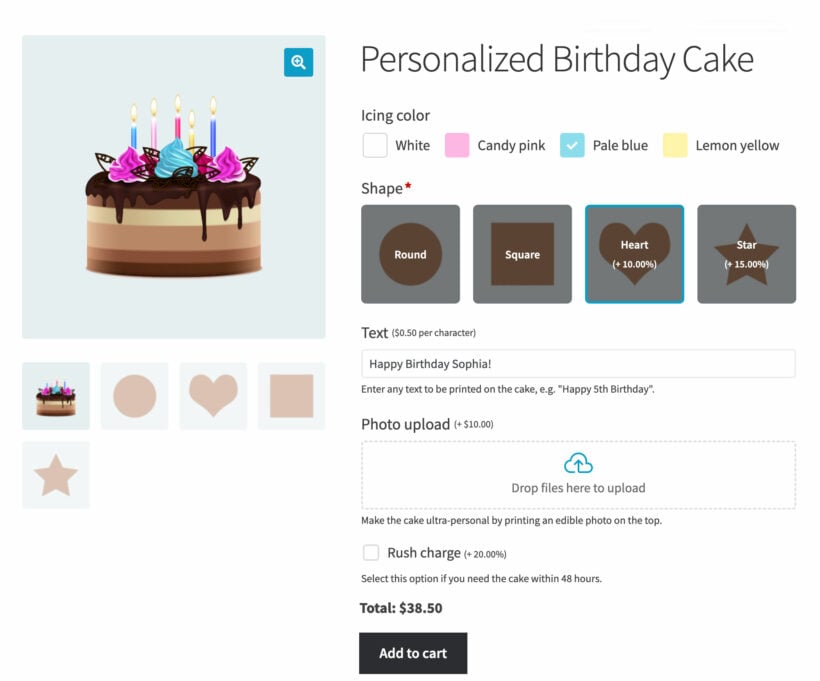
Most online stores sell at least a few products that come in different variations. Apparel in multiple sizes and colors, food items in different portion sizes, subscription boxes in small, medium and large tiers - each is a single product the customer needs to specify before they can buy.
Variations work hand in hand with multiple-choice products - the customer picks from a fixed set of options like a T-shirt in five sizes or a coffee bag in three weights.
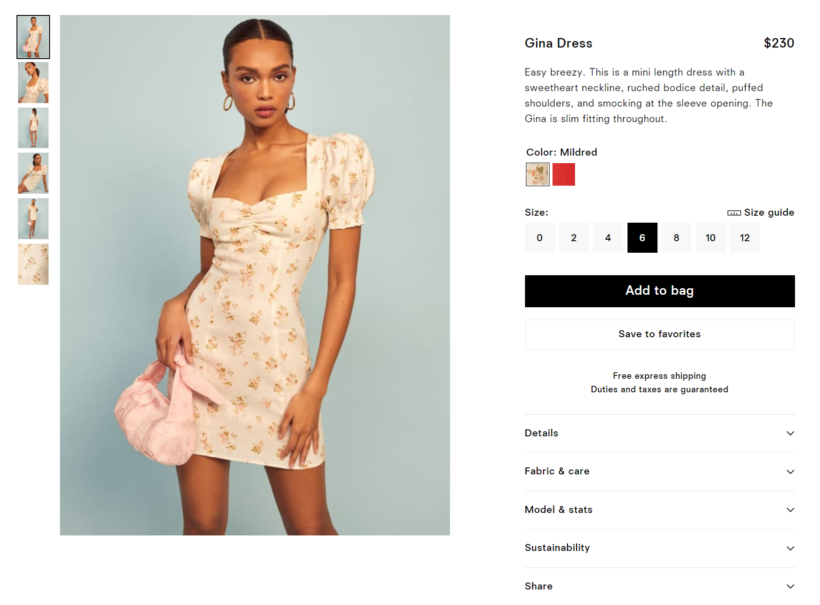
As a store owner, you'd use WooCommerce product variations for any product that has a fixed set of choices for the customer to pick from. The classic Starbucks example uses cup size as a variation - Short, Tall, Grande, Venti Hot, Venti Cold or Trenta - with each cup size having its own price.
The free WooCommerce plugin includes variations out of the box. Customers see the choices on the single product page, pick the variation they want, and add it to their cart.
Key points about WooCommerce product variations
- A variation is a specific version of a product that the customer must pick before adding to cart - for example, a Large Red T-shirt.
- Each variation has its own price, SKU, stock level, image and weight.
- Variations are built from attributes (size, color) and the values inside each attribute (Small, Medium or Large).
- A product with variations is set as the "Variable product" type in WooCommerce, not the default Simple product.
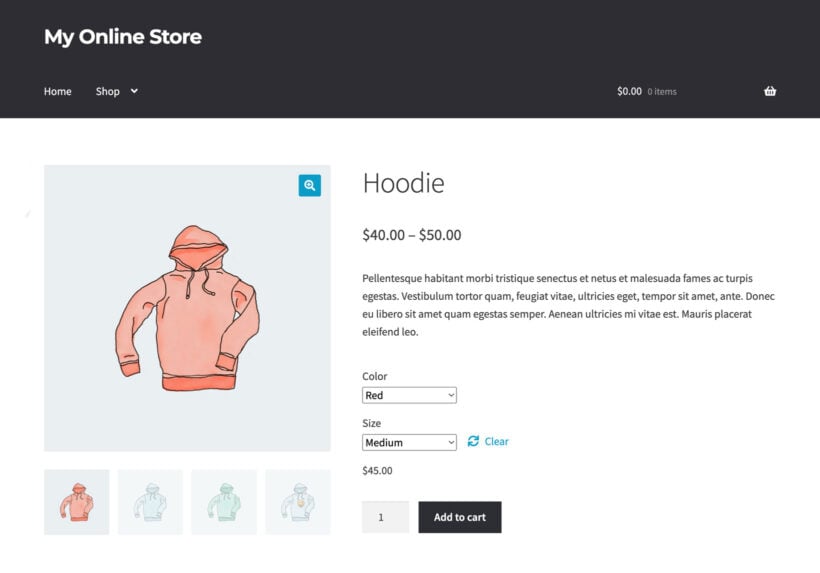
- Customers see a dropdown (or a more interesting picker like swatches) on the product page and choose one variation before they can buy.
Product variations vs add-ons vs options
These three terms get used interchangeably, but they're not the same thing:
- Variations are the different versions of a product you stock. Each one is countable inventory, has its own SKU, and changes the product the customer receives. Red T-shirt, Blue T-shirt, Green T-shirt are three variations.
- Product add-ons are optional extras that don't change which product is in the box. A "Gift wrap +$3.99" tick-box is an add-on, not a variation.
- Product options is a looser term that can mean either of the above. Our WooCommerce Product Options plugin uses it for add-on-style fields that aren't true variations, although the same plugin also provides extra display options for proper variations.
If the choice changes the SKU or affects stock, it's a variation. If it adds a fee or captures a preference, it's an add-on.
Benefits of WooCommerce product variations
Variations affect five things at once when they're set up well:
- Customer experience. One product page with size and color pickers beats five separate product pages for the same T-shirt. Customers see all their options together and pick without back-and-forward navigation.
- Conversions and average order value. A single, well-built variable product page is easier to optimize than ten thin variants. Better images, clearer copy, stronger reviews all stack on one URL. Adding a visual variation swatch picker can lift conversion further.
- SEO. Five separate near-duplicate product pages compete with each other in search. One variable product page consolidates link equity and avoids thin-content penalties.
- Inventory management. Each variation has its own stock level, SKU, and price. You can see exactly how many Medium Reds are left without juggling spreadsheets between product pages.
- Personalization. Variations are the foundation for more advanced setups: conditional variations, dynamic pricing by variation, and per-variation images that respond as the customer picks.
Create and manage variations in WooCommerce
WooCommerce splits variations into two pieces:
- Attributes. Product descriptors like color, size, material and capacity.
- Variations. The specific combinations of attribute values you stock - Small Red, Large Blue, and so on.
Here's how to create and manage them.
Step 1: Create attributes
You need to create the attributes first, then add the values inside each one. The complete guide to managing WooCommerce product attributes covers attributes in more depth, including global vs custom attributes and how to plan them across a large catalog.
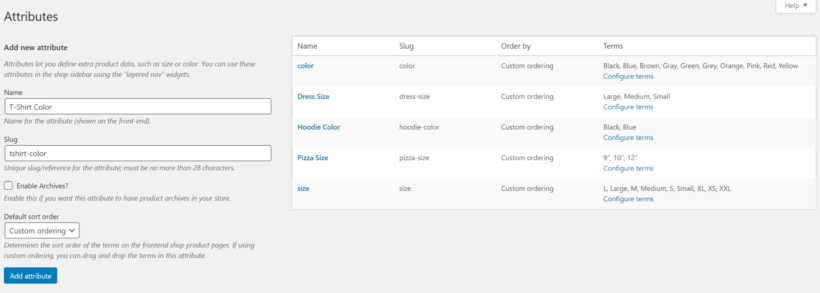
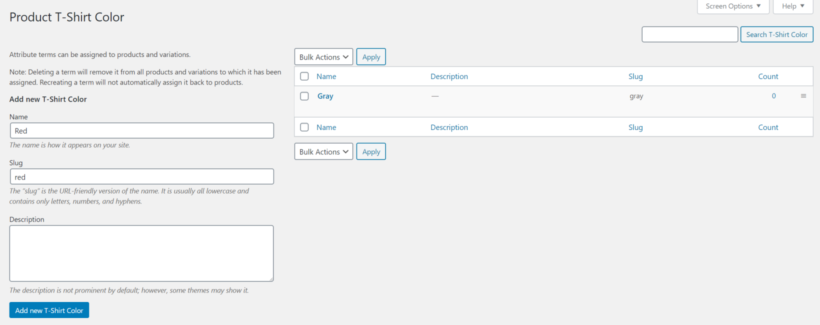
- Navigate to Products → Attributes from the WordPress admin panel.
- Enter a name and slug for the attribute and click the Add attribute button.
- Click the Configure terms link from the list of attributes on the right.
- Add as many values as you'd like for the attribute.
Related: How to add custom fields to WooCommerce product variations.
Step 2: Assign attributes to WooCommerce products
Next, set each product up as a variable product and attach the attributes you just created.
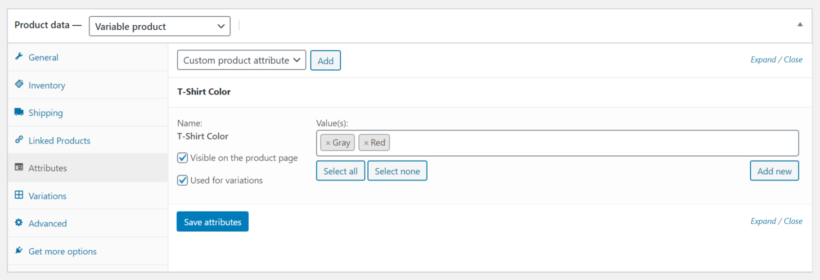
- Open up a WooCommerce product that needs variations and scroll down to the Product data section.
- Select the Variable product option from the dropdown.
- Click the Attributes tab and use the dropdown to pick the attribute. Click Add.
- Choose all the values that apply to the product.
- Tick the Visible on the product page and Used for variations checkboxes.
- Click Save attributes to continue.
Step 3: Add WooCommerce variations to products
The final step is to create the variations themselves. These are the rows customers pick from on the front end.


- Go to the Variations tab, select Add variation from the dropdown, and click Go.
- Select the attribute values that apply to the variation.
- Customize the variation's settings. You can:
- Upload a separate image for each variation.
- Set the SKU, regular price, sale price and stock status.
- Set the weight and dimensions.
- Click Save changes.
Repeat for each variation you want to offer.
You may also like: How to make WooCommerce variations optional.
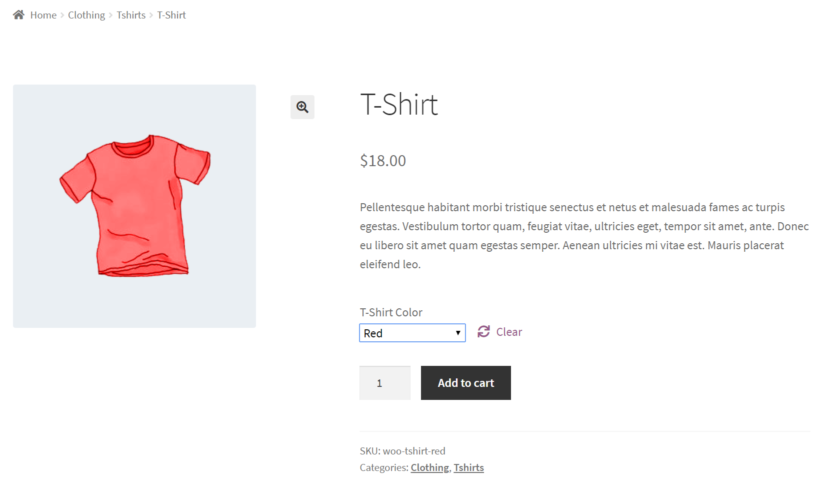
Once you've finished setting up the variations, click Save changes on the product. The variations look something like this on the front end:
Edit variations in bulk
Adding variations one at a time is fine for a product with a handful of options. A T-shirt in five sizes and seven colors creates 35 variations - the per-variation form quickly becomes the bottleneck.
Two plugins solve the bulk-editing problem in different ways: our WooCommerce Bulk Variations plugin extends the existing Edit Product screen, and Setary moves bulk editing to a cross-product spreadsheet.
WooCommerce Bulk Variations - bulk-edit on the product page
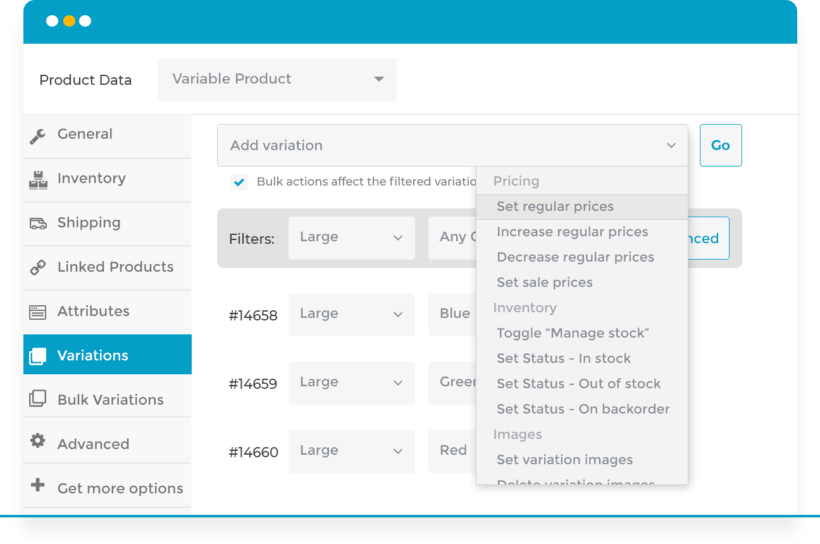
Our WooCommerce Bulk Variations plugin adds bulk-editing tools to the Variations panel of the Edit Product screen:
- A filter bar at the top of the Variations panel. Filter by any attribute (for example, all 'Large' variations), then use the Bulk Actions dropdown to apply the same price change to every match.
- The plugin includes a bulk image assignment tool. If every Red variation shares the same image, you can set them all together instead of editing one variation at a time. It pairs naturally with the bulk-edit variation prices workflow for setting Red variations to the same sale price too.
WooCommerce Bulk Variations + WooCommerce Private Store are a perfect combo for my wholesale-only business. I saved a lot of time and it's working perfectly.
Jasmine
Setary - bulk-edit across the whole catalog
Setary is a WooCommerce editor we co-own with another WordPress team. It works at a different level: instead of bulk-editing within one product, it bulk-edits variations across your whole catalog from a single spreadsheet.
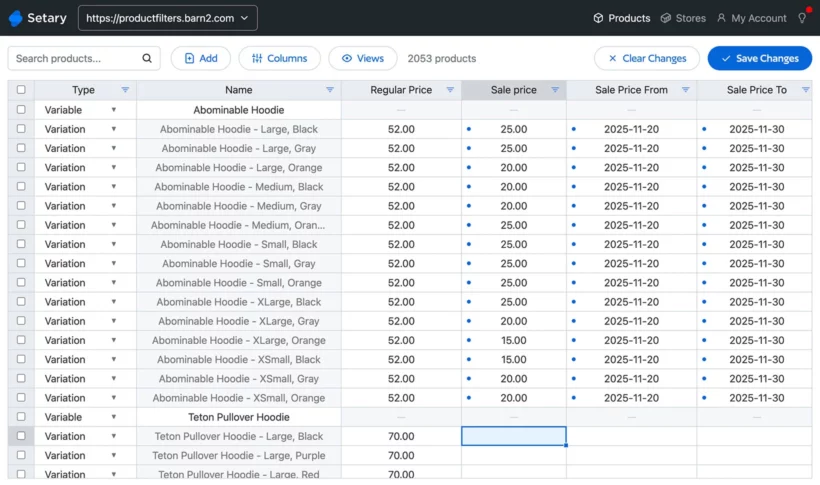
Each variation in your store is on its own row of the spreadsheet. Search and filter narrows the list to the exact variations you want to edit. From there you can either:
- Click any cell to make inline edits, like changing a single variation's price.
- Select multiple rows and use Bulk Actions to update prices, names, images and stock levels across the selected variations at once.
Setary also handles new variations - add a row, fill in the data, and the variation is created on the live store. Duplicating an existing variation is one click.
Which one to choose
- Reach for Bulk Variations when you mostly work within one product at a time and need to edit lots of variations on the Edit Product screen. It fits the WooCommerce admin you're already using.
- Reach for Setary when you need to bulk-edit variations across products - changing the sale price on every 'Large Red' variant across 40 products, or updating SKUs for a supplier change. Setary's strength is cross-product reach.
Plenty of stores run both. You'd use Bulk Variations day to day on individual products and Setary for the monthly price update.
Show variations in a quick order form on the front end
The default front-end variation experience is one product page per product, with a dropdown picker per attribute. That works for a small catalog. Once you have wholesale buyers, restaurant chefs ordering across a range, or any customer building a multi-variation order, the dropdown-and-click flow starts to lose orders.
Two plugins fix this from different angles: Bulk Variations adds an on-product-page grid for one variable product at a time, and Product Table replaces the shop layout so customers pick variations across the whole catalog from one page.
Bulk Variations - a quick order grid for one product
The Bulk Variations plugin also has a front-end mode. Instead of the standard variation dropdowns, customers see a grid with a row per variation, a quantity picker on each row, and a single 'Add to Cart' button at the bottom.
We built WooCommerce Bulk Variations because customers kept asking for a faster way to order several variations at once. By default, WooCommerce makes you pick one variation, set a quantity and add to the cart, then repeat for every variation, which is painful for a use case like branded t-shirts.
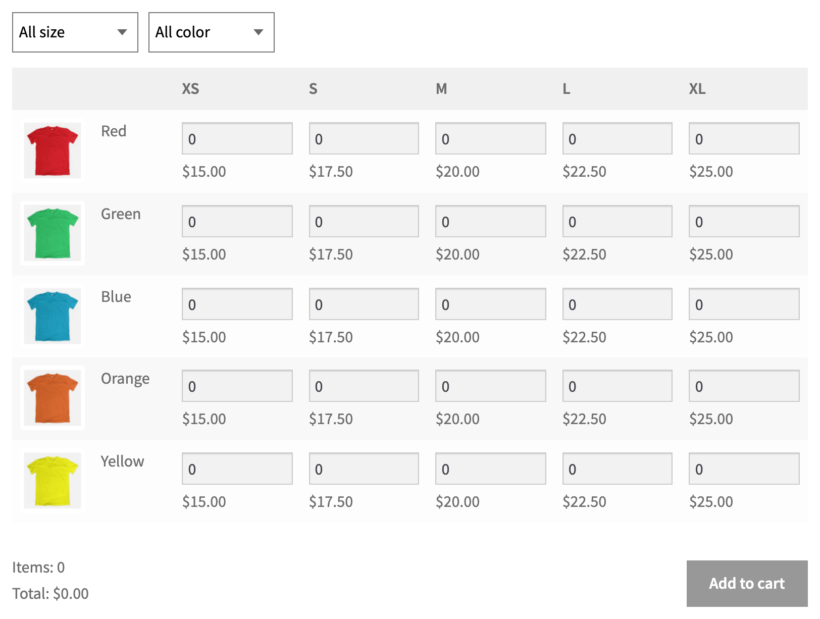
This shape is the right fit for any kind of bulk or wholesale ordering. A restaurant ordering ten different cheese variations at once shouldn't have to click the dropdown ten times. The grid lets them enter quantities across the whole list and submit one combined order.
One thing to know: The grid still shows every variation combination at once. However, WooCommerce Bulk Variations can now place filter dropdowns above the grid, so a customer can pick one attribute first and narrow the rest down. Existing stores get filters switched off after updating. You can enable them with the 'Attribute filters' option at WooCommerce → Settings → Products → Bulk variations.
It's also the easiest way to present any variable product with two attributes - for example, a printable poster that comes in three sizes and four paper types. The grid renders each size-and-paper combination on its own row, with the price and quantity field right next to it.
Check out the full tutorial on how to let customers buy WooCommerce product variations in bulk.
Product Table - select variations across the whole shop
Our WooCommerce Product Table plugin lets you show variations directly in the shop layout. Instead of customers clicking through to each single product page, the table renders the catalog as rows with the variation pickers (or the variations themselves) inline.
You have two main options:
- Show variation dropdowns inside the product table, so customers pick a variation and add to cart from the same row.
- List each variation as its own row, with an individual add-to-cart button or multi-select checkbox per variation.


The Tobermory Fish Co uses the variation-per-row layout for their smoked fish range. Each weight and packaging variation is its own row, with price and quantity right there. Customers building a multi-pack order can tick the rows they want and submit in one click instead of clicking into a different page per variation.
This plugin has done everything we've needed for a specialized site for our company's dealers. Support has been on point, as well.
Mark Lipari
Which one to choose
- Reach for the Bulk Variations grid when you need a multi-variation matrix on a single product page - for example, one product with size and paper-type combinations that customers order in mixed quantities.
- Reach for Product Table when the front-end change you want is at shop level - a catalog of dozens or hundreds of products where each product (or each variation) should be selectable without a click-through.
They aren't mutually exclusive. A wholesale store might use Product Table on the main catalog page and switch to the Bulk Variations grid on a single multi-variation product page.
Replace variation dropdowns with checkboxes, swatches and clickable images
WooCommerce displays variations as dropdowns by default - one dropdown per attribute. That's clear enough for size and quantity, but for visual choices like color or finish a dropdown loses a lot of information.
Our WooCommerce Product Options plugin replaces dropdowns with a wider set of pickers, including color swatches, image swatches, radio buttons, checkboxes and text labels. It also adds conditional logic and an AI-assisted formula builder for custom pricing.
You add your variations the standard way and then go to Products → Product Options. From there you select the variations you already have and pick the display style - swatches, radio buttons, image buttons or labels.
Conditional logic shows or hides variations based on what the customer's already picked. A "This is a gift" checkbox can reveal a hidden set of wrapping-paper swatches, for example.
The pricing engine handles flat fees, percentage adjustments, per-character pricing and full custom formulas. The AI formula assistant writes the formula for you from a plain-English description, which makes complex configurations like measurement-based pricing much faster to set up.
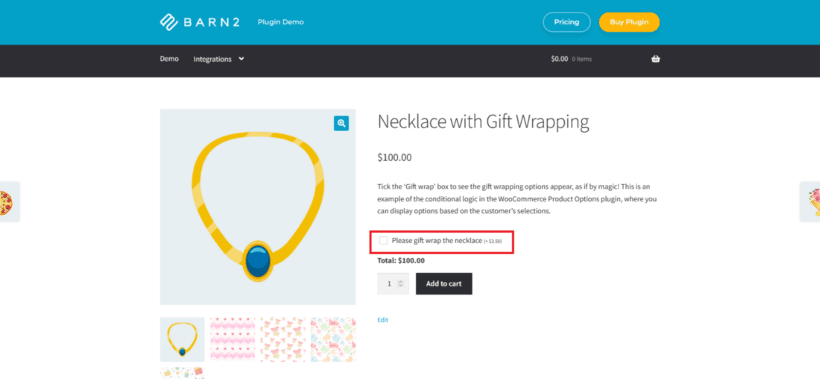
When to use Product Options instead of variations
WooCommerce Product Options also creates choices that aren't true variations. Where a variation needs a separate SKU and stock level, a Product Options field doesn't - it just adds a fee or captures a preference at checkout.
That makes it the better fit for:
- Personalization fields like a text input for engraving or a file upload for printed designs.
- Date pickers for delivery slots or appointment booking.
- Optional extras with percentage or formula-based pricing - a measurement price calculator for made-to-order curtains, for example.
- Configurable minimum and maximum quantities per option, which proper variations don't support out of the box.

Filter by product variation
On stores with lots of variations, customers often need to narrow the catalog by attribute before they look at individual products. Show me only the Large T-shirts, the Yonex rackets, or the Size 8 shoes - then I'll pick from a shorter list.
Our WooCommerce Product Filters plugin adds those filters as a sidebar widget, a horizontal bar above the catalog, or via a shortcode anywhere on the page. Filters can be checkboxes, radio buttons, dropdowns, color swatches or image swatches - whichever fits the attribute.
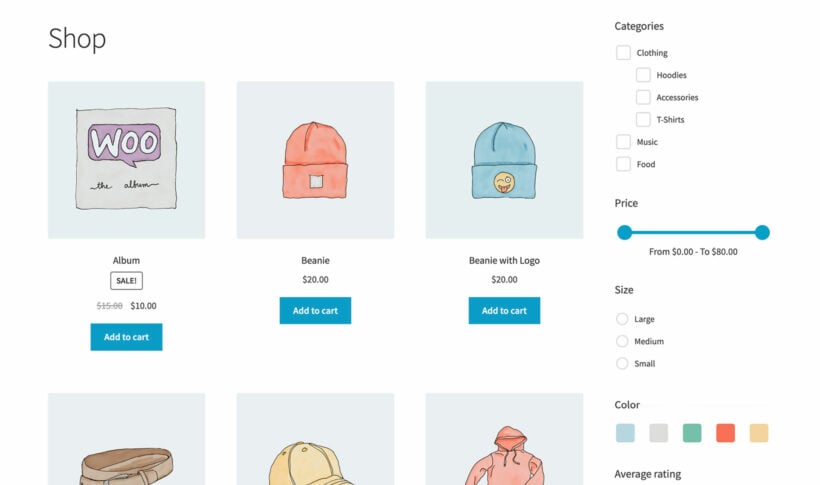
Withers Sports uses this approach on their badminton-rackets catalog. Customers narrow by brand, racket size, gender, surface type and stock status - all variation attributes - before clicking through to a product page, so the catalog feels manageable even with hundreds of variants.
Having used Barn2's Wholesale Pro and Product Tables plugins, we were really excited to see they had released a Product Filters plugin. The one we were using was clunky, ugly and lacked a lot of basic functionality. We were not disappointed.
Wood Flooring Kent
Setup is in Products → Filters: pick the attributes you want to filter by, choose the filter type for each, and place the filters on your shop page. The sidebar widget, the automatic display option and a placement shortcode all work. Our filter-by-attribute tutorial walks through the configuration end-to-end, and the filter-by-variation knowledge-base article covers the variation-specific options.
Let customers select variations from a quick view lightbox
A quick view lightbox is the lighter-weight version of the same idea. Instead of replacing the catalog layout, customers click a 'Quick View' button on each product and a lightbox opens with the product details and variation pickers - without leaving the page.
Our WooCommerce Quick View Pro plugin adds these buttons to the standard shop grid or to a product table.
The lightbox renders the same variation pickers WooCommerce shows on the single product page. If you have Product Options installed too, the lightbox uses those swatches instead. Customers select a variation and add to cart from the lightbox itself.
Yarn Gate uses Quick View Pro alongside Product Table on their wholesale yarn catalog. The table lists every yarn, and clicking 'Select color' opens the Quick View.
The customer picks the color variation and adds it to the cart, then lands back on the table to keep shopping. The combination removes the page reload that would otherwise happen every time a customer wants to check a different yarn.
If you're choosing between alternatives, we have a wider comparison of WooCommerce quick view plugins on the blog.
This plugin is the perfect companion for Barn2's Product Table. It speeds up the shopping process a lot, especially when working with larger tables.
Mario Polzin
Change the variation price format
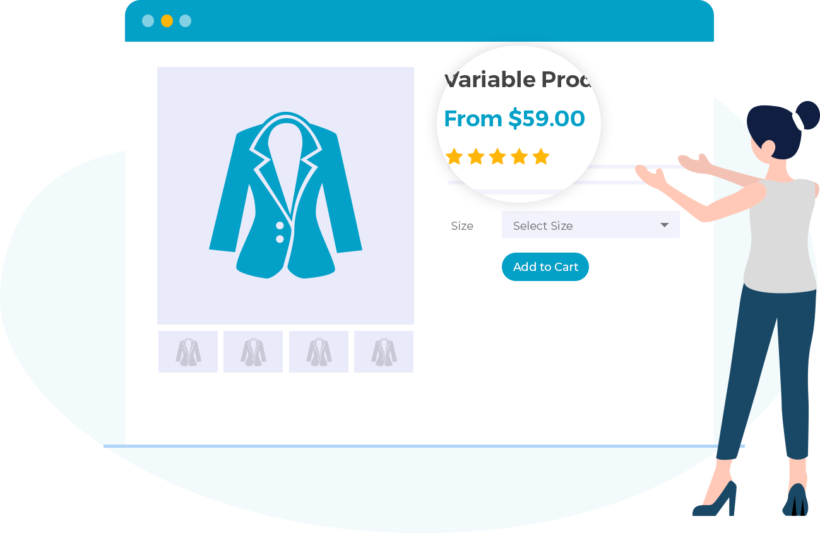
WooCommerce shows a variable product's price as a range by default - $50 - $100, for example. That's fine when the range is narrow. On a product with a wide gap between the cheapest and most expensive variation, the range can put customers off before they even open the picker.
WooCommerce Variation Prices lets you change the format to whatever fits the product. Options include "From $50", "Up to $100", a single price, or a custom symbol between the low and high prices. You can also build a fully bespoke format like "$10 per kg".
We originally built this plugin at Barn2 before selling it to Kestrel. It's still our recommendation for changing the variation price format.
Additional settings let you hide the main price until the customer selects a variation, or update the main price to reflect the chosen variation as soon as they pick.
Troubleshooting and FAQ for WooCommerce product variations
A few problems crop up often enough to be worth listing the fixes here, along with the questions we see most often in support.
Why aren't my variations showing on the product page?
Check that the product type is set to Variable product (not Simple) in the Product data box. Then open the Variations tab and confirm at least one variation is created and that each has a price. Variations without a price are hidden from the front end.
Why is the add-to-cart button missing on a variable product?
This usually means none of the variations have a price set, or the variation is marked as out of stock. Open each variation and confirm a price is filled in. If you want to allow purchase with no price, set a default sale price of 0 - which is rarely the right answer in practice.
Why aren't my variation changes saving?
Variation changes save to the database when you click Save changes inside the Variations tab, separately from the main Update button on the product. If you only hit Update without saving the Variations panel first, your variation edits are lost. Always save the panel before updating the product.
How do I change the order of variations on the product page?
WooCommerce orders variations by the position values inside each attribute, not the order you created them. Open the Variations panel, drag the rows into the order you want, then save. Customer-facing dropdowns will follow that order.
What's the difference between attributes and variations?
An attribute is a category of choice (Size, Color). A variation is one specific combination of attribute values (Size: Large, Color: Red). Attributes can exist on a product without being used to create variations; variations always reference attributes.
Can I have variations of variations?
WooCommerce only supports one level of variation per product. Two attributes like Size and Color give you combinations of the two, but you can't nest a third layer of choices inside one of those combinations. For multi-level configurators, use a dedicated product configurator on top.
Do variations have separate SKUs?
Yes. Each variation has its own SKU field, plus its own stock level, price, weight, dimensions and image. You can use Inherit values to fall back to the parent product, but the variation-level fields take precedence when set.
How many variations can one product have?
WooCommerce supports up to 50 variations created automatically when you bulk-add. You can manually add more beyond that limit, though pages with hundreds of variations get slow to administer. Past 50, consider whether splitting into separate products or using single variations on the shop page would serve customers better.
Can I add variation swatches without a plugin?
Not with core WooCommerce. By default WooCommerce shows each attribute as a dropdown, so color and size choices appear as plain text lists. To turn those dropdowns into color swatches, image buttons or labels you need a plugin such as WooCommerce Product Options, which replaces the dropdown picker with visual swatches while keeping your variations intact.
Are WooCommerce product variations free?
Yes. Variations are part of the free WooCommerce core plugin, so any store can set a product to the Variable type and add variations at no cost. Paid plugins add capabilities core does not include, such as swatch and image pickers, bulk editing across products, front-end order grids, or a custom variation price format, but the underlying variations feature is free.
How do I set different prices for each variation?
Open the product, go to the Variations tab, and expand each variation to set its own regular price and optional sale price. Every variation stores its price independently, so a Large can cost more than a Small. To apply one price change across many variations at once, use a bulk-editing tool such as WooCommerce Bulk Variations rather than editing each row by hand.
What is the Linked Products tab in WooCommerce?
Linked Products is a separate WooCommerce feature from variations. The tab lets you attach up-sells and cross-sells to a product to suggest related items, and it is where grouped products are assembled. It does not create the size or color choices a customer picks on a single product page. Use variations for the versions of one product, and Linked Products to connect different products together.
Set up WooCommerce product variations and start selling
WooCommerce product variations are the right tool whenever a single product comes in fixed, countable versions - a T-shirt in five sizes, a print in three paper types, a coffee bag in three weights. Built into WooCommerce, they consolidate stock, simplify the customer's choice, and avoid splitting reviews and SEO across near-duplicate listings.
The default WooCommerce setup is enough to get started. As your catalog grows, the plugins above each address a specific weakness:
- Manage and display variations in bulk with our WooCommerce Bulk Variations plugin.
- Add and edit variations across multiple products with Setary's spreadsheet editor.
- Let customers filter by variation attributes with our WooCommerce Product Filters plugin.
- List product variations as dropdowns or individual rows with our WooCommerce Product Table plugin.
- Show variations in a lightbox with our WooCommerce Quick View Pro plugin.
- Replace the default price range with a custom format using WooCommerce Variation Prices.
- Display variations as swatches, image buttons or formula-priced options with our WooCommerce Product Options plugin.
4 Comments
This guide was incredibly helpful! I appreciated how you broke down the different types of product variations and provided clear examples. The tips for optimizing variable products for SEO were particularly useful. Thank you for sharing such valuable insights!
Thank you so much for the kind feedback! We're so glad to hear that the examples and SEO tips were helpful for setting up your variable products. Please let us know if you ever have questions. Cheers!
Great post! The detailed breakdown of setting up product variations in WooCommerce was really helpful. I especially appreciated the tips on managing inventory for different variations. Looking forward to trying these out in my store!
Hi, thanks so much! Glad to hear the tips on managing variation inventory hit the spot. Best of luck setting everything up in your store!