Here's the latest WooCommerce stats for 2026. Finding accurate data on how many websites use WooCommerce can be challenging, as many statistics are outdated. I've done the research to provide the most up-to-date figures on the number of websites using WooCommerce.
I've also provided stats on the WooCommerce market share compared to other ecommerce platforms and WordPress ecommerce plugins. The results are fascinating!
You're welcome to quote, share, or embed any of the resources from this article. Please add a link crediting this article as the source.
Store Leads says that based on the 13+ million websites they track, 4,231,951 of these run WooCommerce.
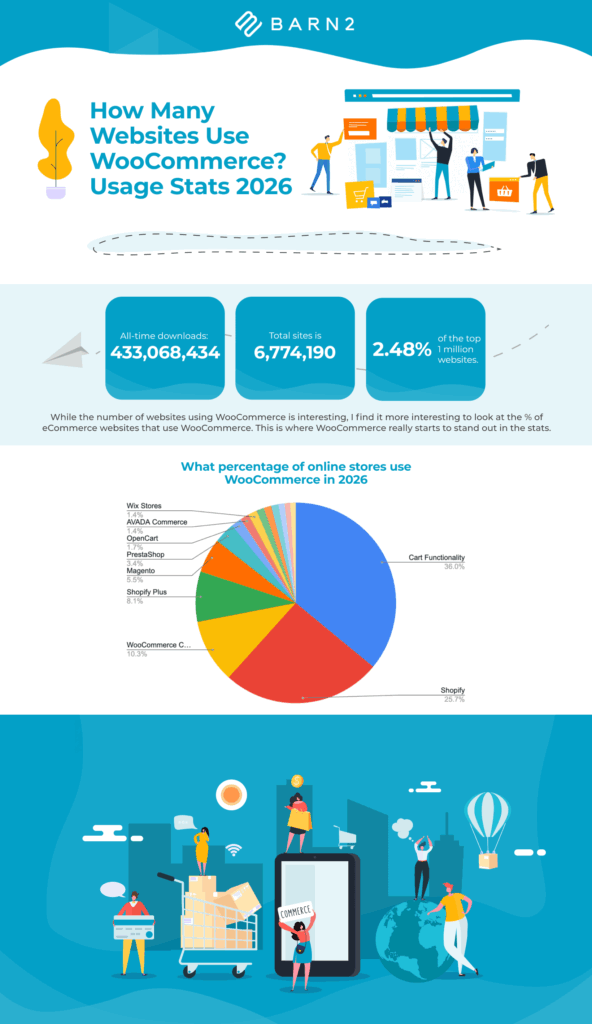
BuiltWith claims that 6,774,190 of all the websites on the internet use WooCommerce.
Based on this, we can reliably say that more than 6 million websites worldwide use WooCommerce 🤯
While the number of websites using WooCommerce is interesting, I find it more interesting to look at the % of ecommerce websites that use WooCommerce. The percentage is where WooCommerce really starts to stand out in the stats. We have found this each year since 2017, when we started publishing this post.
What is the market share of WooCommerce?
Now, this is where I got really confused when researching the WooCommerce market share in 2026.
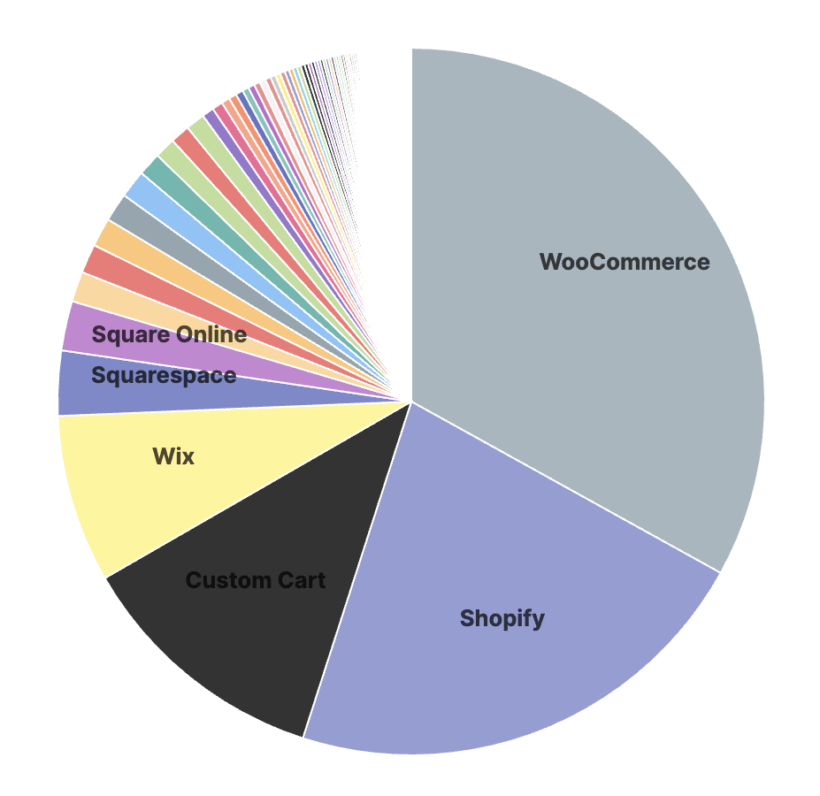
First, let's look at Built With. This suggests that the current 2026 market share for WooCommerce is 8% of the top 1 million sites using ecommerce technologies:
This represents a decrease from its 5% market share in 2025 and also suggests that Shopify will take over WooCommerce as the market leader between 2025 and 2026.
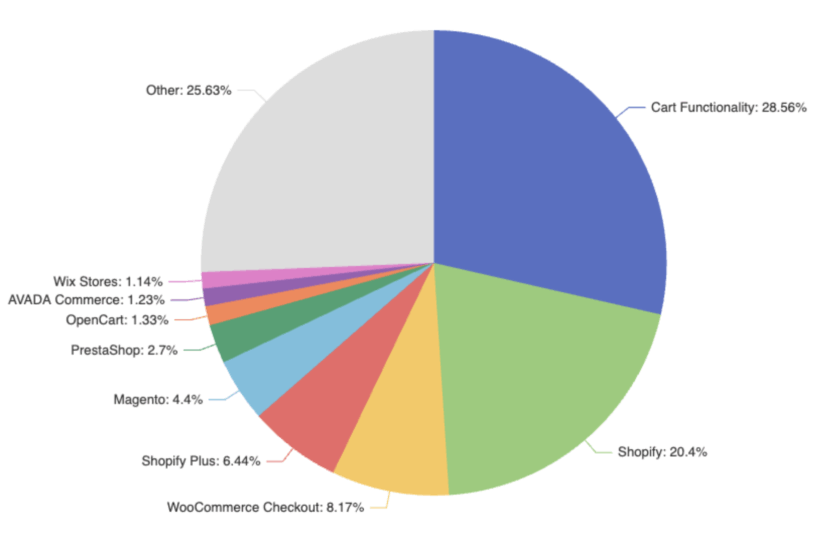
On the other hand, data from Store Leads paints a much more positive picture of WooCommerce's market share in 2026:
This suggests that WooCommerce is still the market leader over Shopify by a long way.
The main difference between BuiltWith and Store Leads seems to be that it tracks 13 million websites, whereas BuiltWith tracks the top 10,000, 100,000, million sites plus the whole internet. Maybe that explains the difference in the market share stats for WooCommerce.
I also know from other sources that BuiltWith's data only tracks sites that are actually using WooCommerce to take orders. It doesn't include sites that have WooCommerce installed but are not using it as a checkout. This makes the results artificially low because lots of sites in store will commerce to create features such as a product catalogue without online ordering, and they would be excluded from this data.
Whether or not WooCommerce is the current market leader, it's clear that Shopify is a strong competitor. The WordPress and WooCommerce communities need to make sure that WooCommerce remains competitive against Shopify in particular.
Where are the other WordPress ecommerce plugins?
You'll notice that no other WordPress plugins appear in the list at all. These are obviously covered by the big 'Other' category, but no other WordPress plugin makes the top 10 ecommerce platforms. It may feel as if plugins such as Easy Digital Downloads are very popular, but they're not even in the top 20.
How many WooCommerce themes are there?
It's impossible to know how many dedicated WordPress themes are available which include support and styling for WooCommerce. This is because many WooCommerce-ready themes are sold on independent websites and smaller marketplaces. Here are some WooCommerce stats for the bigger theme providers, as of January 2026:
This brings us to over 4,246 just from 2 big players. The total number will be much higher when you include other theme marketplaces and independent theme companies. Clearly, there's no shortage of choice in choosing a WooCommerce theme for a website design!
As with themes, it's impossible to provide an exact number of how many WooCommerce plugins there are. Here's what I discovered:
Strangely, the official WordPress.org plugin directory doesn't let you filter by WooCommerce plugins. However, a quick count showed that there are well over 2,812 plugins with 'WooCommerce' in the title.
The real total for this stat will be much higher, as a huge number of websites sell ecommerce plugins independently or via smaller marketplaces. For example, we sell our own WooCommerce add-ons via our own website, so popular plugins such as WooCommerce Product Options aren't even included in this figure.
How many new websites are installing WooCommerce?
It's easy to get the latest figures on the number of websites that are newly installing WooCommerce if you know where to look. An up-to-date figure for this WooCommerce stat is available at all times on the WooCommerce page in the WordPress plugin directory.
At the time of writing (April 2026), WooCommerce has been downloaded 304,274 times in the last week. That's pretty incredible.
What is the future of WooCommerce?
While WooCommerce is facing some stiff competition from competitors like Shopify, it's important to remember that it is still used on a mind-bogglingly huge number of sites.
With such a huge ecosystem of WooCommerce experts, themes, plugins, and hosting to choose from, WooCommerce provides an immediate advantage for any ecommerce website compared to other platforms. WordPress is the world's biggest CMS with a huge 64.2% market share. As the main WordPress ecommerce platform, that's an enormous market.
If you haven't started making money with WooCommerce yet, there are plenty of excellent WooCommerce tutorials on how to get started with WooCommerce in 2026, such as this one from Moosend.
WooCommerce's flexibility and constant evolution ensure it will remain a dominant force in the ecommerce world for years to come.
Do you offer discounts in your WooCommerce store, either by running sales or discounting specific products? Discover the easier way to put your products on sale, display 'On Sale' badges, and list sale products in prominent parts of your store 🚀
In WooCommerce, you can add 'On Sale' badges by setting a sale price for individual products or variations. That's pretty time-consuming 🥱. If you want more control over how your badges look, you can also change sale badge styles, text, and positioning. Prominent sale tags are a critical part of your store's success when running a new promotion, so it pays to get it right from the get-go!
Keep reading to discover how to streamline and showcase your WooCommerce on sale products by:
Quickly putting products on sale either globally, or in bulk for selected products or categories. We'll do this with the WooCommerce Discount Manager plugin.
Supercharging your sales by creating other types of sale price and discount, such as quantity-based incentives and buy-one-get-one-free offers. We'll use WooCommerce Discount Manager for this too.
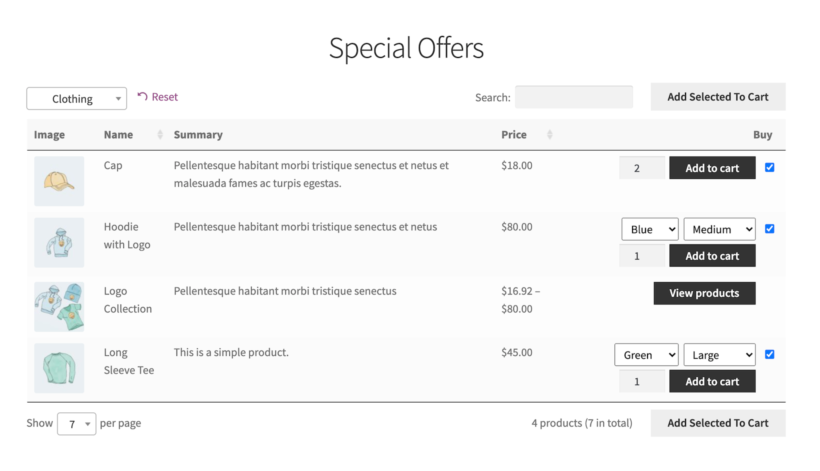
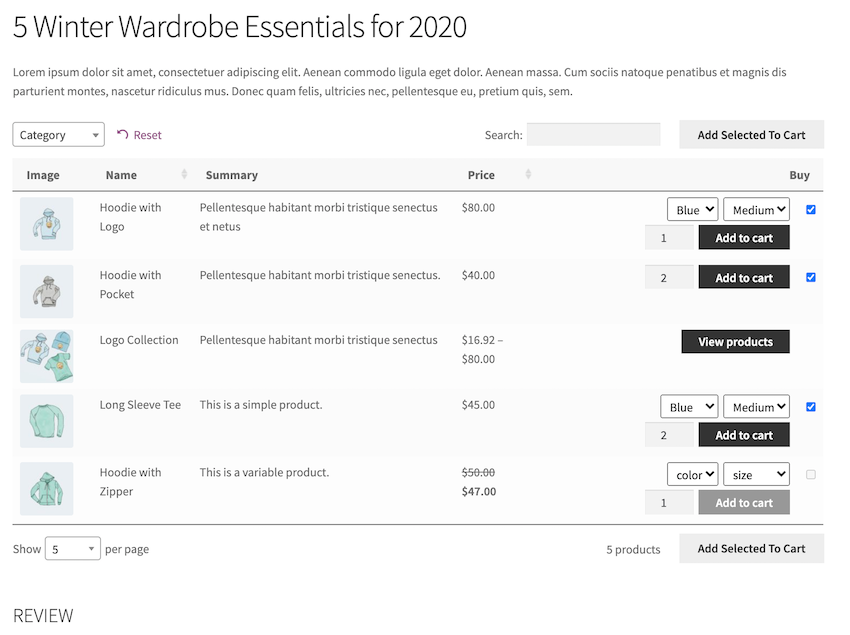
Displaying WooCommerce on sale products in a quick order form in prominent parts of your store, for example on the homepage. We'll use the WooCommerce Product Table plugin for this.
List on sale products separately in a Special Offers section.
What's wrong with using the 'Sale price' field in WooCommerce?
As I mentioned above, the default way of adding sale prices in WooCommerce is pretty limited. The problems are:
You can only add sale tags to each product or variation individually. That takes a long time and is error-prone if you want to create a store-wide sale or put multiple products or entire categories on sale.
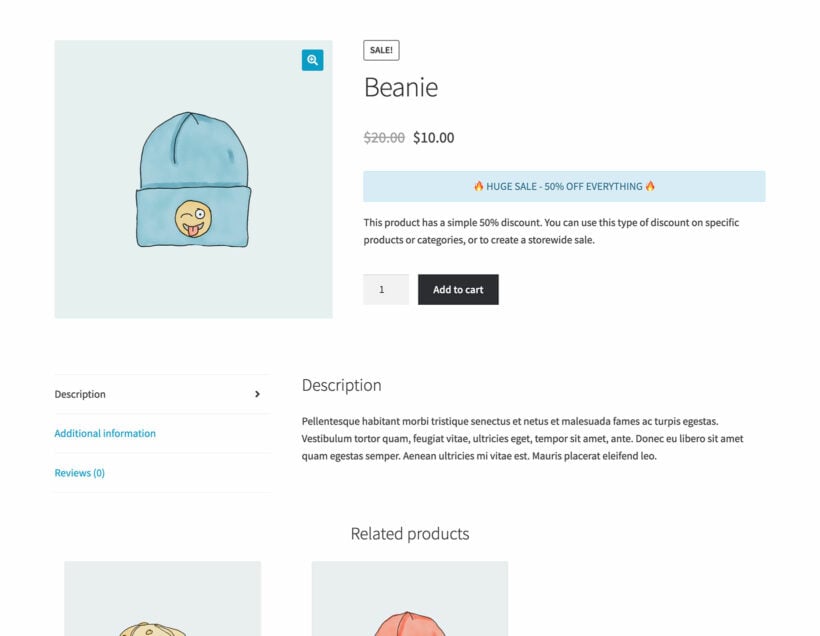
The little sale tags are the only clue that the product is on sale. There's no way to display more prominent details of the sale on product pages, such as a big notice saying "50% off everything!"
The default WooCommerce sale prices apply to everyone. There's no way to choose which users or roles can access the sale prices, such as new or existing customers only.
The on sale products are listed in the same places as your non-sale products. Apart from the sale tags, there's no way for customers to quickly view or filter all the products on sale.
The solution is to use the best WooCommerce discount plugin to put products on sale and add sale tags, instead of entering sale prices manually. I'll tell you which plugins you can use to solve each of the above problems.
WooCommerce Discount Manager: The easier way to add discounts and sale tags
Using the WooCommerce Discount Manager plugin to create your sale prices will solve the first four problems that I listed above. You can use it to:
Add sale prices to multiple products and categories at once, or your entire store.
Display prominent notices about the sale on the product page.
Create at least 6 different types of discount and deal, with advanced rules controlling when each type of sale price will be used.
Restrict each type of sale price to specific user accounts or user roles - or, alternatively, new customer discounts for guest users only.
Next, I'll tell you how to set it up in a way that achieves all these things 💪
Step-by-step tutorial
Get the plugin and install it in your WordPress Dashboard.
Activate your license key in the plugin setup wizard.
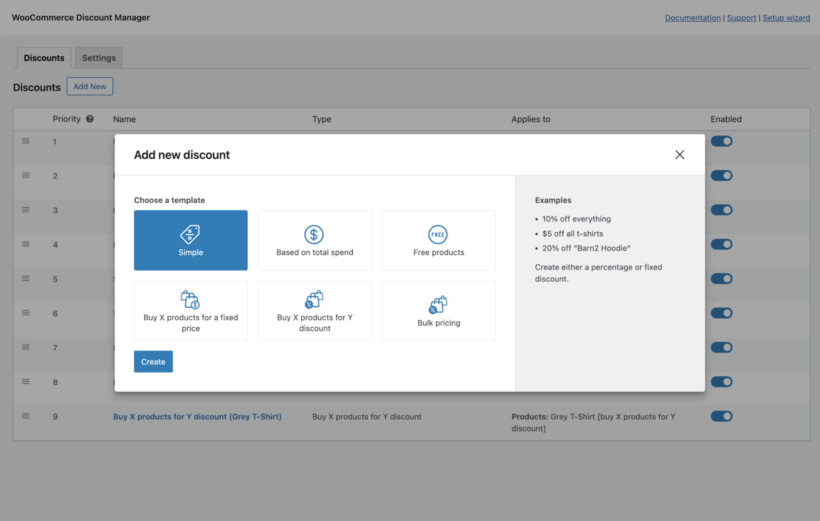
Now go to Marketing → Discounts and click 'Add New'.
Select which type of WooCommerce sale price you wish to create:
Fill in all the options, such as a fixed or percentage amount and the logic that will allow customers to qualify. For example, you can offer sale prices based on amount spent, and much more. Play around to find the most enticing and profitable options for your store.
For simple fixed and percentage discounts, you can tick a box to display the "On sale" badge on qualifying products. (This isn't relevant for more advanced discount types because they're calculated later, on the cart page.)
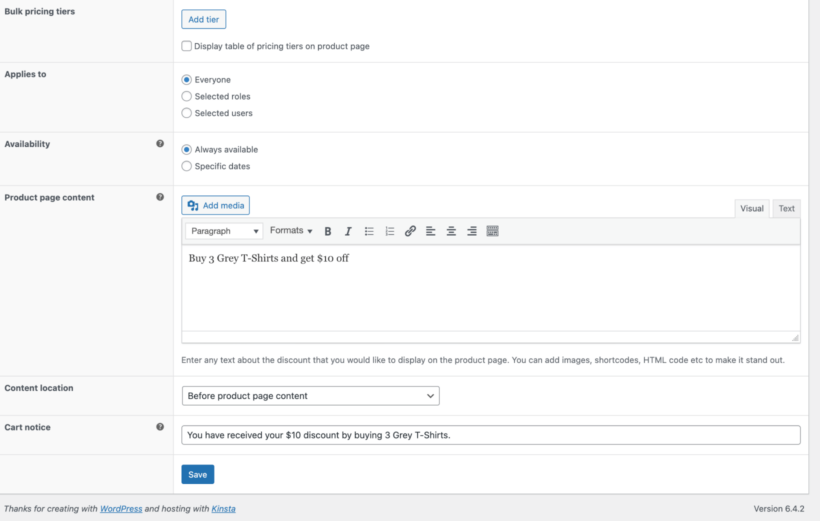
Use the 'Product Page Content' field to add any information that you want to display to highlight the discount.
Finally, test out the WooCommerce sale prices on the front end of your site. Keep tweaking until you're completely happy.
Product Filters and Product Table: The perfect pair for displaying On Sale products
The Discount Manager plugin mentioned above is great for actually adding sale prices in WooCommerce. However, other than displaying sale tags on products with fixed or percentage discounts, it won't help customers to find your on sale products.
In this tutorial, we’ll show you how to list WooCommerce On Sale products more effectively in your store. You'll learn the different ways to put products on sale in WooCommerce, and how to display them prominently in your store.
To draw attention to your on sale products, you can use WooCommerce Discount Manager with either or both of the following plugins:
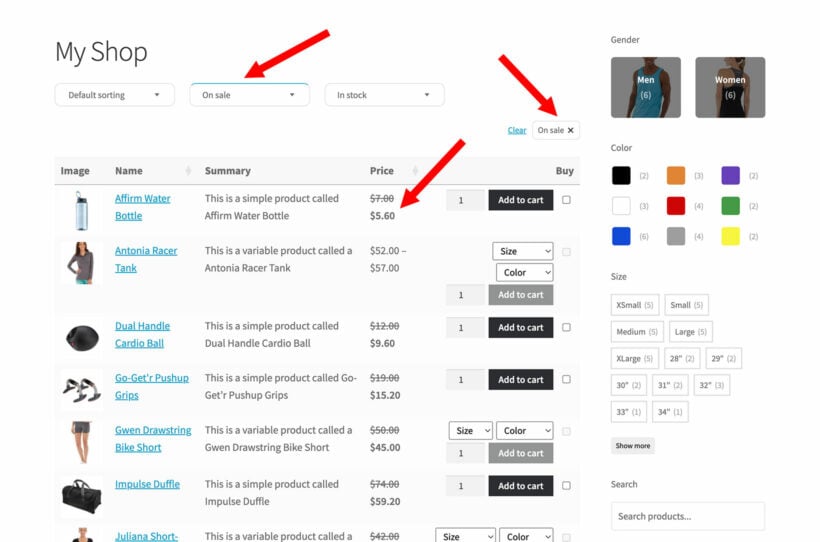
WooCommerce Product Filters for adding an 'On sale' filter to your store. Customer can use this to filter the list of products to view items on sale only.
And if you want to display WooCommerce on sale products separately to your main products, then you can do this with the WooCommerce Product Table plugin. This lists any or all of your products in a quick order form. You can use it to:
List on sale products, for example on your homepage where customers won't miss them, and/or;
Transform the layout of all your shop pages.
Using the Product Filters and Product Table plugins to display On Sale products more prominently
Add an On Sale filter to your store
The WooCommerce Product Filters plugin lets you add an "On sale" filter above or beside your shop and category pages. That way, customers can easily filter the list to view products at the best prices. This is how to add it to your store:
Use the setup wizard to choose how your want the product filters to work. If you want to display the on sale filter above your main shop pages, then you can do this in the setup wizard too - just select the default filter group for your shop pages.
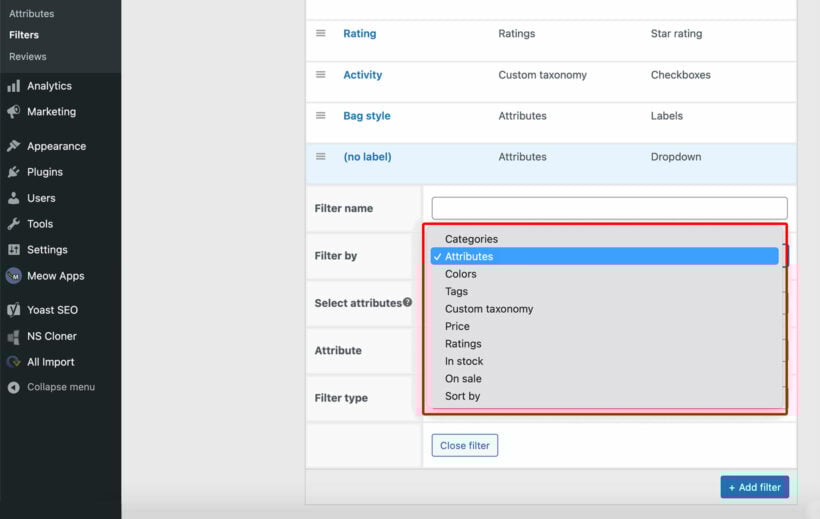
Now go to Products → Filters and edit the default filter group which has been created for you. Click 'Add filter' and create an 'On sale' filter. Repeat this step to add any other product filters which will help people to find your products, such as a category filter.
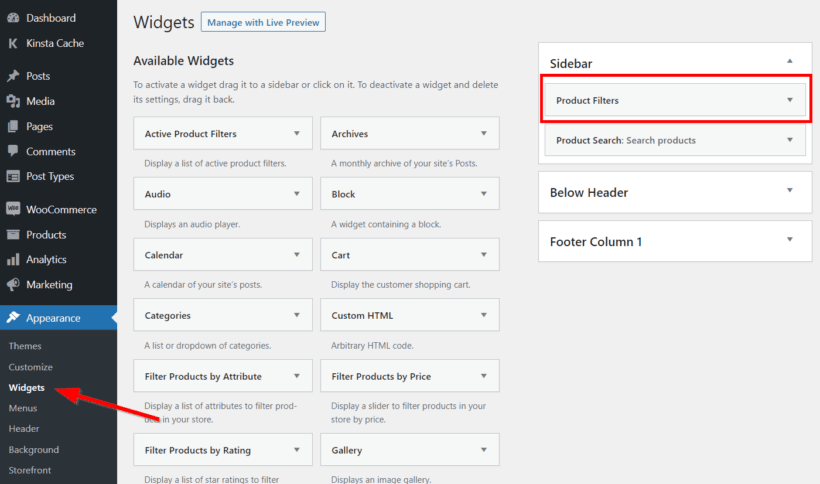
If you want the on sale filter to appear at the top of your shop pages, then you've finished! Or to display it in the sidebar, then go to Appearance → Widgets, add a 'Product filters' widget and select your filter group.
How to list On Sale products separately
The best way to draw attention to your discounted products is by listing them in a dedicated space on your website. There are several places where you can do this:
Add a 'Sale' section to the homepageList On Sale products in a prominent spot on the homepage of your WordPress website. This allows them to capture your customers' attention the second they arrive on the site.
Create a 'Special offers' pageList the On Sale products on a 'Special Offers' page or a 'Clearance Sale' page. You can then link to this page from your website’s navigation menu to encourage people to check out the WooCommerce On Sale products.
KitchenAid links to their Sale page from the main navigation
List On Sale products above your other productsYou can list On Sale products in WooCommerce on the main shop page above your other categories and products. This immediately draws the visitor’s attention to the products on sale. And, at the same time, it encourages them to check out the products and make a purchase.
Blog about your discounted productsAnother way to draw attention to products is by listing special offers in a blog post. This is particularly useful if you’re reviewing a specific product. Or perhaps you want to write about several different On Sale products and then list all the special deals within the post.
Use these methods to showcase your best deals. In the next section, I'll show you a simple method to list On Sale products in any (or all!) of these locations.
How to list on sale products with WooCommerce Product Table
The WooCommerce Product Table plugin makes it easy to list discounted products anywhere in your store. This includes each of the locations that I recommended in the previous section.
Step 1: Tag your On Sale products
First, you need a way to tag your On Sale products so that you can list them separately from your full price stock.
WooCommerce lets store owners highlight their most important products in the sale by marking them as Featured. Here’s how:
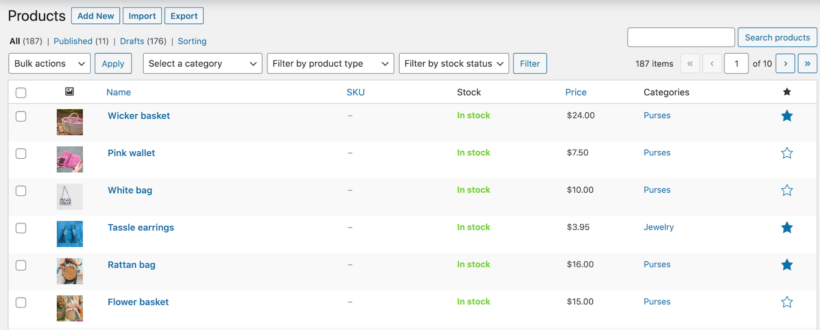
Go to Products → All Products from the WordPress admin panel.
Find the product you want to mark as Featured and click on the star in the far right column.
Pro tip: If you already use featured products for something else in your store, you should create a custom taxonomy called Sale and tag each On Sale product as Yes.
Step 2: Install and configure WooCommerce Product Table
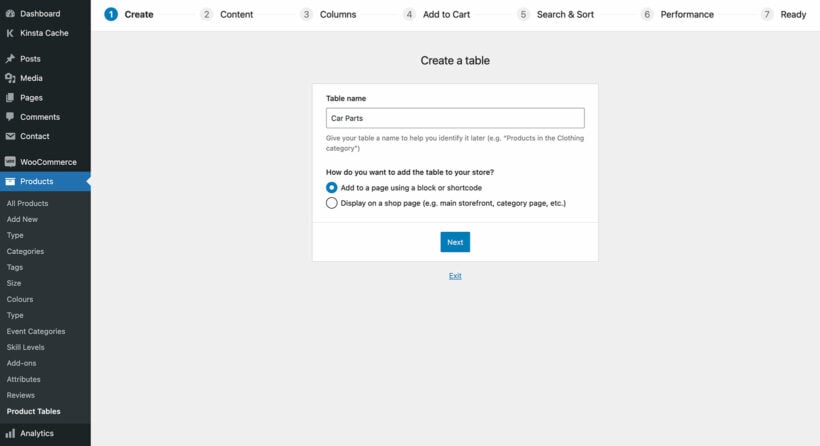
Once that’s done, the table builder wizard will open. You can also find this at Products → Product Tables.
On the first page, select the option to add the table to the page manually. This is important for listing on-sale product in WooCommerce.
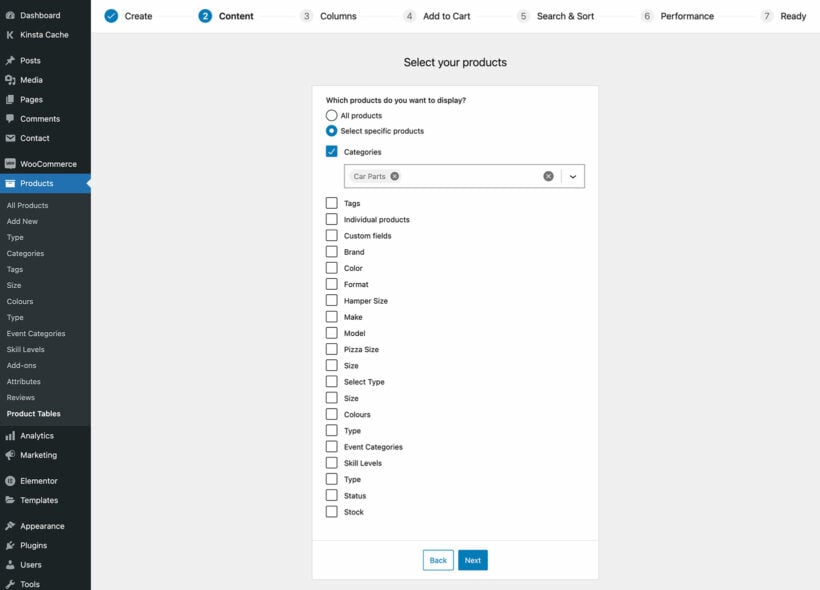
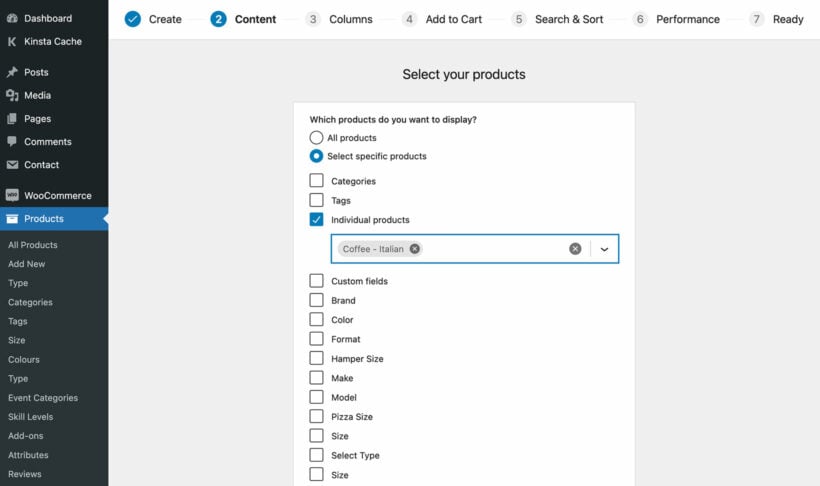
Use the 'Select products' page to tell the table to list products which have sale prices. To do this, tick the 'Product visibility' checkbox and then select 'Featured'. Alternatively, if you created a custom taxonomy in step 1 then this taxonomy will appear as a checkbox to tick, and then you can select the 'On sale' term.
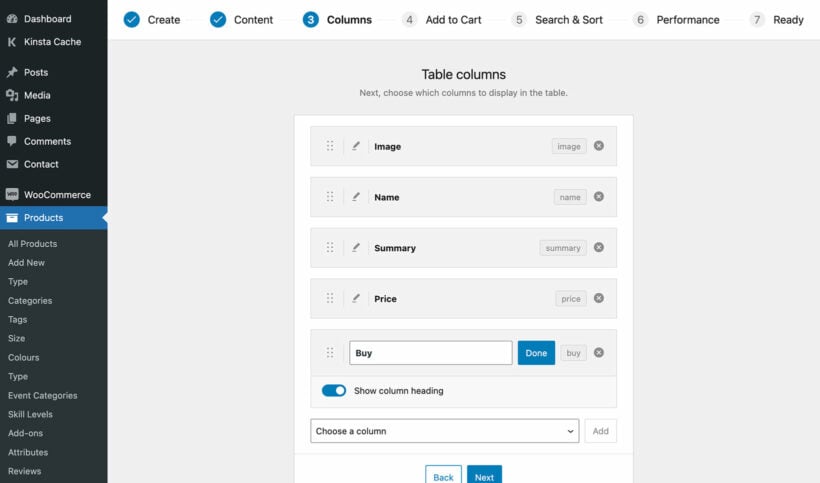
On the 'Columns' page, choose which product data you’d like to display in the table layout. You can do this by setting the Columns option to image,name,summary,price,buy. To show customers what a great deal they're getting, the 'Price' column will display the main price crossed out with the sale price alongside.
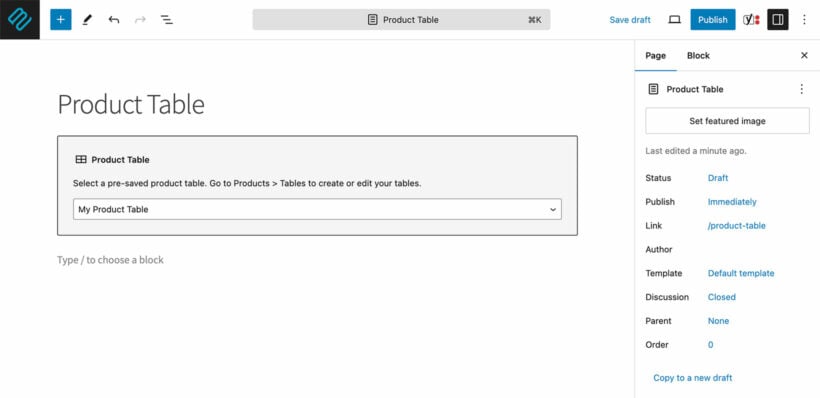
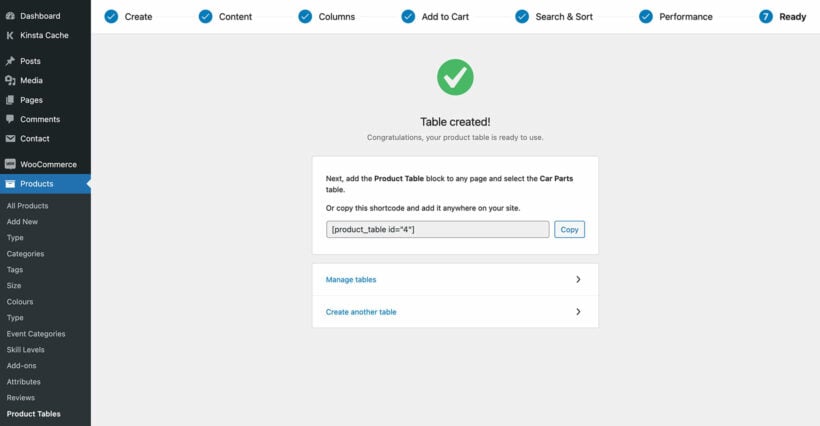
The final page of the table builder provides a shortcode which looks something like [product_table id="1"]. Copy this, unless you're using the WordPress block editor in which case you should insert a 'Product Table' block:
Step 3: List discounted products
Now it's time to list discounted products on your WordPress site’s front-end with sale tags.
To do this, add a 'Product Table' Gutenberg block to the page where you want to list on-sale products. Alternatively, insert the shortcode you copied a minute ago.
You can display the on sale products wherever you like. For example:
Homepage.
'Sale' page.
Shop page, above the other products.
Blog post.
List ‘on sale’ products today
As you can see, there are lots of opportunities to run successful sales in WooCommerce which go beyond what's possible with the default 'Sale price' feature. Here's a recap of them all:
Use the WooCommerce Discount Manager plugin to quickly add a wide range of sophisticated sale prices and deals, and display them prominently on product pages.
Add On Sale filters to your shop pages with the WooCommerce Product Filters plugin, so that customers can find products on sale more easily.
Use WooCommerce Product Table to list WooCommerce On Sale products in a neat table layout - the perfect way to enhance product visibility and make it easier for customers to buy.
Ready to supercharge your sales in WooCommerce? Choose which of the above plugins are right for your store, and install them today 🔥
Some e-commerce websites sell the same products to multiple customers, while others sell one-of-a-kind products that can only be bought by one customer. If you're in the second category, then what happens after a product has been purchased and is no longer available?
There are lots of products that can only be sold once. It could be anything unique, ranging from used products such as cars or designer handbags; to original handmade products such as art or jewellery.
Read this article if you sell one-off products and want to learn how to:
Remove each product from sale once it has been bought - this prevents accidents and automates your stock control.
Create an archive of sold out products in your WooCommerce store - this can boost your search engine position by adding extra keyword-rich content to your site, as well as your credibility by showing all the amazing products you have sold in the past.
How to prevent products from being purchased more than once
It's surprisingly easy to set up your WooCommerce store so that each product can only be bought once:
WooCommerce settings:
Go to WooCommerce → Settings → Products→ Inventory.
Tick 'Enable Stock Management'.
Disable the low and out of stock notification emails, as if you sell one-time-only products then you don't need to know when something goes out of stock.
Do NOT enable the 'Hide out of stock items from the catalog' option.
Save the page.
Product settings:
Go to the 'Edit Product' screen for each product.
Scroll down to the 'Product Data' section and open the 'Inventory' tab.
Tick 'Manage Stock' and set the stock quantity to 1. Do not allow back orders.
Save the product.
Once you have done this, each product can only be purchased once. The product page will show an 'Add to cart' button with no quantity picker because only one is in stock. After a customer has bought the product, the add to cart button will disappear and no one else will be able to buy it.
How to list previously sold products in WooCommerce
Most stores selling one-off products want to list the available products in their main shop, and the sold out products on a separate archive page. I'll tell you how to do both of these things next.
You'll need the WooCommerce Product Table plugin for both of these. You can use it to list products in different parts of your store, based on their stock status.
List available products
First, I'll show you how to list 'In stock' WooCommerce products.
Once you've installed WooCommerce Product Table, the table wizard will open. To open it later instead, go to Products → Product Tables → Add New.
The wizard will walk you through the process of listing in stock products:
On the first page, select the option to insert the product table manually to a page.
Use the 'Select products' page to tick the 'Stock status' checkbox and then select 'In stock'. This tells the product table to list product which are in stock and hide other stock statuses.
To add the table to a page, either use the 'Product Table' block or insert the shortcode fro the final page of the table builder. (You'll need to use the shortcode if you're not using the WordPress block editor.)
Create a sold out products archive in WooCommerce
The process for creating an archive of sold out products is similar to listing in stock products. However, this time we're listing products which you have previously sold but are no longer available.
To do this, simply go to Products → Product Tables → Add New. This time, tick the 'Stock status' box again on the 'Select products' page - but select the 'Out of stock' status.
You can make this as simple or as complex as you wish. For example, you could also use the 'Category' option to list sold out products by category.
Troubleshooting tip: If no products are listed, go to WooCommerce → Settings → Products → Inventory and make sure your store isn't set to hide out of stock products.
Choosing your table columns
The sold out products will be listed with whichever columns you choose on the 'Columns' page of the table builder. By default, this will include an add to cart column, which was perfect when you listed your In Stock products. However, that may not be appropriate now you're listing sold out products. After all, the products are no longer available - so no one can buy them 🙃
At this point, your table won't look broken because WooCommerce Product Table cleverly transforms the 'Add to Cart' button into a 'Read More' button for sold out products. The button links to the single product page, where people can see more images and learn more about the previously sold product.
If you don't want to include a 'Buy' column for your sold out products, then remove it from the list of columns.
Where to get the plugin
As you can see, WooCommerce Product Table makes it super-simple to list your previously available 'sold out' products separately from your main shop. If you sell one-of-a-kind products that are different each time, this is a great way to show customers what to expect from your store, even if they want isn't available right now.
Test the plugin risk-free today - it only takes a few minutes to set up!
The management of restaurants are now being significantly impacted by the world of technological improvements. Given that the majority of people spend a significant portion of their days online, restaurants have enormous market potential. In fact, customers who frequent restaurants are more interested in buying food online. Restaurant managers and owners are constantly looking for ways to make it easier for consumers to order meals online and have it delivered quickly.
Most restaurant owners are setting up a restaurant delivery website to stay in business and give a neck to neck competition to others owners. The good news is that you can create a food delivery website in WordPress in a few simple steps.
One of the key benefits of setting up your own restaurant delivery website is that you don’t have to rely on third-party food delivery service providers and food delivery apps like Grubhub, Uber Eats, Postmates, or Doordash. Instead, you can start taking online orders for your own local restaurant and keep 100% of your profits.
In this tutorial, we’ll explain how you can create a restaurant delivery website using the WooCommerce Restaurant Ordering plugin. You can also watch this video to see how it's done.
How to create a restaurant delivery website in WooCommerce
To create a food delivery website, you’ll need a WordPress website with the WooCommerce plugin installed. You’ll also need the WooCommerce Restaurant Ordering plugin to set up your online menu and take orders online.
It's much more cost-effective than signing up with a third-party food delivery service provider like Grubhub, Uber Eats, Doordash, or Postmates.
Step #1: Add food items as WooCommerce products
The first thing you need to do is to add menu items to your restaurant delivery website as WooCommerce products.
We recommend organizing food items into different categories the way you would if you were creating a menu for your physical restaurant.
For example, your categories might be:
Starters
Main Courses
Desserts
Drinks
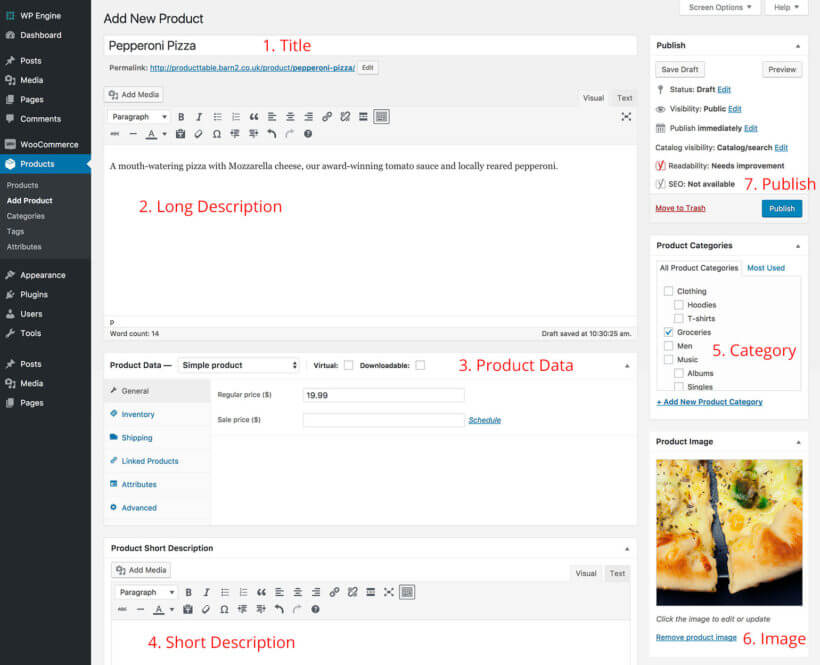
Once you’ve created the categories, simply add each food item as an individual WooCommerce product. Enter its title, description, category, and image, and then fill out the Product data section to set the price and (optionally) variations and other options.
Step #2: Install WooCommerce Restaurant Ordering on your WordPress website
The WooCommerce plugin automatically creates shop pages with its own layout for displaying products or, in this case, food items. However, this isn’t ideal for a restaurant delivery website. Instead, you can use the WooCommerce Restaurant Ordering plugin to list your online menu in a one-page order form.
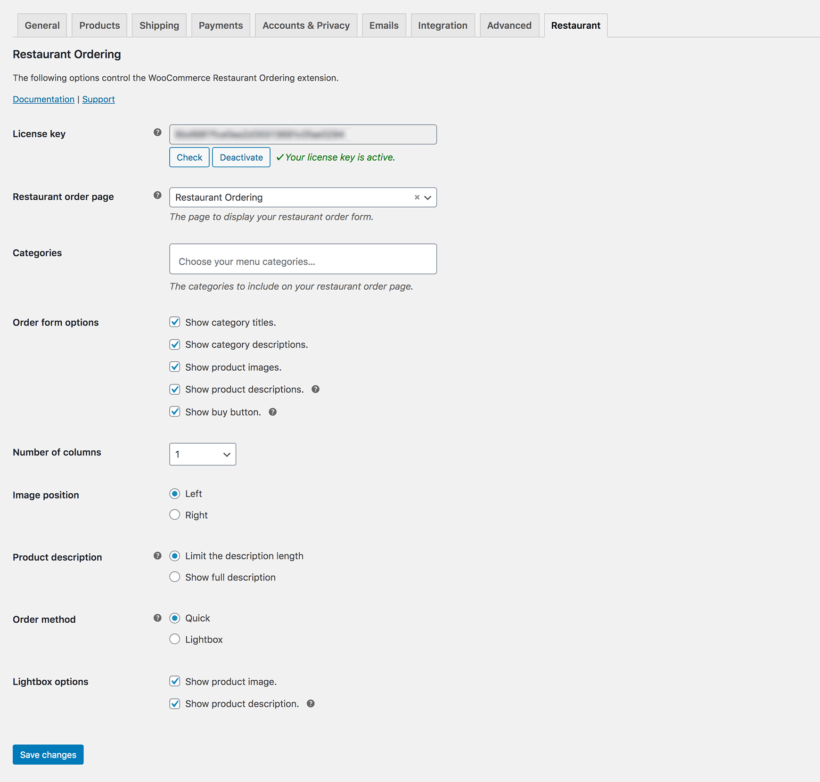
Head over to WooCommerce → Settings → Restaurant from the WordPress admin panel and enter your license key. You can choose the default settings for your restaurant food ordering forms from the same screen. Also add opening dates and times if you want to prevent people from placing orders while you're closed.
Here's how it works:
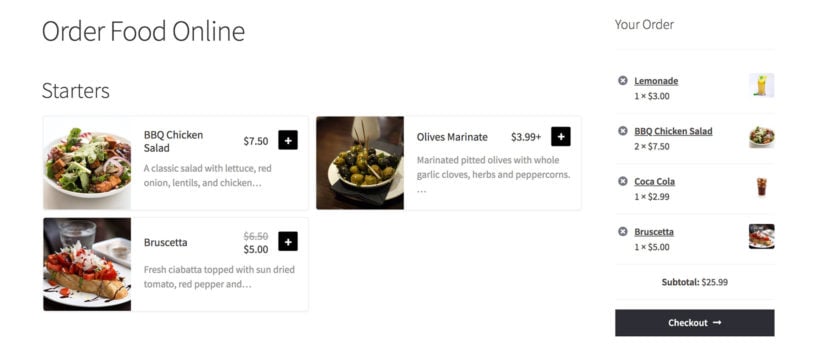
The WooCommerce Restaurant Ordering plugin automatically creates a food order form for you. If you preview your food delivery website on the front-end, it should look something like this (depending on your settings):
The food items are listed in a menu-style format with images, descriptions, and pricing information.
Optionally, you can create separate food order forms for different categories instead of listing all of them on one page. You can also create a section for Special Offers.
The easiest way to do this is by adding the [restaurant_ordering] shortcode to a page and using the shortcode options to choose which categories to include on that page.
Customers can simply place their order online and then proceed to the checkout page.
Step #3: Set up delivery and collection
One of the biggest advantages to using WooCommerce to power your restaurant delivery website is that it has options built-in for delivery and collection. To configure these settings, simply head over to the WooCommerce → Settings → Shipping section of the WordPress admin.
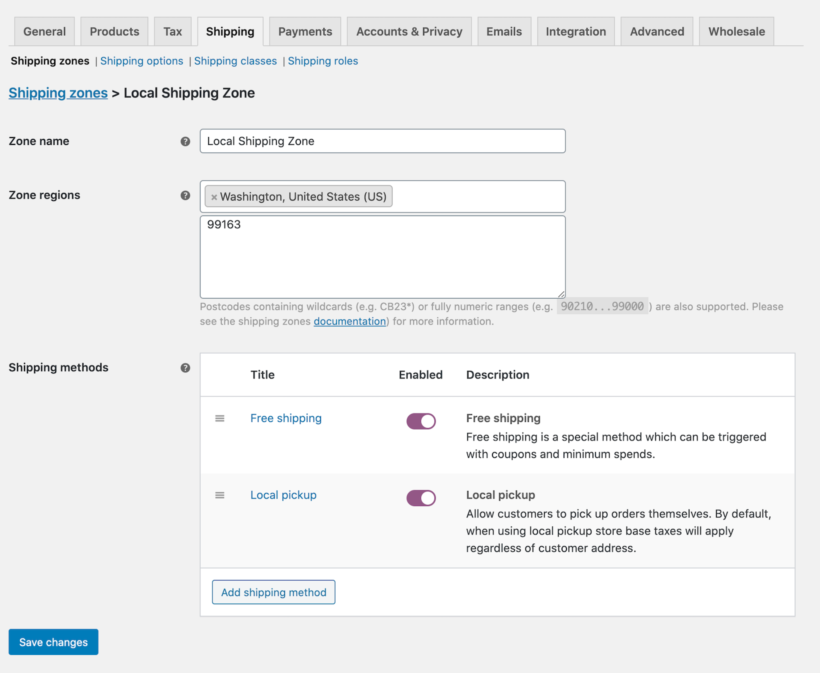
For example, you can create shipping zones for the areas you offer deliveries to. Let’s say you want to offer free shipping to areas close to your restaurant and charge for areas further away. You can set up two shipping zones in WooCommerce. And, if you want to offer collection or takeout option, all you have to do is set up a third shipping zone that gives customers the option to collect their orders from the restaurant.
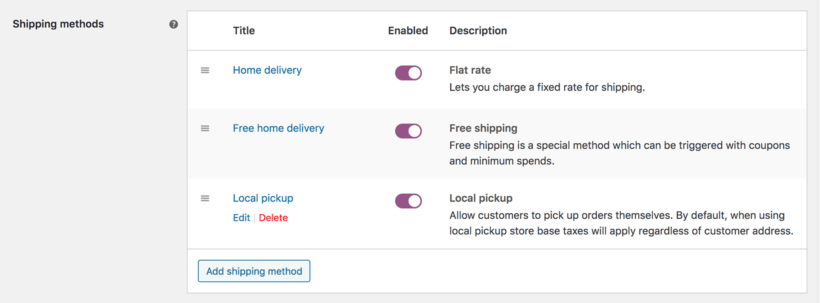
The WooCommerce plugin also lets you offer delivery options for each shipping zone you create. You can use these options to set up free home deliveries if the order value is above the minimum spend, charge for deliveries on orders less than the minimum spend, and offer local pickup.
To keep things simple, you can integrate a GPRS printer with your restaurant delivery website to automatically print orders in the kitchen in real-time. For this, we recommend using the WooCommerce Automatic Order Printing plugin. It offers seamless integration with WooCommerce Restaurant Ordering.
Alternatively, you can receive an SMS notification of new orders instead of printing orders to the kitchen. Our best advice is to use the SMS Alert Order Notifications plugin. You can also use the Twilio SMS Notifications plugin to send customers an SMS when their order is ready. This is especially useful if you want to offer local pickup options. Keep in mind that you’ll need to ask for the customer’s phone number at checkout if you want to offer this service.
Step #5: Offer online or offline payments
The WooCommerce plugin lets you set up various payment options. If you’re just getting started and want to offer online payment options, choose PayPal Payments Standard and enter your PayPal email address. In addition to this, you can also accept credit or debit card payments without using PayPal. For this, you would simply select Stripe and follow the setup instructions.
You can also offer offline payments (such as Cash on delivery) which are particularly useful for restaurant delivery websites. This way, your delivery drivers can collect payments from customers. This way, you can rival online food delivery service providers like Grubhub, Uber Eats, Doordash, and Postmates.
Start accepting online orders today
By setting up your own restaurant delivery website in WordPress you can start accepting online orders and keep 100% of the profits. This is much better than going with an online food delivery service provider like Grubhub, Uber Eats, or Postmates. The WooCommerce Restaurant Ordering plugin makes it easy to get started with a step in the right direction.
Once you’ve set up your restaurant delivery website, there are plenty of ways to enhance the customer’s shopping experience, for example, by setting up delivery and collection and offering online payment options in your online ordering system.
Ready to set up your restaurant delivery website and make it easier for customers to order food? Get the WooCommerce Restaurant Ordering plugin today.
If you sell car parts, you might consider setting up an online store to get your products in front of more customers. Selling car parts online also makes it easy for people to buy from you since they can quickly search for what they're looking for.
One of the biggest problems store owners have when selling car parts online is finding a good way to list products in a way that makes it easy for customers to find exactly what they're looking for. One way to do this is by setting up a WooCommerce store and listing automotive or car parts in a product table with purchasing options. As a result, you can increase product visibility and grow your bottom line.
With this in mind, in this article, we’ll explain how you can start selling car parts online. Along the way, we’ll also show you how you can optimize your online store’s shopping experience for customers.
The demand for online car parts
In recent years, the automotive aftermarket industry has witnessed a significant shift towards online channels. This has been driven by several key factors, including:
Increasing number of DIY customers
As more vehicle owners take matters into their own hands, the demand for auto parts has surged. DIY enthusiasts prefer the convenience of online shopping, where they can easily find the specific components they need for repairs or upgrades.
Online platforms provide detailed product information, compatibility guides, and customer reviews, empowering DIYers to make informed decisions.
Convenience offered by online shopping channels
E-commerce platforms have revolutionized the way consumers shop for car parts. With just a few clicks, customers can browse catalogs, compare prices, and order parts from the comfort of their homes.
The hassle-free experience of doorstep delivery and secure payment options has contributed to the popularity of online channels.
Growing market and digitization
The e-commerce automotive aftermarket has thrived since the challenges posed by the COVID-19 pandemic. In 2021, the market size reached $78,631.4 million, and it is projected to grow at a CAGR of 10.4% from 2021 to 2031.
Vehicle owners turned to online platforms for maintenance services and aftermarket components during lockdowns, driving sales.
Increasing average age of vehicles
Vehicles worldwide are aging, leading to higher demand for replacement parts. The average age of vehicles in regions like China, the US, and the UK has risen significantly.
Car loans with longer repayment periods and improved vehicle quality contribute to this trend. As vehicles last longer, the need for replacement parts grows.
B2B dominance in online sales
Business-to-business (B2B) sales account for over 73% of revenue in the e-commerce automotive aftermarket. Bulk buyers benefit from easy payment options, discounts, and efficient logistics.
Growing economies and disposable incomes drive B2B engagement in online auto component purchases.
For these reasons and more, the demand for online car parts continues to rise. This creates an opportunity to build an ecommerce store to sell car parts online. Whether you want to target auto professionals or DIYers, it's an interesting niche with plenty of potential.
Identifying popular categories in car parts market
If you want to sell car parts online, then it's vital to understand which types are most sought-after. Let’s delve into some of the popular car parts categories:
Engine components - Engine parts are the heart of any vehicle. Categories within this segment include:
Spark plugs: Vital for ignition and combustion.
Oil filters: Essential for maintaining engine health.Timing Belts and Chains: Ensure precise engine timing.
Pistons and rings: Key components for power generation.
Braking system parts - Safety is paramount, making braking system components highly sought-after:
Brake pads and rotors: Regularly replaced for optimal braking performance.
Calipers and brake lines: Crucial for stopping power.
Master cylinders: Responsible for hydraulic pressure distribution.
Suspension and steering components - These parts impact ride comfort and handling:
Shocks and struts: Absorb road shocks.
Control arms and bushings: Maintain stability.
Tie rod ends and ball joints: Influence steering responsiveness.
Electrical and lighting parts - As vehicles become more technologically advanced, electrical components gain prominence:
Batteries: Power source for starting and running the vehicle.
Alternators and starters: Generate electricity.
Headlights and taillights: Essential for visibility and safety.
Body and exterior components - Aesthetic and functional parts fall into this car parts category:
Bumpers and grilles: Protect the vehicle and enhance appearance.
Mirrors and door handles: Vital for safety and convenience.
Fenders and hoods: Shield engine components.
You need to decide whether to specialize in a particular area or sell all types of car parts. If you decide to stock a wide range, then it's important to consider the best way to source and stock each item.
Finding reliable suppliers
In the competitive landscape of the car parts industry, establishing strong relationships with reliable suppliers is essential. There are several ways to source quality car parts:
Traditional suppliers
Traditional suppliers play a crucial role in the automotive parts industry. This includes local distributors and wholesalers. These suppliers operate physical locations and maintain warehouses stocked with a diverse range of car parts and accessories. By establishing relationships with these local distributors, you gain the advantage of inspecting products firsthand and negotiating favorable terms.
Another category of traditional suppliers is the original equipment manufacturers (OEMs). OEMs specialize in producing parts specifically designed for particular vehicle brands. Collaborating with OEMs ensures access to genuine components. However, it's essential to note that OEMs often impose strict requirements and may have minimum order quantities.
Authorized dealers represent specific brands and provide authentic parts. Partnering with authorized dealers and then selling the car parts online not only ensures the quality of the components, but also enhances your credibility as a seller.
Online marketplaces
In the digital age, online marketplaces have become essential for car parts businesses. Let's explore some key aspects:
Dropshipping - Dropshipping allows you to sell car parts without the need to hold inventory.
Marketplace platforms - Platforms like eBay, Amazon, and Alibaba serve as intermediaries connecting buyers and sellers.
Specialized car parts marketplaces - Dedicated websites such as RockAuto, CarParts.com, and AutoZone cater specifically to car parts.
Trade shows and industry events
It's definitely worth participating in trade shows, expos, and industry events related to the automotive aftermarket. These events provide valuable networking opportunities. When attending, engage in conversations with suppliers, ask pertinent questions, and gather information. Evaluate factors such as product quality, pricing, and reliability. Meeting suppliers face-to-face allows you to establish stronger connections and make informed decisions.
When evaluating potential car parts suppliers, consider several critical factors. First, prioritize quality and authenticity - ensure that suppliers offer high-quality, genuine parts to maintain your reputation. Next, compare pricing and margins, taking into account shipping costs, bulk discounts, and payment terms. Evaluate shipping and logistics reliability, as timely delivery is crucial for customer satisfaction. Lastly, choose car parts suppliers with excellent customer support and a positive track record.
Choosing your platform: ecommerce websites vs. online marketplaces
Now you've learned why it's worth selling car parts online and where to source them from. Next, let's look at different ways to sell car parts and consider which is best.
1. ecommerce websites: The self-hosted solution
An ecommerce website is a dedicated online store that you build and manage independently. Here’s why it might be the right choice for your online car parts business:
Brand control and consistency:
With your own ecommerce store, you have complete control over the design, functionality, and tone of voice. This consistency reinforces your brand identity and sets you apart from competitors.
Unlike marketplaces, where pricing and reviews dominate, your brand experience becomes a powerful differentiator.
Better profit margins:
Selling directly through your ecommerce store allows you to retain all profits without sharing them with a third-party platform.
Implement strategies like up-selling, cross-selling, personalized recommendations, and dynamic pricing to maximize your margins.
In contrast, marketplaces often recommend similar products from competitors, potentially diverting business away from you.
Ownership of customer data:
Your ecommerce store grants you access to valuable customer data, which is not possible on marketplaces.
Utilize this data for targeted marketing campaigns, personalized experiences, and cost-effective retention strategies.
Lower customer acquisition costs (CAC) by leveraging your direct access to customer insights.
Forecasting and proactive measures:
With direct data access, you can forecast demand ahead of time and take proactive steps to meet it.
Adjust inventory, marketing efforts, and pricing based on real-time insights.
To build your own ecommerce website, you either need to DIY it or hire a developer to do it for you. While some platforms make it easier for non-technical users to create and manage their stores, some technical knowledge or professional assistance may still be necessary.
You'll need to pay for development, hosting, and ongoing maintenance. However, the long-term benefits often outweigh the upfront costs if you use a platform like WooCommerce.
2. Online marketplaces: The guided bus tour
Online marketplaces act as bustling hubs where buyers and sellers converge. They get you:
Immediate exposure:
Marketplaces already have a large customer base actively searching for autocarparts.
Listing your products on platforms like eBay, Amazon, or specialized auto parts marketplaces (e.g., RockAuto, CarParts.com) instantly exposes your inventory to potential buyers.
Lower startup costs:
Marketplaces handle infrastructure, traffic, and payment processing, reducing your initial investment.
Ideal for businesses with limited resources or those testing the waters.
Ease of setup:
Listing products on marketplaces is straightforward, especially if you’re already familiar with their interfaces.
If you're wondering "What is the best site to sell car parts on?" then I recommend looking into them all and comparing the size of their audience with their fees and functionality.
Disadvantages of online marketplaces
Profit sharing:
Marketplaces charge significant fees for each transaction, impacting your profit margins - especially as your online car parts business grows longer-term.
You share profits with the platform.
Limited brand control:
Your brand presence is diluted within the marketplace environment.
Reviews and pricing become dominant factors, potentially overshadowing your unique value proposition.
Customer data ownership:
Marketplaces retain customer data, limiting your ability to run targeted campaigns or personalized experiences.
You're dependent on the platform’s policies and algorithms, which can change at any time.
Our recommendation: Sell car parts online with WooCommerce
I believe that WooCommerce is the best way to sell car parts online. This self-hosted ecommerce solution combines the best of both worlds:
You get your own website, which gives you total flexibility and control over your branding, ownership of your customer base, etc.
No revenue sharing (except for a small percentage to PayPal or a credit card payment processor if you accept payments online).
Choose from a huge worldwide community of experience WooCommerce developers.
Avoid custom development costs by installing off-the-shelf themes and plugins to add extra features to your car parts website. For example, in a minute I'll show you how to use the WooCommerce Product Table plugin to create quick car parts order forms.
As well as selling direct on your website, you can integrate your inventory with marketplaces such as eBay, extending your market even further.
Integrating with marketplaces (e.g., eBay) allows you to tap into their customer base while maintaining your brand identity.
That's why I think that WooCommerce is the perfect solution for selling car parts online. You get high flexibility, while benefitting from low costs at the same time 🚗💡
How to list a large number of car parts
Selling car parts online means that you have to work with a lot of information. You might have posts for multiple vehicle types with multiple product types for each vehicle type.
Here are some of the key challenges store owners need to think about:
You need an easy way for customers to narrow down the list of car parts based on specific criteria such as make, model, and category.
Displaying information about each car part is more important than having large images.
Ideally, you want to display a large number of car parts on a single page so customers don't have to browse through multiple pages to find what they're looking for.
One way to optimize the customer’s shopping experience is by structuring and displaying product information in a user-friendly way on your store.
For this, you’ll need to make the most of WooCommerce categories, attributes, and custom taxonomies to properly structure data about car manufacturers and models – more on this later.
To make your online car parts store a success, you need to make it as easy as possible for customers to find products, learn more about them, add them to their cart, and proceed to checkout. This is possible with the WooCommerce Product Table plugin.
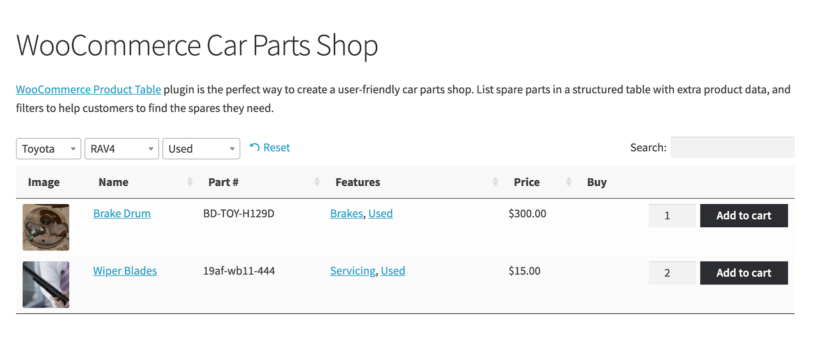
Search, sort, and filter options will help customers quickly find what they’re looking for. Dynamic filters (i.e. filters that are connected to each other) allow customers to see available products only. In other words, when a customer selects an option in one filter, the options in the next filter are automatically updated.
For your online automotive or car parts store, this means that instead of listing all the available car makes and models in a single dropdown menu, when the user selects Toyota from the Make dropdown, the Model dropdown will update to only include Toyota models only.
Dynamic filters are ideal for e-commerce websites that contain lots of information as is allows customers to narrow down their search and quickly find the product they want. Similarly, with a search box customers can search the product name or description to find what they’re looking for.
How to sell car parts online
To sell car parts online, you’ll need a WordPress site with an e-commerce platform like WooCommerce. After you’ve set up your WordPress site, and installed WooCommerce, add automotive parts or car parts as WooCommerce products. Once that’s done, you can categorize them and list them in a front-end table layout.
Step #1: Add car parts products to WooCommerce
Here’s how you can add car parts to WooCommerce:
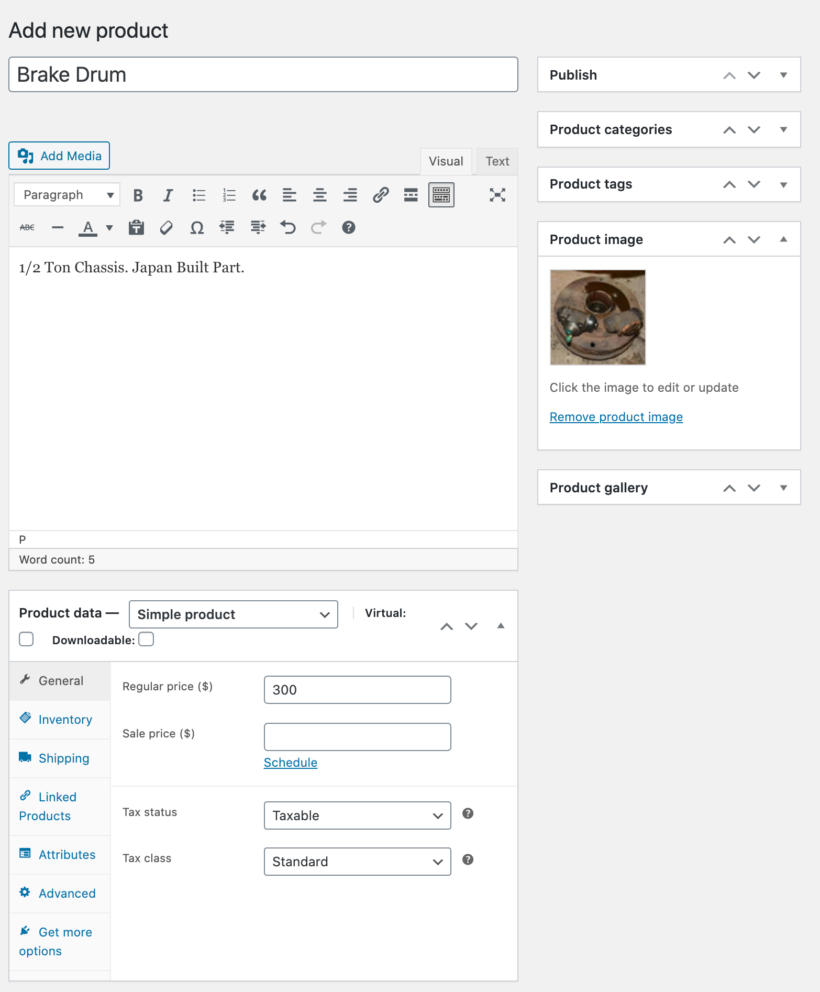
From the WordPress dashboard, navigate to Products → Add New.
Enter the title of the product, description, and product image.
Fill out the Product data section by entering information for each car part like the pricing and stock details.
Simple product refers to products with no variants. So, when adding car parts with only one version, have this option selected.
For car parts with multiple product options (for example color, size, or material), select Variable product. This way, customers will be able to select these attributes before placing their order.
When you’re done, click on the Publish button to add the car part to your store.
Step #2: Categorize the car parts
A typical WooCommerce car parts website contains hundreds or even thousands of products. It’s not easy to find a specific car part on an online store that sells tons of different types of products.
Here are some ways you can structure the car parts products on your website to improve user experience:
WooCommerce product categories.Using WooCommerce categories and sub-categories, you can break down your car parts listings. For instance, if you sell car parts for different car manufacturers, you can create a category for each one of them (e.g. Toyota, Honda, and Hyundai). The Toyota category may include subcategories for Aygo, Corolla, RAV4, and Yaris.
Tags.Tags let you label products and allow customers to quickly see all products with the same label. Labelling your products with appropriate tags will enable customers to quickly find car parts. For example, you might consider creating tags for battery, bumpers, doors, windows, tail lights, new, and used.
Attributes.You can add specific data related to car parts in product attributes. For example, you might create attributes for colors, sizes, and materials. Use attributes when you’re selling car parts online with variations. For instance, you might create an attribute group Material containing laminated glass and tempered glass for car windows.
Custom fields. WooCommerce custom fields enable you to store additional information about the car parts you are selling. Ideally, they should only be used when you want to display information that is unique to a product. For instance, you can create a custom field containing information about the item’s condition if you sell used car parts or fitment details.
Taxonomies.As with categories, taxonomies also enable you to organize products into hierarchical groups. However, organizing with taxonomies is a little different than organizing with the standard categories and subcategories. For instance, you might use standard WooCommerce categories for car manufacturers and models and create a custom taxonomy to store hierarchical information about the type of car such as SUVs or Crossovers.
As an example, let’s say you are setting up a WooCommerce car parts website. Here is how your products and categories might look like:
WooCommerce Categories – Toyota → RAV4.
Tags – Windshields, Car Windows.
Attributes – Material: Laminated Glass.
Custom Fields – Part #194358Z; Condition: used, high-quality.
Taxonomies – Car → Crossover.
These WooCommerce features enable you to implement a logical product structure for your online car parts store.
Step #3: Create car parts order forms
The default WordPress shop page layout isn’t ideal for selling car parts online. When selling products where the customer’s focus will be on information rather than what the products look like, you need to display them in a structured, grid-style layout.
The first thing you need to do is get the WooCommerce Product Table plugin and install and activate it on your WordPress website. When you do this for the first time, the table builder will open. You can also launch it at Products →Product Tables.
Use the multi-step table builder to set up the car parts order form. Here's a video on how to use it, and there are written instructions below:
3a. Decide where to display the spare parts form
The first page asks you to decide where on your site the WooCommerce car parts order form will appear. There are 2 choices:
Add it manually to a normal page on your site.
Automatically replace the standard WooCommerce templates with a product table. In other words, you can dynamically add car parts order forms to your main shop page and category pages.
3b. Configure the content of the order form
The remaining steps of the order form let you choose what it looks like. For example, you can:
Choose which specific products or categories of car parts to display.
Configure the columns of product data.
Change the initial sort order and add filter dropdowns.
3c. Add the order form to a page
If you enabled the order form on your shop page templates then you don't need to do this. However, if you opted to add it to a page manually then you need to do this now.
If you use the WordPress block editor then add the 'Product Table' block to a page. Otherwise (e.g. if you're using Elementor or Divi to build your pages) then insert a [product_table id="1"] shortcode. Replace the ID with the tables' correct ID, which you can get from the last page of the table builder or Products → Product Tables.
4. View the car parts order form in WooCommerce
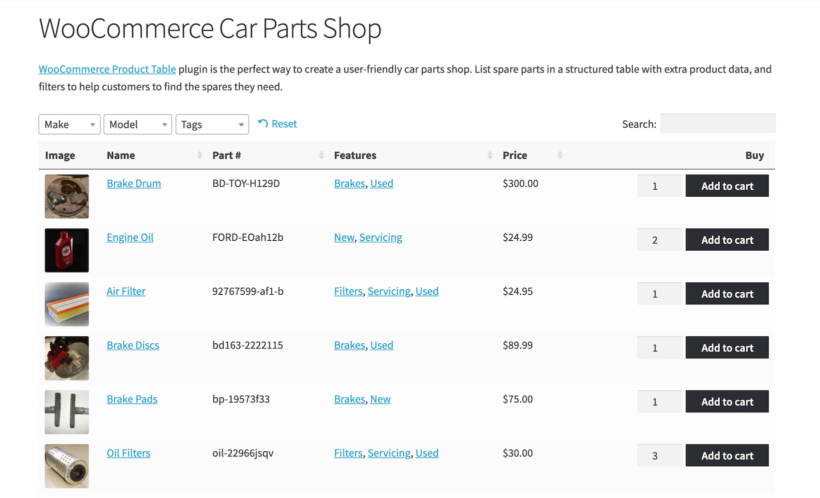
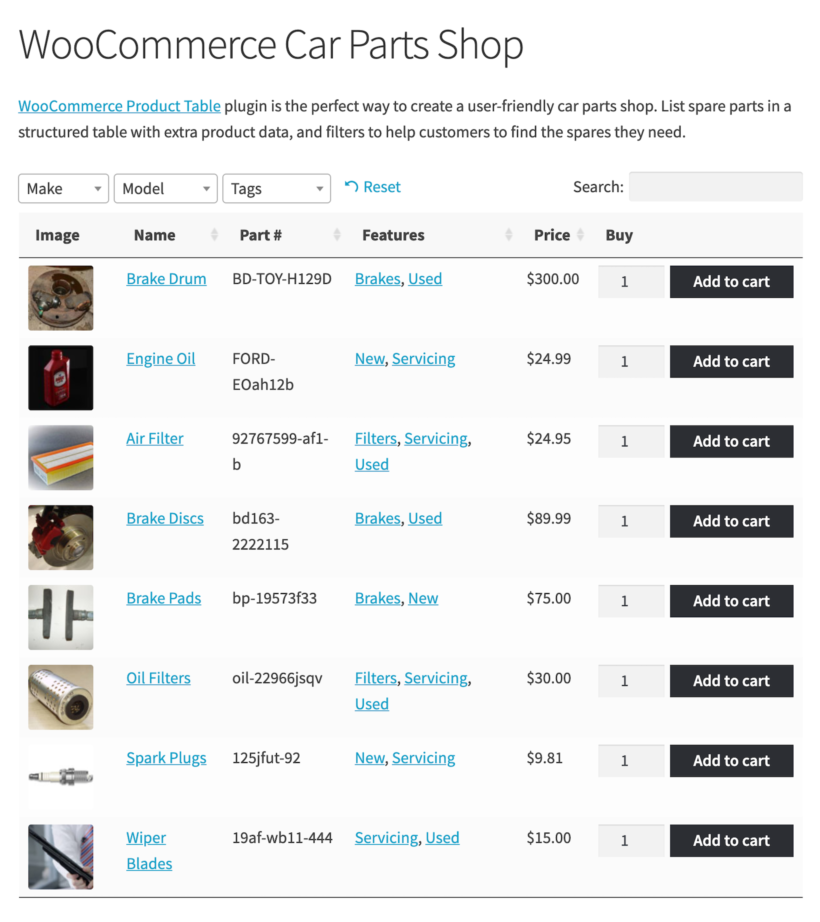
When you preview the page on your store’s front-end, you’ll notice all of the car parts are listed in a table layout.
This way, you can list all car parts in a single WooCommerce table similar to an online order form. An intuitive, single-page layout combined with search and filter options will help customers quickly find the car parts they want. This will also enable customers to view all the products and product information on the same page and place their orders.
You can also choose to split a single page into different sections, with each section containing a table listing different car parts.
Bonus! Add advanced car parts filters
So far, we've looked at how to use the filters that are built into the WooCommerce Product Table plugin. They're pretty good for selling car parts, but you can supercharge them even further by installing the WooCommerce Product Filters plugin.
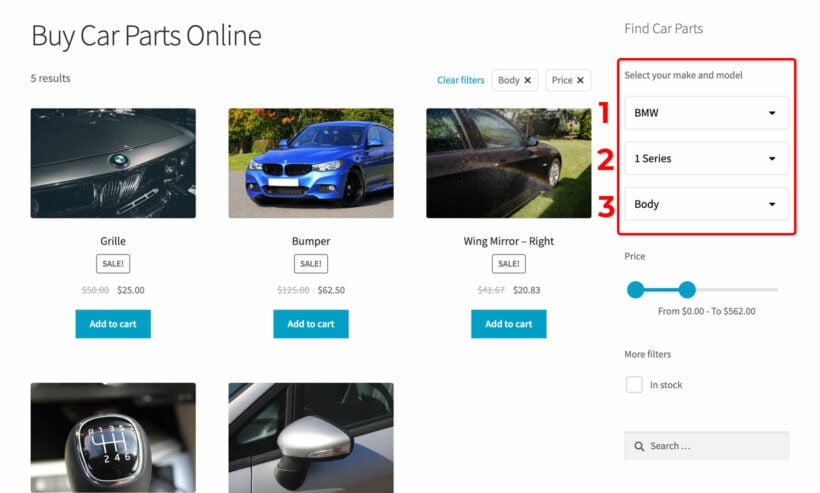
This lets you add a step filter to your car parts store. When the list of car parts first loads, the car manufacturers filter dropdown appears on the page. After the customer selects a manufacturer, a 'Car models' dropdown appears underneath. And so on, for as many levels as you set up when you added your product data:
As well as adding step-by-step dropdown filters, you can use WooCommerce Product Filters to add a wide range of other filter styles. For example, it comes with filter checkboxes, radio buttons, clickable images, range sliders, and so on. If you have lots of car parts to sell, then this is a good way to help customers find what they need more easily.
Start selling car parts online
Selling information-dense products like car parts can be difficult if you’re running vanilla WooCommerce. As a car parts retailer, you need a better solution.
The WooCommerce Product Table plugin lets you display products in a neat, front-end table layout complete with a search box and sorting functionality. In addition to this, you can use it to add dynamic filters above your product tables making it easy for customers to quickly find the exact car parts they’re looking for. By doing so, you’ll be able to increase online sales and grow your bottom line.
Ready to optimize the user experience of your online car parts store? Get WooCommerce Product Table today!
WooCommerce lists products on the shop page and product category pages. However, a standard WooCommerce installation doesn’t make it easy to add one or more products to other WordPress pages on your site. Luckily, you can use a single product shortcode to add a WooCommerce product to a page or post.
In this article, we’ll show you two easy ways to add WooCommerce products to a page or post. The products will look great and people can quickly add them to the cart without leaving the page. You won’t have to worry about styling or messing around with code.
Before we dive into implementation, it’s helpful to understand what WooCommerce shortcodes actually are. Shortcodes are small snippets of code enclosed in square brackets (like [this]) that perform specific tasks. They’re designed to be simple enough for anyone to use, even without coding experience. In WooCommerce, shortcodes let you display products, add buttons, and insert interactive features anywhere on your site. You can read our full guide to WooCommerce shortcodes for more information.
2 ways to add WooCommerce products to a page or post
There are two ways to add WooCommerce products to a page or post on your WordPress website. Skip directly to the instructions for whichever method you’d prefer:
Method 1: Add quick view buttons for individual product lightboxes
Method 2: List multiple products in a table on any page or post
Why add products to normal pages on your WordPress site?
There are several reasons why you might want to add one or more WooCommerce products to a page or post on your website. This is becoming more and more important due to changing trends in e-commerce.
The e-commerce industry is changing and online stores are moving away from the ‘traditional’ navigation structure of focusing heavily on the shop and product category pages.
Instead, products are being shown to sell well when they’re displayed in a more content-centric way. An example of this approach is when specific products are recommended and incorporated into wider content such as a sales page or blog post. The reason why this works so well is that it puts the product into context. The user is therefore more likely to buy it!
Let’s take a look at some examples:
Websites selling only one product
Businesses that only sell one product need to display their offering on sales pages and in blog posts and guides. These sorts of websites still need WooCommerce to power the back-end e-commerce functionality. However, the traditional shop and product category pages don’t make a lot of sense for this use case.
A better way to go about it is to use a page builder (like Gutenberg or a plugin) to create eye-catching content about your product and provide quick and easy ways to add the product to the shopping cart directly from that page. This is also perfect for featuring sale products.
Websites promoting products as part of a wider article or blog post
There are tons of websites that promote products as part of an article or blog post.
Food blog
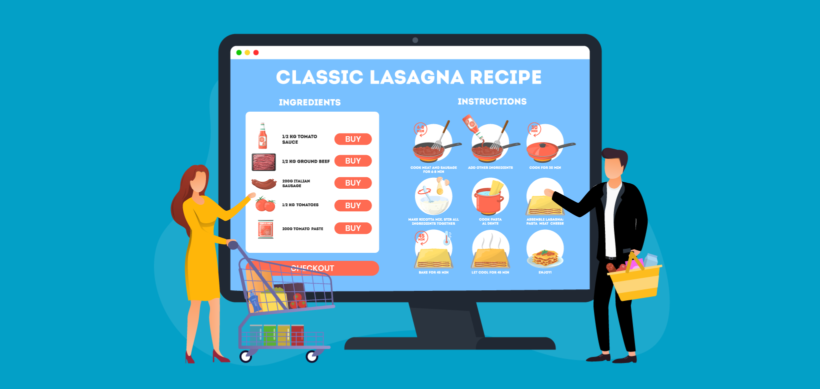
For example, if you run a food blog, you might have a recipe page that includes a table listing all of the ingredients from the recipe as products. This way, readers can quickly buy them without leaving the page. These might be products that are sold directly on your website or affiliate products where the Buy button links to a third-party website (like Amazon or Tesco).
Fashion blog
If you run a fashion blog, you might publish an article about the latest trends, featured products, or the best selling products. Your article might list examples to illustrate each point along with Buy buttons linking to recommended garments. This also works for a Get the Look type blog post in which you dissect a trending look and list featured products to make it easier for customers to buy.
Tech website
And if you run a tech website, you could include an article reviewing the latest gadgets with Buy buttons for each gadget embedded directly on the page. This is much more user-friendly than having to click through to the shop page or even a separate product page for each item. Customers can simply choose the products they’d like to purchase and add them to their shopping cart in one go and proceed to the checkout page. You can also display recent products and related products.
Method #1: how to add one product to a page
WooCommerce comes with two built-in shortcodes that let you display a single product on any page or post: [product] and [product_page].
Use [product id="123"] to show a product with a specific ID. This shortcode displays a compact version of the product, typically including the title, price, and add to cart button.
Use [product_page id="123"] to embed the full product page, including the full description, reviews, and tabs.
To find the product ID, go to the Products section in your WordPress dashboard. Hover over a product title and look at the bottom of your screen - the ID will appear in the URL preview as something like post=123.
While these shortcodes are simple and effective, they redirect the customer to the full product page to complete the purchase. For a smoother shopping experience, we recommend adding Quick View buttons to your site with a simple plugin such as Quick View Pro. It works beautifully with WooCommerce shortcodes by letting customers open a product lightbox directly from the page they’re on. That way, they can view more details, select options, and add the product to their cart without any page reloads.
You can use the plugin’s single product shortcode to insert a Quick View button anywhere on your website.
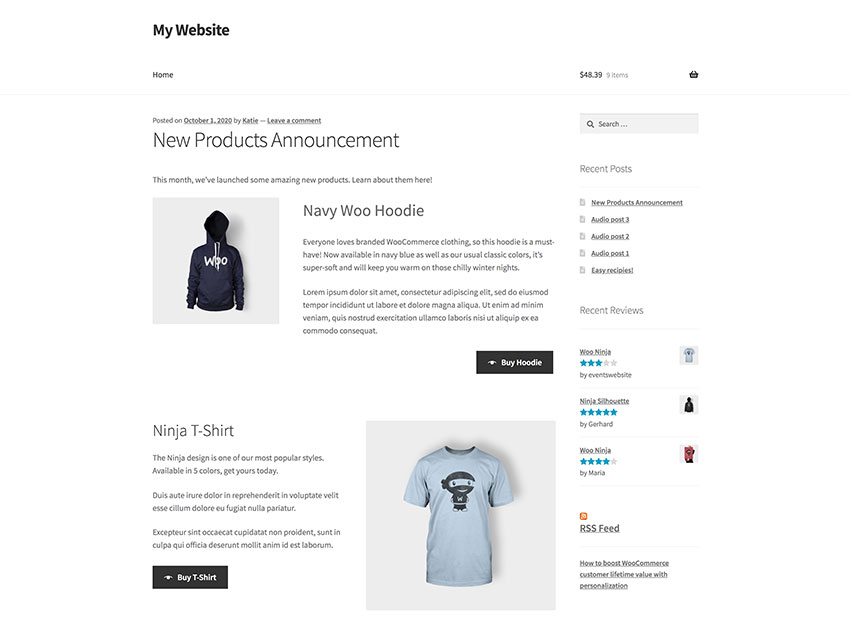
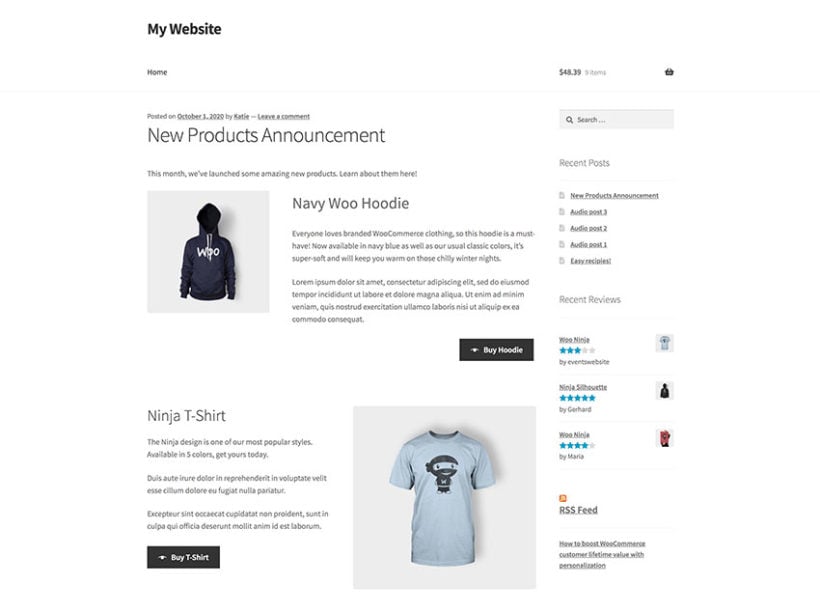
Example of a blog post with two product quick view buttons, each added via a shortcode
Go to the page or post you want to add the quick view button and insert the [quick_view id="123" text="Buy T-Shirt"]WooCommerce shortcode.
Replace 123 with the ID of the WooCommerce product you want to show.
Replace Buy T-Shirt with a suitable call to action.
Head over to WooCommerce → Settings → Products → Quick view and scroll down to the Product details section to select the different product details that will appear in the lightbox:
Whenever a potential customer clicks on the Quick View button, it opens a lightbox containing product information. This way, customers can learn more about the product and add it to their WooCommerce cart without being taken away from the page they’re currently on.
Here are some actionable tips on how to optimize your page for conversions:
Add the quick view button immediately after a large image and overview of the product. This improves the button’s visibility and customers will be more likely to click on it!
Reword the button text to make it relevant to your use case. You can set it to Buy Now if it’s a simple product or Select Options if you’re selling a variable product.
Method #2: how to list or embed multiple products on a page using a single product shortcode
The best way to list multiple WooCommerce products on a page or post is in a product table layout. This makes it easy for visitors to see all of the products at a glance and view product details without having to click through to the single product page. The best part is that they can select options and purchase products directly from the page they’re on.
I recommend using the WooCommerce Product Table plugin to list specific products on your page or post. This versatile plugin lets you specify the products you’d like to list by product category, tag, or product ID.
You can choose what information to show about the product and include quantity pickers, variation dropdowns, and add to cart buttons (or even multi-select checkboxes) directly in the table. It also lets you display specific types of products such as best-selling products.
In this way, people can quickly find everything they’d like to purchase and add the products to their shopping cart without leaving the current page.
Navigate to Products → Product Tables and create your first table:
Select the option to add tables to a page manually.
Choose which products to include in the table. For this use case, you'll generally want to select an individual product which you will be adding the table to. However, if you're planning to display other products on the single product page then you can select them here.
Set the table columns to Image, Name, Description, Price, and Buy. You can also display additional columns like SKU, depending on your needs.
The final page of the table builder will provide a WooCommerce shortcode to add to the single product page. Copy this to your clipboard.
Go to the product page where you want to add the product table to and insert the WooCommerce single product shortcode.
How to embed products with special product shortcodes
Beyond the basic shortcodes for individual products, WooCommerce offers several powerful shortcodes you can use to embed multiple products on a page. These shortcodes are perfect for highlighting specific product collections and work especially well when you're looking to display WooCommerce multiple products on one page—whether it’s a homepage, blog post, or custom landing page.
Here are some of the most useful shortcodes:
Best-selling products: Display your top performers with [best_selling_products per_page="6" columns="3"]
On-sale products: Highlight discounted items with [sale_products per_page="6" columns="3"]
Featured products: Showcase items you've marked as featured with [featured_products per_page="6" columns="3"]
Recent products: Display your newest additions with [recent_products per_page="8" columns="4"]
Top-rated products: Show your highest-rated items with [top_rated_products per_page="6" columns="3"]
Related products: Display products related to the current one with [related_products per_page="4"]
Each of these shortcodes gives you an easy way to embed WooCommerce products on a page, without needing to write any custom code. You can control how many products are shown and how they're arranged using the per_page and columns parameters.
If you want to embed WooCommerce multiple products on one page, these shortcodes provide a flexible and efficient solution. They're especially useful for promoting best sellers, seasonal discounts, or curated product selections — all within the layout of your choice.
Bonus: combining both methods
What if you want to list multiple products on your page or post and want to display them in a lightbox?
Create a table via Products → Product Tables → Add New.
Set up the table as needed. When you add your table columns in the table builder, include a 'Quick view' column.
Go to the page or post you want to add the table to and insert the product table shortcode.
Troubleshooting common shortcode issues
Shortcode not displaying properly Ensure you haven't accidentally embedded the shortcode within <pre> tags. Check the HTML editor to remove these tags if present.
Shortcode not displaying multiple products If you're using a shortcode like [products] and only one product appears, it's likely due to missing or incorrect parameters. Double-check that you're using attributes such as ids, category, or tag to tell WooCommerce which products to display. For example: [products ids="12,34,56"] Also make sure the products you're trying to show are published, in stock, and not set to hidden from the catalog.
Shortcode not working in specific themes Some themes may have compatibility issues with WooCommerce shortcodes. Try using a basic WordPress theme temporarily to test if this is the issue.
Debugging steps If shortcodes still aren't working, try disabling other plugins temporarily to check for conflicts, verify your WooCommerce installation is up to date, and ensure your theme is compatible with your WooCommerce version.
Start using WooCommerce single product shortcode plugins
Instead of struggling with the WooCommerce plugin, you can use WooCommerce Quick View Pro or WooCommerce Product Table to add one or more products to pages and posts on your WordPress website. It’s incredibly easy to set up and you don’t have to worry about messing around with CSS styling.
And the best part is that it helps you deliver a better user experience. Customers can read through your content, make an informed purchasing decision, and buy the product(s) directly from the page they’re on.
Everyone wishes to live in a picturesque atmosphere, but in modern times, we are encircled by man-made constructions that has increase the solitariness from the natural world. Without a doubt, gardening is a pleasurable hobby, and there are a number of other advantages to take into account.
With the increasing era of technology and the business model for plant nurseries and center can help people's growing interest in gardening. Therefore, if you have a deep love for nature and a passion for gardening, you can consider beginning an online plant business to assist people achieve their goals. The good news is that you can set up a garden center online shop using WordPress and WooCommerce in a few simple steps.
In this complete, guide, we’ll show you step-by-step how to set up a garden center in WordPress. This will enable you to continue running your business even if you can't serve as many customers in person, which can make a big difference to your sales.
You’ll learn how to set up a garden center store in WordPress using the WooCommerce Product Table plugin.
Why garden centers need to start selling online
During the Coronavirus outbreak, businesses of all sizes were looking for ways to stay operational. However, with social distancing policies and lockdown restrictions, it sometimes proved to be difficult to sell to customers from a brick-and-mortar store.
Fortunately, as a garden center owner or florist, you can set up an online store so you don’t miss out on sales. It’s also a great way to reach more customers and potentially increase sales. As well as selling to local customers who would normally visit you in person, you can extend your reach to a national or even international audience.
You can add products to your garden center store and allow customers to browse and purchase them from home. You can choose to ship products to customers or offer in-store (or curbside) pickup options.
Setting up a garden center in WordPress
The first thing you need to do is set up an easy-to-use website for your garden center. The easiest way to do this is by using WordPress and WooCommerce. Since WordPress is open-source, you’ll have complete ownership over your garden center online store.
If you already have a non-ecommerce website for your garden center, don't worry. Simply link this to your WordPress WooCommerce online store and vice versa.
Here's what you need to do:
WordPress. Start by installing and setting up the WordPress.org CMS on your hosting server.
WooCommerce. Install the WooCommerce plugin on your WordPress website to enable e-commerce functionality.
WordPress theme. You’ll need a gardening WordPress theme or a drag-and-drop page builder plugin to create an attractive website. There are plenty of free WordPress themes to choose from. This will help you deliver good user experience to customers.
Product categories. Your garden center online store will likely have multiple product categories if you sell a variety of different types of products. This makes it easier for customers to quickly find the products they’re looking for.
Navigation menu. You can set up your menu by going to Appearance → Menus from the WordPress admin panel. Depending on the types of products you sell, you can list product categories in your navigation menu or simply link to the main shop page.
Once you've set that up, you can set up a garden center online store in WooCommerce.
WooCommerce Product Table: the perfect plugin for setting up a garden center store
The WooCommerce Product Table plugin is perfect for setting up a garden center store in WordPress. It lets you display products in a front-end table layout with search, sort, and filter options. This way, customers can quickly find the products they’re looking for and add them to their shopping cart.
As compared to the default store layout you get with WooCommerce out of the box, the WooCommerce Product Table plugin lets you showcase your garden center products in an order form layout. You can choose which columns to display in your product table.
This way, customers don’t have to visit the single product page to learn more about each item, select variations, or add it to their shopping cart. Instead, customers can view product details, set the quantity selector, tick the checkboxes next to the products they’d like to purchase and add them to cart in one go.
How to set up a garden center in WooCommerce
Once you’ve set up your WordPress website, follow the steps below to set up a garden center in WordPress using the WooCommerce Product Table plugin.
Step 1: Add garden center products to your online store
Start by adding products to your garden center e-commerce store as individual WooCommerce products. If you sell a variety of different products – plants, flowers, seeds, soil, planters, lawn care products – then we recommend creating categories to keep them organized. This also makes it easier for customers to quickly find the garden products they’d like to purchase.
Head over to Products → Add New from the WordPress admin panel to add each item as a WooCommerce product. Enter a title, brief description, product image, and price for each item. Finally, select the appropriate category for the product. Click the Publish button to continue.
Step 2: Configure the WooCommerce Product Table plugin settings
Once you've bought and installed WooCommerce Product Table, go to Products → Product Tables in the WordPress admin. From here, you can set up the order forms for your garden centre products.
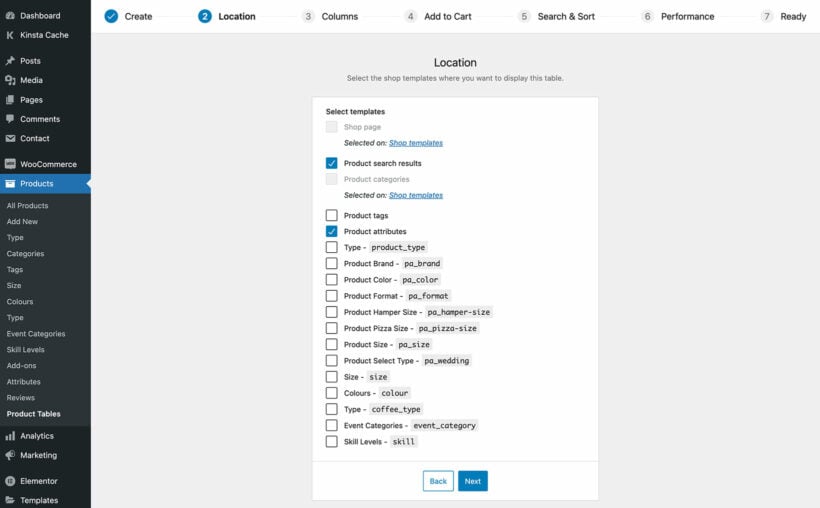
2a. Choose where to display the product tables
On the first page, select the 'Display on a shop page' option. This means that you will be enabling the product table layout on your main garden centre shop pages:
Once you've done that, the next page will let you choose exactly which of your WooCommerce store pages will use the table layout. You should probably enable them all:
2b. Choose which product data to display on the garden center shop page
The 'Columns' page lets you choose which columns of product data appear on your main garden center shop pages. For example, you might consider displaying the product image, name, short description, price, and add to cart options. You can also display reviews and stock.
2c. Customize the add to cart column
If you included a 'Buy' column then the 'Add to cart' page lets you customize this. Think about these optiojns carefully because they can encourage customers to buy more from your garden center website!
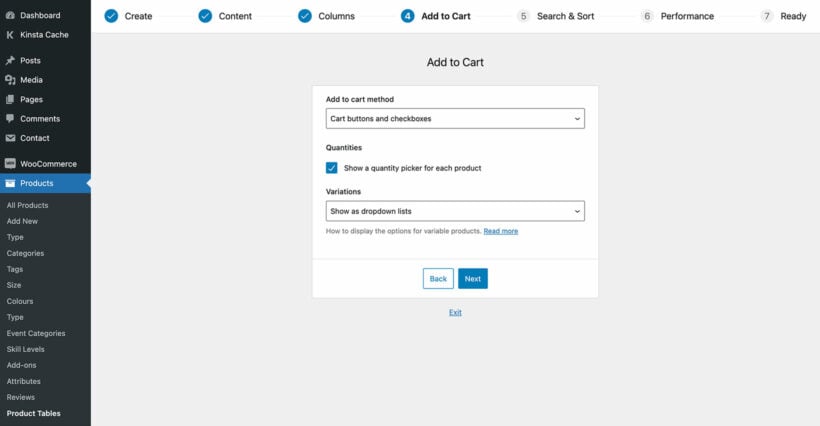
Set the 'Add to cart method' to Button and checkbox using the dropdown menu. Also make sure the Quantities checkbox is ticked.
I recommend because people often buy multiple garden center products at once. For example, a customer might purchase a few planters, soil, and seeds. They can then use the checkboxes to select the products they’d like to purchase and add them all to their cart in one go. In addition to this, they can use the quantity selector to buy more of each item.
2d. Let customers find the garden center products more easily
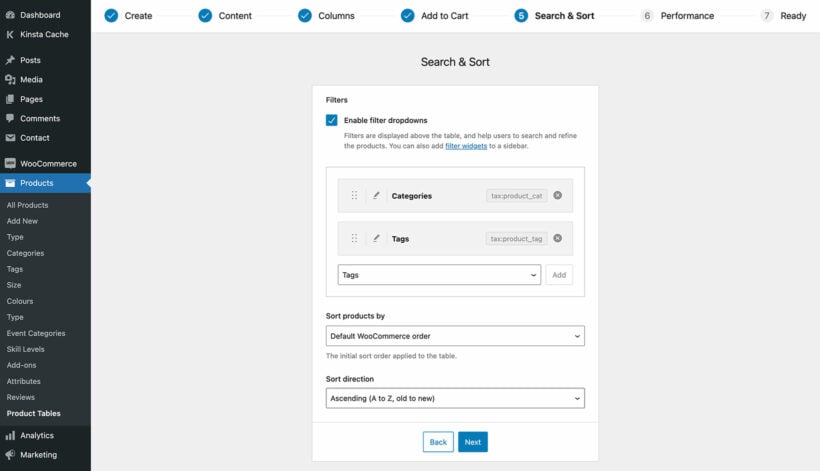
Most garden centers have many different product categories such as plants, flowers, planters, soils, seeds, lawn care products, and gardening tools. You can let customers filter the items in the table by categories. To do this, add 'Categories to the list of filters on the 'Search & Sort' page. If you're using tags to further differentiate your products, then you can add a tag filter too.
Step #3: Display products on the front-end
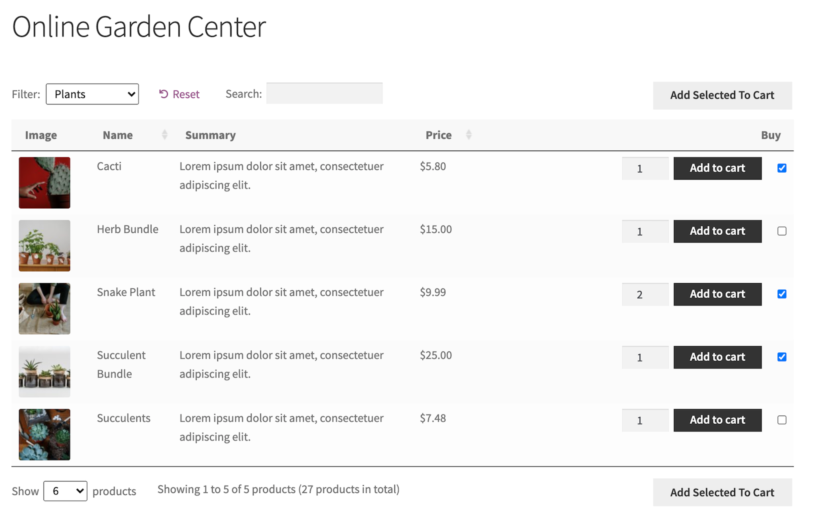
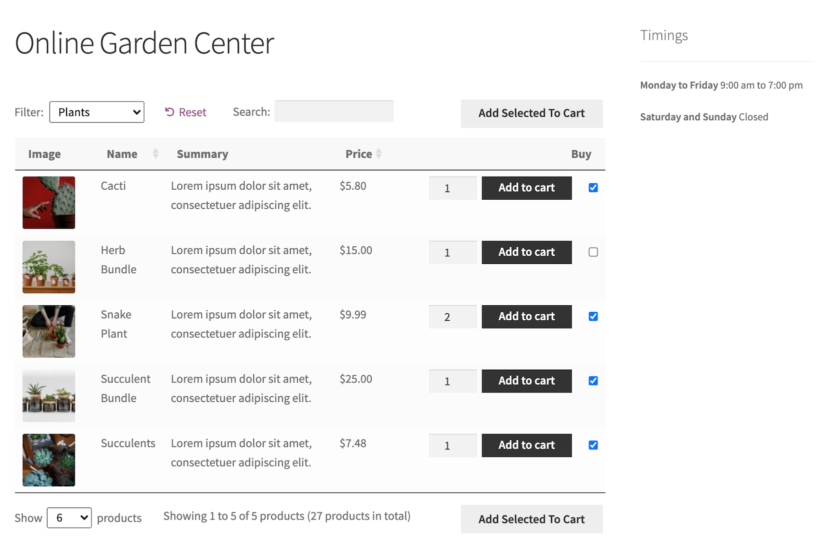
The WooCommerce Product Table plugin automatically replaces the default WooCommerce shop page layout with the table layout. Your shop page should look something like this on the front-end:
Customers can use the filter options to view the category they’d like to purchase from. They can tick the checkboxes next to the products they’d like to purchase and set the quantity selectors to add multiple products to their cart at once. If you sell variable products, customers will be able to choose the variation they’d like to buy directly from the main shop page.
Bonus: Adding extra features to your garden center website
To enhance the user experience your garden center website delivers, you can add other features to it. The sky's the limit wit WordPress and WooCommerce, but here are some examples.
Provide advanced filters to help customers to find products more easily
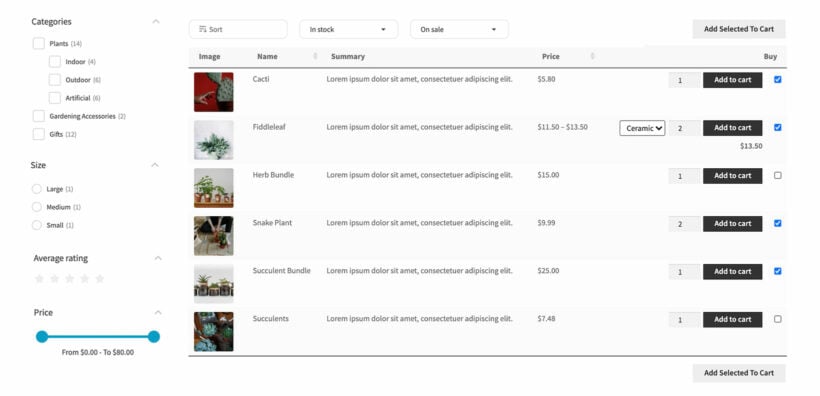
The WooCommerce Product Filters plugin works perfectly with WooCommerce Product Table, and adds even more advanced filtering options to your store:
A garden centre website using both WooCommerce Product Table and WooCommerce Product Filters
As you can see in the screenshot above, you can use WooCommerce Product Filters to add user-friendly features above and/or next to the list of products. This is perfect for garden centres with lots of products, and helps customers to narrow down their selections and make quick decisions.
Add opening and closing hours
If you have set opening hours and closing hours, you can add a text widget to the sidebar to display them on every page throughout the site.
Go to Appearance → Widgets from the WordPress dashboard and add a Text widget to the sidebar. Enter a title and your opening and closing times.
You can also use widgets to display other information such as testimonials, featured products, on sale products, photo galleries, or garden care tips. For best results, use a free plugin like Widget Context to show different garden care tips on different product categories. This will add value to your customers and is a good way to subtly encourage them to buy more.
Set up your garden center store today
By setting up a garden center website, you can continue running your business during the lockdown. The best part is that you can do this whether you have a physical store or not.
Once you have your WordPress website set up with the WooCommerce plugin installed on it, it only takes a few minutes to set up a complete garden center website. Start by adding garden center products as individual WooCommerce products. Next, configure the WooCommerce Product Table plugin’s settings to display products in a table layout.
You can set up a similar online store if you’re in the gardening business or the landscaping business.
As an online store owner, you might want to offer different payment options to different types of customers. This complete guide will tell you everything you ever wanted to know about how to set up WooCommerce payment by user role. In other words, we'll explain how you can show different payment options to different users based on their user role.
Out of the box, the WooCommerce plugin shows the same payment options to all of your customers – regardless of their user role. But what if you want to offer different WooCommerce payment gateways by user roles to different types of customers?
The easiest way to set up WooCommerce payment by user roles is by using the WooCommerce Wholesale Pro plugin. It’s incredibly easy to set up and you can choose which user role(s) can see available payment gateway in WooCommerce.
What is WooCommerce payment by user role
WooCommerce payment restrictions by user role display different payment gateways to specific customer groups based on their assigned WooCommerce user roles.
This allows store owners to tailor checkout options for wholesale buyers, retail customers, admins, or any other role. Instead of showing the same payment methods to everyone, you can control visibility based on user type.
There are several ways to implement role-based payment restrictions in WooCommerce:
Plugin solutions: Extensions that provide user interface controls to assign specific payment gateways to selected roles.
Custom code: Use filters like woocommerce_available_payment_gateways to programmatically manage gateway visibility based on user roles.
Hybrid approaches: Combine plugins with custom rules for more granular control and flexibility.
These methods vary in complexity, from plug-and-play tools to developer-level solutions.
For this tutorial, we'll use WooCommerce Wholesale Pro because it offers an intuitive setup process and integrates seamlessly with WordPress user roles.
Why you might want to offer different payment methods to different customers
There are plenty of reasons why you might need to offer different payment methods to different types of customer. Here are some use cases for when you might consider showing WooCommerce payment gateways by user role:
Wholesale customers or B2B buyersYou can set up WooCommerce payment by user roles to offer popular online payment options – such as PayPal, Stripe, or credit card – to retail customers and additional payment options – such as invoice, cheque, cash on delivery, or bank transfer – to regular wholesale customers.
Offline payment options for trusted customersYou might want to create a user role for loyal customers and offer them extra payment methods such as invoices. Users with the Customer role and guest users, on the other hand, will only have the option to make payments online at the time they place their order.
Different payment terms for different groups of customersSome online stores offer different payment terms and shipping methods depending on the customer’s past behavior. For example, reliable payers might qualify for a WooCommerce pay later system or longer payment periods.
Test payment gateways for administrators and shop managersMost online store owners have a separate staging site that they use for testing payment methods. Others temporarily activate an offline payment gateway such as Check and use this whenever they want to test their live checkout. It’s best to permanently add a test payment method and only make it visible to Administrators and Store Managers only, not users with the Customer role.
Offering different payment gateways to different customers based on their user roles helps you deliver a better, more personalized customer experience. As a result, this can help you boost sales.
Available plugins for WooCommerce payment by user role
Several plugins support conditional payment gateways in WooCommerce based on user roles. These tools vary in scope, user interface, and feature depth, but all allow for role-based payment control.
WooCommerce Role Based MethodsAn official extension from WooCommerce.com that enables store owners to restrict both payment and shipping methods by user role. It integrates directly into WooCommerce settings and supports a wide range of use cases.
Payment Gateways by User RolesA lightweight community plugin that lets users assign specific payment gateways to selected roles. It provides a simple interface for enabling or disabling methods on a per-role basis.
WooCommerce Wholesale ProA premium plugin that includes full support for wholesale features. In addition to payment gateway restrictions by role, it supports role-based pricing, user registration, and content visibility.
Each of these plugins offers a valid approach depending on the size and complexity of your store. Some focus purely on payment logic, while others include broader features for B2B ecommerce or customer segmentation.
We'll demonstrate the setup process using WooCommerce Wholesale Pro due to its comprehensive feature set and seamless integration with user roles in WordPress.
How to set up WooCommerce payment by user role
For this tutorial, we’ll assume you already have the free WooCommerce plugin installed and set up on your WordPress website.
Step #1: Install and activate WooCommerce Wholesale Pro
Get the WooCommerce Wholesale Pro plugin and install and activate it on your WordPress website. Head over to WooCommerce → Settings → Wholesale → General and enter your license key.
Click the Save changes button at the bottom of the screen to continue.
Step #2: Create multiple user roles
WooCommerce itself creates a default 'customer' role for your retail buyers. The WooCommerce Wholesale Pro plugin automatically creates a 'wholesale' role for you. This gives you two roles to start with.
You can create as many additional WooCommerce user roles as you like. It’s the easiest way to create custom roles.
First, consider whether you actually need any extra roles. For example, if you want to offer retail customers the option to pay via PayPal, while letting wholesale buyers make check payments or direct bank transfer, then you don't need to create any new roles. Simply set the visibility for each payment gateway so that 'customers' can see the PayPal option; and 'wholesale' users can see the check and bank transfer options.
To create additional roles, head over to the plugin settings at WooCommerce → Settings → Wholesale → Roles and click the Add new role button. Next, enter a Display name and Discount amount for the user role, if applicable.
Click the Add role button to continue.
Step #3: Add payment options in WooCommerce
If you haven’t done so already, go to WooCommerce → Settings → Payments → Payment methods and enable the specific payment options you’d like to offer your customers. Disable any payment gateways that you don’t want to offer to any user role.
Click the Save changes button to continue.
Most major gateways are compatible with role-based payment restrictions. If you're using a third-party gateway plugin, check that it integrates properly with conditional payment logic in WooCommerce.
Step #4: Select which user roles can use each payment option
Finally, go to WooCommerce → Settings → Payments → Payment roles to select the specific user roles that can use each payment method.
The WooCommerce Wholesale Pro plugin lists all the enabled payment methods so that you can control each one individually. By default, all user roles are selected for each payment option. Click the X to remove the roles that you don't want to see specific payment gateways.
It’s a good idea to keep the Administrator and Shop Manager user roles enabled for every payment method, in addition to the customer roles which will actually be buying online. This will make it easier for you to test the different payment methods.
Preview
When customers add products to their shopping cart and proceed to the checkout page, they’ll see payment options depending on their user role. For example, when users with the Customer user role reach the checkout page, they’ll have the option to make their payment via PayPal. It will look something like this on the front-end:
On the other hand, wholesale users will see Direct Bank Transfer and Check Payments as the available payment methods:
Custom code solutions use WordPress filters to control payment gateway visibility. The woocommerce_available_payment_gateways filter allows developers to conditionally show or hide payment methods based on user roles, cart contents, or other criteria.
This method provides granular control but requires PHP knowledge and a strong understanding of WooCommerce’s internal structure. Developers often create custom functions that detect the current user’s role and then modify the array of available gateways before checkout.
While powerful, this approach introduces potential maintenance challenges. WooCommerce updates may change how filters behave, and debugging payment logic can become time-consuming without a user interface to manage the conditions.
Some stores also use hybrid solutions, combining lightweight custom code with a plugin that handles broader role management. This allows for tailored functionality without writing everything from scratch.
For store owners without technical expertise, using a plugin is typically the most practical option. It eliminates the need for ongoing code maintenance and provides a visual interface for managing payment rules.
We recommend using a plugin like WooCommerce Wholesale Pro to implement payment restrictions quickly and reliably, without touching code.
Where to get the plugin
The WooCommerce Wholesale Pro plugin lets store owners create multiple user roles and set up WooCommerce payment by user role in a few simple steps. It also lets you offer different shipping methods to different user roles.
It’s a great way to deliver a better user experience through your e-commerce store and make it easier for customers to pay you. As a result, you can effectively boost sales and grow your bottom line.
The plugin comes complete with:
Quick plug-and-play setup.
In-depth documentation and video tutorials (there's no way to get it wrong!).
Technical support and personalised advice.
30-day money-back guarantee - love it or get a full refund!
In this article, we’ll cover everything you need to know about how to set up WooCommerce shipping by user role on your WordPress website.
If you use WooCommerce to power your e-commerce store, you probably already know that the plugin offers lots of flexible shipping options out of the box. These include multiple shipping zones, the ability to let customers choose between different WooCommerce shipping methods, and the option to offer free shipping based on the amount spent. However, the free WooCommerce plugin doesn’t let you offer different shipping options to different customers based on their user role.
The solution is to use the WooCommerce Wholesale Pro plugin to charge role-based shipping fees. Keep reading to learn how you can add WooCommerce shipping by user role to your e-commerce store in under 15 minutes 🚀.
Why offer WooCommerce role-based shipping?
Depending on the type of ecommerce store you’re running, you might consider offering different shipping methods to different customers based on their WooCommerce user role. Here are some use case scenarios where it makes sense to set up shipping by user role:
WholesaleLet’s say you sell to both retail customers and wholesale buyers. You could offer free shipping to your retail users only, or offer additional bulk shipping or table rate shipping options for logged-in wholesale users. Alternatively, you could offer free shipping to your top-tier wholesale user roles only. You would simply move wholesale users to the top-tier as a special benefit after they spend a certain amount at your store. Normal wholesale users would continue to pay for shipping i.e. they’ll only see flat rate shipping.
Members-only sitesIf you run a membership shop alongside your public-facing store, you could sell to regular customers and charge them for shipping while members get access to benefits such as discounted (or free) shipping options. This way, you don’t have to absorb shipping costs for all customers.
Logged-in customersYou can offer discounted shipping rates to customers who are logged into their user accounts. In this case, guest users (i.e. logged out users) would have to pay the full shipping rates. In other words, you can pass on shipping costs to guest users.
There are plenty of ways you can set up WooCommerce shipping by user role depending on the type of store you’re running and the different customers you sell to. And the easiest way to do this is by using the WooCommerce Wholesale Pro plugin.
WooCommerce Wholesale Pro - the perfect way to restrict shipping by user role
WooCommerce Wholesale Pro makes it incredibly easy for e-commerce store owners to set up shipping by user role. The plugin lets you create an unlimited number of user roles and assign different shipping options to each one.
For example, you can decide which shipping options to make available for retail and wholesale customers. You might offer local pickup options and free shipping to your wholesale customers and free shipping to retail customers. This is a great way to personalize the customer experience your WooCommerce store delivers based on the customer’s user role.
In addition, you can use the WooCommerce Wholesale Pro plugin to charge different prices per product and offer customers different payment gateways (i.e. payment methods) based on their user role. This is great for when you need to give wholesale customers the option to make payments via invoice or direct bank transfer, while retail customers can only pay using an online payment gateway such as credit card, Stripe, or PayPal.
For this tutorial, we’ll assume you already have the free WooCommerce plugin installed on your WordPress website.
Step #1: Get the WooCommerce Wholesale Pro plugin
Get the WooCommerce Wholesale Pro plugin and install and activate it on your WordPress website. You’ll receive the plugin files along with a license key in the confirmation email. Activate your license key in the setup wizard.
Step #2: Create user roles
WooCommerce itself comes with a basic 'customer' role, and WooCommerce Wholesale Pro creates your first 'wholesale' role when you first install it. You can create as many additional user roles as you’d like.
To do this, head to WooCommerce → Settings → Wholesale → Roles and click the Add new role button to create a new WooCommerce user role. For example, you might create an extra custom role for Wholesale Customers:
You can give each user role a display name, discount, and choose to enable product-specific pricing.
Once you’ve created the user role, click the Save changes button.
Step #3: Configure shipping zones in WooCommerce
Go to WooCommerce → Settings → Shipping → Shipping zones to set up regions and shipping methods from the shipping settings screen. You can create custom shipping zones based on your online store and the shipping service you’d like to offer. For example, you might create a Local Shipping Zone and offer customers local pickup and free shipping options. You can also add shipping zones for sales within your country, international orders, etc.
For each shipping zone, add as many shipping methods as you like:
To do this, click the Add shipping method button and use the dropdown menu to select the shipping method you want to add.
If you want to charge different shipping prices to different user roles, then enter each one as an additional shipping option. For example, if you're charging a flat rate of $9.99 to normal customers and $19.99 to wholesale users, then create two different flat rate options.
Once you’ve added all the shipping methods for that zone, click the Save changes button to continue. Repeat the process to add shipping options to your other zones.
Step #4: Assign user roles to available shipping methods
Now you’ve set up shipping zones and shipping methods, head over to WooCommerce → Settings → Shipping → Shipping roles in the WordPress admin.
You’ll see a list of all the different shipping methods, divided into separate sections for regular and wholesale users:
Offer different shipping methods per user role
By default, wholesale roles will be assigned to the wholesale shipping options and other roles will be assigned to the regular shipping options. Feel free to change this as needed to control which user roles can see each shipping option. When you delete user roles from specific shipping methods, users with these roles will be unable to see the shipping method on the WooCommerce checkout page.
For example, you might offer local pickup options to Wholesale Customers and free shipping to the Customer role. To do this, simply remove all the roles that should not have access to each shipping method.
Pro tip: It’s a good idea to add the Administrator (or the Shop Manager) user role to each shipping method. This makes it easy for store owners to test out the different shipping options to make sure everything is working properly.
Preview
That’s it! When you add products to your shopping cart and proceed to the checkout page, you should see the correct shipping methods for your user role. More specifically, here’s what you’ll see if you’re a guest user, retail customer, and wholesale customer:
1 - Guest users
2 - Customers
3 - Wholesale customers
Bonus: Show shipping costs per user role on the product page
Before we finish, I'll give you a tip which will make it much easier for your users to see the shipping costs for their role.
Normally, WooCommerce is terrible at this because it only displays shipping costs on the checkout page. You can fix this by using the WooCommerce Shipping Calculator plugin to let customers enter their location and view the cost for their role directly on the product page.
This significantly improves on the default WooCommerce shipping calculator by making shipping information available when the customer needs it the most.
If the customer is logged into their account then they will see the correct shipping cost for their user role. Perfect!
Although WooCommerce offers tons of shipping options out of the box, it doesn’t let you set up shipping by user role. The easiest way to do this is by using a WooCommerce shipping plugin with the extra features you need - and WooCommerce Wholesale Pro is perfect for this.
You can create as many user roles as you’d like, configure WooCommerce shipping zones, and assign user roles to the available shipping methods. It’s incredibly easy to set up and you don’t have to mess around with code.
You get:
Quick plug-and-play setup for the plugin.
In-depth documentation (there's absolutely no way to get it wrong).
Expert technical support if you need any help.
30-day money-back guarantee. Love it or get a full refund!
Get the WooCommerce Wholesale Pro plugin and add WooCommerce role-based shipping to your online store.