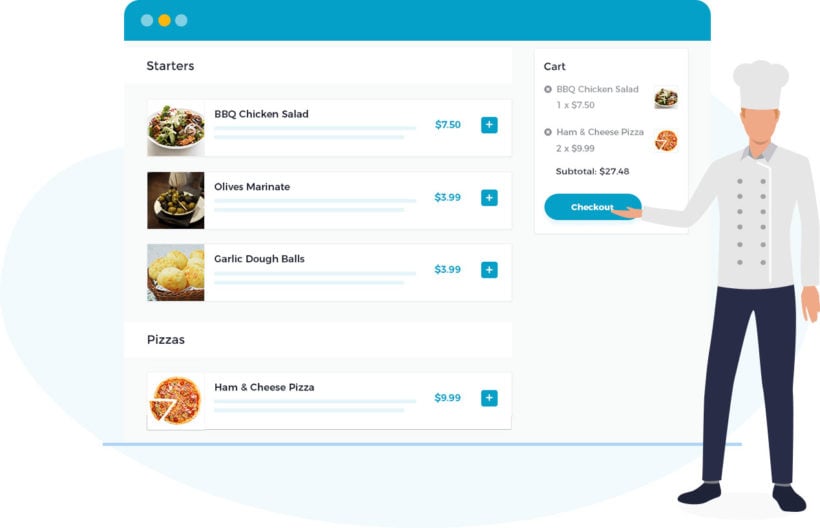
WooCommerce Restaurant Ordering, the ultimate food order system for WordPress, is now available. We’ve built it during the coronavirus lockdown to help restaurants make the switch to taking orders online. Keep reading to discover how the plugin can help your restaurant, and where to get it.
Across the world, the COVID-19 pandemic forced thousands of restaurants and food outlets to close their doors. Suddenly, they were only allowed to sell takeaway food or offer home delivery. Dining in and ordering at the table, bar or counter were no longer an option.
Since then, restaurants have been trying to adapt to a new way of life. To meet social distancing guidelines, tables must be spaced further apart, and fewer customers can receive table service. This has a big impact on restaurants’ profit margins, as it reduces capacity while running costs remain the same.
But the good news is that there is a way to stay profitable. The solution is to set up online ordering for your restaurant so that customers can order food remotely for home delivery and/or collection.
Why we built a WooCommerce restaurant plugin
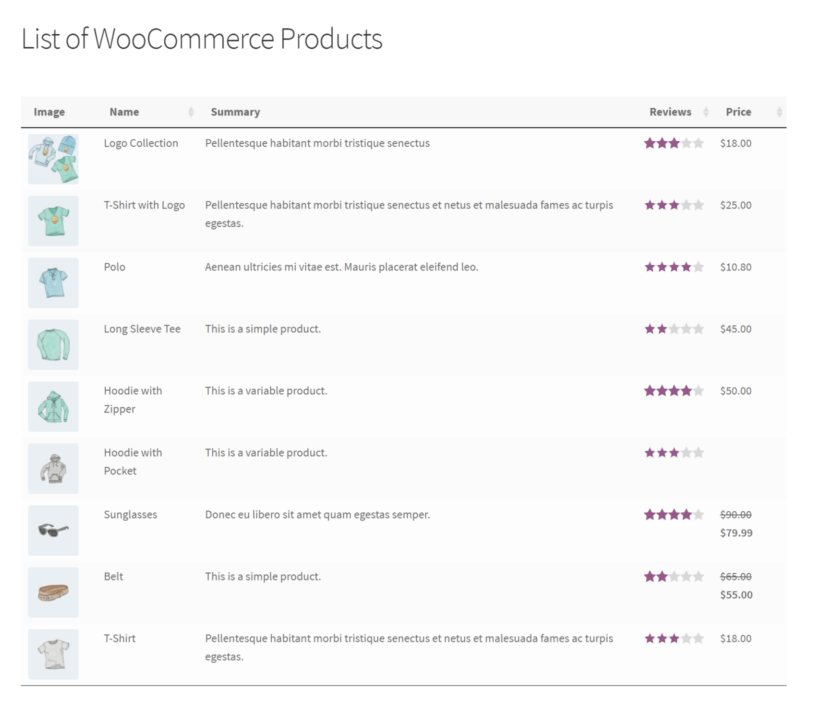
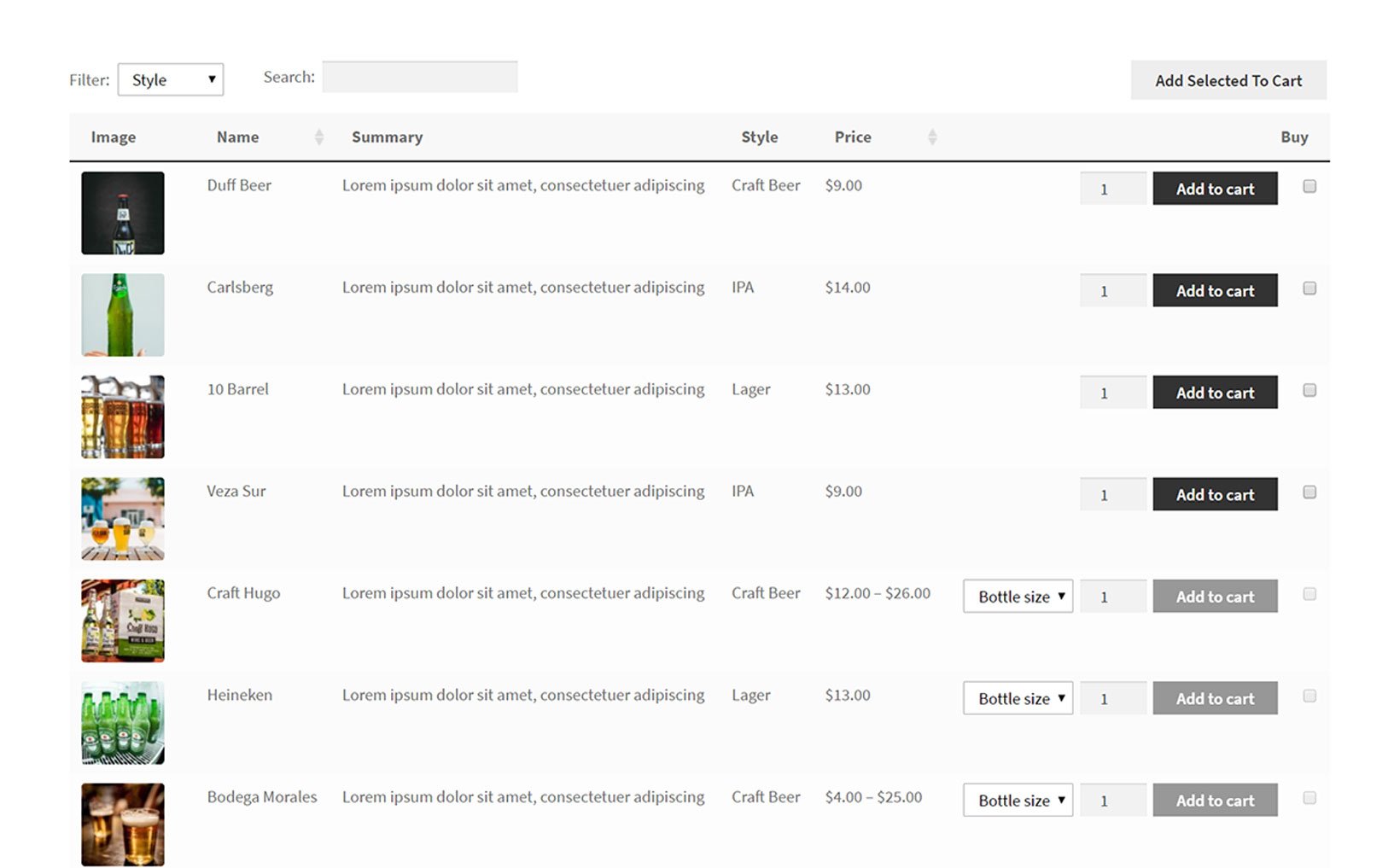
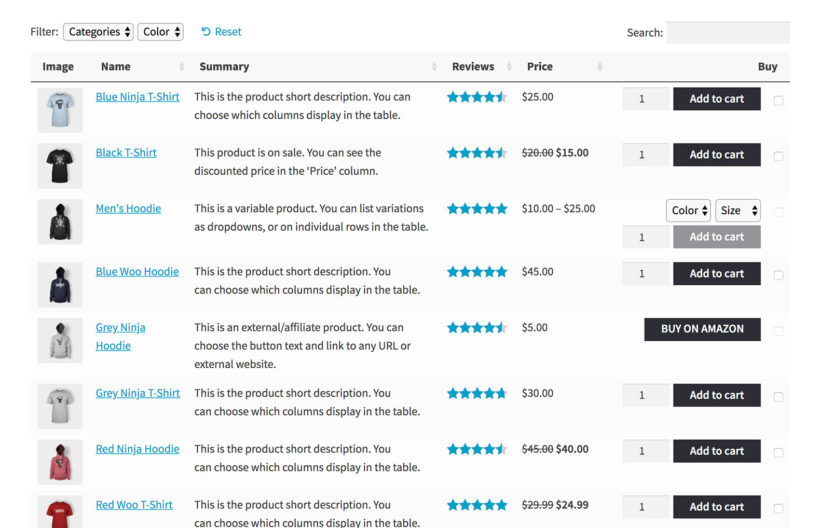
Ever since we launched our WooCommerce Product Table plugin in 2016, it has been hugely popular with restaurants wanting to sell food online. It lists restaurant foods in a space-saving table layout, with quick ‘add to cart’ boxes that are ideal for ordering food. However, we didn't design it specifically for selling food, and it has many features that restaurants don’t need.
We’ve looked at how restaurants use WooCommerce Product Table to sell food online, and have used this information to design the perfect WooCommerce restaurant plugin. The result is WooCommerce Restaurant Ordering, released today!
We designed WooCommerce Restaurant Ordering specifically for restaurants. It has all the features you need, with no unnecessary complexity. As a result, it loads ultra fast and is incredibly easy to set up.
As well as being the best WooCommerce restaurant plugin on the market, it's much better than any other way of selling food online:
Unlike building a bespoke system, it's quick to set up and you don't need to hire a developer.
Unlike using third party food ordering systems such as Deliveroo or Uber Eats, you keep 100% of your profits while owning your data and staying in control.
How it works
Before you install WooCommerce Restaurant Ordering, you should have a WordPress website with WooCommerce installed. Add the foods from your restaurant menu as products (either as simple products, or products with variations or add-on option fields). Structure your menu into product categories, e.g. Starters, Mains, and Desserts.
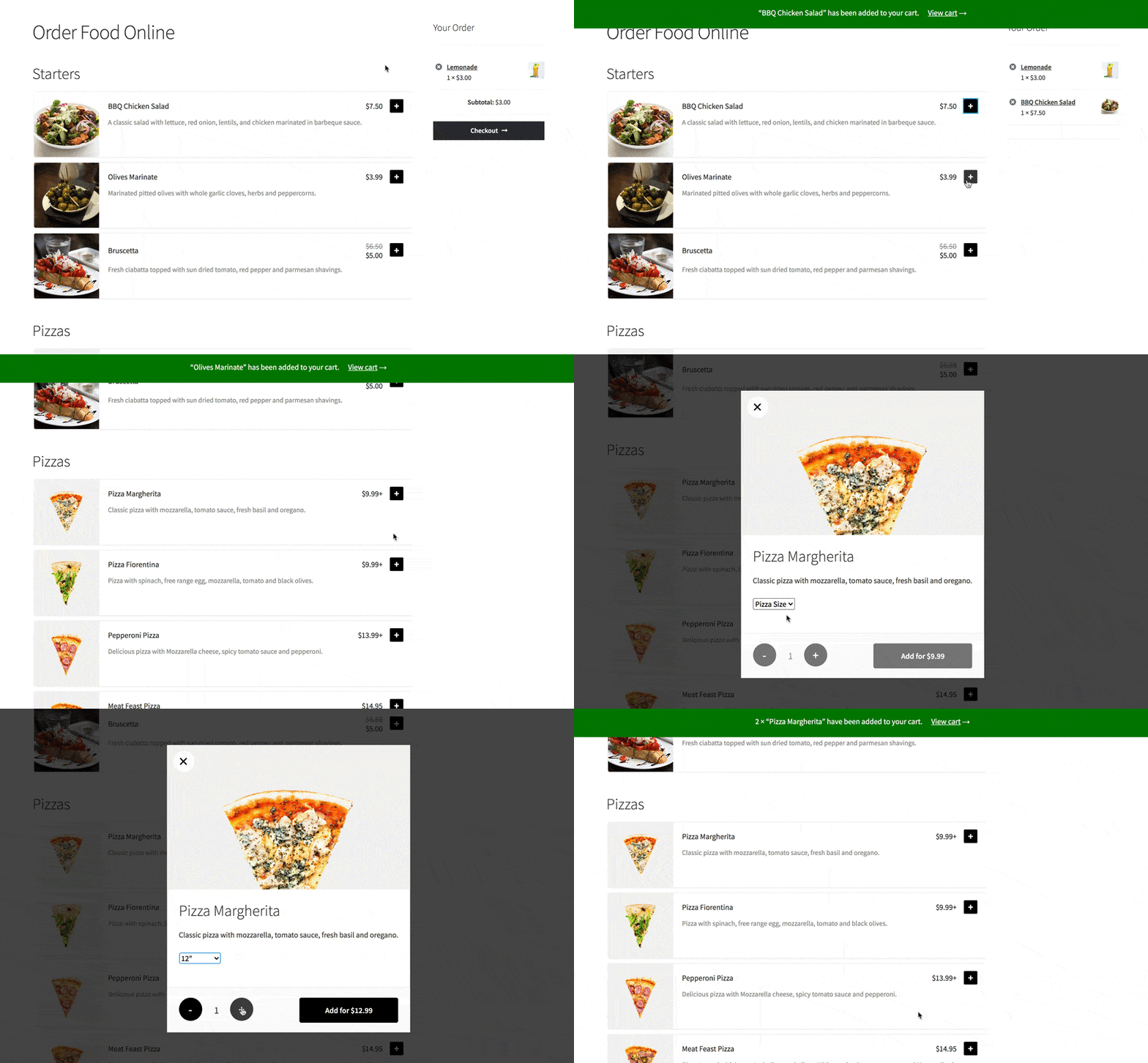
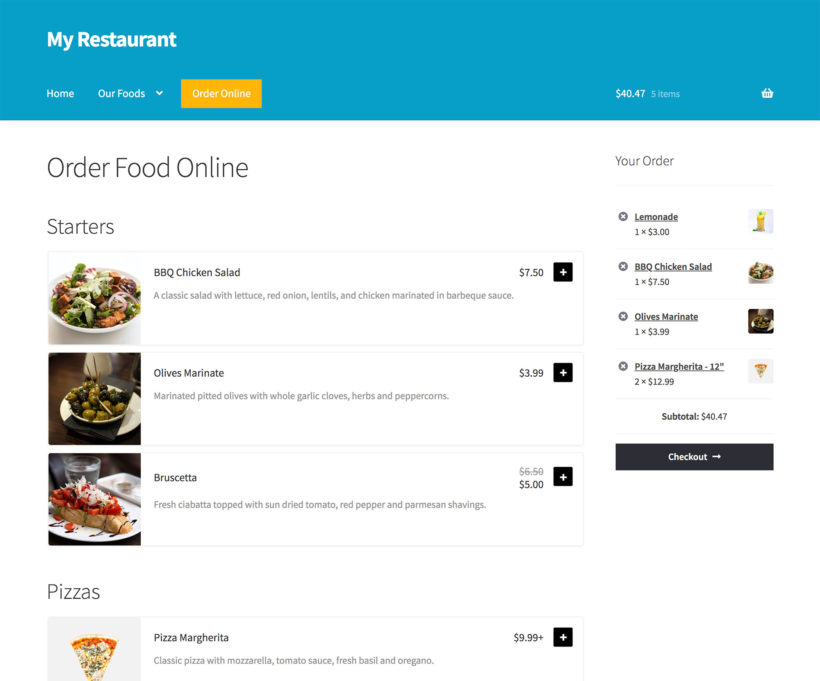
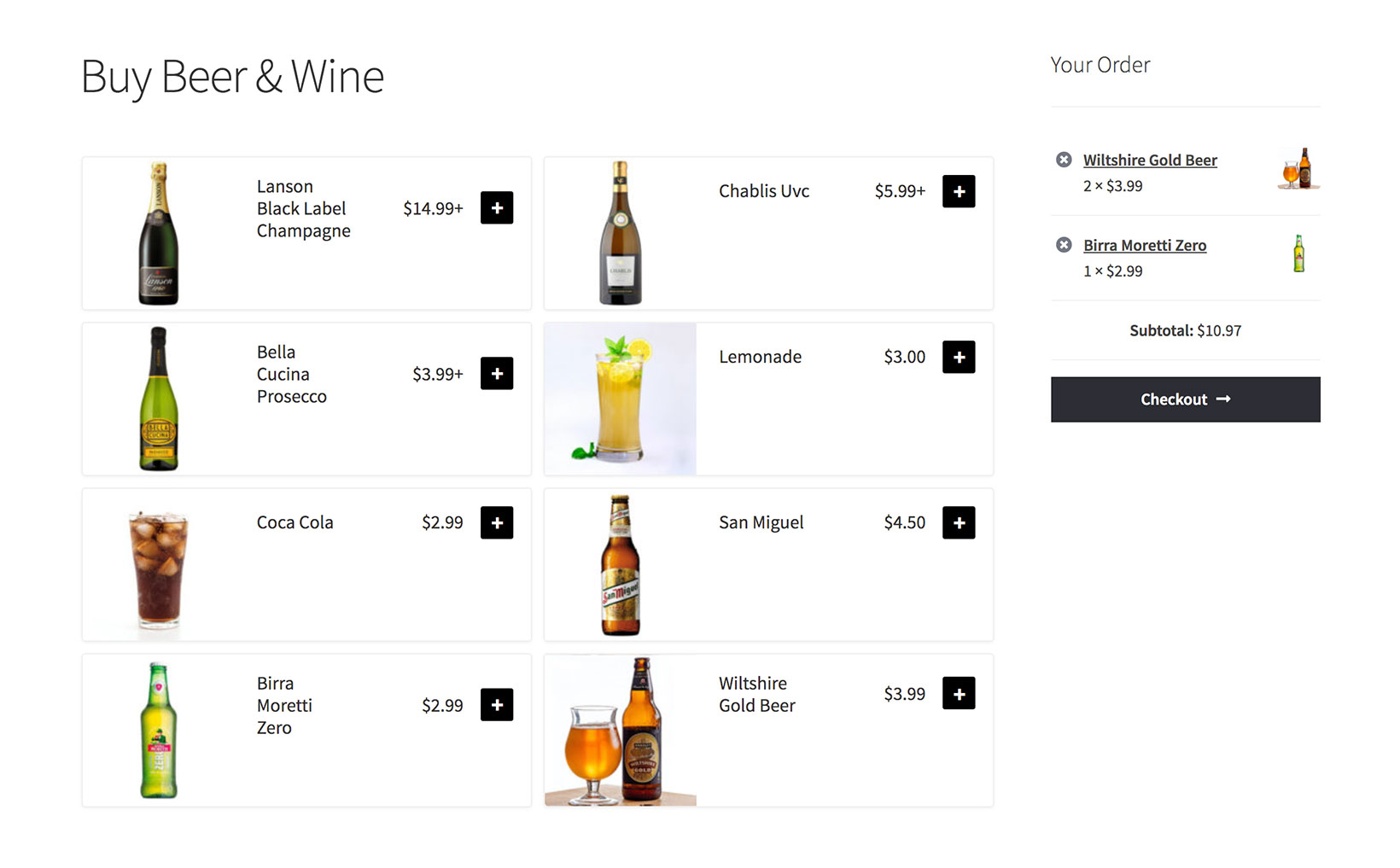
When you install the WooCommerce restaurant plugin, it automatically creates a 'Restaurant Ordering' page which lists all your foods, divided by category:
You can either start taking restaurant orders online straight away, or you can customize your food order forms on the plugins settings page. For example, you can choose which food information to display, re-order the categories, and change the layout.
Add your opening hours so that customers can only order food while you're open.
The WooCommerce restaurant plugin also comes with a shortcode for listing foods in other locations on your website. This is useful if you want to list different categories on different pages or tabs.
As a WooCommerce restaurant plugin, WooCommerce Restaurant Ordering works with the delivery options that are built into WooCommerce itself. These make it easy to create delivery areas and add delivery and collection options, with or without costs.
Start taking food orders online today!
We hope the new WooCommerce restaurant plugin helps restaurants and other food businesses to connect with their customers online.
Quick plug-and-play setup.
Full documentation, with guidance on every aspect of selling food online.
FREE video tutorial showing you every step (there's absolutely no way to get it wrong!).
Technical support is available if you need any help.
30 day money back guarantee. Love it or get a full refund, zero risk.
We've just released version 1.4 of our WooCommerce Lead Time plugin. Thanks to your feedback, it includes a new feature to add lead times for entire WooCommerce categories.
WooCommerce Lead Time was first released in September 2019. It became very popular during the coronavirus lockdown because so many e-commerce websites experienced stock problems. WooCommerce Lead Time provided a flexible way to provide clear information about when products would be available again. This has helped customers to make an informed decision about whether to order, based on the waiting time. Since then, WooCommerce Lead Time has become the go-to solution for communicating waiting times to customers ALL the time - and not just in times of crisis.
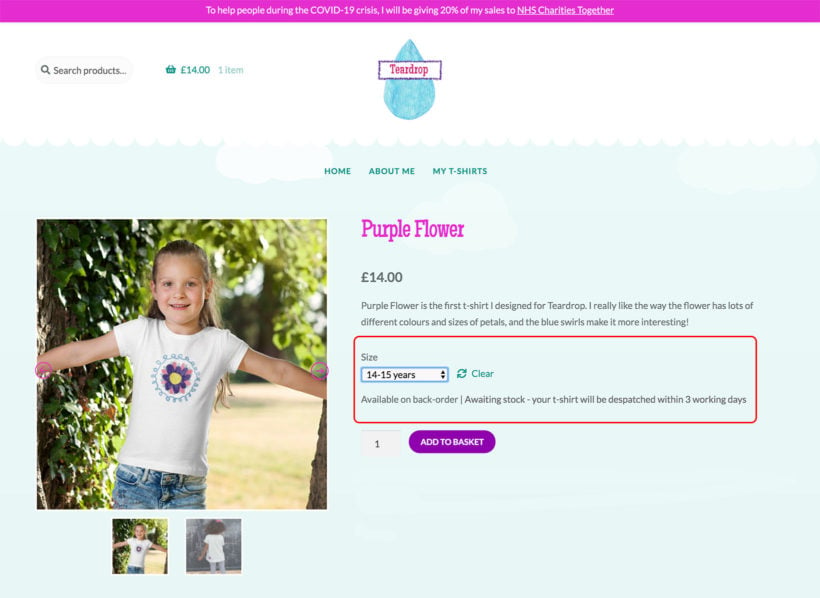
An example of a lead time displayed on an out of stock product on backorder
Until now, you could set a global lead time to be displayed on all your products, and you could also set lead times for individual products and variations. However, to save time, lots of you have asked for a way to set WooCommerce category lead times too. We're pleased that this is now possible.
Category lead times are useful because products from a particular category are often from the same supplier, and therefore have the same waiting time. If you set a WooCommerce category lead time then you can still override this for individual products that have a different lead time, if required.
How to set WooCommerce category lead times
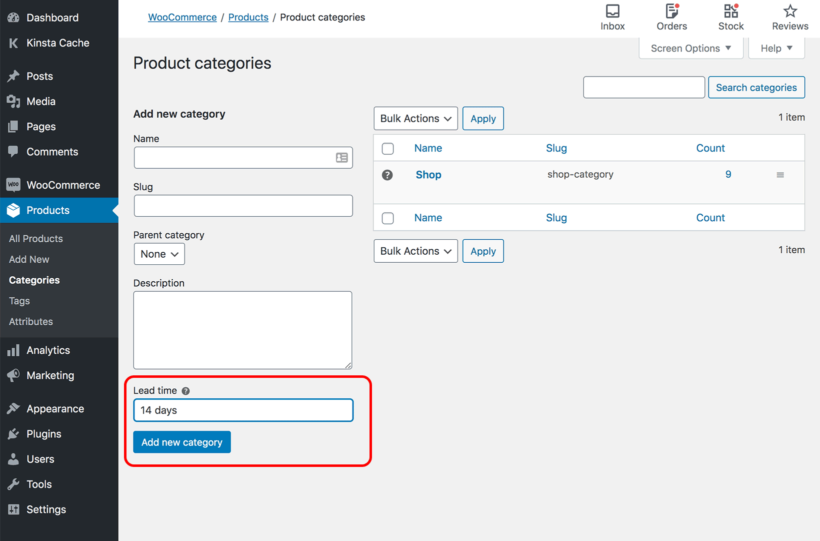
Go to Products → Categories.
Add or Edit any category.
Add the required lead time in the 'Lead time' field.
Where can I get the plugin?
If you're not already using WooCommerce Lead Time, get it today! It's the perfect way to display waiting times in your WooCommerce store.
If a product isn't in stock, then customers want to know the back in stock date. By the end of this article, you’ll walk away armed with the knowledge of how to set up back in stock notifications in WooCommerce and provide clear information to customers.
As an online store owner, it’s important to let your customers know when out of stock products will be available again, since lead time has an effect on purchasing decisions. If you don’t do this, customers will be more likely to buy from your competitors and you could miss out on sales.
For example, if you’re facing stock issues on products, you’ll want to let customers know when the new stock is expected to be available again. Are you looking for a back in stock notifier for WooCommerce? Jump to our step-by-step setup guide to get started.
Don’t worry, by the end of this FREE guide you’ll walk away knowing EXACTLY how to:
Enable backorders in WooCommerce so customers can still place orders.
Clearly display the back in stock date on product pages.
Allow customers to enter their email address and join a waitlist to be sent a notification email when the product is back in stock.
Take a hybrid approach which involves enabling backorders and setting up a waitlist.
And the best part? At the end of this article, we’ll show you how to automate the whole process so that customers can either (1) order out of stock products immediately after making an informed decision on whether to wait or (2) allow them to receive a product back in stock email when the product is available.
2 ways to deal with out of stock products
If you sell products through your e-commerce store, you’ll probably run into scenarios where some products are temporarily out of stock. The good news is that there are two ways to handle out of stock products in WooCommerce while delivering a good user experience:
Enable backordersYou can enable backorders on your WooCommerce store so that customers can still place orders for out of stock products. In addition, you can display the back in stock date (for a simple product or variable product) directly on the single product page. To do this, use the WooCommerce Lead Time plugin. This plugin acts as a back in stock notifier for WooCommerce, showing accurate lead times, restock dates, or custom messages to keep your customers informed. It helps manage expectations and reduces the need for customer inquiries about availability.
Join a WooCommerce waiting listAllow customers to enter their email addresses directly on the single product page to join a waitlist. This way, they can be notified when the product is back in stock.
For this, we recommend the WooCommerce Waiting List plugin. It adds a simple email signup field to out-of-stock product pages and automatically notifies customers when the product becomes available again, helping you recover lost sales with minimal effort. (Here are some example emails.)
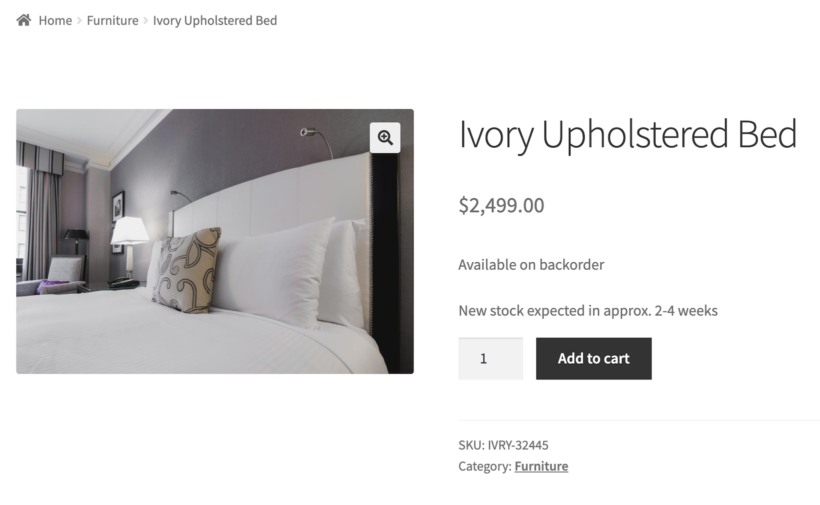
1: Display a lead time and let customers place their orders.
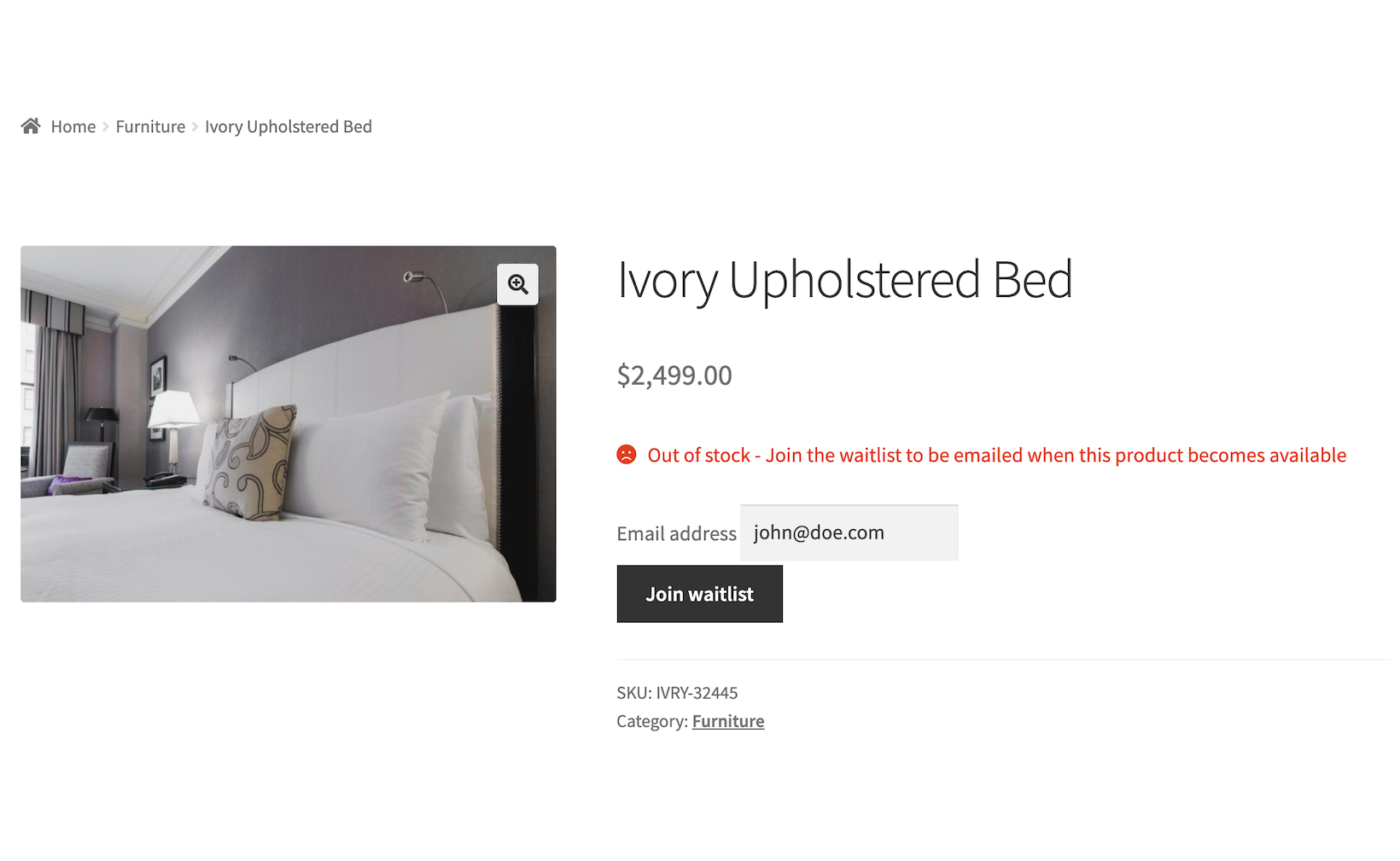
2: Display an out of stock notification and encourage customers to join the waiting list.
Advice on setting up back in stock notifications in WooCommerce
Now, you might be wondering how you should deal with out of stock items. We explored two different implementations earlier and now we'll help you choose the best solution for your e-commerce store.
Enabling backorders in WooCommerce is generally best because the customer places the order and pays straight away. So, there’s no risk that you’ll lose the sale to a competitor. This also works for variable products i.e. WooCommerce product variations.
The second option – using an “email when back in stock” plugin – means that the customer doesn’t know how long they’ll be waiting. In this scenario, they could be more likely to buy elsewhere while they’re waiting to receive a stock alert i.e. a back in stock notification from your WooCommerce store.
That said, the 'joining a waitlist' option is best if you have major stock problems. For example, if you can’t display reliable information about when the product will be back in stock. In this sort of scenario, you’re better off taking the customer’s email address and hoping that it’s not too late to secure the sale when you do receive stock again.
How to set up back in stock notifications in WooCommerce (in 2 different ways)
Here, we’ll explain how you can set up back in stock notifications in WooCommerce in two different ways.
Method #1: Enable backorders with a WooCommerce back in stock notifier
The easiest way to add more information to WooCommerce backorder notices on your online store is by using the WooCommerce Lead Time plugin. Its Notify customer option lets you display a backorder notice or back in stock date on the single product page as soon as a product goes out of stock. However, customers can still place their orders.
Go to the product you’d like to enable backorders on and scroll down to the Product data section.
Click on the Inventory tab.
Set the product Stock status to On backorder using the dropdown.
Use the Lead time option to let customers know when the product is expected to be back in stock. You can use this option to set a separate lead time message for specific products, for example by adding the back in stock date. There's no need to use a shortcode.
Click the Publish button to continue.
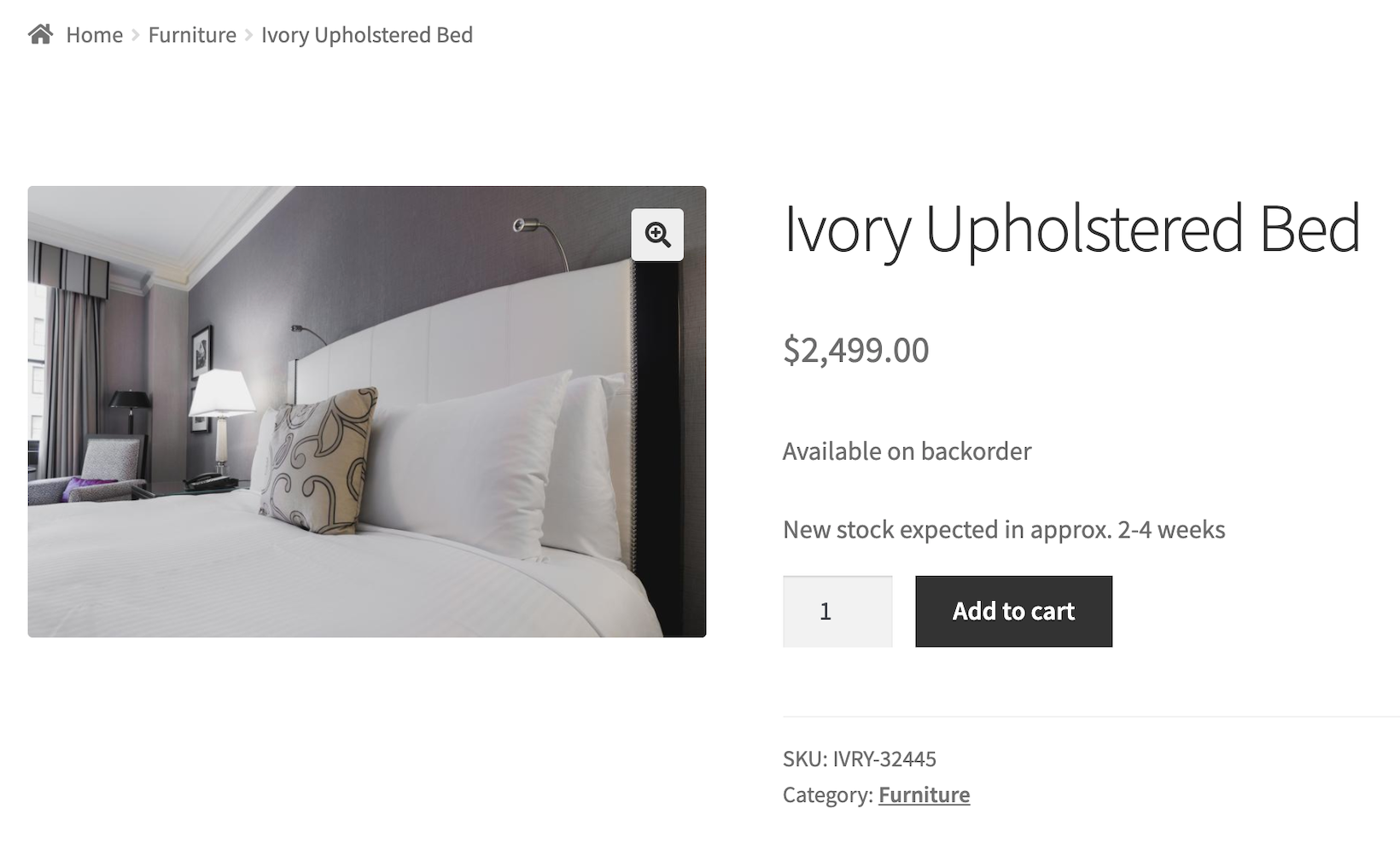
The single product page should look something like this on the front-end:
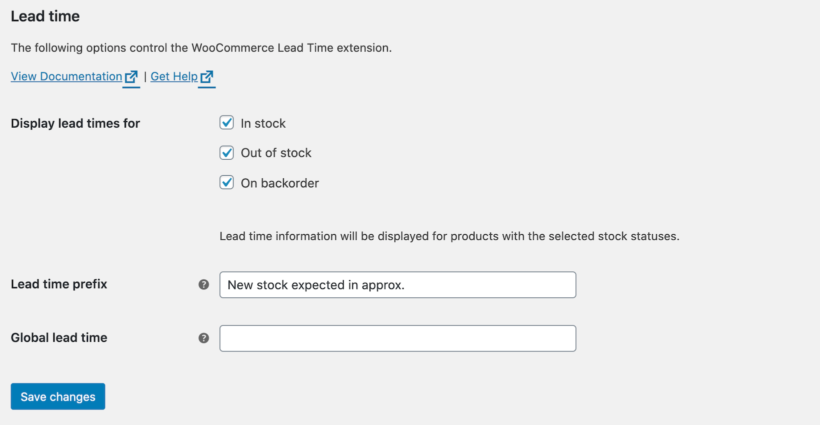
You can modify the lead time text that appears before the product-specific message for all of your products on the plugin settings page i.e. WooCommerce → Settings → Products →Lead time from the WordPress backend. All you have to do is enter the text you’d like to have displayed on the front-end in the Lead time prefix field.
With backorders, customers can add the product to their cart and proceed to the checkout page - even if the product is out of stock. The clearly displayed back in stock date tells the customer what to expect, while still capturing the sale for you.
Method #2: Set up a waitlist for out of stock notifications
The WooCommerce Waiting List add-on works as a 'notify me when back in stock' add-on; you automatically notify customers when a product becomes available for purchase again. It replaces the add to cart button on single product pages and the shop page with a waiting list button.
All you have to do is install the WooCommerce Waitlist add-on on your WordPress website and activate it. It will automatically replace the add to cart buttons with Join waitlist buttons on the front-end for products that are out of stock.
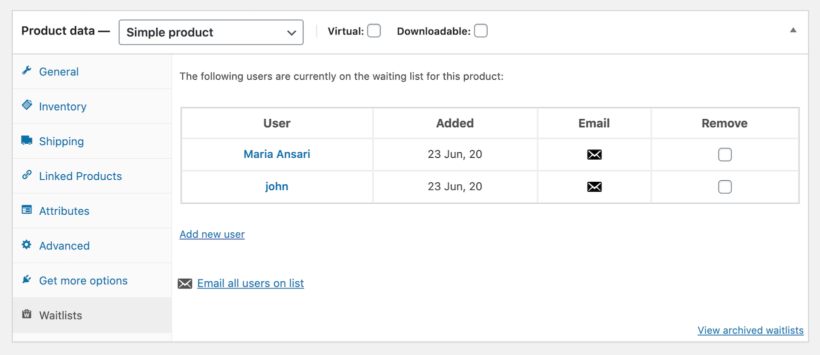
Customers can then enter their email address to be notified whenever the product is back in stock. On the backend, you can see the email addresses of everyone that has joined the waitlist for a product. To do this, head over to the Product data section and click on the Waitlists tab.
From here, you can send a product back in stock email notification (i.e. a stock alert) to all users on the waitlist to let them know the product is back in stock. You can also manually add or remove people from the waitlist. In addition to this, you can use the export waitlist option to get a CSV file of everyone on the email subscription list.
When dealing with popular products, you might have hundreds or thousands of customers on your waitlist. The WooCommerce waitlist plugin handles this efficiently by using background processing to send emails without overloading your server. This ensures all your customers receive their notifications reliably, even for products with large waitlists. The plugin also maintains email logs so you can track which notifications have been sent and troubleshoot any deliverability issues that might arise.
Can I use both solutions together?
Yes, both plugins work nicely together! So, you can use both the enable backorder and waitlist solution together on your WooCommerce store to handle out of stock products.
From a technical standpoint, you can enable the “email when back in stock” feature from the WooCommerce Waitlist plugin and display expected times for products to be back in stock using the WooCommerce Lead Time plugin.
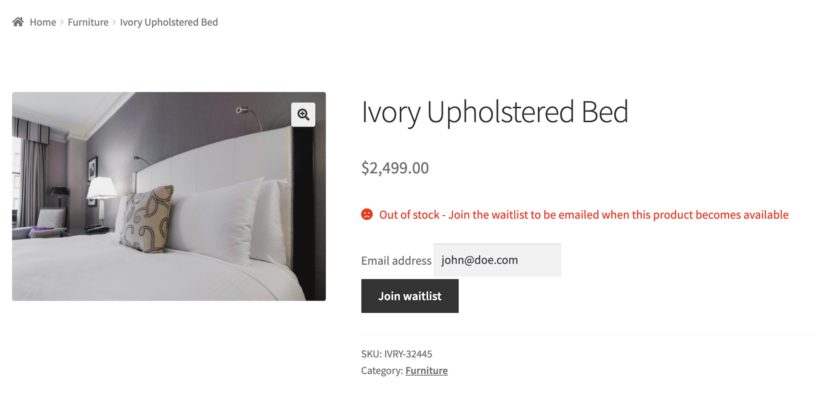
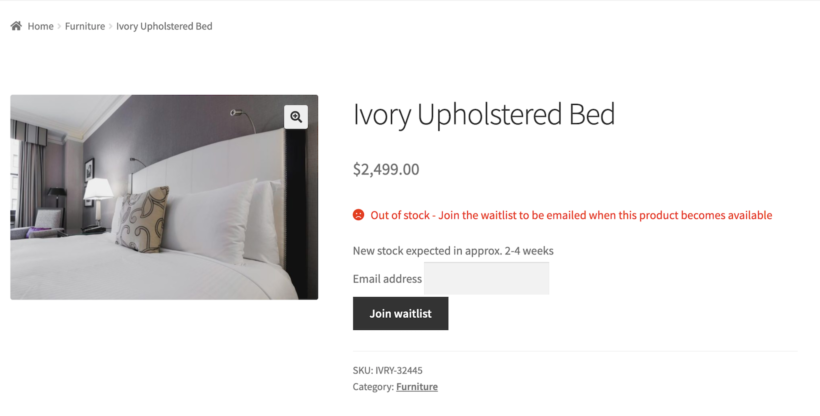
The add to cart button is replaced with a Join waitlist button on the front-end and the lead time text appears after the Out of stock - Join the waitlist to be emailed when this product becomes available text that’s added by the WooCommerce Waitlist plugin.
Once you’re done setting this up, it’ll look something like this on the front-end:
Set up WooCommerce back in stock notifications in less than 5 minutes
As an online store owner, you should have a solution in case you run into an out of stock product scenario. The way we see it, there are two easy ways of handling this:
You can enable backorders in WooCommerce so customers can still place orders and you don’t miss out on their sale. When you do this, it's essential to use WooCommerce Lead Time to display a clear WooCommerce back in stock date.
Alternatively, you can give customers the option to enter their email address and join a waitlist to be sent a stock alert when the product is back in stock.
Whichever option you ultimately decide to go with will prevent you from losing sales due to stock issues. The best part is that there’s absolutely no technical knowledge required and you don’t have to mess around with custom PHP or HTML code on your store.
Instead, you get a:
Plug-and-play setup for the plugin.
In-depth documentation (absolutely no way to get it wrong).
Technical support is available if you need any help.
30-day money-back guarantee. Love it or get a full refund, 0 risk!
A lead time plugin is perfect for displaying the delivery timescales for products with longer waiting times. This way, you can let customers know how long they'll have to wait before the product will be shipped to them. I'll tell you how Bespoke Swim Spas do this and how you can do the same on your own WordPress WooCommerce website!
With a lead time plugin for WooCommerce, you can easily display the product lead times for simple and variable products. It's perfect for online stores that sell bespoke or custom products, furniture, or products that require assembly.
In this case study, we'll take a look at how Bespoke Swim Spas use our WooCommerce Lead Time plugin to display delivery timescales for products with longer waiting times. We'll also explain how you can do the same on your site!
A hot tub sales page with the lead time displayed above the purchase options
Bespoke Swim Spas is a family firm based in Staffordshire that's been importing and supplying swim spas and hot tubs to customers throughout the UK and in Europe since 2001.
Their online store showcases the various accessories, swim spas and hot tubs the company sells. Customers can browse their Shop page to find the product they'd like to order. They can then read product specifications, view a product gallery and place their order.
Let's take a closer look at the problem Bespoke Swim Spas faced and how the WooCommerce Lead Time plugin was the perfect solution for them.
The problem
Bespoke Swim Spas sell different types of products including swim spas and hot tubs in addition to relevant accessories for these main products. Their main product line consists of items that have a lead time of around 2 to 3 weeks. However, due to the global COVID-19 pandemic, the demand for swim spas and hot tubs went up and Bespoke Swim Spas found themselves inundated with orders.
People were looking for ways to make the lockdown more pleasurable and upcoming holidays more acceptable. In addition, since all swimming pools and spa resorts were closed, people were looking for a way to swim at home. Athletes, swimmers and disabled people who benefit from hydrotherapy sessions also needed to facilitate their activities at home.
As manufacturers struggled to keep up with customer demand, Bespoke Swim Spas quickly realized they needed a way to let customers know the expected delivery timescales for the products they were selling to enhance their shopping experience.
Sheila Lee Thompson of Bespoke Swim Spas said:
"I couldn't believe that it wasn't something already built into WooCommerce."
They needed a way to display lead times for products with longer waiting times. Above all, they needed a lead time plugin that would allow them to set a default lead time. They were also looking for a way to overwrite that for individual products on an as-needed basis. This is because the lead times for different products change regularly depending on availability and demand.
With a lead time plugin, they could easily let their customers know how long they'd have to wait before receiving the product. This way, their customers wouldn't have to call in to confirm lead times for the orders they placed.
Bespoke Swim Spas use the WooCommerce Lead Time plugin to set a default lead time for their products. This is typically around 6 to 8 weeks at the moment. The lead time appears under the product price and description. This lets customers know right away how long it will take for the product to arrive. In addition, it allows them to make an informed buying decision.
The WooCommerce Lead Time plugin lets you set a default lead time and then overwrite it for individual products. Bespoke Swim Spas was able to use it for their entire range of products.
Tutorial: Here's a step-by-step guide to using the WooCommerce Lead Time plugin to show product lead times on your online store.
This gives Bespoke Swim Spas the ability to add new products to their store without having to worry about manually displaying a lead time for each one using HTML code in their product pages.
Deposit payments for products with long lead times
If the customer will be waiting to receive their order, then they may not want to pay the full balance upfront. Bespoke Swim Spas help their customers by giving customers a choice of whether to pay in full or a deposit when they place the order. They do this using the Sumo Payment Plans plugin, which works beautifully with WooCommerce Lead Time.
Display delivery timescales for products with longer waiting times
Bespoke Swim Spas solved the challenge they were facing, and now display product lead times on their product pages using Barn2's WooCommerce Lead Time plugin.
A simple plugin that just 'works' - I love the fact that you have the global option and can overwrite that for individual products as lead times alter (as they inevitably do). I couldn't believe that it wasn't something already built into WooCommerce, but hey-ho... :) Highly recommend this plugin and the friendly peeps at Barn2 Plugins (UK based too. So for me no waiting for different time zones to be on line, bonus!)
WooCommerce Lead Time makes it easy for store owners that sell products with longer waiting times to display a lead time for:
Listing WooCommerce new products in a prominent location immediately draws the attention of existing customers who shop with you regularly and are interested in your latest products. A WooCommerce new products page is a great way to boost product visibility. It ensures that visitors see your latest products when they land on your online store.
And the easiest way to list WooCommerce new products anywhere on your WordPress site is by using the WooCommerce Product Table plugin.
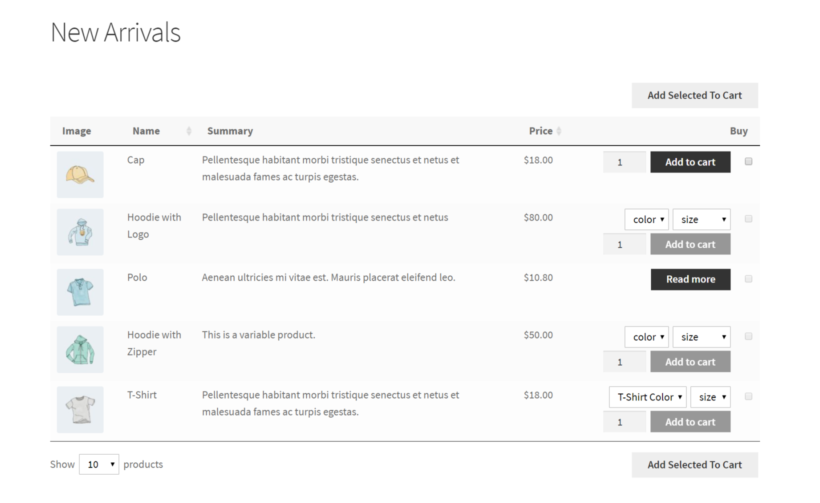
An example of a WooCommerce new products page
In this article, we’ll take a closer look at why you should list WooCommerce new arrivals in your store and the best places to list new products. You can either create a dedicated WooCommerce latest products page, or list newly released products anywhere else in your store. We’ll also walk you through a step-by-step tutorial explaining how to list WooCommerce new products using a product table.
You'll also learn how to give exclusive early access to new products to specific customers only.
Why list WooCommerce new products separately in your store?
One of the main motivations to list WooCommerce new products on a WooCommerce new products page is to make them easy to find.
It makes it easy for your regular customers to find the latest products that they haven't seen before. And new customers can easily differentiate between your WooCommerce new arrivals and older stock.
In addition to this, you don’t have to add a New! Badge to the product images of your WooCommerce new products. This saves you from a lot of manual work. Plus, this might be visually similar to the products you have on sale.
Instead, you can simply have a dedicated WooCommerce new products page that lists new products separately from older stock. This can also help you improve rankings on search engines like Google. The easiest way to display new products is in a user-friendly table layout.
Where is the best place to list WooCommerce latest products?
Unlike featured products, you have full control over where you list your WooCommerce new products.
The best place to list your new WooCommerce products is on a separate New Products (or New Arrivals) product page. This way, customers will know exactly where to go to see the latest products you have in stock.
If you prefer, you can also list new products somewhere prominent such as a 'New arrivals' section on your homepage.
Both options work well for all sorts of e-commerce stores including those that sell:
Apparel
Gift items
Furniture and home decor
Cookware
Arts and crafts supplies
Tech products
Toys
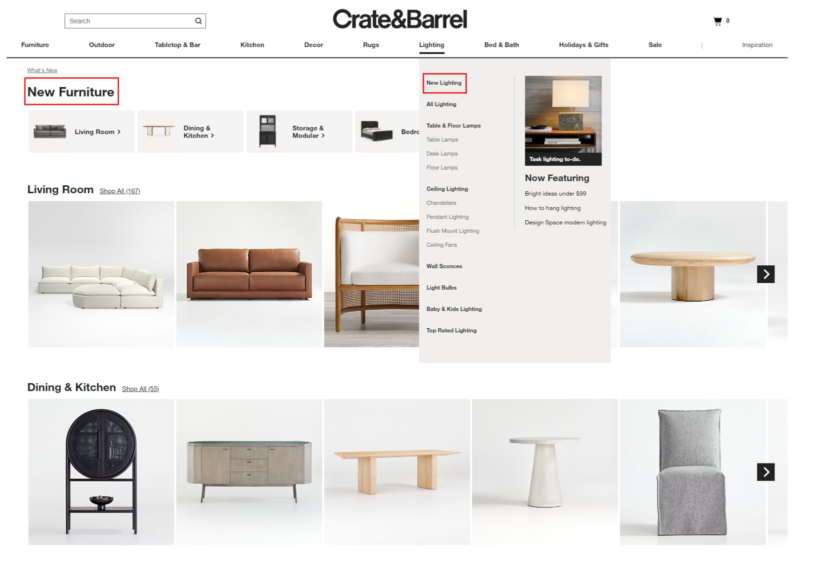
If you sell lots of products, you can create a WooCommerce new products page for the different categories of products you sell. Take a look at this example from Crate and Barrel:
For example, if you sell furniture, home decor goods, and lighting, you could create three different product pages to showcase your WooCommerce new products. These would be New Furniture, New Home Decor, and New Lighting.
You can also list WooCommerce new products on the same page as your older stock. This can help you boost product visibility in your store and potentially encourage customers to buy more from you.
Case study: how The Games Den lists new arrivals on their website
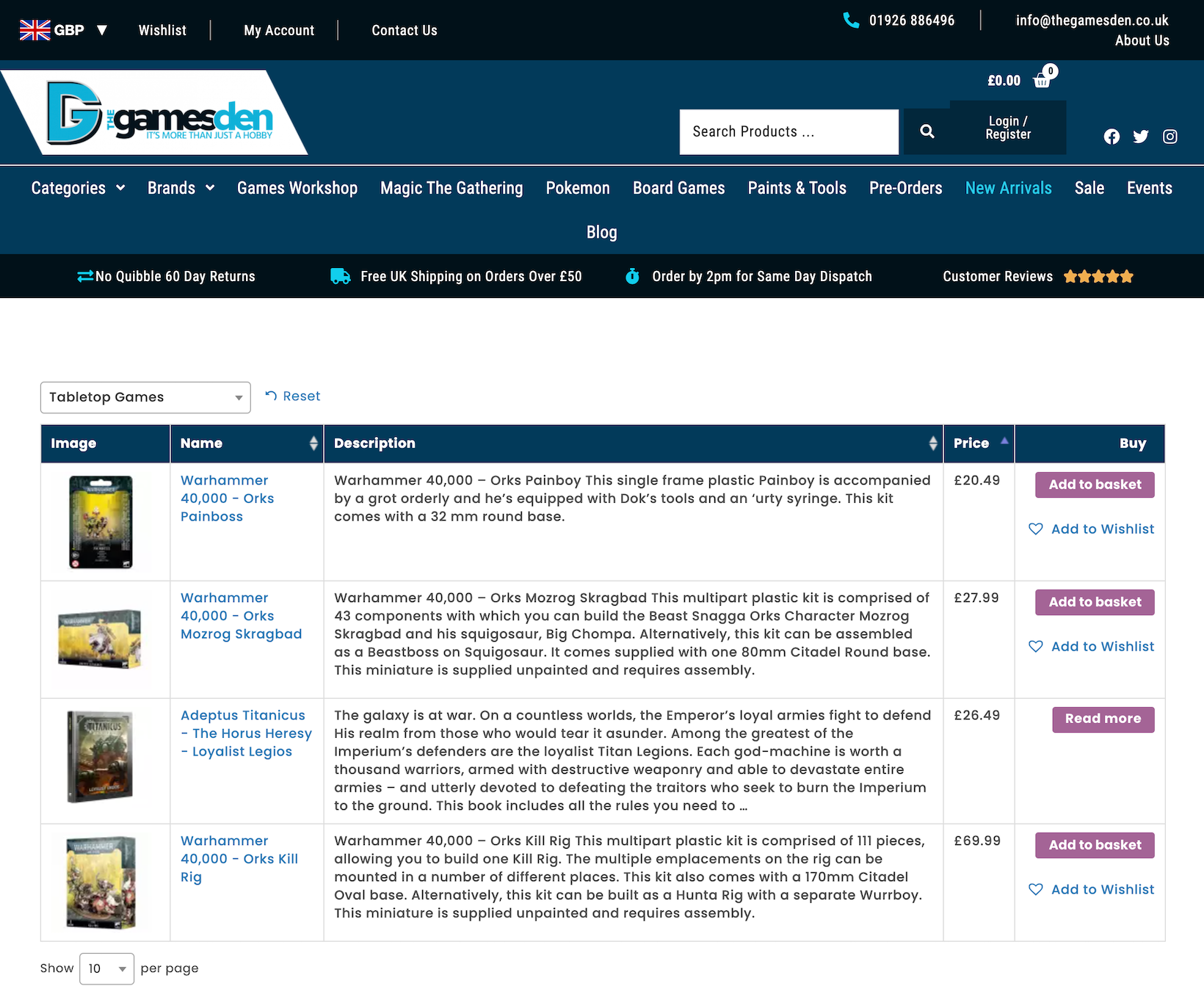
The Games Den is a UK-based company that sells a wide range of board games, tabletop games, and card games as well as accessories, miniatures, and paints. They used our WooCommerce Product Table plugin to list new products in a neat table layout on their New Arrivals page.
The table is configured to show 30 of the latest products in an organized way by default. Each product has an image, name, description, price, and buy button. The Games Den also uses TI's Wishlist plugin to add wishlist links to the table. They’ve chosen to show the wishlist links in the Buy column.
Customers can narrow down their search using the filter dropdown above the table. It lets them choose which category of products to show on the page such as Accessories, Miniatures, or Tabletop Games. In addition to this, they can sort the columns in the table alphabetically or by price (low-to-high or high-to-low).
Customers can click the product’s name to go to the single product page and learn more about it before adding it to their shopping cart.
How to list WooCommerce new products using WooCommerce Product Table
Once you have the WooCommerce plugin and WooCommerce Product Table installed and activated on your WordPress website, here’s what you need to do:
Step 1: Create a table of new products
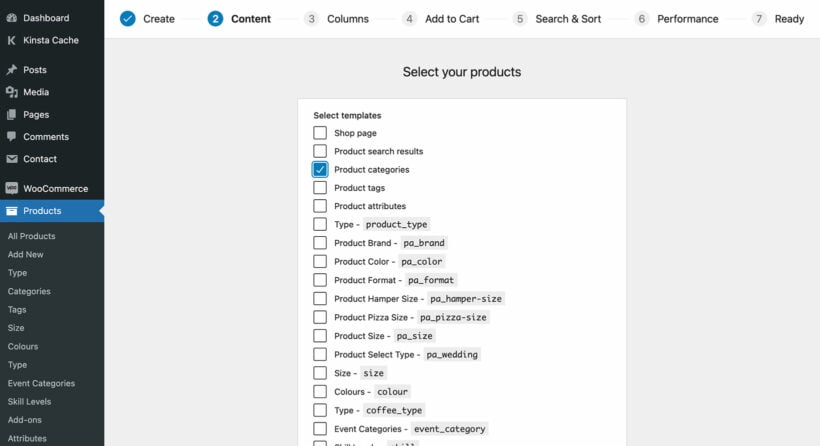
Head over to Products → Product Tables to create your first table of new products. Alternatively, do this in the setup wizard which opens when you first activate the plugin. configure the WooCommerce Product Table settings.
The table builder will walk you through the step-by-step process of listing new products:
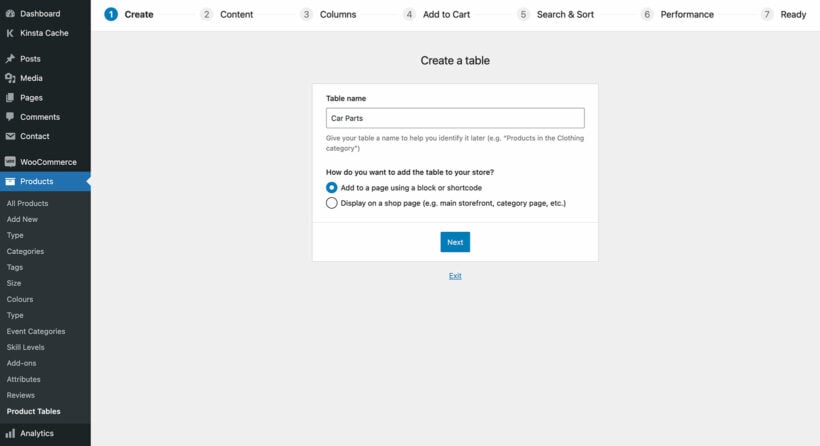
Add a memorable name for the table on the 'Create a table' opening screen. Leave the "Add to a page using a block or shortcode" option enabled and click Next.
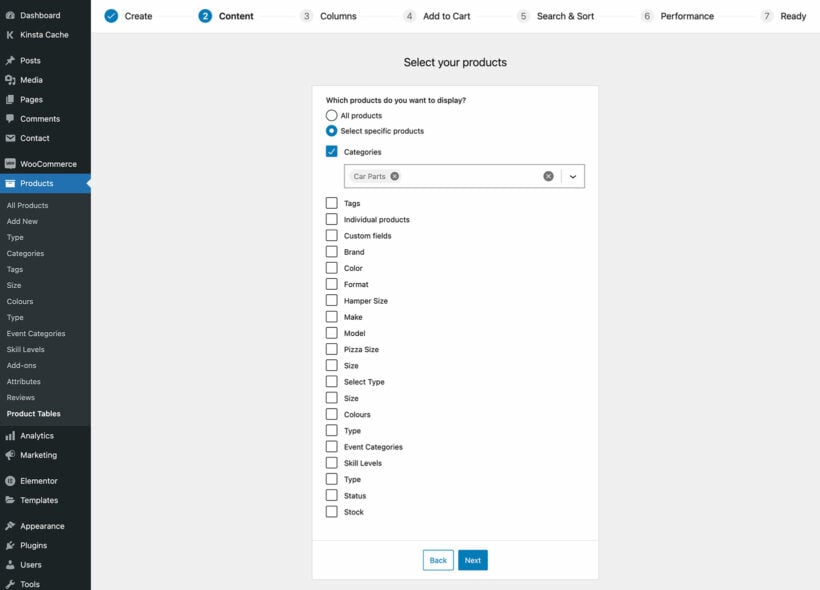
On the second page, choose specific products/categories/etc. to display the new products for, or leave this set to "All products".
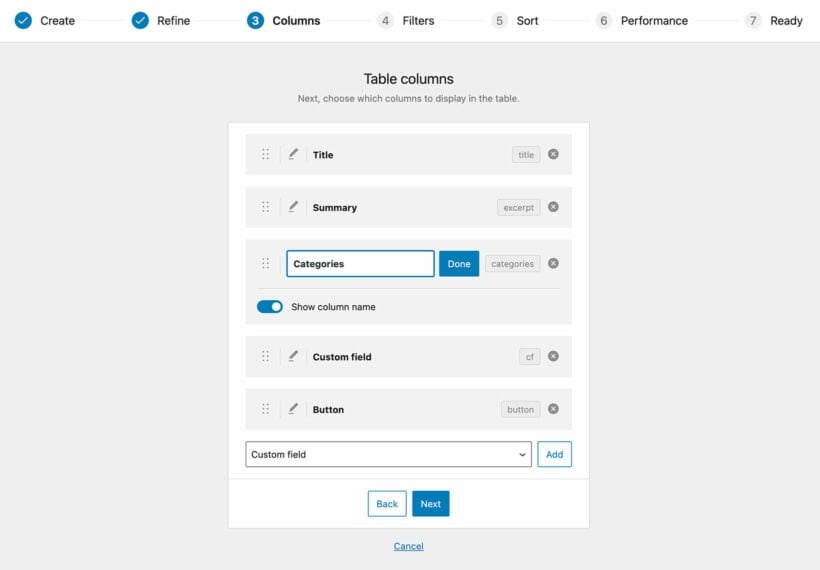
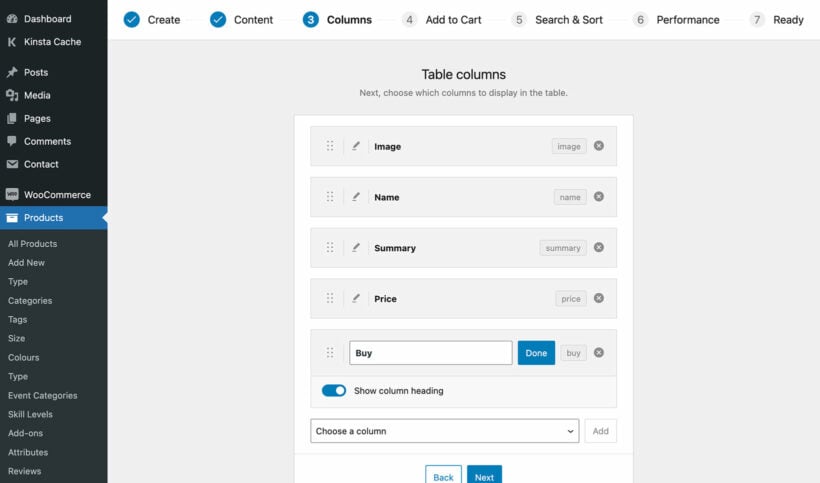
The 'Columns' page lets you choose what product data to display about the new products. (Tip: Since you're listing new WooCommerce products, consider including a 'Date' column. This will display the date when the new product was added to your store so that customers can see how new it is.)
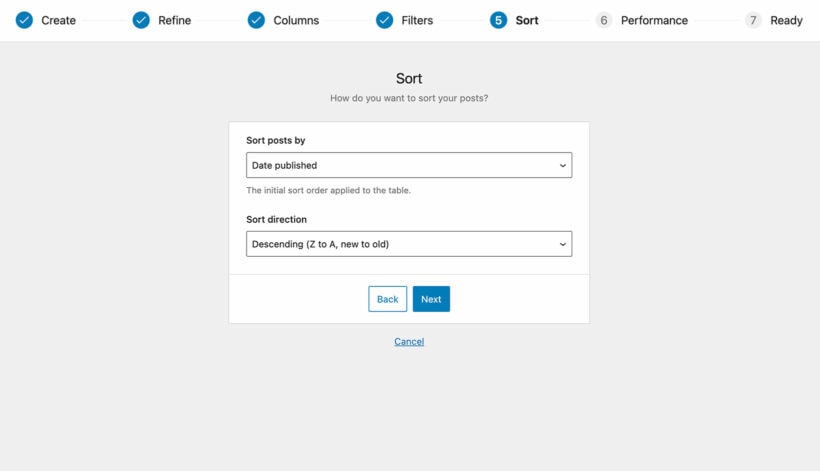
On the 'Sort' page, choose to sort the products by 'Date published' in 'Descending' order. This is essential to listing new WooCommerce products.
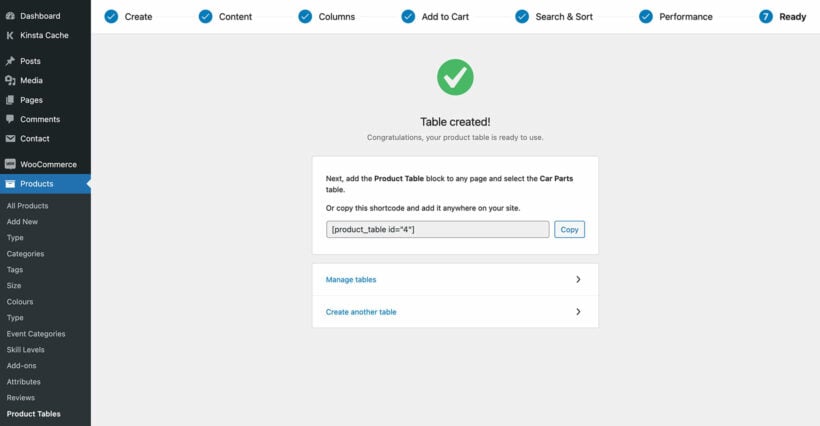
Copy the shortcode that appears on the final screen of the wizard.
Step 2: Choose how many new products to display
So far, our table will list ALL products with the new arrivals first. However, our goal today is to list the new arrivals only.
To do that, we need to set the maximum number of new products which can appear in the table.
Go to the plugin settings tab at Products → Product Tables → Settings.
Change the 'Product limit' option to the number of new WooCommerce products that you wish to display. For example, set this to 10 to display the 10 newest products in your ecommerce store.
Change any other options as needed. For example, if you're only listing 10 new products then I'd recommend hiding the search box, product totals and reset button which are only needed for larger product tables.
Click the Save changes button to proceed.
Step 3: Create a WooCommerce new products page to showcase the new arrivals
The final step is to create a new page to showcase the WooCommerce new products and new arrivals. Here’s what you need to do:
Go to Pages → Add New from the WordPress admin and give your WooCommerce new products page a title. For example, it could be something like New Arrivals.
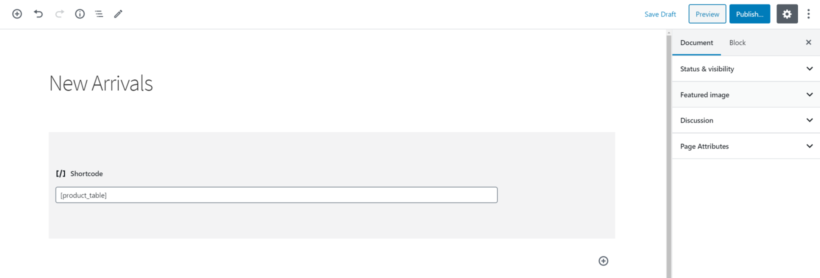
Next, either add the shortcode that you copied in Step 1 above, or insert a 'Product Table' Gutenberg block and select the name of your new products table.
Preview the WooCommerce new products page. It should look something like this:
We’ve used the Storefront WordPress theme for this tutorial although WooCommerce Product Table works with most WooCommerce-compatible themes.
Bonus: Give exclusive early access to certain customers
So far, you've learned how to list new arrivals in WooCommerce so that everyone can see them. That's fine for after they are officially released. But what if you want to give early access to new products to specific customers only?
For example, one store owner told us:
Whenever we do a new launch we protect the "new arrivals" category so our VIPs can have 1 hour of private shopping before public access. It's great for items that will sell out.
You can do this by installing our other plugin, WooCommerce Protected Categories. Put the new products in a specific category and restrict it using one of these methods:
Password protect the category and send a link to your early access customers, along with the password. When they click on the link, they will have to enter the password before they can view or buy the new arrivals. This is a good option if your customers don't already have accounts on your website.
Restrict the category to specific logged in users or roles. This is a good option if your VIP customers already have accounts on your website because they simply log into their account and can automatically see the new products.
Either way, simply change the category visibility back to 'Public' when your new arrivals are ready to be launched to the wider public.
Display 'Coming soon' products in your store
So far, we've only talked about how to display newly available products. But what about building interest before a new product is released? That's important too.
It's a great idea to display upcoming products in your WooCommerce store, even though they're not available yet:
You can start gathering interest (e.g. email addresses) from customers.
The new product page will start ranking in search engines, giving your SEO a head start.
Customers can see what's on the way, making them more likely to re-visit your website soon.
While there aren't any dedicated 'WooCommerce coming soon' plugins, you can easily achieve this by installing the WooCommerce Discontinued Products plugin. While its name is a bit confusing, it's actually perfect for this use case!
When you mark a product as discontinued, the plugin will stop it from being purchasable - ideal for products that aren't yet released. You can choose whether to display upcoming products in your store - either way, the product pages can immediately be crawled by search engines.
The plugin lets you add a text message to the product page. This gives you an opportunity to notify customers that the product is coming soon.
As soon as the product becomes available for sale, simply change the stock to 'In stock'. Customers can start placing orders immediately.
How to send email alerts for WooCommerce new arrivals
MailOptin lets you automatically email your customers and email subscribers whenever you add a new product to your WooCommerce shop. Check out our in-depth tutorial on sending email alerts for new arrivals.
You can also send an automated daily, weekly and monthly summary or email digests of all new arrivals with MailOptin. Below is how to set it up.
Setting Up MailOptin
Go to MailOptin → Email automation and click the 'Add New' button.
Enter a name or title for the automation and then select 'Posts Email Digest'.
Set up the look and feel of the email to your heart's content.
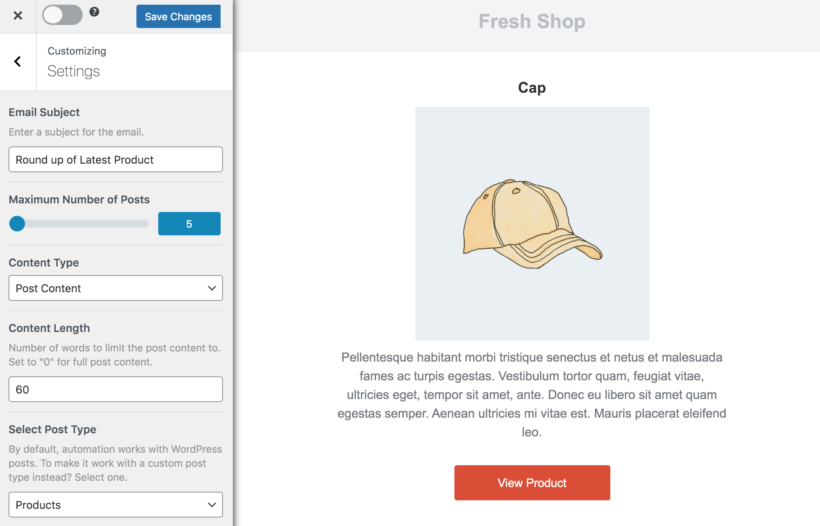
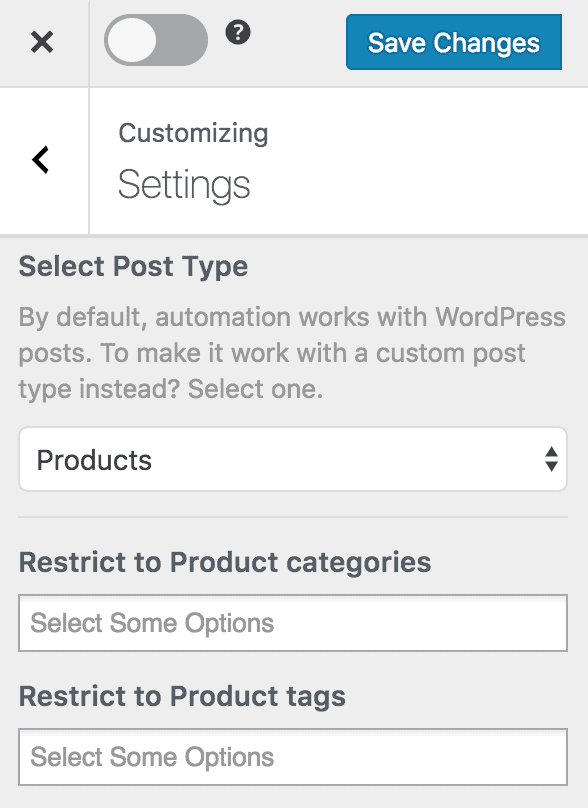
Click on 'Settings', then scroll down to 'Select Post Type' and select 'Product'.
You can further filter the kind of product that will trigger the email. There are lots of factors to choose from including product categories, tags, variations, and other taxonomies.
Defining Email Recipients
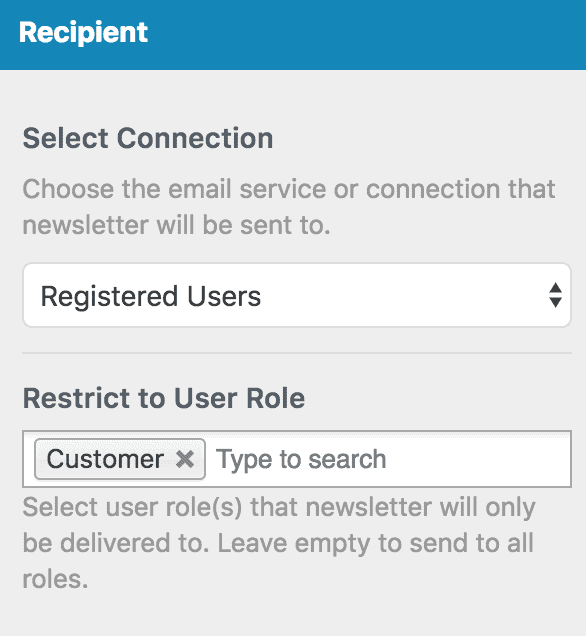
Scroll down to the 'Recipient' section to define who receives the newsletter which could be your WordPress users further filtered or restricted to specific roles such as Author, Contributor, Subscriber, Editor or a combination of roles depending on who you’re trying to reach.
If you want the recipient of the email to be all WooCommerce customers, select 'Registered Users' as the connection and 'Customer' as the user role.
To send the email notification to your list subscribers, select your email marketing service (eg. Mailchimp) as the connection and then your email list.
Please note that you need to have MailOptin connected to your email service provider before it can show up in the 'Connection' dropdown.
Scheduling setup
Select the interval or frequency and time when the newsletter will be sent. This can be daily, weekly, or monthly.
Note that the time is based on the Timezone you’ve set in WordPress. MailOptin also recognizes the day you’ve selected as the start of a week in WordPress.
Finally, save the changes and activate the automation using the toggle switch at the top.
Setup is now complete and your subscribers will receive email notification of new WooCommerce products.
List WooCommerce new arrivals in a table
Listing your latest WooCommerce products in a front-end table layout is a great way to boost product visibility, draw in your customer’s attention, and boost sales.
Using the WooCommerce Product Table plugin, you can set up your own Latest Products page in a few simple steps, or list new products on other pages such as the homepage. And, when you’re ready to take things to the next level, you can send email alerts to your mailing list whenever you add a new product to your WooCommerce store.
And if you want to give exclusive early access to your most important VIP customers, install the WooCommerce Protected Categories plugin and set it up in minutes.
By the end of this article, you will have a clear understanding of how to create product bundles for your WooCommerce store, using one of four plugin methods depending on the type of bundle you want.
When using WooCommerce for your online store, you may have noticed that each product is treated individually by default, with no built-in option for customers to purchase multiple products together as a bundle. This can be a major issue if you want to offer product bundles in your store.
However, there is no need to worry! In this comprehensive guide, we'll show you how to create WooCommerce product bundles for your store using three different methods. By the end of this guide, you'll have a good understanding of the various methods available to bundle your products, and you'll be able to choose the one that works best for your store.
Creating WooCommerce product bundles might seem overwhelming, but with our guidance and professional advice, you can create attractive bundles that enhance your customers' shopping experience. Crafting WooCommerce product bundles is a great way that can aid in achieving your business goals.
So, let's dive in and learn how to bundle your WooCommerce products using our tutorial.
What is product bundling?
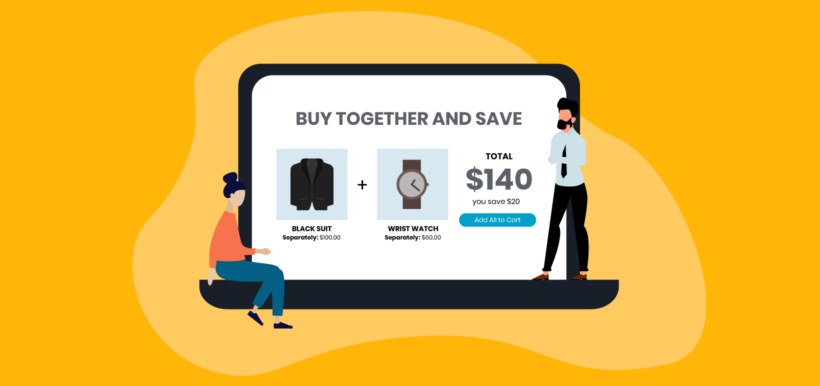
Product bundling is the practice of grouping two or more products and selling them together as a single offer. Customers get a coordinated set of items, and you increase the value of each order.
You see this everywhere outside of WooCommerce. McDonald's pairs a burger, fries and a drink into a Happy Meal. Gillette sells razors, blades and a stand as a "Best Bundle". Streaming services bundle Disney+, Hulu and ESPN+ on one bill. The mechanic is the same in every case: Combine items, set a price and present it as one offer.
Bundling sits next to two other ecommerce techniques that get confused with it.
Cross-selling recommends complementary items at the right moment, but each one is still sold individually. A Frequently Bought Together widget on the product page is a cross-sell, not a bundle.
Upselling suggests a more expensive version of the same product. A bundle is broader, because it can include accessories, add-ons or completely separate items.
WooCommerce also has built-in grouped products, which let customers buy several items from one page. Grouped products only work with simple products though, and there's no built-in discount logic. Bundles fix both of those gaps, which is why most stores reach for a plugin once they outgrow the default behavior.
Types of product bundling
You can structure a bundle in different ways depending on what you want to sell and how much choice you want to give the customer.
Pure bundles. Items in the bundle can only be bought together, never separately. Hello Fresh meal kits are a pure bundle: You can't order the recipe card without the ingredients.
Mixed bundles (mix-and-match). The same items are also sold individually, but you offer a discount when they're purchased together. This is the most common type in ecommerce, because it keeps the standalone product pages working and adds the bundle as a second option.
BOGO (buy-one-get-one). Buy one item, get a second one free or at a steep discount. The "free" item is usually priced into the bundle, but customers respond strongly to the framing.
Cross-sell bundles. These pair a main product with complementary add-ons, like a camera with a memory card and a case, or a yoga mat with a strap and a block. The customer can usually choose which add-ons to include, so the bundle adapts to each cart.
Volume bundles. The discount scales with quantity of the same product. A customer who buys 3 of an item pays a different per-unit price than one who buys 6 or 12. It works when you want to encourage shoppers to stock up rather than just adding accessories.
Leader bundles. These pair a slow-moving or older product with a popular one to move stock. The popular item carries the bundle and the slow mover gets cleared, which is useful at the end of a season or before a product refresh.
Most stores end up using two or three of these. A new-customer offer might be a BOGO, a Black Friday promo might be a mixed bundle and a clearance push might be a leader bundle.
The best plugins for creating product bundles in WooCommerce
There are 4 different ways to create WooCommerce product bundles:
Volume bundles
Build-a-bundle
Fixed price bundles
Variation bundle
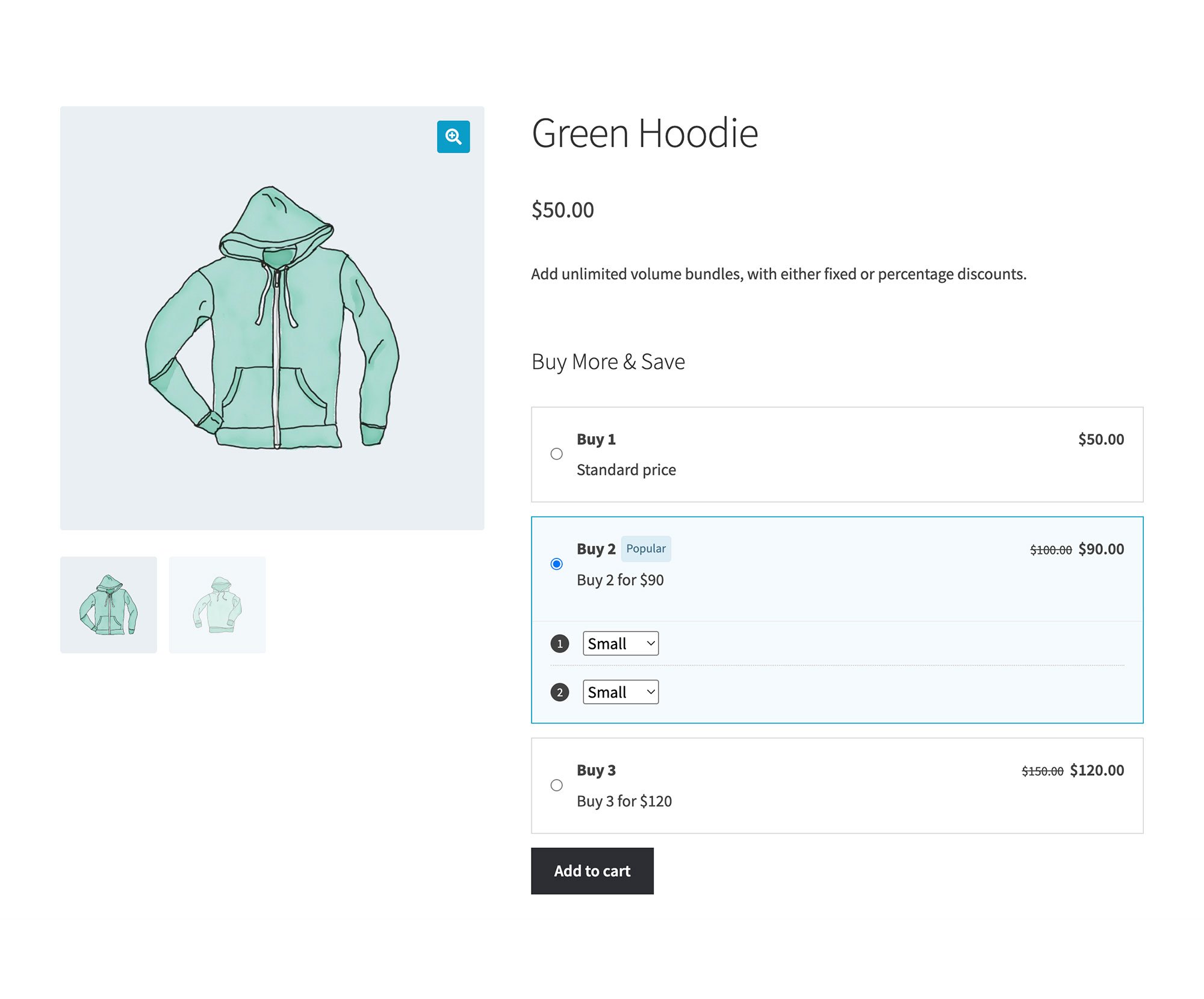
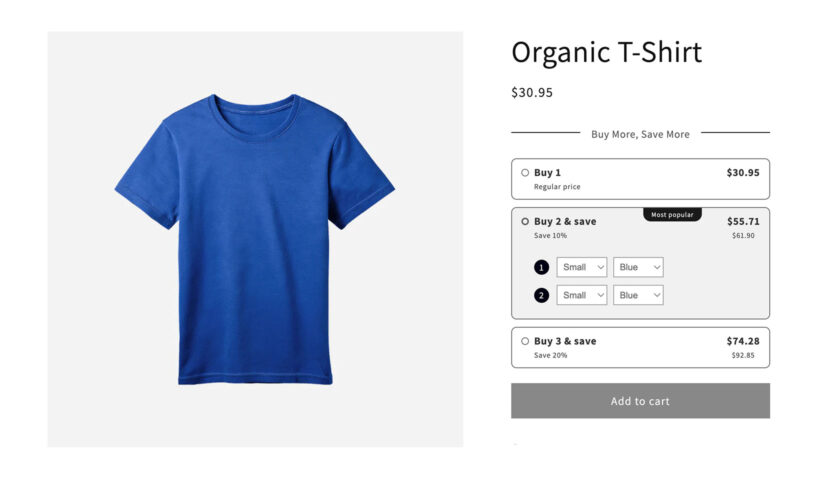
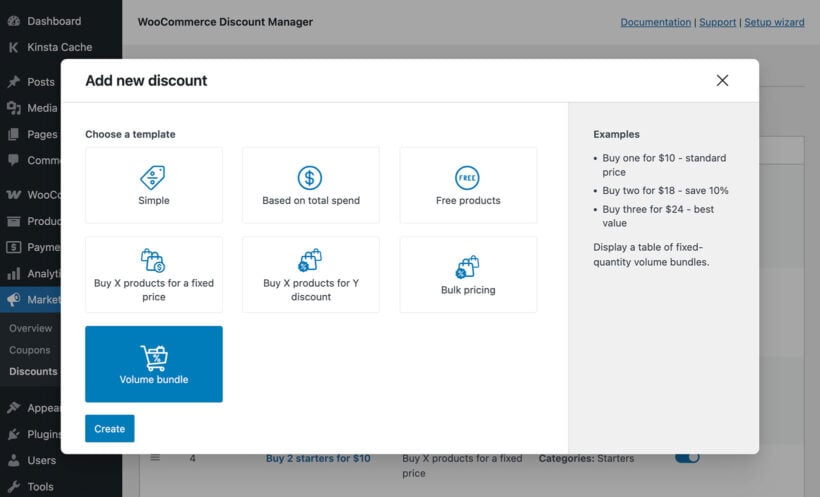
WooCommerce Discount ManagerAdd quantity-based volume bundles that let customers buy 2, 3 or more of the same product at a discounted per-unit price. Perfect for stock-up offers. Setup instructions →
WooCommerce Bulk VariationsCreate a single product whose variations are the items in the bundle, letting customers pick which ones and how many they want. Perfect for converting individual products into a create-your-own bundle. Setup instructions →
And the best part is that we’ll also show you how to set up each method step-by-step. It’s super quick and easy and there’s absolutely no technical knowledge needed to follow this tutorial. You can start selling WooCommerce product bundles today!
Advantages of product bundling
A well-built bundle does more than lift the price of one order. It changes how customers shop, how stock moves through your warehouse and how often slow products sell. The reasons store owners run bundles year after year usually come down to four advantages.
Higher average order value. A bundle gives customers a reason to add more items in one transaction. Most stores see a measurable AOV lift on bundled SKUs versus standalone ones, and that lift compounds when the bundle is surfaced on the product page or at checkout.
Stronger perceived value. When the bundle is priced below the sum of its parts, customers feel they're getting a better deal, even when the absolute spend is higher. The framing matters more than the math.
Faster inventory clearance. A leader bundle pairs a slow-moving SKU with a popular one, which moves the dead stock without resorting to a hard markdown on the listing page. It's useful at the end of a season or before a product refresh.
Lower per-item marketing and packing costs. Marketing one bundle takes less ad budget than marketing each item separately, and shipping several products in one box costs less than shipping them one by one. Both savings scale with order volume.
What kinds of products work well in bundles?
The right products to bundle depend on what you sell and what your customers typically buy together. A few patterns consistently work:
Complementary products, like a coffee machine with a pack of pods or a camera with a memory card.
Accessories paired with a main product, like a phone case with a smartphone or a yoga strap with a mat.
Variations of the same product, like a set of colored markers in different shades or a pack of mixed-flavor drinks.
Starter kits that give a beginner everything they need, like a yoga kit, a cooking starter pack or a craft set.
Seasonal groupings like winter clothing bundles or holiday decor sets that only make sense at one time of year.
Real Barn2 customers run bundles across very different niches:
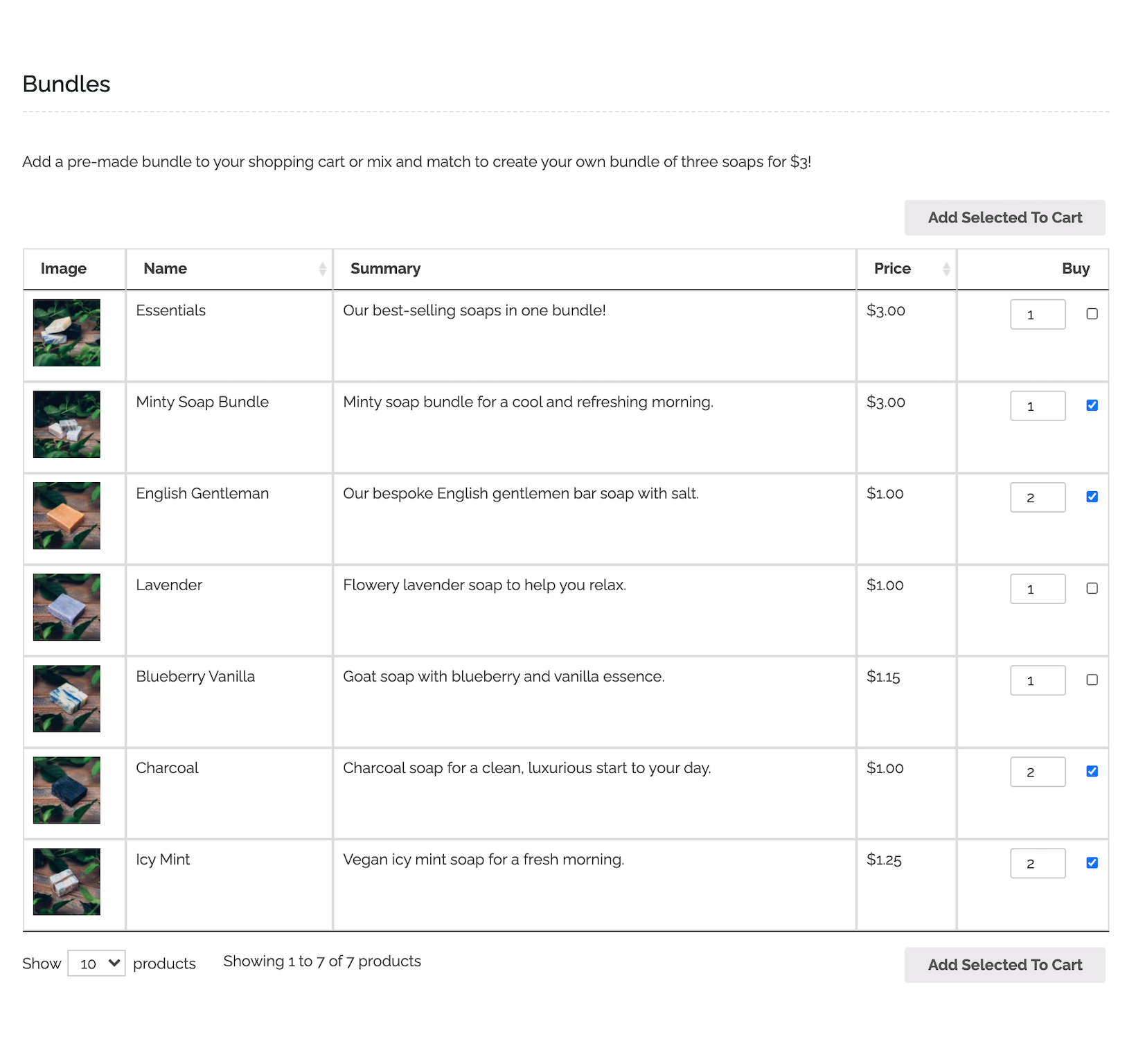
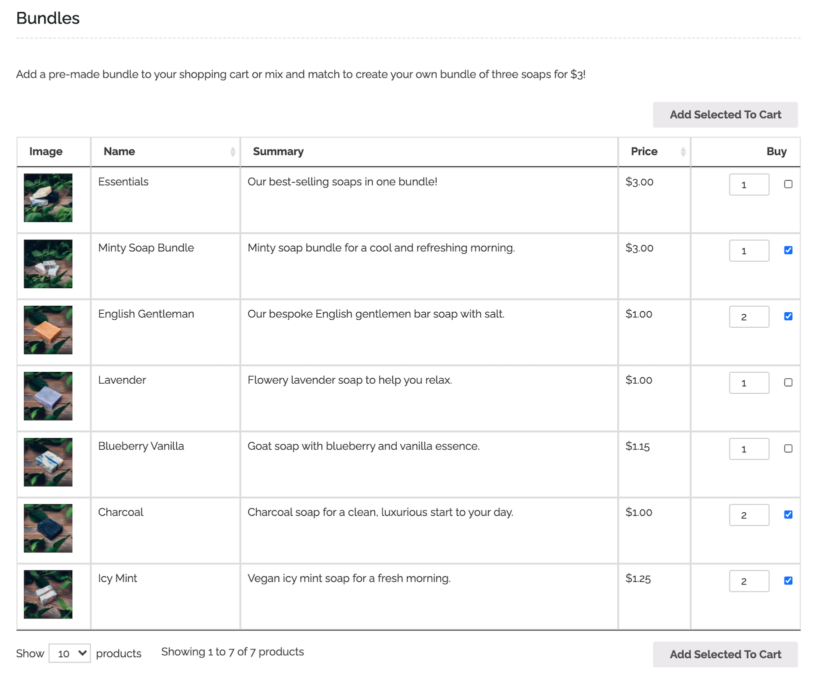
Artisan soaps, lotions and balms. Handmade sellers list every product in a front-end table with WooCommerce Product Table and offer "any 3 soaps + 1 lotion for $X". Customers tick what they want and check out in one step.
Sports gear. A fixed-price "tennis starter pack" with a racket, two cans of balls and a wristband sells well as a gift option, built using WooCommerce Product Bundles.
Candies, teas and coffees. A single "mix-and-match" product built with WooCommerce Bulk Variations lets customers choose how much of each flavor they want before adding the bundle to cart.
How to create product bundles for your WooCommerce store
By now, you know the 3 ways for creating WooCommerce product bundles and should have chosen which method is best for you. Next, here’s how you can set up each bundle type:
Method 1: Sell volume bundles with WooCommerce Discount Manager
WooCommerce Discount Manager adds a dedicated Volume bundles discount type that puts pre-set multi-unit deals directly on the product page. A customer sees the tiered pricing inline, picks the quantity they want and gets the matching per-unit price applied at cart.
This is the right method for stock-up offers, for example "Buy 2 for $90 or 3 for $120". It's also the closest match to the bulk-discount model that wholesale and consumables stores rely on.
Choose which products or categories the volume bundle applies to.
Set the quantity tiers and the fixed or percentage discount at each tier.
Save. The volume bundle appears on the matching product pages automatically.
Method 2: Build your own bundles with WooCommerce Product Table
If you sell a variety of products and want to give customers the option to choose which ones they’d like to add to their product bundle, we recommend using the WooCommerce Product Table plugin.
We built Product Table after store owners kept asking for a single front-end page where customers can compare items, pick quantities and add to the cart without clicking into each product. For a build-your-own bundle, that's exactly the behaviour you want: every option in one table, checkboxes to multi-select, and one trip to the cart.
This is the best option if you want a flexible way to suggest product bundlings while allowing customers to choose which products to order and in which quantities.
Head over to Products → Product Tables → Add New to create your first list of product bundles. I recommend the following configuration:
Select the option to "Add to a page using a block or shortcode".
Select which products to display in the bundle. For example, you can select individual products, or select them by category or tag. (Tip: If you'll be presenting the bundle options in multiple tables on the same page, then it's probably best to create a separate table listing products from each category. For now, just select the products that will appear in the first section of the bundle.)
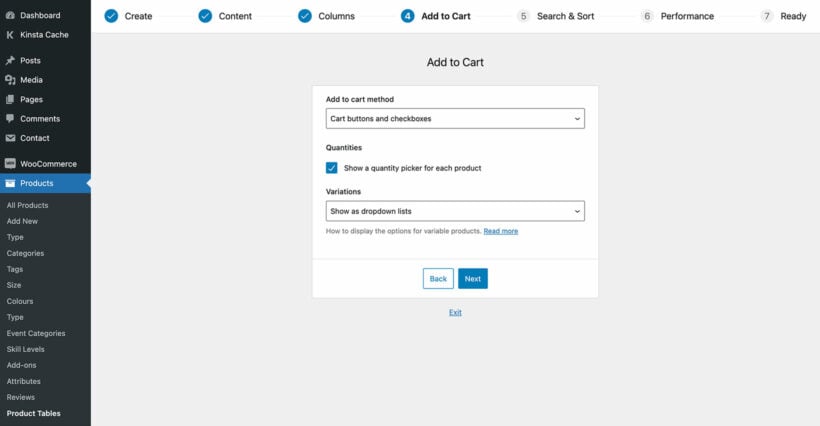
On the 'Add to cart' page, I recommend using the checkbox add to cart button style. This lets customers multi-select products to build their bundle. If the bundle includes any variable products then you should either choose the 'Dropdown' style, or 'Show variations on their own row' if you want to list variations separately as if they were individual products.
The last page of the table builder provides a shortcode for inserting the table. Copy this if you're not using the Gutenberg block editor.
Repeat the above steps (selecting different products) if you will be listing the product bundle in multiple tables on the same page.
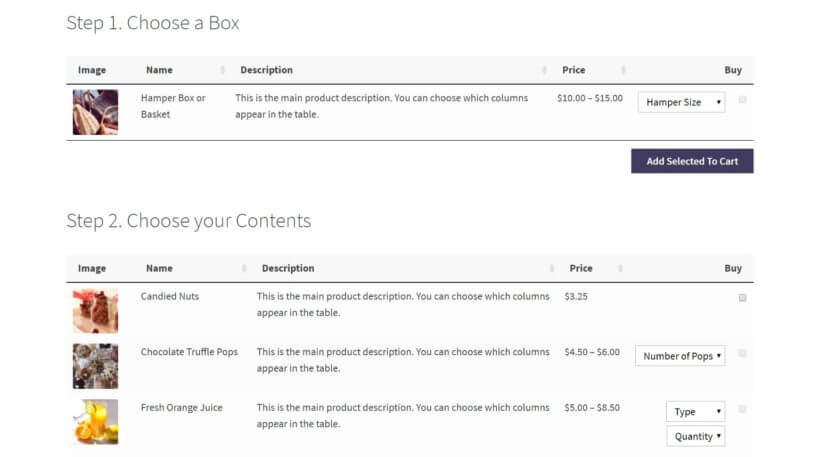
Now create a new page and either add all your product table shortcodes to it, or insert each one using a 'Product Table' Gutenberg block. Add a heading between each table as required. This should walk customers through a logical step-by-step process to creating WooCommerce product bundles.
Method 3: Sell fixed-price bundles with WooCommerce Product Bundles
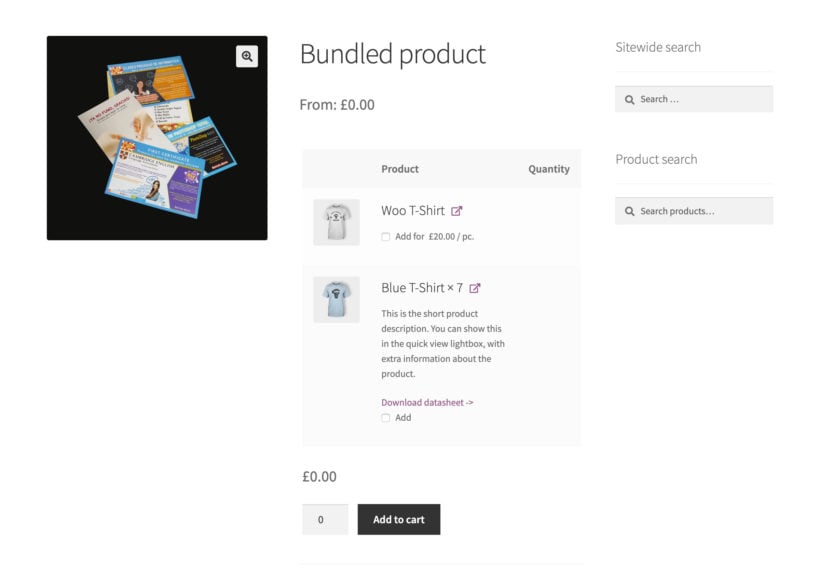
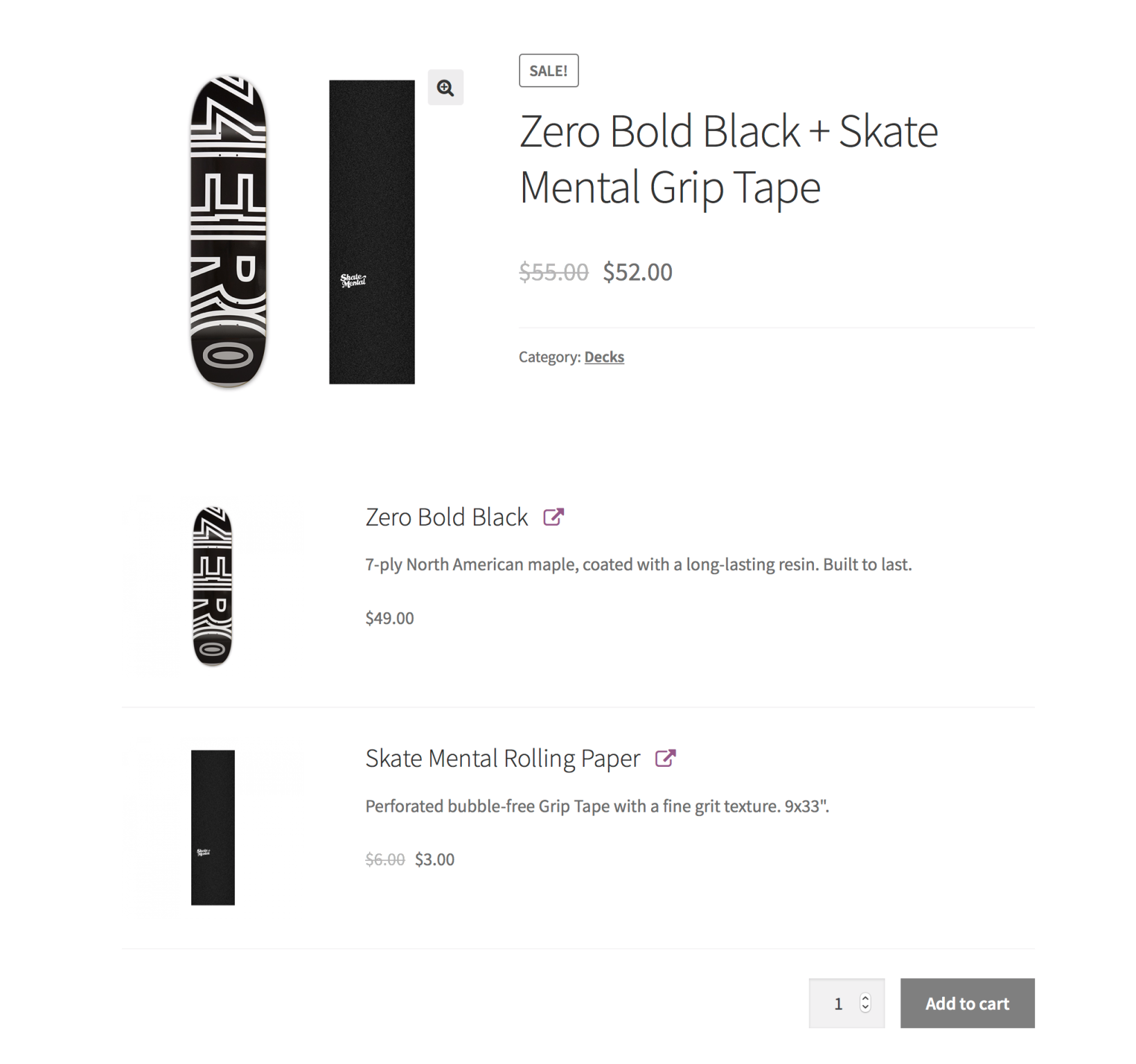
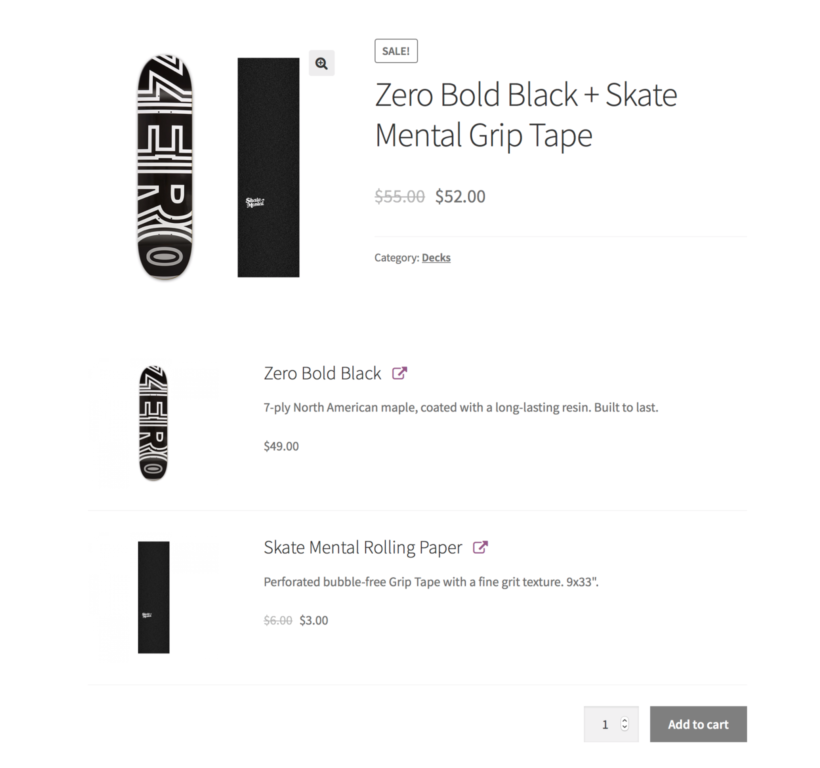
The Product Bundles WooCommerce add-on lets you display bundles of multiple WooCommerce product bundles with variations on a single product page.
There are two ways to sell product bundles: with one add-to-cart button for a fixed price or with separate prices and quantity boxes for each product in the bundle. The first option is recommended if you want to offer a fixed selection of products for a fixed price.
This is particularly useful for more expensive WooCommerce product bundles with variations like tech products (e.g. laptops with accessories), furniture (e.g. mattresses with bed sheets and pillows), or sports gear (e.g. ping pong table, rackets, and ping pong balls).
Create a new product. This will be your product bundle.
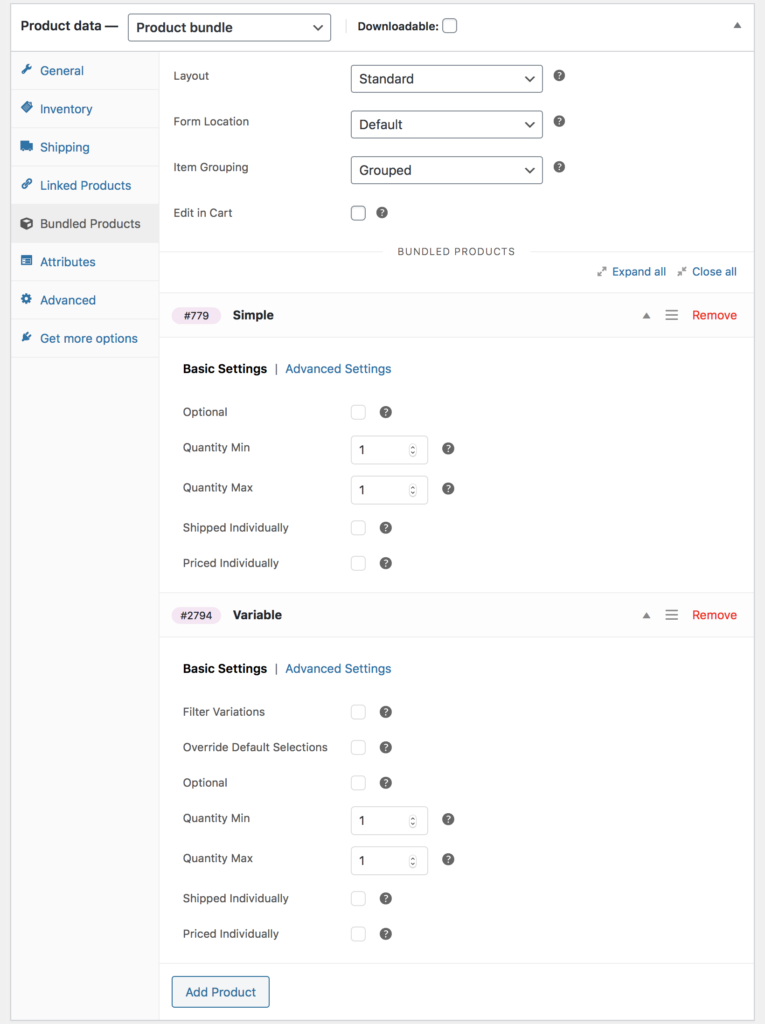
Scroll down to the Product data section and use the dropdown to select the Product bundle option.
Click on the Bundled Products tab to configure the WooCommerce bundled product options.
Method 4: Let customers pick and choose product bundles with variations
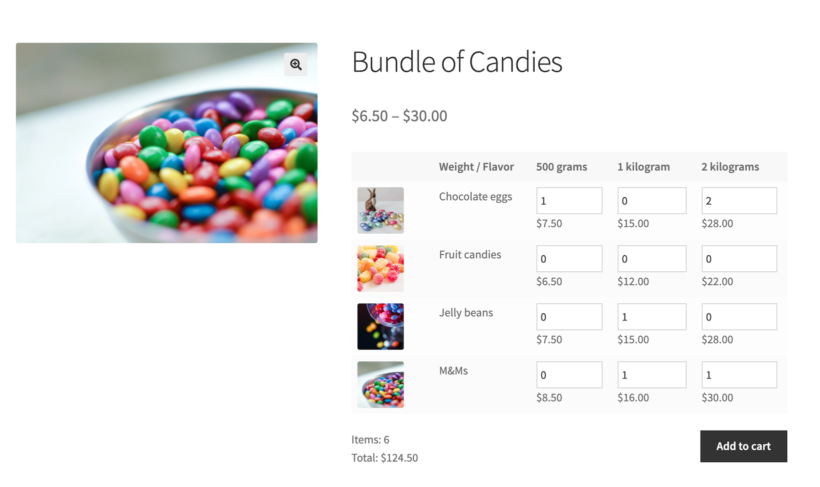
Method 3 uses the WooCommerce Bulk Variations plugin. It lets you create one product for each product bundle you want to sell. You can then add all the individual items that you want to allow users to bundle as variations. This is perfect for online stores that sell low-cost products like candies, sweets, teas, or coffees.
Using this plugin, you can display these variable products in a matrix on the single product page. You can also use the shortcode included in the plugin to show the product matrix on any page, such as a central Bundles page or in a widget. This allows customers to select the number of each variation they want to purchase and create their bundle.
Go to Products →Attributes from the WordPress dashboard. Add attributes for the items you’d like to sell as bundle products. For example, if you’re selling candies you could add Flavor and Weight as attributes.
Create a new WooCommerce product. This will be the product bundle.
Scroll down to the Product data section and select Variable product using the dropdown.
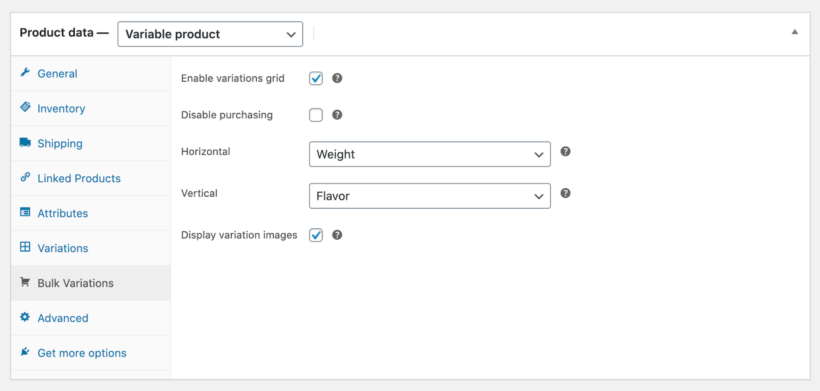
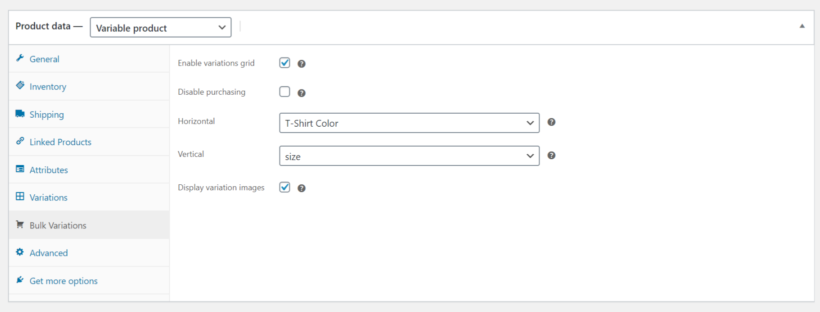
Click on the Bulk Variations tab and configure the following settings:
Tick the checkbox next to the Enable variations grid option.
Set the Horizontal and Vertical attributes.
Tick the checkbox next to the Display variation images option.
Click the Publish button.
On the product page, customers can choose how much of each variation they’d like to purchase. This lets them complete their WooCommerce product bundles with variations. The total price appears directly under the matrix before they add everything to the cart.
If you don't want to display your bundle on the single product page, then you can insert the variations matrix elsewhere using a shortcode.
What is the difference between grouped products and bundled products in WooCommerce?
In WooCommerce, a grouped product and a bundle product are two different types of product options that allow you to offer related products to your customer. Here is the main difference between the two:
Grouped product: A grouped product is a collection of individual products that are sold separately, but grouped together on a single page. It allows customers to choose which individual products they want to buy and add them to their cart individually. For example, a camera, lenses, and accessories can be grouped together as a camera kit.
Bundle product: A bundle product is a set of products sold as a single unit. Customers cannot choose which individual products they want to purchase from the bundle but must buy the entire bundle altogether. For example, you can bundle a laptop, mouse, and keyboard together as a single laptop package.
How do I create a grouped product in WooCommerce?
Creating a grouped product in WooCommerce involves a few simple steps. Here's how to do it:
Log in to your WooCommerce account and navigate to the WordPress dashboard.
Click on the "Products" tab and then click "AddNew" to create a new product.
Choose "Grouped product" as the product type from the dropdown menu.
Give your grouped product a name and description, and set the price for the group (if applicable).
Under the "Grouped Products" table, click the "Add Products" button to add the individual products that make up the group.
Search for and select the products you want to include in the group. You can add as many products as you like.
Rearrange the order of the products if needed, using the drag-and-drop functionality.
Save your changes, and you can now publish your grouped product.
Customers can view a list of individual products included in the group with prices and buy buttons. This provides them with the flexibility to purchase multiple products at once while choosing which products they want to buy.
How do I create a product list in WooCommerce?
You can create a product list in WooCommerce by using the built-in functionality of the WooCommerce Product Table plugin. Here are the steps to follow:
Log in to your WordPress dashboard.
Navigate to the Products → Product Tables section in the left-hand menu.
Click on the Add New button to create a new product list.
Copy the shortcode from the final page, and paste it into the page where you want to list products. Alternatively, if you're using the Gutenberg editor then you can add the 'Product Table' block and select your product list to insert it.
Quantity rules and discounts
Many WooCommerce websites set rules around their product bundles. For example, you might want to restrict how many items customers can order from a bundle. You might want to automatically apply a bulk bundle discount depending on the number of products or variations ordered.
You can add these features using some excellent WooCommerce plugins, which work with all the methods in this tutorial:
WooCommerce Discount Manager - Add quantity-based bulk discounts for specific bundles (e.g. based on category or product).
WooCommerce Quantity Manager - Set minimum and maximum quantity rules for your bundles. You can either set these rules globally, per category, per product, or per variation.
Want to create WooCommerce product bundles?
There are four solid plugin paths to creating WooCommerce product bundles:
Be sure to make your product bundles relevant and attractive to your target audience. Promote them efficiently across your website and marketing channels. Providing a personalized and convenient shopping experience with product bundles can increase your revenue and profit margins.
Ready to create and sell WooCommerce product bundles with variations? Choose a plugin from the list above, and set it up today! With the right tools and strategies in place, you can take your ecommerce business to the next level 💪
If you run a craft brewery, it's a great idea to set up a brewery online store. This is a great way to meet customer demands and sell beer online.
For breweries, hard times and emergency situation can hamper and jeopardize the total meet of their sales targets. All of their usual ways of selling were affected by:
Supplying craft beers to pubs and restaurants.
Face-to-face sales directly from their brewery shop.
Stores and shops they supply craft beers to.
For some microbreweries, selling online became the only way to stay in business and maintain their bottom line. Even with the world opening up again, it is now clear that online sales are essential for success.
The good news is that you can set up an ecommerce website to sell beer online. This is also a great way to reduce costs and overheads as you cut out the middleman and sell directly to the public. And the best part is that it's surprisingly easy to set up!
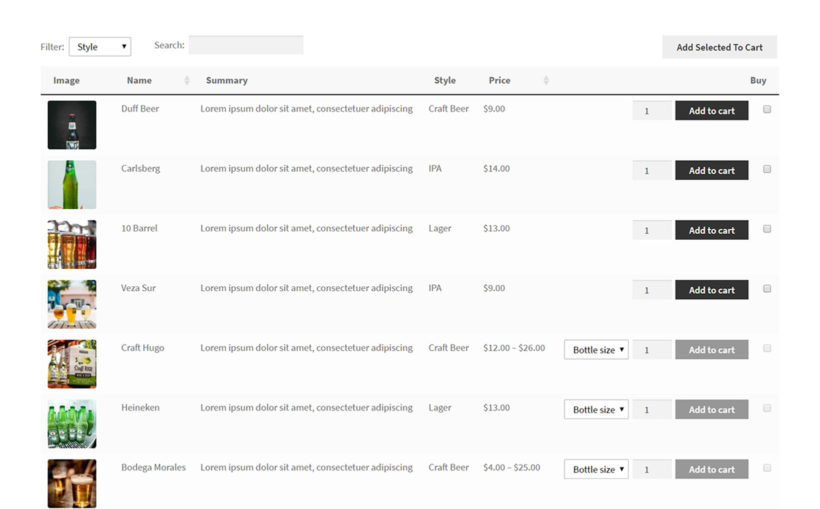
Selling beer with the WooCommerce Product Table plugin
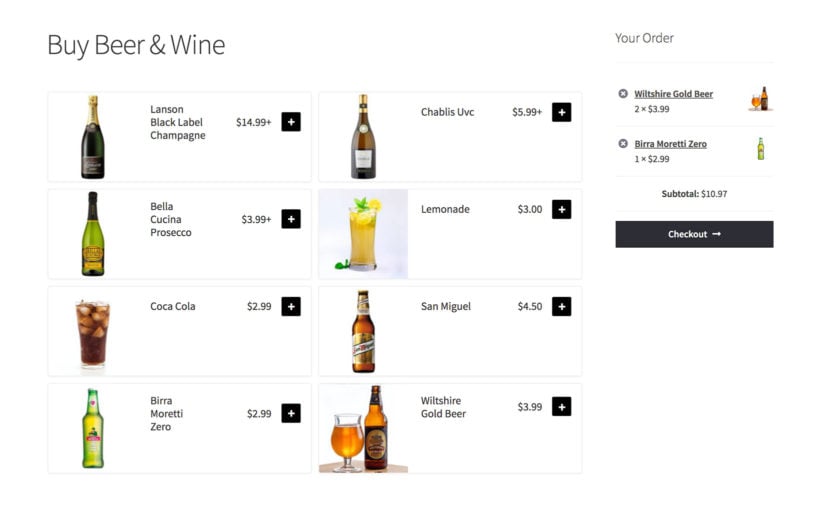
Selling beer and wine with the WooCommerce Restaurant Ordering plugin
In this article, we’ll show you how to set up a brewery online store using the free WordPress and WooCommerce platforms. You can then choose between two excellent brewery plugins to list your beer in a quick one-page order form: WooCommerce Product Table and WooCommerce Restaurant Ordering.
Setting up WordPress and WooCommerce
We recommend using WordPress and WooCommerce to power your brewery online store. This is because they're easy to set up yourself, and you can sell beer online in a few simple steps. Plus, most of the software you’ll need is open-source and free to use.
This means you won’t have to pay a commission like you would if you were to sell on a hosted ecommerce platform. Finally, selling beer online through your own brewery online store means that you have full control over the look and feel of your store and payouts.
If you don’t already have a WordPress site with WooCommerce installed on it, we recommend checking out these helpful articles:
Once you’ve set up your basic WooCommerce-powered online store, come back here and follow the instructions to sell beer online.
Which is the best brewery plugin for selling beer online?
Once you've installed WordPress and WooCommerce, you need to choose a brewery plugin to list the beers on your public-facing website. Beer sells best in a one-page order form layout, where customers can select the beers they want and quickly add them to their cart.
Choose whichever plugin has the appearance and features you need, and then skip ahead to the setup instructions.
WooCommerce Product Table - Best for listing large numbers of beers
WooCommerce Product Table makes it quick and easy to find specific fine beers. Customers can use the filter dropdowns, column sorting and keyword search to find exactly what they're looking for. As a result, we recommend this beer ordering plugin if you have a large alcoholic drinks catalog.
Each drink is listed on its own row in a one-page order form (or multiple pages if you want pages for ale, lager, wine, golden apple mead, dark beeretc.). You can choose which columns of information to display. Customers can choose quantities and options, select multiple beers, and quickly add them to the cart.
WooCommerce Product Table is great for selling beer online for several reasons:
Structured layout It offers a neat and organized layout for listing various beers.
List beers on one page.Unlike the default WooCommerce shop page, you can use WooCommerce Product Table to list all of your beers on one page with small images. This way, each beer won’t take up lots of space like the standard ecommerce layout that’s better suited for selling more visual products (like clothes).
Quick order form WooCommerce Product Table gives you a quick order form layout. Think of it this way: customers buying beer online will nearly always want to buy multiple beers at once. So, it’s much better to give them the option to select the required quantity of each type of beer and quickly add them all to their shopping cart. This way, they don’t have to visit a separate page to add each beer to their cart.
Customizable The WooCommerce Product Table plugin also gives you the option to choose which information to include in the list of beers. For example, you can choose to display information about the glass bottle size, strength, type of ale, and so on.
Setup instructions →
WooCommerce Restaurant Ordering - Best for a clean, simple layout
If you have a few dozen beers or less, then you might prefer the clean and minimalist design of the WooCommerce Restaurant Ordering plugin. It creates a simple list of your beers and other drink products.
There are lots of reasons why WooCommerce Restaurant Ordering is perfect for selling beer online:
Quick 5-minute setupWhen you install the plugin, it does everything for you and automatically creates a one-page order form page listing your beers. This is divided into category so that customers can easily find what they need.
Flexible optionsYou can choose whether to include information such as the image and product description, and how many columns to list your beers in.
Sell variations and quantity optionsYou can add options as variations (e.g. if a particular beer is available individually or as a crate), which the customer can select from a lightbox popup.
Setup instructions →
How to set up a brewery online store using WooCommerce Product Table
By now you should already have a WooCommerce store set up. Here’s what you need to do next to set up a brewery online store:
Log in to your WordPress admin panel and head over to Products → Product Tables → Add New. This opens the table builder.
Step 2: Create a table listing your brewery products
The next step is to create a quick order form for your brewery online store. Here’s what you need to do:
Table display
Since you’re setting up a brewery online store, I recommend replacing the standard WooCommerce layouts in your theme with the product table. You can do this on the first page of the table builder:
After this page, you can choose exactly which shop pages you want to use the table layout on:
Table content
Use the Columns page to select which columns you’d like to show in the front-end table layout. Here’s a complete list of product table columns you can choose from. At the bare minimum, we recommend displaying image, name, short description, price, and buy.
You might have created product attributes when adding craft beers to WooCommerce as products. This is an easy way to store extra information about each beer (such as the strength (i.e. ABV), type (e.g. IPA, double IPA, pale ale, seltzer), bottle size, or additional attributes (like bestsellers or limited edition beers).
WooCommerce Product Table makes it easy to display them as attribute columns in the table. Just select them from the list of columns.
Add to cart buttons
As we mentioned earlier, customers will likely want to purchase multiple beers at once from your brewery online store. I recommend setting the Add to cart button option to either Checkbox only or Button and checkbox using the dropdown menu.
In addition, you’ll want to tick the checkbox next to the Quantities option to show quantity selectors in the add to cart column. This way, customers can add multiple units of a specific beer to their cart at once.
If you sell variable products then you should set the Variations option to Show as dropdown lists. This way, customers can quickly select different options for each craft beer. For example, they can choose to purchase an individual bottle, growler, a 6-pack, box, keg, or crate. Or, you can have different types of barrels such as dark oak barrels or small barrels and big barrels. This is especially useful for brewery online stores that would like to sell to wholesale customers, as well.
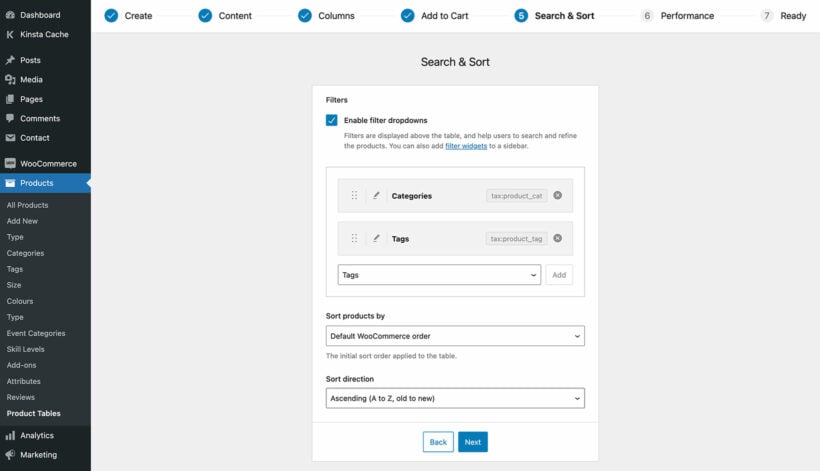
Sorting and filtering
WooCommerce Product Table lets you add attribute filters to your front-end table layout. This makes it easy for customers to quickly find the types of beers they’d like to purchase.
For example, you can create attributes for IPA, craft beer, homebrew, lager, pilsner, wheatbeer, and so on and let customers select beers based on alcoholic strength (i.e. alcohol levels or high-proof liquor).
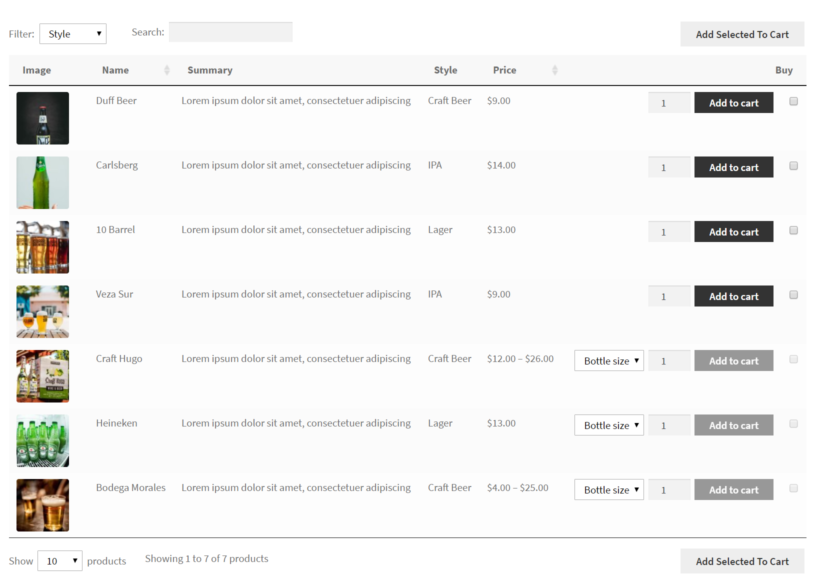
Your brewery online store might look something like this:
How to use WooCommerce Restaurant Ordering to sell beer online
If you'd rather list your beers in a clean and simple order form, then WooCommerce Restaurant Ordering is perfect for you.
Find the plugin settings page at WooCommerce → Settings → Restaurant.
Choose how you want your brewery order form to work. This includes choosing what information to display and the number of columns.
Go to the Pages section of the WordPress admin, find the new page called 'Restaurant Ordering' and rename it to something more appropriate like 'Order Beer Online'.
Now view the page. You will see your beers and other drinks listed in a professional-looking one-page order form, structured by category:
Add age verification and shipping options
Since most countries across the world restrict the sale of beer based on age, you’ll want to set up age verification on your brewery online store. Check out our separate tutorial on how to add a WordPress age validation pop-up to your store or prevent under-age people from accessing it.
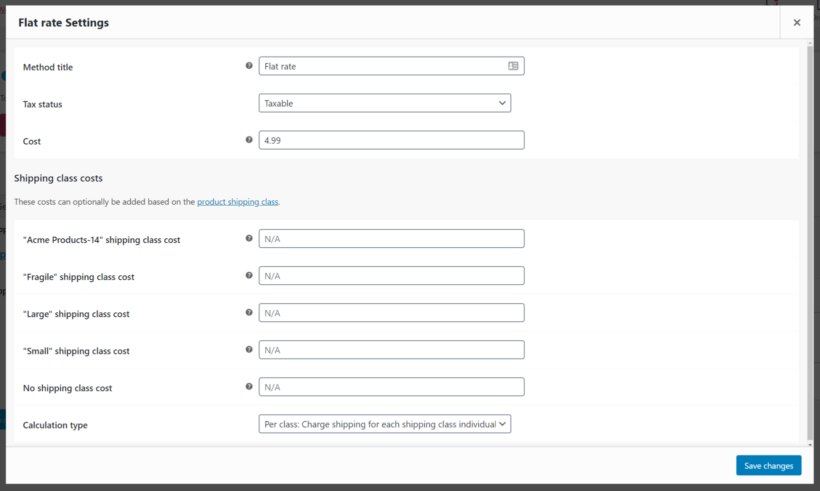
In addition, you might also want to set up postage costs for cool beer since it’s heavy. You can do this using the flat rate options built into WooCommerce.
You can also use the Product Shipping plugin if you want to charge different postage based on weight.
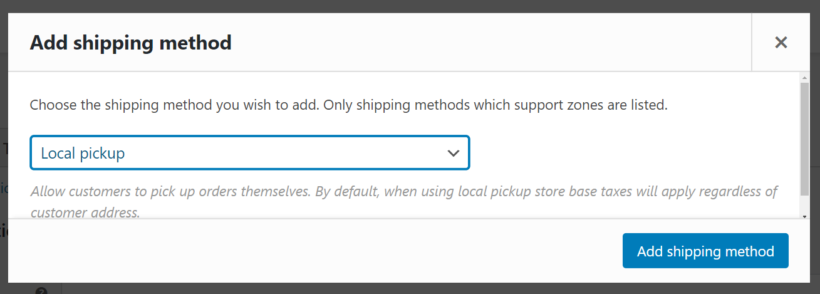
It’s also worth mentioning that WooCommerce offers a local pickup shipping option which is suitable for local brewery online stores that can offer curbside pickup options. This way, customers don’t have to pay postage.
Bonus: Sell merchandise for your brewery
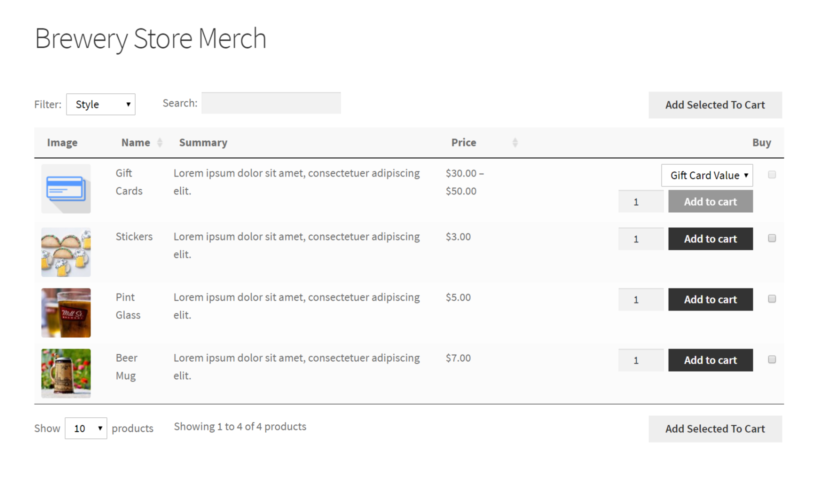
You can also use the WooCommerce Product Table and WooCommerce Restaurant Ordering plugins to sell merchandise for your brewery. This is a great way to establish your brand and supplement your income without doing hard work.
Some popular merch ideas for breweries include branded stickers, gift cards, t-shirts, and hoodies. You can also sell glassware like a branded pint glass or beer mugs.
You can follow the same techniques to sell merch through your brewery online store. We recommend creating a separate category (with sub-categories, if necessary) for the merch. This way, you can display it on separate pages on your brewery online store.
Add a wholesale area to sell to pubs and restaurants
Many breweries will benefit from a wholesale area that they can use to sell beer kegs, boxes, and crates to pubs, shops, restaurants, and other stores that they supply beer to.
These stores can then place their orders online and be charged the correct wholesale price rather than the regular price. The key benefit of selling beer wholesale online is that it saves a lot of time as compared to taking orders manually over the phone. Check out our tutorial on how to create a WooCommerce wholesale store.
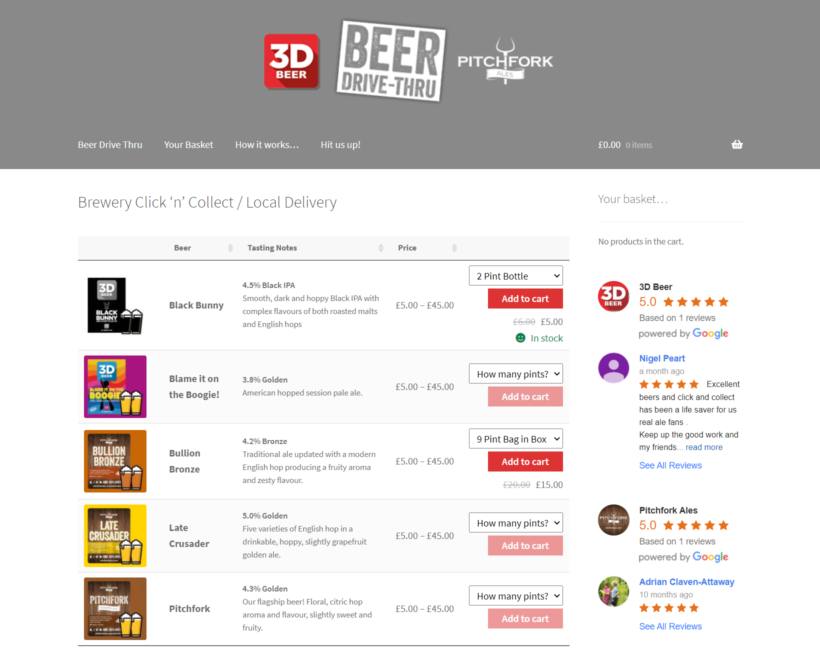
Case study: How Beer Drive Thru uses WooCommerce Product Table to sell beers online
The Beer Drive Thru brewery store needed a way to sell beers to customers in an efficient way. Initially, they were looking for a simple way to set up a single page solution or one-page shop. This would allow Beer Drive Thru customers to choose their beers and place their orders, all from one page.
Using the WooCommerce Product Table plugin, they were able to start selling beers online and keep their business operations running during the Coronavirus lockdown.
Very happy with "Product Tables" - it's nicely flexible in terms of both function and style and is a big factor in making the customer experience so much smoother. Excellent support too!
Customers can visit the brewery online store to select the beers they'd like to purchase, set the quantity, and place their order in advance. Then, they can drive into the car park area at the brewery store for contactless pickup (similar to curbside pickup). This is perfect for selling beers during the lockdown.
Beer Drive Thru also offers nationwide delivery options. Using the WooCommerce Product Table plugin, the brewery set up two different order forms with different available options and prices for their beers.
Set up your own brewery online store
Some products - like beer, wine, or medical items like contact lenses - have restrictions when being sold online. A brewery online store is a great way to avoid operational restrictions and reach a wider audience. And the easiest way to sell beer online is by using the WooCommerce Product Table or WooCommerce Restaurant Ordering plugin to showcase the beers you sell and let customers place orders online.
Ready to start selling beer online? Get the plugin today!
One of the most effective ways to boost sales on your e-commerce store is by making it easy for customers to browse products, select a variation, and add it to the cart. For this, you need a WooCommerce bulk variations form. This acts as a quick order form, allowing people to buy variations more easily.
A WooCommerce bulk variations form can work on either the front or back end of your website:
A front end bulk variations form allows customers to choose quantities and add multiple variations to their shopping cart at once. This way, they don't have to spend time adding each WooCommerce variation one at a time or searching for the precise combination they want: every option is easily visible at a glance. For this reason, using a WooCommerce bulk variations plugin is a better way to sell variation products.
A back end bulk variations form speeds up store management for the merchant. It does this by listing your products and variations in a bulk editing spreadsheet form. You can either update variations by clicking directly within the spreadsheet editor; or by using a bulk edit form to apply mass updates.
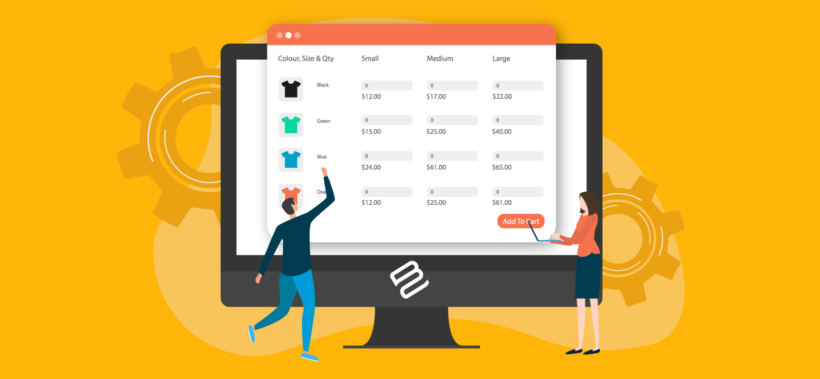
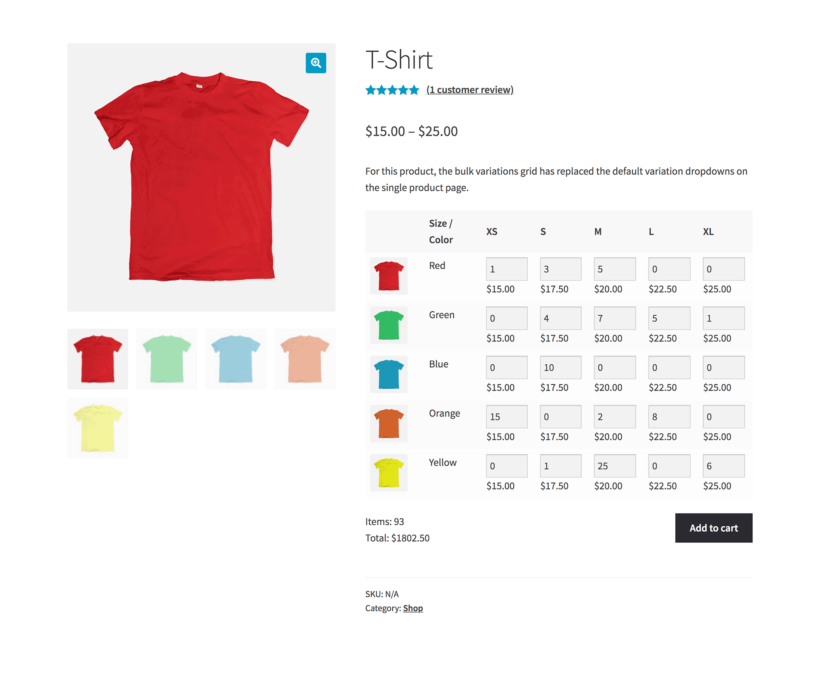
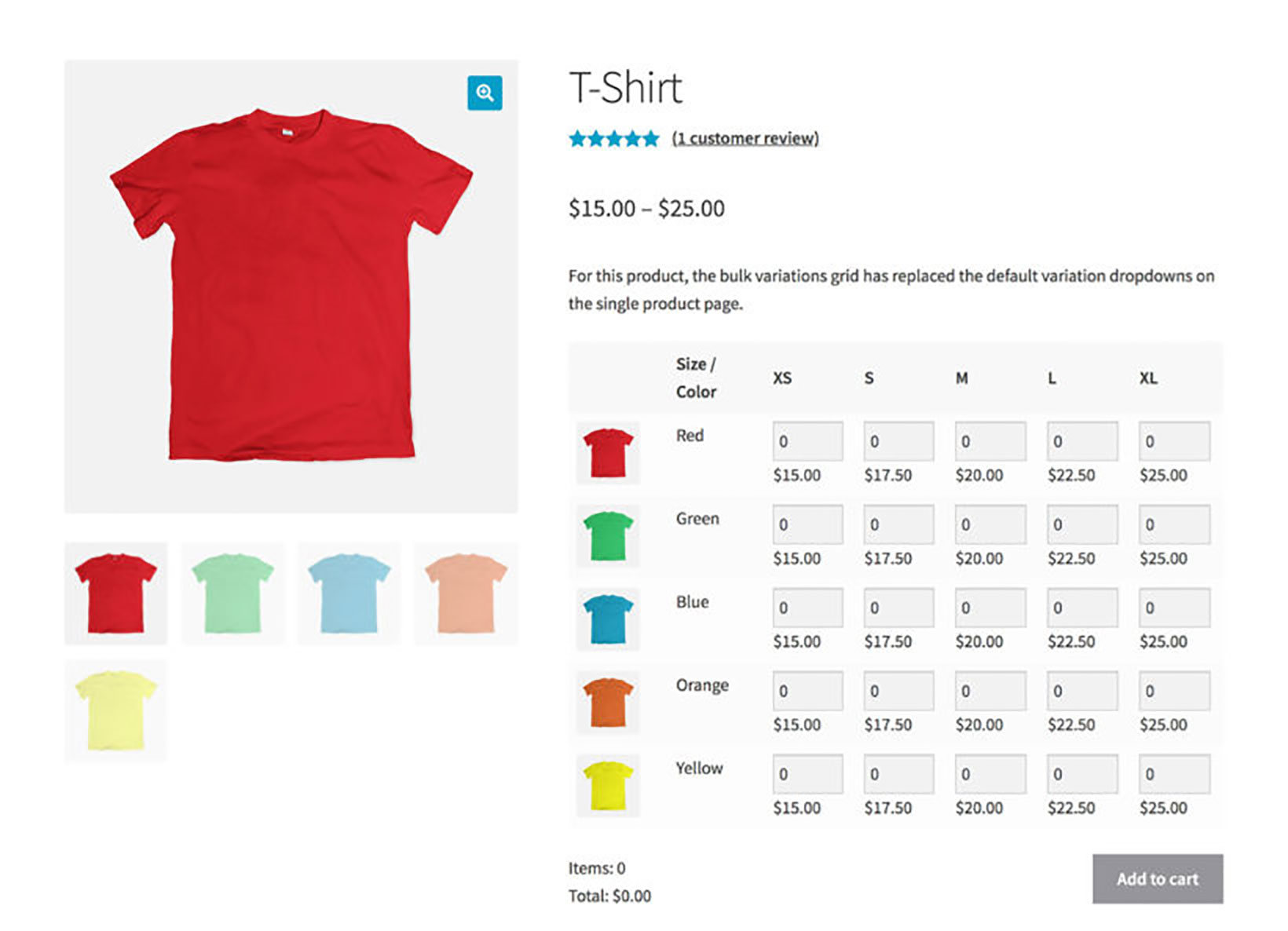
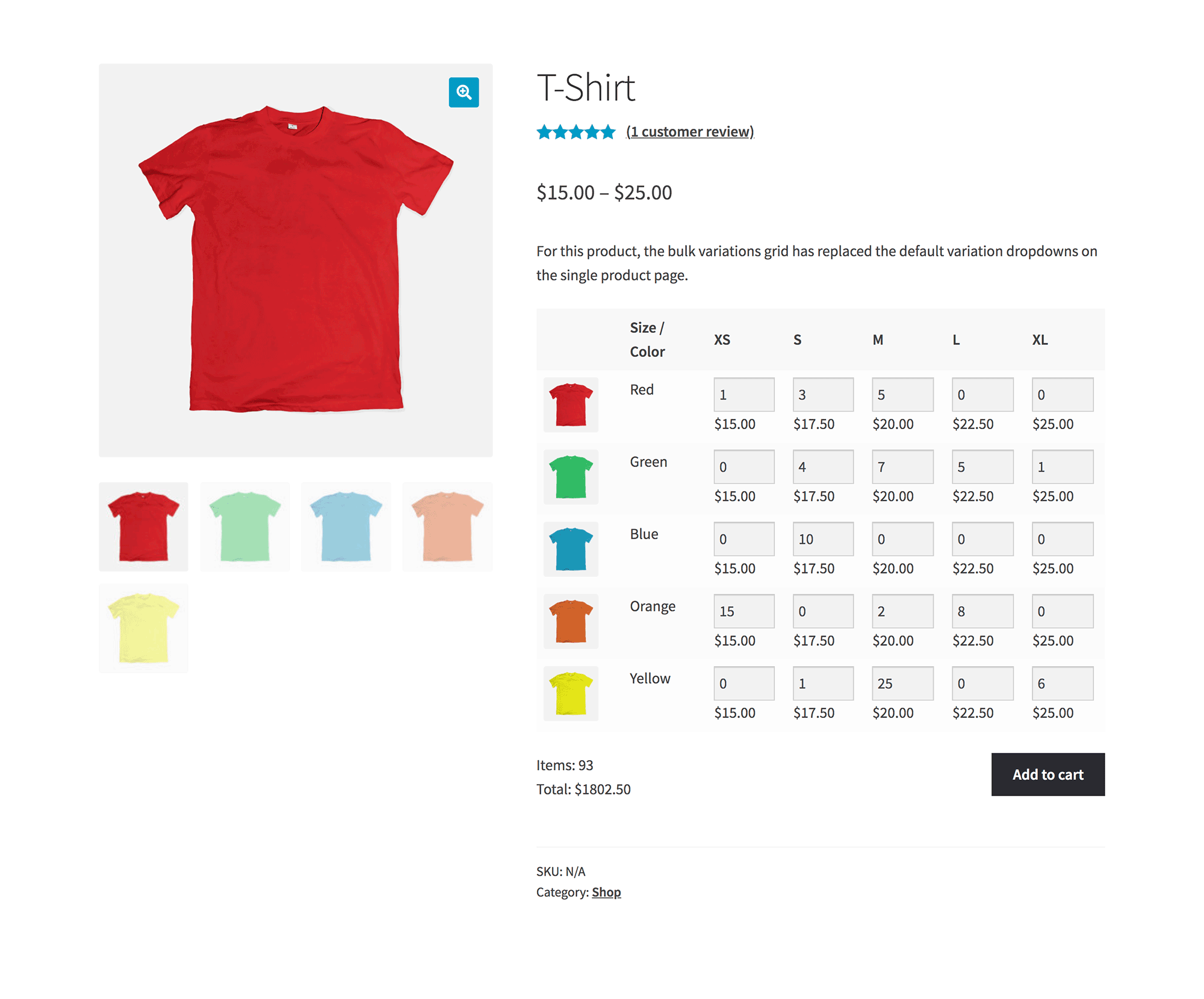
An example of a WooCommerce bulk variations form for a single product
In this article, we’ll show you how to create three different types of bulk variations forms for your WooCommerce store without any complicated messing around with PHP code. You'll learn how to list WooCommerce product variations in either a variations grid, table or spreadsheet layout, depending on your requirements.
The benefits of using WooCommerce bulk variations forms
Some online stores sell multiple variations of the same product. For example, clothing stores generally sell items in more than one size. Color and material are two other common variations. You might even consider offering e-books, albums, games, or movies as variations on a generic product.
By default, WooCommerce forces you to select each variation individually. This takes ages for customers wanting to buy variations in bulk!
For example, imagine you wanted to buy lots of different sizes and colors of a t-shirt. Would you rather add each variation individually by using the size and color dropdowns and clicking the 'Add to cart' button lots of times? Or would you rather enter the required quantity for each variation from a bulk variations form and click the 'Add to cart' button once?
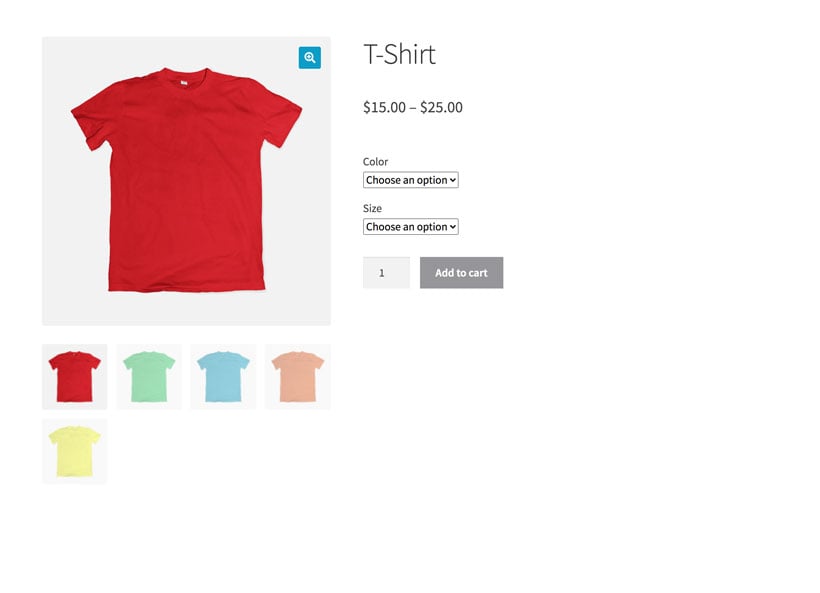
Variation dropdowns (the default)
Bulk variations form
As you can see, the default variation dropdowns provided by WooCommerce can make the process long and complicated for customers buying lots of variations.
Displaying product variations in a WooCommerce bulk variations form offers many benefits to both you and your customers. As well as being able to buy variations in bulk more quickly, they can see all the variations at once and bulk edit their orders.
This way, customers can still see all the available variations in the order form and quickly add the ones they want to their cart in bulk from a single page.
And there are benefit for store owners, too!
The above benefits all focus on the customer. If you use the other type of WooCommerce bulk variations form - the spreadsheet editor - then it saves time for store owners instead. It's much faster to edit variations via a single form interface instead of editing each product individually.
To fully combine the benefits for customers and store owners, I recommend using one of each type of bulk variation form.
4 ways to list WooCommerce product variations
Next, I'll introduce you to 4 different ways to list WooCommerce product variations in a user-friendly form:
Display product variations in a user-friendly grid
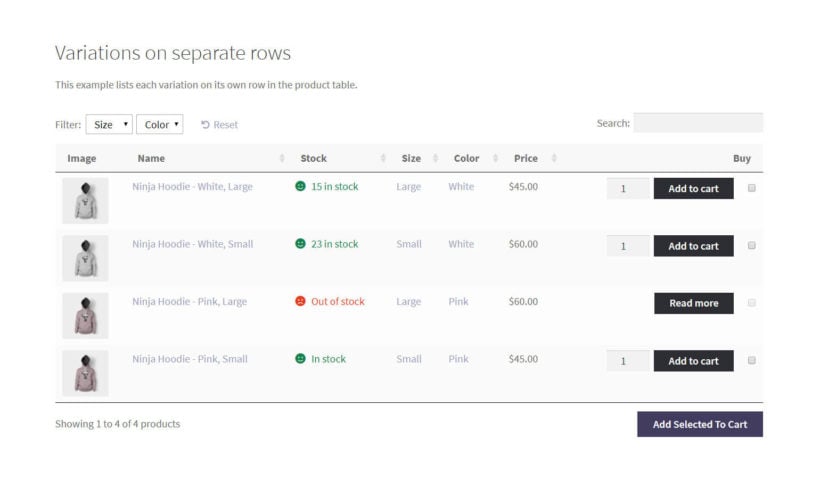
#2. List variations in a table with one per row
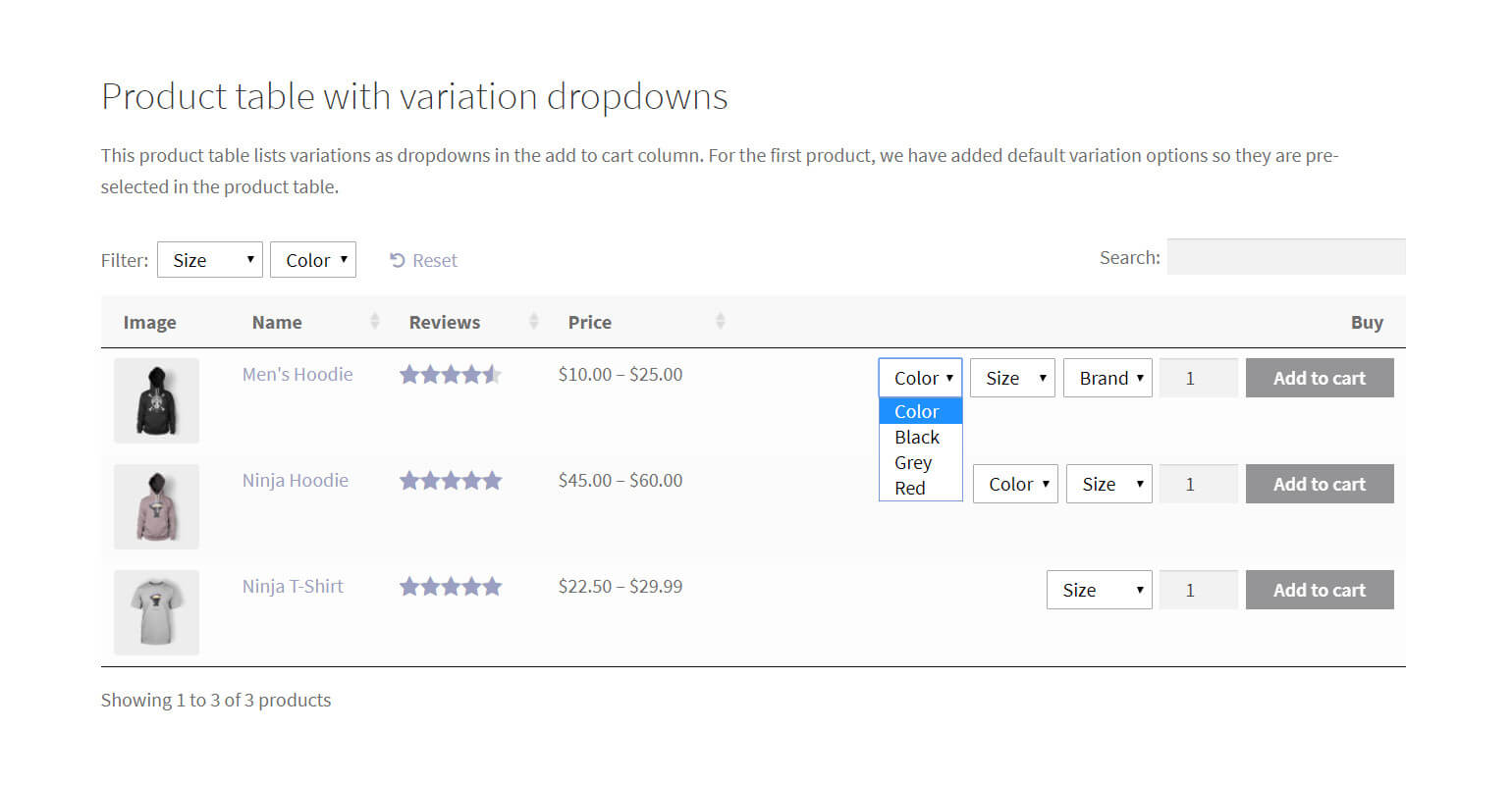
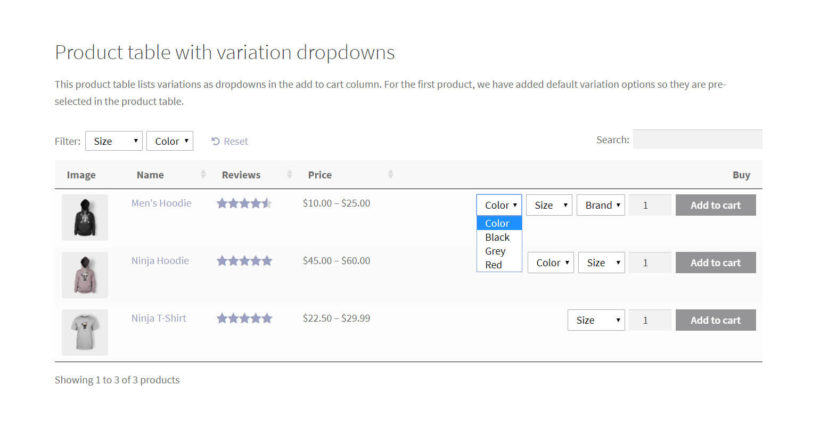
#3. List variable products in a table with dropdowns
#4. List products in a spreadsheet editor
Variations grid Lets customers quickly select multiple variations of a single product and add them to cart at once. [*For customers*]
List variations in a table List product variations for one or more products on separate rows in an order form layout. This is great for SEO. [*For customers*]
Jump straight to whichever method you'd like to implement, or keep reading to learn more about each one.
Types of bulk variations forms
Creating a user-friendly WooCommerce bulk variations form allows customers to view and select the product variations they’d like to purchase. Alternatively, it can assist store owners by making it much faster to edit variations in bulk. Both types are essential for online stores that sell variable products.
I'll tell you more about each type next. After that, I'll provide setup instructions for each one.
#1: Variations grid
You need a variations grid if you want to enable customers to quickly enter quantities for multiple variations of a single item and add them to cart all at once. This is a must-have if you sell variable products to wholesale buyers, such as t-shirts. It's also useful if you sell by weight, with each weight option as a variation.
For this, you will need the WooCommerce plugin and the WooCommerce Bulk Variations plugin. It lets you list the variations for a specific product in a matrix-style grid layout. Each variation has a quantity box and price. It works for variable products with either 1 or 2 product attribute terms, which are used for variations.
In this way, the WordPress plugin works as a WooCommerce bulk variations manager. Customers can simply:
Enter the quantity they’d like to purchase of each variation.
Click a single Add to Cart button to add the selected WooCommerce product variations (in the correct quantities) to their shopping cart.
Proceed to the checkout page.
A WooCommerce bulk variations form created in a matrix-style layout simplifies the purchasing user flow and can help you boost sales. It also lets you bulk add variations to your WooCommerce store. Setting up WooCommerce bulk variations forms is the easiest way to implement differential pricing.
Another way to list WooCommerce product variations on the front-end is by listing them in a table layout with each variation on a separate row. The easiest way to create this sort of layout is by using the WooCommerce Product Table plugin.
Whereas the WooCommerce Bulk Variations plugin is designed to list the variations for one product in each order form, this is the best option for you if you’re looking for a way to create an order form containing variations for multiple variable products. Customers can browse through all the product or variation images, filter products according to their needs, and then simply tick the checkbox next to the product variation they’d like to purchase, set the quantity, and add it to their shopping cart.
Another key benefit of using this approach is that it gives you the flexibility to display extra information about each product variation (such as the SKU and variation description). With WooCommerce Product Table, you can choose which columns to include in the table.
#3: List variable products in a table with dropdowns
If you sell both variable products and simple products, you might consider listing them in a table layout with dropdowns. This is also ideal if you want the compatibility to sell the variations for multiple products in the same table - this time, each product takes up one row in the table regardless of the number of variations or extra product add-ons.
You can do this using the WooCommerce Product Table plugin. It's an easy way to list more than one variable product in the same order form with a single row per variable product.
This method also makes it easy for customers to identify variable product types as they’re the only ones with dropdowns next to them. Customers can browse the products, use the dropdown to select the variation they’d like to purchase, set the quantity, and add the variation to their shopping cart. When you add new products to your WooCommerce store, update products, or update prices, they will automatically appear in the product table.
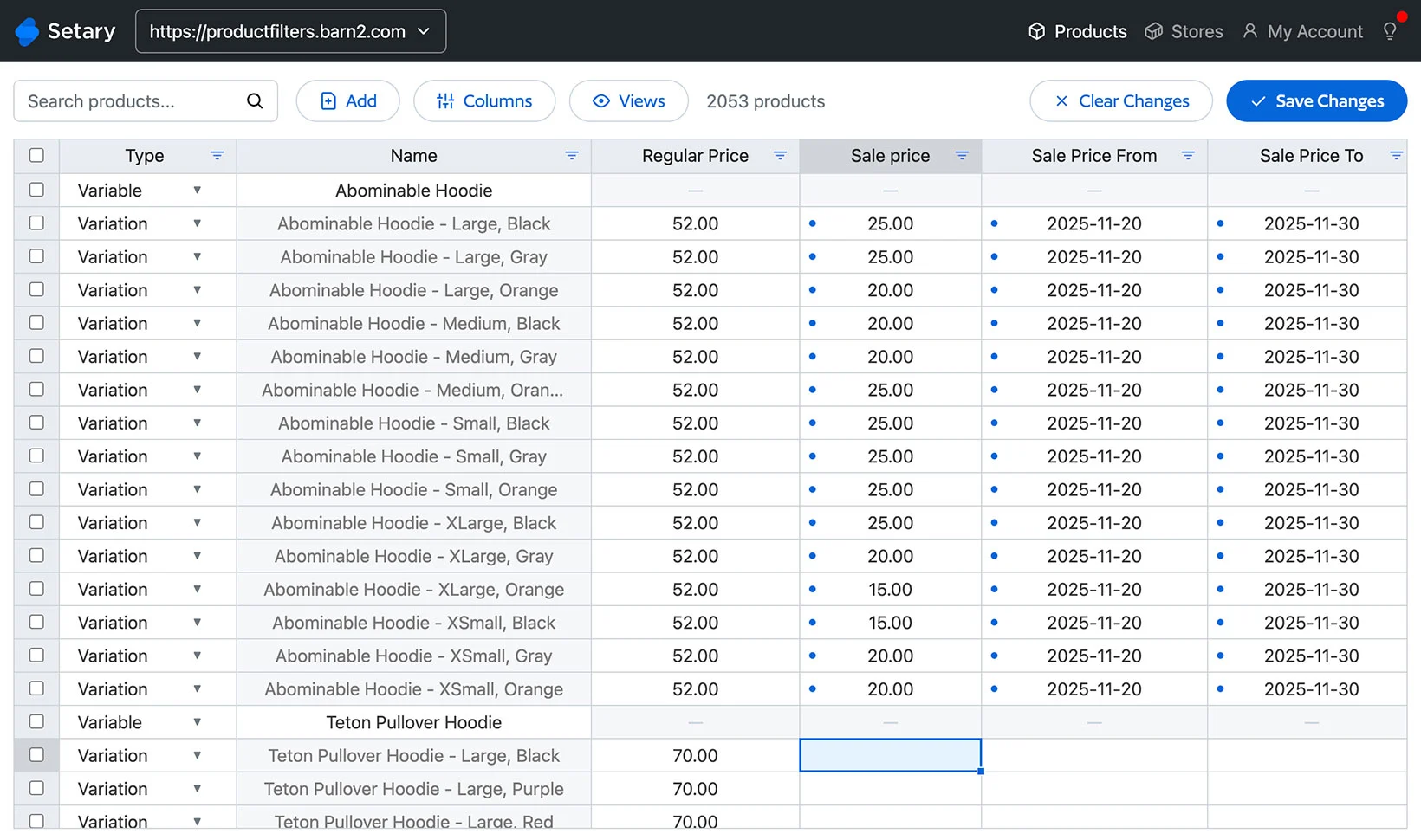
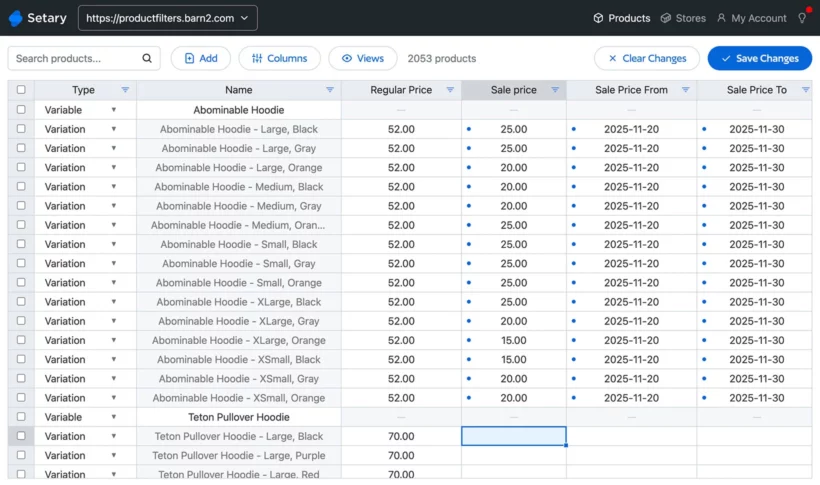
The first 3 types of bulk variation form make it easier for customers to select variations on the front end. Our 4th option - Setary - is different. Instead of benefitting customers, it saves time for store owners by displaying variations in a quick edit spreadsheet with bulk editing forms.
Setary is great because it makes it significantly faster to add, manage and delete variations in bulk. You can:
View each product and variation in your store on a separate row of the spreadsheet.
Add a row in order to quickly create a new product or variation.
Use the advanced search and filters to select multiple products.
Make inline changes directly in the spreadsheet form.
Select multiple variations and use the Bulk Actions forms to apply mass changes. There are lots of options here, such as making price increases or decreases, changing variation names, managing stock, setting variation images, and more.
Option 1 instructions - How to create a WooCommerce bulk variations grid
Creating a WooCommerce bulk variations grid makes it quick and easy for customers to:
See the different variations available for a variable product.
View the regular price of the variation.
Enter the quantity they’d like to purchase of each variation.
Add multiple variations to the cart at once.
To get started, get the WooCommerce Bulk Variations plugin. Once you have it installed and activated on your WordPress website, head over to the variable product you’d like to enable bulk purchasing for. Or, to do it globally for all your variable products, enable it on the plugin settings page.
Scroll down to the Product data section on the Edit Product screen and click on the Bulk Variations tab. Tick the checkbox next to the Enable bulk variations grid option, as shown in the screenshot below.
Next, select the variation attributes you’d like to display in the Columns and Rows of the price matrix using the dropdowns.
Finally, tick the checkbox next to the Display variation images option if you’d like to have product variation images appear in the matrix layout.
That’s it! When you preview the single product page on the front-end, it should look something like this:
Option 2 & 3 instructions - How to list variations in a table layout
Using the WooCommerce Product Table plugin, you can list variable products in two different ways in a front-end table layout with search, sort, and filter options. You can either list each variation on a separate row or list variable products in the table with dropdowns.
The first thing you need to do is install and activate the WooCommerce Product Table plugin to your WordPress website. Once that’s done, Products → Product Tables to create a table.
Use the Columns page to select the columns you’d like to include in the table layout.
Scroll down till you reach the Variations option and select the:
Separate rows in table (one per variation) option using the dropdown if you want to list each variation on a separate row.
Show as dropdown lists using the dropdown to display a dropdown menu for variable products.
Finally, add a 'Product Table' block to a page and select the table you just created. Alternatively, add the shortcode from the final page of the table builder.
Option 4 instructions - Create variation forms for bulk editing
Our final WooCommerce bulk variation form is Setary, the bulk spreadsheet editor. This is the fastest and easiest way for store owners to add and manage variations. It only takes a couple of minutes to set up, so you can start saving time straight away:
Next, you'll be prompted to install the free Setary helper plugin.
Your store's inventory will appear in the Setary bulk spreadsheet form, with each product and variation listed on its own row.
Click within the form to make quick edits. Alternatively, use the filters to narrow down the list and then select multiple products and use the Bulk Actions form.
Each cell that you've updated will appear with a blue dot alongside. Check you're happy with the changes in the bulk variations form, then click Save. This will instantly apply the changes to your live WooCommerce store.
Create your bulk variations form today
There are two types of WooCommerce bulk variations manager - one to help your customers, and one to help you:
The WooCommerce Bulk Variations or WooCommerce Product Table plugins create public-facing bulk variations forms which make it easier for customers to add variations to their cart. [*Recommended for helping customers*]
The Setary app provides a spreadsheet editor plus bulk edit forms for variations, making it easy to update your inventory from a single interface.[*Recommended for helping store owners*]
Both types of bulk variation forms can transform the experience for your customers and for you. For maximum results, use one of each type and start seeing the benefits straight away 🚀
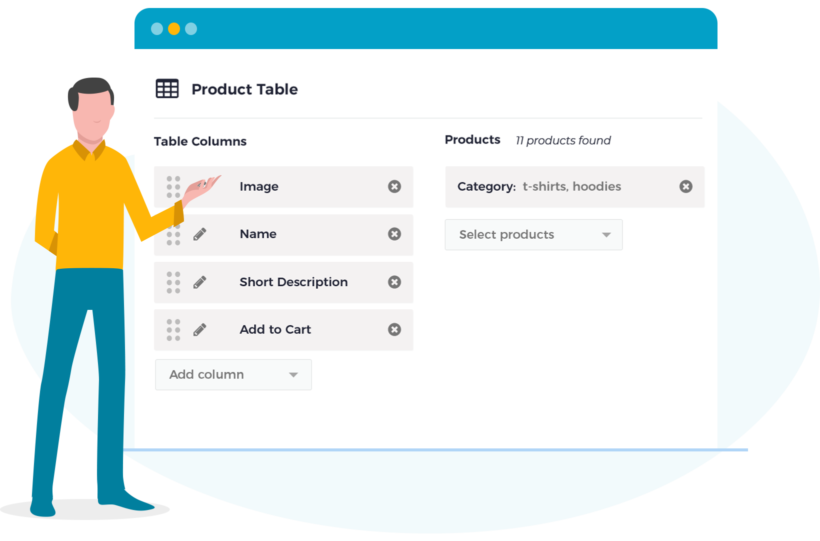
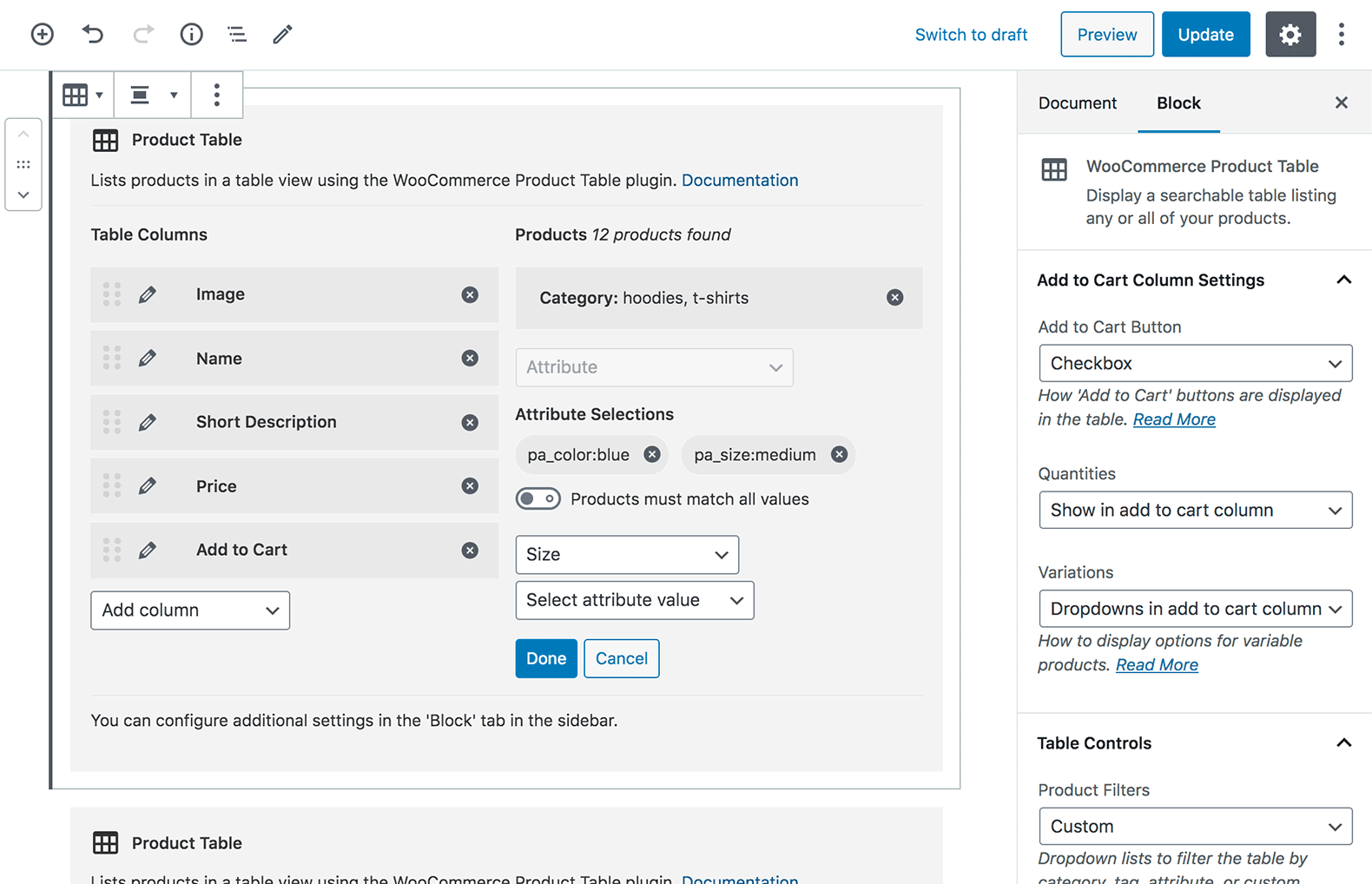
We have just released a free add-on for our bestselling WooCommerce Product Table plugin. Gutenberg Block for WooCommerce Product Table is a free plugin that provides an easier way to create product tables. Download it from WordPress.org today!
Until now, there were 2 ways to create product tables:
Add a shortcode anywhere on your site.
Automatically enable the product table layout on shop and category pages.
The new WooCommerce Product Table Gutenberg Block add-on provides a third way: the ability to create a product table using the Gutenberg editor.
How does the WooCommerce Product Table Gutenberg block work?
When you install the free WooCommerce Product Table Gutenberg block plugin, you'll see a new Gutenberg block called 'WooCommerce Product Table' whenever you add a new block. Use this to add as many product tables as you like, each one different.
Each block will create a beautiful product table, so your customers can select products quickly and easily:
Even though the Gutenberg editor is now part of WordPress core, a lot of our WooCommerce Product Table customers still build pages using other plugins such as Elementor and Divi Builder.
The WooCommerce Product Table Gutenberg Block add-on is available for everyone who wishes to create product tables with the Gutenberg editor. By providing it as a free add-on, a product table block is now available to our Gutenberg users, while keeping the plugin as lightweight as possible for those of you who aren't using Gutenberg.
How can I create product tables with other page builders?
While the new Gutenberg block only works in Gutenberg, you can continue using WooCommerce Product Table itself with any page builder. Simply insert the WooCommerce Product Table shortcode into a Text or Code block for your chosen page builder.
We'd love to know if you'd like to see a similar add-on for other page builders (e.g. a WooCommerce Product Table Elementor add-on). Please send us a feature request and let us know!
Where can I get the Gutenberg block plugin?
The new WooCommerce Product Table Gutenberg block plugin is available to download free of charge from wordpress.org.