How WooCommerce auto parts stores handle massive catalogs


WooCommerce's default grid layout is built for browsing, not for finding a specific part that fits a specific vehicle.
Most store owners add their products and then hit the same wall. The standard WooCommerce grid forces customers to click through dozens of individual product pages just to compare brake pads. There's no vehicle search, no side-by-side specs, and no way to add multiple parts to the cart without constant page reloads.
Keep reading to discover how to combine two plugins to create a user-friendly, easily searchable directory of auto parts: WooCommerce Product Filters with step-by-step dependent dropdowns for vehicle fitment search, and WooCommerce Product Table for the ordering interface.
This article covers how to structure your product data correctly, set up each layer, manage large-scale imports, and optimize for performance and mobile.
Structuring product data: Simple products vs. variations
Before you start installing plugins to power your auto parts store, it's important to set up the products correctly using WooCommerce itself.
A simple product means that one part number maps to one product record in your database. A variation means one parent product with multiple child records attached.
When to use simple products
Simple products work best when each part number is truly distinct. This fits most aftermarket parts catalogs that don't have similar versions of the same product.
Even if you use simple products for your auto parts, it's important to add attributes to store your vehicle fitment data. For example, you should create WooCommerce attributes for Make, Model, Year, and Engine. Then assign the relevant attribute terms to each product. A brake pad that fits 2020-2024 Honda Civics gets "Honda" as its Make, "Civic" as its Model, and "2020" through "2024" as Year terms.
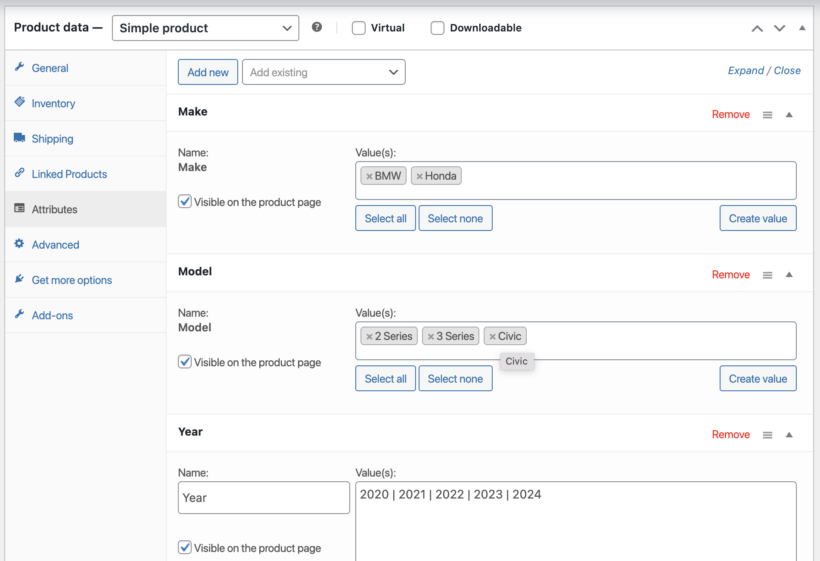
This keeps fitment data structured and filterable so that customers can easily find auto parts using WooCommerce Product Filters (which I'll tell you about in a minute).
One more thing worth getting right early: Use product titles and custom fields to store OEM numbers and SKUs instead of hiding this data in product descriptions. If a search scans descriptions, then a query for "911" will return random SKUs containing that term instead of Porsche models. That pollutes results fast, preventing customers from finding the auto parts they're searching for.
When to use variations
Use variations when the base item is the same but comes in different sizes, colors, or materials. Each variation can have its own SKU, inventory, and pricing. Universal floor mats in black, gray, and tan are a good example - one product, three variations.
Variations can quickly become unwieldy in WooCommerce because you create a separate variation for every possible combination. However, variations are still the best option for selling auto parts that have different options. You can save time on variations management by using a bulk editor, which I'll tell you about below.
The 2 layers every WooCommerce auto parts store needs
WooCommerce auto parts stores have two distinct jobs that standard WooCommerce doesn't handle by default:
- Helping customers find compatible parts.
- Letting customers compare specs and order multiple items quickly.
Trying to solve both with one tool means compromising on both. Instead, it's best to combine two plugins which integrate fully with one another. That way, you get the best of both worlds.
Layer 1: Fitment search
This layer has one job: ask the customer "What are you driving?", "What auto part are you looking for", and filter 20,000 products down to the five or ten that actually fit.
The WooCommerce Product Filters plugin uses step-by-step dependent dropdowns where each filter dynamically reveals the next. The customer selects a Make, and only relevant Models appear. They select a Model, and only relevant Years appear. Each step narrows the results without showing irrelevant options.
Layer 2: The ordering interface
Once Layer 1 has found the right parts, Layer 2 displays them in a fast, scannable format.
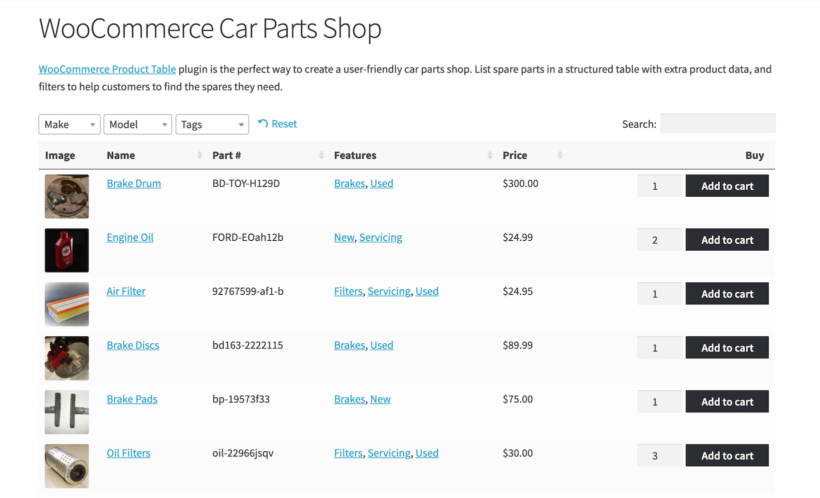
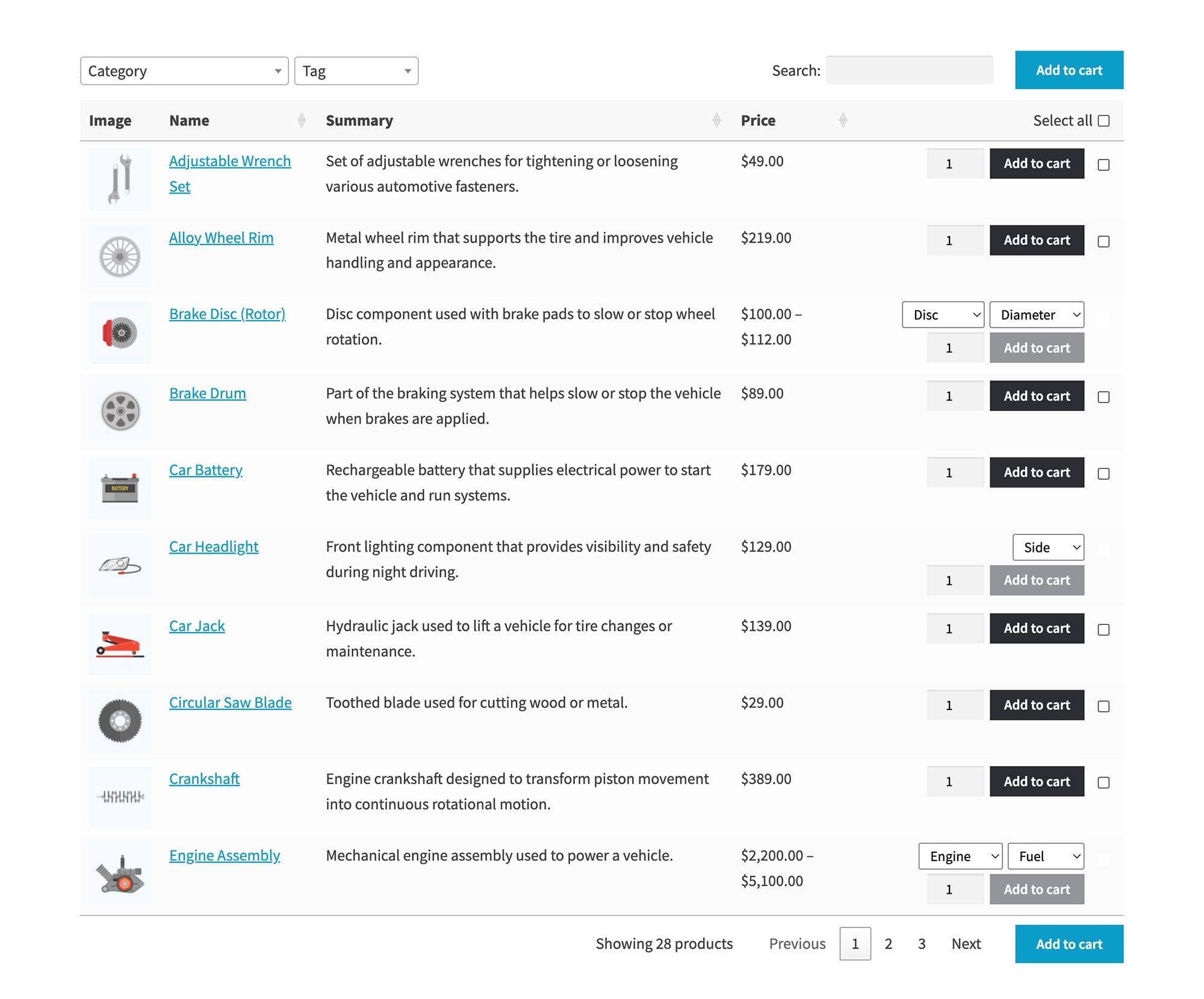
WooCommerce Product Table puts all matching results in one table. Customers compare specs side by side and add multiple parts to the cart without clicking back and forth between individual pages. The page loads quickly even when a filtered search returns hundreds of results.
The two plugins work together on the same WooCommerce shop page, creating the full auto parts search and ordering experience.
Layer 1: Setting up vehicle fitment search
Setting up vehicle fitment attributes
- Navigate to Products → Attributes and create attributes for Make, Model, Year, and Engine (as appropriate for your catalog).
- Assign the correct attribute terms to each product. For example, give a brake pad that fits 2020-2024 Honda Civics "Honda" as its Make, "Civic" as its Model, and "2020," "2021," "2022," "2023," and "2024" as Year terms.
Pro tip: Lots of attributes to add? Save time by using one of the bulk import options described below.
Creating step-by-step fitment filters
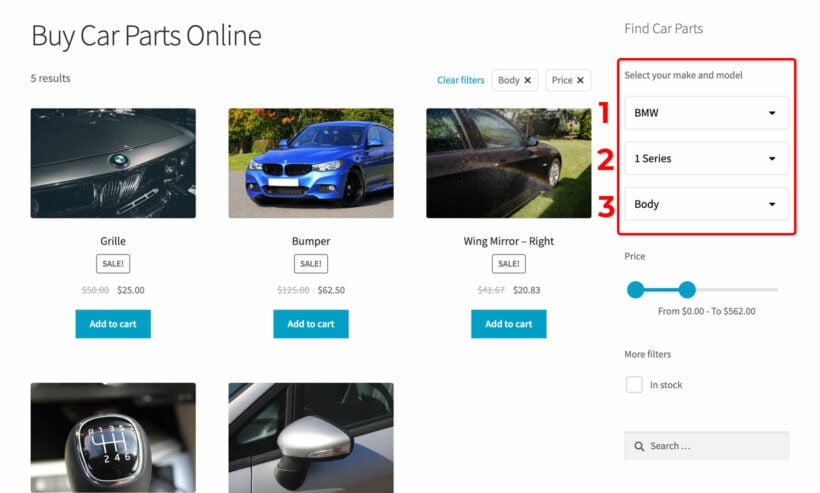
- Install WooCommerce Product Filters and create a filter group with dependent dropdowns for each attribute.
- Set the filters to be dependent on one another. That way, each filter step appears after the customer selects the previous step.
This approach reduces returns by verifying compatibility before purchase. Customers can only select valid vehicle combinations, so they're far more likely to order the correct part.
A note on VIN decoding
VIN-based lookup requires dedicated third-party services that decode VIN data against manufacturer databases. WooCommerce Product Filters doesn't include native VIN decoding.
For most auto parts stores, Year/Make/Model step filters cover the same ground. VIN decoding is primarily useful for dealership-level stores or stores selling OEM-specific parts where engine codes and trim levels matter. Stores that do need VIN lookup can integrate a separate third-party VIN decoding service alongside the step filter setup.
Layer 2: Product tables that make ordering fast
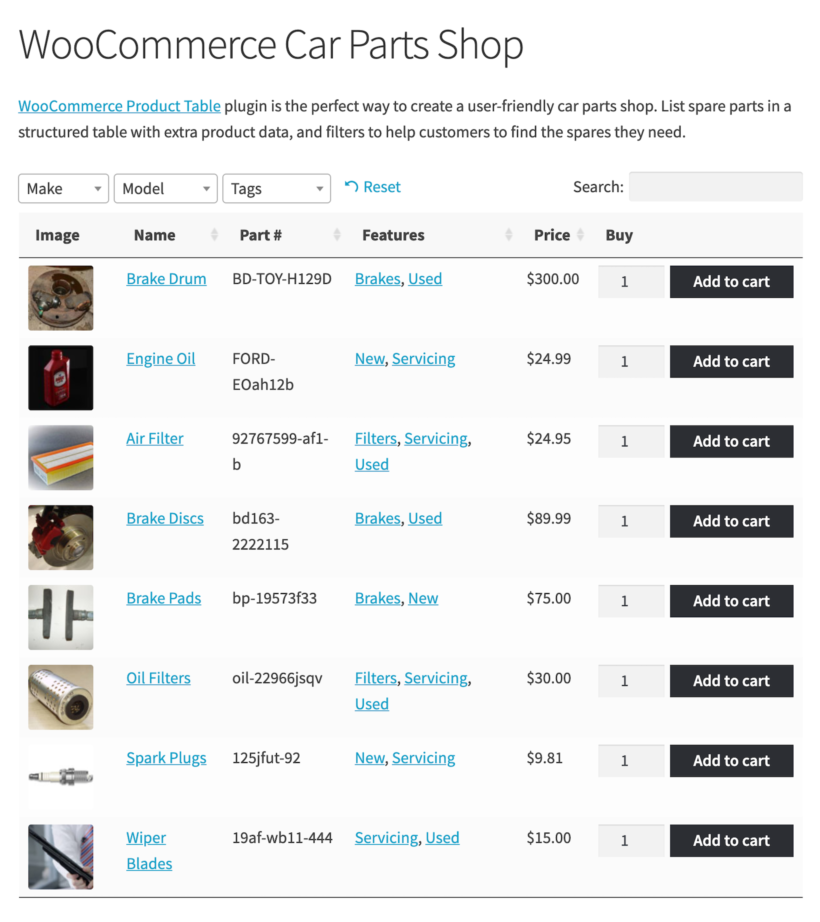
The standard WooCommerce grid forces customers to click through 50 individual product pages to compare brake pads. That's a slow, frustrating experience for mechanics and fleet managers who know exactly what they need.
WooCommerce Product Table displays SKUs, fitment notes, price, stock status, and add-to-cart controls in one scannable view. For catalogs over a couple of dozen SKUs, this shift from sequential clicks to parallel comparison makes rapid ordering possible.
To set it up, install WooCommerce Product Table on your store and use the quick setup wizard to customize your auto parts order forms.
Essential table columns for auto parts
The columns that matter most for auto parts stores are: SKU, product name, attributes (size and material), custom fields for OEM numbers, stock status, price, and add-to-cart buttons.
The combined columns feature is particularly useful here. You can merge manufacturer, part number, and compatibility notes into a single "Details" column.
Quantity selectors let customers order multiple units (spark plugs, oil filters, and similar consumables) without visiting individual product pages.
AJAX add-to-cart for multi-item orders
AJAX cart updates let customers select quantities for multiple parts, such as brake pads, rotors, calipers, and hardware kits, and add all of them to the cart without page reloads. This streamlines workflows for mechanics ordering complete job kits.
For more complex auto parts setups, it's worth setting up a full WooCommerce product configurator plugin alongside WooCommerce Product Filters.
A note on wholesale pricing
Product Table handles rapid bulk ordering well. However, customer-specific pricing, quote workflows, and approval chains require a dedicated B2B plugin like WooCommerce Wholesale Pro. Product Table, Product Filters and Wholesale Pro work well together for trade accounts.
Performance and mobile optimization at scale
The short answer to "Can WooCommerce handle 20,000+ auto parts?" is yes, but only with the right configuration. Out of the box, WooCommerce will struggle at that scale. With the right setup and good hosting (we recommend Kinsta, which powers our own site), it handles large catalogs well.
Handling a large catalog
WooCommerce Product Table loads one page of products at a time and reads from an index it builds in the background, so a large catalog needs no setup to stay fast. Products load progressively as users scroll instead of loading everything at once. This prevents the page from choking on massive catalogs. For 1,000+ SKU catalogs, it's non-negotiable.
Caching speeds up repeat page loads. Just be aware that cached tables don't reflect real-time inventory until the cache refreshes.
Use the WooCommerce stock settings to 'hide out of stock items' globally. This stops the table from rendering sold-out rows and prevents broken AJAX add-to-cart loops in cached catalogs.
Mobile optimization that keeps critical data visible
WooCommerce product filtering performance is even mroe important for mobile users. For example, mechanics browse from tablets in workshops. Retail customers shop on phones. The default responsive behavior that hides important columns on smaller screens won't work for either group.
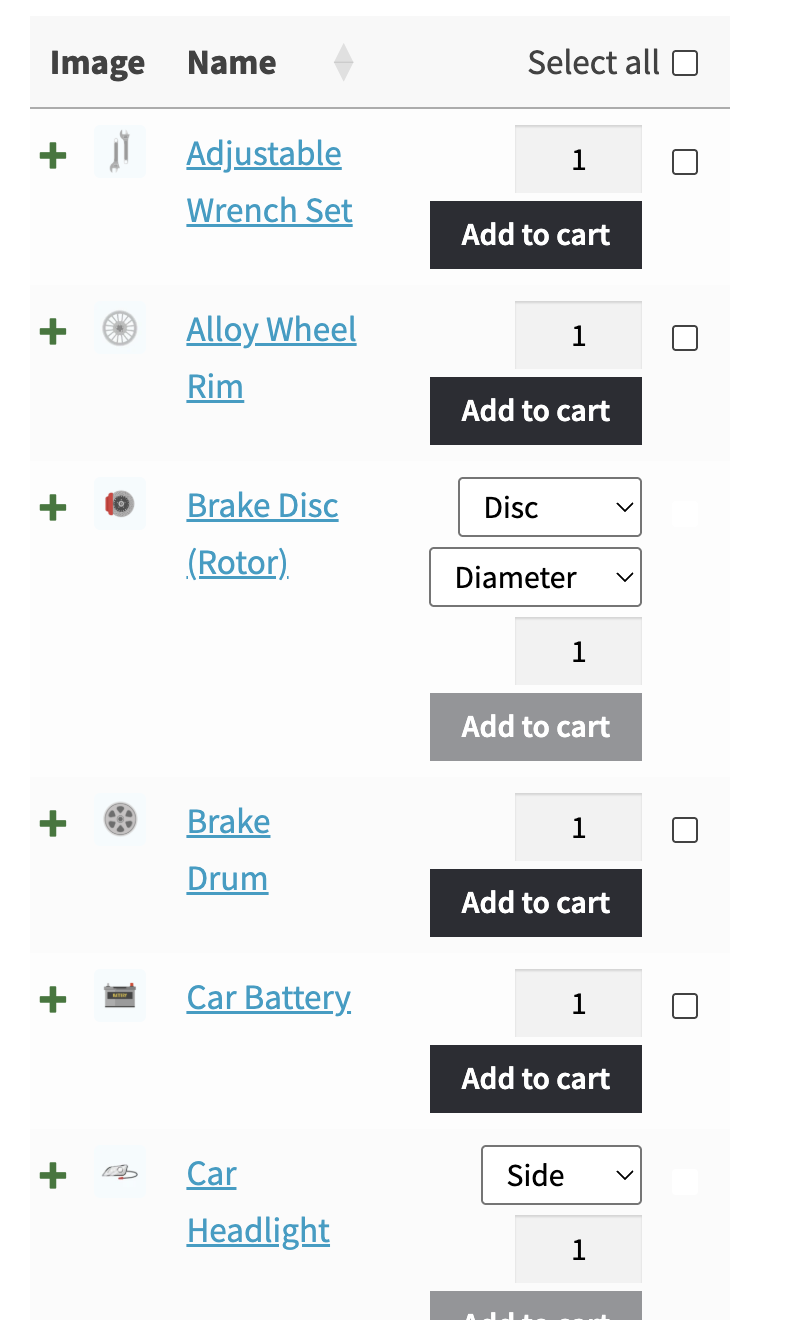
Use WooCommerce Product Table's responsive column priority settings to control which columns stay visible (SKU, compatibility, price, and add-to-cart) and which collapse behind a plus icon (dimensions and weight).
I like to test stores on actual mobile devices rather than using browser emulators. For example, tablet users in workshops have different needs than phone users browsing at home. For comprehensive mobile optimization best practices, see our guide to making WooCommerce mobile-friendly.
Managing 20,000+ SKUs: Data ingestion and OEM mapping
For large auto parts catalogs, manual product entry isn't an option. Most stores work with CSV or XML feeds from wholesalers, and the data structure decisions you make during import affect everything else.
Batch import and bulk edit strategy
There are several ways to speed up adding and managing your WooCommerce auto parts products.
Use an import plugin
Use WP All Import with its WooCommerce add-on if you just need to import products as a one-off, or if you need to auto-sync with a third party inventory system. For 20,000 products, avoid importing everything at once. Instead:
- Set up a cron job to sync only price and stock every 24 hours.
- Run a weekly full sync for metadata, descriptions, and attribute data.
- Keep the daily sync lightweight to avoid server timeouts on shared hosting.
Use a bulk edit tool
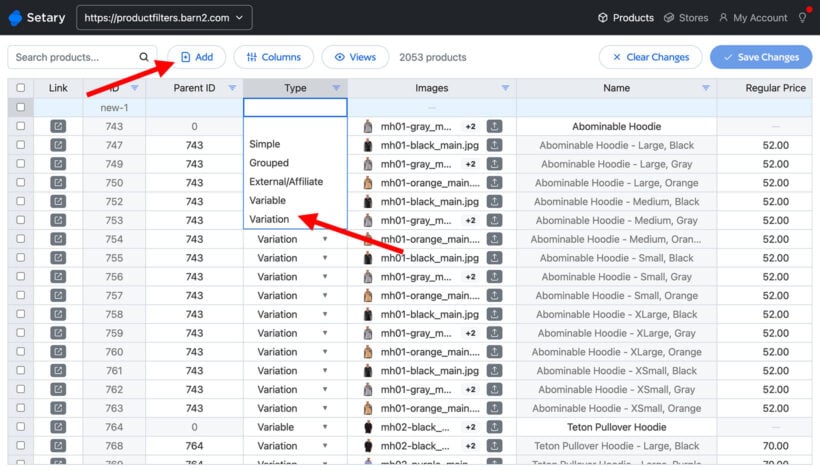
Alternatively, use the Setary bulk editor to quickly add auto parts to WooCommerce at scale. Setary displays all your products and variations in a spreadsheet view which automatically syncs with your auto parts store. You can:
- Create new products and variations either via CSV import or by adding and duplicating spreadsheet rows.
- Quickly update auto parts data in bulk, either by editing the spreadsheet cells or selecting multiple products and applying bulk actions.
Mapping fitment data during import
When you import products via WP All Import or Setary, map your supplier's Year, Make, Model, and Engine columns directly to WooCommerce product attributes. This means your fitment data is ready for the step filters as soon as the import completes. There's no separate import stage required, which saves a significant amount of time on initial setup and on ongoing syncs.
The OEM vs. SKU conflict
Never replace your SKU with an OEM number. SKUs are for internal inventory management, whereas OEM numbers are for searchability. Store OEM numbers in custom fields or a dedicated taxonomy.
This allows a single product to be found by multiple cross-referenced part numbers without confusing your inventory system. A customer searching for an OEM number can easily the right product, and your warehouse team works from the SKU. Both systems stay clean.
Building your complete WooCommerce auto parts store
The two-layer architecture is what makes a large WooCommerce auto parts store actually work. WooCommerce Product Filters with step-by-step dependent dropdowns handle vehicle fitment search; while WooCommerce Product Table handles the ordering layer.
The decisions that affect performance most are caching for scale, scoped search fields for accuracy, and mobile-optimized responsive settings. Product data structure (simple products with attribute-based fitment) and theme choice depend on your specific catalog and customer base.
Still deciding whether WooCommerce is right for selling auto parts? For guidance on choosing between platforms or sourcing suppliers, see our guide to selling car parts online.