How to require email to download a file in WordPress

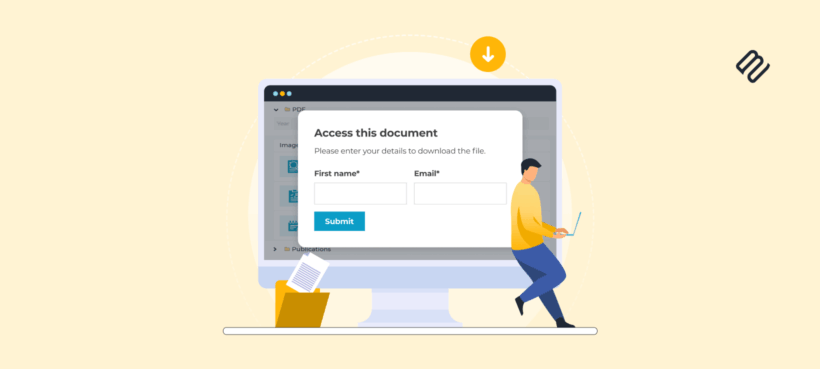
WordPress doesn't require email before downloads by default. This guide covers the best plugins for email-gating downloads, how to set them up without code, and which approach suits your situation, whether you have one lead magnet or fifty documents.
Most WordPress sites serve downloads as plain links. Anyone with the URL can access the file, and you never know who downloaded it. If you want to collect email addresses before granting access, you need to add that restriction yourself.
The good news is that several plugins handle this well, and the setup doesn't require any coding. The less obvious part is choosing the right approach. A single ebook needs a different solution than a library of 30 case studies.
Three things determine whether your setup actually works.
- Email deliverability: WordPress's default mail often lands in spam or fails silently, which means users never receive the download link they requested.
- Confirmation method: you can redirect to a download page, show the link inline, or email it. Each option suits different situations.
- Content scale: the right plugin for one PDF is probably wrong for 40 documents.
Why require an email for downloads?
Restricting a download with an email form is one of the more practical lead generation tactics available to WordPress site owners. People who download your resources have already shown interest in your specific topic, which makes them warmer leads than someone who signed up for a generic newsletter.
There are several solid reasons to use this approach:
- People who download specific resources can be segmented and sent targeted follow-up content related to what they chose.
- You can track which resources generate the most signups and create more of what works.
- Personalized nurture sequences convert better than generic broadcasts.
- Forms can collect additional qualifying fields like company name or job title for more sophisticated lead scoring.
That said, requiring an email adds friction. Download numbers will generally be lower than with open access. The trade-off is worth it for high-value content like guides, templates, research reports, and tools, where there's a clear value exchange. It's less worth it for low-value supplementary files, content freely available elsewhere, or situations where maximum reach matters more than contact collection.
One thing worth noting: requiring a full account login introduces far more friction than a simple email form. This guide focuses on the lightweight email capture approach.
Choose your approach based on what you're gating
Before looking at specific plugins, it helps to match the solution to your situation.
Scenario 1: Restricting multiple documents (10 to 50+ files)
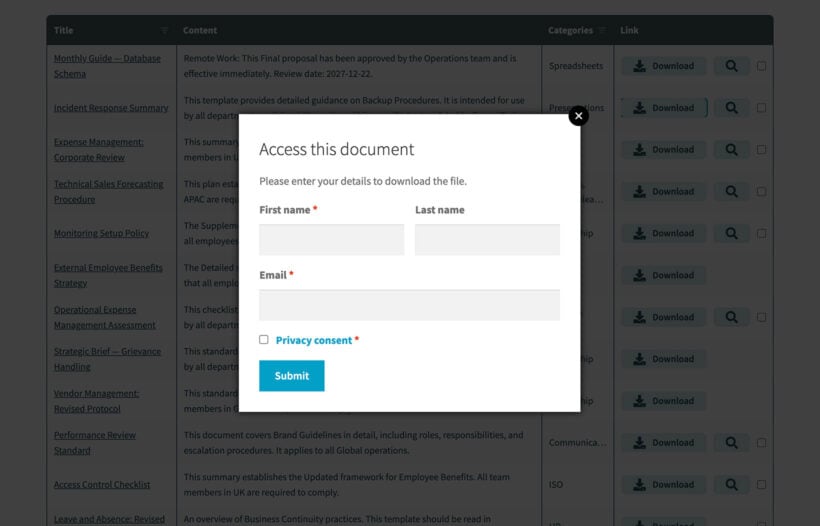
If you're building a resource library, regularly adding documents, or want a professional searchable presentation for your files, form builders quickly become unmanageable. Twenty downloads means twenty separate forms, twenty pages, and twenty confirmation messages to maintain. There's also no unified browsing experience for users.
The better fit here is Document Library Pro. It handles access control centrally, so you're not rebuilding the same setup for each new document.
Scenario 2: Restricting one or a few lead magnets
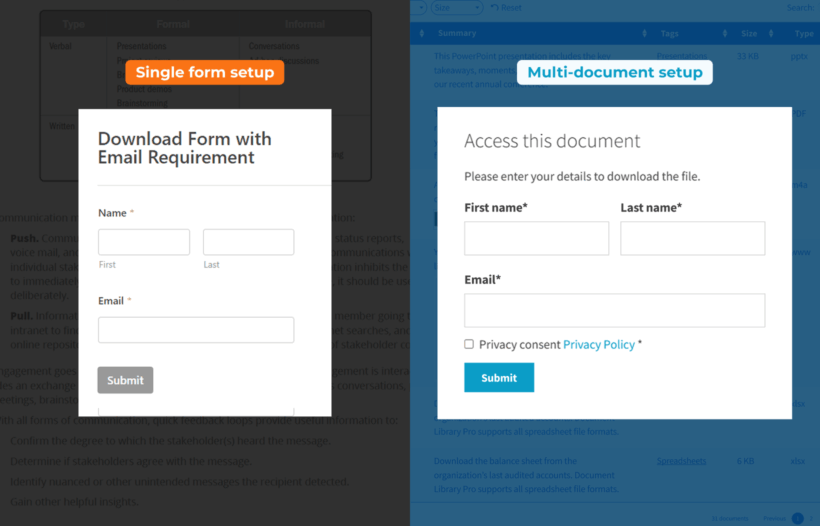
For a single ebook, whitepaper, or two to five resources, form builders are the faster and more flexible choice. WPForms, Formidable Forms, and popup tools like OptinMonster all work well here. They connect directly to email marketing platforms like Mailchimp ($20/month for the lowest tier), Brevo ($8.08/month for the lowest tier), and Klaviyo (free up to 500 emails/month), and the documentation is thorough.
Method 1: Restrict multiple documents with Document Library Pro
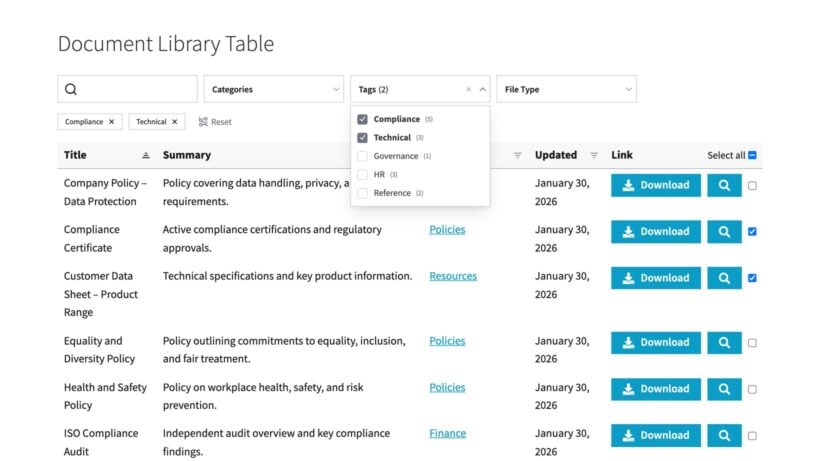
Document Library Pro is built for organizations managing libraries of files rather than individual lead magnets. It presents documents in a searchable, filterable table or grid, and the advanced plan includes email-gating at the library or document level.
The scaling problem with form builders becomes obvious quickly. Each new document needs its own form, its own confirmation message, and usually its own landing page. Document Library Pro removes that overhead entirely.
It makes the most sense when you have ten or more current or planned documents, add resources regularly, want users to browse and discover rather than targeting specific landing pages, and need a professional-looking client-facing or membership resource center.
Step-by-step: Set up email-restricted library access for downloads
Document Library Pro's email submission feature works by presenting a form before the download link becomes accessible. Here's how to configure it.
Step 1: Install Document Library Pro
Go to Plugins → Add New and upload the plugin zip file from your Barn2 account. Activate it and run the setup wizard.
Step 2: Upload your documents
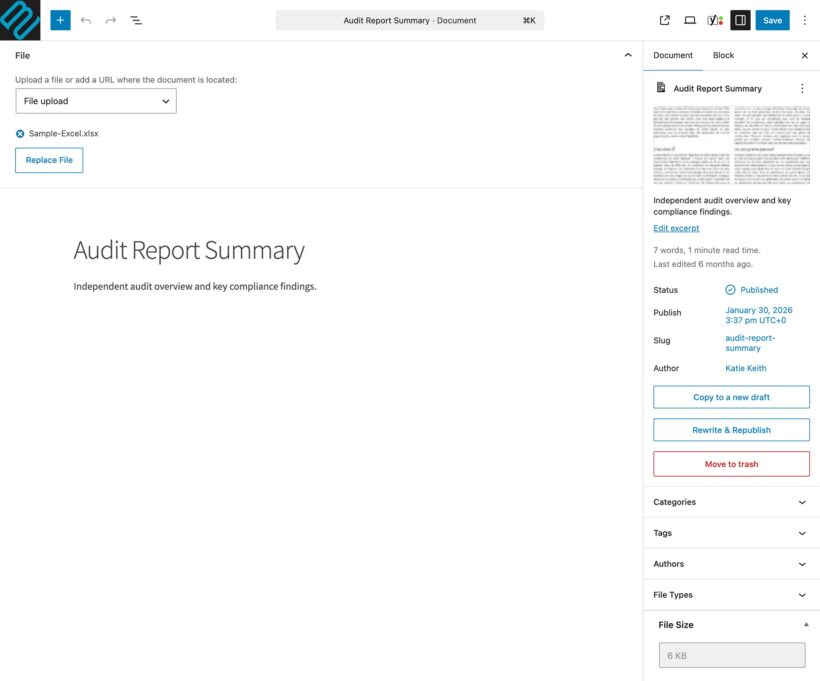
Go to Documents → Add New and create a document post for each file. Upload the file directly to the document post or link to an existing media file. Add categories, tags, and any custom metadata you want to display in the library.
Step 3: Enable the email submission
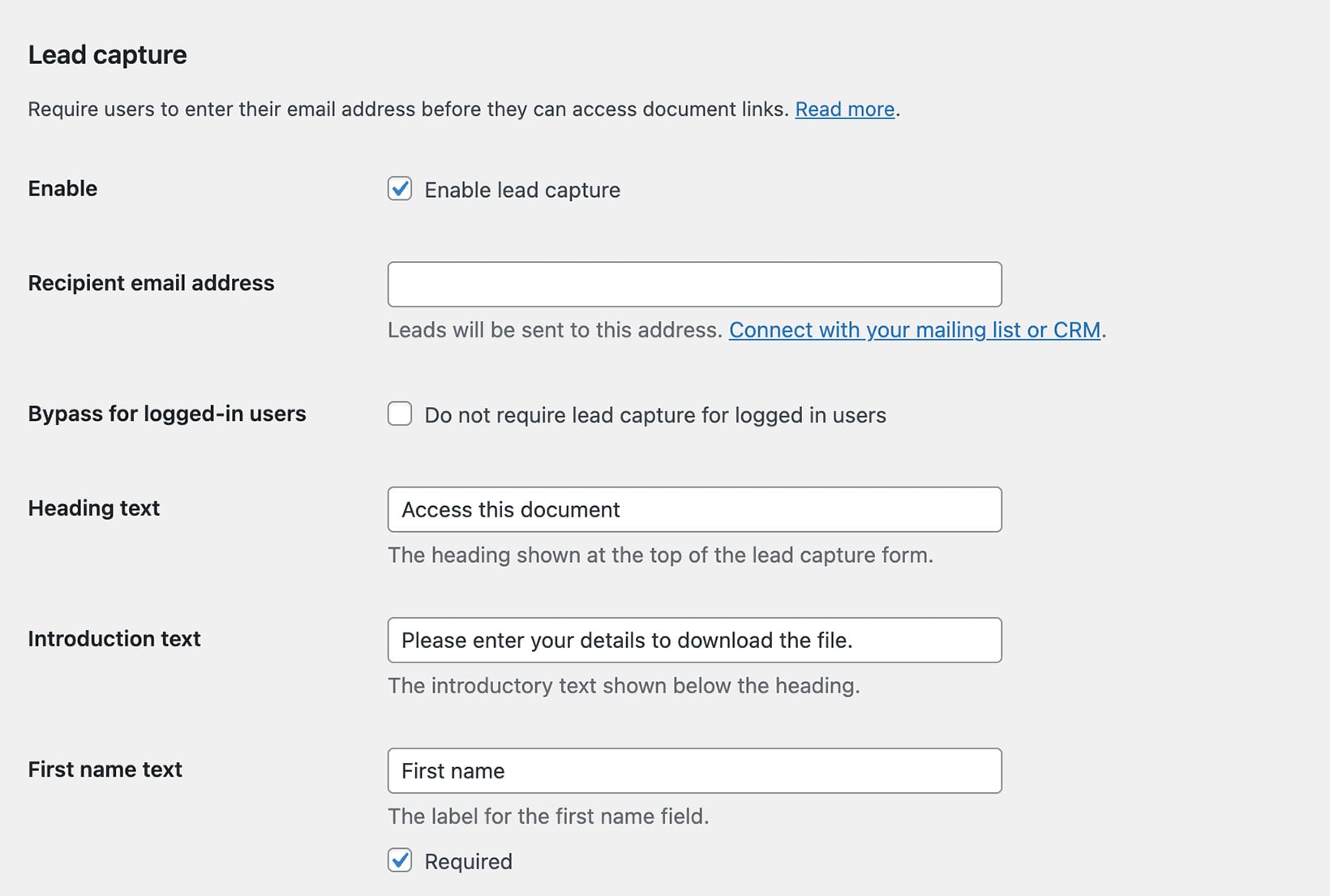
Go to Document Library Pro → Settings → Access Control. Enable the 'Email submission' option. This presents users with an email form before the download link appears. You can apply this setting globally across the entire library or restrict it to specific categories or individual documents.
Step 4: Customize the form and confirmation
You can edit the form label text and submission button. After submitting, users see the download link immediately on screen. Their email address is logged in the plugin's entries, and you can export the list from the settings area.
Step 5: View and test your document library
Navigate to the Document Library page that the plugin has automatically created for you. This page acts as your central hub, neatly listing all your uploaded documents in a searchable table where users can click a download, enter their email, and receive access.
To test the workflow, click the download button on any document in the list. You will notice that instead of an immediate download, users are prompted to enter their email address to gain access. Once the form is submitted, the plugin handles the rest and as the administrator, you will receive a notification email for every submission. This email provides you with the user's details and identifies exactly which document they were interested in downloading.
Method 2: Simple restricted downloads with form builders
WPForms, Formidable Forms, and OptinMonster are the best WordPress plugins for requiring email before downloads, offering drag-and-drop form builders with email service provider integrations and reliable delivery options.
Best plugins for creating simple email restrictions for downloads
WPForms ($99/year for the basic plan) is the most beginner-friendly option. The free Lite version handles basic email collection with notifications. The paid Pro version adds entry storage, CSV export, and direct integrations with Mailchimp, Brevo, Klaviyo, and Drip. I find the documentation particularly clear, which makes it a good starting point.
Formidable Forms ($79/year for the basic plan) suits users who need more advanced form logic. It supports conditional logic, calculations, and unlimited email notifications. Entries are stored in the database with export options. Choose this when you need more customization than WPForms' standard setup allows.
OptinMonster (from $7/month for the basic plan) takes a different approach, creating popups, slide-ins, and inline forms with a Success View that reveals the download button after email submission. It includes advanced targeting by visitor type, scroll depth, and exit intent, plus A/B testing. It's a good fit for high-value single lead magnets where maximizing conversions is the priority.
Free option: WPForms Lite
WPForms Lite is a confirmed working option for basic email-restricted downloads. The trade-offs are fewer features, more manual work, and limited support. It's best for testing, very low volume, or supplementary resources where a paid tool isn't justified.
Step-by-step: Set up email-restricted downloads with WPForms
This walkthrough uses WPForms Pro, which has the clearest documentation and the most beginner-friendly interface. The Lite version works for the core steps, with a few limitations noted below.
Step 1: Install and activate WPForms
Go to Plugins → Add New, search "WPForms", install, and activate. Go to WPForms → Add New to create your first form.
Step 2: Select the Content Download Form template
Search for "Content Download Form" and click 'Use Template'. This template is available in WPForms Pro. Lite users should start with the 'Simple Contact Form' template and add fields manually.
Step 3: Customize your form fields
The template includes Name and Email fields, both marked required by default. Update the submit button text from the generic "Submit" to something clearer like "Download Now". This small change improves conversion rates by setting the right expectation.
Step 4: Upload your file
Go to Media → Add New and upload your PDF, Word document, or other file. Open the file in the Media Library and copy the File URL. Keep this URL ready for the next step.
Step 5: Configure form confirmation
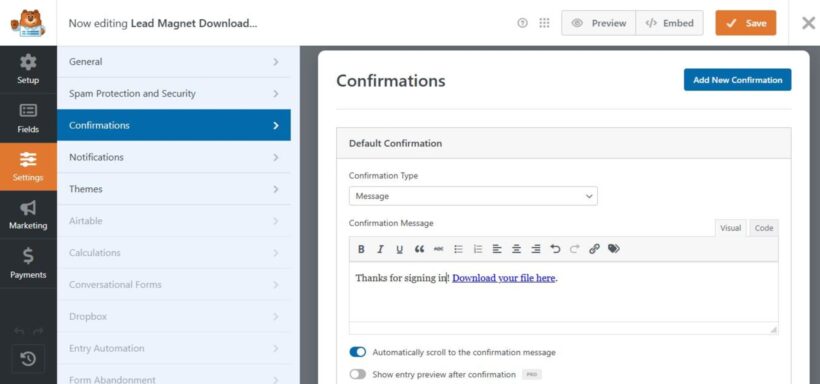
Go to Settings → Confirmations in your WPForms form builder. You have three main options here.
Select 'Message' to show the download link inline immediately after submission. Add text like "Thanks! Click below to download:" followed by a hyperlinked button using your file URL.
Select 'Redirect' to send users to a dedicated download page after submission. Create that page first with the file link already on it.
To email the link instead of showing it on screen, configure an email notification under Settings → Notifications. Add your file URL to the notification body, and make sure you use a field tag to address it to the person who submitted the form, not just a fixed admin address.
Additional steps to take after setting up email-restricted downloads
Configure SMTP for reliable delivery
Default WordPress email doesn't use proper authentication, which means delivery links often land in spam or fail silently. Install WP Mail SMTP (a free version is available; the Pro plan costs $99/year). Connect it to Gmail, SendGrid, Mailgun, or Amazon SES. Always send a test email before launch to confirm delivery from multiple email providers.
Embed the form and test
Add the WPForms block to your page and select your form from the dropdown. Publish the page and test the complete workflow from different devices and email clients. Check both the inline confirmation path and the email delivery path if you're using both.
Access your collected emails
View form entries in WPForms → Entries (Pro only; Lite sends data via email notification only). Export to CSV and import into your email marketing platform. You can also install MonsterInsights ($199/year for the Plus account) to track download performance in Google Analytics and see which resources drive the most engagement.
Bonus: Control access to entire resource libraries with advanced permissions
Some organizations need more than a simple email restriction. If you have 50 or more documents, multiple user types who need different access levels, or client portals where each client should see only their own files, Document Library Pro's advanced access control features are worth knowing about.
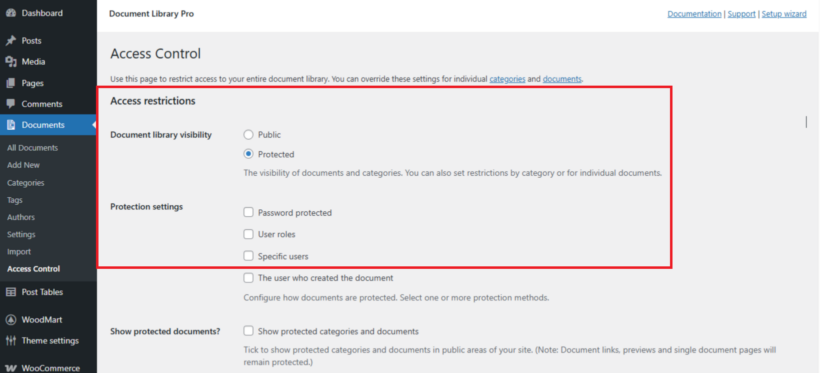
The advanced plan lets you create private libraries that are entirely invisible to the public, with customizable login forms. Access control works at three levels: globally across the entire library, by category, or per individual document.
The flexible access options include:
- Password protection, so users access files without needing a site account.
- User role restrictions, so only logged-in users with specific roles can see certain documents.
- Individual user permissions for per-user access control.
- Document creator visibility, which restricts files to the user who uploaded them.
Document Library Pro also works with MemberPress for selling access and managing subscriptions, which opens up membership-style resource centers.
This approach works best for organizations with 50 or more documents, client portals, internal repositories with role-based permissions, and growing libraries where you want to set up the access rules once and add documents indefinitely.
Start collecting qualified leads through downloads today
The best strategy for managing your documents depends entirely on the scale of your project.
If you are handling one to five lead magnets, plugins like WPForms or Formidable Forms offer a quick setup complete with email service provider integrations. However, for libraries containing ten to 50 or more files, Document Library Pro’s email-gating feature is far more efficient because it removes the overhead of building dozens of individual forms.
For those needing to control access to entire collections, the Document Library Pro advanced plan is the ideal choice. It provides sophisticated permissions based on user roles, passwords, or individual accounts.
The technical setup is straightforward once you've chosen the right tool. What matters more is creating resources valuable enough that people willingly exchange their email address for access, then following up with targeted content that turns downloaders into customers.