How to bulk edit WordPress custom fields, posts, and pages

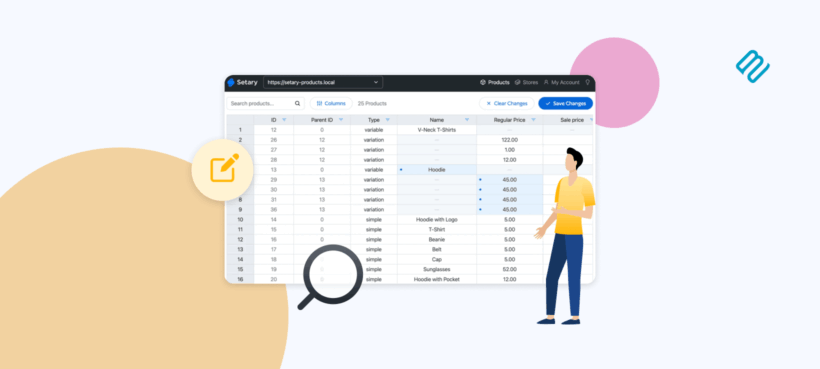
WordPress has a built-in bulk editor, but it only covers a handful of core fields. Keep reading to learn how to bulk edit absolutely anything 🚀
Most WordPress site owners discover the native bulk edit tool early on. You select a batch of posts, choose 'Edit' from the bulk actions menu, and a panel appears. It handles status, author, categories, and tags. That is genuinely useful for basic housekeeping.
The problem shows up the moment you need to update anything beyond those core fields.
- Need to change a custom field value across 200 posts? You have to open each one individually.
- Want to update event dates for a season's worth of recurring events? Same situation.
- Need to adjust course prices across 40 LearnDash courses at the start of a new semester? You have to do it one by one.
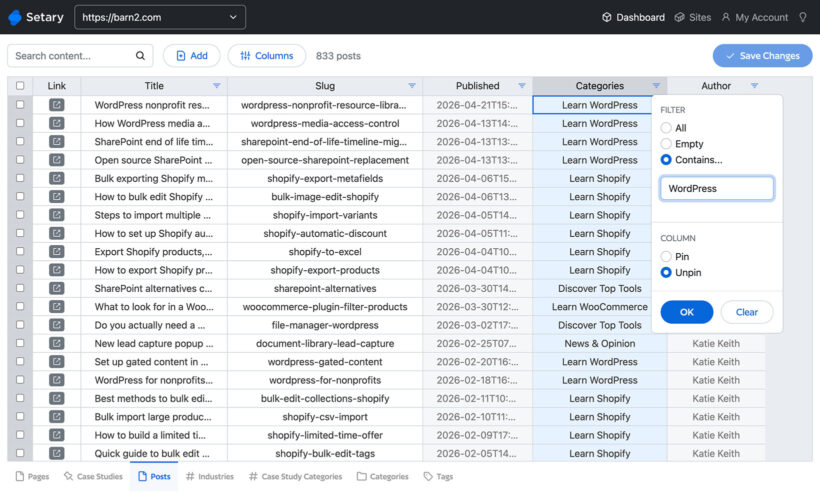
Luckily, there's a better way. Setary for WordPress loads your content into a spreadsheet-style interface where rows are posts and columns are fields. You edit inline, batch-update multiple rows at once, and save. It works with posts, pages, custom post types, custom fields, ACF data, and custom taxonomies.
In this article, we'll cover every bulk editing scenario a WordPress site owner is likely to face as their content grows. We'll start with what the native tools can do, then work through custom post types, custom fields, ACF data, taxonomy editing, and how Setary's spreadsheet bulk editor can handle all of it.
What is bulk editing in WordPress?
Bulk editing in WordPress means updating one or more fields across multiple posts, pages, or custom post types in a single action, without opening each item individually.
As a WordPress administrator or editor, this can save you a huge amount of time. It's much faster than clicking into posts or pages one by one, making the required changes, clicking Update, and then repeating the process for the next one.
Bulk editing posts and pages: What WordPress does natively
Bulk editing posts
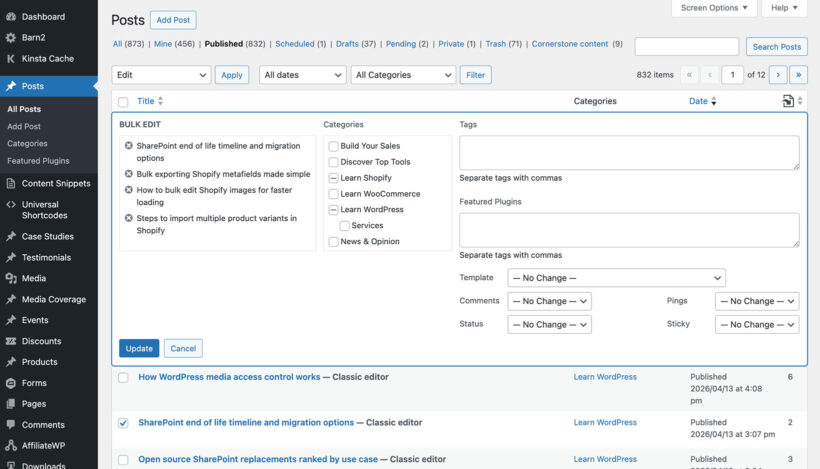
The native bulk editor lives in the WordPress admin and works in the same way whether you're updating blog posts, pages, or any custom post type:
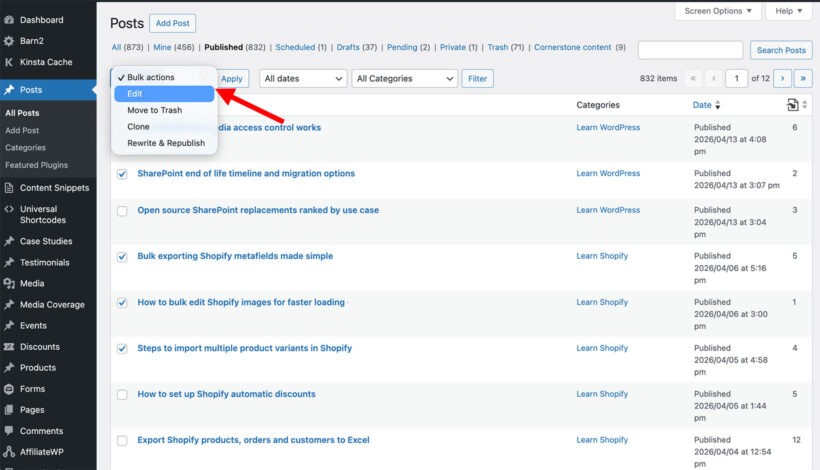
- Go to Posts → All Posts (or Pages → All Pages, etc).
- Select the items you want, choose 'Edit' from the 'Bulk actions' dropdown, and click 'Apply'.
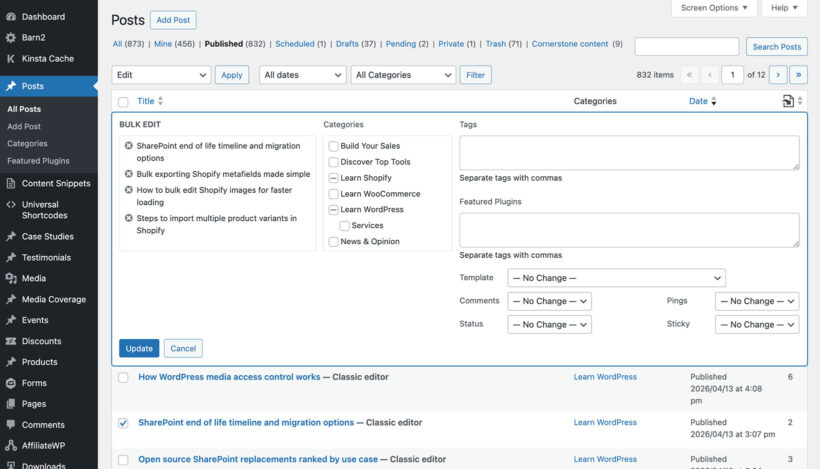
- A panel appears above the list where you set the values to apply.
The fields you can edit natively are:
- Categories - select or de-select one or more categories
- Tags - type to select an existing tag, or enter a new one
- Comments - enable/disable
- Status - published/draft/private/etc.
- Pings - enable/disable
- Sticky - enable/disable
That is the complete list. Nothing else in WordPress can be bulk edited using this method.
For anything beyond those core fields, such as custom meta, ACF fields, custom taxonomies, or CPT-specific data, you need a WordPress bulk editing plugin or direct database access via phpMyAdmin.
Bulk editing pages
Pages → All Pages works identically. The same bulk edit panel appears with the same limitations. Pages do not have categories or tags by default, so those fields are absent from the panel.
Two common real-world scenarios fall outside what the native editor can handle: changing the parent page for a batch of pages, and updating the page template across multiple pages. Neither is possible natively in bulk with WordPress.
The honest conclusion here is that the native bulk editor is fine for basic status or author changes. It is not a real content management tool for anything more complex than that.
What about WordPress Quick Edit?
WordPress also provides a 'Quick Edit' option, which you access by hovering on a single post in the list. Quick Edit works exactly like the native bulk WordPress editor. However, it's just for one post at a time, so it is not really bulk editing in any meaningful sense. it just saves you a couple of seconds in making basic updates without having to open the Edit Post screen.
Bulk editing custom post types
Custom post types such as events, courses, listings, portfolios, properties, and recipes each have their own post list screen in the WordPress admin. The native bulk edit panel appears on these screens too, allowing you to make basic updates. The problem is that it is equally limited on every single one of them: only core fields, no CPT-specific meta.
Here are some examples:
- Events: Sites using The Events Calendar store each event as a custom post type. The native bulk editor can't touch event dates, venues, organizers, or ticket availability. As a result, updating seasonal event dates for 50 recurring events means 50 individual edits.
- LMS courses: LearnDash and LifterLMS both store course prices, enrollment limits, and prerequisites as custom fields. None of these appear in the native bulk edit panel.
- Listings and portfolios: Real estate plugins store meaningful data such as price, bedroom count, and location in meta fields. Portfolio plugins store project type, client name, and year the same way. All of it is completely inaccessible natively in bulk.
This is where a dedicated bulk editing plugin moves from "nice to have" to "essential tool".
Bulk editing custom fields and ACF data
The need to bulk edit WordPress custom fields, which are stored in the WordPress post meta table, are the most common reason site owners install a bulk editing plugin. Changing a price field, a location, a boolean toggle, or a date stored in ACF across 100's of posts is simply not possible through the native WordPress admin.
Advanced Custom Fields stores data as standard WordPress post meta. In practice, this means any plugin that can access post meta can read and write ACF field values.
The ACF field types that people most commonly need to bulk edit are:
- Text custom fields such as prices, addresses, and short descriptions.
- Number fields such as stock counts, ratings, and year values.
- True/false toggles for things like 'featured', 'on sale', or 'active'.
- Checkboxes for multi-select custom fields.
- Select/Dropdown and radio fields used as status labels or meta-based categories.
- Date picker custom fields for event dates and expiry dates.
A basic WordPress bulk edit tool lets you set the same value across all selected posts. That is useful for status-style changes. For fields that need individual values per post, you need something more flexible.
What you actually need is a spreadsheet-style interface. Each row is a post and each column is a field. You update individual cell values freely, just like a spreadsheet. That is the only approach that makes updating custom fields across many posts practical. I'll tell you how to do this in a minute.
One honest limitation to flag: no current plugin makes bulk editing ACF repeater fields or flexible content layouts simple. Those complex nested structures still require individual post editing in most cases.
Bulk editing categories, tags, and custom taxonomies
Assigning taxonomy terms to posts in bulk
The native bulk edit panel lets you add categories and tags to selected posts. However, the key word here is "add". You cannot replace a taxonomy term in bulk. If you want to remove a specific category from 100 posts and add a different one then you need two separate operations, and removal still requires opening each post individually.
Custom taxonomies such as 'Event Type', 'Course Level', and 'Property Status' do not appear in the native bulk edit panel at all. This means there's no way to bulk edit them in WordPress core.
Bulk editing the taxonomy terms themselves
Many people also struggle with a a separate but related task: updating the names, slugs, descriptions, or custom meta on the taxonomy terms themselves. Renaming 50 article categories or adding descriptions to 30 tags requires going to each term individually in the native WordPress admin.
A WordPress spreadsheet plugin that supports taxonomies as a content type, rather than just as a field on posts, solves this with inline editing across all terms at once. That is a meaningful time-saver for any site with a large taxonomy structure.
The best way to bulk edit WordPress content: A spreadsheet-style plugin
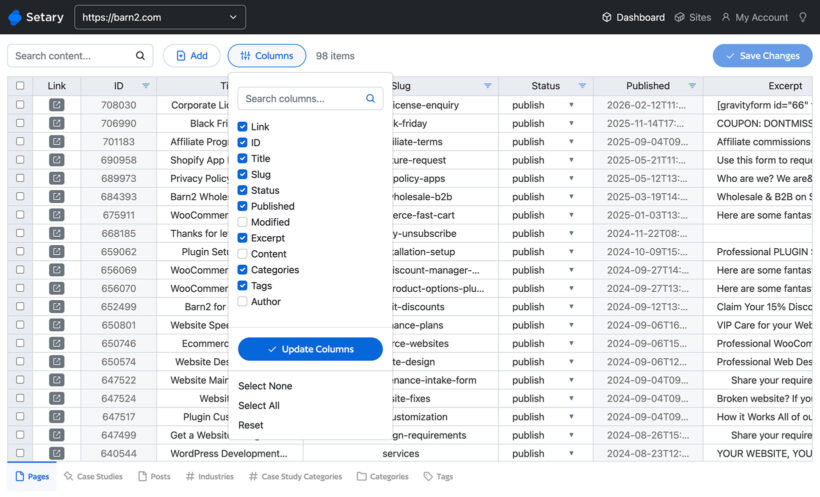
A spreadsheet-style bulk editor loads your WordPress content into a grid like this:
- Rows are posts (or pages, or CPT items). Columns are fields.
- You click any cell to edit it inline, change values across multiple rows at once, and save.
- There are no page reloads and no opening individual posts.
Setary for WordPress is built specifically for this. It connects to your site and displays all your content types in a single spreadsheet interface. Key features include:
- All standard post fields: title, content, excerpt, status, author, date, featured image, slug, etc.
- Custom fields including ACF fields covering text, number, date, select, and true/false types.
- Any registered custom post type, detected automatically with no configuration required per CPT.
- Categories, tags, and custom taxonomies as editable columns.
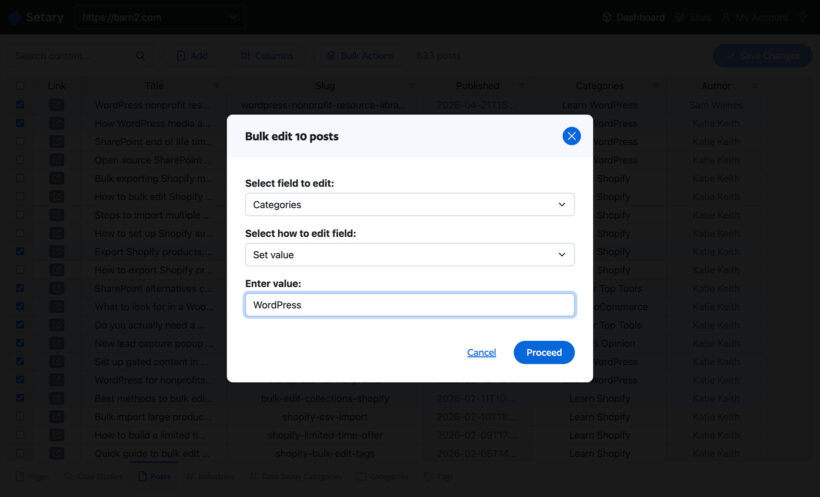
- Batch editing: select multiple rows and apply the same value to a column across all of them in one click.
Setary also runs outside the WordPress admin. It is a separate web app that connects to your site via the REST API, so it does not slow down your WordPress dashboard.
How Setary compares to alternatives
| Feature | WordPress native | WP Sheet Editor | Admin Columns Pro | Setary for WordPress |
|---|---|---|---|---|
| Posts and pages | Partial (core fields only) | Yes | Yes | Yes |
| Custom post types | Partial (core fields only) | Yes (paid add-ons) | Yes | Yes (automatic) |
| Custom fields and ACF | No | Yes (paid) | Yes (paid) | Yes |
| Custom taxonomies | No | Yes (paid) | Yes | Yes |
| Runs outside WordPress admin | N/A | No | No | Yes |
| Spreadsheet UI | No | Yes | Partial | Yes |
WP Sheet Editor covers most of the same ground, but requires purchasing separate add-ons per content type. That can get expensive on sites with many custom post types. Admin Columns Pro is a capable tool, though it is oriented more toward list view customization than rapid data entry.
WP All Import, which ranks highly in search results for this topic, is primarily an importer. It handles bulk changes well if your workflow involves exporting a CSV, editing it externally, and reimporting. That is a valid approach for very large one-time updates, but it is not the same as live inline editing.
I find that the spreadsheet approach makes a real difference for content-heavy sites. The ability to see all your posts as rows and click directly into any field is just faster than any other method, especially when you need to update individual values rather than applying the same change to everything.
Katie KeithDirector
How to bulk edit WordPress content with Setary: Step by step
- Connect Setary to your WordPress siteInstall the Setary companion plugin from the WordPress plugin directory. Then log in to setary.com and add your site using the application password generated during setup.
- Choose your content typeIn the Setary interface, select the post type you want to edit. Posts, pages, and any registered CPT appear in the list. The content loads as a spreadsheet with one row per item.
- Add the columns you needBy default, Setary shows core fields. Use the column picker to add custom fields, ACF fields, categories, tags, or custom taxonomies. Setary reads your registered fields automatically.
- Edit inlineClick any cell to edit it directly. Type the new value for text fields. For select or taxonomy fields, choose from a dropdown. Changes are highlighted but not saved until you are ready.
- Batch update multiple rowsSelect multiple rows using checkboxes, then right-click a cell to apply that value to all selected rows. This is the most useful feature for updating status, author, or a taxonomy term across a batch.
- SaveClick the save button to push all pending changes to your WordPress database at once.
Specific use cases: Events, courses, and other CPT's
Bulk editing events
Sites running The Events Calendar store each event as a custom post type called tribe_events. Setary detects this automatically and loads all your events as rows in the spreadsheet.
You can add event-specific meta fields as columns. Practical uses include updating the event status from 'active' to 'cancelled' across a whole season, or correcting a venue name stored in a meta field across 30 events at once.
One limitation worth flagging: The Events Calendar stores start and end dates in its own custom table structure rather than standard post meta. Verify which specific fields are accessible as post meta before relying on Setary for date bulk editing specifically.
Bulk editing LearnDash courses
LearnDash stores course prices, enrollment limits, and access settings as post meta on its sfwd-courses post type. All of these are editable as columns in Setary.
A practical example: updating the price on 40 courses at the start of a new semester takes a few minutes rather than hours of individual page editing. The same applies to toggling enrollment open or closed across a batch of courses.
Related: How to add a library of downloadable course materials to a LearnDash course.
Frequently asked questions
Does WordPress have a built-in spreadsheet editor?
No. WordPress does not include a spreadsheet-style interface for content management. Third-party plugins like Setary for WordPress add this by connecting to your site and loading content into an editable grid outside the WordPress admin.
What is the difference between quick edit and bulk edit in WordPress?
Quick Edit lets you update fields on a single post directly from the list screen without opening the full editor. Bulk edit applies changes to multiple selected posts simultaneously but covers fewer fields. Neither approach supports custom fields or custom post type meta.
Can you bulk edit custom fields in WordPress without a plugin?
Not through the WordPress admin interface. The native bulk edit panel only touches core fields like status, author, and categories. Editing custom fields in bulk requires either a plugin such as Setary for WordPress, or direct database edits via phpMyAdmin. The database route carries real risk and is not recommended for most users.
Can you bulk edit ACF fields in WordPress?
Yes, with a plugin that supports post meta access. ACF stores field data as standard WordPress post meta, so tools like Setary for WordPress can read and write those values. Complex ACF field types such as repeaters and flexible content layouts are not reliably editable in bulk through any current plugin.
When to use the native editor, and when to use a plugin
The native WordPress bulk edit tool does its job well for a specific set of tasks. If you only need to change status, author, or standard categories across a batch of posts, it is perfectly adequate and no plugin is needed.
The native screen becomes a dead end the moment you need to touch custom fields, ACF data, custom taxonomies, or CPT-specific meta. That includes almost any content-heavy WordPress site running events, courses, listings, or properties.
For those situations, a spreadsheet-style plugin is the practical solution. Setary for WordPress handles all of the scenarios covered in this guide, with automatic support for any registered custom post type and no per-CPT add-on purchases required.