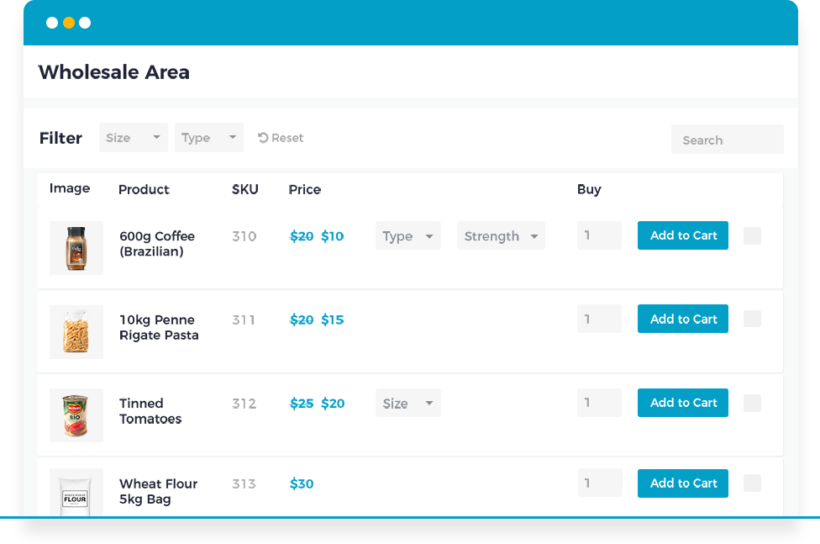
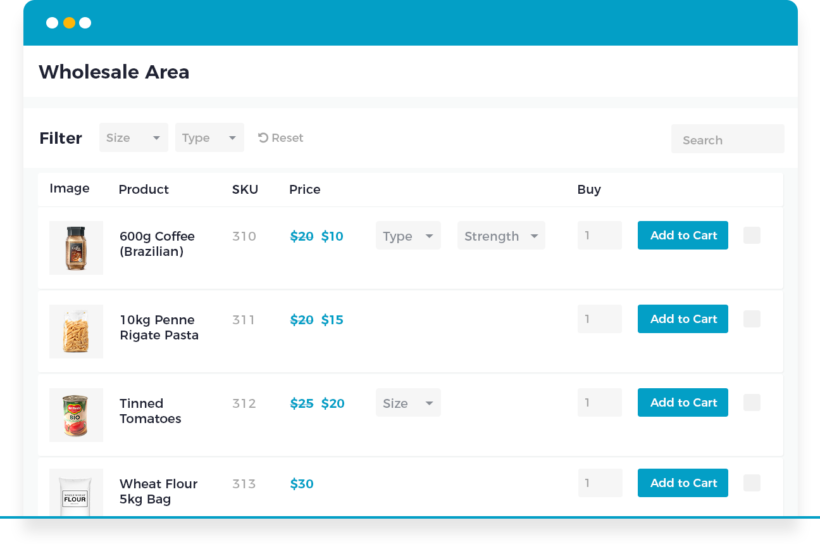
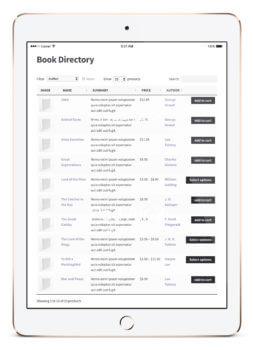
In this article, you'll learn how to use the best WordPress plugins to build a WooCommerce wholesale order form. It's easy to set up, and you can put your B2B wholesale order forms within a private area for approved wholesale buyers.
If you run a WooCommerce wholesale or role-based store, your customers need to see the correct products and prices for their wholesale status or group. Wholesale customers also benefit from a tabular view of all the products available to them.
You can get this by using our wholesale suite of plugins:
A WooCommerce wholesale order form is a single-page table for approved B2B buyers. It shows a flat list of products with quantity fields. Buyers can add several items to the cart in one action, instead of clicking into individual product pages.
Unlike the standard WooCommerce shop layout, the form is usually role-gated. Only logged-in wholesale customers see it, and pricing reflects their assigned wholesale tier.
The best wholesale order form plugin
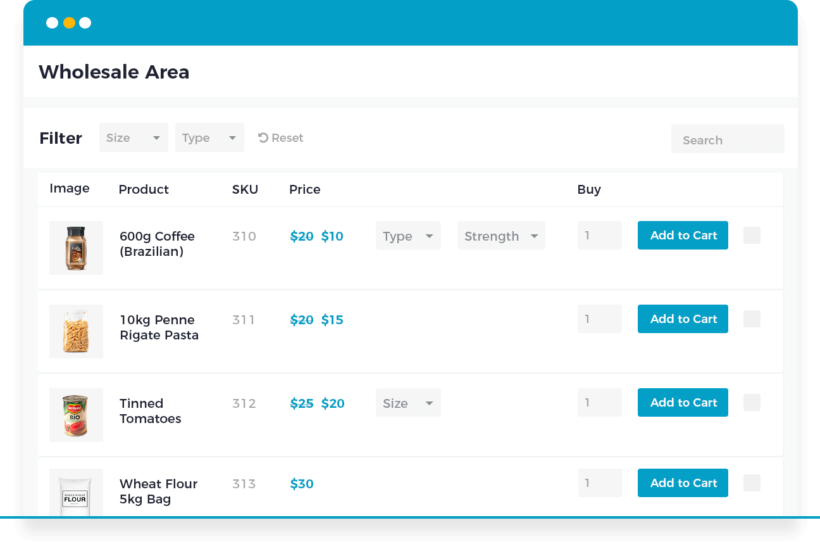
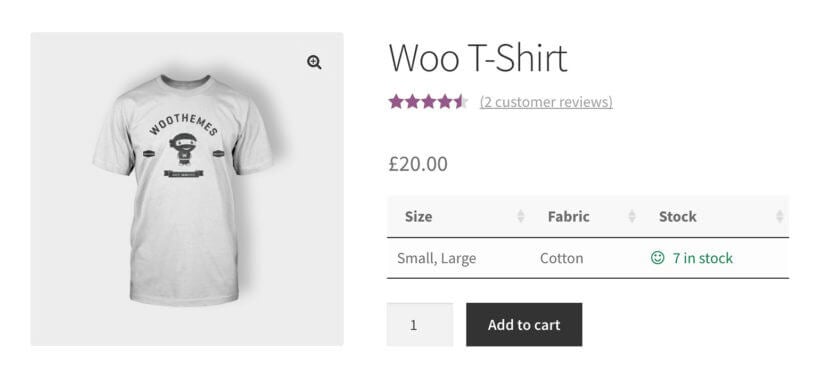
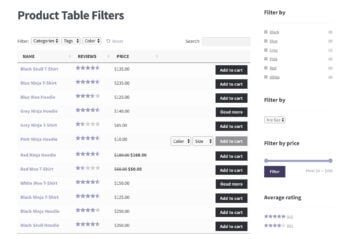
WooCommerce Product Table takes your wholesale products and displays them in a table. When used alongside WooCommerce Wholesale Pro, it's the perfect format for a WooCommerce wholesale ordering form plugin.
You can choose which columns are displayed in the order form. You can even add filters based on categories, tags, variations etc. There are over 50 options for you to experiment with.
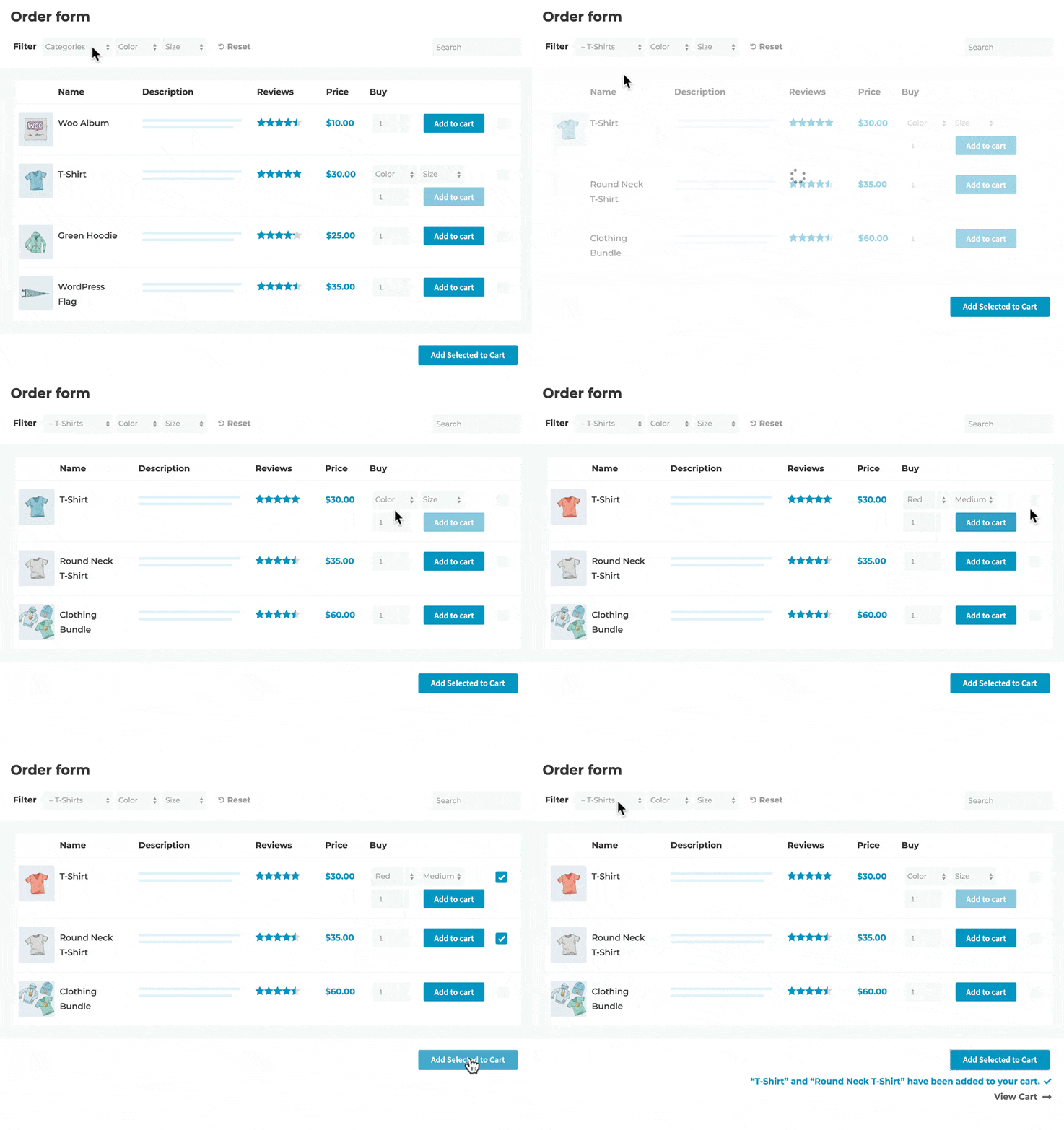
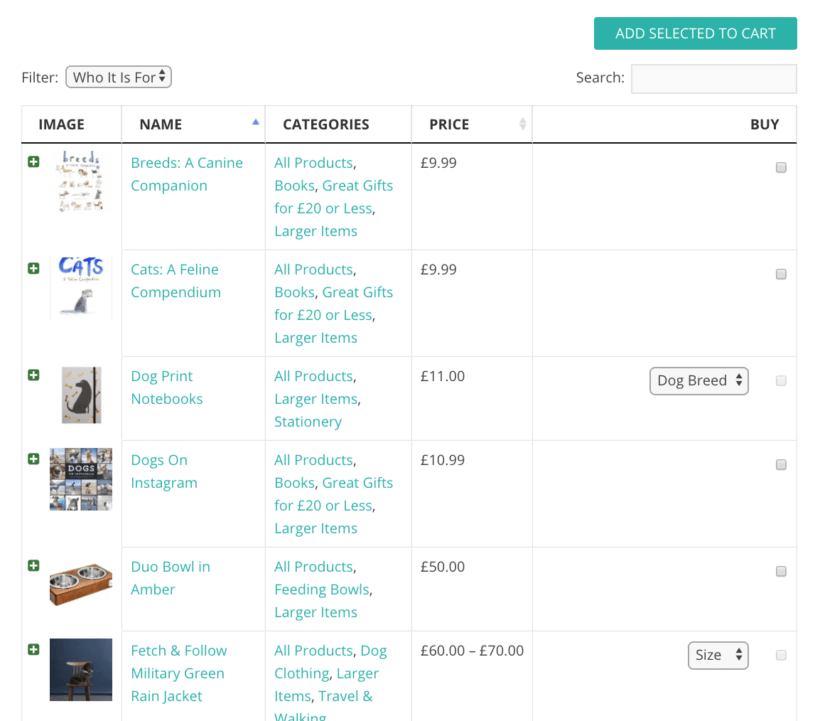
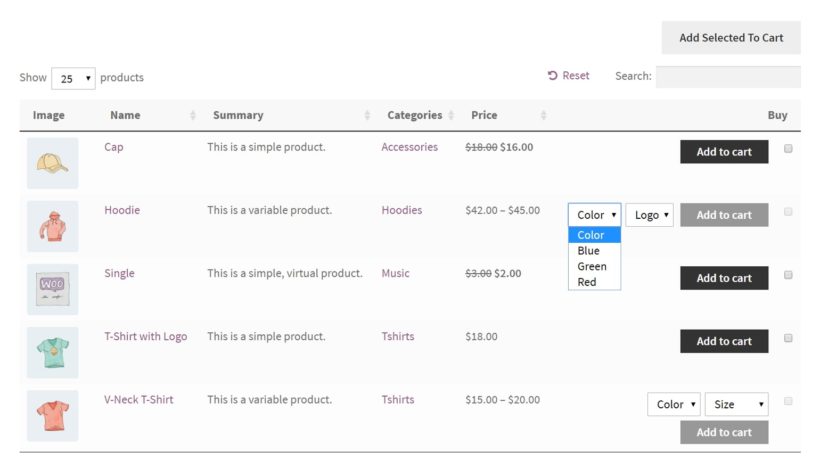
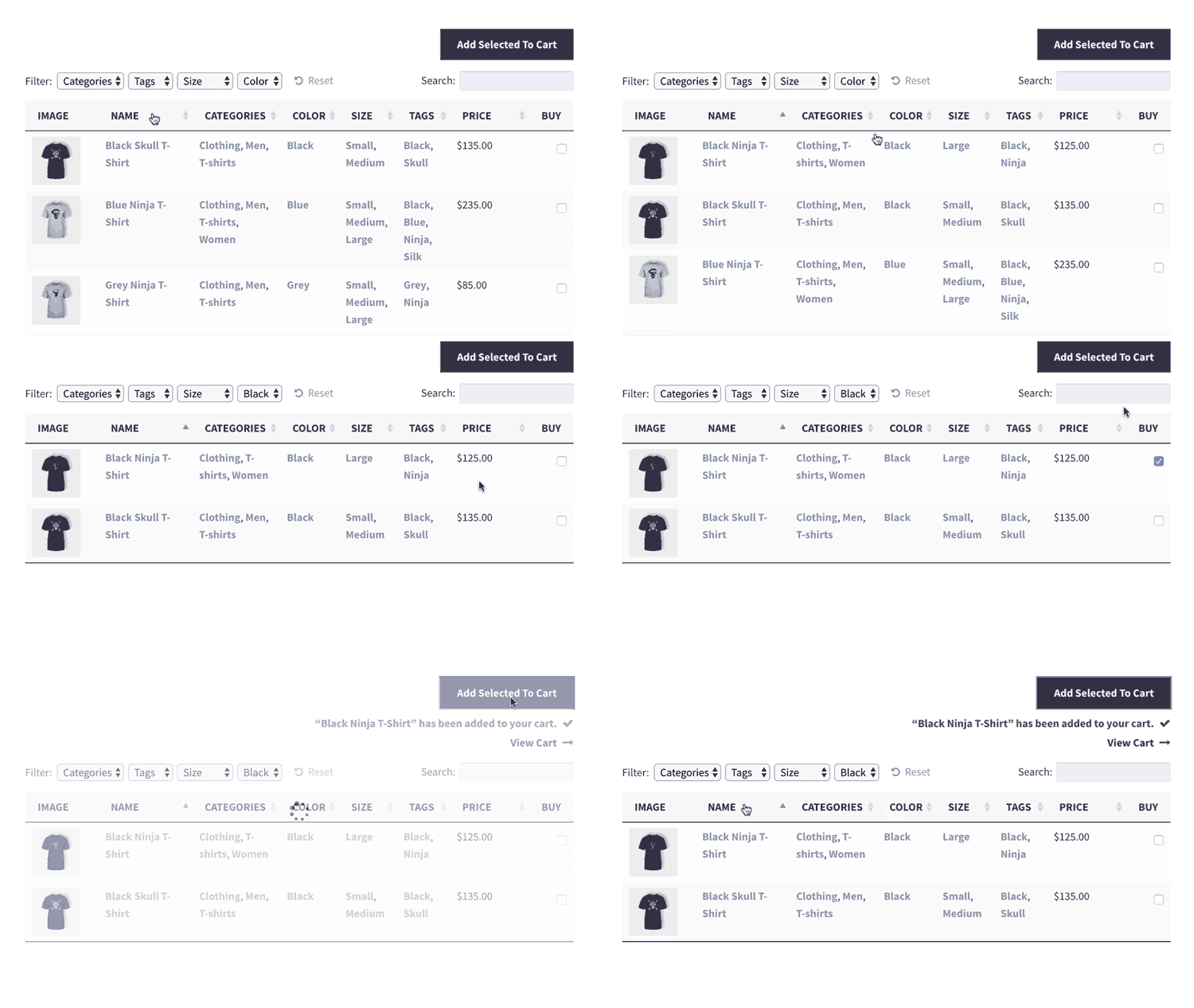
What’s great is that customers can select multiple products from the WooCommerce wholesale order form and click "Add Selected to cart". This is a handy feature for wholesale buyers, most of whom will be making a bulk purchase and want to buy quickly.
We built Product Table because the default one-product-per-page grid slows wholesale buyers down. A table lets them see everything they need, set quantities, choose variations and add to the cart from a single list, which is exactly how most wholesale buyers want to order once they know their products.
How to set up an order form with WooCommerce Wholesale Pro
You can create a wholesale order form for WooCommerce in just a few minutes. Either watch this video tutorial, or follow the written instructions below.
Wholesale Pro itself grew out of customer demand. We found the single biggest use of our Protected Categories plugin was wholesale, and those customers wanted features it was never built for, like wholesale registration, role-based pricing, and wholesale-only payment and shipping options. So we built Wholesale Pro for exactly that, and it works hand in hand with Product Table for the order form. It comes on its own or as a two-plugin bundle with Product Table.
Step 1: Install and activate both wholesale plugins
Download the plugin zip files and take note of your license key for activation.
On your WordPress dashboard, go to Plugins - Add New Plugin.
Use the Upload Plugin option and add a zip file, install and activate each plugin by repeating this step.
In the setup wizard for each plugin you can enter your license key to complete the activation.
Step 2: Set up your wholesale store
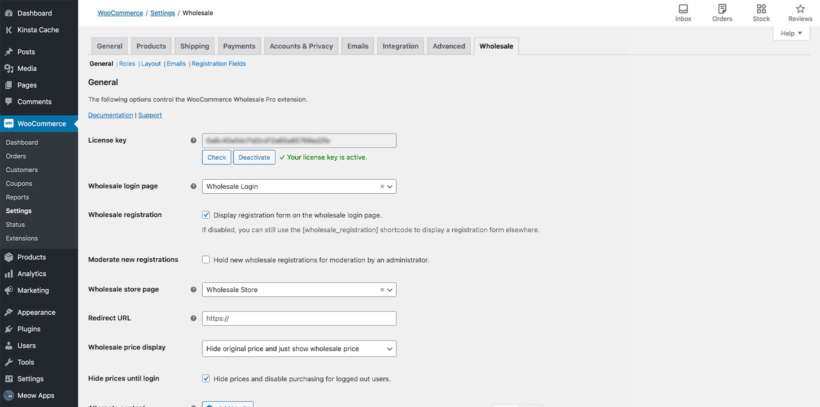
First, go to WooCommerce → Settings → Wholesale and set up your wholesale store as needed. Read this guide for or a more extensive tutorial about wholesale store setup. Here's a quick preview of what the plugin can do:
Set a global wholesale discount.
Edit the wholesale login page.
Change the privacy settings of wholesale categories.
Step 3: Create a product table for your quick order form
Next, go to Products → Product Tables → Add New. Use the table builder to set up the table which will appear on your wholesale store pages.
At the start of the table builder, select the option to "Display on a shop page".
Then in the following step select "Wholesale store" from the listed options.
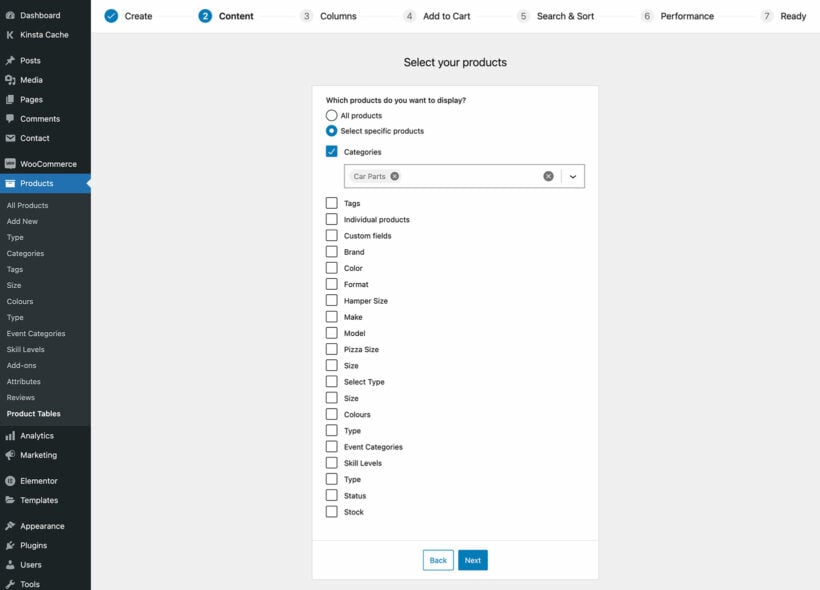
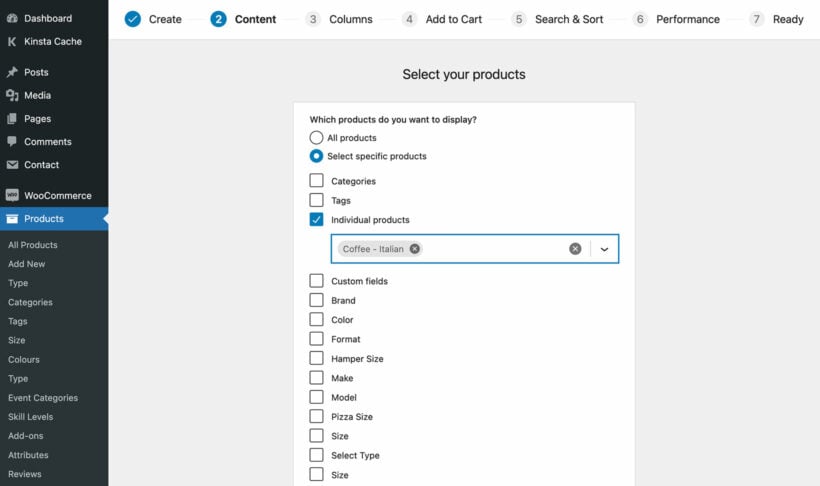
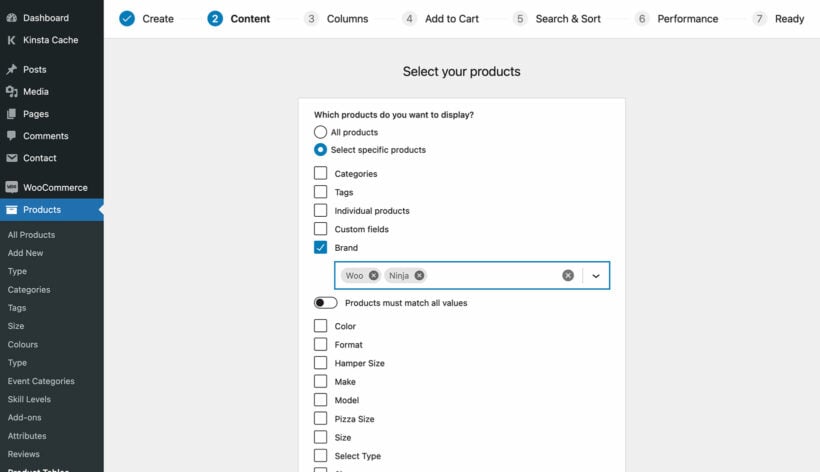
Choose which products will be included in the quick order form.
Set up the columns for your table, consider what information is most vital to your customers and leave out redundant information if possible. For a wholesale store it's often helpful to include the SKU and additional pricing information such as the "Total" column.
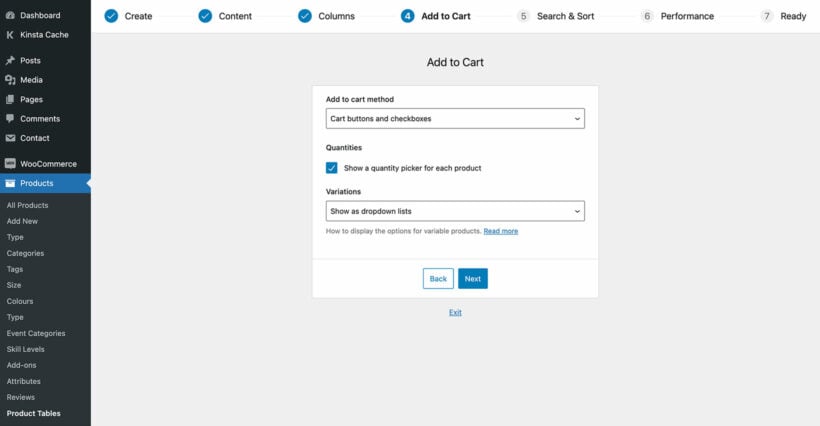
Use your preferred "Add to Cart" method, there's a choice of buttons or checkboxes, or both can be enabled at the same time. Enabling quantity pickers, and using dropdown lists for variations are also recommended.
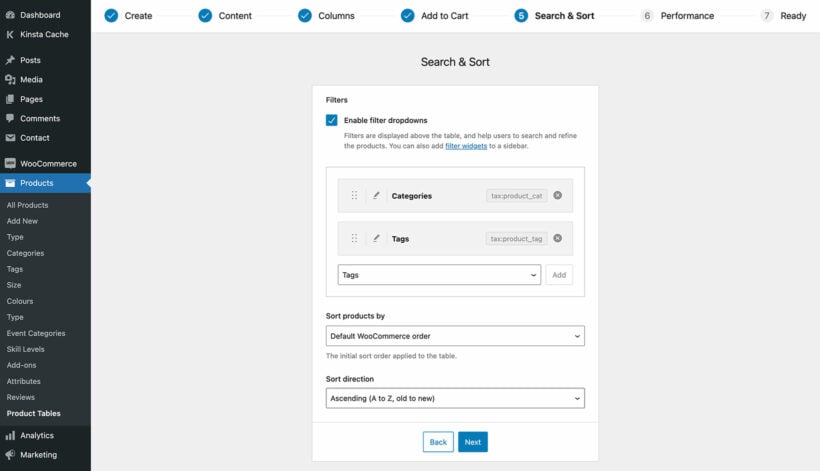
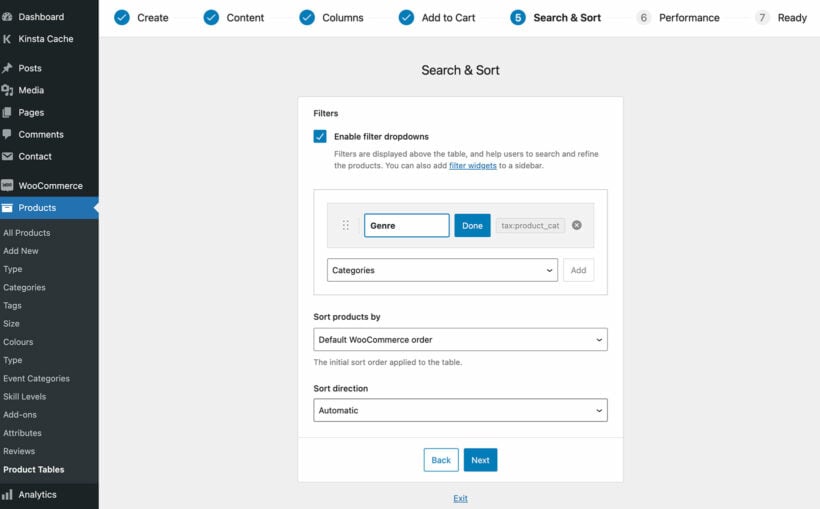
Search and filter settings are also very useful to set up. Include category and tag filters at a minimum.
For stores with thousands of listed products "Lazy Load" can be enabled to help improve performance.
After saving these settings you can visit your wholesale shop page to test out the table. If you need to change anything you can return to Products → Product Tables then find and edit the table you already created.
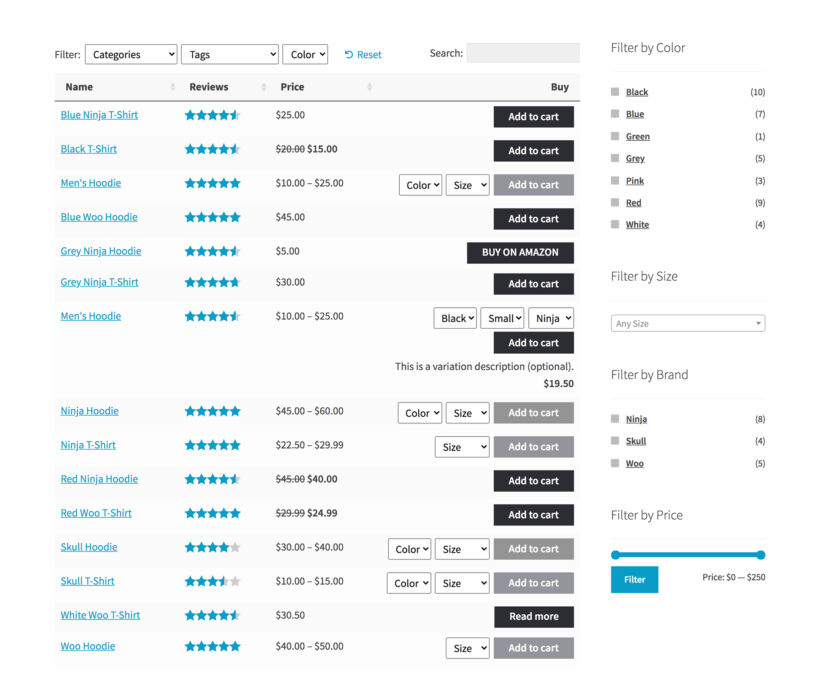
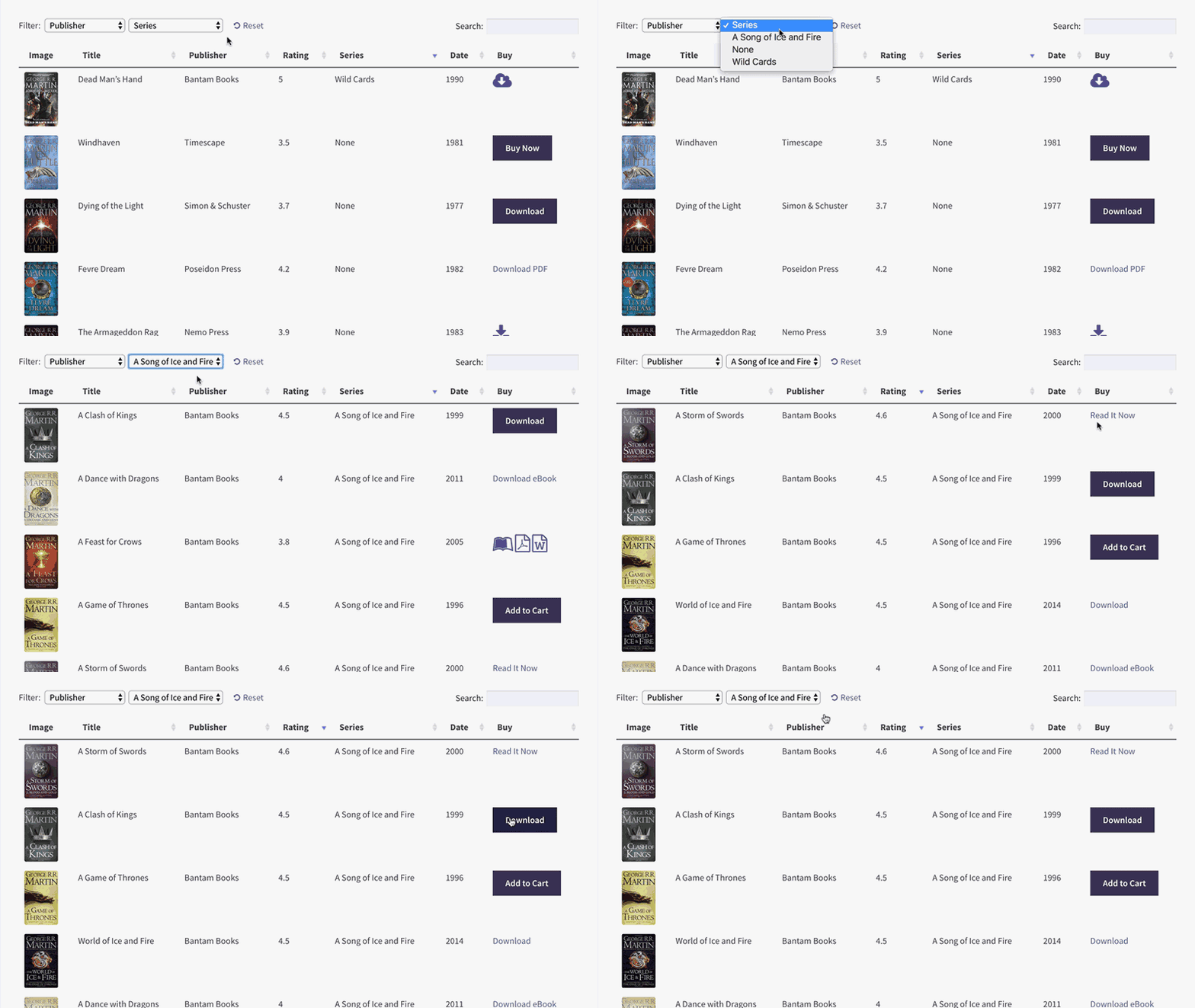
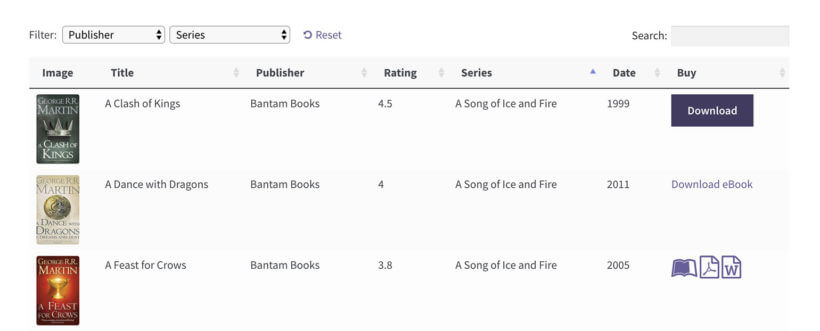
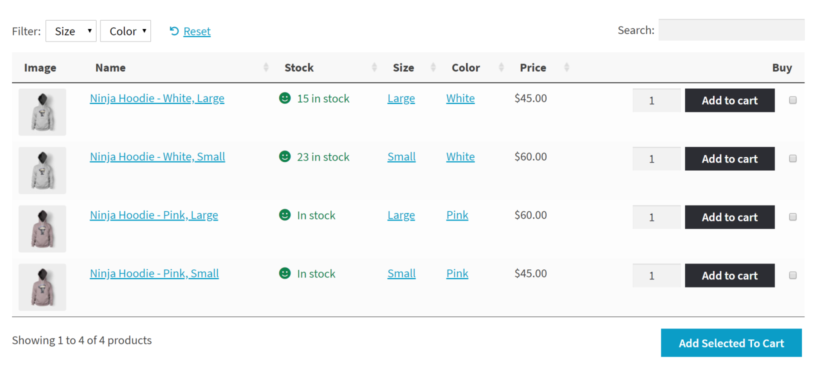
Now, when a wholesale user logs into their account, they will see the products listed in the WooCommerce wholesale order form:
Normal retail customers will continue to see the default store layouts. (Tip: If you want to use the order form layout for public customers too, then you can enable it throughout your store on the WooCommerce Product Table plugin settings page.)
You may want add even more functionality to your wholesale shop such as bulk ordering, which is why we created this list of 8 WooCommerce B2B plugins with bulk order features.
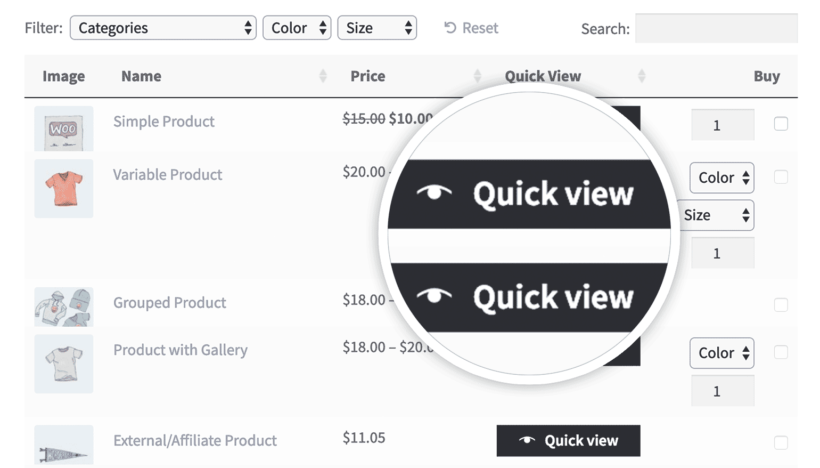
Bonus tip - Add quick view to your WooCommerce wholesale order form
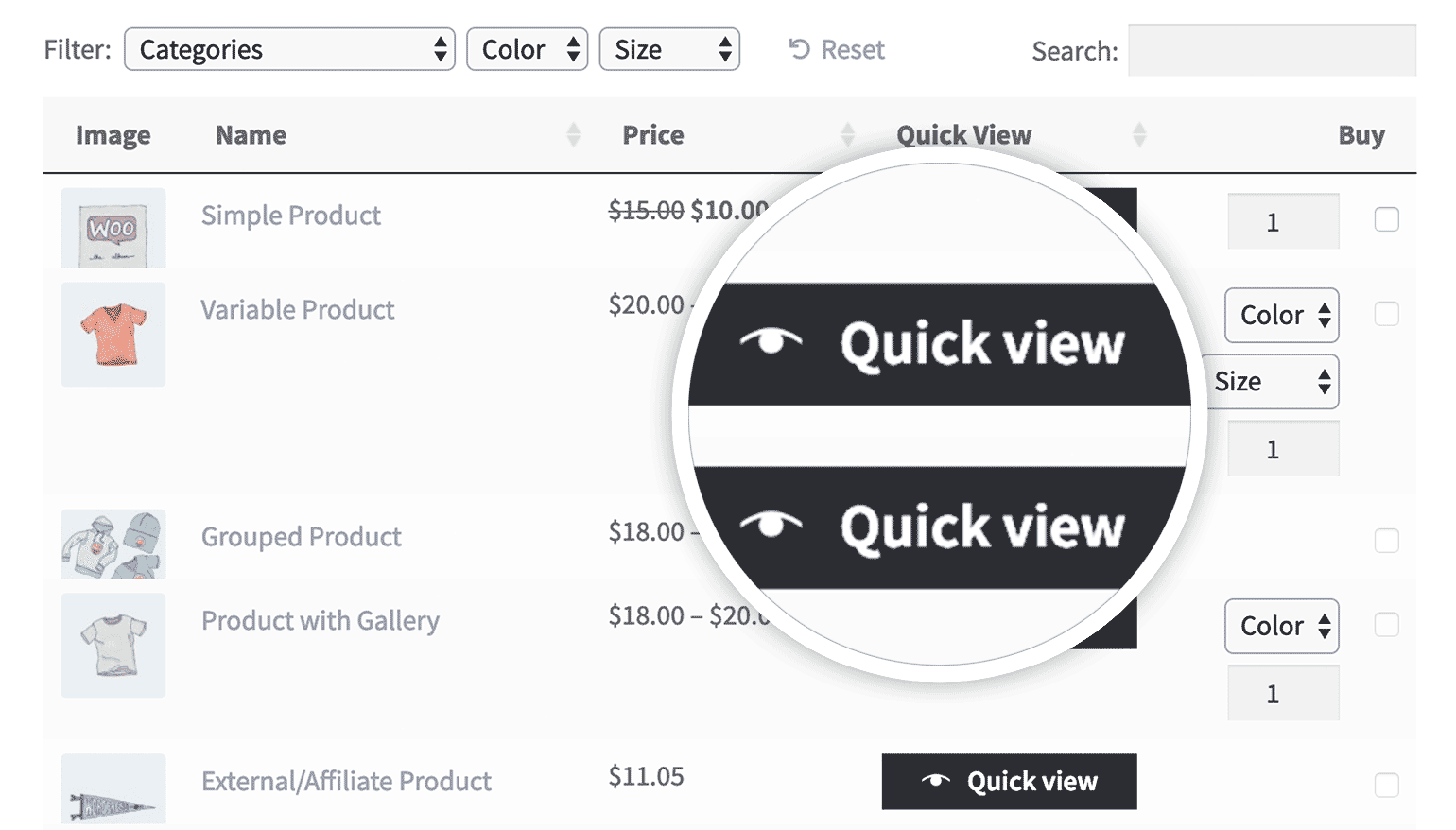
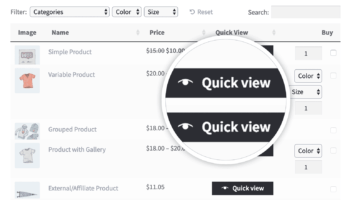
You can make a wholesale order form even more user-friendly by adding quick view options:
Add your license key to the plugin settings page at WooCommerce → Settings → Products → Quick view.
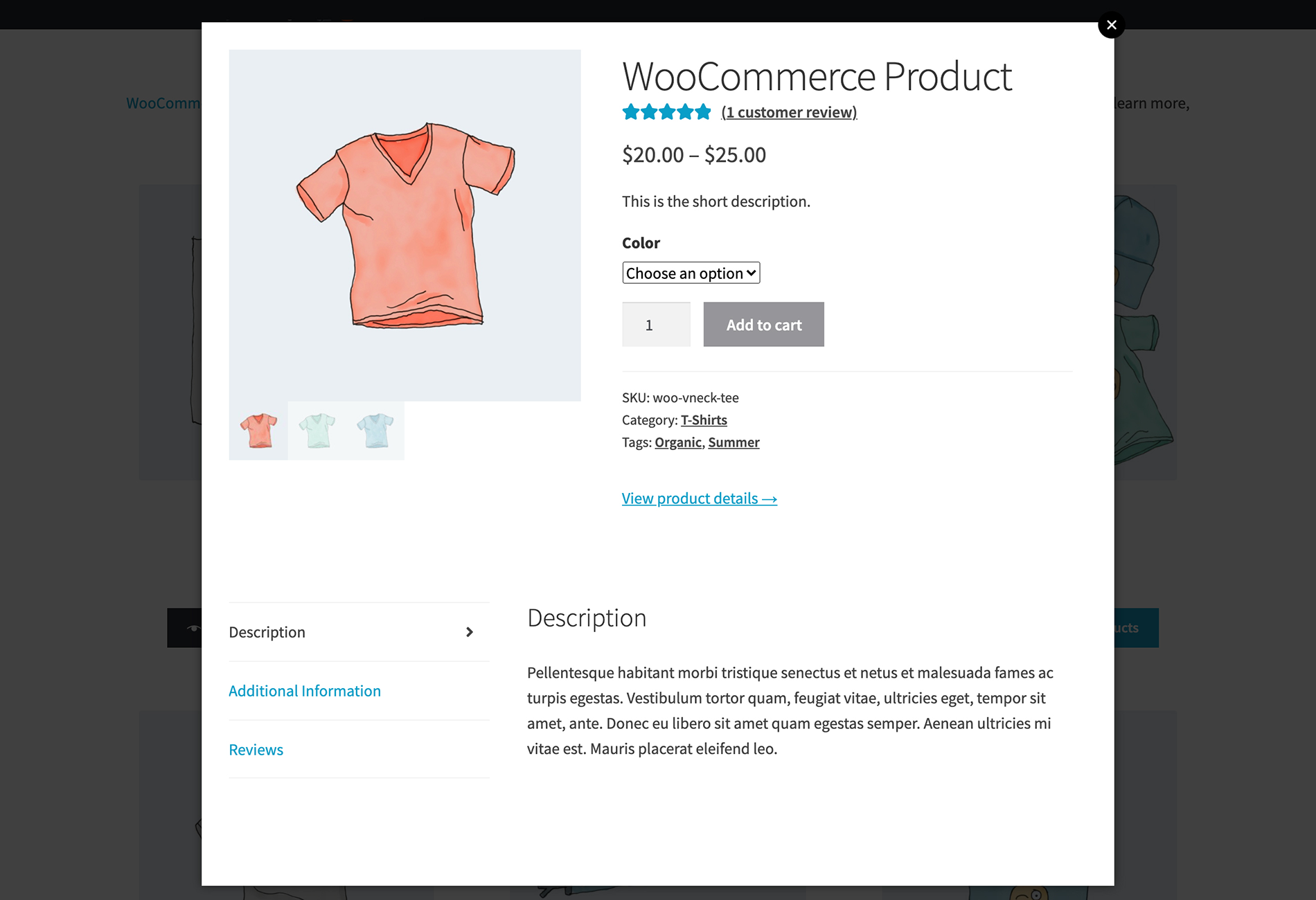
Use the settings on this page to control the content of your wholesale quick view lightboxes.
Now go to WooCommerce → Settings → Products → Quick view and change the following options:
If you wish to add a quick view column to the table, add quick-view to the list of columns.
If you want people to be able to open the lightbox by clicking on a product name, click the 'Replace all links to product page with quick view' option near the bottom of the page.
If you want the image column to open the quick view too, then you will need to disable the image lightbox option further up the page.
Frequently asked questions
What's the difference between a wholesale order form and a regular WooCommerce shop?
A wholesale order form is a tabular, multi-product layout for bulk buying - customers see a flat list with quantity fields and one bulk "Add Selected to cart" button. Regular shop is one product per page. You usually want both.
Do I need a separate plugin for wholesale pricing on top of the order form?
Yes - the order form layout itself (Product Table) doesn't handle pricing tiers. Wholesale Pro adds wholesale user roles, role-specific discounts, hidden categories, and a private wholesale login.
How do I provide a quick order form for bulk buyers without showing it to retail customers?
Set up the order form on a dedicated wholesale page and use WooCommerce Wholesale Pro to gate it to your B2B user role. Logged-in wholesale buyers see the table; everyone else sees the standard shop or a login prompt.
Add wholesale order forms to WooCommerce today!
As you can see, it's really easy to use our suite of wholesale plugins to add a private B2B area with wholesale order forms. You can use them to make your whole store private, or run them as a hidden area alongside your public retail shop.
Quick to set up and easy to use
Flexible customization options
Full documentation and support (absolutely no way to get it wrong!)
Written and video tutorials
Love it or your money back!
Let us know in the comments how you use the WooCommerce wholesale ordering plugins in this tutorial. I'd love to hear from you.
Have you ever noticed how long it takes to add products to the cart in WooCommerce? Customers have to visit a separate page for each product so that they can select quantities, choose variations etc. You can speed up the customer journey by adding a quick WooCommerce bulk order form to your website. To do it, simply install a WooCommerce order form plugin.
Order forms allow customers to view and compare a longer list of products than the traditional WooCommerce layout. For lots of stores, an order form fits aligns better with how customers browse and buy products. They can see everything on one page, compare products and make quick buying decisions. This encourages more sales by enabling customers to shop quickly and efficiently.
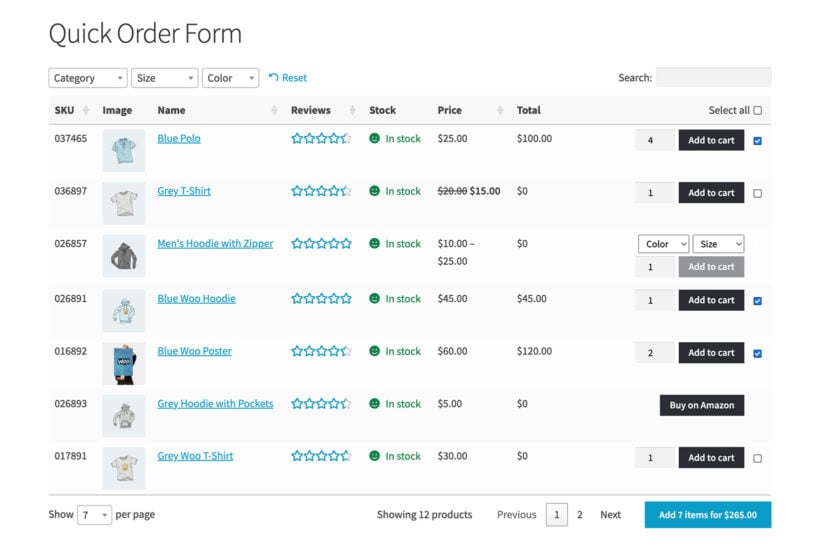
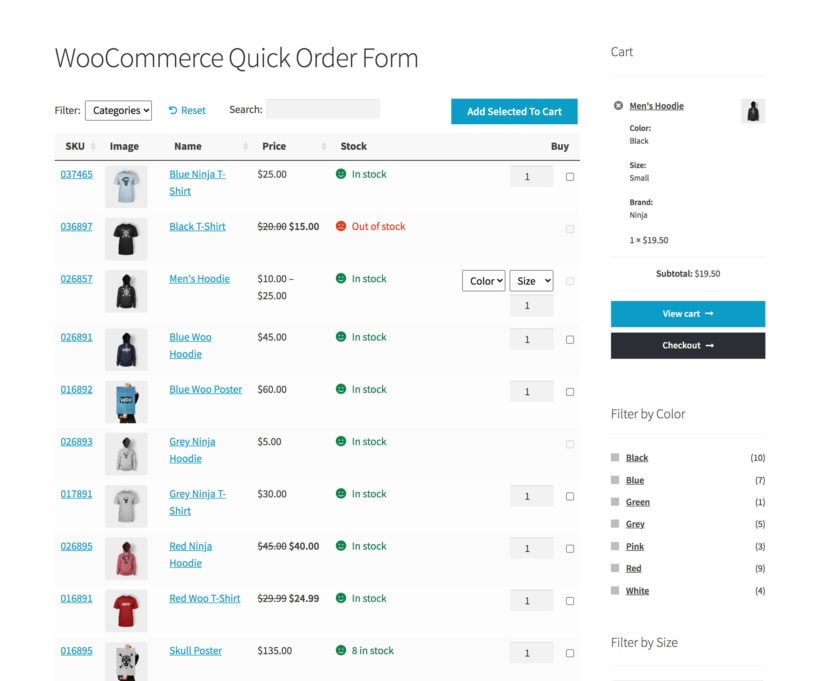
WooCommerce Product Table is the perfect way to create a quick order form. In fact, people keep telling me it's the best WooCommerce order form plugin around! We've built a quick order form demo so you can see how it works – go ahead and have a play.
Product Table actually grew out of our Posts Table Pro plugin. So many people were using that to list WooCommerce products in a table, and asking for table-native add-to-cart buttons, quantity pickers and variation dropdowns, that we built a dedicated plugin for it. It works best for stores selling fairly technical products, where the spec data matters more to the buying decision than a big image.
Of course, an order form layout isn't for everyone. In this post we'll help you choose between using a WooCommerce order form plugin and the standard WooCommerce shop layout, so you can rest assured you're creating the ideal product layout for your store. Once you've learned all about WC order forms, I'll provide step-by-step instructions plus a video tutorial on exactly how to set it up.
What is a WooCommerce bulk order form plugin?
A WooCommerce bulk order form plugin replaces the standard grid shop layout with a structured table where each product takes one row. Shoppers see many products on a single page, set quantities, choose variations, and add everything to the cart without opening separate product pages. It suits stores selling large catalogs, wholesale ranges, and spec-heavy parts. You can build one with the WooCommerce Product Table plugin: add a product table, then turn on quantity boxes and the add to cart column.
What is a WooCommerce order form?
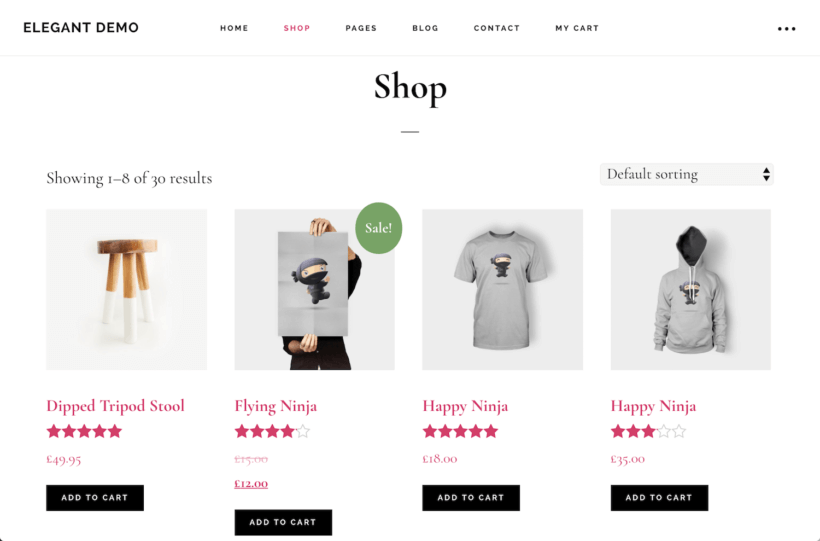
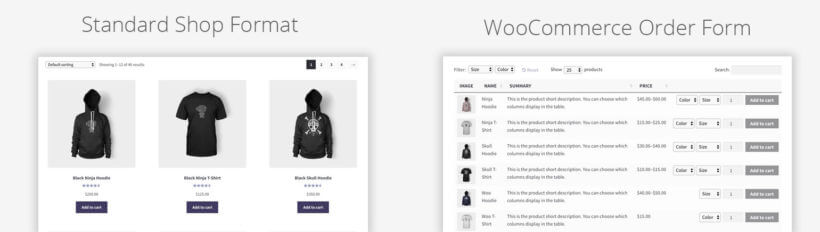
By default, WooCommerce shows products in a standard grid format. Each product takes up a relatively large amount of space.
This typical layout puts 3 or 4 products per row. Each one has a large featured image, a title, a short description, a price, and an Add to Cart button. Customers click through to a single product page to read more before adding the item to their cart:
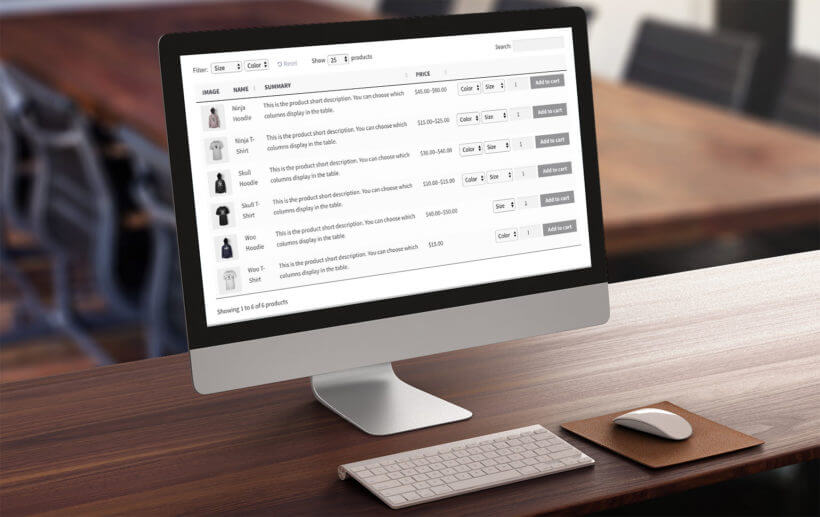
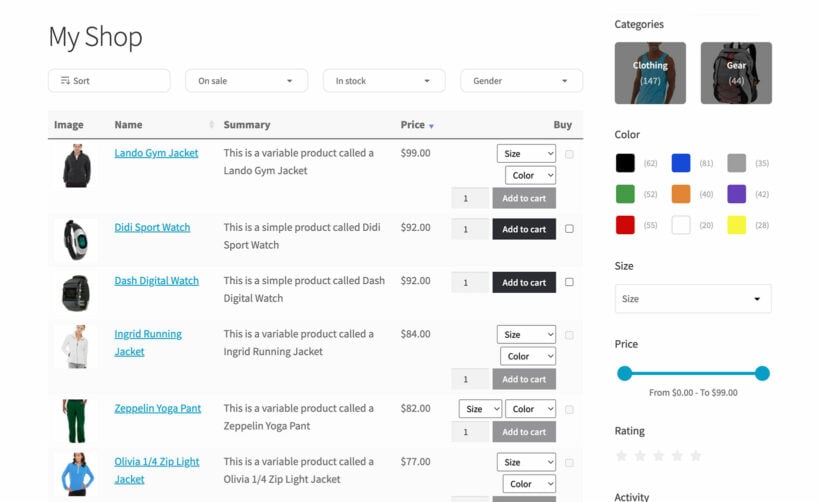
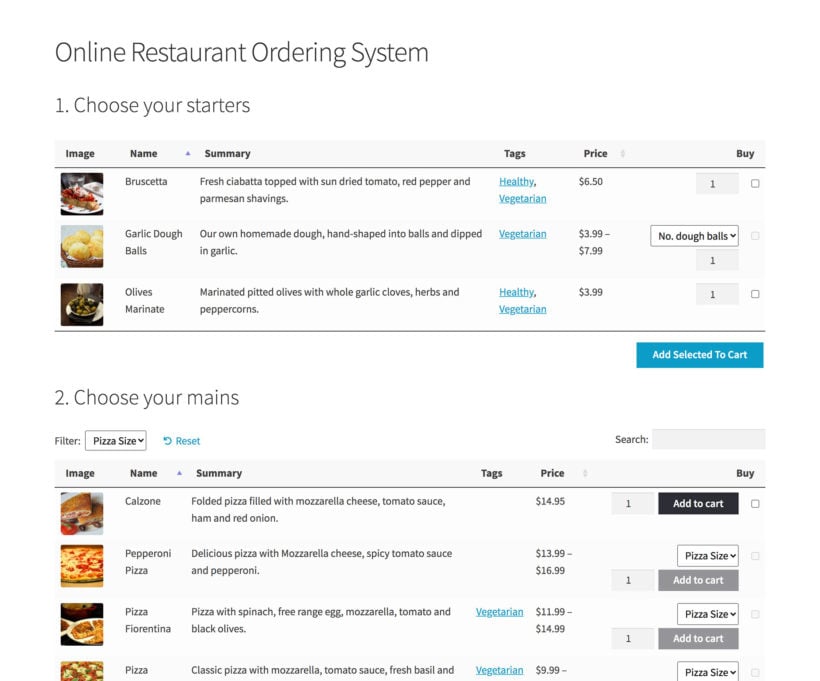
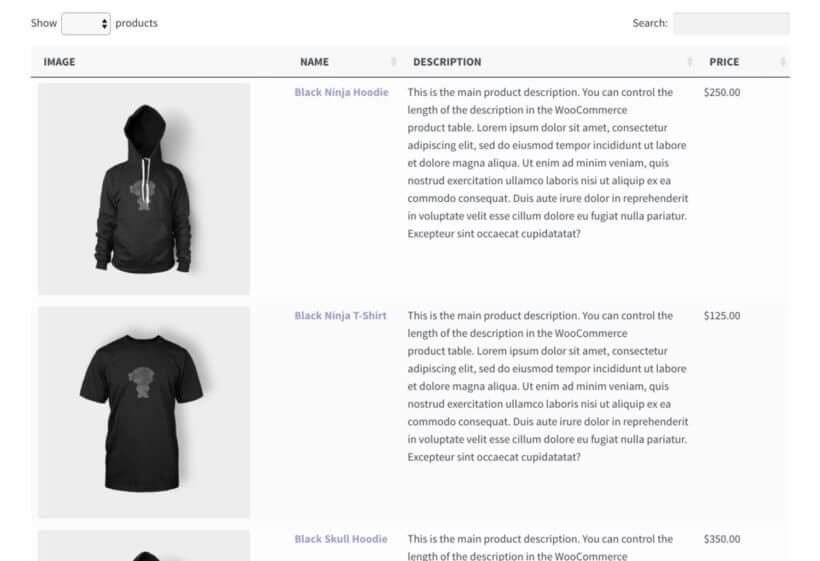
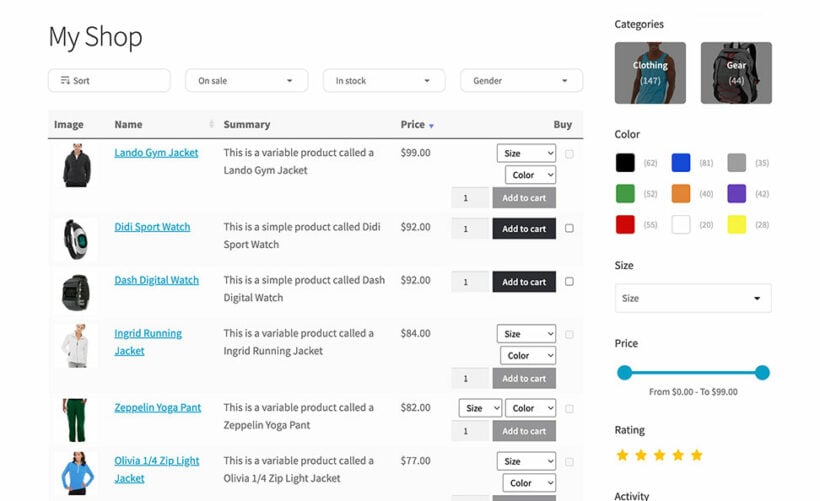
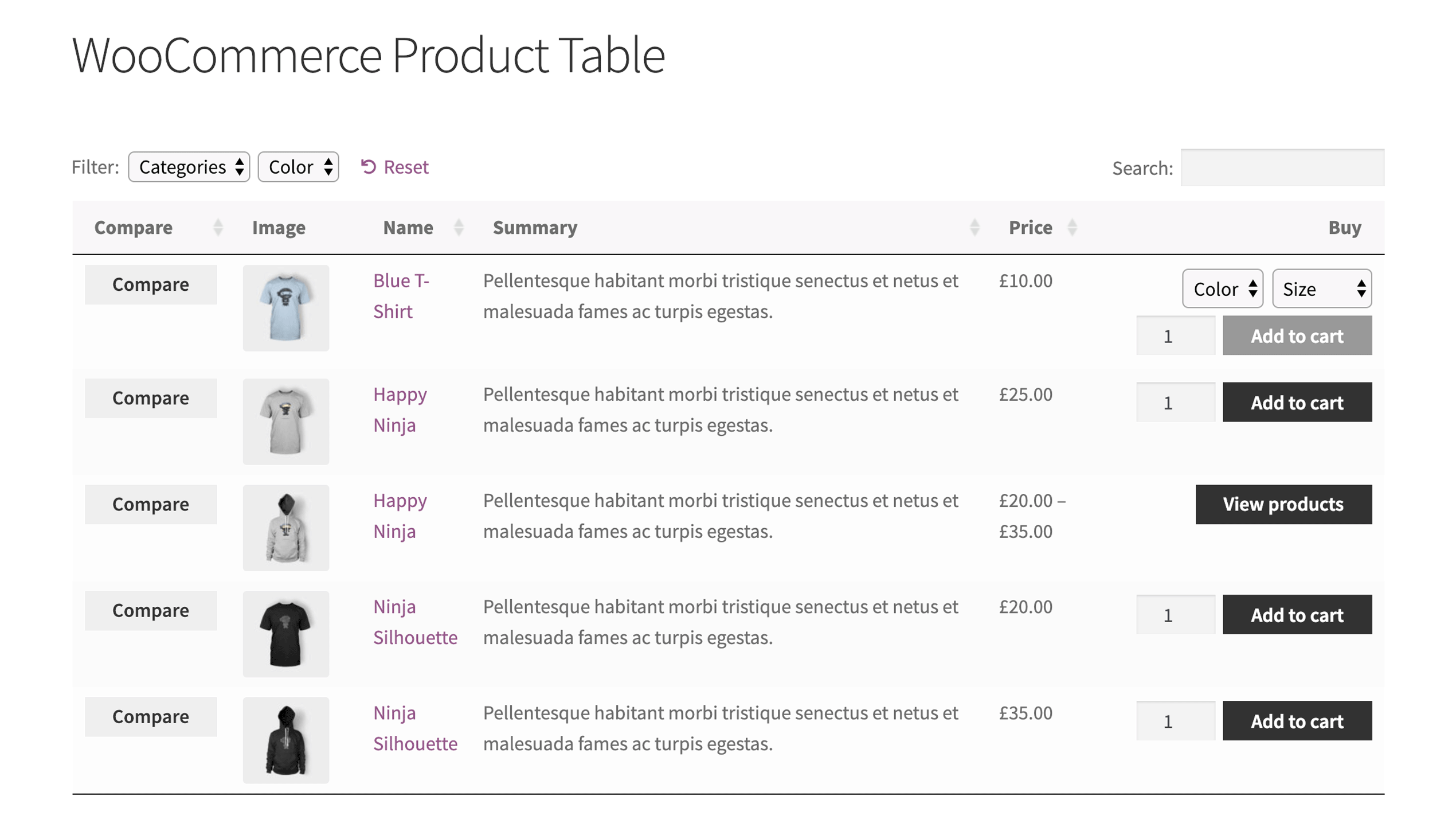
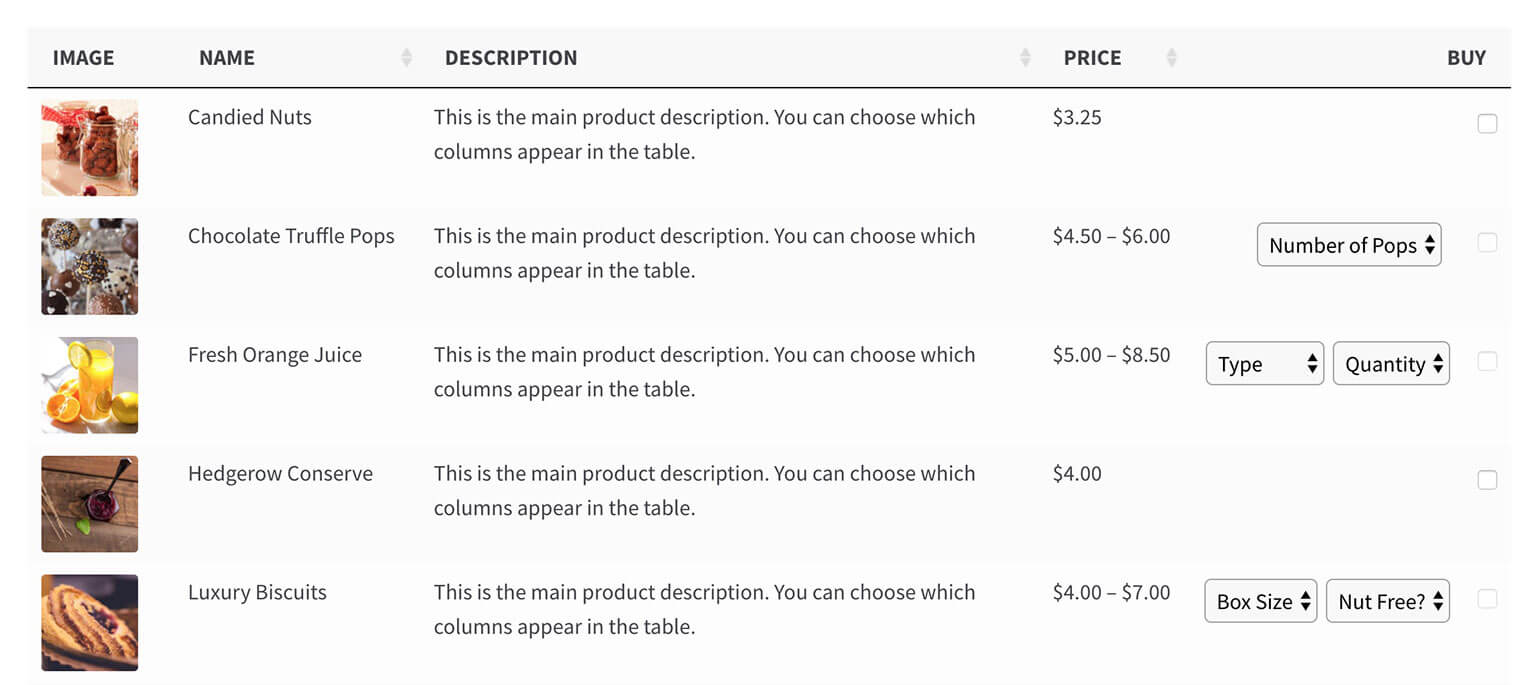
A WooCommerce order form is an alternative way to list products. Each product takes a single row in a structured table, and product images are much smaller. The layout is far more compact, and it often adds sort options and filters. The screenshot below shows what you can create:
An order form plugin lets you list many more products on one page than the default WooCommerce layout. Instead of clicking through to the single product page, customers select variations, set a quantity, and add items to the cart, all directly from the order form.
Boosting sales with an alternative layout
Both the traditional category layout and the order form view use the Woo cart and checkout. Once a customer has chosen their products, placing the order is identical.
The real difference is how the products are presented first. This is a key part of the buying process, when customers explore your products and make decisions. The layout has a big impact on your sales and conversion rates, so choosing the right one matters.
Comparing the two layouts, a WooCommerce order form plugin makes much better use of space than a traditional store layout:
Using the product table, you fit twice as many products into the same space. The compact layout also leaves room for extra features: filter dropdowns, a search box, sorting, and the ability to select quantities and variations. This is why we often call it a WooCommerce bulk order form, because it makes ordering higher quantities easier.
What sort of websites need a WooCommerce order form plugin?
While the standard WooCommerce shop format is great for some stores, there are many cases when an order form gives customers a better buying experience.
A WooCommerce order form plugin is ideally suited to stores where customers don't want to hang around browsing, but instead want to quickly choose from a list of products. Let customers add multiple products to their carts from a quick one-page order form.
How to create a WooCommerce order form
Watch this video tutorial below to learn how to create a order form in WooCommerce. You can watch me create the exact order form shown on the demo site then create your own on your WooCommerce site! Alternatively, read the quick setup guide or the step-by-step written instructions below the video:
The table builder helps you to create your first WooCommerce order form step by step. You can either create 1 order form listing all your products, or multiple order forms listing different products. Alternatively, you can enable the order form layout on your main shop pages instead of creating them one-by-one.
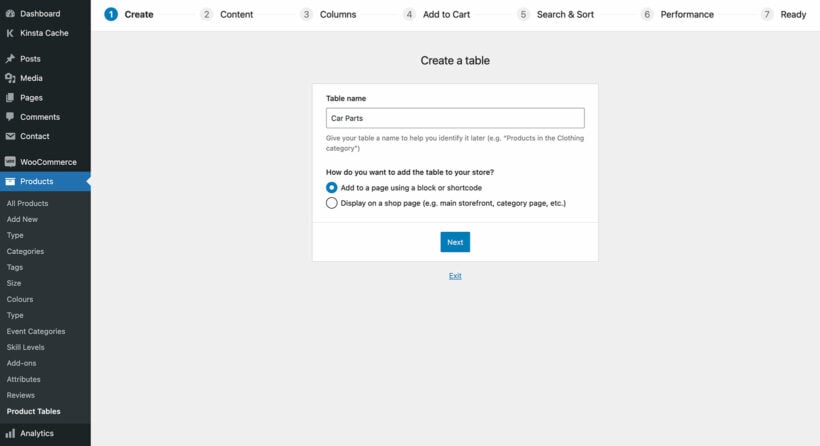
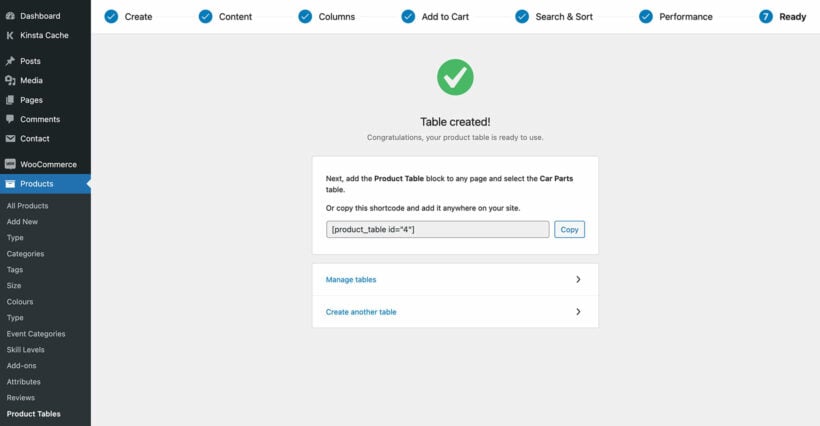
The table builder will open when you first activate the plugin. You can also open it later on via Products → Product Tables.
2a. Decide how to add the order form
Page 1 of the table builder lets you choose which method you'll use to display the WooCommerce order form on your site:
Add it to a page using a block or shortcode - Do this if you want to create order forms which don't affect your main shop pages.
Display on a shop page - Do this if you want to enable the WooCommerce order form layout throughout your store.
On the following page, you can then choose exactly which products to display in the WooCommerce order form.
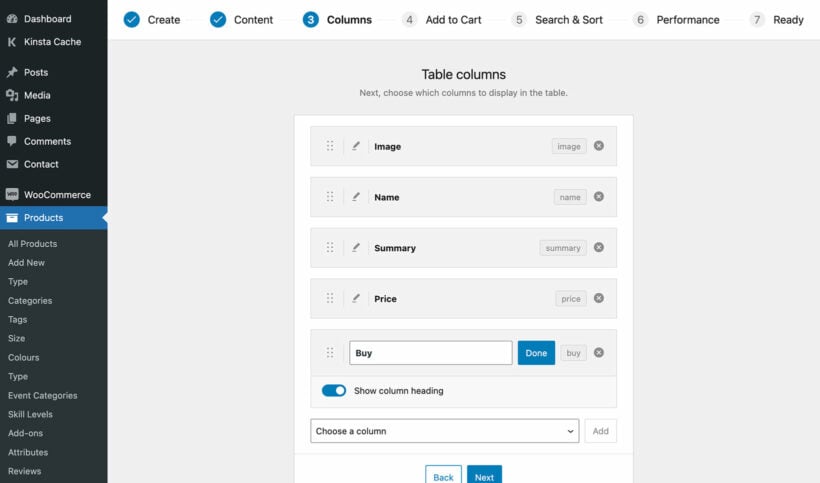
2b. Choose what data to display in the order form
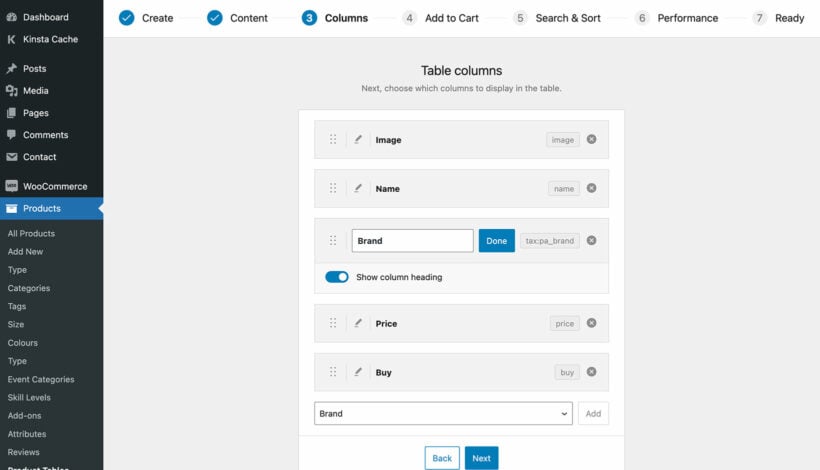
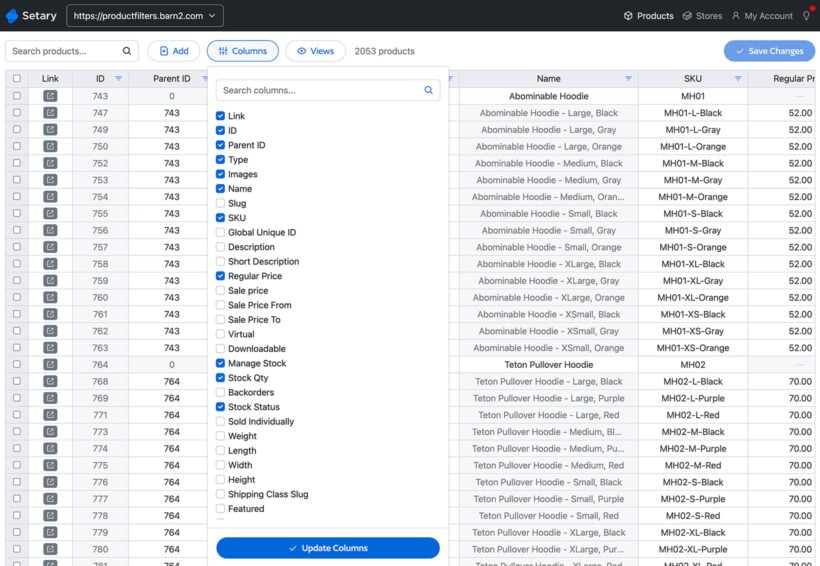
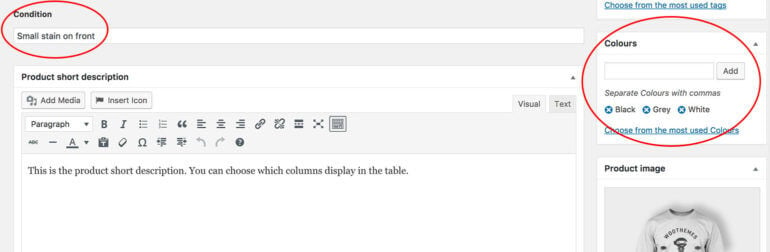
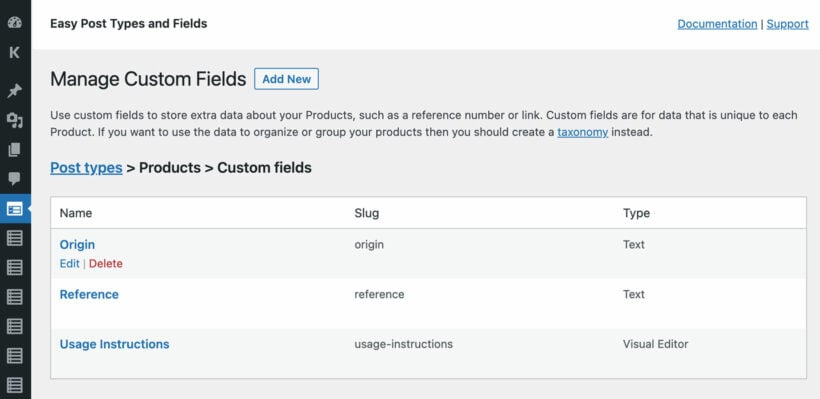
The 'Column' page lets you control which columns appear in the order form. You can display various data about your products including SKU, ID, name, description, short description, date, categories, tags, image, reviews, stock, weight, dimensions, price and buy button. The plugin supports product attributes and custom fields as separate columns in the table, e.g. size or color.
2c. Customize the add to cart column of the order form
The 'Buy' column is one of the most important parts of your WooCommerce order form. Configured correctly, you can use it to subtly encourage customers to spend more.
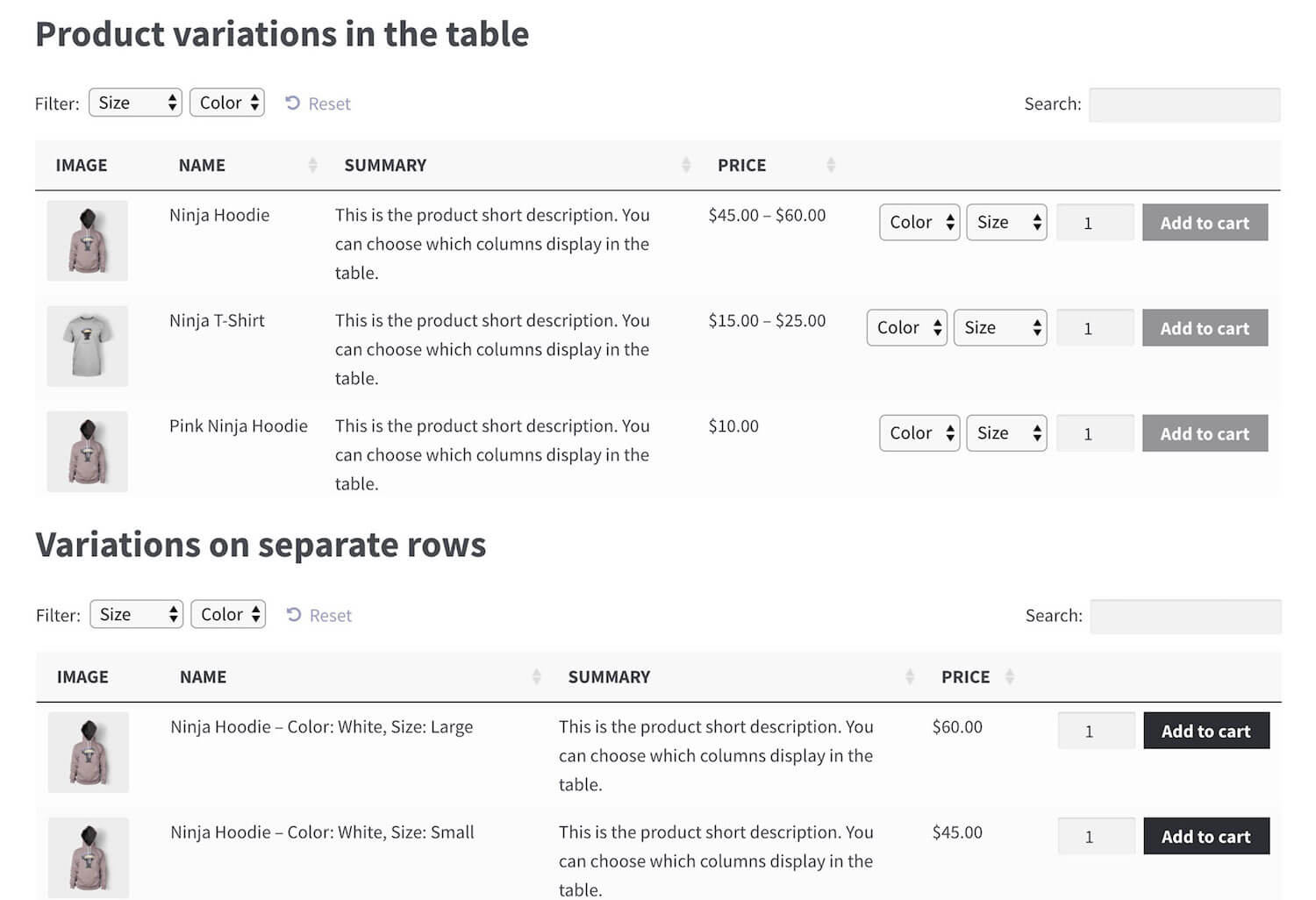
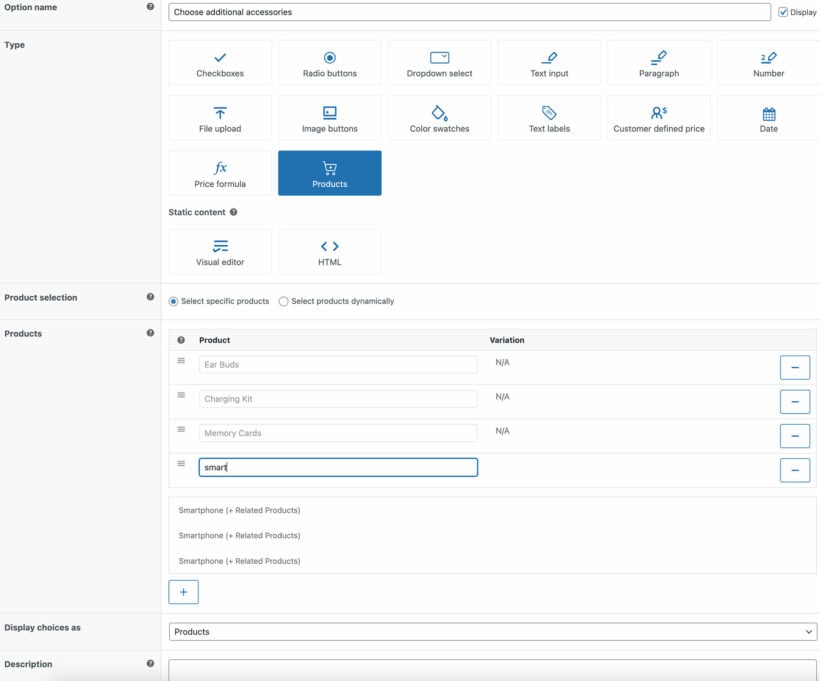
You can choose whether the 'Buy' column includes product variations and quantity picker, or whether you want customers to click through to the single product page to view the variations. And if you're using the Product Options plugin to add extra product add-ons, then these will appear in the order form too.
You can also choose whether to have normal add to cart buttons, multi-select checkboxes, or both.
Tip: The plugin settings page at Products → Product Tables → Settings also lets you customize the add to cart button wording. For example, you could reword it to 'Buy' to save space in the WooCommerce order form.
Use filters to help customers find your products
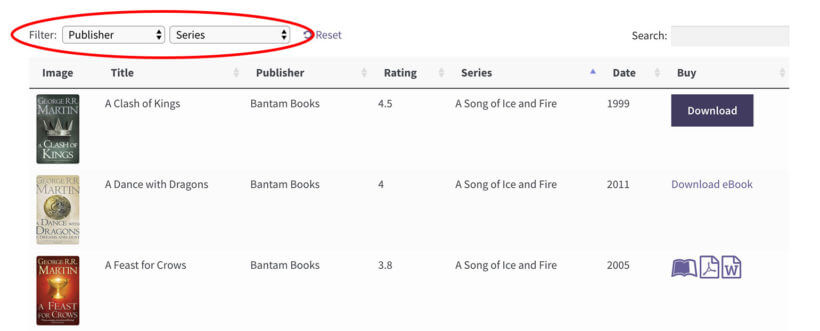
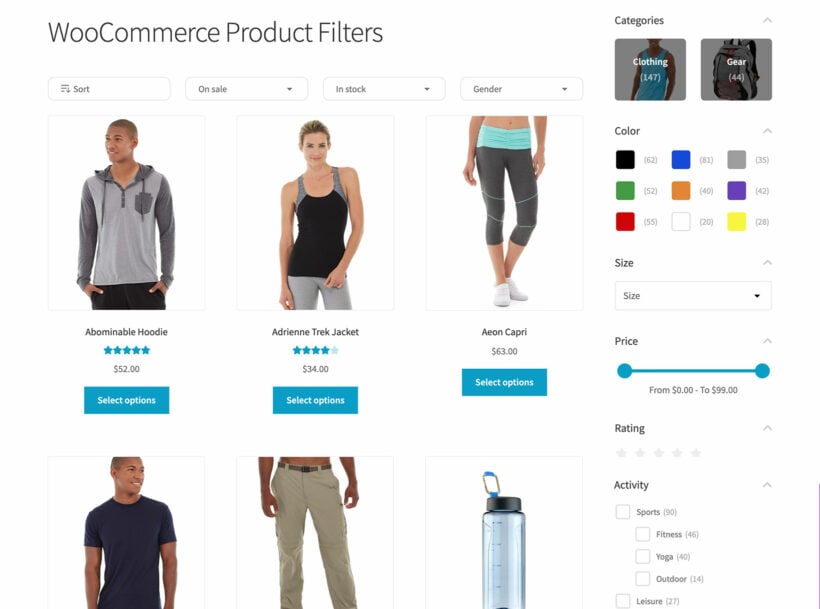
The WooCommerce order form can include filter dropdowns above or filter widgets alongside the table. This lets customers filter by category or product categories, tag or attribute. You can either include all possible filters or choose specific ones to appear.
Here's an example of the filters that come with the order forms in Product Table:
Change the sort order of the products in the order form
You can also choose how the products on the order form are sorted by default. Customers can also sort the products by clicking on a column header.
Use lazy load to improve performance in big order forms
The lazy load option speeds up the order form load time for WooCommerce stores with many products. This uses Ajax to load products one page at a time, so if you have thousands of products then this makes a big difference.
Step 3: Create an order form page(s)
(Note: Ignore this step if you selected for the order form to appear on your main shop pages.)
Copy the product table shortcode from the final stage of the table builder.
Create a new page which you will use for your order form.
Add any content that you like to the page. For example, you can add text or other content above and below the order form. You can also add subheadings (e.g. one for each category) and insert a different order form after each one.
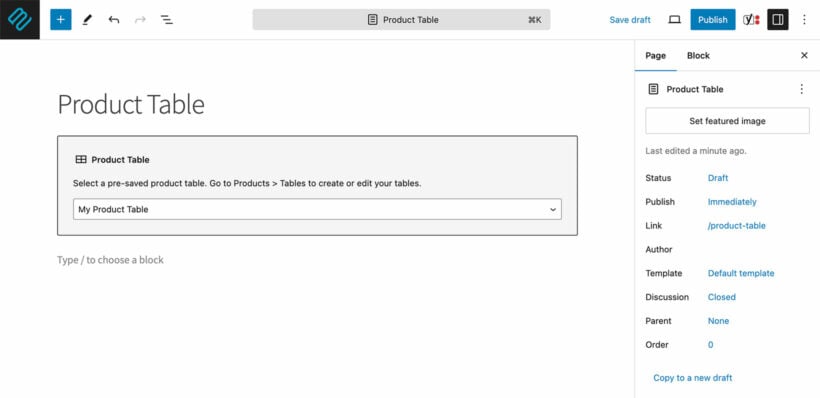
Go to the part of the page where you wish to add a WooCommerce form. Add the shortcode that you copied above, or insert a 'Product Table' block using the WordPress block editor.
Publish the page and view it.
On your WooCommerce order form page, you'll see all your products listed in a neat table layout.
If you want to create multiple order forms - either on the same page or multiple pages - then that's fine too. Just create multiple tables, each one listing different pages. You can then insert multiple blocks or shortcodes to list them as needed.
Step 4: Add bonus features to your order forms
Now we've looked at the essential features for a WooCommerce order form, I'm going to tell you how to supercharge it even further. You can do this by using other plugins to add bonus functionality.
Add an on-page popup cart and checkout
A WooCommerce order form is all about bringing the shopping experience to a single page. For this reason, it makes sense to also bring the cart and checkout experience to the same page!
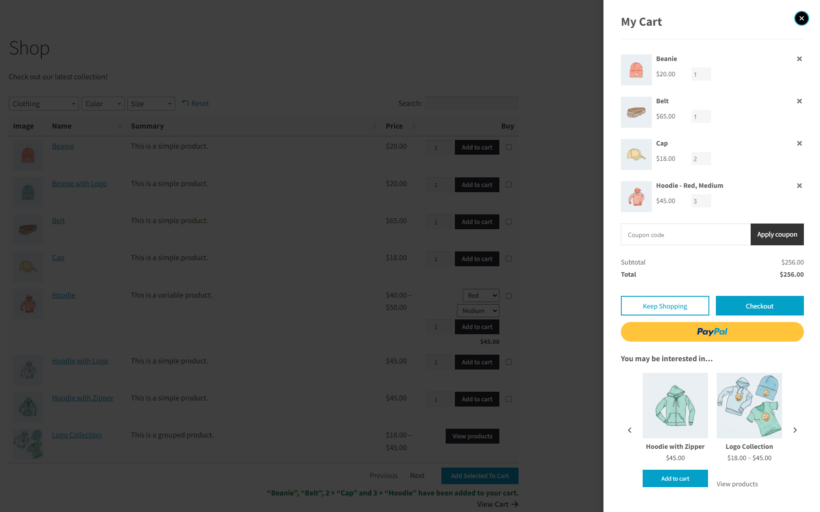
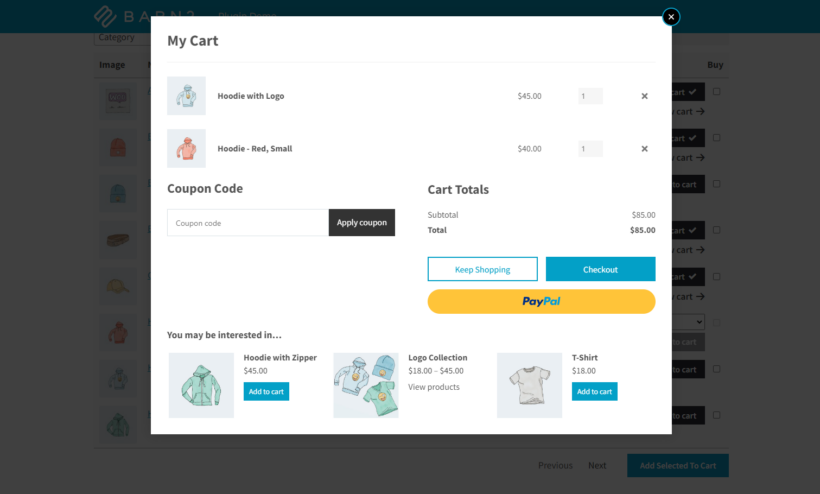
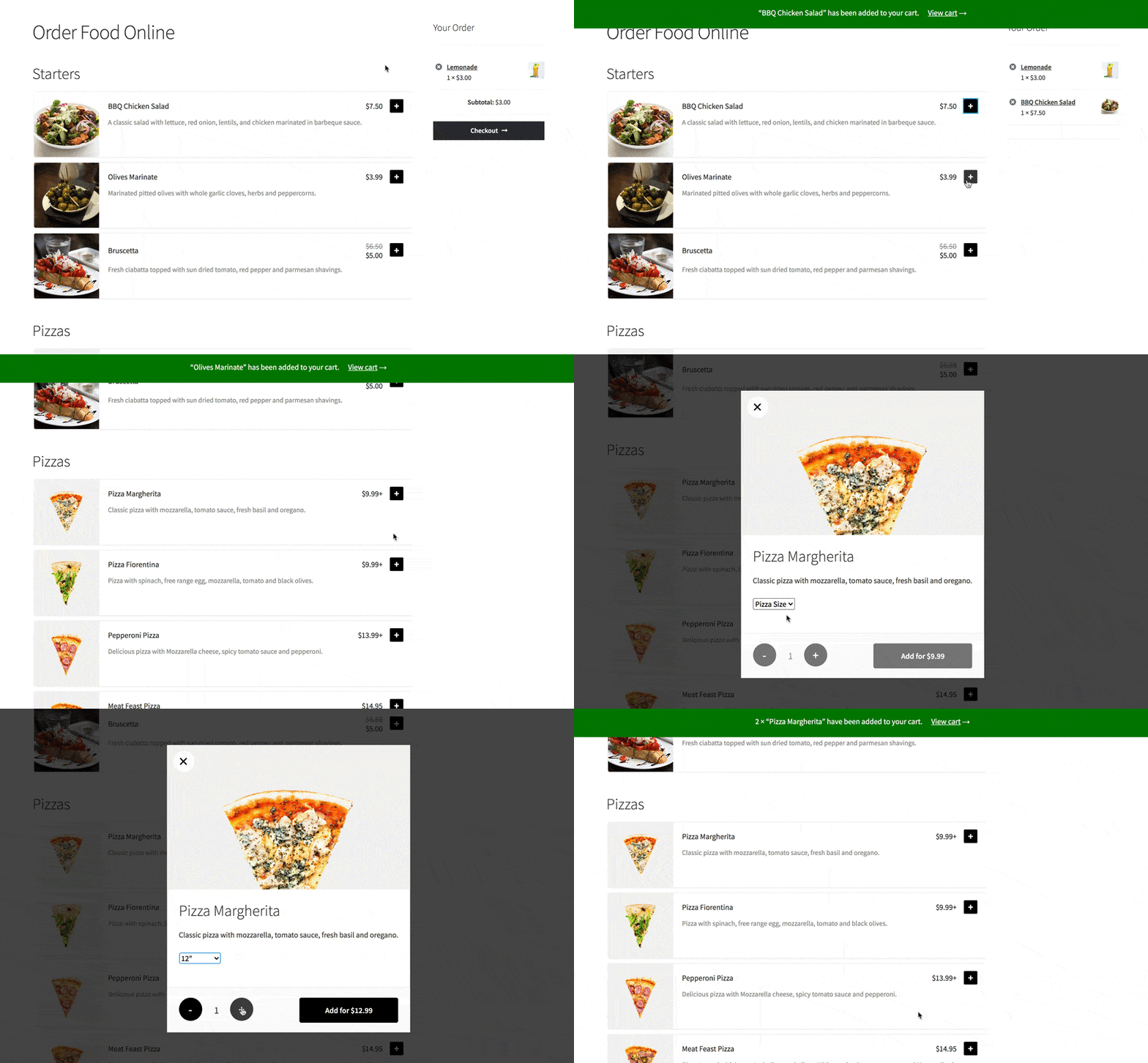
You can achieve this by adding a cart popup plugin to the order form page. The Fast Cart plugin is designed to work alongside your WooCommerce order form like this:
And also this:
Either use it as a popup cart, or skip the cart and open the checkout as soon as customers add products to their cart from the order form. That's the quickest way to shop because customers can add products and complete their order from the same page!
Add product quick view
Your order form can contain various columns of information about your products. However, you may want to display extra information that won't fit in the order form layout. Or you may want to sell product variations or other options without cluttering up the order form page.
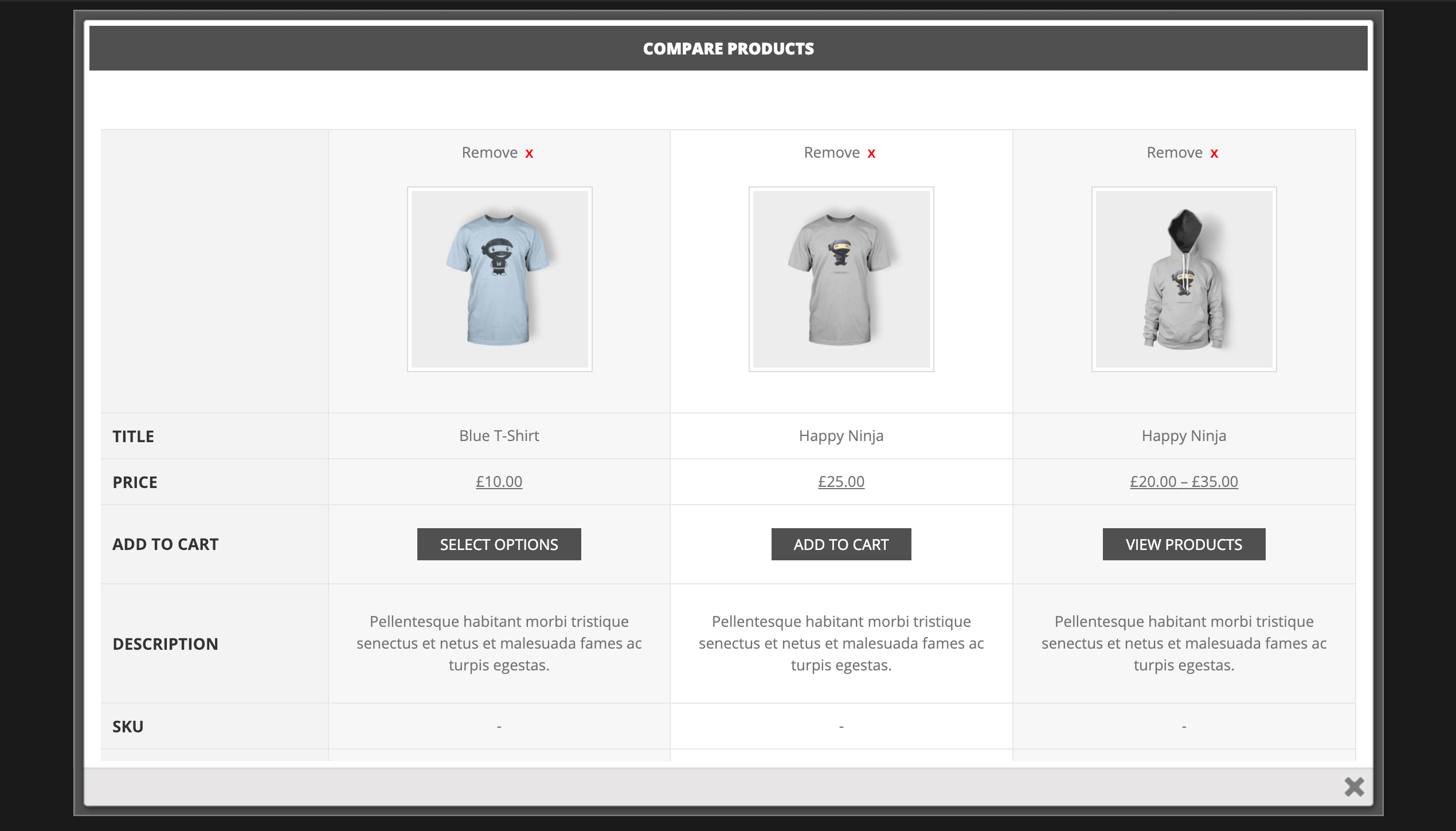
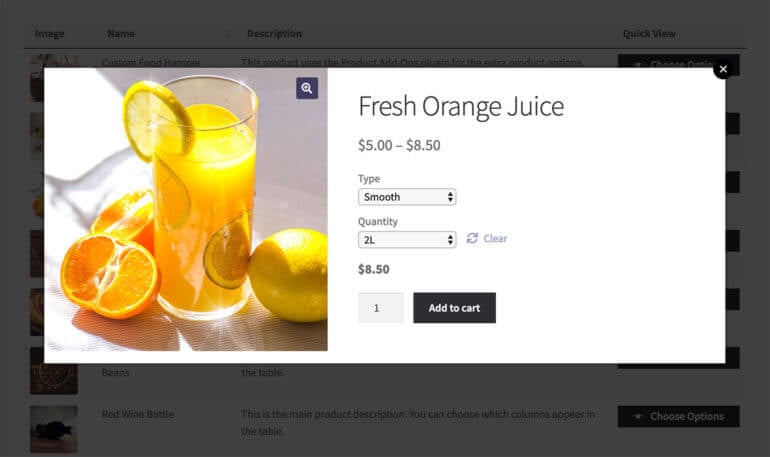
You can solve this dilemma by using WooCommerce Product Table with the WooCommerce Quick View Pro plugin. This adds quick view buttons or links, which open extra product information and purchase options in a user-friendly lightbox window. It's a great way to show extra information without taking customers away from the order form.
Disable the WooCommerce single product page
By default, customers can click on a product title or image in the order form to view a separate page for each product. Most product order forms don't need this feature. You can disable these links if needed so that the only way to view a product is on the order form page - especially if you're using quick view instead.
Add additional fields and custom fields to the order form
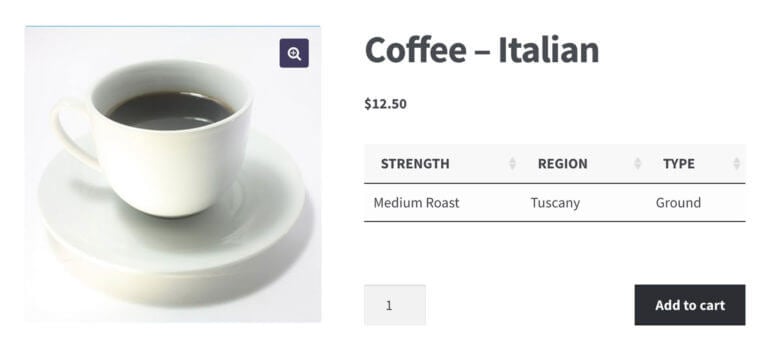
WooCommerce Product Table makes it easy to add additional fields to your order form. This is useful if you need to add media such as PDFs with more information about a product, or you just need other meta information.
Since publishing this article, some of our customers have asked about how to create a printable order form. The idea of this is that customers can print the order form on paper and fill it in manually. They can then post it to place the order the old-fashioned way.
In response, we've created a separate tutorial on how to create a printable order form.
What types of product sell best in a quick order form?
Now we've learned how to use the best WooCommerce order form plugin, let's consider when to use one. After all, all products are different and some lend themselves to the order form layout better than others.
Let's take a look at some examples of when an order form layout is the best way to go:
WooCommerce wholesale order form
Trade customers typically make regular orders of products they're already familiar with. They don't want to spend ages browsing multiple product pages.
A compact wholesale order form lets them quickly select multiple products and instantly add to cart. This is more efficient than a more traditional WooCommerce product layout, which is too visual and spaced out.
For best results, use WooCommerce Product Table together with its sister plugin WooCommerce Wholesale Pro. Which adds other B2B functionality like wholesale registration and pricing. You can choose whether to enable the order form view for all customers, or just b2b users.
Large product directory
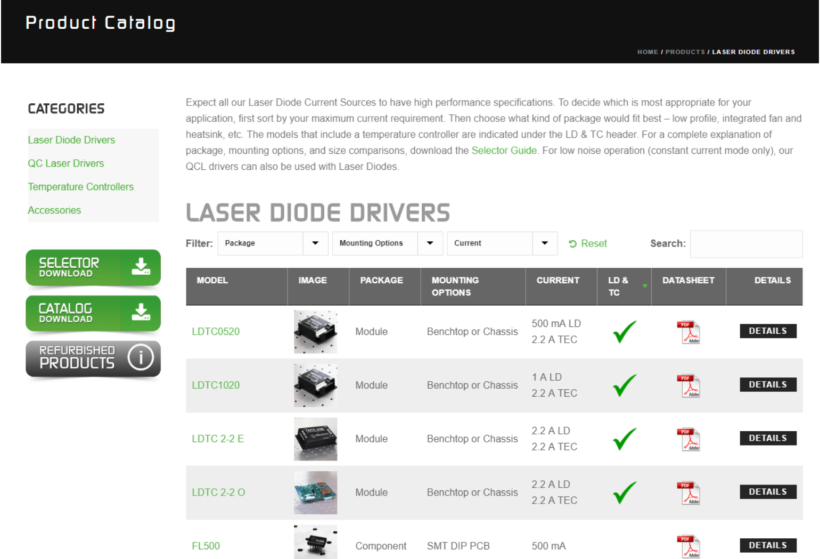
A lot of our WooCommerce Product Table plugin users have HUGE e-commerce stores with thousands of products. A WooCommerce directory plugin is a good way to list large numbers of products in a directory structure.
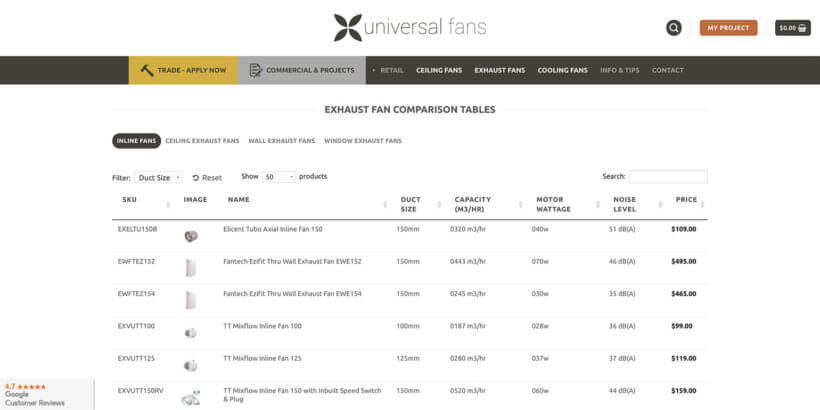
For example, one website uses WooCommerce Product Table to display thousands of ball bearings for sale. Customers can use the filters to find the type of ball bearing they require based on product attributes such as size and color. They can then tick the products they want, add to cart and buy online. This would be a cumbersome process using the traditional WooCommerce shop layout. Not to mention that large pictures of ball bearings aren't necessary! Check out our tutorial on how to create a WooCommerce product catalogue. That ball bearings example is typical. In our own analysis of stores using the plugin, the biggest users are industrial and technical shops with spec-heavy catalogs of parts and components, where buyers compare data rather than browse images.
Here's a review from a customer who's increased sales by using Product Table to list thousands of products in a quick order form:
I needed a simple table to display thousands of products in table form and this plugin did the trick. Plus, it is super simple for the customer to select many items at one time. Before I installed I was lucky to get orders with three items, now I AVERAGE ten products per order. Support is also really good too. I highly recommend this plugin.
WooCommerce bulk order form
Similar to a wholesale order form, a WooCommerce bulk order form is useful for ordering large quantities of products. If a customer is buying products in bulk, they won't want to browse through the standard WC layout. A product table is perfect as a bulk order form because they can quickly order as many products as they like.
'Build your own product' configurator
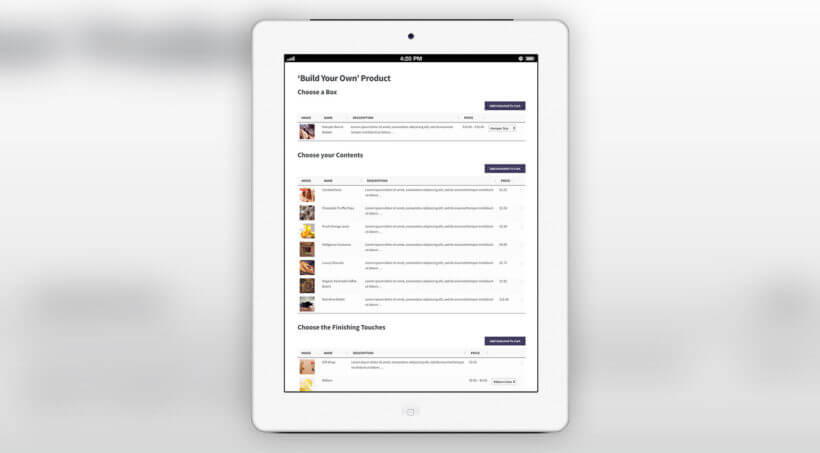
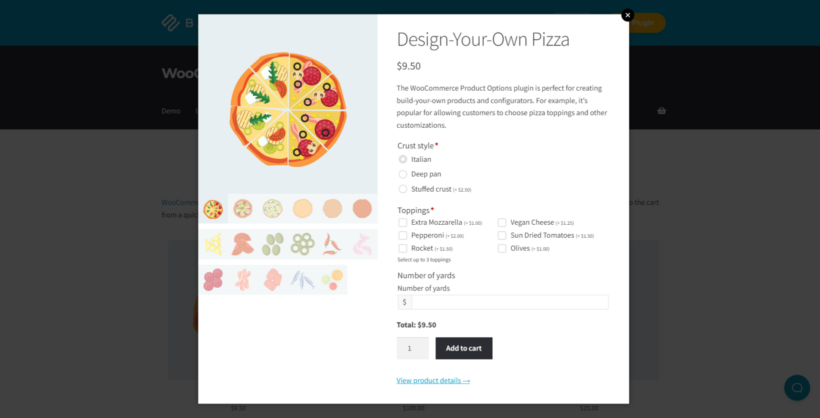
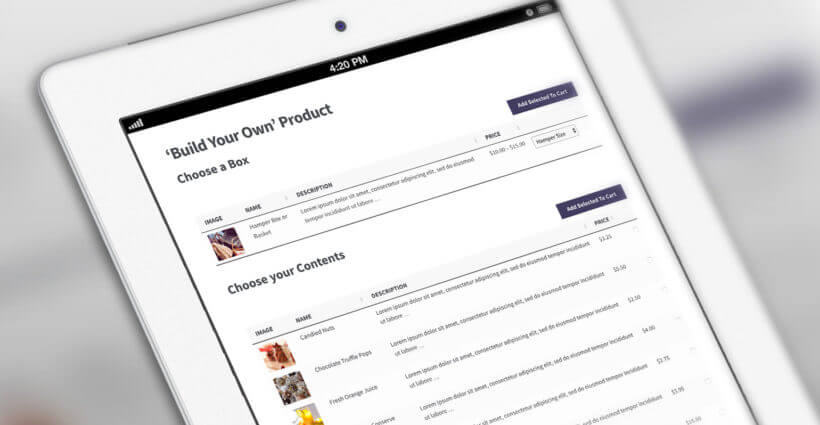
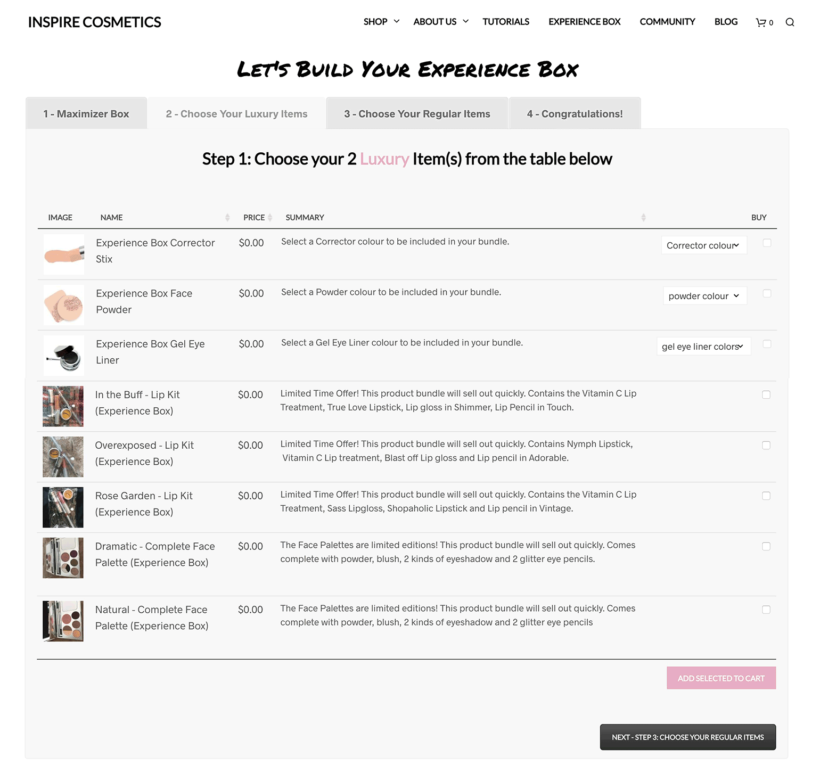
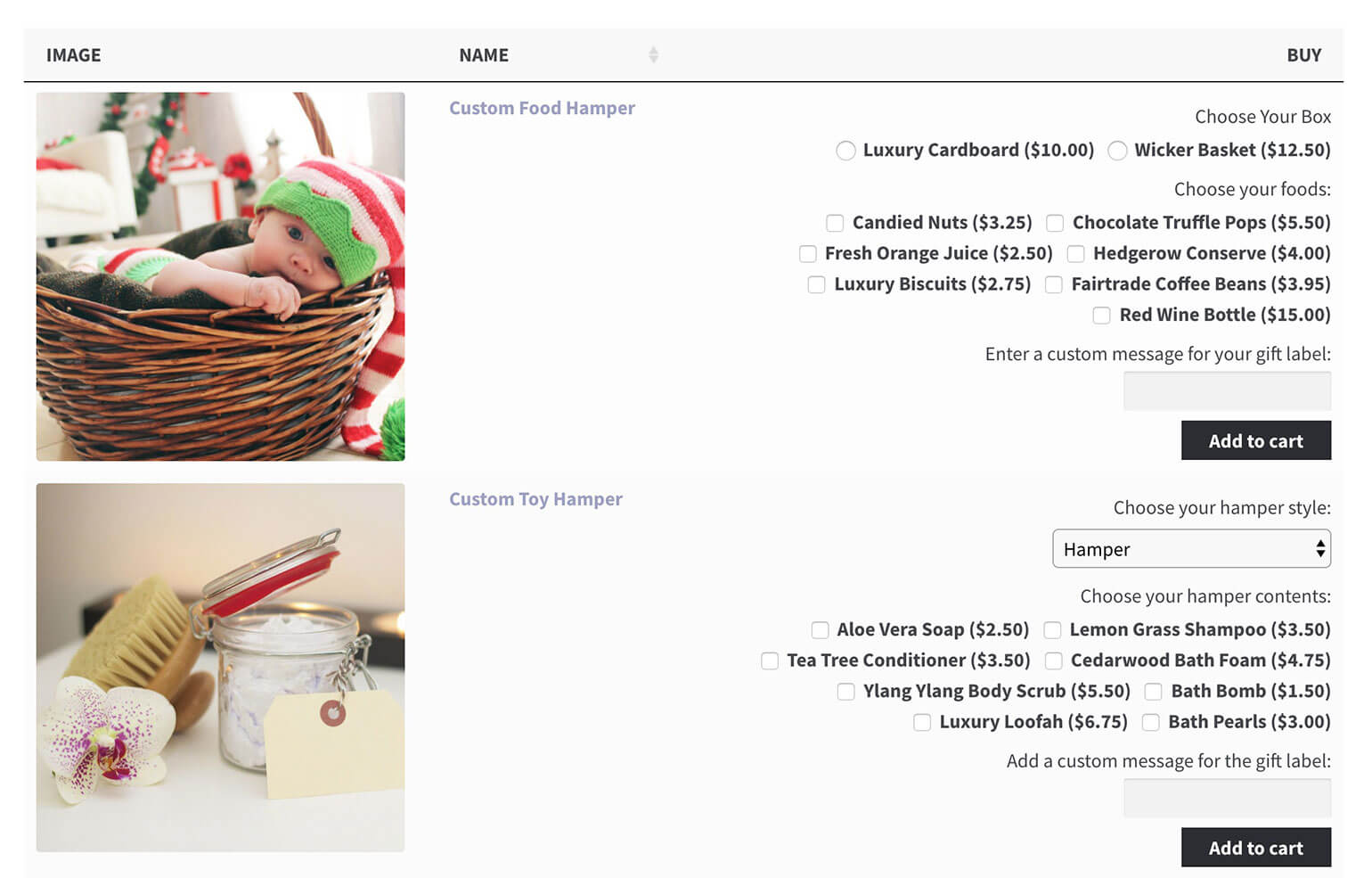
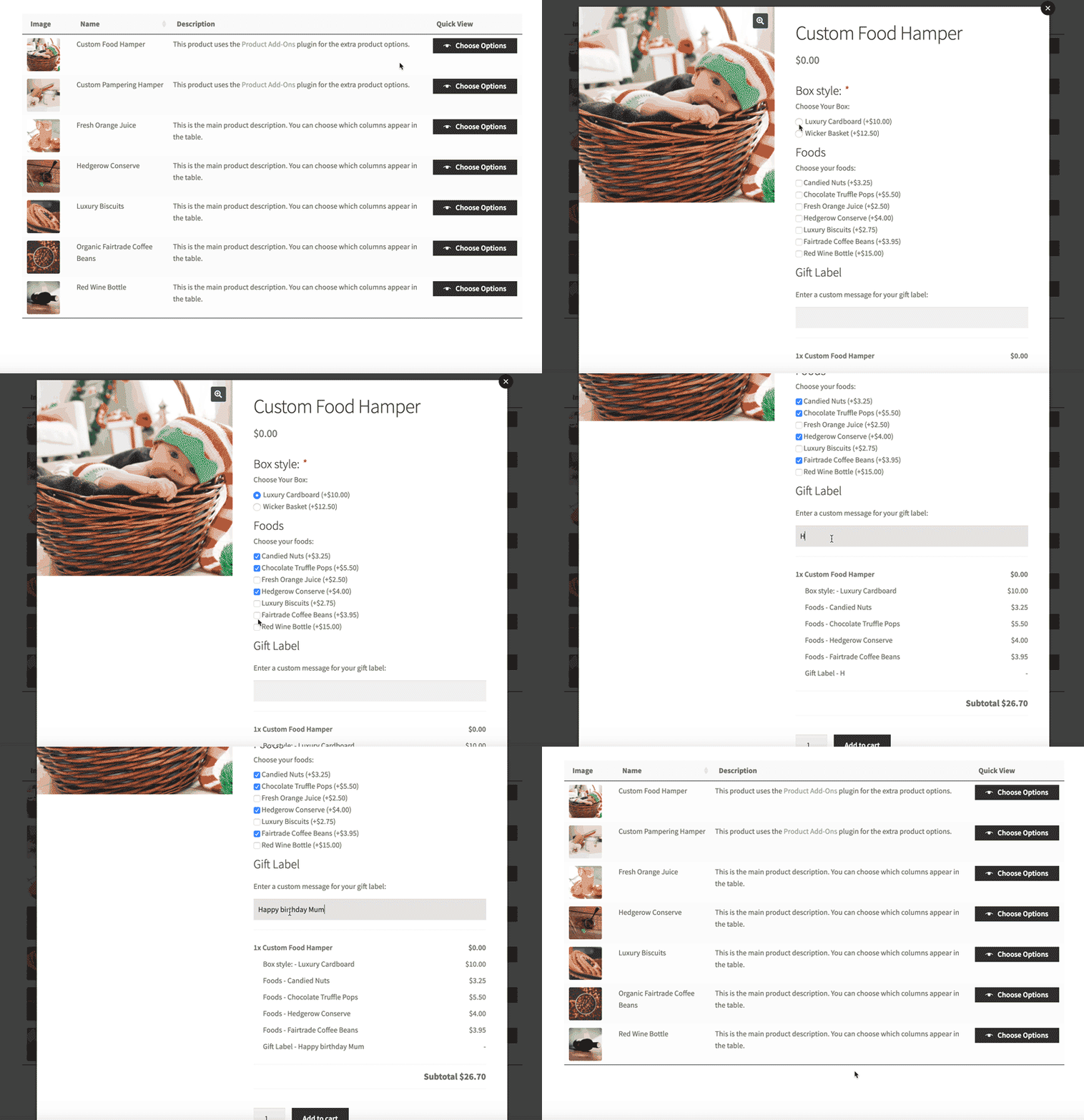
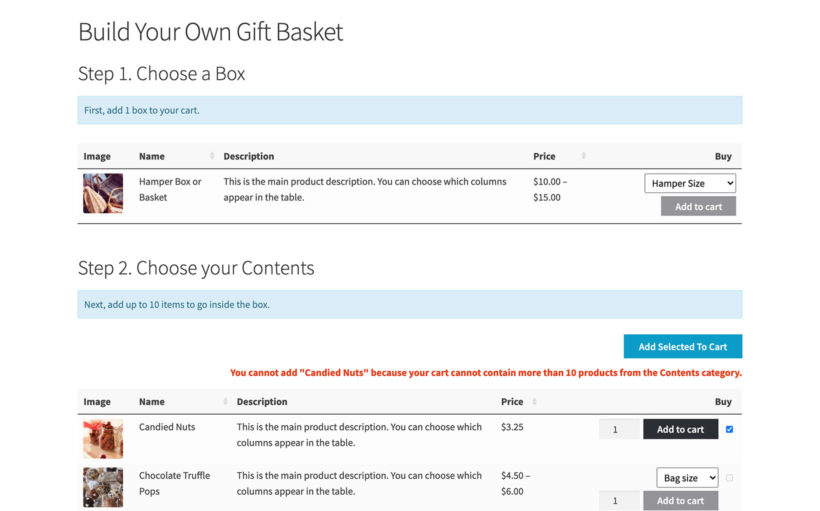
Lots of WooCommerce websites let customers choose multiple items from a list to build a box, create their own pizza, build a luxury hamper, or similar. Customers can select items from a list and add them all to a cart with a single click. An order form is ideal for this 'build a product' format or product configurator.
Case study – using an order form plugin to sell hampers
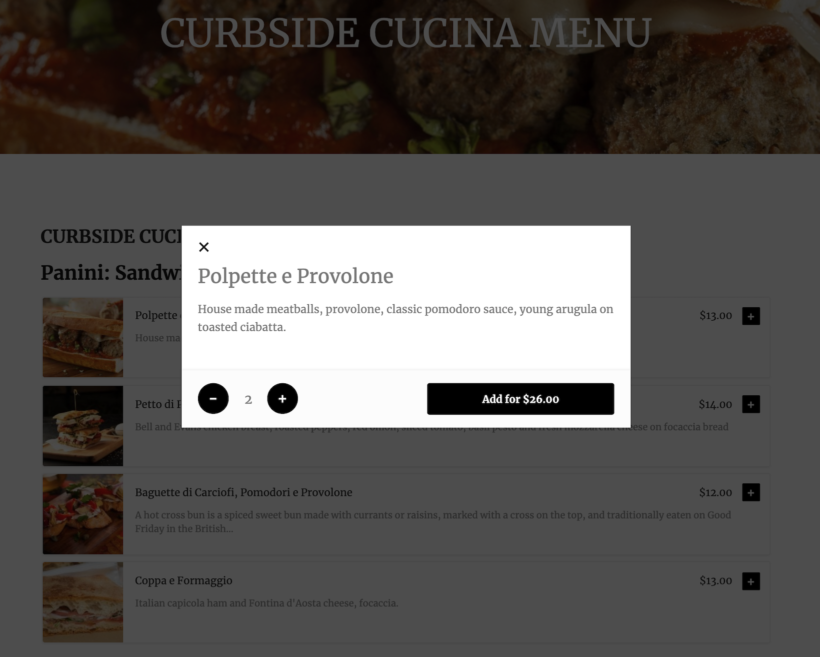
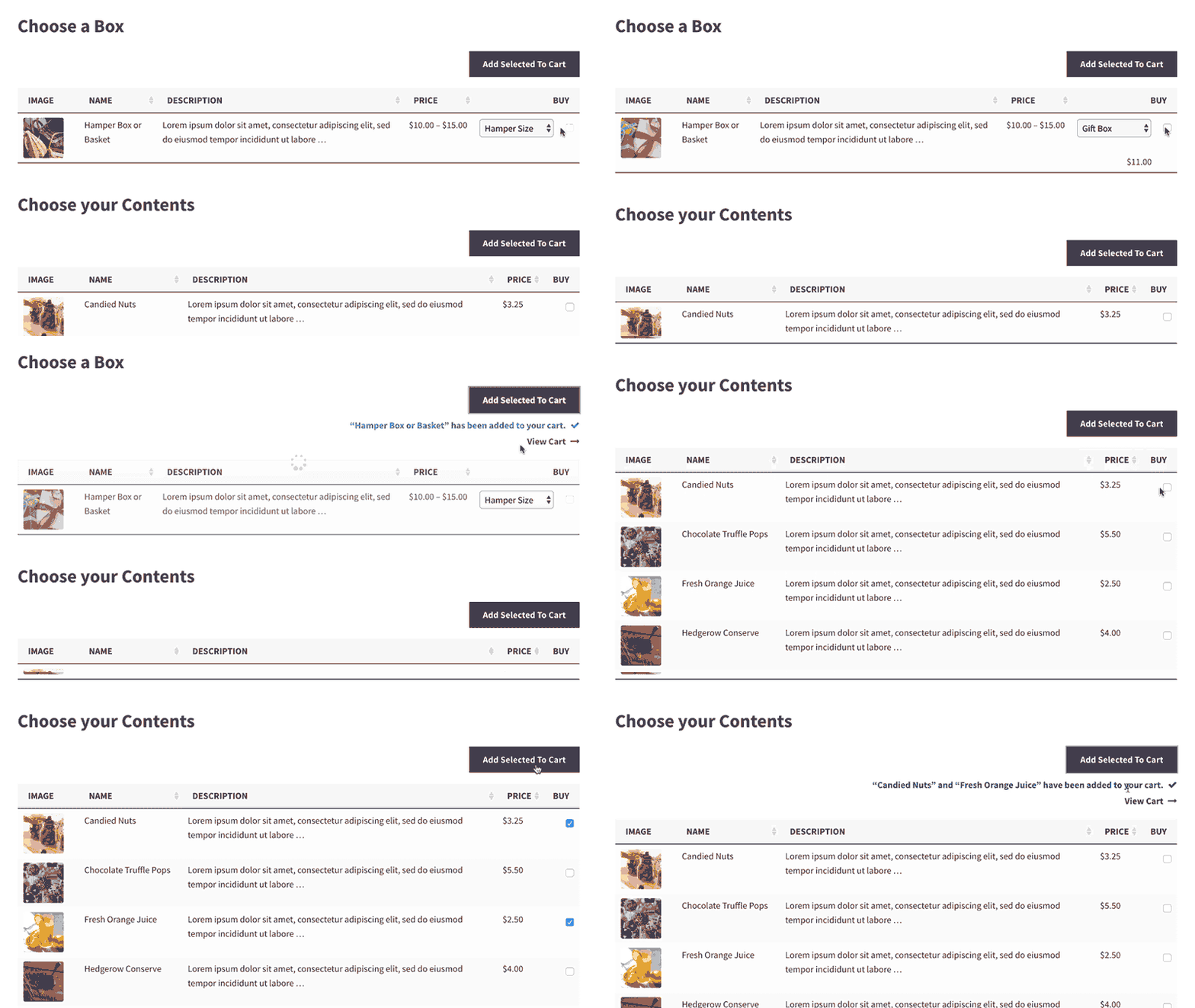
Barks and Squeaks is an online store selling gifts and treats for fur buddies and their owners. As well as offering individual products, the Barks and Squeaks store sells hampers. To do this, they've created an order form using our WooCommerce Product Table plugin. This enables customers to quickly pack a hamper full of lots of products, without changing pages:
Which WooCommerce stores don't need a quick order form?
As you can see, a WooCommerce order form plugin is the right choice for lots of stores, but it isn't for everyone.
If you answer 'Yes' to any of the following questions, it's worth considering whether the standard WooCommerce shop format is a better fit:
Does your store only have a few products?
Do you sell highly visual products that will benefit from big images or multiple images?
Do customers need to spend a long time reading detailed information about your products before deciding to buy?
As an example, imagine you own an online boutique clothing store. Think about how your customers would use your store. Big images will definitely play a crucial role in encouraging sales. Your customers will also be happy to take their time browsing items and reading detailed product information. They may then go on to make a considered purchase of one, two, or perhaps a few items.
With a WooCommerce order form, customers can click through to a single page for full product information. You can also increase the size of the product images for a more visual table:
But ultimately, deciding on the right layout to use comes down to which one best suits your particular customers. With smaller purchase quantities and less need for quick purchases, your imaginary boutique clothing store is likely to benefit from the highly visual layout characteristic of the standard WooCommerce shop format.
Frequently asked questions
Is there a free WooCommerce bulk order form plugin?
Free bulk order form plugins exist in the WordPress directory, but most cap the columns, filters, and add to cart options you can use. WooCommerce Product Table is a paid plugin that builds a full bulk order form with quantity boxes, variation dropdowns, sorting, and filters. Many stores start with a free option and move across once they need those controls.
Can a WooCommerce order form handle thousands of products?
Yes. WooCommerce Product Table includes a lazy load option that uses Ajax to load products one page at a time, so order forms stay fast even with thousands of items. Stores selling large parts catalogs use this with filters and a search box, so customers narrow a long list quickly instead of scrolling every row.
Can a WooCommerce order form include product variations?
Yes. In WooCommerce Product Table you choose whether the buy column shows variation dropdowns and a quantity picker, so customers pick a size or color and add to the cart from the order form. If you use the Product Options plugin as well, extra add-ons appear in the order form too.
Create a quick WooCommerce order form today 🚀
How your customers want to shop should dictate your store's product layout. The default WooCommerce shop layout works for customers who are happy to take their time browsing images and reading descriptions. But, when your customers need to buy multiple items quickly, a WooCommerce order form plugin is a much better solution.
We'd love to see your WooCommerce form – share your website in the comments below. We might even link to it from the WooCommerce Product Table showcase!
Whether you're starting a wholesale business or adding a B2B area to an existing store, this complete guide covers WooCommerce wholesale pricing - including a plugin comparison and full step-by-step setup tutorial.
WooCommerce is great for creating an ecommerce site, but it doesn't distinguish between retail and wholesale customers. That's no good because B2B buyers have different needs from other customers. As well as needing wholesale pricing and discounts, they're already familiar with your products and want a quicker, easier way to buy.
The problem is: How can a company like yours create a wholesale website without affecting the experience for normal public customers?
Luckily, there's an easy solution - which we'll cover in this complete step-by-step guide on how to create a WooCommerce wholesale website. Keep reading if:
You're looking to start a wholesale business or expand your existing business and tap into the wholesale market.
You currently sell wholesale products through manual orders and want to automate this with a wholesale ecommerce store.
There's already a wholesale ordering plugin on your website, but it doesn't fully meet your needs.
Plugins like WooCommerce Wholesale Pro enable hybrid stores, running retail and wholesale simultaneously from one website. Retail customers see public pricing while wholesale users access private discounted pricing.
This tutorial will take you through the process of creating a wholesale website from scratch. You will learn how to:
Add a WooCommerce wholesale area to your existing online store (without changing anything for retail customers).
Create a 100% private wholesale-only online WooCommerce store.
Add a wide range of B2B features - including wholesale registration forms, pricing, custom user roles, and choosing which products to show in the WooCommerce wholesale and/or retail areas.
Grow your wholesale revenue by adding quick one-page order forms, designed specifically for wholesale.
Add a range of bonus features to make the wholesale buying experience even better.
By the end, you will have a fully functional WooCommerce wholesale website.
And the best part? You can set it up in 15 minutes, then sit back and let it do all the work for you. It's way faster and way cheaper so you can start selling your wholesale products today!
Your complete guide to creating a WooCommerce wholesale ordering store
This step-by-step guide will show you how to use the WooCommerce Wholesale Pro WordPress plugin to create a wholesale website. We'll cover all the essential features:
How to create a private wholesale areaDiscover the easy way to restrict access to your WooCommerce wholesale ordering store. You can either create a completely hidden B2B store; or a public retail WooCommerce store with private wholesale area. It comes with everything you need including unlimited wholesale user roles and user registration (with or without moderation). You can also choose which products to show in the public and/or wholesale stores.
Set wholesale pricing and discountsNearly all WooCommerce wholesale websites need to charge different retail prices and wholesale prices. What's more, many also need to charge different wholesale pricing to different groups of wholesale users. I'll show you how to add 3 different types of WooCommerce wholesale pricing.
Create user-friendly wholesale layouts and order formsFinally, you'll learn how to list products in an easy-to-use WooCommerce wholesale ordering form. B2B customers don't want to browse through multiple pages or look at big images, so a wholesale quick re-order list is a must.
At the end of this tutorial, you will know how to create a WooCommerce wholesale website with all these amazing features. It's easier to set up than other WooCommerce wholesale plugins or WordPress membership plugins. You'll have everything you need to create a wholesale website today.
This guide is also beginner friendly, which is perfect for anyone learning how to start a wholesale business or sell wholesale products for the first time.
Create a WooCommerce wholesale website in 15 minutes
Here's the complete setup process in brief - if you follow these steps, you can have a working WooCommerce wholesale website in around 15 minutes:
Install WooCommerce Wholesale Pro and it automatically creates your wholesale area (Section 2a).
Configure wholesale user roles and registration settings (Section 2d).
Set your pricing: global discount, category-level, or product-specific rates (Section 3).
Control product visibility - hide products from retail customers or wholesale users (Section 2e).
Add bulk order forms using the WooCommerce Product Table bundle (Section 4).
If you haven't already done so, then you need to create a WordPress website with a domain name. You should also install the WooCommerce plugin on it. (If you don't know how, check out this guide on How do I set up a WooCommerce shop?) Add some products to get started. At this stage, all your products will be publicly available and presented in the default layout.
Keep reading to learn how to add a hidden WooCommerce wholesale area.
How wholesale websites work
A wholesale website displays different pricing to different customer groups, showing the same products at different prices based on who is logged in. It uses role-based access control so that the same WooCommerce store serves both retail and wholesale audiences without requiring separate sites. Product visibility, WooCommerce wholesale pricing, shipping methods, and payment options all adjust automatically based on the logged-in user's role.
Choose your WooCommerce wholesale pricing plugin
Several good WooCommerce wholesale plugins exist, each with different technical approaches and feature sets. Choosing the right one depends on your specific B2B requirements. This guide focuses on WooCommerce Wholesale Pro, but the comparison below should help you weigh up your options first.
WooCommerce Wholesale Pro stands out for a few specific reasons. First, it automatically creates a wholesale user role, a Wholesale Store page, and a Wholesale Login page the moment you activate it - no manual page creation needed. Second, it has built-in role-based shipping and payment restrictions, whereas some competitors require third-party integrations for this. Third, it integrates seamlessly with WooCommerce Product Table for bulk order forms (available as a bundle on the Wholesale Pro sales page).
The rest of this guide covers WooCommerce Wholesale Pro in detail. Most steps apply to similar plugins with minor variations.
2. Create a private WooCommerce wholesale ordering area
Firstly, you need to create a wholesale WooCommerce store which is hidden from public view so that only approved wholesale customers can access it. You might choose to set up a standard online retail WooCommerce store with a separate private wholesale area. Or you can even have a 100% hidden WooCommerce wholesale ordering store that no one else knows exists!
You can do all of this with WooCommerce Wholesale Pro. You'll learn how to use this WooCommerce wholesale plugin to add:
User roles - create additional wholesale custom user roles.
Wholesale products - you can either use the same products in the public and wholesale areas (with special pricing and order forms for wholesale users, of course); or you can have completely different products for retail and wholesale.
Menu links - set up the wholesale website navigation.
All these steps are optional, so you can stick with the default options to set up the WooCommerce wholesale area even more quickly.
2a. Install the WooCommerce wholesale plugin
To get started, buy the WooCommerce Wholesale Pro plugin. Install and activate the plugin, then add your license key using the instructions in the confirmation email.
As soon as you do this, the plugin will automatically create a wholesale user role, a Wholesale Store page, and a Wholesale Login page.
Your WooCommerce wholesale website is now 90% set up, and you haven't even done anything yet!
2b. Set up wholesale registration (optional)
Next, log into the WordPress Dashboard and go to WooCommerce → Settings → Wholesale → General. Choose whether or not to allow new users to register for the wholesale store:
If you enable wholesale registration, then:
The Wholesale Login page will also include a registration form.
You can choose whether new wholesalers can access the wholesale area immediately, or whether their customer account will be held for moderation by an administrator first.
If you disable wholesale registration, then you can still add wholesalers manually via the WordPress admin.
2c. Edit your wholesale registration emails (optional)
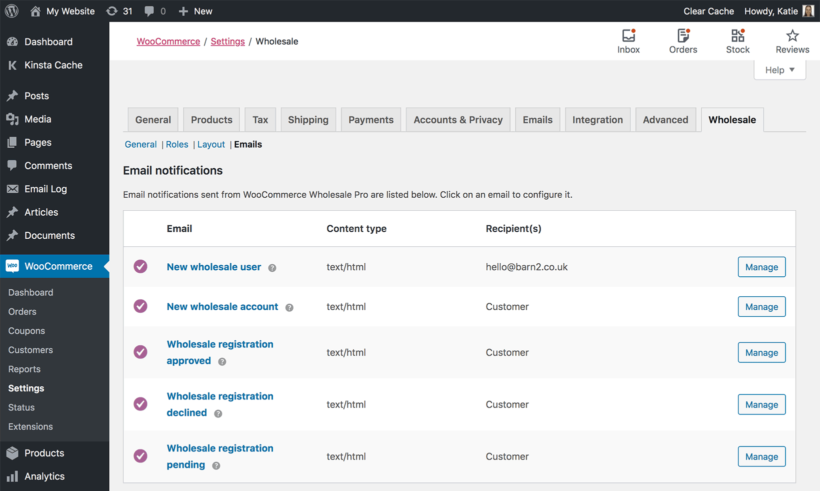
The WooCommerce wholesale plugin comes with a range of emails for each stage of the wholesale registration process:
When you install the wholesale plugin, these emails will be pre-populated with suitable wording. You can easily edit the emails at WooCommerce → Settings → Wholesale → Roles if required.
Once registered, wholesale users will receive the same emails as your normal customers. These are provided by WooCommerce rather than the wholesale plugin.
2d. Add extra wholesale user roles (optional)
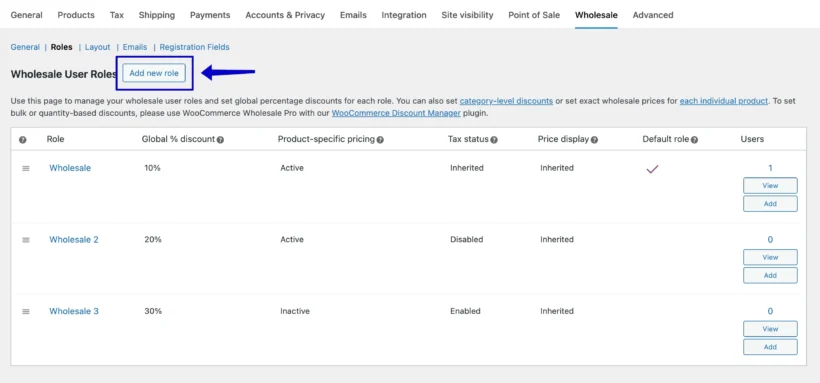
The WooCommerce wholesale plugin automatically creates one wholesale user role. If you want to charge different wholesale prices to different wholesale users, then you need to create a separate user role for each group.
You can easily do this at WooCommerce → Settings → Wholesale → Roles:
If you enabled wholesale registration, then new wholesalers will be added to the default wholesale user role. You can then change their user role manually (for example, when you approve their account).
If you add new wholesale users manually via Users → Add New in the WordPress admin, then you can select the appropriate wholesale user role from the 'Roles' dropdown.
2e. Control the visibility of your WooCommerce wholesale products (optional)
By default, all the products in your WooCommerce wholesale store are available to everyone. Public users and normal customers see the standard price for each product, while wholesale users see the correct price for their role.
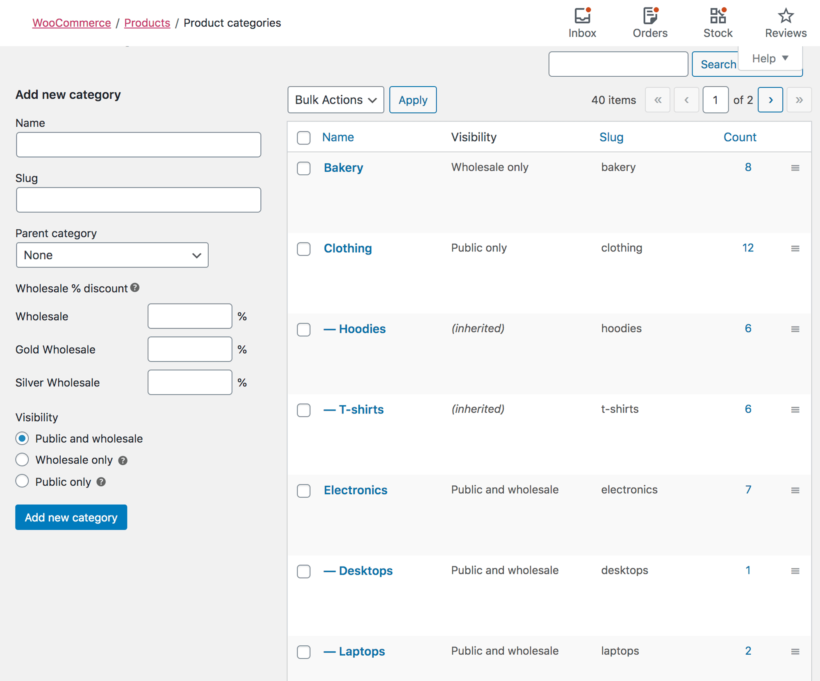
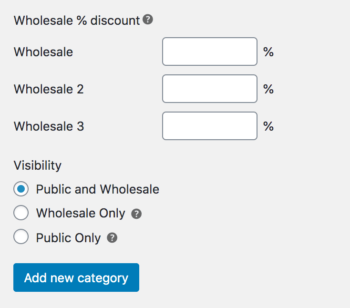
If you prefer, you can choose whether each category of products is visible to public users or wholesalers only. You can easily do this under Products → Categories:
This lets you sell different products or SKUs to retail and wholesale buyers.
Tip: If you need more advanced visibility options - for example, to restrict products to individual users or specific wholesale user roles - then you can do this by using WooCommerce Wholesale Pro with our other plugin, WooCommerce Protected Categories.
2f. Set up the wholesale website navigation
Finally, you need to structure your wholesale website so that people can easily find their way around. This only takes a minute:
Link to the wholesale login pageSome WooCommerce wholesale websites add a wholesale login link to their public website, while others keep this private. You can add a link to the 'Wholesale Login' page to your menu or anywhere else on your site (e.g. the footer). Or if you want to hide the fact that you have a wholesale store, then you can send a link to the Wholesale Login page to your distributors (e.g. in the email to new wholesale users). Retail customers will never know there's a hidden wholesale area.
Edit your navigation menuThe WooCommerce Wholesale Pro plugin cleverly shows and hides your menu links so that each user only sees pages they have access to. Make sure the main menu on your site contains all the required links for both the public and wholesale users. Each one will only see the correct links for them. For example, public visitors or normal customers will see the link to the Wholesale Login page, but they won't see any other links to wholesale-only content. If they log in as a wholesale user, the menu changes to hide public-only links and show the wholesale-only content instead.
3. Set up wholesale pricing and discounts
WooCommerce wholesale pricing allows store owners to offer discounted rates to B2B clients, usually implemented via plugins. It works by creating specific user roles (such as "Wholesale Buyer") and assigning role-based or quantity-tiered pricing to each. Plugins like WooCommerce Wholesale Pro also enable automated tax exemption, minimum order requirements, and wholesale-only product visibility.
When you create a wholesale website with WooCommerce Wholesale Pro, there are 3 ways to set WooCommerce wholesale pricing:
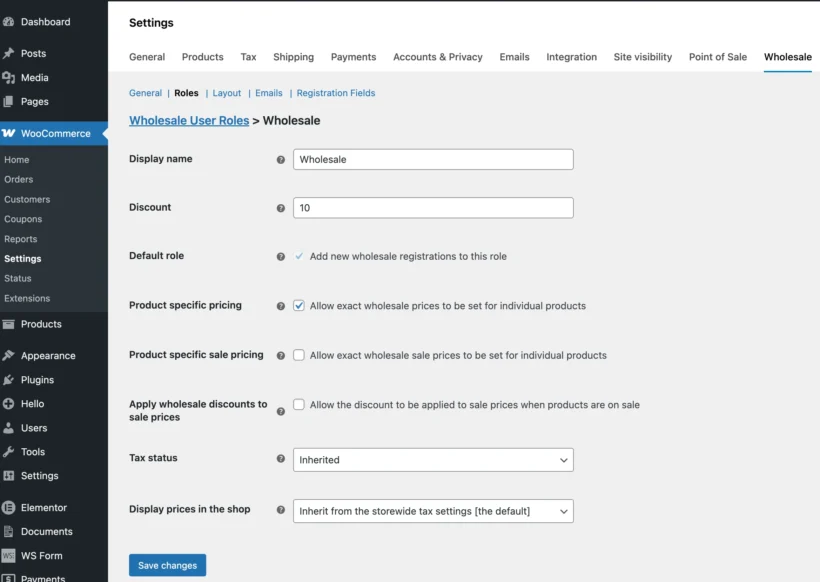
Global discount: Apply a set percentage discount to all products for wholesale users. Set this at WooCommerce → Settings → Wholesale → Roles. Overridden by category or product-specific pricing when those are set.
Product/category level: Set custom prices or percentage discounts for specific products or categories. Configure at Products → Categories or edit individual products using the 'Wholesale Price' field. Overrides the global discount; itself overridden by product-specific pricing when both exist.
Tiered pricing: Offer lower prices based on higher quantities purchased (e.g. buy 50+ units for 20% off). This requires the separate WooCommerce Discount Manager plugin, which works alongside role-based pricing for quantity discounts.
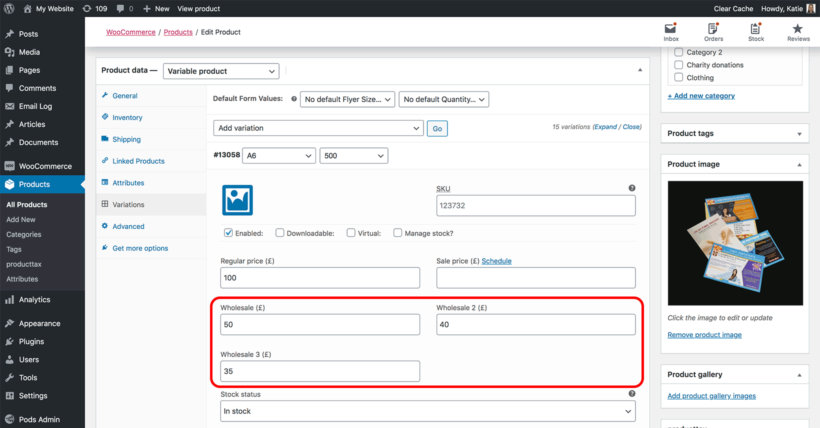
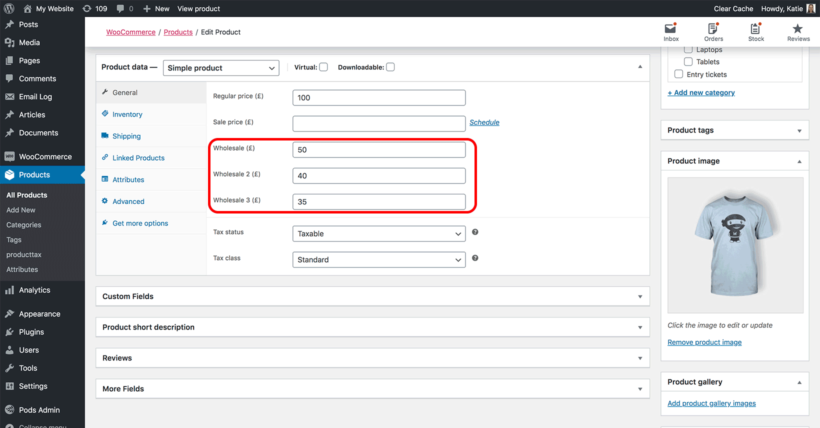
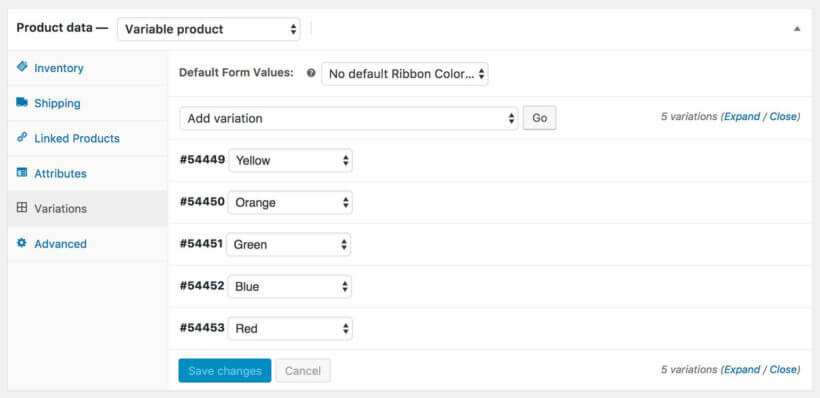
An example of setting product-specific wholesale pricing for a variable product
Logged-in wholesale users will see the correct product pricing for their user role. The main price will appear crossed out, and the wholesale price will appear alongside.
If the product is also visible to guest users and non-wholesale user roles, then they will see the standard price as usual. Your WooCommerce wholesale pricing will remain secure and only wholesale users will ever be able to see it.
You can combine the different types of wholesale pricing as required, and the plugin will always show the correct price. For example, if you set a global, category-level, and individual product discount then wholesalers will just see the individual product discount. If there is no product-specific wholesale price then wholesalers will see the category discount, and so on.
How to set wholesale prices on your WooCommerce store
3a. Add a global wholesale price
Go to WooCommerce → Settings → Wholesale → Roles.
Click to edit each wholesale role.
Add a whole number in the global discount field. This percentage will be deducted from all products, unless it is overridden by a category or product-specific wholesale price.
3b. Add category wholesale pricing
Go to Products → Categories.
Either add a new category or edit an existing one.
Add a whole number for each wholesale role. This will be deducted as a percentage discount off all the product pages (except for products where you set an exact wholesale price).
On this screen, you can also hide the category from public or wholesale users if required.
3c. Add exact wholesale product prices
Go to the main Products list in the WordPress admin and click on the product you want to add an exact wholesale price for.
On the 'Edit Product' screen, scroll down to the 'Product Data' section. For simple products, go to the 'General' tab and add an exact price (not a percentage discount) for each wholesale user role. For variable products, go to the 'Variations' tab and enter an exact wholesale price per variation.
3d. Set up tax exemptions for wholesale users
Tax exemptions automatically remove sales tax for wholesale users at checkout. This is common for B2B customers with resale certificates, who shouldn't be charged sales tax on goods they're purchasing for resale.
To enable tax exemptions in WooCommerce Wholesale Pro:
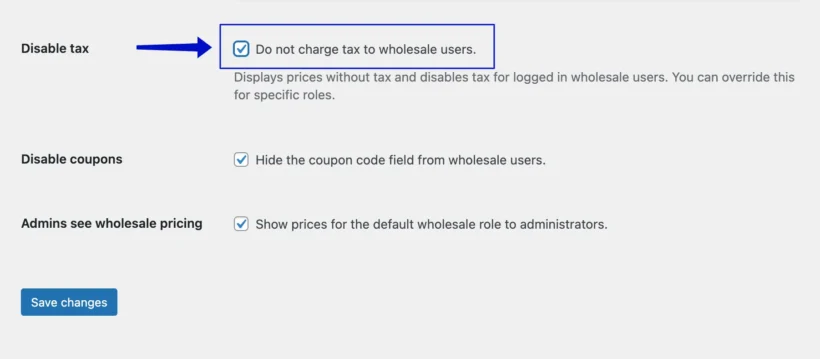
Go to WooCommerce → Settings → Wholesale → General.
Locate the 'Disable Tax' option (this requires tax to be enabled globally in WooCommerce).
Check the box to disable tax for wholesale users.
Click 'Save Changes'.
Retail customers will continue to be charged tax normally.
How to disable tax for wholesale users
Tax exemption is a built-in feature of WooCommerce Wholesale Pro, so no separate plugin is needed. You can also configure per-role tax settings for more advanced setups where different wholesale tiers have different tax rules. For more detailed information, see the complete guide to WooCommerce tax exemptions.
4. Create user-friendly wholesale layouts & order forms
So far we've covered how to protect your wholesale area from public users and how to set wholesale pricing. But that's only half the journey to creating a WooCommerce wholesale website.
The other half is the layout of your wholesale area. This is more to do with user experience and growing your wholesale sales rather than functionality.
There's little point having a private wholesalers section if it's clunky and difficult to use, or if it looks identical to your retail shop. You need to ensure that you're offering a visually different experience that's better catered to the needs of wholesalers.
Public ecommerce shops tend to use a standard layout with large product images and basic information. This retail-style layout isn't suitable for most WooCommerce wholesale stores. But strangely, nearly all WooCommerce wholesale plugins neglect this important fact, and leave the wholesale ecommerce area looking the same as the public shop.
To fix the problem, WooCommerce Wholesale Pro is designed to work alongside its sister plugin - WooCommerce Product Table.
WooCommerce Product Table offers a wholesale-friendly order form layout
Products are listed in a responsive, space-saving grid or tabular layout with extra product data and instant purchase options.
A product table wholesale layout provides an easy way for B2B customers to re-order their regular products. Customers see all the information at a glance, select quantities and variations, and can quickly re-order from a single page.
I used another plugin suite to set up the wholesale area and it worked great except the Wholesale Order Form wasn't flexible enough for my client's needs. Wholesale Product Table to the rescue. It was much more flexible and customizable and support answered my questions quickly and was great to work with.
Launch the product table builder via Products → Product Table → Add New.
On the first page, select the 'Shop pages' option, then on the following page select the 'Wholesale Store' page template to display the product table.
On the remaining pages, choose the default settings for your wholesale order forms. You can customize every detail of your tables, from the styling to the table columns, filters, and sort order.
Now when wholesale users access your site, they will see the products displayed in the order form layout. Your normal customers will continue seeing your default store layout, unless you create product tables for those page templates too (e.g. the main shop page).
4b. Getting more sales from your wholesale product tables
Choose what to display in your wholesale order form
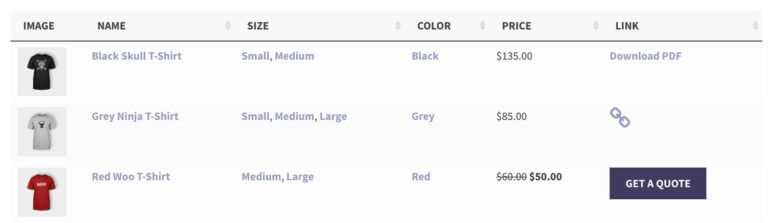
ColumnsThe table can contain various columns. It supports all the main WooCommerce data fields (title, description, categories, product attributes, tags, stock, etc.). You can also add extra product data through custom fields and taxonomies.
"Add to cart" buttonsBy including add to cart buttons, wholesale customers order online directly from the product table view. Choose whether to include a quantity selector and product variations. You can also create further options using the Product Options plugin. This way, you can create a wholesale order form for easy bulk ordering and quick re-ordering.
Wholesale enquiry formsYou can replace the add to cart column with wholesale enquiry buttons. By adding buttons or links to the wholesale table, users can click through to a separate page with an enquiry form (created using a WordPress contact form plugin). Alternatively, use WooCommerce Product Table with a Request a Quote plugin.
Downloadable documentsLots of wholesale websites provide downloadable files with technical product information. This is useful for downloadable promotional materials, specification documents, and similar resources. You can add a column with an icon, button, or text for each product linking to a downloadable PDF or similar.
Search, sort & filtersUse filters to help wholesale buyers find products quickly and easily.
4c. Use quick view to speed up wholesale ordering
Add quick view buttons or links to the wholesale order form.
Use product tables with our WooCommerce Quick View Pro plugin
By now, you know how to create a WooCommerce wholesale website order form. But what if you want to show even more information or purchase options, without taking wholesale users to a separate page for each product?
You can do this by adding the WooCommerce Quick View Pro plugin. This wholesale quick view plugin lets you add quick view links or buttons to the order form. Trade customers can view extra product information, choose variations, and add to the cart from a quick view lightbox.
Once they have made their selections, they immediately return to the wholesale order form where they can add more products to their order. It's much quicker than buying from a separate product page.
There are lots of ways to tailor the quick view lightbox to your WooCommerce wholesale website. For example:
Choose whether or not to include images in the quick view popup. Many wholesale websites sell non-visual products, so there's no need to distract buyers with big images.
Decide whether to include quick view buttons, or just let customers open the lightbox by clicking the product name or image.
Change the wording of the Quick View button (e.g. to 'Configure Options', 'Read More', or 'Customize Product').
Choose which information to display in the wholesale lightbox.
5. Test your WooCommerce wholesale website
Now you've set up the WooCommerce wholesale plugin. It's also important to test the experience for both public and wholesale-specific users.
Log out and visit the shop as a guest. Can you see the correct products and pricing?
Now log in as a wholesale user. Again, can you see the correct products and pricing? Are the menu links intuitive, and can you see the wholesale order form layout (if you're using WooCommerce Product Table)?
Go back to the plugin settings and continue tweaking your wholesale website until it's perfect.
6. Add wholesale users to your WooCommerce store
Once you've finished testing the WooCommerce wholesale plugin, it's time to start adding wholesale users.
If you have enabled wholesale registration, then people can register for an account on the Wholesale Login page. You might also want to add wholesale users yourself. There are a few ways to do this:
Add wholesale users manuallyCreate a user account (Users → Add New) in the WordPress Dashboard for each wholesale user. Assign them to one of your wholesale roles.
Convert existing customers to wholesaleIf you want to convert an existing customer to wholesale, then you can easily do this by editing their account and choosing a wholesale user role from the 'Roles' dropdown.
Bulk import themIf you're migrating from another B2B plugin or ecommerce system and have a lot of wholesale users to import, then we have provided instructions on how to do this.
Whichever method you use to add them, your B2B ecommerce users can log into their account and access the private WooCommerce wholesale area. Guests and other user roles will never know it exists!
Bonus tips
Hide prices from non-wholesale users
Perhaps you have a wholesale-only store where you want the public to be able to browse the products, but not see the wholesale pricing. You can do this by enabling the 'Hide Prices Until Login' feature in WooCommerce Wholesale Pro.
This will hide the prices and add to cart buttons from logged out users. When non-wholesalers visit your store, they can browse products as usual, but the prices and purchase options will remain hidden.
Add wholesale-only payment methods
As we discussed earlier, wholesale buyers often have fundamentally different needs from normal retail customers. After all, wholesalers are regular customers who are buying in bulk, rather than browsing for their own personal use.
As a result, many WooCommerce wholesale websites need to offer different payment methods for each type of user. For example:
Imagine that you want to offer PayPal to retail customers but not wholesale buyers due to the high PayPal fees.
Maybe you want wholesale customers to pay by invoice or bank transfer/BACS, while requiring instant online payment from regular customers.
The solution is to use the role-based payments feature in WooCommerce Wholesale Pro:
Go to WooCommerce → Settings → Payments.
First, make sure you have added all the payment methods that you will be offering, such as PayPal, credit card, invoice, etc.
Next, find the 'Payment Roles' page.
For each payment method on your store, select which user role(s) it will be available to.
Once you've done that, guests and normal customers will only see the payment gateways available to their role. Similarly, wholesale buyers will only see the payment methods for their role.
Create wholesale-only shipping methods
Shipping products to wholesale customers can be very different to shipping retail orders. That's because wholesale orders tend to be in bulk and involve much larger quantities. As a result, you may want to offer different shipping methods and costs to each type of customer.
For example:
Lots of online shops offer flat rate shipping costs or free shipping to retail customers. In contrast, they're more likely to cover their costs by offering weight-based shipping to wholesale buyers using a plugin like YITH Product Shipping.
In addition, some WooCommerce wholesale websites offer free shipping to their highest tier of wholesale users. This might be buyers with the highest historical sales, as offering free shipping is a way to reward them for their loyalty.
In the WordPress Dashboard, go to WooCommerce → Settings → Shipping.
Add all the different shipping methods and costs that you require for each shipping zone.
Now go to the 'Shipping Roles' tab within the same section.
Use the options on the page to choose which shipping methods will be available to each user role. Select different shipping methods for retail and wholesale customers.
Or if you don't want to worry about shipping to wholesale users, consider a dropshipping arrangement where a third party handles order fulfilment.
Ready to create a wholesale website in less than 15 minutes?
If you've been wondering "How long does it take to create a wholesale website?" then I hope this tutorial has given you the answer.
WooCommerce Wholesale Pro is a plug-and-play solution to help store owners and developers create a professional wholesale area in minutes. It's the best WooCommerce B2B plugin for online store owners that want to sell to different types of customers.
No technical knowledge is needed. Just follow the instructions in this tutorial, and you'll be up and running in no time.
WooCommerce wholesale plugin with quick plug-and-play setup.
In-depth documentation and video tutorials showing you every step and every click (absolutely no way to get it wrong!).
Technical support is available if you need any help.
Zero-risk 30-day money back guarantee. Love it or get a full refund!
Get the WooCommerce B2B plugin here, and start taking wholesale orders TODAY 🚀
FAQ
1. What is a wholesale website?
A wholesale website is an online shop in which part or all of the ecommerce area is restricted to B2B (business-to-business) buyers. These buyers are typically resellers of your products. They need to buy the products at discounted trade prices so that they can mark them up when selling them to their own customers.
A wholesale ecommerce website may also have a public shop for retail customers. These public customers cannot see wholesale prices.
2. Why create a wholesale website?
You should create a wholesale website if you want resellers to be able to purchase at trade prices. Of course, you can avoid this by taking wholesale orders manually over the phone. However, it's far more efficient to let them do it themselves on your website.
This will help to grow the wholesale side of your business because it is more convenient for buyers, as well as freeing you up for more important tasks. A wholesale website can be tailored specifically to the needs of wholesale buyers, without affecting the public-facing shop. This helps to build loyalty to your brand and ensure that they continue selling your products for many years.
A dedicated wholesale order form provides a much faster buying experience
3. Can I showcase my offerings to both wholesale and retail customers?
Absolutely. When you use WooCommerce Wholesale Pro to create a wholesale website, you can sell the same products to different customers at different prices. Each customer sees the correct pricing for their role, so there's no duplication.
If you're looking to create a food delivery or takeaway service for your restaurant, WooCommerce for restaurants is a great solution. With a WordPress food delivery plugin, setting up an online ordering system on your website is easy. Keep reading to learn how to create a seamless online ordering experience.
In this tutorial, you'll discover how to create a restaurant ordering system using WooCommerce for restaurants. Restaurants can greatly benefit from having an online food ordering system because:
It allows customers to place their orders directly from the restaurant's website, saving them time and effort.
Best online ordering for restaurants can also help manage their orders more efficiently and reduce the workload on their staff.
Whether you're a seasoned WooCommerce user or just starting out, I'll show you how to set up a restaurant ordering system step by step. By the end, you will have a fully functional WooCommerce food ordering system. It will allow customers to place their orders, select pickup or delivery options, and make payments securely.
And the best part?
Your WooCommerce for restaurants ordering system will be 100% yours. You own your data, and you get to keep 100% of your profits.
Sound good? Let’s get started!
Why a WooCommerce for restaurants plugin is the best (and cheapest) way to take food orders online
Before we dive into the tutorial, let's look at why a WooCommerce food plugin for restaurants is the best option for taking food orders.
Many restaurants use hosted third-party services like Just Eat, Uber Eats, Deliveroo and Grubhub. By listing your restaurant with these platforms, you have access to a huge market of potential online food delivery customers. However, it’s not ideal for everyone.
Here's why:
No hidden charges - Hosted platforms take a big cut of the revenue from your online restaurant orders. For example, Just Eat takes 14% at the time of writing. Whilst they have a massive user base, you're competing with other restaurants on the same platform. It's easy for your restaurant to get lost.
Huge range of plugins available for site customization - With hosted platforms, you have no control over the functionality of your online restaurant ordering system. In contrast, you can infinitely customize a WooCommerce restaurant ordering system. Do this by installing themes, plugins, or even writing your own custom code.
Scalability of WooCommerce - As the world's leading ecommerce system, you can use WooCommerce to run restaurant ordering systems containing hundreds, thousands or even millions of items.
SEO capabilities - Since restaurant ordering will take place on your own WooCommerce store, you have full control over its marketing. You can build the authority of your restaurants' domain name over time, creating a valuable assets for your business.
Better checkout experience - The WooCommerce checkout is optimized for conversions and you can customize it further using plugins. For example, you can allow customers to choose a delivery or collection time slot, or let customers check out in a popup.
Payment flexibility - WooCommerce integrates with every payment gateway you can think of - PayPal, credit card, cash, etc. You're not restricted to the ones provided by a specific platform.
You own your data - As with any hosted system, closed platforms have full control over your customer data. With WooCommerce, you own it.
Advanced tracking and analytics - As the site owner, you have full access to your data. WooCommerce contains useful sales reports and you can enhance this by adding plugins.
What you'll learn
If you’re looking for a low-cost Just Eat alternative without the fees, this tutorial will teach how you to create a bespoke online food ordering system.
We'll do it using a WordPress food delivery plugin. This means that you don't have to worry about the problems of affiliating to a third-party platform. In addition, having a WooCommerce for restaurants food ordering system on your main restaurant website looks more professional. It encourages customers to spend more time on your site, building loyalty.
What will my WooCommerce for restaurants ordering system cost?
There are financial advantages to getting a WordPress site for your restaurant. Almost all of the costs are fixed one-off, upfront fees. As a result, rather than losing a percentage of every sale, the benefit improves with every order you receive. You start saving money almost immediately.
These are the costs of building the food ordering website described in this tutorial:
WordPress content management system – free of charge.
WordPress theme – free of charge (you could buy a premium WooCommerce restaurant theme for ~$65, but this tutorial will show you how to add the best online ordering for restaurants website using a free theme).
Ongoing web hosting – web hosting comes at all different price points to suit any size of business. We recommend Kinsta's premium WordPress hosting. This is ideal for an ecommerce website with an online restaurant ordering system. For lower budgets, SiteGround is also good.
Payment processor fees – if offer online payment methods (which isn’t essential) then your payment gateway will take a percentage of the fees. This is normally a few percent - much cheaper than Just Eat’s 14%.
As you can see, setting up a WordPress food delivery system plugin yourself is far cheaper than using a third-party platform such as Just Eat.
Still not convinced? Let me show you how simple it is to set up a WooCommerce for restaurants ordering system.
Should I create a DIY WordPress food delivery website, or hire a developer?
Below, I'm going to tell you how to create a WooCommerce for restaurants ordering website using a simple WordPress food delivery plugin. This is a great option and you don't need any technical know-how.
If you'd rather have someone else set up the website for you, just forward this tutorial to any WordPress developer.
To build your own WooCommerce for restaurant order system, keep reading and I'll show you how.
How to create a WooCommerce for restaurant ordering website
In this video tutorial, you can watch me create a restaurant online food ordering system. Build yours alongside me, or read the written tutorial below.
The following tutorial covers every step of setting up a WooCommerce restaurant website:
Create a WordPress websiteWordPress is the world's web building platform. It powers your overall website and makes it easy to add pages and edit content.
Install WooCommerceWooCommerce is the world’s top e-commerce platform, powering over 41% of online stores. We'll use WooCommerce to add products and categories and take payments online (including PayPal and credit card). We'll also use it to add delivery and collection.
Install WooCommerce Restaurant OrderingThis plugin converts your WooCommerce store into a fully-fledged food ordering system. It displays your products in a user-friendly one-page restaurant ordering system. That way, customers can browse, pick, and customize their orders. It also lets you set opening times and prevent ordering when you're closed.
Add options to your food productsI'll show you 2 easy ways to add extra options for your food items, such as size choices or selling pizza toppings.
Delivery and collectionWe'll discover how to add a range of delivery and collection options.
Bonus tipsFinally, I'll share some extra tips on perfecting your WooCommerce restaurant ordering system. This includes accepting tips online to increase your average order value; selling discounted meal deals; and online ordering for multiple restaurant chains.
1. Create a WordPress website
This tutorial assumes that you already have a WordPress website for your restaurant. If not, there are loads of online resources to help you get started with WordPress.
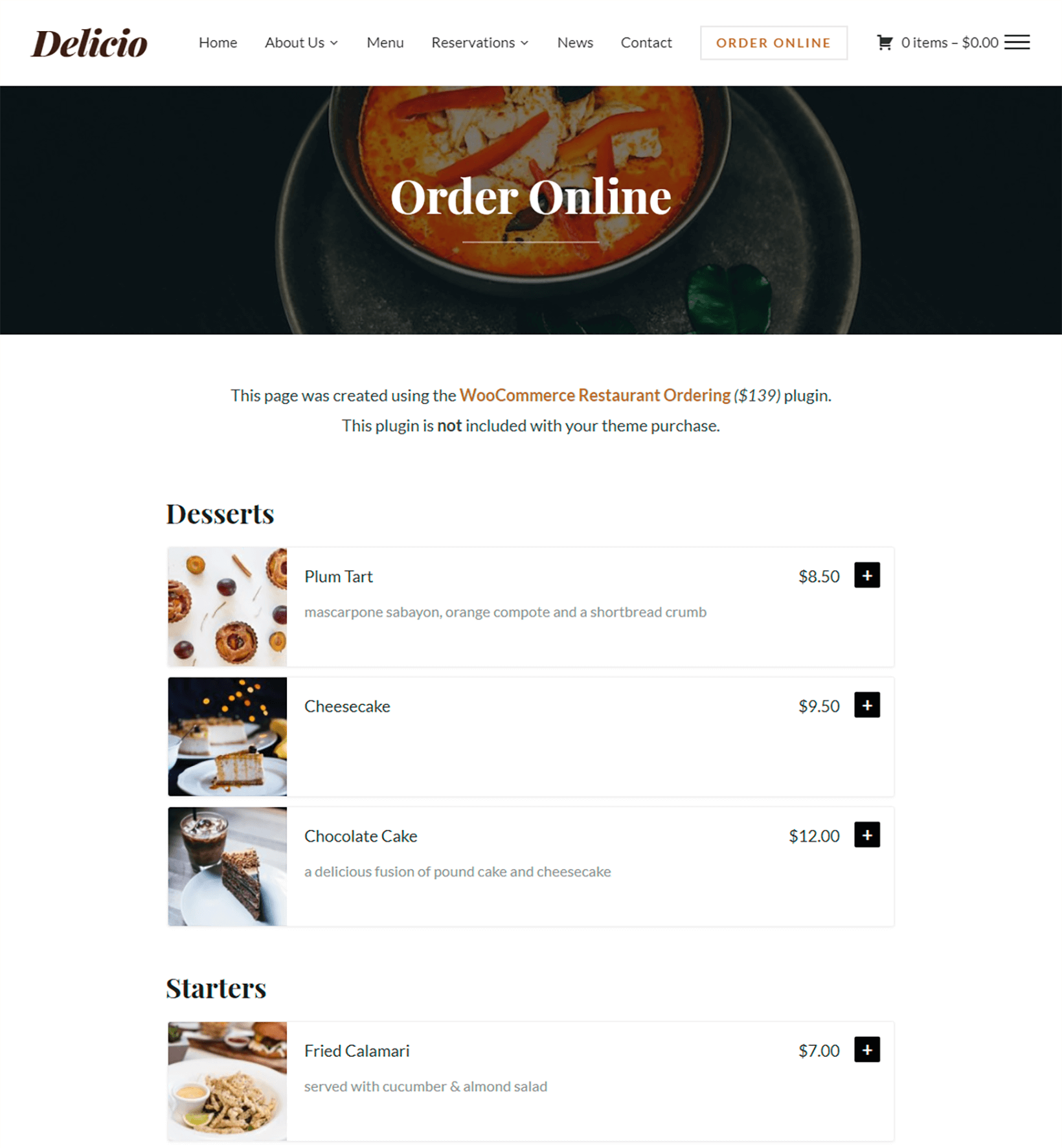
Since this tutorial is aimed at non-coders, I recommend using a WooCommerce-ready theme for the design of your website. The screenshots in this article were all created using Storefront. This is a high-quality, free WP theme from the makers of WooCommerce. If you prefer, then you can use a WooCommerce restaurant theme such as Delicio.
The WooCommerce Restaurant Ordering plugin with the Delicio theme
2. Install and set up WooCommerce
Once you’ve got a WP website with a WooCommerce-ready theme installed, it's time to install WooCommerce. This will be the core of your online restaurant food ordering system and the basis for installing your WordPress food delivery system plugin. It provides behind-the-scenes e-commerce features such as the shopping cart, checkout, and online payments.
Log into the WordPress dashboard for your website.
Go to Plugins → Add New.
Search for 'WooCommerce', and install and activate the plugin.
A button will appear towards the top of the WordPress admin prompting you to enter the WooCommerce setup wizard. Go through the wizard and enter your currency, tax details, etc. (Ignore shipping as we'll do this in step 5). Tell the wizard to create the basic pages needed for WooCommerce such as Shop, Cart, and Checkout.
In the payment options section of the setup wizard, choose 'PayPal Payments Standard' and enter your PayPal email address. This is the quickest way to get started and you can always set up other payment options later. If you don’t want to take online payments, select 'Cash on delivery' and your restaurant staff or delivery drivers can take payment instead. To take credit/debit card payments without PayPal, then select 'Stripe' and follow the onscreen instructions.
2b. Create product categories for your restaurant menu
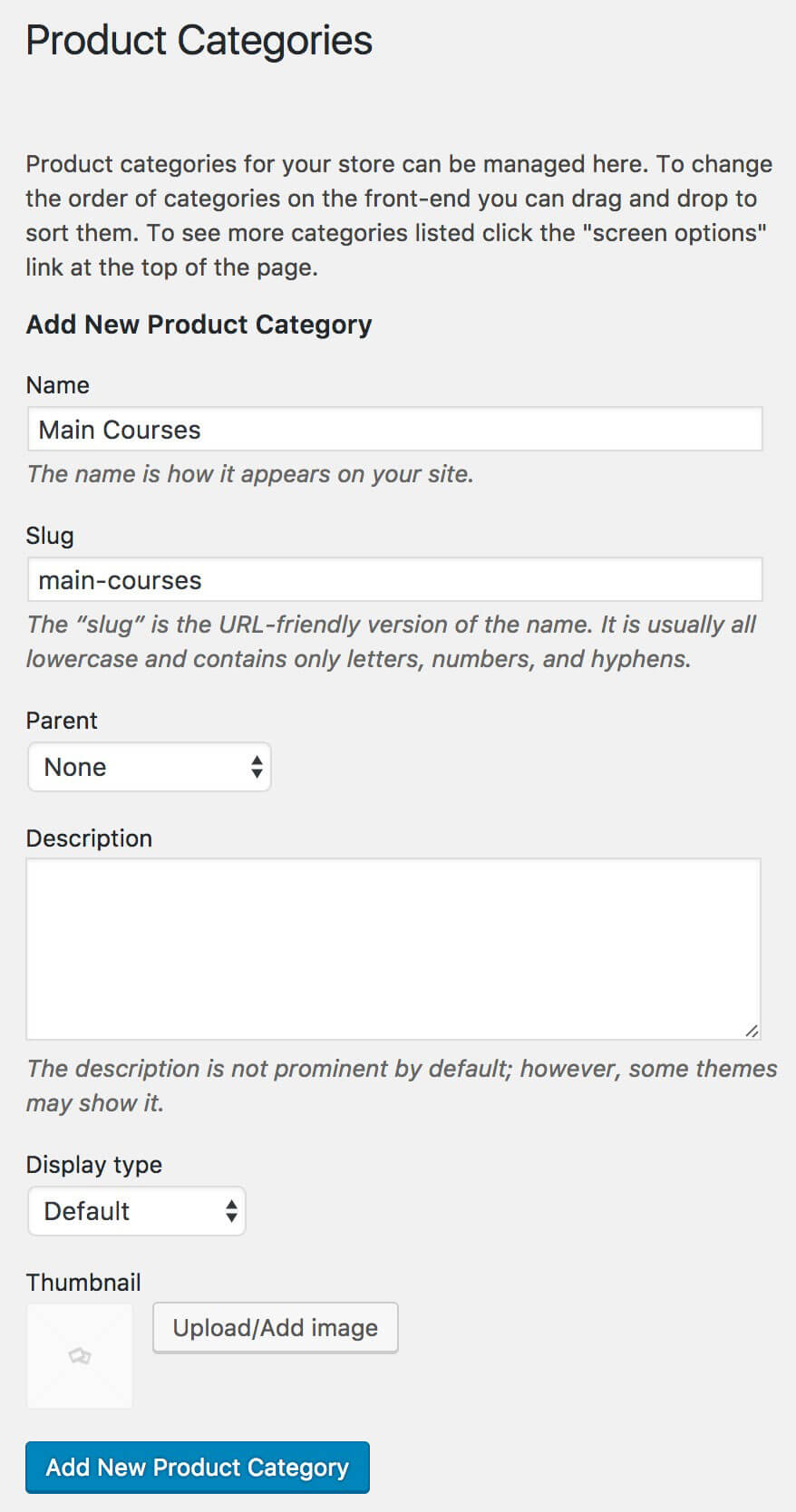
Most restaurant menus are divided into sections: Starters, Pizza, Salads, Desserts, Drinks, and so on. You need to create a separate WooCommerce product category for each section of your restaurant menu:
Look at how your food delivery menu is structured and write a list of categories.
In the WordPress admin, go to Products → Categories.
In the 'Add New Product Category' section on the left, create a category for each section on your online menu. Add a Name and Slug, plus a description if you want to display some introductory text for the category on the food order form.
Click the blue 'Add New Product Category' button.
The WooCommerce product categories you’ve just created for your menu will appear in a list on the right-hand side of the page.
2c. Add each dish or meal as a WooCommerce product
Next, add each food from your restaurant menu as a WooCommerce product.
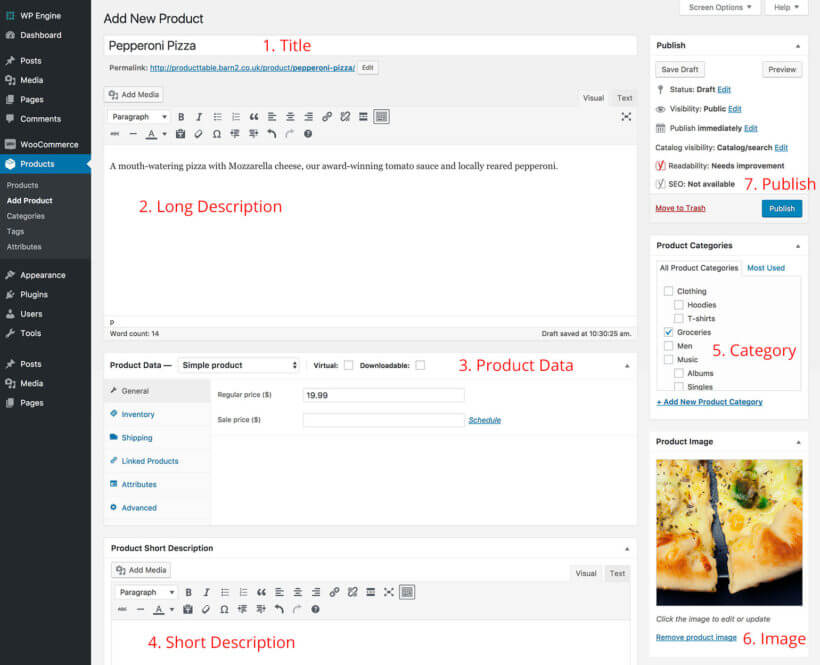
In the WordPress admin, go to Products → Add New. Add the information highlighted in the screenshot below:
Title – The name of the dish to appear in the online restaurant ordering system.
Long Description (optional) – This can appear in the lightbox popup for each food (if you enable lightboxes in step 3). It's ideal for listing allergens and nutritional information.
Product Data – Choose a product type. If your restaurant only offers 1 version of the dish then choose 'Simple Product' and add the price. If you offer choices (e.g. Small, Medium, and Large), choose 'Variable Product' and add the remaining information in step 4.
Product Short Description (optional) – Use this to display extra information about the meal. This can appear on your one-page restaurant order form. It's a good place to list nutritional symbols, such as "GF, VG" for a dish that is Gluten Free and Vegan.
Product Categories – Tick the menu category that the food should appear in. (WooCommerce lets you select multiple categories but most online restaurant ordering systems would have 1 category for each food, just like a printed menu.)
Product Image (optional) – Click 'Add Featured Image' and upload a picture of the food. Restaurant food photography is a skill and it’s worth getting this done professionally. If your online restaurant order form will have small images then keep the file sizes small.
Publish – Click the blue 'Publish' button.
3. Install WooCommerce Restaurant Ordering
By now you've set up WooCommerce, added your dishes and structured them into the sections on your restaurant menu. Next, it's time to create a one-page food order form so that hungry customers can quickly build their meals and order online.
We'll do this using the powerful WooCommerce Restaurant Ordering plugin. WooCommerce provides its own layouts but they're not suitable for an online food ordering system. As a WordPress food delivery plugin, WooCommerce for Restaurant Ordering lists your menu in a one-page order form which is perfect for food ordering.
Download the plugin files and copy your license key from the order confirmation page or email.
In the WordPress admin, go to Plugins → Add New → Upload.
Upload the zip file for WooCommerce Restaurant Ordering and activate the plugin.
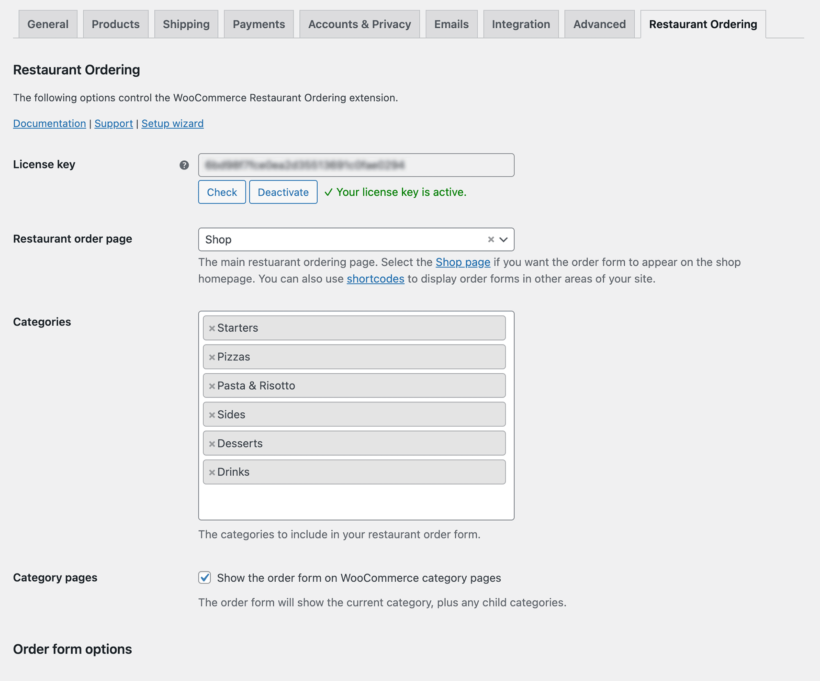
Go to WooCommerce → Settings → Restaurant and enter your license key. Here, you can also choose the default settings for your restaurant food order forms. Use these to configure the order forms. Also add opening times so that people can only order food while you're open.
3b. View your restaurant ordering page
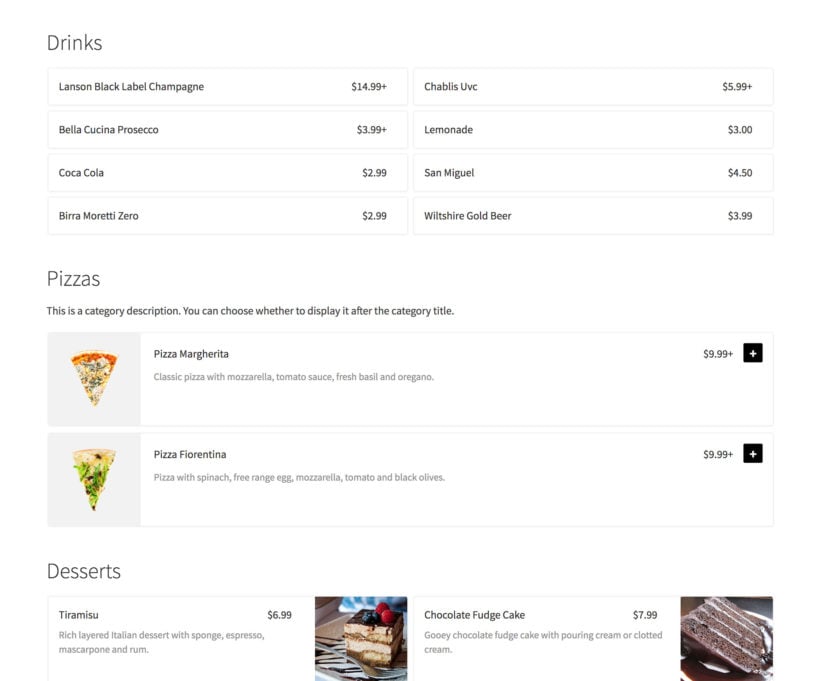
When you activated WooCommerce Restaurant Ordering, the plugin automatically created a one-page food ordering system for you. This lists all your food products, divided by category.
Find the page under the Pages section of the WordPress admin, and see how it looks!
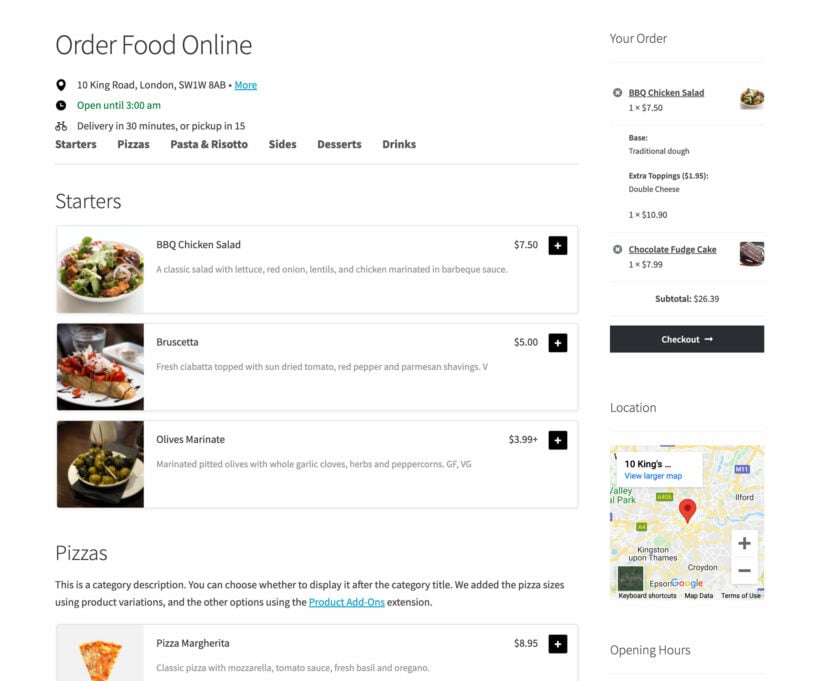
These are just some of the many ways you can list foods with WooCommerce Restaurant Ordering
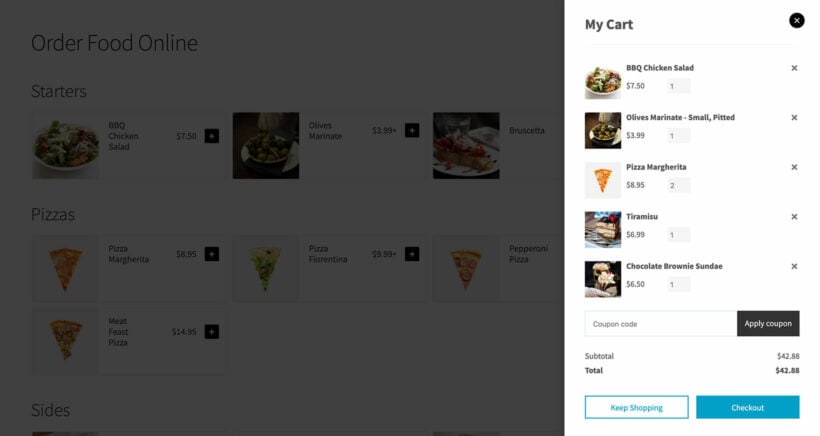
Next, you need an easy way for customers to review and complete their restaurant orders. The best way to do this is to install the WooCommerce Fast Cart plugin. This adds a floating cart popup so that customers can make changes, enter their details and check out without leaving the page. It's really flexible and you can choose whether to open the popup automatically as soon as customers add foods to their order or to display a clickable floating cart icon instead.
A website using WooCommerce Restaurant Ordering with the Fast Cart plugin.
2c. Create more food order forms (optional)
So far, you've learned how to use the default restaurant ordering page, which lists all your foods by category. If you need more flexibility, then you can also create food order forms individually.
You can do this by adding a [restaurant_ordering] shortcode anywhere on your site. Use the shortcode options to choose which categories to include, and customize the settings. This might be useful if:
You're listing foods on more than one page of your website, for example with one page per category.
You'd like to use different settings for each food order form, such as showing images or descriptions for some categories and not others.
4. Add options to your food products
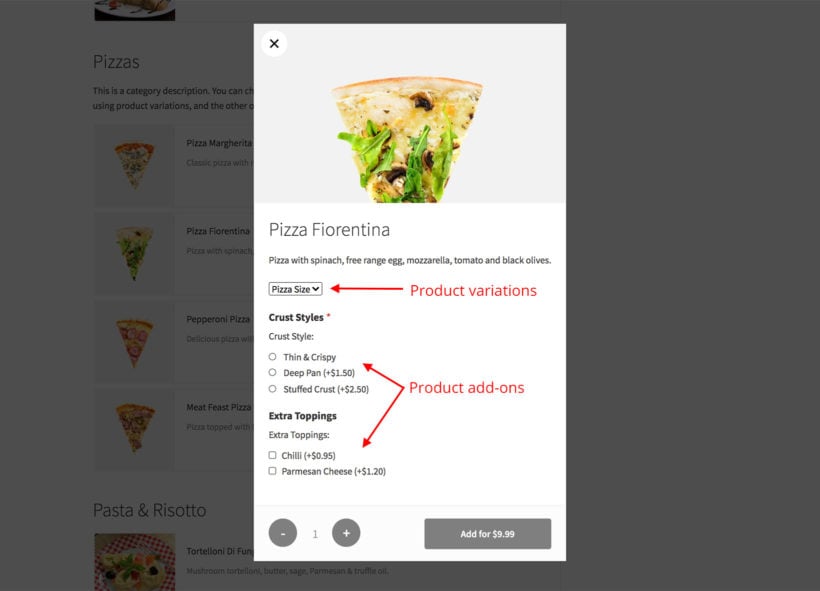
If you only offer 1 version of each dish, you can ignore this section. If you want to give customers a choice – for example to choose a size or select pizza toppings – then you need product variations or add-ons.
Variable products are built into WooCommerce. You can list each type of variation as a dropdown list alongside each product in your online restaurant ordering system. Customers can select 1 variation from each list.
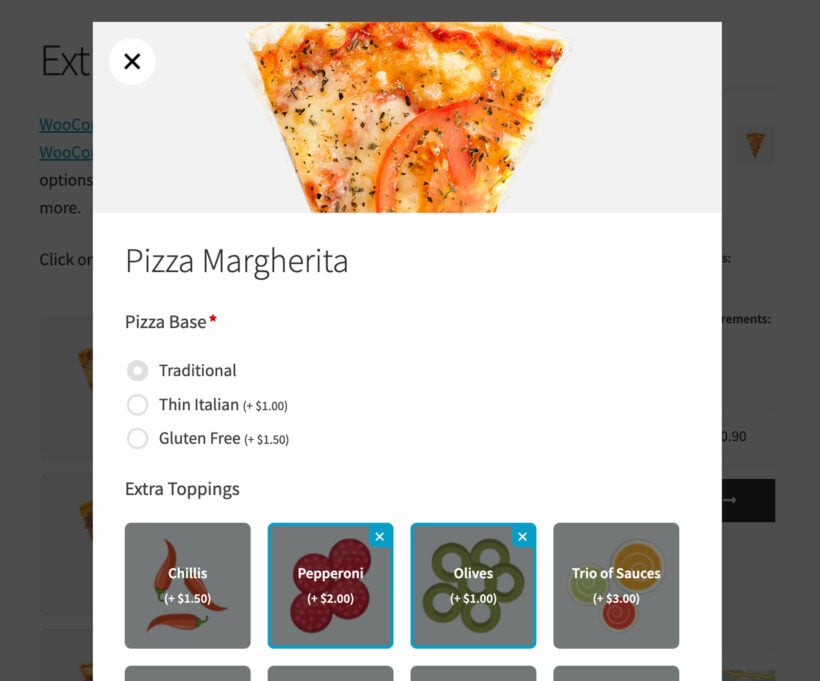
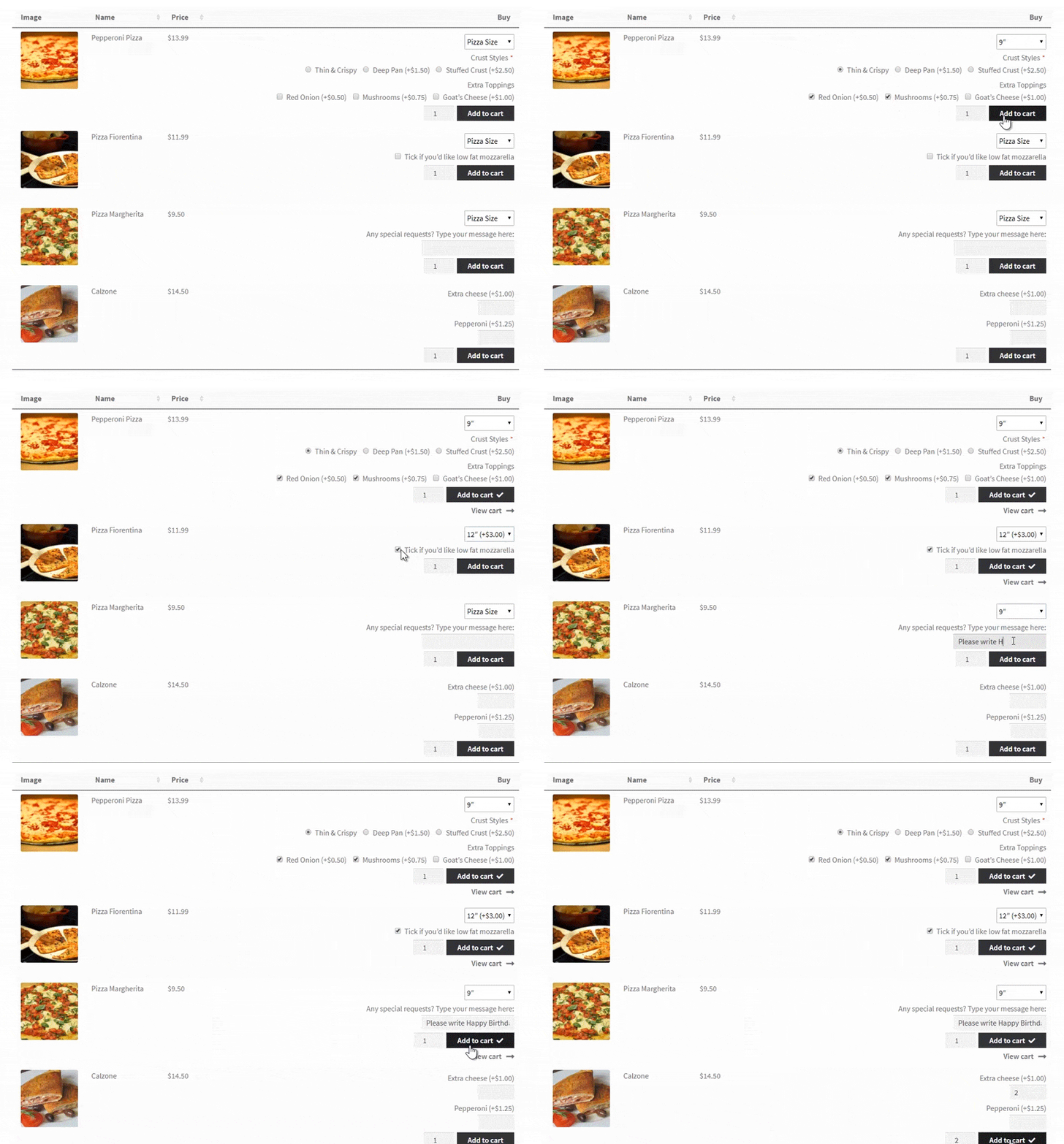
If you want customers to be able to make multiple selections, then you need add-ons instead. You can add more flexible options with the WooCommerce Product Options plugin. It works perfectly with WooCommerce Restaurant Ordering plugin we're using for the food order system. You can use it to add checkboxes, radio buttons, multi-select dropdowns, text input fields where the customer can type a special message, and more. For example, a WooCommerce pizza restaurant will need Product Options so that customers can order as many extra toppings as they like.
An example of a pizza with product variations for Pizza Size, and add-ons for Crust Style and Extra Toppings.
Next, I'll show you how to add both types of extra product options. You can use them separately or together in your WooCommerce restaurant ordering system.
Adding product variations
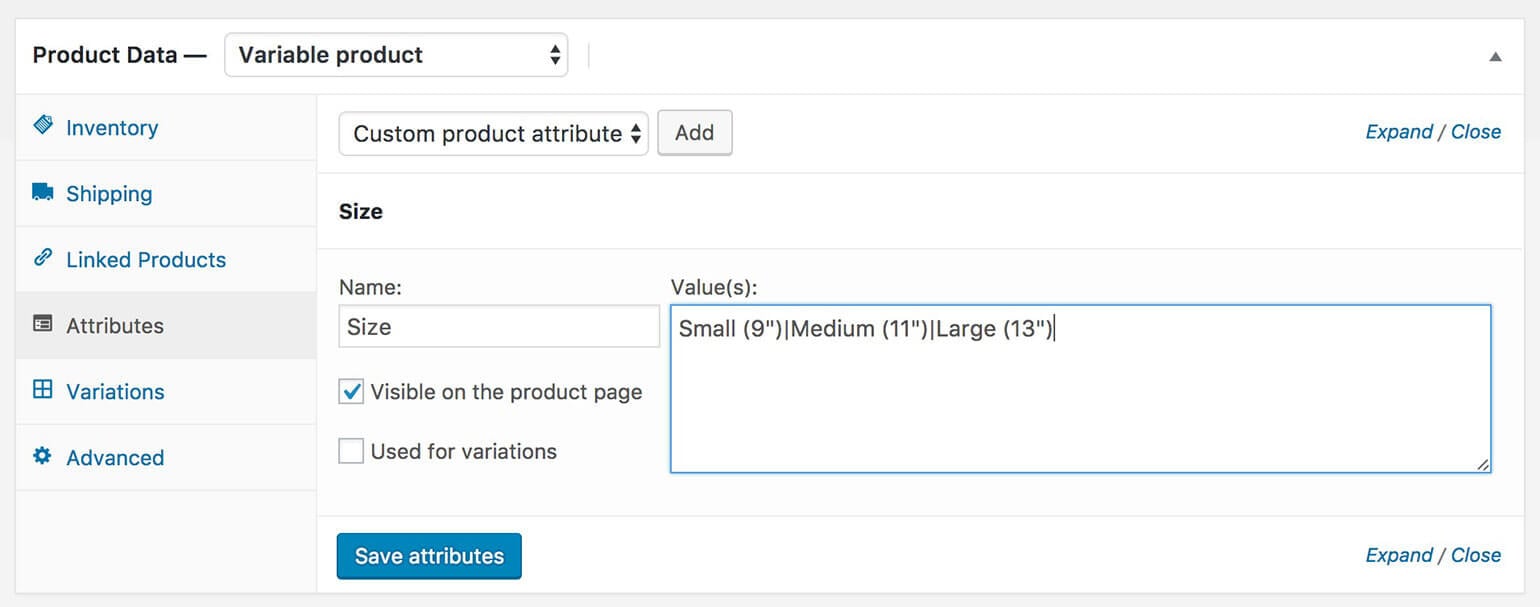
Select 'Variable product' in the 'Product Data' section of the 'Add/Edit Product' page.
Go to the 'Attributes' tab, add the product information that customers will be choosing between, and tick 'Used for variations'.
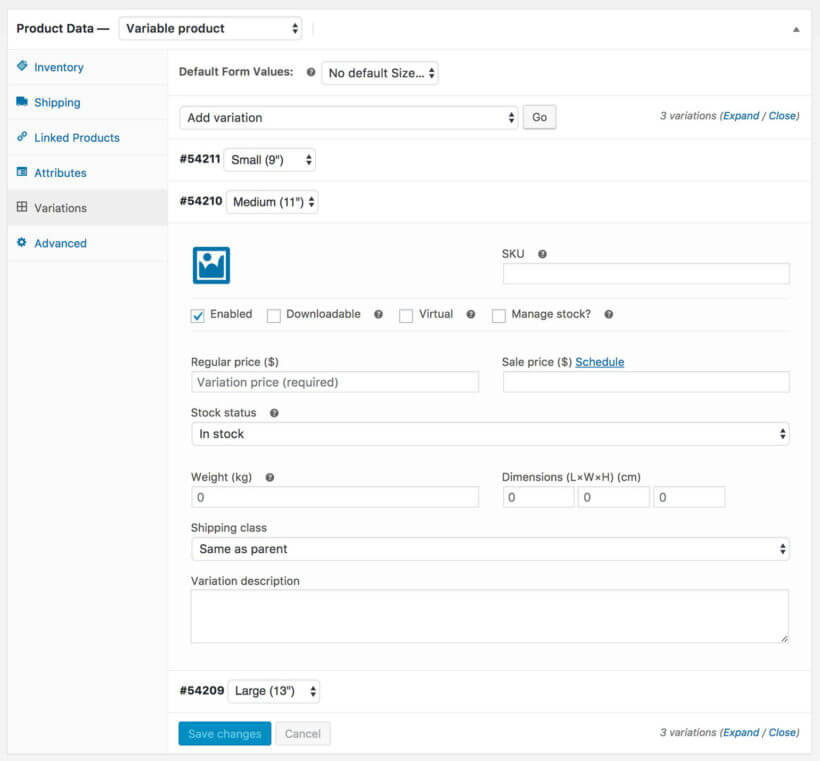
Go to the 'Variations' tab.
Either select 'Create variations from all attributes' from the dropdown, or add each variation individually and click 'Go'.
Click the little triangle arrow that appears when you hover over a variation and add the variation price and any other information.
Finally, click 'Save changes'. When customers click on food in the restaurant order form, they can choose the variations from a lightbox before adding it to the cart.
Go to Products → Product Options in the WordPress admin.
Add as many options as you like, structured into groups.
When customers click on a food product in your WooCommerce restaurant order form, the add-ons will appear for them to select in a lightbox.
5. Set up delivery, collection and delivery time slots
WooCommerce offers lots of delivery options, which are perfect for restaurants. The free WooCommerce plugin lets you set up delivery areas and delivery or collection options. You can also use an additional plugin to let customers choose a specific delivery time or collection slot.
5a. Delivery areas and options
You can find these in the WooCommerce → Settings → Shipping section of the WordPress admin.
Here are some suggested shipping options that are useful for online restaurant ordering:
Shipping zonesCreate one or more shipping zones for your different delivery areas. For example, if you offer free shipping for certain zip codes and charge for delivery in other areas, then set up 2 shipping zones. If you also offer collection, add a third shipping zone so that people can 'click and collect' wherever they live.
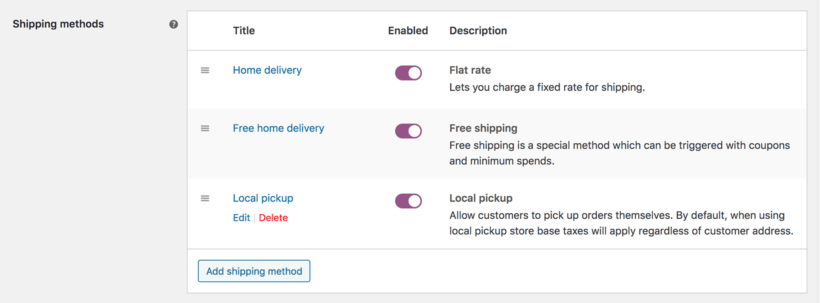
Shipping optionsAdd one or more delivery options for each shipping zone. For example, your 'Local Delivery Area' shipping zone might have a 'Free Delivery' option for orders over $20, a $5 'Flat Rate' option for lower value orders, and a 'Local Pickup' option for customers wishing to collect their takeout meal.
An example of WooCommerce delivery options for a typical restaurant
Let customers check the delivery area before they start ordering
To make your online restaurant ordering system more user-friendly, I recommend adding details of your delivery area elsewhere on your site. Here are some ideas on how you can do this:
Add a 'Delivery Area' page to your restaurant website.
If your website has a sidebar (right or left column), add a widget about your restaurant's delivery area. Or even better, add a custom Google map showing your online food delivery area.
Install the Woo Delivery Area Pro plugin so that customers can check they're in your delivery area before they start building their meal.
5b. Delivery time slots
Some restaurants like to deliver their online orders as soon as they're ready. Others let customers order in advance and choose a specific time slot. As a restaurant, you might want to take up to 5 online food orders in each half-hour period, and make sure they order at least 15 minutes in advance of their time slot. You can do this with the WooCommerce Opening Hours & Chosen Times plugin.
This excellent plugin lets customers choose a delivery date and time slot, subject to your restaurant's opening hours and capacity. You can restrict the number of bookings per time slot. You can specify how long customers must place their orders before their time slot, giving the kitchen plenty of time to prepare the meal.
6. Bonus tips
Before we finish, I'll share some more top tips for perfecting your WooCommerce restaurant ordering system. You'll learn how to accept tips online, sell meal deals, and more. If you operate a chain of restaurants, then you'll also learn how to adapt this tutorial to set up the best online ordering for restaurants for multiple sites.
Encourage customers to leave a tip
All over the world, restaurant customers expect to leave a tip. Don't miss out just because you're selling online! You can add tipping to your WooCommerce restaurant website using the WooCommerce Donation Or Tip On Cart And Checkout plugin.
This handy plugin adds a 'Tip' field to the WooCommerce checkout page. Customers can enter the value of their tip, significantly increasing your average order value.
Most restaurant customers add a tip of 10-15% of the total order value, depending on your country. Use the plugin to set a default tip as a percentage of the order value. To encourage bigger tips, set the default tip at the upper end of the usual amount in your country. Customers can then override the suggested tip as required.
Manage your delivery drivers
Most WooCommerce restaurant ordering systems use local drivers to deliver the orders.
You can manage your delivery drivers outside of the website. Alternatively, you can save time with the free Delivery Drivers for WooCommerce plugin. This WordPress plugin automates many of the manual tasks, connecting your drivers with your online systems and the customer.
Sell restaurant meal deals
Lots of WooCommerce for restaurants websites provide special offers and meal deals. These are fantastic incentives to encourage customers to buy more.
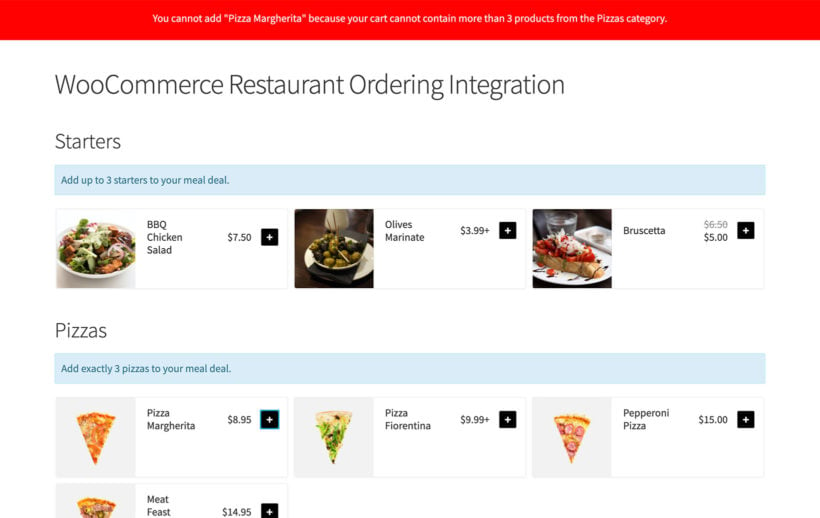
Use WooCommerce for restaurants ordering with the Quantity Manager plugin to control how many items customers can buy from each category. For example, you might sell a meal deal for two people where they can buy 2 starters, 2 mains, and spend up to $15 on side dishes.
You can also use the official WooCommerce Dynamic Pricing plugin to create restaurant deals and special offers. For example, you can create buy one get one free (BOGOF) meal deals, or buy one pizza and get 50% off your second one. These deals can be global or specific to a category, so you can offer deals on pizzas or sandwiches while keeping the side dishes and desserts at full price, and so on.
Mobile ordering for restaurants
WooCommerce doesn't come with a mobile app for customers to order via their smartphones. However, most WordPress themes are fully responsive, which means they're mobile-friendly and look great on any device.
This means that your customers can view your foods and order from your restaurant online using their device of choice - no need to worry about setting up a separate mobile app!
Managing orders in your WooCommerce for restaurants' food ordering system
There are many ways to manage the online food orders that your restaurant receives in WooCommerce:
Email notification of new restaurant orders
When you receive an order, you will receive an email notification from WooCommerce. Your kitchen staff can monitor this email address and be notified as soon as an order arrives.
If you have a busy restaurant with many online orders, then keep the WordPress admin open on your screen during your restaurant opening hours. Train your staff to refresh the WooCommerce → Orders page regularly so they can take action as soon as a food delivery order is received.
WooCommerce for restaurants mobile app
The official WooCommerce iOS mobile app lets you view and manage restaurant orders from any Apple iPhone or iPad. It's often more convenient for restaurant owners and staff to use mobiles or tablets than desktop computers.
Auto-print new food orders to the kitchen
You can integrate your WooCommerce for restaurants' food ordering system with a GPRS printer. This will automatically print new online restaurant orders as soon as they're received. We recommend the WooCommerce Automatic Order Printing plugin.
Receive an alert when you receive a WooCommerce for restaurants order
Use YITH WooCommerce Desktop Notifications to automatically play a sound alert on your desktop computer, laptop, or tablet whenever you receive a new order.
If you'd rather receive a text when you receive a new order from your WooCommerce for restaurant website, try the SMS Alert Order Notifications plugin. You can also use the Twilio SMS Notifications plugin to send the customer a text when their order is ready.
WooCommerce can be integrated with many external systems. If you're using a specific system to manage your restaurant orders, look up how this can be integrated with WooCommerce.
Think creatively and you'll be surprised how easy it is to integrate your WooCommerce for restaurant ordering system with your existing kitchen processes.
Online ordering for multiple restaurants
So far, we've talked about creating a WooCommerce restaurant ordering system for a single location, using a WordPress food delivery plugin. With a couple of tweaks, you can extend this to take orders for multiple restaurants or entire restaurant chains. There are 2 ways to achieve this:
Method 1 – WordPress multisite, with a separate site for each restaurant
You may want to keep your WooCommerce for restaurants really separate, with unique content for each one (e.g. a different homepage, about page and contact us). If so, you can use WordPress multisite to create a separate sub-site for each restaurant in the chain. This is better than having completely separate websites because you get the best of both worlds: a single WordPress food delivery plugin installation with shared hosting and maintenance costs; with unique content for each restaurant.
WooCommerce for restaurant ordering will be active on each site. However, each site will have its own set of products and order notification settings, avoiding any crossover.
Method 2 – Single website, with separate categories & order notifications for each restaurant
A simpler option is to take orders for each restaurant from your main WordPress website. There are two ways you can do this:
Create separate product categories for each restaurant. On the online food ordering system page for each restaurant, use WooCommerce Restaurant Ordering to list products from the appropriate categories.
Alternatively, use either the official Product Vendors add-on or the Dokan Multivendor plugin to add products from multiple vendors (treat each restaurant as a separate vendor). Each vendor has their own product categories. Enable the 'Category pages' option in WooCommerce Restaurant Ordering and the beautiful food order form layout will be used for each vendor's products.
Whichever method you choose, you can use the WooCommerce Multiple Email Recipients Notifications plugin to send order notifications to a different email address depending on which category the customer has ordered from. This lets you ensure that the new order emails are sent to the correct restaurant. As a result, your entire WooCommerce restaurant online food ordering system remains on a single website - while taking orders from multiple restaurants.
Case study: Online Ordering for Ciao Italia
Ciao Italia is an Italian restaurant in the US that started offering curbside pickup to its customers during the COVID-19 pandemic. They use our WooCommerce Restaurant Ordering plugin to let customers place their orders online from home.
The restaurant displays its entire menu (including food, beverages, and a gift card) on a one-page order form. It does this by sorting the food items under different categories and displaying all of the categories on the menu page. Customers can simply click the (+) icon to add food items to the cart. When a customer adds an item to their cart, they see additional purchasing options in a lightbox.
For example, you can use the lightbox to choose the quantity of food or beverages. If you're buying a gift card, then you can choose the value in any denomination. (Tip: They sell gift cards using the 'Customer Defined Price' option in the Product Add-Ons plugin.)
The one-page food order form makes it quick and easy for customers to place their orders and proceed to the checkout page.
Adam Tracksler from Bryce Creative developed the website. He was delighted with WooCommerce Restaurant Ordering:
In today’s environment of having to act nimbly for clients, the WooCommerce Restaurant Ordering plugin is the perfect solution for getting a website running quickly. We were able to launch on day one with the help of this plugin. It took all the heavy lifting out of the equation and let us focus on design. If you are debating whether or not this is the solution for getting a restaurant going — look no further, this is the plugin you want. The support is also top-notch!
Want to set up online ordering for your restaurant in 15 minutes?
And there you have it! If you follow all the steps in this tutorial then you can create a complete online food ordering system with an easy-to-use WordPress food delivery plugin.
You've learned how to install and set up the WooCommerce platform to handle all of your menu's food products. You've also seen how you can use the WooCommerce Restaurant Ordering plugin to create customizable food order forms. Customers can choose their selections from each customer, and then place their order and pay online.
By using a WordPress food delivery plugin and WooCommerce as an alternative to Just Eat or other systems, your restaurant can save many thousands of dollars or pounds. It's easy to set up, easy to manage and will look really professional.
Easy plug-and-play setup.
Comes with full support and expert advice.
30-day money back guarantee - love it or your money back!
If you're looking for a WordPress eBook plugin, you've come to the right place. This is the complete guide to listing and selling digital eBooks in WordPress. I'll show you how to choose the right WordPress eBook plugin for your site - whether you want an eBook library plugin with downloadable PDF's, or an eBook store plugin with e-commerce.
In this article, I'll teach you about 3 methods for creating a WordPress digital eBook library. Each method uses one of our table-based WordPress eBook plugins, and I'll recommend the best plugin for your needs. The plugins are ideal for creating a WordPress eBook library (like Scribd) or eBook store. The eBooks are listed in a searchable, sortable table layout with filters.
Jump straight to the instructions for the method you need:
Method 1 - Create an eBook library with downloadable or embedded books
This is a non-ecommerce option, as people can read eBooks online or download the eBooks. You can add any eBook file type, such as PDF, EPUB, MOBI or Kindle. People can then add them to their e-readers (like Kindle or NOOK) or smartphone (Apple or Android device). It's suitable for lists of free eBooks, or eBook membership sites (i.e. an ebook subscription service) where you sell subscriptions giving access to your downloadable WordPress eBook library.
Methods 2 and 3 - Build an e-commerce eBook library
This is a full e-commerce option, where people can view your eBooks in a searchable table and purchase each one individually. They will then receive a protected eBook download link that they can add to their library e.g. in Amazon Kindle or Barnes & Noble NOOK ebook readers. You can choose between two popular WordPress eBook store plugins: WooCommerce and Easy Digital Downloads.
Perfecting your eBook library
Whichever method you follow, use this section to add the finishing touches that will make your eBook digital library a success. I'll show you how to create filters to make your eBooks easier to find, plus extras such as adding embedded audio players or flipbooks to a WordPress audiobook library. You'll even learn how to create a private members-only ebook library that is hidden from public view.
Choosing a WordPress eBook plugin
Our WordPress eBook plugins are ideal because you can list lots of digital books on each page. Users don't have to waste time scrolling through multiple pages. You can even include extra data about each eBook such as the author, blurb, image, publisher, year - whatever you like! This also improves search engine rankings in Google.
Your users can quickly search, sort and filter the list to find an eBook they're interested in. They can then either click to download a WordPress eBook PDF or other format such as EPUB or MOBI (depending on the device they're using such as a Kindle, NOOK, or an Apple/Android device like an iPad or iPhone). Or if you're using an e-commerce plugin, then they can add eBooks to the cart directly from the table of eBooks.
I'll recommend a suitable WordPress eBook plugin in the relevant sections of this tutorial. Read about the method you're interested in, and I'll tell you how to set it up and which WordPress eBook store plugins to use.
Let's get started!
What can you sell with a WordPress or WooCommerce eBook plugin?
People use the term 'eBook' to mean lots of different things. In a nutshell, an e-book refers to any book or other document that you download and read electronically, or read online. It doesn't refer to printed books, or web content that you read directly on a website.
This includes:
Type of book - fiction or non-fiction, science fiction, storybook, thrillers, textbooks.
Other ebook formats - music manuscripts, poetry, songbooks.
It's a diverse list, but what they all have in common is that they are downloadable and read on a computer, table or smartphone. That's what makes them an eBook.
Now we know what we're talking about, let's dive right in and learn how to create a WordPress eBook library like Scribd.
Method 1 - Create a WordPress eBook library with downloadable eBooks
Method 1 is about creating a digital library of eBooks similar to Scribd. It uses our Document Library Pro plugin to create a searchable, filterable table listing your eBooks.
This method is ideal if you want to create a WordPress eBook library with downloadable eBook links. Users can find a digital book and click to download it as an eBook PDF or whatever format you decide to use. It's suitable for free digital eBook libraries, and WordPress membership sites where people are given access to a protected eBook library e.g. ebooks with DRM.
Method 1 is NOT suitable if you want to sell each eBook individually - you'll need a WordPress eBook store plugin as well as an e-commerce plugin for that. If this is what you need then jump to Method 2 instead.
First, install Document Library Pro and use it to add your eBooks to WordPress. This is really easy because the plugin creates a dedicated 'Documents' section to the WordPress admin. In your case, 'Documents' are actually 'eBooks'!
Add each eBook as a separate 'Document':
Go to the Documents → Add New page.
Use the 'Document Links' section to upload the eBook. Alternatively, if it's hosted elsewhere (e.g. on Amazon Kindle), then you can add the URL here. Either way, users can click on a button in the eBook library to access the eBook.
Add the information that you want to display about each eBook:
Title - add the eBook title.
Categories and tags - add any categories or tags that will let people sort and filter the eBook in the digital library.
Featured Image - upload an image, if you're planning to include these in the WordPress eBook library. This will probably be an image of the eBook front cover or author, similar to how ebook retailers like Amazon (United States) or Kobo (Canada) do it.
Excerpt - Use this to add the eBook's blurb or description. The WordPress eBook plugin can include this as a column in the table.
Content - Use this to add any extra information that you want to display in the eBook library. In the bonus section later in this tutorial, I'll also show you how to embed eBooks directly into the content field so that people can read them online.
Adding eBooks in bulk
If you have too many eBooks to add manually, that's fine. Document Library Pro provides several ways to import eBooks in bulk.
Create any extra fields for your eBook library
If you need to include any additional fields in your eBook then you can do this by creating custom fields and taxonomies. As a general rule, use custom fields for storing unique data about each eBook such as ISBN number or barcode. Use taxonomies for filterable data such as topic, publisher, year or author. For example, you might create a taxonomy that marks bestsellers or ebooks with DRM. This way, customers can easily sort them by new releases, popular ebooks, or DRM-free ebooks.
Once you've created the extra fields for your eBook post type, you can add the data for each eBook. You can list all these extra fields in the digital library using the WordPress eBook plugin - which brings us to Step 2...
Step 2 - Use the WordPress eBook plugin to list eBooks in a table
By now, you've added your eBooks to WordPress. Great! Now comes the fun part - it's time to create your WordPress eBook library similar to the Kindle store.
Navigate to the 'Pages' area in the WordPress admin and find a page named 'Document Library'. Change the name and permalink to something related to eBooks, such as 'eBook Library'.
Next, view the page and you'll see the first draft of your WordPress eBook library.
It looks pretty good straight out of the box, and you can use the plugin settings page to fine-tune it as needed. For example, you can change how the download links work, and which columns appear in the table.
If you've structured the eBook library into categories, then you can also enable the 'Folders' option. This will list each eBook category separately. Users can click on a category name (i.e. a folder) to view the eBooks from that category.
That's everything you need for a professional-looking WordPress eBook library. If you want to make any further changes to it, skip to the section on Perfecting your eBook Library.
Sell membership access or add ebook subscription service to your WordPress eBook library
So far, I've shown you how to create a table of eBooks that is available for everyone to access. If you don't want this, then there are a few WordPress plugins to protect your eBook library and restrict it from public view. Here are 3 suggestions of how you can achieve this.
Hide the eBook library with Password Protected Categories
Our WordPress Password Protected Categories plugin lets you put all your eBooks in a category and password protect that category. This will password protect your eBook digital library so that only people with the password can access it.
Use Groups to restrict access to authorized users only
The free Groups WordPress plugin is an easy-to-use free WordPress membership plugin. It offers an easy way to create 'hidden' areas of your website that only logged in users with access to the appropriate 'Group' can access.
This method is useful to making a WordPress eBook library available to pre-approved people only similar to Kindle Unlimited. For example, you might want to make it available to members of your organization, employees, or book club. Each person needs to have a user account on your WordPress website. You need to give each person access to the eBook Library Group manually. (If you want to sell access to the eBook library then you can still use the Groups plugin - but you'll also need some extra plugins which I'll cover in the next section.)
Install the Groups plugin, create your eBook library as described above, and create a Group called 'eBook Library' or similar. Go to to the eBook library page with the product table and restrict it to members of the eBook Library Group.
To give people access to the eBook library, you need to add them as users in WordPress (Users → Add New). Select the eBook Library Group from the dropdown on the Add/Edit User page. When they log into their account, they will be able to access the protected eBook library.
Use the Groups plugin documentation to make further changes. For example, you can create a message that will appear when unauthorized users try to access the hidden eBook library.
Sell subscriptions to your WordPress eBook library
You can sell access to the eBook library using the WooCommerce plugin with the Groups for WooCommerce add-on - plus Subscriptions if you want to take regular payments. This builds on the 'Groups' method in the previous section by integrating the hidden eBook library with the world leading e-commerce plugin and the ability for people to subscribe online.
Some tips on which combination of plugins to use:
If you want people to make a one-off payment to your eBook library then you can do this using Groups, WooCommerce and Groups for WooCommerce. Sell access to the eBook Library Group as a product in WooCommerce, so that people can buy it on your website.
If you want people to make an ongoing subscription to the digital eBook library, then you'll also need the Subscriptions plugin. You still need to sell access to the eBook Library Group using WooCommerce, but buying this product will sign people up to an ongoing subscription. This is similar to the Kindle Unlimited implementation. Payment will be taken regularly (e.g. using PayPal or Stripe) so that the customer can continue accessing the eBook library. If they ever cancel the subscription then their access to the Group will be revoked.
Method 2 - Build an e-commerce eBook library
Method 1 showed you how to create a downloadable eBook library - either public, or restricted to specific people. In Method 2, I'll tell you about WordPress eBook plugins for selling eBooks individually. With these plugins, people can view a table listing all your eBooks. They can then choose to buy specific eBooks from the list. This is a full e-commerce solution - customers can pay for their eBooks online and receive the downloadable eBooks via a secure link.
There are 2 free WordPress e-commerce plugins that are ideal for selling eBooks:
Easy Digital Downloads - EDD is famous for selling digital products such as eBooks. Coupled with a table-based plugin for displaying your eBooks, it's the perfect way to create an e-commerce eBook library.
WooCommerce - Powering over 41% of all online shops, you can use WooCommerce to sell anything online - including eBooks. Like Easy Digital Downloads, the default WooCommerce store layouts aren't really suitable for eBooks. However, you can use it with a table-based WordPress eBook store plugin to create the perfect layout, complete with Buy buttons.
You can also use other e-commerce plugins such as WP ecommerce. I haven't featured them all in this article, but they all work with Posts Table Pro for listing your eBooks.
I'll tell you how to create a WordPress eBook library using both of these e-commerce plugins. The method is slightly different for each, so we'll start with Easy Digital Downloads and then move on to WooCommerce.
Create an Easy Digital Downloads eBook store
Easy Digital Downloads works perfectly with our Posts Table Pro plugin - use them together to build a fantastic eBook store. Your eBooks will be listed in a table layout with buy buttons.
People can read about the eBooks in the table, and add as many as they like to the cart. They can then click through to the Easy Digital Downloads checkout and pay online. Once the order is complete, Easy Digital Downloads will send them a secure link to download the eBook in whatever format you've uploaded (PDF, EPUB, MOBI etc.).
Add each eBook as a separate downloadable product via Downloads → Add New.
Next, create a new page (Pages → Add New) which you'll use as your main eBook store page.
Finally, follow the steps in our other tutorial about how to create Easy Digital Downloads table layouts. This covers everything you need to know to create an amazing eBook store layout using Posts Table Pro. You can create a single table listing all your eBooks, or multiple tables listing eBooks from different categories. There are over 50 options, so go through the tutorial and create the perfect eBook store.
Easy Digital Downloads tip: If you're selling eBooks then you must charge European VAT to customers in the EU. You can easily do this with the Easy Digital Downloads EU VAT plugin.
Build a WooCommerce eBook store
As a WordPress website owner, another way to sell ebooks is through WooCommerce. You can use the WooCommerce plugin to create an ebook subscription site or ebook store. Paired with the right WooCommerce ebook plugin, this e-commerce plugin is perfect for selling digital products (or digital downloads) like ebooks.
The way it works is that you'll add each eBook as a separate WooCommerce product. You'll then use the WooCommerce Product Table to list the eBooks in a searchable table with filters. As with the Easy Digital Downloads eBook store plugin, you can list all your eBooks in a single table or create separate tables for each category. Either way, it's easy for customers to find your eBooks, pay online, and receive a secure download link via email.
First install the free WooCommerce plugin. Use the WooCommerce setup wizard and documentation to set up your standard store pages, tax settings, payment gateways (e.g. PayPal and/or Stripe for credit and debit card payments), etc.
Next, add each eBook as a product (Products → Add New). Choose the 'Downloadable' product type in the Product Data section of the page. This will open up some extra options for you to add the downloadable eBook file(s) in whichever format you choose. This might be PDF, MOBI, EPUB or similar.
Finally, create a new page (Pages → Add New) which will be used for your eBook store. Use the WooCommerce Product Table knowledge base to list your eBooks in a table layout with all the information you want to display. It's really flexible and you can even store extra data about your eBooks using product attributes, custom fields and taxonomies. If you want to offer different price options then you can use variable products for this. Each price option will appear as a variation dropdown list next the add to cart button.
Perfecting your eBook library
Whichever of the above WordPress eBook plugins you use, don't forget to add the finishing touches.
Adding filters to the eBook library
The most important extra features that you need to add are filters. You can add filter dropdowns above the eBook library for various options including categories, tags and any custom taxonomy.
If you're using WooCommerce Product Table then you can also add attribute/variation filters above the table, and filter sidebar widgets. All of these will increase your eBook sales by making them easier for people.
Embed eBooks to read online
So far, we've assumed that people will download the eBooks to their computer. Perhaps you don't want this - or perhaps you want to provide an online preview of the eBook before people download the eBook.
When you add the eBook - either as a document or an e-commerce plugin, depending on which method in this tutorial you've used - you need to embed it in the main content field/description.
There are lots of service that let you embed eBooks into WordPress, and they will all work with the plugins in this tutorial. For example:
Use a flipbook plugin such as FlipSnack to embed a page turning flipbook.
Or use the free PDF Embedder plugin to embed a PDF in WordPress.
Either way, people will be able to view the eBook and read it online. However, they won't be able to download it unless you have separately provided a download link.
Add embedded audio and video players
If you're selling audio books or have a promotional video, then you can embed media players directly into the main eBook library page. For example, you might be creating a WordPress audio book library and want to include MP3 players for your audio books.
To do this, add an embedded audio or video player directly into any of the text fields in your eBook library (such as the main content area or a custom field).
Go to the plugin settings page and tick the 'Shortcodes' option. This tells the WordPress eBook library plugin to render the embedded media player properly, instead of just as plain text.
Next, your visitors will be able to listen to audio tracks or watch video directly from the main eBook library page.
Add quick view buttons
Add buttons to show extra images, the blurb, and more in a quick view lightbox.
Add buttons to show extra images, the blurb, and more in a quick view lightbox.
If you're building a WooCommerce eBook store, then you can enhance your book lists with the WooCommerce Quick View Pro plugin. This handy plugin adds 'quick view' buttons (which you can rename to anything you like) to your eBook library pages. Customers click these buttons to view more information about your eBooks in a lightbox, without having to visit the single product page.
Here are some examples of how you can use quick view to improve your WooCommerce eBook library:
Upload multiple images to the product gallery, and display these in the quick view lightbox. Use the images to preview different pages from your eBook, just like Amazon's 'Look inside' feature or Kobo's 'Preview Now' feature.
Add the blurb from the back of your eBook to the product short description, and display this in the quick view.
Sell product variations (e.g. different eBook file formats or printed book options) in the quick view.
The perfect WordPress or WooCommerce ebook library
These WordPress eBook plugins come with over 50 options for changing how the eBooks are listed in the library. Choose whichever plugin best meets your needs:
Use Document Library Pro to create a non-ecommerce eBook library where people can view and download eBooks, but not make purchases.
Use Posts Table Pro if you're using Easy Digital Downloads to sell eBooks.
Think about which eBook plugin will help you list your eBooks even more effectively. Spend some time experimenting to find the right combination of options, and make your WordPress eBook library a big success.
WooCommerce comes with various fields for storing product data. There's the product name, long and short description, price, images, stock, weight, dimensions, etc. But what happens if you want to store and display extra product data, such as WooCommerce custom taxonomies?
In this article, I walk you through creating WooCommerce custom taxonomies for products. We'll look at the difference between WooCommerce custom fields and taxonomies. Also, we'll consider the different types of product data. You will also learn how to add custom taxonomies to store extra information about WooCommerce products.
At the end of this guide, you will have mastered how to:
Add WooCommerce custom taxonomies to your products. We'll use the free Easy Post Types and Fields plugin for this.
Display products with their taxonomies in a structured table layout on your website. We’ll do this with the easy-to-use WooCommerce Product Table plugin.
And remember, you can do all this without writing a single line of code!
Ready to start displaying products with custom fields & taxonomies? But before we dive in, let's quickly examine how to create and display a WooCommerce custom product taxonomy.
What is product taxonomy?
A product taxonomy is a means of structuring products into different groups and subgroups based on their features, attributes, and characteristics. It enables customers to find the products they want without wasting time. It also helps you as a seller organise your products, which makes it easier to manage your inventory, sales and marketing effort.
The categorization can be based on size, colour, style, materials, target market, price range, or anything else.
What is a WooCommerce custom taxonomy?
In WooCommerce, a custom taxonomy organizes and classifies products to show advanced custom fields beyond the standard product categories and tags. It allows you to group products based on specific product attributes using hierarchical or non-hierarchical groupings.
To create a custom taxonomy in WooCommerce programmatically, you might have to use a new set of labels. Besides, you'll have to register the taxonomy with the WordPress core and associate the taxonomy you wish to classify.
An easier option is to create a WooCommerce taxonomy using a WordPress plugin. You can use a plugin to create custom taxonomies such as brands, sizes, seasons, materials, and other relevant product data. Keep reading to discover the best WooCommerce taxonomy plugins for creating, displaying, and filtering taxonomies.
What are the benefits of using WooCommerce custom taxonomies?
Using WooCommerce custom taxonomies provides many benefits. These include better product organization, enhanced filtering, improved navigation, flexibility, and higher visibility. Integrating relevant keywords in your custom taxonomy terms enables more laser-focused product pages for better SEO.
What's the difference between WooCommerce custom fields and taxonomies?
We usually use the phrases 'custom fields' and 'custom taxonomies' in relation to WooCommerce product data. However, many people don't know exactly what they are and their differences. WooCommerce custom fields are used to store arbitrary, one-off information about a product. On the other hand, custom taxonomy is used for grouping things together. This reflects in the way you add custom fields and custom taxonomies for products in the WordPress admin:
Custom fields appear in the main column of the Add/Edit Product screen. This is where you add other unique product data such as title, description, price, etc.
In contrast, custom taxonomies appear in the right-hand column under the product categories and tags. Each WooCommerce taxonomy term should be selected for multiple products like categories and tags.
When should I use custom fields & when should I use a WooCommerce taxonomy?
Once you understand the difference between a WooCommerce custom field and taxonomy, it becomes more obvious when to use each one.
As a rule of thumb, you can decide between custom fields and taxonomies by asking: "Is the data I am adding unique to each product, or does it apply to multiple products?" If the data is unique for each WooCommerce product, you need a custom field. However, if you want to select the same value for several products and use it to group them together (e.g., via a product filter), then you need a WooCommerce taxonomy.
Here are some examples to help you choose:
WooCommerce clothes store displaying the color of each product. If you're selling clothes in WooCommerce, you'll probably want customers to be able to find products by color. You'll have multiple products of each color. By creating a WooCommerce custom taxonomy called 'Colour', customers can filter the list of products to find the color they like. This wouldn't be possible with a custom field.
WooCommerce second-hand site storing 'condition' information about their used products. If you're selling used goods like eBay, you'll need a field to store details of any damage, etc. The description of each item's condition will be unique to that product, so you should create a WooCommerce custom field.
WooCommerce product directory with a large product database. WooCommerce directory-style websites with large numbers of products often list extra product data within the directory listings view. For example, a book directory might include data for author, publisher, and year.
Use custom fields and taxonomies together
To use the 2nd example above, a store selling used goods might want a WooCommerce taxonomy called 'Condition' AND a custom field called 'Condition Description'. The 'Condition' taxonomy would include the terms "New," "As New," and "Used," which apply to multiple products.
You could create product filters so customers can narrow their search based on the overall condition. The 'Condition Description' custom field would provide unique information about the exact condition of the product and any damage.
Easy Post Types and Fields is the best plugin for creating a custom taxonomy for WooCommerce products. It's 100% free and has everything you need to add extra taxonomies to your store.
WooCommerce products are custom post types in WordPress. That's why you need a plugin which lets you add taxonomies to a WordPress post type.
Other plugins like Advanced Custom Fields (ACF) let you create custom fields but not taxonomies. Easy Post Types and Fields lets you do both.
Next, I'll show you how to create WooCommerce custom taxonomies with the free Easy Post Types plugin. After that, you'll learn how to display them on the front end, and how to let customers filter by taxonomy.
Setup instructions
Here's how to use Easy Post Types as a WooCommerce custom taxonomy plugin:
Go to Plugins → Add New in the WordPress admin and search for 'Easy Post Types and Fields'.
Install and activate the plugin by Barn2. Skip through the setup wizard because you don't need to create a new post type.
Go to the 'Post Types' section on the left of the WordPress admin and click on the 'Existing Post Types' tab.
Find the 'Products' post type and click on the Taxonomies button for it.
Now set up your WooCommerce custom taxonomy:
Add the Taxonomy Slug (ideally 1 word, lowercase).
Add a plural and singular name (label). This will only appear in the WordPress admin.
Choose whether or not you want the custom taxonomy to be hierarchical. Hierarchical taxonomies are like product categories, where you can create multi-level nested structures with parent and child categories. Non-hierarchical taxonomies are like tags, which are flat and can't be structured.
Click to add the taxonomy to WooCommerce.
Now go to the Edit Product page, and you'll see the custom taxonomy on the right-hand side, under the categories and tags. Add one or more taxonomy terms for each product, just like standard product tags.
You'll also see a section for managing your new WooCommerce taxonomy under the 'Products' section of the WordPress admin. For example, if you created a taxonomy called 'Brand' then a 'Brands' link will appear there.
Displaying WooCommerce custom taxonomies on the front end
Editing the template files for your products' taxonomy archive pages is ideally the only way to display custom taxonomies for WooCommerce products. However, this involves a bit of coding knowledge.
But the good news is that there's a handy WordPress plugin to list products in a table and extra data, such as WooCommerce custom taxonomies. It's an ideal way to display products with extra information, as everything is presented in a structured tabular format. You can add product tables to any WordPress page, your main WooCommerce shop or product category pages, or even a single product page.
The WooCommerce Product Table WordPress plugin is one of the best for displaying custom taxonomies. This is because it supports all the usual WooCommerce product data, plus custom fields and custom taxonomies. Each item of product data is listed as a separate column in the table.
Customers can search or sort the table by any product custom taxonomy term. They can also filter by taxonomy via handy dropdown lists above the table. The WordPress plugin allows you to create WooCommerce tables with only products as a specific taxonomy term.
Comparatively, this is much easier than modifying your WooCommerce template files. Moreover, you get all the other benefits from product table layouts, such as improved conversion rates.
How to create product tables with WooCommerce custom taxonomies
Setting up a WooCommerce Product Table with all the extra product data is easy:
Get WooCommerce Product Table. Download the WordPress plugin using the link on the order confirmation page and email.
In the WordPress admin, go to Plugins → Add New. Upload the plugin files, and install and activate the plugin.
Navigate to Products → Product Tables and set up your first table.
Below, I'll tell you which settings to choose to display WooCommerce custom taxonomies in different ways.
Display custom taxonomies on the WooCommerce shop page or product category archive
The first page of the product table builder lets you choose which method you'll use to add the table. Select the "Display on a shop page (e.g. main storefront, category page, etc.)" option.
On the following page, choose which templates to display the custom taxonomies table on.
Use the 'Columns' page of the table builder to choose what product data to display. All the custom taxonomies for the 'Products' post type in your store will appear in the list of columns. Select as many as you need, and use the pencil icon to rename the column heading.
This will add the product table to your main shop page and whichever other template pages you selected. The list of products will include the WooCommerce custom taxonomies.
A product table on the WooCommerce shop page with a Brands custom taxonomy
How to list products with WooCommerce taxonomies on a standard page
Alternatively, you can add product tables to normal WordPress pages with custom taxonomy columns. This will look similar to the screenshot above, but won't affect your main shop pages.
The instructions for this are mostly the same as above. However, you should select "Add to a page using a block or shortcode" at the start of the table builder.
On the following page, either leave it set to "All products" or select which products you wish to list in the table.
The final page of the table builder will provide a shortcode for adding the table to a page. Either insert this onto the page, or add a 'Product Table' Gutenberg block and select the table you just created.
The page will then display a product table complete with columns for the WooCommerce custom taxonomies.
How to show WooCommerce custom taxonomies on the single product page
You can also use the shortcode method described above to show custom taxonomies on the single product page. However, you need to do it a bit differently because we only want to show one product in each table.
This time, use the 'Select products' page of the table builder to select which individual product you'll be displaying the WooCommerce custom taxonomies on.
On the 'Columns' page of the table builder, add custom taxonomy columns and don't bother with other columns like 'Name'. That's because this information is already present on the single product page.
You can then paste the table's shortcode onto the single product page, for example in the short description field. This will display the WooCommerce custom taxonomies for the selected product. In this screenshot, there are columns for a custom field called 'size', a custom taxonomy called 'fabric', and a stock column. I have hidden elements such as the search box which aren't needed on the single product page (you can do this at Products → Product Tables → Settings).
List WooCommerce products with a specific custom taxonomy term
By default, your WooCommerce product tables will list all the products in a table. This is perfect if you plan to have a single table listing your entire WooCommerce inventory.
However, you can also create product tables listing products from a specific category, tag, custom field, or WooCommerce custom taxonomy term.
To do this, use the 'Select products' page of the table builder to select which taxonomy terms you want to display the products for. When you enable the 'Select specific products' option, the list will automatically include all the custom taxonomies for the 'Products' post type on your store. Select a taxonomy (e.g. Brand in the screenshot below) and then which term(s) you wish to display the products for ('Woo' or 'Ninja' in my example).
Let customers filter by WooCommerce taxonomy
So far, we've talked about how to display WooCommerce custom taxonomies on your website. In addition to this, your customers can benefit from being able to filter the list of products by taxonomy. Product filter by custom taxonomy allows customers to easily find whatever product they're looking for.
There are two ways to add taxonomy filters, depending on whether or not you're already using WooCommerce Product Table to display your taxonomies.
Use WooCommerce Product Table to add taxonomy filter dropdowns
WooCommerce Product Table comes with taxonomy filters which you can display as dropdown lists above the list of products. You can add a separate filter for each custom taxonomy (plus other data such as attributes, variations, categories and tags - instructions here). Customers choose a taxonomy term from the dropdown and use it to filter the list of products.
You can create WooCommerce product filter by custom taxonomy in the table builder. Your WooCommerce custom taxonomies will appear in the list of available filters. Add as many as you like.
This WooCommerce music store added a Genre custom taxonomy filter
Add advanced WooCommerce taxonomy filters with the Product Filter plugin
A WooCommerce shop with taxonomy filters for Gender, Color, Size, and Activity
For more advanced and flexible custom taxonomy filters, you can use the WooCommerce Product Filters plugin. This comes with many taxonomy filters, including checkboxes, radio buttons, clickable images, range sliders, and much more.
The WooCommerce Product Filters plugin offers a wide range of customization options for displaying taxonomy filters. You can choose from different styles such as checkboxes, dropdowns, images, image labels, or even color swatches. This means that you can create a taxonomy filter that matches your store's design and makes it easy for customers to find the products they are looking for.
For example, if you have a clothing store and want to allow customers to filter products by color, you could use color swatches as the taxonomy filter. This way, customers can easily click on the color swatch they want and see all the products available in that color.
Alternatively, if you have a store that sells products of different sizes, you could use a dropdown menu as the taxonomy filter. This would allow customers to select their preferred size and see all the products available in that size.
Add and edit custom taxonomies for products in bulk
Finally, let's talk about what happens if you want to add lots of taxonomies to your products. It can be a pain to add and remove them from each taxonomy individually, but you can save time by using the Setary app.
Setary is a bulk product editor for WooCommerce. It lets you edit any type of product data, including - you guessed it - custom taxonomies. You can either do this from a WooCommerce spreadsheet interface, or by filtering to select certain products and bulk-applying the taxonomies to them. Either way, it's a huge time-saver if you need to add or remove taxonomies in bulk.
If you've used a separate plugin to add your taxonomies then you need to enable in Setary. To do this, go to WooCommerce → Settings → Advanced →Setary and select the plugin that you used to add the custom taxonomies to WooCommerce:
You can then select the taxonomies to include as columns in Setary's spreadsheet editor:
Take control over your WooCommerce product taxonomies
In this article, we have covered the best plugins for adding and displaying product taxonomies in your WooCommerce store:
The free Easy Post Types and Fields plugin makes it easy to add custom taxonomies to your WooCommerce products.
WooCommerce Product Table displays taxonomies on the front end of your website. You can do this on the single product page, your main shop pages, individual product pages, and list products by taxonomy.
The WooCommerce Product Filters plugin adds advanced filters so that customers can find products based on their taxonomy terms.
Setary App lets you add and remove custom taxonomies from WooCommerce products in bulk, saving hours of manual work.
Armed with these tools, you can add a wide range of custom data to your products and take your store to new levels of success. Mix and match the plugins to get the full benefits of WooCommerce custom taxonomies in your store. The possibilities are endless!
This is the complete guide on how to create and display WooCommerce custom fields. You'll learn how to show extra product data and sell extra product options on your website.
59% of shoppers are more likely to buy from a store that allows for product customization. WooCommerce comes with various types of data which you can add and display about your products. It also comes with a variable product type, with dropdown list fields to allow customers to select different options. But what if you want to create your own custom fields and display them in your ecommerce store?
Read on, or watch this video to find out!
In this tutorial, I'm going to reveal two easy ways to create WooCommerce custom fields and display them on the shop or product page:
Extra product option fields which allow customers to customize the product.
Custom fields for displaying extra data about the product.
Keep reading to learn more about each type of custom field in WooCommerce and how to set them up, step-by-step.
What are WooCommerce custom product fields?
When people talk about WooCommerce custom fields, they typically mean one of two things:
Selling extra product options, as an alternative (or enhancement) to variationsThis involves installing a WooCommerce custom product fields plugin which displays dropdown lists, checkboxes, radio buttons, text fields, etc. for the customer to complete before adding the product to their cart. You can either do this by displaying existing variations in more interesting ways, or by creating custom options using a plugin. Technically, extra product options aren't custom fields at all - they're better known as product add-ons! However, a lot of people refer to them as custom fields. They're perfect for adding a WooCommerce text field to the product page, and collecting other data and options from customers.
Adding extra information about the productThis is the classic use of custom fields. In WordPress, custom fields are used to add additional data to posts, pages, or products. You use these to store and display extra information on your website. For example, if you're already using all the built-in types of product data for other purposes then a WooCommerce custom field plugin can display additional text for you.
Continuing on, we will explore the steps involved in adding both types of custom fields to your WooCommerce products. You will also learn how to make the custom fields visible on the shop and product page.
By following the steps outlined in this guide, you will be able to effectively use custom fields in WooCommerce. This will enhance your store and improve the shopping experience for customers. Whether you're looking to add extra information about your products or offer additional options, WooCommerce custom fields are a powerful tool to help achieve your goals.
Using custom fields to provide options and collect information from customers
A product with various extra fields added, as an alternative to variations
First, we'll look at how to use custom fields in WooCommerce to show extra information about your products. This involves offering additional options to customers.
This type of custom field goes beyond merely displaying extra information about a product. It offers customers the option to select additional features before adding the product to their cart.
This method is a remarkable alternative or improvement to product variations. That's because it allows you to add a wide range of field types, including radio buttons, checkboxes, and text inputs - either as custom options, or by taking existing variations and displaying them in more interactive ways. By adding extra fields on the product short description page, customers can provide more choices and data that they can receive along with their orders. For example, adding a WooCommerce custom text field on the product page lets customers enter their own text to be submitted with their order.
Once the customer selects the custom fields from the product page, this is displayed as a custom order field in order notification emails etc. That way, the store owner knows which options the customer has chosen.
Radio button: A custom field which forces customers to select one option from a list.
Text: Let customers enter custom text, such as a personalized message or allergy information.
Text area: Collect entire paragraphs of information from the customer, suitable for longer messages.
File upload: Let customers upload files while placing the order. You can control details like the file types and maximum file size.
Number: Add a custom field to collect numeric information. This is useful for things like phone numbers, measurements or dimensions (especially when used with the price formula custom field type).
Color swatches: A more visual type of WooCommerce custom field, which lets customers choose from a choice of colors.
Dropdown: Let customers to choose an option from a dropdown list.
Customer-defined pricing: This custom field type provides a "Name your price" box where customers can enter an amount to be added to the product price.
Price formula: This is a more advanced WooCommerce custom field type. Use it to create a WooCommerce price calculator with a custom formula to calculate the price based on the information that the customer submits. This type of custom field is popular for creating a measurement price calculator for products priced by size, weight or area.
Date: Add a date custom field to the WooCommerce product page.
Products: This is less of a custom field than the other types. It displays selected products above the add to cart product and is a good tool for upselling additional products.
Visual editor: This is more like the classic definition of a custom field, which lets you display read-only data on the WooCommerce product page. Use this to enter static information such as headings or introductory sentences, instead of fields for the customer to fill in.
HTML: This custom field is like the visual editor field but more technical. You can use it to enter HTML that will appear as static information on the WooCommerce product page.
Introducing the Product Options plugin
There are several WooCommerce custom fields plugins available for adding extra product information to your store. However, when it comes to finding the best solution for letting customers select extra product options during checkout, we highly recommend WooCommerce Product Options. This plugin stands out as the best option for adding custom fields to your products and displaying them during the checkout process.
You can add a wide range of options that appear as custom fields for the customer to select. In fact, it supports all the custom field types listed above. Shoppers can complete these extra custom fields and add them to their cart from the following locations:
From a quick view lightbox, if you're using WooCommerce Quick View Pro. (Customers can access the lightbox from the main shop page or product category pages, so it's a quick way to select add-on custom fields without having to visit a separate page for each product.)
1a. How to create custom fields on product pages
Now we get to the tutorial part of this article. First, I'll tell you how to add custom fields to your WooCommerce products. Afterwards, I'll discuss the options for displaying custom fields on product pages and other shop pages.
The plugin setup wizard will open when you activate the plugin. Use this to activate your license key.
Next, go to Products → Product Options.
Click 'Add New' to create a new group of product options. This will be your group of WooCommerce custom fields. Name it whatever you like.
Use the onscreen instructions to add as many custom fields as you like. For each one, scroll down to configure additional options for each custom field. For example, you can use the price options to increase or decrease the product page based on the custom fields selected. Some field types can only be created directly in the plugin, and others also let you select existing variations to display.
Use the 'Advanced' section to configure additional options. For example, you can add minimum and maximum quantities for some of the custom field types. You can also add conditional logic to your WooCommerce custom fields so that the fields appear conditionally based on the user's selections. This is good if - for example - you want customers to be able to tick a 'Customize this product' to reveal the hidden custom fields.
1b. How to set up custom fields on shop and category pages
As a front end plugin, WooCommerce Product Options seamlessly displays custom field data on the WooCommerce product page. Once you've added your custom product option fields and selected which products they will appear of, they will start appearing straight away.
However, this requires the customer to visit a separate page for each product they want to fill in custom fields for. That might work for your use case, or you might also like customers to be able to select custom fields on the shop page, category pages, and so on. There are 2 easy ways to do this. I'll tell you about these next.
Method 1 - Display WooCommerce custom fields on a shop page order form
You can use the WooCommerce Product Table plugin with WooCommerce Product Options to display the extra options on your main shop pages. This will replace your usual store layout with a structured product table view, complete with a 'Buy' column. The buy column contains all the purchase options for adding the product to the cart. This includes product variation dropdowns, product add-on custom fields, and a quantity picker.
Example of WooCommerce Product Table used with Product Options
Customers can quickly find the products they want, fill in all the custom fields, and add them to the cart - all from the shop and category pages. This is a good option if you want to add a custom field to a product category, which you can do by enabling the table view on category pages.
Use the plugin setup wizard to choose the main options for your product tables.
Select the option to display the product table layout on a shop page.
On the next screen, select which WooCommerce shop pages you want to display the order form with custom fields on.
When you choose your table columns, make sure you include a 'Buy' column. The custom fields that you added using WooCommerce Product Options will appear here.
And that's it! Your shop pages will now show product tables complete with WooCommerce custom fields.
Display product option custom fields in a quick view lightbox
Maybe you want customers to be able to fill in the custom fields without visiting individual product pages, but you don't want to change or clutter up the shop page. That's fine.
The solution is to use the WooCommerce Quick View Pro plugin to add 'Quick View' buttons to your shop and category pages. Customers will use these to launch a product lightbox containing the WooCommerce custom field options for that product. That way, they can easily fill in the custom fields and add to the cart, without having to visit the product page.
Example of Product Options used to display the custom fields in a WooCommerce Quick View Pro lightbox
Use the setup wizard to choose what you want to include in the quick view lightbox. Make sure you include the add to cart button, as the WooCommerce custom field options are attached to this.
And that's it! This will add quick view buttons to your shop pages, linked to lightboxes containing your WooCommerce custom fields.
Using custom fields to store extra product data
So far, we've learned how to add custom fields to the WooCommerce product page which the customer interacts with. This involves things like adding some text, selecting options, and so on.
But that's not really the technical meaning of the term 'custom field' in WordPress! A WooCommerce custom field actually refers to something different: a custom meta field which is attached to the 'products' post type.
In part 2 of this tutorial, we're going to focus on custom fields in the technical sense of the word. This is all about displaying extra data on your WooCommerce products, rather than providing editable fields for customers to interact with.
WooCommerce comes with a range of standard fields for storing and displaying information about your products. This includes data such as the product title, price, categories, tags, attributes, tags, dimensions, stock information, and so on. Here, we're talking about how to add a static WooCommerce text field on the product page. That's why it's different from adding custom fields for your customers to fill in.
However, sometimes the built-in WooCommerce product data isn't enough. When that happens, you need to install a WooCommerce custom fields plugin and add some additional fields.
In this section, I'll show you how to use the best plugin to add custom fields to WooCommerce. I'll also show you how to display them on the front end of your shop and product pages like this:
WooCommerce Product Table plugin displaying custom fields in the front end
But before we start, I'll explain the difference between custom fields and taxonomies to make sure that custom fields are actually what you need.
Custom fields or taxonomies?
Lots of people wonder "What is the difference between a custom field and a custom taxonomy"? It's a valid question because they're both ways of adding and displaying custom data about WooCommerce products. Understanding the differences between the two options is crucial in knowing which one best fits your specific requirements.
What are custom fields?
Custom fields, also known as post meta, are individual pieces of information that can be added to your products. They are flexible and be used to store a wide range of data, including text, images, and other media.
In short, custom fields add extra fields to the Add/Edit Product screen in WooCommerce. They're ideal for storing standalone data about products. Here are some examples of when you should use WooCommerce custom fields:
To store a unique product barcode, inventory, or reference number.
For adding extra ways for people to interact with your products. This might be by adding extra buttons (e.g. 'Enquire about this product), icons, or social sharing links.
To display multimedia content about the product, such as embedded video or audio tracks.
To store additional notes about the prices or alternate price options. For example, if you're using a bulk discount WooCommerce plugin and want to list the quantity-based discounts, then you can add this information to a custom field.
The idea of a custom field is that it stores unique information. Since the data stored in the field is unique, you can display it in the WooCommerce front end - e.g. on the product detail page, shop, or category pages. However, you wouldn't expect to use this data to group or filter products. If you want to filter by that type of data, then you need a custom taxonomy instead.
You can create WooCommerce custom fields using any custom fields plugin for WordPress. Once you've created the custom fields, it's easy to show them on your website using the WooCommerce Product Table plugin. Keep reading for full step-by-step instructions on how to do all this. First, I'll quickly tell you about WooCommerce custom taxonomies so that you can be sure you're choosing the most appropriate field type for your data.
What are custom taxonomies?
Like WooCommerce custom fields, taxonomies are a way to store and show extra product data. They are a way of grouping and organizing products into categories or tags. However, the difference is that they are designed to store reusable information which can be used to group and filter products. For example, you can create a dedicated archive page listing all products that share a specific custom taxonomy term. You can also use taxonomies to filter products using the WooCommerce Product Table plugin.
Custom taxonomies are very similar to WooCommerce product categories. In fact, WooCommerce categories are actually set up as a taxonomy under the hood. When you create a custom taxonomy in WooCommerce, it adds tick boxes/checkboxes to the right-hand side of the Add/Edit Product screen - just like categories.
Here are some examples of when you might use WooCommerce custom taxonomies:
A WooCommerce bookstore needs to store extra product data such as year of publication, author, and publisher. Since more than one book has the same year, author, or publisher, customers need to be able to sort and filter by this data. You can do this using WooCommerce custom taxonomies.
If your products relate to a specific geographical area, then you can use custom taxonomies to group products by area. For example, you could create a custom taxonomy called 'Area' and add a separate taxonomy term for each state or county. Customers can then filter by area, or view lists of products from a specific area only.
A WooCommerce clothes store can use custom taxonomies to store extra data such as brand names. Customers can then search and filter to find products with their favourite brands, as this field isn't built into WooCommerce as standard.
In summary
Custom field for 'Condition', custom taxonomy for 'Colours'.
When deciding between custom fields and taxonomies, it's important to consider the type of information you want to store and the way in which you want to organize your products. If you need to add unique or specific information to a product, custom fields may be the better choice. However, if you're looking to categorize and organize your products, taxonomies may be suitable.
Ok, now you know when to use custom fields. Next, I'll show you how to create advanced product fields for WooCommerce. It's surprisingly easy!
While many individuals opt to add custom fields programmatically, this tutorial is designed for non-developers. By reading on, you will learn how to add custom fields to your WooCommerce products without writing a single line of code. This makes it possible for you to display extra product fields wherever you desire, including on the product page, the shop page, and category pages.
Which custom field plugin?
In order to add custom fields to your WooCommerce products, you'll need to have a WooCommerce custom fields plugin installed. There are numerous high-quality and free plugins available for creating custom fields in WooCommerce, including Easy Post Types and Fields and Advanced Custom Fields (ACF). Each custom field plugin offers unique features and benefits, so you can choose the one that best fits your needs and preferences.
If you prefer, you can also opt for a dedicated WooCommerce custom fields plugin. These are specifically designed for adding custom fields to products in the WooCommerce platform. However, custom fields are essentially the same whatever WordPress post type you're adding them to. For that reason, there's no need to use a WooCommerce-specific plugin.
I'm going to show you how to create WooCommerce custom fields using Easy Post Types and Fields, and also Advanced Custom Fields. These are my two favorites.
However, the instructions are the same for most other custom field plugins for WordPress. If the custom fields don't show up on your site when you follow the later sections of this tutorial, make sure the plugin isn't adding extra characters to the start of the custom field name. (You might need to contact their plugin support to ask about this.) For example, Toolset automatically adds wpcf- to the start of the custom field name, so you need to know this.
Creating custom fields with Easy Custom Post Types & Fields
Easy Post Types and Fields is a free WooCommerce custom fields plugin. It makes it easy to add custom data fields to your WooCommerce products.
This plugin was designed to make it as quick and easy as possible to add custom fields. It comes with a choice of plain text and visual editor custom field types. Use it if you want a quick and straightforward way to add WooCommerce custom text fields to the product page.
How to add custom fields to WooCommerce products
Log into the WordPress dashboard and go to Plugins → AddNew.
Search for ‘Easy Post Types and Fields’, then install and activate the free plugin.
The setup wizard will open. Skip this and go to Post Types → Manage, then click on the 'Other Post Types' tab.
Find the 'Products' post type (this is added by WooCommerce) and click 'Custom Fields'.
Click the button to add as many fields as you like to your WooCommerce products. Make a note of the name of each custom field - you'll need this to display it later in this tutorial.
Finally, edit your products. On the 'Edit Product' screen, you'll find the custom fields that you added in step 4. Fill in the data as needed.
How to create custom fields with the Advanced Custom Fields plugin
Advanced Custom Fields (ACF) is a popular WordPress custom fields plugin. Use it if you're willing to spend a bit more time on setup and want extra features such as additional field types:
Log into WordPress and find Plugins → Add New. Search for ‘Advanced Custom Fields’, then install and activate this free plugin.
Click ‘Custom Fields’ on the left-hand side of the WordPress dashboard.
Click the ‘Add New’ link by the ‘Field Group’ at the top of the page.
Next, you'll see the ‘Add New Field Group’ page:
First, add a name for the group of custom fields you're creating. (No one else will see this.)
Location – Choose Show this field group if Post Type is equal to Product. This tells Advanced Custom Fields to show the custom field on the Add/Edit WooCommerce product screen.
Press the blue ‘Add Field’ button. Now it's time to create the individual custom fields where you'll store the extra product data.
Add a Label for the custom field. This is how the custom field will be labeled on the Add/Edit Product screen.
Choose a Name for the custom field (this should be 1 word in lowercase). You'll need this to display the WooCommerce custom field on the front end of your website, later.
Choose a Field Type from the available types of a custom field. You can choose text, text area, numbers, checkbox, radio button, etc.
Complete any extra fields for the custom field such as adding a default placeholder value. Finally, click the blue ‘Publish’ button.
That's how to create WooCommerce fields. The next step is to add data to the custom field value for some or all of your products. To do this, go to the 'Edit' page for each product and you'll see the extra WooCommerce custom field(s) lower down the page. They'll be shown somewhere below the Product Data section. Edit the placeholder, enter values into the custom fields, and then save the product.
2b. How to display custom fields on shop pages
How to show custom fields on the shop page
A shop page product table with a custom field column
In the previous section, I showed you how to store new custom fields for your WooCommerce products in the back end. The next step is to display these fields on the front end of your WordPress website for customers to see. Of course if you're using custom fields simply as a way to store internal notes, then there's no need to display them. However, if you want to show your WooCommerce custom fields on your website, it's a simple process.
There are several ways to make custom fields visible on the front end of your website. This includes displaying custom fields on product pages, the shop page, and category pages.
The easiest way to show your extra product data is to install the WooCommerce Product Table plugin. This takes your products and lists them in a quick order form layout anywhere on your site. You can add product tables to any page you like. This might be normal pages, or your WooCommerce shop and category pages.
You can choose which columns to include in the product table. The great thing is that you can include WooCommerce custom fields in the table. This is more flexible than the default store layout, which just lists basic information such as the product name and price. It's a really easy way to display the extra product data that is stored in custom fields.
The product table builder will open. Activate your license key and choose the other settings for your first product table. For example, you can choose which products to include in the table. Alternatively, you can select which default shop pages you want to display the table with custom fields on.
In the Columns section, make sure you add your custom field columns. If you're using the Easy Post Types and Fields or Advanced Custom Fields plugins to create custom fields, then these fields will appear in the list of columns. For other custom field plugins, select 'Custom field' and enter the custom field name.
Now it's time to add product tables to a page. (You can skip this step if you selected the option to show product tables on your main shop pages.) To list products with custom fields anywhere, either use the shortcode from the final page of the table builder or insert a 'Product Table' Gutenberg block.
Next, view the page and see what it looks like! You will see a product table, complete with custom fields.
Make changes to how your custom fields are displayed
WooCommerce Product Table is a very flexible plugin. Choosing your columns is just one of over 50 options! Look at them all and configure your table to show whatever product data you need.
Have a play, and get your product tables and WooCommerce custom fields showing exactly as you need them.
How to display custom fields on the WooCommerce product page
So far, I've shown you several ways of displaying custom fields on WordPress pages, shop, or product category pages. It's also possible to show a WooCommerce text field on the product page (also known as the product detail page).
The WooCommerce product page is great, as it displays lots of product data such as product title, image gallery, short and long description, product category, product price, attributes and variations. However, there's no built-in way to add custom fields to custom product pages.
You can do this using the WooCommerce Product Table plugin that we looked at in the previous section. It can show custom field values anywhere on your site - including the WooCommerce product page. When used on the single product page, it looks like this:
A product table displaying custom field data on the WooCommerce product page
Setup tutorial
1. First, create the table of custom fields
Edit each product and add data to the custom fields as required.
When you activate it, a table builder will open guiding you through the main settings for your custom tables. You can also launch this later at Products → Product Tables.
On the 'Create a table' page, select the 'Add to a page using a block or shortcode' option.
On the 'Select your products' page, select the 'Individual products' checkbox and search for the product whose custom fields you want to display. (Don't worry if you want to show different custom fields on different products, as I'll show you how to do this in a minute.)
Select other options for the table, such as columns. If you're using the Easy Post Types and Fields or Advanced Custom Fields plugins for your custom fields, then these will appear in the list of columns. For other custom field plugins, choose 'Custom field' and add the custom field name.
Copy the shortcode from the final page of the table builder.
Now repeat Steps 3-8 for the other products that you want to display product custom fields on. You can quickly do this by duplicating an existing table and changing which product is selected.
Now go to Products → Product Tables → Settings. I recommend disabling elements such as the search box, product totals and reset button. That's because these are designed for listing large numbers of products in a table, and they're not relevant to displaying custom fields on the WooCommerce product page.
2. Next, add the table to the product page
Open the 'Edit Product' screen for the product where you want to add a table of custom fields.
Add a product table shortcode that you copied earlier to the Short Description field.
This is how it will look on the front end WooCommerce product page:
What if I don't want to show the custom fields for each product manually?
The instructions above tell you how to manually add a product table with custom fields for specific products. You can do this for as many products as you want to display custom fields.
If you want to show custom fields on all your WooCommerce product pages then you will need to do this globally by adding product tables to the single-product.php template. This is a bit technical and you can ask your developer to do this for you. If you don't have one then I recommend that you post a job on Codeable where one of their WordPress experts will send you a quote.
To get you started, we've provided an article with code snippets on how to automatically add product tables after the short description field on the single product page. The code snippet adds a table of the current product's variations, and you can change the [product_table] shortcode to add custom field columns, disable the variations option, and make any other changes you require.
Can I add custom fields to other sections of the WooCommerce product page?
Above, I showed you how to add custom fields to a table in the short description on the WooCommerce product page. This is a good option because most themes show the short description near the top of the page, under the product name and price.
If you'd rather show custom fields elsewhere on the single product page, that's absolutely fine. Simply add the product table shortcode to wherever you'd like to display the custom field values. For example, you could add it to the long product description instead.
What other extra data can I show on the WooCommerce product page?
Custom fields and taxonomies are just the tip of the iceberg. You can use WooCommerce Product Tables to show any type of product data in a table. This can include:
Product image, name, price
Short or long description
Categories and tags
Attributes and variations
Star rating from reviews
Embedded audio and video
This is a much more flexible way to show WooCommerce extra product data in the short description field. Customers can see all the relevant data from the neat table layout, instead of having to scroll down to the long description tabs.
Have a play with showing custom fields and other data on the WooCommerce product page. Think about what will best sell your products and maximize conversions. This is a great way to increase sales and make your e-commerce store an even bigger success.
Alternate method: Show a text custom field above the add to cart column
So far, you've learned how to add a table to the single product page, with each custom fields displayed in a column of the table. If that's not the layout you want, then I have an alternative suggestion for you.
We're going to use a plugin called WooCommerce Lead Time. While the plugin is designed to display waiting times, it works by creating a WooCommerce custom field and showing it on the single product page, immediately above the add to cart button. As a result, you can use it to show any type of text-based information and not just lead times.
To set it up, simply install the plugin and add the information that you want to display to the 'lead time' field. The text you have added to the 'lead time' custom field will appear above the add to cart button, under the short description.
The other benefit of using WooCommerce Lead Time for your custom field is that you can choose whether to add the information individually for specific products only; or globally so that it appears on all product pages.
How to list WooCommerce products with a specific custom field value
Finally, I'll show you one more option for showing WooCommerce custom fields in the Product Table plugin.
As well as displaying custom field labels in the table layout, you can create tables containing products with a specific custom field value.
For example, imagine that you wanted to display products with a custom field value of 'June' (saved in a custom field called 'Month'). To do this, you could select 'Custom field' on the 'Select your products' page of the table builder and enter 'month' as the custom field name, and 'June' as the value.
How to add custom fields to product programmatically
If you're a developer, then you might be wondering how to add custom fields to a WooCommerce product programmatically. Can you even add custom fields to a WooCommerce product without plugins?
The answer is yes! WooCommerce allows you to programmatically add custom fields to products without installing any additional plugins. However, as you can imagine, the programmatic approach to creating custom fields for WooCommerce products involves programming!
With a programmatic approach, you can add custom information directly to your product metadata. You can also include your custom field(s) as part of the existing WooCommerce product data meta box.
Code sample 1
Your code will depend on the kind of custom fields you're looking to add to your products. Many product types only need a simple custom text field to let users enter some value. For such use cases, this custom text input field snippet by WooCommerce developer Rodolfo Melogli suffices:
As you can see, you’ll be using a bunch of core WooCommerce functions and hooks in the code. For example, you're using the WooCommerce hook "woocommerce_before_add_to_cart_button" to show your custom field on your product page. You're also using the woocommerce_add_order_item_meta hook to save your product input fields for Woocommerce into the order meta information. These can vary greatly depending on the custom fields you're trying to add.
When you take such input from your users, you should include it in your cart page summary (with your cart item details), your checkout, and also in your order's email. The snippet we just saw doesn't just let you allow your users to enter a text-based value inside your product page but also takes it over to your cart and checkout. Not just that, it adds the custom input to your order confirmation email too.
Code sample 2
Next, we'll share some example codes kindly published by Plugin Republic. You'll be adding these snippets to your WordPress child theme's functions.php file. You could use the code snippet below to register a custom field, display the input field in the General tab of the WooCommerce product data box, and save it as product metadata:
/**
* Displays the custom text field input field in the WooCommerce product data meta box
*/
function cfwc_create_custom_field() {
$args = array(
'id' => 'custom_text_field_title',
'label' => __( 'Custom Text Field Title', 'cfwc' ),
'class' => 'cfwc-custom-field',
'desc_tip' => true,
'description' => __( 'Enter the title of your custom text field.', 'ctwc' ),
);
woocommerce_wp_text_input( $args );
}
add_action( 'woocommerce_product_options_general_product_data', 'cfwc_create_custom_field' );
/**
* Saves the custom field data to product meta data
*/
function cfwc_save_custom_field( $post_id ) {
$product = wc_get_product( $post_id );
$title = isset( $_POST['custom_text_field_title'] ) ? $_POST['custom_text_field_title'] : '';
$product->update_meta_data( 'custom_text_field_title', sanitize_text_field( $title ) );
$product->save();
}
add_action( 'woocommerce_process_product_meta', 'cfwc_save_custom_field' );
Then, you could use WooCommerce's many hooks to display that field data on the front end of your e-commerce store at the spot where you want it to appear.
For example, this snippet displays the custom field data after the add to cart button on your single product page:
/**
* Displays custom field data after the add to cart button
*/
function cfwc_display_custom_field() {
global $post;
// Check for the custom field value
$product = wc_get_product( $post->ID );
$title = $product->get_meta( 'custom_text_field_title' );
if( $title ) {
echo get_post_meta($post->ID, 'custom_text_field_title', true);
}
}
add_action( 'woocommerce_after_add_to_cart_button', 'cfwc_display_custom_field' );
There are also other hooks that let you display information on the WooCommerce checkout page or the cart page.
Is It worth adding WooCommerce custom text fields programmatically?
While you don't need any plugins to programmatically add custom fields to WooCommerce using this method, you can end up with errors. Your custom code could have compatibility issues with the other WooCommerce extensions or WordPress site plugins that you might be running. You can also experience code validation errors.
As you can tell, using plugins is a much simpler way to add custom fields to product pages. While it is possible to display custom fields without the use of a plugin, it's really only accessible to developers. That's why the methods described above are a better option for most store owners.
2 easy ways to create and display custom fields
And that's it! I've shown you two easy ways to show custom fields on your website:
We've learned how to add custom product input fields for WooCommerce to collect extra information from customers. This uses the WooCommerce Product Options plugin.
Neither method for adding custom fields to WooCommerce products requires any special technical knowledge.
Follow whichever method in this tutorial interests you the most, and put it into practice on your own website. It's a fantastic non-technical way to store and display extra product data in WooCommerce.
If you sell lots of similar products, then how can customers choose between them? A WooCommerce product comparison table is the solution.
Your store might have exactly what a particular customer has come looking for. But, there's just too much stuff for them to sift through that it's starting to affect your conversion rate.
There are lots of reasons to add WooCommerce product comparison tables to your store:
If you sell lots of products then customers need an easy way to see them alongside one another.
Product comparison buttons are especially important if you sell technical products where customers use factual data to make buying decisions. (E.g. TV's or mobile phones).
Maybe you sell visual products such as clothing, and customers need to compare images of each product to choose which they like best.
This is where WooCommerce Product Table - the best WooCommerce product comparison table plugin - comes in.
A WooCommerce product comparison table plugin lists products in a structured format. This format makes it easy for customers to find what they're looking for. It also helps them compare similar products. The table presents products alongside each other. Customers can make direct comparisons. They can quickly and easily choose which ones to buy.
What's wrong with most WooCommerce product comparison table plugins?
A WooCommerce product comparison table plugin is a tool that displays products in a table format with multiple columns of data for easy comparison.
The WooCommerce product comparison table plugin market is crowded. There are plenty of products available. These often let customers tick 2 or more products. Then they view them on a separate page. You might also come across static table plugins. With these, you have to manually enter the data.
Most comparison table plugins for WooCommerce face several problems:
Don't have features to help customers find products to compare in the first place.
Show the product comparisons in the same layout as the rest of the store, instead of having a dedicated comparison table.
Contain very little product data in the comparison table – usually image, name and price. You can add extra data if you create comparison tables using a static WordPress table plugin, but you have to enter everything manually which is no good.
We can do better 💪
WooCommerce Product Table is a different type of product comparison plugin. It automatically lists products in a searchable, sortable table layout with filters. You can add columns of extra product data to the comparison table. This lets customers compare products in a more meaningful way.
You can use it alone for easy product comparisons. You can also use it with YITH WooCommerce Compare. This adds shortlists and lightboxes to the comparison table.
Read on to discover how to create the perfect WooCommerce product comparison table.
How does the WooCommerce comparison table work?
WooCommerce Product Table is highly flexible. There are many ways to configure your tables. Used correctly, it functions perfectly as a WooCommerce comparison table plugin.
This is how customers can use it to compare products in WooCommerce:
Customers will view a page on your website with products listed in a table The table provides several ways to find products to compare. Customers can type keywords into the search box. Filter dropdowns above the list make it easy to refine the list. Filter widgets in the sidebar also help refine the list. Customers can sort the table by clicking on any column header. They can filter the table by clicking on a category, tag or custom taxonomy term.
As the customer filters the table, the number of products listed will decrease until they can just see the products they want to compare This works differently from some WooCommerce product comparison table plugins. You filter the table instead of ticking boxes. This method helps customers find suitable products more quickly. They don't have to scroll through long lists of products.
You can include as many columns of product data as you like in the table Each product takes up 1 row in the table. Customers can easily view the data for each product. They can make direct comparisons. For example, if you're selling smartphones, you might want to compare storage capacity. You can include a 'Memory' column in the WooCommerce comparison table.
The result is that customers can find what they're looking for much more quickly. This leads to a higher conversion rate. It also means more sales, revenue, and profit for you.
How can the WooCommerce product filter plugin enhance product comparisons?
Product filters are interactive elements that allow customers to narrow down product selections based on specific criteria like price, size, or category.
The WooCommerce comparison table is a great tool for side-by-side product comparisons. However, finding exact products can still be difficult. This is where the WooCommerce Product Filters plugin comes in.
The plugin adds advanced filtering options to the comparison table. These include categories, attributes, and tags. Customers can use the facets to examine closely the content they're looking for. They can quickly compare products that meet their specific criteria. This leads to increased sales and customer satisfaction.
For example, a customer might be comparing laptops. They want to narrow down options by screen size, processor, and price range. With product filters, they can easily find and compare matching laptops. They don't need to scroll through long product lists.
How to create a WooCommerce product comparison table
WooCommerce Product Table only takes a few minutes to set up. You don't need to do any data entry or custom coding. It works instantly with your existing WooCommerce products. It lists them in a neat comparison table.
Watch the video tutorial, or read the detailed written instructions below.
Open the table builder at Products → Product Tables → Add New. Go through each step to set up your comparison tables.
2a. Choose which products appear in the comparison table
The first page asks about table placement. You can add comparison tables to a normal page. You can also enable them on your WooCommerce shop templates. For this tutorial, I'll assume you're creating a separate product comparison page. However, you can enable the comparison table view on all shop pages if you prefer.
By default, the WooCommerce product comparison table lists all products in your store. This is ideal for many types of comparison shopping. Customers can view the full list. They can use filters to refine it according to their interests.
However, if you sell different types of products, you might want multiple comparison tables listing different categories. For example, customers rarely want to compare t-shirts and shoes in the same clothing comparison table. It's best to list these separately.
WooCommerce Product Table can create tables listing specific products only. You can create comparison tables with products from certain categories or tags. You can also list products with specific custom field or taxonomy values.
2b. Add product data to the comparison table
Add plenty of columns of product data. You can choose exactly which columns appear in the product comparison table. The plugin supports all standard WooCommerce fields. It also supports extra fields like product attributes, variations, custom fields, and taxonomies.
This creates an opportunity for useful WooCommerce product comparison tables. Other plugins can't match this functionality. Make the most of it by planning your columns carefully!
To let customers compare products in WooCommerce, think carefully about what data they will want to compare. For example:
If people will compare prices, include a price column. Add a price filter sidebar widget for easy price comparisons.
Use weight and dimensions columns for furniture items. Customers often buy based on size.
Product attributes allow direct comparisons of information like size and color. List each attribute as a column in the comparison table.
Use WooCommerce custom fields and taxonomies to store extra product data. List this as columns in the table. This can include additional technical data not stored elsewhere.
2c. Change how products are added to the cart
The default WooCommerce comparison table includes standard "add to cart" buttons. If you prefer, you can replace these with checkboxes. Customers can then add multiple products to the cart at once.
If you don't want customers to purchase directly from the comparison table, remove the add to cart column altogether.
2d. Lazy load option for bigger comparison tables
Lazy load is a performance optimization technique that loads content as needed rather than all at once.
Sites with many products in a WooCommerce comparison table can activate lazy load. This prevents performance problems. It loads 1 page of products at a time. Your site will never crash, regardless of product count.
2e. Add filters for refining the comparison table
The table builder lets you add filter dropdowns above the WooCommerce comparison table. Customers can filter by category, tag or attribute. This helps them start comparing similar products.
The comparison table plugin works with WooCommerce product filter widgets. If your page has a widgetized area like a sidebar, add widgets there. These can refine the list by attribute, price, or rating.
Step 3: Add the WooCommerce comparison table to a page
Go to the page where you want to add a WooCommerce product comparison table. Add a 'Product Table' block. Or copy the shortcode from the last page of the table builder.
This will list all your products in a user-friendly WooCommerce comparison table.
Add 'Compare' buttons to the product comparison table
So far, we've looked at using WooCommerce Product Table on its own. Customers compare products by searching, sorting and filtering the table. They compare products that meet their criteria.
To enhance this further, add 'Compare' buttons to the WooCommerce comparison table. Use Product Table with the YITH WooCommerce Compare plugin.
By combining these two plugins, customers can view products in a space-saving table layout. They click WooCommerce product comparison buttons for items they're interested in. This opens a neat comparison table. Each product appears in a separate column. Customers view products side by side. They add favorites straight to the cart.
WooCommerce Product Table with comparison buttons
Customer can click to compare items in a lightbox
I'll tell you how to use the two plugins together next.
Setup instructions
Before you start, follow the instructions above to create a comparison table with WooCommerce Product Table. Next:
Get YITH WooCommerce Compare. Set it up on your WordPress site according to YITH's documentation.
Decide which product field will hold the comparison buttons. You might add them to the product short or long description if these are unused. Alternatively, create a custom field for them. Use plugins like Easy Post Types & Fields or Advanced Custom Fields.
Go to the 'Edit Product' screen for each product. Add the shortcode [yith_compare_button type="button"] to your chosen field. (Tip: If you have too many products to do this manually, see the next section for dynamic methods.)
Edit your WooCommerce comparison table. Go to Products → Product Tables and click 'Edit':
Add an extra column for the field containing YITH compare buttons. Click the pencil icon. Rename it to something like 'Compare'.
Ensure the 'lazy load' box is disabled. Lazy load is incompatible with YITH's plugin.
Finally, go to Products → Product Tables → Settings. Enable the 'Shortcodes' button. This displays the product comparison buttons correctly in the table.
Can I add the shortcode dynamically?
The above instructions are for non-coders. They provide an easy way to add a 'Compare' button alongside every product. I've assumed you manually added YITH compare buttons to a field on the 'Edit Product' screen.
For automatic compare button addition, add [yith_compare_button type="button"] as a default value. Add it to the custom field displayed in the table. Most custom field plugins like Advanced Custom Fields allow default values. (Note: For existing products, edit and click 'Update' to apply the default content.)
Alternatively, developers can write custom code for this. If you need a developer, post a job on Codeable. Their pre-approved WordPress experts will send quotes. Codeable is excellent for finding WordPress developers who specialize in plugin customization.
Here are tips for adding product comparison buttons dynamically:
Use this code or similar to insert 'Compare' buttons into a product table field:
Case study - WooCommerce comparison table of electrical products with extra technical data
Universal Fans sells fans to retail and trade customers. They use WooCommerce Product Table to create a comparison table for their exhaust fans. This helps customers find the right fan based on technical data.
The comparison table page has 4 tabs. Each contains a product table listing a specific fan type. The comparison table includes columns for SKU, image, name, and price. It also shows several product attributes containing technical data. Each column is sortable. Customers can filter by duct size. They can also perform keyword searches.
To maximize space for product comparison data, Universal Fans excluded buy buttons from the table. Instead, customers click on any fan to access its product page. There they can choose options and buy.
Universal Fans said:
I am very happy with the plugin, for us it works really well. We sell relatively technical products, so it is really helpful for customers to be able to view products in certain categories and view them in a list format, which can be sorted by custom attributes.
WooCommerce Product Table is the perfect product comparison table plugin for sites like Universal Fans. Next, I'll show you how to create comparison tables for your own WooCommerce store.
Tips on supercharging your WooCommerce comparison tables
Create affiliate product comparison tables in WooCommerce
Affiliate product comparison tables are tables that list third-party products with referral links that earn commissions.
Many WooCommerce websites earn money by providing helpful comparisons of third-party products. Each product has an affiliate link. Website owners earn referral commissions when customers click through and buy from other websites.
You can create affiliate product comparison tables without additional plugins. WooCommerce has a built-in External/Affiliate Products type. Add products in WooCommerce as usual. Select this product type. Add your referral link to the affiliate product.
WooCommerce Product Table fully supports External/Affiliate Products. Your affiliate links appear in the comparison table instead of add to cart buttons.
Use icons to allow more visual product comparisons
Make your WooCommerce product comparison tables more eye-catching. Add icons or content from other shortcodes. For example, use icons to represent different product features. Don't just list features using text.
This enables more visual product comparisons. Customers instantly see which features are available in each product.
Tip: To make this work, enable the 'Shortcodes' option at Products → Product Tables → Settings. This tells the comparison table to render code correctly. It won't just show the code.
Compare product variations in WooCommerce
So far, I've discussed creating WooCommerce comparison tables for actual products. You can also use these instructions to compare product variations instead.
To do this, use the option to list each variation as a separate row in the table. Do this on the 'Add to cart' page of the table builder (step 2c, above). Customers can use filters to refine the list of variations. They can then compare the ones they're interested in.
Get the WooCommerce product comparison table plugin
By listing product data in a structured table or grid view, customers make direct comparisons. They decide which product to buy. Customers filter products to see only items related to their purchase intent. Stock status and add-to-cart options appear directly in the comparison table. This will directly impact your conversion rate.
This post covered the exact steps to increase sales with a WooCommerce product comparison table plugin. Put this into practice now. Watch the sales come in.
The easier it is for customers to view and compare your products, the more likely they are to make a purchase. This ultimately makes your store a success. Do share in the comments how you end up having this set up on your site :)
While WooCommerce is widely used for simple stores, it’s also possible to create custom product boxes in WooCommerce. Keep reading to learn how to set up a ‘Build Your Own Product’ system.
Whether you want to sell bespoke vegetable boxes, luxury food, or gift baskets, build your own pizza or burrito, build a box, or something else, you can sell custom product boxes with WooCommerce.
Used creatively, WooCommerce is perfect for selling custom product boxes and bespoke orders. Customers can choose from a selection of products in different categories to order a custom combination that is unique to them. They can view the available box contents in a user-friendly list, tick the ones they want, and add to the cart – all from a simple one-page order form.
Pretty neat, right? Below you’ll see an animation showing a WooCommerce custom product box plugin in action:
Best of all, it’s surprisingly easy to create a WooCommerce build your own product system using the flexible Product Table plugin to list the available box contents. You won’t even need to write any code :)
This tutorial will cover everything you need to know to get started on your own WooCommerce custom product box site. We’ll show you how to install and set up WordPress and the required plugins and different strategies for organizing and listing the available box contents. We'll also share some handy design tips to tailor your 'Build your own product' ordering system to suit any kind of business.
Examples of custom product boxes in WooCommerce
First, let’s look at the types of WooCommerce build your own product that you can sell with WooCommerce. This will help you to understand the options and think about what you need for your own custom product boxes.
1. Build your own pizza, sandwich, wrap, burrito, or salad
A WooCommerce takeaway restaurant website might want to let customers choose fillings and build their own meals. This could be used to create a customized pizza, sandwich, sub, wrap, burrito, salad, or other custom product box.
For example, the item choices might work as follows:
Build your own pizza – choose your base, choose your sauce, choose your toppings, and choose your dips.
Create your own sandwich – choose your bread, choose your fillings, choose your salads, and choose your sauces.
Build a burrito website – choose your fillings, choose extras, and sides.
The WooCommerce build your own product website would have separate lists of the different types of items – one for each category. For example, the pizza example would start with a list of bases, followed by a list of sauce choices, and so on. Customers could add as many extras as they like to their custom product selection, all from one page.
2. Create your own custom gift basket product
There’s something depressing about buying a basket/hamper as a gift when you don’t get to choose what’s in it! Whether you’re buying a food, beauty, or gift basket, it’s far better to build your own gift basket with items that you know your loved one will enjoy.
You can use WooCommerce to develop a custom product box website selling gift baskets. This might involve creating 3 separate categories: one for the hamper or product box options; one listing all the foods/gifts/cosmetics/etc to fill the gift basket; and one with the padding and wrapping options. Customers can choose their options and add all the individual elements to the cart, creating their own custom gift baskets.
3. Custom meat or vegetable boxes with WooCommerce
The meat and vegetable box industry is growing rapidly as more and more people discover the benefits of local and organic food.
There are 2 main types of meat box or vegetable box websites:
Some companies use WooCommerce to sell the same weekly meat or veg box to all their customers.This contains whatever produce is currently in season, and customers can’t choose the contents. You may sell a choice of meat or vegetable boxes (e.g. Small and Large boxes), but there are no customization options for individual customers. The best way to set this up is to add each box as a separate WooCommerce product (e.g. meat box, fruit box, and vegetable box), with or without variations (e.g. size options). Display the products and/or variations in a table using WooCommerce Product Table. Use YITH WooCommerce Subscriptions to get recurring revenue, as customers can sign up to receive the same box weekly, fortnightly, or monthly (or at whatever regular intervals you choose).
The other type of vegetable box scheme allows customers can selecting the items to include in the box.Instead of ordering a box with pre-defined contents, customers can view a list of available items and create a custom product box in WooCommerce. The custom food box company will then fill each box individually, and deliver it to them. Continue reading this tutorial to learn how to set this up.
Before you start, make sure you’re clear on specifically what type of product box you’re building.
How will customers build their own WooCommerce product?
If you follow this tutorial to set up your own WooCommerce custom product box system, it will work like this:
The customer will be taken to a single page listing all the box items that are available to choose from, divided neatly into sections/categories.(Or if you prefer, you can divide the process among several pages.) Each section can have basic instructions above the list of products, for example: “Please choose 1 item from each section.”
Customers can select all the items they require.Standalone items will appear on their own row in the list. Mutually exclusive items will appear as dropdown lists so that customers can choose between them. If you use an additional Product Add-Ons plugin (more info about this below), then you can also add further options such as checkboxes and custom gift messages.
Once they have filled their custom product box, the customer can click the ‘Add Selected to Cart’ button.This will add all the products to the WooCommerce cart with the selected options.
Next, the customer can click through to view their selected products in the cart, view the total price, and make any changes.They can then access the checkout, enter their details and order the 'Build your own product' online.
As the store owner, you will receive email notification of each new order. You can then build the product box containing the items they have selected, and deliver it to them as appropriate.
What will my build-your-own WooCommerce site cost?
The great thing about selling WooCommerce custom product boxes is that you’ll be using the self-hosted version of WordPress. You will own your own data, and won’t have to pay high monthly charges for a hosted e-commerce platform. It also gives you more control over what your website will cost.
Here’s a list of the various elements of your WordPress WooCommerce website and what they might cost:
Your WooCommerce build your own product website
WordPressCMS (content management system) – this powers your overall website and is 100% free of charge.
WordPress theme – free (if you choose, you can purchase a premium WooCommerce theme for approx $65. However, the Storefront theme featured in this tutorial is free).
WooCommerce plugin – this adds the core e-commerce functionality to WordPress and is also free.
WooCommerce Product Table plugin – this paid-for plugin lists your products in a table layout so that customers can choose and customize the options to build their boxes.
Bonus: WooCommerce Product Options plugin– you only need this if the product variation options that come built into the free WooCommerce plugin aren’t suitable. The core WooCommerce platform lets customers select customization options from 1 or more dropdown lists. If you want further options, such as multi-select checkboxes or custom gift messages, then you’ll need the Product Options plugin too.
Any further plugins you choose to add extra functionality, such as ongoing subscription boxes.
Other costs
Web hosting(Ongoing cost) – There are many web hosts for various price ranges. If you’re outside of Europe, we recommend signing up direct with Kinsta or or WP Engine. It’s important to choose a managed WordPress host because they will ensure your website loads quickly, is reliable and you won’t lose sales due to downtime etc. They also come with extra features such as backups with one-click restores, and free staging sites. Scrimping on hosting is a false economy.
Payment gateway feesIf your customers will be paying for their WooCommerce build your own products online, then you will need a payment gateway. This will take a percentage of each sale in fees. PayPal is the easiest payment option to set up and charges are just a few percent. If you will be receiving a lot of online orders then I’d recommend a credit card processor with even lower fees such as Stripe.
Total up the options you’ll need to give you an idea of the cost involved. It’s amazing just how inexpensive it is to set up a website for your business creating your own products.
With those costs clear, we’re nearly ready to cover how to actually create a custom product box website with WooCommerce. But first, let's have a quick look at 2 websites that are already using WooCommerce and product tables to sell 'Build your own' products.
Case study #1 - using WooCommerce to sell custom cosmetics product boxes
Inspire Cosmetics uses the WooCommerce Product Table plugin to sell custom product boxes of cosmetics. They've built a multi-step page where customers are taken through an intuitive journey to build their own product box. First, you choose an experience box. Second, you choose the experience box contents from 2 tables listing the cosmetics products. Third, you complete your order via the WooCommerce cart and checkout.
They used the Beaver Builder WordPress page builder plugin to create the tabbed layout. To boost performance, each tab links to a separate page but the customer has the illusion of remaining on one page for the entire process.
They also use the WooCommerce Quantity Manager plugin to ensure that people select the correct quantity of items for their experience box. This allows them to sell different-sized boxes with the correct validation rules.
Case study #2 - using WooCommerce to sell custom product baskets for pets
Barks and Squeaks uses WooCommerce Product Table to sell create your own product gift baskets for pets and their owners. Customers can quickly choose variations and create a custom product box containing multiple WooCommerce products. You can use the "Who Is It For?" filter above the table to narrow down the list. This speeds up the buying process.
Now you've seen the WooCommerce design your own product system in action on 2 real websites, I'll show you how to set it up yourself!
How to create a WooCommerce custom product box website
Building a 'Build your own product' system from scratch can be a daunting proposition, but WordPress and the right plugins make it really easy.
This section will show you everything you need to know: you’ll learn how to set up WordPress and an appropriate theme, along with the plugins you need. Then, I’ll show you how to use those WooCommerce plugins to set up your product categories and tables, and then create your own product page listing the box contents.
Step 1 – Set up WordPress
First, sign up with a good WordPress web host such as Kinsta or WP Engine and follow their instructions to install WordPress.
Once you’ve logged into the WordPress admin for the first time, go to Appearance → Themes and install a theme. Themes are the “templates” on which all WordPress sites are built, and there are hundreds of thousands to choose from, so you can make your site look just how you want.
You can either buy a premium theme and install it, or use a good quality free theme such as Storefront. All the product images in this tutorial and the accompanying video use the Storefront theme.
If you don’t like the design of Storefront, check out its many child themes which offer a good choice of themes for your WordPress website design. There’s even a child theme designed specifically for food websites!
Step 2 – Install WooCommerce
When you first activate WooCommerce, you’ll be taken to a Setup Wizard. This will walk you through the main steps to creating your online store. For example, it will auto-create your main pages such as the shop page, cart, and checkout. You can choose your tax and shipping settings and set up payment gateways. You can then use the official WooCommerce documentation to make any further changes to the overall setup of your online shop.
Step 3 – Create ‘build your own product’ categories
Once you’ve set up WooCommerce, it’s time to create the categories that the custom product box ordering system will be divided into. First, write them down on a piece of paper to make sure it’s logical and user-friendly.
Think about the best way to group product elements. For example, if you’re creating a ‘build a gift basket’ website then you might want 3 categories: one for the box/basket, one for the contents, and one for finishing touches such as padding and bows.
Remember, you’re creating a tailored user experience: you need to take the customer on a journey to create the custom product box, making one decision at a time.
Once you’ve planned a category structure, go to Products → Categories in the WordPress admin. Create as many categories as you need.
Step 4 – Plan your products
Now, it’s time to create some products. Each of the items that customers can choose as part of the "build your own" process will be a ‘product’ in WooCommerce. Again, it’s best to plan your products before adding them to the website:
First, write a list of all the separate items that customers will be able add to their box when building the custom product.Structure the list into the categories you created a minute ago. For example, if you’re building a ‘design a custom pizza’ website then your list should include things like bases (deep pan base, Italian base), sauces (tomato sauce, spicy garlic sauce), toppings (pepperoni, ham, meatballs, mozzarella, goat’s cheese), and so on.
Next, decide whether to create each item on the list as an individual product, or to group them into variations.I’d recommend using individual products for standalone items, and variable products for items that the customer has to choose between. For example:
In the pizza example, the customer only needs a single pizza base, so you would add a single variable product called ‘Pizza Base’. You might then add 2 variation options to this product: ‘deep pan’ and ‘Italian’. Later, I’ll show you how to display these on an order form with a dropdown so that customers can select a base from the 2 options. (NB: with variable products, it will still sometimes be possible for customers to choose more than 1 option if they want to. However, using this format will discourage them from doing so).
For other types of items, such as pizza toppings, the customer can choose as many as they like. It’s not an ‘either/or’ choice and the toppings aren’t dependent on each other. You should add each of these items as individual products, not as variations.
Tip - Use Add-Ons for extra product options
If variations aren’t flexible enough then you can add extra product options using the WooCommerce Product Options plugin instead. This has extra options such as check boxes, radio buttons, the ability for customers to add some custom text, etc.
Step 5 – Add the products
Once you’ve worked out all the products that you’ll need to create, and decided on the format, it’s time to add them to WooCommerce. Follow this process for each product:
Go to Products → Add New in the WordPress admin.
Add all the product data such as title, description, category, and upload a featured image.
In the ‘Product Data’ section, choose a product type:
Select ‘Simple Product’ if you’re creating a standalone item that can be added to the eventual WooCommerce build your own product without variations. Add a price, plus choose the stock options if you want to use stock control.
Select ‘Variable Product’ if you’re creating several mutually exclusive items for customers to choose from (like my pizza base example in the previous section). This is slightly trickier to set up – please follow the instructions on creating attributes in the WooCommerce documentation. Once you’ve created your attributes, tick the ‘Use for Variations’ box and go to the ‘Variations’ tab. You can then select your attributes and create the variations (one for each options) with their own pricing and stock control.
If you’re using WooCommerce Product Options to provide extra options, then you can use these with the Simple or Variable product type. Add your options under Products → Options.
Finally, click Publish to add the product to the custom product box website.
Build Your Own Product Table with Simple Products & Variations
Build Your Own Product Table with Extra Product Options
Now comes the fun part!
Step 6 – Create a ‘build your own product’ page
It’s time to list everything on a single page or order form, so that customers can select items and build their own custom product box. You’ll need the WooCommerce Table plugin for this:
Create your first tableThe product table builder will open automatically. Go through each page to choose details such as which products to display, and which columns to include. Copy the shortcode from the final page of the table builder - you'll need this for Step 6.
Create more tablesGo to Products → Product Tables and create a different table for each section of the 'Build your own product' system. For example, you might create a different one to list the products from each category.
Create a page (Pages → Add New) which you will use for the custom product box online order form. Add whatever information you like to this page, for example instructions and any rules/restrictions that customers should follow in selecting their products. (E.g. you might add instructions like “Choose 1 product from each category”.)
Divide the page into sub-headings – 1 for each category. For example, a ‘build a custom pizza’ website might need H2 subheadings for Base, Sauce, Cheeses and Toppings.
Insert tables onto the pageNow insert the product tables that you created in Steps 2 and 3 into the relevant parts of the page. To do this, either use the 'Product Table' Gutenberg block or the shortcode that you copied earlier.
The end result will be a page listing each section of your 'Build your own product' order form, like this:
Split the 'build a box' process across multiple pages
In the previous section, you learned how to add multiple product tables to a single page. Alternatively, you can split the 'build your own custom product' ordering process across several pages.
Depending on what you're selling, this can have several benefits:
If you have a small selection of products then it makes sense to keep everything on one page. In contrast, if you have a lot of products or options then it's good to use multiple pages.
It can also be better for performance, as fewer products are being loaded all at once (although WooCommerce Product Table does come with a lazy load option, which helps with page load times).
How to set it up
To create a multi-step 'Build your own product' process, it's important to make things as easy as possible for the customer. The process must be simple and intuitive. For example:
You might add a 'Next Step' button under each product table, intuitively directing users to the next page after they add products to the cart.
For an even more seamless user experience, install the free WooCommerce Add to Cart Custom Redirect plugin. List your basket/box products on the first page of the order process, and use this plugin to redirect each one to the page where you've listed the box contents products. Users will automatically be redirected to the correct next page, depending on which box they choose. This is an excellent option if you offer different content products for each box. (Tip: To use this plugin with WooCommerce Product Table, you must ensure that the Ajax cart option is disabled. The redirection only works if the page refreshes after adding a box to the cart.)
Bonus options
By now, you know how to create a WooCommerce store where customers can select multiple items to create a build your own custom product box. Before we finish, I’ll tell you about some plugins that can further enhance it.
Add 'quick view' links
So far, you've learned how to list the components of your 'build your own' WooCommerce products on a single page, with an add to cart column listing all the options. That's fine if you have a small number of options for each product. But what if you're creating more complex custom product box systems systems, with many variations or product add-ons? You can see from the screenshots above that the product list will start to look cluttered if you have too many options.
If this applies to the build your own products in your ecommerce store, then WooCommerce quick view is the solution:
The WooCommerce Product Table plugin featured in this tutorial is designed to work with our other plugin, WooCommerce Quick View Pro. Use the two plugins together to add a Quick View column to your product tables. Customers can use this to view more images, extra information, choose variations and add to the cart from a lightbox popup.
Quick view is a great way to tidy up your custom product box ordering pages without having to take customers to a separate page for each product. This keeps them within the flow of building their own product and avoids distractions. (Tip: If you install WooCommerce Quick View Pro then I recommend using WooCommerce Product Table to disable the links to individual product pages.)
Set quantity rules and defaults
Out of the box, all your WooCommerce products will have a default quantity of 1. Customers can add as many of each item to their custom boxes as they like.
Many 'build a box' schemes need more control over product quantities. Specifically, they need to ensure that customers add the right number of items from each category to their boxes. You can easily do this with the WooCommerce Quantity Manager plugin.
How it works
Let's say that you have created 3 sections for your WooCommerce built-your-own-product system: Box, Contents, and Finishing Touches. You can add minimum and maximum controls like this:
Box - Set the minimum and maximum quantity for this product to 1.
Box contents - If you want customers to choose up to $30 worth of items, then set the maximum category value to $30. Alternatively, set a minimum and maximum quantity so that customers have to choose a certain number of box items instead.
Finishing Touches - To let customer choose up to 2 decorative options for their custom product box, set the maximum category quantity to 2.
Where possible, the WooCommerce Quantity Manager plugin will stop customers from adding the wrong quantity in the first place. For example, the quantity field for the 'Box' product won't let customers select more than 1.
If the customer tries to add too many products from the box contents category, then they will see an error. The error will be helpfully worded and will advise them what they need to change.
If the WooCommerce cart doesn't contain enough products from a certain category then again, a helpful error will ask them to add more.
To improve user experience, I recommend adding clear messages about the quantity requirements to the build-your-own-product page. You can see an example of this in the screenshot above.
Sell different products for each box or basket
So far, we've assumed that you will be offering the same box contents products to everyone, regardless of which box they select.
If you'd rather sell different products depending on the custom product box, then you can do this too.
Simply create a separate category for each gift basket and use WooCommerce Product Table to create a table listing all the products for each box. Put the box itself in the same category, and use the sort options in WooCommerce Product Table to list the box first. Use the free Product Dependencies plugin to prevent people from buying the contents products unless they have also added the correct box to their cart.
Can I add a fixed price for each box option, instead of charging separately for the contents?
Some people use WooCommerce Product Table to create a custom product box website with a fixed price for each box. For example, they might offer Box A for £10 and Box B for £20. Each box contains a different number of products.
How to sell fixed price product boxes in WooCommerce
Install WooCommerce Discount ManagerFirst, install the WooCommerce Discount Manager plugin on your WordPress website.
Create a fixed price dealNext, go to Marketing → Discounts and click 'Create New'. Select the 'Buy X products for a fixed price' discount type.
Choose the discount detailsSelect which products customers can combine to get the fixed price offer, for example your 'box contents' category. Also select the number of items that they must add in order to be charged the fixed price.
After you have saved the fixed price discount, customers can
Repeat the above steps to create as many fixed price deals as you like. For example, you might create one fixed price to sell quantities of 5, another for quantities of 10, and so on.
If there are any quantities that you don't want customers to be able to buy (for example, quantities of less than 5) then you can use the WooCommerce Quantity Manager plugin to prevent this.
Can I sell box subscriptions, and let customers change their order each week/month?
This is possible, with a bit of extra work.
1. Create your subscription and box contents products
First, install YITH WooCommerce Subscriptions and create a subscription product for each box.Create a separate category for these products. Use WooCommerce Product Table to list products from this category on a public page. Customers can view the subscriptions, sign up and pay online. (Note: The subscription product is just for the ongoing subscription/membership plan - do NOT include options for choosing the box contents as part of the subscription product. You'll create separate products for the box contents next.)
Next, create categories for the box contents products.Add each option for the box contents as a separate product, or as variable products with a choice of options. Decide whether or not to charge for these products:
If all products are included within the ongoing subscription plan, then leave the price of the box contents products as 0. This is because the customer has already paid via their subscription and the products are essentially free.
If customers have to pay for each item in addition to the subscription cost, then add prices for each product.
Alternatively, if you include some products within the basic subscription and charge extra for more expensive items, then you can do that too. If the customer selects chargeable items then they will make a one-off payment for these at the checkout, otherwise they can choose their box contents and check out for free.
Create a new product page for choosing the box contents. Use WooCommerce Product Table to list the products from these categories.
Finally, use the AutomateWoo plugin to automatically email your customers at regular intervals, reminding them to order the box contents for that subscription period.The emails should contain instructions on how to log into their account and order their box contents for that week/month.
2. Restrict access to the box contents products
Restrict what subscribers can order, and how often If you want to control how many items customers can order for their box, then you can add the WooCommerce Quantity Manager plugin.
Prevent non-subscribers from ordering box contents products To prevent non-subscribers from ordering the monthly/quarterly box, you need to restrict the page where you've listed these products. Do this using the WooCommerce Protected Categories plugin. Use it to restrict them to logged in customers.
Can customers change their box each week?
Some WooCommerce subscription box websites like to sell subscriptions for a fixed weekly/monthly cost, while giving customers the option to choose the box contents each week. Unfortunately there is no straightforward way for the customer to change their box each time. The way WooCommerce Subscriptions works is that they subscribe to receive the same products each time.
My suggestion
Lots of people have asked us how to do this, so here's a suggestion:
Use YITH WooCommerce Subscriptions to sell the subscriptions without any actual products (i.e. box contents) associated. For example, you might have a product called 'Weekly Box - 10 Items'. This would bill the customer a fixed amount each week.
In a private area on your site (which you could create using our WooCommerce Protected Categories plugin), you could add the products that are available each week. Create a separate category for each subscription option. You would then use the WooCommerce Quantity Manager plugin to restrict the number/value of items that the customer can order from that category. Set the price for each product to 0.00 so that customers can order the products each week without paying extra. Or if a product has a surcharge on top of their fixed subscription amount, then you can set this as the product price and they must pay this when they check out that week.
Use the AutomateWoo extension to automatically email the customer each week with a separate email for each type of subscription. The email should include details of how to access the hidden area where they can choose their products for the week, and the deadline for ordering. Each week, the customer will log into their account, view the hidden category containing the products that are available on their subscription, select them from the product table, and check out in the usual way.
As with all subscription box services, if the customer doesn't order specific products before the weekly deadline then you would choose the items for them.
That's a lot of plugins!
I realise that this method involves combining several plugins. They are all reputable plugins which we have tested to work well together. If you don't wish to code it from scratch yourself (which would be very complex - and therefore expensive) then we believe this is the best method for allowing customers to choose different contents for their subscription boxes each week.
Can people build their own custom product box without having to pay online?
Yes, you can do this. When you set up WooCommerce, you need to choose one of the offline payment options. For example, you can enable payment by check or invoice. You can reword these to anything you like, so your customers won't see the word 'check'.
They can then place the order in WooCommerce without having to pay. You will receive an email notifying you of the order. This will contain details of the selected products and the customer's contact details. You can then arrange payment offline in whichever way works for you.
Get building! How do you use WooCommerce custom product boxes?
And there you have it! You now know everything about creating a WooCommerce build your own product boxes page. Plus, you know doing this can be quick and easy using WooCommerce and the WooCommerce Product Table plugin.
WooCommerce Product Table makes it easy to create custom ordering pages for your build-your-own-product systems.
All of these plugins come with a 30-day money back guarantee, so you can try them on your WordPress site risk-free!
Designing your own site doesn’t have to be hard, no matter what sector you work in. With this simple tutorial, and some help from the most powerful e-commerce platforms on the web, you’ll be able to set up a beautiful, easy-to-use site.
I’d love to hear how you’ve achieved a build your own box system using WooCommerce. Did you use the plugins I’ve mentioned in this tutorial, or are there any good ones I’ve missed? Please add your comments below, and include a link to your site where we can see it working 😀