We're pleased to announce that our WooCommerce Product Table plugin works with a WooCommerce geolocation plugin. You can use this to show different content in your product tables depending on the customer's country.
GeoTargeting Lite – WordPress Geolocation shows or hides completely different product tables depending on the customer's country. Each product table can show products from a different category or tag. Use this plugin to show different products to different countries, listed in an interactive product table layout. GeoTargetingWP has joined the official WooCommerce Product Table compatibility scheme.
How to use GeoTargeting Lite with WooCommerce Product Table
Next, I'll tell you how to create different product tables which appear depending on the user's country.
How the WooCommerce geolocation plugin works
The free WooCommerce geolocation plugin comes with 2 shortcodes:
[geot country="US"] USA only content [/geot]
[geot exclude_country="US"] Everyone except USA will see this [/geot]
You can use these to show or hide specific content anywhere on your website depending on the user's country. The geolocation plugin looks at their IP address to decide which country they're in.
How to create country-specific WooCommerce product tables
Use the WooCommere geolocation shortcodes to create country-specific product tables. I'm assuming that you have already set up WooCommerce and added your products.
First, you need to label your products based on the countries they should be visible to. You can use categories or tags for this. Or if you're already using categories and tags for something else, then create a WooCommerce taxonomy and use this instead. If you want a single product to appear for multiple countries, then it's ok to put them in more than one category/tag/taxonomy.
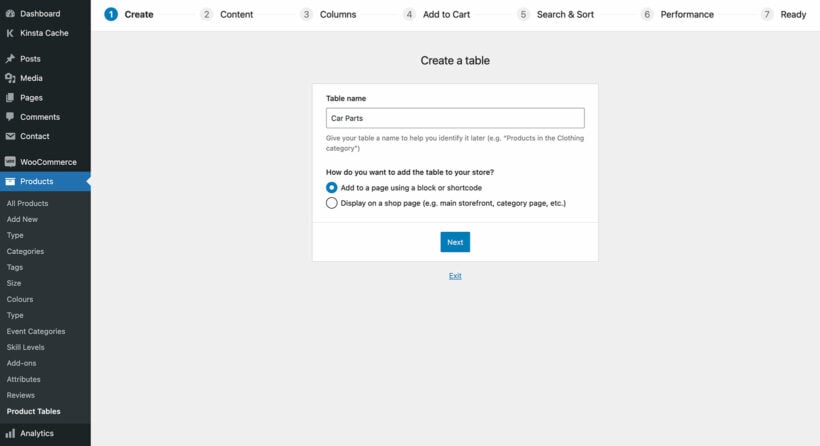
Go to Products → Product Table and create a new table.
In the product selection section, choose the category/tag/taxonomy for one of the locations you tagged in step 1. For example, you might select the 'Germany' category.
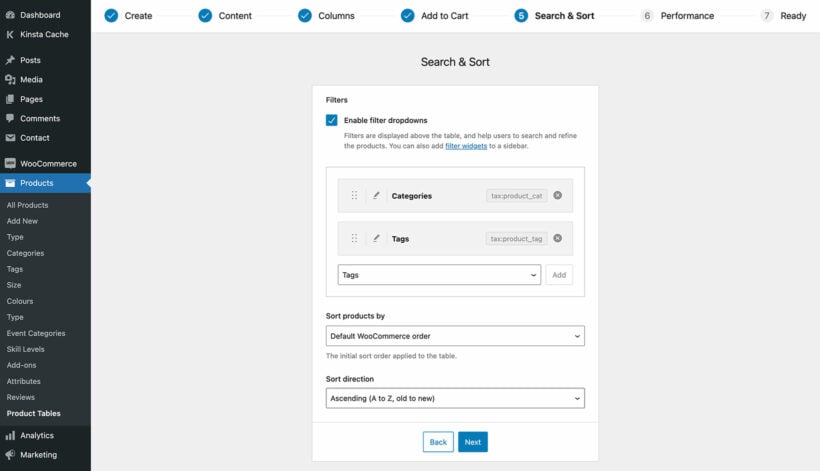
Go through each step of the table builder to choose your product table columns, filters etc.
Repeat steps 2-5 to create a different product table for each location.
Now create a new page where you will be adding the country-specific product tables.
Next, you need to use the geolocation shortcodes to create product tables that are only visible depending on the user's country. Put the [product_table id="1"] shortcode inside the geolocation shortcodes (replace the id parameter with the actual ID of your table). This will show or hide a product table to the correct country only, depending on which geolocation shortcode you're using.
Add multiple WooCommerce geolocation shortcodes to the page, each showing or hiding product tables from one or more countries. Use the examples below as guidance on how to do this.
Tip: If you want a specific product table to be visible or hidden from more than one country, then you can add multiple country codes within a single shortcode, Just separate them with commas.
Geolocation example 1
The following combination of shortcodes will create a page containing 2 product tables: 1 showing products from a category called 'france-germany' to customers in France and Germany only, and 1 showing products from the 'UK' category to customers in the UK only:
As you can see, I have added two product tables to the page. However, each customer will only ever see one product table depending on their location.
Geolocation example 2
This time, we'll use the exclude option to create a product table that will not appear for customers in the US. This assumes that you have tagged these products 'US':
In this final example, we'll use the include and exclude options together. This will create a product table that is visible to all countries except for Australia. It assumes that I have created a category called 'Australia' for the Australia-only products. It's a useful method if sell different products to a specific country in WooCommerce, e.g. for legal reasons.
All customers will see 1 product table on the page. Customers in Australia will see the products from the Australia category, and everyone else will see all your other products.
How to show and hide the country-specific products elsewhere on your site
The above instructions will only show or hide the products in your WooCommerce product tables.
You will need to use the geolocation plugin's other features to restrict the visibility of products elsewhere in your store, for example on the main shop pages, widgets and single product pages. To help with this, you can use the above shortcodes anywhere on your site and in template files.
If you want to restrict access to any of the default WooCommerce pages and direct people to your geolocation product table page, then the free Redirection plugin is perfect for this. Simply add a redirect from any unwanted pages such as the main Shop page, and users will be taken to your product tables page instead.
Do any other geolocation plugins work with WooCommerce Product Table?
Right now, this is the only WooCommerce geolocation plugins that we know works correctly in the product table view.
We also tested with Product Country Restrictions and found that it works with WooCommerce Product Table. However, that plugin is no longer actively updated or supported, so we wouldn't recommend it.
There are some geolocation plugins that definitely don't work with it, and we have included these on our list of incompatible plugins.
There are other geolocation plugins that we haven't tested with. Please let us know if you discover any more that work with WooCommerce Product Table, and we'd be happy to include them on this page.
In need of a WooCommerce product display plugin? You're in the right place! In this post, I'm going to introduce you to the best such plugin in the market, plus show you how to use it, step by step.
Here's what you can expect from the plugin in action:
But first:
Why do you need a WooCommerce product display plugin anyway?
WooCommerce is a great tool, it truly is. But like with most products, there are some chinks in its armor.
For instance, one area where WooCommerce falls a bit short are the available options when it comes to displaying your product catalog in full. Well, when I say "options" ... there actually aren't any.
What you do get is just one default view that you can customize only slightly via WordPress Customizer. Doing more in-depth modifications is basically a nightmare if you don't have any coding or WordPress/HTML knowledge.
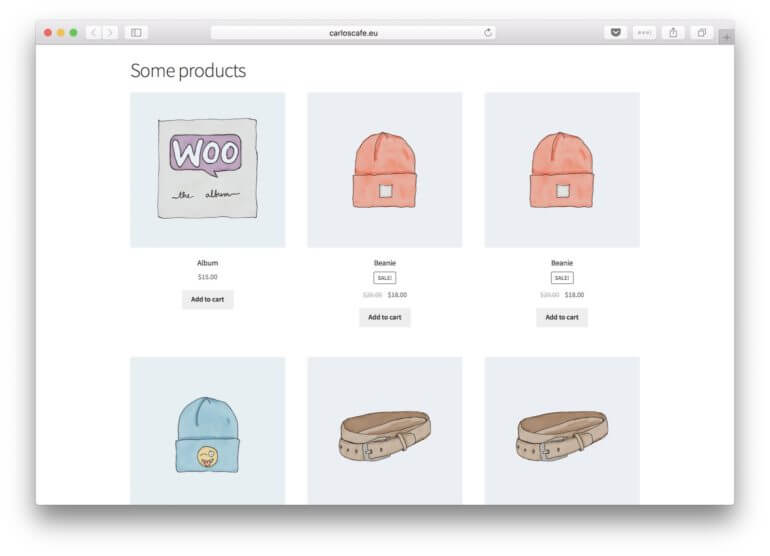
This is that default view:
In itself, it's a nice presentation for a standard retail store where each product should get a small portion of the spotlight. But it's not optimal for all business scenarios imaginable.
What WooCommerce Product Table does better than default WooCommerce
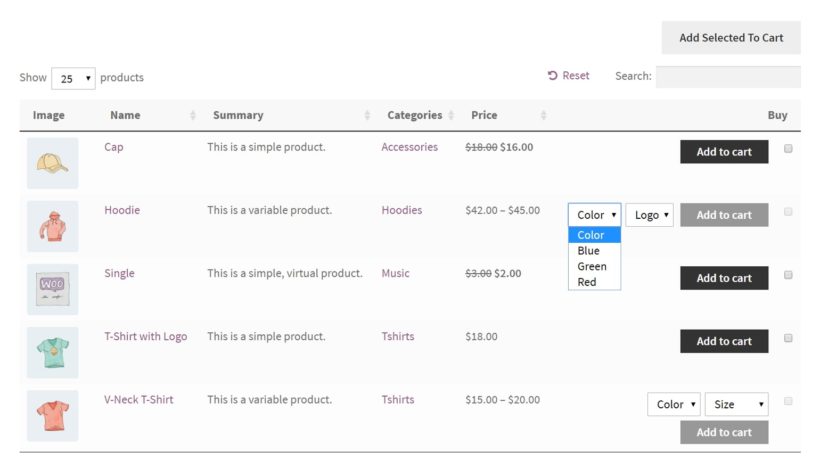
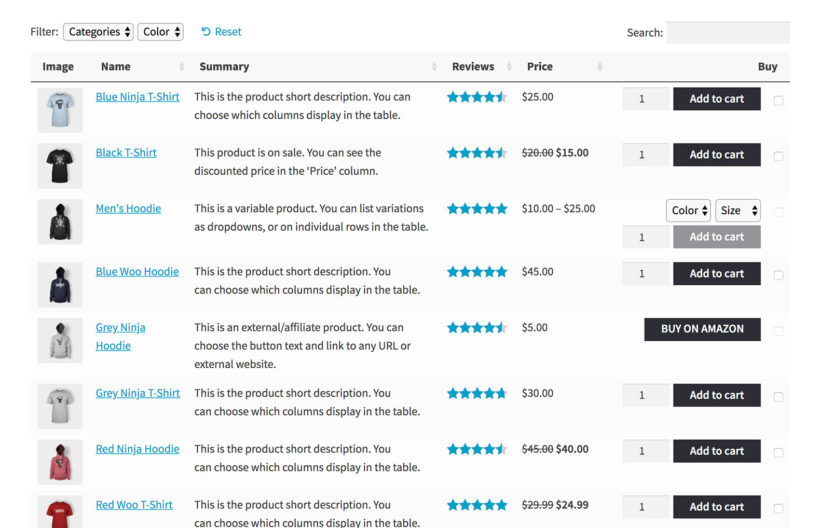
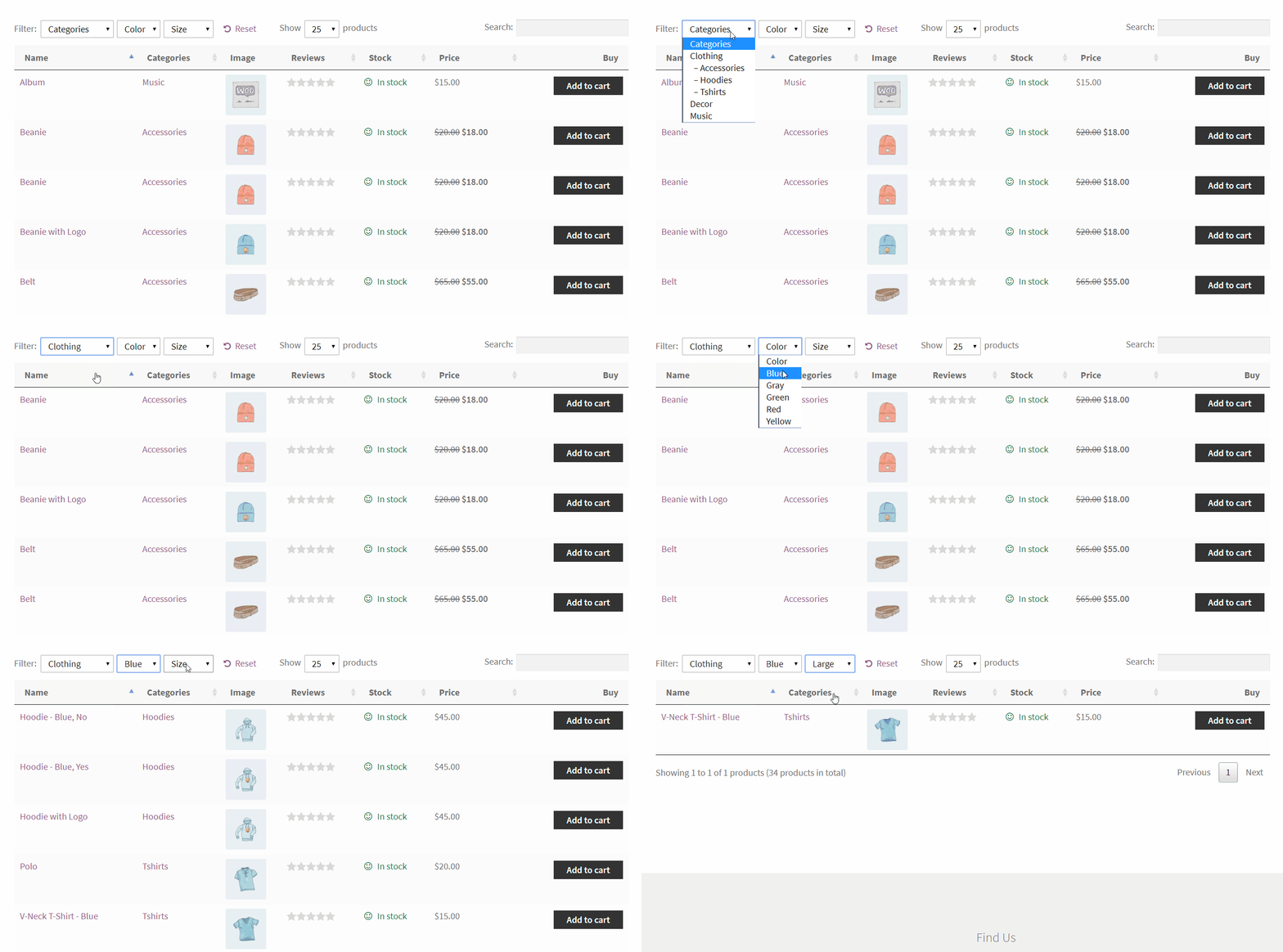
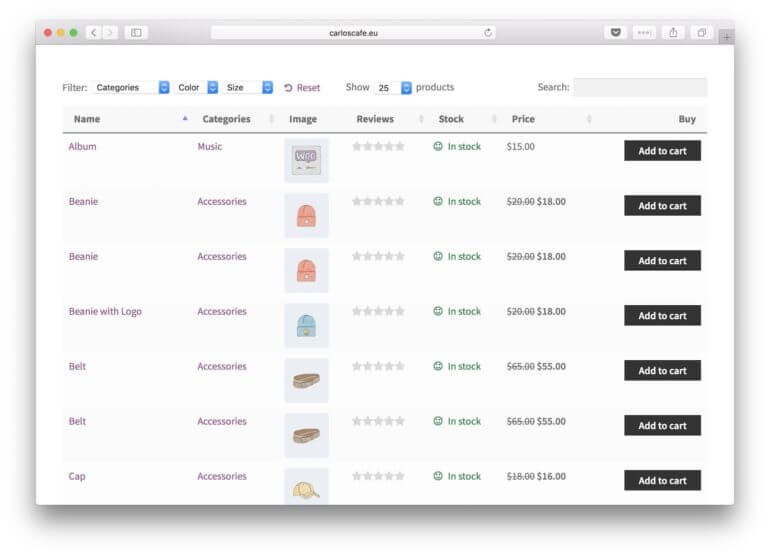
Simply speaking, WooCommerce Product Table allows you to display products inside a searchable and sortable table view. Like this:
A couple of important notes about this WooCommerce product display plugin:
The plugin gives you an additional way of displaying your product catalog - it doesn't replace the default one. You can still use the old catalog view on your website as well.
The plugin doesn't alter the individual (single) product pages. However, you can add product tables to the single product pages if you wish to. Read here for more info.
You can put a product table on any post or page, and you can use multiple such tables.
It comes with a search field (which works as you type) and a filtering mechanism. You can also sort by any column.
It inherits the styling from your current theme, matching the rest of the website.
It's fully responsive and mobile-friendly.
It works on multilingual WordPress sites.
You can include/exclude certain products or product categories.
Being able to display your product catalog this way opens up a handful of interesting possibilities:
When to use this alternative WooCommerce product display plugin
First off, the more products you have in your store, the more you'll enjoy WooCommerce Product Table.
Additionally, the plugin helps you handle all the product variations that you might have in your store.
For instance, you can display those variations as individual rows in the table. Tables are much better at showcasing similar products since they're much easier to scan through than a grid view. Not to mention that the buyer can filter through the variations with a couple of clicks (see the animated GIF above).
Here are some interesting ways in which the WooCommerce product display plugin can be used:
Use case #1: A wholesale catalog
Wholesale customers usually expect different things than retail customers. Most importantly, they don't want to be forced to have to scroll through pages upon pages of product listings. They also probably already know what they want to get, and how much of it. And finally, they want to get as quickly through the process as possible.
A product table works great for that. Everything is in one place, and the customer can buy multiple items at once.
Use case #2: Use it to market to returning customers
A WooCommerce product display plugin is great when your customers are already familiar with your products and just want to get their hands on them as soon as possible.
This can happen when you're marketing to returning customers through an email campaign or social media ads.
With a customizable product table, you can pick the exact product category to display, put it on a certain page on your site, and then send people directly to that page.
Use case #3: Use it when products come back in stock
If you have certain products in your offer that often go out of stock (due to popularity), you can put all those products in a separate category and then display that category on a separate page inside a product table.
Since the products are already popular, your customers will probably not need any additional convincing why they should get them.
As an added bonus, the WooCommerce product display plugin lets you show stock as a separate column, which should help the cause as well.
Use case #4: Use it to sell supplies
Office supplies, workshop supplies, construction supplies, etc. If you're in a business like that, displaying all your products as a table can be much more efficient than using a grid display.
Let's face it, no one under the sun is particularly interested in looking at an individual sales/product page for some sticky notes or a pair of scissors.
The table display also makes things easier when buying multiple products - which usually does happen when we're talking supplies.
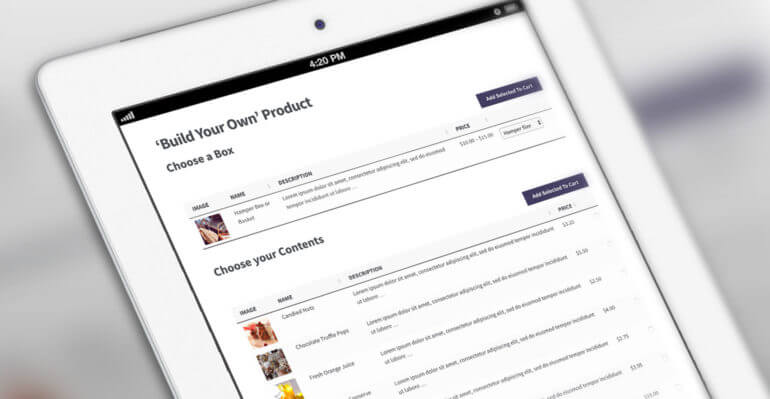
Use case #5: A configurator
A table-based WooCommerce product display plugin can be an interesting alternative when selling anything that's made up of a number of individual elements that the customer can adjust/select.
We're basically turning that product table into a functional product configurator.
Think things like custom PC computer builds, or handmade furniture, or "make your pizza."
A pizzeria, for example, could use a separate webpage for online orders. On it, they can put a product table that lists pizza toppings (like pepperoni, tomato, olives, chicken, etc.). This lets the customer get their ideal tailor-made pizza.
This WooCommerce product display plugin works much like any other WordPress plugin. Here's how to get started:
1. Get and install WooCommerce Product Table
Click this to get the plugin:
You will be able to download the plugin from your order confirmation page.
Save the ZIP file with the plugin to your desktop.
Take note of your license key.
Log in to your WordPress dashboard, go to Plugins → Add New, and click the Upload Plugin button that's at the top of the page.
Select the ZIP file of the plugin from your desktop, and click on Install Now. Then click on Activate to finalize the process.
2. Configure WooCommerce Product Table
When you first activate the plugin, the product display table builder will open. You can also access it at Products → Product Tables.
Use the table builder to create your first table. The step-by-step wizard helps you to configure exactly how you want the WooCommerce product display plugin to list your products.
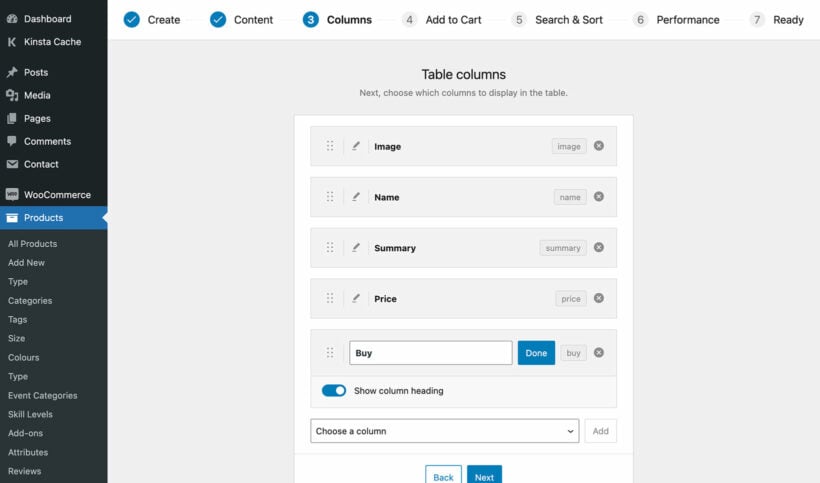
Choose which columns of product data to display
Visit the complete list of plugin options here. There are over 50 to choose from!
3. Add a product table to any post or page
If you selected the option to display the product table view on your shop page templates, then you don't need to add tables - they will just show up automatically. Alternatively, you can manually add the product display table to any page on your site.
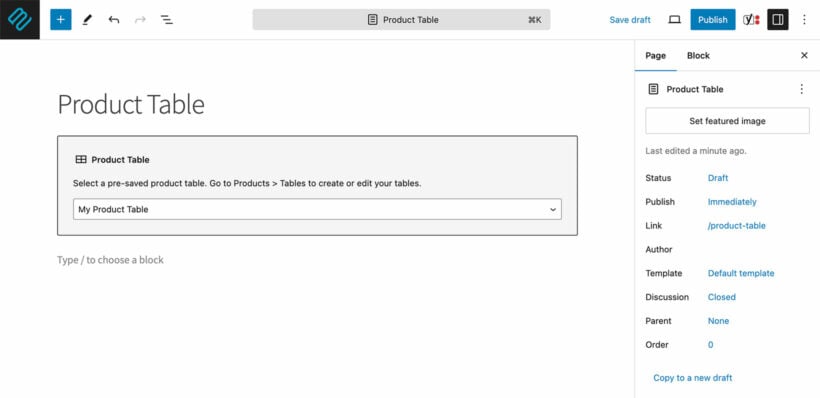
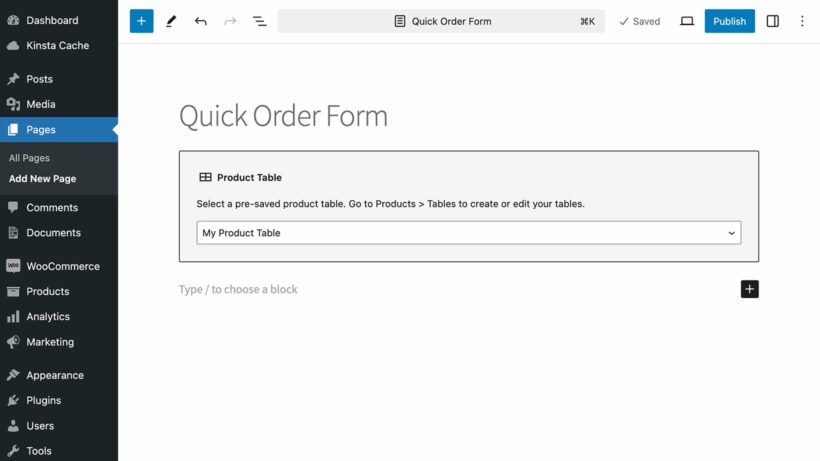
To do this, either copy the table's shortcode from Products → Product Tables, or add a 'Product Table' Gutenberg block.
Bonus tip: Add quick view to your WooCommerce product display
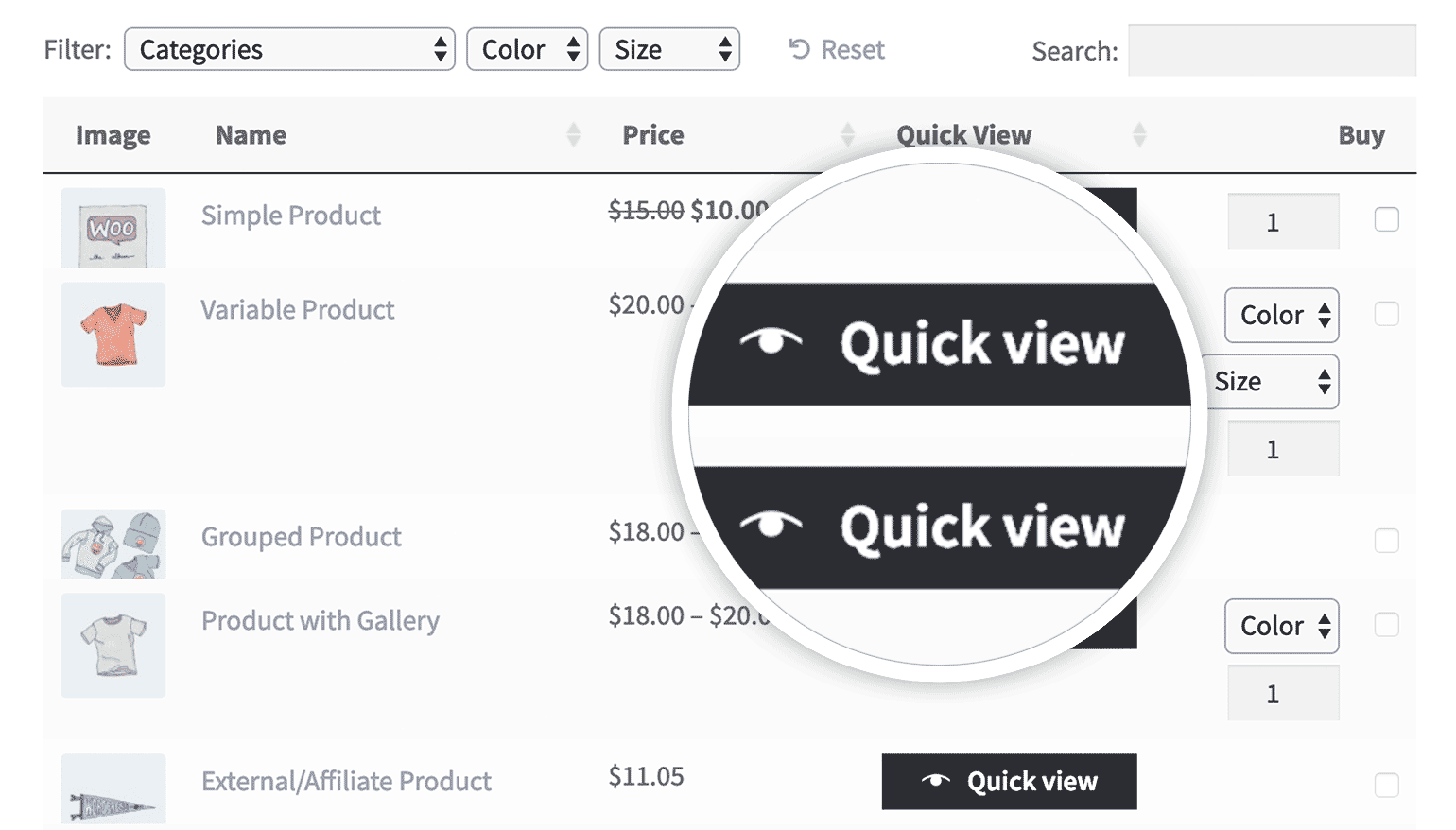
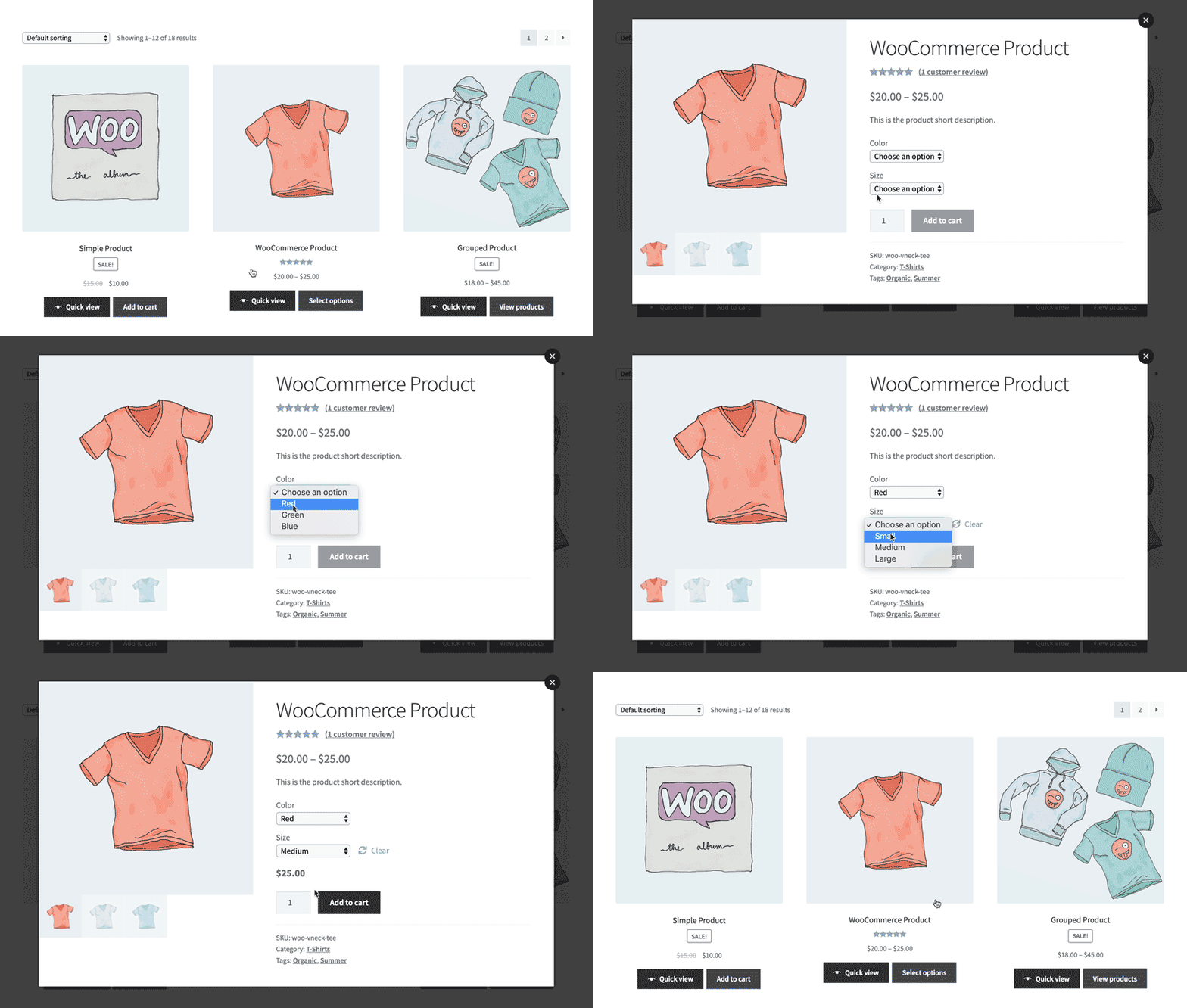
WooCommerce Product Table displays products in a tabular list. You can build on this by using it with its companion plugin, WooCommerce Quick View Pro. This lets you add quick view buttons and/or links to the list of products. Customers can click on them to view more information, the full product image gallery, and even choose variations and add to the cart from a quick view lightbox.
It's a big improvement if:
You want to display extra product information that doesn't fit within the table layout.
There are too many variations or options for each product to neatly fit into the product table.
You want to keep customers on the product list, instead of being taken to a separate page for each product. (This is a good way to increase the average value of each sale, as customers are likely to buy more products from you.)
Improve the display of your WooCommerce products
At the end of the day, WooCommerce Product Table presents a really interesting alternative to the default way in which WooCommerce handles the display of your product catalog. If you have enough products in your offer, you're very likely to enjoy it.
Just see what Mary had to say about the product display plugin:
We used WooCommerce Product Table to set up a quick ordering platform for customers. Worked like a charm. AND the customer service is quick, helpful, and kind. Great experience.
WooCommerce Product Table is easy to set up and comes with a full 3o-day money back guarantee. Try it on your site risk-free!
Looking for a solution to hide WooCommerce products? Sometimes you don't want every single product available to the public, especially if you're running something like a B2B/wholesale or members-only store.
Offering exclusive access to products can create buzz and increase your brand’s desirability. So to set this up in WooCommerce you need a way to hide products from public access. In this step-by-step tutorial, I'll show you how to hide products in WooCommerce using different methods, depending on the level at which you want to hide your products. By the end of this article, you'll be able to hide:
A single product using WooCommerce to hide specific products from the shop page.
Your entire store using the WooCommerce Private Store, (either by password or user login), which is a form of disabling WooCommerce for signed out or non-users.
Which way of hiding WooCommerce products is right for you?
These are the ways to hide products in WooCommerce:
Option 1 - Hide an individual productIf you only need to hide a few specific products, WooCommerce's built-in settings let you remove individual items from the shop page. This is a quick solution but can become tricky to manage for larger product collections.
Option 2 - Hide entire categoriesThe WooCommerce Protected Categories plugin lets you create some hidden products in an otherwise public store. Use it to hide or password protect products based on category.
Option 3 - Make specific products password-protectedWant to create an exclusive product offering? You can password-protect specific products, allowing access only to customers with the right access - perfect for limited releases or VIP items.
Option 4 - Show or hide products depending on user roleWith a user role-based approach, you can control product visibility based on customer type - like offering wholesale prices to B2B customers while hiding those items from regular shoppers.
Option 5 - Hide all of your store's productsWooCommerce Private Store is good if you want to make every single product hidden. You can use it to password protect your entire store or hide it from all logged out users (guests).
Option 6 - Password protect your entire WooCommerce storeThe WooCommerce Private Store plugin allows you to secure your entire store behind a password. This is great for private client portals, wholesale-only shops, or special event stores.
Option 7 - Limit access your store's hidden productsRestrict access to your store’s products exclusively to logged-in users. This method is ideal for membership-based stores, employee-only shops, or any store that requires user registration.
We built our WooCommerce Protected Categories and WooCommerce Private Store plugins for store owners who want to lock down products without setting up a full membership system. Because they support password protection, customers don't even need an account to get in, which is handy for wholesale buyers or one-off private sales. If you need multiple paid or hierarchical membership tiers, a dedicated membership plugin is the better fit.
Below, I'll take you through how to use each method to hide WooCommerce products. Or if you prefer, then you can watch this video:
Option 1: Hide WooCommerce products from your shop page individually
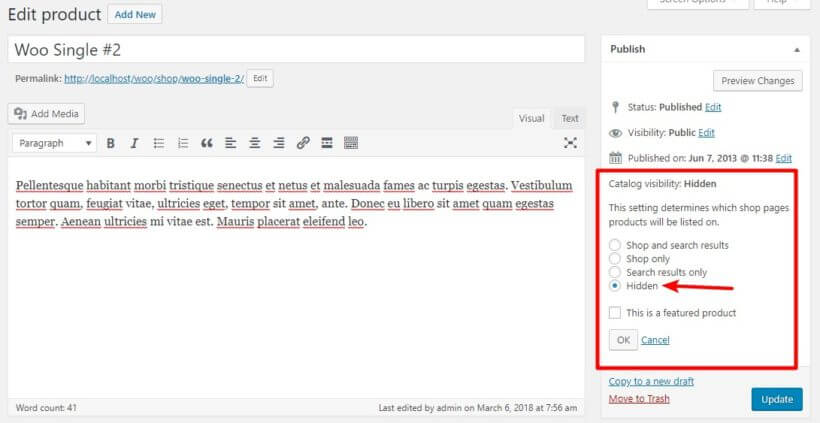
Our first method uses core WooCommerce functionality - no plugins needed. It hides products from the shop pages. However, if a user gets their hands on a direct link, they'll still be able to access the product.
For that reason, this method is not a good approach if you actually want to fully restrict access to the product - not just hide it.
Also, this method isn't very efficient if you need to hide multiple products, as you'll need to manually edit every single product. When it comes to hiding multiple products on WooCommerce, a more efficient approach is to assign them to a category in bulk and then hide that category using one of the methods for how to hide products in WooCommerce.
If you're ok with the product still being accessible by direct URL, then it's fine to use WooCommerce to hide products from your shop page.
You can do this by editing the Catalog visibility option under Publish and choosing Hidden:
Option 2: How to hide an entire category of WooCommerce products
Then, create a new product category for your hidden products. I'll give mine a creative name of "Hidden Products", but you can name yours whatever makes sense.
Once you have the category, assign the products that you want to hide to that category.
Now, you've come to the point where you need to make a choice about how you want to let people "unhide" the products in this category. You can:
Let users unhide the products by entering a password
Make the products automatically visible to certain users or user roles
Option 3: How to make specific products password-accessible
To add password protection, go to Products → Categories and edit the category that you created for your hidden products:
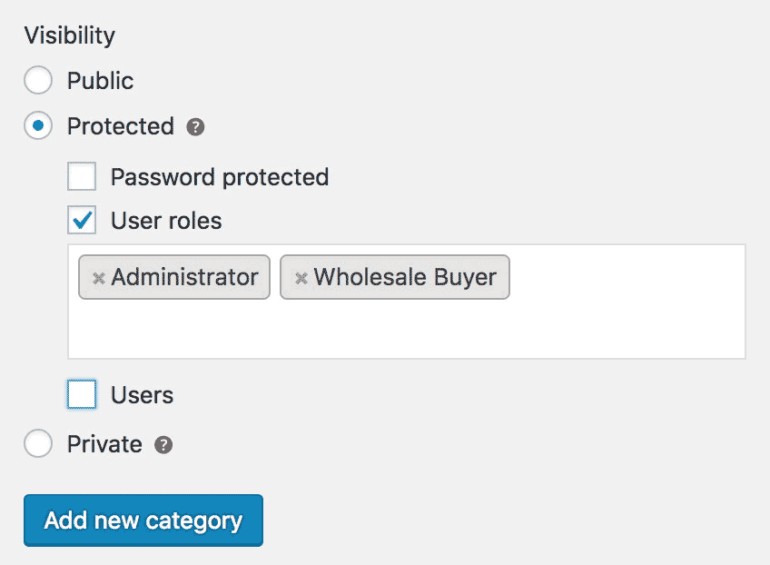
Scroll down to the WooCommerce product Visibility section
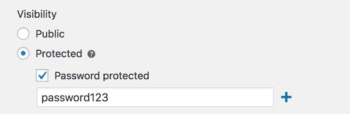
Select Protected → Password protected
Enter your desired password. You can also add multiple passwords to unlock the category if you want to give different users different passwords
Save changes
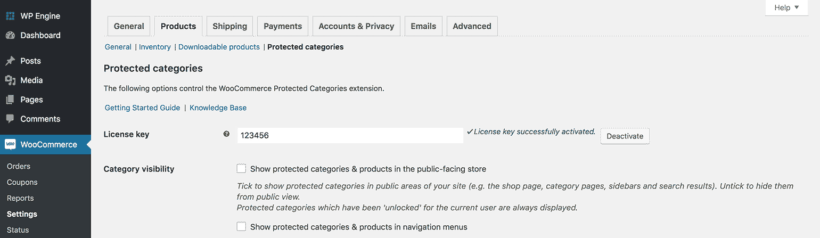
Then, you can configure how your password protected categories function by going to WooCommerce → Settings → Products → Protected Categories.
In this area, you'll want to:
Uncheck the two Category Visibility checkboxes to make your category 100% hidden
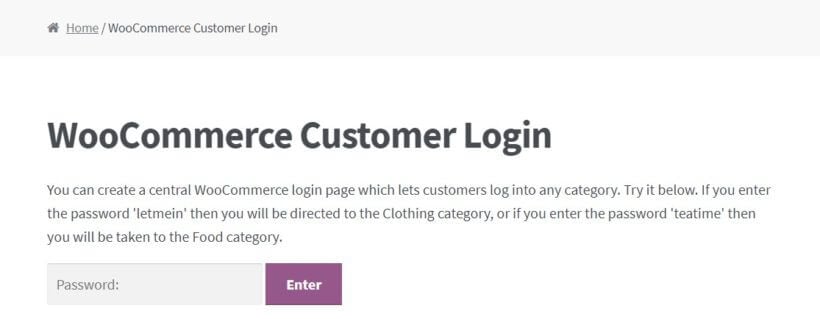
Select a Category Login Page where users can enter the password to see the WooCommerce hidden products/categories
You can also peruse the other settings to see if anything applies to your specific needs.
Option 4: How to show or hide products depending on user role
If you'd prefer to automatically give access to the WooCommerce hidden products to certain users or entire roles:
Go to Products → Categories
Edit the category that you created for your WooCommerce hidden products
Scroll down to the WooCommerce product Visibility section
Select Protected → Users and choose which users and/or roles can access your hidden WooCommerce products.
Save your changes
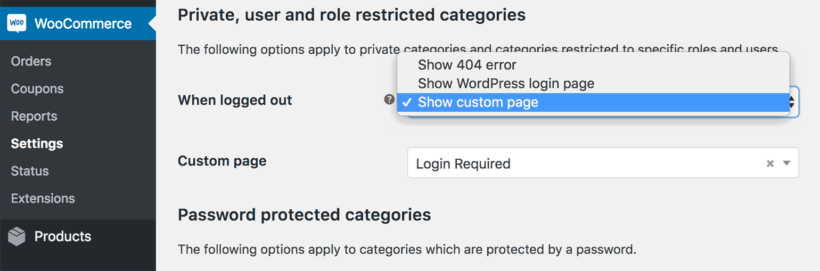
Then, you can configure how your user and role protected categories function by going to WooCommerce → Settings → Products → Protected Categories. Here, you need to choose what happens when a logged out or guest user tries to access a hidden category or one of its products:
Option 5: How to hide all products on your store from public view
Now it's time for the last, and most secure, way to hide WooCommerce products.
If you want to hide all of your products from the public, you'll need the WooCommerce Private Store plugin installed and activated.
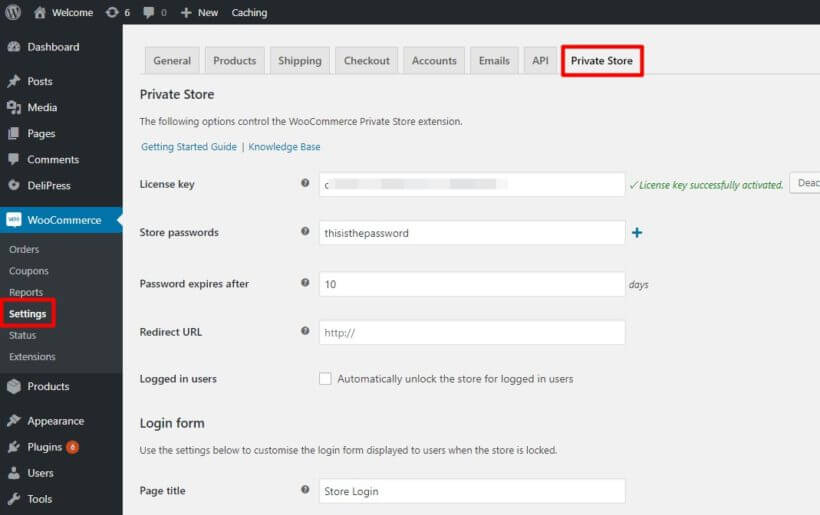
Then, go to WooCommerce → Settings → Private Store to configure the plugin.
Just as with hiding specific categories of private products, you can hide your store in two different ways:
Require users to enter a password to unhide the store
Option 6: Hide products by password protecting your WooCommerce store
To add a password:
Enter a password (or multiple passwords) in the Store passwords box.
Choose how long the password should unhide the store (in days) in the Password expires after the box.
Enter the product page you want users to be taken to after logging in using the Redirect URL box.
Configure the Login form options.
Option 7: How to only allow logged in users access your store's hidden products
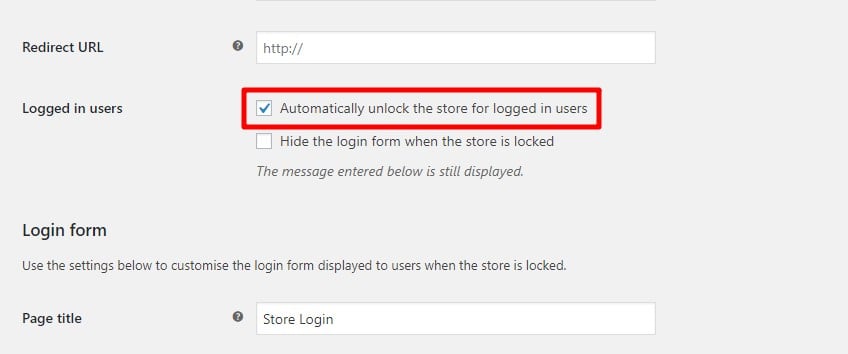
If you want to automatically allow logged in users to see your hidden products, you just need to check the box for Automatically unlock the store for logged in users. Underneath, you'll find an option to choose which user roles to unlock the store for. This is handy if you only want certain user roles to have access, such as administrators and store managers.
You can also choose whether or not to Hide the login form… that displays for users who aren't logged in:
Master product visibility and take control of your WooCommerce store
Whether you need to hide a single product, one or more categories of products, or your entire WooCommerce store, one of the above methods should work for you.
Remember:
To hide a single product, you can use the Hidden Catalog WooCommerce product Visibility option. Just remember that people can still see the product if they get a direct link - it's not actually private.
If you want to hide an entire category of WooCommerce products, WooCommerce Protected Categories lets you do so via either password protection or specific logged in users or roles.
To hide your entire WooCommerce store, WooCommerce Private Store lets you do so via either password protection or by automatically unhiding your store for logged in users.
Any other questions about how to hide WooCommerce products on your WordPress website and provide great user experience? Leave a comment and we'll try to help out.
We're delighted to announce that WPML, the market leading WordPress multilingual system, have formally tested our WooCommerce Product Table plugin and confirmed that it is fully WPML compatible.
We have always tested our WordPress and WooCommerce plugins with WPML. However, this is the first time that we have submitted a plugin to them for formal testing and review. They were happy that WooCommerce Product Table works perfectly with WPML and have issued a certificate of compliance.
Note: Since publishing this article, WPML have discontinued their compatibility program. However, you can still use it with WooCommerce Quick View Pro.
Product Table with WPML - English
Product Table with WPML - French
What about Barn2 Media's other plugins?
Next, we plan to submit our other WordPress plugins to WPML for formal testing and certification.
In the meantime, we have already tested all our plugins with WPML so you can safely use them together for your multilingual websites.
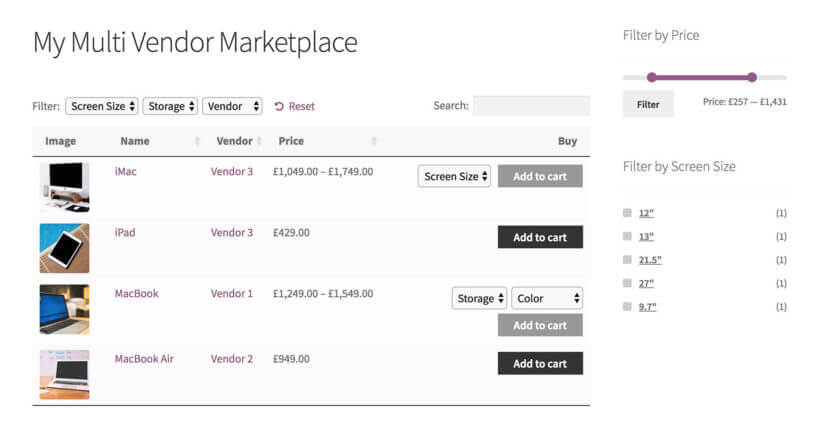
Lots of people ask how to use our Product Table plugin with a WooCommerce multi vendor marketplace plugin. A multi vendor plugin lets multiple sellers upload and sell products in your WooCommerce store.
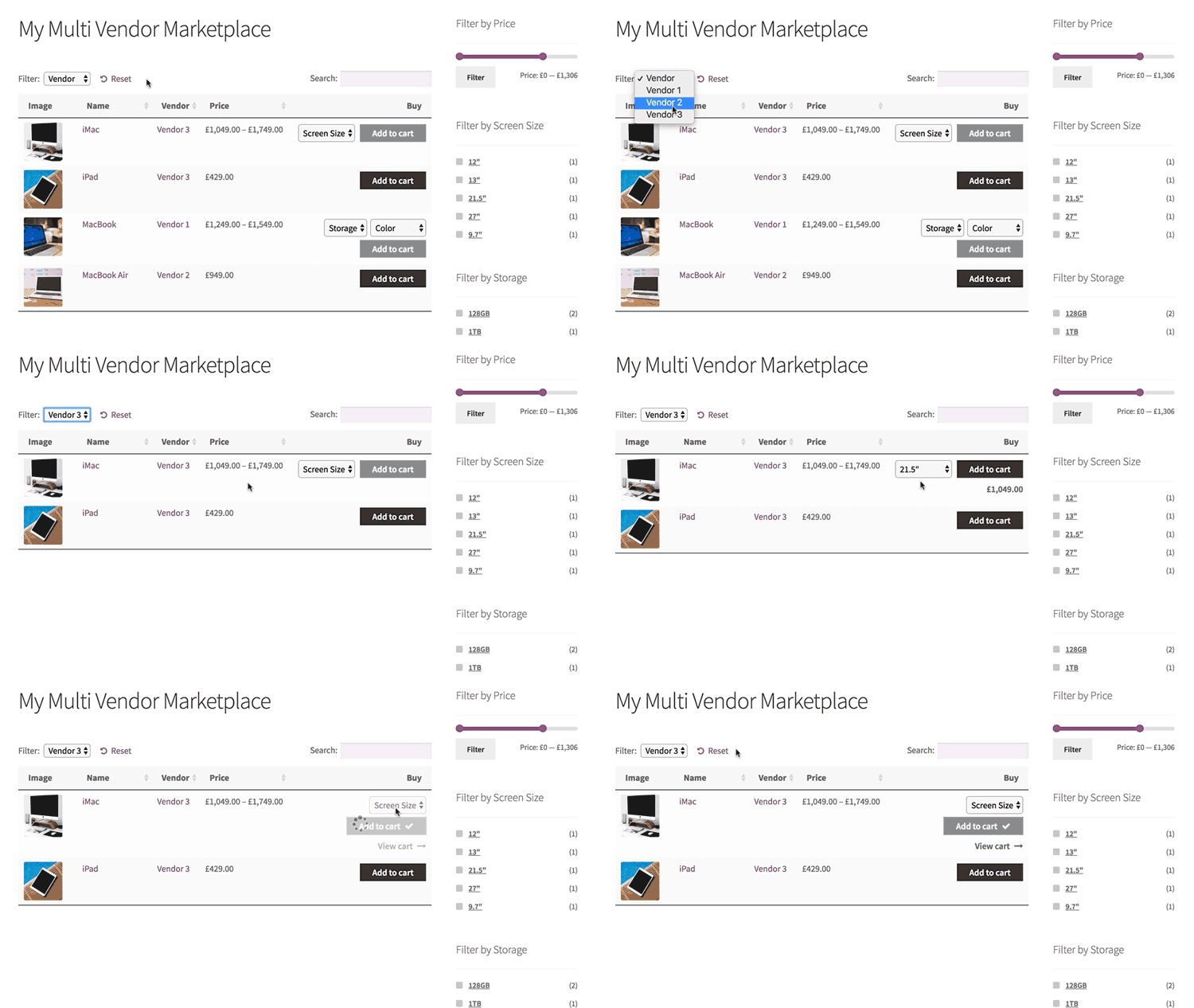
Product table layouts are the perfect way to list vendors' products, as you can show more products per page and choose which information to display about each product. A table view also makes it easier to find products, as you can add features such as keyword search and product filters.
What is a WooCommerce multi vendor plugin?
A product vendors plugin transforms any WooCommerce store into an online marketplace with multiple product vendors or sellers.
All multi vendor plugins work in similar ways, so read about them all and choose your favorite one that works with WooCommerce Product Table.
Sellers can register as a product vendor on your WordPress website, or you can add vendors manually. Each vendor can upload products to sell on your WooCommerce store. All the vendors' products are sold together in an online marketplace, similar to popular websites such as Etsy or Not on the High Street. Each vendor will have their own store page within your WooCommerce store, and you can also list products centrally.
You can choose how to pay your vendors. Most multi vendor marketplace plugins have built-in options for giving them commission and sharing profits.
Which WooCommerce multi vendor plugin should I use?
It's from a reputable company and integrates fully with WooCommerce Product Table. This means that you can build a fully functional multi-vendor marketplace, with the vendors' products listed in a user-friendly order form layout. As well as having a separate shop page for each vendor, you can create a central page listing all the products in the marketplace. Customers can easily filter by data such as vendor or product attributes to find what they're looking for.
As a result, I will mostly focus on YITH's in this tutorial. At the end I'll show you how to use other WooCommerce multi vendor plugins with WooCommerce Product Table - but there are some compromises involved.
If you're using a different WooCommerce multi vendor plugin, don't worry. I'll provide tips on how to use it with product tables later. But for the fullest integration with WooCommerce Product Table, use YITH WooCommerce Multi Vendor.
Keep reading to find out how!
What is WooCommerce Product Table?
WooCommerce Product Table is a WordPress plugin by ourselves at Barn2. It lets you list any type of WooCommerce product in a flexible table layout with search box, filters and any product data that you want to display. It's popular for creating a one-page order form layout for a WooCommerce multi vendor marketplace.
The plugin comes with over 50 options, so there are literally dozens of ways you can customize your product tables. For example, you can create tables listing all the products in the marketplace, or products from a specific vendor only. I'll talk about the most popular options to use with a WooCommerce multi vendor plugin later.
Here's a video to explain how WooCommerce Product Table works:
How to use YITH WooCommerce Multi Vendor with Product Table
Create an order form listing all products in the marketplace, or separate shops for each vendor
The multi-vendor plugin allows you to create multiple vendors and give them the ability to add products and manage their orders. The product table plugin creates better layouts for your multivendor store. This combination will get more sales for your sellers, and more commission for you - everyone wins!
Set them up now using the documentation for your chosen plugin. Add some products and vendors to get you started.
Navigate to Products → Product Tables and set up your multi vendor product table. In particular, you should:
Enable the option to display product tables on the Shop page, Vendor taxonomy, and anywhere else you want to use them.
Choose which columns of data you want to include about your marketplace products. For example, you might add columns for image, name, the 'YITH Shop Vendor' taxonomy (which you can rename to something else), price, and buy.
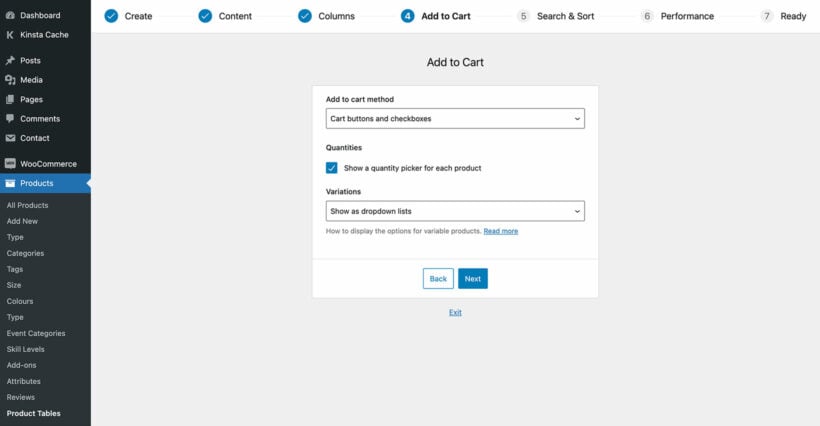
For the 'Add to cart buttons' option, select either 'Checkbox' or 'Button and checkbox'. This helps to increase conversions by allowing customers to add multiple products to the cart at once.
In the variations option, select 'Dropdown'. That way, vendors can select variations from directly in the product table.
Enable the 'Lazy load' option if the marketplace is likely to have a lot of products.
Use the 'Filters' option to add a 'YITH Shop Vendor' filter (which you can rename by clicking the pencil icon) if you're creating a central page for the whole marketplace. This will let customers filter to find products from a specific vendor. If each vendor will have their own shop page, then add other filters like categories and tags. This will add filter dropdowns above the table for the product categories and tags.
Viewing all products in the central marketplace
Now go to the 'Pages' section of the WordPress admin and find the page that is labelled 'Shop'. View the page, and you'll see a product table listing all the products in the multi vendor marketplace.
The table will have whichever columns you choose on the WooCommerce Product Table plugin settings page. If you enabled other features such as filters then these will show too. For example, you might have a filter dropdown above the table where customers can choose a specific vendor. Customers can also click on any vendor in the Vendors column to view products from that seller.
If any of your vendors sell variable products, then the variation options will appear as dropdowns in the add to cart column.
Individual vendor shop pages
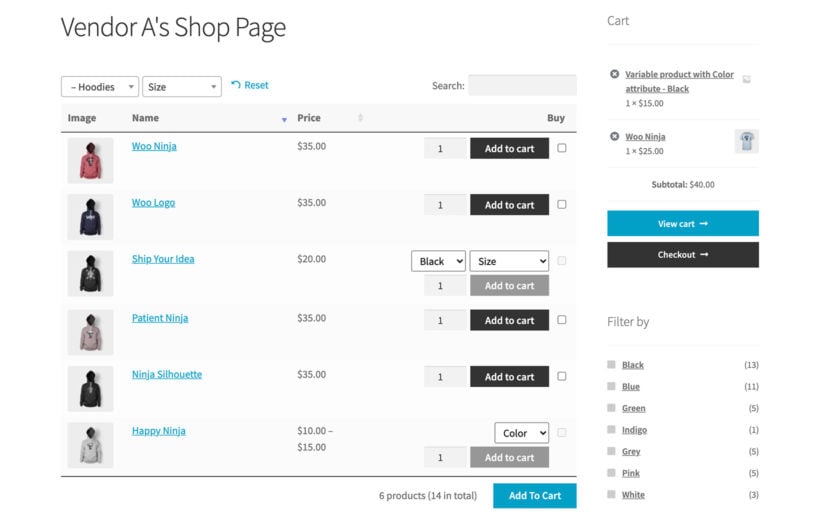
The best thing about using WooCommerce Product Table with YITH WooCommerce Multi Vendor/Marketplace is that you can also have a separate shop page for each vendor. That simply isn't possible with any other WooCommerce multi vendor plugins on the market.
The reason it's possible is because the YITH plugin creates a 'custom taxonomy' for each vendor. WooCommerce Product Table works perfectly with custom taxonomy archives. As a result, the taxonomy pages created using the multi vendor plugin will work with the product table layout.
I already showed you how to enable this in the previous section, when you enabled the table layout for the vendors taxonomy. Once you've done that, find the 'Vendors' section in the WordPress admin, and view the list of vendors. Click 'View' for one of them, and this will take you to their vendor shop page. You will see the vendor's products listed in a WooCommerce table.
Listing vendors' products manually
So far, you've learned how to automatically enable the order form layout on the central Shop page and individual vendor store pages. For even more flexibility, you can use a shortcode to list specific products on any page or post in your site. For example:
You can create pages listing products from specific categories.
To draw attention to specific marketplace products (e.g. Christmas products), you can publish blog posts. As well as writing in general about how perfect your marketplace is for a particular type of product, you can use WooCommerce Product Table to list relevant products.
To do this, create a table at Products → Product Tables. On the first page, choose the option to add the table to a page manually. On the next page, select the product vendors taxonomy and select which vendor you wish to display the products for.
How to use product tables with other WooCommerce multi vendor plugins
I mentioned earlier that YITH WooCommerce Multi Vendor works best with WooCommerce Product Table. That's because it creates a taxonomy for each vendor and display the vendors' shop pages as a taxonomy archive - both of which work with WooCommerce Product Table.
However, it is possible to use other multi vendor WooCommerce plugins with WooCommerce Product Table. It's just slightly trickier to set up, and there are some compromises involved.
Product Vendors
The official Product Vendors extension does create a vendors taxonomy which you can display in the product table. It's just not our top recommendations because YITH's plugin is more feature-rich overall.
To use Product Vendors with WooCommerce Product Table, follow the instructions which I have provided above for the YITH plugin. The only change is that you should select the Product Vendor plugin's 'Vendor' taxonomy instead of YITH's. This will appear in the list of columns, filters etc. for you to choose from.
MultiVendorX
The next best option is MultiVendorX. With this multi vendor plugin, you can easily create a table of all your vendors, complete with a 'Vendor' column and 'Vendor' filter dropdown above the table. You can also use it to create a separate table of products for each vendor and manually add it to a page as needed.
The only downside with MultiVendorX is that there's no automated way to enable the product table layout on the individual vendor store pages. Instead, you have to create these pages manually and list the products using the 'Product Table' block or shortcode.
MultiVendorX does create a taxonomy for each vendor. That's why you can display and filter vendors in the product table. However, it uses a custom template to create the page for each vendor, which doesn't work with WooCommerce Product Table. Your developer could customize the template to allow this (post a job on Codeable if you don't have a developer). I've also provided instructions below on how to manually list products for a specific MultiVendorX vendor.
How to use MultiVendorX with WooCommerce Product Table
Go to Products → Product Tables and set up your product tables, as described earlier in this tutorial. In particular, choose the option to insert the table manually and select the vendor whose products you wish to display.
Create a page for each vendor and insert the table onto it.
Finally, you need to redirect the default vendor pages that MultiVendorX has created, so that customers are taken to the product table page for each vendor instead. To do this, install the free Redirection plugin and set up the redirects.
Repeat the above process for the other vendors as needed.
Dokan, WC Vendors, WCFM Marketplace and other multi-vendor plugins
Now we've got to the plugins that are a bit more difficult to use with WooCommerce Product Table. However, it's still possible and I'll show you how.
All of these plugins store the vendors in ways that WooCommerce Product Table can't work directly with. For example:
Dokan Multivendor Marketplace stores each vendor as a user and has its own custom called template store.php. One of our customers has also reported that WooCommerce Product Table is incompatible with the front end product submission in Dokan (although there is another method you could use).
WCMP/WCFM has its own custom template called wcfmmp-view-store-products.php.
WC Vendors uses the post author/WordPress user rather than storing the vendor information directly on the 'products' post type.
To enable these plugins to work with WooCommerce Product Table, you need to create your own custom taxonomy for 'Vendors'. Use this to manually tag each vendor's products. Once you've done that, then you can use the two plugins together with no limitations.
If you don't create a vendors taxonomy, then you can still use WooCommerce Product Table to list the products from your entire marketplace. It just won't be possible to add a vendor column, filter by vendor, or list products from specific vendors only.
How to create a vendors taxonomy
Use our tutorial to create a WooCommerce custom taxonomy. Manually add the vendor name as a taxonomy term for each product. This is similar to adding tags in WordPress. You'll find the taxonomy on the right hand side of the 'Add/Edit Product' screen.
Once you've created your Vendors taxonomy, you can:
Use WooCommerce Product Table to list the products from each vendor separately.
Improve your vendors' sales with WooCommerce quick view
As you have seen, a product table layout is ideal for listing multiple sellers' products in a WooCommerce multivendor marketplace. You can make it even more effective by combining it with the WooCommerce Quick View Pro plugin.
This adds quick view links or buttons to the product table view. Customers use these to see extra images, read more information, choose options and add to the cart from a quick view lightbox. It's a great way to keep customers on the product table page, as there's no need to direct them to a separate page to learn about each product.
After adding a product to the cart, the quick view lightbox closes. This brings the customer straight back to their current place on the list of products, where they can continue browsing. As a result, they're likely to buy multiple products and spend more in your marketplace store.
Create a multi seller marketplace with product tables
WooCommerce multi vendor plugins are a fantastic way to transform your store into a complete marketplace with multiple sellers.
By adding WooCommerce Product Table to your multi vendor store, you can create improved layouts and increase sales. This benefits you and your product vendors, so get started today!
Use WooCommerce Product Table alongside YITH Multi Vendor Marketplace and list products from different vendors - the easy way.
If you're looking for a way to increase sales on your WordPress e-commerce website, it's time to consider a bulk add to cart WooCommerce plugin.
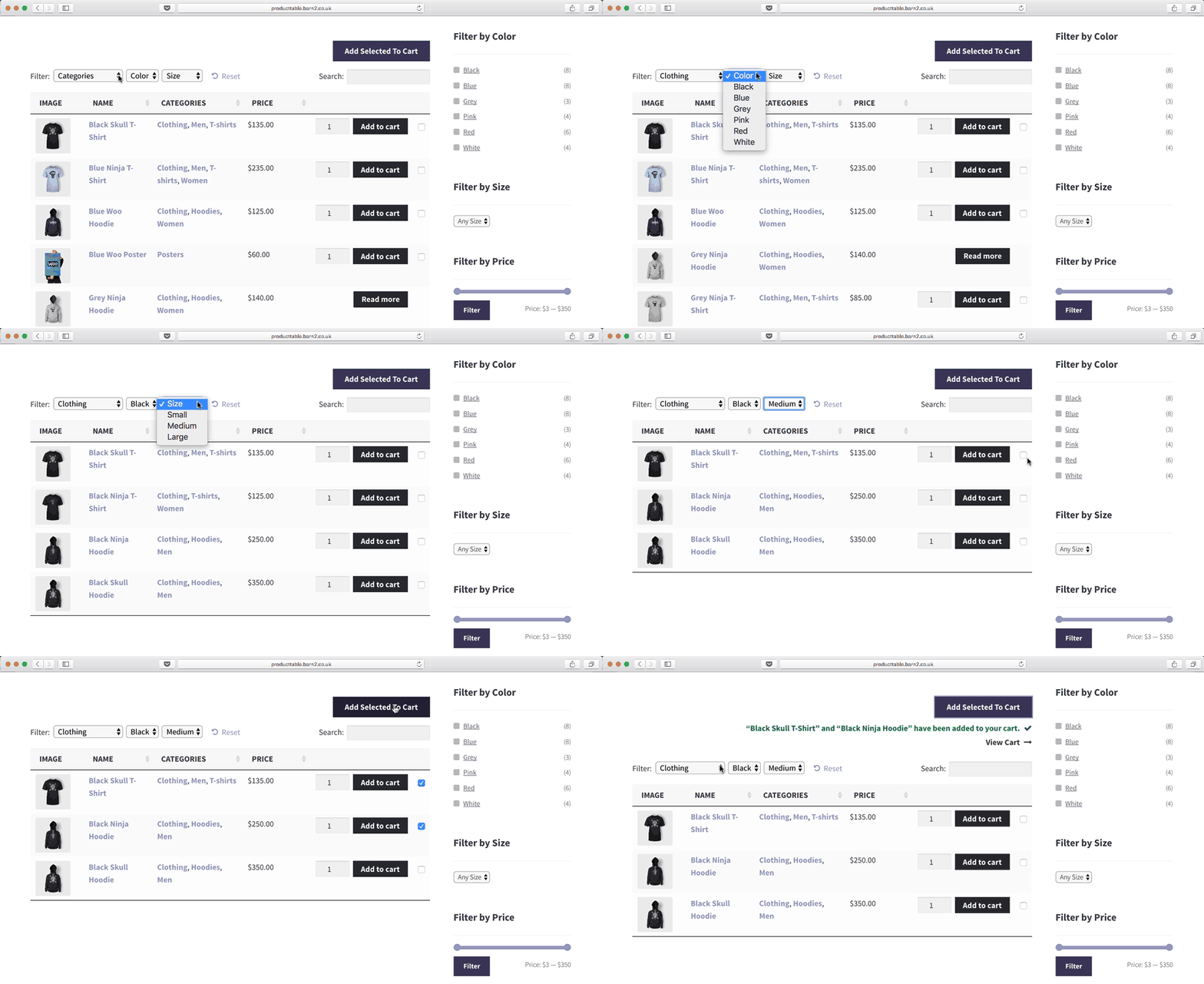
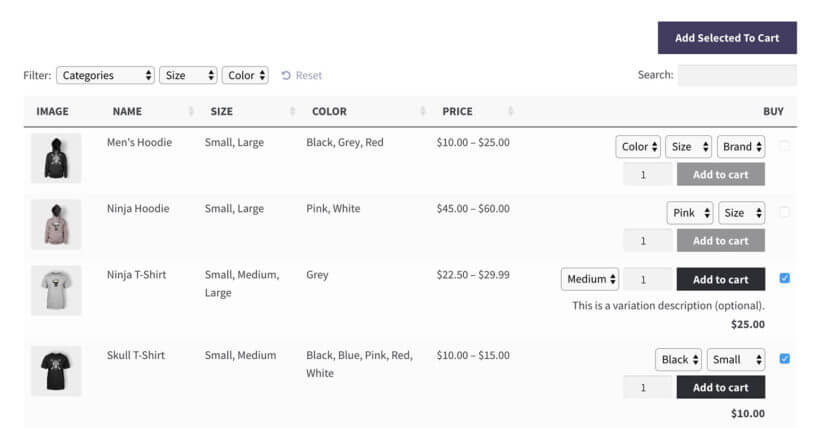
Customers can buy more quickly by adding multiple products to the cart at once. They simply tick a checkbox next to each product and click a button to add them all to the cart:
It's the perfect way to increase your WooCommerce store's conversions.
Today, I'm going to tell you how to use our popular WooCommerce Product Table plugin to add bulk add to cart buttons in WooCommerce.
Let's get started!
What is the bulk add to cart WooCommerce plugin?
WooCommerce Product Table is our bestselling WordPress plugin and works perfectly as a bulk add to cart plugin.
It lists products in a customizable table layout, with a tick box next to each item. There will be an 'Add Selected to Cart' button above and/or below your product tables.
You can create a single product table listing all your products with bulk add to cart checkboxes. Or you can create tables listing specific products only (e.g. by category). There are options to add tables anywhere on your site, or to replace the default layouts on the main Woo shop and category pages.
You can configure pretty much any aspect of your product tables. For example, you can choose which columns of product data display in the table. You can choose whether or not to show quantity selectors and product variations in the table. It's even possible to control how the table and quick add to cart buttons behave responsively on mobiles and tablets.
Here are just a few of the benefits of using bulk add to cart buttons:
Help site users find and add products to cart faster
Make it easier to add products to cart in bulk
Potentially increase conversion rate
Simplify and streamline the buying process
How to add bulk add to cart buttons in WooCommerce
First, get WooCommerce Product Table and install it on your WP website. I'm assuming that you've already got a website with WooCommerce setup and some products.
Go to Products → Product Tables.
Next, paste your license key from the confirmation email, and set up your table as required.
On the 'Add to Cart button' page, choose the 'Checkbox only' style to display a bulk add to cart checkbox next to each product. Choose 'Button and checkbox' if you want a add to cart button AND bulk tick boxes.
Now it's time to display the table on your site. There are 3 ways to do this:
The table builder lets you select one or more shop templates to display the table. For example, you can enable tables on shop and category pages.
Add a 'Product Table' Gutenberg block to a page and select the name of your table.
Add the shortcode [product_table id="1"] to the page. Replace "1" with the actual ID of your table on
Products → Product Tables.
Finally, view the page and you'll see your tables with WC bulk add to cart checkboxes next to each product.
Get the most out of quick add to cart options
The whole point of a bulk add to cart Woo plugin is to make it quicker for people to buy from you. With that in mind, I'll give you some tips on how to encourage customers to add bulk products to the cart. Use these to get more sales by encouraging each customer to buy more products.
Are customers likely to add products to the cart in bulk?
First, you need to decide whether the products you sell will benefit from quick buy options such as a bulk add to cart WooCommerce plugin. Multi-select checkboxes are a major asset to many WooCommerce stores (including wholesale WooCommerce stores). However, they're not for everyone.
Customers are more likely to add products to the cart in bulk when you're selling relatively small, low-cost items; or products that are designed to be used together.
Examples of products that benefit from quick add to cart checkboxes
Low cost products
Low cost products sell better with a bulk add to cart WooCommerce plugin. This applies to any store where each product isn't a major buying decision with low value products. For example, stationery, cosmetics and make-up, food and drink, gifts and toys.
Subtle improvements like quick buy checkboxes can convince them to buy more. Further encourage this with postage discounts for bulk items, or quantity-based bulk discounts.
Make sure your customers know they can save money, and use a bulk add to cart WooCommerce plugin to make it quick and easy.
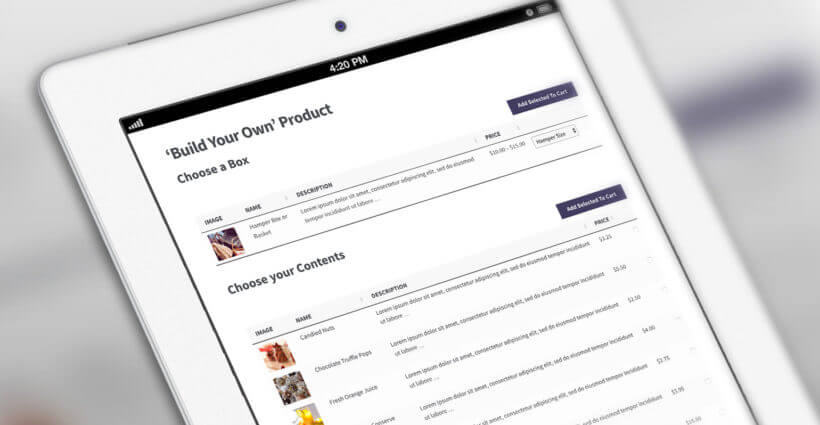
Build a box
WooCommerce Product Table is popular for selling build-your-own products such as gift hampers or wine boxes.
The box contents are listed in a table. Customers use the quick add to cart buttons to bulk select the box contents. Once they've ticked the required items, they add all selected products to the cart at once.
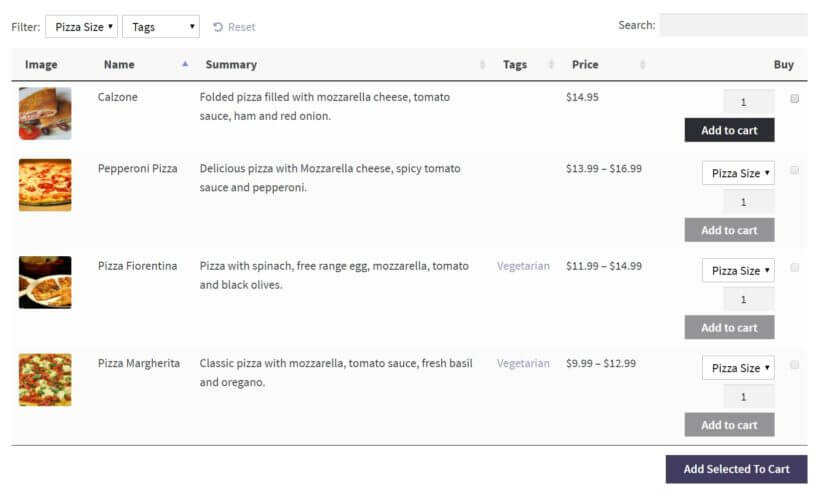
They add their restaurant menu to a single page, with a separate product table for each section (e.g. starters, mains, sides). Each product table has bulk add to cart buttons with an 'Add Selected to Cart' button.
Customers tick all the food options from one table, add them to the cart in a single click, and then choose items from the next table. This is much quicker than clicking individual add to cart buttons for every product.
Related products and sets
If you're selling products designed to be used together, then WooCommerce bulk add to cart buttons will make the process more user-friendly. Perhaps you're selling kitchen units where customers choose their own combination from a set of items such as worktops, cabinets and doors.
Customers need to plan their entire purchase before adding to the cart. When they're ready to order, WooCommerce bulk buy checkboxes make it much quicker to buy.
Case study - using a WooCommerce add to cart plugin to sell items in bulk
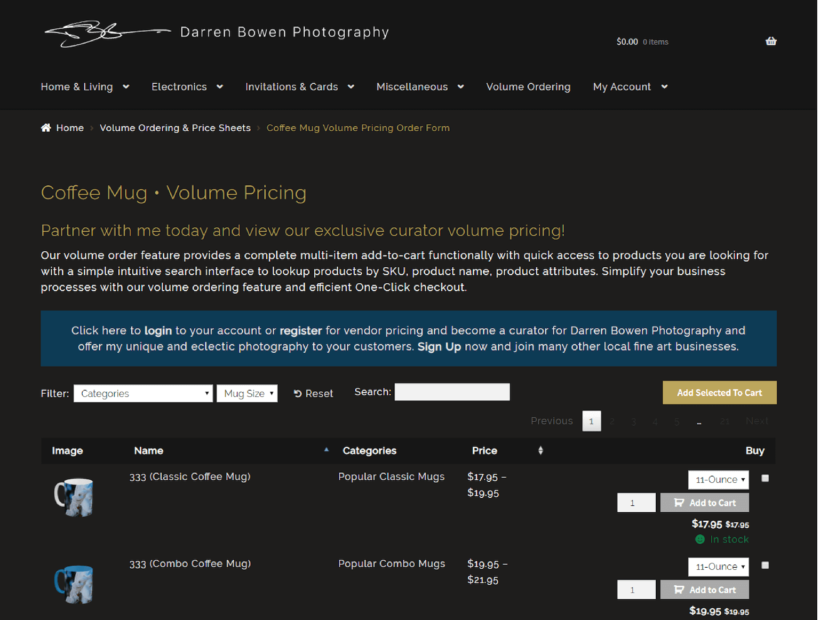
Darren Bowen Photography sells a range of products printed with Darren’s unique artwork. To help customers quickly buy products there are two bulk ordering pages powered by WooCommerce Product Table. One for mugs and the other for iPad smart covers.
To buy in bulk, you simply select the quantities and use the “add to cart” function or check the “buy it” box. Once you’ve put everything you need in the cart, you can check your order before making your payment. And to keep things simple, there's an easy to use one-click checkout system.
Keep reading to learn how to add similar WooCommerce bulk order forms to your own site.
Which WooCommerce products don't need bulk add to cart buttons?
As you can see, many types of product will sell best with a plugin that provides quick buy options. However, a bulk add to cart WooCommerce plugin isn't going to help you with major purchases such as selling furniture online. If each purchase is a major decision for the customer, then adding quick check boxes won't really encourage them to buy more.
Think about whether the types of product in your store lend themselves to a quick bulk add to cart format.
Show important buying information in the table
There's no point having a WooCommerce bulk add to cart plugin if customers still need to visit the single product page before they buy. The whole purpose of the quick add to cart checkboxes is to allow customers to add products in bulk directly form the main shop or product listings page.
This means that your WooCommerce product tables need to contain all the information that is needed to make purchasing decisions. You can do this by choosing which columns appear in the product table.
Joseph uses the WooCommerce Product Table plugin to include a quantity field in his product table:
This plugin is absolutely fantastic. I have been looking for a plugin just like this for a while now. I so glad I discovered this one. I wanted a quick, nice way to have my many products listed in a table with a quantity field and an add to cart button. This plugin was the answer. I love the way you can customize the table to include only the columns you want and how you can order the table by a specific column. I would totally recommend this plugin.
The WooCommerce Product Table plugin supports all the standard product data that WooCommerce stores. Read the full list of available columns and choose your columns wisely. Add the product data that will actively encourage customers to buy without clicking elsewhere. You can even add extra data such as custom fields and taxonomies. These are ideal for adding any further information or downloadable documents that will help customers to reach a quick buying decision.
Add a quantity picker and variations
Customers will only use the plugin's bulk add to cart checkboxes if they can select product options directly from the product table view. This means that you need to make these options available alongside the quick add to cart buttons. This includes:
Activate the quantity selector on the WooCommerce Product Table plugin settings page. This lets customers choose a quantity before selecting the product and adding it to the cart.
Use one of the options to show variable products in the product table. You can show product variations as dropdown lists next to the bulk add to cart boxes. Alternatively, each variation can have its own row in the product table with a separate add to cart checkbox for each one.
If you're using the WooCommerce Product Options plugin with WooCommerce Product Table, then extra product options will appear next to the bulk add to cart check boxes. These two plugins work perfectly together, so this is a good way to add extra product options if variable products aren't right for you. For example, you can add extra options as checkboxes and radio buttons, or even add text fields where customers can add a personal message for each product. All this works directly on the product listing page, so customers can choose their options and add products to the cart in bulk.
Help customers find products faster
Built-in options
Bulk add to cart buttons are just one way to speed up the buying process in WooCommerce. It works because products become more visible, faster. The WooCommerce Product Table plugin comes with plenty of features to help customers find products more easily. All these improvements work together to truly improve your sales and increase conversions.
For example, add filter dropdowns or filter widgets to let customers quickly refine the list of products. They can choose their filters, view a list of products they're interested in, tick the boxes and add products to the cart in bulk. Keyword search above the product table offers another way to do this.
Performance and page load time is also important. If you have lots of products, you can use the lazy load option to load fewer products at a time. Lazy load lets you list hundreds or even thousands of products in a table. It minimizes load time and avoids potential speed and performance issues.
Advanced filtering plugin
For stores that need bulk add to cart options with more advanced filtering, you can use WooCommerce Product Table with its sister plugin - WooCommerce Product Filters. This adds even more sophisticated filters to your bulk order forms, as you can see in the screenshot above.
Bonus tip #1 - force customers to buy in bulk
The Product Table plugin makes it easy for customers to add bulk quantities and add several products to the cart at once. However, customers can still buy small quantities if they want.
If you only want to receive bulk orders, then you need to use WooCommerce Product Table with a minimum quantity plugin. It is designed to work alongside the Quantity Manager plugin, which lets you set different types of WooCommerce minimum quantity rules.
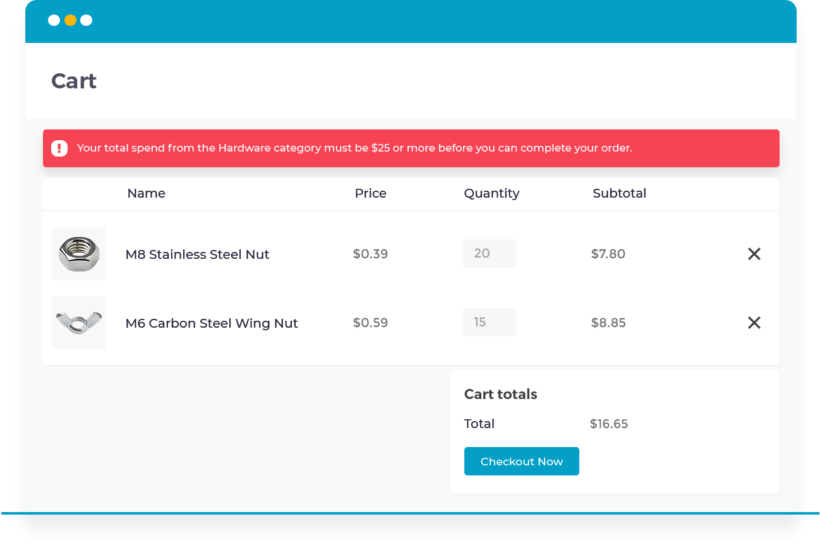
For example, you can set a minimum order quantity or value to prevent customers from placing small orders. Alternatively, you can set minimum quantities for the whole order or per category, product or variation.
Either way, WooCommerce Quantity Manager helps you to guarantee your profit margins by stopping customers from placing non-bulk orders.
Bonus tip #2 - add quick view links to your product tables
Bulk add to cart plugins are all about helping customers to buy as quickly as possible. So what happens if you have too much information, or too many product options, to fit in the product table? Obviously, you don't want customers to have to visit the single product page. After all, this would slow down the buying process and defeat the purpose.
Instead, you can enhance your product tables with the WooCommerce Quick View Pro plugin. This handy plugin works hand-in-hand with WooCommerce Product Table and your bulk add to cart buttons. It adds quick view buttons or links to the product tables. Customers can view more product information and purchase options in a quick view lightbox. They can then either select variations and add to the cart directly in the popup, or they can quickly close it and use the bulk add to cart buttons in the product table.
Bonus tip #3 - a quick popup cart
Adding products to the cart in bulk lets customers order more quickly and easily. However, they can still lose time completing the standard multi-page WooCommerce cart and checkout.
To optimize the second half of the customer purchase process, I recommend installing WooCommerce Fast Cart. This plugin displays the WooCommerce cart and checkout in a popup after customers add products to the cart in bulk. They can complete their order from directly within the popup. This is so much faster than having to visit several pages after adding products to the cart.
Install WooCommerce Fast Cart for an on-page cart and checkout.
Now you can create your own WooCommerce bulk add to cart buttons!
Now you know everything about how to use a bulk add to cart WooCommerce plugin. It's the easy way for customers to add more than one products to the cart at once. As you have seen, it will really speed up the buying process on your store.
Research shows that faster customers can use an e-commerce shop, the higher your conversion rate and sales will be. Test the add to cart checkboxes on our WooCommerce quick order form demo. Get the plugin today and add bulk add to cart buttons to your WooCommerce store straight away!
Whether you're looking for a WooCommerce catalog mode plugin that displays products without purchase options, or lists them in a catalog-style format, we've got you covered. In this complete guide, I'll show you how to create both types of WooCommerce product catalog.
The phrase "WooCommerce catalog mode" can be a bit confusing. That's because people use it to refer to different things:
Catalog mode definition 1: Showing products in an online store without ecommerce functionality - either globally or so that certain user groups can view but not purchase.
Catalog mode definition 2: Displaying products in a structured table-based layout which replicates traditional printed product catalogs.
Whichever type of WooCommerce product catalog you want to create, I'll show you how to do it.
We'll use the YITH WooCommerce Catalog Mode plugin to achieve definition 1; and WooCommerce Product Table for definition 2. You can either use them alone, or together if you want to list products in a structured table with purchasing disabled. Either way, you can easily put your store in catalog mode without writing any custom PHP or CSS.
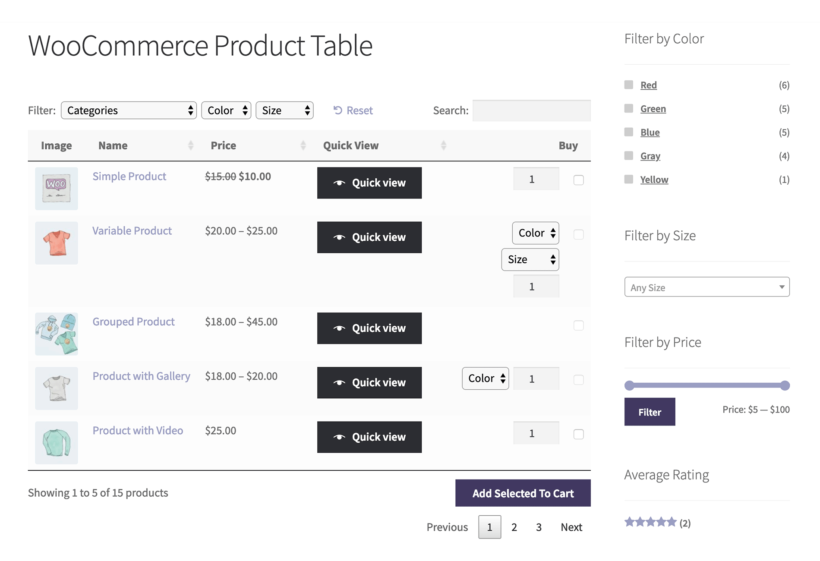
A structured WooCommerce product catalog created with the Product Table plugin
Option 1: Put WooCommerce in catalog mode with purchasing disabled
This definition of catalog mode involves creating a WooCommerce store in which products are available for everyone to view, but not everyone can purchase them. You might disable purchasing for all users, or guest users without an account.
For example, many WooCommerce wholesale-only stores like public users to be able to browse their full product catalog, but only approved wholesalers can purchase. Alternatively, you might want to disable online ordering if customers can only buy from you in person or over the phone.
Next, I'll tell you about a choice of 2 excellent plugins which you can use to put WooCommerce into catalog-only mode.
WooCommerce Wholesale Pro
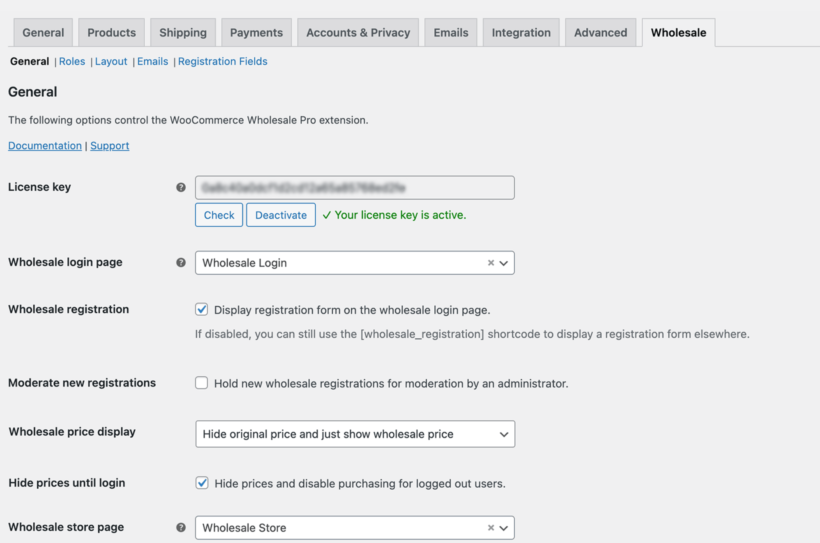
If you're running a wholesale store, then WooCommerce Wholesale Pro has everything you need. It has a 'Hide Price Until Login' feature which puts the store into catalog mode for all logged out users. When they log into their account, the prices become visible and people can purchase the products.
This is how to set it up:
Purchase and install WooCommerce Wholesale Pro on your WordPress site.
Go to WooCommerce → Settings → Wholesale.
Enable the 'Hide prices until login' checkbox.
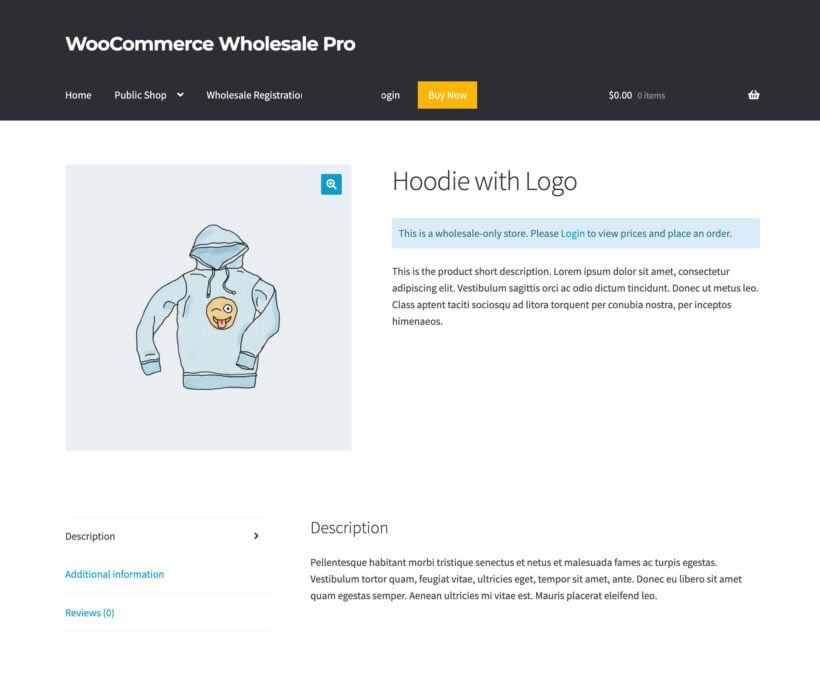
When wholesale users log into their account, they will see the products with prices and add to cart buttons as usual. Everyone else will see the products listed without prices or buy buttons. You can optionally display a notice which non-wholesale users will see, like this:
For non-wholesale stores, the YITH WooCommerce Catalog Mode plugin offers an excellent way to put stores in catalog mode.
It disables the ability for some or all of your customers to order from your WooCommerce store. The products are listed in catalog-only format, without the usual ecommerce functions.
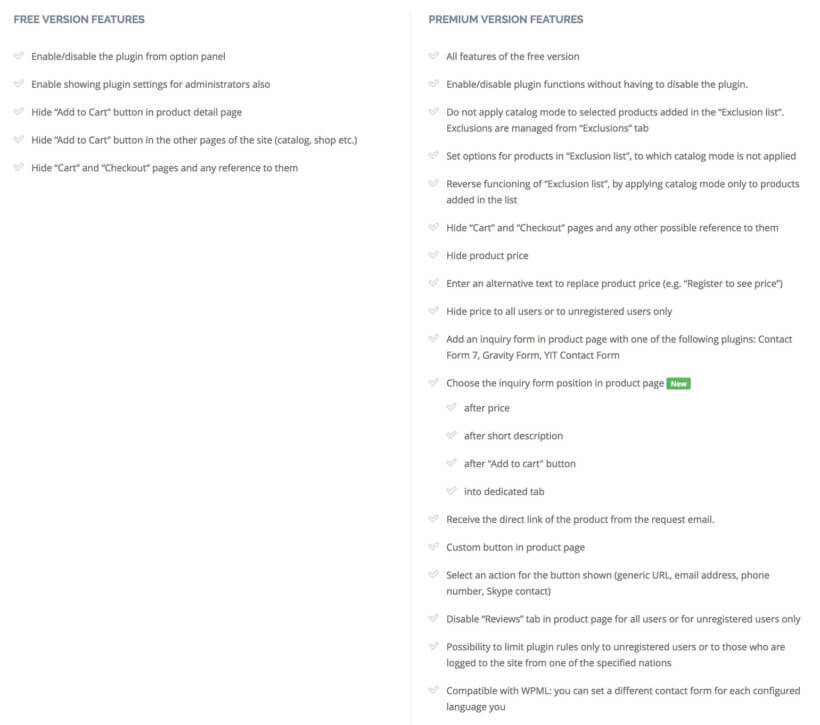
The free plugin is perfect for testing out the waters. The premium version has lots of extra features. For example, it lets you enable catalog mode for users without an account only:
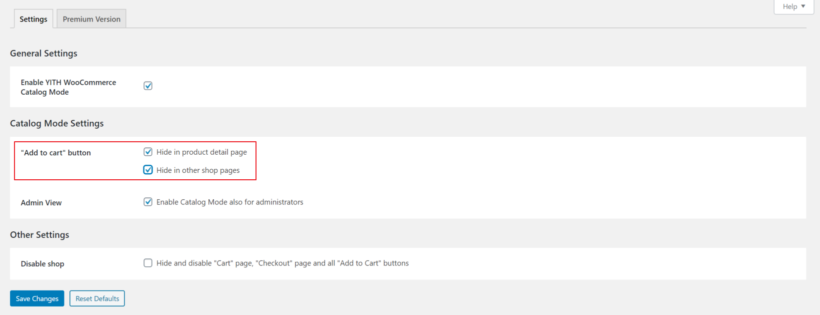
Head over to YITH → Catalog Mode in the WordPress admin dashboard.
From the Settings tab, configure the following plugin settings:
Make sure the checkbox next to Enable YITH WooCommerce Catalog Mode is ticked.
Tick the checkbox next to the Hide in product detail page option.
Tick the checkbox next to the Hide in other shop pages option.
Optionally, you can choose to tick the checkbox next to the Hide and disable “Cart” page, “Checkout” page and all “Add to Cart” buttons. This essentially lets you remove e-commerce features (i.e. cart and checkout pages) from your WooCommerce store.
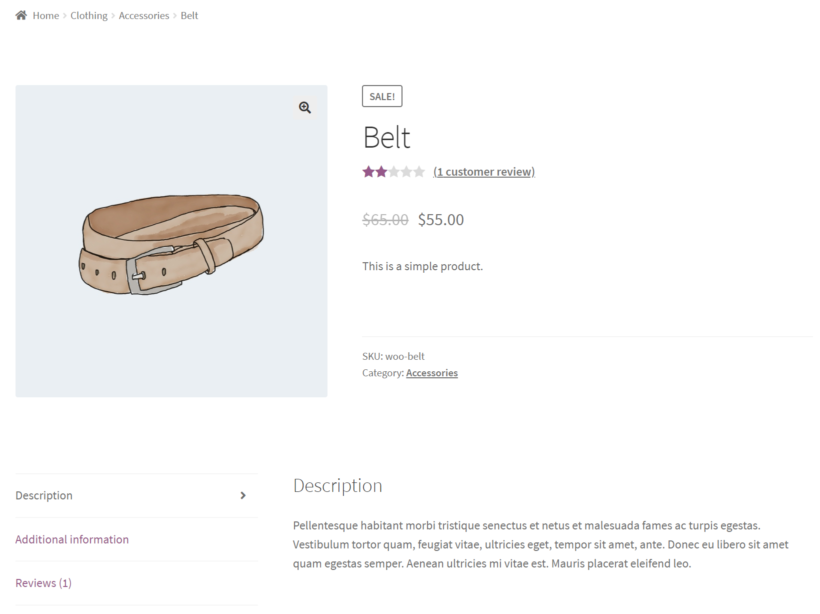
Customers can see your WooCommerce products listed in catalog mode, without an option to buy. Once they click on a product, they will be redirected to the single product page. Alternatively, you can choose to redirect them to a custom URL.
The YITH catalog mode plugin removes add to cart buttons and prices from single product pages. This means customers won’t be able to add products to cart from the product table or from the single product page. However, they can view all product details from individual product pages. Of course, it also disables the cart and checkout pages.
Option 2: Create an interactive catalog with WooCommerce Product Table
Now, we get to the second definition of "WooCommerce catalog mode". This refers to displaying your products in a structured catalog layout, similar to a printed product catalog. We'll do this using the WooCommerce Product Table plugin.
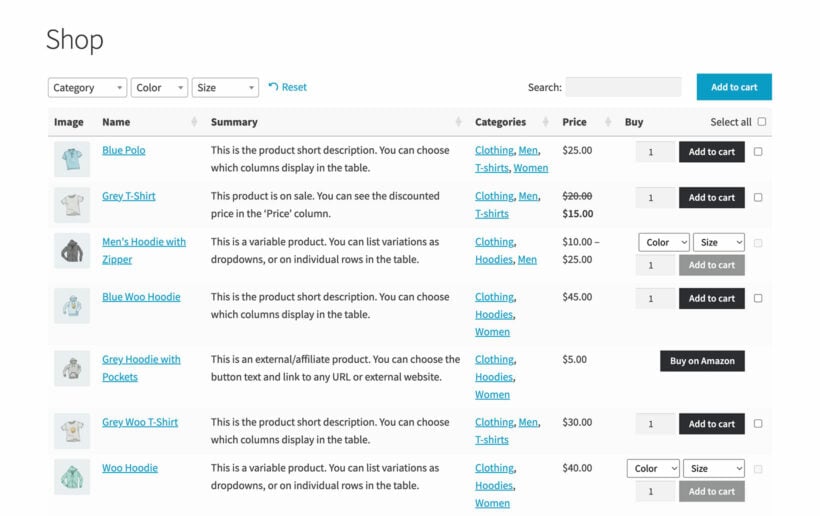
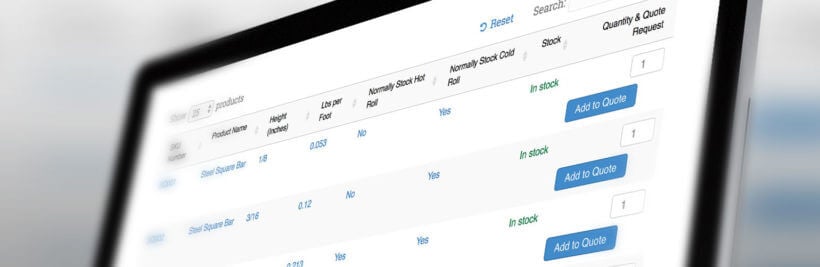
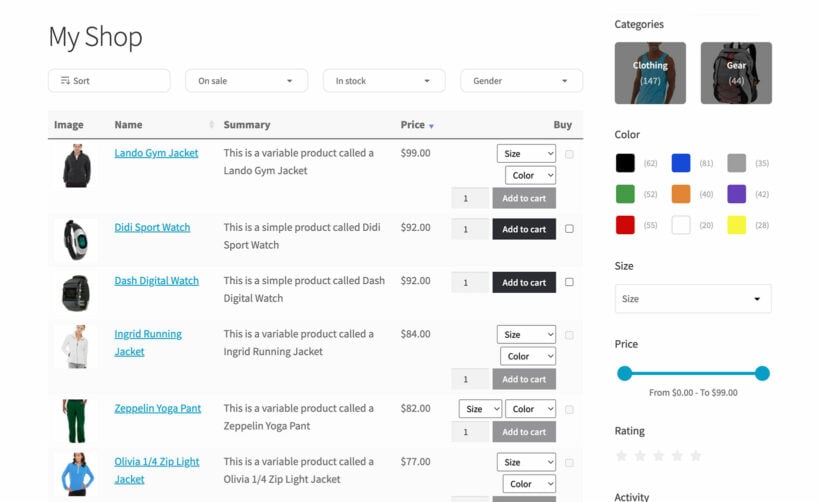
WooCommerce Product Table is incredibly flexible. You can choose what product data to display, change the sort order, and much more. You can list products in a fully functional catalog-style order form like this:
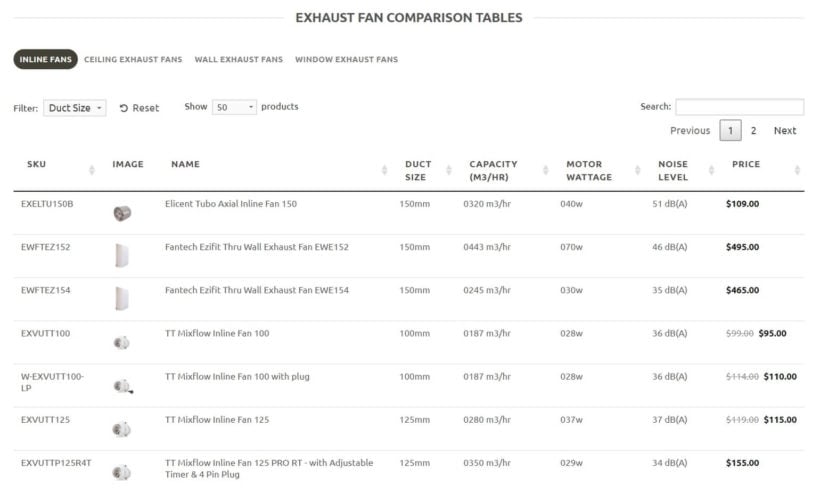
Alternatively, you can list products without prices, add to cart buttons or links to the single product page like this:
Either way, this type of WooCommerce catalog plugin is ideal for creating a 1-page view listing some or all of your products. It makes it easy for customers to sort products and find what they're looking for.
A catalog layout displays products in a neater and more compact way to the default Woo store layout. This makes it possible to display more products per page, so customers can view them all together. It's perfect if you need a larger WC product catalog table, for example if 100's or 1,000's of products.
This type of product catalog layout has many possible uses, such as:
WooCommerce order form - Your product catalog can include Add to Cart buttons or tick boxes to add multiple products to the cart. This lets it double as a fully functional order form for WooCommerce. Or you can hide the add to cart facility to create a read-only WooCommerce catalog.
Product directory - A product catalog can also function as a complete WooCommerce directory, with large numbers of products listed in an easy-to-find format.
WooCommerce wholesale- Use it with the WooCommerce Wholesale Pro plugin to list all your wholesale products in a structured catalog layout to help trade users quickly find and order their products.
1. Setting up a product catalog table
Next, I'll show you how to list products in a table-based catalog. This is all about the layout, and doesn't affect whether or not people can purchase your products. (However, you can do this by choosing not to include an add to cart column in the table and by disabling the links to the product page.)
Watch this video about how to add a catalog-style table to your site, or read the instructions below:
Go to Products → Product Tables → Add New to launch the table builder.
On the first page, choose whether you want to enable the product catalog view for your main shop pages, or add the catalog manually to another page.
You can then use page 2 to either select which shop pages to display the catalog on; or to select which products to include in the catalog.
2. Customizing the catalog display
The next step of the product table builder lets you choose which product data to include in the catalog. Add columns as needed:
If you want your products to be purchasable from the catalog page, then include an Add to Cart column.
You can also edit each column name. Disable the 'Show column heading' toggle to prevent people from clicking through to single product pages. This is a good idea if you're using WooCommerce Product Table as a read-only catalog, as single product pages contain 'Buy' buttons. (Tip: If you want to use catalog-only mode and single product pages, then use WooCommerce Product Table together with YITH WooCommerce Catalog Mode. This disables the add to cart buttons from the single product page, too.)
3. Adding search and filter
The 'Search & sort' step of the table builder lets you add filters which appear above the WooCommerce product catalog. Add filters if you'll be displaying lots of products on the same page of the catalog:
Tip: The product catalog plugin also supports all the WooCommerce filter widgets. These include a widget to show the active filters, a layered nav filter listing product attributes, a price slider and ratings filter:
4. Add the WooCommerce product catalog to a page
Ignore this step if you already enabled the product catalog on your main shop pages.
Now, go to the page where you want to display the WooCommerce product catalog. Add a 'Product Table' block. Or, if you're not using the WordPress block editor, then get a shortcode from Products → Product Tables and insert that instead.
Publish the page and click View Page to see your WooCommerce catalog table. You'll see a dynamic catalog listing all your WooCommerce products.
Example without online purchasing:
Example with online purchasing:
Advanced catalog features
Role-based pricing
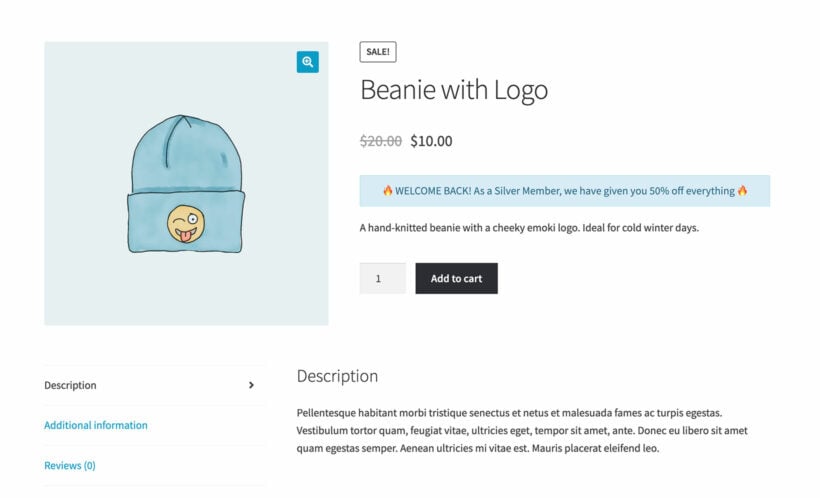
Lots of stores that use catalog mode like to charge different prices to different types of user. Wholesale stores can use the WooCommerce Wholesale Pro plugin for this, which we discussed earlier. Alternatively, other types of store might prefer the WooCommerce Discount Manager plugin. This provides a wide range of discounts and deals which you can create for specific user roles only.
Other stores that use catalog mode need a way for customers to request a quote. That way, they can disable purchasing while allowing customers to request pricing and then order later.
Before we finish, I should mention that there's actually a third definition of WooCommerce catalog mode. It involves creating a WooCommerce PDF catalog, which lists downloadable PDF documents on the product page.
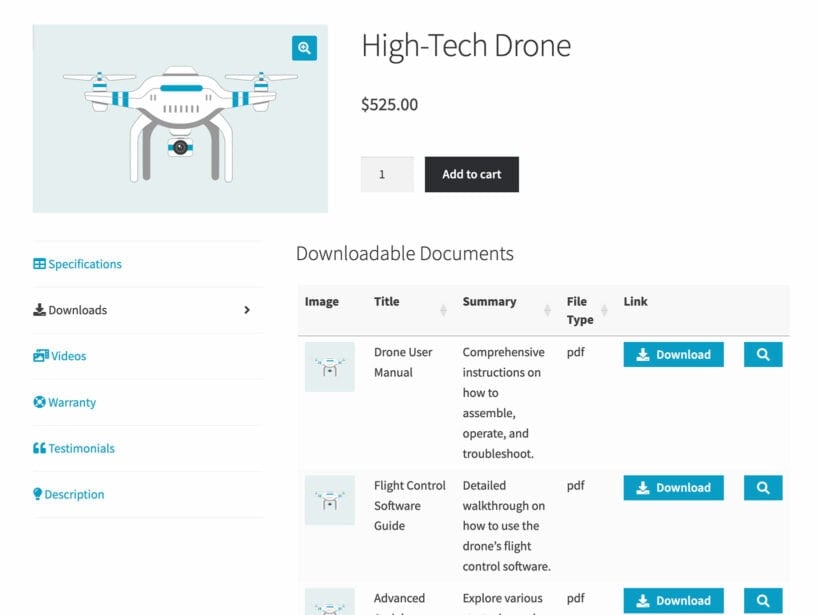
This is a different type of product catalog because it involves listing PDF's in a catalog, instead of listing actual products. You can easily do this by installing the Document Library Pro plugin. Upload your PDF's, categorize or tag them based on which products you'll display them on, and then insert the appropriate WooCommerce PDF catalog into the product description.
To make the best use of space on the product page, it's best to add the PDF library to a dedicated 'Downloads' tab on the product page. You can do this with the WooCommerce Product Tabs plugin, just like we did in this screenshot:
Next steps: Get started with WooCommerce catalog mode
In this tutorial, I have shown you 2 ways to create a WooCommerce product catalog:
Alternatively (or as well!), use WooCommerce Product Table to list products in a structured table, either with or without online purchasing.
Whichever type of catalog mode you're adding to WooCommerce, follow the above instructions to get up and running in no time 🚀
Discover the best free and premium WooCommerce custom add to cart button plugins, and how to choose the right one for your store.
One of the most important features of any e-commerce store is the "add to cart" button, which allows customers to easily add items to their shopping cart and continue shopping. While WooCommerce offers a default add to cart button, many businesses may want to customize this button to appeal to their customers more effectively. In this article, I will explore the best free and pro plugins available for customizing the WooCommerce add to cart button. I'll also help you choose the one that's right for your business.
To give you plenty of options, I'll focus on three plugins which take different approaches to customizing the add to cart button:
WooCommerce Custom Add to Cart Button (free plugin) - Change the 'Add to Cart' button text, replace the add to cart text with an icon, or add an icon alongside the button text.
Express Shop Page (premium plugins) - Extend the add to cart button on the shop page by adding quantity and variation pickers.
WooCommerce Product Table (premium plugin) - Make it quicker and easier to add products to the cart by listing them in a fast one-page order form. It comes complete with multiple add to cart buttons, quantity fields and variation pickers for true one-page shopping. Use it alone or with the free WooCommerce Custom Add to Cart Button plugin.
Keep reading to learn more about these options, and choose which one(s) to install on your store for the best results.
Why customize the WooCommerce add to cart button?
There are lots of reasons why store owners might want an option in WooCommerce to upgrade the add to cart button.
For example:
Do you feel that the 'add to cart' text wording doesn't quite fit with your brand? For example, a lot of WooCommerce store in the UK change the button text to 'add to basket'. Think about what custom add to cart text would work better for you.
Are you using another plugin to change the function of the WooCommerce add to cart button? This could be through a course bookings plugin, events plugin, add to quote plugin, etc. If so, you might want to reword the Add to Cart text with something more relevant, such as 'Buy Now', 'Enrol Now', 'Book a Place', 'Add to Quote' or 'Make an Enquiry'.
Are your customers frustrated by the basic add to cart buttons on the Shop page, which don't let you change quantities or choose variations? If so, then you might want to extend these using a plugin like WooCommerce Express Shop Page. This brings all the usual product options onto the shop page, instead of having standalone add to cart buttons.
If you've used our Product Table plugin to create a WooCommerce order form, then you might want to remove the Add to Cart text and replace it with a simple cart icon for each product.
A website using the free Custom Add to Cart Button plugin with WooCommerce Product Table
Or maybe you just want to change the capitalization of the add to cart text, for example from lowercase to uppercase or vice versa.
Whatever your reason for wanting to change the add to cart link in WooCommerce, you can do it with the free WooCommerce Custom Add to Cart Button plugin.
Option 1: Change the add to cart text and add an icon
WooCommerce Custom Add to Cart Button is a 100% free WordPress plugin for customizing the add to cart button. It comes with all the essential features for customizing the WooCommerce add to cart button text and adding a cart icon:
Change the wording of the WooCommerce add to cart button text.
Add a high definition (retina) WooCommerce cart icon alongside the text.
Hide the add to cart text and just have an icon.
It's super-simple and lightweight, so it won't weigh down your site.
Here are some examples of the plugin in action:
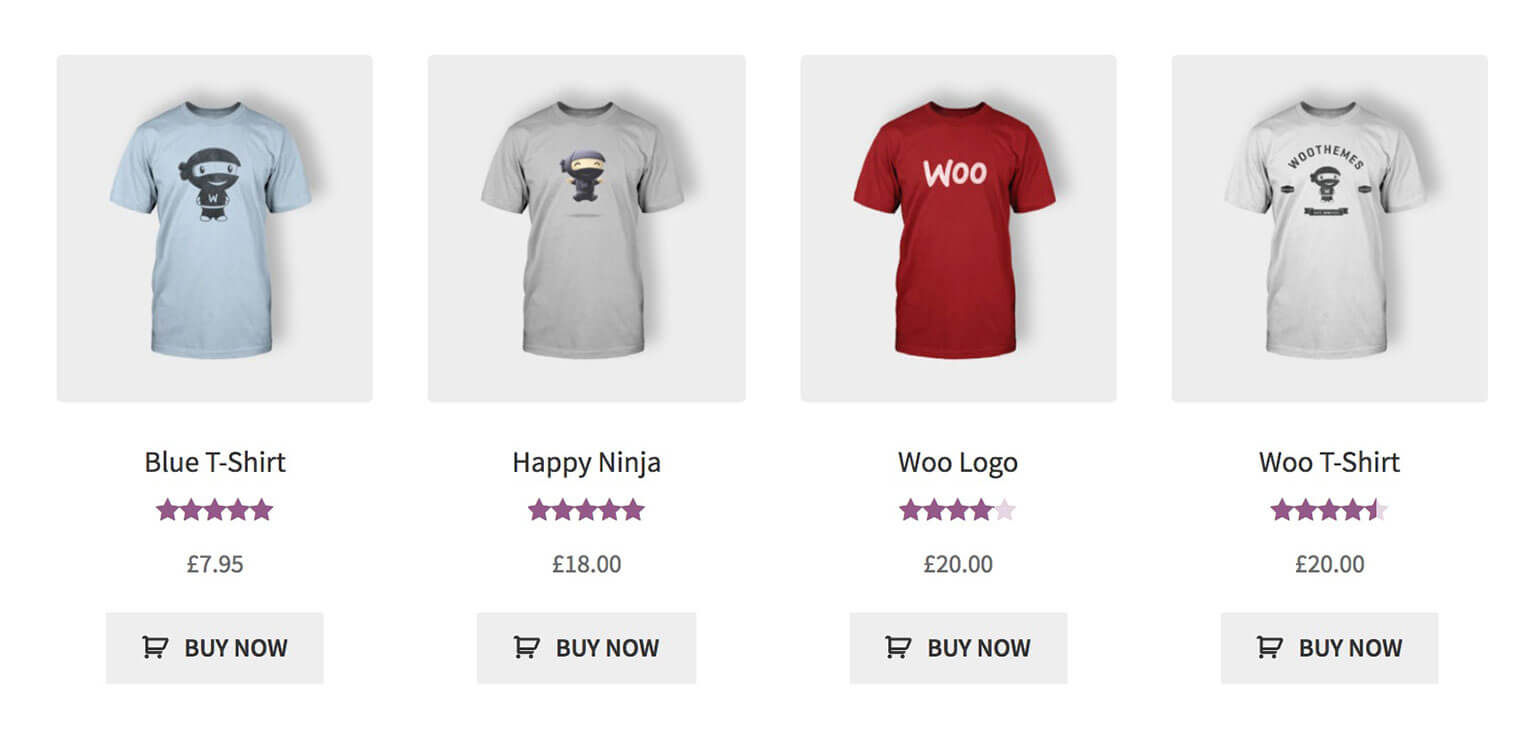
'BUY NOW' text with cart icon
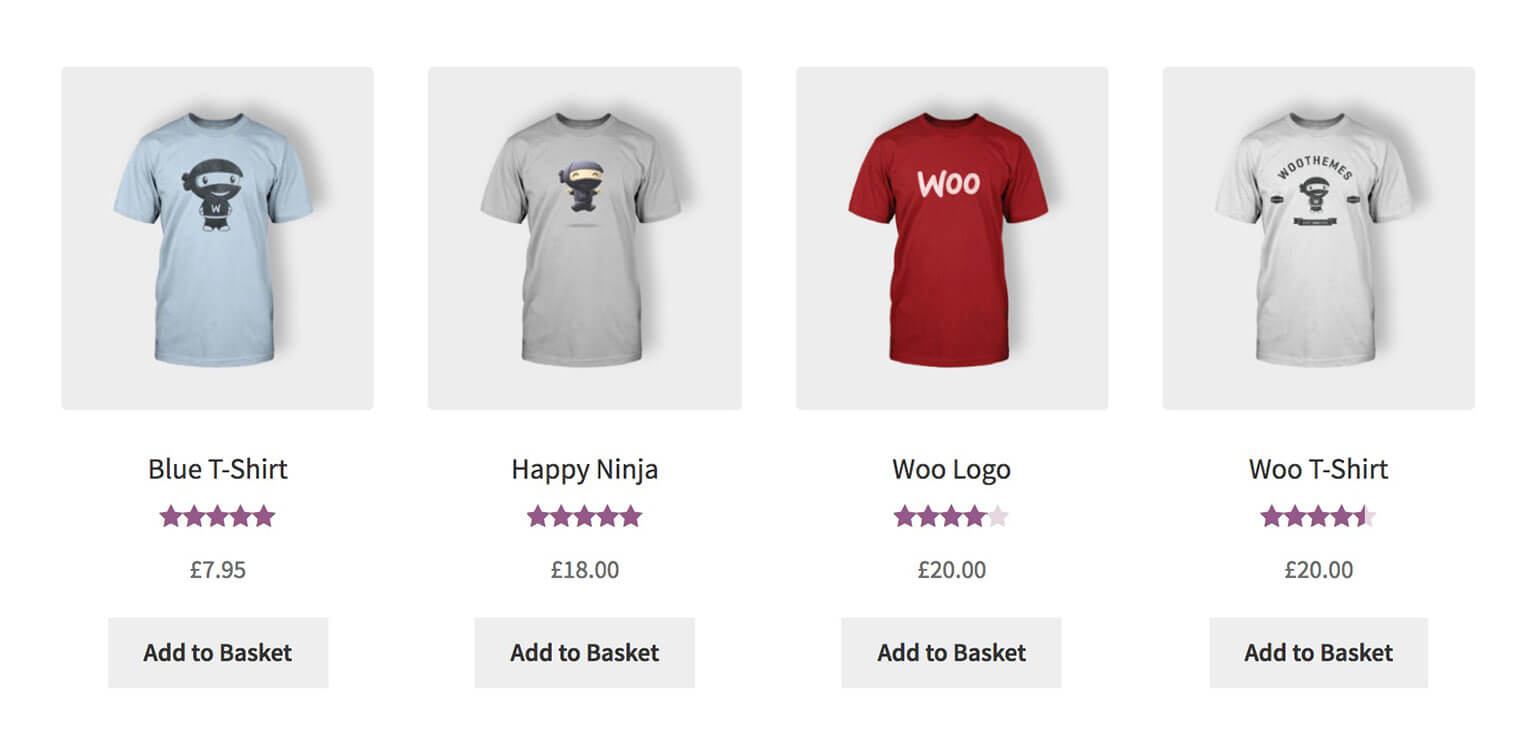
'Add to Basket' button text
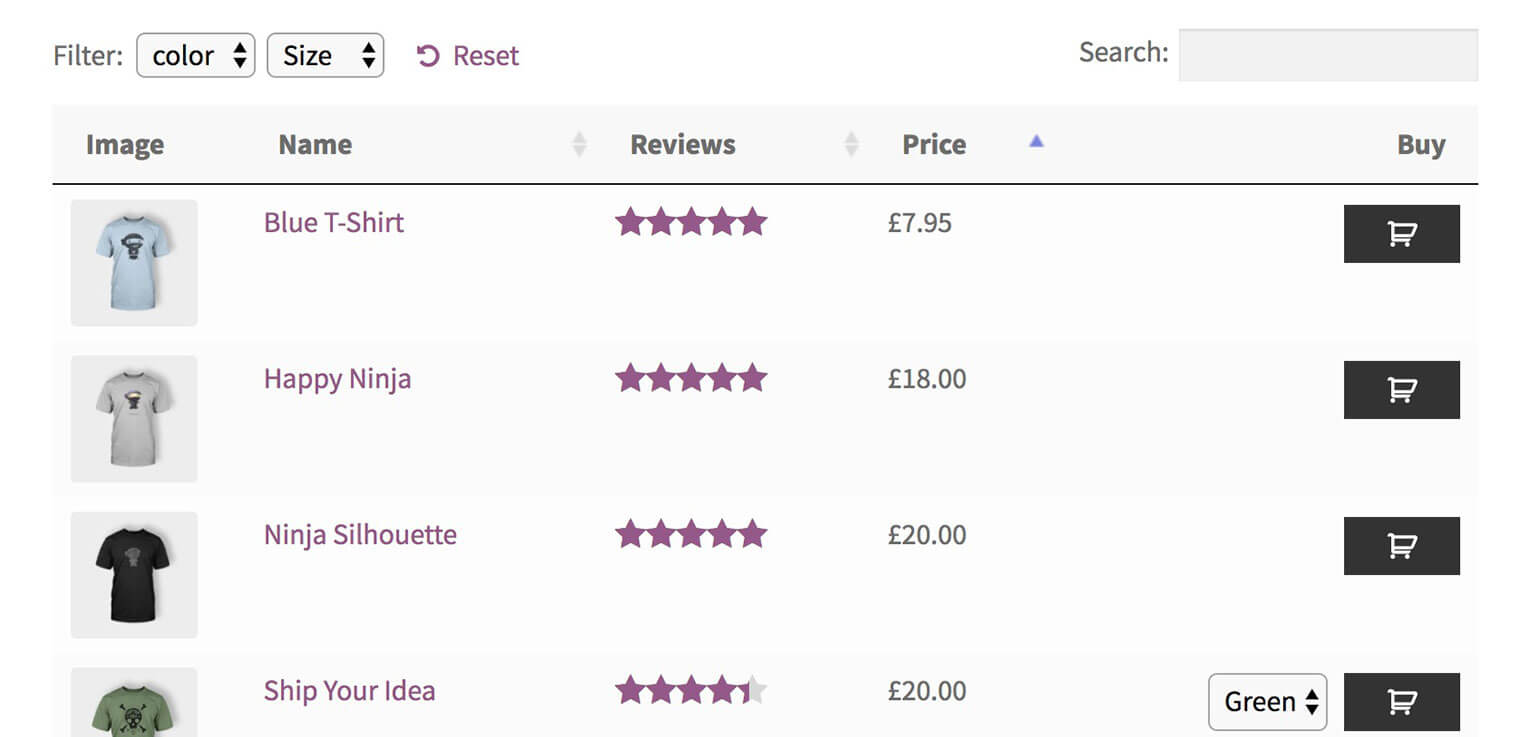
Integration with the WooCommerce Product Table plugin with cart icons
How to create WooCommerce custom add to cart buttons
Log into the WordPress Dashboard and go to Plugins → Add New.
Search for 'WooCommerce Custom Add to Cart Button'.
Install and activate the plugin of this name by Barn2 Media.
Go to Appearance → Customizer → WooCommerce → Add to Cart. Here, choose the options for your custom WooCommerce add to cart buttons.
Option 2: Add quantity and variation pickers to the Shop page add to cart button
WooCommerce puts add to cart buttons on your main product listing pages, such as the main Shop page and your category pages. However, these are pretty useless as they come! That's because clicking the add to cart button only adds 1 of each product to the cart - there's no way to choose a quantity. It's even worse for variable products, which show a 'Select options' button linking to the single product page.
It's much better to allow customers to choose quantities and variations directly on your Shop and category pages.
Fortunately, you can easily do this with the WooCommerce Express Shop Page plugin. It adds variation dropdowns and quantity pickers to the shop page like this:
As you can see, customizing the basic add to cart button in this way makes it much easier to add products to the cart.
Option 3: Create one-page order forms with custom add to cart buttons
So far, we've discovered two plugins for customizing the WooCommerce add to cart button. These create a custom button without changing the overall layout of your products.
The WooCommerce Product Table plugin takes things to the next level. It takes your products and displays them in a quick one-page order form for faster shopping.
WooCommerce Product Table is a powerful solution for taking your custom add to cart buttons to the next level. This plugin offers a unique approach to product displays by creating a table format. This allows customers to purchase products directly from the main shop page. As a result, there's no need to click through to individual product pages.
Why should I use custom add to cart buttons in a product table?
Product tables are a good addition to your store because:
There are a variety of purchasing options. These include the ability to select product variation and choose quantities. As a result, customers can quickly add products to the cart directly from the order form. This enhances the customer experience by streamlining the purchasing process. It also helps to increase conversions by reducing the number of clicks required to make a purchase.
You can also add WooCommerce custom fields to the product table, such as SKU, weight, and dimensions. Add multiple columns to provide customers with additional information.
It is highly customizable, with a range of options to control the appearance and functionality of the product table. You can choose which columns to display in the table, enable filters and sorting, and even add product search functionality.
As you can see, this gives you a lot of conversion-boosting flexibility compared the default WooCommerce shop page. Bringing the full range of add to cart options to the main shop page can help to increase conversions. The end result: driving more sales for your business.
Which WooCommerce add to cart plugin should I use?
In conclusion, customizing the WooCommerce add to cart button is a crucial step in improving the shopping experience for your customers. By using the free WooCommerce Custom Add to Cart Button plugin, you can easily change the button text and add an icon, helping to improve the design and functionality of your website.
Additionally, the WooCommerce Product Table plugin takes things one step further by bringing the full range of add to cart options directly onto the shop page. This allows customers to purchase products without having to navigate to individual product pages.
While each of these plugins offers its own unique set of features, they work best when used together. Combine them to create a highly customized and streamlined shopping experience for your customers. This will help to conversions and drive more sales for your business.
So why wait? Try them out today and see the difference they can make for your WooCommerce store!
One of our WordPress clients was recently concerned that there were gaps in the ID numbers of the orders on her WooCommerce website.
At first, I assumed that the missing order numbers were due to some test orders that we had deleted as part of the web design process. However, it kept happening so we investigated and discovered a simple plugin to fix the problem.
Why are my WooCommerce order numbers not sequential?
The answer is fairly obvious if you know how WordPress works behind the scenes. However it wasn't obvious to me - and millions of people use WooCommerce, so I'm sure I wasn't alone. I'm writing this post for anyone who is wondering about missing order numbers on their WooCommerce website.
Gaps in WooCommerce order numbers are not caused by a bug or error with the website. In fact, order numbers are not supposed to be sequential.
The way it works is that EVERY item in the WordPress database is given a unique ID number, which is allocated sequentially. This includes orders, pages, posts, images etc. so the numbers are not just used for orders.
For example, someone may place an order which is assigned the ID 17004 and then you might add a new post which is given the ID 17005. The next person who places an order will be assigned the ID 17006, so 17005 will look like a missing order number. It's not a missing order number - 17005 has simply been used for a post instead of an order.
This means that looking at the order numbers is not a good way to track your WooCommerce orders.
What's the alternative?
The WooCommerce Sequential Order Numbers plugin fixes the problem. It allocates custom order numbers to your WooCommerce orders. These are sequential - with no gaps - as they're not used for anything else. They work by creating a dedicated 'order number' field in the database which is separate from the WordPress ID.
This simply plugin is really handy if you want your WooCommerce orders to be sequential.







 We're delighted to announce that WPML, the market leading WordPress multilingual system, have formally tested our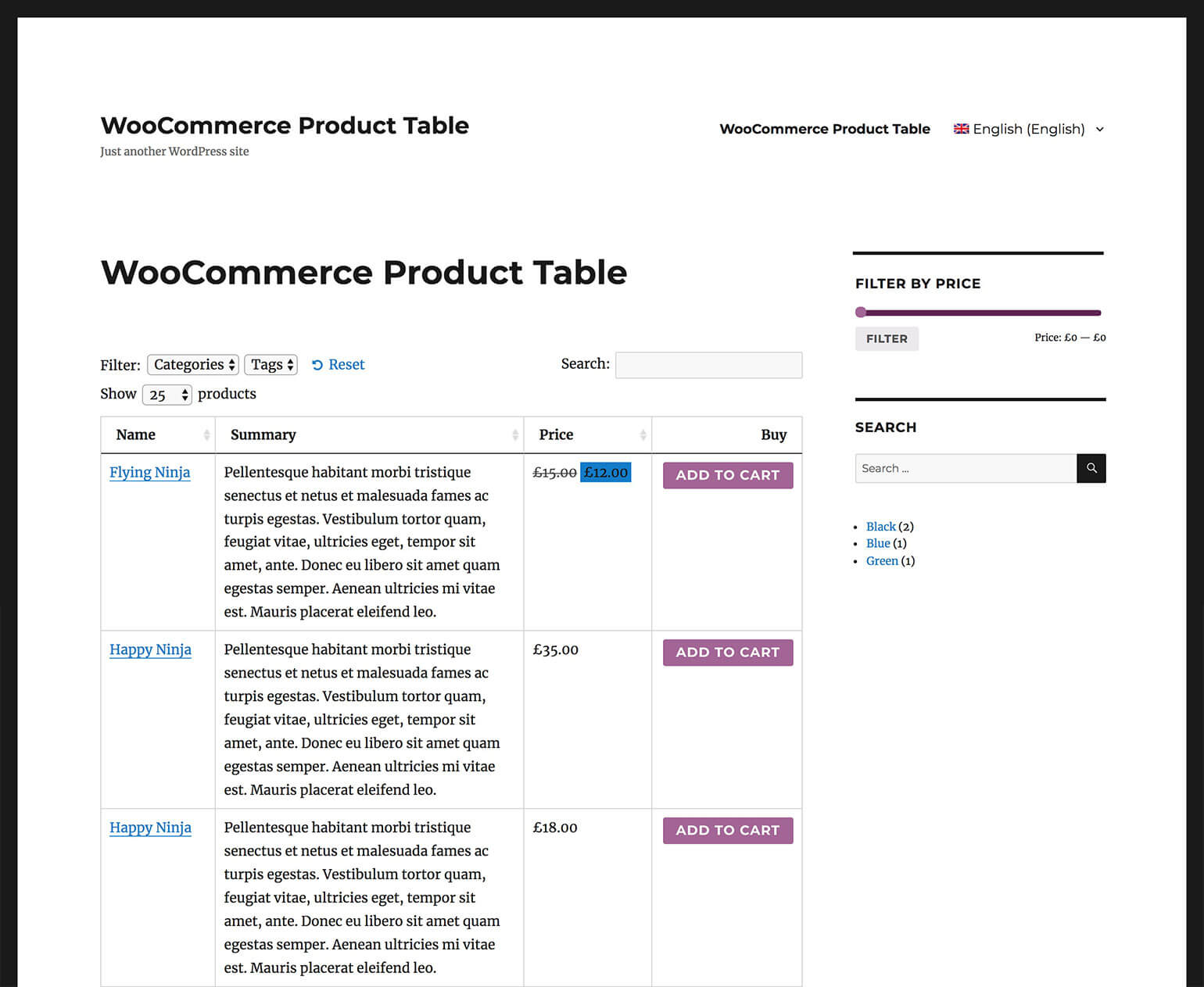




 The phrase "WooCommerce catalog mode" can be a bit confusing. That's because people use it to refer to different things: