A detailed comparison of the best Dropbox plugins for WordPress


Searching for the best WordPress Dropbox plugin? My top pick is Document Library Pro, which displays your Dropbox-hosted files in a searchable, filterable library that stays in sync automatically.
If you want to sync files between your WordPress site and Dropbox account, there is no direct method to do so without a plugin.
The best WordPress Dropbox plugin for you depends on what you want to do with your files: display them on your site, sync them to your media library, or manage them from your dashboard. I'll go through each option below, then show you step by step how to embed Dropbox-hosted files in a searchable library with Document Library Pro.
Quick verdict: the best WordPress Dropbox plugins
Short on time? Here is where each plugin fits.
- Best for displaying Dropbox files Document Library Pro lists files hosted on Dropbox in a searchable, filterable table or grid that visitors can browse without a Dropbox account. Its cloud version can also sync an entire shared Dropbox folder automatically, with no API keys or account connection.
- Best dedicated Dropbox plugin Out-of-the-Box connects directly to your Dropbox account and embeds folders, galleries and media players anywhere on your site.
- Best for managing Dropbox files The File Manager Pro Dropbox add-on lets you move files between your server and Dropbox from inside your WordPress dashboard.
- Best for two-way sync WP Media Folder genuinely syncs files both ways between Dropbox and your WordPress media library.
Evaluating these Dropbox plugins
Dropbox plugins do very different jobs. I compared them on what decides which one fits your site:
- The kind of Dropbox integration they offer, whether that is displaying files, syncing them, or managing them from the dashboard.
- How easy they are to set up if you are not a developer.
- The file types and front-end presentation they support.
- Access control and security options.
- Pricing, and whether there is a free version.
- Whether the plugin is still actively maintained.
I have left out plugins that are no longer safe to recommend, such as any that have been pulled from the WordPress.org plugin repository.
The best Dropbox plugins for WordPress
Here are the best WordPress Dropbox plugins. Continue reading for an in-depth summary of each one.
- Document Library Pro: best for displaying Dropbox files in a searchable library
- Out-of-the-Box: best dedicated Dropbox display and embed plugin
- File Manager Pro Dropbox add-on: best for managing Dropbox files from your dashboard
- WP Media Folder: best for genuine two-way Dropbox sync
1. Document Library Pro

Document Library Pro is our top pick for displaying Dropbox-hosted files on your WordPress site. Thousands of sites use it to embed and manage files which can be either hosted on their own site or on Dropbox, Google Drive, YouTube, Vimeo, Wistia, or any other platform.
It is also our own plugin, and it is a strong fit when you want to display Dropbox files in a searchable library.
This plugin is great for users who need a searchable document management solution integrated with Dropbox. It is suitable for all types of sites, including educational, corporate, non-profit, healthcare sites, and others.
Although this guide focuses on the WordPress plugin, Document Library Pro also comes as a cloud version for sites built on other platforms. This means you can list your Dropbox files in a searchable library whether or not you use WordPress.
The cloud version syncs an entire shared Dropbox (or Google Drive) folder into your library automatically. You paste the folder's share link into a document category, and every file in the folder becomes a searchable, downloadable document. Subfolders become subcategories, and the library stays in sync with the folder from then on. We built folder sync because adding an existing folder full of files one by one was the slowest part of setting up a library.
Folder sync needs no API keys, no app creation and no account connection, unlike the other Dropbox plugins in this comparison. All it needs is the folder's share link. It is available on the cloud version's Advanced plan, and we are bringing it to the WordPress plugin too. My guide to embedding a Dropbox folder on your website walks through the full setup.
Please be aware that folder sync works from the folder's 'anyone with the link can view' share link. As a result, it is best for files you are happy for your library visitors to see, although you can still protect the library itself with a password.
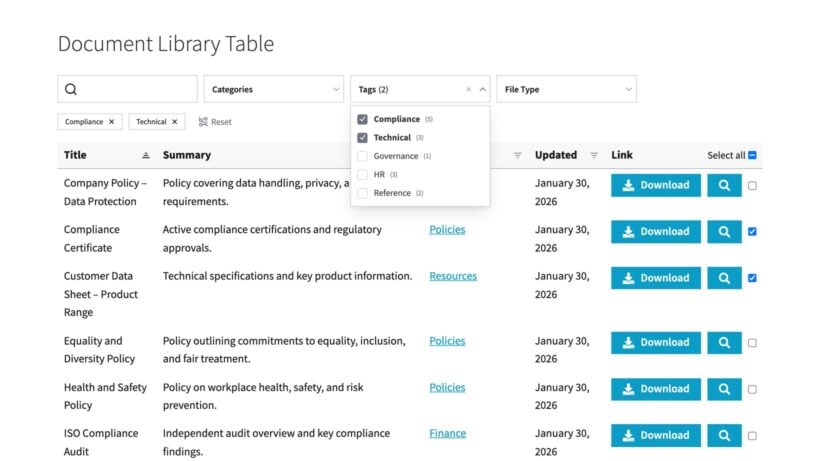
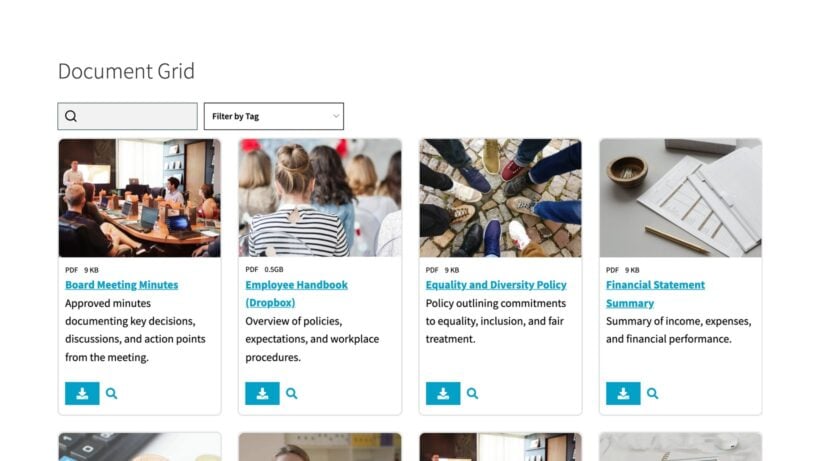
Unlike other WordPress Dropbox plugins, Document Library Pro is about listing multiple Dropbox files in a searchable library. It does this by displaying them in either a table or grid format, both with user-friendly search and filtering.
You can add Dropbox files to your site individually, or in bulk using a CSV file. Other features include support for various file types, customizable layouts, user access control, file previews, and much more.
Everything is easy to set up and use, even if you're not tech-savvy.
Here's a quick preview of the table layout:
And the grid layout:
An overview of Document Library Pro's top features
- It supports any file type and format, such as documents (PDFs, DOCs and XLSXs), images (JPEGs, PNGs and GIFs), videos (MP4s, MOVs), audio (MP3s, WAVs), archives (ZIPs, RARs), and even lesser-known ones.
- It lets you add files to your site one by one or bulk-upload them via a CSV file to save time and effort.
- You can embed and manage files hosted on Dropbox as well as other external platforms like Google Drive, Vimeo, YouTube and more.
- It lets you set up access control and privacy options to protect sensitive files.
- You can present files hosted on Dropbox in a beautiful and functional table or grid on the front end of your WordPress website.
- It comes with a host of advanced file management features, such as previews, Dropbox download links, version history, and more.
- You can add additional details and metadata for each Dropbox file which is useful for site visitors and search engines.
- It automatically inherits your WordPress site's theme, so it fits in with the rest of your content, with no extra design tweaks needed.
As an added bonus, Document Library Pro's extensive features make it ideal for a wide variety of use cases, including creating a PDF library, audio library, document library, image gallery, and more. So you get more bang for your buck.
How to add the Dropbox files into Document Library Pro
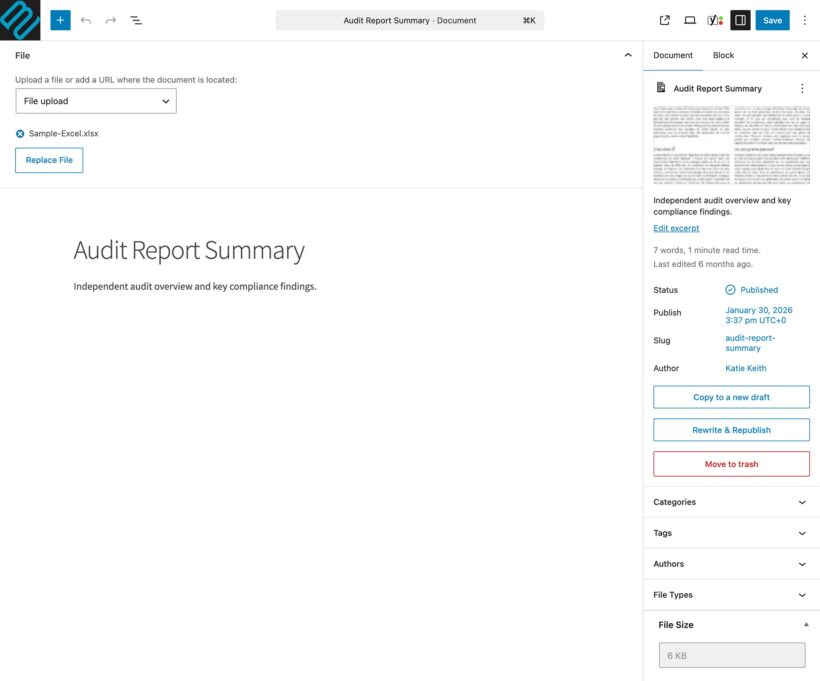
The easiest way to add Dropbox files to Document Library Pro is to use one of the built-in methods for adding documents, and adding the URL of the file on Dropbox.
For example, if you're adding documents one-by-one then you can select the 'File URL' method and add the URL to the field that appears on the 'Add Document' screen. That way, each document will have a download button linking to the Dropbox file (plus a preview button, depending on the file type).
Once a document links to a file hosted on Dropbox, it stays in sync automatically. Whenever you update that file on Dropbox, your WordPress document library serves the latest version, with no manual re-uploading.
If you also want brand-new Dropbox files to be added to your library automatically, the cloud version's folder sync does that for you. For the WordPress plugin, you can connect the two with an automation tool. I have covered that in the bonus section below, and there is a full tutorial too.
Reviews
Here are some user reviews about Document Library Pro:
- Enabled us to provide access to a lot of resource / reference materials using a simple, familiar presentation approach. Easy to setup.
- This plugin is wonderful! It enabled me to build a document database exactly suited to my needs. And, thanks to a very fine granularity, I can give access to my customers, while selecting only the fields I want them to see. Last but not least, the customer support is really outstanding! They always found solutions to your problem – even if the plugin itself is not in the issue. Thanks!
Document Library Pro pricing
Document Library Pro is a premium plugin with a choice of Essentials or Advanced plans, each with different features.
Pros and cons
Pros:
- Lists unlimited Dropbox-hosted files in a searchable, filterable table or grid that visitors can browse without a Dropbox account.
- Supports any file type, bulk CSV import, file previews, version history and user access control.
- Files linked from Dropbox stay in sync, so updating a file on Dropbox updates it in your library automatically.
- Inherits your theme styling, so it looks at home on any site.
Cons:
- The WordPress plugin does not connect to your Dropbox account, so it will not discover new Dropbox files on its own. You add each file's URL yourself or automate it with Zapier. Folder sync removes this step in the cloud version, and it is coming to the WordPress plugin.
- There is a short learning curve to the initial setup if you are not technical, though the setup wizard and the tutorial below walk you through it.
2. Out-of-the-Box

Out-of-the-Box is a popular plugin with one use case: integrating WordPress and Dropbox. It offers a straightforward way for you to embed Dropbox files directly into posts and pages on your sites.
You can use Out-of-the-Box to display specific Dropbox folders on your WordPress site, which is great for managing large file libraries. It also presents your documents, images, and media files in an aesthetic way directly on your site.
However, it lacks some advanced features like user permissions or backup functionality. Also, it doesn't offer the most intuitive user experience for admins on the backend.
It is a good option if you want a straightforward way to display Dropbox files on your site and don't mind the initial learning curve.
Out-of-the-Box pricing
It is a premium plugin only via CodeCanyon. Paid plans start at $39.
Pros and cons
Pros:
- The most feature-rich and most popular dedicated Dropbox plugin, with over 8,000 sales and a 4.8/5 rating, and it is actively maintained.
- Connects directly to your Dropbox account and can display files as a browsable file manager, gallery, media player or embedded PDF and Office viewer.
- Supports front-end uploads back to Dropbox and serving WooCommerce digital downloads from Dropbox.
Cons:
- Premium only and sold through CodeCanyon, so there is no free version to trial and support beyond six months costs extra.
- The shortcode builder has a lot of options and can feel overwhelming if you are not technical.
- It displays Dropbox files rather than copying them to your site, so it is the wrong tool if you need files mirrored or backed up locally.
3. File Manager Pro Dropbox add-on

Most commonly used as a replacement for FTP solutions, File Manager is a well-known freemium plugin used to manage files and folders right from the WordPress backend.
This File Manager plugin offers a wide array of add-ons, including one for Dropbox that enables site admins to upload, download, edit, delete, copy, paste, and zip files and folders from their Dropbox accounts from within their WordPress sites.
Note that you must first purchase a premium File Manager license before you can buy the File Manager Pro Dropbox add-on.
Considering that it requires multiple setup steps, I only recommend the Dropbox add-on for users already using the File Manager Pro plugin. Otherwise, other plugins on this list offer a quicker and easier setup and user experience.
File Manager Pro Dropbox add-on pricing
The File Manager plugin comes in both free and premium versions. The premium plugin starts at $39, and the Dropbox add-on is a separate $29 purchase. You must be on a paid plan to use the File Manager Pro Dropbox add-on.
Pros and cons
Pros:
- Built on the hugely popular free File Manager plugin, so the interface is already familiar to many admins.
- Lets you upload, download, move and edit Dropbox files from the same dashboard window you use for your server files.
- A sensible choice if you already run File Manager Pro for other tasks.
Cons:
- Dropbox is locked behind both a paid Pro license and a separate paid add-on, so the free plugin does nothing with Dropbox on its own.
- It is an admin-side management tool, not a way to display or embed Dropbox files for your site visitors.
- The File Manager family has a long history of security vulnerabilities, so it is important to keep it updated.
4. WP Media Folder

WP Media Folder is an advanced Dropbox plugin that lets you manage files in your WordPress Media Library. Once you've integrated your WordPress site with Dropbox, you can use it to create and manage unlimited folders and subfolders. Note that its Dropbox integration is only available on the "Plugins + All Addons plan".
This plugin offers an advanced media search function and filters to help you quickly find documents. Plus, you can automatically add watermarks to prevent unauthorized use of your files.
In addition to Dropbox, WP Media Folder enables you to integrate and sync files from external platforms like OneDrive, Google Drive, Linode, Amazon S3, DigitalOcean and Wasabi.
WP Media Folder pricing
It is a premium plugin. The WordPress-Dropbox integration is available on their paid plan which starts at $69.
Pros and cons
Pros:
- The only plugin here that does genuine two-way sync, so a file added in Dropbox appears in your media library and vice versa.
- Also syncs with Google Drive, OneDrive, Amazon S3 and more, all from a folder-tree media library.
- Actively maintained, with a recent update for Dropbox API changes.
Cons:
- Dropbox sync sits behind the separate Cloud Addon on the higher-priced tier, not the cheaper base plugin.
- It is the heaviest plugin here, which is overkill if you only need to display or link a few Dropbox files.
- Offloading media to Dropbox creates a dependency, so removing the plugin can break cloud-referenced files.
Bonus: automate Dropbox and WordPress with Zapier

Zapier is an automation tool rather than a WordPress plugin, and it is still worth knowing about. It lets you create 'zaps' (automated workflows) between your Dropbox account, your WordPress site and thousands of other apps.
For example, you could set up a zap that uploads new WordPress media to a specific Dropbox folder, or one that creates a WordPress draft whenever a file lands in a Dropbox folder. It is free for simple two-step zaps, with paid plans from $29.99 per month for more complex automations.
On its own, Zapier is not a complete solution. It moves files between Dropbox and WordPress, but you still need a plugin to display them. Pairing it with Document Library Pro is a popular combination: Zapier imports your Dropbox files and Document Library Pro displays them in a searchable library. We have put together a complete tutorial on using the two together.
Comparing the best WordPress Dropbox plugins
Here is how the best WordPress Dropbox plugins compare at a glance.
| Plugin | Dropbox integration | Free version | Starting price | Best for |
|---|---|---|---|---|
| Document Library Pro | Links to and displays Dropbox files; folder sync in the cloud version | No | Premium | Searchable document libraries |
| Out-of-the-Box | Connects via the Dropbox API to display and embed | No | $39 one-off | File browsers, galleries and media players |
| File Manager Pro Dropbox add-on | Manage Dropbox files in your dashboard | Free core, paid add-on | $39 plus $29 add-on | Admin-side file management |
| WP Media Folder | Two-way sync with the media library | No | $69/year | Syncing and offloading media |
Setting up a WordPress Dropbox plugin and connecting it to Dropbox
In this section, I'll walk you through the steps to use Document Library Pro to create a searchable, filterable and sortable document library with files hosted on Dropbox.
Better still, the whole process takes less than 15 minutes to set up from start to finish, even if you're not tech-savvy.
Step 1: Configure the setup wizard's default settings
Follow these steps to set up Document Library Pro's core settings. Note that you can amend them later if you like:
- Purchase Document Library Pro and add it to your site.
- Enter your license key and click "Check" to activate it.
- Choose your preferred default layout for Dropbox files to be displayed on the front end, whether table or grid.
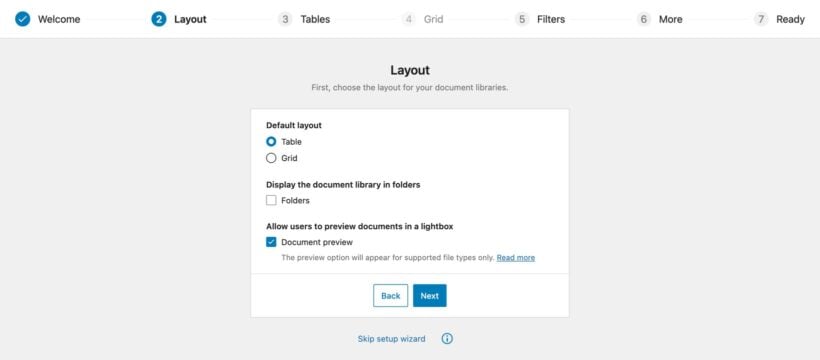
- If you want to use the folder and sub-folder layout, check the "Folders" box.
- Next, tick the "Document preview" checkbox to allow site visitors to preview files without downloading them.
- Follow these steps if you chose the table layout in step 3 above:
- Add the columns to be shown in the table using comma-separated values without spaces. Refer to this knowledge base guide for the exact fields you can add and what each field means. For example, if you want to showcase a collection of plants, you might use
"title:Plant Name,image,doc_categories:Category,file_size:Image Size,link".
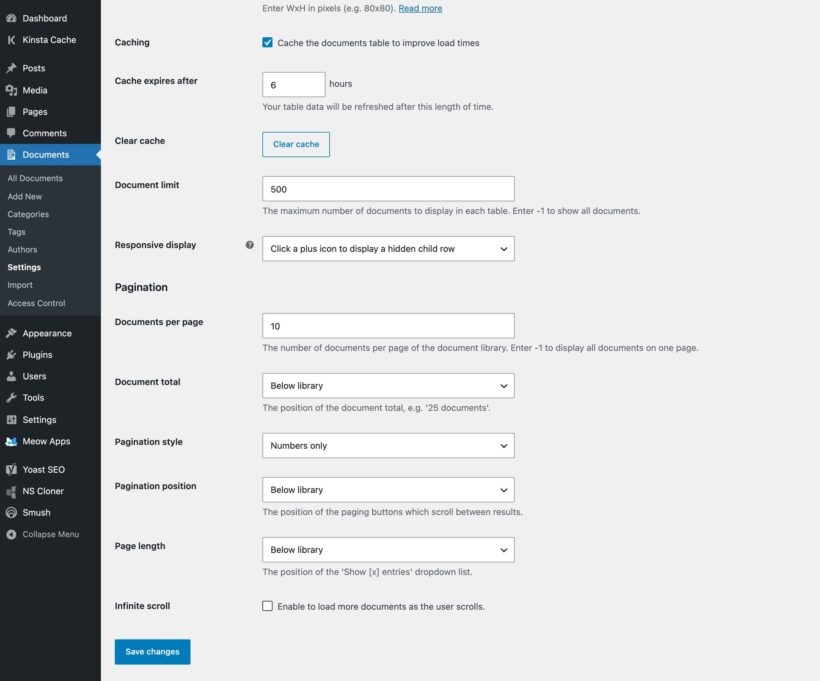
- Indicate how you want site visitors to view and access files in your Dropbox library, whether via a link to each file, via multi-select checkboxes, or both.
- Select the option to enable lazy load to activate Document Library Pro's page speed enhancements. (This is recommended if you plan to showcase a large number of files in your Dropbox library).
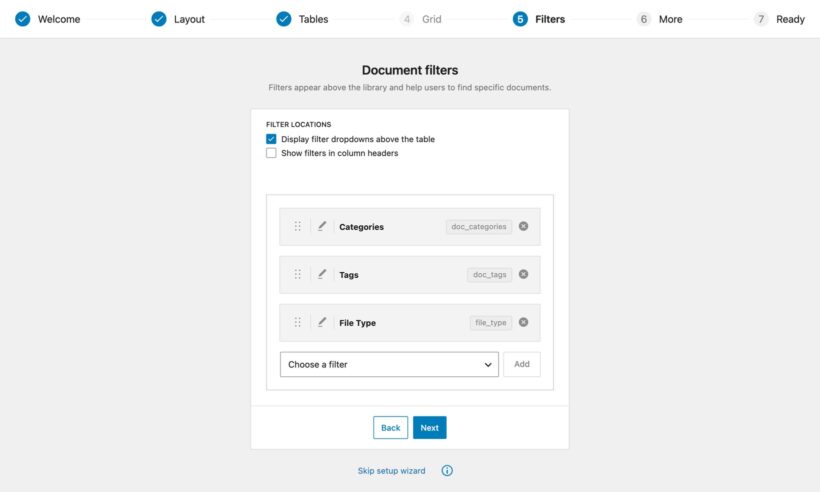
- Finally, disable filters or define the parameters for which you wish to add filter options to your table.
- Add the columns to be shown in the table using comma-separated values without spaces. Refer to this knowledge base guide for the exact fields you can add and what each field means. For example, if you want to showcase a collection of plants, you might use
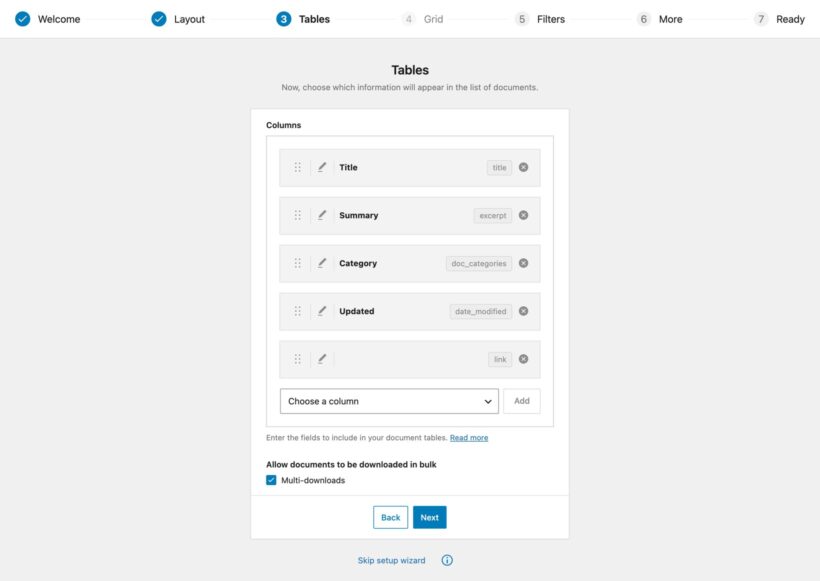
- If you chose the grid layout in step 3 above, select the checkboxes for the information you wish to showcase in your Dropbox file library on the front end.
- Finally, select "Finish setup" followed by "Go to settings page".
Step 2: Add files hosted on Dropbox to WordPress
There are two ways to add files hosted on Dropbox to your WordPress site with Document Library Pro.
- Embed files one by one.
- Upload multiple files using a CSV file.
Here is how each method works.
Method 1: Embed files one by one
Follow these steps to embed files hosted on Dropbox to your WordPress site one by one.
- In your WordPress admin dashboard, go to Documents → Add New.
- Fill in the document details, such as the name, description, slug, featured image, categories, and tags.

- Under 'Document Link,' choose the 'Custom URL' option.
- Paste the live link to the file's location on Dropbox and click 'Publish.'
- Publish the document with the file link included.
Method 2: Upload multiple Dropbox links using a CSV file
Follow these steps to bulk-embed several files hosted on Dropbox to your WordPress site at once. (Note: The files will still be hosted on Dropbox. All you're doing here is creating the WordPress document posts which will then link to the Dropbox file.)
- Create a new CSV file with details for each file, including the URL, category, tags, and custom taxonomies. You can download our sample CSV file to ensure you’re using the correct format. Note: Proper formatting is essential. If the format is incorrect, this method won’t work.
- Open the sample CSV file in a spreadsheet editor like Excel, Numbers, or Google Sheets. Then update the necessary details in the spreadsheet (remember to save the spreadsheet as a CSV file):
- The "Title" column should contain the name of the document.
- "Content" is where you add a description of the document.
- "Tags," "Categories," and the other columns are for additional, optional metadata.
- Navigate to Document Library → Import in your WordPress admin dashboard.
- In the 'CSV upload' section, click 'Import CSV.'
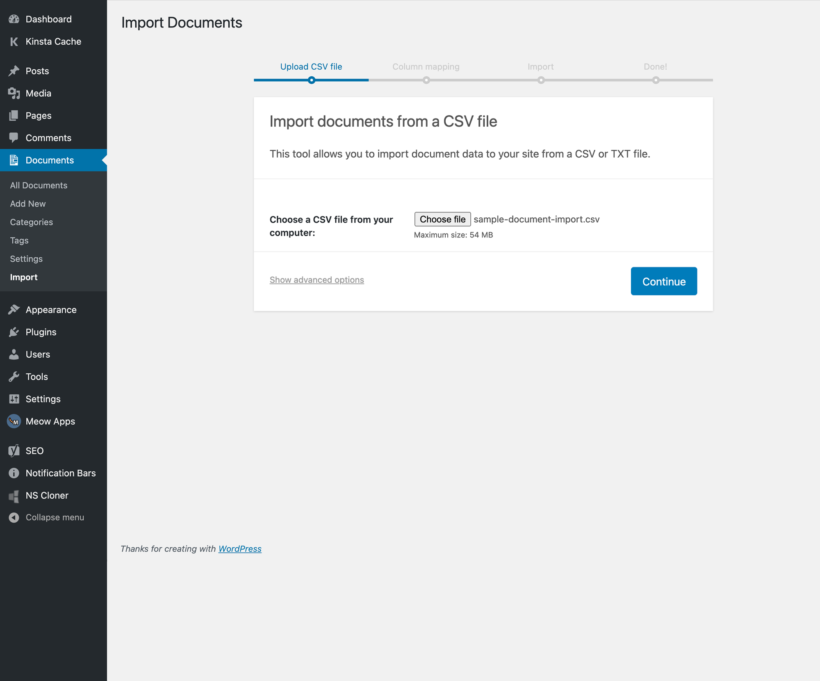
- Click 'Choose File,' select your CSV file, and click 'Continue.'
- On the "Map CSV fields to documents" page, match each column in the CSV file to the custom post-type fields.
- Click 'Run the importer.' After the details are imported, you’ll see a 'Success' message and a link to edit them.
Step 3: Showcase Dropbox-hosted files on your WordPress site's front-end
There are two ways to present files hosted on your Dropbox account on the front end of your WordPress site.
On the default Document Library page
When you install Document Library Pro, it automatically creates a page called "Document Library" and adds it to your website's main menu. However, this might not be the best title for your Dropbox file repository. So you may want to rename it.
- To change the name of the page, go to Pages → All Pages → Document Library in your WordPress dashboard.

- Edit the title to suit your needs.
On any other location on your site
Shortcodes are handy if you want to create multiple Dropbox file repositories on your site. For example, the shortcode [doc_library doc_category="news"] will list all documents in the 'News' category.
You can easily customize the shortcode to tailor how the Dropbox files are listed.
Step 4: Configure access and security settings (optional)
Here is how to secure your WordPress documents. This method lets you control who sees what, keeping your sensitive content safe.
Note that this section is optional and applies to users who opted for Document Library Pro's two-plugin bundle.
- Get the Password Protected Categories plugin, add it to your site and activate it.
- Navigate to Documents → Categories in your WordPress admin dashboard.

- Select the category you want to restrict access to and open up its "Edit" screen.
- Set the visibility to 'Protected' and choose from the following options:
- Password Protection: Set one or more passwords that users will need to enter the correct password to view files in this category. After doing this, you'd need to create a central login page and add the following shortcode:
[category_login]. - Roles: Select the user roles that should have access to the documents. You can choose from WordPress' default roles like Administrator, Editor, and Subscriber or create additional roles, such as 'Staff,' using the free User Role Editor plugin.
- Users: Choose specific user accounts that should be able to view the category and its documents.
- Password Protection: Set one or more passwords that users will need to enter the correct password to view files in this category. After doing this, you'd need to create a central login page and add the following shortcode:
And that's it! Repeat steps 3 and 4 for all other categories you want to protect. Note that if you've secured a parent category, all its sub-categories automatically inherit the same protection. You won't need to set them up separately.
Why use a WordPress Dropbox plugin?
There are many reasons to connect your WordPress site to your Dropbox account.
For one, WordPress sites often have limited storage. Connecting to Dropbox effectively expands your storage capabilities without upgrading your website hosting plan.
This is especially useful if you have many large files like videos or high-resolution images which can slow down your site. Storing these files on Dropbox and embedding them on your WordPress site can result in efficient content delivery and improve your site's performance.
In addition, WordPress Dropbox plugins make it easy to quickly share Dropbox-hosted files with your site visitors without them needing a Dropbox account. This is great for distributing downloadable content like images, ebooks and product catalogs.
Key features to look for in a WordPress Dropbox plugin
These are the must-haves I would look for in a high-quality WordPress Dropbox plugin.
Support for a myriad of file types
Dropbox enables you to upload a wide range of formats. So it's only natural for your WordPress site to support them too. Whether you're planning to share images, videos, audio, documents, Excel files, or even less common formats, your WordPress Dropbox plugin should be able to handle them all.
Automatic file sync
Manually updating file changes between WordPress and Dropbox every time the file is updated isn't the best use of your time. Not to mention, it increases the risk of errors.
Your chosen WordPress Dropbox plugin should offer automatic file sync between your WordPress site and Dropbox. This ensures that any file changes made on Dropbox are reflected on your website, and vice versa, without manual intervention. For example, if you update a file in Dropbox, the changes should automatically appear on your website, to make sure that everything is kept up-to-date without extra effort.
Advanced file management
If you run a large file library, you'll appreciate advanced options to handle large file libraries efficiently. Your chosen plugin should include:
- Reliable search and filter functionality so users can quickly find files across Dropbox and WordPress.
- File previews on the front end to enable site visitors to view file contents without downloading them.
- Version control to allow users to access and restore previous versions of files.
User access permissions
You can use access permissions to control who can view, upload or manage files on your website. The best Dropbox plugins for WordPress enable you to set specific permissions for different user roles.
For example, you might want to allow customers to upload documents but restrict their access to certain files or folders. User access control is necessary to protect sensitive files while still allowing the right people to view and download them.
Performance optimization
The main point of embedding content hosted on Dropbox is to avoid slowing down your site. The best WordPress Dropbox plugins use two performance optimization techniques to ensure fast page load speeds: lazy loading and caching.
Lazy loading ensures that files, especially large ones, are only loaded when they are needed, reducing the initial load time of your site. Caching, on the other hand, stores copies of files temporarily, so they don’t need to be reloaded every time a user accesses them. Together, these features help your site load as quickly as possible.
Frequently asked questions about WordPress Dropbox plugins
Can WordPress connect to Dropbox without a plugin?
No. WordPress has no built-in Dropbox integration, so you need either a plugin or an automation tool like Zapier to connect the two.
Can I display a Dropbox folder on my WordPress site without an API key?
Yes. Document Library Pro's cloud version syncs a shared Dropbox folder into a searchable document library with no API keys, no app creation and no account connection. You paste the folder's share link, and every file in the folder becomes a searchable, downloadable document that stays up to date automatically.
What is the best free WordPress Dropbox plugin?
There is no strong free, dedicated Dropbox display plugin at the moment. The free File Manager plugin is widely used, but its Dropbox feature needs a paid add-on, and Zapier has a free tier for simple automations.
What is the difference between displaying and syncing Dropbox files?
Displaying means showing files that stay hosted on Dropbox, which is what Document Library Pro and Out-of-the-Box do. Syncing means copying files both ways between Dropbox and WordPress, which is what WP Media Folder does.
Will my files stay up to date if I link them from Dropbox?
Yes. With Document Library Pro, once you add a file's Dropbox URL, your library always serves the current version, so updating the file on Dropbox updates it on your site.
Easily integrate WordPress and Dropbox with the right plugin
Linking your WordPress site to your Dropbox account pairs WordPress's content management with Dropbox's file storage. That means a tidier workflow, better performance and a smoother user experience (UX) for your site's visitors.
While there are no native integration options to connect WordPress and Dropbox, you can easily do so with the right plugin.
Which plugin is right depends on what you want to do:
- To display a lot of Dropbox files in a searchable, filterable library, use Document Library Pro.
- For a dedicated Dropbox file browser, gallery or media player, choose Out-of-the-Box.
- To manage Dropbox files from your WordPress dashboard, use the File Manager Pro Dropbox add-on.
- For genuine two-way sync between Dropbox and your media library, go with WP Media Folder.
Document Library Pro is the best WordPress Dropbox plugin for any site needing to list multiple Dropbox files in WordPress. You can:
- Embed all types and formats of Dropbox-hosted files one by one or in bulk via a CSV file.
- Easily present the Dropbox files to non-admin users in a functional and good-looking table or grid layout.
- Enable advanced features like file previews, bulk downloads, user access control, and much more.
- Sync an entire shared Dropbox folder automatically using the cloud version, with no API keys or account connection.
The plugin is straightforward to set up, even if you're not tech-savvy.
If you need to display a lot of Dropbox files in a searchable library, Document Library Pro is where I would start. If you need true two-way sync or a dedicated Dropbox file browser instead, one of the other plugins above will be a better fit.