How to customize add to cart button in WooCommerce


If you sell anything on WooCommerce, your customers see the same default 'Add to Cart' button under every product. There's no quantity picker, no variation dropdown, and a click that sends them to a separate page for every option they have to choose.
There's a lot you can change about that button, and most of it doesn't need custom code. I'll cover:
- Replacing the button with a multi-select checkbox so customers add several products to the cart in one click.
- Adding variation dropdowns and quantity fields next to the button on your shop and category pages.
- Showing the button inside a WooCommerce product lightbox so shoppers buy without leaving the listing.
- Rewording the button to match your product ('Buy Now', 'Add to Basket' or 'Pre-order') or swapping the text for a cart icon.
- Restyling the button to match your brand colors.
- Displaying the button anywhere on your site using WooCommerce shortcodes.
- Replacing the cart and checkout pages with a slide-out cart that opens after the customer clicks add to cart.
You'll need our WooCommerce Product Table plugin for the first two layouts, our WooCommerce Quick View Pro plugin for the lightbox, and our WooCommerce Fast Cart plugin for the slide-out cart. The text, icon, color and shortcode options use a free plugin or built-in WooCommerce features.
Replace the WooCommerce add to cart button with a checkbox
If you sell dozens of products and most of your customers buy several at once - wholesale stores, restaurant order forms, or grocery shops - you'll be losing orders to the default one-button-per-product layout. By the time a customer has clicked 'Add to Cart' twenty times to put together one order, plenty of them will have given up partway through.
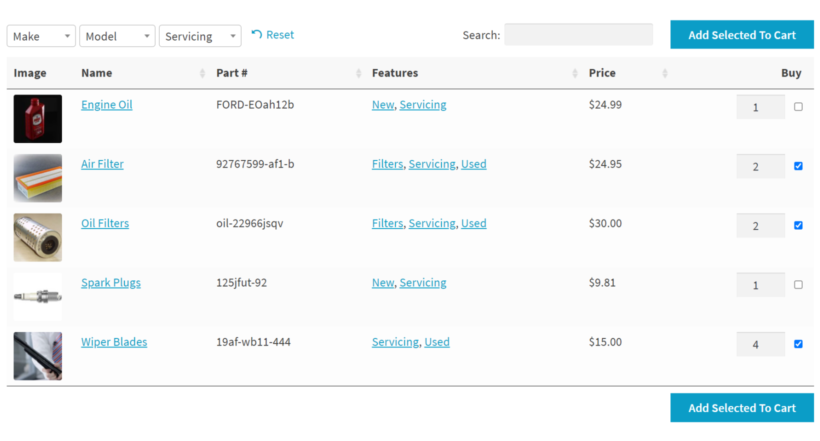
The fix is to display your products in a WooCommerce Product Table with a multi-select 'Buy' column. You can pick from three cart-button shapes: a per-row button, a per-row button paired with a checkbox, or checkbox only. The third option adds an 'Add selected to cart' button above and below the table, so your customers tick everything they want in one pass and add it all at once. The dedicated add to cart checkbox tutorial walks through the full setup.
You'll see this layout on bulk order forms across a few store types: restaurants ordering produce from a supplier, customers reordering consumables, wholesale buyers working through a long price list. They all need to put together a long order in one place, without clicking around between pages. Wholesale food and grocery suppliers run on this layout.
"This plugin has done everything we've needed for a specialized site for our company's dealers. Support has been on point, as well." - Product Table customer review.
One limitation worth knowing: WooCommerce Product Bundles, composite and grouped products can't be configured and added to the cart directly from inside the table. Those rows show a 'View products' link that opens the single product page. The alternative is to pair them with WooCommerce Quick View Pro (covered below) so the bundle opens in a lightbox instead. Simple and variable products work as expected.
Add variation dropdowns and quantity fields to the add to cart button
Your default WooCommerce shop page has two problems built into the add to cart button:
- For simple products, clicking the add to cart button adds a quantity of one. There's no quantity picker on the shop page, so a customer buying twelve units has to click the button twelve times.
- For variable products, the add to cart button becomes a 'Select options' link that sends the customer through to the single product page just to pick a size or color. That click-through costs you the sale on impulse purchases.
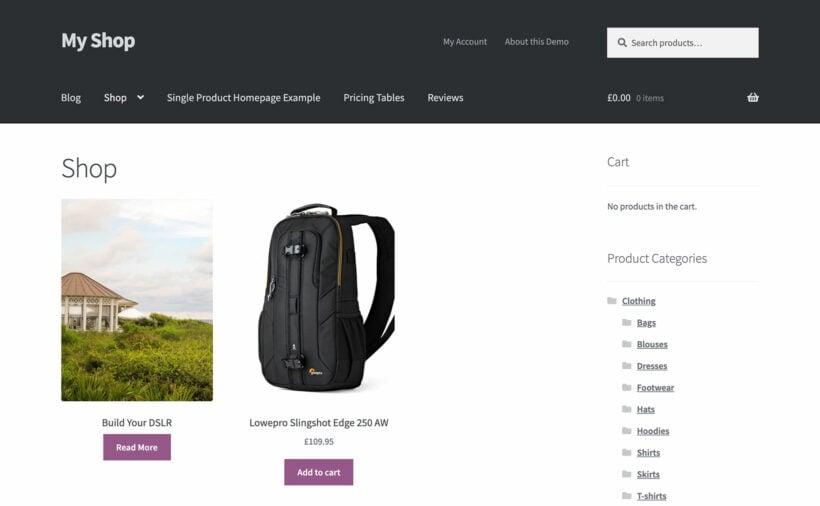
You can solve both at once by replacing the standard product grid with a product table. The table includes variation dropdowns, quantity pickers and add to cart buttons (and checkboxes too, if you want them). WooCommerce Product Table has a setting that lets it take over the main shop and category pages, so customers see the table in place of the grid. The step-by-step guide for shop pages walks through the setting.

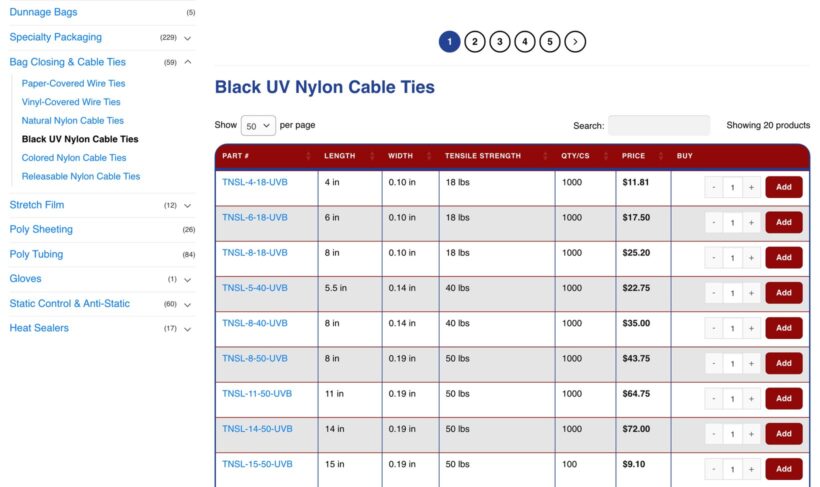
Tewes Corporation, an industrial packaging supplier, uses this layout on every category page of their site. Each row has the part number, technical specs, a quantity field and an 'Add' button. A customer comparing twenty cable-tie variants can pick quantities across the whole list and add them in one go, without opening a single product page.
There's one thing to watch on a wholesale or discount-pricing setup. The table caches its results for speed, which can hide user-specific prices if the cache stays on. If your wholesale customers report seeing retail prices, that's almost always the cause. Disable Product Table's cache (and any page cache sitting in front of it) for logged-in users, and the right prices return.
Show WooCommerce add to cart buttons in a quick view lightbox
Your other option is to give shoppers the full add to cart experience without making them load the single product page. A 'Quick View' button appears on each product in the shop grid (or in a product table). When a customer clicks it, a modal pops open with the product images, description, quantity picker, variation dropdowns and the add to cart button itself. Close the modal and they're back on the listing where they started.

Our WooCommerce Quick View Pro plugin handles this. It picks up your WooCommerce 'Enable AJAX add to cart on archives' setting and respects it. If you've turned AJAX off site-wide, the quick view's add to cart button submits in the normal way rather than using AJAX. You don't get a single broken edge case while every other button on the site works.

The combination I'd recommend on a catalog-style site is Product Table plus Quick View Pro. The table shows the headline data: SKU, price, key specs. The lightbox covers anything that needs more context, including images, the full description and variation options. Yarn Gate uses this layout on their wholesale yarn catalog. The table lists every product. A 'Select color' button opens the Quick View, the customer picks the color and adds to the cart, and they land back on the list to keep shopping.
"This plugin is the perfect companion for Barn2's Product Table. It speeds up the shopping process a lot, especially when working with larger tables." - Quick View Pro customer review.
Customize the WooCommerce add to cart button text
'Add to Cart' is fine, but it's also generic. If you rewrite it to match what your store sells, you sharpen the call to action without changing anything else on the page. For that I'd reach for the free WooCommerce Custom Add to Cart Button plugin. It handles the rewording, an icon swap, and basic color controls without touching template files.

A few rewrites that work depending on what you sell:
- 'Buy Now' for impulse-purchase products where you want a stronger commitment than 'Add to Cart'.
- 'Book Course' or 'Reserve Seat' for online courses, classes and events. The language matches what the customer is doing.
- 'Add to Basket' for UK and Irish stores where 'basket' is the native term for the cart.
- 'Pre-order' for products that aren't shipping yet, paired with a clear dispatch date in the product description.
To set it up:
- Install the free WooCommerce Custom Add to Cart Button plugin from the WordPress directory. In your WP admin, go to Plugins → Add New, search for the plugin name, click 'Install Now' and then 'Activate'.
- Go to Appearance → Customizer → WooCommerce → Add to Cart.
- Type the new wording into the 'Add to cart text' field. The same panel has color pickers if you want to change the button background and text color at the same time.
- Click Publish.
The change applies across every add to cart button on the site, including ones rendered by WooCommerce shortcodes, WooCommerce Product Table and WooCommerce Quick View Pro.
Replace the WooCommerce add to cart button text with an icon
The same free plugin can swap the button text for a cart icon, either on its own or next to the existing text. Use this on tightly packed shop pages and product tables where every row is fighting for horizontal space. Dropping the text saves enough width to fit another column of data.

To switch:
- Open Appearance → Customizer → WooCommerce → Add to Cart.
- Tick 'Show add to cart icon'.
- Tick 'Hide the add to cart text' if you want the icon on its own.
- Click Publish.
Change the style and color of the add to cart button
If you want the add to cart button to match the rest of your brand, the simplest route is the color pickers built into the free WooCommerce Custom Add to Cart Button plugin. No code, just a background-color and text-color control that updates every button on the site at once. For a dedicated walkthrough on changing the add to cart button color, the steps are the same: install the plugin, open the Customizer, pick the colors.
For most stores, the plugin's color pickers cover everything you need. Reach for CSS only when you also want to change shape, spacing or hover behavior (rounded corners, padding, or a custom border).
If you do need CSS, first locate the button's class in your browser dev tools (Inspect Element on the live button). Then add the following to Appearance → Customize → Additional CSS, swapping the colors and values for your own:
.single_add_to_cart_button {
background-color: #2ecc71;
color: #fff;
border: none;
border-radius: 4px;
padding: 12px 24px;
}
That styles the single-product page button. Apply the same rules to the loop button (.button.add_to_cart_button) to style the buttons on shop and category pages too.
Display add to cart buttons anywhere on your website
WooCommerce includes a small set of shortcodes that drop an add to cart button onto any page or post, not just the standard shop. Use this when you want a single buy button inline with a blog post, on a landing page, or alongside other content.
The shortcode is:
[add_to_cart id="123"]
Replace 123 with the product's ID (visible in the URL when you edit the product). To embed it:
- Edit the page or post where you want the button.
- Add a Shortcode block (block editor) or paste the shortcode directly into the content (classic editor or page builder).
- Preview the page, then publish it.
For more than one product on the same page, you can chain the shortcode, or reach for WooCommerce Product Table instead. It's the cleaner option once you're past two or three items.
Make the add to cart button open an instant cart and checkout
The slowest part of your WooCommerce checkout flow sits between 'Add to Cart' and the checkout page itself. By default, the customer goes from the product to the cart page, then on to a separate checkout. Each of those hops is a chance to drop out.
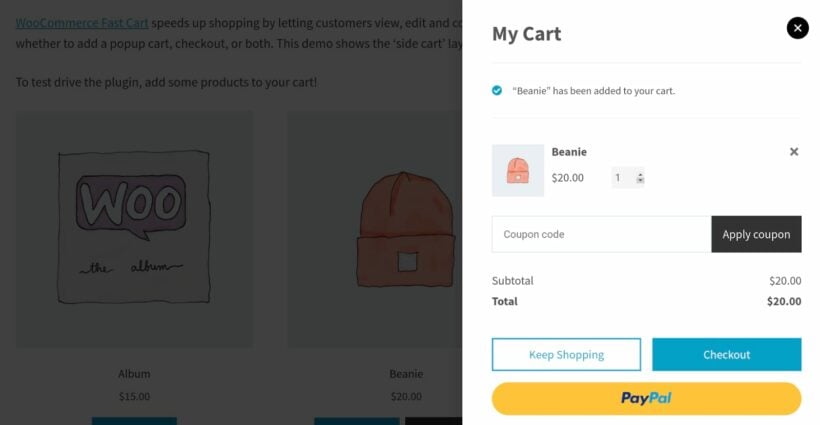
Our WooCommerce Fast Cart plugin turns the add to cart button into the entire checkout flow. Clicking it opens a slide-out (or popup) panel with the cart contents and the checkout form together, on whatever page the customer is already on. They never see the cart page or the checkout page. It's the same shape Shopify and one-page-checkout themes use, and it lifts conversion most on impulse-purchase stores and single-product landing pages. The popup checkout walkthrough and direct checkout guide cover the full setup.
"WooCommerce Fast Cart is packed with just about every feature you will need and it pairs well with other popular WooCommerce plugins. But what I like most about this plugin is the team behind it." - Fast Cart customer review.
One edge case to know about: if your store has 'Store is closed' set in WooCommerce's catalog mode for logged-out shoppers, the Fast Cart popup will appear empty for guests. That's WooCommerce blocking the order, not the plugin, because the cart genuinely can't be added to. The fix is to either drop the catalog-only restriction or require login before checkout.
Benefits of a customized WooCommerce add to cart button
You'll see three concrete benefits across the customer stores running these configurations:
- Fewer clicks per order. The biggest win on multi-product stores. A wholesale buyer going through a long product list with checkboxes and a single 'Add selected to cart' button submits in one click instead of twenty. Tewes Corporation's catalog and Yarn Gate's wholesale yarns both rely on this shape.
- Wording that matches the purchase. 'Book Course' for an online-course store, 'Pre-order' for a release window, 'Add to Basket' for a UK store. The button is the first place a reader confirms they understood the offer, and generic 'Add to Cart' wording weakens that signal.
- Less friction between intent and checkout. A quick-view lightbox or a Fast Cart popup compresses the shop-to-checkout flow into one screen. Customers who already know what they want stop hitting the cart and checkout pages as separate steps, which is where most drop-out happens on mobile.
None of these need custom development. Each is a setting in one of the plugins covered above.
Customize add to cart buttons today
On most stores, the structural changes do more for conversion than the cosmetic ones. A checkbox flow, variation dropdowns and quantity fields on the shop page, a quick view, or a Fast Cart popup all change how your customers buy. Wording and color tweaks still matter - they're just a smaller part of the picture.
If I were starting on a fresh store today, the order I'd build in is:
- Decide whether the catalog is a shopping flow (default WooCommerce grid is fine) or an order-form flow (product table or quick view) and install WooCommerce Product Table or WooCommerce Quick View Pro accordingly.
- Reword the button to match what the customer is buying, using the free WooCommerce Custom Add to Cart Button plugin.
- For a high-impulse store, install WooCommerce Fast Cart so the click opens straight into checkout.
How have you customized the WooCommerce add to cart button on your store? I'd love to hear which approach worked best - drop a comment below.