














What is Document Library Pro and how does it work?
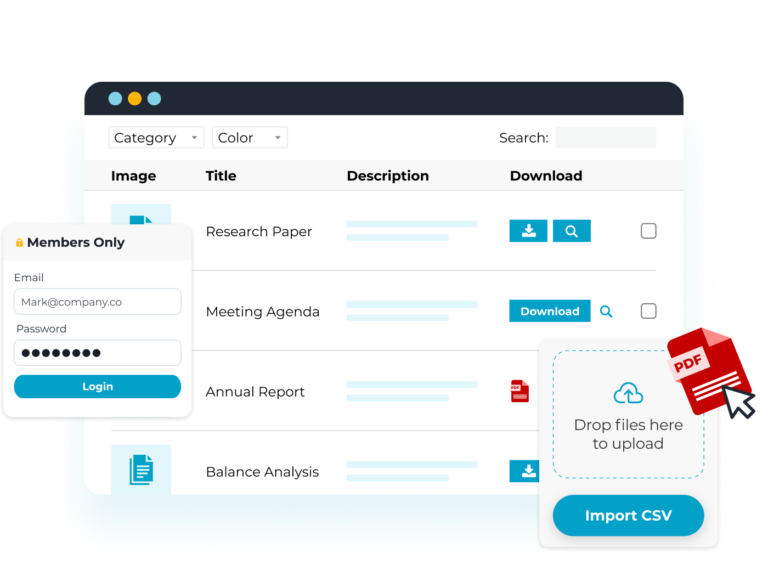
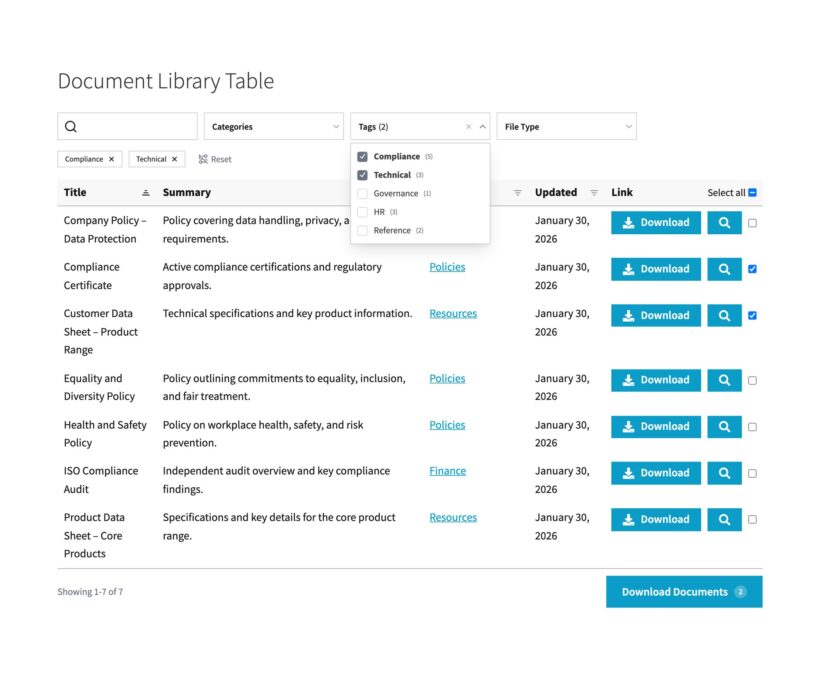
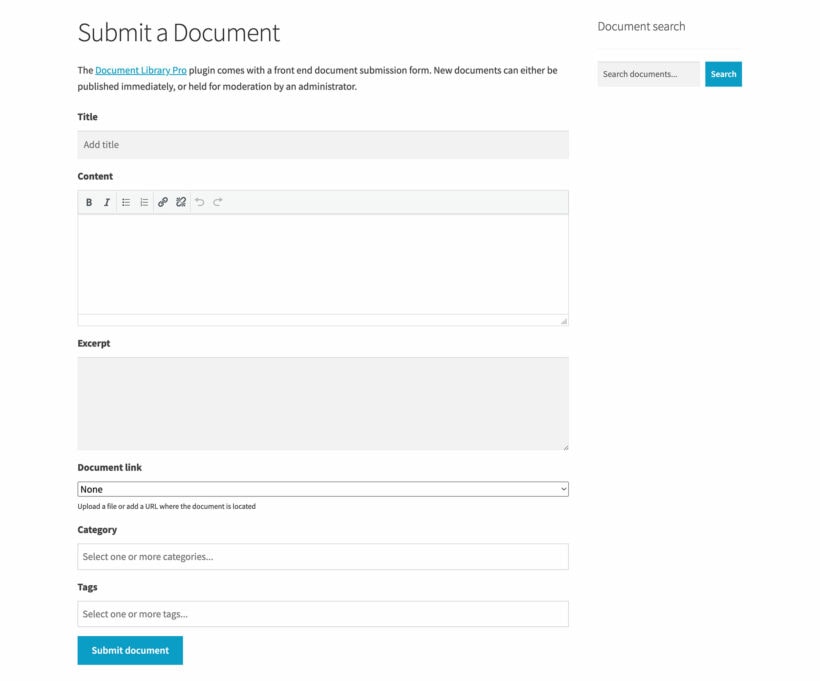
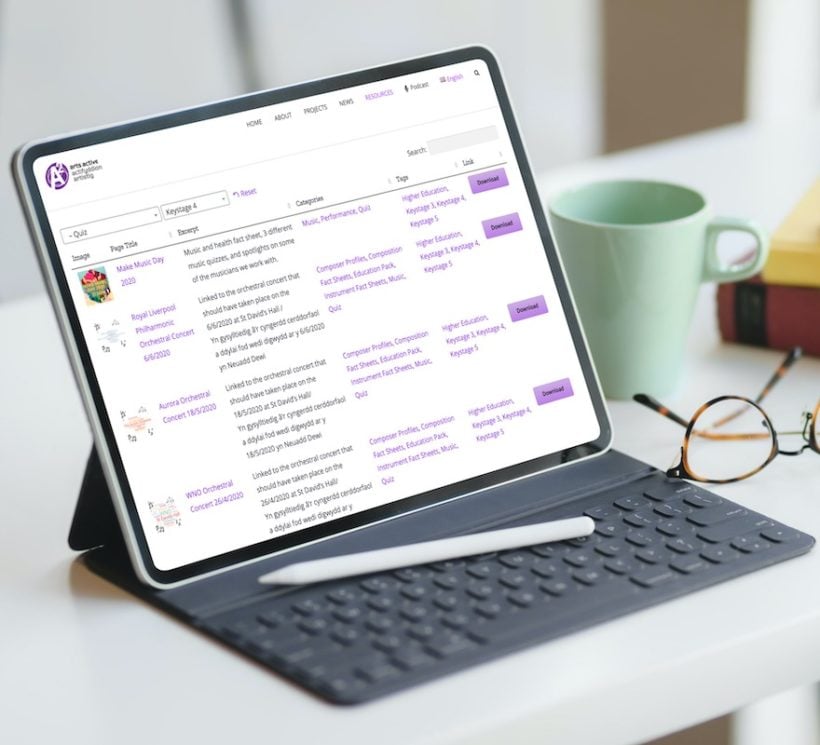
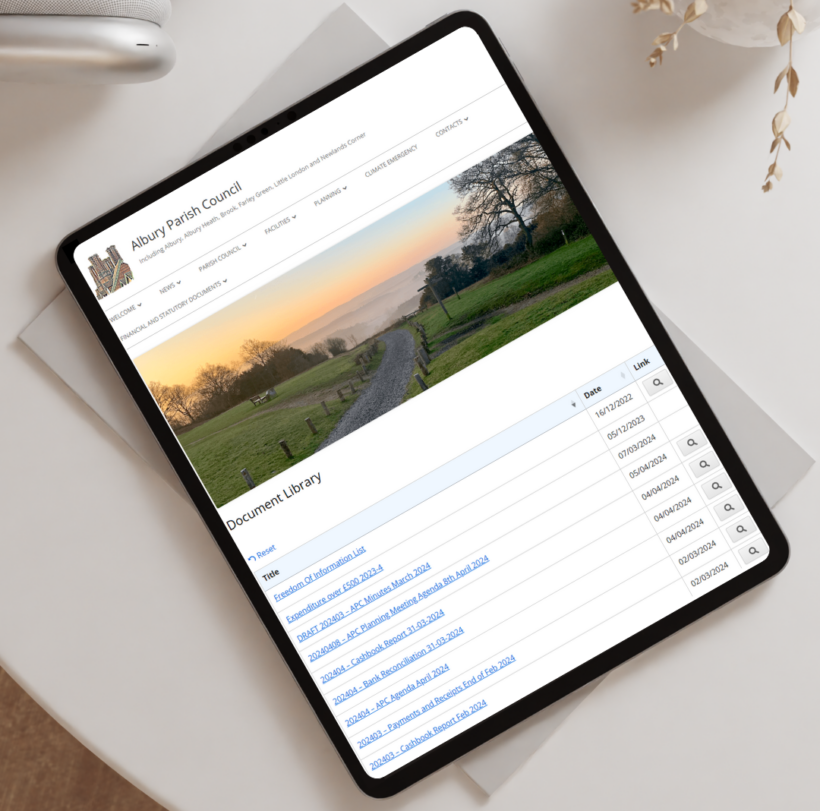
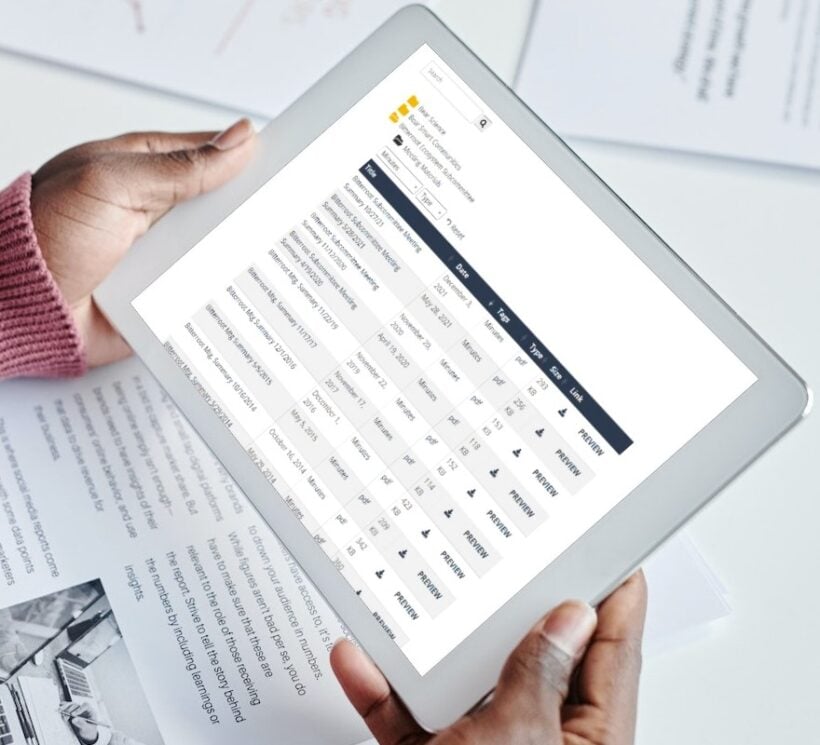
Our document library software displays your documents as a professional, searchable library on your website. Add documents one at a time, in bulk via drag and drop or CSV import, or let people submit them through a front-end form. You can store the files in your library or linked from services like Dropbox, Google Drive, OneDrive, and SharePoint.
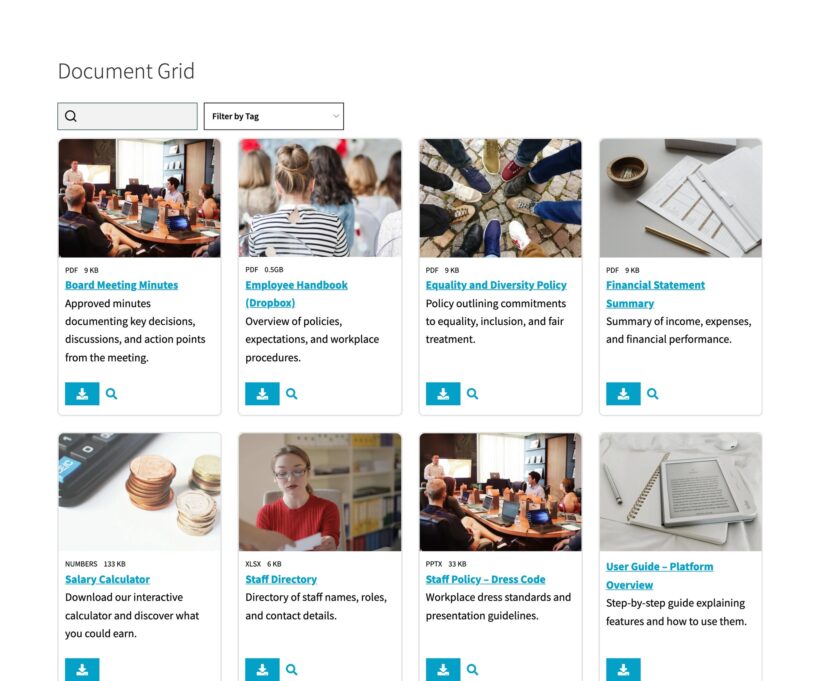
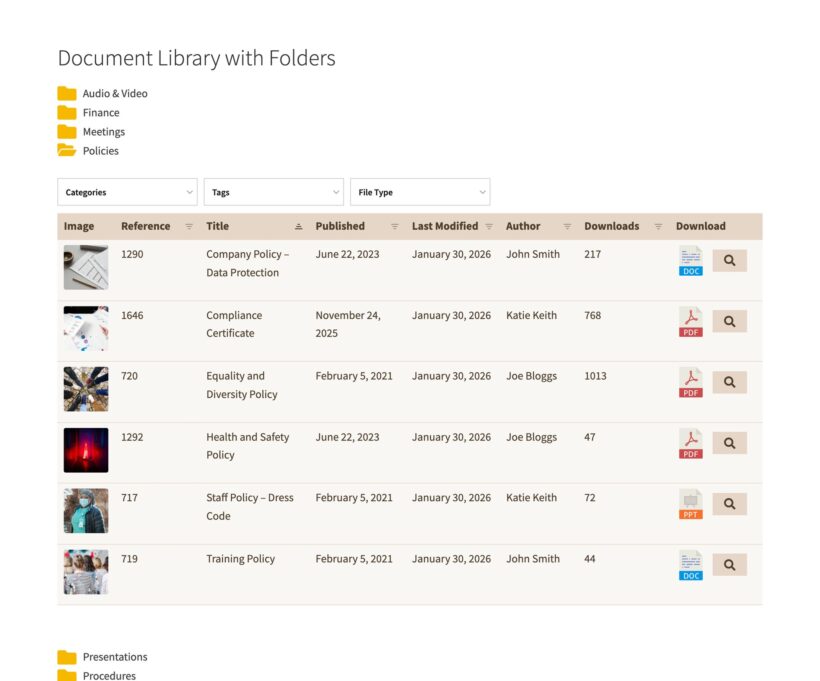
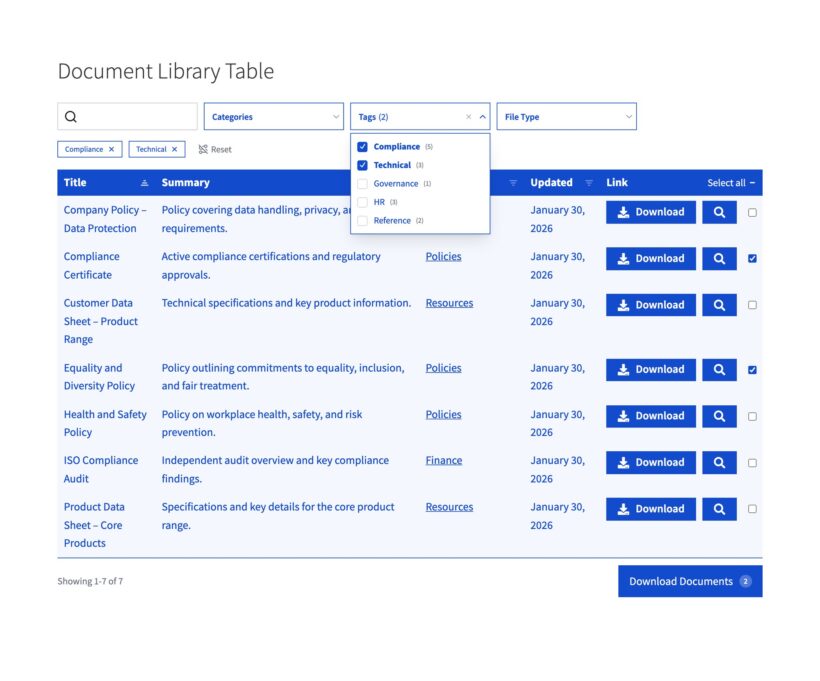
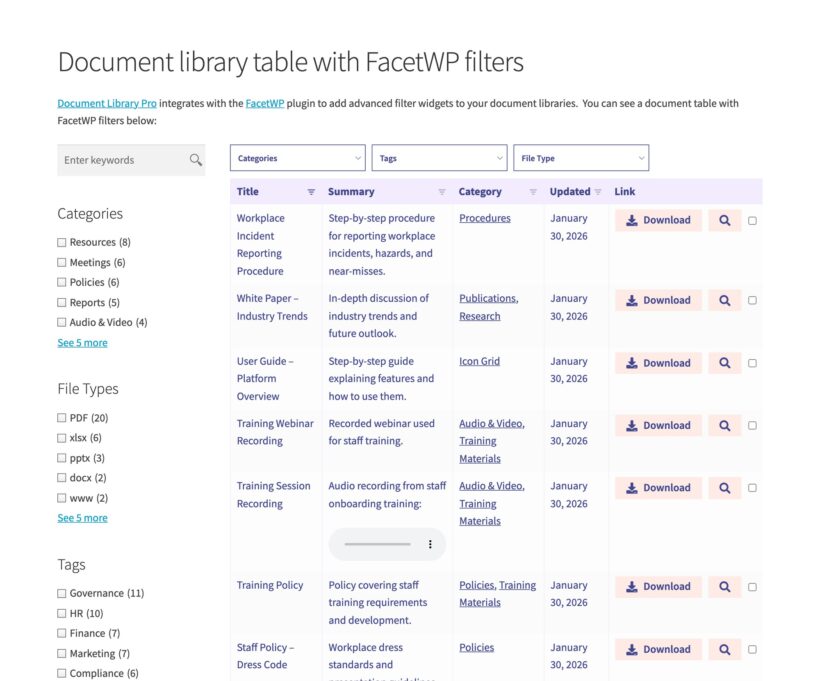
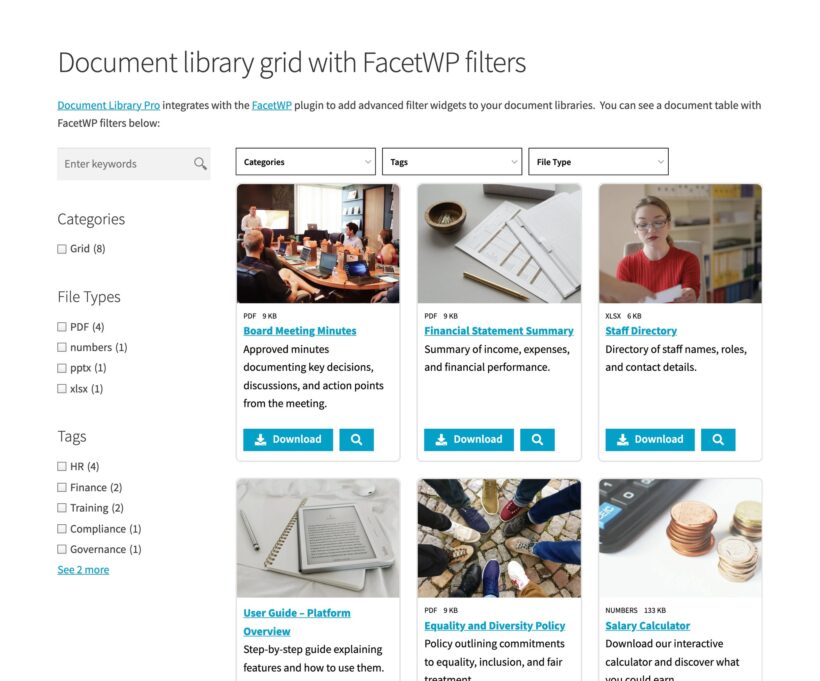
Your main library page is created automatically, and you can choose between a searchable table, grid, or folder-style layout.
There are two ways to use it:
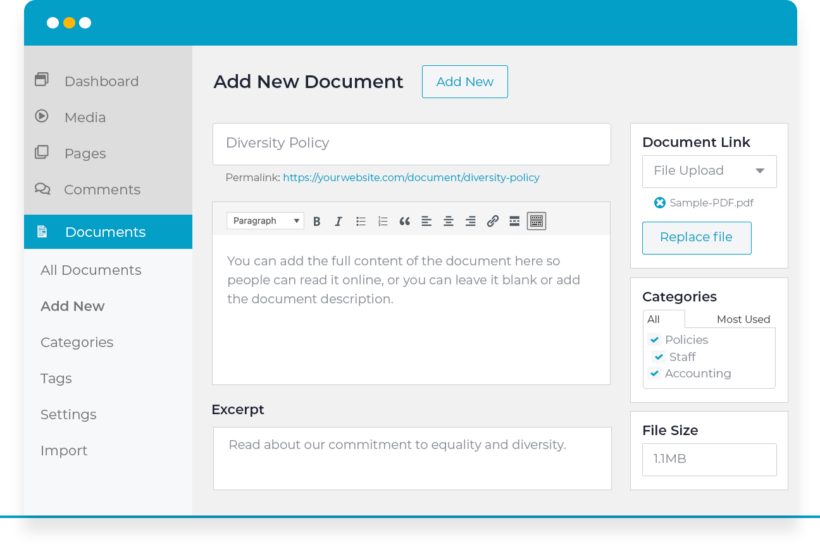
- WordPress plugin - Install it on any WordPress website, including nonprofit, government, council, membership, or intranet sites. It adds a 'Documents' section to the admin area, and you can convert existing Media Library files into documents. For full details, read our tutorial on how to create a document library in WordPress.
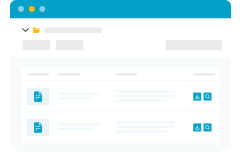
- Cloud version for any platform - We host your library for you, with nothing to install. Manage documents in your own dashboard, then embed the library in any website - Squarespace, Wix, Webflow, Framer, Google Drive, Shopify, other CMS, or a custom site or intranet - or use it standalone with its own web address.
Can you set up Document Library Pro for me?
Yes, and it's free. Our team can set up your document library for you at no charge.
Just fill in our free setup form and tell us what you need within 30 days of purchase. We'll set up your first document library, add some of your documents to get you started, and choose the settings that work best for your organization. That way, you'll have a fully functional document library up and running in no time ☺️
Should I choose the WordPress plugin or the cloud version?
Choose the WordPress plugin if you have a WordPress site and want your documents stored on your own infrastructure. Choose the cloud version if you don't use WordPress, or you'd rather we handle the hosting, updates, and maintenance for you. (Tip: The cloud version works with WordPress too, if you'd rather not install a plugin on your site 😉.)
Both include unlimited document and libraries, and share the same layouts, search, and filters. The only differences to the document library features are:
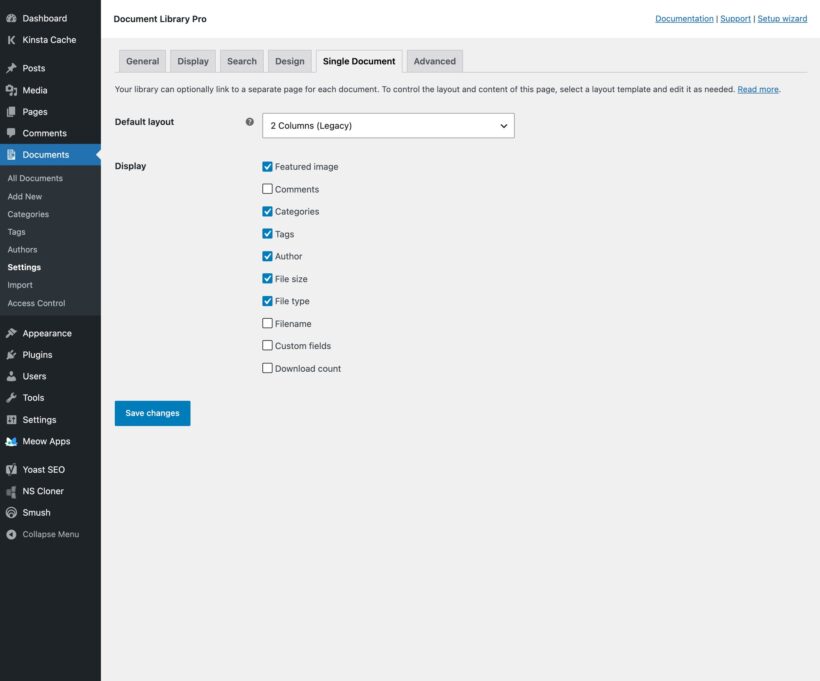
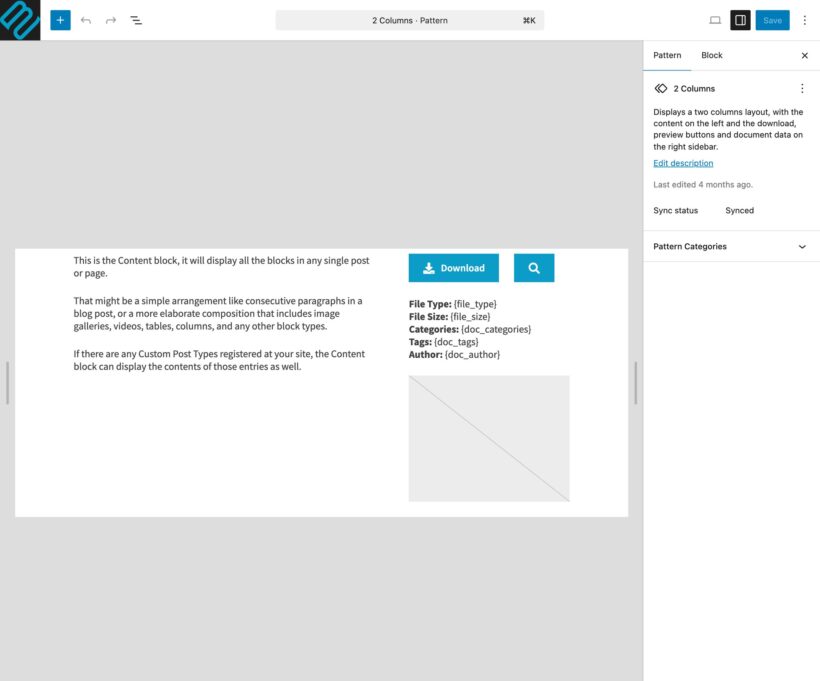
- Single document page - The cloud version doesn't include a separate page for each document (documents open or download directly from the library).
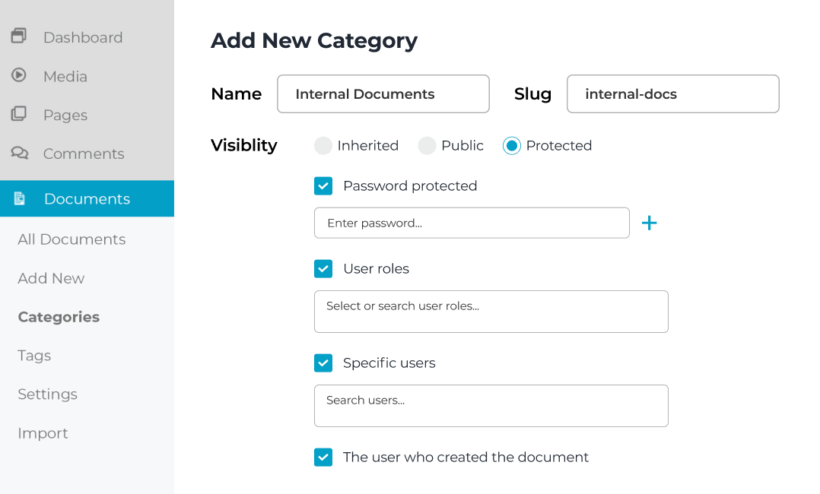
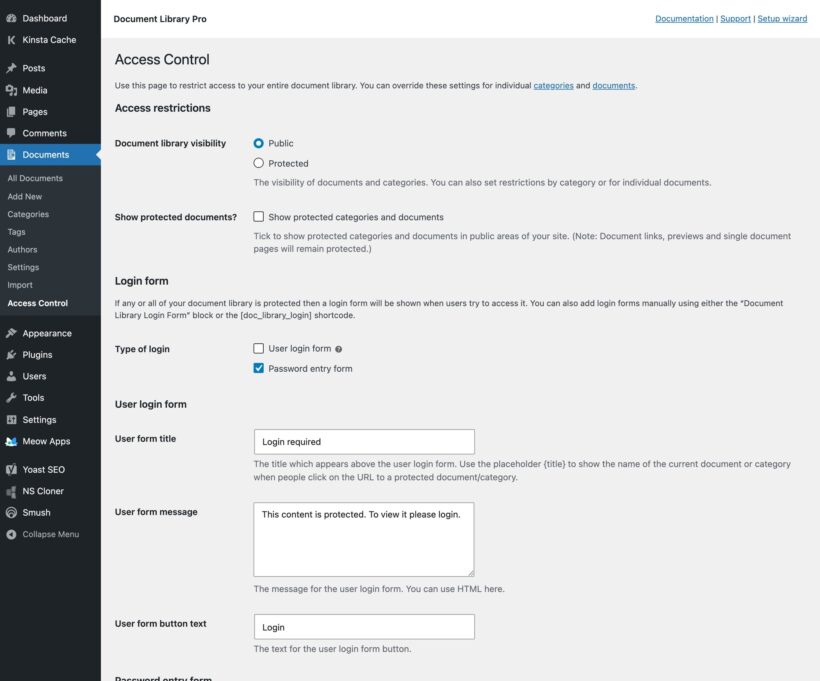
- Access controls - The WordPress document library plugin lets you restrict access to your entire library or specific categories or documents using basic password protection, or based on WordPress user or role. The cloud version only lets you password protect your entire library or specific libraries. You can also embed hosted libraries into your existing access-controlled website or intranet so that it inherits your existing restrictions.
If a specific feature matters to your setup, ask us before you buy.
Can I migrate from another document management platform or plugin?
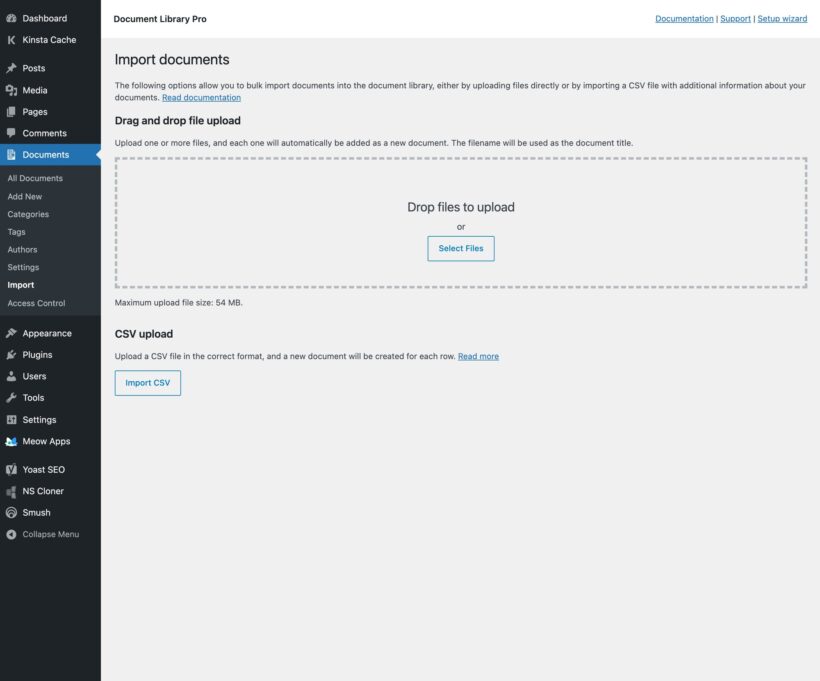
The easiest way is to use the bulk CSV import or drag-and-drop file upload to add your documents to the library.
If you're migrating from a different WordPress document library plugin (e.g. Memphis, Download Monitor, Download Monitor or FileBird) then our support team can advise on how to migrate the documents along with their data.
Do you offer a nonprofit or charity discount?
Yes! We offer a 15% nonprofit discount on Document Library Pro.
Document Library Pro is hugely popular among nonprofits and charities, and it's easy to see why. Whether you need to share policy documents, grant forms, resources for beneficiaries, or annual reports, it gives you a clean, searchable document library that anyone can use without training. The charity discount makes it even more accessible for organizations where every dollar counts.
If your organization is a registered nonprofit or charity, you can apply for a discount code before purchasing - just make a nonprofit discount request and we'll get back to you with a code.
What information can I show in the document library?
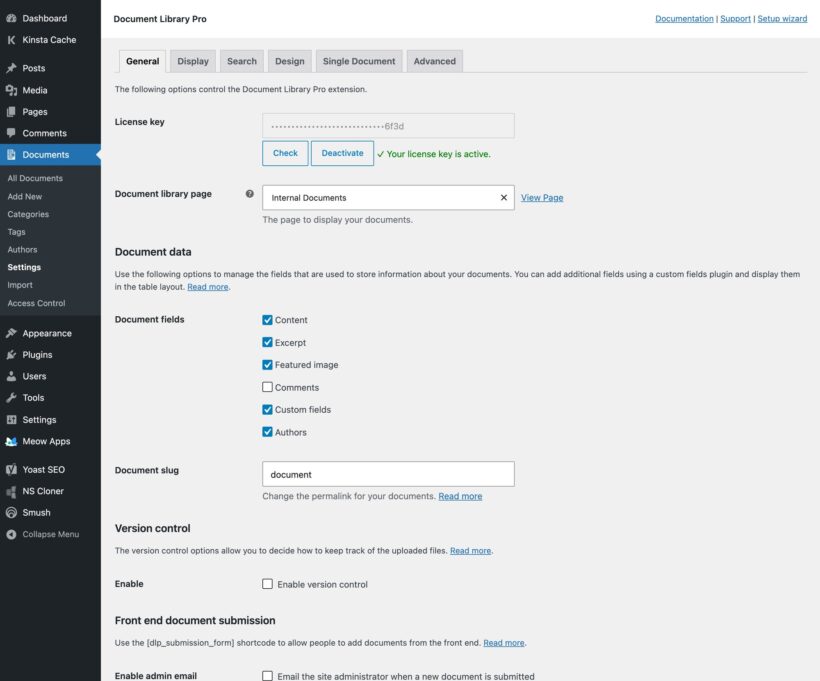
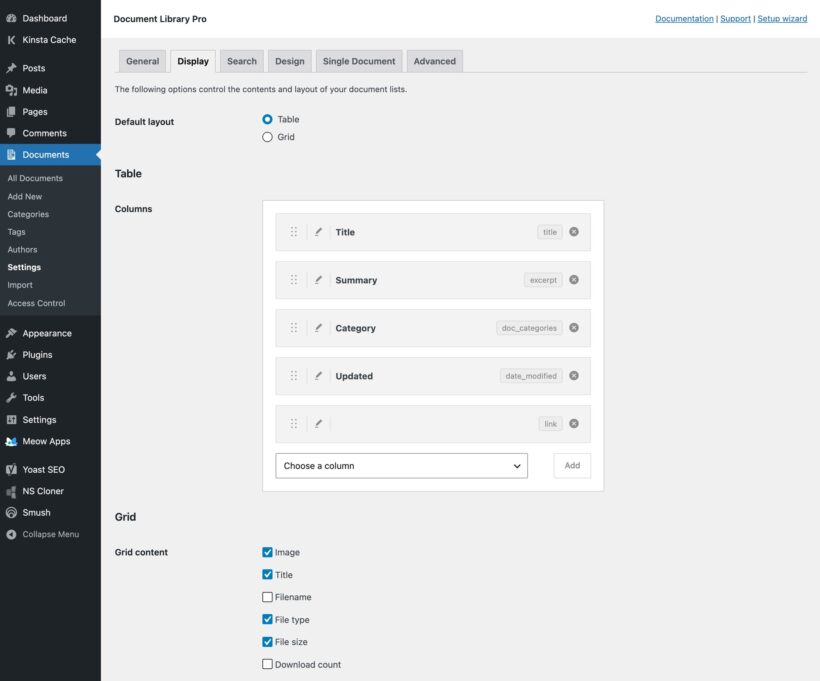
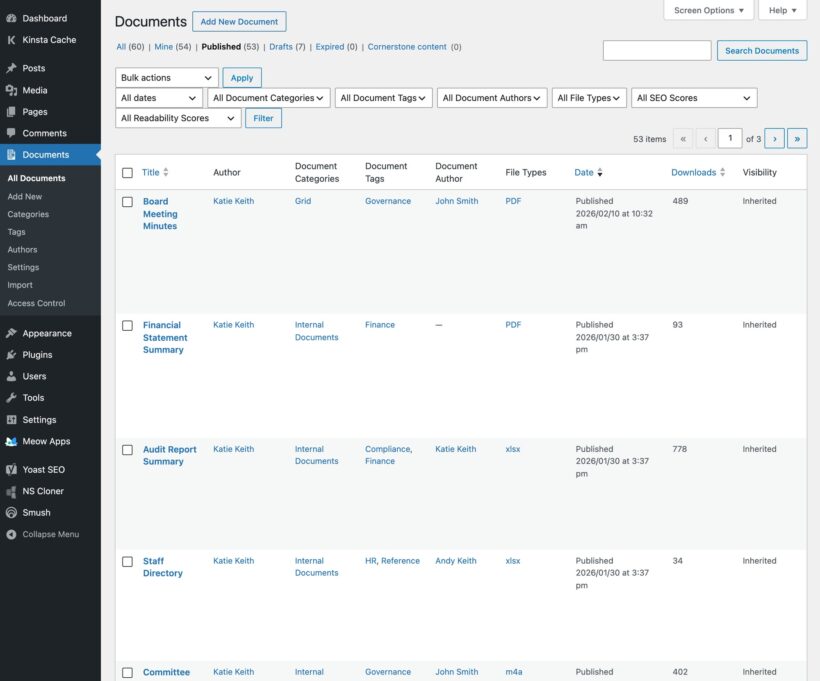
Document Library Pro lets you show more information about each document than a standard WordPress media library plugin can store. Use as many fields as you like to make the document library easier to browse, compare and search.
- Document title
- Featured image (for PDFs, this can be generated automatically using the first page of the file)
- Excerpt or summary
- Description, which can hold a summary, the full document content or embedded content such as a video player, audio player, Google Drive embed or flipbook
- Published date and modified date
- Author
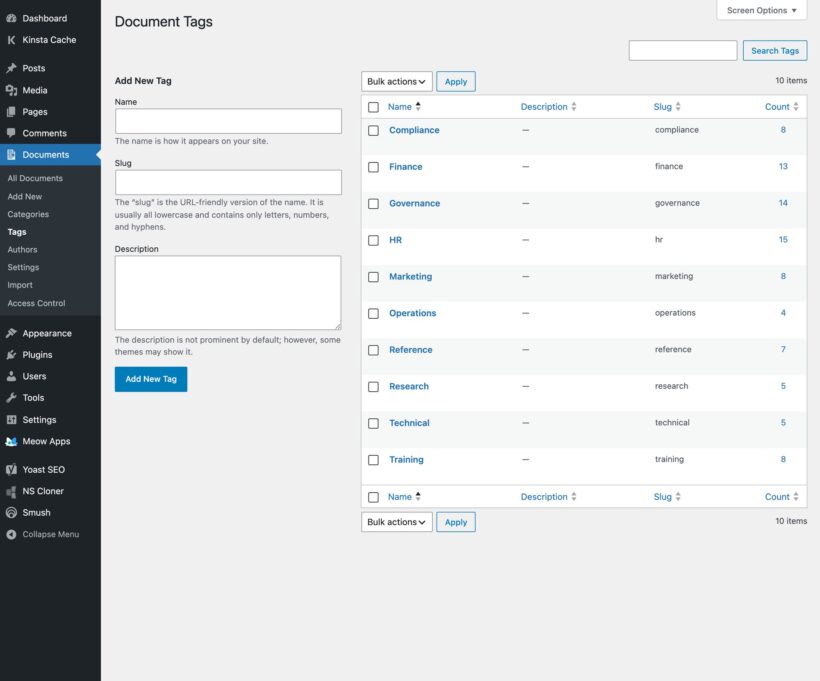
- Categories
- Tags
- Download count, generated automatically
- File size, generated automatically
- File type, generated automatically
- Filename, generated automatically
- A link to the file or to any external URL
With the WordPress plugin, you can also add your own custom fields. For more advanced fields and taxonomies, use the free Easy Post Types and Fields plugin alongside your document library.
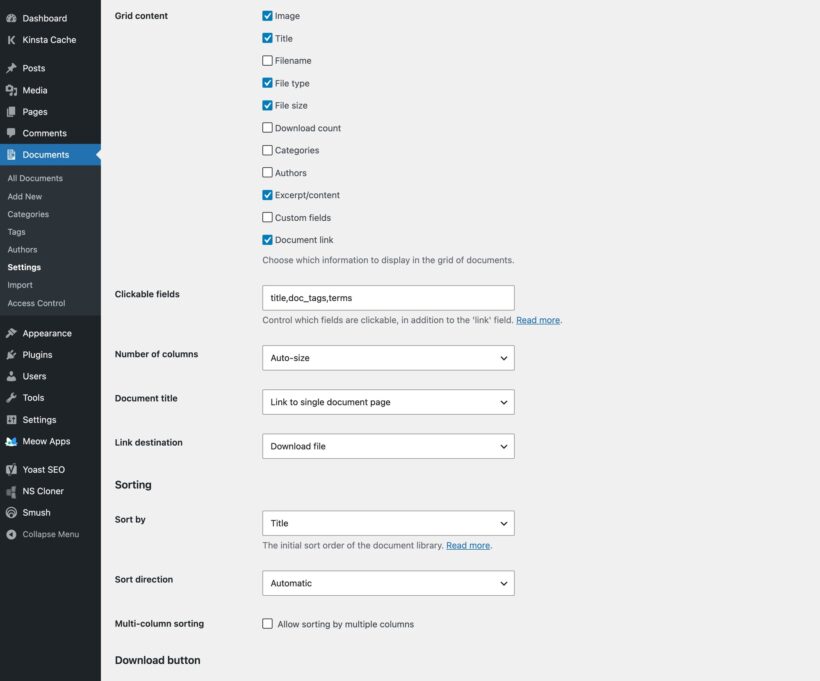
You select the table columns and drag them into your preferred order. For the grid layout, you separately pick what shows on each document library card.
What file types can I display in the library?
The download buttons and links in Document Library Pro support absolutely any file type. This includes PDF, audio, video, Word documents, spreadsheets, ebooks, and much more.
While you can use any file type, PDF is the most commonly used file type by Document Library Pro fans. We even have a full tutorial on how to create a WordPress PDF library.
The document previews only work with certain file types. If you enable the preview option, then this will not appear for unsupported file types so we recommend that you include download buttons instead. (You can rename these to anything you like.)
You can also display embedded audio and video files directly in the document library, in the popup preview window, and (if you're using the WordPress plugin) on the individual page for each document. Either store your audio and video directly in your document library, or on a third party platform such as YouTube, Vimeo, or SoundCloud.
Can I host my document files on third party platforms like Dropbox or SharePoint?
Yes - there are two ways to store the documents which appear in the library:
- Directly in the document library, whether this is your self-hosted WordPress Media Library or the hosted cloud platform that we provide.
- On any third party platform (e.g. Dropbox, Amazon S3, AWS, Microsoft OneDrive, Google Drive, YouTube, Vimeo, etc.).
To create third party documents, simply select the 'File URL' option and enter the URL of wherever the document is stored. The download buttons in the library will link to this URL.
It's also possible to sync Document Library Pro with a third party platform automatically via automation platforms like Zapier. We've provided instructions to help you with this.
Can I control who can access, view, or download documents?
Yes, you can control document visibility, user access, and whether files are available for download or preview only.
This works slightly differently depending on whether you're using the WordPress plugin or the cloud version which you embed in any other platform.
WordPress documents plugin
The Document Library Pro plugin integrates with WordPress user accounts, so you can restrict access as follows:
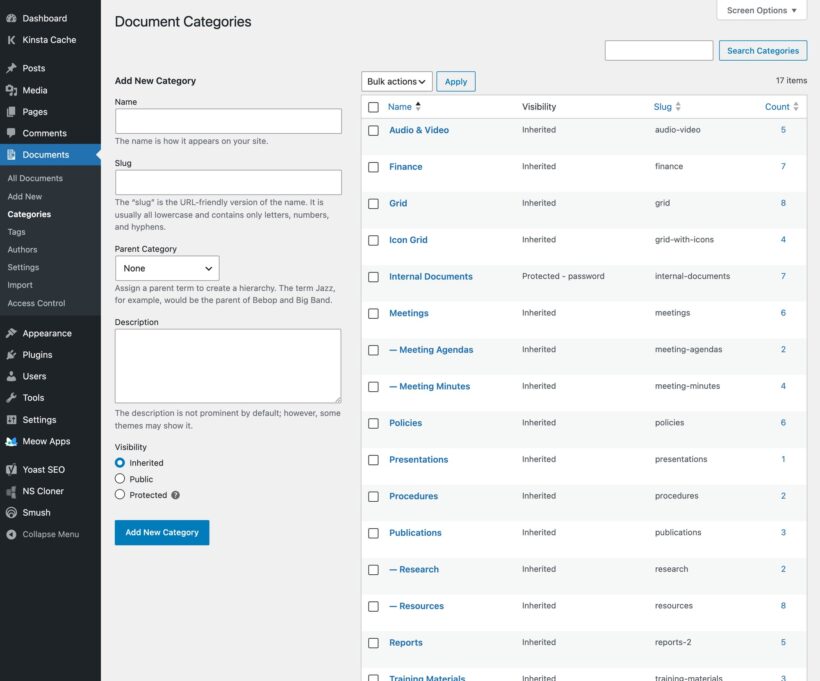
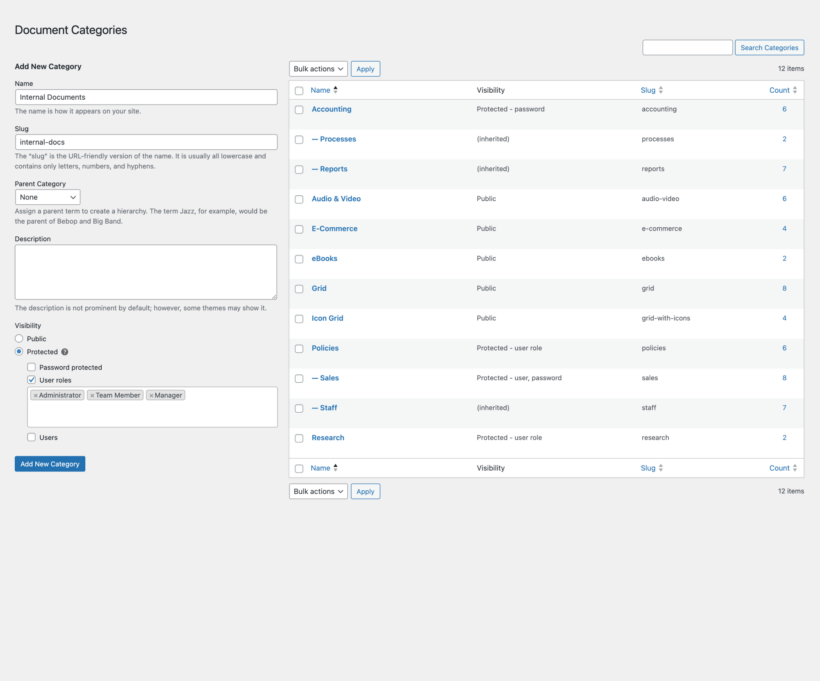
- Restrict your entire library, specific categories, or individual documents.
- Give access to specific users, roles, or password holders.
- Show users only the documents they created, ideal for client portals.
- Choose whether restricted documents appear to public visitors.
- Control which roles can manage documents.
- Works with membership plugins like MemberPress.
Cloud document libraries
The hosted cloud version lets you restrict access (either to the entire library or specific libraries) using password protection. If you embed a document library into a website that is already protected (e.g. a staff-only intranet) then it will inherit those protections, so you don't need to use the password protection that we provide.
Alternatively, if your document files are hosted on a third party platform like Google Drive and you simply link to them from Document Library Pro then the overall library will be public, but users will only be able to access the underlying files if they have the correct permissions.
Can I collect email addresses before users download documents?
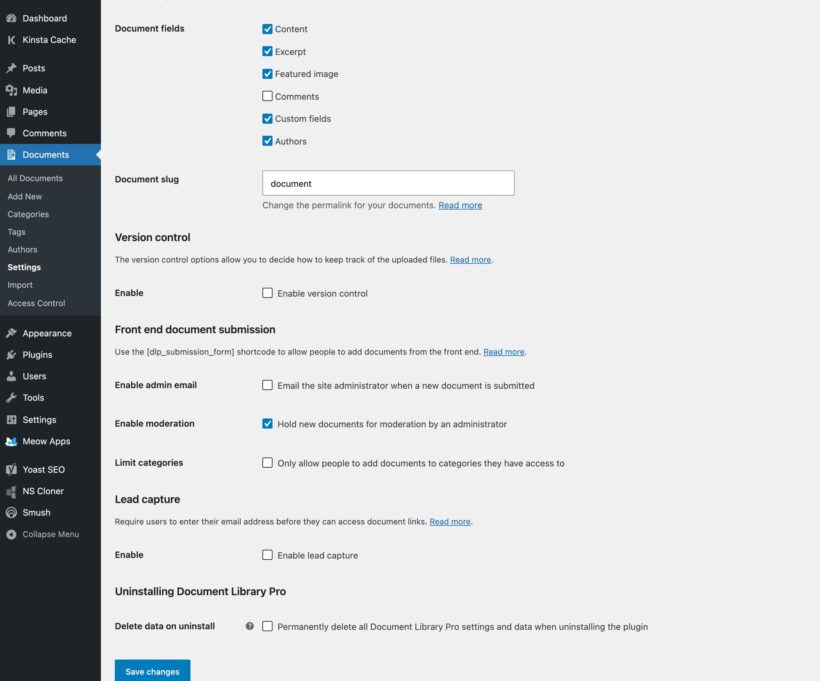
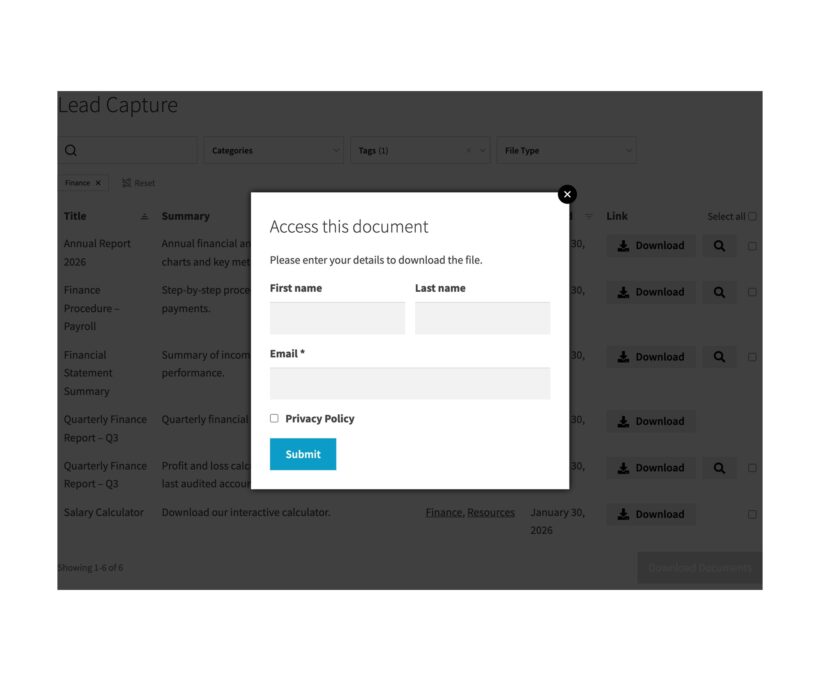
Yes. Document Library Pro includes a built-in lead capture popup which appears when someone clicks a download button. You can require users to enter their details before accessing the file, customize the form text, add an optional privacy consent checkbox, and choose whether logged-in users should bypass the form.
Each submission is emailed to you, and you can connect it to your mailing list or CRM using integration plugins or automation tools.
Can users search and filter the document library?
Yes. You can give visitors several ways to search, filter and sort the document library:
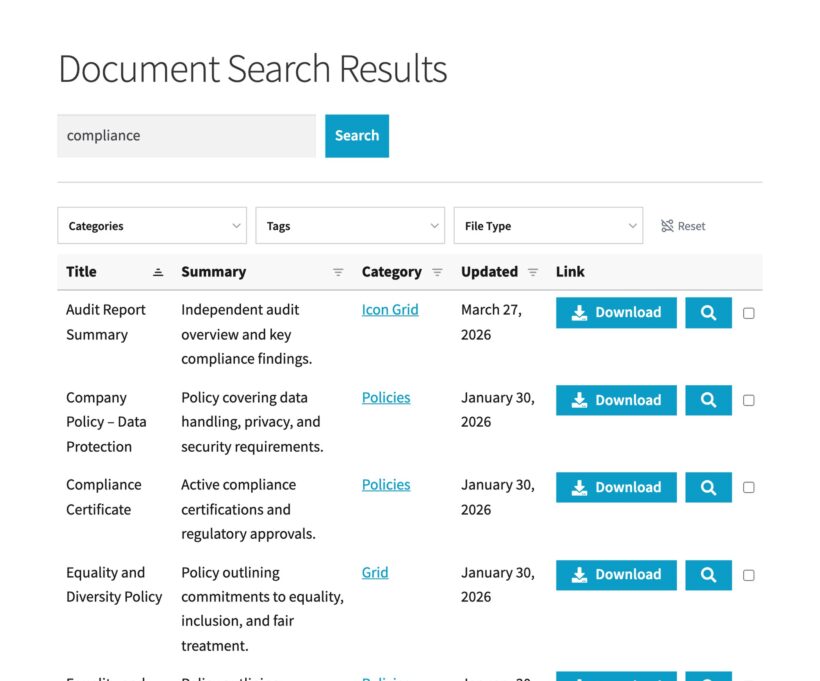
- Keyword search - Add a search box above the document library, with results narrowing as visitors type. It uses a ready-made index, which keeps searches fast even with thousands of documents in the library.
- File content search - On the Advanced plan, visitors can search the text inside PDF, Word, Excel, PowerPoint and OpenDocument files, not only titles and descriptions. It cannot search scanned files or files made only of images.
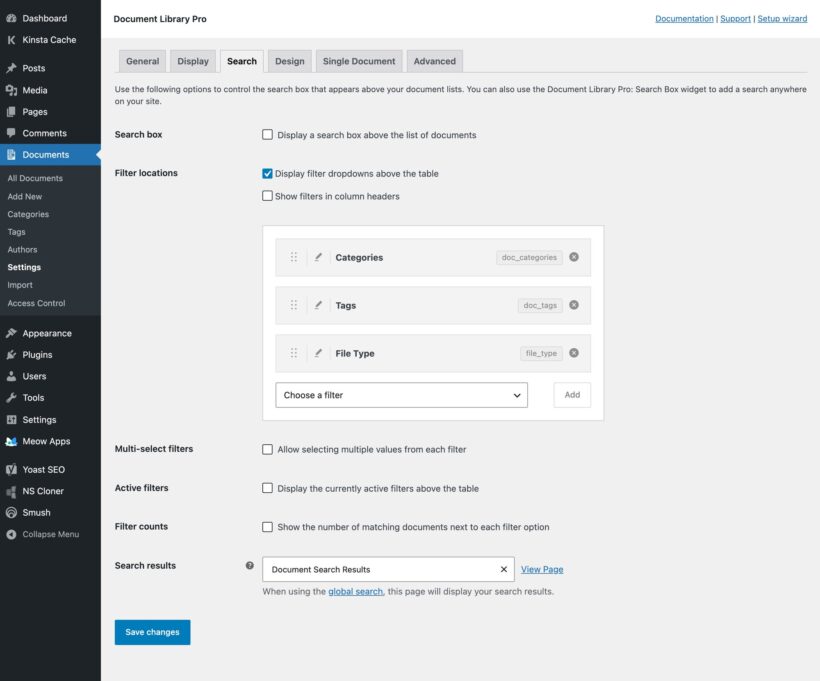
- Flexible filters - Place filters in drop-down menus above the document library or in the heading for each column. You can filter by category, tag, file type, author or any custom taxonomy.
- Multiple filter values - A filter can take multiple values at the same time, and each choice can display the number of matching documents.
- Active filter controls - Above the table, the document library shows the active filters, lets visitors remove them one by one, and includes a reset link that clears them all.
- Column sorting - Visitors can sort the document library by selecting any column heading. You control the default sort column and direction, and you can sort across multiple columns at the same time.
- Standalone search - With the WordPress plugin, you can place a separate search box on any page, sidebar or widget area, then send visitors to the document library results page you choose.
How do the document links work?
Document Library Pro gives you lots of control over how the links to your documents work. You can:
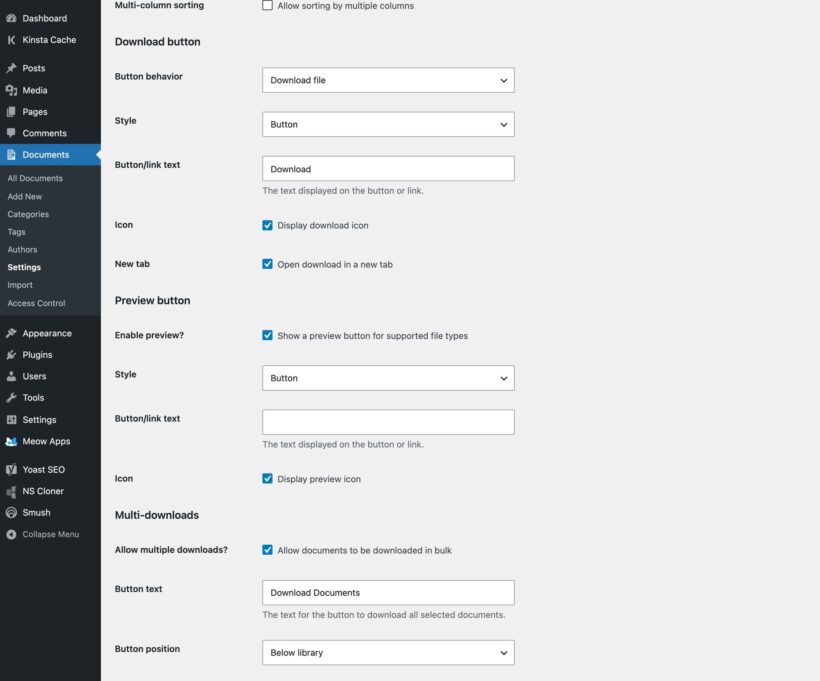
- Add a download and/or preview button for each document.
- Customize the button text and choose from a wide range of button styles and icons.
- Enable or disable the links to the separate page for each document (WordPress plugin only).
- Choose whether links to documents are opened in a new tab.
How many document libraries can I have?
Your main library listing every document is created automatically. Create unlimited extra libraries, each with different content and settings, and display them anywhere on your site.
It's completely flexible and you have full control over which documents to list where. For example, you can:
- Generate one big list of all your documents, with search box and filter dropdowns above.
- Create a one-page document library structured into categories, with unlimited levels of nested folders.
- List documents in different parts of your website based on their category, tag, status, date, and more.
Each library can list an unlimited number of documents.
How do I manage document versions and updates?
Document Library Pro's Advanced plan includes built-in version control, along with document visibility and access controls, so you can manage updates without confusion or broken links.
You can keep documents up to date in several ways:
Version control
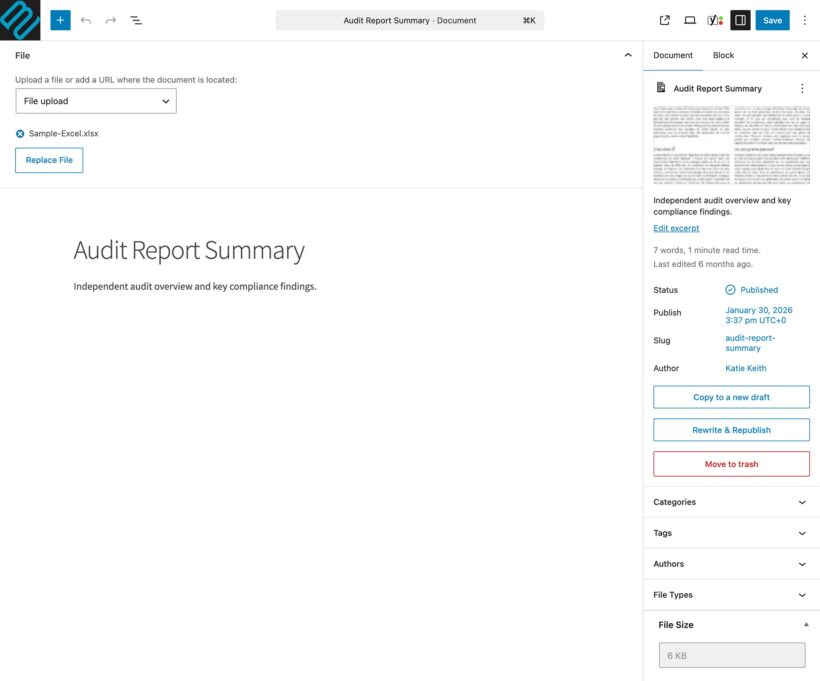
- Replace a document’s file while keeping the same document entry and URL, so users automatically access the latest version.
- Choose to keep previous versions in the Media Library, where you can review, label, delete, or restore them in the admin area.
- Alternatively, set old versions to be deleted automatically when a file is replaced, ensuring only the latest version exists.
Visibility and access management
- Hide or remove outdated documents by changing their visibility, categories, or access restrictions.
- Restrict who can view or manage documents, reducing the risk of old versions being published or left accessible.
Version details are managed in the admin area and are not shown to visitors, so your document library always presents the correct, current file while you retain control behind the scenes.
Can I track the number of document downloads?
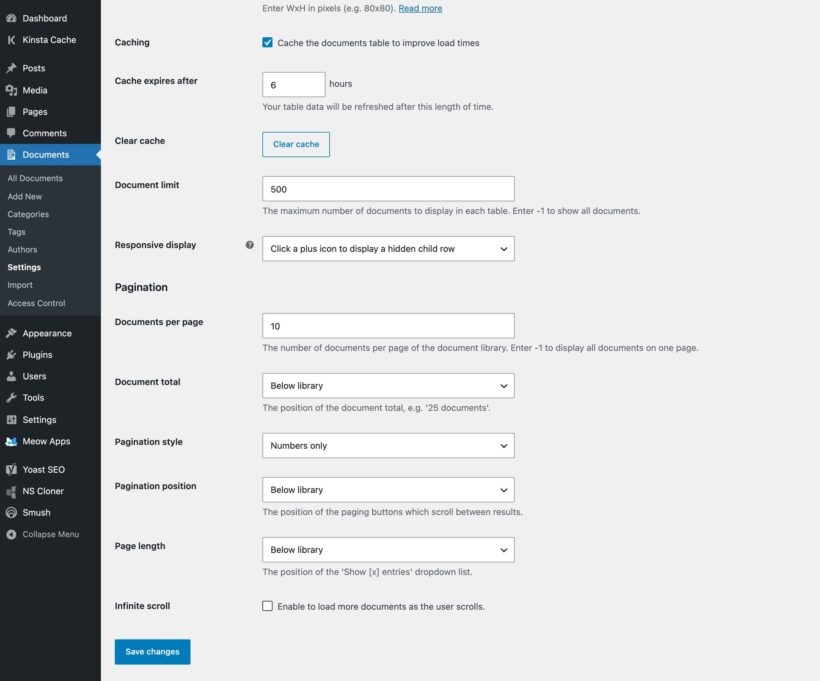
Absolutely. Document Library Pro tracks the number of times that each document has been downloaded or accessed. This analytics information appears in the admin and you can optionally display it in your front end libraries.
The self-hosted WordPress document library plugin can also connect with Google Analytics for more advanced download tracking. Contact us for help with setting this up for the cloud version.
Will it work with my website's design and my other plugins?
Yes - the details depend on whether you're using the WordPress plugin or the fully hosted document library.
WordPress document library plugin
The Document Library Pro plugin works with any WordPress theme and a wide range of other plugins.
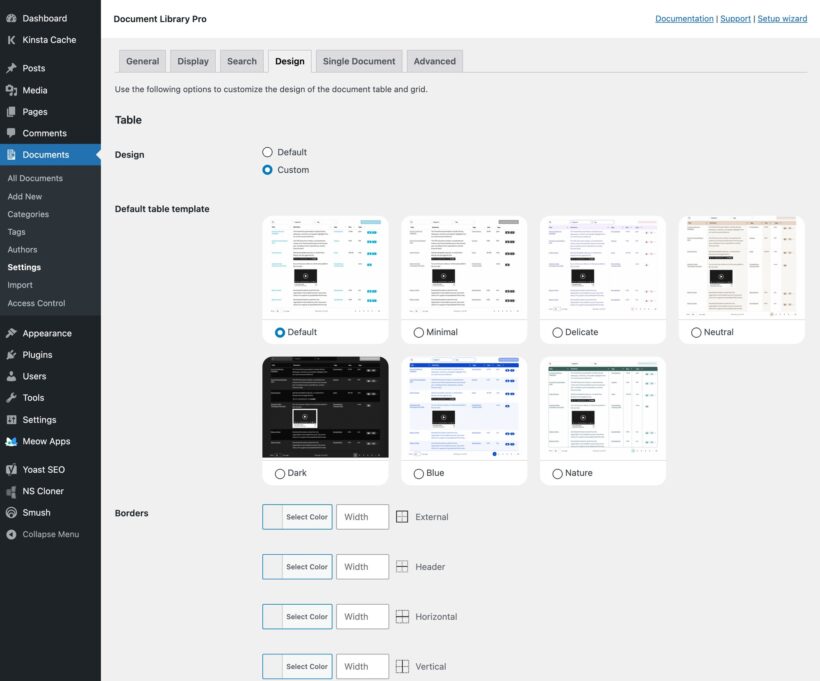
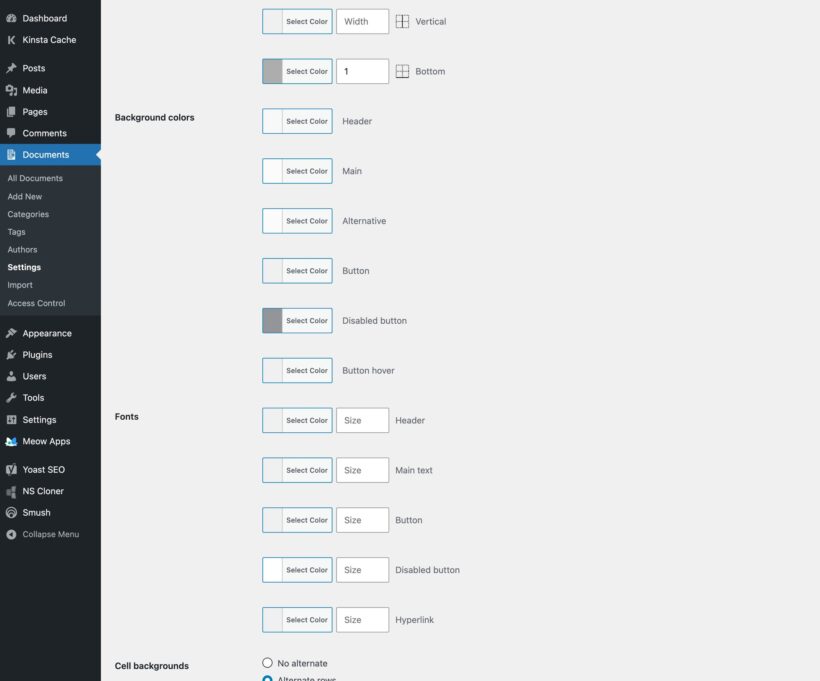
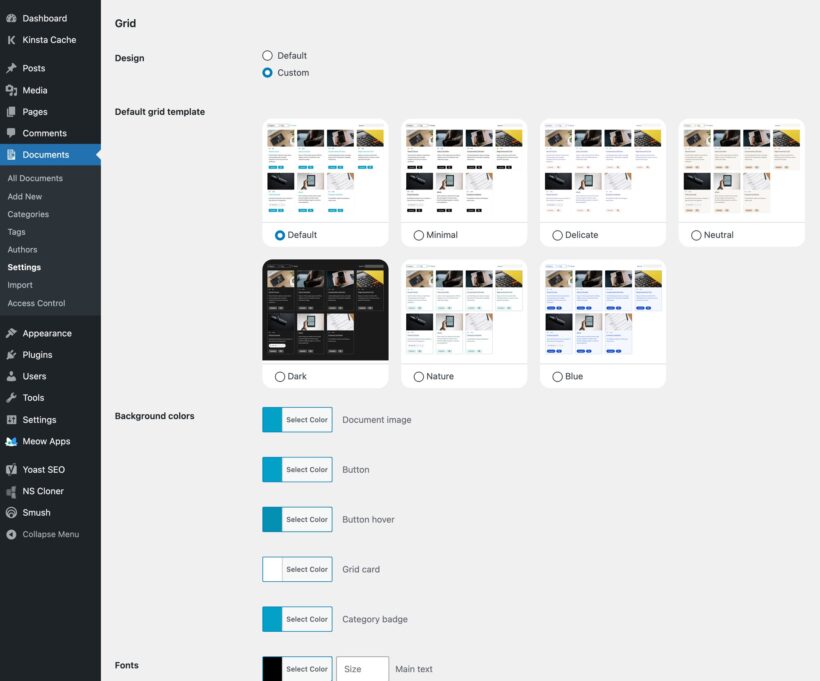
By default, the document library uses styling from your theme such as the font size and color. There are built-in design templates for you to choose from, plus customization options which you can use to personalize the library to your heart's content. If you notice any styling or compatibility issues, our support team will be happy to help.
Cloud document libraries
You can easily tailor the cloud document library to match the design of the website that you are embedded it on. Upload your logo, choose your font and color scheme, choose one of our pre-designed document library templates, and customize it to match your exact brand.
Since the library is embedded on your site as an iframe, it will be fully compatible with everything else that you use on your site such as other extensions.
Does the document library software work in my language?
Yes. The WordPress plugin is compatible with any translation plugin such as WPML, WeGlot and TranslatePress, making it easy to translate the document library and use it on multilingual websites.
The hosted version's dashboard is available in 6 languages, and you can translate everything your visitors see into any language. For a multilingual site, create a separate library for each language - each with its own documents and embed code.
What are the minimum requirements for running the plugin?
The hosted version of Document Library Pro has no requirements - it runs entirely on our servers. You just need a web browser and can embed the libraries into any site via a simple iframe that we provide.
Our document library WordPress plugin is fully tested with the latest versions of WordPress and WooCommerce. We always recommend running the most up-to-date version, but we also support older installations:
- WordPress 6.1 or greater (tested to 7.0.4)
- PHP 7.4 or greater (tested to 8.5)
- MySQL 5.7.8 or greater / MariaDB 10.3 or greater




Document Library Pro plugin by Barn2.
By Peter Dowling on
A little over a month ago I purchased this excellent Plugin. We are very pleased with the ease in which we can now upload PDF files back onto our website. We use the plug-in to manage a WWI and WWII Australian Army Veterans Website. Previously we used Memphis Docs and unfortunately lost 6500 files. However, we are now nearly half the way there. The results are a 100% improvement on Memphis Docs. What is impressive is the way we can conduct searches on individual soldier's names, rank and Army numbers or what unit they served. Very fast.
The only limitation is that when a file requires updating the process is time consuming.