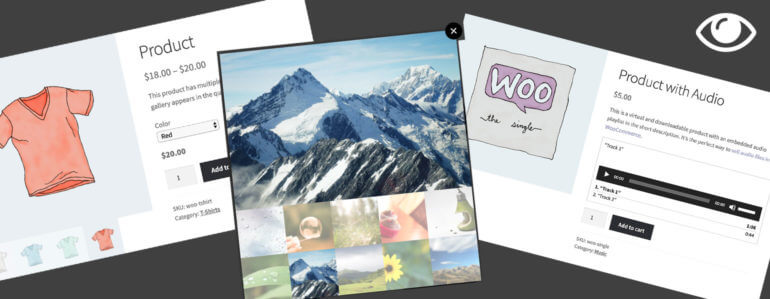






WooCommerce Product Gallery Lightbox created using WooCommerce Quick View Pro

As an online store owner, the easier you make it for customers to find what they’re looking for, the greater the chance of landing a sale. One way to achieve this is by making the process of buying from you as easy and efficient as possible, for example, by creating a WooCommerce product gallery lightbox.

Practically speaking, if visitors are interested in looking at product images, you might consider implementing quick view functionality into your e-commerce store that allows them to view product images and galleries without having to navigate to the single product page.

In this article, we’ll show you how to display your WooCommerce products in a lightbox along with the:

  • Product image (with or without extra product information),
  • Image zoom functionality, and
  • Full product image gallery (with a choice of 2 gallery styles).

We’ll also step through some advanced display options to help you fine-tune your WooCommerce product gallery lightbox.

What is WooCommerce Quick View Pro?

WooCommerce Quick View Pro is a WordPress plugin that allows users to display product information and product images in a lightbox view. This makes it easy for customers to browse products and make purchases – without having to navigate to the single product page. Essentially, it works like a WooCommerce product image lightbox plugin.

The plugin adds a quick view option directly to your WooCommerce store’s main shop page and category pages. You also have the option to launch a gallery lightbox whenever a customer clicks on the product image or product name. This automatically disables links to the single product page i.e. the links are replaced with the quick view links.

Product gallery lightbox showing a photo and a row of thumbnails
With WooCommerce Quick View Pro, you’re able to choose exactly which information from the product’s single product page (for example, product variations and attributes) you’d like to include in the quick view lightbox.

As a result, you’re able to display the information a prospective customer would need to make a buying decision without any distractions or additional steps while delivering an outstanding user experience.

Assuming you have a WordPress-powered website with ...

  • WooCommerce installed, activated, and set up.
  • Some products added to your online store.

… follow the step by step instructions outlined below to create a lightbox containing product images, image zoom functionality, and the full product image gallery.

Step #1: Install and activate the WooCommerce Quick View Pro plugin

If you haven’t done so already, get the WooCommerce Quick View Pro plugin and install and activate it on your WP website. I'll tell you how to set it up as a WooCommerce product gallery lightbox plugin.

Next, head over to WooCommerce -> Settings -> Products -> Quick view from the admin panel to activate the plugin license.
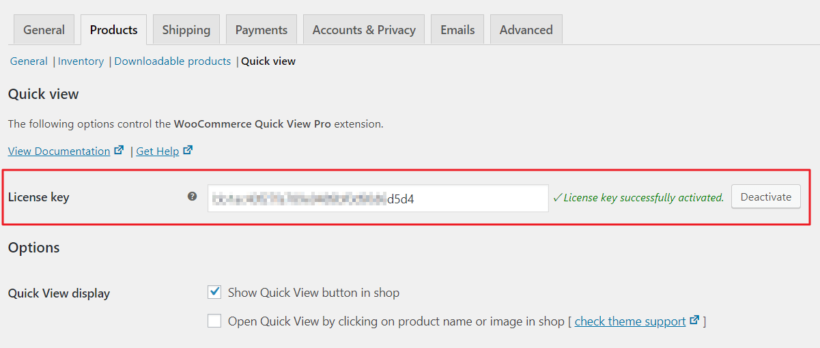
WooCommerce Quick View Pro license key activated in the gallery lightbox settings

Click the Save changes button to proceed.

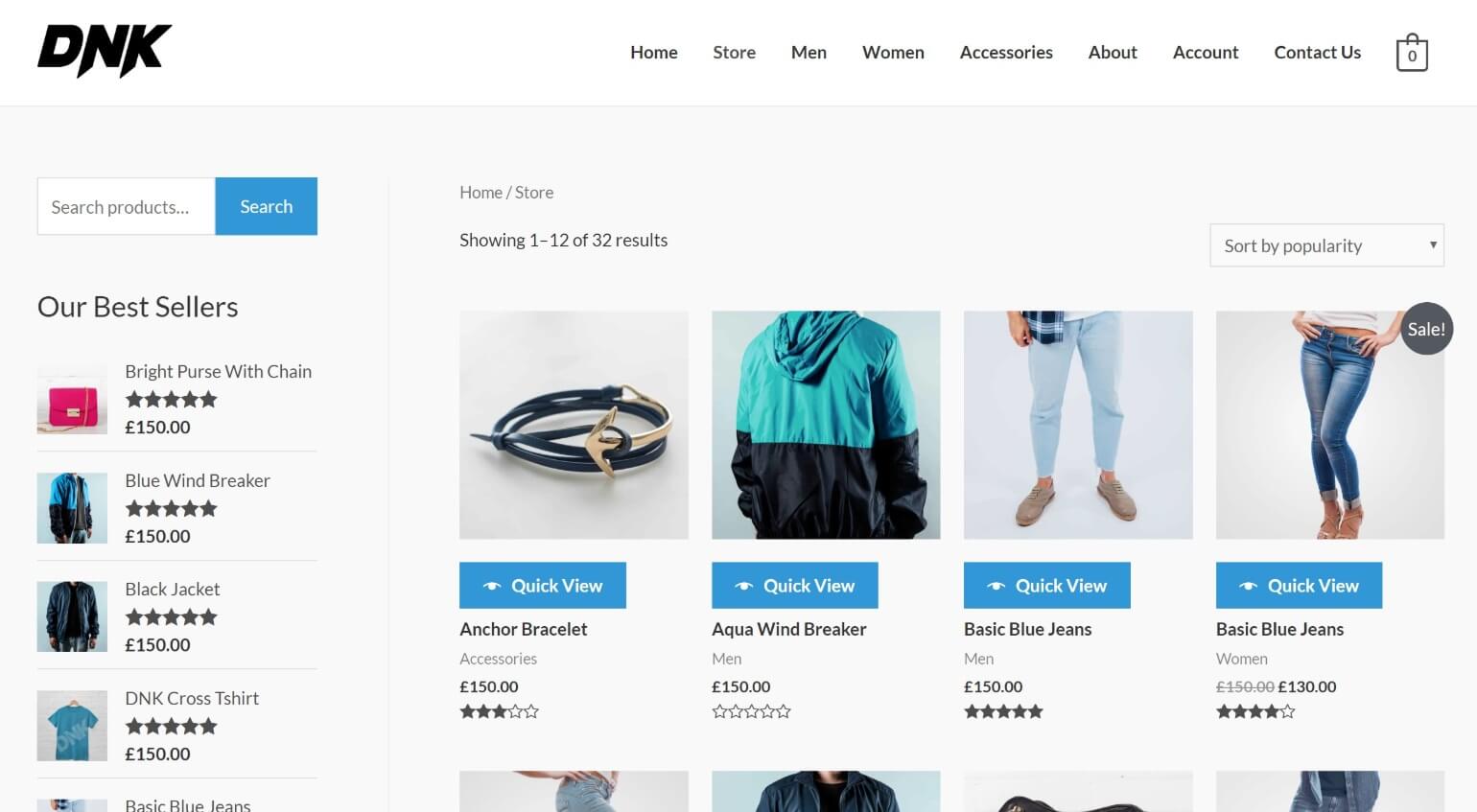
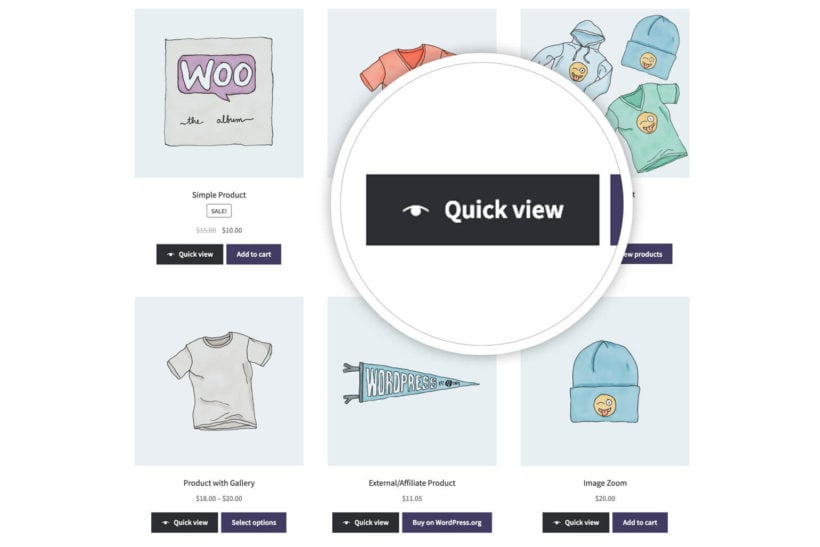
You’ll notice that the Woo Quick View plugin automatically displays products in a quick view layout as soon as you activate it. Your main shop page (and category archives) should have Quick View buttons under each product.

It should look something like this:
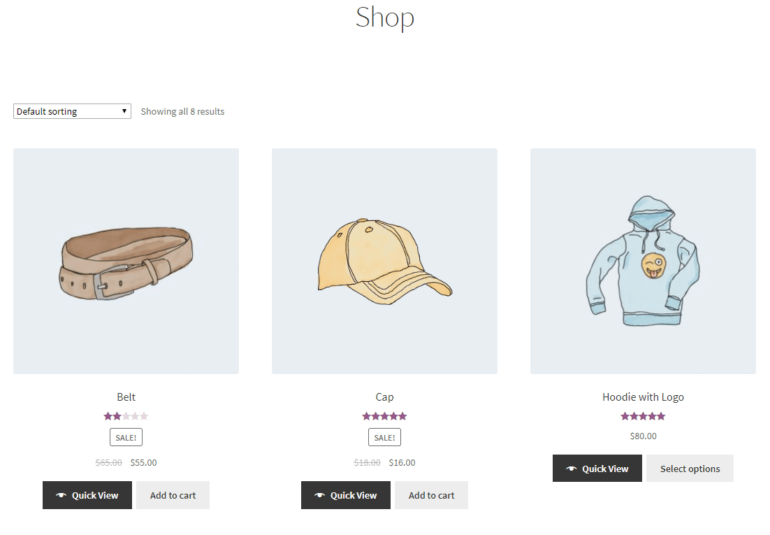
Main shop page in WooCommerce with Quick View links

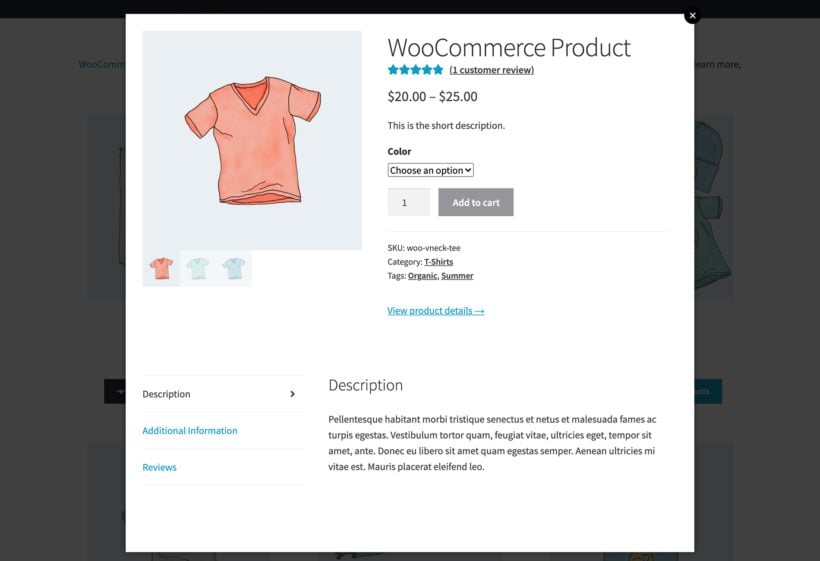
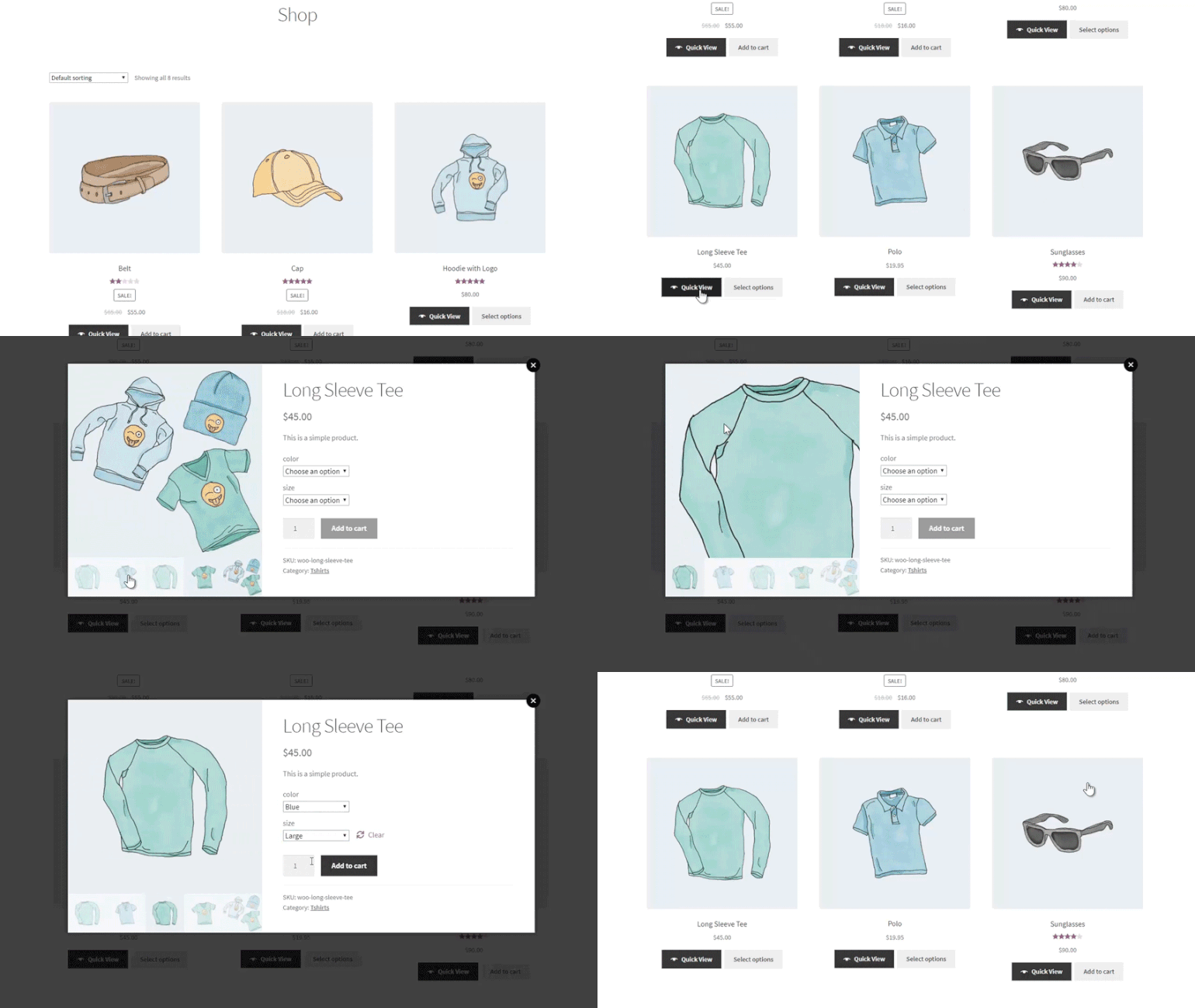
When customers click the Quick View button, the quick view lightbox opens and displays the following information:
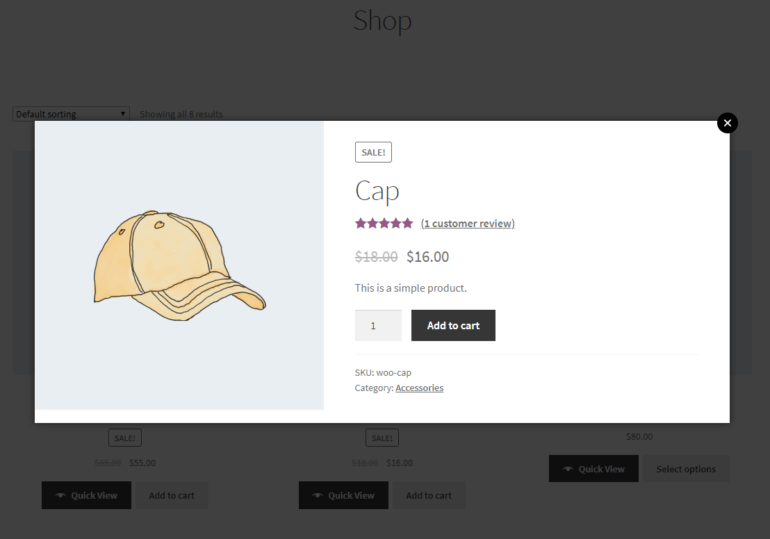
WooCommerce Quick View Pro default lightbox view
  • Product name
  • Product image
  • Reviews
  • Price
  • Quantity selector
  • Add to cart button
  • Product information (SKU, category)

Step #2: Choose what information to display in the product quick view lightbox

Out of the box, the plugin displays the above-mentioned information in the lightbox view.

However, you can choose exactly what you’d like to display from the plugin’s settings page. Specifically, you’re able to display images with (and without) the product image and product details. Product details include product name, variations, attributes, SKUs, and categories. Here’s how:

From the WooCommerce Quick View Pro plugin’s settings screen (WooCommerce -> Settings -> Products -> Quick view), scroll down till you reach the Quick View contents option. Use the dropdown menu next to it to decide what to display inside the quick view lightbox:
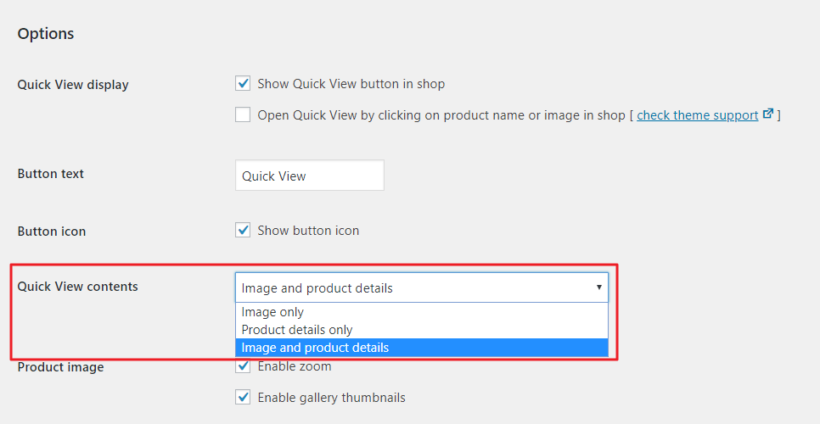
Quick view contents dropdown for choosing what shows in the product gallery lightbox
  • Image only
  • Product details only
  • Image and product details (default setting)

For example, if you set the Quick View contents to Image only, the lightbox will only display the product gallery. It will look something like this:
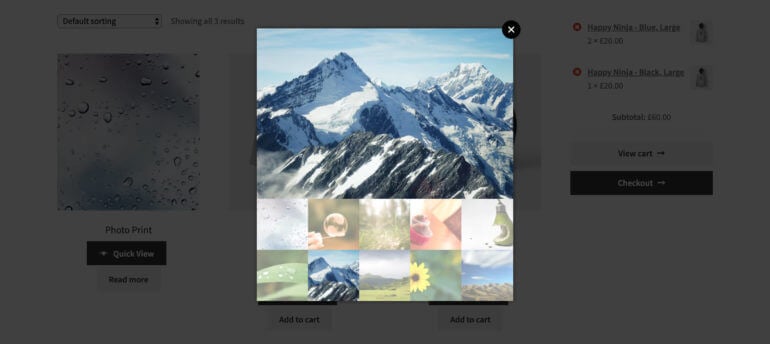
Product gallery lightbox showing a large photo above a thumbnail strip

However, if you decide to go with the Image and product details setting, you can choose which product details to include in the quick view lightbox. The available options include:
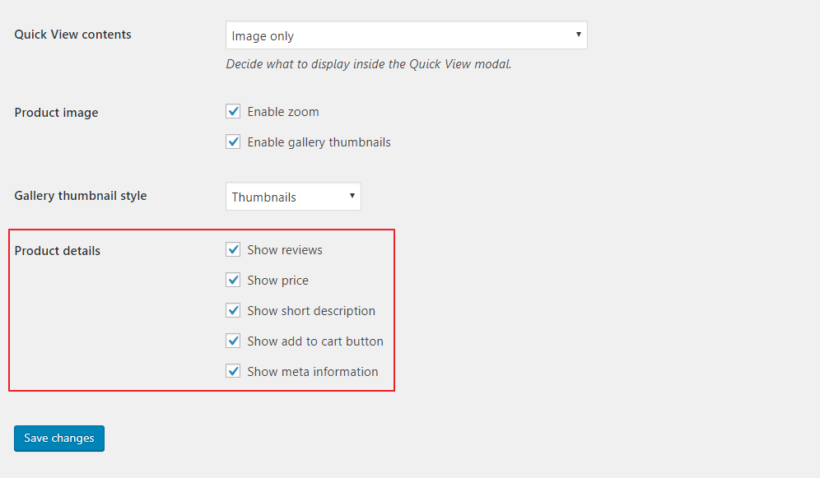
Available product details to display in the quick view lightbox
  • Reviews
  • Price
  • Short description
  • Add to cart button
  • Meta information

Simply tick the checkboxes next to the product details you’d like to display in the quick view lightbox.

Step #3: Select a gallery thumbnail style

With WooCommerce Quick View Pro, you can choose how to display product gallery images in the quick view lightbox. You can decide between Thumbnails and Bullets.

From the same screen (WooCommerce → Settings → ProductsQuick view), scroll down till you reach the Gallery thumbnail style option. Use the dropdown menu next to it to decide between displaying product gallery images as thumbnails or bullet navigation in the quick view lightbox.

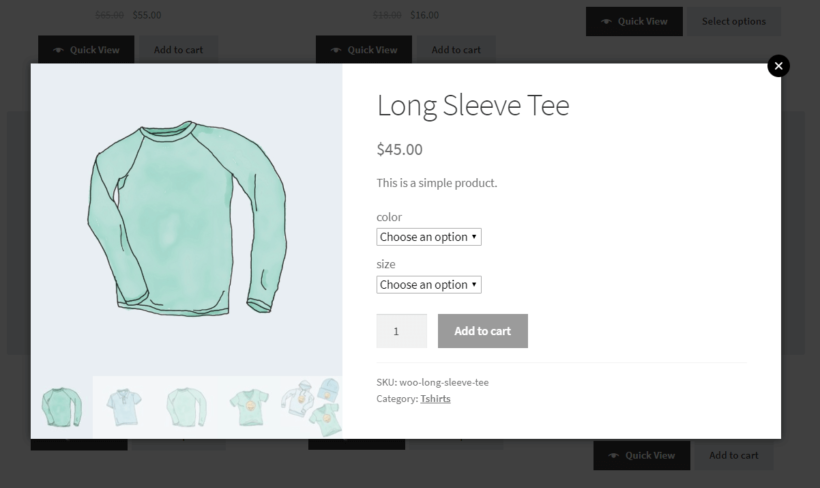
If you decide to go with Thumbnails, the quick view lightbox will look something like this:
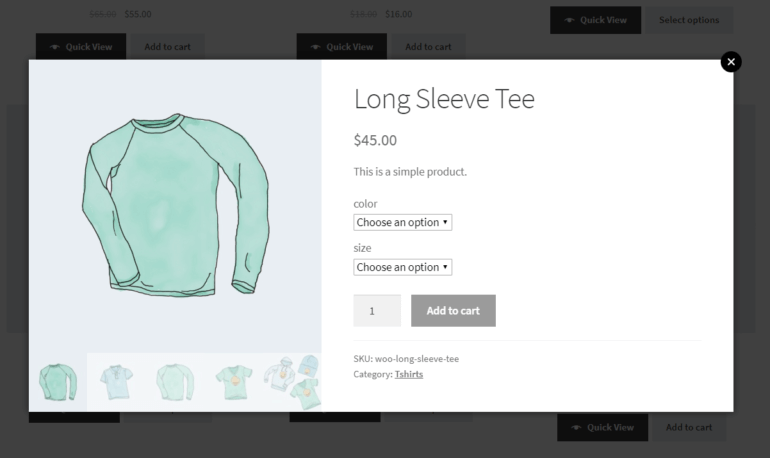
Displaying product gallery as thumbnails in lightbox

And if you decide to go with Bullets, the quick view lightbox will look like this:
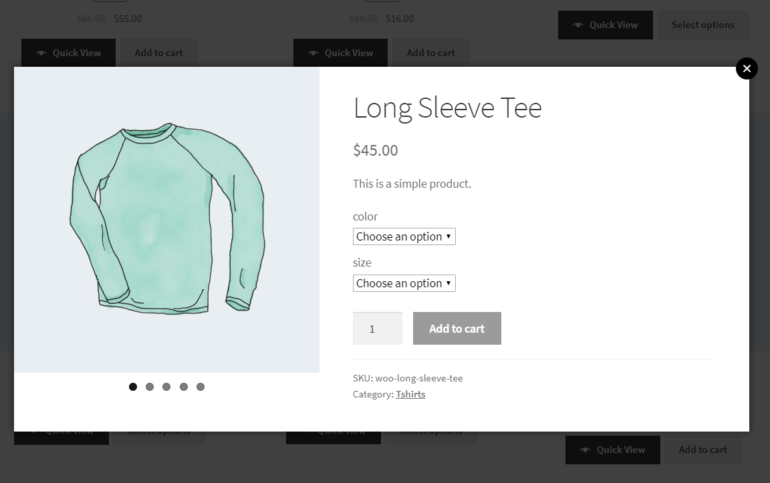
Displaying product gallery with bullet navigation in lightbox

With the bullet navigation option, customers can click through the bullets to browse the product gallery.


Use WooCommerce Quick View with product tables

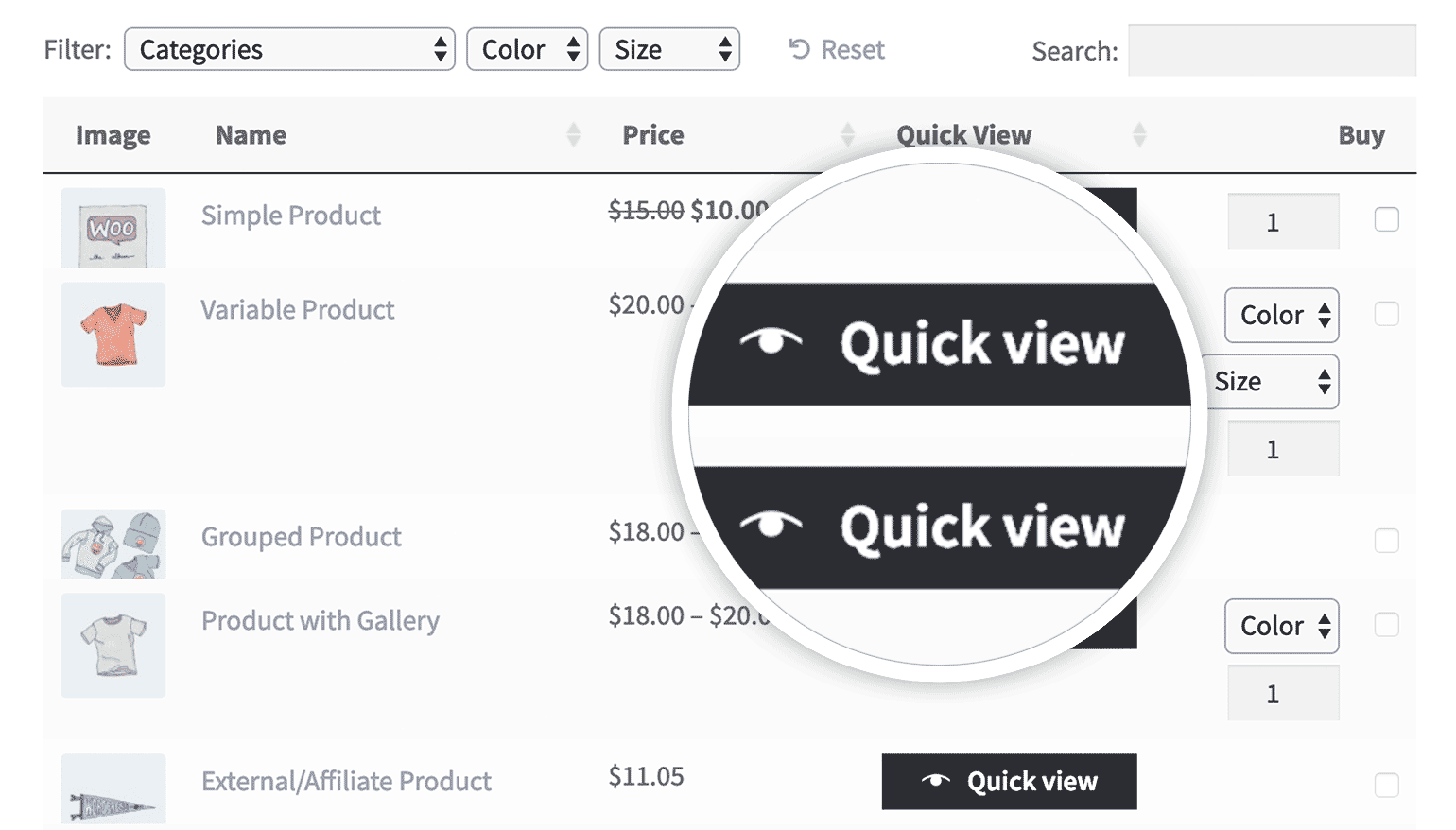
WooCommerce Quick View Pro integrates seamlessly with the WooCommerce Product Table plugin. Use them together to list products in an interactive table or order form layout, complete with add quick view buttons or links.

As a result, customers will be able to open up the full product image gallery in a WooCommerce product image lightbox directly from the table.
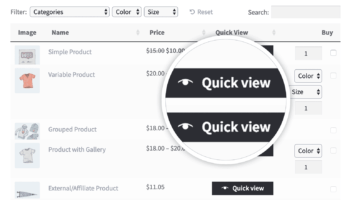
Quick view magnifying glass opening the product image gallery
Add quick view buttons or links to the wholesale order form.

You can choose to add a Quick View button to the table. Or you can choose to have it launch whenever a customer clicks on the product name (or image) in the table.

When both the WooCommerce Quick View Pro plugin and the WC Product Table plugin are installed and activated to your website, you’ll see a new Quick View Pro option the the WooCommerce Product Table plugin’s settings screen (i.e. WooCommerce -> Settings -> Products -> Product tables).
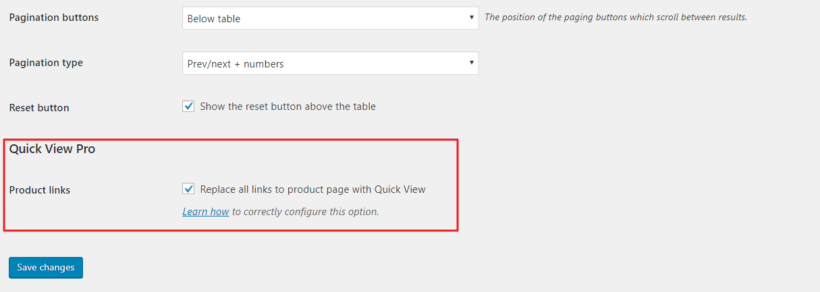
Quick View Pro setting in WooCommerce Product Table's settings

Ticking the checkbox next to the Product links option makes it so the product page links in your table layout open the quick view box instead of linking to the single product page. This is the perfect option for users who want to completely disable the individual product page.

Get WooCommerce Product Table

Case study: Ink This and That’s product table with quick view functionality

Ink This and That sells different sorts of matching products including backpacks, dresses, t-shirts, swimsuits, and leggings. They use WooCommerce Quick View Pro along with WooCommerce Product Table to showcase their product galleries in a lightbox view.
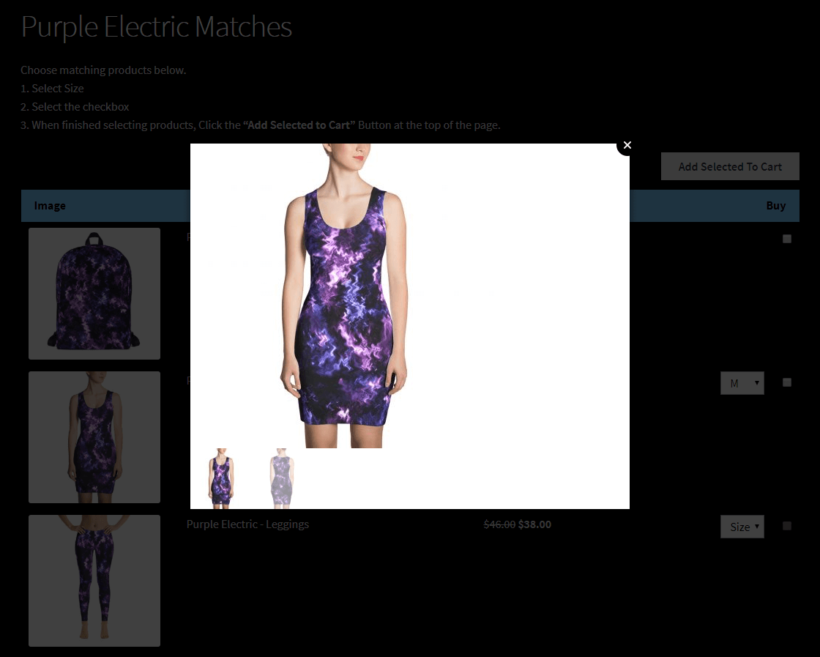
Quick view popup showing product details over a WooCommerce shop page

Whenever a customer clicks on the product image in the table layout, the product gallery opens up in a lightbox view. Customers can then zoom into the image and browse other images in the gallery. The e-commerce store chose to go with the Thumbnails gallery style for their WooCommerce gallery lightbox.


Where to get the plugin

Integrating quick view into your main shop page and category archive pages makes it easy for customers to view product images and product galleries without having to click through to the single product page. It effectively optimizes the purchase process and helps you deliver a professional and enhanced user experience to your customers.

Do you have any questions about how to use a WooCommerce gallery lightbox plugin in your own online store? Let us know in the comments below!

build a WooCommerce product database optimized for conversions

The layout of your e-commerce site plays a key role in improving both customer engagement and sales. For some sites, such as those selling technical products or offering a wide variety of items, standard product layouts aren't the best way to do this. Enter WooCommerce product database.

By using a WooCommerce product database, you can show off your merchandise to best advantage. Plus, enabling your customers to search, sort, and filter items will help them find what they're looking for quickly. As an added bonus, features such as Add to Cart buttons and product quick views can enhance customer engagement.

In this article, we'll share some reasons why you might want to include a product database on your WooCommerce site, as well as a product database example for two different websites. Then we'll explain how to build one with our WooCommerce Product Table plugin, and how to add a quick view function to it. Let's dive in!

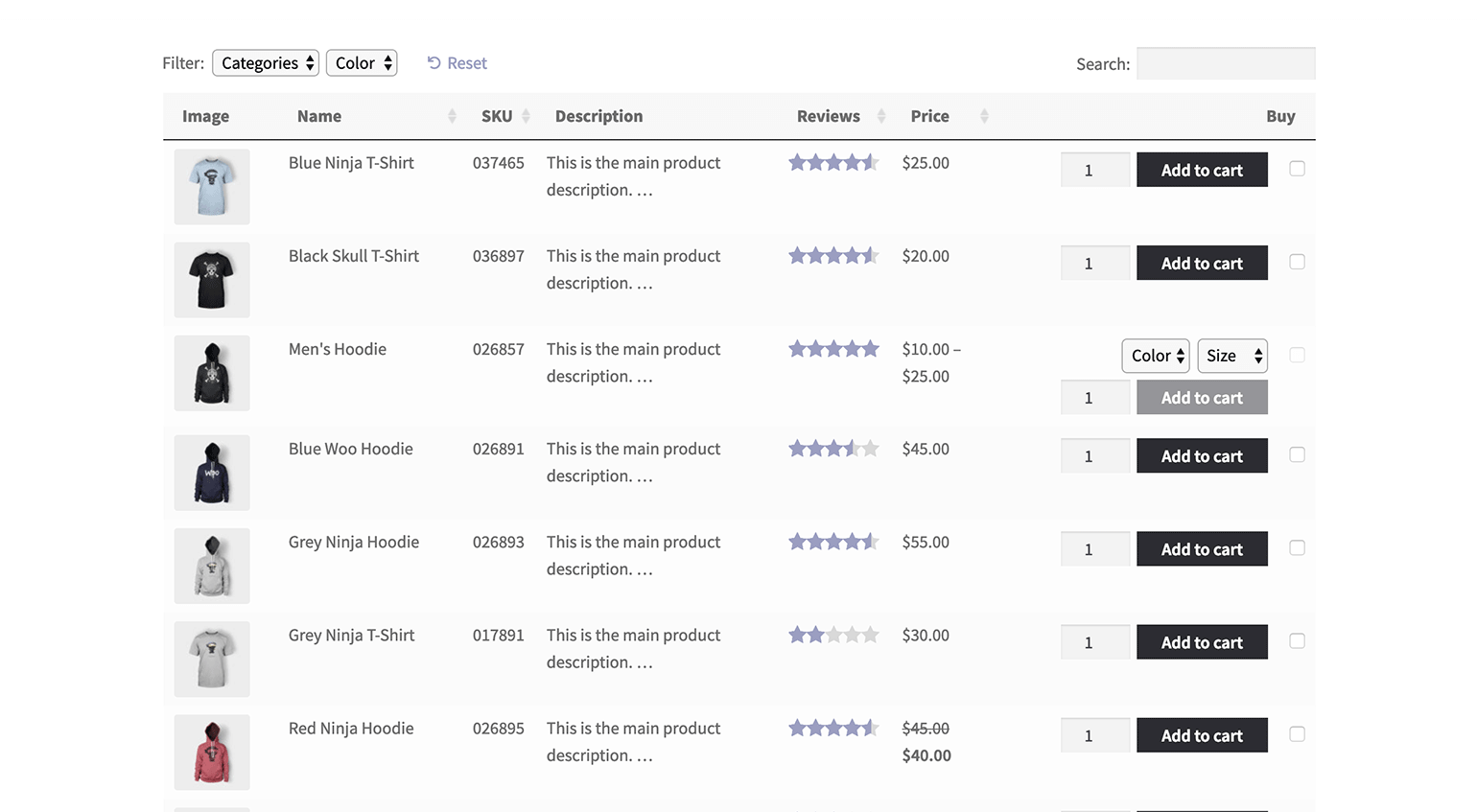
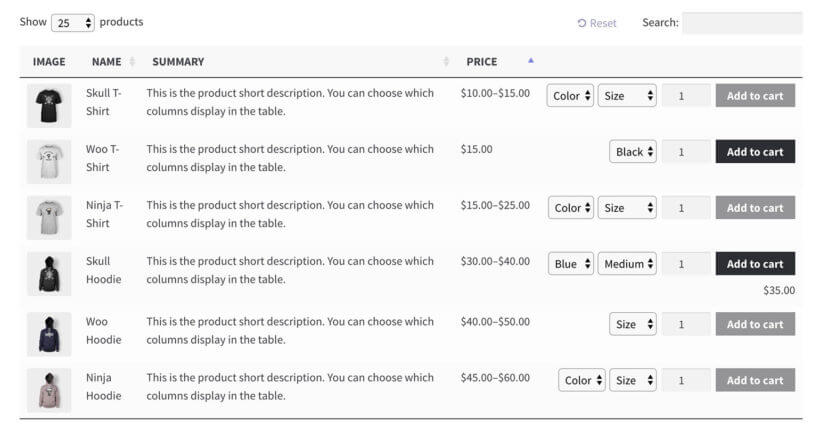
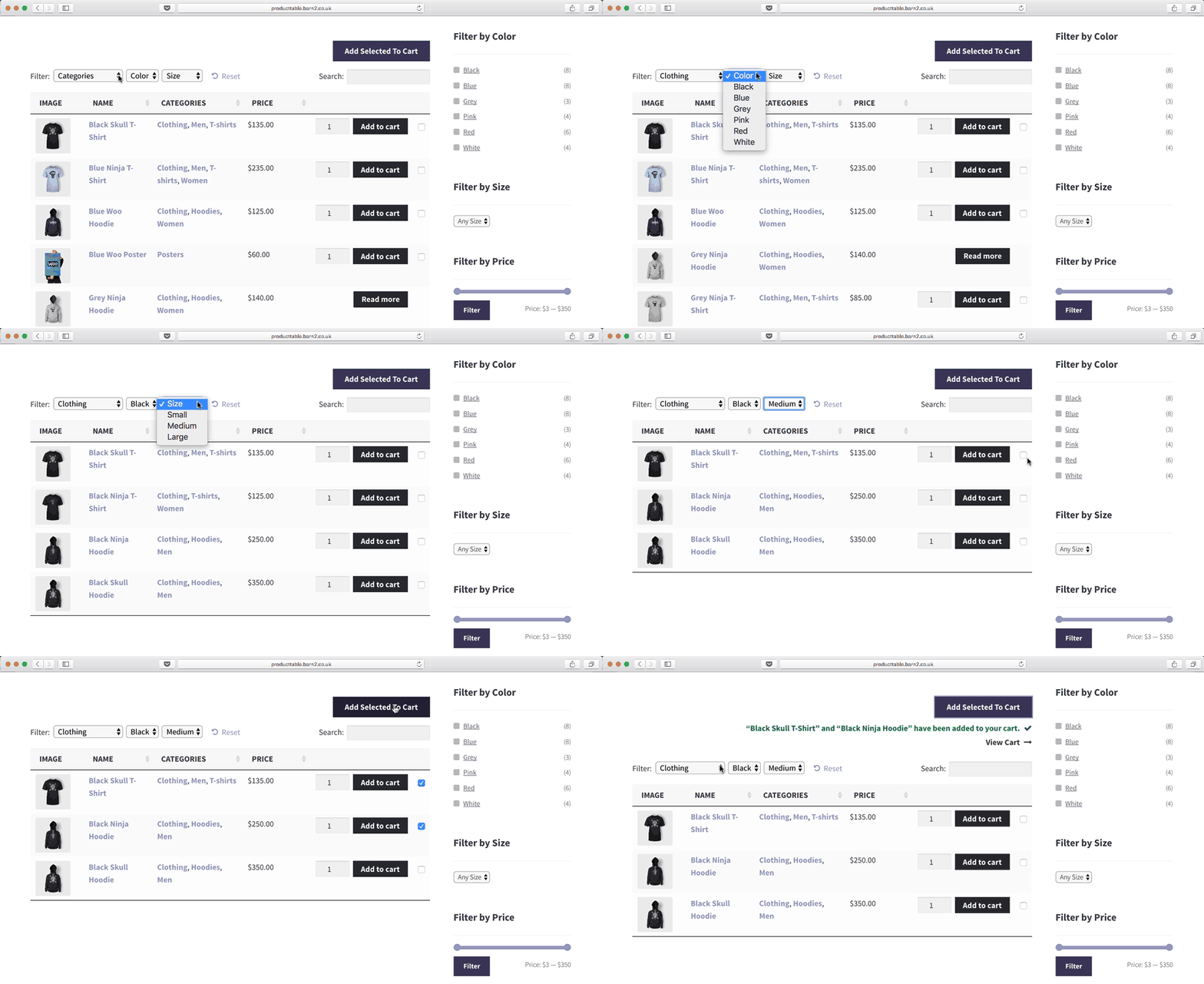
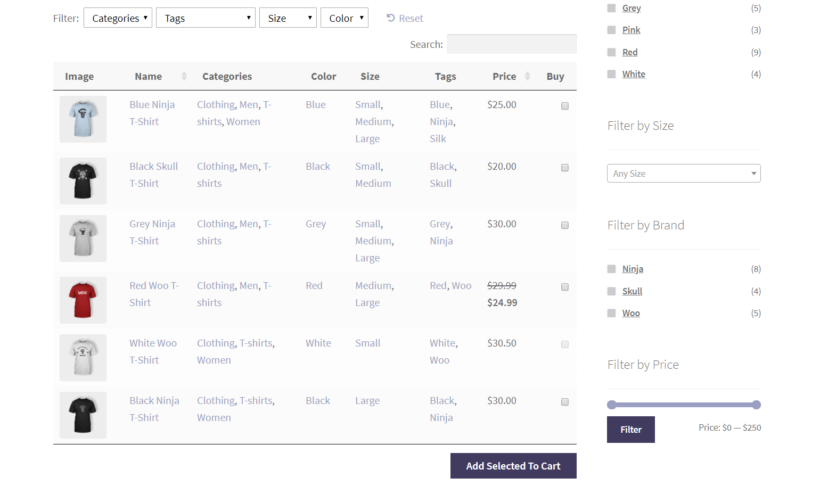
WooCommerce product table with search, filters and sortable columns

Why include a product database on your WooCommerce store?

The default layout of the traditional WooCommerce shop page and product category pages works well for some stores. This mostly applies to ecommerce stores which sell visual products where the customer is happy to spend time browsing and looking at large images. Clothing is a good example of this.

But what about other types of product? What about stores selling large quantities and a wide variety of merchandise?

With a WooCommerce product database, on the other hand, your customers can search, sort, and filter items in the table to find what they need quickly. This is key to providing a positive User Experience (UX), and can even increase sales. Conversely, a difficult-to-navigate website may deter your visitors from converting. If they can't find what they are looking for in a couple of clicks, it won't be long before they decide to look elsewhere.

Additionally, a large image isn't always the best way to show customers your merchandise. Some products, such as e-books or very simple items, are digital or simply aren't very interesting to look at. In these cases, a short description or technical product data may be more appropriate.

While this list is by no means exhaustive, here are a few examples of products that may sell better in a database format:

  • Spare machine and car parts
  • Storage bins, boxes, and other containers
  • Gift cards
  • Tickets to or registrations for events
  • Services such as cleaning, pet sitting, and hauling
  • Digital products such as music and e-books

Seeing a WooCommerce product database in action may give you a better idea of what it's capable of and how you might use one on your own site. With that in mind, let's look at a few product database examples on actual sites that use product databases made with the WooCommerce Product Table plugin.

Case study #1 - Yarn Gate's wholesale product database example

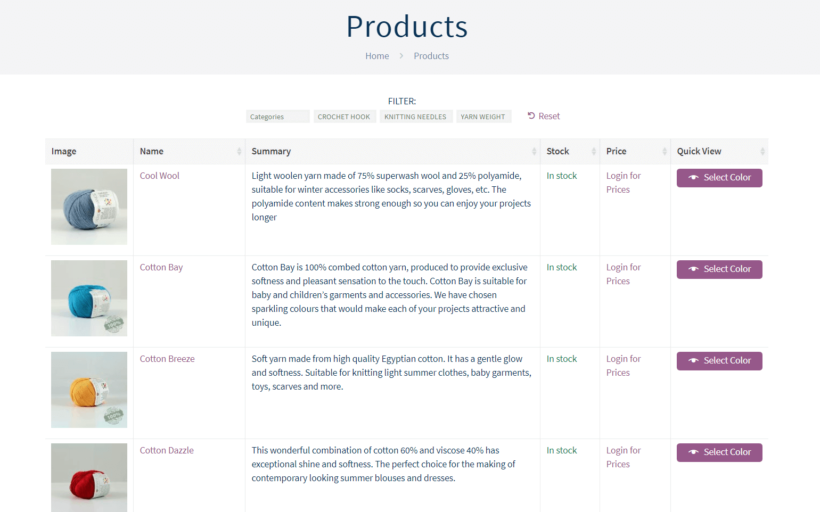
Yarn Gate is a wholesale store selling premium yarn and wool to B2B customers. Its product database includes images and a quick view feature with variation swatches, so customers can see all the available colors:

Yarn products in a searchable product database table on Yarn Gate

Since yarn isn't all that visually interesting, individual product pages aren't really relevant. Plus, using a WooCommerce product database significantly improves Yarn Gate's website UX. Its customers can easily view and purchase multiple colors of yarn without having to navigate to several different pages. They can select the options for variable products in the quick view lightbox. With this system, customers see more products at one time than they would in a typical WooCommerce layout.

By speeding up and simplifying the purchasing process, Yarn Gate is on the road towards maximizing sales. Its customers generally buy in bulk, so using a product database is the best way to streamline its customers' experience and encourage them to buy more.

Case study #2 - First Kitchen's database of parts & accessories

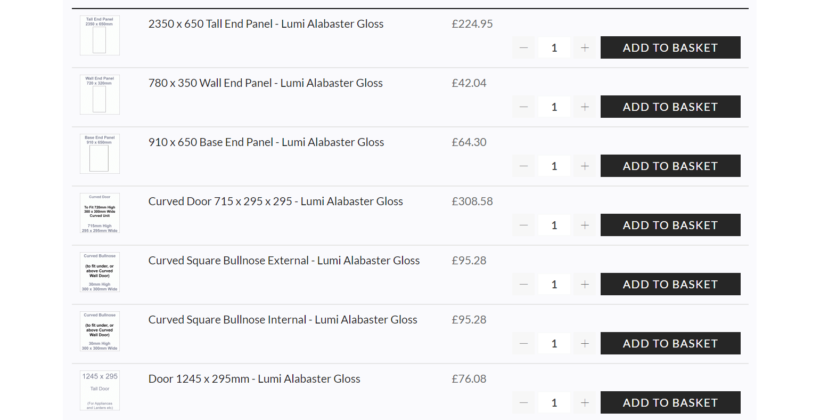
First Kitchens sells cabinet doors and other accessories for kitchens, and doesn't need to display product images at all. Its database features dimensions instead, which is more useful information for its customers:

Apparel product table with a matching-products quick view popup open

This company is using product databases in a unique way, in order to cross-sell its products. Each of this site's product pages includes a table that lists related items, so customers can buy everything they need on a single page. It's basically a list of related products, displayed in a database-style format.

Additionally, the tables of related products act as order forms. Customers can select product variations and add items to their carts right from the database. That way, just like the previous product database example we featured, visitors don't have to navigate between pages.

We'll discuss how to implement this technique on your own site next.

How to build a WooCommerce product database with search, sort, and filter features (in 4 steps)

While there are many ways to create a WC product database in WordPress, the simplest and most flexible option is to pick up our WordPress plugin, WooCommerce Product Table:

This tool includes a variety of useful features, such as:

  • The ability to list products in a searchable database and add filters and custom fields to it
  • Multi-select Add to Cart buttons to help customers make fast purchases
  • Lazy load feature so that you can quickly list thousands of products in a single table

In the tutorial below, we'll show you how to use this plugin to build your own WooCommerce products database and give you some tips to keep in mind.

Step 1: Install and activate the WooCommerce Product Table plugin

First, you'll need to purchase WooCommerce Product Table. You can choose from a variety of license options:

Once you have the plugin, download the .zip file and make sure you have your license key on hand. Then, in your WordPress dashboard, navigate to Plugins and select Add New. Click on Upload Plugin at the top of the page, and choose the WooCommerce Product Table .zip file to upload and install it on your site:

Click the Activate Now button on the next screen to finish the process. Now you're ready to start customizing its settings to create your WooCommerce product database.

Step 2: Create a WooCommerce database

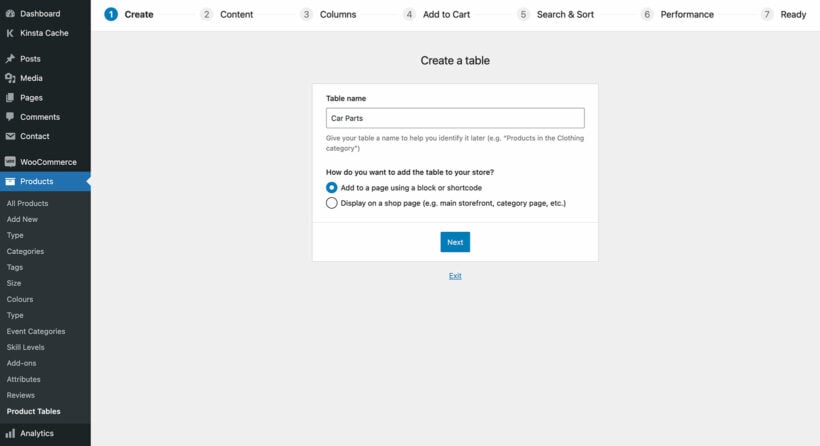
The Product Table pljgin comes with an easy table builder which lets you create a WooCommerce product database in minutes. This launches automatically when you first activate the database plugin, or you can access it later at Products → Product Tables.

The table builder takes you through the process of setting up your first product database, step-by-step. There are a wide range of settings which you can adjust to create the perfect product database for your merchandise. I'll talk you through some of the most important ones.

2a. Choose where to display the WooCommerce product database

You can specify whether you want your database to include all of your products, or only items from a certain category. This can be useful if you want to use product pages for some items, and display the rest in an organized table.

Alternatively, you can enable the WooCommerce database layout automatically on your main shop and category pages.

First step of the WooCommerce Product Table builder choosing how to add the table

2b. Customize your database's columns

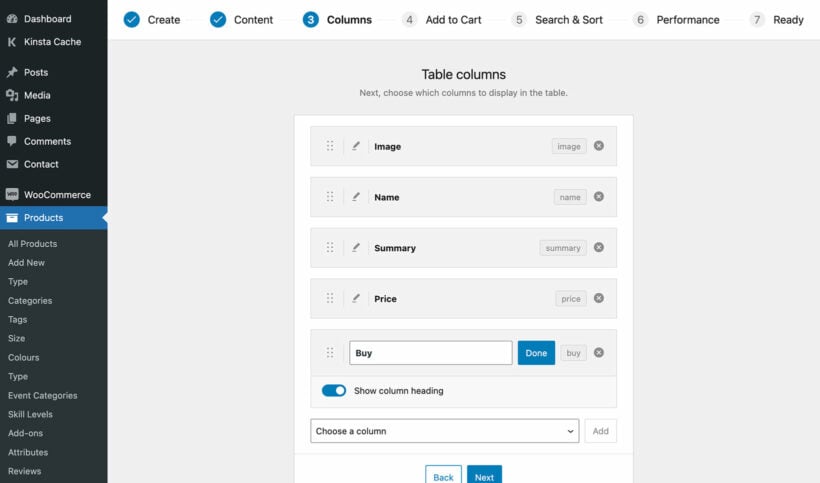
One of the best things about an ecommerce database created with WooCommerce Product Table is that you can customize what columns are displayed for your products.

First, you'll want to determine what information your WC product database will include. The default columns are each product's name, a short description, the price, and an Add to Cart button. However, there are many more columns you can choose to include, such as sku, custom taxonomies, images and reviews:

Choosing which columns to show in the WooCommerce Product Table

When choosing which columns to include, try putting yourself in your visitor's shoes. Consider: Is this column going to help them find the product they're looking for? User experience is the name of the game here, so make sure you customize your database to make it easily searchable. As part of this, include columns that will help your customers make the right buying decision.

If you do choose to feature images, you can specify their size and enable lightbox displays as well.

Some columns link to the single product page. If you're using a product database in place of product pages, then click the 'Advanced' toggle for each column to disable the product page links.

2c. Add search, sort, and filter features to your WooCommerce product database

A long database can be intimidating to customers and difficult to sort through, especially if you offer a lot of products. To improve your database's ease of use, you'll want to add features that make it simple for users to search the database and find what they're looking for quickly.

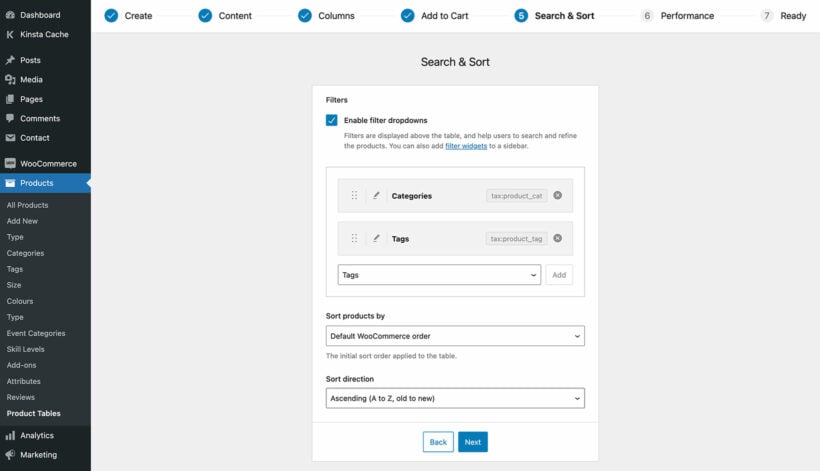
The search box will appear above the product database automatically. You can also add as many filter dropdowns as you like, and select the initial sort order for the products. Customers will be able to re-order the database by clicking on the column headers.

Adding filter dropdowns in the product table Search and Sort step

With all of these settings enabled, your customers will be able to find their desired products in your database quickly.

2b. List large numbers of products in the database

You can also enable lazy loading, which can help improve your site's UX if your database includes hundreds or even thousands of products. This can prevent slow loading times that cause frustration for customers. Just be aware that this particular feature will disable some of the plugin's other functionality, in order to maximize speed.

If you want, you could even turn the WooCommerce database into a convenient order form where customers can select product variations and product add-ons right from the table. Combined with Add to Cart buttons and checkboxes, these features enable your users to customize their products and checkout without leaving the WooCommerce database page.

Step 3: Add the database to your site

Finally, you'll want to add your database to a page on your WordPress website. You can skip this step if you chose the option to enable the database layout on your main shop and category pages.

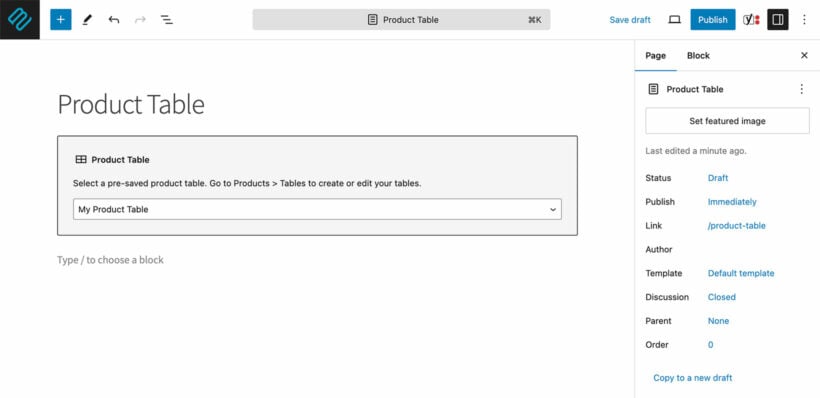
The easiest option is to insert a 'Product Table' block wherever you want the table to appear. If you're not using the WordPress block editor then you can copy a shortcode from the final page of the table builder and insert this instead. You can find the shortcode at any time by going to Products → Product Tables. For example, you'll need this method if you're using a page builder plugin such as Elementor.

Product table block listing a WooCommerce product database on a page

Either way, your WooCommerce product database will now be visible to customers on the front end 🚀

Quick view links added to a WooCommerce product database tableIf you have high-quality images of your products, adding a 'quick view' feature to your Woo product database may be useful. Quick views have been shown to increase conversions, and they display your products in their best light.

As we've seen in our first product database example, Yarn Gate provides their visitors with an easy way to browse their products. Their customers don't need to waste time going back and forth between pages. This is a smart way to boost user experience for any similar website with numerous available items.

Additionally, by keeping customers on your database's page, you'll encourage them to browse more products. Quick view and add-to-cart options enable easy browsing and purchases right from your database. Check out our complete guide to WooCommerce quick view.

To add quick view functionality to your WooCommerce product inventory, you can use the WooCommerce Quick View Pro plugin:

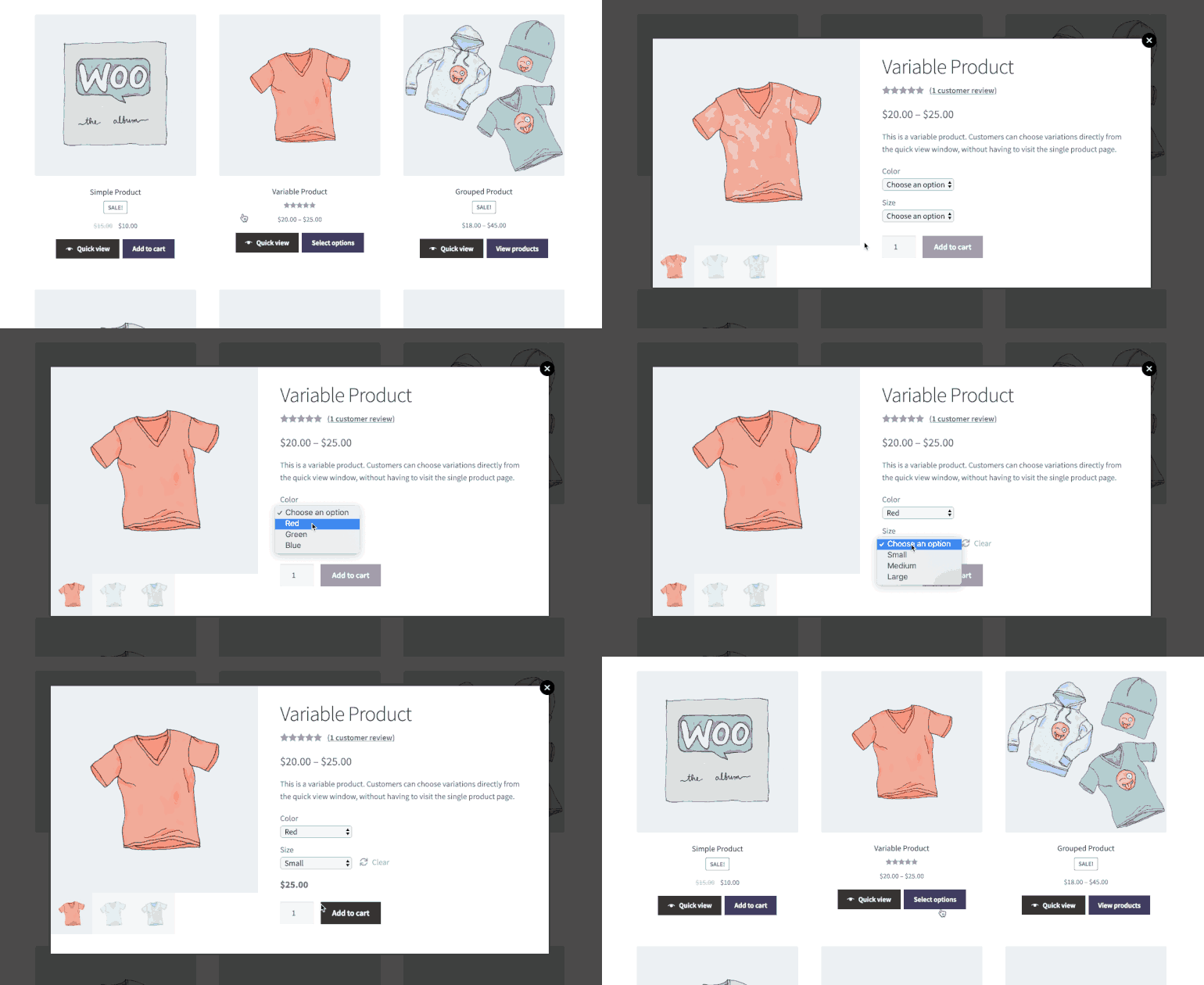
WooCommerce Quick View Lightbox with Product Variations
Customers can view extra information and purchase from a lightbox.

All you have to do is install and activate the plugin, and then add quick-view to the list of database columns in the WooCommerce Product Table settings (as we described above). After that, you can customize your quick view layout in the WooCommerce Quick View Pro plugin settings.

Add advanced filtering to your product database

While WooCommerce Product Table is a great way to enhance the user experience, it doesn't offer the same advanced filtering capabilities as the WooCommerce Product Filters plugin.

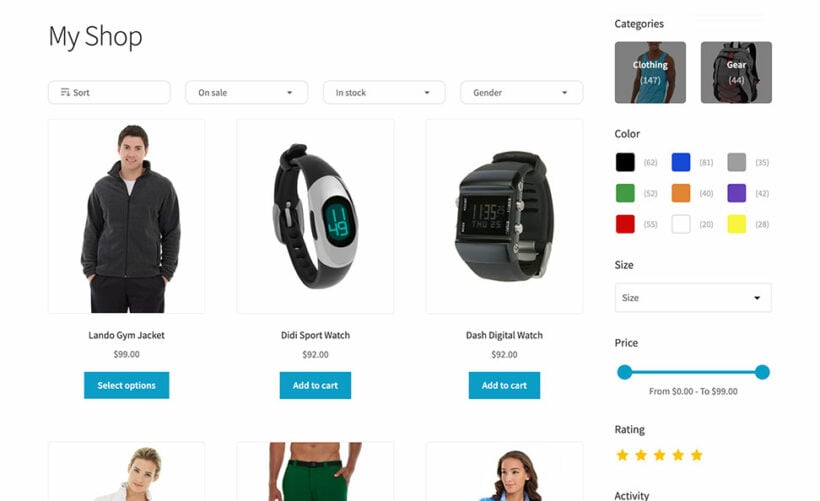
By using WooCommerce Product Filters alongside Product Table, you can provide your customers with even more sophisticated ways to navigate your product database. With advanced filters such as color, size, price, and ratings, your customers can easily narrow down their search to find the exact product they are looking for.

WooCommerce shop page with sidebar product filters letting customers narrow results by color, size, and price

In addition, the WooCommerce Product Filters plugin offers a variety of display options, including dropdown lists, checkboxes, radio buttons, and more. This allows you to customize the look and feel of your product filters to match the style of your online store, creating a seamless user experience.

Where to get the WooCommerce plugin

Including a WooCommerce product database on your WordPress site can help improve your customer experience and your sales. Our WooCommerce Product Table plugin makes it easy to add custom databases to your online store, and you can make them even better by combining them with WooCommerce Quick View Pro or WooCommerce Product Filters.

To build a product database for your WooCommerce site, you can:

    1. Install and activate the WooCommerce Product Table plugin.
    2. Configure the plugin's settings
    3. Customize your database's columns.
    4. Add the database to your site.

Do you have any additional questions about building a WooCommerce product inventory with search, sort, and filter options? Leave them in the comments section below!
Woman holding a credit card while shopping online on a laptop at home

WooCommerce automatically creates an individual page for each product when you set up your store. Not all store owners need this, so this guide shows you how to disable the single product page in WooCommerce.

Most ecommerce websites follow a standard purchase flow. Have you considered whether this suits your specific products and customers?

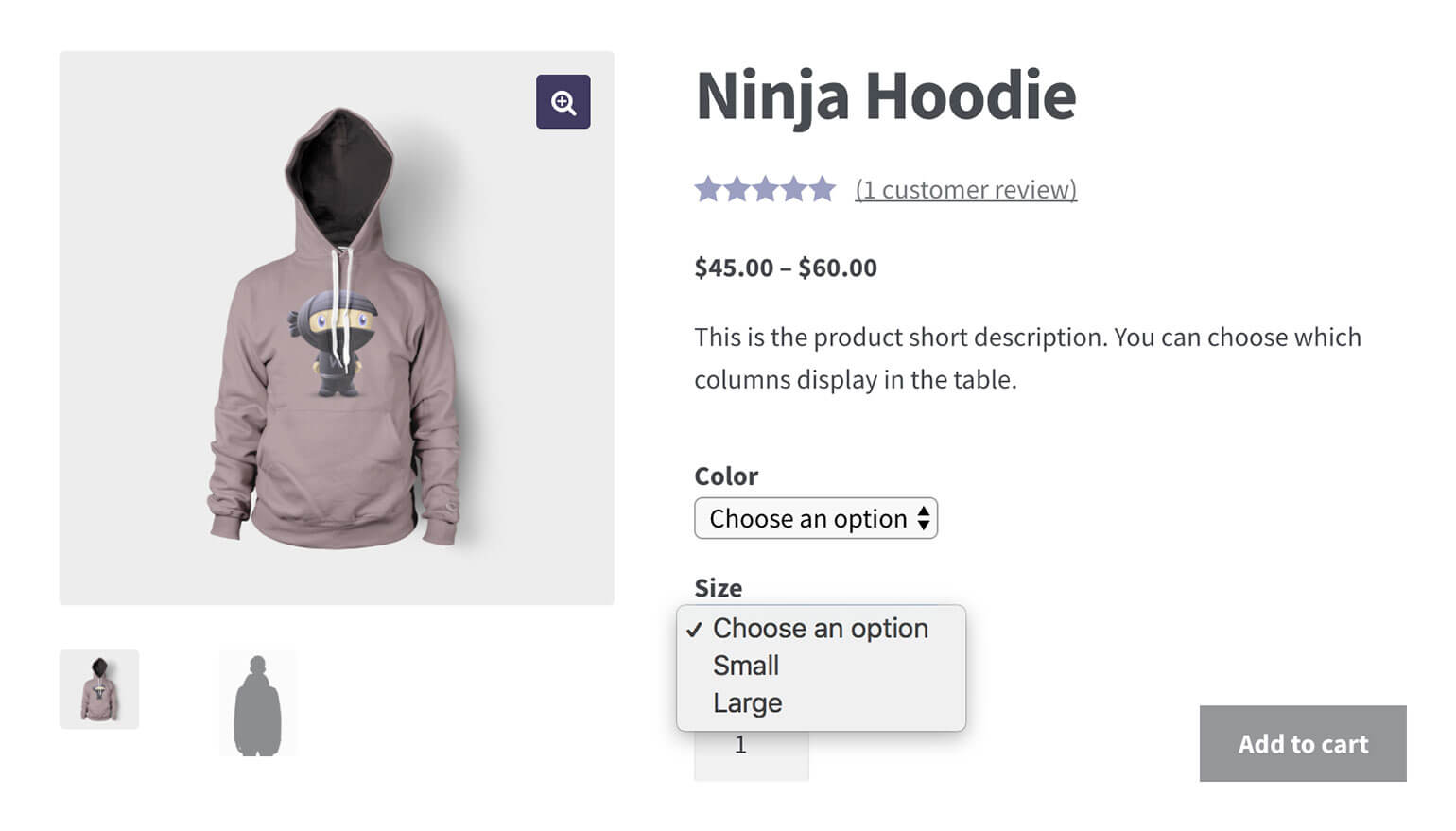
Ninja Hoodie single product page with colour and size option dropdowns
A typical WooCommerce single product page
  1. Customers view products in a grid layout with 3-4 products per row.
  2. Customers click through to a separate page containing all product information.
  3. Customers select quantity and options, then add the product to cart.
  4. Customers navigate back to view more products or proceed to checkout.

Have you stopped to think about whether this is the best flow for your customers? Does it actually suit the types of specific products you're selling?

In this tutorial, I will reveal two important reasons to disable the WooCommerce product page. I will also introduce two WordPress plugins that disable the single product page while providing faster alternatives. These plugins replace the standard page with user-friendly methods to view products and add to cart. No coding or PHP snippets required.

Let's get started!

Why disable the single product page in WooCommerce?

Disabling the single product page is a strategic decision to streamline the customer purchase journey and reduce friction in the buying process.

Benefit #1 - Speed up the browsing and buying process for customers

A WooCommerce disable product page plugin requires alternative methods for customers to choose options and buy products. Customers should be able to purchase without leaving the product list. The plugins recommended later in this article provide these alternatives.

Standard WooCommerce stores require customers to visit the single product page to purchase variable products or select quantities. Simple products can be purchased from shop pages. However, variations and extra quantities require the single product page.

This workflow creates problems for average order value. Customers visiting the single product page may struggle to return to the product list. They might checkout immediately without viewing other products. Alternatively, they might abandon their cart entirely.

The solution

You can solve this problem by installing a plugin that enables direct purchasing from product list pages. Customers can choose variations and quantities on shop pages and category pages. The plugin should display essential product information including:

  • Larger product images
  • Short descriptions
  • Stock information
  • SKU codes
  • Product specifications

This approach keeps customers on the same page while shopping. Customers add products to cart and immediately see other products. This encourages additional purchases and increases order value.

Customers see essential product information and complete purchases without page navigation. They remain engaged with your product catalog throughout the shopping process.

I'd like to show a quick view box of the product instead of leading to the product detail page. That way, users are shown the basic product info without having the leave the list of products.

- Premium chocolate seller

Benefit #2 - Prevent customers from losing their place on the product list

Having to navigate between multiple pages adds friction to the shopping experience. Customers scroll through product lists, visit a product page, then click back. The browser returns them to the top of the list. They must scroll again to find their previous position. This frustration causes high bounce rates on WordPress ecommerce websites.

The solution

Disabling the single product page eliminates this navigation problem. Customers choose options and add products to cart directly from lists. They maintain their exact position in the product catalog. Shopping continues without interruption or lost context.

A customer described this exact problem:

Since a large number of items is being displayed per page, opening a single product page leads to the point where the customer has to scroll all the way down again once he got back to the product list. A quick view feature would prevent them from having to do that and would therefore make it even more comfortable to use.

2 plugins to hide or disable the WooCommerce product page

The WooCommerce single product page may reduce conversions depending on your product type. Disabling it can increase sales and improve user experience. Alternative viewing methods often work better for specific product categories.

These 2 plugins remove links to the single product page effectively. Each plugin provides different alternative methods for product viewing and purchasing. Review both options to select the best fit for your products.

WooCommerce Quick View Pro - Replace the single product page with a quick view lightbox

WooCommerce Quick View Pro is a plugin that displays product information in a lightbox popup instead of a separate page.

WooCommerce Quick View Pro displays product information and purchase options in a lightbox. The plugin adds quick view buttons to shop and category pages. Customers complete purchases without accessing the single product page.

The plugin can open lightboxes when customers click product images or names. This configuration disables the single product page links. Quick view links replace standard product links throughout your store. Remember to save your configuration changes.

Quick view button replacing the single product page link on the shop

The plugin offers complete customization of lightbox content. You select which product information appears in the quick view. Display only essential information to streamline buying decisions.

Further reading: The complete guide to WooCommerce quick view plugins.

Can I use quick view AND the single product page?

WooCommerce Quick View Pro can work alongside the single product page. Enable quick view buttons without replacing image and title links.

This configuration provides two options. Customers click quick view buttons to open lightboxes. Alternatively, they click product images or titles for the full product page.

This approach accommodates different shopping preferences. Quick shoppers use the lightbox feature. Detail-oriented customers access complete product pages.

WooCommerce Product Table - List products in a table view with extra information and full purchase options

WooCommerce Product Table is a plugin that displays products in a searchable, sortable table format with inline purchasing options.

The WooCommerce Product Table plugin replaces grid layouts with tabular displays. Tables include all product information in organized columns. Customers no longer need separate product pages.

Product table replacing product pages with all details in columns

WooCommerce Product Table provides complete control over table columns. Display standard WooCommerce data, custom fields, and taxonomies. Tables show all necessary information in one view.

The Add to Cart column includes comprehensive purchase options. Features include:
- Quantity selectors
- Variation dropdowns
- Product add-ons (with WooCommerce Product Options)
- Stock indicators
- Price displays

Can I disable links to the single product page?

WooCommerce Product Table links product titles to single pages by default. The 'Links' option removes these product title links. Customers cannot access single product pages when links are disabled.

Comparing the two plugin options

Feature WooCommerce Quick View Pro WooCommerce Product Table
Display method Lightbox popup overlay Table layout on page
Best for Visual products requiring images Multiple products with specifications
Product information shown Full gallery, description, variations Customizable columns with data
Purchase options Full add to cart in lightbox Inline add to cart buttons
Mobile experience Responsive lightbox Horizontal scroll or stacked
Page load impact Loads content on demand All products load initially
Search and filter Uses default WooCommerce filters Built-in search and column sorting
Bulk ordering One product at a time Multiple products simultaneously
Setup complexity Simple configuration More options to configure
Works with single product page Yes (optional) Yes (optional)
Ideal store types Fashion, jewelry, visual products B2B, wholesale, catalogs

Choosing the right plugin - decision guide

Follow this decision process to select the best plugin for your store:

  • Start here: Do your products require visual inspection before purchase?
    • Yes → Do customers typically buy one product at a time?
      • Yes → Choose WooCommerce Quick View Pro
      • No → Do you need bulk ordering capabilities?
        • Yes → Choose WooCommerce Product Table
        • No → Consider using both plugins together
    • No → Do you sell products with multiple specifications or variations?
      • Yes → Choose WooCommerce Product Table
      • No → Do customers compare multiple products before buying?
        • Yes → Choose WooCommerce Product Table
        • No → Choose WooCommerce Quick View Pro

But I like the look of both plugins!

WooCommerce Product Table and WooCommerce Quick View Pro are fully compatible. Tables can include quick view buttons for additional functionality.

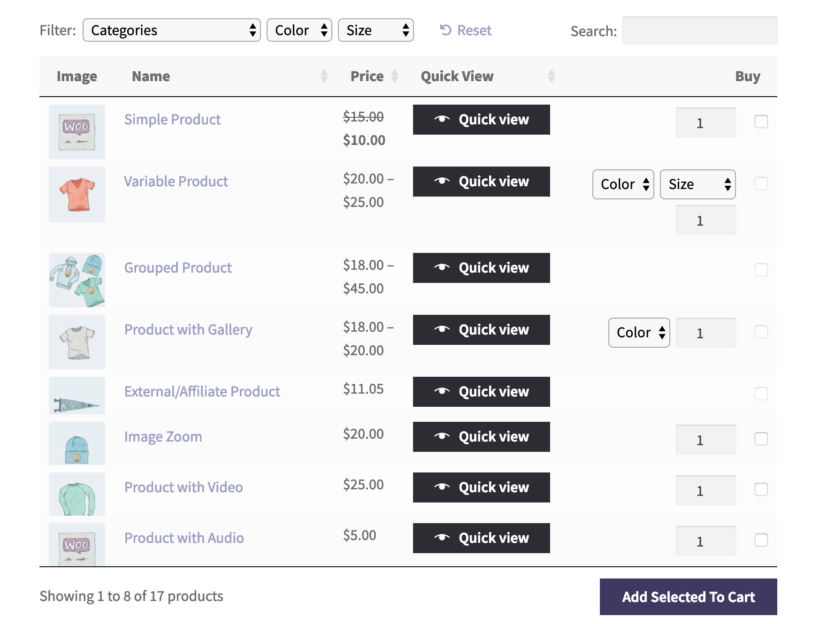
WooCommerce Product Table with quick view buttons

Real-world use cases for disabling product pages

Example 1: Pizza restaurant with product tables and quick view

Pizza restaurants are an excellent example of when it's a good idea to use both plugins together. They can benefit from creating streamlined ordering without single product pages.

For example, if you're creating a takeaway food order system then you can display pizzas appear in product tables creating one-page order forms. You need to disable the single product page links because takeaway customers expect streamlined ordering.

Lots of pizza restaurants offer customization options such as:

  • Size selection
  • Crust type
  • Base options
  • Cheese varieties
  • Sauce choices
  • Extra toppings

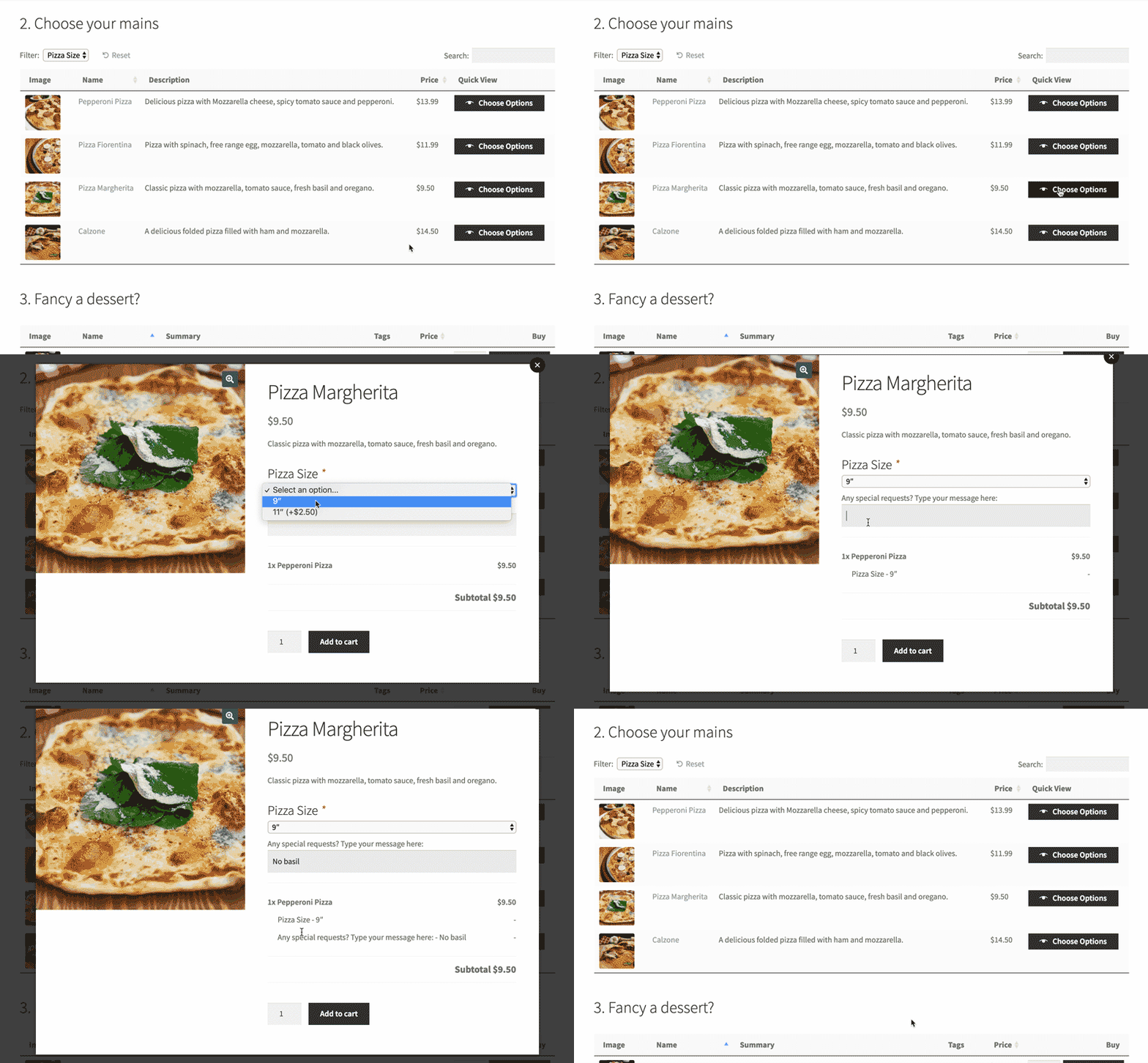
Displaying all these options in a table creates visual clutter. Using WooCommerce Product Table with Quick View Pro combines both plugins effectively, allowing customers to view a table listing all the pizzas and then select options from a lightbox.

WooCommerce restaurant quick view plugin

Tip: You can use standard WooCommerce product variations to offer basic pizza options. The WooCommerce Product Options plugin provides advanced features like multiple topping selections, which aren't possible with variations.

Example 2: B2B wholesale ordering

Wholesale businesses can benefit from using WooCommerce Product Table to list their inventory without single product pages. That's because B2B buyers need efficient bulk ordering processes. Single product pages would slow down professional buyers who already know what they want to buy.

Wholesale stores can display products in tables with:

Example 3: Event ticket sales

Lots of event organizers use WooCommerce Quick View Pro for ticket sales. Use WooCommerce Product Table to display multiple events in a grid layout; and Quick View to show event details without separate pages.

The lightbox displays:

  • Event date and time
  • Venue information
  • Seating options
  • Ticket types and pricing
  • Remaining availability

This allows customers to easily compare events. They can purchase tickets without losing their place in the event calendar. This reduces cart abandonment during event selection.

Example 4: Spare parts catalog

A huge number of auto parts retailers use WooCommerce Product Table for parts catalogs. That's because it's perfect for products like car parts that don't require large images. Instead of browsing by image, customers search by part number or vehicle compatibility.

The table structure shows:

  • Part numbers and specifications
  • Compatible vehicle models
  • Pricing and availability
  • Technical diagrams in quick view
  • Cross-reference numbers

Example 5: Digital downloads marketplace

Digital product stores benefit from quick view functionality. This lets customers preview multimedia products before purchasing downloads, including:

  • File formats and sizes
  • License information
  • Preview images, or embedded audio or video samples
  • System requirements

Mobile optimization considerations

Both WooCommerce Product Table and WooCommerce Quick View Pro provide responsive mobile experiences. This is essential given that mobile shoppers represent over 60% of global web traffic.

WooCommerce Quick View Pro mobile features:

  • Touch-optimized lightbox controls
  • Swipeable image galleries
  • Automatic close button positioning

WooCommerce Product Table mobile features:

  • Responsive column hiding
  • Priority column display
  • Touch-friendly quantity and variation selectors

There are also performance benefits for mobile users. For example, quick view lightboxes load faster than full pages. Similarly, tables eliminate back-navigation issues on mobile browsers.

Frequently asked questions

Will disabling product pages hurt my SEO?

Disabling product pages can impact SEO if not handled properly.

One option is to keep product pages accessible to search engines while hiding them from users. This happens automatically with WooCommerce Product Table because it doesn't actually disable the WooCommerce product page. Instead, the table simply doesn't link to the product page - but they still exist and are crawlable by search engines behind the scenes. Similarly, WooCommerce Quick View Pro doesn't remove them and simply removes links to them.

Can I disable product pages for specific products only?

Yes, both plugins offer selective implementation. WooCommerce Product Table can display specific product categories in each table, so some of these can have product page links while others don't. You can also enable Quick View Pro per product or category.

What happens to existing product page URLs?

Product URLs remain functional unless you explicitly redirect them. This means that search engines can continue indexing these pages.

Consider setting up 301 redirects to category pages if you plan to permanently disable product pages.

Can customers still leave product reviews?

Quick View Pro can display reviews in lightboxes, so customers can still leave a review. WooCommerce Product Table provides a ratings column but customers can't leave a review from directly in the table.

How do product images work without single pages?

Quick View Pro displays full image galleries in lightboxes.

Product Table shows thumbnail images with hover zoom options. You can control the size of the images, or remove the image column altogether.

What about complex product variations?

Complex variations work in both plugins. Quick View handles unlimited variations in the lightbox. Product Table displays variation dropdowns inline. Consider using WooCommerce Product Options for advanced configurations and other types of product add-on.

Do these solutions work with WooCommerce subscriptions?

Both plugins support WooCommerce Subscriptions. Your subscription options will appear in both the quick view lightbox and the 'Buy' column of the table.

Disabling the single product page in WooCommerce

Disabling the WooCommerce product page can streamline your customers' shopping journey and significantly improve conversions. Which plugin to use for this depends on your specific needs:

  • Choose WooCommerce Quick View Pro if you sell visual products like clothing, jewelry, or artwork where customers need to see product details in an elegant lightbox without leaving the shop page.
  • Choose WooCommerce Product Table if you need bulk ordering capabilities, sell products with multiple specifications, or run a B2B store where customers compare products side-by-side.

Use both plugins together for maximum flexibility, displaying products in an organized table with quick view buttons for detailed inspection 💡

Our WooCommerce Quick View Pro plugin makes it easy to view extra product data in a lightbox, without having to visit the single product page. But what types of store actually need a WooCommerce lightbox plugin?

WooCommerce product gallery opening images in a lightbox popup on the product page

Let's look at 5 types of websites that will benefit from WooCommerce lightbox quick view popups. I'll reveal the real reasons why certain products sell better with this method. If you sell similar types of product on your own WordPress site, then you'll be able to see how the lightbox could transform your sales too.

What is a WooCommerce lightbox plugin?

A WooCommerce lightbox plugin makes it easy for prospective customers to learn more about your products without visiting the single product page.

It lets you display single product images and details in a lightbox view. Customers can also select available options (such as product variations), view the product gallery images, and add products to cart directly from the WooCommerce lightbox.

The WooCommerce Quick View Pro plugin adds quick view buttons to your shop page and category pages. When a customer clicks on the button, they can view the product details in a WooCommerce lightbox and quickly make a purchasing decision.

This helps you improve your site's shopping experience and encourages customers to buy more from you. As a result, you can increase your average order value!

#1 - Pizza restaurant - order food and choose options, all from one page

A WooCommerce pizza takeaway website lists each pizza from their menu in a one-page restaurant order form. They want people to be able to configure the options for each pizza without having to visit the single product page. This includes steps such as choosing a base and adding extra toppings.

Lots of pizza restaurants use our WooCommerce Product Table plugin to list their pizzas. This is perfect if you have a small number of options for each pizza, but not ideal if you have a long list of toppings. One YouTube commenter even decided not to buy WooCommerce Product Table because of this:

A burger can have like 8 different options. It's going to look crowded with your plugin. You need a pop up where I can select what I want and don't want.... I'll pass on your plugin since it's not really flexible.

The solution is to use the Product Table with Quick View Pro to enable WooCommerce lightbox for each pizza. Customers can click on the 'Configure your pizza' buttons to choose their pizza options in a lightbox. You can use product variations for the attribute options, with a separate dropdown in the lightbox for each option ('Choose a Base', 'Choose a Topping', etc.). You can do all of this without having to mess around with the functions.php file or adding custom HTML or CSS code.

Sell multiple toppings with Product Add-Ons

WooCommerce lightbox showing pizza topping choices as image buttons with pricing details

Or if you want people to be able to order multiple toppings for extra cost, then use WooCommerce Quick View Pro with the Extra Product Options plugin to add multi-select check boxes instead! With Product Add-Ons, you can add as many extra product options as you like. List each topping option individually with a price for each one, plus anything else like "Extra cheese".

Some of my products have a lot of different addons so instead of showing the addons in the product list. I would like to have an additional “customize” button next to the add to cart button so my customers can select which add-ons they want before adding the product to the cart.

Feature request from a takeaway restaurant owner

Sell other foods with a WooCommerce lightbox plugin

Of course, you can sell any type of food (or other e-commerce products) with a WooCommerce lightbox. For example, we heard from one person wanting to use it for selling healthy options for their food ordering system:

I'd like to be able to open the attributes options in individual popup windows like following: Food is sold with "steamed rice" as the default, with options to add $1 for "brown rice", add $2 for "green salad", and so on.

Feature request from a WooCommerce restaurant owner

#2 - WooCommerce wholesale store

We sell a lot of plugins to companies that are building a WooCommerce wholesale store. They often contact us to request specific features that are important for B2B sales.

A WooCommerce lightbox plugin is ideal for wholesale sales because users already know what they want to order. They're busy people and don't want to waste time visiting individual product pages. Instead, just list products (ideally in a wholesale-friendly product table) and let them open a product quick view to select variations and add to the cart from the lightbox.

Is there any way to allow the user to click on the product link and get a lightbox with some additional product information instead of going to the product page? I'm building out a B2B site for dealers to order from a manufacturer. Some sort of "quick view" with the short description and photo array would be really good.

Feature request from a WooCommerce wholesale store owner

Product quick view bonus tip

If you're selling wholesale products with the WooCommerce Quick View Pro lightbox, consider removing the images from the product quick view popup. You can easily do this via the WooCommerce lightbox settings. B2B customers don't care about image galleries because they're already familiar with your products. They just want to see the purchase information in a simple lightbox.

#3 - WooCommerce jewellery store with custom engraving messages

WooCommerce Product Options pluginIf you're using the default WooCommerce plugin to sell luxury jewellery or diamonds, then you may want to charge extra for a custom engraving. The Product Options plugin lets you create a custom text input box for the custom engraving, and choose how much to charge for this option, without adding CSS code. However, what if you want customers to order their custom engraved jewellery without having to visit the single product page?

That's where WooCommerce Quick View Pro comes in. You can list your jewellery on the WooCommerce shop and category pages with an 'Add Engraving' quick view button. This will enable a WooCommerce lightbox with the full image product gallery features and zoom features. The lightbox plugin will also include an add to cart button, plus custom engraving text box provided by Product Options.

I want to add functionality so that when customers click on Add to Cart, they will get a pop up where they add a custom message and automatically order from there. No other step should be required to place the order.

Feature request from a WooCommerce jewellery store owner

#4 - Quick select WooCommerce grouped products, bundles and composite products

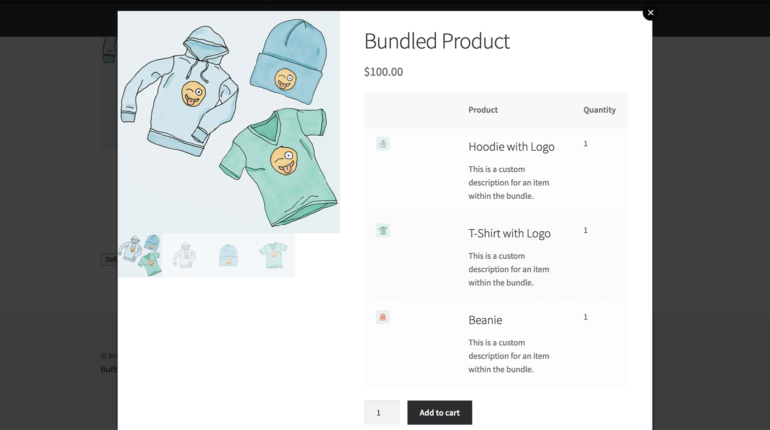
WooCommerce lightbox plugin bundled products

WooCommerce Quick View Pro integrates beautifully with the 'Grouped' product type built into WooCommerce. The product lightbox also supports the Bundles and Composite Products extensions.

If you want to sell groupings of your products, then you can speed up the buying process by letting customers choose their bundles or composite products from a WooCommerce product quick view. This is much quicker than accessing the single product page.

#5 - Selling photos via a WooCommerce lightbox

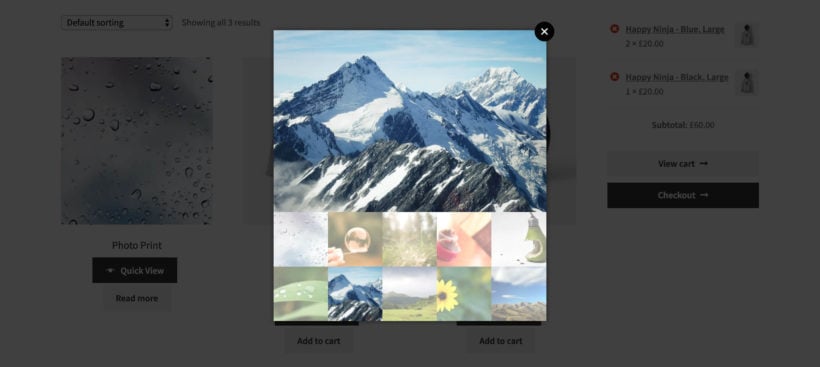
WooCommerce lightbox displaying a product photo gallery with thumbnails
WooCommerce gallery lightbox showing product images only

When you sell photos, art, or other image-based products in WooCommerce, it's all about the imagery. The only reason for customers to access the single product page is to see bigger versions of each image, such as image zoom and product gallery. But taking people to a separate page to view bigger images feels like overkill, and makes it harder to return to your other products.

Instead, add a WooCommerce lightbox to the product listing pages. Customers can open the Pro lightbox and view the images in a popup window. They can see the images close-up and access the multiple-image gallery and zoom, without having to visit a different page. You can choose whether to open the lightbox via a button, or simply by clicking on the product image or name in the shop. These are all options on the WooCommerce lightbox settings page.

It might look something like this depending on the WordPress theme you're using:

WooCommerce image gallery lightbox with a main photo and gallery thumbnails
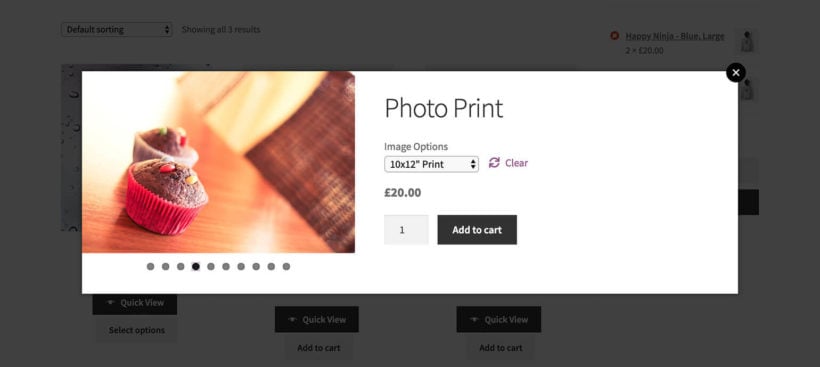
WooCommerce image gallery lightbox with bullet navigation and variations in quick view popup

This Pro WooCommerce lightbox for photographers is also a good way to sell image variations without accessing the product page. For example, they can select from a choice of image sizes or print options before adding to the cart.

#6 - WooCommerce digital music store

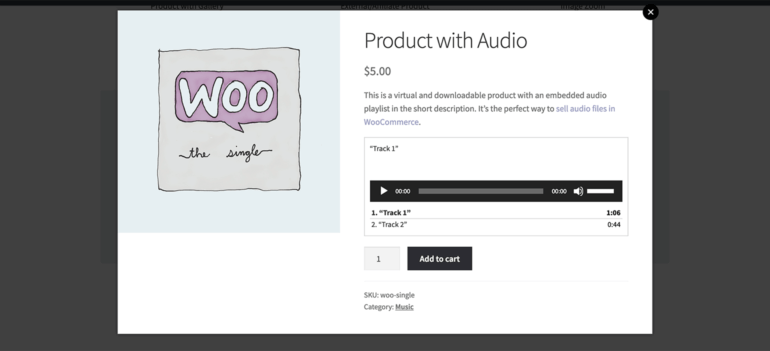
Quick view popup playing an audio track preview for a music product

If you sell music in WooCommerce, then you might want to provide embedded audio snippets for each product. This is a great way to provide music samples and convince customers to buy the full MP3 or CD.

There are a couple of ways to do this:

  • A lot of people use responsive product tables to create a WooCommerce audio store. This works well, as you can add sample music players directly within the product list view.
  • Other store owners add an audio player to the short description which appears on the single product page.

The problem with the second option is that customers have to access the single product page. This isn't normally appropriate if you're selling music in WooCommerce. That's because music isn't very visual (by definition!) and doesn't require other elements of the single product page such as big images.

Instead, use WooCommerce Quick View Pro to show music players in a quick product lightbox. You don't want big images of your music products, so use the WooCommerce lightbox settings to hide the images. Instead, just show information such as the product name and short description (containing the embedded audio player) in the modal popup window. It's the perfect way to sell music!

#7 - WooCommerce customizable products

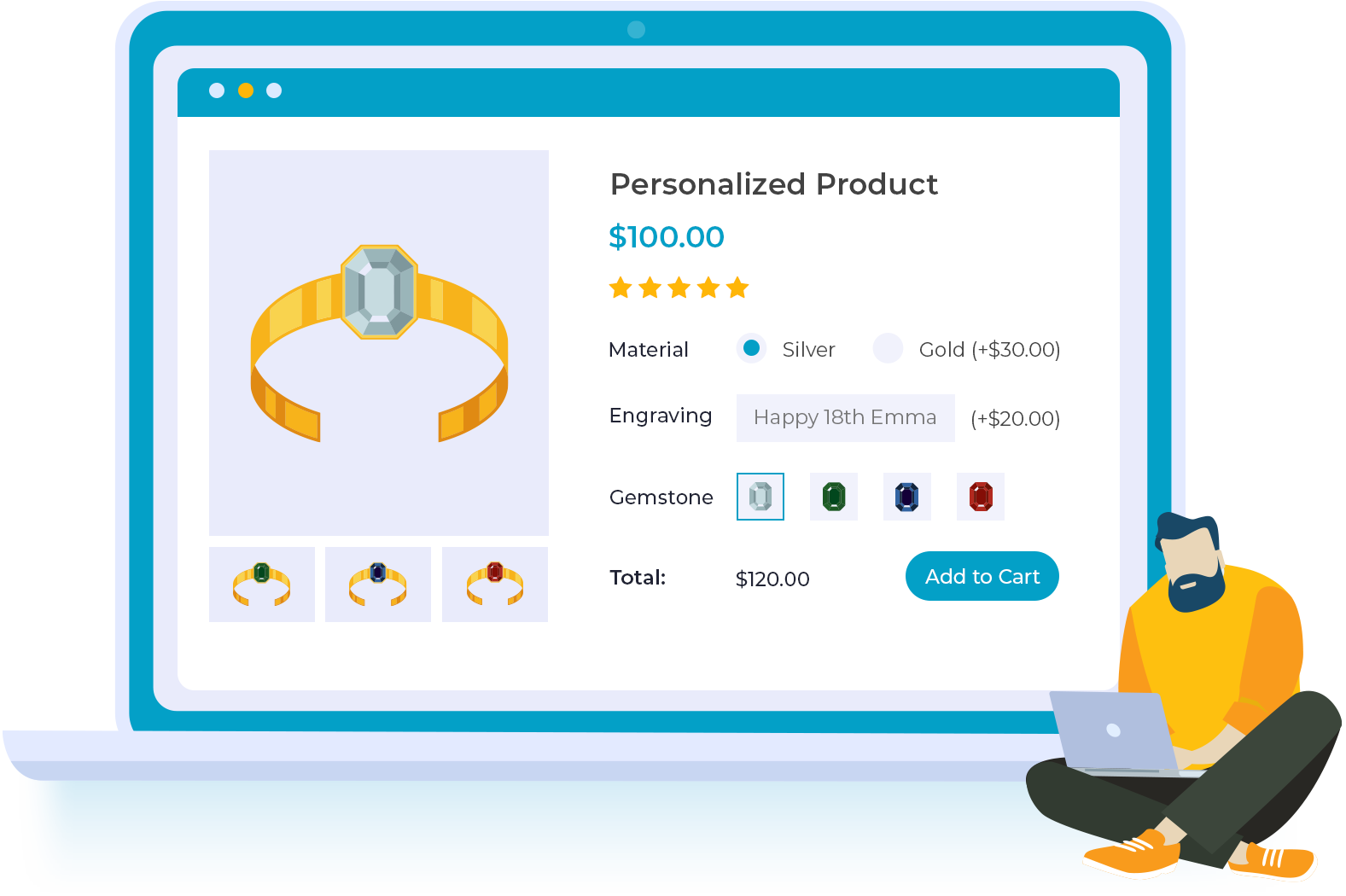
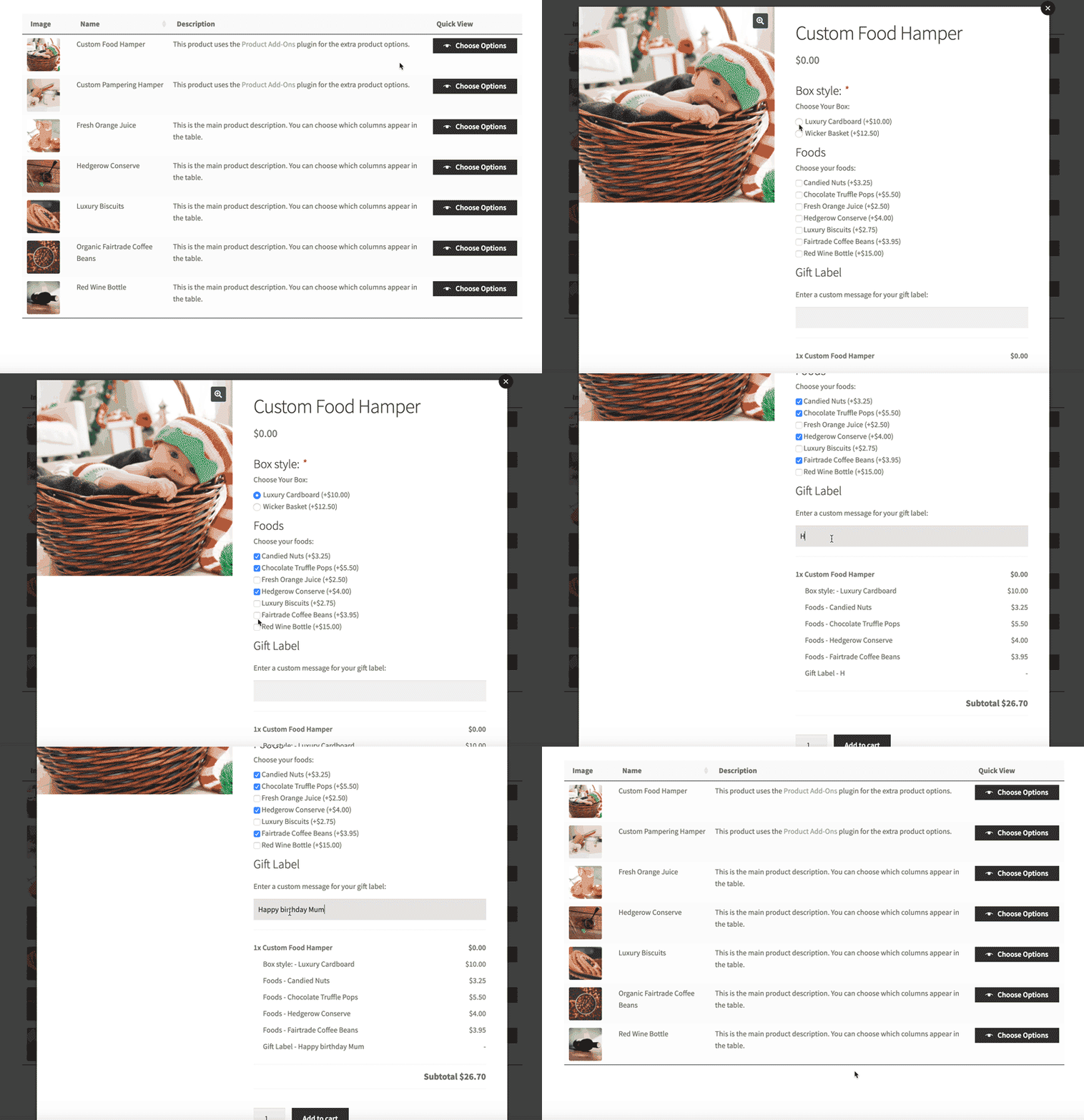
WooCommerce customizable product quick view

Lots of WooCommerce stores sell customizable products, where the customer can mix and match multiple options to create a bespoke product just for them.

A lightbox for WooCommerce plugin offers a quick way for customers to configure options and add to the cart. Rename the quick view button to 'Configure' or 'Customize'. Customers can use the product lightbox to choose from a long list of variations or other options (if you're using it with Product Add-On Options).

Your customers can create as many custom products as they like, while remaining on the product list page.

How to add a WooCommerce lightbox plugin to your store

Here's how you can add the WooCommerce lightbox plugin to your online store:

Get the WooCommerce Quick View Pro plugin and install and activate it on your WordPress site. Navigate to WooCommerceSettingsProductsQuick view from the admin panel to activate the plugin license.

Activating the WooCommerce lightbox plugin license key in settings

Use the Quick View contents dropdown to select what you'd like to showcase in the WooCommerce lightbox. You can choose to display image only, product details only, or image and product details.

Quick view contents dropdown for choosing what the WooCommerce lightbox displays

If you choose either of the product detail options, you can use the Product details setting to decide what information to display. Simply tick the checkbox next to the product details you want to display in the WooCommerce lightbox.

Available product details to display in the quick view lightbox

Use the Gallery thumbnail style option to choose a gallery navigation option. Click the Save changes button at the bottom of the screen to proceed.

Your WooCommerce lightbox might look something like this:

Displaying product gallery as thumbnails in lightbox

Will a WooCommerce lightbox plugin boost your sales?

WooCommerce product quick view plugin use cases

By now, we've looked at 7 radically different types of product that sell better with a product quick view plugin for WooCommerce. But what about your own products?

Think about the types of products that you sell in your WooCommerce store. Ask yourself these questions:

  1. What information do your customers need in order to make a purchase? Look at the information on the single product page in your store. Do they need to access all of it to convince them to buy? Or could you boost sales by displaying essential information in a WooCommerce lightbox, cutting out the individual product pages?
  2. After visiting the single product page, how easy is it for customers to get back to the list of products? Does your website encourage them to go straight to the cart? Or does it encourage them to buy more products first? It's important that customers can complete their purchase quickly, but it's equally important to increase the average order value. And the way to do this is to bring customers back to your other products as easily as possible. You can do this by adding a product lightbox for WooCommerce that automatically closes after adding to the cart.

Armed with this information, you can decide whether your store revenue would benefit from installing a WooCommerce lightbox plugin to your WordPress.org website. The WooCommerce Quick View plugin works seamlessly with all WordPress themes.

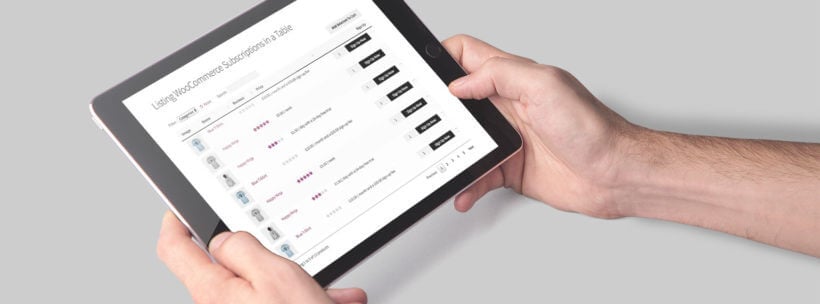
WooCommerce Product Table plugin displaying filterable products on a tablet

Since we first launched WooCommerce Product Table in 2016, it's grown to be used on over 3,000 WooCommerce stores. It's popular for everything from restaurant ordering systems and product lists to wholesale bulk order forms and...well, pretty much anything else that benefits from WooCommerce products and tables!

We're happy to have created a successful WordPress product that helps people get more from WooCommerce. But our success has also led to an uptick in people searching for and supplying WooCommerce Product Table nulled releases.

In fact, maybe you ended up at this article because you were searching for a WooCommerce Product Table nulled version yourself…

We understand why you might be looking for a cheaper alternative - not everyone has the same budget. But beyond the fact that any WooCommerce Product Table nulled versions are not authorized by us, we also want to explain some of the benefits to you of purchasing an officially licensed and supported version.

See - beyond that money helping us keep the lights on and continue to maintain and improve WooCommerce Product Table - it also helps save you time and get more from the plugin. And more importantly, it keeps your website stable and secure, which is vital for any e-commerce store.

Keep reading to discover the top six reasons not to use nulled versions of WooCommerce Product Table.

Six reasons not to use WooCommerce Product Table nulled versions

1. Paying customers have access to support (and customers love our support!)

If you use a nulled WooCommerce Product Table free download, you won't get access to any support.

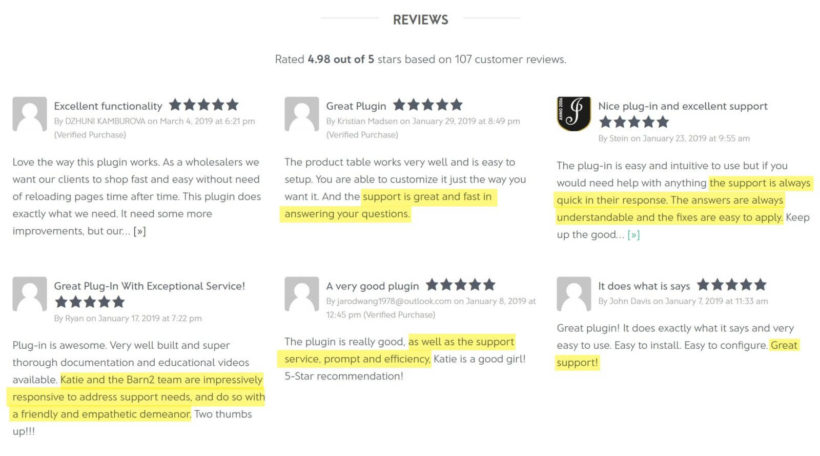
Support is one of the things that we pride ourselves upon, and if you read the WooCommerce Product Table reviews from real customers, you'll see the quality of our support come up again and again:

WooCommerce Product Table five-star customer reviews praising support

In addition to helping you with the basics, we always strive to go above and beyond. We want to make sure WooCommerce Product Table functions as well as possible for each and every customer.

For example, we've helped customers fix mistakes in their shortcode and integrate the plugin with the rest of their site. Often, we even offer general suggestions for how to use WooCommerce Product Table to boost sales for specific types of products.

Offering this high level of support isn't just about helping you use the plugin, though. It's also about helping you save time that you might otherwise waste if you're using a nulled version of WooCommerce Product Table. And it's about helping you make more money from your WC store.

As you've probably heard, time equals money, so the "free" nulled plugin isn't always the most affordable option if it causes you to waste hours trying to do something that our support could've helped you with right away. And if you lose out on opportunities to use the plugin in a way that will increase your sales, then you're actually leaving money on the table.

2. No updates (a big deal for bug fixes and security)

If you're using a licensed version of WooCommerce Product Table, you'll receive update notifications in your WP dashboard. As a result, you can update the plugin with a single click, just like you can with any plugin you've installed from WordPress.org.

However, with a nulled WooCommerce Product Table download, you won't receive update notifications, nor will you be able to update the plugin from your WordPress dashboard.

The big issue here is that you will not be notified of, nor receive, any updates that apply to:

  • Bug fixes
  • Security patches
  • Compatibility issues

Not being able to promptly apply those updates as we release them might cause an issue on your site, especially because of the next issue...

3. Compatibility issues

This one ties with the point above. However, compatibility issues deserve a special mention because there are a lot of moving parts to WordPress. As the plugin developers, we need to stay on top of these to make sure WooCommerce Product Table keeps functioning properly.

The biggest one is WooCommerce itself. The WooCommerce team releases a new version about every month or so (sometimes more).

That means we need to test WooCommerce Product Table's compatibility pretty much every single month. The same goes for new WordPress core releases, especially major releases.

Beyond that, WooCommerce Product Table also works well with a number of other popular plugins. All of those plugins are constantly changing themselves, which requires further testing to ensure compatibility with WooCommerce Product Table.

Without a license key and update notifications, you might miss out on new versions designed to keep WooCommerce Product Table compatible with the other plugins at your WordPress site. Using WooCommerce product table nulled simply isn't worth the risk.

4. No new features

Since its initial release, we've been constantly improving WooCommerce Product Table with new features and enhancements.

For example, the plugin started as a shortcode only. 2 years later, it now has a full visual interface where you can configure all of its settings.

Most recently, we launched an integration with our WooCommerce Quick View Pro plugin. This adds product quick view support to WooCommerce Product Table.

If you're using an older WooCommerce Product Table nulled download, though, you might not have access to these features.

Beyond that, adding these new features requires time and effort. Your official purchase gives us the resources to continue improving WooCommerce Product Table with new features in the future.

5. You don't know what's in a nulled WooCommerce Product Table download

The simple fact is that, when you download WooCommerce Product Table from a nulled plugin site, you have no idea what else that site has added to the code.

Such sites are not operated as a charity, and they're going to make their money somehow.

In the best case scenario, such a site might just charge a monthly subscription fee. In the worst case scenario, they might add a malicious backdoor that lets them take over your site and, say, inject malicious links into your site's footer.

Whether you're building your own site or a site for a client, this risk is not something you want.

When you purchase from the official plugin page, you can have the peace of mind that you know you're getting 100% clean code that's authorized by us.

6. There's no risk to purchasing a license!

Finally, we know that you might be searching for a nulled Woo Product Table download simply because you want to test if the plugin can do everything you need it to before cracking open your wallet.

We understand the feeling. We certainly don't want you to waste money if you're not sure whether or not WooCommerce Product Table is right for your needs.

That's why we offer a 30-day money back guarantee - no questions asked.

So if you're on the fence about whether WooCommerce Product Table is the right tool for the job, just go ahead and buy a license and try it out.

If you're not 100% happy, just get in touch and we'll give you a full refund.

Get your official copy of WooCommerce Product Table

By skipping the WooCommerce Product Table nulled versions and purchasing an official license, you're ensuring that you always have access to:

  • The latest version of the plugin, complete with bug fixes and security patches
  • Clean code, with none of the malicious backdoors that some nulled plugin sites add
  • The latest compatibility fixes for WordPress, WooCommerce, and other compatible plugins
  • An ever-evolving list of new features and functions

Beyond that, you get above-and-beyond support to help you get the most from WooCommerce Product Table. This saves you from wasting time on figuring out something our support can solve for you.

Finally, with a 30-day money back guarantee, you can purchase an official license at no risk to your wallet:

As an online store owner, you might want to create a WordPress product catalog to showcase your products. The only problem is that most e-commerce plugins don't provide much flexibility in terms of how to display products.

One way to create a visually appealing, user-friendly product catalog in WordPress is by using a product table layout, with a simple WordPress plugin - WooCommerce Product Table. It makes it easy for customers to browse your product listings, view details, and act on your conversion goal – whether it’s to make a purchase or get in touch for a quote.

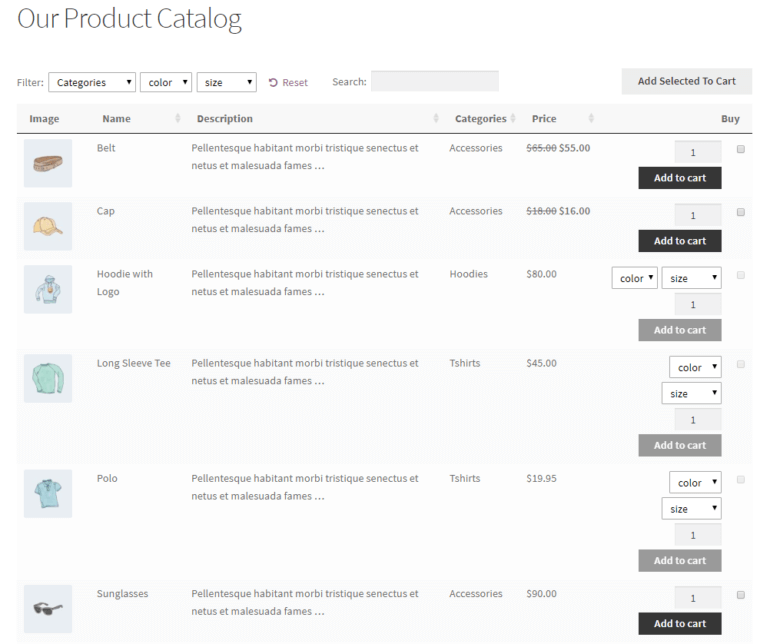
WordPress product catalog created using WooCommerce Product Table

In this article, we’ll start off by explaining in more detail what a WP product catalog table is. We’ll also walk you through a step by step tutorial on how you can create a WordPress product catalog – with or without a shopping cart.

What is a WordPress product catalog and who needs one?

Out of the box, most e-commerce plugins only let you display products in a standard format. Each product takes up a large amount of screen real estate. And while this creates a visually appealing layout, it’s not user-friendly – especially for WordPress online stores that sell more than a few products.

This is mainly because a grid layout makes it difficult for prospective customers to quickly browse through products or compare product details.

With a product table plugin, you can create a WordPress product catalog – with or without a shopping cart – to effectively display more products per page. In addition, it makes it easy for customers to search, sort, and filter products to find exactly what they’re looking for.

Who needs a WordPress product catalog?

Anyone who’s looking for a user-friendly way to showcase a lot of products can benefit from a WordPress catalog plugin. You can list products in a neat table (or grid) layout along with important details without the need for finicky custom CSS or complicated HTML.   As a result, customers can view more products per page.

E-commerce stores that sell products

Online stores that sell products directly through their website can also benefit from a product table layout. A product table layout makes it easy to display more products – with important product information and Add to Cart buttons – on a single page.

Since products are displayed in a table layout, this makes it easy for customers to make bulk purchases. For example, online stores that generally sell multiple products per transaction (such as wholesale suppliers or stationery shop) can benefit from using a product table to create a WordPress product catalog. From our own analysis of stores using Product Table, the biggest users are industrial and technical shops with spec-heavy catalogs of parts and components, where buyers compare data rather than browse big images.

In addition to this, they generally include features that lets customers find specific products through search or sort and filter them based on different parameters (such as price).

Businesses wanting to showcase products without e-commerce

Some businesses need to be able to showcase products without letting customers purchase them directly from the website. Instead, they might want to create an online product catalog in WordPress that customers can browse, to make a selection.

These sorts of businesses generally want to take orders by phone or have customers request a quote. Therefore, using an e-commerce plugin with shopping cart functionality isn’t a practical solution.

However, a WordPress product catalog makes it easy for businesses to showcase their products on their website without having to display a price or enable shopping cart functionality.

Next, let's look at the WordPress product catalog plugins that are available for you to choose from. First, I'll talk about the best WooCommerce product catalog plugin. Then, we'll look at other options for WordPress sites not using WooCommerce. Finally, I'll tell you how to create a WP product catalog without needing an e-commerce plugin at all!


Introducing WooCommerce Product Table

The WooCommerce Product Table plugin lets you create a product catalog in WordPress to display products in a searchable, sortable, and filterable table layout.

We built WooCommerce Product Table for stores where the data about each product matters more to the buying decision than a big image. It's a great fit for technical or spec-heavy catalogs, and less suited to traditional clothing stores where shoppers want big photos and the full gallery.

This product catalog plugin is hugely beneficial to both businesses and e-commerce stores because:

  • Works with WooCommerce, the world's leading WordPress e-commerce platform.
  • Lets customers browse your entire product listing – or a curated selection of products – at a glance.
  • Makes it easy for customers to view important product information and compare products quickly.
  • Takes up less room on your website as compared to the standard format offered by most WordPress e-commerce plugins.
  • Simplifies the purchasing process by allowing customers to buy multiple products from a single page. In other words, they don’t have to visit individual product pages to add products to their shopping cart.
  • You can improve the buying process even further by using Product Table with its sister plugin, WooCommerce Quick View Pro.
Flawless
I've tried so many product table and list view plugins over the past year. None of them were supported well and often simply were non-functional. I recently discovered BARN2 and WooCommerce Product Table; it does everything I need for my store that I had been searching for. My large and growing product catalogue was becoming irritating to customers and having data readily in view helps tremendously. The plugin worked perfectly for my site, the documentation is thorough and helpful, its simple to setup, and I highly recommend it.

In addition, the WooCommerce Product Table plugin lets you decide which columns you’d like to display in your WordPress product catalog (and in what order). You also have the option to decide how customers can filter through products e.g. by product category.

How to list products in a catalog for e-commerce

If you’d like to give customers the option to buy products directly from your online store then you’d want to display Add to Cart buttons in your WordPress product catalog.

Below, we’ll show you how you can do this regardless of which WP e-commerce plugin you’re using.

For WooCommerce

To get started, you’ll need a WordPress website with the WooCommerce plugin installed and some products added. You’ll also need to purchase the WooCommerce Product Table plugin and install and activate it on your website.

Step 1: Create a table-based WordPress catalog

Go to Products → Product Tables → Add New to launch the table builder. We'll use this to create a WordPress product catalog which lists your inventory in a table view.

The first page prompts you to decide how you'll add the catalog to your site. You have 2 choices here:

  • Add to a page using a blog or shortcode - Use this option if you want to add a WordPress product catalog to a separate page, without affecting your main ecommerce store pages.
  • Display on a shop page - Alternatively, use this option to use the catalog layout on all your store pages, without having to add it to any pages manually.
First step of the product table builder for a WooCommerce catalog

There are lots of useful options in the table builder, but we'll focus most on choosing your columns. These affect what product data appears in the WordPress catalog view.

Set the columns you’d like to have displayed in the front-end WordPress product catalog. For example, you might consider displaying the product’s image, name, a short description, price, and add to cart buttons:

Choosing which columns to show in the WooCommerce Product Table

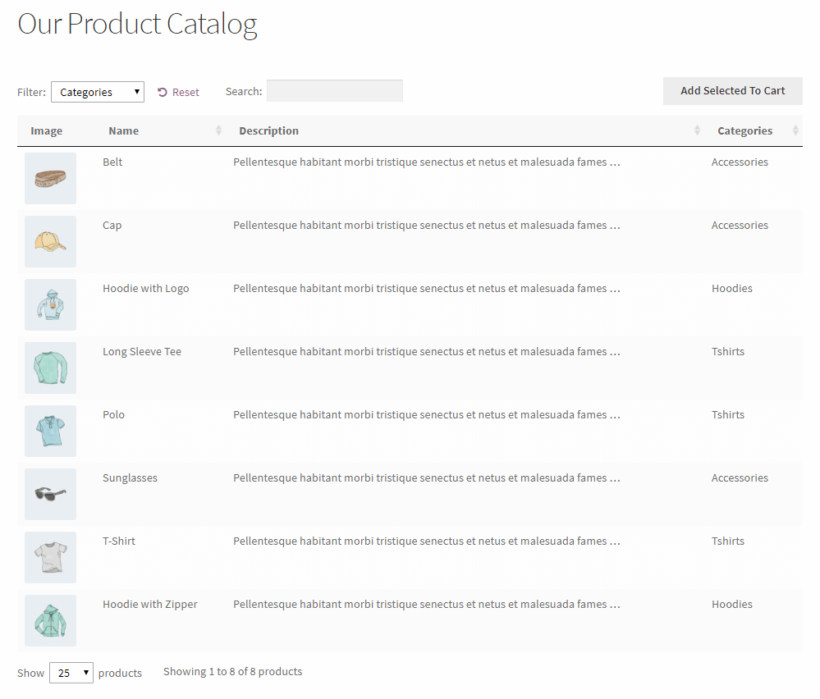
A WordPress product catalog with these columns will look something like this:

WordPress product catalog created using WooCommerce Product Table with add to cart buttons

For complete instructions, be sure to check out this article on WooCommerce Product Catalog: Build a Product Table With or Without Online Purchasing.

Step 2: Add the product catalog to a page

You only need this step if you chose to insert the WordPress product catalog manually, above.

Log in to your WordPress admin panel and head over to Pages → Add New to create a new page for the WordPress product catalog. Give your new page a name. For example, you might call it Our Product Catalog.

Add the catalog to a page by selecting the 'Product Table' block and choosing your table. Or if you don't use the WordPress block editor then copy the product table from the end of the table builder and add that.

Adding a product catalog table via the WordPress block editor

Once you’re done, click the Publish… button and preview the page. The WordPress product catalog should look something like this:

Preview of the WooCommerce Product Table plugin on the front-end

You’ll see a dynamic product catalog in a table layout. At this time, the table layout displays the default columns.

Step 4: Add product quick view to your tables

Used alone, WooCommerce Product Table comes with an add to cart column where customers can choose variations, pick a quantity, and add to the cart.

Some stores find that they want to show extra information, without taking customers to a separate page for each product. They might want to show multiple product images. Or they might have too many variations to fit neatly in the product table.

Quick view buttons added to a WooCommerce product table
Add quick view buttons or links to the product catalog.

If any of this applies to you, then you can enhance your product tables by adding WooCommerce Quick View Pro. This plugin works alongside the table-based product catalog. It adds quick view links or buttons to the catalog pages.

Customers use the lightbox to view the full image gallery, read more information, choose variations and add to the cart.

Quick view is a great alternative to having a separate page for each product. Add it to your WooCommerce product catalog as follows:

  1. Install and activate the WooCommerce Quick View Pro plugin.
  2. Go to WooCommerce → Settings → Products → Quick view. Enter your license key and choose what you'd like to appear in the quick view lightbox.
  3. Edit the product table you created above (Products → Product Tables) and edit it. Add Quick View to the list of columns. If you want to disable the links to the single product page, scroll down to the Quick View settings on the same page, and enable this option.

For WP ecommerce, Easy Digital Downloads, or any other e-commerce plugin

If you’re using any other e-commerce plugin – such as WP ecommerce or Easy Digital Downloads – to power your online store, you can use the Posts Table Pro plugin to create a dynamic, functional WordPress product catalog.

The only condition is that the e-commerce plugin must create its own custom post type in WordPress for storing products. That's fine, as nearly all WordPress e-commerce plugins do this.

With the Posts Table Pro plugin installed and activated, simply select the products post type from your e-commerce plugin on the Posts Table Pro settings page. Then, enter the [posts_table] shortcode wherever you’d like to display the WordPress product catalog.


How to create a WordPress product catalog without a shopping cart

In some cases, you might want to create a WordPress product catalog without a shopping cart. In other words, you want to showcase your products in a product table layout with e-commerce functionality disabled.

Below, we’ve outlined the steps you need to follow to combine product tables with catalog mode while disabling the e-commerce functionality.

Strangely, I'm going to talk about WooCommerce again. Yes, I know it's an e-commerce plugin - but you can equally use it without offering an online ordering facility. I'll show you how this works, and I'll also tell you how to create a WordPress product catalog without installing any e-commerce plugin at all.

Create a WooCommerce product catalog without online ordering

Start off by following Steps 1 and 2 outlined in the previous section. The only differences are:

  • Do not include a buy column when you choose your product table columns.
  • When you add your products in WooCommerce, do NOT add prices. This is important because you're not selling them online. If you don't add prices then no add to cart buttons will appear. Or if you really want to show prices, then use the Catalog Visibility Options extension to hide product prices and add to cart buttons throughout your online store.

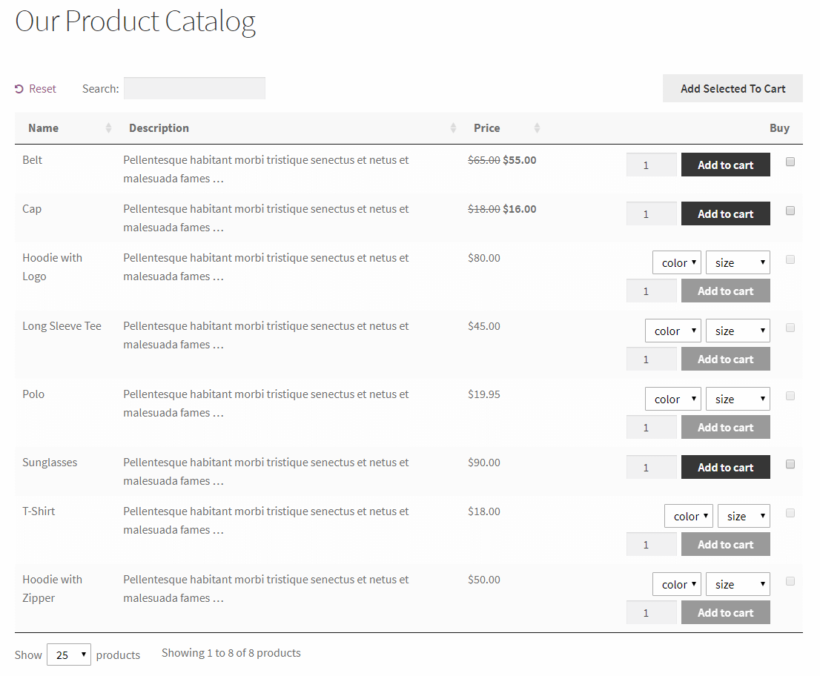
Your non-ecommerce WordPress product catalog will look something like this:

WordPress product catalog created using WooCommerce Product Table without add to cart buttons

Perfect!

Create a product catalog without an e-commerce plugin

Finally, I'll reveal how to create a WordPress product catalog without needing an e-commerce plugin at all! E-commerce plugins such as WooCommerce are fantastic, free of charge, and won't weigh down your site too much.

But if you really don't want one, then you can create your own custom post type and use this to store your products instead. This will add a 'Products' section (or whatever you want to call it) to the left of the WordPress admin.

Once you've added the products, use the Posts Table Pro plugin to them in a table-style WordPress product catalog on the front-end of your website.

For full instructions, please see our tutorial about how to create custom post types and display them using Posts Table Pro.


The perfect WordPress product catalog plugins

The WooCommerce Product Table and Posts Table Pro plugins let you create a functional, dynamic WordPress product catalog for your store – regardless of whether you simply want to showcase products or allow customers to buy them from your store.

And the best part is that it gives you complete control over how your product listing appears on the front-end. You can choose to display the columns that are most relevant to your products, offer search, sort, and filter options, and allow customers to make bulk purchases.

Do you agree that creating a WordPress product catalog in a table layout enhances customer experience? Share your thoughts in the comments section below!
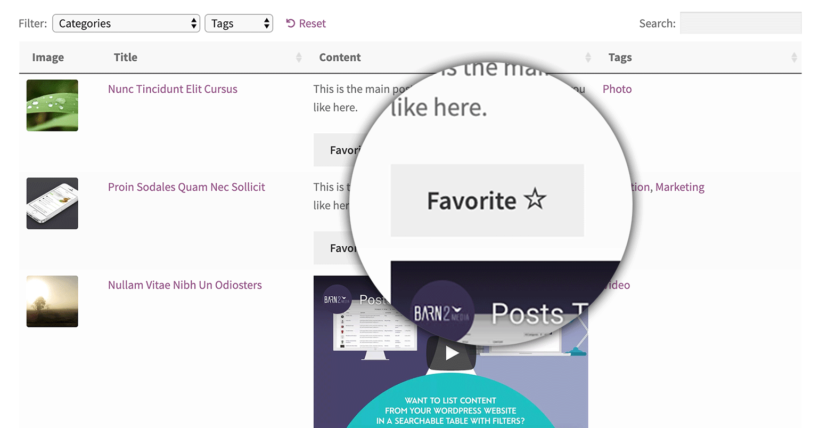
WordPress table listing posts with a Favorite star button beside each row

Today I'm going to tell you about a free plugin which adds Favorite buttons to your lists of WordPress posts, documents or custom post types. When used with our Posts Table or Document Library plugin, you can list WordPress content in a searchable table - complete with 'Add to Favorite' buttons.

  • Are you creating a WordPress video gallery and want people to select their favorite videos?
  • Do you have a WordPress blog and want people to choose their favorite posts?
  • Perhaps you're listing events in WordPress and want people to mark the ones they'd like to attend.

Whatever your reason for needing favourite buttons on your website, you can use these instructions to add them to any list of WordPress posts, documents, or any custom post type.

How the favorite buttons work

You can use one of our table plugins to list your WordPress content in a table. Then, you can use the Favorite plugin to add Favorite buttons. Your visitors can select their favorite posts or documents and create a handy shortlist.

When a visitor comes back to your website, they will still be able to see their selections. If they're not logged in then their favorites are stored via browser session or a cookie. If they have an account on your website, then their favorites will appear even if they re-visit from a different browser or device.

How to add Favorite buttons to WordPress

  1. First, use Posts Table Pro or Document Library Pro to list your WordPress posts, documents or any custom post type in a table view. Set up the plugin using the instructions in the knowledge base, with these settings:
    • Columns - include the 'content' column. The favorite button will appear here automatically.
    • Tick the 'Shortcodes' option. This makes sure the button appears in the table correctly.
  2. Now go to Plugins→ Add New in the WP Dashboard.
  3. Search for 'Favorites' and install the plugin by Kyle Phillips.

Now check the page where you've added the table. There will be a 'Favorite' button in the content column for each post or document in the table.

You can also add favorite buttons to other locations

The instructions above tell you how to add favorite buttons to the content/description columns the table. If you'd like to add them elsewhere - for example because you don't want this column in your table - then that's fine. Simply remove the content/description column and add the following shortcode to one of the other fields that you're displaying in the table (e.g. the excerpt or a text or Visual Editor custom field).

[favorite_button]

List a user's favorited documents

To list a user's favorited documents, add the following code snippet to your functions.php file:

add_filter( 'document_library_pro_query_args', function( $args, $posts_table ) {
    $shortcode_args = $posts_table->args->get_args();

    if ( $shortcode_args['user_favorites'] !== 'true' ) {        
return $args;
    }

    $favorites = get_user_favorites( get_current_user_id() );
    if ( ! empty( $favorites ) && is_array( $favorites ) ) {
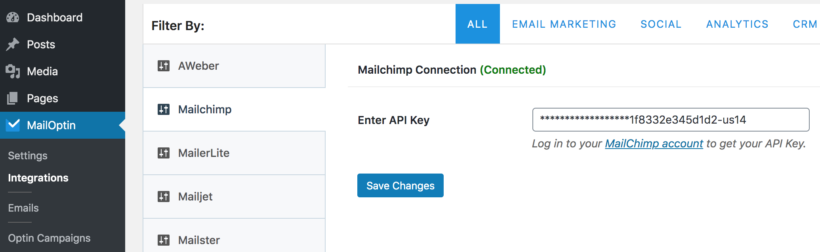
        $args['post__in'] = $favorites;
    } else {
        // Show nothing if no favorites exist
        $args['post__in'] = array( 0 );
    }

    return $args;
}, 10, 2 );

Then use the following shortcode to display them:

[doc_library user_favorites="true"]

Where to get the plugins

Use the free Favorite plugin from wordpress.org with whichever Barn2 plugin works with the type of content you're adding:

One of our WooCommerce Product Table plugin users recently asked how to email customers  when they publish a new WooCommerce product. We were stumped for a minute, and then discovered 2 simple and effective solutions that works for any WooCommerce store.

Mailchimp automation email options for setting up new product alerts

For years, thousands of people have implemented the steps in our tutorial about how to use MailChimp to send new posts by email. It has been read by 34,740 people to date! We've received dozens of comments form people saying how useful it is in sending email alerts for new WordPress blog posts. However, I didn't realise until now that you can also use these methods to send new product alerts for WooCommerce!

To send email notifications of new WooCommerce products, follow these steps to get the information you need. You can then use our other tutorial to set it all up.

MailOptin is a WordPress plugin that emails new products to your Mailchimp audience. You can choose whether to send the email as soon as each product is adde to your store, or as a daily, weekly and monthly newsletter roundup of new products.

MailOptin is very easy to set up and doesn’t require any coding knowledge.

To send email notification of new WooCommerce products, you’ll need the Pro or Agency plan. Get MailOptin, login to your WordPress site and install and activate it.

Step 1. Connect MailOptin to your Mailchimp account

Firstly, you need to get your Mailchimp API key:

MailChimp API key
  1. Go to ‘Integrations’ under the MailOption Dashboard menu.
  2. Click on the MailChimp tab to reveal the settings. Enter your API key and hit the ‘Save Changes’ button.
Entering the Mailchimp API key on the MailOptin integrations screen

Step 2. Set up a new WooCommerce Product email automation

Next is to set up the email automation that will be responsible for emailing your MailChimp subscribers when you publish a new WooCommerce product.

  1. Click ‘Emails’ under the MailOptin Dashboard menu.
  2. Click on the ‘Add New’ button at the top and select ‘Email Automation’.
    Choosing email automation or newsletter when adding a new MailOptin email
  3. Enter a title for the campaign and select a type:
    • Choose ‘New Post Notification’ to send the email as soon as a new product is added.
    • Select ‘Posts Email Digest’ to create a daily, weekly or monthly newsletter digest of products added.
      Setting up a new post notification email to send new products email alerts
  4. Now select a template. You will then be redirected to the email builder.
  5. On the email builder, use the Body, Header, Content and Footer panels to customize the email template to your heart’s content. You have options to change colors, add a header image, add custom content and more.
Designing a new products email alert in the MailOptin email builder
Automation settings restricting new product alerts to the Products post type and categories

The Settings panel is where the actual setup is done. Open it to set up the email subject and the maximum content length. Most importantly, select “Products” as the custom post type.

You can also restrict the automation to specific product categories and tags. This is ideal if you want to send an email when products are added to a specific category in WooCommerce.

Next, scroll down to the ‘Recipient’ section, select ‘Mailchimp’ and choose which of your MailChimp audiences (i.e. lists) the email will be delivered to:

Choosing the Mailchimp audience to receive the new products email alert

When you are done, click the ‘Save Changes’ button at the top right corner and then toggle the activation switch to the right to enable the automation.

Method 2: Use RSS to do it directly from MailChimp

The MailChimp method of sending email alerts for new products uses RSS. MailChimp regularly checks your WooCommerce products RSS feed (either for your entire store, or a specific category). When it spots a new product, it sends out an email alert listing all the new products. When there are no products, no email notifications are sent.

This is a good option if you don't want to install any extra plugins on your site.

Step 1. Get your WooCommerce RSS feed URL's

To get started, you need to know your WooCommerce products RSS feed URL. Fortunately, it's really easy to figure this out. Just add /feed to the end of the URL.

If you want to send email alerts for all new products, then you need the WooCommerce shop page RSS feed URL. This is the address for your main shop page followed by /feed. For example, if your WooCommerce shop page is at https://producttable.barn2.com/shop/ then the RSS feed URL is https://producttable.barn2.com/shop/feed/.

If you want to send email alerts for products in a specific category, then you need the category page RSS feed URL. Similarly, just get the category page address and add /feed to it. For example, if your category is https://producttable.barn2.com/product-category/clothing/ then the RSS feed URL is https://producttable.barn2.com/product-category/clothing/feed/.

Category-specific RSS feeds can be useful if you want customers to choose which category to sign up to receive alerts for.

How do I know I've got the right WooCommerce RSS feed URL?

If you're unsure, then you can also find the RSS feed URL by visiting the page listing your products, right-clicking and choosing 'View Source'. This will open the source code for your page. Search for the word 'feed' and this will be the RSS feed URL for your WC products. For example, in this screenshot I have highlighted the correct URL for the WooCommerce product feed:

Browser address bar highlighting the WooCommerce product RSS feed URL for new product alerts

You can test the URL is valid by loading it in your browser. This will take you to an XML RSS feed listing all your products. It may look like gobbledegook, but this is what MailChimp needs to check so that it knows when you have added new products.

Step 2. Set up new product notifications in MailChimp

Armed with your WooCommerce product RSS feed URL (or URL's, if you're planning to send different alerts for different categories), it's time to set it up in MailChimp.

To do this, follow the instructions in our MailChimp tutorial. While it mostly focusses on how to send new blog posts by email, the instructions work equally for Woo products. Just make sure you use the RSS feed URL's that you saved in Step 1.

The tutorial covers everything you need to know including:

  • How to display product images in your 'New product' email alerts.
  • Setting up MailChimp and import subscribers.
  • Creating MailChimp autoresponder campaigns to automatically email subscribers when new products are published.
  • Adding 'New product alert' signup forms to your WordPress site - either for all products, or with tick boxes for each category.

How can I send email alerts for new products added to my product tables?

Products displayed in a searchable table layout on a tablet

If you're using our WooCommerce Product Table WP plugin to list products in a table view, then this will work beautifully with both of the above methods.

Simply add products via Products → Add New in the WordPress admin in the usual way, and they will appear in your product tables. MailOptin will then send alerts of these new products to your customers.

WooCommerce product restriction plugins

Product table showing a minimum quantity restriction notice for a category
You can use product tables and quick view with plugins that restrict which products people can buy.

People using our WooCommerce Product Table and WooCommerce Quick View Pro plugins often ask how to add extra restrictions or dependencies to control what their customers can and can't buy.

They want to restrict how many products their customers can buy; restrict quantities; or make products dependent on each other so that you can't buy one without the other. Others want to group products in specific ways, simplifying the buying process.

There are lots of plugins that you can use to add WooCommerce product restrictions to your one-page order form or quick view lightboxes. I'll list them below so that you can choose the right ones for your store.

Product dependencies and restrictions in WooCommerce empower merchants to create truly custom buyer experiences. By ensuring shoppers can only purchase items which are relevant to their other choices, you can streamline the purchasing journey, prevent errors, and offer a more intuitive and personalized shopping experience.

Katie KeithFounder & CEO

1. WooCommerce Force Sells

WooCommerce Linked Products panel adding a Force Sells item that must be bought together

What it does: The official WooCommerce Force Sells extension automatically adds a product to the cart when the customer adds a specific product to their cart. The cost of the hamper will be whatever you have set as the price in WooCommerce.

Example: You're creating a build-your-own product website selling gift hampers. You want to force customers to buy a $50 hamper box when they add hamper contents (e.g. a box of chocolates or bottle of wine) to the cart. You can create a restriction rule using the Force Sells plugin to link the products so that whenever you add hamper contents products to the cart, a hamper is added too. The customer will pay the price for each of the hamper contents products they have added. They'll also pay $50 for the hamper product.

2. WooCommerce Chained Products

WooCommerce Chained Products plugin banner for bundling dependent products

What it does: WooCommerce Chained Products is similar to Force Sells, but the linked product is given away as a gift, and is not chargeable. You can still sell the linked product separately and set a price for it. However, it will be given away free of charge when you use it as a chained product.

Example: The Dr. Claudia Welch website offers a free audio track whenever you add a book. They use WooCommerce Chained Products to automatically add an audio track to the cart (free of charge) whenever you buy a book. To test this out, try adding a book to the cart such as this one - you will see that a free audio track also appears in the cart as a gift. Customers can also buy and pay for the same audio track separately, if they prefer.

3. WooCommerce Product Dependencies

Product table blocking a T-shirt purchase until trousers are added, showing a product dependency

Woo Product Dependencies is a free WordPress plugin that works beautifully with WooCommerce Product Table and Quick View. It lets you create advanced WooCommerce product dependencies using various logical rules. You can restrict a product so that it can only be purchased if the customer has already bought another specific product, and/or has that product in their cart.

The plugin allows full customization of dependency error messages, helping you communicate requirements clearly to customers. You can set custom messages for different scenarios - whether a customer needs to purchase additional items, log in to verify ownership, or meet other dependency conditions.

Example: You're creating a website selling WooCommerce customizable products, with graduation gowns and hats. You wish to use a restriction rule on the hat products so that people can only buy them if they purchase a gown at the same time. This is a simple example of a product dependency.

4. WooCommerce Grouped products

Blue T-shirt product page with grouped variation products listed for purchase together

WooCommerce Grouped products are built into WooCommerce itself, and don't require any separate plugins. They offer a simple way to link basic (non-variable) products so that they appear together on the single product page or in a quick view lightbox. Customers can choose which ones to add to the cart, or even add them all at once.

ExampleYou're creating a WooCommerce music store and want to list all the songs from an album as separate products on the album page. To do this, you create a grouped product for the album, add each track as a product within the group, and they will all appear on the single product page. Customers can select one or more tracks and quickly add them to the cart.

Compatibility notes

  • If you wish to list Grouped products using WooCommerce Product Table then you'll need to use one of the options on this page to tag all the products in the group in a way that you can display using WooCommerce Product Table. That way, you can create a product table listing all the products from a specific group.
  • Alternatively, you can just add quick view to your product tables. List your grouped products using WooCommerce Product Table. Customers can click on the quick view links to view the products in the group. Then, they can add them to the cart from the quick view lightbox. WooCommerce Quick View Pro fully supports grouped products, so they will automatically work in the lightbox.

5. WooCommerce Product Bundles

The official WooCommerce Product Bundles extension lets you group products by offering them as a bundle for a combined price. You can also use it to sell individual products, with recommended products underneath for a discounted price.

The Bundles extension doesn't offer WooCommerce product restrictions in the same way as Force Sells, Chained Products and Dependencies. The bundles are presented as optional.

Example: You're selling bikes in WooCommerce and want to create a bundle where people can purchase the bike along with a helmet and lights for a discounted price.

Please note that Product Bundles doesn't currently integrate with WooCommerce Product Table. If you wish to list products in a table layout then you should use one of the other plugins recommended in this article or use the suggested workarounds in our knowledge base. Alternatively, you can list product bundles in the product table and allow customers to purchase them from a quick view lightbox, where there are no limitations.

6. WooCommerce Composite Products

WooCommerce Composite Products lists products in a more advanced, more configurable way than product bundles. It lets you create multi-stage product configurators, with each stage containing a selection of products to choose from.

Example: You're selling custom built cars and want to create a configurator where customers choose options such as wheels, colors, internals, storage and extras. This way, they can order composite products in a 5-step process.

Please note that Composite Products doesn't currently integrate with WooCommerce Product Table. If you'd like to list products in a table view then you should use a different plugin from this article or use the suggested workarounds in our knowledge base. You can also list composite products in a table and use WooCommerce Quick View Pro for the actual purchasing, because the quick view lightbox works perfectly with composite products.

7. Minimum and maximum quantities

Product table enforcing minimum and maximum quantity limits per product

So far, we've looked at WooCommerce product restrictions that control which products people can buy. Maybe you'd rather restrict product quantities in WooCommerce instead?

A WooCommerce minimum and/or maximum quantity plugin lets you set restriction rules controlling how many of each product your customers can buy.

ExampleYou're creating a 'build-a-box' website selling custom cosmetics boxes, and want to force customers to buy between 5 and 10 items to go in their box. You can achieve this by setting a minimum quantity of 5 and a maximum quantity of 10.

Recommended plugin: You can set all types of quantity rules with our WooCommerce Quantity Manager plugin. This is designed to work with both WooCommerce Product Table and Quick View Pro. Use it to create global, category, product or variation-level quantity restrictions. For example, you can use it to force customers to purchase 5 products from the 'Box Contents' category.

How to choose a WooCommerce product dependency or restrictions plugin

As you can see, there are lots of ways to add restriction rules to your WooCommerce products. Read through the description and examples of each plugin. Then you can choose the one that fits best with the logic you need.

For each Woo restrictions plugin, I've included details of how you can use it with WooCommerce Product Table and WooCommerce Quick View Pro.