List WordPress posts by categories, authors, and tags: A comprehensive guide


WordPress comes with some fantastic layouts for listing blog posts, such as the main blog page and category archives. But what if you want to list WordPress posts elsewhere on your website?
Maybe you want to list posts from a specific category? Perhaps you want to list WordPress posts by author, tag, or something else. Maybe you want to list other types of WordPress content such as pages or custom post types. Well, you've come to the right place!
I'm going to show you how to use Posts Table Pro to list blog posts or other information in a flexible table layout. This WordPress post list plugin lets you choose which columns to include in the table. You can also choose which posts to list based on their category, tag, date, author and more. And even better - it all happens automatically. It's time to stop listing posts manually by hand!
How do you list WordPress posts in a table?
Posts Table Pro lists WordPress posts in a sortable, filterable table that you place anywhere on your site. It pulls posts by category, tag, author, date, custom field, taxonomy, or ID, and can list pages and any custom post type too.
You choose the columns, such as title, excerpt, featured image, author, and date, then add a search box and dropdown filters. Add the table with a block or shortcode, and large lists load one page at a time to stay fast.
Case study - Journey with Omraam blog post index
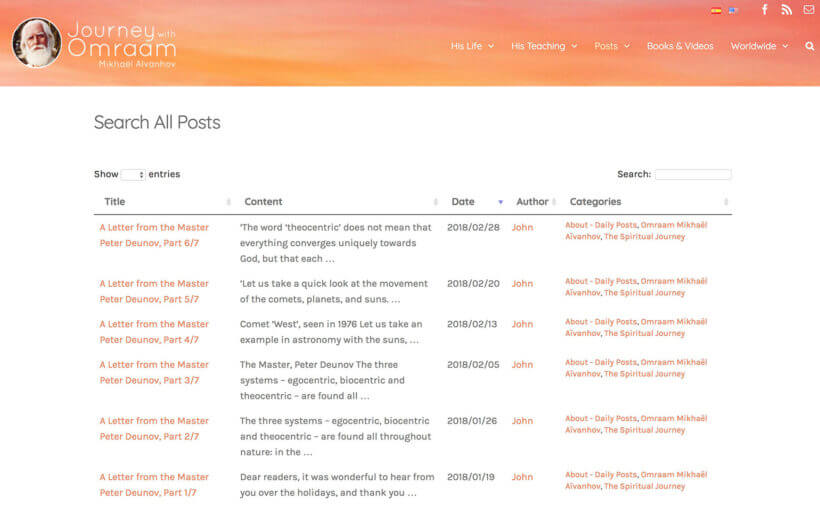
Journey with Omraam is a global community that continues to spread the teachings of the spiritual master Omraam Mikhaël Aïvanhov.
The website is regularly updated with fresh content. All posts have been added to the Search All Posts page as a list of WordPress posts, and there are many, many posts – more than 700. So an easy way to sort through the list of posts was essential, that's exactly why our WordPress post list plugin powers the page.
Each and every blog post is listed in the table along with its title, first line of the post, author and date it was published. Visitors can browse the content in three ways. They can sort the table by the column headers. They could filter the list by selecting a category. Or, they can use the keyword search box. Either way will quickly help them find what they're looking for.
Read on to find out how you, too, can list WordPress posts on your website.
Introducing Posts Table Pro - a plugin to list WordPress posts, pages & other content
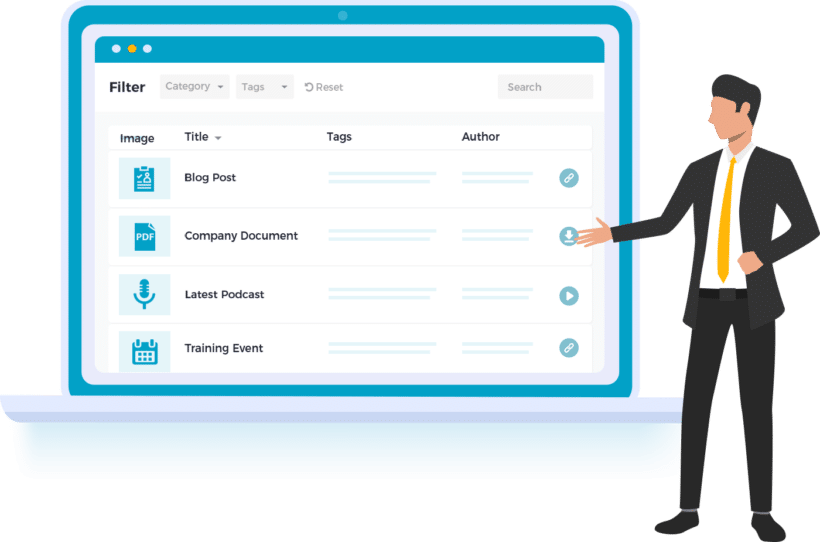
As you can see, there are lots of ways to display posts using different content views - whether this is a post grid or list for WordPress. The Posts Table Pro plugin creates a grid-based table layout, with each post listed as a separate row in the table. This builds on the content views that come with WordPress and your theme.
Posts Table Pro lets you list WordPress posts or other content types such as normal pages or any custom post type. You can use it to list literally any post type on your website, including portfolios, documents, products, events, articles, news, tutorials, etc.
Once you've decided what type of content to list using this WordPress plugin, there are lots of ways to choose what type of WordPress posts to display. Here's a summary of them all. Afterwards, I'll tell you how to set it up.
List all posts in a table
At its very simplest, you can use Posts Table Pro to list all posts in a table layout. It loads one page at a time, so load times stay fast even if you're listing hundreds or many thousands of posts.
You can either list the post names only, in a one-column table. Alternatively, you can add extra columns to show information such as content, excerpt, featured image, author, or date.
List posts by category
You can list WordPress posts by category, listing content from one or more specific categories. Simply enter the name or ID of the category you wish to list the posts from.
This is a great option if you want to list posts from a particular category outside of the category archive pages that come with WordPress itself. Check out our separate article on how to list category posts.
Display posts with a specific tag
As well as category, you can list WordPress posts by tag. Create a table containing posts that are tagged with 1 or more specific terms.
For example, if you have a WordPress recipe blog for foodies, then you can create tables listing posts that are tagged with 'healthy' or 'vegan'.
List WordPress posts by author
It's also possible to list WP posts by author - for example, if you want to create different lists of posts based on the user who created them. This is useful if you want to list posts by a specific author outside of the built-in author archive pages.
Create a date-based list of posts by month, year or day
List WP posts by month, year, day, or any combination of these date options. This adds more flexibility than simply using the date archives that come with WordPress itself.
You don't just have to list all your posts in reverse date order. Instead, you can create separate pages listing posts from a specific day or month. This is ideal for blogs that post regularly, WordPress newspaper websites, and similar sites.
List WP posts by ID
For even more fine-grained control, the plugin lets you list pages or posts based on their specific database ID. For example, this might be useful if you want to manually add a list of related posts to a WordPress blog post. Use the ID of each post to hand pick which related posts to include in the table, and add them anywhere within your post.
List posts by custom field or taxonomy
If that's not enough, you can also use custom fields or a custom taxonomy to list posts in even more weird and wonderful ways!
Custom fields and taxonomies are a wonderful way of extending the information that you store about your WordPress posts and other content. If you feel the fields that come with WordPress itself don't quite your needs, just use a free plugin to create custom fields and/or taxonomies. You can then use the Posts Table Pro plugin to list posts based on specific data.
List posts, pages or any custom post type
Posts Table Pro can list any type of post in WordPress, including custom post types. This is useful if you need to list something other than blog posts. For example, you might be creating lists of events, documents, portfolio projects, products, or something else.
We've got a separate tutorial on how to list WordPress custom post types in a table.
Exclude posts from the list by ID or category
There are also exclude and exclude category options, which are handy if you need to exclude specific posts from the list. I'm always surprised at how often I list posts and then realise that there are a couple that I want to exclude. This is sometimes easier than choosing which posts to include, depending on how many you want to hide.
List posts anywhere in WordPress
You can choose whether to list WordPress posts on a page, in a blog post, or to automatically use the table layout in your category archive template or in the WordPress search results page. This makes Posts Table Pro incredibly flexible. You simply add a shortcode anywhere on your site, edit it to state what you want to include, and it will appear automatically on the front end.
What else can it do?
As well as providing flexibility in which WordPress posts or other content to list, the plugin lets you choose which columns to include in the post list table.
Some people use Posts Table Pro to create a very simple list of WordPress posts. If this is what you want, then you can create a table that just has a title column listing the post name. Others use it to add extra information, which helps to encourage people to click on the posts and read more. For example, you can list posts with their featured image, plus other post data such as title, content, excerpt, author, date, etc. If you've added custom fields or taxonomies to your WordPress post list then you can include those too.
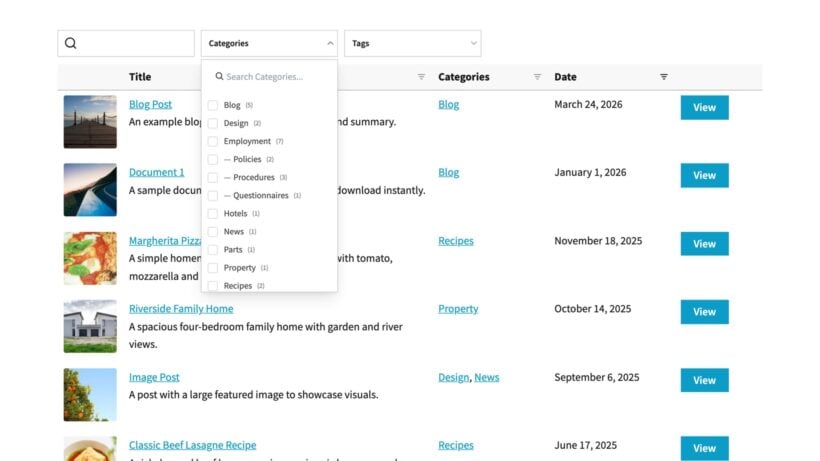
Posts Table Pro also makes it easier for people to find posts based on data such as category, tag or author. Each column in the table is sortable, and you can add extra controls such as search box and filters. You can allow customers to filter by post tag, category, or any custom taxonomies you've created such as Topic or Year.
You can also control the order in which posts are listed. For example, you can list WordPress posts alphabetically or in date order. This is much more flexible than the default post list on the main blog page.
Feel free to check out the full list of plugin options here. I've just focussed on the main ones for creating a WordPress posts list.
How to list WordPress posts on a page with Posts Table Pro
To learn how to create a WordPress post list table for your own website, either watch this video tutorial or read the written instructions below:
- Before you start, you should have a WordPress website already set up with various posts that you want to list.
- Get the Posts Table Pro plugin and install it on your website.
- Download the zip file from the link in your order confirmation email and upload it to your WordPress admin by going to Plugins → Add New → Upload Plugin, then click Activate. The Posts Table Pro setup wizard will then initiate automatically.
- Upon installation, the automatic setup wizard will guide you in creating your first table or you can create new tables anytime via Post Tables → Add New.
- Give your table a name and select the post type to display.
- Select the posts or pages to include in the table, and customize columns and order by dragging and dropping or adding new columns. For instance, you can add columns for categories, tags, post dates, and authors.
- Add filters. You can add as many as you like. Filters will appear as a dropdown above your table.
- Large tables load one page at a time to keep them fast.
- Next, choose the default sorting option and direction.
- Next, go to the page where you want to list WordPress posts, pages, or other content. (Note: This can be an existing page or a new page. It doesn't matter if the page uses the standard WordPress editor or a page builder plugin such as Visual Composer. If you don't want to list posts on a page, you can use a post or widget instead.)
- After completing the table using Post Table Pro, you can display it on your site by using the 'Post Table' block in the WordPress block editor or copying the shortcode from the table builder and pasting it anywhere on your site. This offers you the flexibility to place the table on any page.
And this is how my WordPress post list table looks on the front end:
Frequently asked questions
How do I list all WordPress posts on a page?
Add the Posts Table Pro block or shortcode to any page, then set it to show all posts. The plugin builds a sortable table with the columns you choose, and large lists load one page at a time so the page stays fast.
Can I list WordPress posts by category, tag, or author?
Yes. Posts Table Pro lets you filter the list by one or more categories, tags, or authors, and by date or custom taxonomy. You can also let visitors filter the table themselves with dropdown menus above it.
Can I list custom post types, not just blog posts?
Yes. Posts Table Pro lists any post type, including pages and custom post types such as events, documents, portfolios, and products. You pick the post type when you build the table.
Take action: List WordPress posts with Post Table Pro today 🚀
By now, you should have all the information you need to start automatically listing posts and pages on your own website. Whether you want to list posts by category, author, date, or anything else, you can do it with Posts Table Pro.
Get Posts Table Pro today and stop wasting time writing manual lists straight away!
2 Comments
was interesting.
Hi, Mino. Thanks for saying so. Let me know if you have any questions. You can also enquire in more detail via our dedicated Support Center. Thanks!