An essential guide to creating composite products with WooCommerce


Setting up WooCommerce composite products is a great way to let customers build or configure their own products. It’s perfect for anyone that’s looking to sell personalized products, gift boxes, hampers, and product kits.
A composite WooCommerce products plugin lets customers design their own custom products. Unlike basic product variations, composite products are very sophisticated and give customers much more control and flexibility. They're the perfect way to let customers take the lead and order exactly what they require, instead of letting you make the decisions for them.
In this article, I’ll show you step-by-step how to create WooCommerce composite products the easy way. You'll learn about the different types of option you can create for your products, and when to use each one. We'll also look at case studies of composite products in action so that you can use them as inspiration for creating your own.
Let's get started!
Understanding composite products and their importance in WooCommerce
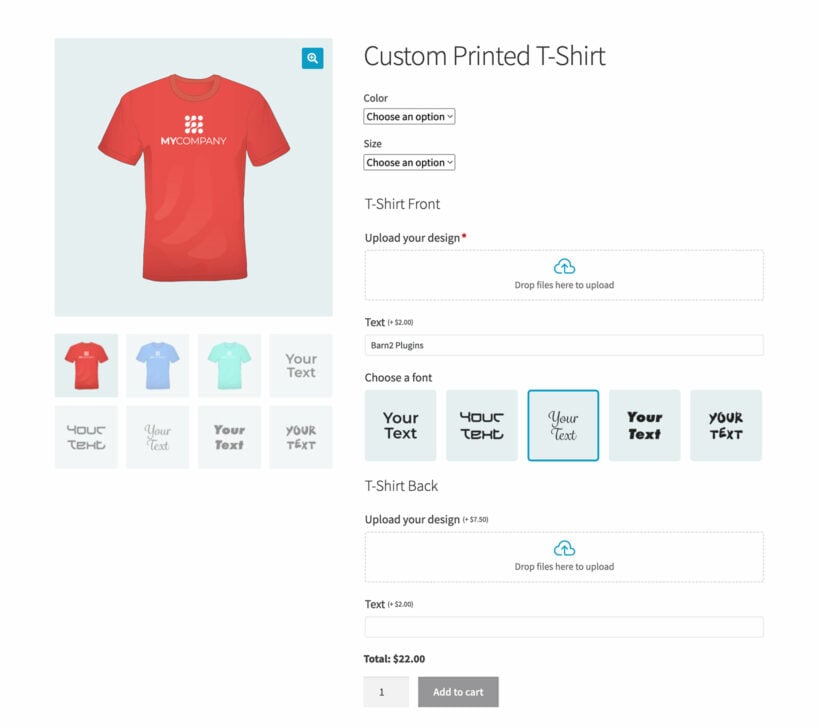
Before we learn how to use composite products, it's important to understand what they are. You also need to know when to use WooCommerce composite products compared to other types of product bundle.
Composite WooCommerce products (also called product builders) simply means building a product by combining several other products or options.
The options on a composite product might be unique to that product, or they might be other products available elsewhere in your store.
Examples of composite products
Here are some use cases where it makes sense to create a WooCommerce composite product:
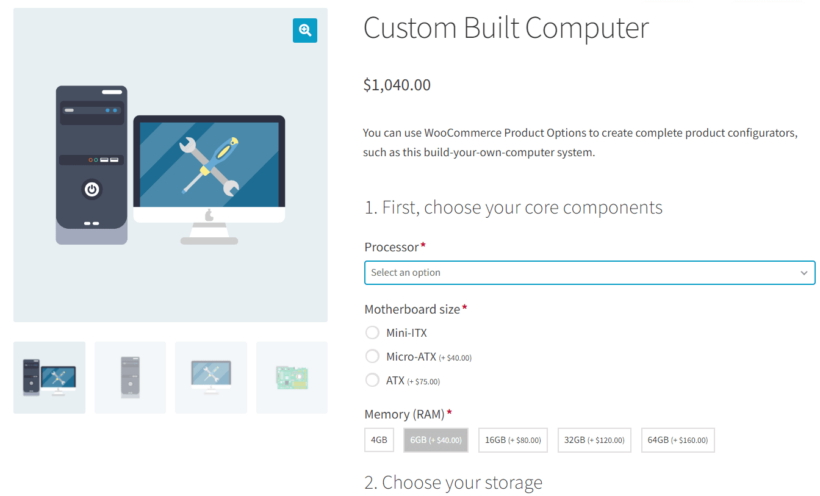
- Build-your-own computer - The customer can create a custom built computer by selecting the exact components they require such as the motherboard, storage, RAM, peripherals, and so on.
- Custom bicycle - High end ecommerce bike shops need to allow customers to order a bike to their exact specifications by selecting the exact wheels, chassis, accessories, saddle, and more.
- Product kit builder - If you sell products like custom sneakers or skateboards, you can create a composite WooCommerce product to let customers select the parts they’d like to use in their custom build.
- Gift boxes - WooCommerce composite products are perfect for e-commerce stores that sell gift boxes and gift baskets (hamper/packs). Customers can select a box, choose the products they’d like to add to it, place their orders, and proceed to checkout.
- 'Build a box’ products - You can create composite products if you’re selling bespoke vegetable boxes, luxury food hampers, or build your own pizza or burrito. Be sure to check out our tutorial on ‘build your own’ products for inspiration.
- Print design - Online digital printing services frequently offer a large number of options. For example, customers need to be able to select the type and weight of paper, size, quantity, finish, print quality, etc. They might also need to view a live preview of the finished product.
In all these examples, WooCommerce composite products allow the customer to mix and match options to effectively create their own custom product. They add a lot of flexibility to ecommerce stores by making products completely configurable and personalizable.
Composite products vs variable, grouped and bundled products
There are four ways to combine multiple products on one page in a WooCommerce store. They look similar but solve different problems:
| Type | What it does | Best for | Plugin needed? |
|---|---|---|---|
| Composite products | The product page combines a main product with a step-by-step set of options. Each option can be a color swatch, image, dropdown, file upload or another product from your store. | This works for highly configurable products like custom computers, gift hampers and build-your-own kits. | Yes, you'll need a plugin like Barn2's WooCommerce Product Options. |
| Variable products | A single product is offered with one or more attribute dropdowns such as size or color. Each variation has its own price and stock. | This fits simple option sets where every combination is a separate SKU. | No, this is built into WooCommerce. |
| Grouped products | A list of separate, simple products is shown together on one page with individual quantity boxes. | This works when customers want to buy several related items in one go, with no pricing logic between them. | No, this is built into WooCommerce. |
| Bundled products | A fixed or flexible bundle of products is sold together, often at a discount. | This fits pre-defined bundles or "pick X of Y" offers. | Yes, see our guide to WooCommerce product bundles. |
Composite products are the most flexible of the four. They're the right pick whenever a customer needs to make several decisions to define a single product they'll buy as one unit.
Why create composite WooCommerce products?
As you can see, composite products are more advanced than other ways of selecting product options. That's because they are so flexible. You can add absolutely any type of option to a product and display it however you like - unlike variable products, you're not restricted to dropdowns. The options can be added specifically to that one product, or you can select other products from your store to appear on the composite product page.
Introducing Barn2's Advanced Product Options for WooCommerce
While there are several WooCommerce composite product plugins available, by far the most flexible is our own WooCommerce Product Options. That's because unlike other plugins, it gives you full control over how to set up the composite products in the back end, and how to display them on the front end of your store.
Key features of Barn2's solution for composite products
- Add as many options as you like to each product in your store.
- Either create composite product options direct to the product, or display variations or even other products from your store as options on the composite product.
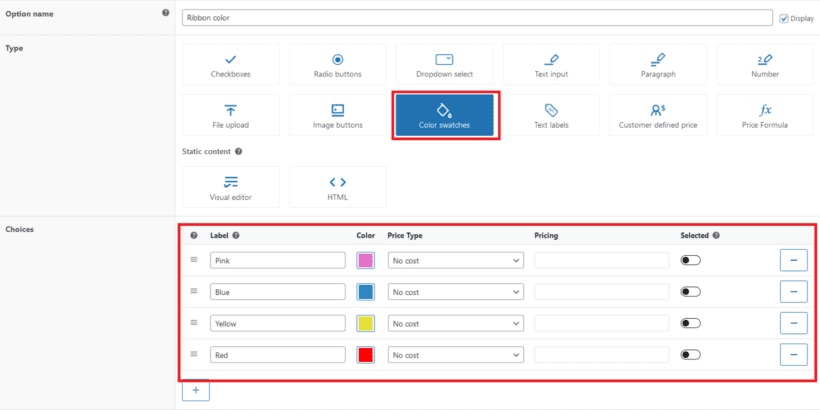
- Choose from a wide range of styles for each composite product option. This includes clickable images, checkboxes, color swatches, radio buttons, text labels, and much more.
- Either add the same options to all products or entire categories, or add them to individual products.
- Use smart conditional logic to dynamically show and hide the composite product options depending on user selection.
- Provide live previews for uploaded images in the composite product.
- Create a multi-stage creation process for the composite product. You can do this by adding step-by-step headings to the composite product and structuring the options into logical groups.
Benefits for WooCommerce store owners and developers
There are lots of reasons why the Product Options plugin is the best way to create composite products in WooCommerce. The main reason is that it's so flexible. It's the only plugin in this category which lets you create composite products by adding options directly to the product, AND/OR by displaying product variations or other products as options. This is important because sometimes a composite product consists of a customizable bundle of multiple products from your store. However, at other times the options may not be other products in your store - perhaps they're specific to that one product, such as colors or other attributes. Perhaps your composite product needs to display some options which are specific to that product, along with other options from your store at the same time. You can do all this with WooCommerce Product Options.
It's also the only WooCommerce composite plugin on the market which offers such a wide choice of display options for each option. For example, instead of just displaying the options as images with a title alongside, you can display them in other styles such as checkboxes or color swatches. You can add an optional description to explain each option and provide helpful instructions. And you can even use conditional logic to only show each option where it's needed based on the customer's previous selections. None of this is possible in similar plugins, which simply display a list of selected products on the composite product page.
Step by step: How to create composite products with Barn2's Advanced Product Options
As we have seen, the Product Options plugin is ideal for creating advanced and flexible WooCommerce composite products. This is how to set it up:
- Get the plugin and install it on your WordPress site. Either get the standalone plugin, or get it with the Live Preview add-on if you want customers to preview uploaded files.
- Go to Products → Options and click 'Add New' to create a new product option group. This will contain all the options for your composite product. Give it a memorable name.
- Select which product(s) the option group will appear on.
- Next, start adding options to the composite product. For each one, you need to decide where the composite product options will come from:
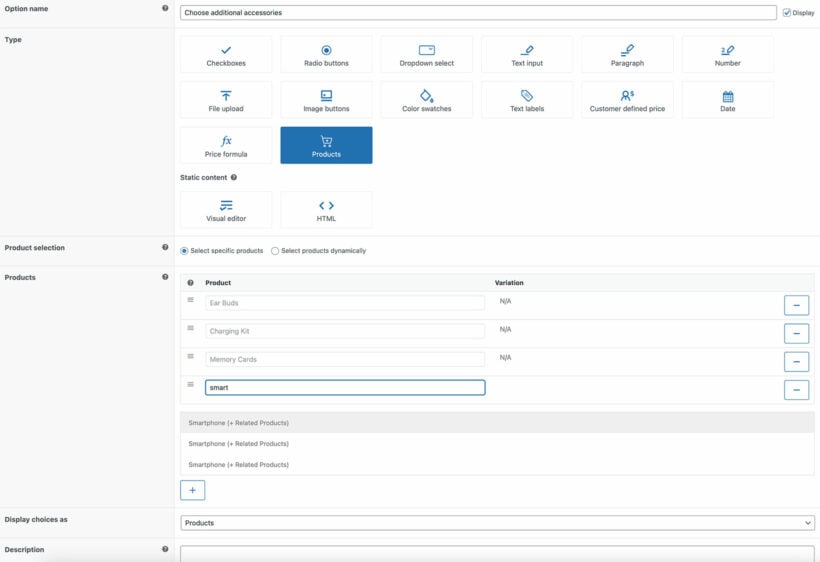
- To display existing products as options on the composite product, select the 'Products' option type.
- To display product variations as composite product options, select the checkbox, radio buttons, dropdown, image buttons, color swatches or text labels style and then "Create choices using existing variation attributes".
- To add new options directly to the product, select any option type and set it up as needed. Remember to set a price if you want the product cost to change when customers select this option.
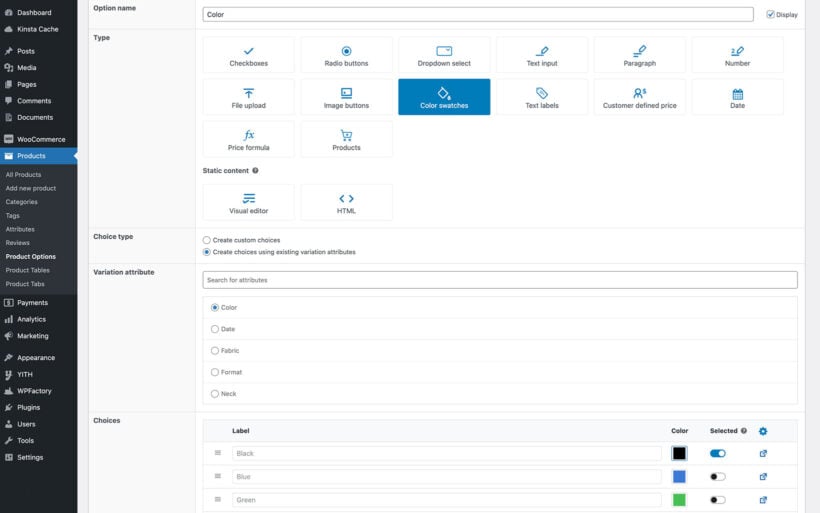
- I recommend adding headings between each group of composite product options to guide customers through a clear step-by-step configuration process. You can do this by adding a 'Visual Editor' field, selecting a heading style, and dragging it into position amongst the other options.
- Scroll down to find additional settings for each option, such as required fields, minimum/maximum quantities, and conditional logic.
- Finally, click Save.
View the product that you added the group to in step 3. You will see that it is now a fully functional composite product. The options you created will appear neatly on the page, above the add to cart button. That way, customers can select options to build the product and then add it to their cart 💪
If a composite product has a lot of options, you can present them as a step-by-step sequence or tabs on the product page so a long configurator stays manageable for the customer.
Bonus tip: Display WooCommerce composite products on the shop page
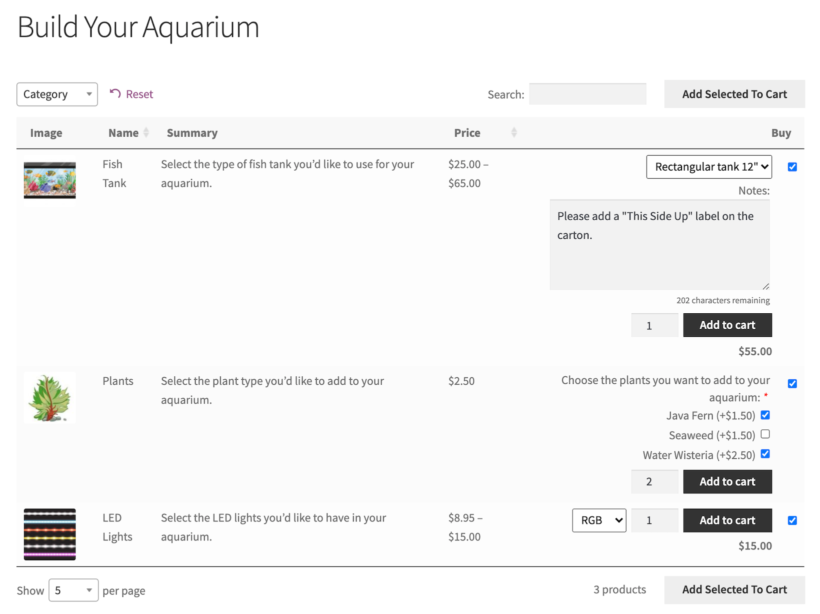
Normally, your composite product options will only appear on individual product pages. This works nicely for some types of store because the options often take up a lot of space.
However, there are times when each WooCommerce composite product only has a few options. In these cases, you can save customers time by displaying the options directly on your main shop and category pages.
The standard WooCommerce store layout doesn't lend itself to this, but you can do it by using the WooCommerce Product Table plugin to list the products in a table-based order form instead. This displays the products in a more structured layout, complete with a 'Buy' column containing all your composite product options.
For example, the screenshot above shows a 'Build Your Aquarium' shop. Customers can configure WooCommerce composite products to build a custom aquarium, without ever having to visit the individual product page. Specifically, customers can select the tank size, select aquatic plants, and even enter custom text to make special requests.
Composite product case study: Flowers by Annette
Flowers by Annette use WooCommerce Product Options together with WooCommerce Product Table to sell hand-tied bouquets. They’ve built a set of composite products in WooCommerce to let customers place their orders:
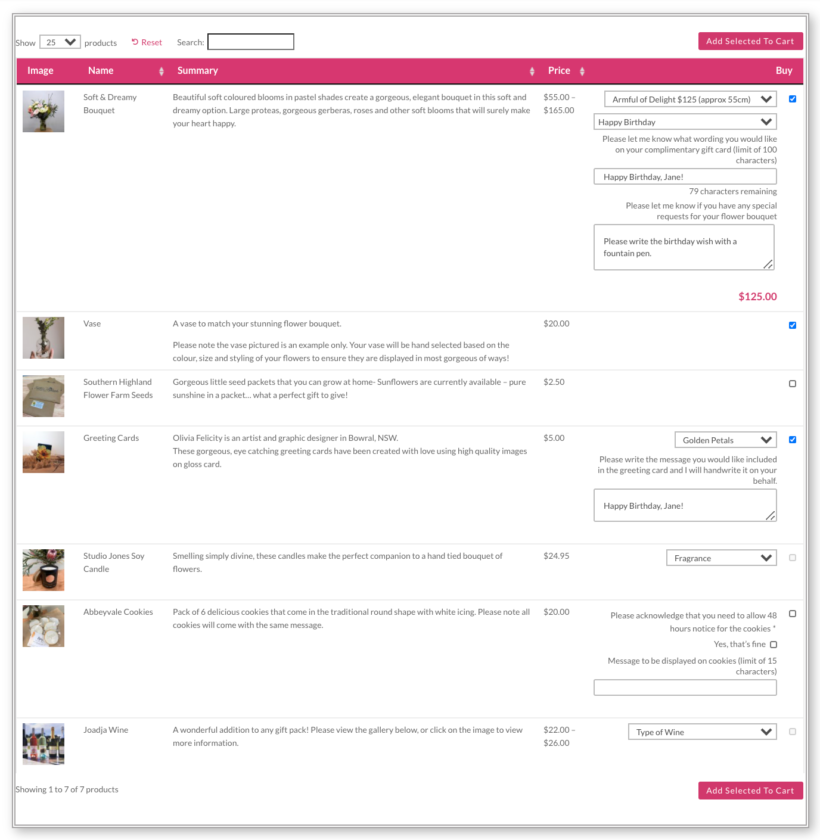
Each product appears on its own row of the table, allowing customers to make easy comparisons. The WooCommerce composite product options added using the Product Options plugin appear in the 'Buy' column. They also use Product Options to add extra options to their composite product order form which allows additional configuration options. For example, customers that purchase the Soft & Dreamy Bouquet can enter the wording they’d like to have written on their complimentary gift card and specify any special requests for their flower bouquet.
Customers can use the product table to make their selections using the dropdown menus and checking a tick box next to the items they’d like to add to their gift pack. Once they’re done making their selection, they can click the Add Selected to Cart button to add all of the items to their cart in one go.
I was building a website for a client who had a strong focus on gift baskets. She wanted a solution for the user to create their own individual gift basket using particular components/products. I was trying to make Woocommerce Composite Products work, however the Composite Products plugin was incredibly frustrating and not user-friendly at all, returning multiple errors and visual issues. I looked for an alternative solution and found the WooCommerce Product Table in the Gift Pack section and on the standard product page. The Barn2 website was really easy to navigate and the tutorials were terrific and very clear. Very happy to have come across this plugin, I will definitely use it again.
Delyse WrightWeb Designer
Think about whether your store would benefit from showing the composite product configurator directly on the shop page. If so, then you can buy the 2-plugin bundle of WooCommerce Product Options which also comes with the Product Table plugin. Alternatively, if you only want customers to configure WooCommerce composite products on the product page, then you just need the standalone Product Options plugin.
Composite product demos
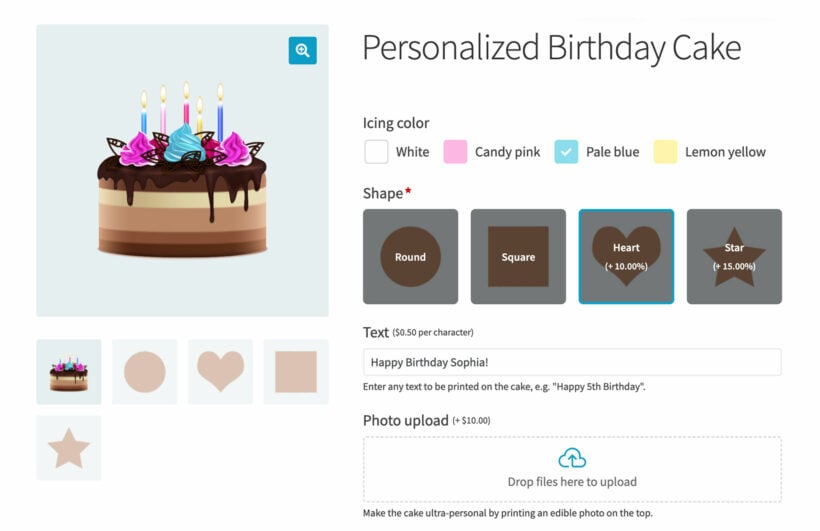
Before we finish, I'll share a list of demo pages where you can see WooCommerce composite products in action. Use these to see the different ways you can set up composite products. Hopefully this will provide inspiration on how to set up composite products on your own site:
- Personalized birthday cake - Mix and match the composite product options to create a completely bespoke cake. It can have your chosen colors and flavors, and even extras like a custom text message or photo upload.
- Customizable smartphone - This composite product displays other products as optional accessories to upsell alongside the main smartphone product.
- Create-your-own computer - A WooCommerce composite product which takes the customer through a multi-section configuration process.
Tips for selling more composite products
A composite product page is doing a lot of work at once: Showcasing options, guiding the customer through a configuration flow and handling pricing logic. A few practical tweaks consistently make these pages convert better.
- Use high-quality images for every option. Customers can't pick up and test a composite product, so the visual is doing the work the physical product would. Show each option clearly, at the same angle and lighting, so the customer can compare them without re-reading the labels.
- Offer a useful range of options, not an overwhelming one. Too few options and the product feels rigid. Too many and customers freeze. Three to seven options per attribute tends to be the sweet spot for most stores.
- Write a short description for each option. Composite products often involve unfamiliar materials, sizes or compatibility constraints. A one-line note next to each option ("100% organic cotton", "fits iPhone 13 only") cuts support questions and stops customers second-guessing their build.
- Track which combinations get built. Looking at your most-built composite combinations tells you which options are pulling weight and which are dead. Drop the ones nobody picks and you free up real estate for the configurations customers actually want.
- Offer a few pre-built starter kits alongside the builder. Some customers love the configure-from-scratch flow. Others want a recommended set they can just buy. Showing two or three popular build-your-own product presets above the builder lets you serve both audiences without splitting product pages.
Your next steps: Elevate your WooCommerce store with composite products today
There you have it! We showed you how to create composite products in WooCommerce and, hopefully, you’re in a good position now to take the next steps.
To recap, you can use either or both of these fantastic plugins to set up composite products:
- WooCommerce Product Options - Add a range of flexible options to your products. Either list other products from your store, or add bespoke options directly to the product.
- WooCommerce Product Table - Optionally use this alongside WooCommerce Product Options if you want the composite product options to appear on your main shop pages.
Both plugins are guaranteed to work together and come with full support and documentation, plus a 30-day money back guarantee. They only take a few minutes to set up, so start adding composite products to your WooCommerce store today 🚀
2 Comments
Nice idea !
I would like to create gift boxes with the plugin. They have two slots where I can add one product in each.
Would I be able to only select two products max in the table ?
Can I limit to a single variation (size) for each product ? Thanks.
I already have your plugin. It is very useful for my quick purchase page.
Hi, Fred. Thanks for your comment and for using WooCommerce Product Table.
You can do this using the YITH WooCommerce Minimum Maximum Quantity plugin, which allows you to set a minimum and/or maximum number of products that can be purchased from each category. You can then limit the products that can be added to the cart in each table by adding them to a category that you've applied a quantity limit to. For more details, please see Quantity plugin #3 – YITH Woocommerce Minimum Maximum Quantity.
I hope this makes sense and helps. I'm glad to hear WooCommerce Product Table is helpful for the quick purchase page on your site. Should you have any other questions, please let us know. You can also get in touch with us via dedicated Support Center.
Best regards,