How to add custom code snippets to your website
Sometimes you may wish to add a custom code snippet to your website, for example in order to customize one of our plugins. This article provides several easy ways to do this.
If you are not a developer then you should be very careful when adding custom code snippets. If you're not sure what you're doing then we recommend asking your developer or using our plugin customization service.
Before adding a snippet, it’s important to know what type of code you’re working with (PHP, JavaScript, or CSS).
Adding PHP code snippets
functions.php file
You can add the code snippet to the functions.php file of your child theme (if you are using an off-the-shelf theme then never edit files directly in the parent theme). In order to do this, go to Appearance → Theme File Editor and then edit the functions.php file for your active theme. You can paste the code snippet at the end of the file and then save it.

If you are using a child theme then it is important to add the code to the functions.php file in the child theme. This is because if you add it to the parent theme then your changes may be lost when you update the theme in future.
Depending on the permissions on your website and your theme, the above option may not be available to you. If you can't use this method then you can use a code snippets plugin instead.
Use a code snippets plugin
The WPCode - Insert Headers and Footers + Custom Code Snippets plugin makes it easy to add custom code to your site. Follow these steps after installing and activating it:
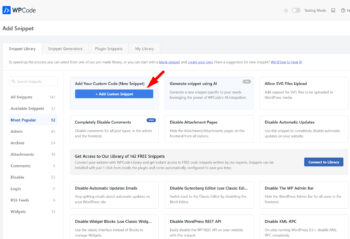
- Go to the Code Snippets section in the left-hand admin menu.
- Click “Add Snippet” or “Add Your Custom Code (New Snippet)”.
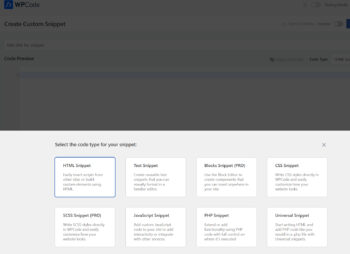
- You will see different code types, select 'PHP Snippet' from the list.
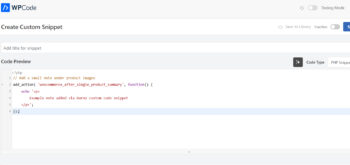
- Paste your PHP code into the editor.
Adding JavaScript code snippets
For JavaScript (JS) snippets, we recommend using a code snippets plugin for the safest and easiest setup.
Follow the same steps as described above with the WPCode plugin, and in step 3 select 'JavaScript Snippet' from the available code types.
After that, simply paste the JavaScript code into the editor and save your snippet.
Adding CSS code snippets
The easiest way to add CSS is through the WordPress Customizer. Go to Appearance > Customize > Additional CSS, then paste your CSS code and publish the changes.
Alternatively, you can add CSS directly to your theme’s style.css file, ideally in a child theme to avoid losing changes during updates. If you're not sure whether your site uses a child theme, it’s safer to use the Customizer option.
Some themes also include a dedicated 'Custom CSS' section in their settings, which can be used as another valid option.