






WooCommerce branding illustration with dashboard mockups and sales charts

Adding a WooCommerce storefront to your existing WordPress website can be a very profitable move. An e-commerce area lets you sell products or services directly to visitors, and when set up properly it can practically run itself. However, you’ll need to think carefully about exactly how you add WooCommerce to WordPress without affecting your live site.

For best results, you’ll want to develop your new store privately, and only make it available to customers once it’s completely ready to go.

Most people do this by creating a separate staging site, adding WooCommerce, and then overwriting the main site when it's ready to launch. This causes various problems, such as version control issues and potential loss of data when you need to make changes to the live site. Fortunately, there's an easier way.

In this quick tutorial, we’ll explain how to add WooCommerce to WordPress seamlessly. You'll use the WooCommerce Private Store plugin to create a hidden development area. It's like adding a 'coming soon' page to WooCommerce or putting your store in maintenance mode, while the rest of your website remains public.

When your site goes live, you'll deactivate the private store plugin and your WooCommerce store will instantly become available on your existing website. You won't have to worry about version control or staging sites, and it just takes a few minutes to set up.

Let’s get to work!

Why you should use a hidden development area to add WooCommerce to WordPress

Many people start up a blog or a small business site, only to later decide to add in a storefront. Selling products and services through your website does take a little work, but the benefits are more than worth it.

WordPress doesn’t offer a lot of e-commerce specific functionality, so you’ll need a dedicated tool for setting up your new shop. We highly recommend WooCommerce:
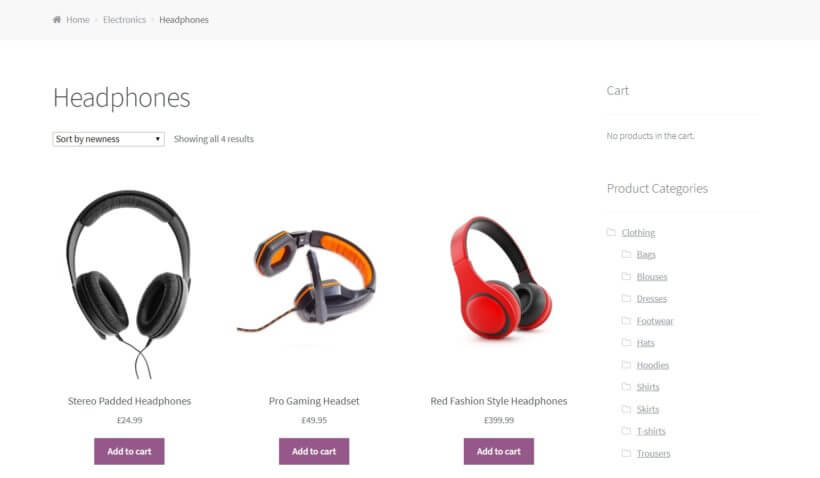
Example WooCommerce store showing a headphones category with add to cart buttons

The free WooCommerce plugin adds a fully-featured store to your website, without disrupting any of your existing pages or content. No matter how established your site is, setting up an integrated WooCommerce shop is quick and painless.

However, you will want to spend a little time working on your store before making it live – creating key pages, uploading products, and so on. You'll want to add menu links to your store pages, and icons linking to the cart and checkout. What’s more, you won’t want this work-in-progress to be publicly available. Instead, you’ll want visitors to continue seeing the original website until the new store is designed and ready.

The easy way to add WooCommerce to WordPress

There are a few ways you can handle this. For instance, you can set up a separate staging site that’s a carbon copy of your live website, add WooCommerce to WordPress, and then merge your changes. Unfortunately, this is a time-consuming, complex process that’s fraught with the potential for errors.

Clearly, you need a better solution. That’s where WooCommerce Private Store comes into the picture:

This plugin has a number of useful applications. Its primary use is enabling you to set up a private storefront, where users have to log in before they can view its contents. For example, some people use it to create a private members-only club. However, it also lets you temporarily hide your new WooCommerce store while it’s being developed. Then, you can easily make the shop publicly available when you’re done setting it up.

Check out the WooCommerce Private Store demo!

This is a much simpler and more temporary solution than creating a full staging site and then copying it over your live site. To illustrate, let’s take a look at how the process works from start to finish.

How to add WooCommerce to WordPress using a hidden development area (in 4 steps)

The following steps will show you how to set up a hidden WooCommerce store on your live site. You'll also learn how to make it visible only when you’re ready to do so. All you’ll need to get started is a WordPress site, and the WooCommerce Private Store plugin.

Step 1: Add WooCommerce to WordPress

The first thing you’ll need to do is add WooCommerce to WordPress. You won’t actually be setting up your store yet – after all, you’ll want to be sure it’s hidden first. However, WooCommerce will need to be installed before you configure your hidden development area.

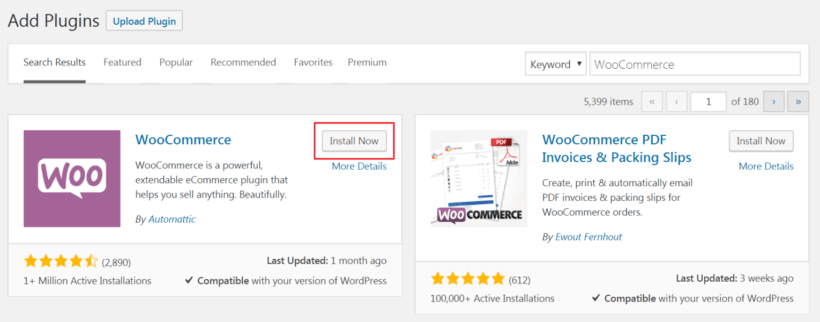
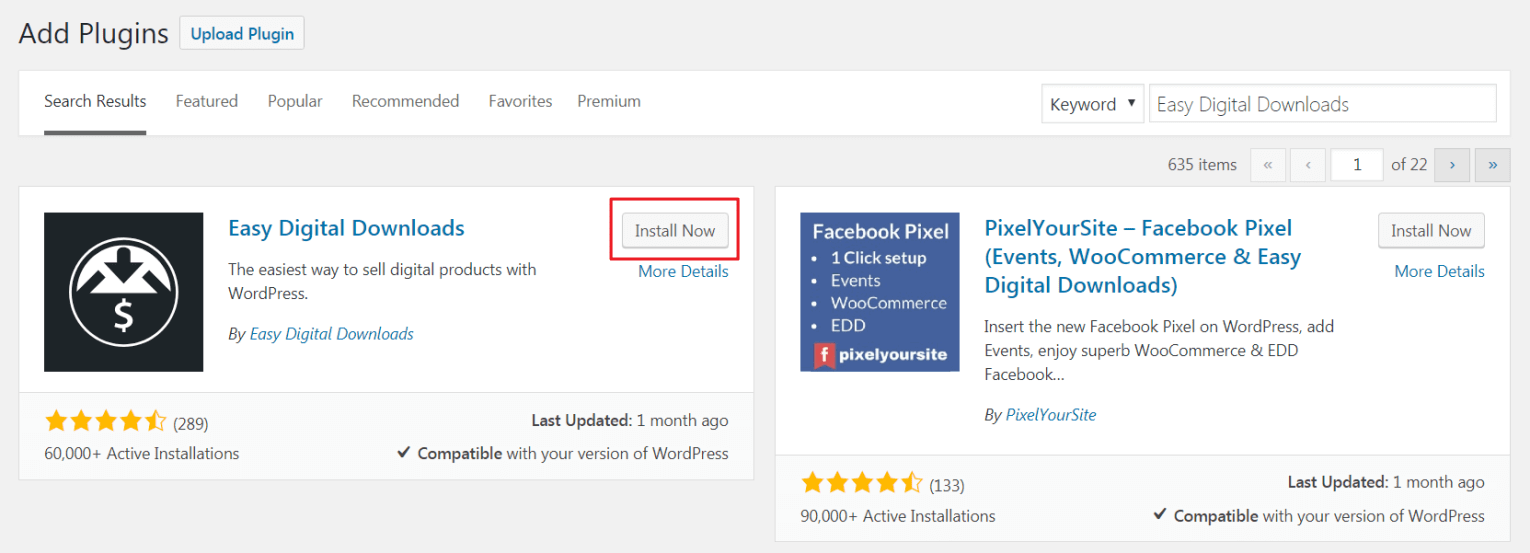
Fortunately, WooCommerce is a free plugin that’s simple to set up. Log into your WordPress dashboard, and navigate to Plugins > Add New. Use the search bar to find 'WooCommerce', and click on the button labeled Install Now:
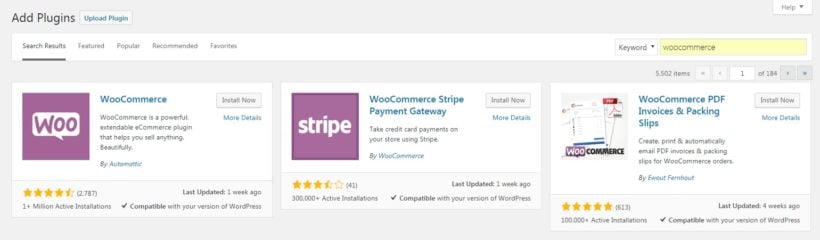
Adding WooCommerce to WordPress from the plugin search with an Install Now button

After a few moments, another button will appear, this one labeled Activate:
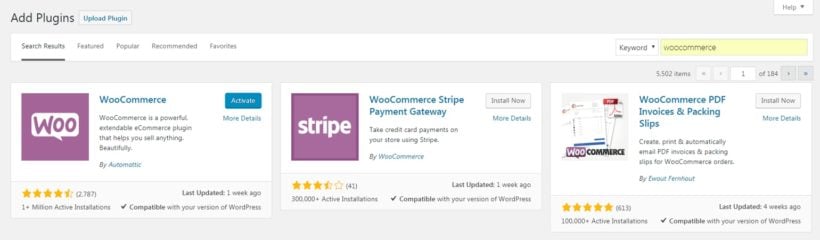
WooCommerce listed in WordPress plugin search results ready to activate

Select that one as well, and WooCommerce will be ready to go on your site. At this point, you’ll be able to start setting up your shop and adding products. Before you do that, however, it’s important to make sure your fledgling store is safely locked away.

Step 2: Set up your hidden development area

If you haven't done so yet, go ahead and purchase the WooCommerce Private Store plugin. You’ll be provided with a zipped file containing everything the plugin needs to work, which you’ll need to install on your site.

After that, navigate to WooCommerce > Settings in your dashboard. Select the Private Store tab:
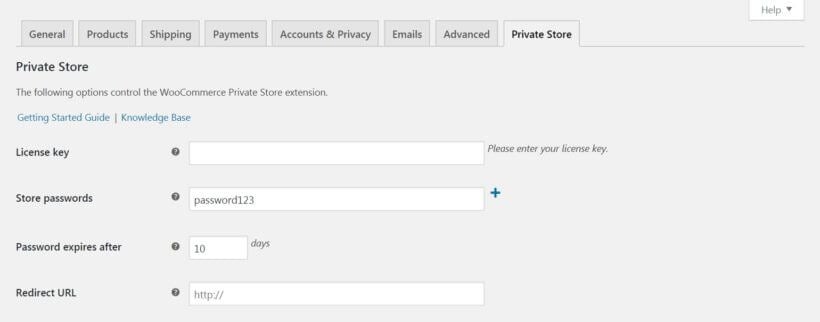
WooCommerce Private Store settings tab with license key and store password fields

Enter the license key you were given when you bought the plugin. Then, save your changes. This will fully activate WooCommerce Private Store, making it ready to use.

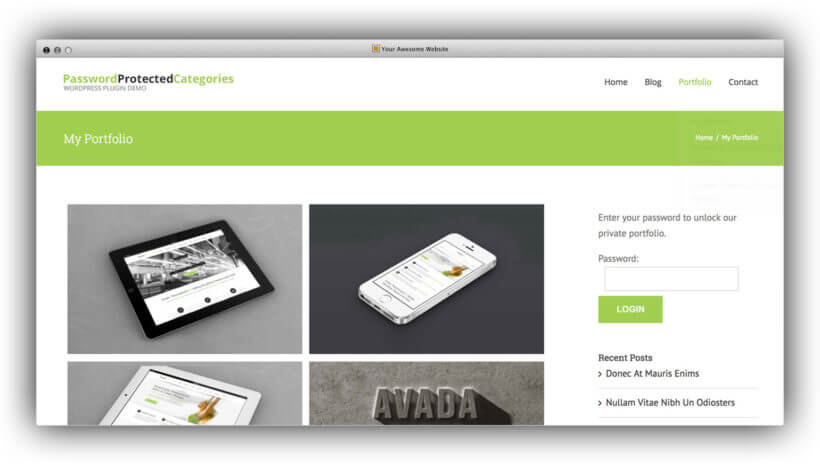
The best part is that this is all you need to do. Once the plugin has been activated using a valid license key, it will automatically hide WooCommerce from public view. This means that all pages, features, and products associated with WooCommerce won’t be available on the front end. If anyone does try to view those areas, all they’ll see is a login form:

Store login form prompting visitors for a password before viewing the WooCommerce shop

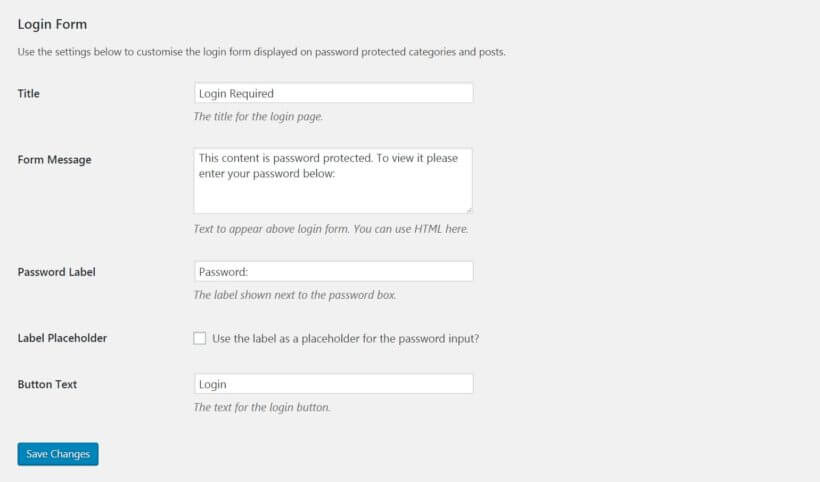
You can customize the login form on the plugin settings page. However, it's not very important because it's unlikely that anyone will see it anyway. All the WooCommerce-related pages are hidden from public view, so the only way someone would ever see the login form is if they guessed the URL of one of these pages.

Show the WooCommerce hidden development area to logged in users or specific roles

Of course, you want logged in administrators to be able to access the hidden development area. That's how you'll develop and test your WooCommerce store, while keeping it hidden from other users.

There are two ways to do this. Use the first option if your website isn't set up to allow normal visitors to create accounts. That's how most non-WooCommerce websites work. However, if you let people create accounts for other purposes - such as blog commenting or membership plugins - then use option 2 instead.

  • Option 1 - Tick the 'Logged In Users' box on the plugin settings page, then select the 'administrator' from the user roles option that appears underneath. This will automatically unlock the store for all logged in administrators, while leaving it hidden from guests and other user roles.
  • Option 2 - Leave the 'Logged In Users' box unticked on the plugin settings page, and enter 1 password which will unlock the store.

Once administrators have unlocked the store using either of these methods, they will be able to see the full WooCommerce store. This includes viewing menu links to the store pages in the front end, and viewing those pages. They can also add products to the cart and test the checkout process. This lets you and your development team work on the new WooCommerce area while it remains hidden from everyone else.

Step 3: Create your WooCommerce store

Now that you’ve made WooCommerce inaccessible to visitors, it’s time to set up your store:
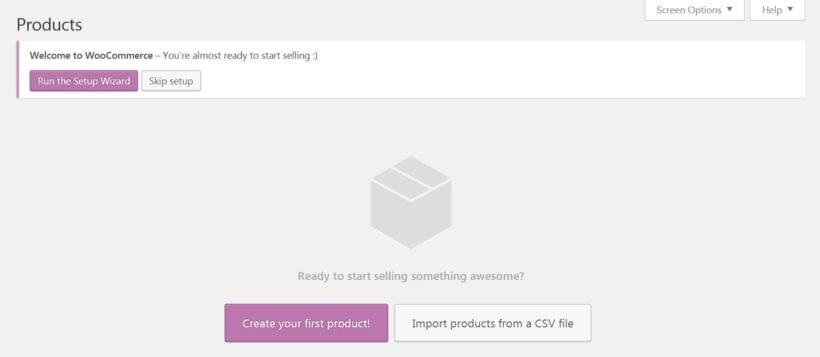
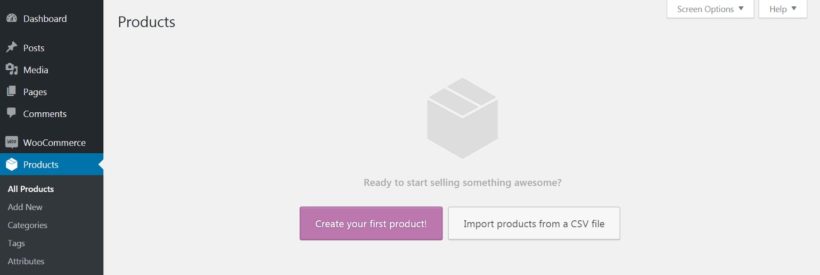
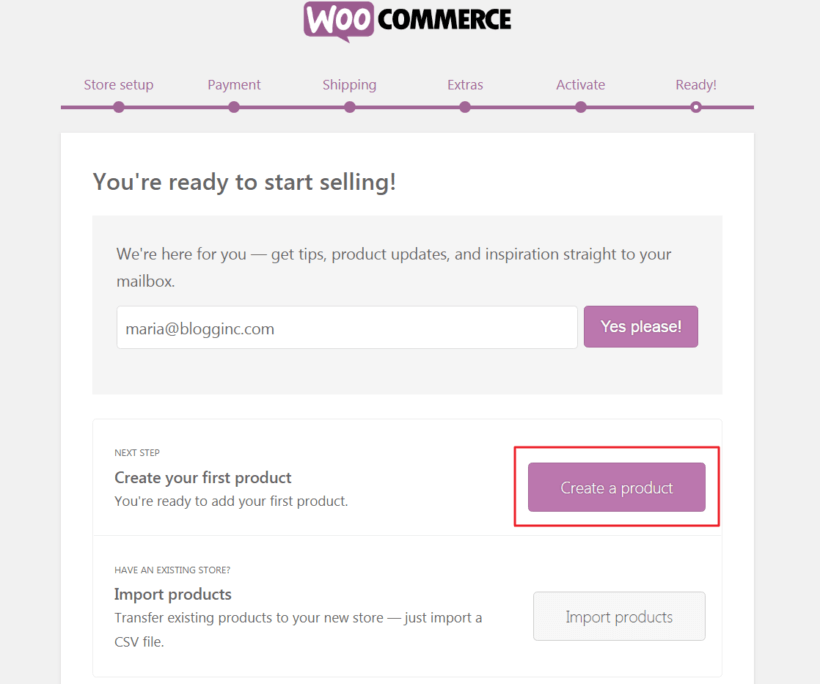
WooCommerce welcome screen prompting you to run the setup wizard and create your first product

We won’t go through that entire process here, since there’s plenty of information elsewhere that can help you out. Still, let’s summarize the basic steps involved in getting your WooCommerce store ready to go:

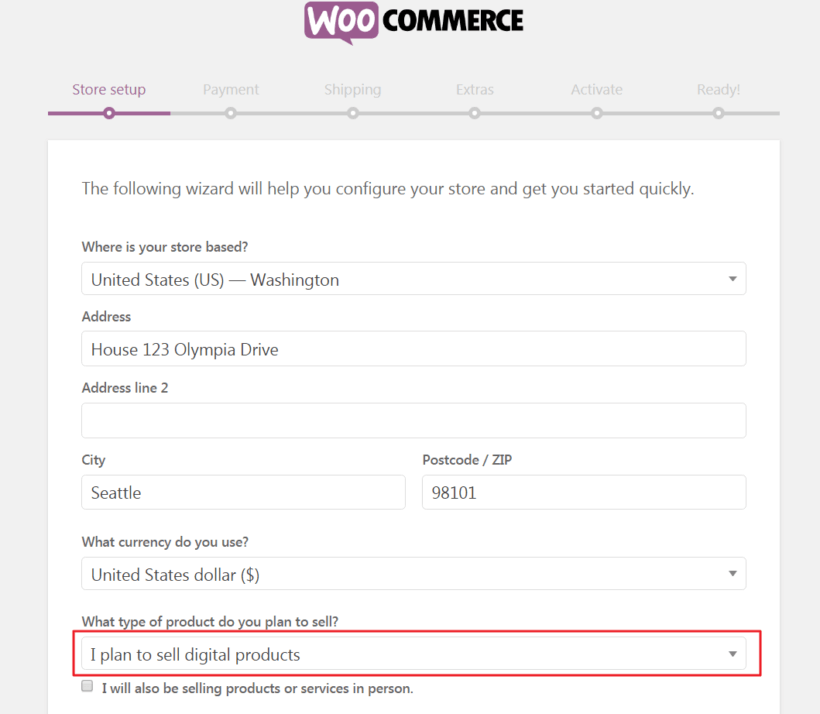
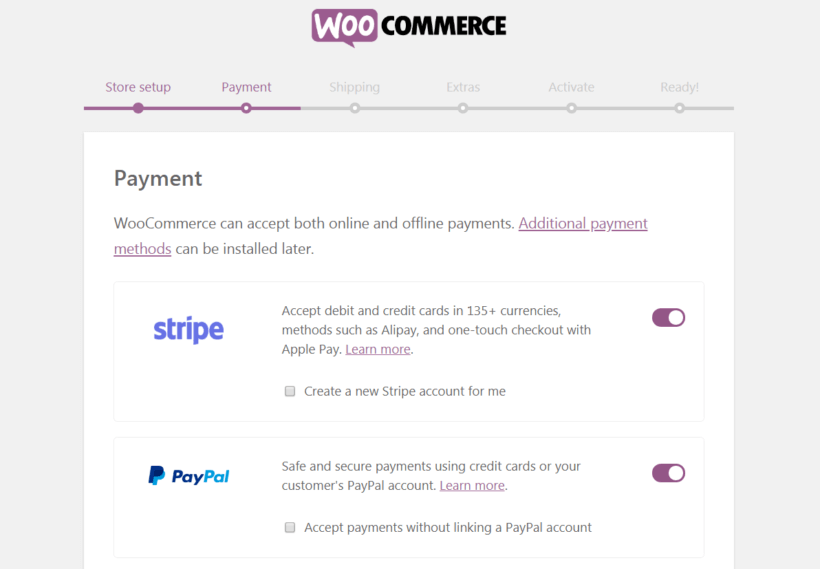
  1. Go through the WooCommerce setup wizard. In just a few screens, you’ll be able to set up your store’s basic features and enter crucial information about pricing, shipping, and more.
  2. Configure your store’s settings. While the WooCommerce wizard covers the most crucial options, there are a lot of other settings you may want to customize to better suit your needs.
  3. Add each of your products or services to the store. This can be done in the Products tab, which offers lots of options to fully customize your offerings.

We recommend taking your time with this process. Check out each product and store page on the front end, and walk through the buying and checkout stages as though you were a customer. You’ll want to ensure that your store looks and acts exactly the way you want it to before you make it live.

Step 4: Make your WooCommerce store visible to the public

When you’re confident that your store is ready to launch, you’ll need to make it visible to the public. Fortunately, this is the easiest part of the entire process.

All you need to do is deactivate the WooCommerce Private Store plugin. To do that, go to the main 'Plugins' list in the WordPress admin, and click to Deactivate WooCommerce Private Store.

This will automatically unhide your hidden development area and make your store available for all to see. At this point, you can uninstall the plugin if you like. Alternately, you can keep it deactivated on your site, in case you need it in the future. (For example, you might want to temporarily hide your WooCommerce store while making changes or updates.)

Conclusion

If you want to build a positive reputation online, your website should always look professional and fully-functional. This means that if you need to make large-scale changes, you’ll want to keep your development work hidden from public view. That includes keeping your in-progress store private while you add WooCommerce to WordPress.

As we’ve demonstrated, the process of doing this is remarkably simple when you use WooCommerce Private Store. It's much quicker than installing WooCommerce on a separate site and merging with the live site, and avoids all the problems.

To recap, here are the four steps you’ll want to follow:

  1. Add WooCommerce to WordPress.
  2. Set up your hidden development area.
  3. Create your WooCommerce store.
  4. Make your WooCommerce store visible to the public.

Do you have any questions about how to add WooCommerce to WordPress? Ask us anything in the comments section below!

Image credit: pxhere.

Illustration of a WooCommerce video gallery plugin selling a drone product with embedded video

Discover the easy way to embed, stream and sell videos on your WooCommerce store. We'll do it with the best WooCommerce video gallery plugins.

Are you looking for a way to showcase or sell videos on your WooCommerce store? There are several ways that you can use videos on your store:

  • Creating a WooCommerce video gallery - Display preview or promo videos on your main shop pages to grab visitors' attention. This is a great way to boost sales of any type of product, whether you're selling videos or something else such as clothing.
  • Selling videos with WooCommerce - You can also use WooCommerce to sell actual video products, which customers can then download or watch online.
WooCommerce sell videos plugin
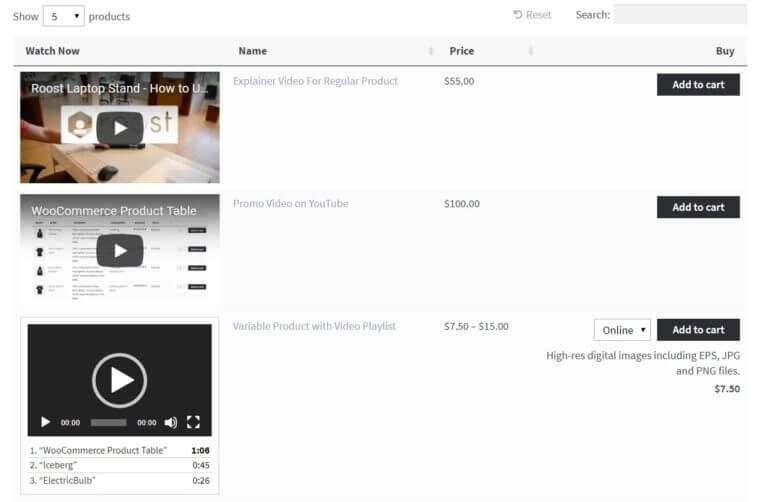
An example of a WooCommerce video gallery

Keep reading to learn how to use WooCommerce video gallery plugin to display videos on your shop pages, as well as how to sell videos in WooCommerce. Customers will be able to watch a video preview for each product without leaving the page, and add the product to their cart right from the same gallery.

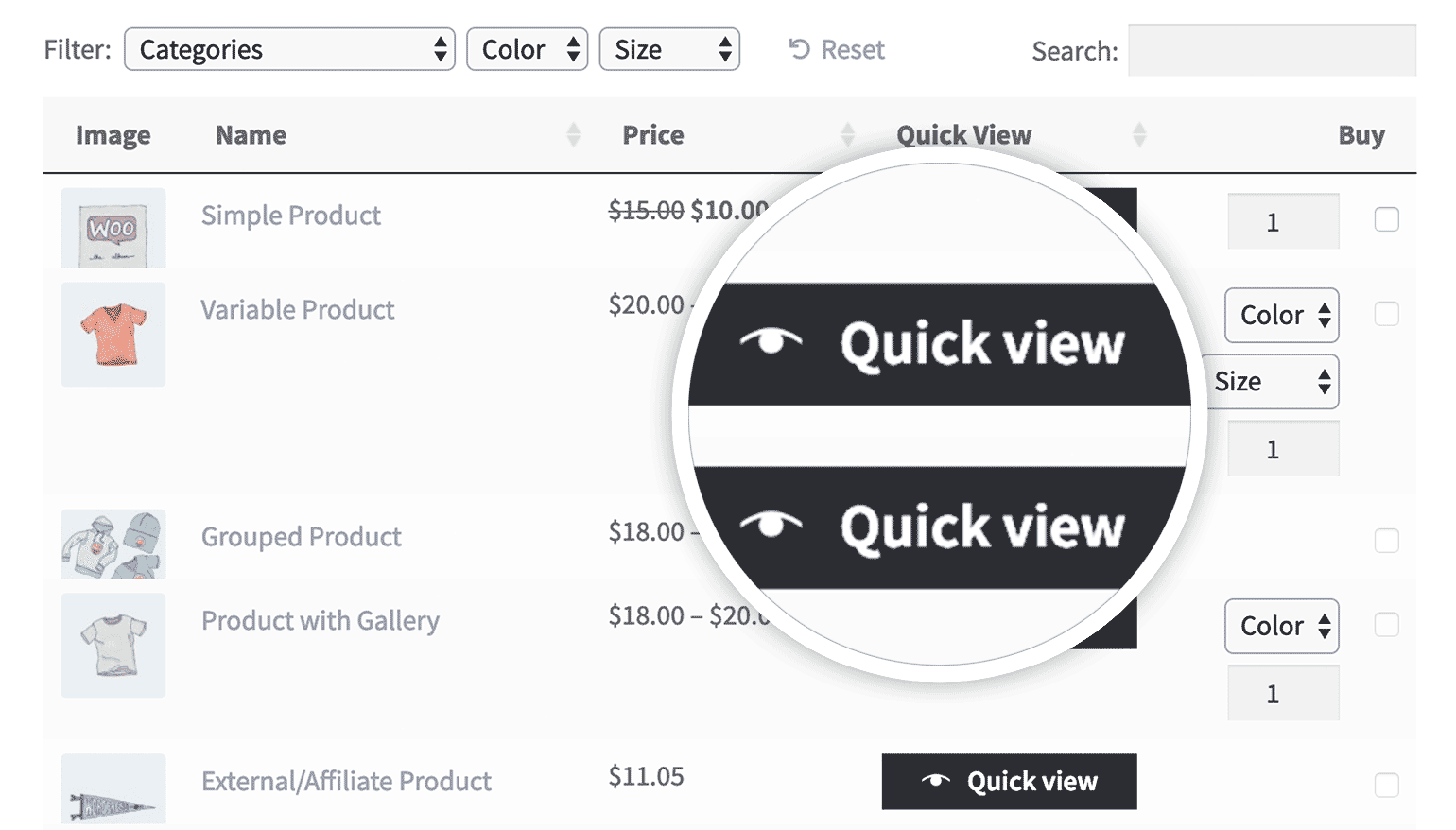
I'll also provide some tips on other ways to display video in WooCommerce, such as in a "Quick view" product lightbox, or in a dedicated "Video" tab on the product page.

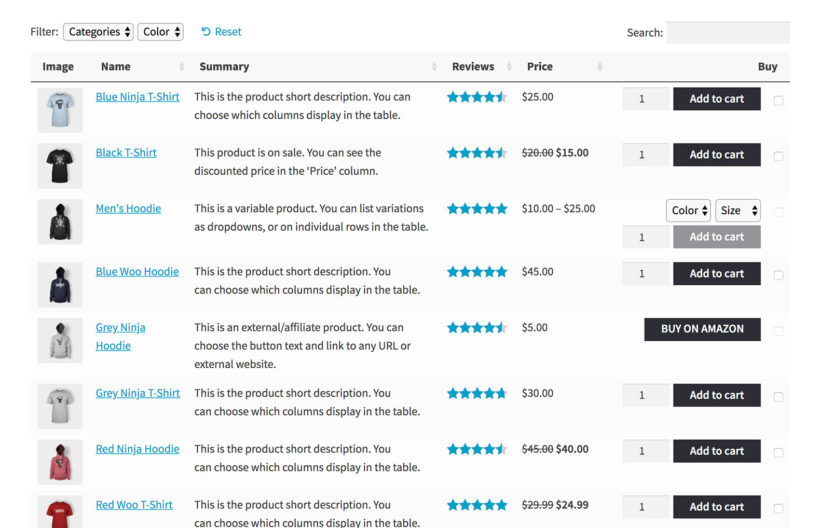
WooCommerce Product Table lets you display all or some of your WooCommerce products as a flexible grid/table. You can control exactly what information displays in your table including add to cart buttons and - you guessed it - product videos.

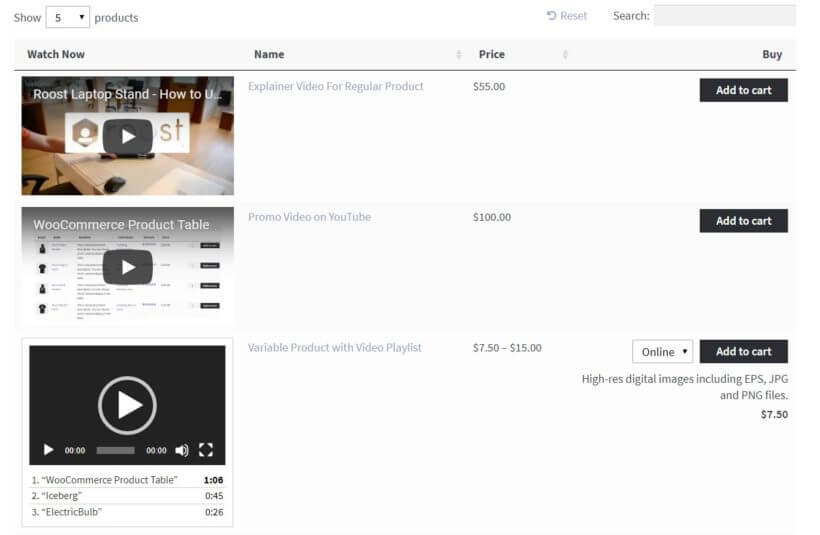
The advantage of a table view is that your customers can watch videos for multiple products on one page - there's no need for them to keep going to the individual product page. You can do this by adding embedded video players directly to the product table on the shop page. This is ideal for WooCommerce video streaming, as customers can view the video directly on. your website.

Similarly, your shoppers will also be able to select variations and add products to their carts right from the video gallery - again, no multiple tabs or page reloads required. Whether you're selling videos with WooCommerce or just want to use video to promote other types of product, it's a more convenient approach for visitors.

Below, we'll show you how to set up this WooCommerce videos plugin. After that, I'll show you some extra ways to display video in WooCommerce, and also how to sell video products.

Step 1: Add video to WooCommerce products

To get started, you need to add an embedded preview video to the individual products that you want to display with WooCommerce Product Table. This is how customers will stream the video online.

The process is the same whether you're selling videos with WooCommerce or just adding video to a regular product. You do have some choices for where and how you add the video, though.

First off - how. There are lots of ways to easily add video to WooCommerce products:

  • The easiest way is to just embed a video player from YouTube or Vimeo. Simply paste the video URL into the product and WordPress will embed it as a proper video player.
  • For fancy video players, use a plugin like Presto Player or HTML5 Video Player.
  • If you don't want YouTube branding, you can pay for one of Vimeo's unbranded plans, or a service like Swarmify. This can seamlessly import and serve YouTube video but with an unbranded player.

Now, the where.
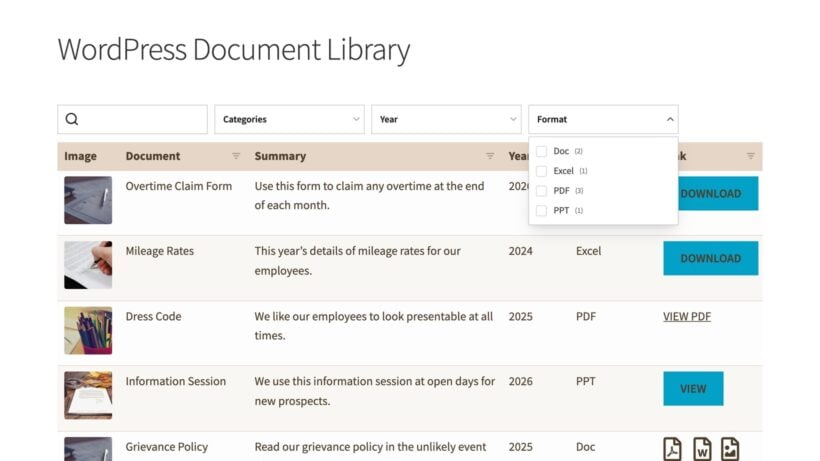
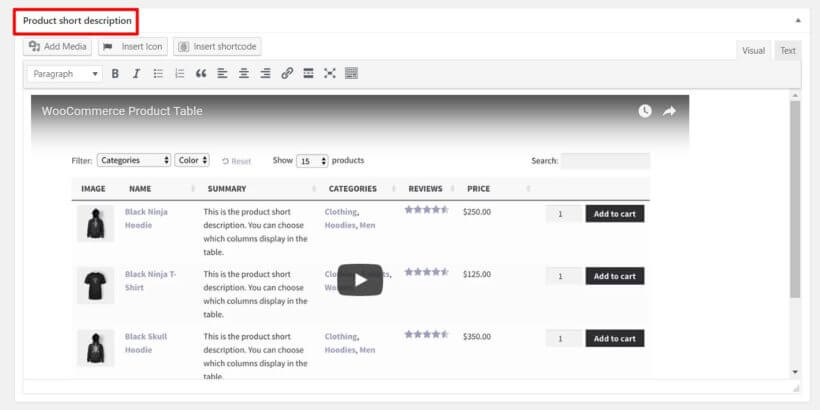
If you're not already using the Product short description field, that's the easiest spot to add your video. In fact, that's what we'll do for this example. All you need to do is embed your video in the text editor using normal WordPress oEmbed functionality. This is incredibly easy - simply paste the URL of your video from YouTube, Vimeo or similar.

Embedding a video in the product short description field using the WordPress editor

But if you're already using the short description field for something else, you can also create a custom field to embed your videos using a free plugin such as Advanced Custom Fields.

Finally, add videos to all the products you want to display with the WooCommerce video gallery plugin.

Step 2: Create a product table for your WooCommerce video gallery

Once you've added video to the relevant products, you need to configure WooCommerce Product Table to work as a WordPress video plugin.

Install the plugin and then go to Products → Product Tables. While you should set up each step to see what interests you, if you want to create a WooCommerce video gallery, I recommend that you configure these settings as a minimum:

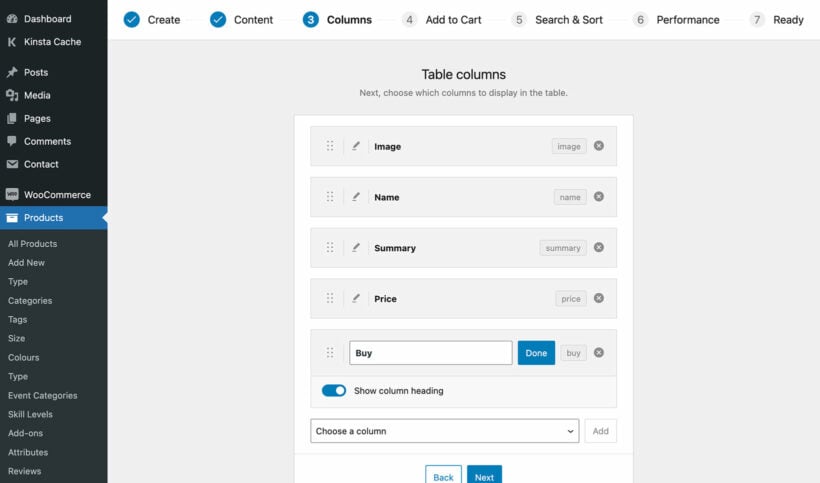
  • Columns - Make sure to include the short description or the custom field that you added to hold your video. And if you're planning to add quick view to your video gallery, then you should also add a 'Quick view' column.
    Choosing which columns to show in the WooCommerce Product Table
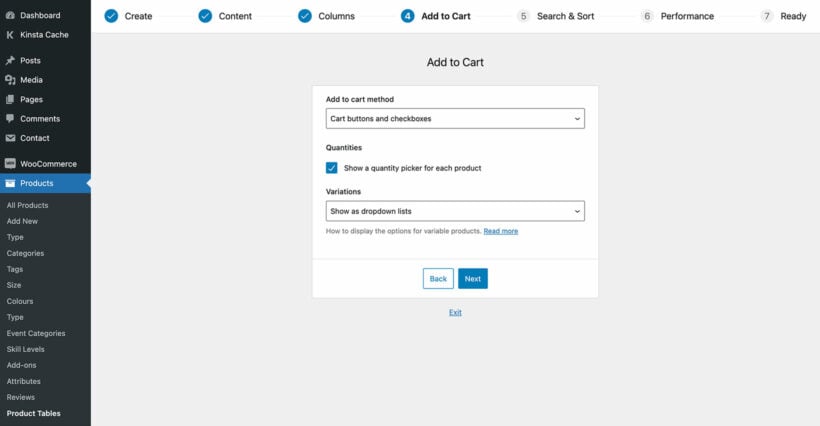
  • Add to cart column - Configure how you want your add to cart button to function, including variations.
    Add to Cart settings in the WooCommerce Product Table builder
  • Lazy load - If you have lots of products with WooCommerce videos, you might want to enable lazy loading for performance reasons.

Once you've created the video table, go to Products → Product Tables → Settings and enable the 'Shortcodes' option. This ensures that your embedded WooCommerce video players load properly in the table.

Step 3: Add the video gallery to WooCommerce

Now, you just need to choose where in your store the WooCommerce video gallery will appear. There are two ways to approach this:

  1. Tick the relevant boxes on the plugin settings page to show the product table layout on your main shop and category pages. You can do this via the first page of the table builder.
  2. Use a 'Product Table' block or a shortcode to add WooCommerce video streaming galleries to other pages. You can find the shortcode for your table at Products → Product Tables.

Once you have set up the video gallery in WooCommerce, it will look something like this:

WooCommerce video gallery listing videos with thumbnails, prices and add to cart buttons

Can I embed video playlists?

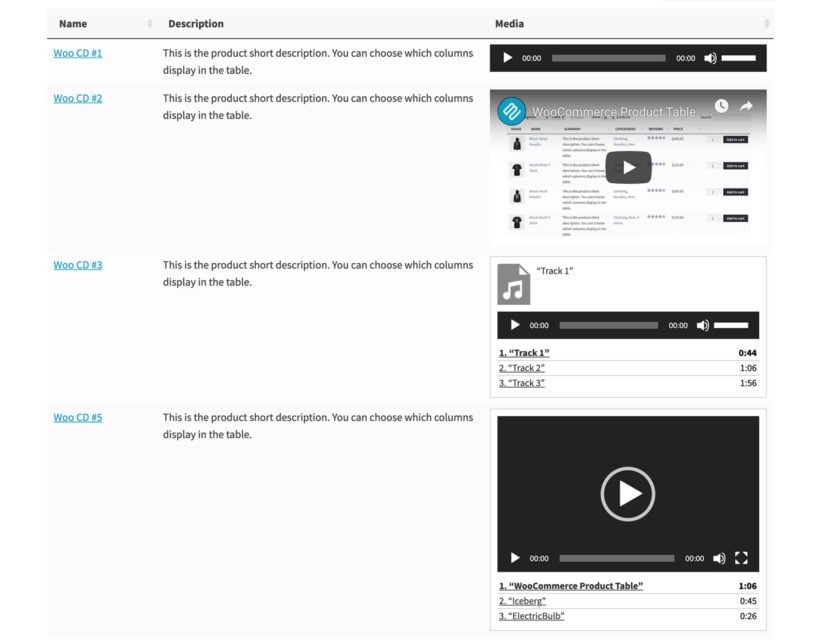
If you want to show more than one video per product, then you can embed entire video playlists into the WooCommerce video gallery. You can easily do this using the video playlist shortcode that comes with WordPress itself.

WooCommerce video gallery with playlist
WooCommerce audio and video gallery containing an audio file, a single video, an audio playlist, and a video playlist

Use the following instructions to add a video playlist to any of the fields you're displaying in the product table:

  1. Click the 'Add Media' button.
  2. Choose the 'Create Video Playlist' button on the left.
  3. Upload and select the videos you wish to include in the playlist.
  4. Click the 'Create a new video playlist' button on the bottom right.
  5. On the next screen, add any captions for each video and change the settings as required.

Creating video playlists in Gutenberg

At the time of writing, the above instructions only work if you're using the classic WordPress editor and not Gutenberg. Hopefully Gutenberg will add a video playlist button in future. In the meantime, you can create video playlists by adding the following shortcode to a Gutenberg 'Shortcode' block:

[playlist type="video" ids="12345,23456,34567,45678"]

Replace the ID's with the actual ID of each video you wish to include in the playlist. You can find these by going to the 'Media' section of the WordPress admin, clicking on a video, and looking at the URL at the top of your browser tab. For example, if the URL ends /wp-admin/upload.php?item=12345 then you need to add the ID 12345 to the shortcode.

Add WooCommerce videos to a quick view lightbox

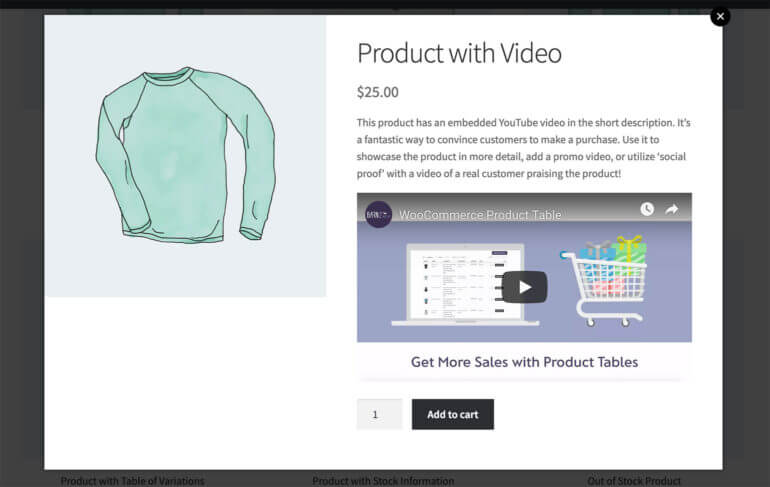
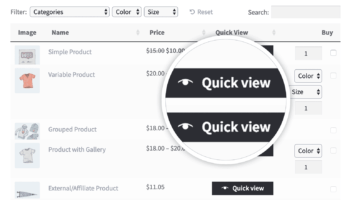
So far, you've learned how to create a WooCommerce video gallery with embedded video players in the main product list. You can use the widths option in WooCommerce Product Table to choose how much space the video player column takes up. However, videos inevitably require a fair amount of vertical space. If you want to list products in a more compact way, then it might be better to show the videos in a quick view lightbox for each product:

Product quick view lightbox playing an embedded product video

Using WooCommerce quick view is better than just adding video players to the single product page. That's because you don't want to take customers to a separate page for each product - that slows things down and takes them away from the main product list. By watching sample WooCommerce videos and adding to the cart from a quick view lightbox, the customer remains on the same page. This stops them from getting lost and encourages them to add multiple products to the cart.

Here's how to set it up:

  1. Quick view lightbox showing a video for sale in WooCommerce
    Install WooCommerce Quick View Pro.
  2. Go to WooCommerce → Settings → Products → Quick view, enter your license key and choose your quick view settings. Make sure you enable the short description, as this is where you've added the video players. You can choose whether or not to show other sections such as the product images or add to cart buttons.
  3. Add 'Quick view' quick_view to the list of columns in the Product Table (Products → Product Tables).

And that's it!

Add a video tab to the product page

WooCommerce product page with a dedicated Videos tab showing multiple embedded YouTube clips

And finally, let's think about where else you can display video on the WooCommerce product page. One way to do this is to add a dedicated 'Videos' tab, which allows you to display video without cluttering up the page layout. You can do this with the WooCommerce Product Tabs plugin, which lets you add extra tabs to the product page.

How to stream videos on WooCommerce

We have already touched on WooCommerce video streaming, but I want to make sure it's totally clear before we move on.

Steaming videos involves allowing people to actually watch the video on your website. They don't download it - they watch it in an embedded video player embedded on the website.

This means that you can use several of the methods that we already discussed to enable video streaming:

Whichever method(s) you choose, it's very straightforward to add video streaming to WooCommerce. Just host the videos on any streaming service such as Vimeo or YouTube, and paste the URL wherever you want them to appear on your WordPress site.


How to sell videos on WooCommerce

Above, you learned how to create a customizable WooCommerce video gallery. However, what if you're specifically looking to sell videos on WooCommerce?

In that case, the same basic steps apply for creating the video gallery, but you'll want to go about creating your WooCommerce products a little differently.

That is, in the example above you learned how to display videos in a gallery as a way to showcase a product. Now, you're going to learn how to make the video the product itself.

Can you sell videos on WooCommerce?

Most people think of WooCommerce in terms of selling physical products that are shipped to the user. However, it's equally well-suited for selling virtual or downloadable products.

This means that you can sell videos on WooCommerce whether you're selling physical videos to post, or virtual videos to stream online or download.

Types of video you can sell with WooCommerce

You can use WooCommerce to sell absolutely any type of video. This includes:

  • All video genres - fiction, nonfiction, films, movies, educational video.
  • Any type of video - animations, commentary, drone footage, behind-the-scenes event coverage, how-to video tutorials, interviews, presentations, promotional product videos, stock footage, motion graphics and presets, After Effects project files, Apple Motion or Cinema 4D templates, Flash elements files, video overlays and textured, Premiere Pro templates, social media video templates, video effects and transitions.
  • All video file types - MP4, WEBM, AVI, QuickTime, WAV, and many more.

Whatever sort of video you want to sell online, keep reading to discover the best way to do it.

Setup instructions

The basic steps to sell video in WooCommerce are as follows. I'll be focussing on selling videos for streaming online or downloading, but you can also sell physical videos to post to the customer:

  1. Upload the video file somewhere accessible.
  2. Mark products as Virtual and Downloadable.
  3. Add video file to WooCommerce product.

Let's go through them in detail…

Step 1. Upload video file somewhere accessible

To get started, you'll need to upload the video file itself to a place where visitors will be able to download it.

For a small file, you can just upload it straight to your server via your WordPress Media Library.

However, if you have larger files, or if you're planning to have a ton of downloads, a better option is to use a dedicated storage service like Amazon S3 or DigitalOcean Spaces. These services are affordable, reliable, and lower the burden on your site's server.

Step 2: Create a virtual, downloadable product

Next, create a new WooCommerce video product:

  1. Go to Products → Add New. 
  2. Add the product title - this will usually be the WooCommerce video name.
  3. Type a main description of the video. This will help with the SEO of the video product page by being crawled by search engines.
  4. Choose any categories or tags for the video. Customers will be able to filter by these to find specific videos.
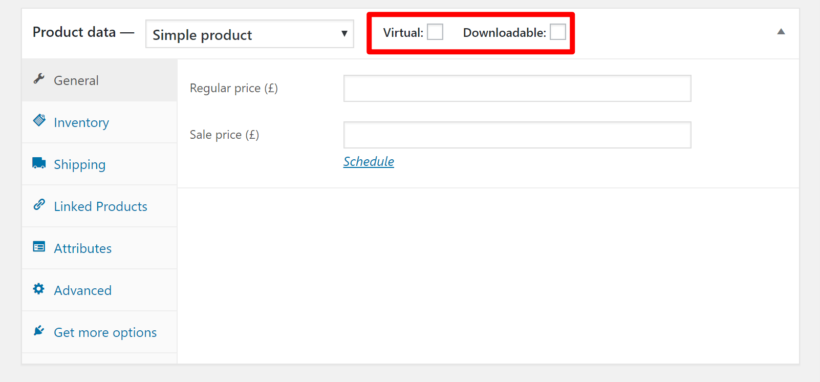
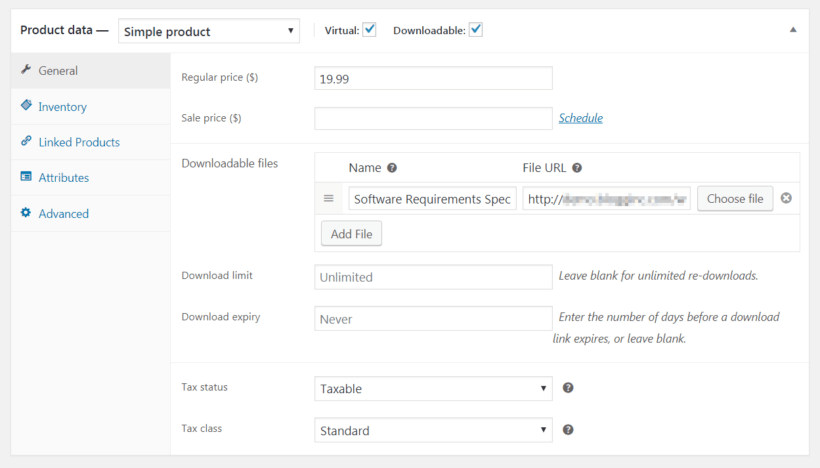
  5. In the 'Product data' section, make sure to check the boxes for Virtual and Downloadable:
    Ticking the Virtual and Downloadable boxes on a WooCommerce video product

Step 3: Add download or streaming link

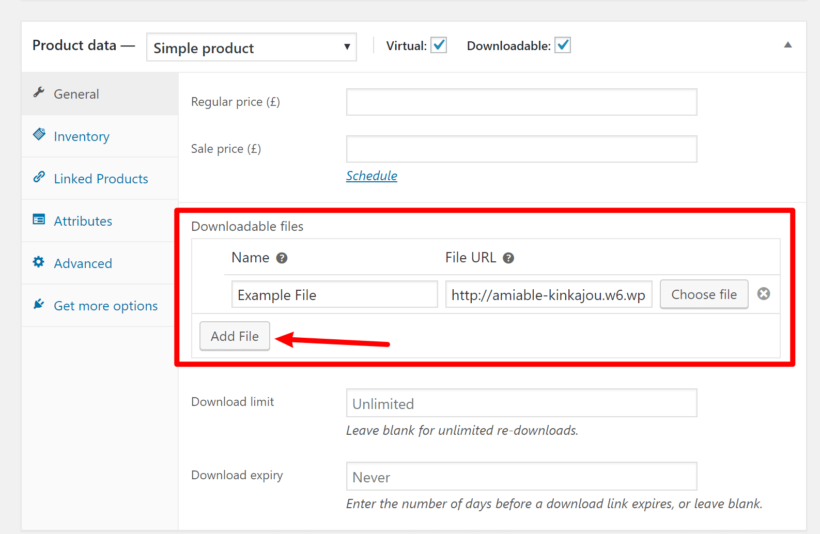
After you tick the 'Downloadable' box in Step 5 (above), you should see a new Downloadable files section appear in the General tab of your WooCommerce video product.

If you want customers to download the video they bought, then fill this in as follows:

  1. Click the Add File button and insert the download link for where the video is saved. As we discussed in Step 1, this might be in the WordPress Media Library or it might be on a third party video host like Vimeo.
  2. Add a download limit and expiry date if required.

Alternatively, you can allow people to stream the video online instead of downloading it. To do that, simply enter the URL of wherever they can stream the video. This might be a hidden page on your WooCommerce site containing the embedded video. It might also be a link to a third party video hosting site such as Vimeo.

Once you're finished, Publish the video product as you normally would.

Adding the video file to a WooCommerce product in the Downloadable files section

Step 4: Add custom fields to WooCommerce video products (optional)

When you're selling video online, there might be extra fields of product data that you need to display about each video. For example, perhaps your WooCommerce video gallery needs fields for resolution, video length etc.

You can easily add custom fields using a free plugin like Advanced Custom Fields or Easy Post Types and Fields. Simply use your chosen plugin to add as many fields as you like to the 'Products' post type. You can then use WooCommerce Product Table to display them as extra columns in the video gallery.

What happens when customers purchase a video product?

When someone purchases the video from your WooCommerce store, they receive an email containing a unique link to download the video file.

For best results, combine this method for selling videos with the earlier section of this tutorial on how to create a WooCommerce video product gallery. That way, customers can watch the embedded video preview directly on your shop pages, and then purchase the full video.

What about piracy?

With the example above, even people who didn't purchase a video would still technically be able to download it if someone shared the link with them.

Now, digital piracy is something you're never going to stop, so a lot of store owners will just live with that and focus on finding more paying customers.

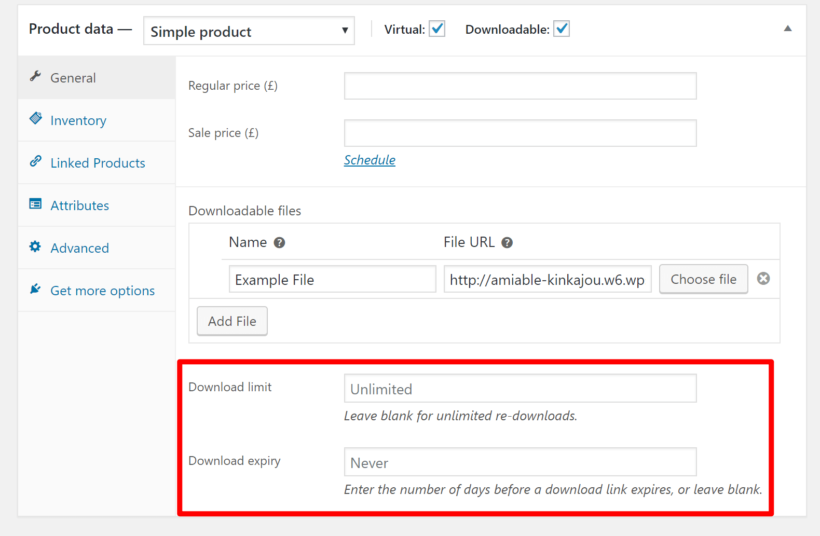
But if you are concerned and want to at least make it harder for people to share the download links, you can use the Download limit and Download expiry options to limit access:

Setting download limit and expiry options on a downloadable WooCommerce video product

Just be aware that these restrictions might frustrate some legitimate customers who want to download a file multiple times or in the future.

And that's it - you just added a user-friendly WooCommerce video gallery to your store. You also learned how to sell video online in WooCommerce, either for download or streaming.

Not only can visitors browse videos for multiple products without leaving the page they're on. They can also add products right to their carts for a smooth, friction-free checkout process.

The WooCommerce Product Table plugin makes it easy to add video to your shop pages. Get it today and start promoting your products with video:

Have any other questions about how to use a WooCommerce video gallery plugin? Leave us a comment!

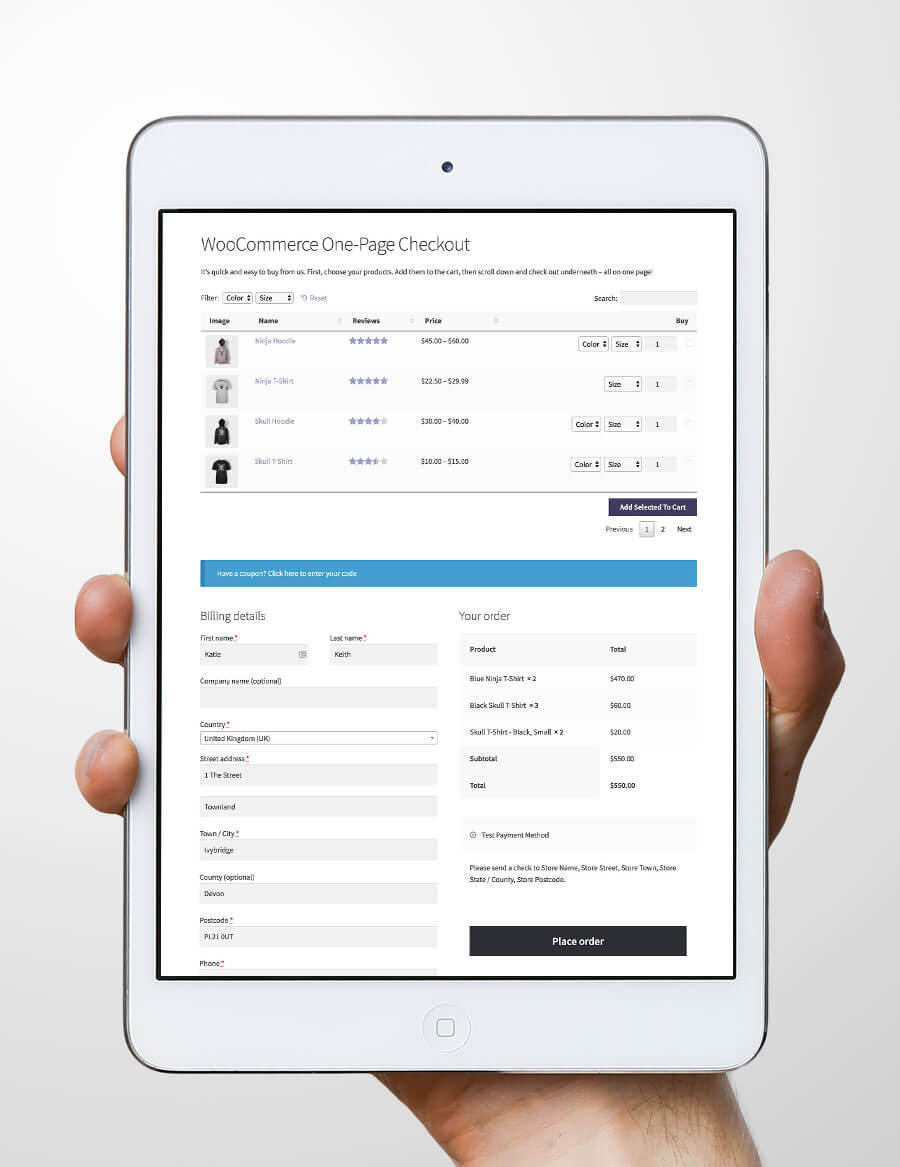
Hand holding a tablet showing a WooCommerce one-page checkout

If you're creating an order form for your e-commerce store, then you're likely to want a WooCommerce one-page checkout too. Keep reading to learn how to enable WooCommerce one-page shopping.

WooCommerce one-page checkout lets customers select products and complete their purchase on a single page. One-page shopping speeds up the buying process, which means customers are less likely to abandon their carts.

The perfect WooCommerce one page checkout plugin needs two things:

  1. An easy way to view and find products, select options, and add them to their order without leaving the page. This involves listing WooCommerce products in a quick one-page order form.
  2. A WooCommerce checkout form - either underneath the product order form or in a popup on the same page.

Unfortunately, setting up WooCommerce one-page shopping isn't as easy as it sounds. Most order form plugins meet the first requirement but come short with the second one. And the official WooCommerce.com extension for one-page checkout isn't great at displaying products.

This tutorial will tell you how to meet both requirements - no coding required! You'll learn how to list products in a quick order form, with a choice of two types of WooCommerce single page checkout.

But first, let's cover the basics – what is a one-page checkout?

What is WooCommerce one-page checkout?

WooCommerce one-page checkout is a checkout method that combines product selection and payment on the same page, eliminating the need to navigate between cart and checkout pages.
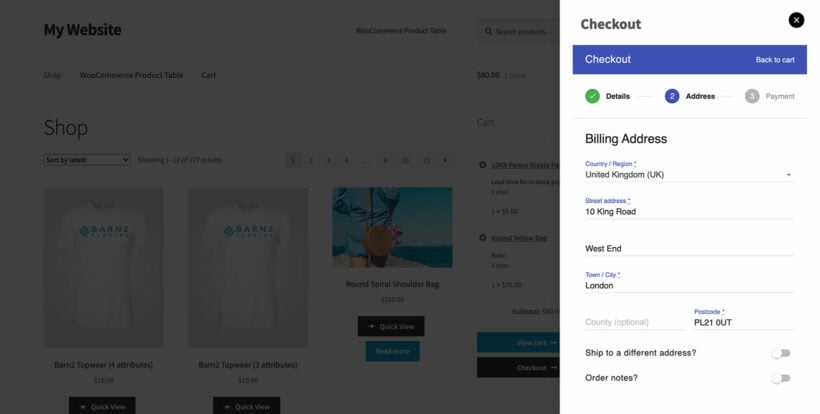
WooCommerce one page checkout shown as a multi-step popup beside the products
A WooCommerce one-page checkout can either appear on the page under the products, or as a popup on the same page

As I mentioned above, a WooCommerce single page checkout allows customers to select products and complete their purchases – all on one page.

Why do I need a WooCommerce one-page checkout plugin?

Typically in WooCommerce, customers must navigate through three separate pages: adding products to cart, reviewing the cart, and completing checkout. This creates multiple friction points.

In the simplest of terms, this is bad. Research shows that 22% of abandoned carts happen because the checkout flow is too long. The more pages the customer has to click through to make a purchase, the less likely they are to complete it.

A WooCommerce single page checkout combines all the steps onto one page, creating a faster checkout experience. You speed up purchases by listing products and letting customers complete everything on the same page.

This is why even WooCommerce has created its own one-page checkout plugin.

The 3 best WooCommerce one page checkout plugins

Next, let's explore the 3 best plugins for adding one-page checkout to WooCommerce. We'll start with the official extension from WooCommerce.com. That's a good starting point but has limitations. As a result, Plugin #2 will provide an alternative way to implement one-page checkout, and Plugin #3 works alongside the official extension to add the missing functionality.

Read about all three plugins to choose the combination that will work best for your customers.

Quick plugin comparison

Plugin Best for Rating Setup time Price Key features
WooCommerce One Page Checkout Small catalogs (1-10 products) 3.7/5 ⭐ 10 minutes $79/year • Basic product display
• Checkout below products
• Limited search options
WooCommerce Fast Cart All catalog sizes 5/5 ⭐ 15 minutes $99/year • Popup checkout
• Works on any page
• Auto-open option
• Mobile-friendly
WooCommerce Product Table + One Page Checkout Large catalogs (100+ products) 5/5 ⭐ 30 minutes $178/year combined • Advanced search & filters
• Bulk ordering
• Product variations
• Checkout below table

Plugin 1: WooCommerce One Page Checkout

Banner promoting seamless one-page purchases for a WooCommerce store

Rating: 3.7 out of 5 stars

The official WooCommerce one page checkout plugin lists products at the top of the page with a checkout form underneath.

It does this well, except that it lists products in a very basic way. That's fine for displaying one product or a small number of products with a checkout form underneath. However, this plugin becomes impractical if you have lots of products. It also fails to deliver if you want customers to search, sort, and filter products to find what they need.

Any ecommerce store with numerous products needs to seriously consider user experience and make things easier for the customer. This involves listing products in a user-friendly way:

  • The products have to be easy to find.
  • All the important product data needs to be visible at once, without having to visit multiple pages.
  • Customers need to be able to choose quantities and compare variations from one page.

Luckily, there are two easy ways to improve on this. We'll do this with Plugins 2 and 3 in this list.

Plugin 2: Display a popup checkout on your main shop pages

A popup checkout is a checkout form that appears in an overlay window on the same page as your products, allowing instant purchase without page navigation.
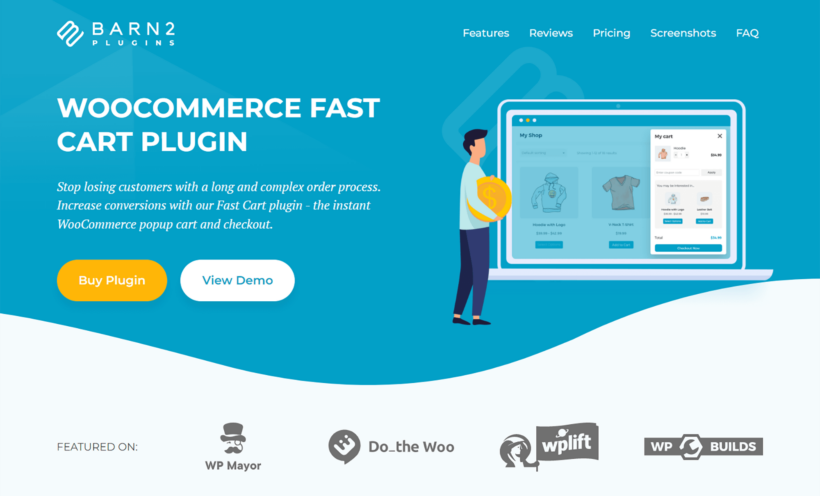
WooCommerce Fast Cart sales page showing one page popup checkout

Rating: 5 out of 5 stars
Setup time: 15 minutes

I think the most user-friendly way to enable one-page checkout in WooCommerce is to display the checkout in a popup window on the same page as your products. That way, you don't add clutter to your shop pages - and yet customers can quickly check out on the same page where they add products to their cart.

With this type of WooCommerce single-page checkout, the checkout form appears in a popup instead of below the list of products. Here's how it works:

  1. The customer visits the product table page and uses the search, sort and filtering to find the products they want.
  2. They select the products and add them to their cart.
  3. A popup immediately appears over the product table. The customer makes any changes to the selected products, enters their details and completes the purchase without having to leave the page.

You can easily add this type of WooCommerce one-page checkout with the WooCommerce Fast Cart plugin. This lets you display a popup cart and/or complete checkout on the same page as your products. When a customer adds a product to the cart, you can either display the popup on-page checkout automatically, or let them click on a floating cart icon to launch it.

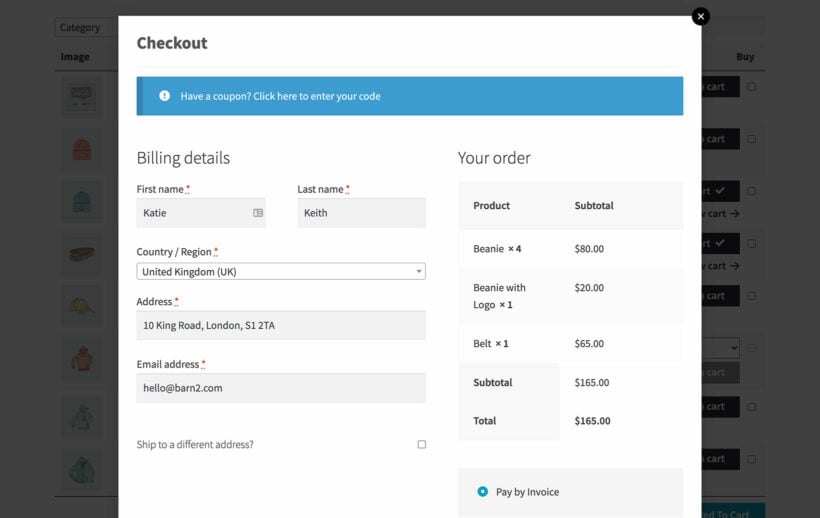
Fast Cart popup checkout opening over the shop page
Use the WooCommerce Fast Cart plugin to add a popup checkout to your shop pages

Popup one-page checkout setup instructions

Quick setup: Install plugin → Configure settings → Enable Direct Checkout → Done in 15 minutes!
  1. Install the plugin (2 minutes): Download and install WooCommerce Fast Cart on your WordPress site.
  2. Access settings (1 minute): Go to the WooCommerce Fast Cart settings page at WooCommerce → Settings → Fast Cart.
    Display step of the Fast Cart wizard choosing layout for one page checkout
  3. Configure options (10 minutes): Choose how you want the fast cart to work. In particular, I recommend enabling the 'Direct Checkout' and 'Auto Open' options. Together, these make the checkout appear as soon as customers add products to the cart. It's the fastest way of using the plugin for a WooCommerce one-page shopping experience.

Plugin 3: List products in a searchable order form with one-page checkout underneath

An order form is a product listing page where customers can view, search, filter, and select multiple products before checking out on the same page.

When we discussed Plugin #1, I told you about the limitations of using the WooCommerce One-Page Checkout extension on its own. The main problem was that it lists products in such a basic way, with no way to search or filter them. That's where WooCommerce Product Table comes in.

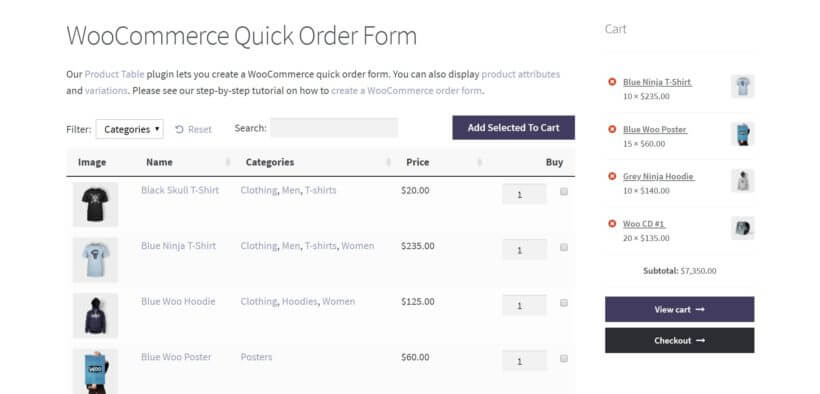
This bestselling WooCommerce one-page checkout plugin lists products in a searchable order form, allowing for quick browsing. You can list hundreds or even thousands of products, with quick search and sort filters so that customers can easily find what they want. After adding products to their order, customers can add their details and checkout, directly on the order form page!

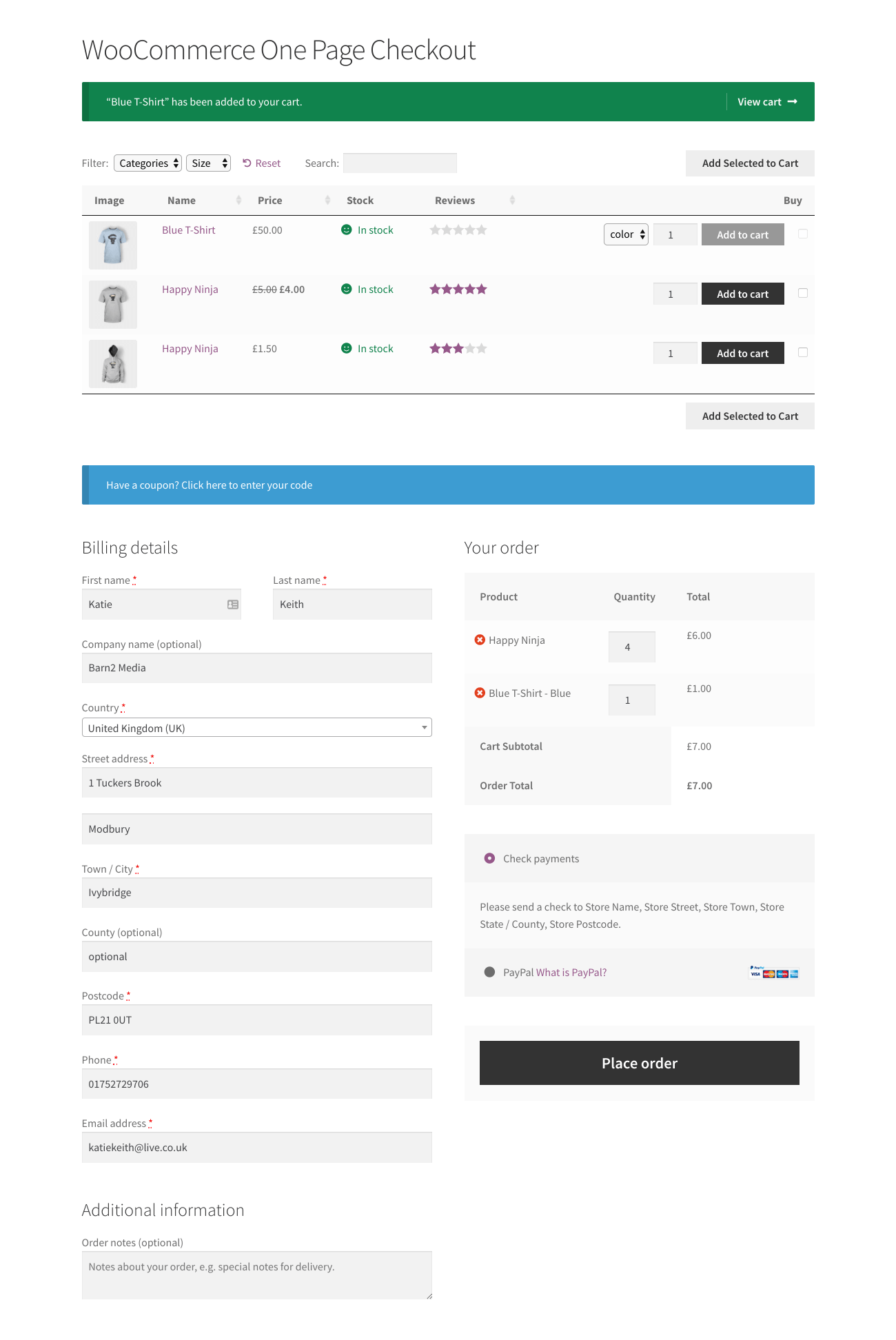
WooCommerce one page checkout with product table
An example of one page shopping in WooCommerce

You'll need two plugins to implement this method:

  • WooCommerce Product Table to list products in a searchable one-page order form. This will allow you to list all your products in a single easy-to-navigate table which you can place on any page. You can choose which columns of information to include, add product variation dropdowns, and even add a search box and filters. The lazy load option lets you list hundreds or even thousands of products, neatly separated by pagination links.
  • WooCommerce One-Page Checkout to display a checkout form underneath the list of products.

Together, this will create a seamless checkout experience for your customers. They won't have to switch between pages to find each product they are interested in. It's true one-page shopping, regardless of how many products you have.

Setup instructions for WooCommerce one-page checkout

Complete setup guide: This method takes about 30 minutes total and requires two plugins working together.

Step 1: install WooCommerce Product Table (20 minutes)

  1. Install the plugin (2 minutes): Download and install the WooCommerce Product Table plugin on your WordPress site.
  2. Configure table settings (15 minutes): Use the table builder at Products → Product Tables to choose the essential information about your product tables. This includes which columns of information to display about your products. Here are some tips for creating an effective WooCommerce one-page shopping experience:
    • You may wish to prevent people from leaving the one-page order form and clicking through to the single product page. To do this, click the pencil icon for each column and open the Advanced column to disable the link on that column.
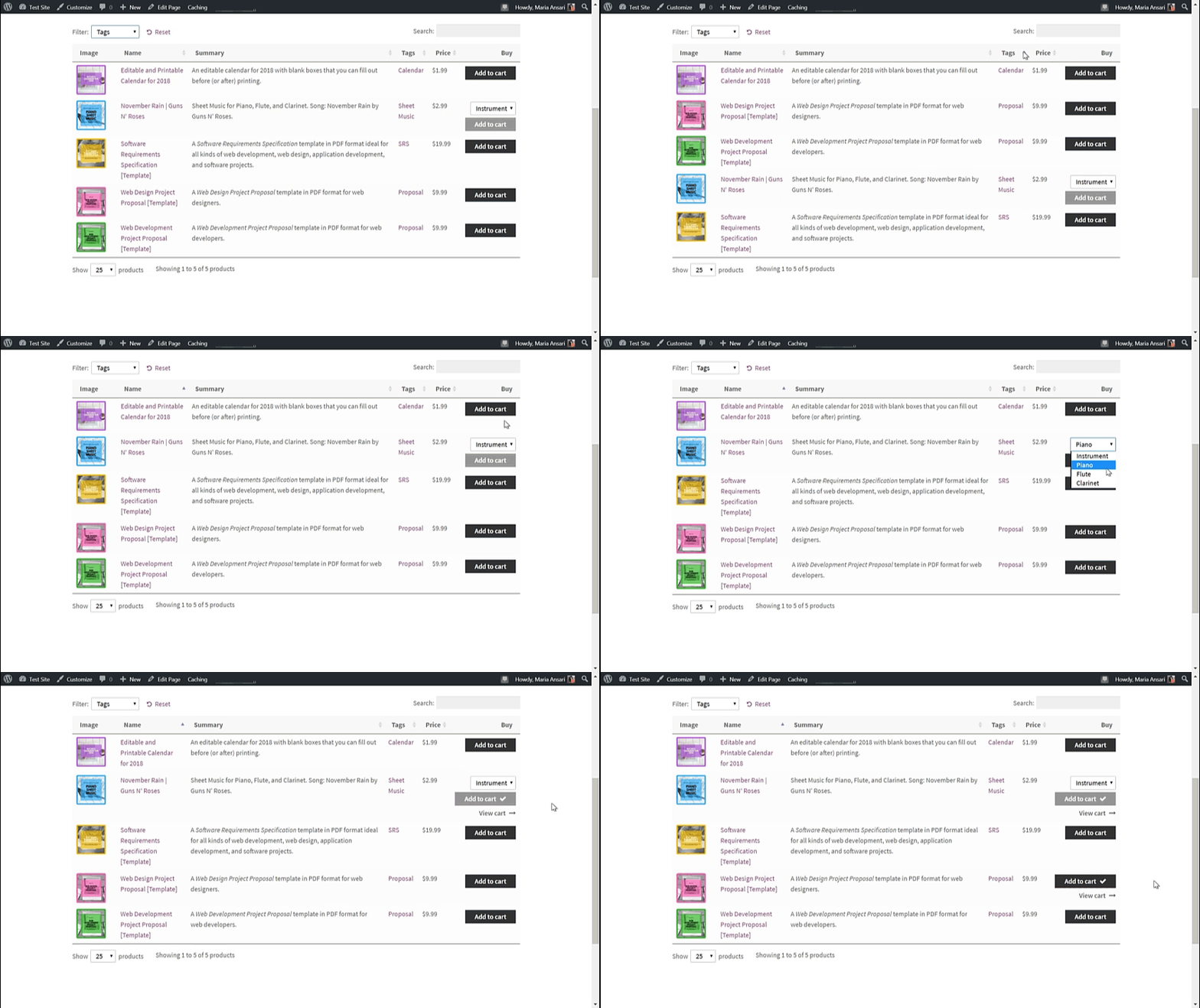
    • If you want to list lots of products, you'll probably want to choose the 'Checkbox' add to cart option. This adds a multi-select option so that customers can add lots of products to the cart at once.
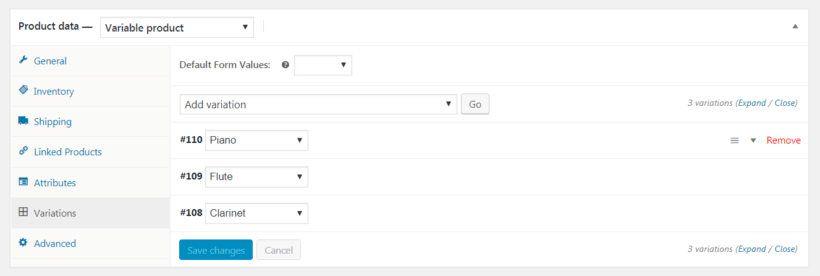
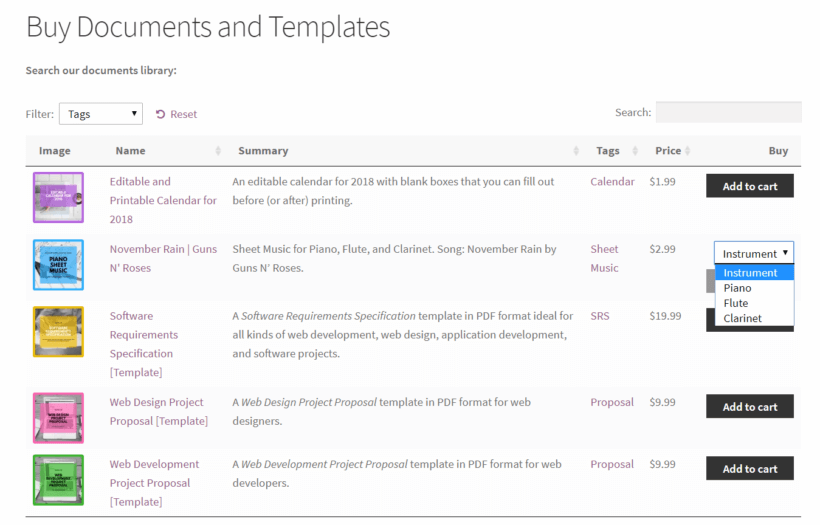
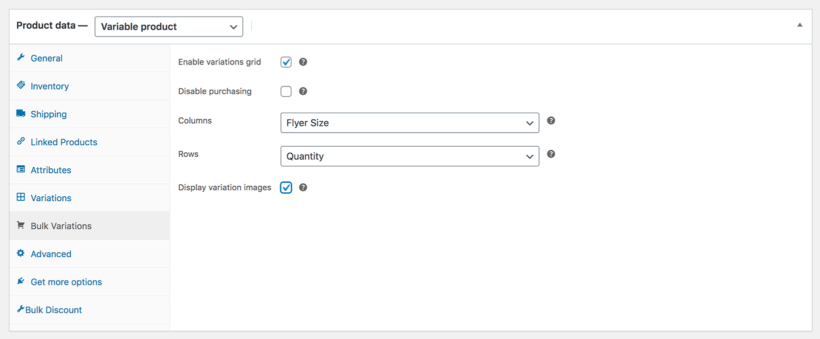
    • If you're selling variable products, then choose either the 'dropdown' or 'separate' variation options. This lets customers choose variations directly in the order form instead of having to click through to the single product page. (After all, that would defeat the purpose of a WooCommerce one-page checkout!).
    • Enable the 'Quantity' option so that customers can buy more than one of each product.
  3. Final settings (3 minutes): Go to the plugin settings page at Products → Product Tables → Settings and make these changes:
    • Disable the 'Ajax Cart' option. By leaving this box unticked, the page will reload when customers add products to the cart, displaying the one-page checkout underneath with the correct products.
    • Keep the number of Products per page fairly low so that customers don't have to scroll too far to view the checkout under the table. If you have more products than the number of rows, then pagination links will appear under the table so that they can view more products without leaving the page.

Step 2: Create a landing page listing your products (5 minutes)

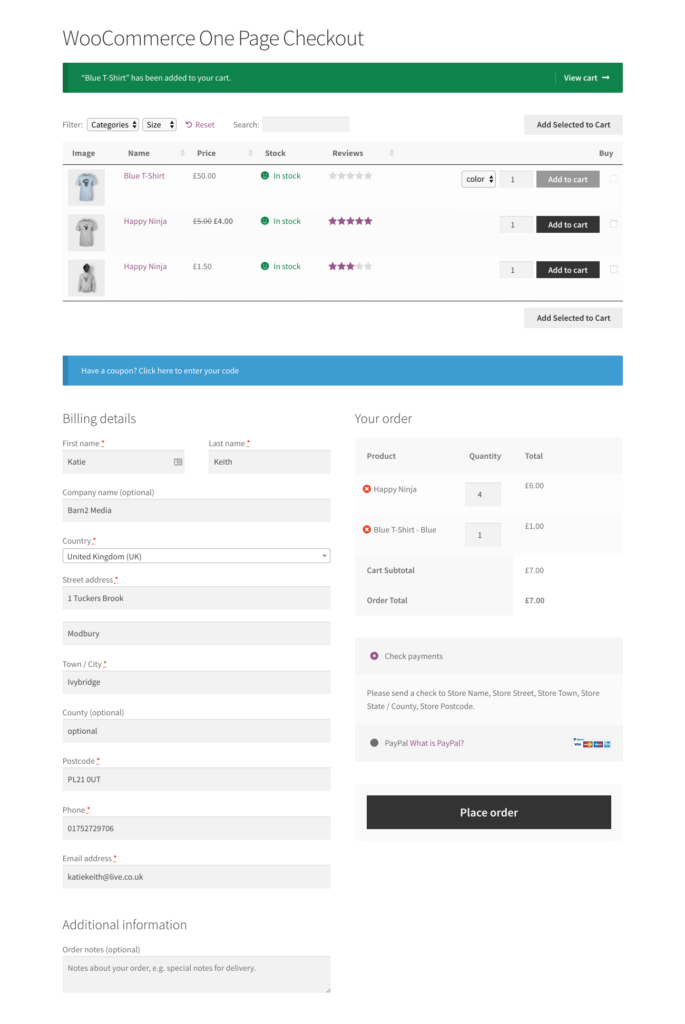
WooCommerce Product Table listing products above a one-page checkout
WooCommerce Product Table lists your products above the one-page checkout, like this

This is where we create the page that we'll be using as our WooCommerce single-page checkout:

  1. Create a new page (Pages → Add New).
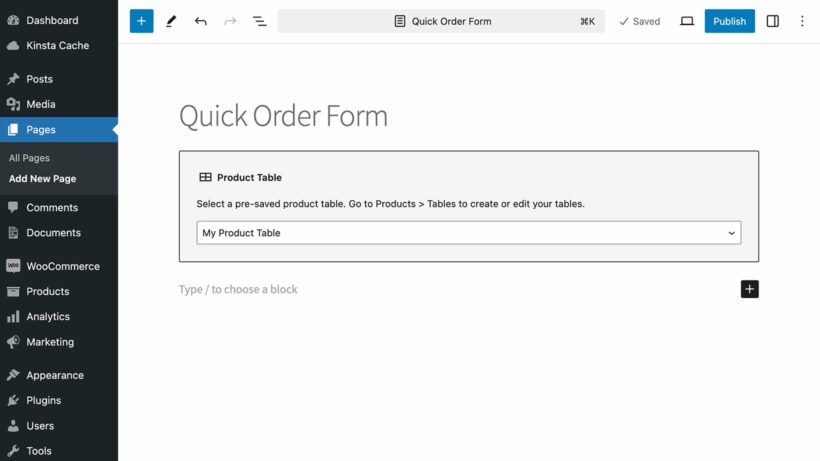
  2. Add a shortcode to the page: [product_table id="123"] (replace "123" with the actual ID for your table, which you can get from Products → Product Tables. Alternatively, if you're building the page with the Gutenberg editor then you can insert the 'Product Table' block instead of using a shortcode.

This will list all your products with the options you chose on the plugin settings page.

You can add as many product tables as you like to the page - just create multiple tables and insert them, each listing different products.

Step 3: Add one-page checkout to WooCommerce (5 minutes)

Next, you need to add one-page checkout to the page you just created.

  1. Install the WooCommerce One Page Checkout add-on.
  2. Edit the product table page that you created in Step 2, above.
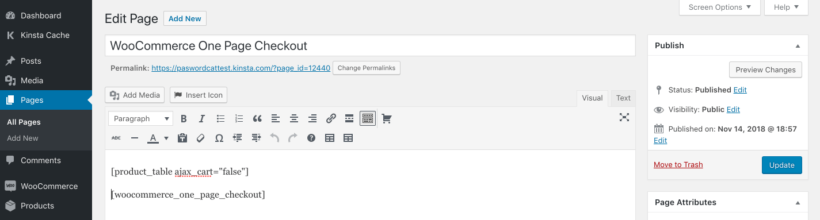
  3. Add the following shortcode underneath the product table shortcode: [woocommerce_one_page_checkout]

Your finished WooCommerce order form page should look something like this in the WordPress back end:

WordPress page editor with product table and one-page checkout shortcodes

This will create a WooCommerce single-page checkout with a product table at the top, and the checkout form below.

WooCommerce Product Table with checkout on same page

FAQ

How to choose the right one-page checkout method

Quick decision guide:

  • Selling 1-10 products? → Use Plugin #1 (Basic One Page Checkout)
  • Want the fastest setup? → Use Plugin #2 (Fast Cart popup)
  • Need search and filters? → Use Plugin #3 (Product Table + One Page Checkout)

What is the best WooCommerce one page checkout plugin?

The best WooCommerce one page checkout allows customers to complete their purchase as quickly as possible. You can achieve this with the WooCommerce Fast Cart plugin by allowing checkout in an on-page popup. Equally, you can achieve it by combining WooCommerce Product Table with the official One Page Checkout extension.

Both are good options from a functionality standpoint. However, you may want to consider your customer's behavior and preferences when choosing which WooCommerce single-page checkout to use. If your customers usually buy a single or just a couple of items per session, you may want to go with the pop-up checkout option. It's fast and seamless and allows for a very quick checkout:

On the other hand, if your customers tend to purchase several different items at a time or would prefer a more traditional checkout experience, you may want a checkout form below your products. This way, customers can take their time to add products to their cart one by one (or remove products if they change their mind). Finally, they can scroll down to the checkout form once they're ready to place the order.

How can I create a custom checkout page in WooCommerce?

In this article, we've looked at how to display the default WooCommerce checkout under a list of products; and how to display it in a popup checkout. None of these plugins will actually change the design of the checkout.

We have a separate article on how to create a custom checkout page. Once you've done this, the customized checkout will automatically appear in your one-page checkout - whichever of the above plugins you are using. That's because they inherit the styling of the default checkout, so if you edit this then it will be reflected in your one-page checkout.

Is a one step checkout better than a multistep checkout?

A multistep checkout is a checkout process divided into separate sections (like shipping, billing, payment) that can appear as tabs or accordions on one page or across multiple pages.

The beauty of WooCommerce one page checkout is the speed of making a purchase. WooCommerce multistep checkout does the opposite by adding extra steps to the process. However, the two concepts are more compatible than you might think. You can add a multistep checkout to a single page - for example, as tabs within that one page.

We have a separate article on how to add multistep checkout to WooCommerce.

How do I customize the fields on my one page checkout?

If you want to edit the fields on the WooCommerce checkout, you can easily do this with WooCommerce Checkout Field Editor.

This handy plugin is perfect if you want to streamline your checkout process or even add custom checkout fields. For example, you can use it to collect extra information from each customer. This will appear on the WooCommerce one-page checkout, whether you've added it below the list of products or in a popup checkout.

You can also use the editor to write more persuasive calls to action and change the purchase button - instead of the standard 'buy now' CTA, you can easily do some A/B testing to find out what works best for your customers.

Can I disable the WooCommerce cart completely?

How to disable cart completely:
1. For Plugin #2 (Fast Cart): Enable 'Direct Checkout' + 'Skip Cart Page' (2 minutes)
2. For Plugins #1 or #3: Install Redirection plugin + create 301 redirect (10 minutes)

If you're using Plugin 2 (i.e. Fast Cart with a popup checkout), then you can easily disable the cart. Simply enable the 'Direct Checkout' and 'Skip Cart Page' options on the plugin settings page. That way, customers can only access the checkout and there are no back doors to the cart page.

However, this is a bit trickier if you're using Plugins 1 and/or 3. Even though the checkout appears below the list of products, there are still ways for customers to access the cart page. For example:

  • The cart link will still appear in your navigation menu and/or header (depending on your theme and menus).
  • When the customer adds products to the cart, they will see a success message linking to the cart.
  • If your WooCommerce order form page includes a sidebar with the 'WooCommerce Cart' widget, then the contents of the cart will show after they add products. This widget includes links to the cart and a separate checkout page.
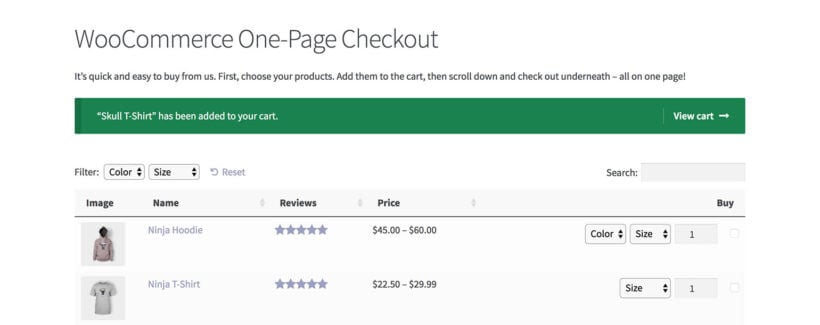
WooCommerce add to cart success message
An Add to Cart success message with a link to the Cart page.

It's absolutely fine to use these checkout features alongside one-page checkout. It gives customers a choice. For example, if they want to edit the contents of their cart, they can click through to the cart page and check out afterwards. This is handy because WooCommerce one-page checkout lists the products in the cart without any means to edit them.

However, some online store owners prefer to completely disable the WooCommerce cart and just use the one-page checkout. That's fine too.

How to disable the cart page (10 minutes)

  1. Install Redirection plugin (2 minutes): Install the free Redirection plugin from WordPress repository.
  2. Create redirect rule (3 minutes): Add a 301 redirect from your cart page URL to your checkout page URL.
  3. Optional: Add anchor links (5 minutes): Create an anchor link to scroll customers to the checkout section when they click cart links.

For example, you might redirect the cart page to the WooCommerce checkout. This is the checkout page defined in the WooCommerce settings, and is separate from the one where you've added a product table.

Alternatively, you could add an anchor link to a point underneath the product table on your one-page checkout page, and create a redirect so that people are taken there when they click on a cart link. When a customer adds a product to the cart and sees the success message with 'View Cart' link, clicking it will scroll them down the page to the WooCommerce one-page checkout under the product table.

Get the best WooCommerce one-page checkout plugin now 🚀

In conclusion, a WooCommerce one-page checkout can greatly enhance the shopping experience for your customers. It can increase your conversion rate, and ultimately boost your online sales.

By streamlining the checkout process and reducing the number of steps, you can eliminate unnecessary barriers. This makes it easier for customers to complete their purchases.

With the right implementation and customization, a one-page checkout can be a powerful tool for any WooCommerce store looking to improve their checkout process and drive growth. So, take the time to consider which type of one-page checkout is best for your business.

To add one-page checkout to WooCommerce, you can either:

Both options offer a great way to reduce cart abandonment by optimizing how customers complete their purchases. Choose the right plugins for your needs, and make your customers happy 😄

Here's something you might not be aware of regarding WordPress and its abilities. If you want to create a WordPress intranet - a hidden area for your company - you don't need a separate website to make it work.

With just a little tweaking under the hood, you can have both your official, customer-facing website and your staff-only website working on the same instance of WordPress.

In this post, we're going to tell you how to build a private WordPress intranet step by step. You'll learn why you'd want an intranet in the first place, and how you can use it to make your organization's day-to-day more streamlined.

WordPress intranet login page asking for a password to unlock the private area

What's a WordPress intranet anyway?

Okay, let's start with the main question, so what is an intranet and why would a business need one?

Simply speaking, a WordPress intranet - in a way we're tackling it here - is a private website that is only accessible to you and the people in your organization/business. It could also be a private area within a website that is otherwise public.

Why your business needs an intranet

Maybe it doesn't. But I dare you to read through the following list of possible use cases and not find at least one that gets you excited:

  • A WordPress intranet can be your place to store staff documents, contract templates, policies, and other documents that come in handy. Also a great place to keep them updated all in one spot.
  • An internal community for your company. Something like your own Facebook, just private (cough!).
  • An internal knowledge base. An extensive directory of procedures, advice, and processes on how to handle various common tasks in your organization.
  • A customer support code of conduct. Most businesses have at least some customer support aspect to them. You can use an intranet to write down all the best practices for handling customer requests.
  • An in-company news channel. A place for you to share what's been going on within the company. The kind of stuff that you don't necessarily want to share with the whole world on a public forum.
  • Internal forms. For example, annual leave form to book holiday breaks, overtime, set team meetings, etc.
  • A place to store training materials for new and existing employees. Those can be staff induction articles, videos, or anything else that works for your business.
  • An internal forum for your team to discuss things, as an alternative to Slack.
  • A staging platform for new content before it goes live. For instance, you can publish a new blog article privately on the intranet, get feedback from your team, and only then make it available to the world.

A private intranet can help you foster team building and onboard new employees. Not to mention that they make it clear where to go if a team member has questions on anything related to how the company goes about conducting its business.

How to build an intranet on WordPress

Working at a laptop and phone while accessing a private WordPress intranet
With the why out of the way, let's now discuss the how of building a WordPress intranet.

There are lots of reasons to use WordPress to create your intranet site. For starters, WordPress will save you many, many thousands of dollars compared to using an enterprise solution like SharePoint. And despite being free to use, WordPress also wins the SharePoint vs WordPress debate due to its huge flexibility, offering an excellent SharePoint alternative 💪

Here's what you need to get started:

  • A working WordPress website with a suitable theme. You can use any WordPress theme, or you might like an intranet-specific theme such as Woffice. And;
  • Password Protected Categories - the plugin that's going to make your intranet possible.

That's what you'll use for your intranet. The rest of your website remains public as usual. The Password Protected Categories WordPress intranet plugin works by letting you create one or more private categories of posts or other content.

The great thing about this is that you don't have to create a separate website for your main company website and your intranet. You can run both from the same WordPress installation.

Your staff and other colleagues can access the WordPress intranet in a choice of 2 ways, depending on how you set up the intranet plugin:

  1. Basic password protection - Staff and colleagues unlock the private intranet by entering a password. You can create 1 password for everyone to share, or multiple passwords. The important point is that you don't need to worry about creating a separate WordPress user account for each employee, so it's easier for you to manage.
  2. Individual user accounts - If you prefer, you can protect your WordPress intranet so that it's hidden from guests and automatically becomes visible to logged in users depending on their role. This option is more secure but you have to create a user account for each employee, so you may or may not want this.

Here's how to get the plugin and set it up with either option:

1. Get Password Protected Categories and install it on your site

You can get the plugin by clicking here:

When you complete your order, you'll get access to the download page for the plugin. Alongside the download link, you'll also see your personal license key. Take note of that; you'll need it in just a minute.

Getting the plugin to run on your site is simple. With the ZIP archive of the plugin ready on your desktop:

  1. Log in to your WordPress dashboard, go to Plugins → Add New.
  2. Click on the Upload Plugin button.
  3. Select the plugin's ZIP file, click on Install Now and then on Activate.

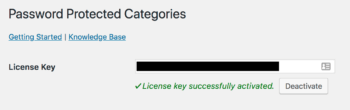
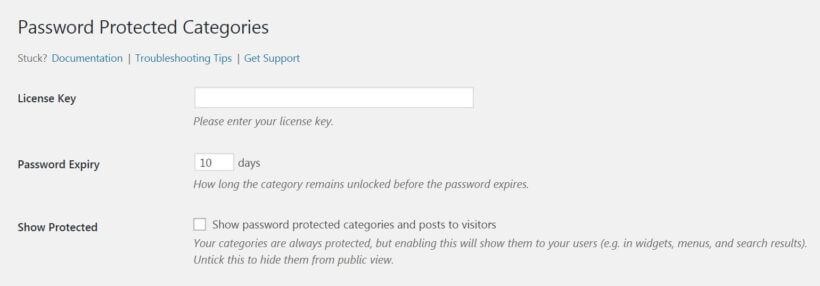
Lastly, go to the plugin's settings panel in Settings → Protected Categories, and enter your license key.

Protected Categories license key field showing successful activation

You don't need to go through all the other settings on this page (unless you want to). The plugin will work just fine on its default settings.

2. Begin building your WordPress intranet

The first thing that needs doing is some good ol' brainstorming. Look through the list of the possible WordPress intranet use cases from above, and note down the ones that make the most sense in your organization.

  • Do you need an internal social network? Or just a knowledge base? Maybe an internal catalog of training videos?

Whatever that might be, list them all!

Your next task is to figure out which content types you'll use to create the intranet with.

Like with most things WordPress, you get to use posts, pages, and custom post types.

Now, one important thing - or two:

  • If you're not using any additional plugins to create the intranet with - meaning, you're just taking standard content and putting it on your intranet - then you'll most likely utilize only posts and/or pages.
  • If you want to use third-party plugins (for a knowledge base, for example) then those will probably come with their own custom post types. This is great news, actually, because the Password Protected Categories plugin works with those no problem.

Let me give you two examples:

  • A) If you want to build a simple internal knowledge base for your organization then you'll probably stumble upon a plugin called Heroic Knowledgebase. It's a neat solution, and it does its job. Once you install and activate it, you'll see a new custom post type in your sidebar called Knowledge Base. You can hide intranet articles within this custom post type via Password Protected Categories. I'll show you how in just a sec.
  • B) If you want your own, manually created custom post types, then you can do that as well. For this, we recommend using the Easy Post Types and Fields plugin. It allows you to create any number of custom post types, and then use those post types as part of your WordPress intranet. This scenario might be a better solution if you want to keep your intranet and normal website sections separate in the WordPress Dashboard. We have a whole tutorial on how to set up custom post types with Easy Post Types and Fields plugin here.

Again, at the end of your brainstorming session, you should have a general list of the things that you want to make part of your WordPress intranet. Your list will also include the content types that you're going to use.

3. Put it all together

Here's a possible use case when building a WordPress intranet:

  • Let's say you've done your brainstorming and you've decided to use just posts and pages as the core of your intranet. You're going to feature some training videos there (for onboarding new employees) along with text articles on how to handle customer requests coming in through your contact channels. A fairly typical setup for a business that's growing.

First, a word on how the Password Protected Categories plugin works:

Quite simply, it hooks up to your site's category structure and allows you to protect any number of those categories. You can make them either password protected (people need to know the password to access), or role protected (they need to have an account on your site to access with the appropriate user role).

In either scenario, what we're actually going to be doing is creating new categories, assigning your intranet content to them, and then making them invisible to the public.

This is arguably the simplest way of building an intranet, for a couple of reasons:

  • you don't need to be able to code - you can just check off a couple of settings boxes and you're done,
  • you don't need to know server settings or understand access rights on a server level - how intranets used to be handled old school in more traditional enterprises,
  • and you can create new intranet content freely just like you're creating your other WordPress content.

4. Set your intranet categories

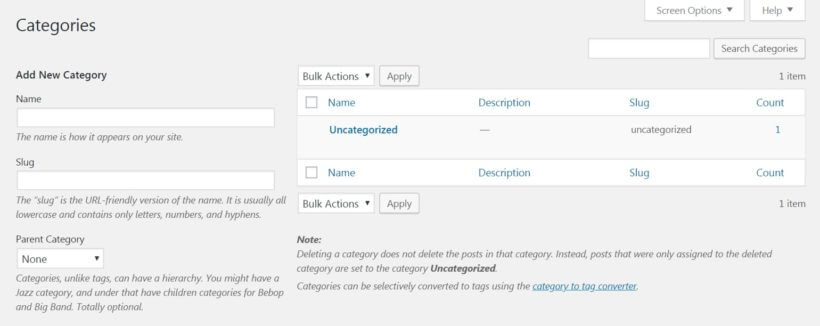
If you're just using posts for your intranet, simply go to your WordPress dashboard and then Posts → Categories.

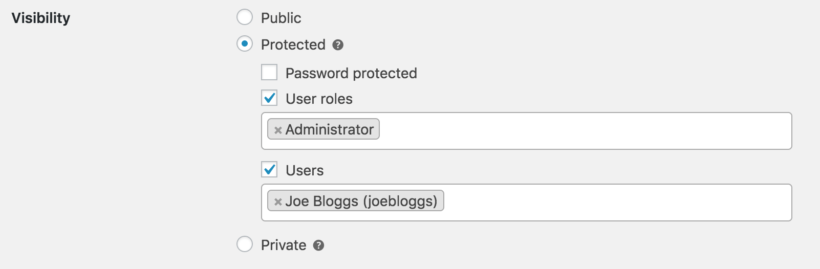
The Password Protected Categories plugin has added some new options here:

Category visibility set to protected for selected user roles and users

Those radio buttons are where all the magic happens!

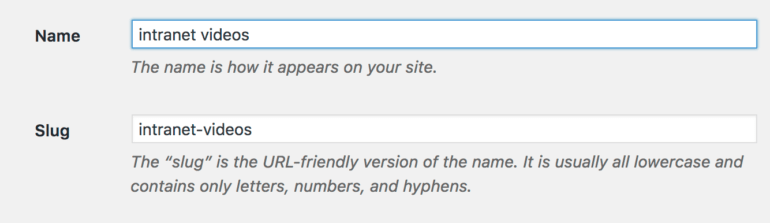
Start by creating your intranet categories. It's best to make them stand out from the standard blog categories. Some possibilities:

  • intranet-videos
  • intranet-knowledge-base
  • etc.

Example:

Adding an intranet videos category with a name and slug in WordPress

So far so good. Now let's look at the main setting.

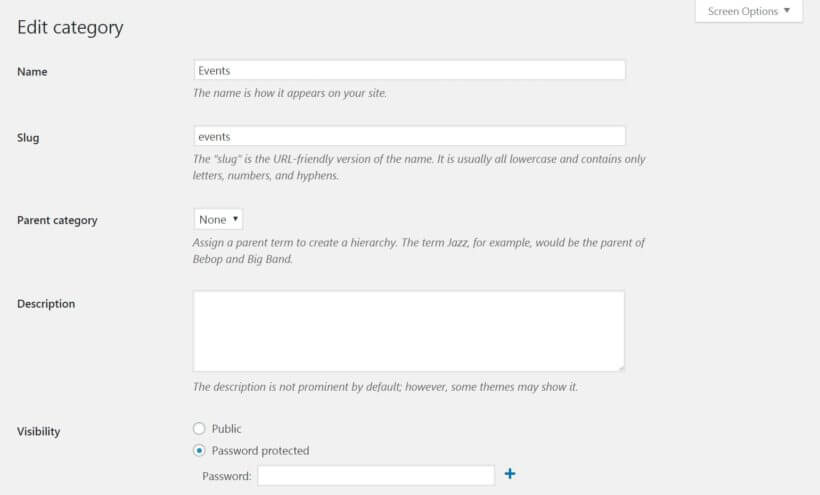
Creating password protected intranet categories

WordPress visibility options with Password protected selected for an intranet category

If you check Password protected, you'll be able to assign a password to your new category. Click on "+" if you want more than one universal password for everyone to share.
In this scenario, only the visitors who know the password will be able to see the content assigned to the new intranet category. Just give the password to each staff member.

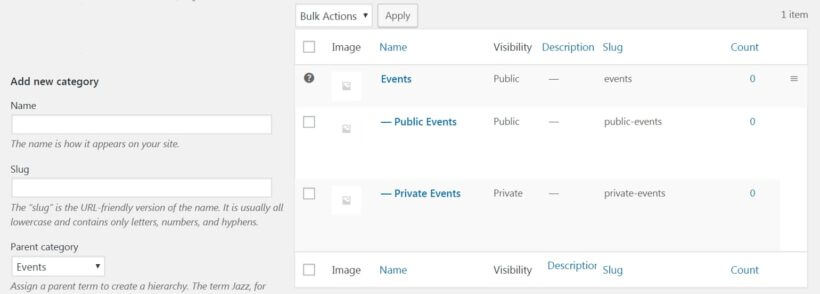
If you want multiple categories for your intranet, just add sub-categories to your main password protected intranet category. Leave them set to 'Public' and the plugin will automatically be protect them with the same password as the main category.

Restricting intranet categories to logged in users

Alternatively, you can select the 'User roles' box. This will make the intranet category visible to logged-in users with the selected roles only.

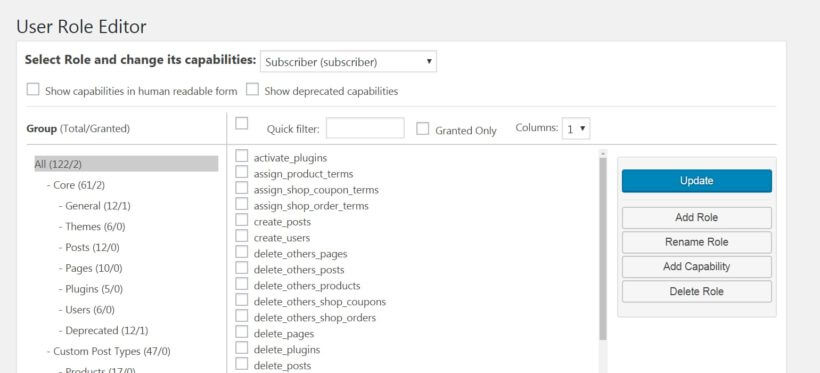
You can select any of the standard WordPress roles, such as 'Subscriber', and add each staff member to that role. Alternatively, you can install a free plugin called User Role Editor to create a special role for your employees and give them access to private intranet content. We have a separate guide on how to set it up.

The User Roles option makes the most sense if all the people in your organization have their user accounts on the site. If that's not the case, you're probably better off sticking with the Password protected option, since you can give the password to anyone, or even create separate passwords for separate categories that make up your intranet.

Finish creating your intranet categories

Once you set the password or restrict your new intranet category based on user role, click Add New Category. From this point on, every post that you assign to this new category will become part of your intranet and not accessible to anyone from the outside.

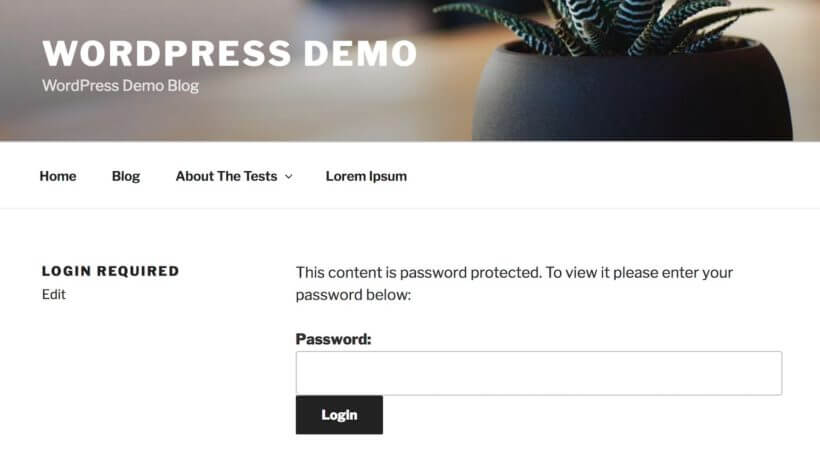
This is what an unauthorized person will see when trying to access your password protected WordPress intranet content:

Password prompt shown to unauthorized visitors trying to access protected intranet content

This sort of intranet structure works well for storing training videos that you can then share with new employees. You can simply embed those videos inside new blog posts (e.g. from YouTube) and then assign them to your WordPress intranet categories.

But there's one thing missing:

5. Create a hub for your intranet content

Having a set of blog posts for your intranet content is all fine and dandy. However, we also need a hub to link to all those posts and make them available from a single location.

One option is just to use the default category pages that come with your WordPress site. Something like, yoursite.com/category/intranet-videos/. This will work automatically. No need to tweak it in any way. In other words, you can share a link like that with your team members and they will be able to access all the content just fine. It will automatically update as you add new intranet content to that category in future.

6. Include pages on your intranet

As I mentioned earlier, your intranet doesn't need to only consist of posts. You can use custom post types and pages as well.

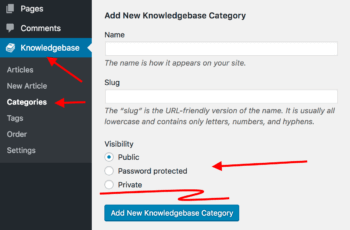
Making custom post types part of your intranet is pretty similar to how you work with posts. When you navigate to any custom post type in the WordPress dashboard, you will see a similar option in the sidebar menu, labeled Categories:

Adding a knowledge base category with public, password protected and private visibility options

You can either password protect or make those categories private just like you did with posts.

For pages, though, there's an additional step required. By default, there are no categories for pages in WordPress. To add them, follow this guide.

Essentially, this will allow you to assign your pages to categories, and thus make some of those categories private / password protected. So whether you want to create a WordPress intranet using posts, pages or a custom post type, we've got you covered.

List your WordPress intranet content in a searchable table with filters

By default, when your staff and colleagues unlock your private intranet categories, the posts inside will be listed in the default layout for your theme. This will normally look the same as your blog page, with posts listed in reverse date order.

Most WordPress intranets need to be displayed in a more structural way. This needs to include extra data, quick-find filters, and direct download links.

Here are two plugins that can help with this, depending on the type of content in your WordPress intranet site.

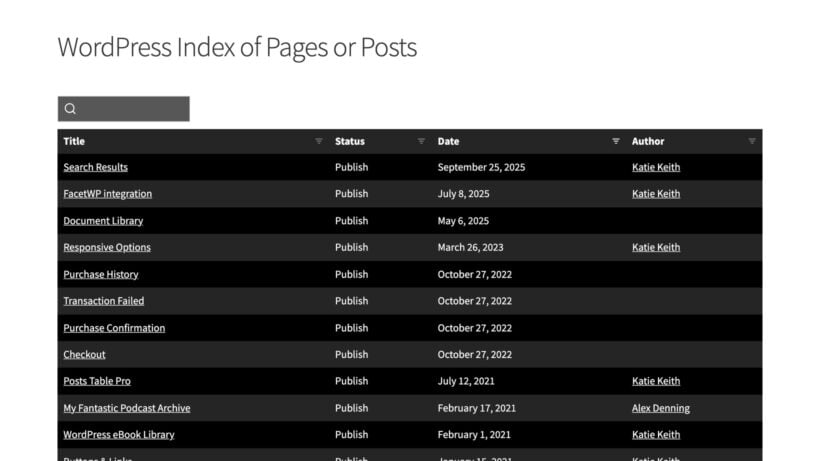
List posts and pages with Posts Table Pro

Tablet showing intranet training events listed in a table
You can list any type of intranet information with Posts Table Pro

If your intranet contains normal WordPress pages, posts or a custom post type you've created, then you can list them in a searchable table using Posts Table Pro.

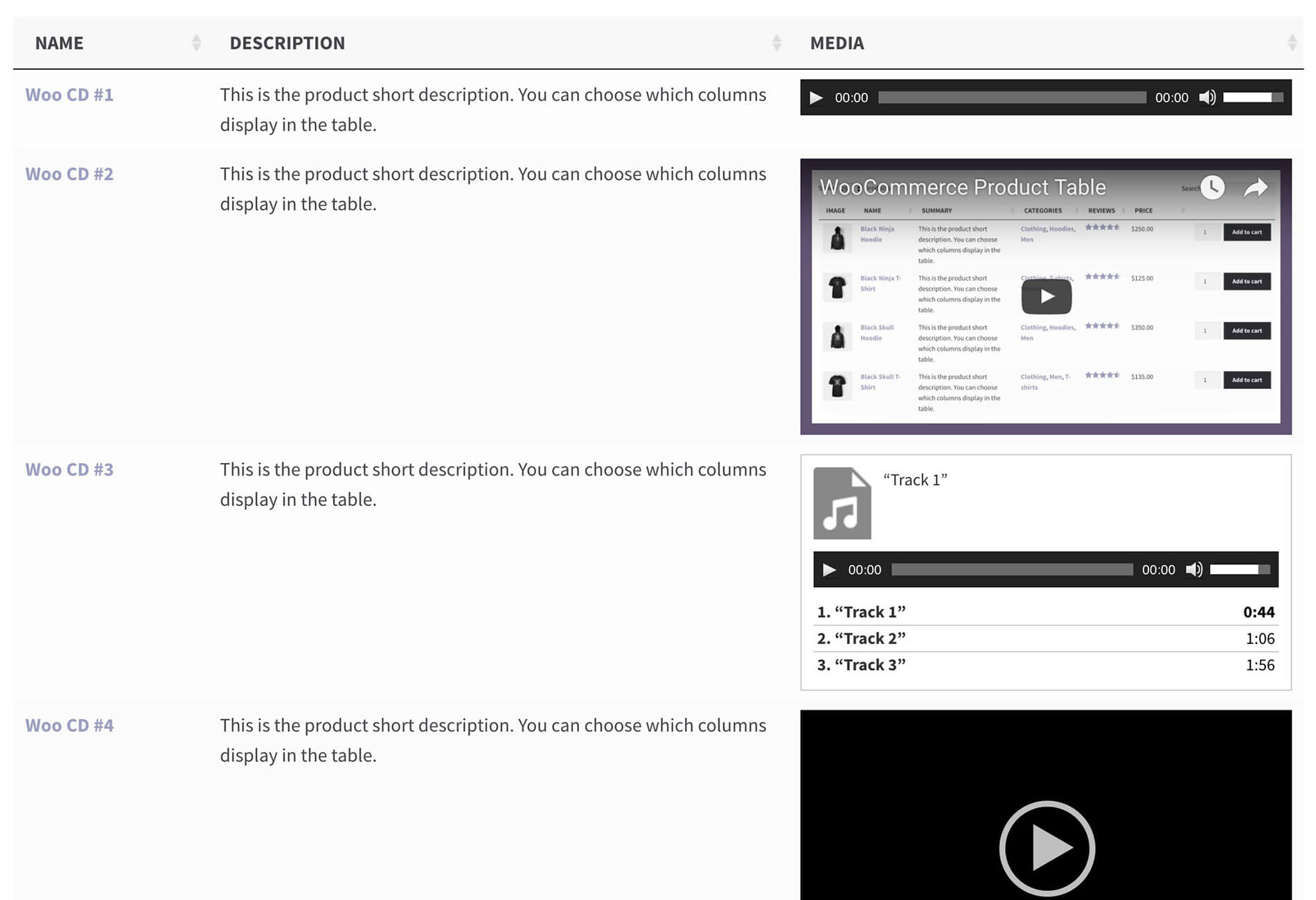
Posts Table Pro displaying mixed media content with video thumbnail, audio player and document columns

It's simple to set up and perfect for all kinds of text information. This table structure is also great for displaying multimedia content such as training videos.

People can quickly find and watch the videos directly on the intranet page.

Create an intranet document library

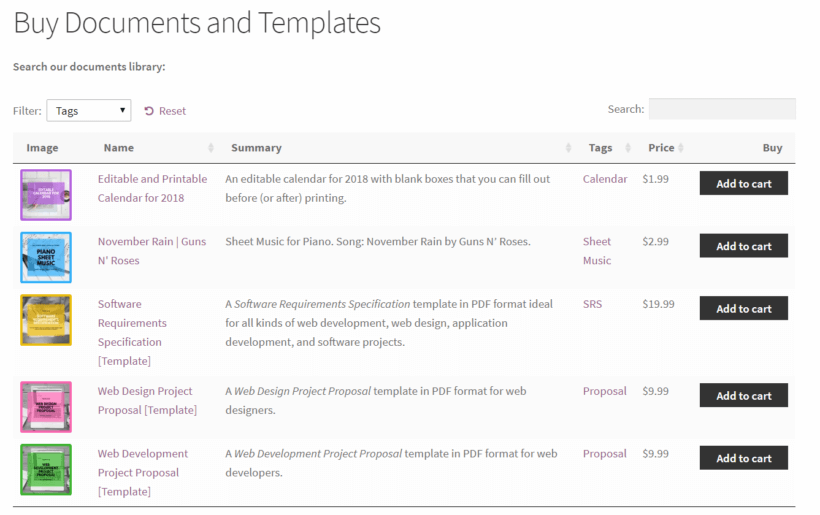
For example, if you're using your intranet as a staff document library then you will want to list the documents in a searchable layout.

Something like this:

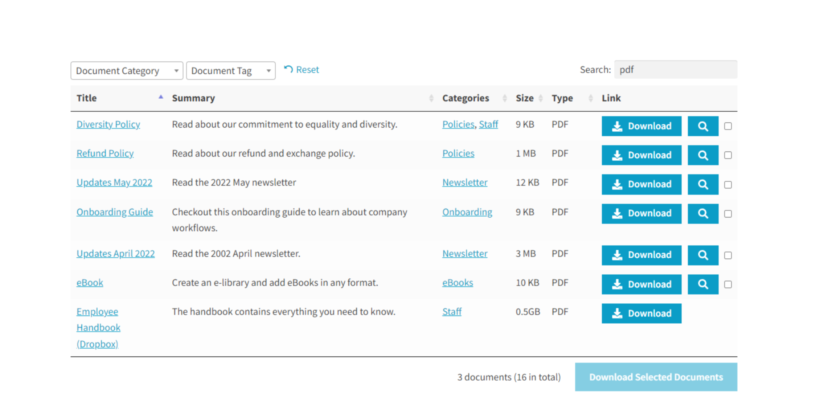
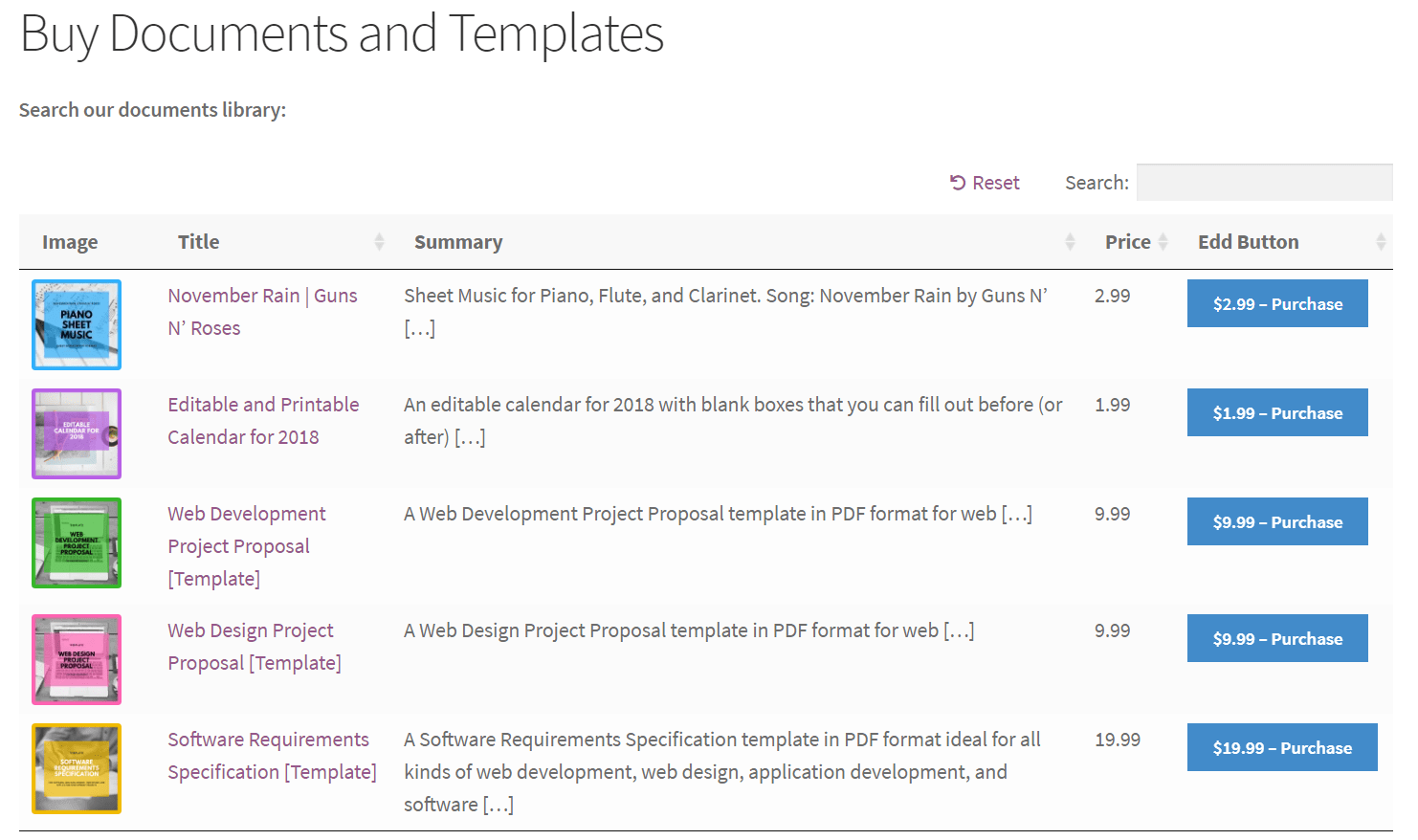
Documents listed in a searchable WordPress library table

For full instructions, follow our WordPress document library plugin tutorial. Use it with the instructions above to make your document library private on the intranet site.

Where to get the WordPress intranet plugin

At this stage, you have your intranet fully created and available to anyone who either has the password or sufficient access credentials (user account on your site).

No matter if your intranet is just one additional category, or a full, 100-page long repository, the Password Protected Categories plugin can handle it and make things easily customizable.

What do you think of the whole WordPress intranet concept? Does it sound like something your business can benefit from?

Again, click on the button below to get the Password Protected Categories plugin and start building your WordPress intranet now:

To learn more about this intranet WordPress plugin, check out the official knowledge base here.
Laptop showing a submission form and tablet showing the resulting Gravity Forms entries

Welcome to our comprehensive tutorial on how to display Gravity Forms entries on the front end of your WordPress website!

As the leading WordPress form plugin, Gravity Forms allows you to create and manage advanced forms with ease, streamlining your data collection process. However, many users are left wondering how they can showcase this valuable information on their site's front end in a way that is both visually appealing and functional. That's where the Posts Table Pro plugin comes into play.

In this in-depth, step-by-step guide, we'll walk you through the entire process of how to integrate and display Gravity Forms Entries with Posts Table Pro to effortlessly display user-submitted content in a searchable, filterable table. This powerful combination not only makes the submitted entries easily accessible to your website visitors but also provides them with an interactive and engaging experience by using the Gravity Forms view entries on front end.

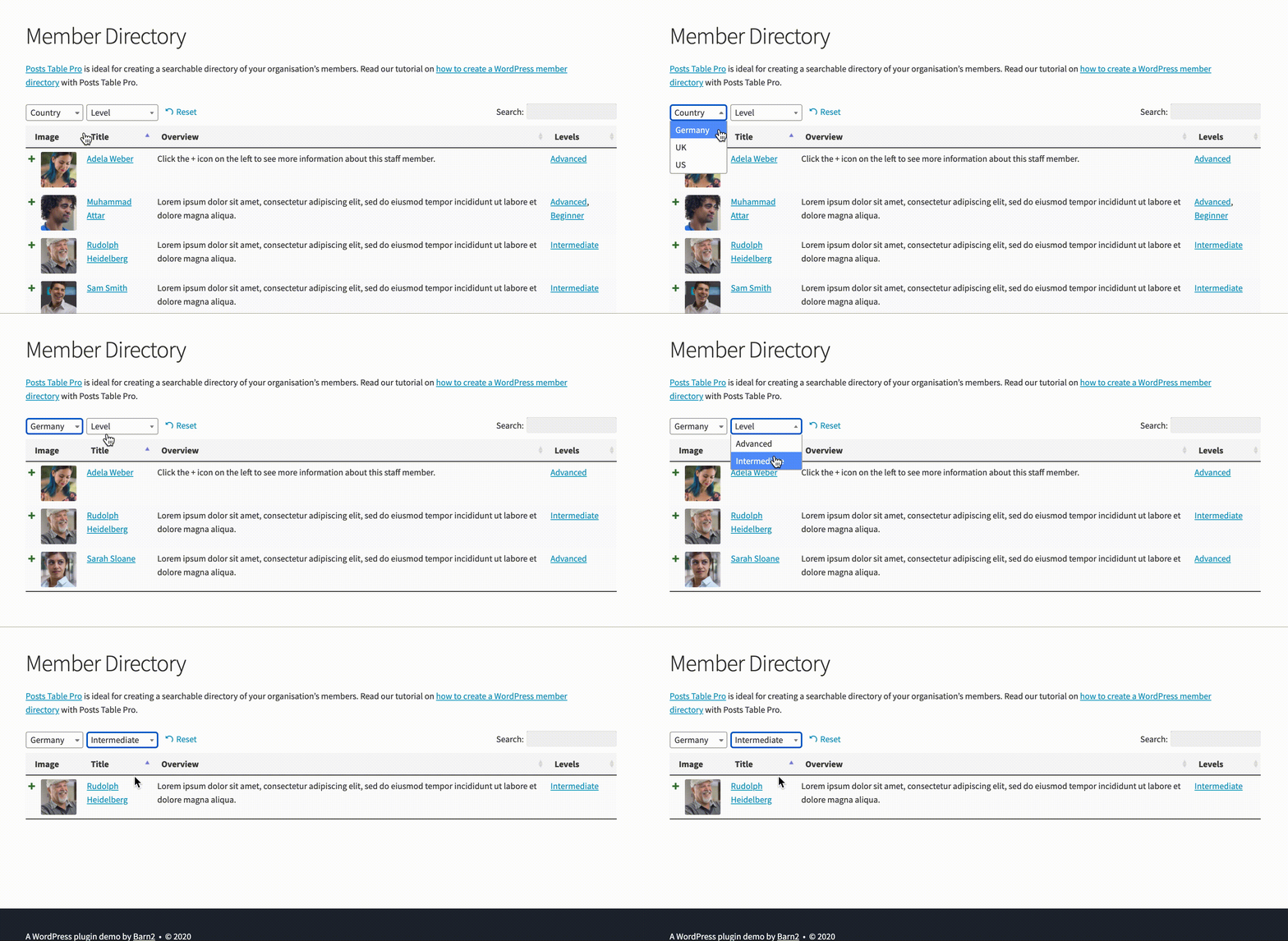
The end result will look something like this - a neat table listing your users' form submissions!

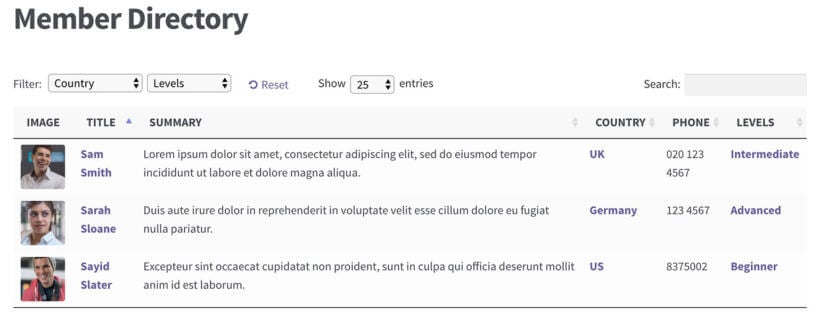
Member directory table listing profiles with filters and expand icons
A WordPress member director listing user-submitted profiles

Display any type of user-submitted content from Gravity Forms

This tutorial is perfect for a wide range of applications, including community-driven websites, online directories, event listings, or any project where you want to create a seamless experience for users to view and interact with Gravity forms front end posting submitted date. By the end of this guide, you'll have a thorough understanding of how to:

  • Set up and configure Gravity Forms to capture user-submitted content.
  • Install and activate the Posts Table Pro plugin.
  • Integrate the two plugins to display Gravity Forms entries in a sortable and filterable table on your website's front end.
  • Customize the appearance and functionality of your table to match your site's design and meet your specific needs.

With detailed instructions, helpful tips, and best practices, this tutorial aims to be the ultimate resource for unlocking the full potential of Gravity Forms and Posts Table Pro. So, whether you're a seasoned WordPress professional or a novice just getting started, join us as we dive in and explore the powerful capabilities of Gravity Forms and Post Table Pro plugins working together in harmony.

Why display user-submitted information in the front end?

There are lots of reasons why you might want to let Gravity Forms get submitted data and display Gravity Forms Entries on your website:

  • WordPress member directory with user profiles If you're using a WordPress member directory plugin to list members or consultants in a table, then you might want to allow people to register and upload a profile. If you don't want to install a heavyweight membership or e-commerce plugin, then it can be simpler to use Gravity Forms for member registration and profile upload.
    A filterable directory of member organisations displayed in a table
  • WordPress directory website If you're creating any type of directory, such as a business or local events directory, then it makes sense for users to submit listings. If you're trying to keep your website simple, then you can avoid installing a full directory theme or plugin by using Gravity Forms and a WordPress table plugin instead. You can even take payment via PayPal and hold submissions for moderation by the administrator before they're published!
    Recipe directory built from form entries with images and categories
  • WooCommerce user-submitted products If you're using WooCommerce then you can let users submit products to sell in your store.
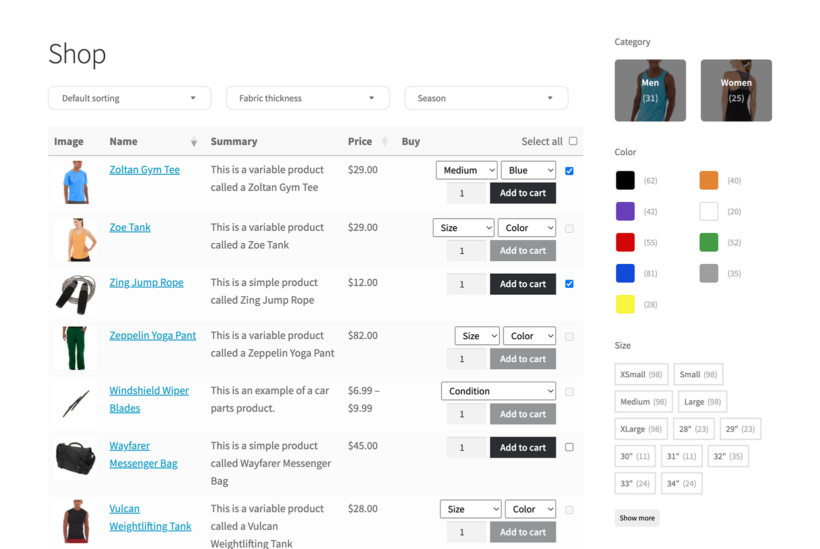
    WooCommerce Product Table Filters Category Shop Page
  • User-submitted events If you're using a WordPress events plugin such as The Events Calendar, then your users can submit events to display Gravity Forms Entries on your website.
    WooCommerce events listed in a product table with Moodle integration
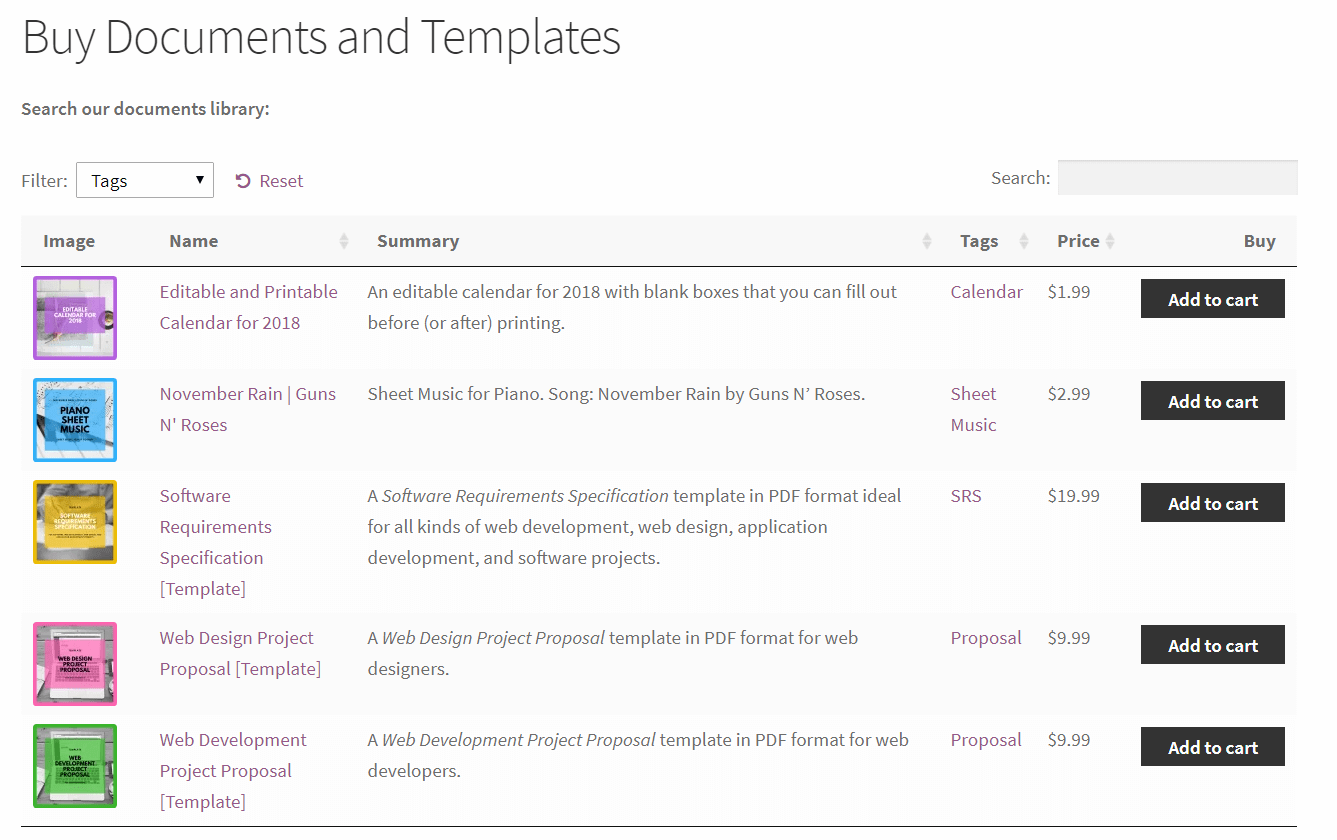
  • WordPress document library with user-submitted documents Lots of websites use a WordPress document library plugin to allow users to type in the search bar to find and download documents. If you need a way for users to submit their own documents, then you can do this with Gravity Forms. However, unlike the other use cases listed above, there's actually an even simpler option! As an alternative to Gravity Forms, just install the Document Library Pro plugin and use its front-end upload form to let users submit downloadable documents to your site:
    Document Library Pro table listing user-submitted documents

Unlocking the potential of Gravity Forms

As you can see, there are loads of reasons to let users upload information which you then display on your website. If you want to display website content rather than downloadable documents, then Gravity Forms is the best solution. Keep reading to see a real-life use case, and then learn how to set it up.

Case study - TV Production Contacts' Job Board

Gravity Forms post a job form on TV Production Contacts

TVProductionContacts.com acts as a networking site for TV production professionals, it also hosts a WordPress job board listing jobs available in the industry.

The job board is powered by our Posts Table Pro plugin. The site also uses the Gravity Forms plugin and the Gravity Forms + Custom Post Types add-on to power the job board submission form.

Gravity Forms display entries on front end which makes the job board simple to manage. Hiring managers submit all the job details using the form. The user-submitted information is then approved before being automatically displayed on the sortable job board.

Keep reading to find out how to create your own Gravity Forms for users to submit information to your site.

What to expect from this tutorial

This tutorial will teach you how to add the following features to any WordPress website. Read it all, or skip straight to the sections you need:

  1. Use Gravity Forms to collect user-submitted information
  2. Store the information as a WordPress post, document, or custom post type
  3. Display the user-submitted data in a table on the front end of your website

You can also watch us setting it up from start to finish in this video:

Step 1 - Use Gravity Forms to collect user-submitted information

The first step is to install the Gravity Forms WordPress plugin and create a form. Your visitors will use this to submit information to you. This is useful whether you want them to upload a document, member profile, business listing, upcoming event, or something else.

  1. First, buy Gravity Forms, download the plugin, and install it on your WordPress website (Plugins → Add New).
  2. You'll see a 'Forms' link appear on the left of the WordPress Dashboard. Navigate to Forms → Add New.
  3. Enter a name for your form, then add all the fields. (If you haven't created a form before, please see the official documentation.)
    • Title, content, and custom fields - Instead of using Standard and Advanced Fields, you should use Post Fields. These map to fields on your WordPress post type, so that the user data will be stored in the correct place.  
    • Custom taxonomies - Create a Standard Field and then click on the 'Advanced' tab when editing that field. You can use this to map the field to the custom taxonomy on your WordPress post type.
    • If you want users to be able to upload documents via Gravity Forms, use the File Upload field type.
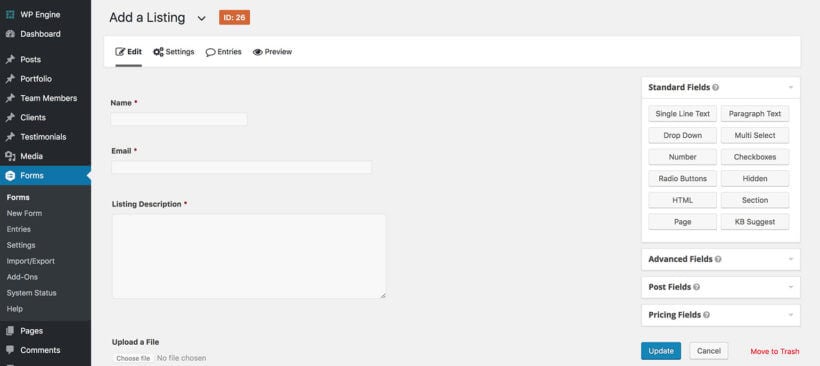
      Building a user-submitted listing form in the Gravity Forms editor
  4. Click 'Update' to save your form.
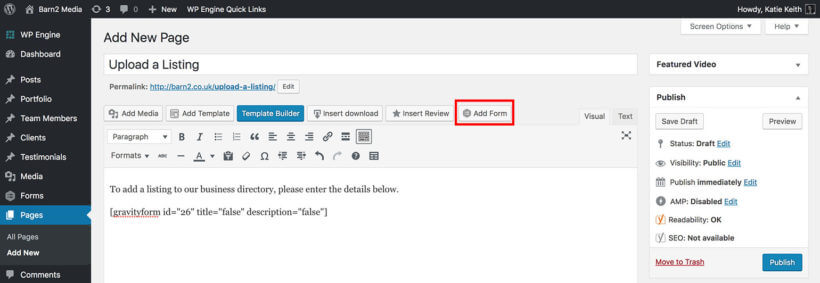
  5. Next, create a page (Pages → Add New) and click the 'Add Form' button above the WordPress toolbar if you're using the Classic Editor, or use a Gutenberg block if you're using Gutenberg. Select the form you just created and insert it into the page. You can also add other content to the page:
    Adding a Gravity Form to a WordPress page in the editor
  6. Finally, view the page and make sure you're happy with it.

Your Gravity Forms get submitted data content page should look something like this:

Front-end Gravity Forms form for users to submit a listing

Optional - hide and protect your Gravity Forms page

By utilizing the functionality of Gravity Forms to display entries on the front end, restricting user-submitted content to authorized individuals is possible. You can do this by protecting the page containing the form.

There are several ways to do this:

  • The simplest way to secure the Gravity Forms page is to password protect it.
  • If you're using an SEO plugin (e.g. Yoast SEO), then you can also use this to noindex the page. This will ensure it is hidden from search engines.
  • For a more secure approach, use a WordPress membership plugin such as All Access Manager to restrict the page to logged in users with a certain role only.

Step 2 - Store the information as a WordPress post or custom post type

So far, you've learned how to use Gravity Forms to create a form that users can use to submit information to you. It looks pretty, but it's not much use yet! At this stage, the information will be emailed to you and stored in the WordPress database. In Step 2, I'll show you how to automatically use this Gravity Forms get submitted data to create WordPress posts, documents, WooCommerce products, and custom posts. This saves you from having to manually input the data to your website.

How to use Gravity Forms to save user-submitted information as a WordPress post

Gravity Wiz has an excellent tutorial about how to save Gravity Forms submissions as posts. Do this, then come back to learn how to display the user-submitted content in a table on the front end.

When you follow the Gravity Wiz tutorial, don't forget to set the 'Status' to draft. This is essential if you want to hold the form submissions for moderation for a WordPress admin to approve before they're published.

How to use Gravity Forms to create a custom post

Storing user-submitted information as normal WordPress posts is fine, but it can clutter up your blog. It's normally better to create a dedicated custom post type for this. For example, if you're creating user-submitted business listings then you can create a 'Business Listings' custom post type. This will add a 'Business Listings' link to the left of the WordPress Dashboard. It's a convenient way to organize the listings, separate from your other website content.

You'll also need to do this if you want to store Gravity Forms entries in a post type created by another plugin. For example, this might be:

  • The 'Documents' post type is created by our Document Library Pro plugin.
  • The 'products' post type created by WooCommerce, the 'tribe_events' post type created by the Events Calendar plugin, or any other custom post type.

You'll need a free plugin called Gravity Forms + Custom Post Types for this:

  1. Get the plugin and install it on your WordPress site.
  2. (Optional) If you don't already have a custom post type for this purpose, create one now. I recommend the free Pods plugin for this. For full instructions, please see my tutorial about how to create a custom post type, then return here and continue this tutorial.
  3. Use the how-to instructions on the plugin page to map your form fields to the custom post type.

Step 3 - Display user-submitted data in a table on the front end

So far, you've learned how to use Gravity Forms to let users submit information via your website and save it as a post, document, or custom post type. The next step is to showcase user-submitted posts on the front end of your WordPress website through Gravity Forms show entries frontend, the subsequent action is to be taken. You'll need a dynamic table plugin for this. We have 3 table plugins, so choose the one that lists the type of content that your users will be submitting:

All three plugins list user-submitted information in a searchable, filter options of datatables view. It's the perfect way to display Gravity Forms Entries because each entry data is listed in a separate row of the table. Visitors to your website can use the search box to find specific or multiple entries, use the advanced filtering to refine the list, display entries depending on a user role, and sort by any column.

Submitted entries displayed in a sortable, filterable table on the front end

How to list user-submitted content in WordPress

  1. Get Posts Table Pro or Document Library Pro and install it on your WordPress website.
  2. Copy your license key from the confirmation page, then enter it on the plugin settings page.
  3. Stay on the settings page, and spend a minute choosing how you want your tables to look and behave.
  4. Next, create a new page. You'll use this to list the user-submitted content from Gravity Forms. Use the plugin documentation to add a table.

After completing the process, access the page to witness a table on the front end that displays all the posts, documents, or custom posts (depending on the post type chosen on the plugin settings page) that have been listed through the utilization of Gravity Forms show entries frontend. This is the information that your users have submitted using Gravity Forms. Perfect!

Choosing which items to display

You may wish to add multiple tables to your site, each containing different posts, documents, or custom posts. Suppose you're designing a WordPress business directory and wish to customize the view layout of each page with different business categories and field values. In that case, you may opt to display listings based on the respective category.

Fortunately, Posts Table Pro and Document Library Pro come with several options for choosing which user-submitted content is listed in the table. You can list items by category, tag, and much more using the Gravity Forms view entries on front end feature.

File uploads

Gravity Forms comes with 'Post Image' and ‘File Upload’ fields which allow users to upload an image or other file type. There are a couple of ways to display file uploads on the front end with Posts Table Pro and Document Library Pro.

Display user-uploaded media and documents on your website

  • If users are uploading images then the easiest option is to add a 'Post Image' field to your Gravity Form and map this to the post/document featured image. You can then display this using the ‘image’ column of the table.
  • If you are using Document Library Pro then you can add the 'File Upload' field to your Gravity Form and use the following snippet to set the document link. Make sure to replace the $form_id and $file_upload_field_id variable values to match those in the Gravity Form you have created.
    add_action( 'gform_after_create_post', function ( $post_id, $entry, $form ) {
        $form_id = 1; // The ID of your Gravity Form.
        $file_upload_field_id = 6; // The ID of the File Upload field.
    
        if ( $form_id !== rgar( $form,'id' ) ) {
            return;
        }
    
        $document = dlp_get_document( $post_id );
        $file_url = rgar( $entry, $file_upload_field_id );
    
        if ( ! $document || ! $file_url ) {
            return;
        }
    
        $document->set_document_link( 'url', [ 'direct_url' => $file_url ] );
    }, 10, 3 );
  • If you are using Posts Table Pro then you can map other file types to a custom field, and display it as a custom field column in the table. Gravity Forms saves the URL of the uploaded file in the WordPress database, and the table plugin will display this as a clickable link when you include it as a column. By itself, this may not be ideal, as the link will be very long and won't look very professional. To modify the text inside this link, you can add some shortcode to your site's backend to utilize one of the development filters. For example:
    add_filter( 'posts_table_url_custom_field_text', function ( $link_text, $field_key ) {
        if ( $field_key === 'file_upload' ) {
            return 'Download';
        }
        return $link_text;
    }, 10, 2 );

    In this code snippet, "file_upload" is the 'Custom Field Name' specified in the Gravity Forms custom field, and "Download" is the text that will be displayed to users. Either of these can be updated to fit your circumstances.

If you're looking to achieve this without the aid of a developer skilled in CSS, HTML, PHP, or prefer a DIY approach to streamline your workflow, we recommend outsourcing the task to Codeable.

Can users edit posts after submitting them?

Devices showing table entries edited on the front end after submission

Yes, there are two ways that you can allow users to edit entries in the table:

  • Use Posts Table Pro/Document Library Pro with a front-end spreadsheet editor plugin. Add an 'Edit' link above or below the table. Logged in users with the correct role can click this to access a front-end spreadsheet editor, which allows them to edit the content of the table. They then save their changes and return to the main table. (Read the tutorial.)
  • Install a WordPress front-end editor plugin such as Editus. People can click through to the single post or document page on your website and edit the information from there. This is important because they can't edit the content from within the table itself. On the single post or document page, they can edit the content as required.
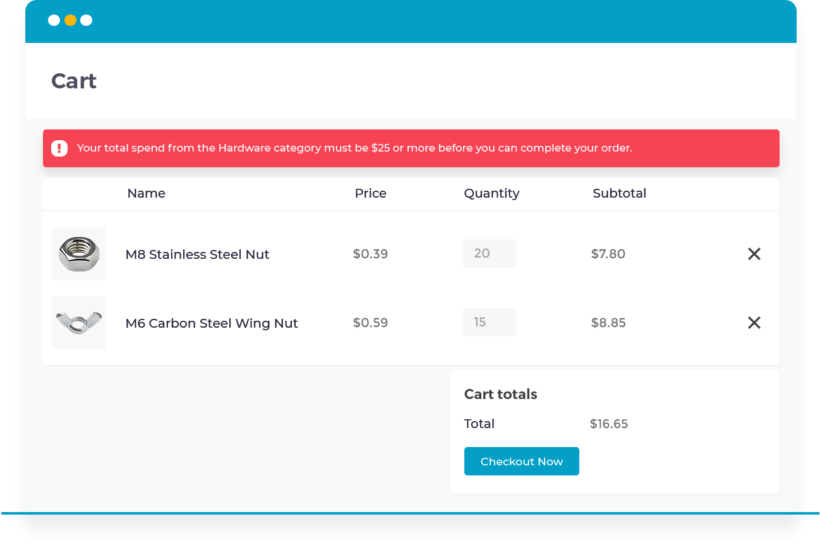
Where to get the plugins

That brings us to the end of our tutorial. You've learned how to use and display Gravity Forms Entries on page to allow users to upload information to your website and save it as a post, document, or custom post type. You know how to hold these posts for moderation so that they're not published until an administrator approves them. You've discovered the best way to display this information in a table on the front end of your WordPress website. It's the perfect way to create a user-contributed document library, member directory, or business listing.

To set it up, you'll need:

I'd love to hear about how you use and display Gravity Forms entries on page for user-submitted content. Do you keep this private or list it on the front end of your website? What sort of Gravity Forms data do you collect and display? Please let me know in the comments below.

Get Gravity Forms

Contact Form 7 plugin banner on the WordPress plugin directory

Spam is a huge issue with contact forms on WordPress websites - both the websites we design, and on a global scale. As the most popular free WordPress contact form plugin, Contact Form 7 is highly targeted by spammers. Spam contact form submissions can be a huge issue for WordPress websites with high traffic, receiving hundreds of spam emails each day. These are inconvenient and make it difficult to spot the genuine messages amongst the spam.

Comments can be a huge asset to your blog, and there are some fantastic plugins available to enhance the comments facility built into WordPress itself. Our friends at SoftwareFindr spent time researching the best WordPress form builders out there, it's a comprehensive roundup and well worth a read.  However, no matter how good your comment form is, spam comments can make you want to disable comments on your blog completely, which would be a shame.

For example, one of our WordPress web design clients complained about the amount of spam they were receiving through their Contact Form 7 contact form. We tested a range of methods to find the best solution, which I will share with you now. And the best thing is, you don't need to be a WordPress expert to use them. You can also have a look at Classified WordPress themes, which would be a great option for building your WordPress website.

Should I use all the anti-spam methods you recommend?

In a word, no. I do NOT recommend that you implement all of the methods suggested in this article. A WordPress website should be kept as clean and minimal as possible behind the scenes, and you should not install unnecessary plugins. Instead, I recommend using trial and error to experiment with these solutions - whether you're a WordPress expert or a novice. Track how much contact form spam you receive after implementing one or two methods, and make changes until you are happy. Install Akismet as a starting point, and take it from there.
Using Contact Form 7's in-built anti-spam measures

You'll find a lot of articles recommending CAPTCHA and quiz plugins that work with Contact Form 7. Most of these are unnecessary as it's better to use the features already built into the Contact Form 7 WordPress plugin.

Contact Form 7 form editor adding quiz and honeypot fields to stop spam
Quiz

Simple quizzes are becoming a popular way to combat contact form spam. They work by asking the user a simple question such as "Which is bigger, 2 or 8?" Bots can't answer this question. As a result, only people who enter the correct response can submit the contact form.

To add a quiz, edit your contact form and click the Generate Tag dropdown. Paste the shortcode that appears below into your contact form. It will look something like this:

[quiz capital-quiz "Which is bigger, 2 or 8?|8"]

2. Minimum character count

The WordPress website featured in this article received a lot of spam contact forms with 2-digit messages - usually a number. I have no idea what they were trying to achieve, but it's obviously a popular type of spam at the moment.

If all your spam messages follow an obvious pattern, you can block them by setting up your contact form to block messages that meet this pattern. In this case, I used the Max and Min Length options in Contact Form 7 to require messages to be more than 20 characters long. Genuine enquiries will usually provide more than 20 characters, so this blocks bots without frustrating real users.

The Message/Comments field will look something like this:

[textarea* your-message minlength:20 maxlength:500]

3. Akismet

Akismet has a reputation as the best WordPress anti-spam plugin. Not everyone knows that it works with Contact Form 7 as well as blog comments.

Once you have activated the Akismet WordPress plugin and followed the on-screen instructions to add your API key (free for non-profit-making website, small monthly fee for business sites), you need to do a bit of extra config to make it talk to Contact Form 7 - see https://contactform7.com/spam-filtering-with-akismet/.

In my tests, Akismet stopped about 70% of the Contact Form 7 spam but not all of it. It worked well in conjunction with some of the other solutions mentioned in this article.

Get Akismet

4. Contact Form 7 Honeypot

Contact Form 7 Honeypot is a WordPress plugin that adds a hidden field to your contact form. Real users won't complete it because the field is invisible. However bots won't know this and will fill it in. This allows the plugin to recognise them as bots and block their submission.

After you have installed and activated the Contact Form 7 Honeypot WordPress plugin, use the Generate Tag option to create a honeypot shortcode to insert into your contact form. It will look something like this (Contact Form 7 recommend changing the ID to something unique, so replace 827 with something else):

[honeypot honeypot-837]

Get Contact Form 7 Honeypot

5. Really Simple CAPTCHA

The Really Simple CAPTCHA WordPress plugin was created by the developer of Contact Form 7 so they work together seamlessly. The plugin allows you to add a CAPTCHA to your contact form. It's designed to prevent bots from submitting forms on your WordPress website.

Once you have installed and activated Really Simple CAPTCHA, insert a CAPTCHA tag into your Contact Form 7 form. (Click the Generate Tag dropdown to see the available options and create a customized tag to paste into your form.) It will look something like this:

[captchac captcha-14]

Further instructions at https://contactform7.com/captcha/.

Please note that CAPTCHAs are becoming slightly old fashioned and are not great for user-experience. They also require particular features to be enabled on your server, which may not be in place for your WordPress website.

I would recommend adding a quiz first (see above), and only trying CAPTCHA if this doesn't work. The two methods basically do the same thing. They prevent automated bots from submitting your website contact form - so you shouldn't need both.

Get Really Simple CAPTCHA

What worked for me

All WordPress websites receive spam in slightly different ways. What works for one website may not work for another.

When I had to stop Contact Form 7 spam on a WordPress website, I immediately achieved a huge reduction in spam simply by installing Akismet. The spam messages reduced from dozens per day to 5-10.

I fixed the problem completely by combining Akismet with the Contact Form 7 Honeypot plugin, a quiz and minimum character count.

If you just want to add one method to reduce Contact Form 7 spam, then I recommend Akismet. This is the best standalone solution as it's so powerful and comprehensive. You can use it whether you're a WordPress expert or a beginner. It can make a real difference to your WordPress contact form spam.

Get Akismet

A WordPress password protect custom post type plugin is a powerful tool to create and manage specific types of content on your WordPress site, while keeping them secure and private with password protection.

It's important to get new content up more quickly, and organize it effectively. However, you won’t always want all that custom content to be visible to everyone.

There are 2 ways to protect a custom post type WordPress. First, you can protect your custom post types with a password, so no one but approved visitors can see that content. Second, you can restrict content within specific post types to logged in users with particular roles. Both of these techniques can be applied to any post type – including the default ones that come with WordPress, post content types that you create yourself, and content types added by plugins or themes.

In this step-by-step beginners' guide, we’ll discuss what custom post types are and when you might want to keep them private. Then we’ll show you how to protect custom post type WordPress with the easy-to-use Password Protected Categories plugin. Let’s jump right in!

Not created your custom post types yet? Check out our tutorial on how to create custom post types using Pods.

An introduction to custom post types in WordPress

First, it’s important to understand that the term ‘post type’ is a bit of a misnomer. A better term might be ‘content type’ since it refers to the various kinds of content you can create for your WordPress site. The two most common and frequently-used post types are Posts and Pages, although there are a few other default options.

While you can do a lot with the post types WordPress supplies, sometimes you’ll want additional flexibility. For example, let’s say you use your website to run an e-commerce store. In this case, you could benefit from having a Products post type. This would be set up with all the features and information you need to create individual product pages for the entire site.

In fact, this is one of the things that popular e-commerce plugins such as WooCommerce do for you:

WooCommerce Products screen prompting you to create your first product

There are actually a lot of membership plugins that add new custom post type WordPress to your site. You can even create your own post types, both manually and using a plugin. Either way, this is a great method for expanding what you can do with WordPress and streamlining the process of creating new content.

Why you might need to password protect custom post types

Password protected custom post type archive with a portfolio grid and login form

Sometimes, you want any visitor to be able to view everything on your website. However, that’s not always the case. In some cases, you may need to restrict access to certain content on your WordPress site and only display it to approved or logged-in users. This can be achieved by setting permissions for specific users or user roles.

Here are just a few examples of scenarios when you might want to do this:

  • E-commerce websites If you’re running a wholesale store or something similar, you may want to restrict some or all of your products from public view.
  • Online portfolios You may not want just anyone to view your work – instead, you can keep it locked away from those you don’t trust.
  • Image galleries For photographers selling their work online, it can be useful to set up private galleries and hide them from everyone except specific clients.
  • Event-based sites Websites that feature events often want to restrict information, and display it only to people who have been invited to the event or who have paid for access.

In these situations, you can hide anything that needs to be kept private by password-protecting the relevant custom post types. If you have a custom Products, Portfolios, Galleries, or Events post type, for example, you can ensure that only those with a password you choose can view that content. Fortunately, doing this is easier than you might expect, as long as you have a WordPress custom post type plugin.

How to password-protect any custom post type in WordPress (2 methods)

If you do need to password-protect one or more post types in WordPress, all you need are the right tools and a little instruction. Below, we’ll present two ways to get the job done, using a WordPress custom post type plugin. Keep in mind that these techniques will work for all post types – including the default options.

1. Password-protect custom posts for all visitors

First up, let’s talk about how to hide specific content within a custom post type from anyone who visits your site – except those with the right password. To do this, you’ll need the Password Protected Categories plugin:

This WordPress custom post type plugin makes it easy to WordPress security on any type of content with passwords and to customize what is made private and what is kept public.

Install the plugin and configure its settings

To get started, install Password Protected Categories on your website. Then navigate to Settings > Protected Categories:

Password Protected Categories settings for license key and password expiry

Here you can paste in your license key, in order to access the plugin’s full functionality. You can also customize how long passwords will be active, and what the WordPress login page form for password-protected content will look like:

Login form settings for password-protected categories and posts

Save your changes here.

Password-protect specific custom post type categories

Next, go to the Categories screen for the relevant custom post type (for example, Events > Categories):

Categories screen for the custom post type you want to password protect

If you select a specific category here and scroll down to the bottom of the password protected page, you’ll find a new post Visibility option section:

Category edit screen with visibility set to password protected

Here, you can choose whether to make the category public or protect it with a password. In the latter case, simply enter whatever password you’d like and save your changes. You can also click on the plus icon to add multiple passwords to one category.

In practice, this means that if you add all content in a custom post type to a particular category, you can password protect the entire group. By adding all your events to an Events category, in other words, you can keep them private from everyone except approved visitors.

How to restrict only some of a custom post type's content

It’s also worth noting that you can protect only some of the content under a specific custom post type. For instance, let’s say you advertise both public and private events on your site. You want everyone to see the public events, but you want to create password-protected events visible to attendees only.

To do that, you can put all your events into one category, and then create two sub-categories: Private Events and Public Events. Then, simply password-protect the former, and leave the latter set to Public:

Events categories split into public and private with a visibility column

That's all you need to do!

Password-protecting the WooCommerce 'Products' post type

Finally, if you’re running a WooCommerce store, you’ll want to opt for the WooCommerce Password Protected Categories plugin instead:

This WordPress custom post type plugin has very similar functionality and can be used via the same process described above. However, it integrates fully with WooCommerce and supports its custom Products post type.


2. Restrict access only to specific user roles

The above process will work well in most cases. However, sometimes you’ll want to password-protect custom post types only for certain kinds of users. For instance, you might want to restrict access to an 'events' post type for random visitors but display them freely to subscribers.

You can achieve this using a simple 2-step process:

  1. First, mark the custom post type categories that you want to hide as 'Private'.
  2. Next, control which user roles can see private custom post type categories and their posts.

I'll tell you how to do this next.

a. Create private custom post type categories

In this case, you'll still need to start by installing and setting up the Password Protected Categories plugin (or WooCommerce Password Protected Categories if you're protecting WooCommerce products).

Instead of password protecting the custom post type categories that you want to hide, you need to mark them as User Role protected. To do this, go to the Categories page for whatever custom post type you want to edit. Choose the parent category that includes all of your custom post type content, select 'Protected' and select the user roles who should see the custom post type.

User and role protected categories

Save your changes. This will hide them from everyone except for logged in users whose role allows them to access the WordPress password protect custom post type category.

b. Create new user roles (optional)

If you are happy with the user roles that come with WordPress itself, then you can skip this section. Alternatively, keep reading to learn how to create custom WordPress user roles who can see the private custom post type categories and posts.

You need one additional tool for this – the free User Role Editor plugin:

Banner showing the WordPress user roles administrator, contributor and subscriber

With this plugin, you get a lot more control over the way user roles work on your WordPress site. You can create new roles, customize the existing ones, and much more. Plus, it’s completely free to use.

After installing the plugin, go to Users → User Role Editor in your WordPress dashboard:

User Role Editor showing capabilities for the selected user role

Find a role that has the general capabilities that you require for your new role. This will generally be Subscriber. You can then clone the role to create a new one, such as 'Staff'.

Finally, go back to the 'Edit Category' page for your custom post type category, and restrict it to your custom user role.

How to create custom post types in WordPress

You can use a plugin to create custom post types without the need for coding like CSS and PHP. At Barn2, we recommend using our free Easy Post Types and Fields plugin to create WordPress register custom post types with ease.

To get started, simply install and activate the Easy Post Types plugin:

  1. Go to Plugins → Add New in the WordPress admin.
  2. Search for 'Easy Post Types and Fields'.
  3. Install the plugin of this name by Barn2.
  4. Once activated, navigate to the Easy Post Types menu in your WordPress dashboard and click the "Add New" button.

From here, you'll be taken to a WordPress page where you can configure your custom post type settings. You can set the post type name, slug, labels, and even choose which post type features to enable, such as comments and revisions.

One of the standout features of Easy Post Types is its intuitive drag-and-drop interface. This allows you to easily create custom fields and taxonomies for your post type, without the need for any coding skills.

Once you've configured your WordPress register custom post type settings, click the "Create Post Type" button to save your changes. Your new custom post type will now be available in the WordPress admin menu, where you can begin adding and managing your content.

Create custom archive pages for custom post types with Posts Table Pro

If you're using WordPress to manage your website content, you may have encountered the need to create WordPress archive page for custom post types. These are essentially a way to organize your content in a more meaningful way, beyond just the standard blog posts and pages. Once you've created a custom post type, you'll likely want to create an archive page for it, which will display all of the posts within that type.

Fortunately, WordPress makes it easy to create WordPress archive page for custom post type. If you're not comfortable with coding or don't have the time to create a custom template, there is a solution. You can use the Posts Table Pro plugin to create an archive listing any custom post type.

This plugin is incredibly versatile and allows you to create WordPress archive page for custom post type tables. It dynamically generates lists of posts that can be filtered, sorted, and searched.

Custom post type archive listed in a sortable table on a tablet

To get started with Posts Table Pro, simply install and activate the plugin. A setup wizard will launch automatically. This wizard will provide you with a step-by-step guide to help you create your first table. You'll be able to specify which custom post type you want to display, as well as choose which columns of information to include in the table.

After creating a table using the Post Table Pro plugin for WordPress, there are two ways to insert it into your website. The first method is to use the Post Table block in the Gutenberg block editor. The second method is to copy the shortcode from the table builder or the Post Tables section in the WordPress admin and paste it wherever you want the table to appear on your site.

Install a WordPress password protect custom post type plugin today!

If you use custom post types on your WordPress website, you’ll want to think carefully about who can access their content. There are many situations when you’ll want to restrict certain people from viewing particular post types. Fortunately, this is easy to do if you have a WordPress password protect custom post type plugin.

In this article, we’ve introduced two ways to password-protect any custom post type in WordPress:

  1. Password-protect content for visitors without an account.
  2. Restrict access to specific logged in users, or entire user roles.

You can do both of these with the easy-to-use Password Protected Categories plugin. Just install it, protect your custom post type categories, and you're done!

Do you have any questions about how to use this WordPress password protect custom post type plugin? Ask away in the comments section below!

Image credit: freeGraphicToday.

Sample documents for sale using the WooCommerce Product Table plugin

When you think of starting an online store that sells digital goods, selling documents probably isn’t the first thing that comes to mind. What most people don’t realize, however, is that digital documents are still one of the best-selling digital products.

In this in-depth guide, we’ll show you how to get started with selling documents online using the most popular WordPress e-commerce plugins. We’ll look at everything you’ll need to get started and walk you through step by step instructions on how to set up an online store that sells documents in WordPress.

You’ll learn how to create a fully functional e-commerce website to sell documents online using either WooCommerce or Easy Digital Downloads, with the documents listed in an easy-to-find table layout ideal for maximizing sales. We'll talk about how to sell digital documents, and how to sell printed documents that you will post to customers.

But before we begin, let’s take a look at why you should sell documents online.

Why should you sell documents online?

It’s no surprise that documents are some of the most popular digital products. They’re easy and cheap to create and the take up very little storage space on your virtual shelves.

Creating a digital document to sell online requires nothing but a computer, your time, and some mental energy. If you have some ideas in mind and little bit of time to invest then there’s no limit to what you can create and sell. Not to mention there are tons of online tools that can help you out in the design department.

And because documents are digital products, storing them on your website’s server takes up very little space. Unlike physical goods, you don’t have to worry about carrying and maintaining large inventories when you sell digital documents online. Documents are sustainable and incredibly easy to distribute (we’ll take a look at this in a minute).

Why documents are valuable

For starters, you’ve put together something that can be downloaded.

Downloadable products, like documents, give users the option to store them directly on their devices and access them offline whenever they’d like. In the case of templates, users can print them out as many times as they’d like without having to worry about losing quality or converting them to different formats.

This saves users valuable time in having to do it themselves which makes downloadable documents excellent products to sell online.

Protecting documents from being copied

One major concern that most online retailers have with selling any form of digital products (especially documents) is piracy. Specifically, how do you protect digital copies of your products from being re-produced? A clear solution is to apply Digital Rights Management (DRM) controls to the documents you sell. DRM controls work to prevent various forms of copying. To name a few:

  • Locking-in documents to registered devices.
  • Disabling Save As, Select All, CTRL + C, CTRL + V, right-click + Copy, right-click + Paste, and print screen commands.
  • Stopping screen capturing tools from taking screenshots.
  • Applying automatic, custom watermarks to the document.

If done right, selling documents online in WordPress can be an incredibly lucrative business venture. At this point you may be wondering what types of documents you can create. And more importantly, what types of documents sell online.

What types of documents can you sell online?

Let me answer your question with another question: what types of documents do you want to be creating?

When it comes to creating marketable documents, there’s something in store (pun intended) for just about everyone. If you’re a creative, you could sell design templates or sheet music. And if you’re in the legal business, there are tons of legal templates people search for from tenancy agreements to living will and bill of sale to non-disclosure agreements. In B2B circles, white papers, case studies, and industry reports are always in demand.

More often than not, documents that are sold online are either informational pieces or templates. They might be listed in an Easy Digital Downloads or WooCommerce document library so that users can quickly find a suitable documents and buy online. Here’s a list of just some of the different types of documents that you can sell online:

Informational pieces

  • Industry reports
  • How-to guides
  • Manuals
  • White papers
  • Swipe files

Templates

  • Proposals
  • Resumes and CVs
  • Legal letters
  • Stationery
  • Letterheads
  • Business cards
  • Bill of sales
  • Balance sheets

Others

  • Sheet music
  • Manuscripts

There’s so much you can do when it comes to selling documents online that, in some cases, you won’t even have to create content from scratch.

For instance, you can repurpose existing blog posts into manuscripts or how-to guides and save readers time from digging them out on your own. There’s a lot of value in curating and packaging high-quality content in just about every niche.


Selling documents online using WordPress e-commerce plugins

E-commerce plugins give you the option to sell your documents in a choice of file formats, languages, or color schemes, depending upon the document type.

For instance, if you were selling calendar templates that you had custom designed in Adobe Photoshop, you might want to offer them in a variety of colors. Or if you were to sell a project proposal document that you created in Adobe InDesign, it might be a good idea to offer it in both .indd and .idml file types.

In the next section, we’ll show you how you can use two of the most popular WordPress e-commerce plugins – WooCommerce and Easy Digital Downloads – to sell documents online. Both plugins are excellent e-commerce solutions for selling digital products and both offer outstanding customer support. You'll also learn how to list documents in an easy-to-find document library format which will help you to sell more documents.

WooCommerce
WooCommerce homepage promoting its customizable ecommerce platform

WooCommerce is the best (and most popular) e-commerce solution for WordPress websites. In fact, over 44% of all online stores – selling both physical and digital goods – are powered by WooCommerce.

One key benefit of selling documents online in a WooCommerce document library is that it lets you sell variable products. What this means is that you have the option to sell both print versions and downloadable versions of your documents.

Easy Digital Downloads
Easy Digital Downloads homepage promoting selling digital products with WordPress

Easy Digital Downloads is another popular e-commerce plugin for WordPress that specializes in selling virtual and digital goods. Most people use the plugin to sell downloadable products like software, e-books, audio files, and documents.

Choosing an e-commerce plugin for selling documents online

Since WooCommerce and Easy Digital Downloads are both great options for selling documents online, deciding which one to go with can be pretty difficult.

If you’re going to be selling digital documents only then you can go with either WooCommerce or Easy Digital Downloads.

Here a few scenarios where it makes sense to go with a WooCommerce document library over Easy Digital Downloads:

  • If there’s a chance that you’ll be selling print versions of your documents then go with WooCommerce. This is because you’ll likely be charging for postage. Easy Digital Downloads doesn’t offer delivery and shipping options.
  • It’s easier to list documents in a table if you’re using WooCommerce. We’ll walk you through a tutorial on how to do this with both WooCommerce and Easy Digital Downloads in the following sections. There’s an extra step involved if you’re using Easy Digital Downloads which happens automatically if you’re using WooCommerce.
  • WooCommerce also has a better choice of extensions to improve the way you sell documents. For example, if you want to add product quick view then you're better off with WooCommerce.

So, if you’re looking to keep things simple or perhaps want to be selling print versions of your documents then you should use WooCommerce. However, if any of these scenarios don’t apply to you then you should read a bit more about each plugin and see which one is best for your specific business needs.


How to use WooCommerce to sell documents online

Here, we’ll walk you through a step by step tutorial on how to sell documents online using WooCommerce in WordPress.

We’ll start off by setting up WooCommerce, add documents to the library, list the documents on our website, and start selling. We’ll also share some helpful tips on how you can sell more by using some tried and tested strategies for selling digital products.

Step 1: Set up WooCommerce

  1. Log into your WordPress website’s admin panel, navigate to Plugins > Add New, and search for WooCommerce.
Install Now button to install the WooCommerce plugin
  1. Install the WooCommerce plugin and activate it to your website.
  2. Once the plugin is activated, you’ll be prompted to run the Store Setup Wizard. Run the wizard and configure your online store’s payment and shipping options. It’ll ask you: What type of product do you plan to sell?
    1. Select the I plan to sell both physical and digital products option if you want to be delivering and shipping your documents in addition to offering downloadable versions.
    2. However, if you simply want to offer downloadable documents, select the I plan to sell digital products
Type of product field in the WooCommerce setup wizard
  1. On the payment gateways screen, enter your PayPal email address. If you want to offer credit and debit card payments then we recommend going with Stripe. It’s a good idea to offer both a PayPal option and a credit/debit card option so that it’s easy for customers to make payments.
Stripe and PayPal payment options
  1. Click the Create a Product button to continue.
Button to begin creating your first product in WooCommerce

Step 2: Add documents to WooCommerce

You’ll be redirected to the Add new product screen to add the document you want to sell through your online store.

  1. Add a product name, description, categories, and tags for your document. If it makes sense for your document, upload a product image for it using the Product image
Product data for a sample, simple product created in WooCommerce
  1. Scroll down to the Product data section:
    • Make sure Simple product option is selected.
    • Tick the Virtual box and the Downloadable
    • Add a price for your document.
  2. Click the Publish button to proceed.

Navigate to Products > Add New and repeat these steps to add all of the documents you want to sell through your online store.

Step 3: List WooCommerce documents on your WordPress website

Now that you have your documents added to your WooCommerce store, you need to display them on your site’s front-end so that potential customers can view their details and buy them.

Although WooCommerce comes with the free Storefront theme in addition to some built-in options for displaying your products on the front-end, these layouts aren’t suitable for selling documents. If you’d like to go for a more professional look, it’s a better idea to list your documents in a table-style layout.

You can do this in a few simple steps using the WooCommerce Product Table plugin. Since you’ve already added your documents to your WooCommerce store, the WooCommerce Product Table plugin will automatically create a responsive table and list your documents in it.

The key benefit of listing your documents in a table-style layout is that it is information-centric and puts the focus on your documents’ specifications instead of on product images.  In addition to this, it makes it easy for potential customers to search for the document they’re looking for using built-in filters and a keyword search box. Customers can view document pricing information, select options, and add documents to their cart directly from the document table.

How to list documents in a WooCommerce table layout

  1. Install and activate the WooCommerce Product Table plugin to your WordPress website.
  2. The table builder will open automatically. Alternatively, navigate to ProductsProduct Tables from the admin panel and click 'Add New'.
  3. Configure the product table’s options based on your personal preferences.
  4. Head over to PagesAdd New and create a new page where you want to list the documents.
  5. Either add a 'Product Table' Gutenberg block if you're using the block editor, or insert the table's shortcode. You can find this at ProductsProduct Tables. 

All of your documents should automatically be added to the page. It should look something like this:

Preview of the WooCommerce Product Table on the front-end listing documents

Bonus tip #2: Add product quick view for quicker shopping

If you want to provide more information or multiple images, then customers can click through to the single product page. However, that's not ideal because it takes the customer away from your list of documents. There's a risk that they could get lost. As a result, they might only buy one product from you. And of course, you want them to buy multiple documents!

Quick view buttons added to a WooCommerce product table
Instead, you can use quick view to show extra information and images in a popup window. Customers click on the quick view links or buttons to open a lightbox. This keeps them on the main list of documents, and there's no chance they will get lost.

Customers can close the quick view or add the document to the cart directly from the quick view lightbox.

Bonus tip #2: Use product variations to sell multiple options for your documents

Up until now, we’ve shown you how to create a simple product with a fixed price. WooCommerce also supports variable products which means you can setup variation options for each product. Here’s how:

Follow the instructions outlined in Step 2 to create your product. When you get to the Product data section:

  1. Make sure Variable product option is selected.
  2. Create attributes for the product from the Attributes For instance, we could set an Instrument attribute for our sheet music document.
Sample product data for a variable document product in WooCommerce
  1. Set variations for the products from the Variations Following our example, we might set three instruments – piano, flute, and clarinet.
    • Add a price.
    • Add a product name.
    • Select the downloadable file.
  2. Click Save changes to proceed.

It might look something like this on the front-end:

Preview of document product variations on the front-end using WooCommerce Product Table plugin

Perfecting your WooCommerce document library

And that's not all! The WooCommerce Product Table plugin comes with a number of handy features to make your documents table visually appealing and improve your customer's user experience.

For instance, the filter options make it easy for potential customers to find documents. You can also choose the columns you'd like to display on the front-end. And it's also got options for replacing the Add to cart button with checkboxes so that people can easily buy multiple documents from you and add them all to their shopping cart together.


How to use Easy Digital Downloads to sell documents online

In this section, we’ll walk you through a step by step tutorial on how to sell documents online using Easy Digital Downloads in WordPress.

Step 1: Set up Easy Digital Downloads

  1. Log into your WordPress website’s admin panel, navigate to Plugins > Add New, and search for Easy Digital Downloads.
Install Now button to install the Easy Digital Downloads plugin
  1. Install the Easy Digital Downloads plugin and activate it to your website.
  2. Once the plugin is activated, head over to Downloads > Settings and configure the plugins’ settings based on your personal preferences.

Step 2: Add documents to Easy Digital Downloads

  1. Navigate to Downloads > Add New from the WordPress admin panel.
  2. Add a download name, description, categories, and tags for your document. If it makes sense for your document, upload a product image for it using the Download image
  3. Add the document’s price in the Download Prices
  4. Upload the downloadable document from the Download Files
  5. Click the Publish

Repeat these steps to add all of the documents you want to sell through your online store.

Step 3: List Easy Digital Downloads documents on your WordPress website

Next, it’s time to display the documents on your site’s front-end. Since Easy Digital Downloads is a designed specifically for selling digital products online, you can simply choose to go with its default layout.

However, if you want to kick things up a notch and offer potential customers a better user experience then you can your documents in a filterable, searchable table-style layout using the Posts Table Pro plugin.

With Posts Table Pro, you get a dynamic table plugin that lets you list your documents neatly in a table view. The table view is fully configurable and you can use it to display important information about your documents. This way, your potential customers will be able to view the document’s name, description, price, and a button to add them to their shopping cart.

How to list documents in an Easy Digital Downloads table layout

  1. Install and activate the Posts Table Pro plugin on your WordPress website.
  2. download the zip file from the link in your order confirmation email and upload it to your WordPress admin by going to Plugins → Add New → Upload Plugin, then click Activate. The Posts Table Pro setup wizard will then initiate automatically and guide you through creating your first table.
  3. Follow these instructions to list your documents in a table.

Once you’re done, your table might look something like this:

Preview of the Posts Table Pro on the front-end listing documents

Bonus tip: Use variable pricing to sell multiple options for your documents

Easy Digital Downloads comes with a Variable Pricing option that gives you the option of adding different options for a document. You can use this option to offer product add-on fields or other document variations.

For example, if you’re selling sheet music, you might want to give your customers the option to purchase an audio recording or a training video of it from you, as well.

To begin, follow the instructions outlined in Step 2 to create your product. When you get to the Download Prices section:

  1. Make sure Enable variable pricing option is selected.
  2. Add as many price options as you’d like and give each one a price.
Pricing Options set for variable pricing in Easy Digital Downloads
  1. Click Save changes to proceed.

It might look something like this on the front-end:

Preview of variable pricing options on the front-end using the Posts Table Pro plugin

Bonus tip - Make sure your EDD store meets European tax rules

EU VAT and tax applied to a digital download at checkout

If you're selling digital products (including documents) to customers in Europe, then you have to collect European VAT from them - even if you're not actually based in the EU. That's the law.

When you set it up Easy Digital Downloads, it's therefore essential to collect the correct VAT based on the customer's location. You can easily do this with the Easy Digital Downloads EU VAT plugin.

Get EDD EU VAT

Where to get the plugins

Selling documents online can be a lucrative business if you have the right tools to help you set up and manage a documents library in WordPress that customers can buy from directly.

WooCommerce and Easy Digital Downloads both offer features that allow you to automate your sales process. Pair them with either the WooCommerce Product Table plugin or the Posts Table Pro plugin to display them in a filterable and searchable table view complete with Add to Cart buttons.

Have you used any of the methods outlined in this tutorial to sell documents through your online store? We’d love to hear from you, so let us know by commenting below!

WooCommerce Product Table order form

If you want your WooCommerce store to succeed, you'll need to design it with the needs of your specific customers in mind. For instance, shops that regularly sell items in large quantities may require something beyond a traditional layout.

These stores can benefit from making the ordering process quicker and more efficient. Fortunately, this can easily be achieved by setting up a WooCommerce bulk order form. This feature will enable your customers to buy everything they need on one page, and add it all to their cart with a single click.

In this guide, we’ll explain how WooCommerce bulk order forms work and discuss what kinds of e-commerce stores they’re most suited to. Then we’ll walk you through how to set up and customize one. We'll use the WooCommerce Product Table plugin for selling multiple products in the same order form; or WooCommerce Bulk Variations to create bulk order forms listing the variations for a single product. Let’s get to work!

An introduction to WooCommerce bulk order forms

Most WooCommerce stores are structured so that customers must visit each product's individual page to buy it. This works well for shops where visitors are likely to purchase only one or two items per visit.

However, what if you’re running the type of shop where customers tend to buy many products or variations at once (such as a wholesale store)? Forcing them to navigate to every product page will only slow them down. This leads to frustration and increases the risk that they won’t complete the bulk purchase.

That’s where a WooCommerce order form plugin comes in handy. This adds a one-page product table to your site, either listing one or many products like this:


Customers can see all your products and variations at once (or the ones you’ve selected to display). They'll have the important information about each item right at their fingertips. Most importantly, they can pick everything they want to buy on the form, and add their entire order to the cart simultaneously in bulk. It's the perfect way to allow bulk buying in WooCommerce.

A WooCommerce bulk order form can be a smart addition to your site. It streamlines the buying process, improving the user experience at the same time. As a side benefit, it also promotes all your products, and encourages visitors to buy more items.

How to know if your store needs a WooCommerce bulk order form

Of course, not every site needs a bulk order form. How do you decide if this feature is right for your WooCommerce store?

The short answer is that a bulk WooCommerce order form comes in handy for any shop where customers tend to make multiple purchases in the same order. The more likely your visitors are to buy in bulk, the more beneficial this type of order form can be.

Let’s look at a few examples of e-commerce sites that will find a WooCommerce bulk order form invaluable.

Wholesale stores

WooCommerce wholesale ordering plugins
If you’re running a WooCommerce wholesale store then a bulk order form plugin is essential. Your customers are likely to know exactly what they’re looking for, and to buy dozens or hundreds of items at once. Requiring them to browse through separate product pages to choose their quantities and variations is hardly the optimal solution.

With a WooCommerce bulk order form, on the other hand, you can enable buyers to make selections quickly. This is a smart way to encourage them to keep coming back.

Further reading: Read our ultimate guide to WooCommerce wholesale plugins.

Office supply shops

Of course, some stores regularly sell items in bulk to individual customers. Office supply shops and similar sites are a perfect example. Customers will often want to purchase everything they need for their office in one convenient order. You need to make this bulk buying process easy for them.

The same applies to any store where the products offered are fairly simple and self-explanatory. Rather than listing out each type of printer paper on its own page, you can offer all the options on a one-page bulk WooCommerce order form.

Grocery and catering businesses

Bulk grocery stores are becoming more common, since few people purchase only one or two food items at once. These customers aren’t likely to need a lot of in-depth information about each product. A WooCommerce bulk order form plugin lets them check off everything on their shopping list, and move on:

Restaurant bulk order form listing pizzas with size options and quantities

The same goes for catering businesses, and some types of restaurants. Customers ordering food online will appreciate the option to select everything they want on a single page.

Further reading: How to create a WooCommerce restaurant ordering system.

Which is the best WooCommerce bulk order form plugin?

At this point, you probably know whether you’d like a WooCommerce bulk order form plugin for your online store. All that's left is to choose the best tool for the job.

You'll need one of the following plugins:

  1. WooCommerce Product Table - create bulk order forms listing multiple products. If you have variable products then the variations are either listed as dropdowns for the customer to choose from, or on separate rows of the table. Comes with search, sort and filters to help customers find what they want more quickly.
  2. WooCommerce Bulk Variations - create a bulk order form listing the variations for a specific product. This normally appears on the single product page, but you can list variations anywhere on your site.

As a reminder, here's what the two options look like:

Both bulk order form plugins let you list products or variations on your WordPress site, and customize it fully. They are 100% integrated with WooCommerce, and are excellent tools for creating a bulk order form.

How to design an effective WooCommerce bulk order form (in 4 steps)

Fortunately, both plugins are very easy to use and customize. Now, we'll take a look at how you can use each one to set up your own WooCommerce bulk order form.

  1. WooCommerce Product Table instructions
  2. WooCommerce Bulk Variations instructions

#1. WooCommerce Product Table setup guide

The following steps will walk you through the process of creating and customizing a WC bulk order form with WooCommerce Product Table. Let’s start with the basics!

Step 1: Install and activate the plugin

The first thing you’ll want to do is purchase and install the WooCommerce Product Table plugin. You can do this on an existing or new WP site. Just make sure you have WooCommerce installed, and you’ve added all the products you want to display.

After that, navigate to Products → Product Tables and click 'Add New'. This will open the product table builder. We'll use this to create a WooCommerce bulk order form.

Step 2: Customize your bulk order form settings

At this point, you can start customizing your WooCommerce bulk order form. There are a lot of options you can configure. To get you started, we’ll run through a few of the most important settings to consider when setting up a bulk order form for WooCommerce.

2a. Choose where to add the bulk order form

The first page prompts you to decide where to use the WooCommerce bulk order form on your site. You can either:

  • Add the bulk order form manually to a page as needed.
  • Enable the order form view globally on your main shop pages.

Depending on your selection, the following page lets you choose which products to include in the bulk order form; or which shop templates to enable it on.

Naming the order form and choosing how to add it in the table builder

2b. Add product data to the bulk order form

The next step is to choose which columns of product data to include in the order form. WooCommerce Product Table supports basically every possible type of product data. This includes the name, featured image, categories, tags, product attributes, dimensions, and so on.

Don’t forget to include an Add to Cart button! That way, customers can add products to the cart from the bulk order form.

Choosing which columns to show in the WooCommerce Product Table

2c. Configure the add to cart column

The next page is also important:

Add to Cart settings in the WooCommerce Product Table builder

By selecting the Quantity selectors checkbox, you enable customers to easily purchase more than one of the same item. Then, in the Add to cart button dropdown menu, choose the Checkbox or Button and checkbox option. This is crucial and will let customers check off all the items they want and add them to their cart with one click (using a handy button at the top or bottom of the order form).

If you have variable products then it’s a good idea to enable Product variations in the table. That's because customers shouldn’t have to visit individual product pages to see all of an item’s variations. Instead, you can display product options (such as colors or sizes) within your Woo bulk order form, either as a dropdown list or on separate lines.

2d. Search and sort

Just below, you may want to add one or more Filter dropdowns:

Adding filter dropdowns in the product table Search and Sort step

These let customers filter the order form so that it only displays items meeting a certain criteria (such as products in a particular category.

2e. Consider enabling lazy load

On the 'Performance' page, enable the Lazy load option if your WooCommerce bulk order form will contain more than about 20 products.

This is important because if you have hundreds or thousands of products then your bulk order form can take a while to fully load. By enabling this option, you’ll speed up the process so customers don’t have to wait.

Step 3: Generate your WooCommerce bulk order form

When you’re done creating your first bulk order form, you’re ready to actually add it to the page. (You can skip this step if you selected the option to use the bulk order forms on the main shop pages as they'll be added automatically.)

Open up or create a page, and add the 'Product Table' block. Alternatively, if you're not using the WordPress block editor then get the shortcode from Products → Product Tables and add that instead.

Adding the Product Table block to a page in the WordPress editor

You can view the finished bulk WooCommerce order form on the front end using the Preview button:

WooCommerce bulk order form listing products with quantity boxes and add selected to cart

When you have published the page, customers will now be able to use the order form to make bulk purchases. Before wrapping up, however, let’s look at a few more optional features you can add.

Step 4: Add ‘extras’ to your WooCommerce bulk order form

In this final step, we want to present a few extra features you can use to enhance your WooCommerce bulk order form. While these options aren't required, they can be a valuable addition.

Add product quick view lightboxes

WooCommerce Quick View Lightbox with Product Variations

A WooCommerce bulk order form is a brilliant way to enable one-page shopping. But what if you want a way to display more information without taking customers to a separate page? What happens if you have too many variations or product options to fit neatly into the order form?

Quick view buttons added to a WooCommerce product table
Add quick view buttons or links to the bulk order form.
The answer is to use WooCommerce Product Table with its sister plugin, WooCommerce Quick View Pro. This lets customers view extra product information in a popup lightbox window. It's a great option because customers are not taken to a separate page. When they close the lightbox (either by closing it manually or adding the product to their cart), they remain on the bulk order form. This encourages them to buy more and more from the order form, increasing your average order value.

The quick view plugin has lots of options so that you can control how customers can access extra information from the bulk order form:

  • Choose whether to open the quick view by clicking on the product image, name or a dedicated quick view button.
  • Rename the quick view button to anything you like, e.g. 'Configure', 'View More Images' or 'Choose Options'.
  • Show or hide the quick view icon.
  • Choose whether to display the product image gallery in the lightbox, and/or product information and purchase details.
  • Choose exactly which product data to include in the lightbox.

Upsell with extra product options

As we’ve discussed, you can easily display product variations in your bulk order form. However, what if you also want to offer add-ons to specific items? To do this, you can purchase the Product Options add-on extension for WooCommerce:

This extension is simple to use, and gives you more flexibility in what you can let customers buy using your bulk order form. Here's an example of how the add-on fields appear in the bulk order form:

WooCommerce bulk order form showing product add-on fields like checkboxes and image selectors in each table row

Show the cart contents on the bulk order form

It can also be a nice touch to display the customer’s cart contents and subtotal right on the page, and let them check out straight away. You can do this easily by installing the WooCommerce Fast Cart plugin.

Now, your customers will be able to access their cart and complete their order from the bulk order form page:

WooCommerce bulk order form with a cart widget showing selected products

Case study – Darren Bowen Photography’s WooCommerce bulk order form

WooCommerce bulk order form for iPad covers with quantity boxes and add to cart buttons

Darren Bowen is a photographer who sells his photographs online at Darren Bowen Photography. On the website, customers can also buy a range of mugs and iPad smart covers all printed with Darren’s images.

Buying the mugs and iPad smart covers in bulk is easy because of the two WooCommerce bulk order forms powered by our WooCommerce Product Table plugin.

It's an easy to understand order process. The customer chooses the right quantities on the bulk order form, then uses the “add to cart” function. Once everything’s in the cart, the customer can check their order before proceeding to pay. From there, it's a fast and simple one-click single-page checkout.

Carry on reading to find out how you can add your own WooCommerce bulk order form.


#2. WooCommerce Bulk Variations setup guide

Next, we'll look at how to create bulk order forms for your variations with WooCommerce Bulk Variations. As we saw earlier, this plugin lists the variations for a specific product in a variations grid or matrix.

WooCommerce Bulk Variations lets customers view and purchase variations in bulk. This is the easiest way to sell more variations and increase sales. It also saves you time by letting you add and edit variations in bulk.

Customers can use quantity selectors next to each variation to quickly add multiple product variations to their cart. You can use the WooCommerce Bulk Variations plugin as either a bulk order form or a price matrix.

With WooCommerce Bulk Variations, you can display products that have either one or two attributes used for variations. The plugin automatically lists your variations in a matrix-style grid format. For example, if you sell t-shirts and have Size and Color as attributes, your bulk variations matrix might look something like this:

Bulk variations matrix with size and color options and per-row quantity boxes

The bulk variations order form has a quantity box for each variation. This makes it easy for customers to quickly add products to cart and proceed to checkout. The best part is that customers won't have to select each variation individually. This speeds up the purchasing user flow.

Most people add these to the single product page, so I'll show you how to do that.

Step 1: Install WooCommerce Bulk Variations

  1. Log into the WordPress admin and install the WooCommerce Bulk Variations plugin.
  2. Go to WooCommerce → Settings → Products → Bulk variations and activate your license key from the order confirmation email.
  3. Choose the default settings for your bulk variation forms, and whether or not you want to enable them automatically.
WooCommerce Bulk Variations settings page

Step 2: Add bulk variation order forms

If you used the option on the settings page to enable the bulk variations form for each product automatically, then you can skip this step! Alternatively, you can enable it for specific products only by going to the Add/Edit product page.

Product with 1 or 2 attributes which are used for variations will have an extra 'Bulk variations' tab in the 'Product Data' section of the page:

WooCommerce Bulk Variations product page tab

You can use this to configure the variations grid for each product individually.

If you want to display the bulk variations order forms elsewhere, then you can do this using a shortcode.

Step 3: View the variations grid

Finally, view the product page and you will see the variations listed in a beautiful bulk order form like this:

Variation grid bulk order form on a single product page

Bonus tips

You can use the following tips to enhance your bulk variations forms whether you're using WooCommerce Product Table or WooCommerce Bulk Variations.

Use minimum quantities to force customers to buy in bulk

WooCommerce cart with a minimum spend message enforcing bulk order quantity rules before checkout is allowed

So far, we've looked at 2 ways to create a WooCommerce bulk order form which makes it easy for customers to buy in bulk. However, we haven't done anything which actually forces customers to purchase bulk quantities. They can still place small orders if they wish to do so.

That's why it's important to set some WooCommerce minimum quantity rules in your store. These prevent customers from placing low quantity or low value orders. As a result, you create a bulk-only store and ensure that every order is profitable.

To do this, you need to use WooCommerce Product Table or WooCommerce Bulk Variations with the WooCommerce Quantity Manager plugin. This lets you set a range of minimum quantity rules to your store:

  • Add a minimum order quantity for the entire cart.
  • Set minimum quantities for specific categories, products or even individual variations.
  • Specify minimum values that the customer must spend before they can complete their order. Again, this can be set for the entire order or per category, product or variation.

Get more sales with quantity-based bulk discounts

Bulk order form table with a quantity-based discount applied in the cart
Research into buying psychology has proven that customers buy larger quantities if they believe they're getting better value. This fits perfectly with a bulk WooCommerce order form.

Use your bulk order form with the official WooCommerce Dynamic Pricing plugin. Set up quantity discounts to reward customers for buying in bulk. It's a great way to increase your revenue from the same number of customers!

Speed up the bulk ordering process by skipping the cart page

Finally, you can speed up the buying process even further by automatically directing customers to their cart when a product is added. This option is found under WooCommerce → Settings → Products. Just check the box next to Redirect to the cart page after successful addition:

The WooCommerce Add to Cart settings.

You can even use a dedicated plugin to skip the cart completely, and move customers directly to the checkout page. Customers who order in bulk are usually busy people, after all. The quicker you can make the buying process, the better their experience will be.

Create a bulk WooCommerce order form today!

If you're only selling a handful of items, then it makes sense to feature them on separate pages. However, if you're moving a lot of products on a daily basis, then you need a better way to display them. For shop owners, this means using a WooCommerce bulk order form pluign.

Choose whichever plugin is best for your store:

Both plugins come with full support and a no-risk 30-day money back guarantee. They only take a few minutes to set up, so install your chosen plugin and start selling in bulk today!

Do you have any questions about how to build the perfect WooCommerce bulk order form? Let us know in the comments section below!

Image credit: Wikipedia.