In today's online world, people expect to view and buy absolutely everything online. This goes way beyond ordering physical products. If you sell services then it's equally important to add a WordPress services list to your website. It's surprisingly easy to sell services online.
In this ultimate guide to selling service products, I'm going to teach you how to create a WordPress services list using a choice of plugins. We'll learn how to list and sell services on a WordPress e-commerce site with either WooCommerce or Easy Digital Downloads.
You'll discover how to sell services for a fixed one-off price, by the hour or day, or sell recurring services with ongoing subscription payments. Along the way, I'll provide useful tips on how your WordPress services list can upsell and sell more services to each customer.
Let's get started!
What is a WordPress services list?
A service is defined as "The action of helping or doing work for someone". This means that services are work that you provide manually for a person or organization. Selling services differs from selling products because you provide them directly to each customer. This may be face-to-face in person, or online. The key point is that you (or your employees/contractors) will be personally involved in providing services. In other words, you'll be service providers. A service cannot be fully automated, because if this happens then it becomes a product instead!
With this in mind, you might be wondering how to add a WordPress services list to your website. After all, a service is carried out manually and not online!
The answer is that you can create a WordPress services list by separating the sales and provision of the service. Services can be listed and sold online in a similar way to products. The difference is that once a customer has ordered a service online, you will carry out work for them manually instead of posting them a product. So you sell the service online, and carry it out in real life.
And of course, these days you can productize and automate services, too! For example, you might sell software-as-a-service (SAAS) on your website. The instructions in this article will work whether you carry out services manually or automatically. Either way, you'll learn how to create a WordPress services list with options and 'Buy' buttons.
How listing services in WordPress works
First, the customer visits your website and views WordPress services list This might be a simple list of one or more services, or you might provide variation options. You might sell one-off services for a fixed price, or charge by the hour. Perhaps you'll generate recurring revenue by selling subscriptions to your services? You might have a dedicated page for ordering service, or your WordPress services list might appear in an e-commerce order form directly on the pages describing your services.
Second, the customer orders the service directly from the WordPress services listThey choose any options from the WordPress services list and adds the service to the cart. They then view the cart and checkout, including paying online with credit card/debit card or PayPal checkout. The customer receives a 'Thank you for your order' email, and you receive an email with the order information. You can use this option with either WooCommerce or Easy Digital Downloads, including with the option for extensions such as selling time-based bookings - I'll show you how to do all of these later.
Finally, you contact the customer to arrange to provide the service This can be done outside of your WordPress website, or automatically depending on your setup. Either way, it will fit nicely into your usual working processes.
Do I need an e-commerce plugin to create a WordPress services list?
If you want to keep it really simple, then you might want a WordPress services list without the e-commerce side of things. However, you'd be missing out on many advantages of using e-commerce to sell services online.
Benefits of adding e-commerce to your list of services
Online payment for services By using a WordPress e-commerce plugin such as Easy Digital Downloads or WooCommerce, you can sell services and take payment online. There's a choice of payment gateways such as PayPal and Stripe. This saves you time compared to collecting payment offline and chasing invoices. It's also better for your service business' cash flow because customers pay upfront, before you provide the service.
List services more effectively When we get to the e-commerce section of this tutorial, I'll show you how to list services in a searchable pricing table with filters, buy buttons and extra information. This is vital if you're listing more than a couple of services.
Easier to upsellWordPress e-commerce plugins come with options to sell more services through up-selling and cross-selling. This can involve advertising one service on the sales page for another service. Or it can involve adding optional extras to encourage each customer to buy more. Either way, it's easier to do this if you link your WordPress services list with WooCommerce or Easy Digital Downloads.
Built-in recording and invoicing With a simple service order form that doesn't use e-commerce, your sales aren't recorded anywhere. You have to maintain manual records about the services provided. In contrast, an e-commerce plugin keeps records of all your sales and sends invoices or payment receipts. This saves you admin time. To save even more time, there are even WooCommerce and Easy Digital Downloads extensions to automatically send data to accounting software such as Xero and QuickBooks.
Reporting E-commerce plugins come with embedded analytics and reporting. You can see statistics on who has bought your services and which are selling best, directly in the WordPress Dashboard. This helps you to make your service business more successful, making ongoing improvements over time.
Offer appointments more efficientlyIf you're selling bookable appointments, you can save time and money by selling these services through WordPress. The easy of use should also drive more sales for you.
Some examples: Service products you can sell online
Before we start with the setup instructions, I'll share some examples of services that you can sell online. You can sell any type of service in WordPress, for example:
Professional services - architecture, conveyancing, document preparation and review, legal services, real estate advice, medical, will writing.
Expert services - online business, copywriting, CV writing and resumes, career development, coaching, consulting, lifestyle, life coaching, love and relationships, marketing, photography, search engine optimization (SEO), social media, web analytics.
As well as selling your time, you can package services into specific 'products' which people can select and order from you, such as website technical support, online training sessions or coaching webinars. For example, we had one web design client who used his WordPress website to sell remote Skype advice sessions. If you're a blogger or freelance writer, you might be interested in selling blogging services.
You can find more ideas for services to sell online on Google. For example, Amazon lets people sell professional services (such as assembling and installing products) through their site. Similarly, Fiverr is an online marketplace for freelance services. Whatever type of services you offer, keep reading to learn how to sell them online in WordPress.
Which e-commerce plugin is best for selling services in WordPress?
There are two main e-commerce plugins which are perfect for creating a WordPress services order form:
WooCommerce is the world's leading e-commerce plugin, powering over 44% of all online stores. While it does let you sell physical products, it also comes with virtual products that are perfect for selling WooCommerce services.
Easy Digital Downloads is popular for selling virtual and digital products in WordPress. It's generally used to sell downloadable products such as WordPress plugins or ebooks. It's also ideal for selling services in Easy Digital Downloads.
Even better, both WooCommerce and Easy Digital Downloads are free WordPress plugins. I'll recommend some paid add-ons that will help you to sell services more effectively. However, the core e-commerce plugins are free of charge.
Choosing an e-commerce plugin for selling services online
Like I said, WooCommerce and Easy Digital Downloads are both good options for selling services in WordPress. So which one should you use?
A lot of service businesses sell using Easy Digital Downloads because it only deals with virtual products. This keeps it simple behind the scenes. WooCommerce comes with several shipping options (such as shipping rates, tax calculation, and shipping labels) many of which are on offer with WooCommerce Services plugin from Jetpack. However, the fact that WooCommerce can sell physical or virtual products isn't a disadvantage. If you disable the shipping options then these will disappear anyway, which keeps things nice and simple in the WordPress admin.
There are a few reasons to choose WooCommerce over Easy Digital Downloads:
If there's any chance that you might sell physical products and need to charge postage one day, then you should definitely choose WooCommerce. This simply isn't possible with Easy Digital Downloads.
It's also slightly easier to use WooCommerce to display the WordPress services list in a table. I'll show you how to do this with both plugins in the next sections. However, there's one extra step with Easy Digital Downloads that happens automatically with WooCommerce.
If you want to sell your time based on the number of hours or days, instead of charging a set price for each service, then WooCommerce is best.
You can use plugins like Woo Sell Services to easily sell services with WooCommerce.
If any of these points apply to you, then I'd recommend selling services in WooCommerce rather than EDD. Otherwise, they're both excellent options and you should read about each one to choose which is best for selling your services.
Tutorial 1: How to sell services with WooCommerce
1. First, set up WooCommerce
In the WordPress admin, go to Plugins → Add New and search for 'WooCommerce'.
Install the main WooCommerce plugin and activate it.
After you activate WooCommerce, you'll be invited to run the Setup Wizard. Do this, and choose your store currency, tax settings, etc. When it asks "Will you be shipping products?", do not tick this box. You're selling services, so you won't need the shipping settings.
On the payment gateways page, enter the email address that you use to log into PayPal to accept PayPal payments for services. I recommend Stripe for credit card and debit card payments (you'll need a Stripe.com account for this). Ideally, add your PayPal and Stripe account so that customers can choose how to pay for your services. If you want to give your customer base a 'Pay Later' option of paying manually offline too, choose the 'Check' payment option. You can then change the wording for this payment gateway as needed. (Tip - it doesn't need to say 'Check' at all - this is just a handy way of creating an offline payment method in WooCommerce.)
At the end of the Setup Wizard, click the button to Create Your First Product.
For more in-depth tutorials on setting up WooCommerce, check out these guides.
2. Add service products to WooCommerce
You'll be taken to the Add Product screen. This is where you'll add the first service to sell in WooCommerce.
Add a product title and description, plus categories and tags as required. Also upload a product image if you like, although this isn't essential for selling services with WooCommerce.
Use the 'Inventory' tab to limit the number of each service that people can buy from you in WooCommerce. This is useful if you have limited capacity. There's also a box that you can tick to prevent customers from buying more than one of each service.
Click 'Publish'.
Go to Products → Add New and repeat these steps for each service that you want to sell in WooCommerce.
3. Create a WordPress services list of your WooCommerce products
Next, we need to display your service products on the front end of your website. This is essential so that people can view your services in WooCommerce and buy them online.
WooCommerce comes with some built-in layouts for displaying products. Unfortunately, these aren't at all suitable for selling services. You don't want your service website to look like a clothes shop!
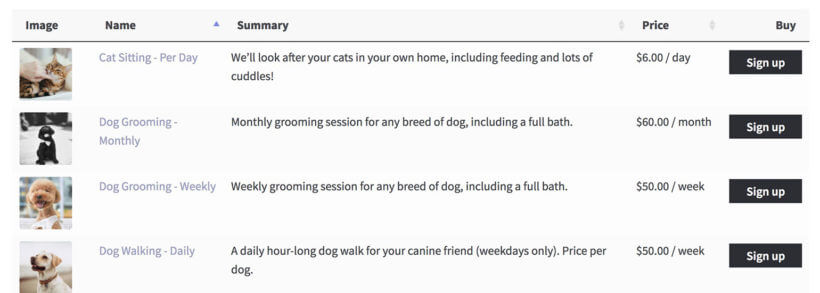
Instead, you need to showcase your list of services in WordPress in a professional-looking table layout. You can do this using the WooCommerce Product Table plugin. Once you've added your services as WooCommerce products, the Product Table plugin will automatically list them in a user-friendly table layout.
Why is a table good for listing services in WordPress?
Services sell better in a WooCommerce table because:
This layout prioritizes information rather than images. (You can include a small thumbnail picture if you like.)
If you have lots of services, it's easier for customers to find the services they need via built-in filters and keyword search box. Customers can view prices, choose options and add services to the cart directly from this service pricing table layout. For more information (like testimonials), customers can simply click through to the single page.
The other benefit of displaying WordPress services in a table is that you can insert the table anywhere on your website, without using a website builder.
For example, a lot of WordPress sites have a 'Services' pages containing text describing their services. It's best to display the WordPress services list for purchase directly on the Services page, instead of linking customers to a separate shop page. You can add an e-commerce table of service products directly within the content of your service pages, keeping everything in one place.
How to show a WordPress services list in a WooCommerce table
Read through all the product table options, and choose the ones that will present your services most effectively.
Next, create a page where you want to create a list of services in WordPress. Alternatively, edit an existing page on your website. For example, you might want to list the service options with prices and buy buttons directly on a page which already describes your services.
Either copy a shortcode from the final page of the table builder and insert it into a page. Alternatively, add the 'Product Table' Gutenberg block and select your table.
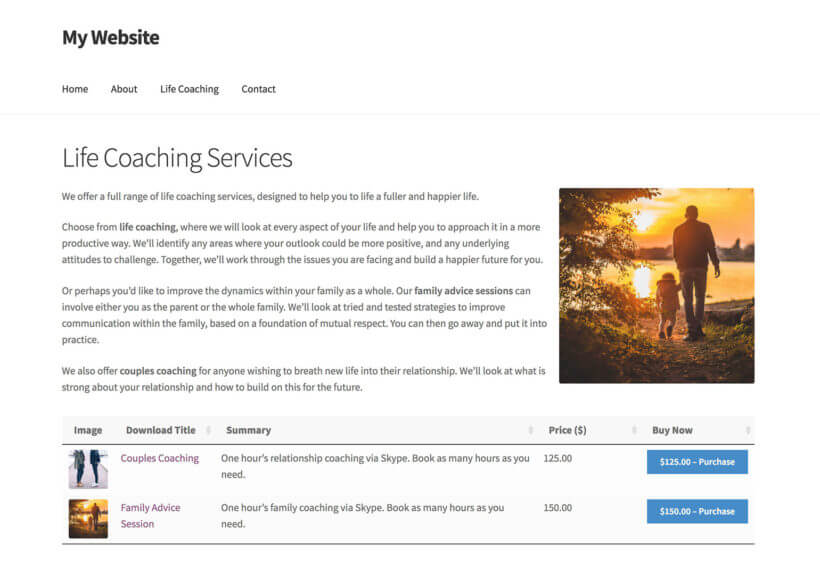
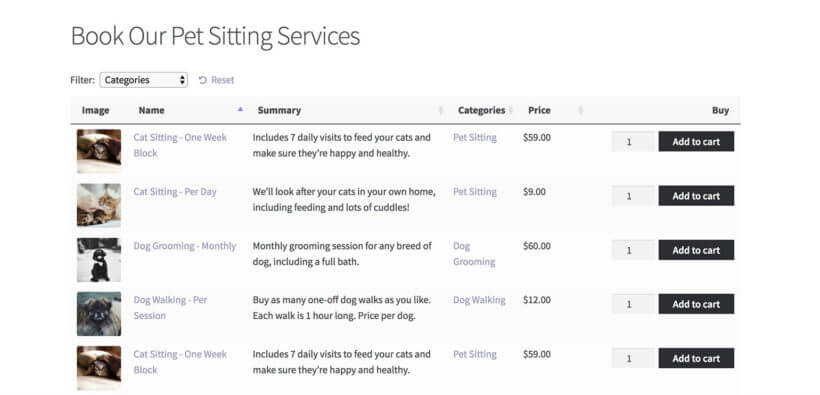
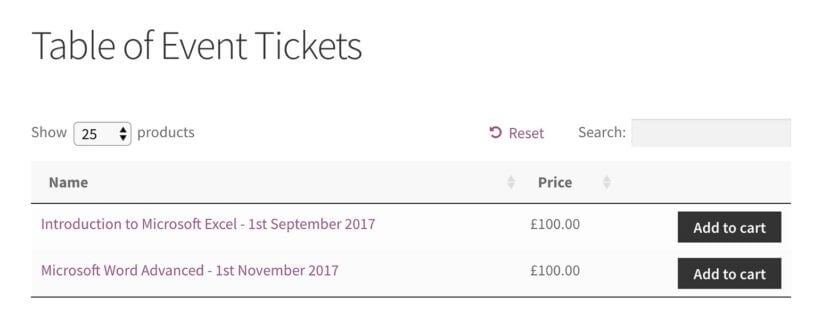
Your finished table of services might look something like this:
Nice!
4. Use product variations to provide a choice of services
In step 2, I told you how to create a simple service product with a fixed price and no options. WooCommerce also supports variable service products.
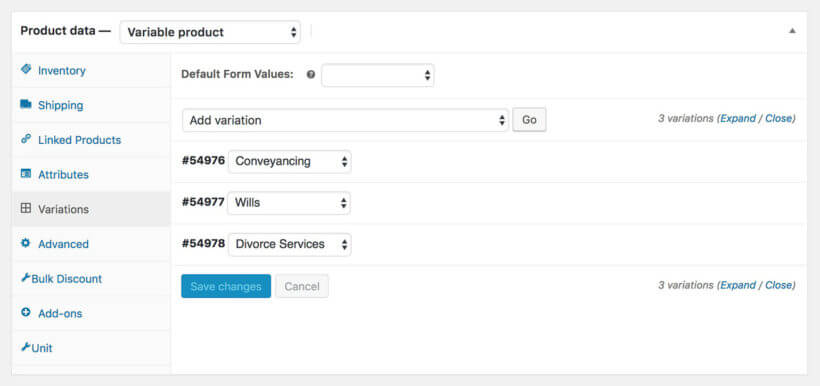
The instructions to create a service with variation options are similar to the ones in section 2, above. However, when you go to the Product Data section, use the Product Type dropdown to select 'Variable Product'. You then need to create attributes on the Attributes tab, and select these to create variations on the Variations tab. For each variation, you need to add a price and tick the 'Virtual' box to use it to sell services.
In this example services list, I created a 'Legal Services' product with a 'Service Type' attribute. I used this to create variations for 'Conveyancing', 'Wills' and 'Divorce Services', each with their own service cost:
If you select variation dropdowns on the WooCommerce Product Table plugin settings page, then the table will list 1 product per row. Each product will have a dropdown so that customers can choose variation options.
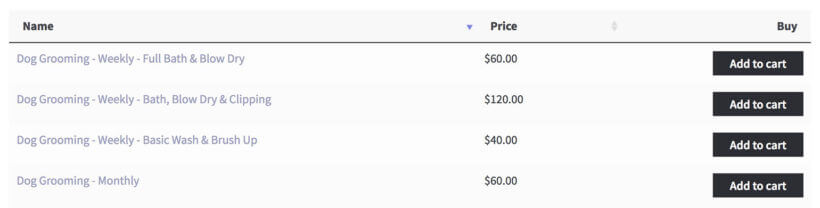
Alternatively, if you selected the separate variations option, then it might look something like this:
WooCommerce Product Table with each service variation on a separate row
Both are good options for selling options from the WordPress services list.
5. Use WooCommerce subscriptions to sell regular ongoing services
So far, we've talked about create a WordPress WooCommerce services list with a one-off price for each service. This may fit your business model, but most small business owners know that recurring revenue is the holy grail. With this in mind, you might want to sell ongoing subscription services via your WordPress website.
Fortunately, you can do this with the official WooCommerce Subscriptions extension. This will set up an ongoing payment plan or subscription for each service. The customer will be billed automatically at the correct intervals, using their chosen payment gateway.
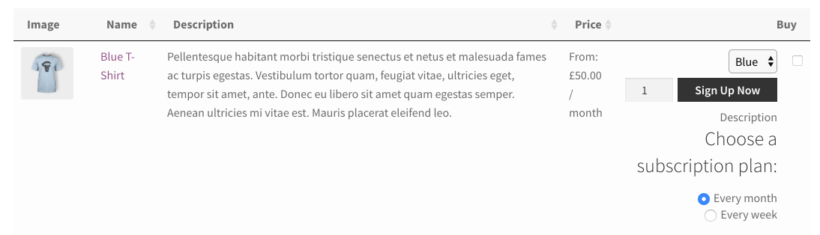
WooCommerce Product Table with Subscription Service Products
First create a subscription on the plugin settings page.
Next, instead of creating a Simple Product, you should select 'Subscription Product' from the 'Product Type' dropdown.
Set an ongoing cost for your service, for example an initial setup fee followed by a regular monthly payment.
Both PayPal and Stripe support recurring subscription payments. This is much better than sending invoices for manual payment each month. No more chasing overdue invoices - it all happens automatically via your WordPress website and WooCommerce!
Please note that WooCommerce Product Table doesn't work with variable subscriptions. To use the plugins together, we recommend adding each subscription option as a separate product. Another option is to add the options as product add-ons instead of variations. The add-on options will appear in the add to cart column of the table of subscription services.
6. Use product add-ons to sell optional extras
Let's say you're selling website maintenance services. You might have created 3 service products: Weekly Maintenance, Fortnightly Maintenance, and Monthly Maintenance. But how can you sell more services to each customer?
The answer is the WooCommerce Product Options extension. This handy plugin lets you add a range of optional extras to your service products in WooCommerce. These appear alongside the add to cart button, offering a powerful incentive for customers to order more from you.
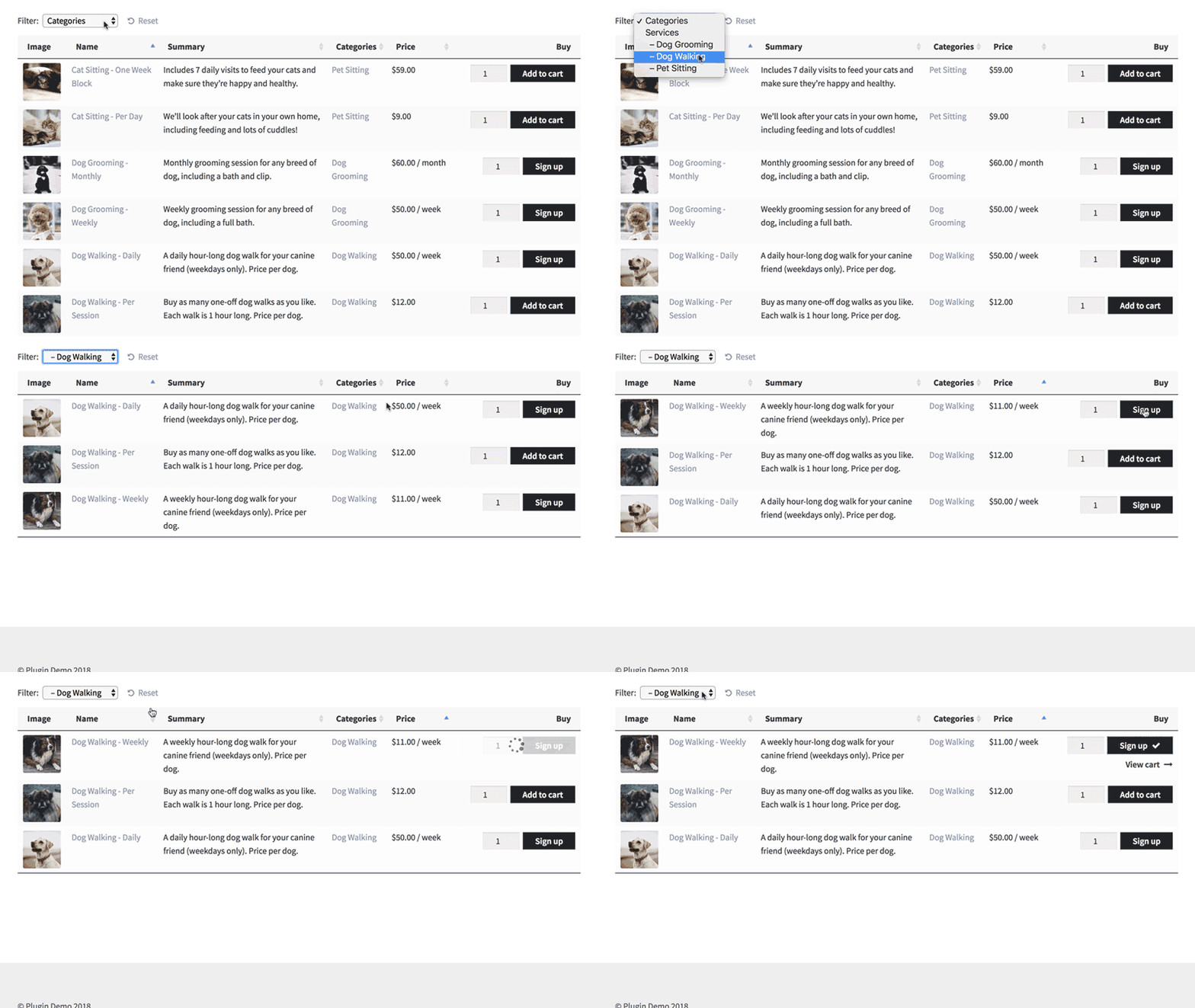
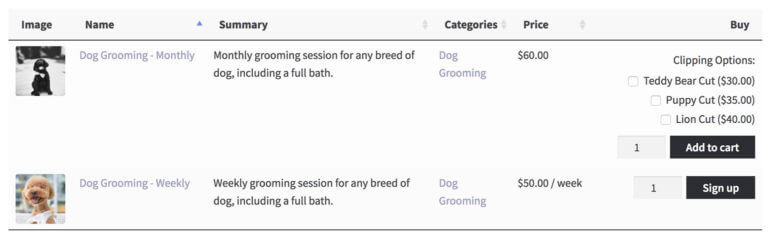
In the following example, I used Product Options to add tick boxes for extra dog grooming service options. As well as ordering a basic dog grooming session, customers can tick boxes to add different types of doggy haircut. The dog grooming products are displayed using the WooCommerce Product Table plugin with Product Options and Subscriptions. As you can see, this is a great way to significantly increase revenue, from the same number of customers.
WooCommerce Product Table with the official Product Options plugin
How to sell services by the hour or day
You've learned how to use WooCommerce to sell services for a fixed price. But what if you want to sell your time, rather than a specific service? Luckily, you can do that too.
To sell critical services based on the amount of time, the instructions are similar to the ones I provided above. You'll just need to activate a few extra options when you create your product table:
Tick the 'Quantity' box to display a quantity picker in the buy column for each service.
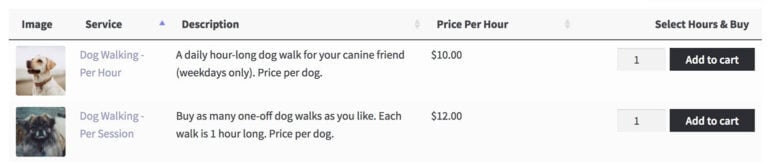
When you set your product table columns, click on the pencil icon for each column to customize the wording. It needs to be clear that the service is priced by the hour or day.
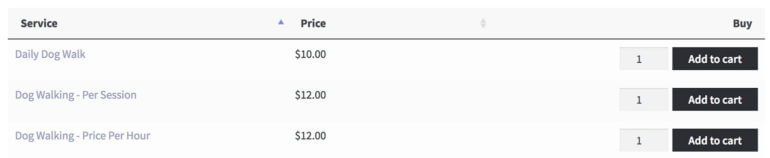
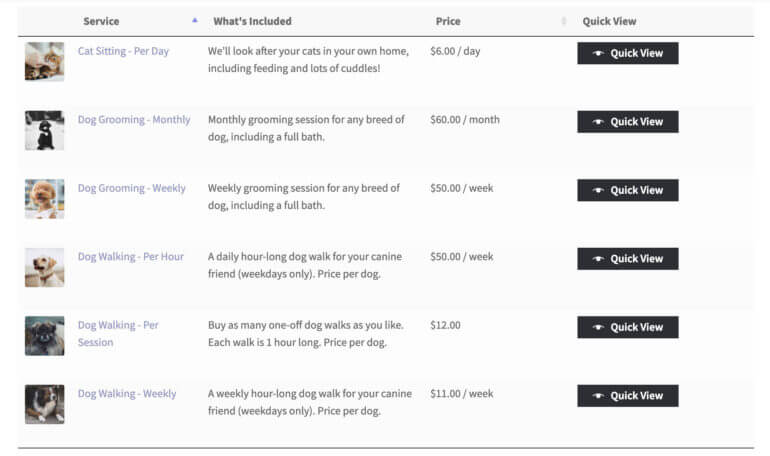
Alternatively, if you're not selling all your services by the hour, then you can just add the unit to the product name. Here's an example of what this might look like when you list WordPress services:
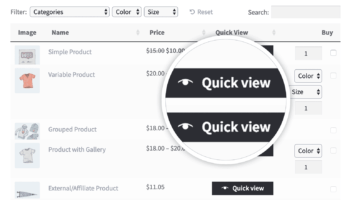
Tip: Use quick view to provide more information
By now, you know how to display a list of services in WordPress in a table layout. Maybe you want to show extra information about each service, but don't want to send people to a separate page for each service. Maybe you have too many variations or add-on options to fit into the table view.
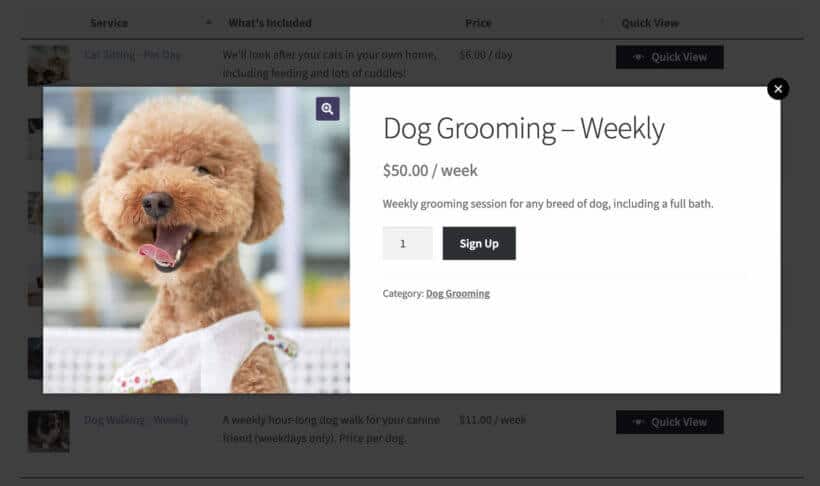
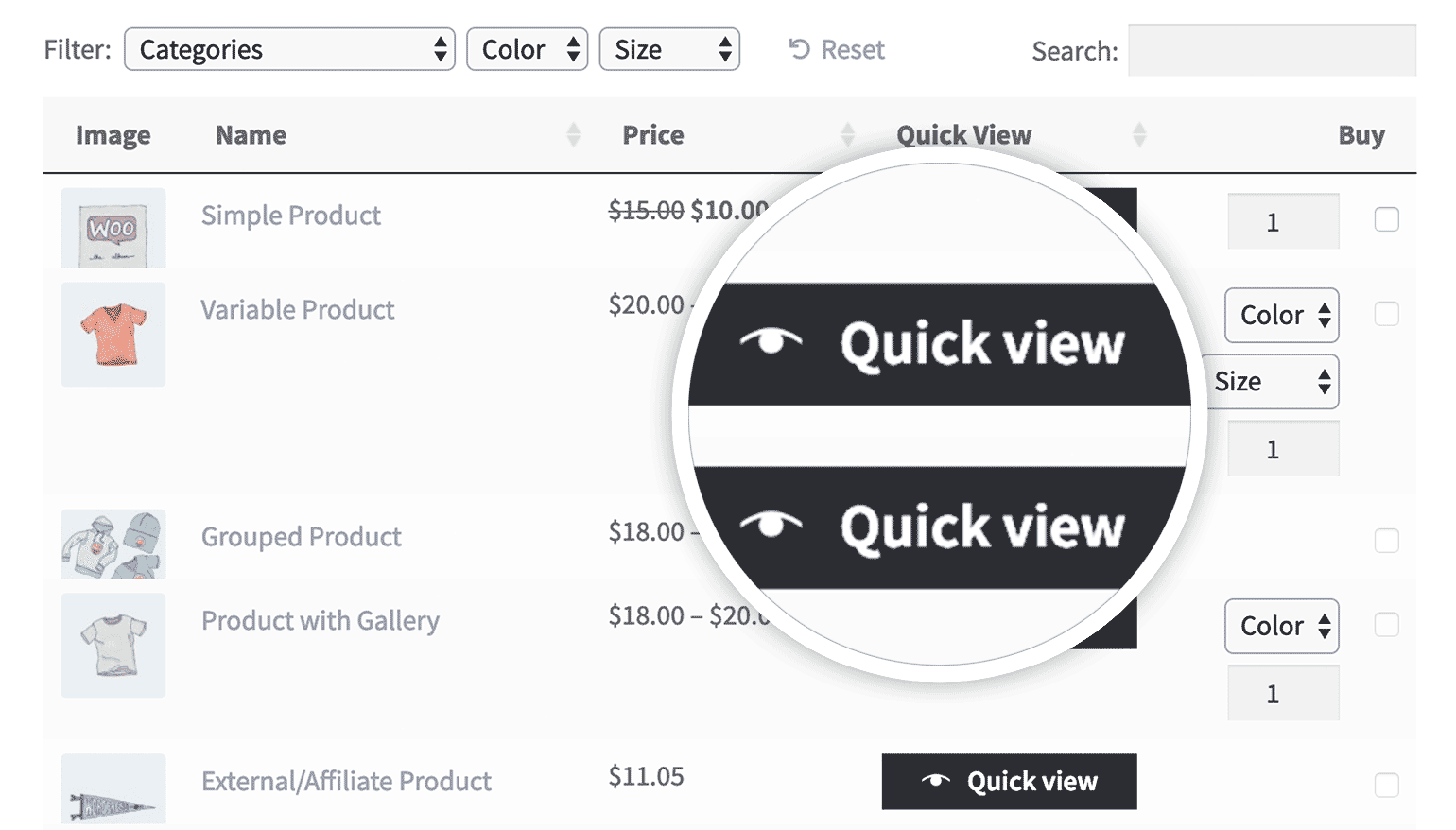
If this applies to you, then you can add the WooCommerce Quick View Pro plugin to show extra information and purchase options from a lightbox window:
Next, I'll reveal how to use Easy Digital Downloads (EDD) to create a WordPress services list. This is similar to WooCommerce, so read about the two e-commerce plugins and choose the one that best suits your needs.
Easy Digital Downloads is nice because it's simple and only contains the features you need to sell virtual products such as services. There's nothing extra to weigh it down, such as shipping options which you don't need for listing services.
However, the downside of EDD is that it's less popular. That's not necessarily a bad thing, but it means that fewer companies have developed useful add-ons and extensions for it. For example, you can use EDD to create your WordPress services list - but you can't add the other handy plugins which I mentioned in the WooCommerce section above. For example, there's no Easy Digital Downloads quick view or product add-ons plugin.
But if EDD is the right e-commerce plugin for your WordPress services list, then this is how to set it up:
1. First, set up Easy Digital Downloads
In the WordPress dashboard, head to Plugins → Add New. Type 'Easy Digital Downloads' into the search box.
Install and activate the plugin.
Navigate to Downloads → Settings and choose the settings that you'll use to sell services with Easy Digital Downloads.
2. Add your services in Easy Digital Downloads
Now it's time to start adding your services as EDD products:
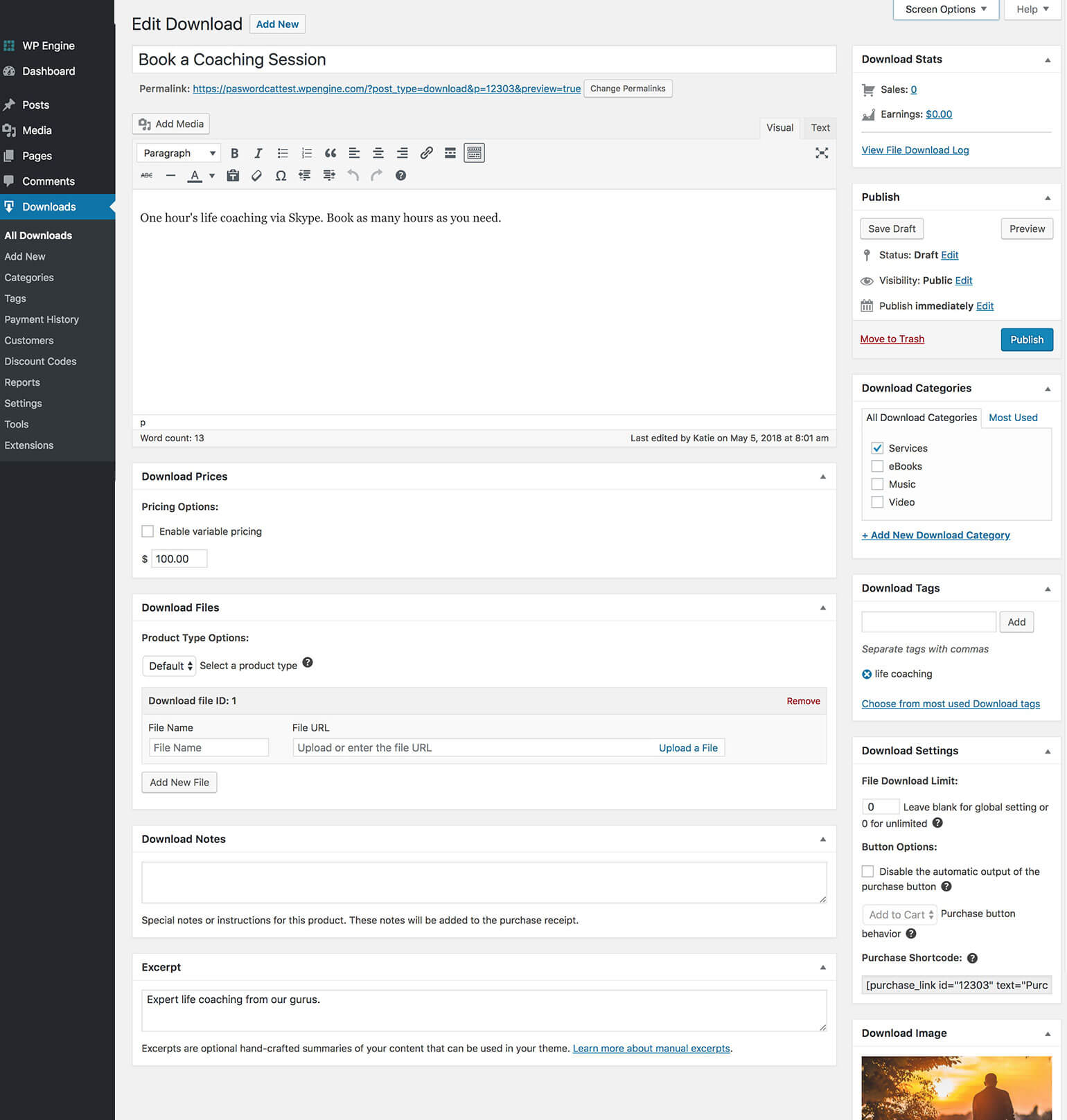
Go to Downloads → Add New.
Add your EDD service product name and description. You can also add categories and tags, plus an image if this will help to promote the service.
Add the service price.
Click Publish.
Repeat these steps for each service that you want to sell using Easy Digital Downloads.
3. Use product variations to provide a choice of services
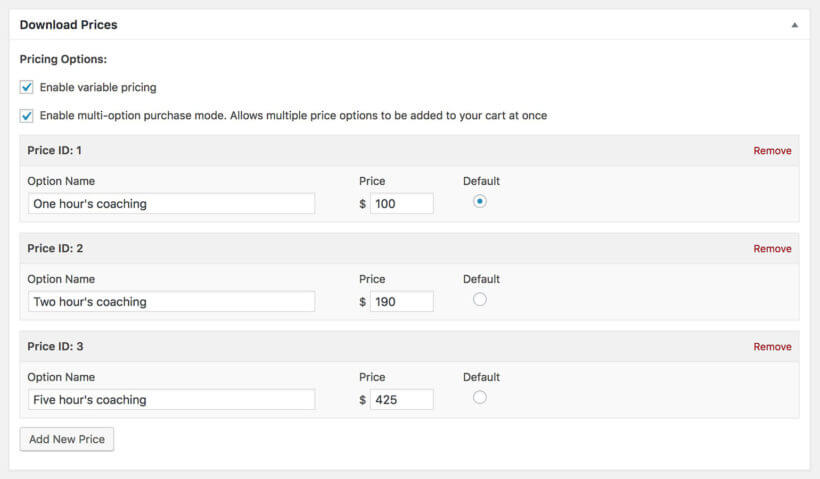
Like WooCommerce, Easy Digital Downloads also comes with a 'Variable Pricing' option. You'll see this when you add the price for your service in EDD. If you want to offer different options for a particular service, tick this box and add all the options. Set a price for each service option.
You can use this to provide quantity discounts to reward customers to buying more services, or for selling different service options at different prices.
4. Create an Easy Digital Downloads WordPress services list
Next, we need to list your services for sale on the front end of your WordPress website.
Like other WordPress e-commerce plugins, the standard Easy Digital Downloads store layouts aren't ideal for selling services. This isn't surprising, because they're mainly designed to sell digital products such as ebooks and WordPress plugins.
You can showcase the WordPress services list more effectively with the Posts Table Pro plugin. This dynamic WordPress table plugin lets you list all sorts of content from your website in a table view. It's particularly popular for creating an Easy Digital Downloads product table.
Customers can view your WordPress services list anywhere on your website, see the price and any other data you choose to display, select options, and add services to the cart. They can then checkout and pay for their services online with Easy Digital Downloads.
How to list services in an Easy Digital Downloads table
Install the Posts Table Pro plugin on your WordPress website and activate it.
Go to Post Tables → Settingsand activate your license key from the order confirmation email.
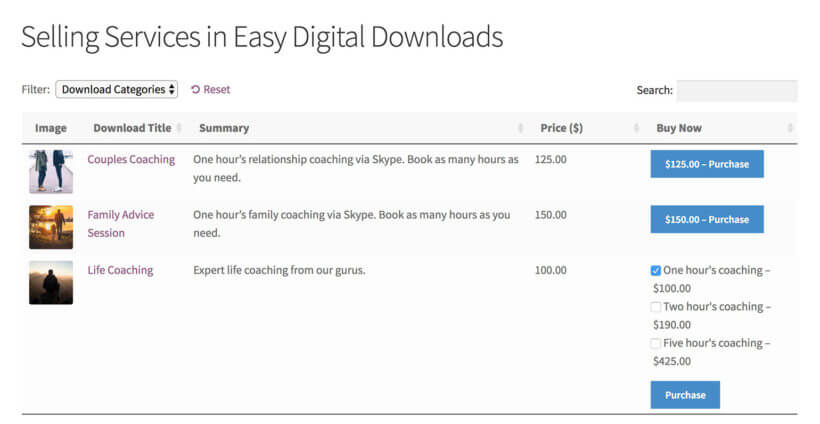
Follow the instructions in this tutorial to list your EDD service products in a table. You can use Easy Digital Downloads to sell services via any page on your website. Just put the Posts Table Pro shortcode wherever you want to display your WordPress services list.
Your finished table of Easy Digital Downloads service products might look similar to this:
Perfect!
5. Sell service subscriptions with Easy Digital Downloads
Finally, you can install the EDD Recurring Payments extension to take regular payments for services. This automates the payment for regular services, so you don't need to worry about taking payment manually.
Selling bookable services with EDD bookings
You can also use the EDD Bookings extension to sell services using Easy Digital Downloads. This means that a client can pay for a service for a specific period of time. This can apply to doctor's appointments, yoga sessions, consultancies, hairdresser appointments and much more.
Once the extension is installed, you can set up Services, each with its own set of criteria.
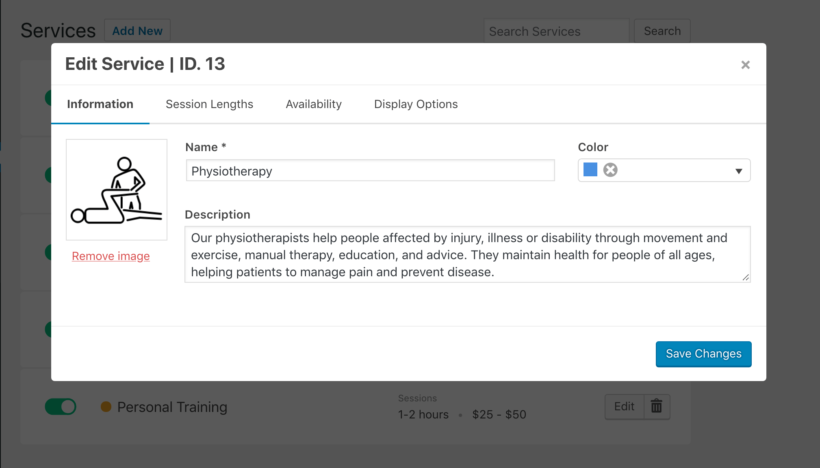
Every service will have its own name, description and image, all of which are used when the client selects a service from the booking form. A service will also have one or more session types. For example, a consultancy could be offered as a 30-minute session or a 60-minute session. They would each have their own price.
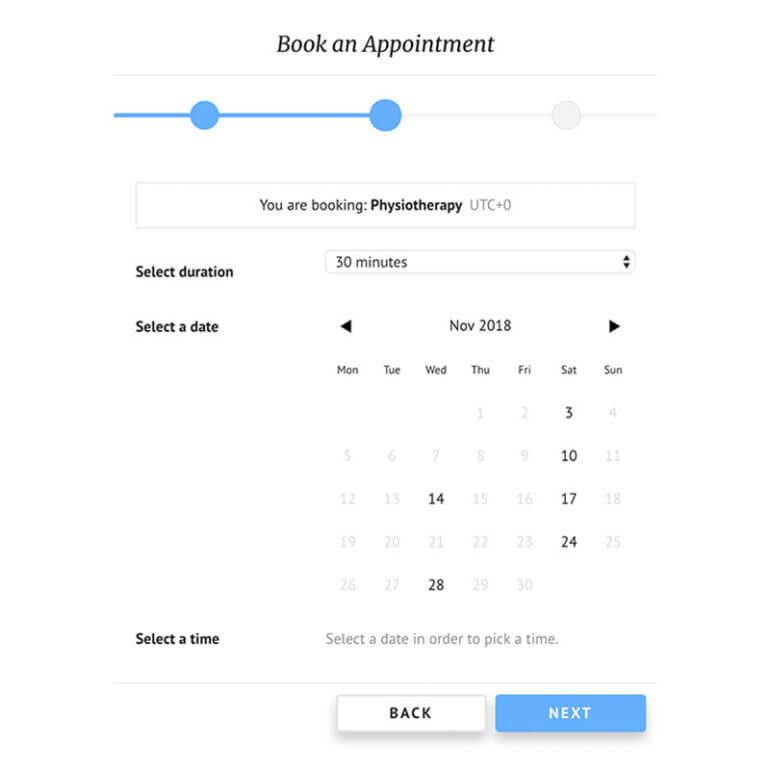
The availability of a service is when it will be available for booking. As an admin, you can set up various rules to determine the dates and times your clients will see as bookable on the calendar in the booking form.
To list your bookable products on your website, follow the instructions in the previous section to list them with Posts Table Pro. Instead of having purchase buttons directly in the table, use the 'Links' option to allow customers to click through to the single download page for each service. From there, they can complete the booking form and purchase the service.
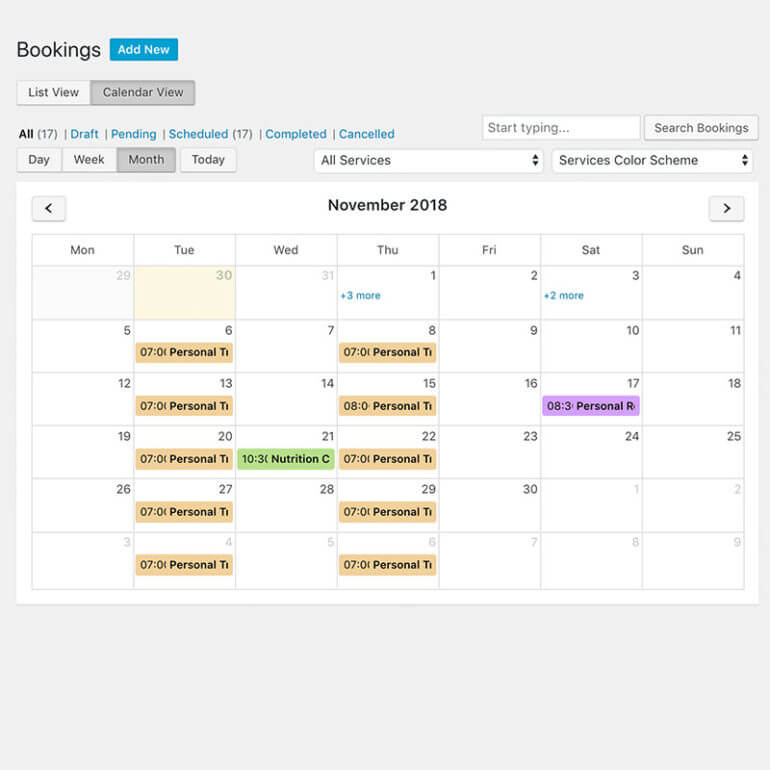
As the business owner, you will be able to monitor all your bookings from a list or calendar view. You may also create bookings manually from the back-end, which works great for bookings that are requested in-person, on the phone or via email.
If you want customers to book specific times, then combining Posts Table Pro with EDD Bookings is the perfect solution.
Start selling services in WordPress!
Even though you carry out services manually, you can save time and get more customers by selling services in WordPress. Use the instructions above to display the WordPress services list and let customers order services online and pay manually, or automate the sales process for your services using WooCommerce or Easy Digital Downloads. Once you've added your list of services to WordPress as e-commerce products, use either WooCommerce Product Table or Posts Table Pro to display them in a user-friendly layout.
This is the best way to attract customers and sell more services. To take things to the next level, you can set up an email marketing and digital marketing strategy to promote your services.
If you've used any of the methods in this tutorial to sell and list your services in WordPress, please let me know how you get on. I'd love to add some case studies to this article (which will include a link to your website!). Please add your comments below.
Need to hide a WooCommerce category from the shop page? Sometimes you have products that you don't want to list publicly. To your dismay, though, WooCommerce doesn't give you an option to hide categories from the shop page.
One of the key features of WooCommerce is its ability to organize products into categories, making it easy for customers to browse and find what they're looking for. However, there are times when you want to hide a particular category of products from the shop page.
Sometimes you need a happy medium between hiding a single product and hiding your entire WooCommerce store. Perhaps you have some products that aren't quite ready for public release, or maybe you want to restrict certain items to a specific group of customers. Whatever the reason, you'll soon discover that WooCommerce has no built-in option to hide a category from your shop page.
Thankfully, a few methods can help you hide categories from your shop page.
Benefits of hiding categories in WooCommerce
Categories are one of WooCommerce's most useful features. They help customers find specific products on your site.
However, there are situations where you may need to hide a whole category. For example, if a product is out of stock or has been discontinued, you might not want that category showing on your site. Hiding it avoids confusion for customers who would otherwise be interested in the product, only to find that it isn't available to buy.
Hiding categories also simplifies your store's navigation. When too many categories are on display, it can be overwhelming for customers to find the products they're looking for. By hiding the ones they don't need, you give them a cleaner experience and can even help your store's SEO or search engine ranking.
When to hide categories in your WooCommerce store
Good category management is a big part of running a successful online store, and hiding the right categories at the right time keeps your shop usable and easy to browse. Here are some common situations where hiding a category helps:
Discontinued products: When a product is no longer available for purchase, it's important to remove it from the website to avoid confusion. By hiding the category of discontinued products, you can make sure customers don't see or try to check out these items.
Out of stock items: If a product is temporarily out of stock, you may want to hide its category until the product is back in stock. This helps avoid customer frustration and reduces the number of inquiries about availability.
Seasonal products: Some products are only relevant during certain times of the year. For example, Christmas decorations may only be relevant during the holiday season. By hiding seasonal categories during the off-season, you can keep things tidy and avoid showing customers products they can't use right now.
Restricted products: Some products may be restricted by age, location, or other criteria. By hiding the category of restricted products, you can make sure only eligible customers are able to access these items.
Exploring different methods to hide WooCommerce categories
If you want to hide specific categories on your WooCommerce shop page, there are two main methods you can use.
Method 1: Using a plugin to hide categories
Using a plugin is the method I'd recommend. It's easy, even if you don't have much technical knowledge. All you need to do is install the plugin, activate it, and then configure which categories to hide.
To help, I'll show you how to hide a category from your WooCommerce shop page using a user-friendly plugin.
Our simple written tutorial and video will show you how to customize how your hidden WooCommerce categories work - all without writing a single line of code.
Method 2: Hiding categories with code snippets
The second method involves code snippets. It requires more technical knowledge than a plugin, but it can be useful if you want more control over how categories are hidden.
To use this method, you'll need to add some code snippets to your theme's functions.php file or to a custom plugin. You can find ready-made snippets for hiding WooCommerce categories online, and then adapt them to suit your needs.
You can tweak the code to hide categories in a specific way or to achieve a particular result. Just be aware that code snippets can be risky if you're not confident with PHP, since a mistake could break your site or cause other issues.
The best plugin to hide a WooCommerce category
The problem
There are lots of reasons why you might want to hide a category from your main shop page. For example, maybe you're creating a WooCommerce wholesale store and need to keep the wholesale categories off the public shop page. Maybe you're selling customer-specific products, with a hidden category for each company.
Whatever your reason, WooCommerce unfortunately doesn't come with a built-in option to do this.
While it is possible to use a PHP function to hide a category from the shop page, that solution:
Isn't very user-friendly because it requires you to work directly with PHP code, rather than a human-friendly interface.
Makes it difficult to change which categories are hidden later on, because you'll need to dive back into the code every time you want to make an adjustment.
The solution
WooCommerce Protected Categories offers a simpler way to hide a WooCommerce category (including all products and subcategories inside). It:
Gives you more flexibility than the WooCommerce PHP function in terms of how shoppers interact with your hidden categories.
Lets you choose which categories to hide right from your WordPress dashboard.
Lets you decide whether to hide a category from the shop page completely, or show it but require customers to enter a password or login to access a protected category or its products.
How does the WooCommerce hide categories plugin work?
To hide WooCommerce categories, you can use the WooCommerce Protected Categories plugin. It lets you conceal one or more product categories within your store. When you hide a category from the shop page…
All the products inside that category are hidden too.
You can choose whether or not to display hidden categories and their products on your shop page, category pages, archive pages, and search results.
You can also decide whether hidden categories and their associated products appear in your navigation menus and widgets.
And as I mentioned earlier, you can "unhide" your categories via:
A password - once a user enters a correct password, the plugin automatically unlocks all the products in that category. They can then browse the hidden category and its sub-categories without having to re-enter the password.
User roles - restrict the visibility of hidden categories and their products to users with specific user roles.
Individual users - only selected logged in users can see the hidden category and its products.
Have a read through this glowing review from a happy customer using the WooCommerce Protected Categories plugin:
I highly recommend Barn2's 'WooCommerce Password Protected Categories' plugin for a whole range of uses. For our particular use, we needed to allow only certain categories of our products to be accessed by 'select' customers, with a shared password. The plugin enabled us to do this really simply and cost-effectively. Whenever we have needed any assistance with the plugin Barn2's team have been very helpful and prompt with their replies.
I'm sure this is a decision you won't regret.
Step-by-step guide: How to hide WooCommerce categories with WooCommerce Protected Categories
Below, I'll show you how to hide WooCommerce categories from the shop page using WooCommerce Protected Categories.
Step 1: Choose how to hide your categories
First, install and activate WooCommerce Protected Categories in the WordPress admin panel. Next, go to Products → Categories.
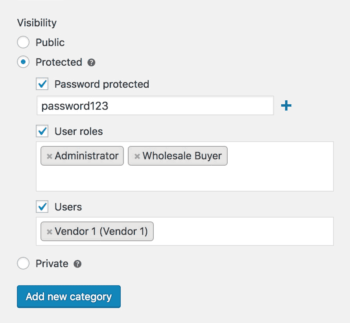
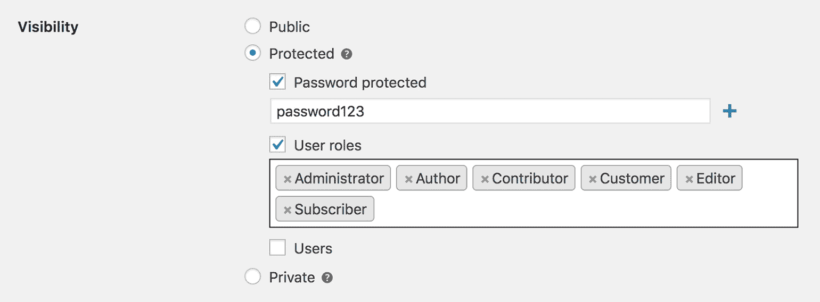
You can either create a new category to house your hidden products or you can edit an existing category. Whichever method you choose, you'll see a new Visibility section at the bottom of the page. Click the 'Protected' option, and choose between:
Password protected Visitors will need to enter a password to see the category. You can create multiple passwords to unlock the category if desired.
User roles Your category will only be visible to certain user roles.
Users Your category will only be visible to the users that you select here.
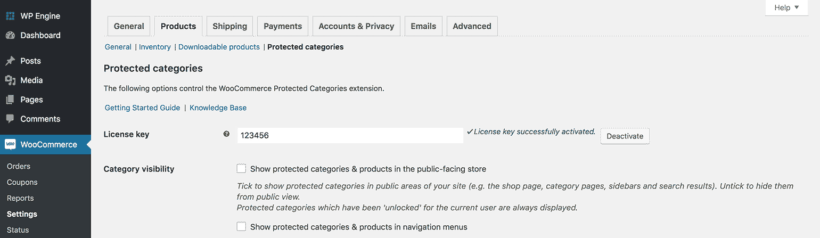
Once you've hidden a category via either method, go to WooCommerce → Settings → Products → Protected categories to configure a few more basic settings.
Step 2: Configure general plugin settings
One especially important group of settings is Category Visibility.
If you want to completely remove a WooCommerce category from the shop page, you should uncheck both boxes. Alternatively, tick both boxes to still display the category, but require users to enter a password or login to see its contents.
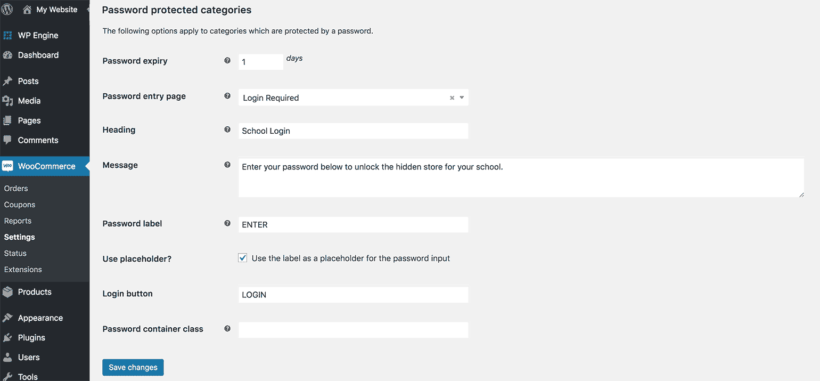
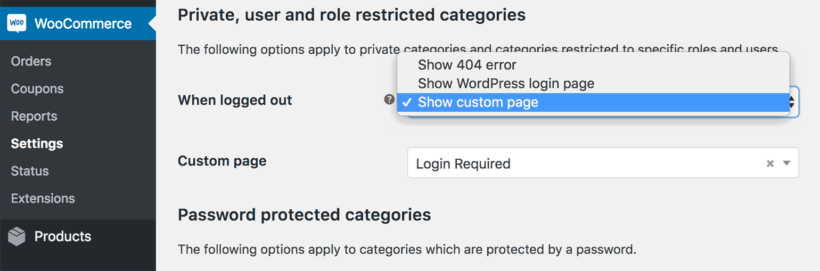
Use the other settings to control your password login form, and what happens when a logged-out user tries to access a protected category:
Step 3: Enable password protection, user role restriction, and more
Once you've hidden your categories, you'll want to provide other ways for selected customers to access them. There are a few ways to do this, depending on whether you've hidden the categories behind password protection or user login.
Providing access to WooCommerce password protected categories
Create a central category login form by adding the shortcode [category_login] to any page. Customers will be directed to the hidden category with the password they have entered. Once unlocked, the customer will be able to see the protected category, products and pricing and cart buttons on the main Woo shop page. The protected content will remain hidden from the store catalog for everyone else. As store owner, you can customize the hidden category login page in the plugin settings.
Providing access for a user or role-protected WooCommerce categories
If you've created user or role protected categories, then there are some different settings for your hidden categories. These let you choose what happens when someone without the correct privileges (e.g. a logged out user) tries to access a hidden WooCommerce category or product.
To provide access to the hidden category, simply encourage users to login as usual. For example, they can login using the WooCommerce Account page, which shows a login form for logged out users.
I also recommend using the free Peter's Login Redirect plugin. Use it to redirect users to the correct hidden category after they log in. This gives you fine-grained control over where each individual user or user role is redirected after logging in.
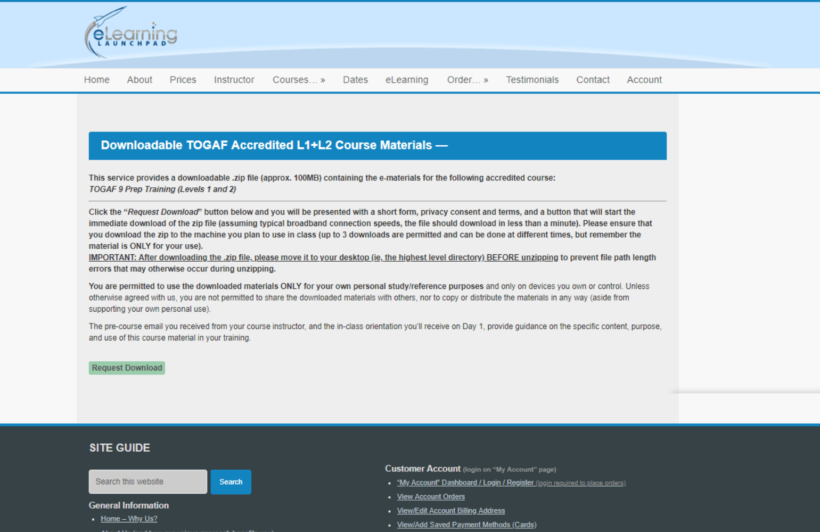
Attendees download course materials ahead of the training session. But these materials need to be kept private. That’s why they needed a plugin to hide categories in WooCommerce. Files are hidden behind a password protected category page and eLearning Launchpad sends out passwords to access the page. From there, customers can download materials. The Free Downloads WooCommerce Pro plugin lets eLearning Launchpad capture customer data before files are downloaded.
The downloads are set up as WooCommerce products even though they aren’t being sold on the ecommerce site. This is to simplify managing the downloads and take advantage of the benefits, such as being able to hide categories and products in WooCommerce.
It's a great example of what the plugin can do.
Alternative method: How to hide categories with CSS
Another way to hide a category from your main shop page is with HTML and CSS. This method takes some technical knowledge.
First, you need to inspect the category you want to hide on your product page using your browser's developer tools. You can then identify the HTML element that represents the category and its ID or class. Once you have this information, you can add some custom code that hides the category by setting its display property to "none."
Keep in mind that this method only affects the visual display and does not impose any real access restrictions. Users can still reach the hidden category through direct links or by typing its URL. So, if you want to restrict access to the category, you'll need to use the WooCommerce Protected Categories plugin.
If you're not familiar with coding, this method can be risky too. A mistake in your code could break your site or cause other issues. So you should only use it if you have some basic knowledge of HTML and CSS, or if you're working with an experienced WordPress developer.
Efficient category management is key to a well-organized, user-friendly online store. Here are some tips to keep your navigation smooth and the shopping experience pleasant for customers:
Organize categories thoughtfully: Take the time to carefully plan and structure your categories. Make sure they are logical, intuitive, and reflect the products you offer. Consider creating subcategories or using parent-child relationships to further organize your products. This helps customers easily locate the items they are looking for and improves the overall browsing experience.
Use conditional rules: Conditional rules let you customize category visibility further. With the right plugin, like WooCommerce Protected Categories, you can set up rules based on user roles, membership levels, or other criteria. For example, you can hide specific categories from general customers while making them accessible to VIP members only. This level of control lets you provide tailored experiences to different customer segments.
Prioritize category display: If you have overlapping or conflicting rules for category visibility, prioritize the display order. For example, if a customer belongs to multiple user roles, you can prioritize the display of categories associated with their highest role.
Regularly review and update: Category management is an ongoing process. Regularly review your category structure, rules, and priorities to accommodate any changes in your product offerings or customer segments. Monitor customer feedback and behavior to spot areas for improvement or potential adjustments to your category management approach.
Test and optimize: Experiment with different category arrangements, conditional rules, and priority settings. This lets you find the best configuration for your specific business needs. Test the user experience and gather feedback to fine-tune your category setup.
Start hiding WooCommerce categories today!
If you have products that you don't want to list publicly on your WooCommerce shop page, you can easily hide them using the Protected Categories plugin. It's the best option for hiding a WooCommerce category, because it's easy to use and doesn't require technical knowledge.
The plugin is super-flexible. You can choose to require a password, restrict access to certain user roles, or only allow specific individual users to view the hidden categories.
Questions about hiding a category from your WooCommerce shop page? Leave a comment and we'll do our best to help.
When your website or blog has been going for a while, you’ll probably need to list posts on an archive page. Maybe you want to list WordPress posts from a specific day, month, year, author, category, tag, or something else. That’s when you need a WordPress archive plugin.
The best WordPress archive plugins provide a quick and easy way for your users to find previous posts or articles on your site.
Keep reading to learn how to use thePosts Table Pro plugin to create various types of archive listing posts on any WordPress website:
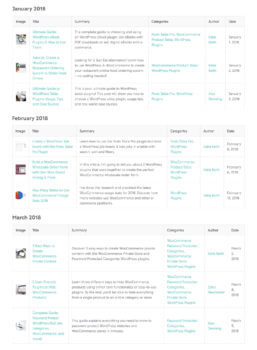
Build a WordPress date archive - either listing daily posts, monthly posts, or yearly.
Make an author archive page automatically listing blog posts by a specific user.
Create a category archive.
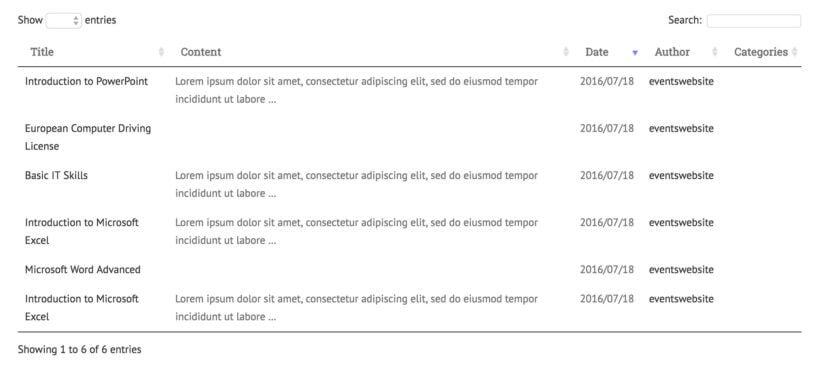
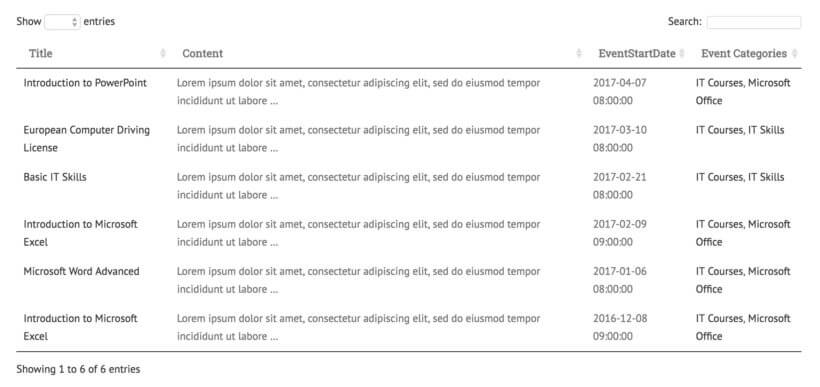
List posts in an archive along with extra post metadata such as featured image, date, excerpt, content, and author.
Create a responsive jQuery WordPress table-based archive with extras such as a search box and filters.
Structure your archive page by adding collapsible accordions or toggles, or list posts under multiple tabs (e.g. with a separate tab for each month).
Create a WordPress archive for normal blog posts or any custom post type.
Turn any page on your site into a WordPress archive page, or create a custom archive template.
WordPress itself comes with an archive widget listing all the months. Users can click on a month to view the posts from that month. Your theme will also come with a category, tag, and author archive template.
The problem with these is that each of these archive pages uses the same layout as your main blog page. That’s not really what archives are for.
I believe that archives are a way for people to easily find older content on your site. For example, they might use an archive page to find posts from a specific date, category or tag. The default blog layout isn’t really suitable for archived posts. This is because there are so many of them and it’s hard to find what you want.
Instead, you need a WordPress archive plugin that lists posts in an easy-to-find format, with extra data about each one. That’s where Posts Table Pro comes in!
Posts Table Pro - the best WordPress archive plugin
Posts Table Pro is a WordPress table plugin ideal for creating any type of website archive. It groups and lists WordPress posts based on day, month, year, category, tag, author, and more.
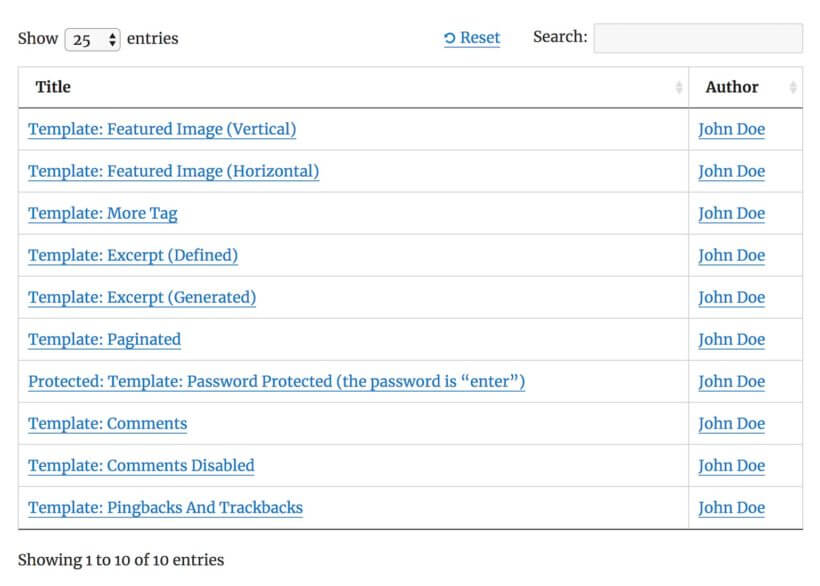
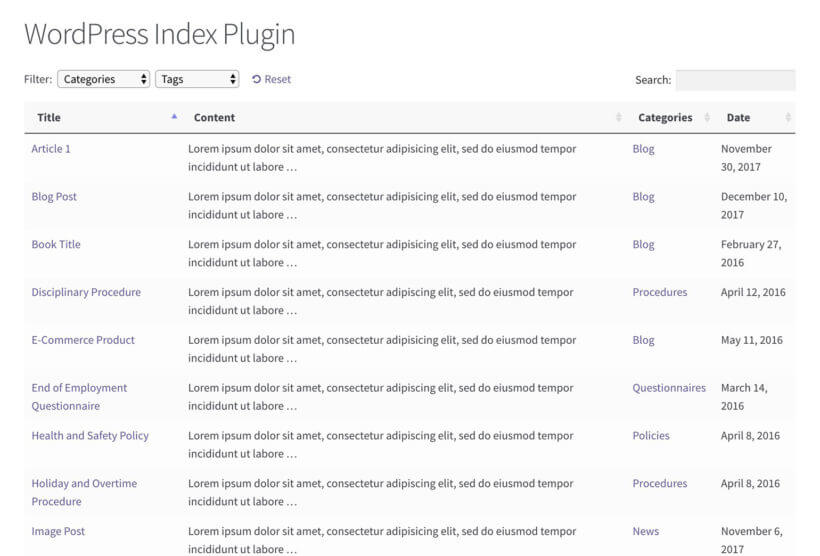
By using Posts Table Pro as your WordPress archive plugin, you can create user-friendly archive pages that quickly direct users to the content they’re looking for. You can add extra post metadata in the table such as the featured image, categories, tags, date, author, and even custom fields and taxonomies.
[/image_border]
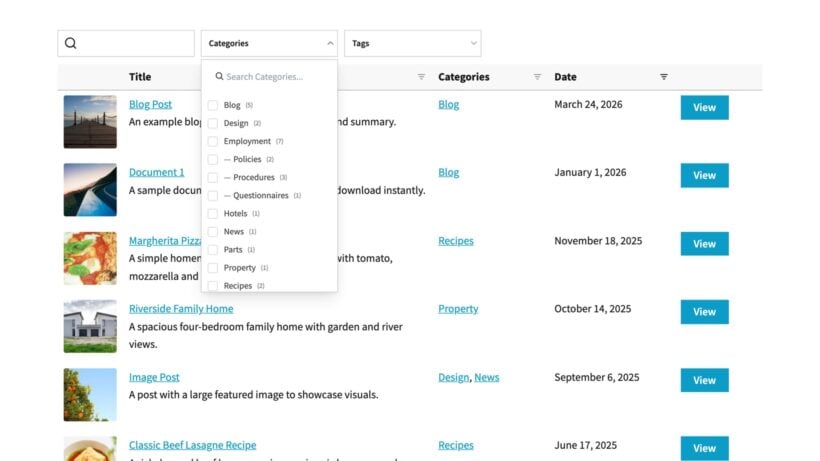
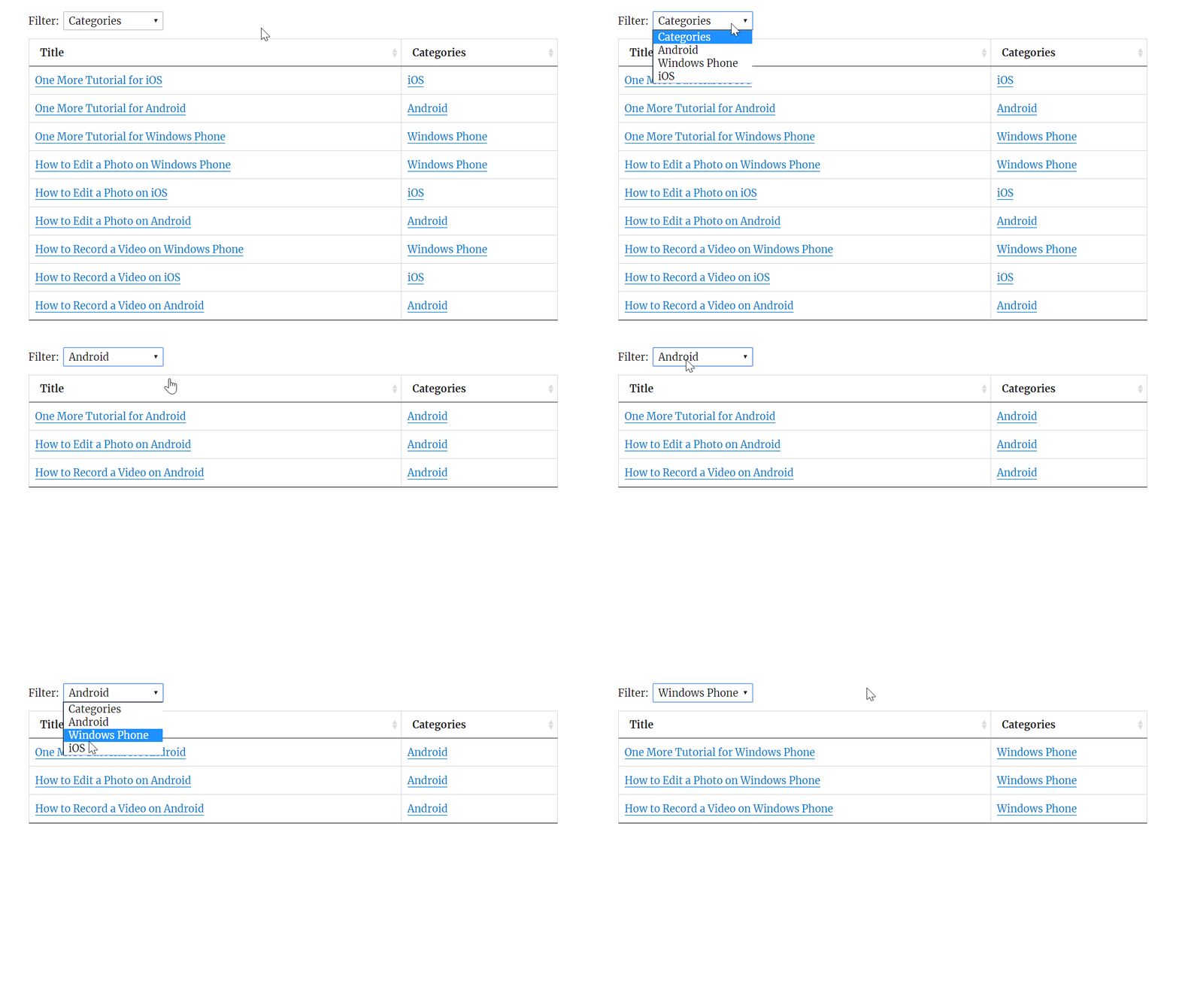
As well as structuring the archive in an easy-to-navigate way, you can add extra navigation elements to help users to find posts more quickly. For example, they can click on any column to sort the archived posts. They can click on dropdown lists above the table to filter the archive based on data such as category, tag, or author. There’s even a handy keyword search above the list of posts.
All of this helps people to navigate the WordPress archive and find what they want more quickly. Once they find posts they’re interested in, the extra data makes them more likely to click through compared to a basic archive that only lists post titles. It’s a great way to improve user engagement and reduce bounce rates.
Ok, so now you know why Posts Table Pro is the best WordPress archive plugin. Below, I’ll tell you how to set it up to create different types of post-archive pages. Alternatively, you can watch us setting up a WordPress archive in this video:
Build a date archive listing daily posts, monthly posts, or yearly
The most obvious type of WordPress archive page is probably a WordPress date archive. There are several ways to do this:
It could be a daily archive listing all posts that were published on a specific date. Single-day archives are ideal for news websites that publish many posts or articles per day.
A WordPress monthly archive lists all posts from a specific month. This is useful for blogs that publish posts regularly but not necessarily every day.
Alternatively, a WordPress yearly archive is an annual archive listing all posts published in a specific year. Personally, I think that annual archives are over-used on WordPress websites. Unless you publish very rarely, there’s no point listing all posts from a specific year because there will be too many. However, this is an option if it suits your blog.
To create a WordPress date archive listing posts by day, month, or year, firstget Posts Table Pro and install it on your website. Follow the steps below to create your table:
Use the instructions in the confirmation email to install and activate the plugin.
After activation, the Posts Table Pro setup wizard will automatically open and guide you through entering your license key.
Upon installing the Post Table Pro plugin, an automatic setup wizard will guide you through the process of creating your first table. Alternatively, you can navigate to Post Tables → Add New to create a new table at any time.
Give your table a name and then choose the post type you wish to display. If you don't have a content type, it will guide you to create one using the free Easy Post Types and Fields plugin.
Select the posts or pages you would like to include in the table.
Customize your table to suit your preferences. You can determine which columns to display and in what order. In this case, add the date as a column. To add a new column, choose the column type from the dropdown menu and click "Add". You can also reorder columns by dragging and dropping the sort icon or column heading.
Filters appear as dropdowns above the table, and you can add as many as you like. Available filter options will vary depending on the post type selected on the first page.
The table loads one page at a time, so it stays fast even with hundreds or thousands of items.
Choose how to sort the table. You can set the default sorting option and the sort direction
After you have finished creating your table using the Post Table Pro plugin, the setup wizard will confirm that you're done and offer instructions on how to add the table to your WordPress site. You can either use the "Post Table" block in the Gutenberg editor or copy the shortcode from the table builder and paste it anywhere on your site.
How to create a weekly post archive
Posts Table Pro doesn’t have the option to list posts by week. However, you can create a WordPress weekly archive by combining the day, month, and year options to list all 7 days from a specific week.
For example, the example shortcode above will list all posts published in the first week of January 2018.
How to create WordPress archive posts by month
To create WordPress archive posts by month using Posts Table Pro, follow these steps:
Install and activate the Posts Table Pro plugin on your WordPress site.
Create a new page or edit an existing one where you want to display the archive.
Add the following shortcode to the page where you want to display the archive: [posts_table columns="title,date" date_format="F, Y" sort_by="date" sort_order="desc"][no_shortcodes]
Save or update the page.
View the page to see the archive of posts listed by month.
The above shortcode will display a table with the columns for the post title and date, sorted by the date in descending order. The 'date_format=”F, Y”' parameter tells the plugin to group the posts by month. Finally, 'posts_per_page="-1"' displays all posts on a single page. You can customize the shortcode parameters as needed to suit your requirements.
How to create an annual archive
To create an annual archive using the Posts Table Pro plugin in WordPress, follow these steps:
Install and activate the Posts Table Pro plugin.
Create a new page or edit an existing page where you want to display the annual archive.
Insert the following shortcode into the page: [no_shortcodes][posts_table columns="title,date" date_format="Y" sort_by="date" sort_order="desc" ][no_shortcodes]
Save or update the page.
Visit the page to see the annual archive of posts displayed in a table format, with columns for the post date, title, and content.
This shortcode will display a table with all posts from the current year, grouped by month. Each row will display the post date, title, and content. You can customize the columns and date format to fit your needs.
Make an author archive page
Posts Table Pro also comes with an ‘author’ option. This makes it easy to create a WordPress author archive page. It will automatically list blog posts published by a specific user.
To create an author archive, install Posts Table Pro and add the following shortcode to the page:
[no_shortcodes][posts_table author="katie"]
This author archive shortcode will list all posts by the user ‘katie’. Replace my username with the username of the author for whom you’re creating an archive page.
Do this for each of the authors on your site. You can either list multiple authors’ posts in a single archive template by adding a comma between each one (e.g. author="katie,andy"). Or you can add the shortcode multiple times, each listing posted by a different author.
Create a category archive
By now, you should be getting the hang of this. You can use the ‘category’ option in this WordPress archive plugin to create a category archive listing posts from a specific category.
To list category posts in this way, add the following shortcode anywhere on your website:
[posts_table category="articles"]
Replace ‘articles’ with either the slug or ID for your category (but don’t use the category name). Use multiple shortcodes to create as many WordPress category archives as you like, each listing posts from a different category.
Build a WordPress tag archive
Categories are one way of structuring your blog posts - tags are another. Posts Table Pro makes it equally easy to create tag archives, listing posts with a specific tag in the table layout.
This shortcode will list posts all with the tag ‘food’:
[posts_table tag="food"]
Replace ‘food’ with the slug of the tag that you want to list in the archive.
List posts in an archive along with extra post metadata such as featured image, date, excerpt, content, and author
So far, we’ve just listed WordPress posts in an archive using the default column options. These are post ID, title, content, excerpt, image, date, author, categories, tags, status, or any custom field or taxonomy.
However, the great thing about Posts Table Pro is that you can list whatever data you like on your WordPress post archives. The archive plugin supports various different columns, including standard post metadata such as categories, tags, publish date, and author.
There are also lots of extra column options such as post-featured images, which add a nice visual element to the archive. If you’ve usedcustom fields ortaxonomies to store extra data about your posts, you can also include these as archive columns. And if you’ve added multimedia content to your posts such as embedded audio, video players, or playlists, you can show these directly on the WordPress archive page too.
Think about which data will best encourage your users to click on a post to read it in full. Use this to decide which columns to add to the archive.
The following shortcode will create an annual archive of all blog posts from the year 2018. It has columns for image, post title, categories, author, and date:
Use thearchive plugin knowledge base to learn which columns are available and how to add them to your WordPress archive page.
Create a responsive jQuery WordPress table-based archive with extras such as a search box and filters
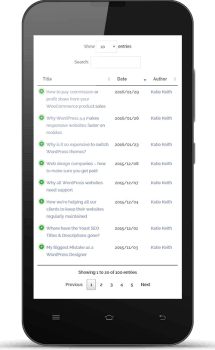
Posts Table Pro is built on the popular jQuery DataTables plugin, which creates mobile-responsive HTML tables. It has many of the fantastic features that come with DataTables, such as a keyword search above the table, sortable columns, and filters.
The column sorting and search box will appear in your WordPress archives by default. You can choose whether to add filters for categories, tags, authors, or even a custom taxonomy. For example, this Posts Table Pro shortcode will create an archive of all posts. There are filters for categories, tags, and author, so users can quickly narrow down the list to find the posts they want:
[posts_table filters="categories,tags,author"]
You can add one or more filters above the post list archive, so add the ones that will be useful for your visitors.
Structure your archive page
[/image_border]
To keep things simple, you can list WordPress posts on an archive page containing a single table. To jazz things up a bit, you can add multiple tables to the page - each containing an archive of different posts. (E.g. a separate table of posts by each author, or a table for each month.)
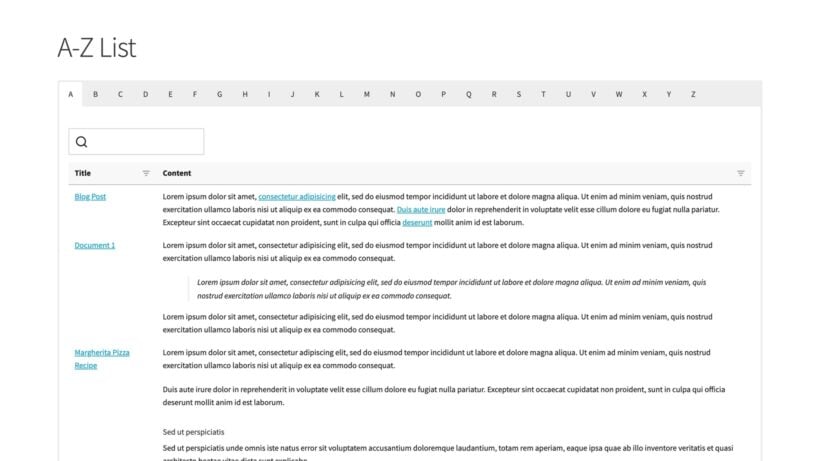
Alternatively, you can create a more advanced archive layout by dividing up the archive page using tabs, accordions, or toggles.
A tabbed layout adds tabs across the top of the WordPress archive page. For example, you might add a tab for each month or year. Users can click on a tab to view a separate archive listing posts for that specific month/year.
In contrast, a toggle or accordion adds an expandable and collapsible content box. If you add multiple toggles or accordions, then they are listed vertically on top of each other. Again, users can click on one to view the list of posts within.
Tabs and accordions are neat ways to break up long archive pages. If you want to use them, the first step is to look at your theme to see if it comes pre-build with a tab or accordion feature. If not, then I recommend using the freeShortcodes Ultimate plugin to add your tabs and accordions. (That’s what I used to create the above screenshot.)
Create a WordPress archive for blog posts or any custom post type
[/image_border]
So far, I’ve assumed that you’re creating an archive listing normal WordPress blog posts. By this, I mean the posts which are listed in the ‘Posts’ section of the WordPress Dashboard.
If you want to create a WordPress archive to list other types of content, that’s fine too! Posts Table Pro supports any custom post type. This means that you can create an archive of portfolio posts, events, case studies, products, articles, and much more. Just select the relevant post type on the plugin settings page.
Turn any page on your site into a WordPress archive page, or create a custom archive template
You can use the instructions I’ve provided so far to add table-based WordPress archives to any page or post on your site. It works on normal WordPress pages and posts, and also in the text element of any page builders plugin such as Visual Composer, Divi Builder, Beaver Builder, or Elementor. If you like, you can also add the Posts Table Pro shortcode to a Text widget (although I’m not sure why you’d want to do this!).
But what if you want to automatically use the table layout for your default archive templates, such as the built-in WordPress author archive, category archive, or tag archive pages?
This is possible, but it’s slightly more technical because you have to modify the archive templates build into your theme. The archive plugin WordPress knowledge base includesinstructions on how to do this.
Note: These instructions will replace all your category and archive page layouts with the tabular Posts Table Pro layout. If you just want to use the post table layout on certain parts of your site then you’ll need to do some extra customization. This is a developer-level task and if you don’t know how to do it, then we recommend posting a job onCodeable. This is a good place to find a tried and tested WordPress expert with the right skills.
Does it work with the WordPress archive widget?
WordPress itself comes with a built-in archive widget which you can add to a sidebar anywhere on your site. This lists all the months when you have published posts. Users can click on this to view a monthly archive listing all posts from that month.
When someone clicks on a month in the WordPress archive widget, this will load the category archive template built into your theme. To show the tabular archive layout on this page, you need to add the Posts Table Pro shortcode directly to a custom archive template. Use the instructions above to do this.
Adding the table archive layout directly to a custom archive template is a good way to save time. For example, if you create monthly date archives by adding shortcodes directly to a page then you need to edit the page each month to add a shortcode for the latest month. By adding this directly to your template files, it will happen automatically.
How to remove archives in WordPress
To remove the archive in WordPress, you can either disable or remove the archive page. Here are the steps on how to remove archives in WordPress:
Disable Archive:
Go to Appearance → Customize → Theme Options → Archives.
Turn off the option for "Display Archives".
Remove Archive Page:
Go to Pages → All Pages.
Find the archive and click on "Trash" to delete it.
You can also permanently delete the page by going to Trash and selecting "Delete Permanently".
It's important to note that removing the archive page may impact your site's SEO and user experience. If you're not sure if you want to remove the archive, it's best to consult with a developer or SEO expert first.
Other archive plugin options
In this tutorial, I’ve explained the most important features of using Posts Table Pro as an archive plugin WordPress. It also has dozens of other features that I haven’t mentioned. For example:
By default, your archive templates are sorted by date in reverse chronological order. You can change the sort order to anything you like. (E.g. order by title, author, custom field, reverse the sort order, etc.)
4 styles of pagination buttons to break up long post archives into multiple tables. Users can click the page numbers or previous/next buttons to navigate through the archive.
Loads one page at a time to keep larger post archives fast
Case studies - 2 churches who used Posts Table Pro to create date-based newsletter archives
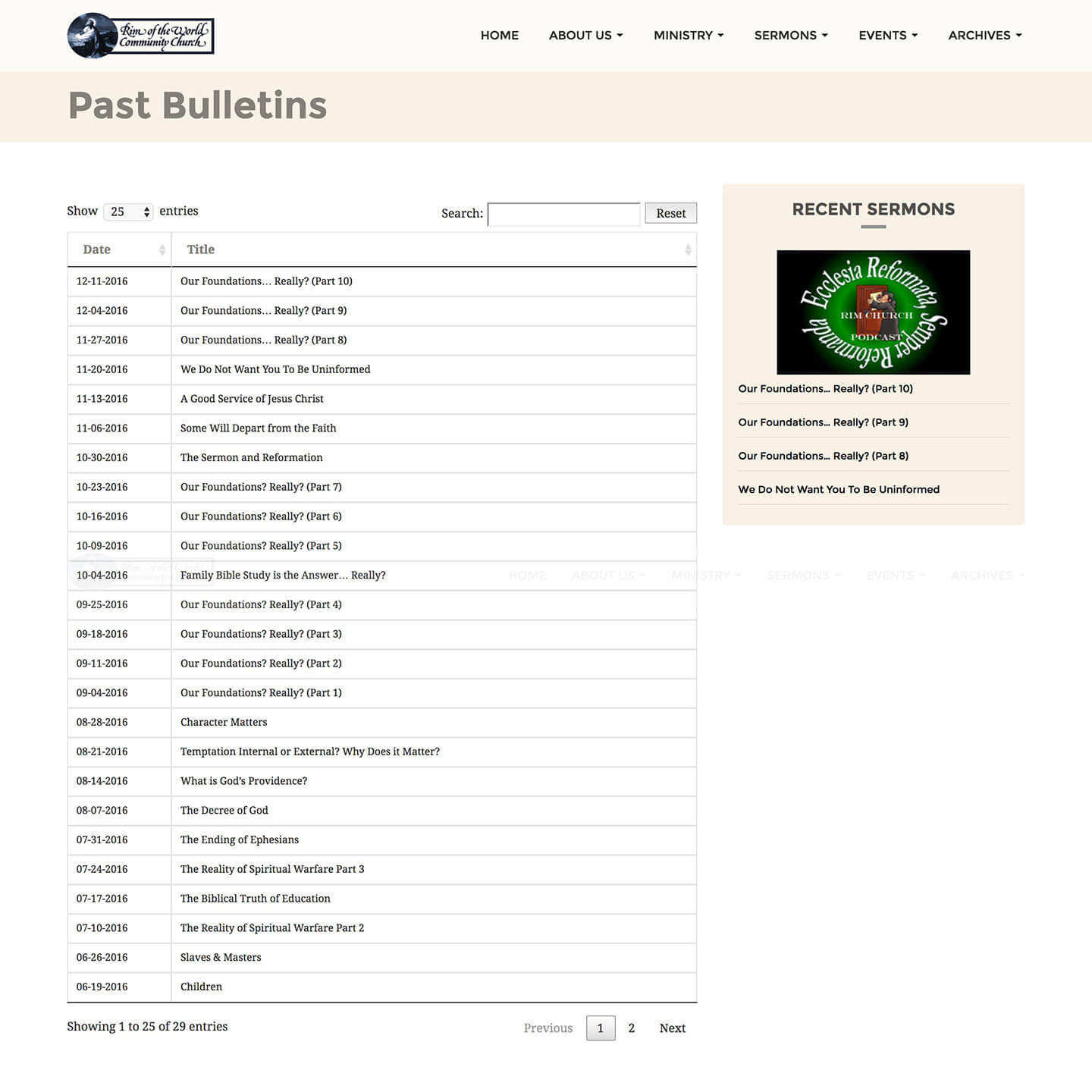
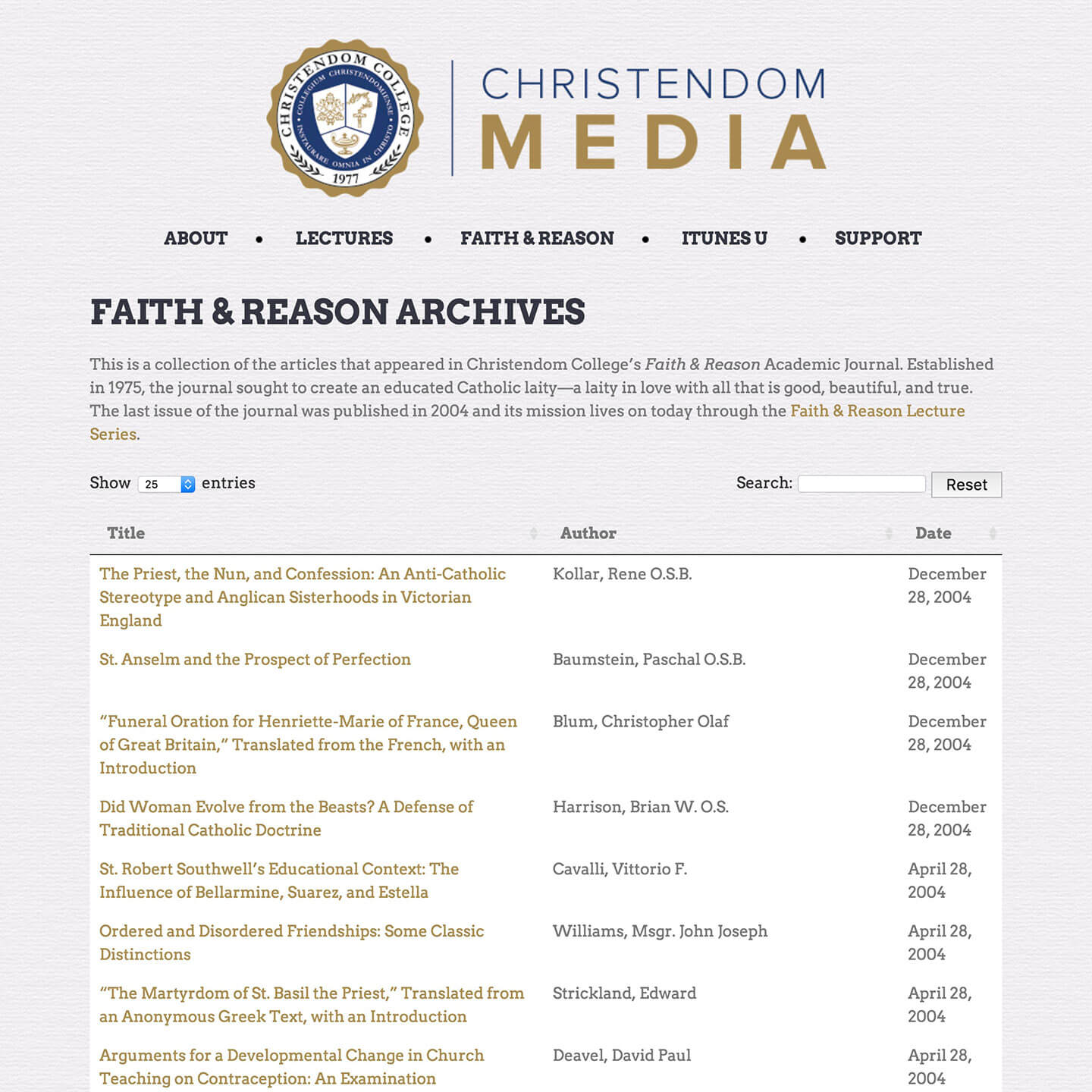
Rim of the World Church andChristendom Media both used Posts Table Pro to create a date-based archive of their past publications. previous newsletter bulletins.
Rim of the World keeps it simple, with a newsletter archive page listing the title and date of each bulletin. Christendom Media list articles from an academic journal, with columns for the author as well title and date.
Both archives list WordPress posts in chronological order, with the most recent first. Users can sort by any column and use the keyword search box to find specific posts.
Using the WordPress archive plugin on your own site
As you can see, Posts Table Pro is easily the most flexible WordPress archive plugin out there. I hope this tutorial has given you everything you need to create archive pages for your own blog. If you think I’ve missed anything, please let me know in the comments below.
Get the plugin today and start creating archives of your blog posts or other content types. Whether you need to create a WordPress date archive, author archive, category archive, tag archive, or something else, it only takes a few minutes to set up. The end result will be professional WordPress archive pages that make it much easier for your users to find and engage with your posts.
It's well documented that if you want to build a successful e-commerce business, then a recurring revenue model is the way forward. Selling WooCommerce subscription products can be much more profitable than charging for each purchase as a one-off.
After all, your marketing costs are the same whether the customer makes a one-off purchase or a regular subscription. But with an ongoing subscription, that same customer is paying you every week, month or year (depending on your billing schedule and business model) on top of sign-up fees – for no extra customer acquisition or marketing costs.
WooCommerce Subscriptions is the official extension for taking recurring payments in your WooCommerce store. It provides an easy way to create subscription products and sell them on a daily, weekly, monthly or annual basis. It comes with all the subscription management features you'll ever need, such as the option to add a free trial period and one-off sign-up fees on top of the regular subscription payment and subscription renewals. Your customers will be billed automatically for their regular subscription fees using your chosen payment method - whether this is PayPal, Stripe, or another payment gateway. This means you can enable automatic payments.
WooCommerce Subscriptions integrates nicely with our top selling WooCommerce Product Table and Quick View Pro WordPress plugins. Used together, your subscriptions are listed in a searchable, sortable table view with filters and quick view lightboxes
I'm going to tell you more about the benefits of using WooCommerce Product Table and Quick View to list subscription products. I'll also explain exactly how the two plugins work together and where to get them.
The downside of WooCommerce Subscriptions
I think that WooCommerce Subscriptions is a fantastic WP plugin. We've used it on lots of our clients' websites and helped them to build recurring revenue for their business. However, it does have one major problem.
The problem: You can only buy subscriptions on the single product page
The Subscriptions recurring payments plugin just lists subscription products or downloadable product in the same layout as any other WC product. The only difference is that the 'Add to Cart' button is replaced with some other text. Customers have to click through to the single product page to see information such as the product description and other useful data. That's fine for some types of subscription, but others will sell better with a different type of layout.
For example, what if you want subscribers to be able to view your subscription products alongside one another and make comparisons? Well, that's not possible with the default layouts because you have to click through to the single product page for full details.
Not sure WooCommerce Subscriptions is right for you?
If the layout limitations aren't your only concern, maybe the setup feels overwhelming, or the plugin is more complex than your store actually needs, it's worth considering a simpler alternative before diving in.
Recurio is a WooCommerce subscription plugin built with ease of use in mind. It handles recurring payments and subscription management with a cleaner, more straightforward setup compared to the official Subscriptions extension. If you've found WooCommerce Subscriptions to be more than you need, Recurio could be a better starting point.
That said, if you're already using WooCommerce Subscriptions and the main challenge is how your products are displayed, read on; the solutions below will help with exactly that.
What if you want customers to subscribe without having to visit a separate page for each product?
Solution 1: List WooCommerce subscription products with the WooCommerce Product Table plugin
WooCommerce Product Table lists each subscription product on a separate row in the table layout. Subscribers can easily view the subscription pricing, make comparisons, and add to the cart without having to click elsewhere. Every time you add a new subscription or new product, it'll automatically appear in the product table.
It's an ideal way to increase the recurring revenue from your online store.
Here's a quick intro to setting up the WooCommerce Product Table plugin:
WooCommerce Product Table has over 50 options for choosing how to list your subscription products. Here are some of the most important ones to use with WooCommerce Subscriptions:
Display add to cart buttons directly in the subscription product list. Customers can choose a quantity and buy directly from the product table view.
You can choose your columns to show extra data about each subscription directly in the table. This means that customers can choose a subscription without having to click elsewhere.
Add filter dropdown lists above the table or filter widgets in the sidebar. This lets customers quickly find a subscription product based on category, tag, attribute, and other data.
Solution 2: Sell subscriptions in a WooCommerce Quick View lightbox
Alternatively, you can sell subscriptions outside of the single product page by adding the WooCommerce Quick View Pro plugin. This adds quick view buttons for each product. Customers can use these to view extra information in a lightbox window. They use the lightbox to choose variations and add subscriptions to the cart, without having to visit a separate page.
Can I use solutions 1 and 2 together?
Absolutely!
You can use WooCommerce Product Table and Quick View Pro together. Your subscription products will be listed in a table layout, with or without add to cart buttons. The tables can also contain quick view buttons or links so that customers can also purchase subscriptions from the lightbox. It'll look just like this on the front-end:
How to list WooCommerce subscriptions in a product table
WooCommerce Subscriptions and WooCommerce Product Table work together automatically. You don't have to do any extra setup to use them together.
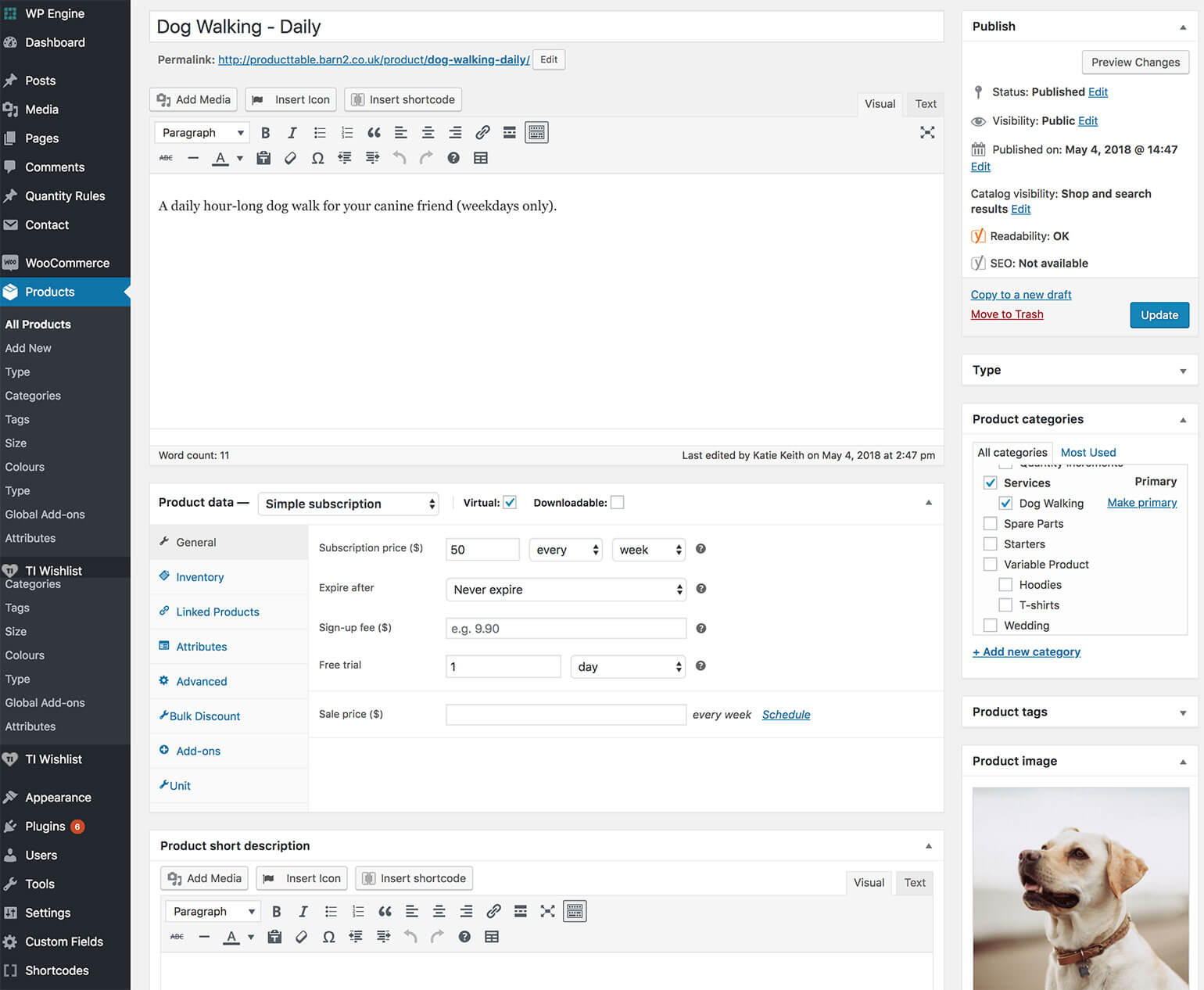
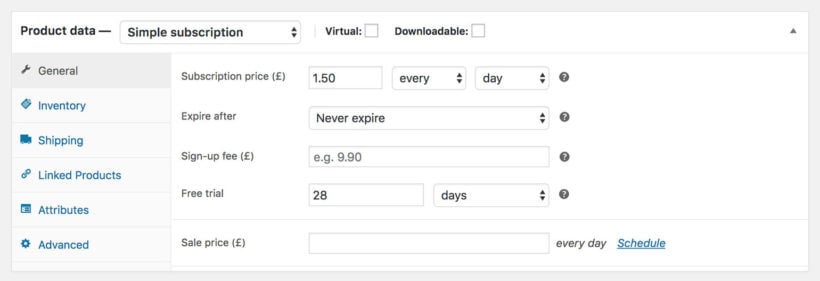
Simply install the WooCommerce Subscriptions plugin and set up your subscription products. This is really easy - just choose 'Simple subscription' from the dropdown in the 'Product data' section when you create a product. You can then choose your subscription amount, frequency and add a free trial period and setup free if required.
Once you've done that, install WooCommerce Product Table and go to Products → Product Table to create your first product table. Make sure you include a 'Price' and 'Buy' column. This is where the subscription product information and pricing will appear.
Now view the product table page. You'll see the subscription information listed in the 'Price' column. The plugin has replaced the text in the add to cart button with the wording that you can configure on the WooCommerce Subscription plugin settings page. When a customer adds a subscription product to the cart, the recurring payment (made through PayPal, Stripe, credit card, or a different payment gateway) will be correctly passed through. The subscription information will appear in the cart, checkout and in order confirmation email notifications. Perfect!
How to use WooCommerce Subscriptions with Quick View Pro
WooCommerce Subscriptions is fully compatible with WooCommerce Quick View Pro. As a result, you can use the two plugins together and let customers buy subscriptions from the quick view lightbox.
The plugins work together with no special configuration. This means that you simply set them both up in the usual way, and the subscription options will automatically appear in the lightbox. Just make sure you enable the Add to Cart buttons on the quick view plugin settings page.
Both of these WordPress memberships plugins let you restrict access to an exclusive members-only area on your website. They work in slightly different ways, so check out this comparison to help you choose. In a nutshell, both plugins work by creating a WooCommerce product for each type of membership or subscription plan that you wish to sell. For example, if you want to sell access to 3 different areas on your website, then you would create a membership product for each one and list them individually using WooCommerce Product Table. Customers can choose the membership options they require and add them all to the cart, directly from the product table view.
Used without WooCommerce Subscriptions, WooCommerce memberships lets you take one-off payment for access to hidden content on your website. You can use it with the Subscriptions plugin to get ongoing revenue from your membership site, e.g. to take recurring annual subscription payments. This is obviously a better business model than one-off access!
Variable subscriptions
WooCommerce Product Table works perfectly with standard subscription products. It does not integrate with variable subscription products.
If you'd like to offer different options for your WooCommerce subscription products, then there are two simple workarounds:
Workaround #1 - Use WooCommerce Quick View Pro
If you're selling variable subscriptions, then you can list these successfully in a product table without an add to cart column. Instead, install the WooCommerce Quick View Pro plugin and add a quick_view column to the product table.
Customers can click on the button to select variations and buy variable subscriptions from the quick view lightbox. This makes the subscribing process incredibly easy.
Workaround #2 - Use All Products for WooCommerce Subscriptions
Alternatively, you can use the All Products for WooCommerce Subscriptions plugin to sell variations for your simple subscriptions. This allows you to sell variations directly in the add to cart column of the product table, without the problems that you get with variable subscriptions:
Set up the product as a 'Variable product', NOT a 'Variable subscription'. Add your attributes and variations in the usual way.
Install the All Products for WooCommerce Subscriptions add-on for WooCommerce Subscriptions. This handy plugin lets you add subscriptions options to normal variable products, instead of having to use the 'Variable subscriptions' product type.
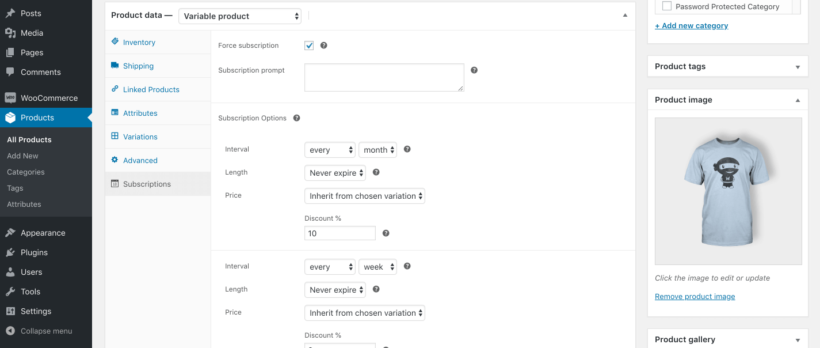
Click the 'Subscriptions' tab near the bottom of the Product Data section. Set up your subscription options as required.
Your variable simple subscription product will appear in the product table. If you just offer one subscription option then this will automatically be passed to the cart when the customer selects a variation. If you offer a choice of subscription options (e.g. weekly and monthly subscriptions) then these will appear as radio buttons when the customer chooses a variation:
Where to get the subscription plugins
As you can see, WooCommerce Product Table is the perfect way to display your subscription products. Customers can quickly look through the list of subscription options and add their subscriptions straight to the cart. No need to visit the single product page!
You can get the plugins by clicking on these links:
Our WooCommerce Product Table plugin is one of the most popular order form plugins out there. Since the publication of our tutorial on how to create a WooCommerce order form, lots of people have asked us how to create a printable WooCommerce order form that their customers can fill in offline.
I was surprised when I first heard that people wanted to use the plugin in this way. After all, most WooCommerce websites take orders online! However, I fully understand that everyone uses WooCommerce differently. There are many valid reasons why you might want to list products on your website, while letting customers print the order form and fill it in with good old fashioned pen and paper. They can send it to you by post, fax - however they like.
The good news is that WooCommerce Product Table functions equally as an offline order form for printing. Keep reading to learn how to set it up in this way.
How a printable order form works in WooCommerce
With a printable order form, you set up a WordPress website and install WooCommerce as usual. Add all your products in WooCommerce.
If you're only planning to take orders offline, then you don't need to set up any shipping options, tax settings or payment gateways. You simply add the products and prices.
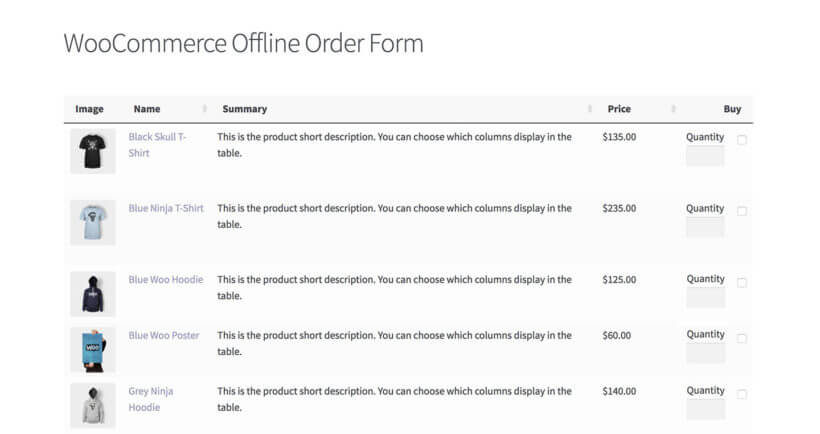
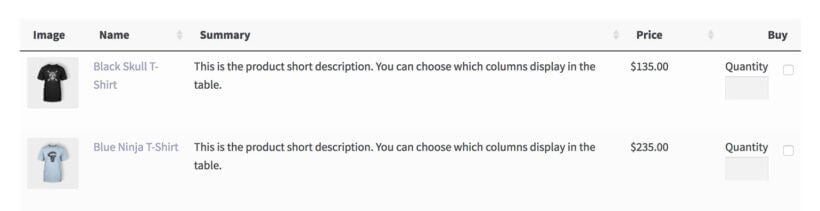
The WooCommerce Product Table plugin takes your products and displays them in a beautiful order form layout. Each product appears in a table view, with 1 product per row - just like a traditional order form. You can choose what data to include in the order form, such as the product image, name, short description, price, weight, dimensions, etc. You can also use custom fields and taxonomies to display extra data in the printable order form.
Customers view the order form on your website, and click a button to print it. This prints the entire web page, including all the products in the table and any other fields you've added to the page such as their name, address and payment details. Next, they simply fill in the order form on paper, and send it to you. You receive the printed order form and process is manually.
Keep reading to learn how to create a WooCommerce printable order form for your own website.
1. Install WooCommerce Product Table
To create a printable WooCommerce order form, first get WooCommerce Product Table and install it on your WordPress site.
2. Create a printable WooCommerce order form
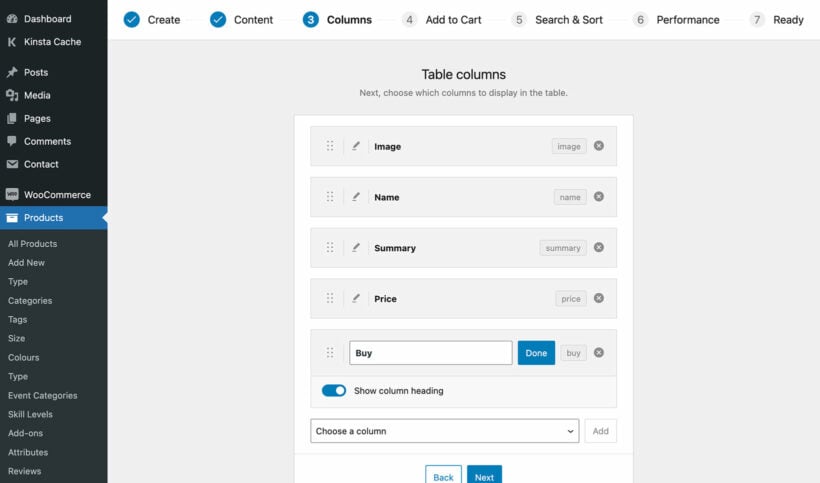
You can launch the order form builder at Products → Product Tables. This takes you through the setup process step-by-step.
I recommend choosing the following settings to create an offline order form for printing.
Add columns to the printable order form
Add the columns that you wish to include in the order form. This might include things like the product name, short description, price, and add to cart/buy column.
Do you need a blank column for writing notes about each product? To do this, add a blank column to your product table which customers can fill in when they print it out.
To do this, simply select 'Custom field' from the list of columns and then type 'Notes' as the custom field name. This tells WooCommerce Product Table to display a custom field called 'notes' - but since this custom field doesn't exist, the column will remain blank. Simple!
If you don't want to call the column 'Notes' then replace 'notes' with anything you like - so long as it doesn't exist, then it will appear as a blank column.
Replace the add to cart buttons with checkboxes
By default, the WooCommerce order form plugin comes with an add to cart button next to each product in the table. That's fine for online ordering, but doesn't work if you're using the order form offline.
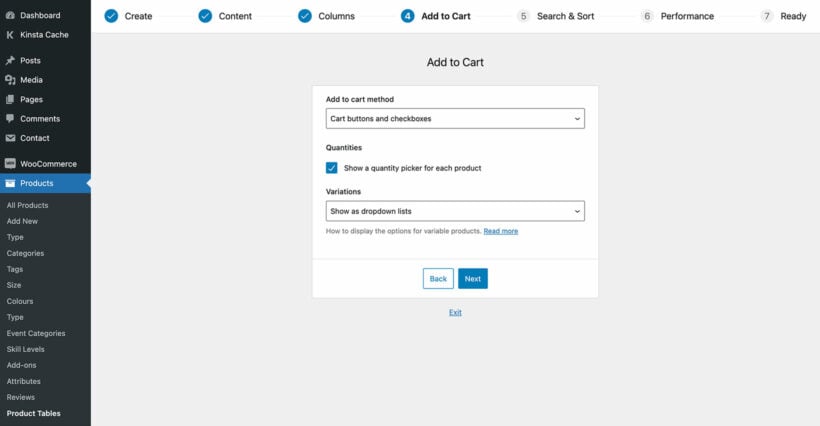
Instead, choose the 'Checkbox' box option for the add to cart buttons.
This will change the add to cart buttons to checkboxes. Each button will have a small tick box next to it. After printing the WooCommerce offline order form, customers can write a tick in the box for each product they wish to order.
Add a quantity field to the offline order form
WooCommerce Product Table comes with a quantity field that you can include in the printed order form. However, this isn't ideal because it has up/down arrows (which obviously don't function offline) and has a '1' in the box by default.
Here are some suggestions on how to add a quantity field to the WooCommerce offline order form:
You could write some CSS to hide the up/down arrows and remove the default quantity from the box.
Alternatively, you could use the WooCommerce Product Options plugin to add a text field next to the add to cart checkbox for each product. This plugin is fully integrated with WooCommerce Product Table and will automatically appear in the add to cart column. Label this field 'Quantity' and customers will write the required quantity in the box. (Tip: If you want to make the quantity box smaller, click the pencil icon for the buy column in the table and use the 'widths' option to reduce the size of the column.)
A printable order form with the quantity field added using the WooCommerce Product Options plugin
3. Hide the 'Add Selected to Cart' buttons
This is the only part of the tutorial that's slightly technical. If you're using add to cart checkboxes, then an 'Add Selected to Cart' button will appear above the table. This is ideal for online ordering, but isn't needed for a printable offline order form.
If you don't want the 'Add Selected to Cart' button, then you can hide it by adding some custom CSS to the Customizer. To get you started, here's a link to the CSS selectors in the WooCommerce Product Table developer documentation. This is a developer task and if you don't know how to do this, then we recommend posting a job on Codeable. Codeable is perfect for finding suitable people for small customizations like this.
4. Show all your products as a one-page order form
By default, the WooCommerce order form plugin shows up to 25 products per page. If you have more than 25 products, then pagination links will appear at the bottom. Customers can use these links to see the remaining products.
This arrangement doesn't make sense for a printed WooCommerce order form, because only the visible products will appear in the print-out. Instead, go to the plugin settings page (Products → Product tables → Settings). Change the 'rows per page' option to ensure that all your products are shown on a single screen.
5. Hide the order form controls
WooCommerce Product Table adds various controls above and below the WooCommerce order form. Above the product list, you'll see a search box and a dropdown where customers can choose the number of products per page. Below, the order form, you'll see pagination buttons and the total number of products. None of this makes sense for an offline order form!
Use the plugin settings page at Products → Product Tables → Settings to disable each of these options. Your printable WooCommerce order form should contain the column headers and the list of products, but nothing else.
For the same reason, make sure your page is full-width - your theme probably has a template for this. There's no need to clutter up your printed order form with extras such as filter widgets that don't work offline.
6. Add other fields to the printable WooCommerce order form
Order forms in traditional printed catalogs have fields for the customer to write their name, address and payment details. You can easily add these fields above or below the product table on your printable order form. Simply install any WordPress contact form plugin (e.g. Contact Form 7), create a form with the required fields, and add it to the order form page.
Remember to remove the Submit button, since people won't be submitting the form online.
7. Make the order form printable
People can easily print the order form by using the 'Print' option that comes with their browser. However, you can help your less technically savvy customers by adding a user-friendly 'Print' button to the printable order form page.
You can easily do this by installing the free Print, PDF, Email by PrintFriendly plugin. This simple plugin adds customizable buttons to your order form, which let your customers click to print the page in a print-friendly layout.
You can use your printable WooCommerce order form as a multi-functional form where people can order online, or print it and post it to you. If you're just using it as an offline order form, then it's worth making sure this is clear to your users.
When people see your products listed online, it needs to be clear to them that you only accept orders offline. You can easily achieve this by adding a notice to the top of the page. This should instruct customers to print the order form page, with details of how they can submit the order (e.g. by posting it to you).
Where to get the plugin
As you can see, WooCommerce Product Table is ideal for creating a printable WooCommerce order form to be used offline. Customers can see the products listed on your website and print the page. They can then tick the products they require and write the required quantity for each one. Finally, they can fill in their details, and post the order to you.
This is a brilliant way of taking manual orders with WooCommerce. I'd love to add some example use cases and case studies of how people are using WooCommerce to provide offline order forms. Please get in touch or add a comment below.
A good WordPress table of contents plugin can do a lot for your website, and in ways that are probably a bit outside of what you might be expecting.
This sounds perhaps a bit mysterious at this point, but I'm going to explain everything in just a minute.
In short, if you've been on the lookout for a great WordPress table of contents plugin then your search is basically over. In this post, I'm going to show you why Posts Table Pro is the ultimate such plugin, how to use it, and in which unusual ways it can help you make your whole site more reader-friendly.
Posts Table Pro: the best table of contents plugin
Posts Table Pro lets you create an easy table of contents for your entire website. And "entire" is the keyword here.
An example of what that might look like:
What you can see in this particular example is a list of posts belonging to a given category. This can be customized (more on this in a minute).
So what sets this plugin apart from its competitors?
Most WordPress TOC plugins focus on creating a set of jump links within an individual blog post.
Posts Table Pro does something else.
In simple terms, it hooks up to your site's database and allows you to build a whole site table of contents. This can consist of any number and any combination of WordPress posts, pages, custom post types, taxonomies, custom fields or any other content type you might have on the site.
But there's more:
Posts Table Pro is a user-friendly and simple TOC plugin that works through easy shortcodes, which means that you can include your table of contents in any post or page.
The structure of your table of contents is fully customizable, and the overall styling is inherited from your current theme. No CSS code snippets required.
You can present your table of contents as a single-column list, or as a multi-column table that's sortable, paginated (to prevent scrolling), and offering you a number of side features.
You can add a search field to help the reader find any given entry in the TOC.
The reader can filter through the website table of contents via a handy dropdown list.
Everything is fully responsive and mobile-friendly.
It can improve your website's SEO in search engines like Google.
Posts Table Pro is compatible with WordPress themes as well as page builders like Elementor.
Here's how to use Posts Table Pro step by step:
How to start using this WordPress table of contents plugin
There are just two simple steps:
Step #1: Install Posts Table Pro
First, here's where you can get the plugin:
After you finalize the purchase, you will be able to download the ZIP containing the plugin. You will also get your personal license key.
Next:
Log in to your WordPress dashboard, and go to Plugins → Add New.
Click on the Upload Plugin button at the top of the page.
Select the ZIP file of the plugin and follow the on-screen instructions to install and activate the plugin.
Afterward, the setup wizard for Posts Table Pro will launch on its own and guide you to create your first table.
Step #2 Customizing your table of content
If you're looking to create a minimal content table for your document or project, you've come to the right place. A table of contents can be a helpful tool to guide your readers through the content and structure of your work. However, sometimes a simple and minimal approach is preferred. To create a minimalist table of contents, follow the steps below.
You can create a table of contents in the setup wizard when you first activate the plugin, or by going to Posts Tables → Add New.
Next, you need to provide a name and select the post type to display (in this case, "posts"). It's important to point out that Posts Table Pro also allows you to display a table of contents for your custom posts, whatever those might be. For example, let's say you have created a custom post type called "books". You can display a table of contents featuring all posts of that type by selecting the custom post type "books". Or if you want to make a table of content for a series of posts, add the custom post type 'series name'.
Select which posts or pages to add to your table.
Add columns such as the title.
You can add filters to the table for users to easily find what they're looking for, such as article categories and titles.
Set the default sorting option and the sort direction.
If you have a lot of data, the table loads one page at a time to keep performance fast.
Then choose how to sort your table, setting the default sorting option and the sort direction that you prefer.
With Posts Table Pro, you can choose specific posts, pages, custom content types, and even WooCommerce products that you want to feature in your table of contents. This helps you deliver a better user experience.
Displaying a table of contents for custom posts
Once you've successfully created your table with the Post Table Pro plugin, the setup wizard will let you know that you've completed the process and give you clear instructions on how to insert the table onto your WordPress site. The plugin offers several options for adding the table to your site, depending on your preference.
You can choose to use the "Post Table" block in the Gutenberg editor to directly add the table to your page. Alternatively, you can copy the shortcode from the table builder and paste it onto any page on your site. This gives you the freedom to place the table wherever you want, regardless of the content on the page.
5. Creating an index of your website content
An index is kind of like a table of contents, only a much bigger one, and lists your articles in alphabetical order.
An example:
You can create something like that with Posts Table Pro as well. Here's how.
6. Listing ALL your website content in a single TOC
Granted, taking all your content and listing it inside a single table of contents is a bit extreme. However, it can be useful. Two scenarios:
Instead of creating a sitemap by hand (through HTML), you can generate it automatically with Posts Table Pro. Plus it's going to be searchable and much easier to navigate than a standard sitemap would be.
You can take this "mega TOC" and put it on a page published privately (meaning that only the logged-in users can see it). This can be a useful resource for your internal editorial team. That's because using such a TOC to find specific pieces of content on the site is going to be much quicker than going to the WordPress dashboard.
Just remember to choose the custom post types in refine tab of the table builder. You can always choose more than two post types.
Where to get the plugin
To learn all the ins and outs of the WordPress plugin and master structuring your shortcode to get the exact effect you desire, check out Posts Table Pro's official reference file here.
This sums up how to use Posts Table Pro - the best WordPress table of contents plugin out there for bloggers. If you have any questions at all, feel free to submit them below.
Customers love their favorite brands. That's why you need the best WooCommerce brand plugins to display product by brand, allow them to filter by brand, and more.
In the world of e-commerce, product branding is a critical element in building a strong online presence. For businesses using WooCommerce, showcasing your product brands effectively can make a significant difference in attracting and retaining customers.
WooCommerce comes with a built-in 'Brands' taxonomy which lets you display the brand of each product in your store. In this article, I'll tell you about 2 awesome plugins which will help your customers to find and view customers by brand more easily:
WooCommerce Product Table - Display products in a quick order form complete with information about their brand. Customers can view products by brand, sort by brand, and more.
Product Filters - Allow customers to filter products by their favorite brand.
By the end, you will have a solid understanding of how to use these tools to showcase your product brands effectively and improve your online store's performance.
What are WooCommerce brands?
WooCommerce brands are a built-in taxonomy that lets you assign a brand name, description, and logo to each product in your store. You manage brands under Products > Brands, in the same way as categories and tags. The native feature covers tagging products and basic brand archives.
How to use the built-in WooCommerce Brands taxonomy
This is how to add brands to your WooCommerce products:
Go to Products → Brands.
Set up your brands.
Find the 'Brands' section on the right hand side of the Add/Edit Product screen. Select a brand for each product as needed.
As you can see, working with WooCommerce brands is really easy.
Limitation of WooCommerce Brands
While the built-in WooCommerce brands are everything you need to tag each product with brand information, it's not ideal for displaying products by brand. For example, it can't:
Keep reading to discover two plugins that work alongside WooCommerce brands to fill these gaps.
Native WooCommerce brands vs display plugins
The built-in brands taxonomy handles tagging and basic archives. It cannot list products by brand in a table, sort a product list by brand, or offer visual brand filters. The table below shows which tool covers each job, using features already described on this page.
Capability
Native WooCommerce brands
WooCommerce Product Table
WooCommerce Product Filters
Assign brands to products
Yes
Uses the native data
Uses the native data
Sortable brand column in a product list
No
Yes
No
List only products from one brand
No
Yes
No
Brand filter dropdown above a table
No
Yes
No
Image, checkbox and word-cloud brand filters
No
No
Yes
List and sort products by brand
WooCommerce Product Table is our flagship plugin here at Barn2. It works by listing your WooCommerce products in an interactive table or one-page order form. It comes with extra features such as customizable columns, search box, product variations support and more. The table plugin also provides more sophisticated ways to allow WooCommerce users to filter by brand.
Product table views are a popular way to increase conversion rates. They can boost your sales because it makes the buying process quicker and easier. Customer can quickly view all your products on a single page. They can see all the information they need (including brand, if you're using the WooCommerce Brands plugin). This lets them add to the cart without having to click elsewhere.
One of WooCommerce Product Table's biggest selling points is its ability to show extra data directly on the product listing page. It supports all the standard WooCommerce product data such as name, price, add to cart, description, short description, attributes, variations - the list goes on. However, the WooCommerce core doesn't come with a brands field. That's why you need to use it with the WooCommerce Brands plugin to display product brands in a table.
Once you have created a product table with a brand column, customers can click on the column header to instantly sort products by brand.
How to Use WooCommerce Brands with WooCommerce Product Table
Tag your products with their brand, as described earlier in this WooCommerce brands tutorial.
Next, use the plugin documentation to create brands and assign them to your products. This is really easy - just look for the 'Brands' section on the right of the Add/Edit Product screen.
The table builder will open when you activate the plugin, or you can create a table later via Products → Product Tables.
Use the table builder to choose set up your product table. Specifically:
On the first page, choose whether you want to list products on a page manually or use the table layout on your main shop page templates.
On the 'Columns page', select the 'Brand' column. If you have already installed a brand plugin then this will appear automatically in the list of columns.
On the search page, click to add filters and add a 'Brand' filter. This will allow customers to filter by brand.
If you selected to add the table manually then the final page of the table builder will give you a shortcode which you can use to do this. Either use this or the 'Product Table' Gutenberg block to insert the table onto any page.
When you view your product table with WooCommerce brands, you will see a list of products with your chosen settings. You'll also see a 'Brands' column in the table. Clicking on a brand in the WooCommerce table will filter the list of products by that brand. A 'Brand' filter dropdown will also appear above the table. However, I'll show you how to add more user-friendly brand filters in a minute.
How to list products with a specific brand
You can also use WooCommerce Product Table to list products by brand. To do this:
Go to edit your table at Products → Product Tables.
In the 'Select products' section, select 'Brand' and then enter the slug of the brand you wish to display. You can get this from the page where you added all the brands.
Insert the table onto a page, and it will only list products with the selected brand.
Let customers filter by brand
While the WooCommerce Product Table plugin includes simple filter dropdowns, you probably want more visual ways to let customers filter by brand. After all, customers love buying products by their favorite brand and want a quick way to find and view them.
The best way to do add sophisticated and eye-catching brand filters to WooCommerce is to install the Product Filters plugin. This comes with a wide range of styles which you can use to filter by brand, including:
There are several ways to choose where the filters will appear on the page. You can use either of these options separately, or combine them to add filters to multiple locations:
To display filters above the list of products on all your shop pages, select the name of the relevant filter group in the plugin setup wizard. You can also do this on the plugin settings page at Products → Filters → Settings.
Go to Appearance → Widgets and add a 'Product Filters' widget. This will display it in the sidebar area on the pages where you list products.
You can also display filters in other locations such as via shortcodes and Gutenberg blocks, or in your page builder plugin such as Elementor. Learn how in the plugin documentation.
Go to Products → Filters and add or edit a filter group.
Add a filter in your chosen style (e.g. image buttons).
Select 'Custom Taxonomy' as the source of the data to be used in the filter. Select 'Brand' as the taxonomy name.
Frequently asked questions
How do I add brands to WooCommerce products?
Go to Products, then Brands, to create each brand. Then open the product editor and select the brand in the Brands panel on the right hand side of the screen.
How do customers filter WooCommerce products by brand?
The simplest option is the brand filter dropdown in a WooCommerce Product Table layout. For image, checkbox, or word-cloud brand filters on your shop pages, use WooCommerce Product Filters and select Brand as the taxonomy.
Can you list WooCommerce products by brand?
Not with the native feature alone. A table plugin such as WooCommerce Product Table can display a sortable brand column, or list only the products from one brand.
Take your WooCommerce brands to the next level
Enhancing the display of product brands on your WooCommerce store can improve the best branding plugins for WooCommerce, you can effectively showcase your product brands and make it easy for customers to find and filter products based on their preferences.
With the WooCommerce Product Table plugin, you can display your products in a streamlined order form that includes brand information, and enable customers to view products by brand, sort by brand, and more.
The WooCommerce Product Filters plugin empowers customers to filter products by their favorite brands, making it easier for them to find and purchase the products they desire.
With the tips and strategies outlined in this article, you can take your product branding to the next level and create a strong online presence for your business. So, don't hesitate to start implementing these plugins on your WooCommerce store and see the positive impact it has on your sales and customer engagement.
WordPress calendar plugins such as The Events Calendar are fantastic. But what if you're not happy with the built-in event layouts? This tutorial will show you a straightforward way of creating a searchable events table to list your upcoming events.
In this guide, we will be focusing on the Events Calendar plugins suite. This includes Event Calendar Pro, Event Tickets Plus, and other related plugins. However, the method we'll be discussing here can be used to create a table of events for any WordPress events plugin available. Using the WordPress plugin for event management is a great way to efficiently organize and promote various types of events.
Having all event information in one place makes it easy for event planners to manage registrations, and monitor ticket sales. This can lead to increased attendance and revenues. As well as improved brand image and customer satisfaction.
Watch the video to learn how. You can also keep reading for full written instructions on how to create a table of events in WordPress.
Why use the Events Calendar plugin for WordPress?
The Events Calendar plugin is a popular choice for managing events on a WordPress website for several reasons. The Events Calendar plugin has a user-friendly interface that allows users to create and manage events with ease. Additionally, it offers various customization options, enabling users to customize the appearance and functionality of the calendar to meet their specific needs.
Additionally, the plugin offers advanced features such as ticketing, RSVP tracking, and recurring events in WordPress. The plugin is well-supported and regularly updated. Making sure that it remains compatible with the latest versions of WordPress and other plugins.
The importance of event management for businesses and organizations
Event management plays a critical role in the success of businesses and organizations. Events provide a platform for your business to showcase your products or services and create brand awareness. For organizations, events are a great way to raise awareness about your cause and raise funds.
Effective event management can help businesses and organizations achieve their goals. It also increases visibility and credibility. It also builds lasting relationships with your target audience.
Using event management tools such as The Events Calendar plugin for WordPress can help your business streamline event planning. As well as improve your overall event experience.
Different options for creating a new event
The Event Calendar plug offers several options for creating a new event on your WordPress website. These options allow you to customize your event to meet the needs of your audience. Here are some of the different ways you can create a new event using The Events Calendar plugin:
Add Event button: The most basic way to create a new event is to click on the "Add Event" button. This will take you to a new page where you can enter the details of your event.
Quick event creation: You can use the "Quick Event" feature to create an event in just a few seconds. This feature is especially useful if you need to create an event on the go.
Recurring events: Use the recurring event feature to set it up once and have it repeat automatically.
Importing events: You can also import events listed in another application into The Events Calendar plugin. This saves you time and effort by allowing you to bring all of your events into one place.
Front-end event submission: You can allow visitors to submit events to your website by enabling front-end submission. They can fill out a form and submit their event directly to your site.
How to add event details such as title, date, time, location, and description
To add event details using The Events Calendar plugin, follow these steps:
Install and activate The Events Calendar plugin from the WordPress plugin repository.
Go to the WordPress dashboard and navigate to the Events → Add New Event page.
In the event editor screen, you will see fields to add the event details, including:
Title: Enter the title of the event in the "Event Title" field.
Date and Time: Select the date and time of the event from the "Start" and "End" fields.
Location: Enter the location of the event in the "Venue" and "Address" fields. You can also use the "Google Maps" field to add a map to the event.
Description: Enter the description of the event in the editor field.
You can also add additional event details, such as event categories, tags, and featured images. As well as organizer details, and ticket details using the options available in the event editor screen.
Click on the "Publish" button to publish the event on your website.
You can view the event on your website by navigating to the Events page. You can also view it by adding a shortcode to a page or post. To add a shortcode, use the [tribe_events] shortcode and customize it with the necessary options.
That's it! You have successfully added an event using The Events Calendar plugin with all the necessary details.
How to add images, videos, and other media to events using The Events Calendar plugin
To add images, videos, and other media to events, using The Events Calendar plugin, follow these steps:
In the event editor screen, scroll down to the "Event Image" section.
Click on the "Set event image" button to upload an image from your computer, or choose an image from the media library.
Once you have selected an image, you can customize the image settings, such as the image size and alignment.
To add a video to the vent, you can use the "Embed video" field in the event editor screen. Paste the video embed code from a supported video hosting platform (such as YouTube or Vimeo) into the field and click the "save" button.
You can also add other media to the event description by clicking on the"Add media" button in the editor field. From here, you can upload and insert images, audio files, and other media.
You can use the "gallery" block in the editor field to display a gallery of images. Add the images you want to display and customize the gallery settings as needed.
Publish the event on your website by clicking the "Publish" button after adding all the required media.
How to add event categories and tags
To add event categories and tags using The Events Calendar plugin, follow these steps:
In the event editor screen, scroll down to the "Event Categories" section.
Click on the "Add New Category" button to create a new category, or select an existing category from the dropdown menu.
Enter a name for the category and a description if desired, and click the "Add New Category" button to save.
To add tags to the event, scroll down to the "Event Tags" section.
Click on the "Add New Tag" button to create a new tag, or select an existing tag from the dropdown menu.
Enter a name for the tag and click the "Add New Tag" button to save.
You can also assign multiple categories and tags to the event by selecting them from the dropdown menus. You can also do this by entering them manually in the respective fields.
Publish the event on your website by clicking on the "Publish" button after adding all the required categories and tags.
How to set up recurring events and multi-day events using The Events Calendar plugin
If you're using The Events Calendar plugin for your WordPress site, you can easily set up recurring events and multi-day events to save time and effort. However, this useful feature is only available as part of the premium Events Calendar Pro add-on. With this add-on, you can create a wide range of events, from daily or weekly meetings to conferences or festivals that span multiple days.
To set up recurring events and multi-day events using The Events Calendar plugin, follow these steps:
In the event editor screen, navigate to the "Event Schedule" section.
To set up a recurring event, click on the "Add New Schedule" button.
Select the "Custom Schedule" option and choose the start and end dates for the recurring event.
Choose the recurrence pattern for the event, such as daily, weekly, monthly, or yearly. You can also set the event to recur on specific days of the week, or on certain dates of the month.
Set the start and end times for each occurrence of the event. You can also choose to have the times be the same for every occurrence.
You can also set an end date for the recurring event, or choose to have it recur indefinitely.
To set up a multi-day event, enter the start and end dates in the "Start" and "End" fields in the "Event Details" section.
You can also add a schedule for the event by clicking on the "Add New Schedule" button in the "Event Schedule" section. Enter the start and end times for each day of the event, or choose to have the times be the same for every day.
Once you have set up the recurring or multi-day event, add all the necessary event details, such as title, location, and description, as well as any images or media.
Finally, click on the "Publish" button to publish the event on your website.
How to view, edit, and delete existing events in The Events Calendar plugin
To view, edit, and delete existing events in The Events Calendar plugin, follow these steps:
Log in to your WordPress dashboard.
Click on "Events" in the left-hand menu to view the list of all events created using The Events Calendar plugin.
To view an event, click on its title in the list.
To edit an event, hover over its title in the list and click on "Edit."
Make the necessary changes to the event details, such as title, date, time, location, and description.
To delete an event, hover over its title in the list and click on "Trash."
To permanently delete an event, click on the "Trash" link at the top of the events list. Then click on "Empty Trash."
You can also restore a deleted event by clicking on the "Trash" link. Hover over the event's title, and click on "Restore."
How to manage event attendees and RSVPs in The Events Calendar plugin
The Events Calendar plugin offers several options for managing event attendees and RSVPs. Here are the steps to manage event attendees and RSVPs in The Events Calendar plugin:
Make sure that you have enabled the RSVP feature for your events. Go to "Events" > "Settings" > "Tickets" and check the "Enable RSVPs" checkbox.
To view the list of attendees for an event, go to the event editor screen and click on the "Attendees" tab. Here, you can see a list of all the people who have RSVP'd to the event.
You can add a new attendee to the event by clicking on the "Add Attendee" button.
To edit an attendee's details, click on their name in the list and make the necessary changes.
You can delete an attendee from the list by clicking on their name and then clicking on the "Remove Attendee" button.
You can also export the attendee list to a CSV file by clicking on the "Export CSV" button.
To manage RSVPs for the event, go to the event editor screen and click on the "RSVPs" tab. Here, you can see a list of all the people who have RSVP'd to the event and their RSVP status.
To change an attendee's RSVP status, click on their name in the list and select the new status from the dropdown menu.
You can also send email reminders to attendees who have RSVP'd to the event by clicking on the "Email" button.
Can you export events to other calendars or platforms in The Events Calendar plugin?
The Events Calendar plugin provides a convenient way to export your events to other platforms like Google calendar. This is done through the use of the iCalendar format. This is also known as .ics. This standard format enables the easy sharing of calendar data across various platforms.
To export events to other calendars or platforms using The Events Calendar plugin, follow these steps:
Go to the WordPress dashboard and click on "Events" in the left-hand menu.
Select the event you want to export.
Click on the "Export Event" button.
Choose the iCalendar format (.ics) from the dropdown menu.
Click on the "Export" button.
The file will be downloaded to your computer as an .ics file.
Import the .ics file into your desired calendar or platform. The process for importing varies depending on the platform you're using. But typically involves navigating to the import function and selecting the .ics file from your computer.
How to use add-ons to extend the functionality of the plugin
Here are the steps to use add-ons in The Events Calendar plugin:
Go to the WordPress dashboard and click on "Plugins" in the left-hand menu.
Click on the "Add New" button at the top of the page.
Search for "The Events Calendar" in the search bar.
Click on "Install Now" next to The Events Calendar plugin.
Once the plugin is installed and activated, go to "Events" in the left-hand menu.
Click on "Add-Ons" to see a list of available add-ons.
Click on "Install" next to the add-on you want to use.
Once the add-on is installed and activated, you can start using its features in The Events Calendar plugin.
Depending on the add-on, you may need to configure its settings. This can usually be done in the plugin's settings or in the event editor screen.
Some add-ons may require a separate purchase or subscription to use. Make sure to check the details of the add-on before installing it.
Repeat these steps to install and activate any additional add-ons you want to use. Each add-on will add new features and functionality to the plugin. This will allow you to customize it to your specific event management needs.
Advanced features of The Events Calendar plugin, such as ticketing, ticket sales, and seating charts
The Events Calendar plugin is a powerful tool for managing events in WordPress that offer many advanced features. These features can help you streamline your workflows. As well as create a seamless experience for attendees.
One of the most useful advanced features of The Events Calendar plugin is ticketing. The plugin allows event organizers to sell tickets to their events using the Ticketing add-on. This feature enables event organizers to set different ticket types and pricing. As well as availability dates, as well as limit the number of tickets sold, and track sales data in real-time. The plugin also offers various ticket sales options, including PayPal, Stripe, and WooCommerce. Also, there's the ability to create discount codes and coupons to incentivize ticket sales.
Other advanced features of The Events Calendar plugin
Seating charts: The Events Calendar plugin offers a Seating Chart add-on that allows you to create custom seating charts for your events. You can set different seating sections, seat types, and pricing. Attendees can select their seats during the ticket purchase process.
Event submissions: The Events Calendar plugin offers a Community Events add-on that allows users to submit their own events to your calendar. You can review and approve these events before they are published.
RSVP tracking: The Events Calendar plugin allows you to track RSVPs and manage attendee lists for your events. You can set attendance limits, and collect attendee information. Also, send email reminders.
Tips and best practices for effectively managing events using The Events Calendar plugin
Start planning your events well in advance: Set up the events in The Events Calendar plugin. This will give you plenty of time to promote the event and sell tickets.
Use clear and concise event titles: This will help attendees quickly understand what the event is about.
Use categories and tags: Tags and categories help organize your events and make it easier for attendees to find events they are interested in.
Add all event details: Include the date, time, location, description, and any other important information.
Use images and videos: Use high-quality images and videos to promote your event and give attendees a better idea of what to expect.
Set up RSVPs and ticketing: The RSVP and ticketing features help manage attendance and sell tickets to your event.
Utilize add-ons: Add other features like ticket sales, seating charts, and event submissions.
Test the event page: Make sure to test the event page to ensure that everything is working correctly.
Promote the event: Use social media, email marketing, and other promotional channels to promote your event and drive attendance.
Monitor attendance and make adjustments: Keep an eye on attendance and make adjustments as needed to ensure that your event is successful.
How to optimize events for search engines and social media
Here are some tips for optimizing events for search engines and social media:
Use descriptive and keyword-rich event titles: Use descriptive and keyword-rich event titles that accurately describe the event and include relevant keywords. This will help search engines and social media platforms understand what the event is about and make it more discoverable.
Use clear and concise event descriptions: Use clear and concise event descriptions that provide all the necessary information about the event. This includes the date, time, location, and any other important details. This will make it easier for search engines and social media platforms to understand the event and display it in search results or on social media feeds.
Add images and videos: Add high-quality images and videos to your event page to make it more engaging and shareable on social media.
Use structured data markup: Use structured data markup to provide search engines with more information about your event, including the date, time, location, and other important details. This will help search engines display rich snippets of your event in search results.
Optimize event URLs: Optimize event URLs by using descriptive and keyword-rich URLs that accurately reflect the event title and content.
Share the event on social media: Share your event on social media and encourage others to share it as well. This will help increase visibility and drive traffic to your event page.
Use hashtags: Use relevant hashtags when sharing your event on social media to make it more discoverable and increase engagement.
Monitor analytics: Monitor analytics to see how your event page is performing in search results and on social media. Use this information to make adjustments and optimize your event page for better performance.
The limitations of default event layouts
Default event layouts on a WordPress website can be limited in terms of design and functionality. However, by using The Events Calendar or Events Calendar Pro plugins, users can easily enhance the look and functionality of their event displays. These plugins are popular among WordPress users and allow for the display of basic events as well as online bookings with the use of additional plugins.
The Events Calendar offers a range of views for existing and new events, as well as event management. Users can choose from basic list views to a simple calendar view. Events Calendar Pro takes things a step further by providing additional views such as a map view, giving users even more options to display their events in a visually appealing and informative way.
By using The Events Calendar or Events Calendar Pro plugins, you can elevate the functionality and appearance of the event displays on your WordPress website.
What if you have many events and want a more concise display? Or need more search options and filters for attendees to find your events easily?
By default, event calendars in WordPress can take up a lot of space and may not be suitable for displaying a comprehensive directory or database of events. While it's possible to create a custom template or modify one of the default views, this requires coding skills that may not be feasible for everyone.
Fortunately, there is a solution to this issue: displaying events in a table view. This provides a compact and organized way to showcase multiple events on a single page while allowing users to quickly browse and search through the information. Additionally, a table view allows for greater customization options, such as sorting and filtering based on event categories, tags, dates, and more.
By using a plugin with this functionality, users can easily display their events in a clear and concise format that is both functional and visually appealing.
The easy way to list events in a table view
In this tutorial, we will also explore how to display events using the Posts Table Pro plugin, a versatile tool that allows for an interactive list or table view of your events. This approach complements the functionalities offered by the Events Calendar Pro plugin, which provides a range of features to manage your events effectively.
By implementing Posts Table Pro, you can showcase your events in a more comprehensive and organized manner, providing visitors with an intuitive interface to search, filter and sort through the listings. Furthermore, the plugin is highly customizable and can be tailored to match the overall aesthetics and design of your website.
It is essential to note that this tutorial will focus solely on events created with Events Calendar or Events Calendar Pro, and the techniques might not apply to other event management plugins such as Event Espresso or Events Manager. However, we will also offer tips on creating a table using these plugins, ensuring that you can use this tutorial as a comprehensive guide to optimizing your events listings.
Dianna uses Posts Table Pro to display her events in a customized table:
Posts Table Pro was the perfect solution in displaying our events in table view. Our previous table view display did not allow much customization when it came to our columns and filters. With Posts Table Pro, we've been able to fully customize our columns and filters and can now provide our customer base a better experience when they're searching for their events.
Another highlight about the plugin is the company that created it. Barn 2 Media was always quick to respond if I ever had a question or needed to better understand how to set something up.
If you're considering this plugin, I highly recommend it!
Why display events in a table?
For websites with a large number of events, the default event views provided by the Events Calendar plugin may not be enough. In such cases, it is better to display events in a more tabular, grid-based format. By listing events in a table, users can view a large number of events on a single screen, making it easier for them to find the events they are interested in.
Using a table format, users can sort events by clicking on a column header or category. They can also perform a keyword search using the search box, which is not possible using the default Events Calendar views. This feature is particularly useful for websites with a large number of events.
Plugins that list events in a calendar or date-based layout can be limiting. That's why displaying events in a table format using plugins such as Posts Table Pro can be a better option. This allows users to see a comprehensive list of events, sort and filter them, and search for specific events using keywords.
Exploring the single event page in The Events Calendar plugin
After finding an event you are interested in, you can easily navigate to the single event page provided by the Events Calendar plugin through the table. This page offers a comprehensive overview of the event, including its date, time, location, and any other relevant details. It also provides an opportunity for users to book the event or perform other actions such as adding it to their calendar or sharing it on social media.
By clicking on the event in the table, users are taken to the single event page, which is optimized for conversion. This page can be customized to include additional information or features such as a call-to-action button or related events.
What types of events can I list in a table?
The good news is that you can use this method to list absolutely any type of event. It might be:
In-person events: These are admissions tickets, live events, charity auctions, concerts, conferences, festivals and carnivals, live performances, meet-ups, presentations, and speed dating events.
Online events: These include conference calls, live coaching, and webinars.
Training courses: Examples are boot camps, classes, crash courses or in-depth training, formal training, and certified courses.
Keep reading to discover a real-life website that lists events in a table. Then learn how to do the same on your own site!
See The Events Calendar plugin in action: Two case studies
Looking for inspiration on how to use The Events Calendar plugin for WordPress? Check out these two case studies that showcase how the plugin can be used for different purposes and in different industries. From cooking events to training courses, these examples demonstrate how the plugin's versatility can help you create a tailored event management system
Case study #1 - Cooking events calendar plugin on The Kitchen
The Kitchen at Middleground Farms hosts cooking events in Oregon, USA. Each event is added to WordPress with the Events Calendar plugin. As the default layouts available weren’t quite right for the site, they decided to combine the WordPress events plugins with Posts Table Pro. Customers can now quickly find an event and book themselves on it using the interactive table.
The Kitchen’s list of events includes a short description, prices, and dates. Users can sort the list by date, price, or course name, or use the search function. Clicking on a course name takes customers to a new page (provided by Events Calendar and Event Tickets Plus), where they can book and make their payments.
Case study #2 - Listing training courses for AgileSparks
AgileSparks are a technology training company. They followed the steps in this tutorial to list training courses using Posts Table Pro with Events Calendar, WooCommerce, and Event Tickets Plus.
It's easy to find a course using the instant AJAX search box and the multiple filters above the table. You can then click through to learn more about each course and make a booking with a straightforward booking form.
I've been struggling with an effective way to list our upcoming agile training classes - we have dozens of them scheduled worldwide at any point of time. I found Posts Table Pro and it was exactly what I was looking for. I feel the view it provides and the ability to filter/search for specific events according to your needs is great.
I had some questions and issues while integrating it to my instance of Tribe Events Calendar and Katie and the team were very helpful, including on the weekend. We were up and running with full functionality within a day or two. Impressive, especially considering the type of support you get used to in the WordPress plugin world. I also appreciate the depth of their blog content btw. That's how I found them in the first place.
How to list WordPress events in a table
Once you've got all your events set up, it's time to add a list view for them in a table.
You'll need the Posts Table Pro plugin for this, which you can buy here.
You can add your event calendar plugin table on any page on your website. You might also even want to create multiple tables. For example, one for each of your event categories. Or use Posts Table Pro to provide an events database on top of viewing options already provided by the WordPress Events Calendar plugin. You might even want to use it to replace those default views. Think about the best structure for your website as it is highly flexible.
1. Create a table listing all your upcoming events
Upon completing your purchase of Posts Table Pro, you'll be sent a confirmation email that includes both a download link and a license key. If you don't receive the email, you can submit a support request. To download the plugin, simply follow the link provided in the email and save the zip file to your computer.
Next, go to your WordPress admin and select Plugins → Add New → Upload Plugin. Choose the zip file you just downloaded, upload it, and activate the plugin. From there, the setup wizard will guide you through the process of creating your first table, providing step-by-step instructions.
2. Customize your table
Follow these steps to create a customized table for your events.
Begin by giving your table a name and selecting the post type you wish to display.
Select the posts or pages you would like to include in the table. You can select from posts, pages, and custom post types.
Customize your table to suit your preferences. You can determine which columns to display and in what order. For your table, you can add a column for the event name, description, start and end date, category, website, and event price. To add a new column, choose the column type from the dropdown menu and click "Add".
You can add as many filters as you like. For your table, you can add categories and tags as filters.
Customize the sorting options for your table by choosing the default sorting option and the sort direction. This allows you to control the order in which the table is displayed to your users.
The table loads one page at a time, so it stays fast even with hundreds or thousands of items.
Lastly, choose how to sort your database. You can set the default sorting option and the sort direction
This is how your table will look like:
3. Display your table
After completing the creation of your table with the Post Table Pro plugin, the setup wizard will confirm your progress and guide you on how to display the table on your WordPress website. You can choose between two options for displaying the table:
Using the 'Post Table' block in the Gutenberg editor, or
Copy the shortcode generated by the plugin and paste it into any page of your website. This allows you to place the table on any page, regardless of its content and gives you the flexibility to design your website according to your preferences.
By default, Posts Table Pro will list all published events in the table, regardless of their date. We have provided a code snippet which you can use to only list upcoming events and hide past events.
Can I include the 'Book' or 'Buy' buttons in the table of events?
The Events Calendar plugin has 2 sister plugins that let you extend it to take bookings for events. The Event Tickets and Event Tickets Plus add-ons work together to allow people to buy tickets for your events using WooCommerce and pay online. WooCommerce is the no. 1 e-commerce plugin and provides the e-commerce features such as a cart, checkout, and payment gateways.
Used together, these plugins create 'tickets' for each event, which people can buy in order to book a place. Each ticket is linked to the Events Calendar event and is basically a WooCommerce product.
The difficulty in including the 'Buy' to 'Add to Cart' buttons in your events table is that the table lists events, but you don't buy an event - you buy a ticket! The two are linked behind the scenes, but not in a way that lets you display add-to-cart buttons in the table of events. Here are two workarounds to get around this:
Option 1 - List tickets using WooCommerce Product Table instead
If you want to include add-to-cart buttons in the table, then the only option is to use our WooCommerce Product Table plugin instead of Posts Table Pro. The two plugins are very similar, but the dedicated WooCommerce version supports more WooCommerce features such as add-to-cart buttons.
Instead of using our Posts Table Pro plugin to list events in a table (as described in the rest of this tutorial), you would do something similar using WooCommerce Product Table to create a table of event tickets. This can include add-to-cart buttons, as you can see in the screenshot:
The tickets can be listed in the table with the product name, price, and add to cart button.
You can also include the number of available places by adding a 'stock' column to the table. However, the table won't display other fields from the event such as the event date. To get around this, you can add the date to the ticket name when you create the ticket. You can see this in action in the screenshot above.
Note: The Events Tickets Plus plugin sets ticket products to 'hidden' by default. This will also hide them from the product table. If you want to list tickets directly in the product table, then you must go to the 'Edit Product' screen for the ticket and change the visibility so that it appears in the table. You'll find the visibility option in the 'Publish' section at the top right of the page.
Option 2 - Workaround for showing Buy buttons using Posts Table Pro
If you really want to use Posts Table Pro to list events, instead of switching to WooCommerce Product Table, then there is a workaround.
Because your events can't be purchased directly in The Events Calendar - you need tickets for this - there's no way to dynamically list the 'Add to cart' buttons in the events table. However, you can achieve this with a bit of extra work.
You can add the Buy buttons to the table of events by manually adding these directly to your events. You would still use the Event Tickets Plus extension to create your tickets, but you would need to create a custom field to add the Buy button directly to each event.
How to do it
Set up your WordPress events website with The Events Calendar, Event Tickets, Events Tickets Plus, and WooCommerce (as described above). Add some events with tickets.
Use the Advanced Custom Fields plugin to create custom fields for any fields from your tickets that you want to include in the table. For example, you might need custom fields for event price and add to cart button.
Go to the Events section in the WP admin, edit each event, and add data to the custom fields you just created. Adding the price is self-explanatory. There are 2 options for adding the 'Book Now' or 'Add to Cart' buttons:
You can use the WooCommerce add-to-cart shortcode to insert the 'Add to Cart' buttons for the ticket that corresponds to each event. (To learn how to do this, go to docs.woocommerce.com/document/woocommerce-shortcodes and go to the 'Add to Cart' section.)
You can also add the ticket's "add to cart" link URL to the event or product. You need to manually enter the link for each event or product. The link should be in this format: https://yourdomain.com/cart/?add-to-cart=ID. Replace the domain name with your own and the ID with the ticket's ID. To find the ticket's ID, go to the main Products page in WooCommerce and click on the ticket. Look for the ID in the URL.
Now, you can create a table of events that includes these extra fields.
How to use Posts Table Pro as an event directory WordPress plugin
If you'd like to create an event directory for WordPress, rather than a table that simply lists your events, you can make use of Post Table Pro's built-in options to add filters powered by custom taxonomies and turn Posts Table Pro into an event directory WordPress plugin.
That is, you can add categories or tags using The Events Calendar's built-in functionality. Then, you can create a filterable event directory for WordPress powered by those tags.
Here's how to do it...
Step 1: Apply categories and tags in The Events Calendar
First, you'll need to use The Events Calendar plugin's built-in tags or event categories taxonomies to organize your events:
If you want more options, you could add additional taxonomies with the free Pods plugin. In fact, if you want to use tags in your directory, we'd definitely recommend this because The Events Calendar doesn't create its own tags taxonomy (instead, it relies on the same tags you use for regular blog posts).
Go further with an A-Z event index or other options
Posts Table Pro lets you add filters for categories and tags, but not venues and organizers.
If you'd like to divide your event directory by those options, you could use a tabbed A-Z index if you only have a few venues/organizers.
Or, if you have a lot of venues/organizers, you could:
Use Posts Table Pro to create separate event directories for each venue on different pages.
Create a table/directory of venues by querying the tribe_venue post type using Posts Table Pro.
Add a custom field to the tribe_venue post type that links to the directory page for that venue.
Display that custom field as a column in your overall venue directory to link to the page with that venue's event directory.
You could do the same thing for organizers by using the tribe_organizer post type.
Use an event directory WordPress theme
For additional functionality, you can also consider an event directory WordPress theme that's built to integrate with The Events Calendar. The Events Calendar collected a list of such themes here.
Can I list recurring events from Events Calendar Pro?
Recurring events can be a challenge for WordPress event plugins, including The Events Calendar Pro. Unfortunately, the plugin doesn't allow you to list each individual event in a series because they are not stored as separate posts in the WordPress database. However, there are several alternatives to consider.
One option is to create the series of events manually without using the recurring events feature. This involves creating one event and then cloning it to create the others in the series using a plugin like Duplicate Post.
Another alternative is to use a different event plugin that supports recurring events, such as Event Espresso or All-in-One Event Calendar. These plugins have their own unique features and layouts, which may better suit your needs.
Alternatively, you can use a custom-coded solution to list recurring events, although this option requires some coding knowledge.
There are several options available to list recurring events in WordPress, even if The Events Calendar Pro does not support it. By exploring the alternatives, you can find the best solution for your website and ensure that your visitors can easily find and engage with your recurring events.
Creating tables using other events calendar plugins
The above instructions explain how to create a table of upcoming events using The Events Calendar plugins by Modern Tribe. If you're using a different plugin such as Event Espresso or Events Manager, you can still use the Posts Table Plugin to display events in a table. However, the syntax for the shortcode will be different.
You'll need to send a support request to the events plugin author to ask for the correct terminology. Specifically, you need to know the name of the events' custom post type, plus the custom fields and taxonomies used to store the event data. To help you with this, here's some wording to send them:
"Hi, I'm using the Posts Table Pro plugin to display a list of upcoming events on my website. I need some information about the data that your plugin stores for my events so that I can display it in the table. Please could you tell me:
- The slug of the custom post type used for the events
- The slug for the following pieces of data and whether each one is a custom field/meta field or taxonomy (now add a list of all the columns you want to display in the table - e.g. event date, date, category, price)
Thank you very much"
Armed with this information about your chosen WordPress event plugin, you can use the instructions in this article to set up your shortcode.
If it's not possible to display a particular piece of information about your event (i.e. because it's stored in the wrong format), don't worry. You can still use the Posts Table Pro plugin to list events in a table. You just need to create your own custom field or taxonomy, add it to the events post type, and manually add the data there. This gives you full control so you can show the event data as a column in the events table or list.
How can I set up the WordPress calendar plugin if I don't already have it?
Before you can start using The Events Calendar plugin, you need to ensure that your website meets the system requirements. The plugin is compatible with WordPress 5.0 or higher and requires PHP 5.6 or higher. Make sure your website is running on the latest version of WordPress and PHP to avoid any compatibility issues.
How to download and install The Events Calendar plugin
To download the plugin, follow these steps:
Go to the WordPress plugin repository or the Modern Tribe website.
Search for "The Events Calendar" plugin.
Click on the "Download" button and save the plugin zip file to your computer.
Log in to your WordPress dashboard and go to the "Plugin" section.
Click on the "Add New" button.
Click on the "Upload Plugin" button.
Choose the plugin zip file you downloaded in step 3 and click "Install Now."
Once the plugin has been installed. click "Activate" to enable the plugin on your website.
Learn how to create a professional events website with the Events Calendar plugin
The online course contains 36 lectures and over 3.5 hours of video tutorials. In this course, you will learn how to set up professional events website step-by-step. This also includes how to use The Events Calendar plugin to create an events table or list. The course covers everything from choosing a hosting provider to customizing your events page.
The e-book is available on Kindle. This provides a more basic introduction to setting up The Events Calendar. This resource is ideal as a written companion to the online course or as a standalone training book. The e-book covers the essentials of creating an events website, including how to install and configure The Events Calendar plugin.
Using these resources can help you maximize the benefits of The Events Calendar plugin. You may not have been utilizing all of its features and functionalities, which can enhance your event management process.
Hiring a WordPress developer to create your events website
Consider outsourcing your WordPress website development to a web design agency or posting a job on Codeable. It's a marketplace for experienced WordPress developers. The platform ensures high-quality work and allows you to review each person's credentials before choosing the right person.
When you post a job on Codeable, it will be seen by people with experience with The Events Calendar plugin. After you receive quotes, you can check each person's reviews to choose the right person.
Common issues and errors with Events Calendar
The Events Calendar plugin is a powerful tool that allows users to create, manage, and promote events on WordPress. The plugin is generally reliable and easy to use. But there are some common issues and errors that you may encounter.
One of the most common issues is conflicts with other plugins or themes. The Events Calendar plugin relies on a specific set of code and functionality. As well as conflicts with other plugins or themes can cause errors or prevent the plugin from working correctly.
Another common issue is missing or incorrect event data. You may experience issues if you don't enter all the required information. Also, face data synchronization problems between the plugin and other tools. You may also encounter slow loading times or performance problems. This is true for a large number of events or high-traffic volumes.
How to troubleshoot and resolve these issues
There are steps you can take to troubleshoot and solve the problem.
First, you should check for conflicts with other plugins or themes. This can be done by disabling other plugins and switching to a default theme. Try enabling each plugin and theme one by one to find the source of the conflict if the issue disappears.
To fix missing or incorrect event data, check entries to ensure all necessary details are entered. If the problem persists, disable other plugins and themes to rule out conflicts.
Troubleshooting and resolving issues with The Events Calendar plugin requires a combination of attention to detail, patience, and technical know-how. They provide excellent support, so you can always reach out to them with any issues.
What theme is used on the video and screenshots for this post?
The website used in the video tutorial and screenshots is designed using the Avada theme, which is the most popular and bestselling WordPress theme of all time. If you're interested in replicating the design of this website on your own site, it's effortless to do so.
All you need to do is purchase and install the Avada theme on your WordPress site. Avada provides a vast range of customization options. This allows you to tweak your website's layout, colors, fonts, and other design elements. With the help of Avada's drag-and-drop page builder, you can easily create complex page layouts without any coding knowledge.
Apart from its customizable features, the Avada theme is also renowned for its speed, security, and SEO capabilities. These are crucial for ensuring that your website ranks high in search results and loads quickly.
How do I style an event calendar in WordPress?
Styling an event calendar in WordPress can be achieved in different ways. This depends on the plugin used to create the calendar. However, most WordPress event calendar plugins come with pre-built styles. As well as settings that allow users to customize the appearance of the calendar. Here are some general steps you can follow to style an event calendar in WordPress:
Choose a WordPress event calendar plugin that suits your needs and preferences.
Install and activate the plugin on your WordPress site.
Navigate to the settings or customization options of the plugin to access the style settings.
Adjust the settings to customize the colors, fonts, and other design elements of the calendar. Some plugins may offer more advanced options such as custom CSS. This allows you to add your own styles to the calendar.
Preview the changes to see how they affect the appearance of the calendar. Make further adjustments as needed until you achieve the desired look.
Save the settings and publish the calendar on your site.
In addition to the plugin settings, you can also use custom CSS to style the event calendar further. This can be done by adding CSS code to the "Additional CSS" section of your WordPress theme customization settings.
Alternative WordPress Event Calendar Plugins
There are several other WordPress event calendar plugins that you can use besides The Events Calendar plugin. Here are some of the best ones:
WP Event Manager: This plugin is an excellent choice for those who want a lightweight and easy-to-use event calendar solution. It allows you to create events, manage attendees, and sell tickets directly on your website.
All-in-One Event Calendar: This plugin offers a comprehensive set of features. This includes recurring events, custom event attributes, and social sharing options. It also provides a sleek and modern design that's fully responsive and mobile-friendly.
EventOn: This plugin is known for its customizable and stylish design options. It comes with a drag-and-drop builder that allows you to create event calendars with ease. It also offers several add-ons, including ticketing and RSVP management.
Modern Events Calendar: This plugin provides a modern and intuitive user interface. This includes powerful features such as recurring events, countdown timers, and Google Maps integration. It also offers various add-ons, including ticketing and social sharing options.
My Calendar: This plugin is an excellent choice for those who want a simple and lightweight event calendar solution. It provides a range of features, including recurring events in WordPress, custom event attributes, and widget support. It's also highly customizable, allowing you to tweak the design and layout to your liking.
Selecting the right plugin for your website is crucial. It can greatly impact the functionality and overall user experience.
What else can I use the Posts Table Pro plugin for?
After using the WordPress table plugin to list your events in a table, the possibilities for displaying content are endless. The plugin provides you with a flexible way to organize your website's content. It makes it easy for visitors to find and engage with the information they need.
For instance, if you have a knowledge hub with various publications, you can use the table plugin to create a WordPress document library with filters that allow users to sort and search for the specific document they need. YOu can list them in a knowledge hub. You can also use the plugin to showcase audio and video content on your site, creating a video or audio gallery that is easy to navigate and search.
If you have a membership site, you can use the plugin to display a member directory, complete with member profiles and search functionality. This can be a valuable tool for building community and promoting networking among members.
Mastering event creation and management in WordPress
Event creation and management in WordPress can be a breeze if you have the right tools and knowledge. With the tips and tricks mentioned in this article, you can streamline your event creation process and ensure your events are successfully managed. Whether you're using a plugin or custom code, it's important to stay organized and keep track of all your events.
By following the best practices for event creation and management, you can save time and increase engagement with your target audience. So, start mastering your event creation and management skills in WordPress today and take your events to the next level!
Lots of business owners waste time manually creating a WooCommerce price list for their website. While it's true that WooCommerce doesn't come with a built-in price list, this doesn't mean that you have to do it manually!
In this tutorial, I'll show you how to use a WordPress price list plugin to create a dynamic price catalog listing the costs of all your products. You can choose whether to keep the pricing page public or hide it from public view.
How do you create a WooCommerce price list?
A WooCommerce price list is a sortable table that shows your product names and prices in one place. The fastest way to build one is the WooCommerce Product Table plugin, which pulls prices straight from your existing products with no manual entry.
Install the plugin, choose the products to include, add columns for name and price, then place the table on a page using the block or shortcode. You can keep the list public, password protect it, or hide prices until a customer logs in.
What is a WooCommerce price list plugin?
A product price list is basically an easy-to-read catalog of product prices. It might list the pricing for all your products in a single list, or you might have different lists for each category.
If you have a printed catalog then it's often worth having a public or hidden price list for customers to view online. This saves having to re-issue a printed price list every time your pricing changes.
Or maybe you need to generate a reseller price list in WooCommerce, so that B2B buyers can see all the prices in one place.
A WooCommerce price list plugin is normally quite simple, consisting of a product table view with 2 columns: Name and Price. This lets customers compare all your products alongside one another based on price.
Ideally, a WooCommerce pricing table can be sorted by price so that customers can view the list starting with the lowest or highest cost products. You might also want to add extra columns of information (e.g. category or product attributes). Some price list plugins have extra features such as price filters or sliders. These let customers or resellers find specific products and refine the table to view prices.
As you can see, there are lots of different types of WooCommerce pricing table. You can create all sorts of product price list with the WooCommerce Product Table plugin, which I'll tell you about next.
WooCommerce Product Table - The ultimate price catalog plugin
WooCommerce Product Table is the bestselling WordPress plugin by ourselves at Barn2 Media. It instantly lists products in a simple or a more advanced table view. It's the perfect WooCommerce price list plugin because it creates flexible product price lists, with no need for manual data entry. You don't have to re-enter the prices or import from another program such as Excel - the plugin creates pricing tables instantly using information already stored in the WordPress database.
You can keep your pricing table simple with columns for product name and price, and no extra features. Or if you prefer, you can add columns of extra product data, plus extra features such as search box and filters. There are options to list all product prices or specific products only (for example, products from a certain category).
First, I'll tell how how to use the Product Table plugin to create a simple price list and more advanced pricing tables. Later, I'll explain how to make this page available to the public, or to create a hidden price list which only certain people can see.
Create a simple WooCommerce price list
It only takes a few minutes to install WooCommerce Product Table and create a basic product price list:
The product table builder will open when you activate the plugin. Use this to set up your product price list:
Select the option to add the table manually to a page.
Choose whether to list all or some of your products.
To create a very simple WooCommerce price list, just add columns for name and price.
Sort the table by price in ascending order.
Use Pages → Add New in the WordPress admin to create a page. Call it 'Pricing Catalog', 'Price List' or whatever you like.
Now either use the 'Product Table' Gutenberg block to insert the price list using the block editor, or insert the shortcode from the final page of the table builder.
Save the page and view it.
In just 4 steps, you created an instant WooCommerce price list. The plugin has listed all the products in your store in a dynamic table layout with columns for name and price. Customers can find products by typing in the search box, or click on the 'Price' column header to sort by price in ascending or descending order. Easy!
Create more advanced WooCommerce price lists
The simple price list in the previous section may be all you need. However, WooCommerce Product Table is a powerful plugin and you can also use it in more advanced ways. There are lots of options to configure your price catalog, add multiple pricing tables and much more. The plugin has dozens of options, but here's a summary of the most relevant ones for creating a WooCommerce price catalog.
Recommended options
Create multiple price lists with different productsBy default, the WooCommerce price list plugin lists all the products from your store. Alternatively, you can create separate pricing tables - for example, one list for each category.
Add extra columns of product dataThe WooCommerce pricing table plugin supports all the built-in WooCommerce product data, plus extra fields such as custom fields and taxonomies. This lets you display extra product data in the pricing table. Think carefully about which products to include, and add whichever columns will help to increase sales! If you want customers to be able to buy directly from the price list then you can even include add to cart buttons or checkboxes.
Add product filtersIf your price catalog contains lots of products, then you need to provide an easy way for customers to find what they want. As well as the (optional) search box above the table, you can add filter dropdowns above the pricing table, or filter widgets in a sidebar.
Fast-loading Lazy Load option WooCommerce Product Table is very quick to load, but if you have 100's of products (or more) then that's a lot to load all at once. You can improve performance for big price lists by activating the lazy load option, which loads 1 page worth of products and pricing at a time.
Add quick view to the WooCommerce price list
Lots of people like to create a WooCommerce price list that also acts as a one-page order form. The aim is that customers can view prices and order from one page, without having to visit a separate page for each product.
You can do this by including an add to cart column in the price list. Or if you have too much information (or too many product variations) to fit into a simple price list, then you can add quick view instead.
Add quick view buttons or links to your WooCommerce price lists.
By using WooCommerce Product Table with its sister plugin, WooCommerce Quick View Pro, customers can open a quick view lightbox for each product. This allows for faster shopping than sending customers to individual product pages, as they remain on the price list page at all times.
You can choose what information to show in the quick view including product images, specific information, and add to cart options.
How to help people find your WooCommerce price catalog
It's easy to make your WooCommerce price list available for public view. You can link to the price list page in exactly the same way as any other link in WordPress. For example, you can link to the pricing list page from your navigation menu, or anywhere else on your site. You might want a 'Price List' link in the menu, or a button in a sidebar widget.
Or if you prefer, you might want to hide the price list and add to cart buttons from public view. I'll tell you how to do this next.
Create a hidden WordPress price list
So far, you've learned how to create a WooCommerce price catalog listing your product prices. But what if you want to keep your pricing private and hidden? Fortunately, there are a few ways to do this depending on the privacy level you need for your price lists.
Option 1 - Password protect the price list page
Choose this option if you want to hide the price catalog page from public view, while leaving the rest of your store (including the prices on normal product and category pages) public.
You can easily password protect the page where you're using the WooCommerce price list plugin. Simply choose the 'Password Protected' option from the catalog 'Visibility' settings in the 'Publish' box on the Edit Page screen. Only people with the correct password will be able to access your price lists.
Option 2 - Hide prices from logged out users
WooCommerce Product Table integrates with the free Hide Price Until Login WordPress plugin. If you add this plugin, then the product prices on your price list AND elsewhere in your store will be hidden. They will then appear when the customer or reseller logs into their user account.
Option 3 - Hide prices for a specific group of products only
Perhaps you want a public store with prices, with a completely hidden area where both the products and price list are hidden. You can achieve this using the WooCommerce Password Protected Categories plugin.
This hide price WooCommerce plugin lets you create one or more password protected categories and protect them with one or more passwords. Password protected categories and their products can either be shown in the public parts of your store and price list. People must enter the password to access the single product page. Alternatively, you can hide password protected products from your public store and price list so that they only appear once someone has entered the password.
You can use the same WooCommerce hide price until login plugin to create private categories. Their products will only appear to logged in Editors and Administrators. (You can change which user levels private products are visible to with the User Role Editor plugin.) The products in private categories are hidden from everyone else. This is a good option if you want a single price list, with some product available to everyone and others only visible to specific user levels. You can create a single WooCommerce price list with public products visible to everyone, and private products which only appear for the correct user levels.
Can customers print the WooCommerce price list?
The WooCommerce Product table integrates perfectly with the free Print, PDF, Email by PrintFriendly plugin. This simple plugin can add Print or Save As PDF buttons to the top or bottom of your WooCommerce price catalogue.
The plugin settings page has options to automatically show the Print/PDF button at the top or bottom of every page or post on your website. If you don't want this, then you can just add it to your price list page using this shortcode: [printfriendly]
Frequently asked questions
What is the best WooCommerce price list plugin?
WooCommerce Product Table is a strong choice for a price list because it builds a sortable table of product names and prices automatically from your store data. You can add columns, filters, and a search box, and you can keep the list public or hidden.
How do I create a WordPress price list?
Install a price list plugin such as WooCommerce Product Table, choose the products to include, add name and price columns, then add the table to a page with the block or shortcode. The list updates automatically when your prices change.
Can I hide a WooCommerce price list from the public?
Yes. You can password protect the price list page, hide prices until a customer logs in, or restrict specific product categories so prices appear only to permitted users.
Can customers order from a WooCommerce price list?
Yes. You can add an add-to-cart column to the table, or pair it with Quick View so customers can review and buy products without leaving the price list page.
Create your own price list today!
By now, you've learned how to create a WooCommerce price list and how to customize it to suit your needs. You've also learned how to make it public or hide it from public view.
Now you can start creating dynamic price lists for your own products. Once you've set up your pricing tables, the prices will update automatically whenever you change your pricing. You don't need to worry about keeping the list up to date.
I'd love to hear how you get on. Please add your comments and questions below.