7 best WordPress plugins to search media files


Learn how to create a structured directory of the files on your WordPress site, complete with an instant file search which even searches the content of your files 💡
You search for 'zoning permit' on your website but get hundreds of irrelevant results. Meanwhile, the actual permit PDF sits invisible in your media library because WordPress can't read what's inside it. Sound familiar?
Here's the frustrating reality: WordPress' built-in search ignores the content inside your PDFs and other files. Even worse, when you do find files, they're scattered everywhere with no way to filter by department, year, or type. Your visitors give up and call you instead.
The good news is there's a straightforward solution. You can use one plugin to read inside your files and organize them into a searchable library. In about 30 minutes, you can transform your messy media library into a searchable document system that visitors actually use.
I'll walk you through exactly how to set this up, step by step. No coding, no complexity - just a proven system that makes every document on your WordPress site findable.
WordPress file search needs content indexing
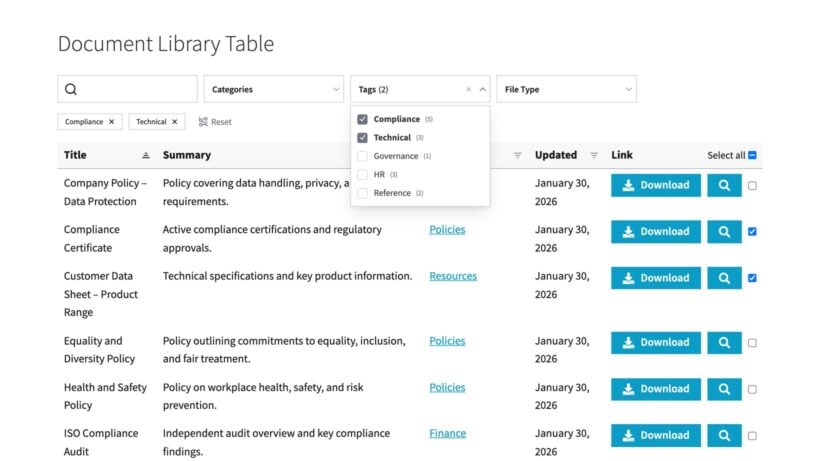
WordPress file search is the ability to find documents, PDFs, and media through your site's search function. A good file search has to do two things:
- Read the filesThe plugin needs to index the text inside your PDFs, Word documents, spreadsheets and presentations.
- Display the filesVisitors also need a structured, filterable document library where they can search and browse.
Until recently, you needed two plugins for this: A separate indexing plugin plus a library plugin. Document Library Pro now does both on the Advanced plan, since version 4.0. Visitors can search titles, descriptions and categories, as well as the words inside the files.
SearchWP is still an optional extra for more advanced search, and I'll cover when it is worth adding later in the post.
Creating a beautiful, searchable document library
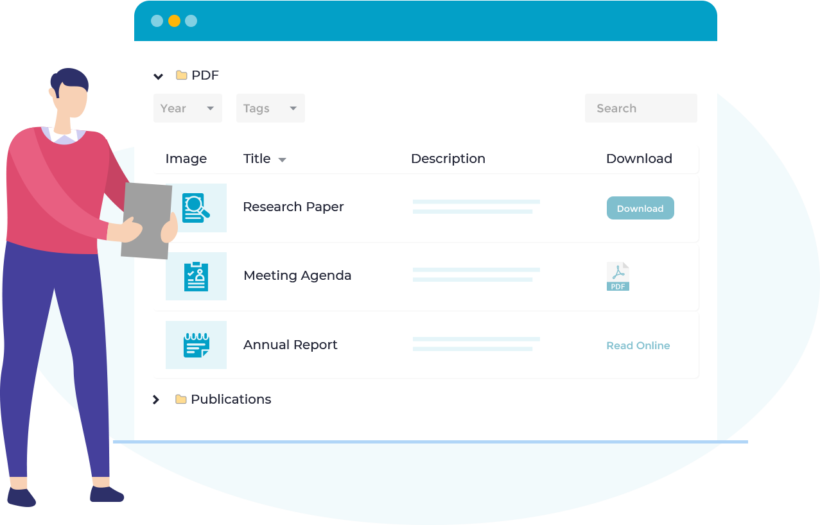
Unlike the Media Library, which mixes all file types together, Document Library Pro adds a dedicated 'Documents' area to your WordPress admin. This separation keeps your important PDFs and documents organized separately from blog images and other media. (Note: The files will be in the Media Library too, but accessing the document files via the Documents section keeps them organized.)
A free edition exists too. Document Library Lite covers searchable document tables out of the box, so you can try the approach before paying for grid layouts and access control.
How to organize your documents
Document Library Pro gives you multiple ways to add files to your searchable library. Each method serves different needs, so you can choose what works best for your situation.
- Multiple file upload methods: Upload files directly with the "Add Document" button, import hundreds at once using CSV files, or link to files stored on Google Drive or Dropbox.
- Structure your searchable media files: Go to Documents → Categories to create your organizational structure. Think departments, document types, or years - like "HR Policies," "Technical Manuals," or "2024 Reports". You can also structure document files into tags.
- Choice of display settings in Documents → Settings → Display: Table view works best for detailed document lists, grid layout suits visual materials, and folder view mimics traditional file systems.
- Enable essential features in Documents → Settings → Documents: Turn on "Document downloads" to track usage and set whether media files download directly or open in the browser.
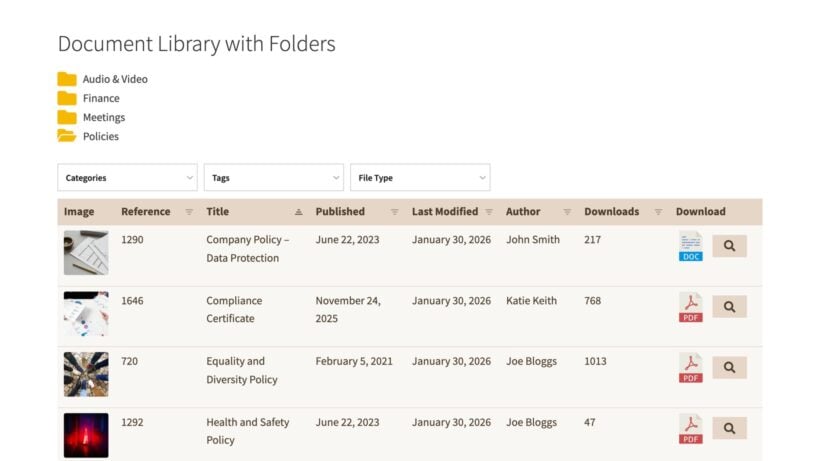
These document management features transform scattered uploads into a proper document library. Instead of forcing visitors to guess keywords, they can browse categories, use filters, and actually find what they need.
Styling and customizing your media file library
There are plenty of options for choosing where the WordPress search files appear, and customizing the library as needed.
Add file search fields
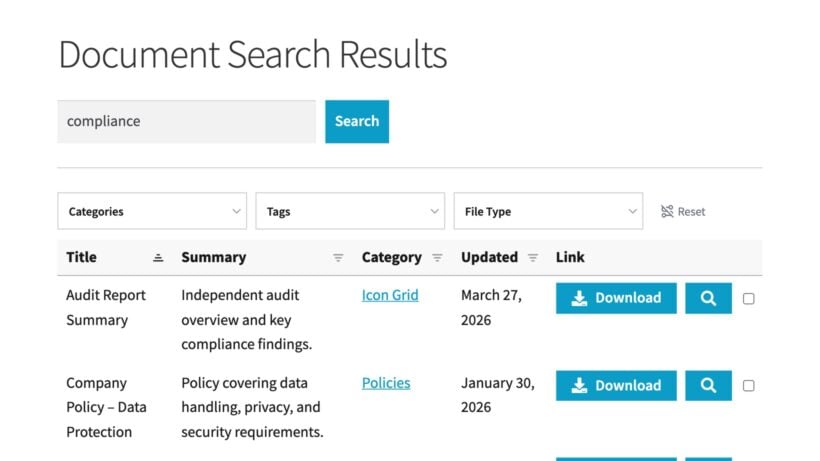
- Customizing your WordPress search files interface starts with adding search functionality wherever your visits will expect it. The standalone search widget can be placed anywhere on your page with the shortcode
[doc_search]. I've added this to homepage hero sections, sidebars, and dedicated search pages with great success. - Pre-filtered search URL's opens up powerful possibilities for targeted content delivery. Add a new page with
[doc_library search_term="safety"]to show a document library pre-searched to display safety-related files. This shows only documents including the "safety" term, perfect for safety-specific resource pages. I've created dozens of these targeted pages - HR portals, contractor resources, new employee orientations - each showing only relevant media files. - You can find the global search results page configuration in Documents → Settings → Search → Search Results Page. The default is /document-search/, but you can customize this URL and the design/layout of the page to match your site structure. I often change this to something more intuitive like /resources/search/ or /document-finder/.
- For international content, enable "Accent-insensitive search" in Documents → Settings → Advanced so "Telefono" matches "Teléfono". This small setting makes a huge difference for multilingual organizations. Finally, enable download and preview buttons for immediate download and preview in Documents → Settings → Display - preview reduces unnecessary downloads by letting users check documents first.
Add filter dropdowns
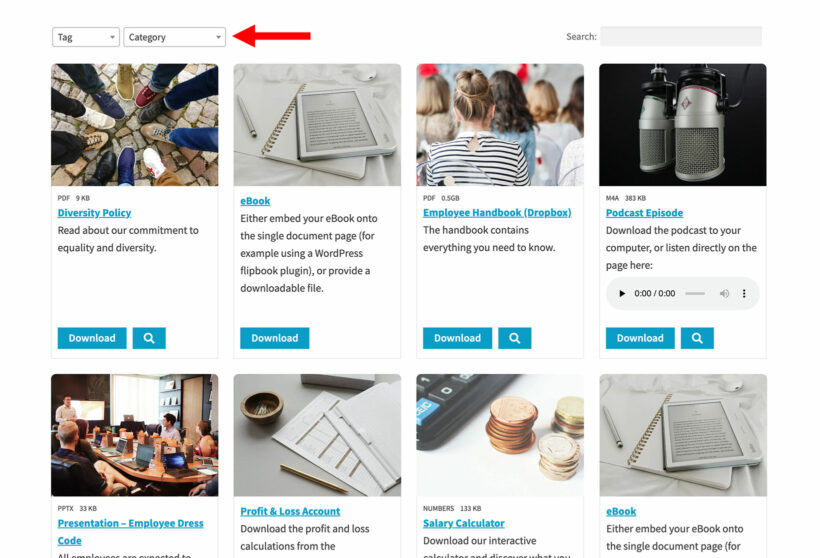
Filters are an often-forgotten way to enhance your WordPress file search. Document Library Pro also comes with dropdown filters which you can add above the document library. Add filters for categories, tags, document type, department or any custom taxonomy. This gives visitors multiple ways to narrow their search.
File filters is especially powerful when someone knows they need 'a safety document from 2024' but can't remember the exact title. The combination of search plus filters reduces search time by up to 80% in my experience.
Customize the styling
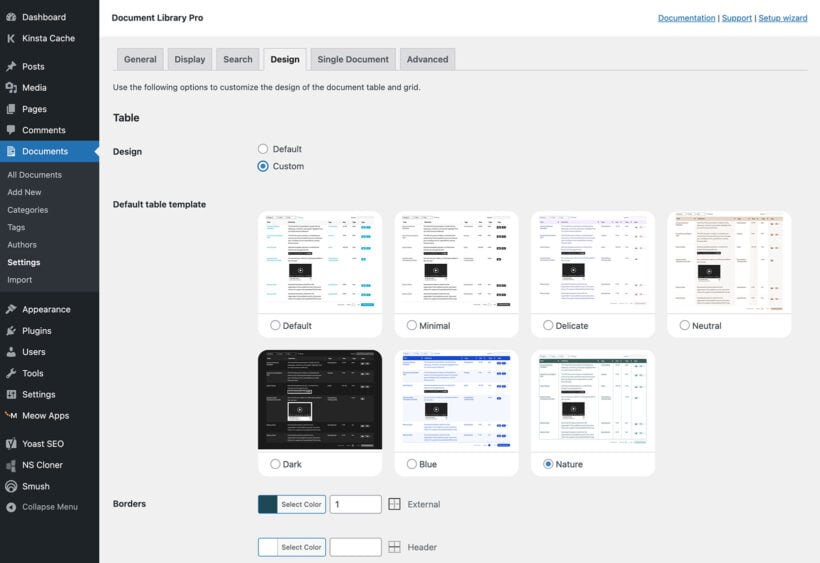
You can style the media file library in Documents → Settings → Design. Use it to adjust colors, fonts, and spacing to match your theme. I always ensure the document library styling matches the main site design for a cohesive user experience. Small details like matching button colors and font families make a WordPress document library feel like an integral part of your site, not a bolted-on afterthought.
Making PDFs and documents searchable for visitors
By now, I've shown you how to use Document Library Pro to display the files in a structured, searchable layout on your WordPress site. Document Library Pro Advanced now includes built-in file content search, with nothing to enable and no second plugin to install. The indexing runs automatically in the background. It reads PDF, Word, Excel, PowerPoint and OpenDocument files.
Please be aware that there are a few types of files Document Library Pro Advanced cannot read:
- Scanned or image-only PDFs, because they do not have a text layer. Run them through OCR before uploading them.
- Password-protected files.
- Files linked by URL or synced from cloud storage. Document Library Pro reads files uploaded to your site's Media Library.
- Old binary Office formats, including doc, xls and ppt. Re-save them as docx, xlsx or pptx.
You can check whether file search is working in Tools → Site Health → Info → Document Library Pro.
A searchable resource hub with filters is much easier for visitors to use, as Taylor Salisbury noted on Trustpilot:
"We're very happy with our purchase of Document Library Pro! We wanted to develop a user-friendly, easy-to-navigate public resource hub on our website. Document Library Pro's seamless integration… allowed us to create a beautiful, searchable grid with filters for categories and tags."
When it is worth adding SearchWP
Most document libraries do not need SearchWP. Add it if you need any of these extra search features:
- Relevance weighting, so a title match can count more than a body match.
- Synonyms and stemming, so a search for "invoices" can also match "invoicing".
- Search analytics, so you can see what visitors are searching for.
- Control over which fields are searchable.
- Searchable text from scanned documents.
The Document Library Pro and SearchWP setup guide explains the full process:
- Install and activate SearchWP alongside Document Library Pro.
- Add the Documents post type as a source on the default SearchWP engine and set the weights. I always index everything initially, then refine based on actual usage. (I typically use 50 for titles, 30 for content, and 20 for categories.)
- SearchWP then powers the Document Library Pro search box automatically, using the same interface for visitors.
Important note: The integration only works with the premium version of SearchWP.
Your document search transformation starts today
Document Library Pro gives you a complete WordPress search files setup on its own. It indexes what is inside your documents and presents the results in a searchable library.
- Capabilities: Full media file indexing, beautiful presentation, filters, and AJAX search that works instantly.
- Typically best suited for: Organizations with 100-50,000 documents who need professional document management.
- Advantages: No coding required, scales well, and typically reduces document-related support tickets by 60-80%, since visitors can actually find what they need more easily and faster.
Document Library Pro offers a 30-day money-back guarantee, giving you the confidence to test the system risk-free. You can build your complete WordPress search files system, test it thoroughly, and see the results before committing.
Take the first step to transform how visitors search files on your WordPress site. End the frustration of hidden media files and disorganized documents by getting started with Document Library Pro today and build beautiful, functioning file searches that your visitors will actually use and appreciate.