Guide to using WooCommerce product types effectively

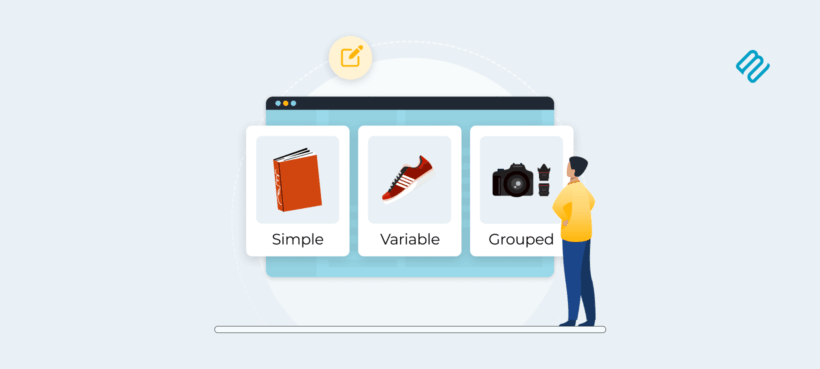
Setting up products in WooCommerce feels overwhelming when you're staring at six different product types and don't know which one fits your needs.
I've helped dozens of store owners through this exact confusion, and here's what most guides won't tell you: choosing the wrong product type doesn't just affect how you manage inventory. It also impacts your site's speed, checkout process, and how much time you'll spend on admin tasks.
Maybe you're selling t-shirts and wondering whether to use Simple or Variable products. Or you're offering digital downloads but aren't sure about Virtual versus Downloadable. Perhaps you've heard about Grouped products but can't figure out when they're actually useful.
This guide breaks down each WooCommerce product type with real examples, performance implications, and clear guidance on when to use each one. You'll learn exactly which type matches your products, and useful tools for improving on the built-in product types.
Understanding and setting up different WooCommerce product types
WooCommerce comes with a choice of six product types: simple, variable, grouped, virtual, downloadable, and external/affiliate. You can use plugins to create additional product types, such as tickets, events, or products with add-ons or extra options. There are also plugins that let you improve on the built-in product types.
Let's look at everything you can do with WooCommerce product types. As well as describing each product type, I'll share a pro tip on how to get even more out of it.
Product type #1: Simple products
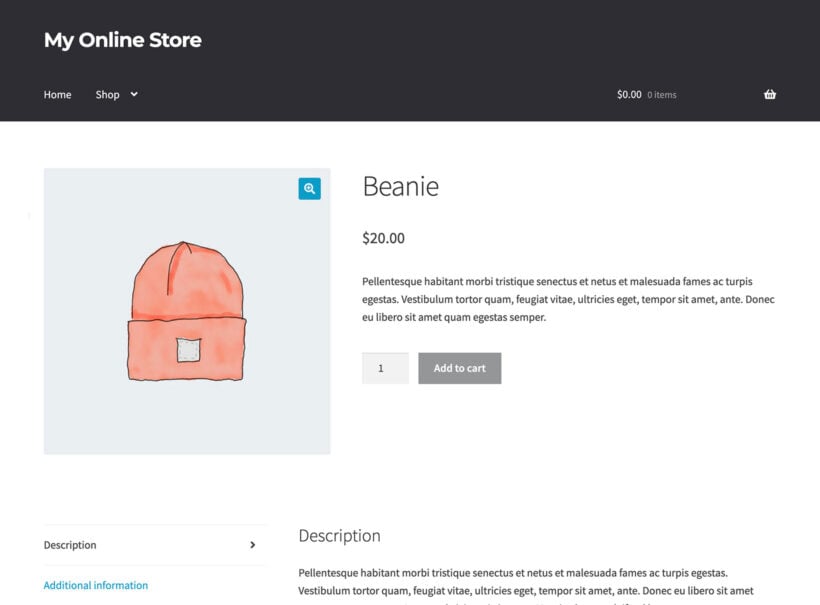
Simple products are single items with one price and no variations – the most straightforward product type in WooCommerce. They're best for items sold in just one version, like books, consulting services, basic merchandise, or any product without size or color options.
Think of a specific book title, a one-hour consultation, or a gift card with a fixed amount. These products have one product code (SKU), making inventory tracking simple and straightforward. You set one price, one stock level, and you're done.
Simple products deliver the fastest loading pages with the smoothest shopping experience. When you need maximum site speed, simple products are your best choice. There's no variation calculation, no complex pricing logic, just clean, fast product pages that convert.
Choose simple products when you don't need size or color options, you want the fastest possible site speed, or you prefer the simplest setup and management process. If your product doesn't require customer choices that affect inventory, simple products give you the best performance with the least complexity.
How to create a simple product in WooCommerce
It's easy to set up simple products:
- Go to Products → Add New.
- Add the product name, description, etc. as usual.
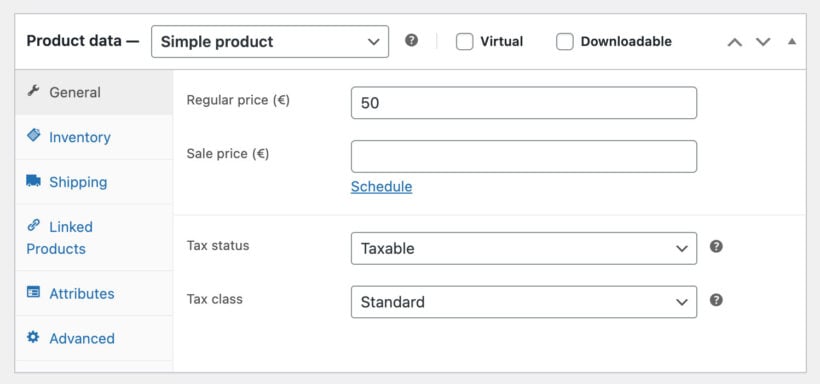
- Scroll down to the 'Product Data' section. You'll see that 'Simple product' is already selected in the 'Product type' dropdown, as this is the default.
- Publish the product to add it to your WooCommerce store.
Pro tip: Add extra tabs to simple product pages
The word "simple" means that a simple product has no options for the customer to choose from. However, that doesn't mean that it has to be simple in other ways!
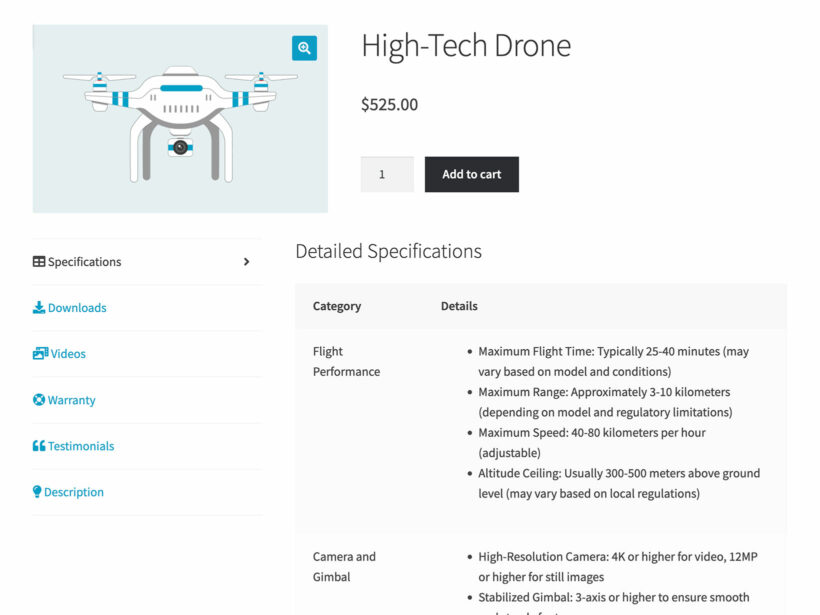
If you need to provide comprehensive information about your simple products, then there may not be space in the standard short and long product description fields. Instead, install the WooCommerce Product Tabs plugin and add extra tabs for information such as product specification tables, FAQ's, technical downloads, etc.
Product type #2: Variable products
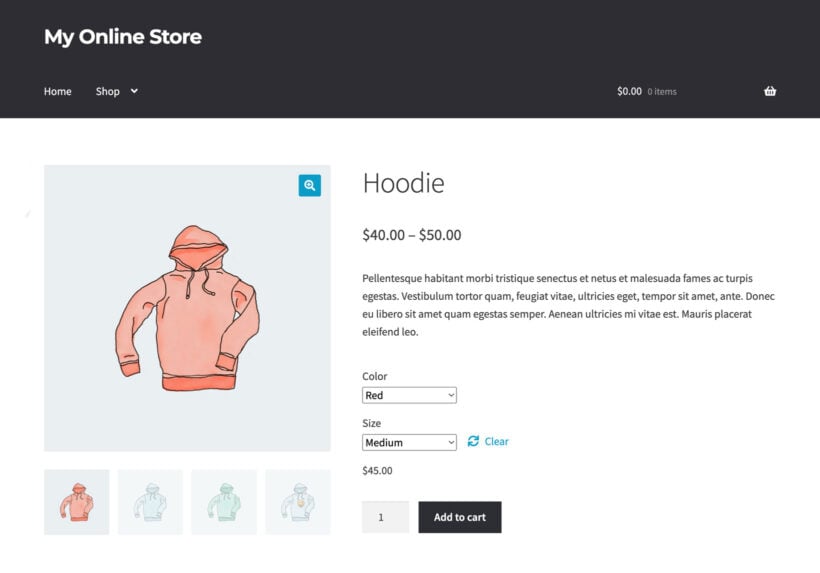
What are product variations in WooCommerce? Variable products are items with multiple options where each combination gets its own product code and inventory tracking. They're best for products where you need to track stock for each specific combination separately.
Imagine that you're selling shoes which are available in 3 colors and 8 sizes. This creates 24 different combinations, and you need to know exactly how many "red, size 9" shoes you have in stock versus "blue, size 7." Each combination has its own product code (SKU) and separate stock levels – essential when you need precise inventory control.
Choose variable products when you need separate inventory tracking for each combination, you have fewer than 30 total variations, and the combinations represent genuinely different products that require individual stock management.
How to create a variable product in WooCommerce
The process for how to set up variable products is a bit more complex than the simple product type:
- First, go to Products → Attributes and add all the attributes that you wish to create. For example, you might create a 'Color' and a 'Size' attribute.

- Click 'Configure terms' for each attribute and add all the values, for example all the individual colors or sizes.
- Go to Products → Add New.
- Add the product name, description, etc. as usual.
- Scroll down to the 'Product Data' section and change the 'Product type' dropdown to 'Variable product'. A new 'Variations' tab will appear.
- First, head to the 'Attributes' tab and select all the attributes which you wish to use as variations for the product. Tick the 'Use for variations' checkbox.
- Next, head to the 'Variations' tab and click the 'Generate variations' button to create variations every combination of attributes. You can then add prices, images etc. for each variation.
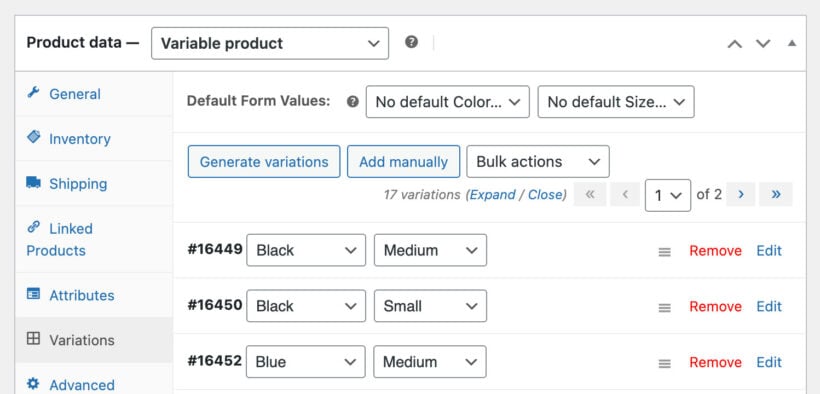
Pro tip 1: Quickly add variation data in bulk
If you need to create lots of variations, then this can take a while. For example, if you're creating a hoodie product then you'll need to manually add a different image for each color variant.
You can save time by using the WooCommerce Bulk Variations plugin to select multiple variations at once (e.g. all sizes that have the blue color attribute) and quickly apply the same image/price/etc. This can save you a huge amount of time when working with the variable product type in WooCommerce.
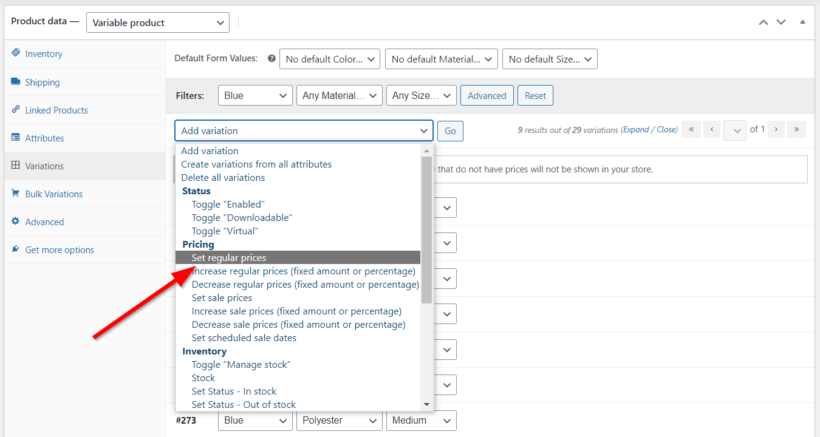
As a bonus, the WooCommerce Bulk Variations plugin also provides an option to display your variations in a quick order form in the front end 💡
Pro tip 2: Display variations in more eye-catching ways
WooCommerce can only display variations as a dropdown on the product page. This is pretty limited, and most stores can benefit from displaying variations in a wider range of styles. You can even display all of a product's variations in a table so shoppers can compare and buy them at a glance.
The WooCommerce Product Options plugin takes your product variations and displays them in attractive, interactive styles such as checkboxes, radio buttons, clickable images, and color swatches.
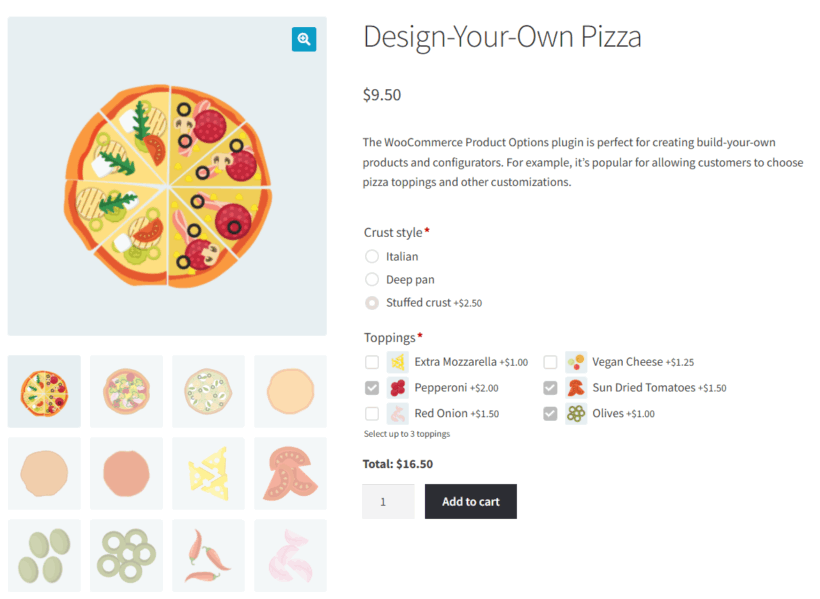
You can also save time on variations management by using the simple product type and using the WooCommerce Product Options plugin to create the options. That's a lot faster than actual product variations, and also offers additional display styles such as text fields and image uploads.
Product type #3: Grouped products
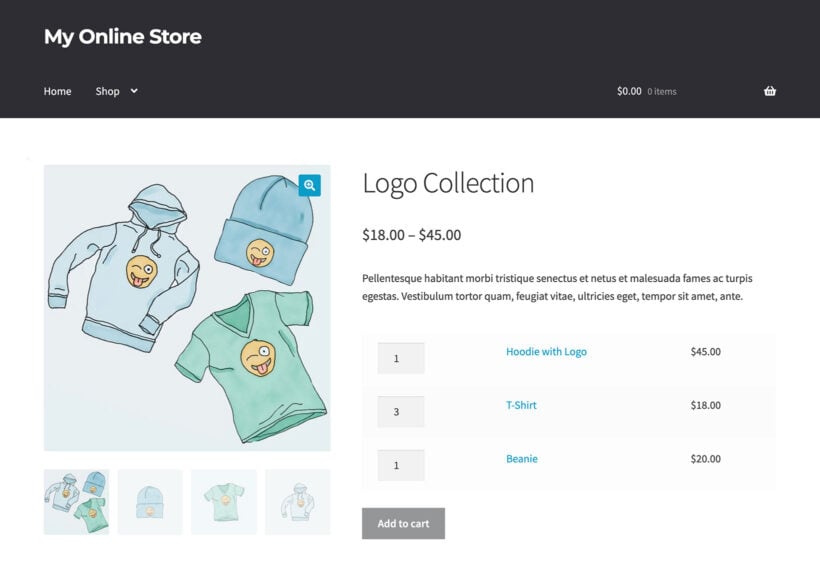
Grouped products are collections of related products displayed together on a product page. Customers can choose how many of each item they want and add them to the cart together.
The grouped product type is best for collections or sets where each item can be added to the cart individually. It gives customers flexibility while encouraging them to buy more.
Imagine a camera kit with the main camera plus optional lenses and accessories. Customers can buy just the camera or add any combination of extras. Each item in the group tracks its own stock separately, maintaining accurate inventory across your entire collection.
The performance stays strong since you're essentially showing several simple products together rather than creating complex variations. Customers see multiple "add to cart" options or quantity boxes for each grouped item, making it clear they can mix and match quantities.
Choose grouped products when you want customers to have flexibility in quantities and when items work well separately or together. They're perfect for suggesting complementary products without forcing customers into predetermined bundles.
For curated package deals with special pricing, you'll need bundled products – these require a plugin to create but offer more control over pricing and presentation. Learn more about WooCommerce Product Bundles.
How to create a grouped product in WooCommerce
It only takes a few minutes to set up grouped products:
- First, go to Products → Add New and add all the products that you want to display within the group (e.g. the camera product and all its accessories). Ideally, these should use the 'Simple product' type. You can add variable products, but these will have a 'Read more' button linking to their respective products - only simple products can be added to the cart from the grouped product page.
- Now go to Products → Add New and create the 'Parent' product for the group.
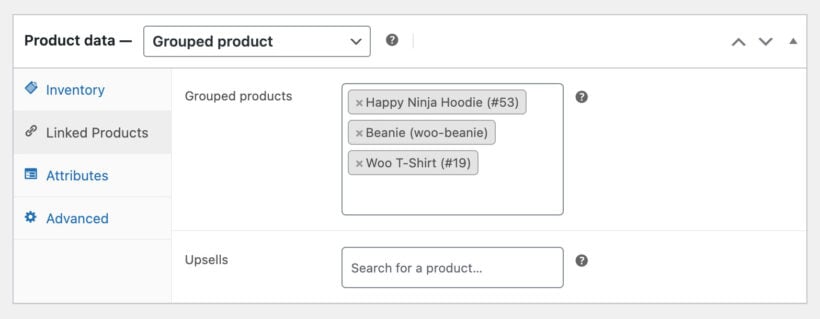
- Scroll down to the 'Product Data' section and change the 'Product type' dropdown to 'Grouped product'.
- A new 'Linked Products' tab will appear. Use this to select the products that will be displayed in the group.
Pro tip:
The WooCommerce grouped product type doesn't give you a choice over how to display your grouped products. They always appear in a grid layout.
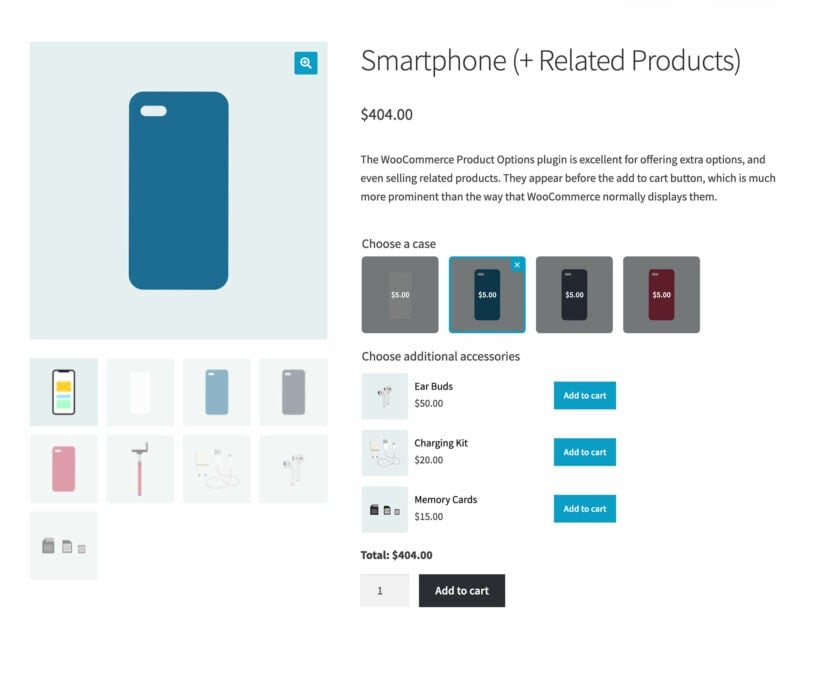
As an alternative to grouped products, you can get more flexibility by using the WooCommerce Product Options plugin to display other products from your store.
In this Smartphone example below, we can see a Smartphone product (which uses the Simple product type). It uses WooCommerce Product Options to display other products from the store (phone cases and accessories) in a range of eye-catching styles:
Product type #4: Virtual products
Virtual products are non-physical items that don't need shipping – perfect for services and digital access. They're best for services, consultations, digital memberships, online courses, or warranties.
Examples include one-hour consulting sessions, gym memberships, software licenses, or extended warranties. Each has a single product code with optional limits, useful for managing limited consultation slots or membership caps.
Choose virtual products when you're selling services or digital access (not downloadable files), you want to eliminate shipping complications, or you're selling time-based or access-based products.
How to create a virtual product in WooCommerce
Virtual products aren't really a WooCommerce product type. Instead, you can make any simple or variable product virtual simply by checking a box:
- First, go to Products → Add New and create a product as usual.
- Choose either 'Simple' or 'Variable' from, the product type dropdown.
- Depending on the product type, make it virtual as follows:
- Making simple products virtual - Tick the 'Virtual' box next to the product type dropdown.
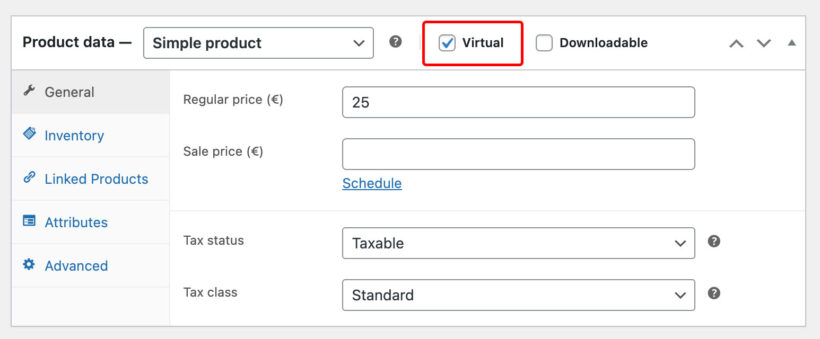
- Making variable products virtual - Go to the 'Variations' tab, open the variation, and tick the 'Virtual' box for that specific variation.
- Making simple products virtual - Tick the 'Virtual' box next to the product type dropdown.
Pro tip: Displaying virtual products in a conversion-boosting order form
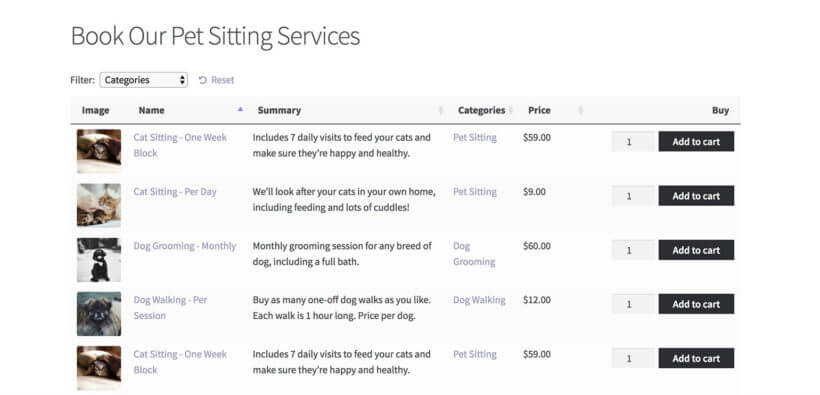
Typically, WooCommerce isn't great at displaying virtual products. That's because they are often non-visual and don't exist in the physical world. For example, if you're selling downloadable files then you probably don't want to display them in the default store layout with a large image of each product.
Non-visual virtual products can sell much more effectively if you display them in a one-page order form which includes more product data, and smaller (or no) images. You can easily do this with the WooCommerce Product Table plugin.
Product type #5: Downloadable products
Downloadable products are digital files that customers download and keep after purchase. They're ideal for software, ebooks, digital artwork, music files, PDFs, or templates.
Think software downloads, ebook purchases, stock photos, music albums, or digital design templates. Each product has a single product code with built-in security features like download limits and expiration dates to protect your digital assets.
Performance remains excellent with automatic file delivery via email. Your server handles the download process efficiently, and customers get instant access to their purchases without manual intervention.
Choose downloadable products when you're selling files customers keep permanently, you need download tracking and security, or you're selling digital products rather than ongoing access.
How to create a downloadable product in WooCommerce
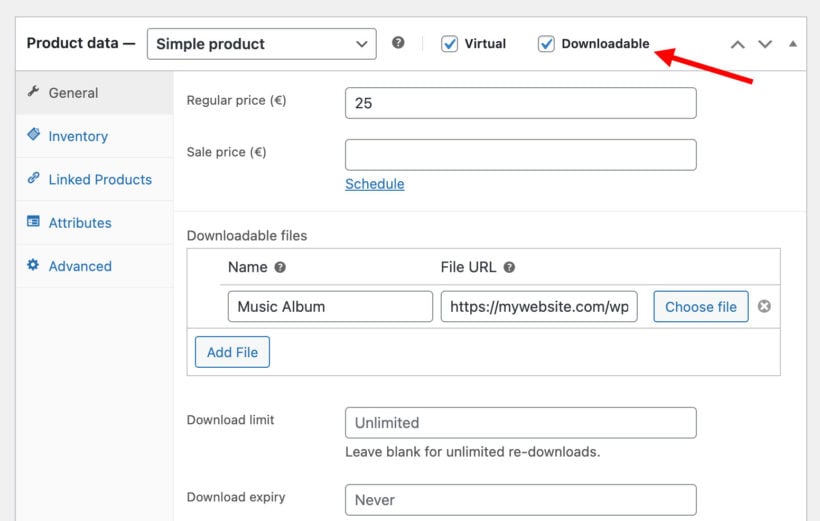
The process of how to set up downloadable products is identical to virtual products. The only difference is that after you tick the 'Virtual' checkbox, you should also tick the 'Downloadable' box that appears alongside.
- First, go to Products → Add New and create a product as usual.
- Choose either 'Simple' or 'Variable' from, the product type dropdown.
- Depending on the product type, make it virtual and downloadable as follows:
- Making simple products downloadable - Tick the 'Virtual' and 'Downloadable' boxes next to the product type dropdown.
- Making variable products downloadable - Go to the 'Variations' tab, open the variation, and tick the 'Virtual' and 'Downloadable' boxes for that specific variation.
- Some additional options will appear on either the General tab or the specific variation. Use these to add the downloadable files which will be sent to the customer after purchase, and add any download or expiry limits.
Pro tip: Display downloadable products in a quick order form
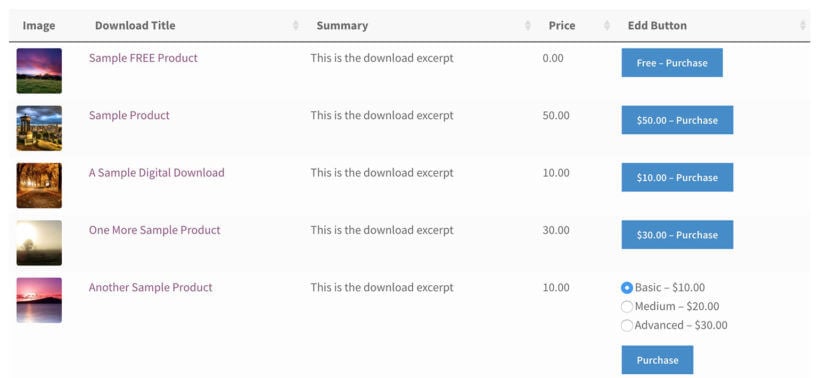
Like virtual products, downloadable items are usually non-visual and often sell best when displayed in a quick order form with smaller images. Again, you can do this with the WooCommerce Product Table plugin:
Product type #6: External/affiliate products
External or affiliate products are items you promote but are actually sold on other websites. They're perfect for affiliate marketing, partner promotions, or featuring products you don't directly handle.
Common examples include Amazon affiliate products, partner store items, or products you recommend but don't stock yourself. Since you're not handling inventory, there's no stock management needed – you're simply directing customers to purchase elsewhere.
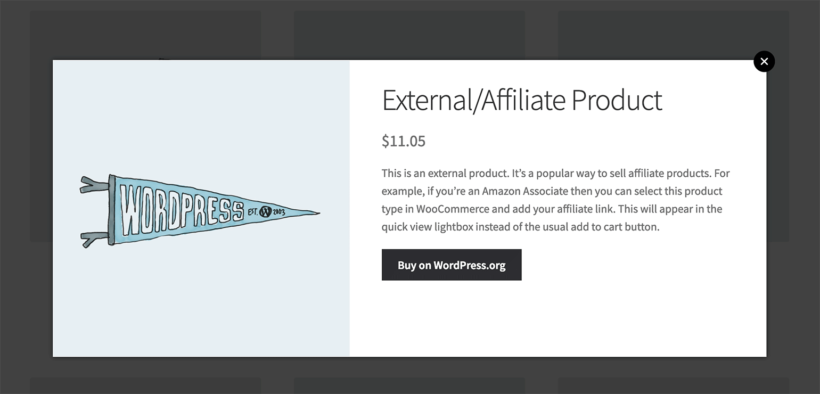
The performance benefits are excellent since there's no local inventory or checkout processing needed. Your site simply displays the product and sends interested customers to the external seller.
How to create an external/affiliate product in WooCommerce
It's simple to set up external/affiliate products because you just add basic information and redirect to a third party website where the purchase takes place.
- First, go to Products → Add New and create a product as usual.
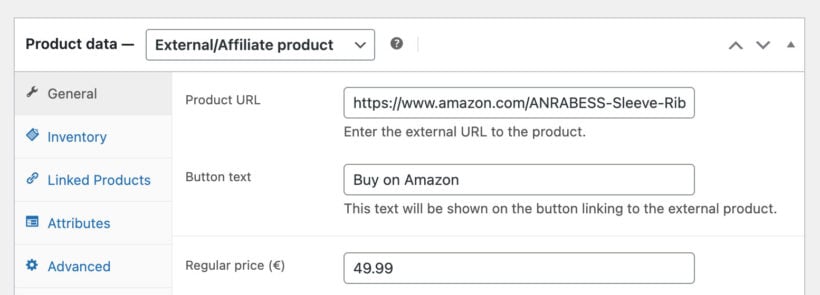
- Select 'External/affiliate product' from the 'Product type' dropdown.
- Some extra options will appear in the General tab - add the URL of the external product, the text to appear in the 'Add to Cart' button, and the price.
Extended product types beyond the default six
The six product types above are what WooCommerce ships with. Several common patterns sit outside that core set and need extension plugins to handle. If you can't see your use case in the defaults, one of these is probably it.
Subscription products
For recurring billing: subscription boxes, membership renewals, software-as-a-service plans. The official WooCommerce Subscriptions plugin adds a Subscription product type with billing intervals, free trials, and prorated upgrades. It's the right choice when you need WooCommerce to charge the customer on a schedule rather than once.
Bundled and grouped products
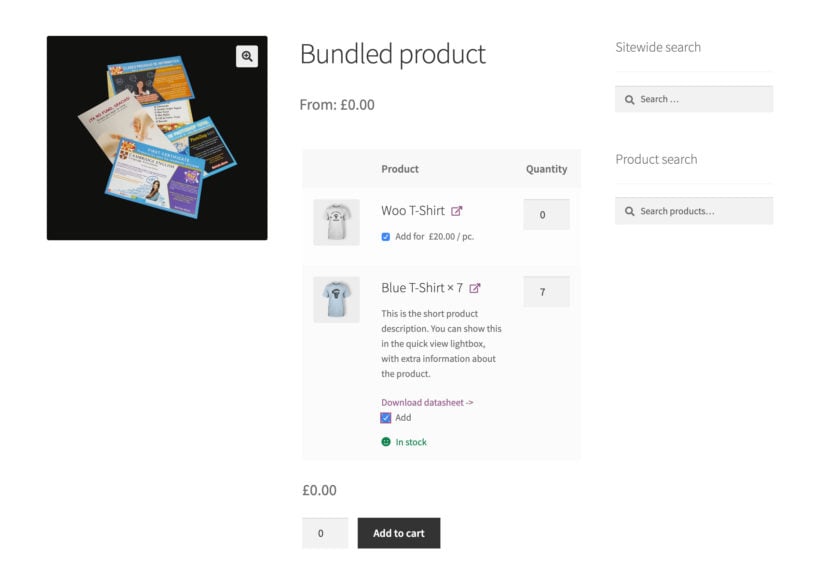
The default Grouped product lets you list related products together but each adds to the cart separately. The WooCommerce Product Bundles extension lets you build true bundled products: they treat the bundle as one purchasable unit with one price, stock managed across the bundled items. Use bundles when you sell "buy these three together at a discount". Use grouped when you sell a category page of related items that customers pick from individually.
Composite and configurable products
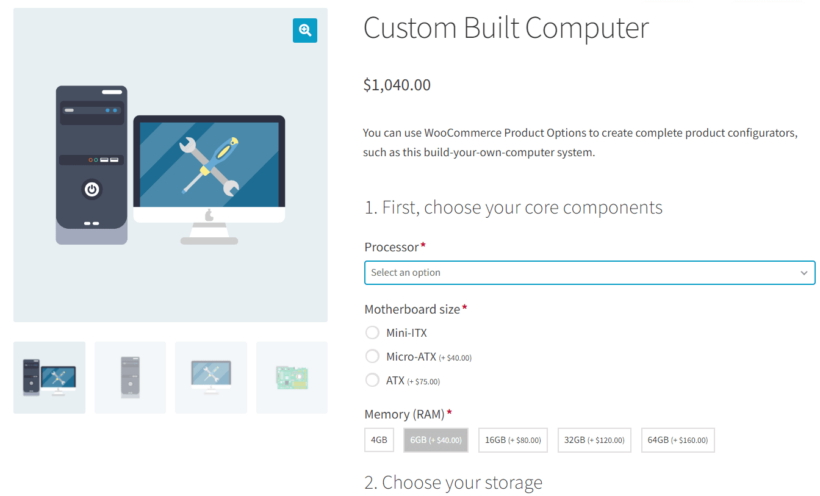
For products where the customer assembles their own configuration from multiple chosen components (a custom PC, a build-your-own hamper, a configurable bike), the default Variable product type isn't flexible enough. A dedicated product configurator such as WooCommerce Product Options handles multi-step builders and conditional variations. The WooCommerce Composite Products extension is the formal Woo solution for this pattern, and we have a dedicated guide on composite products in WooCommerce too.
Booking and appointment products
For services, classes, rental items, or any time-slot-based purchase. WooCommerce Bookings adds a Bookable product type with calendar pickers, time slots, resource availability, and confirmation workflows. Plugins like WooCommerce Delivery Slots handle the lighter case of date-only picking on a regular product.
Frequently asked questions about WooCommerce product types
Which product type should I use for X?
Start with what the customer is buying. A physical item with options of size or colour is a variable product. A digital file is a downloadable product. A service or a non-shipped item is a virtual product. A recurring purchase is a subscription (extension required). When in doubt, pick Simple and add variations or virtual flags later.
Can I combine product types?
Some combinations are built in. A variable product can also be virtual, a downloadable product can also be virtual, and a simple product can be both at once. Subscription, bundle and composite types come from extensions and can stack on top of variable products in limited ways. Always test the combination on a staging site before going live.
How do I change a product type after creation?
Open the product, change the Product data dropdown, and save. WooCommerce keeps as much of the product information as it can during the swap, but variation data is lost when you move away from Variable, and bundled-item links are lost when you move away from Bundle. Back up the database or duplicate the product before changing the type on a live store.
Start using WooCommerce product types effectively today
You now understand all six WooCommerce product types and how to set each one up. Simple products for single items, variable products for options with separate inventory tracking, grouped products for collections, virtual for services, downloadable for digital files, and external for affiliate products.
Each type serves a specific purpose in your store. Take a moment to review your current catalog. Are you using the right product type for each item? Could virtual settings eliminate unnecessary shipping options for your services? Would external products help you monetize affiliate partnerships you've been ignoring?
The best part? You don't have to stick with WooCommerce's default display options. As you've seen throughout this guide, plugins can transform how any product type appears to customers - from WooCommerce customization tools like visual swatches for variations to quick order forms for downloadable products.
Ready to enhance your product displays? Explore WooCommerce Product Options to transform boring dropdowns into engaging, visual shopping experiences.