




How to password protect a WooCommerce shop the easy way

Password protecting a WooCommerce shop adds an extra layer of protection to online stores. This is particularly useful for wholesale stores, membership sites, and other types of WordPress sites that require restricted access. Learn how to password protect your WooCommerce shop page and safeguard your online store with ease.

WooCommerce is an ecommerce platform that doesn't provide built-in password protection for entire shops. That means, as is the WordPress way, you're going to need a little help from a plugin.

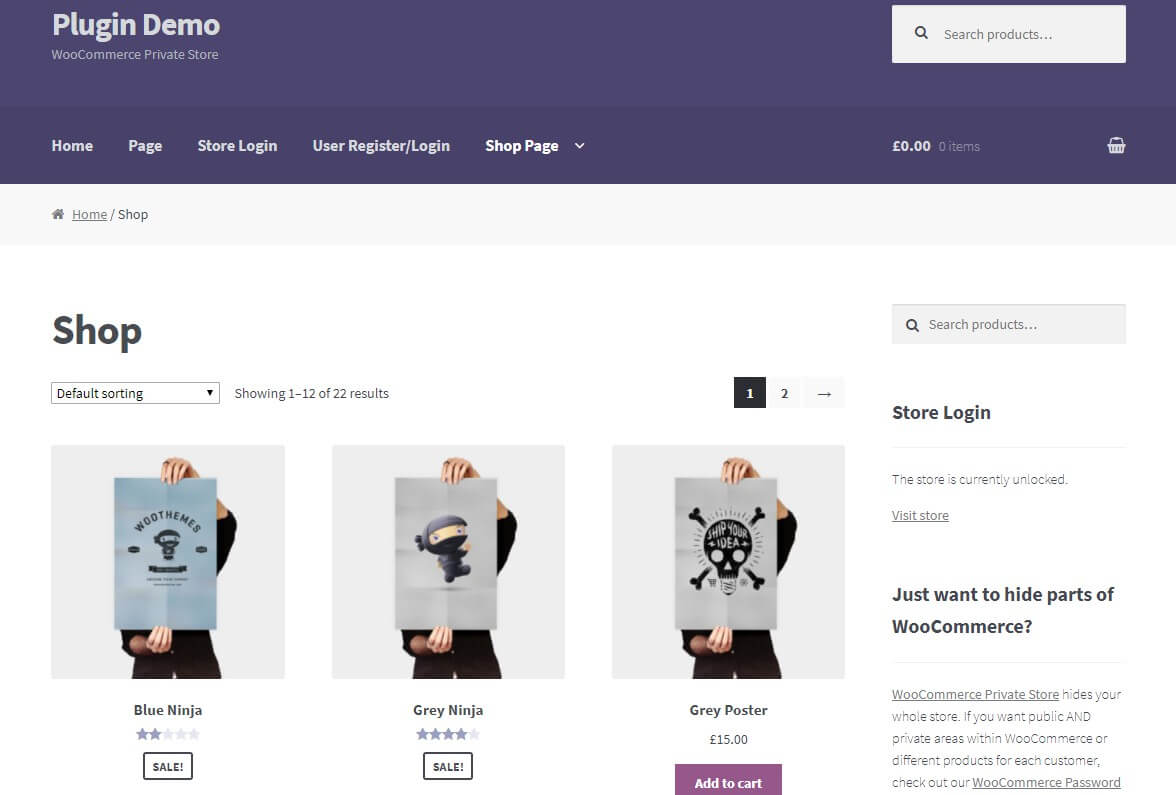
To that end, I'm going to spend this post showing you how to password protect a WooCommerce shop page using a simple but effective plugin with just a few settings. I'll provide full written instructions plus a step-by-step tutorial video. When you finish, you'll know exactly how to get functionality like this for your shop using the WooCommerce Private Store plugin:
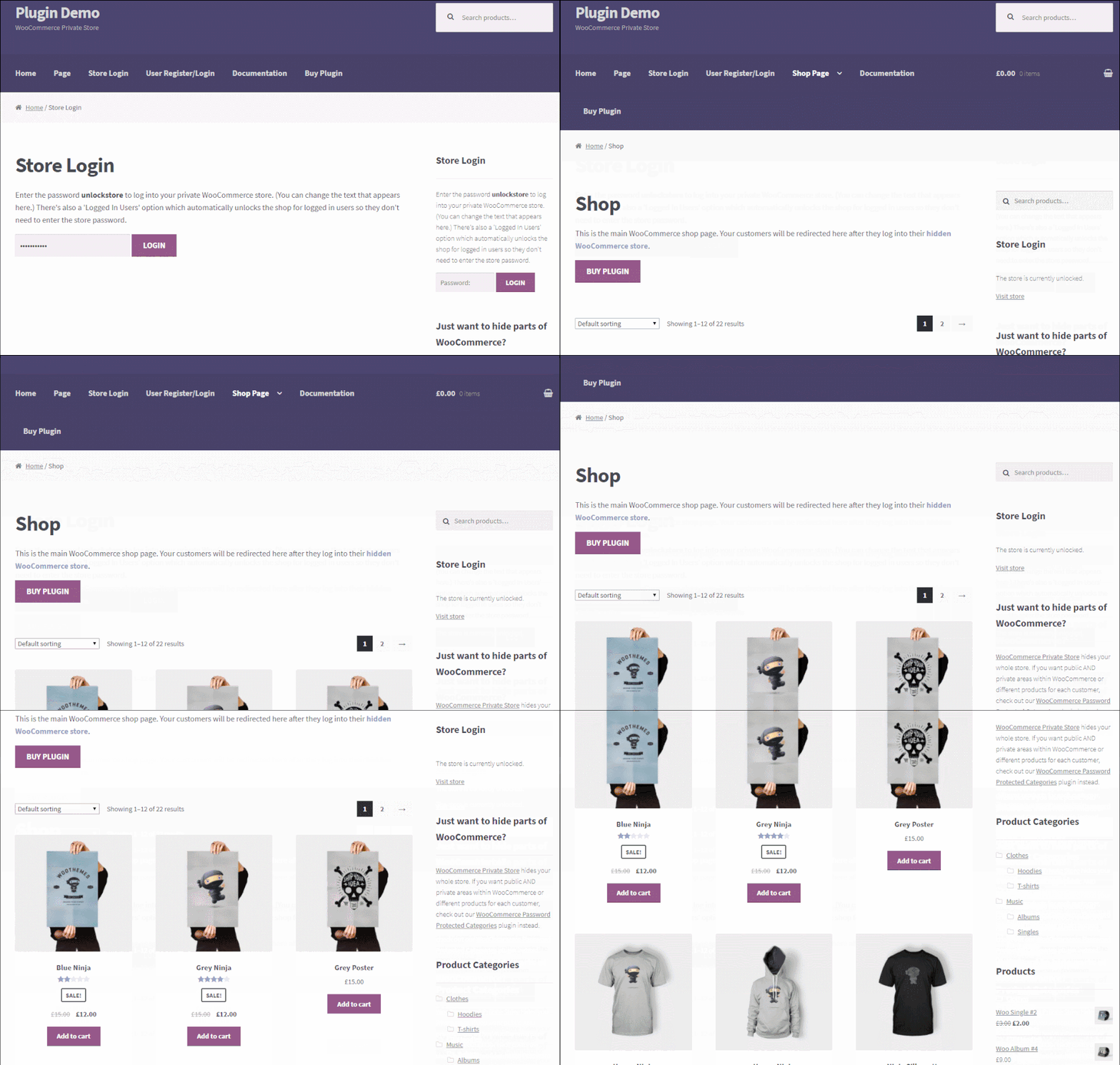
example of how to password protect a woocommerce shop

Importance of password protection for WooCommerce shops

Password protection for WooCommerce shop pages is a security measure that restricts store access to authorized users only. It is essential for a number of reasons.

Firstly, password protection helps ensure that only authorized users are able to access certain areas of your entire store. For example, wholesale stores use password protection to restrict access to pricing information and other sensitive details. Only approved users can view this protected content. Similarly, membership sites use password protection to ensure that only paying members are able to access premium content.

By using a WooCommerce password to protect your shop page, you can also add an extra layer of security to your online store. This security layer becomes especially important when you're dealing with sensitive customer data. Credit card details and other personal information require protection from unauthorized access. WooCommerce password protection helps prevent unauthorized access and potential data breaches. This safeguards your business and your customers' privacy.

In addition to these benefits, password protect WooCommerce plugin can also help you create a sense of exclusivity and demand for your products. Making certain products or areas of your WooCommerce store password protected creates exclusivity. This exclusivity creates scarcity that can help to increase sales. The restricted access drives customer engagement and increases perceived value.

Now, let's look at a couple of real-life examples from companies that needed to password protect the WooCommerce shop page.

Case study #1: Sprezzatura Imports

Sprezzatura Imports is a wholesale coffee distributor in the US. They specialize in importing the Italian coffee brand ICAF and sell to distributors through a private password protected WooCommerce shop page. This is where our WooCommerce Private Store plugin comes into play.

Only distributors can access the price list and purchase single products. That's why this area is locked away behind a login screen. To secure the private online shop, Sprezzatura Imports used our WooCommerce Private Store plugin. Everything Sprezzatura Imports want to hide from the public can be hidden in this secure area.

And to keep things simple, registered distributors can quickly access the WooCommerce orders password protected area. The login page has been added to the navigation menu for easy access. Distributors find the login link immediately in the main navigation.
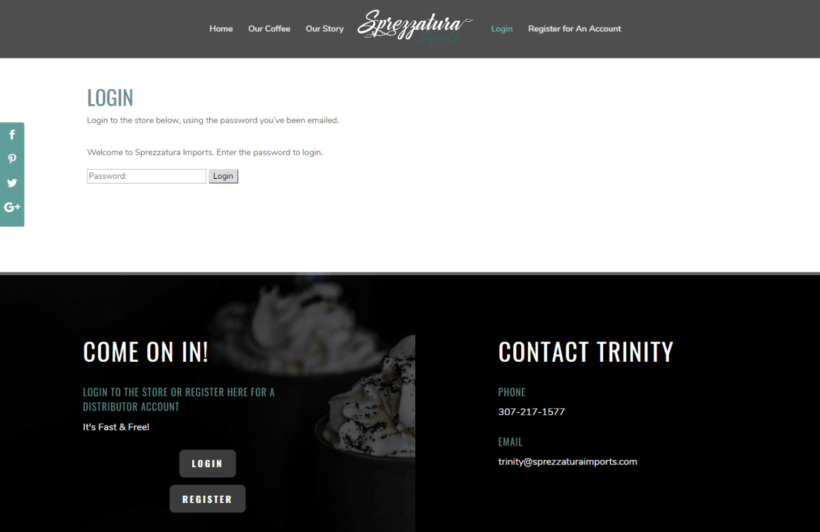
Sprezzatura Imports login screen

Case study #2: Montana Medicinals

Montana Medicinals homepage shown after entering the store password

Gecko Designs were building a ecommerce website for Montana Medicinals. Montana Medicinals operates a medical marijuana dispensary in the State of Montana. For legal reasons, they needed to password protect their WooCommerce shop. Only pre-authorized customers could access it.

The developers achieved this in minutes using the WooCommerce Private Store plugin.

First, they used a sitewide WordPress age verification plugin. This ensures that no one under age 18 can access the website at all. For added security, they used WooCommerce Private Store to password protect the WooCommerce shop.

When you click on the Shop link in the navigation menu, you are prompted for a password:
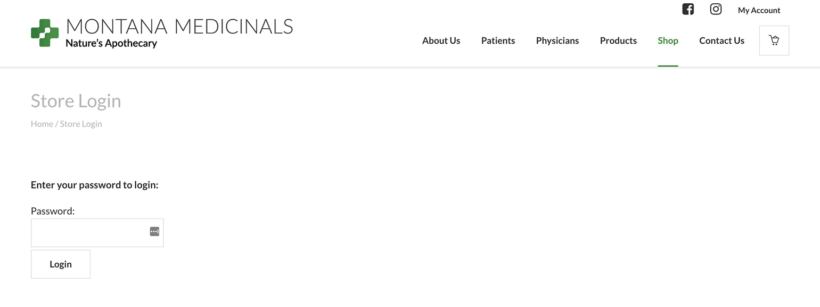
Montana Medicinals shop page locked behind a password login

If Montana Medicinals has given you the password, then you can unlock the WooCommerce shop and purchase the medicinal marijuana within. If you do not have a correct password, then you cannot unlock the shop. You cannot view password protect products or buy without the correct password.

The developer was delighted with the plugin and wrote a glowing review:

Worked perfectly!
We used this plugin to comply with a US state law in Montana that required a medical marijuana dispensary password protect their WooCommerce catalog. It worked perfectly and was easy to configure!

How to password protect a WooCommerce shop

Password protection methods comparison

Protection method Best for Setup time Price control User management
Full shop protection
(WooCommerce Private Store)
Wholesale stores, B2B shops, membership sites 5-10 minutes Hides all prices until unlocked Single or multiple passwords, role-based access
Category protection
(Protected Categories plugin)
Mixed public/private catalogs, VIP sections 10-15 minutes Selective price hiding by category Per-category passwords, user role integration
Individual product protection
(Native WordPress)
Single exclusive products, limited releases 2-3 minutes per product Manual per-product control Single password per product
User role restrictions
(Membership plugins)
Subscription sites, tiered access 30-60 minutes Dynamic pricing by user level Full user database, subscription management

Setup tutorial

Beyond the obvious of having a WooCommerce store that actually needs password protecting, all you'll need to follow this guide is the WooCommerce Private Store plugin.

WooCommerce Private Store is a plugin that lets you protect your shop with one or more passwords. The plugin also lets you choose several configuration options:

  • How long the store stays unlocked when a user enters the password
  • What page users can log in to the store from
  • Where to take users after they log in

When you use the plugin, every aspect of your shop is hidden until a user enters the password. Hidden elements include:

  • Shop pages
  • Navigation menu links
  • Sidebar widgets

While the store functionality is hidden until the user enters a password, the rest of your site will function like normal. By using the password protection visibility option for your WooCommerce shop, your website visitors will still be able to view your homepage, blog, and regular WordPress pages. Only the password-protected content will be hidden. Only approved or logged-in users can access the protected content.

Features and benefits of the plugin for WooCommerce shops

The WooCommerce Private Store plugin is a powerful and flexible tool for password protecting your WooCommerce shop. Here are some of the key features and benefits of this plugin:

  1. Password Protection: The WooCommerce Private Store plugin allows you to password protect your entire shop or specific product categories, products, or pages. This helps to keep your products and pages private and secure. It allows you to restrict access to specific user groups or individuals.
  2. Customization: With the WooCommerce Private Store plugin, you have full control over the design and functionality of your password-protected shop. You can customize the message displayed to users when they attempt to access your shop. You can also choose whether to hide or show product prices and checkout buttons.
  3. User Management: The plugin includes user management features that allow you to add, edit, and delete users with ease. You can also create user roles and assign specific permissions to different user groups. This gives you granular control over who can access your shop.
  4. Security: The WooCommerce Private Store plugin includes several security features to help protect your shop and your customers' data. You can require strong passwords and enable two-factor authentication. You can also choose to log out inactive users automatically after a certain period of time.
  5. Integration: The plugin is fully compatible with other WooCommerce plugins and themes. This allows you to customize and extend the functionality of your shop as needed.

Step 1: Set up general settings

Once you've activated the plugin and entered your license key, go to WooCommerce → Settings → Private Store to set up the passwords that unlock your store. You'll also configure a few other general options here.

You can use a single password for everyone. Or, you can use the Plus icon to create multiple passwords that unlock your store. Multiple passwords allow different access levels for different user groups.

Below the passwords, you should also enter a value for Password expires after. This plugin setting lets you control how long the store remains unlocked. The time is measured in days after a user enters the password:
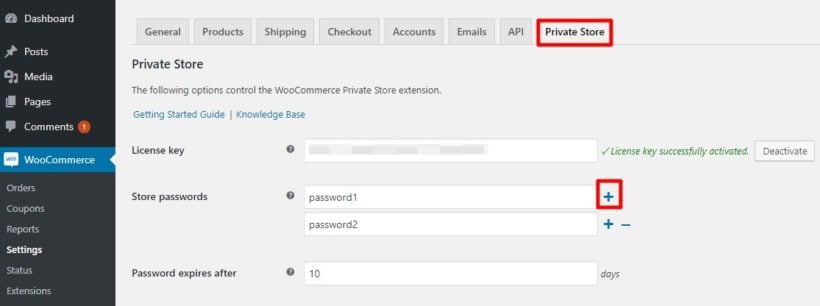
Adding store passwords and an expiry period in Private Store settings

Below that, you can use the Redirect URL field to redirect the user to a specific products page after they enter the password. If you leave this blank, visitors will just go to your normal shop page after they enter the password. The redirect feature helps create a customized shopping experience.

Finally, you can also choose whether or not to automatically unlock the store for Logged in users or specific user roles.

If you check this box, anyone who's logged in to your WordPress website will not need to enter the password in order to see the store. This streamlines access for registered users:

Password expiry and redirect URL fields in the store settings

⏱️ Setup time estimates

  • Basic password protection setup: 5-10 minutes
  • Plugin installation and activation: 2 minutes
  • Single password configuration: 3 minutes
  • Multiple passwords with user roles: 10-15 minutes
  • Login page customization: 5-10 minutes
  • Testing and verification: 5 minutes

Total time for complete setup: 15-20 minutes for a fully configured password-protected shop

Step 2: Configure login form

Below the general settings page, you can use the Login form section to configure the page where users log in. This section controls the appearance and functionality of your login page.

The settings are all fairly self-explanatory. Each option clearly indicates what it controls:
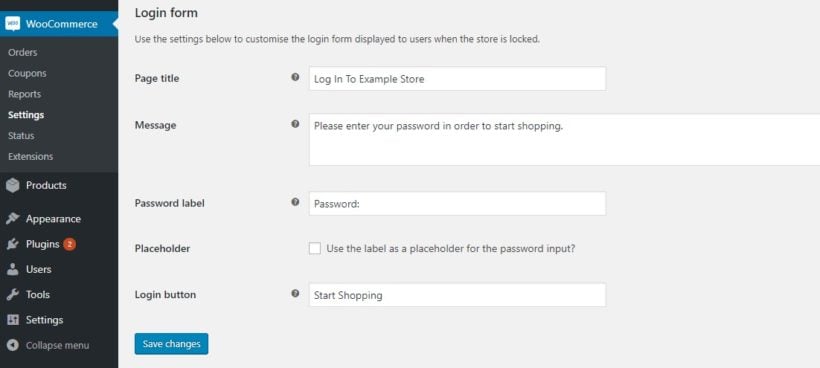
Customizing the login form title, message and button text

How the plugin works in more detail

Once you have installed the password protect WooCommerce shop page plugin, all traces of your store will disappear from the front end of your site. All of your regular WP content will function normally, though. Your blog posts, pages, and other non-WooCommerce content remain visible:
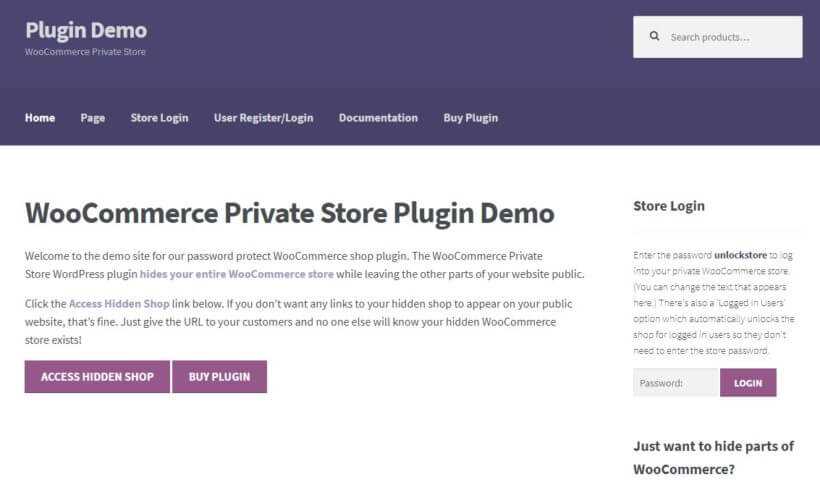
Public WordPress home page with the hidden shop kept private

If a user performs certain actions, they will encounter the login form. These actions include:

  • Goes to the store login page
  • Tries to access any WooCommerce page via a direct URL

They will see your login form like this:
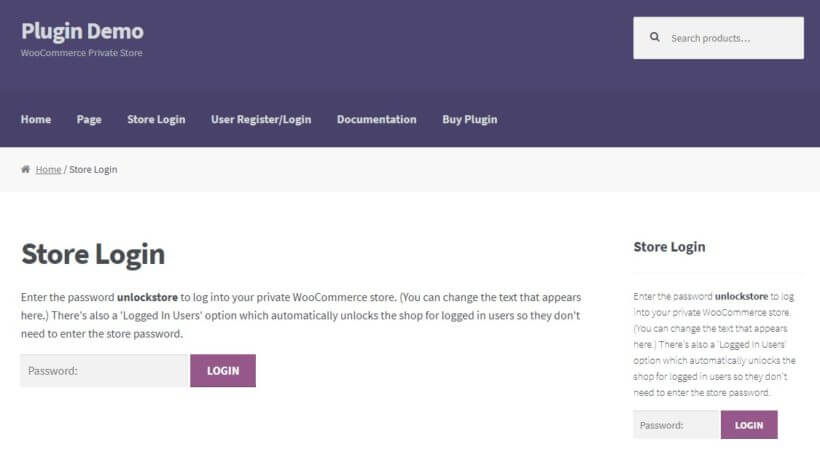
Front-end store login form shown to visitors before unlocking

And as soon as they enter a valid password, they'll instantly see all of your store components. These components include:

  • Store and product pages
  • Navigation menu items
  • Widgets
WooCommerce shop page visible after the store is unlocked

And that's all there is to it!

For a more surgical approach, you can also use the WooCommerce Protected Categories plugin to password protect a single product category, rather than your entire shop. This gives you more granular control over what content is protected. You can also use our plugins to build a members-only WooCommerce store.

📚 Key terms glossary

Authentication: The process of verifying user identity through passwords, login credentials, or other security methods.

User Roles: WordPress permission levels (Administrator, Editor, Subscriber, etc.) that determine what users can access and modify.

Password Expiry: The time period after which users must re-enter their password to maintain shop access.

Frontend: The public-facing part of your website that visitors see and interact with.

Shop Page: The main WooCommerce page displaying all products or product categories.

Two-Factor Authentication (2FA): An extra security layer requiring two forms of identification before granting access.

API: Application Programming Interface - allows different software programs to communicate with each other.

License Key: A unique code that activates premium plugin features and enables automatic updates.

Protect your WooCommerce shop page today!

If you're running a WooCommerce shop, it's crucial that you take steps to ensure the security and privacy of your customers' data. One of the simplest and most effective ways to do this is by using a password protect WooCommerce shop page plugin.

By password protecting your WooCommerce shop page, you can restrict access to sensitive information. You can prevent unauthorized users from viewing or making purchases. This helps safeguard your business and your customers' privacy. It prevents data breaches and other security issues.

Adding password protection for your WooCommerce shop page is easy and straightforward. There are many plugins and tools available to help you get started. Whether you're running a wholesale store, a membership site, or any other type of online store, password protected pages are an important consideration for enhancing the security and functionality of your shop.

So if you haven't yet implemented password protection for your WooCommerce shop page, we encourage you to take action today. With the right tools and resources, you can quickly and easily enhance the security of your online store. You can provide your customers with the peace of mind they need to shop with confidence.

If you have any other questions about how to password protect a WooCommerce shop, leave a comment and we'll be sure to help out.
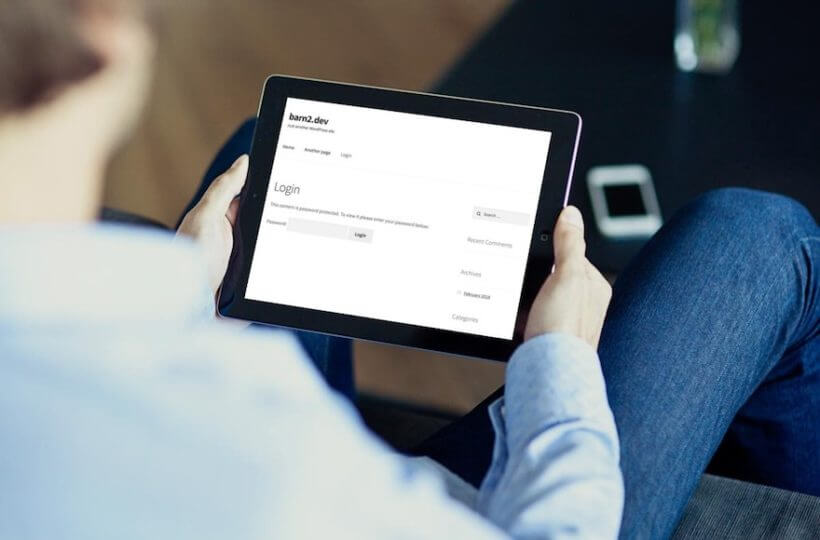
Tablet displaying the login screen of a private WordPress blog

Do you want to collaborate on private projects within a workplace team? Perhaps you want to restrict content to paid subscribers, or give specific access to site subscribers/bloggers with password protection? Or you might want to share photos and updates among family and friends. You may even need to distribute online training to bloggers, for example.

You can do all this and more with a WordPress private blog plugin.

With the right tools, it's surprisingly simple to create a WordPress private blog. In this guide, I'll show you how to protect your blog content in just a few minutes by changing its visibility.

We'll first start with the "why", and show you some example use cases of private blogs, and then get into the "how" of doing this on your own blog – including advanced features such as a convenient user login page. By the end of this blog, you'll be totally prepared to create private posts yourself.

You'll learn to create password protected and private blog posts using the popular plugin, Password Protected Categories.

You can get a head start by getting the plugin right away, or continue reading for the "why" and then the "how". Let's make a start.

Why create a WordPress private blog?

A WordPress private blog allows you to protect some or all of your posts. You can also choose how users access this protected content: either using a password, or by logging into their WordPress user account..

It's a good idea to take some time to consider whether, for your particular blog, you want to protect some of your private pages or all of them, and how you want users to access your content.

Popular uses of a private WordPress blog plugin

With that in mind, let's look at some of the most popular uses of a WordPress private blog plugin:

  • Subscription blogs If you offer paid or tiered content, a WordPress private blog plugin is ideal. You might even choose to keep some of your posts public while protecting others in order to entice new subscribers.
  • Community building A completely hidden blog is a great place to share news and updates exclusively within your community.
  • Membership levels Do you run an organization or club with different membership levels? With a private blog, you can choose which posts are visible to which members.
  • Client areas You can share content with specific types of clients, or even create special areas within your private blog for individual clients.
  • Workplace communicationCommunicate important, private news and updates to your staff members. Or create a space to collaborate on private projects within a workplace team.
  • Personal blog Create a private blog that's hidden from search engines and share it with only the people you choose.
  • Training Offer online training either within a workplace or to subscribers – you can even include videos. If it's for paid subscribers, you could also offer teaser training videos to encourage signups.

Whichever usage you want, the process is identical. You might even choose a use case we haven't thought of! That's absolutely fine: the process is exactly the same, whatever you want to use your private blog for.

In the next section, I'll show you how to do this in practice: protect some of your blog posts, while keeping others public. Alternatively, if you're interested in protecting your entire WordPress site, you can skip ahead. For both, we'll show you how to setup convenient login pages for your visitors, clients, and/or customers to smoothly access your content.

How to protect some (but not all) of your blog posts

If you want to keep some of your blog posts public while keeping others visible, you can change the visibility of selected blog categories. This lets you create a private site area within your blog, which only specific users will be able to view. For example, you might want to keep paid content hidden while offering teaser blog posts, or have some areas of your blog only viewable by certain clients.

Changing blog category visibility isn't possible using the core WordPress software, so you'll need the plugin Password Protected Categories.

Password Protected Categories adds a visibility option to blog categories. This makes it easy to change the visibility of categories between Public, User role protected, and restricted to individual user accounts , just as you can with individual posts. It's better than protecting individual posts because it actually hides them from your main blog page. Users can enter a single password to unlock the whole private WordPress blog instead of having to enter a password for each post.

Get Password Protected Categories

Using this plugin you can:

  • Either password protect blog categories so only people with the correct password will be able to view posts in protected categories. You can create as many passwords as you need without having to add lots of users who could potentially make unwanted changes to your website.
  • Or restrict blog categories to specific logged in users or roles so that only certain people can see them.

Firstly, buy the Password Protected Categories plugin. To upload the plugin file, go to PluginsAdd New and click Upload Plugin. Choose the plugin file from your computer and click Open. Click Install Now then Activate Plugin.

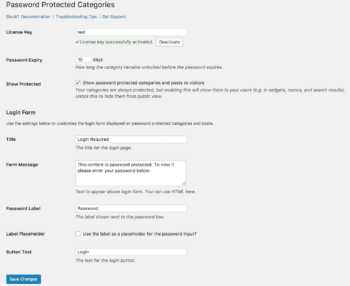
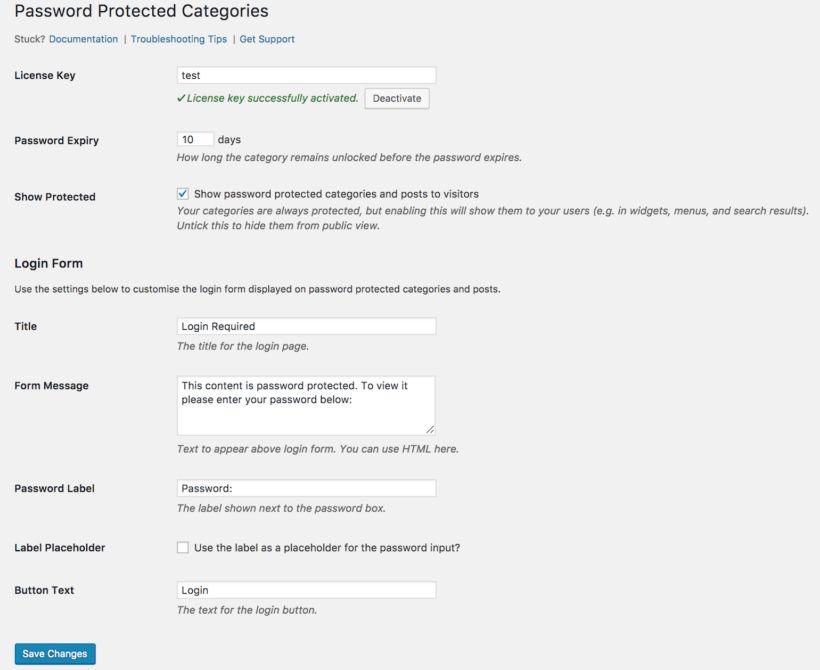
Once activated, head to SettingsProtected Categories and enter your license key:

Password Protected Categories settings and login form options

Let readers register for private blog access

You can let your readers self-register for private blog access by using the Profile Builder or Theme My Login plugin. Both plugins create an attractive front end registration form (plus login page). Install the plugin, and activate.

The plugin automatically generates a set of login pages, which you can find under Pages in the WordPress dashboard. You're now able to send readers to the Register page, where they can self-register for access to your private blog. Use the TML icon on the bottom left of the WordPress Dashboard, and then click Enable user moderation to ensure you have full control over who can register for your site.

You can use this capability in conjunction with with Password Protected Categories' user role protection. The registration form will give users access to the role that has access to the protected categories. This gives you a full suite of private blog capabilities.

Read on for more details on how to edit blog category visibility. You have two options: set blog categories to be password protected (below), or restrict blog categories based on user or role (click to skip to this).

Option 1: Set blog categories to password protected

A password protected blog is a great choice if you have more than a couple of people who'll be reading your private blog posts. It's also good if you don't want each person to have an individual user account on your website, as all they need is the password.

To password protect blog categories, you can create new blog categories and set their visibility to Password protected or you can edit the visibility of existing blog categories.

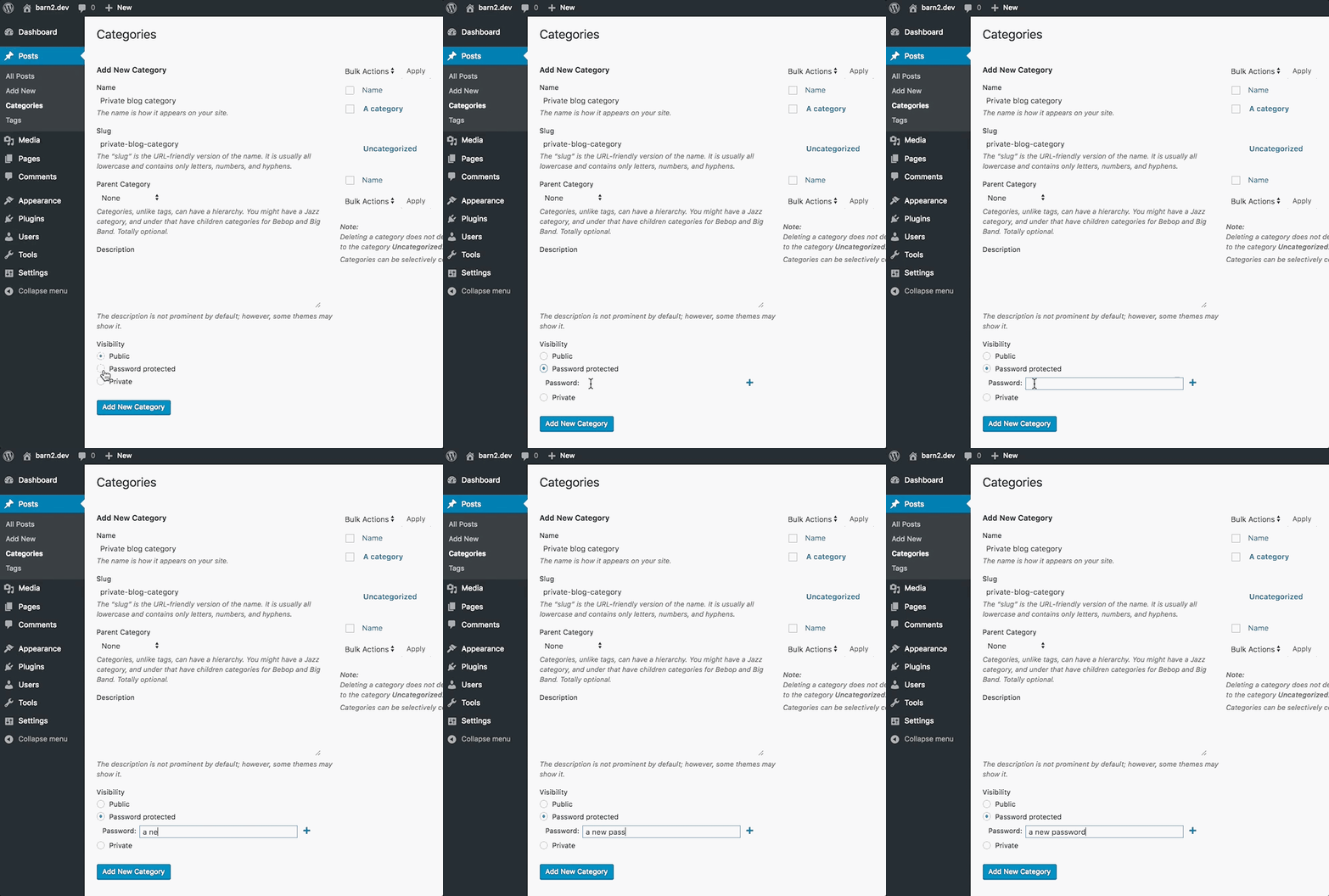
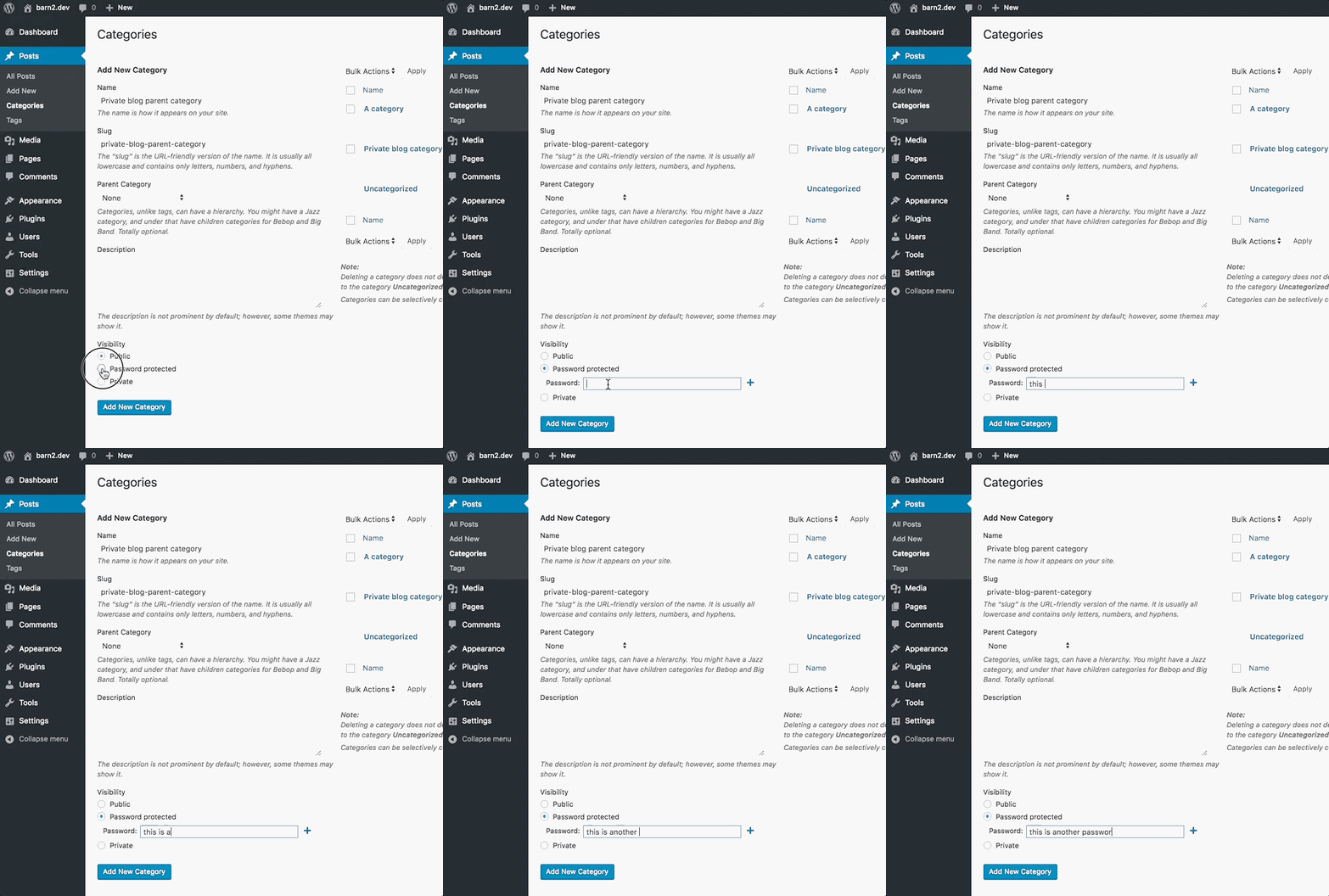
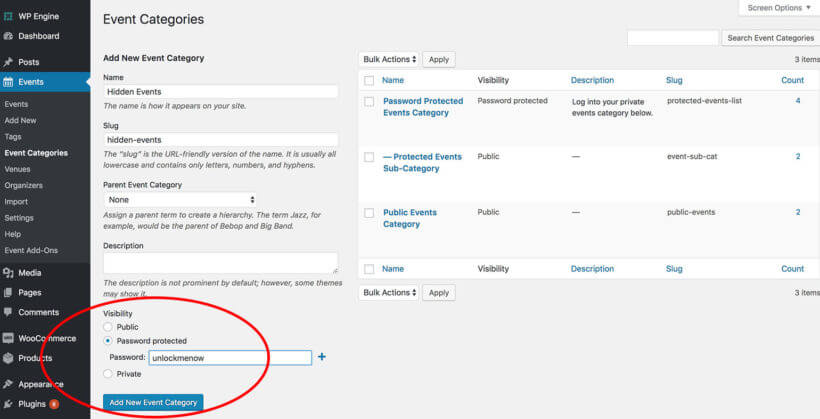
To create a new blog category, in your WordPress Dashboard, go to PostsCategories. Write the category name and slug. Scroll down to the Visibility section, select Password Protected. Type your password and click Add New Category:

Adding a password protected blog category in WordPress

Password protect the blog category

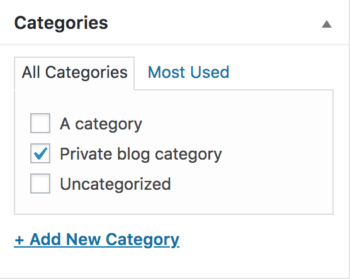
To categorize a blog post as password protected, go to the Edit Post screen and check the box next to the password protected category:

Assigning a post to a password protected category

To edit the visibility of existing categories go to PostsCategories and hover over the category you want to change. Click Edit, scroll down to the Visibility section and select Password Protected. Type your password and click Update.

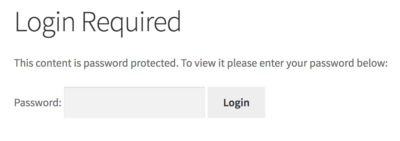
When enabled, a single password protects and unlocks an entire category. You can protect as many categories as you need and create as many passwords as you like for each. For example, you might like to create a password for each of your users. That way, if you no longer want a user to access the content, you can just delete the password to revoke access. To view password protected content, users need to enter a password to view all content in that particular category:

Login Required password form on a protected category page
[/image_border]

To alter the login form message, or how long a category remains unlocked before a password needs to be reentered, head to Settings → Protected Categories.

Option 2: Create user or role restricted blog categories

This option is perfect if you have blog content that you only want certain users to access when logged into the WordPress Admin. 

To user or role restrict a blog category, you can either create new blog categories or edit the visibility of existing blog categories.

To create a new blog category: in your WordPress Dashboard, go to PostsCategories. Write the new category name and slug. Scroll down to the Visibility section, select Protected, select the users and/or roles who require access, and click Add New Category.

To edit the visibility of existing categories, go to PostsCategories and hover over the category you want to change. Again, change the blog category visibility settings as required.

Only those users with the correct user account or role access will be able to view the private blog categories, and only when they're logged in.

How to make an entire WordPress blog private

Rather than making select blog categories private, you might like to create a standalone WordPress private blog that's only visible to specific users. This is useful for workplace communication, or personal blogs for example. Again, it's easy to do using the plugin, Password Protected Categories. The first step is creating private parent and sub-categories for your blog. The second step is to create a login page so users can login to gain access to your blog.

Step 1. Create private blog parent and sub categories

To recap how to install the plugin: buy the Password Protected Categories plugin and upload the plugin file, by going to PluginsAdd New and click Upload Plugin. Choose the plugin file from your computer and click Open. Click Install Now then Activate Plugin

Once activated, head to SettingsProtected Categories and enter your license key.

There are two ways you could create an entirely private blog. One way would be to set the visibility of all your blog categories to either Private or Password protected. A much slicker way is to create a parent blog category with sub categories. In this case, users will be able to unlock the entire WordPress private blog, including all the sub categories, with one password. This means you have an entirely private blog, which is as easy to navigate as a public blog.

First, you'll need to create the parent blog category. In your WordPress Dashboard, go to PostsCategories. Write the category name and slug. Scroll down to the Visibility section, select Password Protected. Type your password and click Add New Category:

Creating a parent category for password protected posts

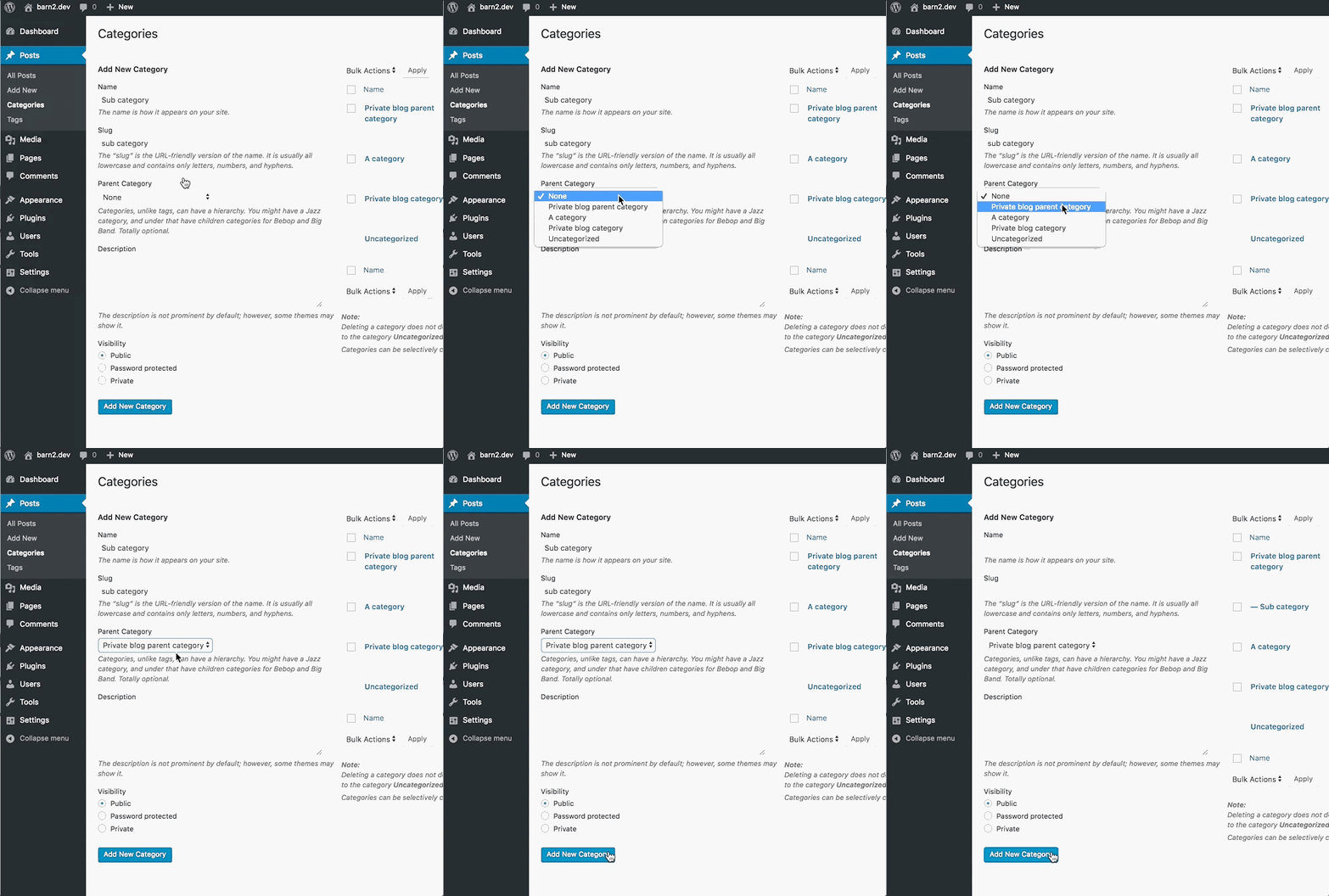
Next, you'll create a sub category. Write the category name and slug. Then under the section Parent, click the dropdown and select the parent category you just created. Scroll down and click Add New Category:

Creating a password protected subcategory under a parent

Note, you don't need to change the visibility of the sub category as, thanks to the plugin, it will already be password protected and only visible to users who have entered the parent category password.

You can create as many additional sub categories as you like - think of these like the categories of a public blog.

Step 2. Set up blog login

Head to SettingsProtected Categories. You'll see the option Show Protected. This doesn't affect the visibility of post content on your site. However it does affect whether your post categories and any blog titles within those categories are public.

Whether you check this box or not, dictates how users can login to your blog. If you keep blog categories and titles public, users are prompted to login when they try to view any protected content. If you uncheck this box, you'll need to provide a centralized login page so users can login and be directed to the your blog. Read on to find out how these two options work:

Option 1: Keep blog categories and titles public

If you want people to be prompted to login when they try to access a post or category in your WordPress private blog, head to SettingsProtected Categories and ensure the Show Protected box is checked. Remember, they won't be able to view the content of the posts unless logged in – only the information such as post titles and categories.

When you select this option, your protected content will, however, be visible to RSS readers. If you don't want entire posts to show in an RSS feed, head to Settings Reading. Next to the option For each article in a feed, show, select Summary. This ensures only a summary or excerpt appears in RSS feeds.

Option 2 (recommended): Create a centralized category login page

To make it even easier for users to login and view your blog, create a centralized login page for your WordPress private blog.

First, uncheck the box next to Show Protected. Your blog is now completely inaccessible on your website.

Next, you need to create a login page. Head to PagesAdd New. Call the page something like 'Login To My Blog' and in the content area add the shortcode [category_login]

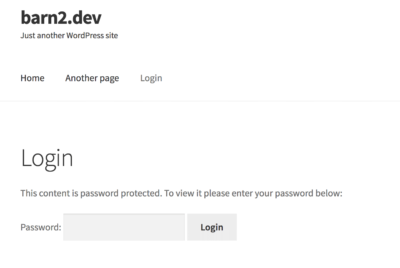
If you preview the page, you'll see your centralized category login page. Here users can login to view your blog.

Front-end login page for a password protected blog category

To change the message that appears above the login box, head to SettingsProtected Categories. Here you can edit the Form message. Alternatively, you can override the message by adding message="a different message" to the shortcode.

For example:
[category_login message="Log in to read the blog!"]

You may wish to also add a link to the registration page we created earlier.

Hit Publish. You'll most likely want to add this login page to your menu so it's easy for users to access. To do this, head to AppearanceMenus, select the page and click Add to Menu then Save Menu.

Users get automatically redirected to the correct category page when they enter the correct password on the login page.

You're now set up with a private blog, complete with convenient login page for your users.

Easily make a WordPress private blog

Whether you're building a subscription blog, community or membership site, need to communicate with your team or clients, or have any of the other WordPress private blog plugin use cases we outlined earlier, this WordPress tutorial has shown you all you need to know to create a private space for your content.

We've looked at why you might want to create a private blog, and then how to do it. We've shown you how to use Password Protected Categories to make any part of your blog private, to achieve any of the use cases outlined above. You can get the plugin in order to put this into practice.

Interested in making other parts of your blog password protected? Read our Password Protect WordPress guide to learn how to make the rest of your site, or even your WooCommerce store, private.

And, of course, let us know in the comments below if you have any questions about making your particular blog a private one. Thanks for reading!

Lots of website owners need index pages on their WordPress site, or a blog post index listing articles in alphabetical order. Surprisingly, there is no good WordPress index plugin available for listing your website content. Today, I'll show you how to use the Posts Table Pro WordPress table plugin to create index pages, posts, or even custom post types.

Using the Post Table Pro WordPress table plugin is a great solution if you're looking for a way to organize your WordPress site. It also makes it easier for visitors to find the content they need. With this plugin, you can create a searchable and sortable index that lists all your web pages or blog posts.

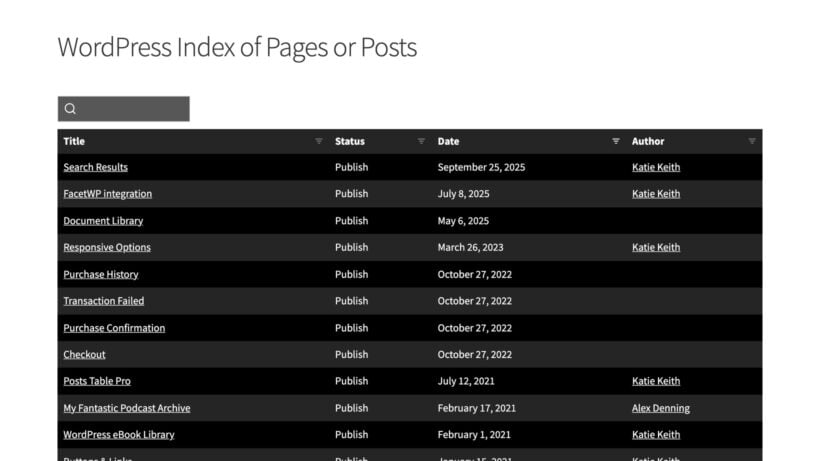
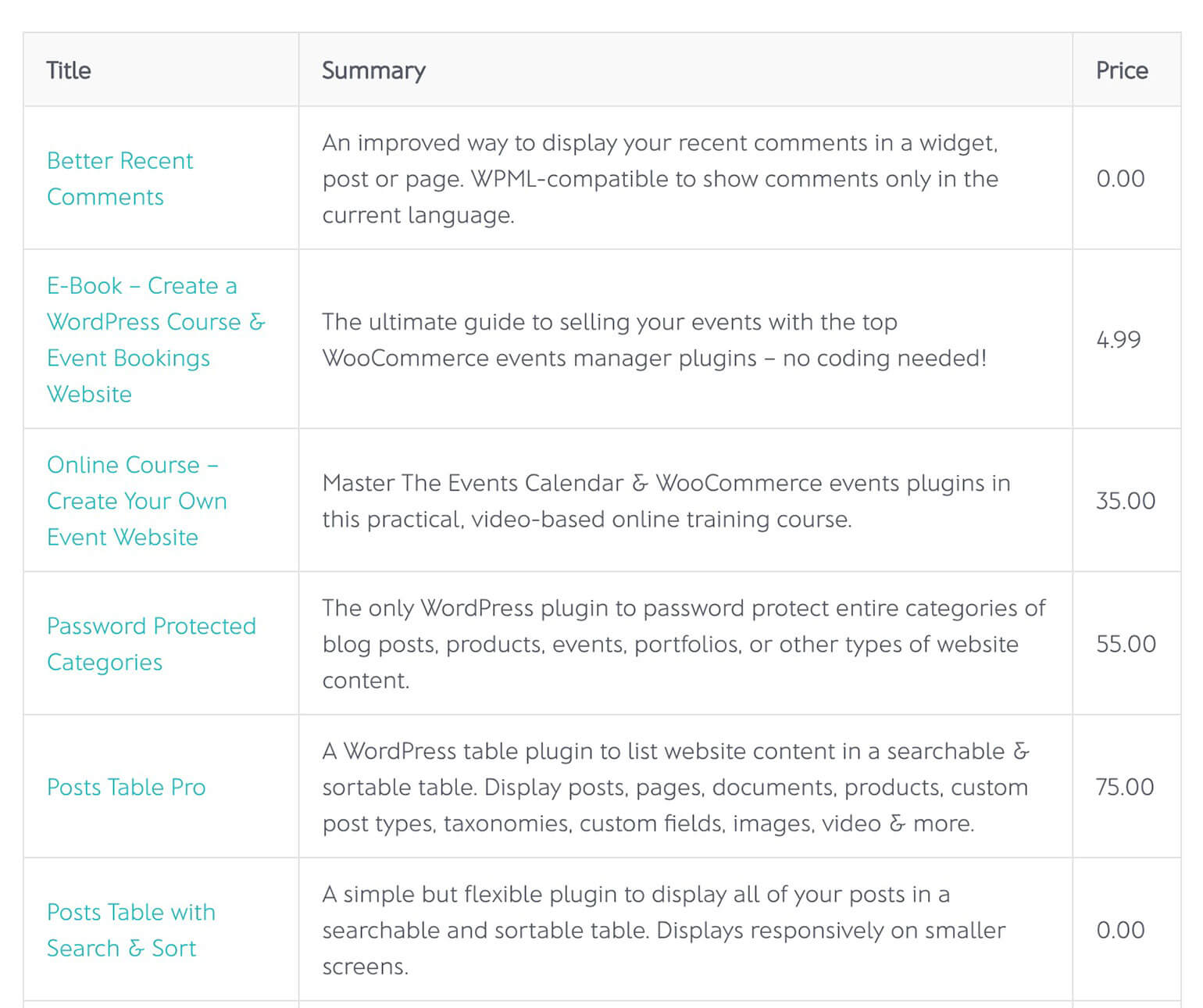
Your WordPress index plugin or WP index can be customized to display only page/post names or additional information by adding extra columns. Your finished WordPress index plugin pages will look something like this:

Tablet showing a WordPress index of events in a filterable table

We'll take a closer look at how to use Posts Table Pro, and how you can customize it to fit your specific needs. We'll cover everything from creating a WordPress index and adding custom post types to configuring filters and making it searchable. If you're a blogger, freelancer, or business owner, read on to learn how to use Posts Table Pro to create a powerful and user-friendly index WordPress site.

See a WordPress site index in action on our demo page.

What makes a good WordPress index plugin?

First, let's look at what an index actually is. Then we can think about the best way to create a WordPress index.

The definition of an index is:

  1. "(in a nonfiction book, monograph, etc.) a more or less detailed alphabetical listing of names, places, and topics along with the numbers of the pages on which they are mentioned or discussed, usually included in or constituting the back matter.
  2. a sequential arrangement of material, especially in alphabetical or numerical order."

A WordPress site index plugin should list content such as pages, posts, or other content types in an alphabetical listing. Moreover, the plugin should let you include other material from the site contents in the index, such as tags, categories, authors, or even custom fields and taxonomy terms.

A WordPress index plugin can list any content type alphabetically. If you store events or date-based articles in WordPress, the plugin can also list content by date.

You may also like: How to create an alphabetical index with a WordPress A-Z plugin.

Posts Table Pro - The perfect WordPress index plugin

When it comes to finding a WordPress index plugin, you may find that the options are limited. A quick Google search or any other search engine will reveal that there aren't many plugins available to choose from, which can be frustrating.

Even more frustrating is that many of the available options don't really provide the functionality you'd expect from an index plugin. Some of the plugins available focus more on displaying site contents in a grid layout with thumbnail images, rather than creating a list layout as you would expect from an index. Other plugins may be outdated, with no updates in years, which can be a major warning sign when it comes to compatibility with the latest WordPress versions.

Fortunately, with Posts Table Pro, you can create an index that lists your website pages or blog posts in a clear and organized way, with the added ability to include custom post types. It has all the features you'd expect from an index plugin:

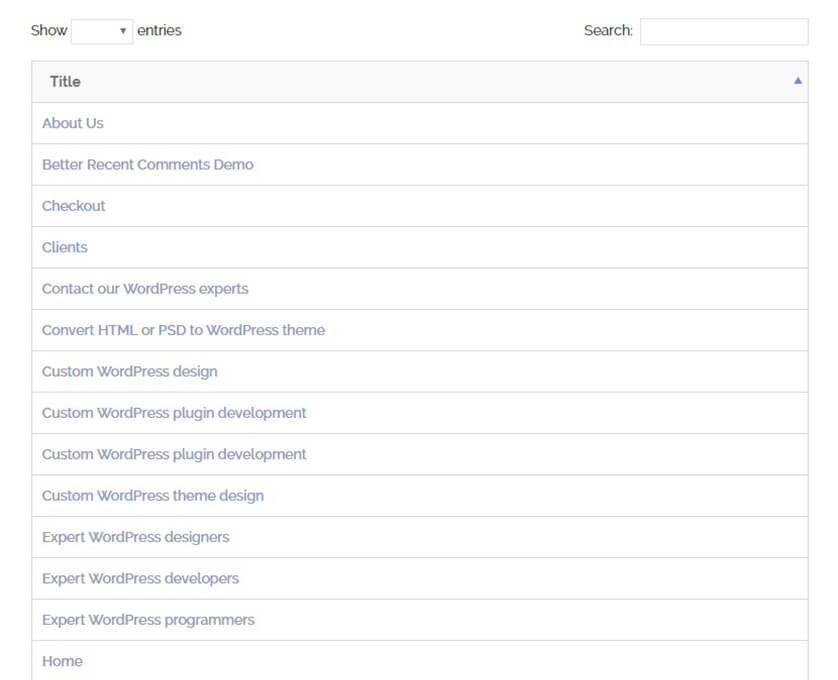
  • Alphabetical index of WordPress blog posts in a table
    Alphabetical index of WordPress blog posts

    Create an index of WordPress pages, blog posts, or any custom post type (e.g. e-commerce products, events, documents, portfolio case studies, testimonials, etc.).

  • The index items are listed in a table layout with whichever columns of information you choose to include.
  • There are multiple sorting options, including alphabetical or date-based sorting.
  • You can either index all your WordPress site content, or just create an index for a specific post type, category, tag, or similar.
  • Users can search, sort, and filter the index to find the content they're looking for.

Get Posts Table Pro

To better understand how the WordPress index plugin works, let's take a look at a real-life case study. Imagine you have a website with a large amount of content, including blog posts, products, and other custom post types. As your content library grows, it becomes increasingly difficult for your visitors to find what they're looking for.

In addition to creating an index of blog posts and pages, you can also use this plugin to list other custom post types on your website. For example, if you have a WooCommerce store, you can use Posts Table Pro to create a searchable index of your products.

Other potential use cases for a WordPress index plugin include creating an index of resources such as eBooks or whitepapers or creating a directory of staff or team members. Check out other use cases and case studies below. Once you've identified the use case that best fits your website, you can use Posts Table Pro to create a customizable index page with various display options. You can even add filters to the index, such as categories or tags.

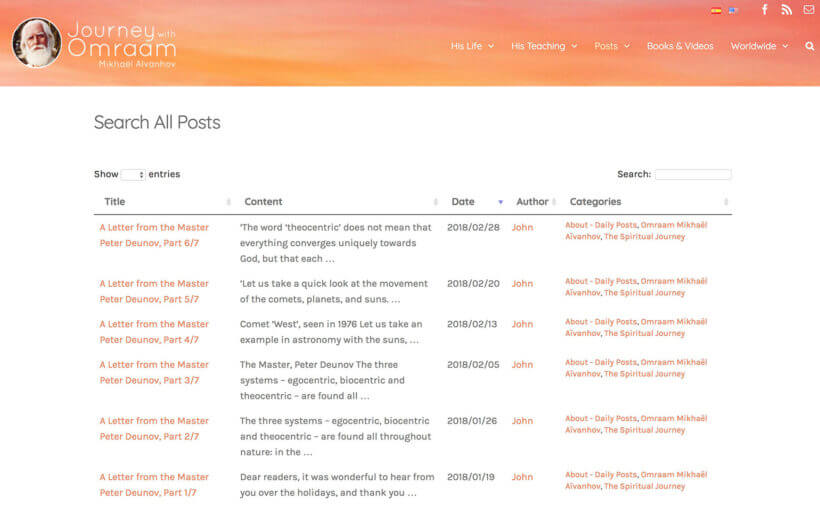
Case study - Index of blog posts for Journey With Omraam

Index of Journey with Omraam blog posts in a filterable table

Journey with Omraam wanted to create a WordPress index plugin page listing all their site's blog posts. You can see this on their 'Search All Posts' page.

The blog posts are listed in a table layout with columns for the post title, content, post date, author, and categories. Users can quickly find a specific article by using the keyword search box or clicking on a category to filter the index for that category. They can then click on the title to read the full post.

Use case - WordPress site table of contents

Most WordPress table of contents plugins don't actually list all the pages from your website, which is what you'd expect. Instead, they create an internal table of contents to aid navigation within an individual post. They're a good way to break up long articles because they add jump links to the various sections of the post. However, they're not used for creating an index listing all your site's pages!

You can use Posts Table Pro to list all the pages on your WordPress site in an alphabetical table of contents or index. Choose your columns, add any extras such as a search box or dropdown filters, and it's an ideal way to help people navigate your website. It's far better than an HTML sitemap plugin because there are extra features such as search and filters, plus you can add extra data about each page instead of just the title.

Next, we'll get to the practical part of this beginners' tutorial. I'll show you exactly how to set up Posts Table Pro as the best WordPress index plugin.

How to create an index of WordPress posts, pages, or custom posts

First, purchase the Posts Table Pro, you will receive a confirmation email containing a download link and a license key. Download the plugin from the link provided in the email and save the zip file to your computer.

To install the plugin on your WordPress site, navigate to the Plugins section in your WordPress admin panel, click on "Add New", and then choose the "Upload Plugin" option. Select the zip file containing the plugin, and click on "Activate" once the installation is complete. Once the plugin is activated, a setup wizard will appear, which will take you through a step-by-step process to create your first table. You can also create new tables any time by navigating to Post Tables → Add New.

Configuring your WordPress site index

Ok, so far you've learned how to use a WordPress index plugin to create index listing pages, posts, or custom post types. Next, I'll talk you through the steps to configure your index.

Choose which columns to include in the index table

To create a table in WordPress, first, give your table a name for internal use that will appear in the list of tables in the WordPress admin. Then, choose the post type you want to display. In this case, choose 'pages'. Next, select which pages you want to include in your index.

To customize the columns of your index in WordPress, you can select which columns to add and in what order. Since we're creating an index for your pages, you may want to include details such as post id, title, content, excerpt, image, date, author, categories, tags, status, or any custom field.

To add a column, choose the column type from the dropdown menu and click "Add." The added columns will appear in the list of columns above, and you can rearrange them by dragging and dropping the sort icon or column title. You can also rename a column by clicking the pencil icon, or hide the column name completely using the toggle. If you want to remove a column, simply click the X icon next to it.

Add filters to the index page

To refine user selections in your index, you can add filters that cater to your target audience. Consider what your visitors would find most useful. For instance, you may require filters by author, category, and date.

Filters appear as dropdown menus above the table and you can add as many as you need! Each filter accepts more than one value at once, and visitors can bookmark a filtered view of the index to return to later.

How to sort your WordPress index in numerical order

Posts Table Pro doesn't have the option to index site content in number order. However, you can do this by adding the numbers in a format that will also make sense in alphabetical order.

Let's assume that you want to create a numerical WordPress index content based on a column containing numbers 1, 2, 5, 10, 11, 22, and 29. Added in a single-digit format, the numbers will be listed wrongly as 1, 10, 11, 2, 22, 29, and 5. That's because they're in alphabetical order.

Sorting a WordPress index in date order

You can set the default sorting option and the sort direction for your index. This provides you with greater control over the order in which your index is displayed to your users.

Sorting options help to organize data into a logical sequence that is easy for users to understand. You can sort data in ascending or descending order, depending on your preference. By selecting the default sorting option, you can decide which column to sort the table data by, and how it should be sorted.

Display your index page

After you have finished creating your table with the Post Table Pro plugin, the setup wizard will verify that you have completed it and offer guidance on how to insert the table onto your WordPress site. You can either use the "Post Table" block in the Gutenberg editor or simply copy the shortcode from the table builder and paste it wherever you wish on your site. This gives you the flexibility to place the table on any page, regardless of its content.

Create a WooCommerce index listing E-commerce products

Posts Table Pro works and lets you create a product WordPress index page for practically all WordPress e-commerce plugins. This includes Easy Digital Downloads, WP ecommerce, and others. That's because all these e-commerce plugins store their products as a custom new post type.

Follow the above step-by-step tutorial to create an index of products for any WordPress E-commerce plugin.

You may also like: Learn how to use Posts Table Pro to list Easy Digital Downloads products.

It also works for WooCommerce. However, if you need an index WordPress of WooCommerce products then you're better off with our other WordPress index page plugin, WooCommerce Product Table.

The instructions for creating an index WordPress with WooCommerce Product Table are very similar to Posts Table Pro. The difference is that it has extra support for WooCommerce, such as add-to-cart buttons and reviews. So I'd recommend that for a WooCommerce index plugin instead.

WOOCOMMERCE PRODUCT TABLE

Next steps

Posts Table Pro can help you create index pages for your website content easily. Unlike other dedicated index plugins, it offers greater flexibility, customization, and sophistication. This plugin lists custom post types, allowing you to create a tailored content index for your site.

If you're looking to improve your user experience and speed up your content indexing process. It also offers your visitors a more organized and structured way to navigate through your site, Posts Table Pro is the ideal solution for you. So why wait? Get it today and start creating index pages of your own website content.

Hide WooCommerce products

Looking for a solution to hide WooCommerce products? Sometimes you don't want every single product available to the public, especially if you're running something like a B2B/wholesale or members-only store.

Offering exclusive access to products can create buzz and increase your brand’s desirability. So to set this up in WooCommerce you need a way to hide products from public access. In this step-by-step tutorial, I'll show you how to hide products in WooCommerce using different methods, depending on the level at which you want to hide your products. By the end of this article, you'll be able to hide:

  • A single product using WooCommerce to hide specific products from the shop page.
  • An entire category of products using the WooCommerce Protected Categories plugin (either by password, role, or individual user login).
  • Your entire store using the WooCommerce Private Store, (either by password or user login), which is a form of disabling WooCommerce for signed out or non-users.
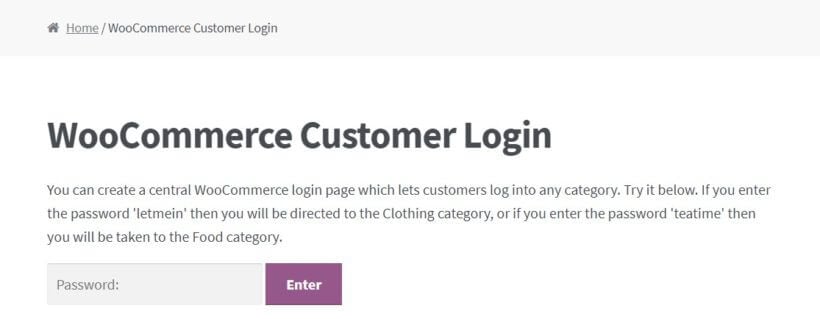
WooCommerce customer login page with a password field to access hidden categories

Which way of hiding WooCommerce products is right for you?

These are the ways to hide products in WooCommerce:

  • Option 1 - Hide an individual productIf you only need to hide a few specific products, WooCommerce's built-in settings let you remove individual items from the shop page. This is a quick solution but can become tricky to manage for larger product collections.
  • Option 2 - Hide entire categoriesThe WooCommerce Protected Categories plugin lets you create some hidden products in an otherwise public store. Use it to hide or password protect products based on category.
  • Option 3 - Make specific products password-protectedWant to create an exclusive product offering? You can password-protect specific products, allowing access only to customers with the right access - perfect for limited releases or VIP items.
  • Option 4 - Show or hide products depending on user roleWith a user role-based approach, you can control product visibility based on customer type - like offering wholesale prices to B2B customers while hiding those items from regular shoppers.
  • Option 5 - Hide all of your store's productsWooCommerce Private Store is good if you want to make every single product hidden. You can use it to password protect your entire store or hide it from all logged out users (guests).
  • Option 6 - Password protect your entire WooCommerce storeThe WooCommerce Private Store plugin allows you to secure your entire store behind a password. This is great for private client portals, wholesale-only shops, or special event stores.
  • Option 7 - Limit access your store's hidden productsRestrict access to your store’s products exclusively to logged-in users. This method is ideal for membership-based stores, employee-only shops, or any store that requires user registration.

We built our WooCommerce Protected Categories and WooCommerce Private Store plugins for store owners who want to lock down products without setting up a full membership system. Because they support password protection, customers don't even need an account to get in, which is handy for wholesale buyers or one-off private sales. If you need multiple paid or hierarchical membership tiers, a dedicated membership plugin is the better fit.

Below, I'll take you through how to use each method to hide WooCommerce products. Or if you prefer, then you can watch this video:

Option 1: Hide WooCommerce products from your shop page individually

Our first method uses core WooCommerce functionality - no plugins needed. It hides products from the shop pages. However, if a user gets their hands on a direct link, they'll still be able to access the product.

For that reason, this method is not a good approach if you actually want to fully restrict access to the product - not just hide it.

Also, this method isn't very efficient if you need to hide multiple products, as you'll need to manually edit every single product. When it comes to hiding multiple products on WooCommerce, a more efficient approach is to assign them to a category in bulk and then hide that category using one of the methods for how to hide products in WooCommerce.

If you're ok with the product still being accessible by direct URL, then it's fine to use WooCommerce to hide products from your shop page.

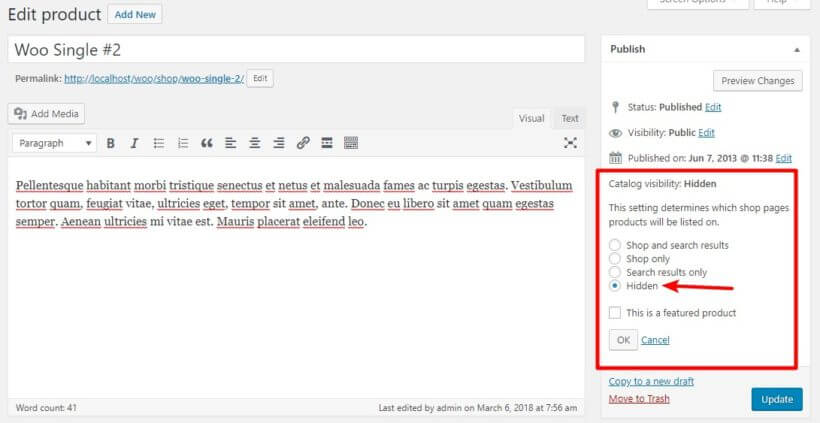
You can do this by editing the Catalog visibility option under Publish and choosing Hidden:

Setting a product catalog visibility to Hidden in the WordPress editor

Option 2: How to hide an entire category of WooCommerce products

To get started, you'll need WooCommerce Protected Categories installed and activated on your hidden WooCommerce store.

Then, create a new product category for your hidden products. I'll give mine a creative name of "Hidden Products", but you can name yours whatever makes sense.

Once you have the category, assign the products that you want to hide to that category.

Now, you've come to the point where you need to make a choice about how you want to let people "unhide" the products in this category. You can:

  • Let users unhide the products by entering a password
  • Make the products automatically visible to certain users or user roles

Option 3: How to make specific products password-accessible

To add password protection, go to Products → Categories and edit the category that you created for your hidden products:

  • Scroll down to the WooCommerce product Visibility section
  • Select Protected → Password protected
  • Enter your desired password. You can also add multiple passwords to unlock the category if you want to give different users different passwords
  • Save changes
Setting a password on a WooCommerce product category visibility option

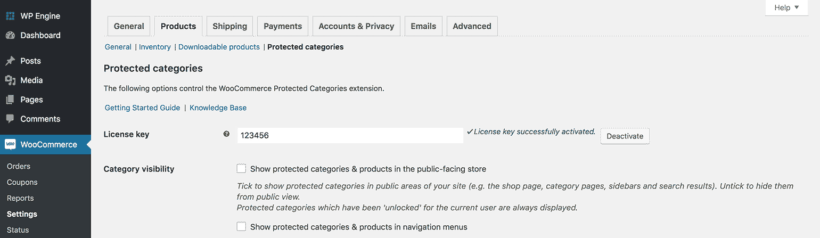
Then, you can configure how your password protected categories function by going to WooCommerce → Settings → Products → Protected Categories.

In this area, you'll want to:

  • Uncheck the two Category Visibility checkboxes to make your category 100% hidden
  • Select a Category Login Page where users can enter the password to see the WooCommerce hidden products/categories
WooCommerce Protected Categories Visibility Settings

You can also peruse the other settings to see if anything applies to your specific needs.

Option 4: How to show or hide products depending on user role

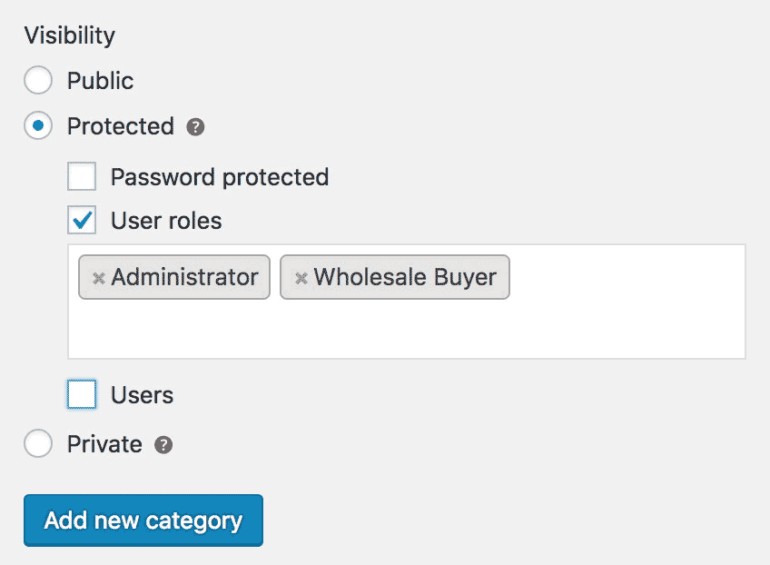
If you'd prefer to automatically give access to the WooCommerce hidden products to certain users or entire roles:

  • Go to Products → Categories
  • Edit the category that you created for your WooCommerce hidden products
  • Scroll down to the WooCommerce product Visibility section
  • Select Protected → Users and choose which users and/or roles can access your hidden WooCommerce products.
  • Save your changes
Hiding a WooCommerce product category by restricting it to Administrator and Wholesale Buyer roles

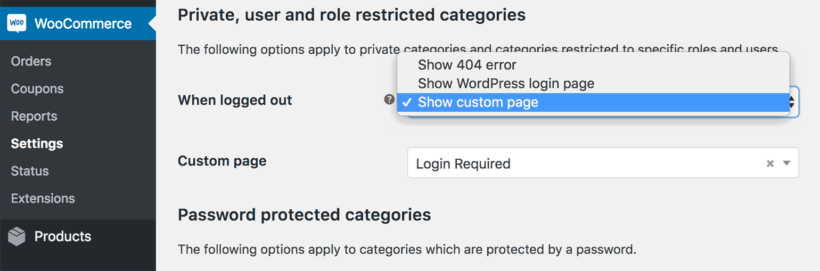
Then, you can configure how your user and role protected categories function by going to WooCommerce → Settings → Products → Protected Categories. Here, you need to choose what happens when a logged out or guest user tries to access a hidden category or one of its products:

Choosing what happens when a guest tries to view a hidden product or category

Option 5: How to hide all products on your store from public view

Now it's time for the last, and most secure, way to hide WooCommerce products.

If you want to hide all of your products from the public, you'll need the WooCommerce Private Store plugin installed and activated.

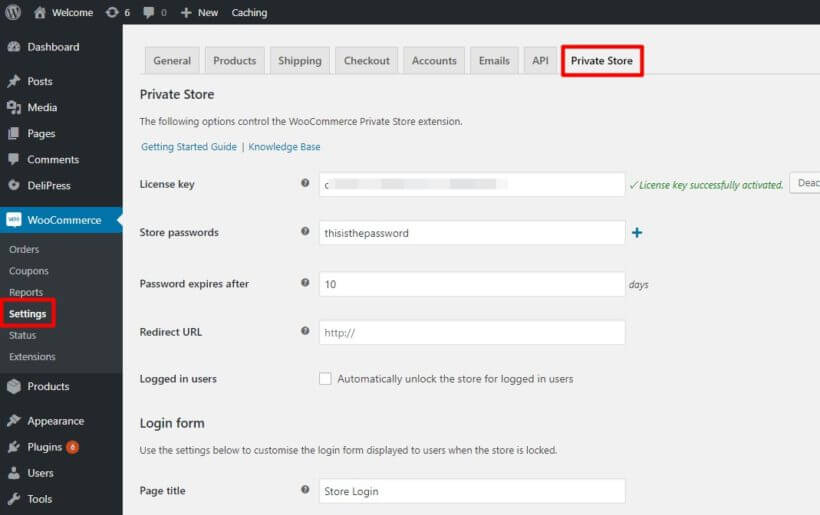
Then, go to WooCommerce → Settings → Private Store to configure the plugin.

Just as with hiding specific categories of private products, you can hide your store in two different ways:

Option 6: Hide products by password protecting your WooCommerce store

To add a password:

  • Enter a password (or multiple passwords) in the Store passwords box.
  • Choose how long the password should unhide the store (in days) in the Password expires after the box.
  • Enter the product page you want users to be taken to after logging in using the Redirect URL box.
  • Configure the Login form options.
Configuring the login form options in WooCommerce Private Store settings

Option 7: How to only allow logged in users access your store's hidden products

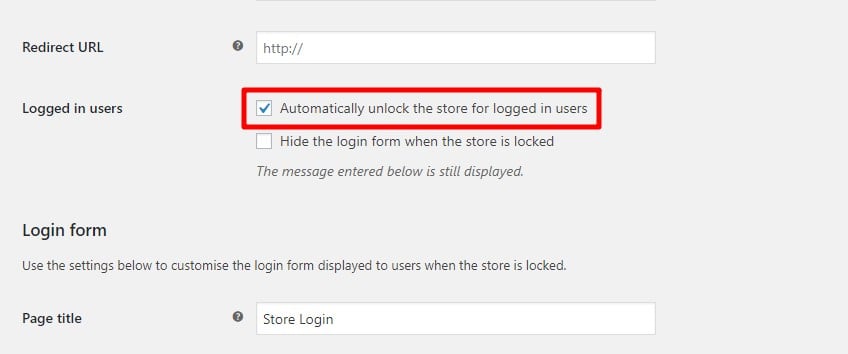
If you want to automatically allow logged in users to see your hidden products, you just need to check the box for Automatically unlock the store for logged in users. Underneath, you'll find an option to choose which user roles to unlock the store for. This is handy if you only want certain user roles to have access, such as administrators and store managers.

You can also choose whether or not to Hide the login form… that displays for users who aren't logged in:

automatically unlock woocommerce store for logged in users

Master product visibility and take control of your WooCommerce store

Whether you need to hide a single product, one or more categories of products, or your entire WooCommerce store, one of the above methods should work for you.

Remember:

  1. To hide a single product, you can use the Hidden Catalog WooCommerce product Visibility option. Just remember that people can still see the product if they get a direct link - it's not actually private.
  2. If you want to hide an entire category of WooCommerce products, WooCommerce Protected Categories lets you do so via either password protection or specific logged in users or roles.
  3. To hide your entire WooCommerce store, WooCommerce Private Store lets you do so via either password protection or by automatically unhiding your store for logged in users.

Any other questions about how to hide WooCommerce products on your WordPress website and provide great user experience? Leave a comment and we'll try to help out.
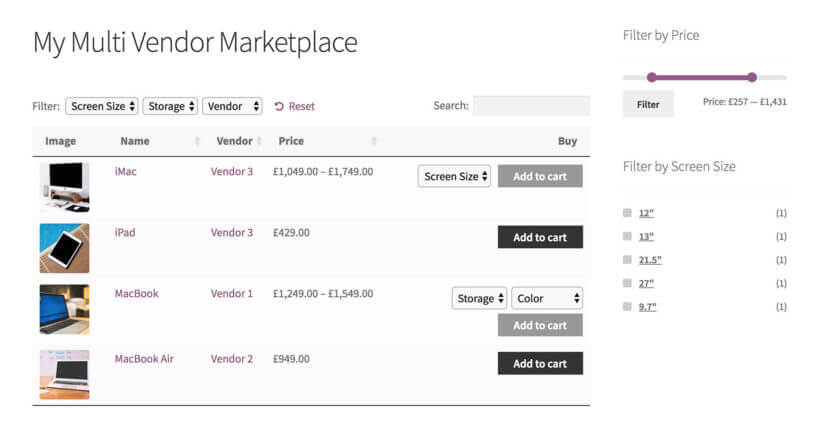
WooCommerce multi-vendor plugin product table

Lots of people ask how to use our Product Table plugin with a WooCommerce multi vendor marketplace plugin. A multi vendor plugin lets multiple sellers upload and sell products in your WooCommerce store.

Product table layouts are the perfect way to list vendors' products, as you can show more products per page and choose which information to display about each product. A table view also makes it easier to find products, as you can add features such as keyword search and product filters.

What is a WooCommerce multi vendor plugin?

A product vendors plugin transforms any WooCommerce store into an online marketplace with multiple product vendors or sellers.

All multi vendor plugins work in similar ways, so read about them all and choose your favorite one that works with WooCommerce Product Table.

WooCommerce marketplace plugin with product tables

Sellers can register as a product vendor on your WordPress website, or you can add vendors manually. Each vendor can upload products to sell on your WooCommerce store. All the vendors' products are sold together in an online marketplace, similar to popular websites such as Etsy or Not on the High Street. Each vendor will have their own store page within your WooCommerce store, and you can also list products centrally.

You can choose how to pay your vendors. Most multi vendor marketplace plugins have built-in options for giving them commission and sharing profits.

Which WooCommerce multi vendor plugin should I use?

There are quite a few WooCommerce multi vendor plugins, such as YITH WooCommerce Multi Vendor, MultiVendorXDokan Multivendor Marketplace, and WooCommerce Product Vendors. I've tested them all and can tell you that the best plugin to use with WooCommerce Product Table is YITH WooCommerce Multi Vendor/Marketplace.

It's from a reputable company and integrates fully with WooCommerce Product Table. This means that you can build a fully functional multi-vendor marketplace, with the vendors' products listed in a user-friendly order form layout. As well as having a separate shop page for each vendor, you can create a central page listing all the products in the marketplace. Customers can easily filter by data such as vendor or product attributes to find what they're looking for.

As a result, I will mostly focus on YITH's in this tutorial. At the end I'll show you how to use other WooCommerce multi vendor plugins with WooCommerce Product Table - but there are some compromises involved.

If you're using a different WooCommerce multi vendor plugin, don't worry. I'll provide tips on how to use it with product tables later. But for the fullest integration with WooCommerce Product Table, use YITH WooCommerce Multi Vendor.

Keep reading to find out how!

What is WooCommerce Product Table?

WooCommerce Product Table is a WordPress plugin by ourselves at Barn2. It lets you list any type of WooCommerce product in a flexible table layout with search box, filters and any product data that you want to display. It's popular for creating a one-page order form layout for a WooCommerce multi vendor marketplace.

The plugin comes with over 50 options, so there are literally dozens of ways you can customize your product tables. For example,  you can create tables listing all the products in the marketplace, or products from a specific vendor only. I'll talk about the most popular options to use with a WooCommerce multi vendor plugin later.

Here's a video to explain how WooCommerce Product Table works:

How to use YITH WooCommerce Multi Vendor with Product Table

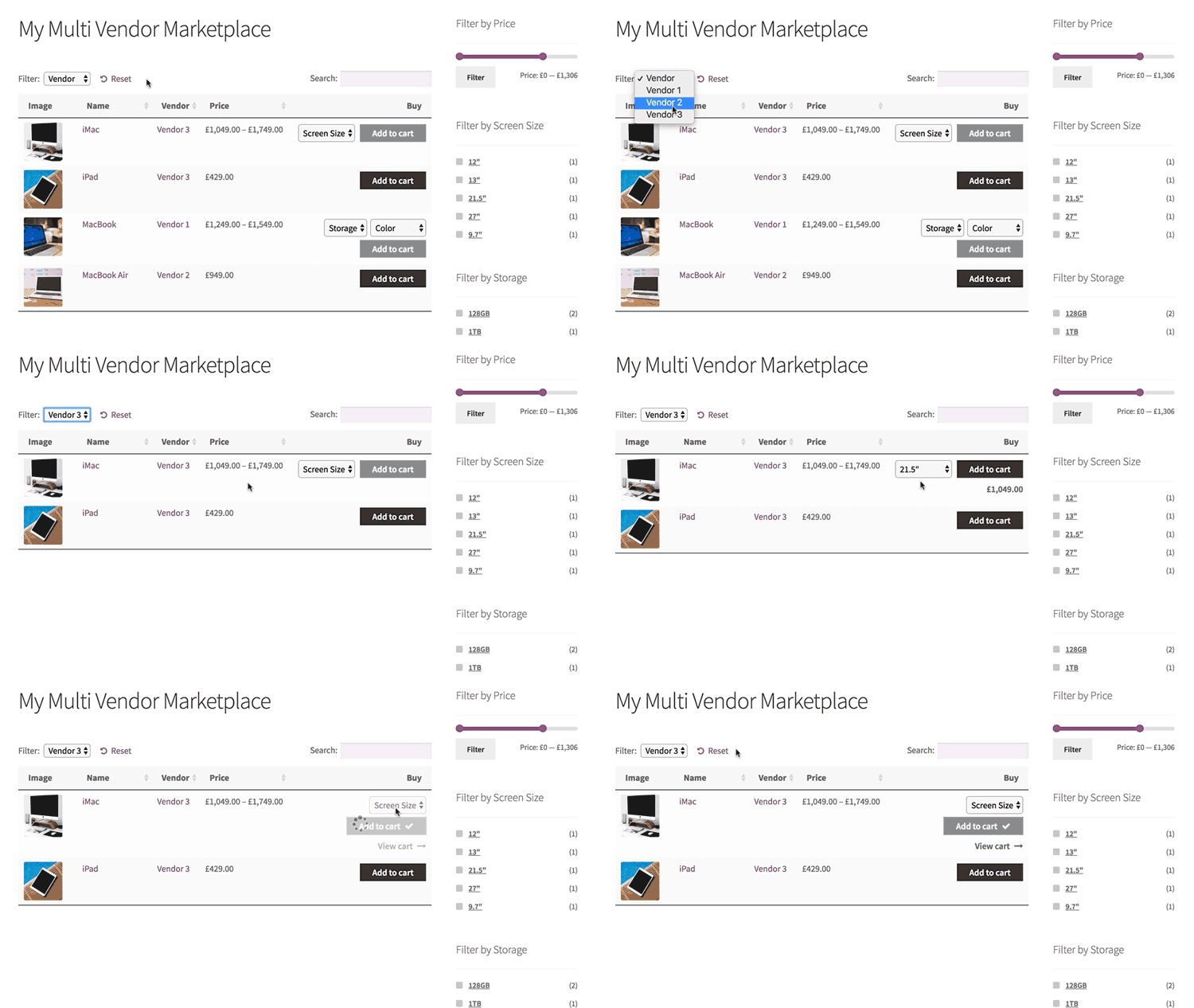
WooCommerce multi vendor plugin with product tables
Create an order form listing all products in the marketplace, or separate shops for each vendor

To get started, install WooCommerce Product Table and YITH WooCommerce Multi Vendor.

The multi-vendor plugin allows you to create multiple vendors and give them the ability to add products and manage their orders. The product table plugin creates better layouts for your multivendor store. This combination will get more sales for your sellers, and more commission for you - everyone wins!

Set them up now using the documentation for your chosen plugin. Add some products and vendors to get you started.

Set up your multi-vendor product tables

  1. Install WooCommerce Product Table.
  2. Navigate to Products → Product Tables and set up your multi vendor product table. In particular, you should:
    • Enable the option to display product tables on the Shop page, Vendor taxonomy, and anywhere else you want to use them.
    • Choose which columns of data you want to include about your marketplace products. For example, you might add columns for image, name, the 'YITH Shop Vendor' taxonomy (which you can rename to something else), price, and buy.
    • For the 'Add to cart buttons' option, select either 'Checkbox' or 'Button and checkbox'. This helps to increase conversions by allowing customers to add multiple products to the cart at once.
    • In the variations option, select 'Dropdown'. That way, vendors can select variations from directly in the product table.
    • Enable the 'Lazy load' option if the marketplace is likely to have a lot of products.
    • Use the 'Filters' option to add a 'YITH Shop Vendor' filter (which you can rename by clicking the pencil icon) if you're creating a central page for the whole marketplace. This will let customers filter to find products from a specific vendor. If each vendor will have their own shop page, then add other filters like categories and tags. This will add filter dropdowns above the table for the product categories and tags.

Viewing all products in the central marketplace

Now go to the 'Pages' section of the WordPress admin and find the page that is labelled 'Shop'. View the page, and you'll see a product table listing all the products in the multi vendor marketplace.

The table will have whichever columns you choose on the WooCommerce Product Table plugin settings page. If you enabled other features such as filters then these will show too. For example, you might have a filter dropdown above the table where customers can choose a specific vendor. Customers can also click on any vendor in the Vendors column to view products from that seller.

If any of your vendors sell variable products, then the variation options will appear as dropdowns in the add to cart column.

Individual vendor shop pages

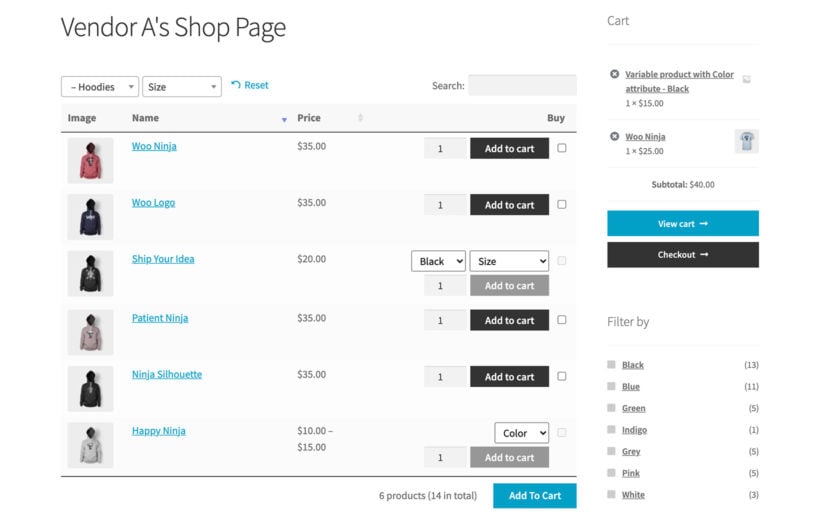
Multi vendor shop page with product table

The best thing about using WooCommerce Product Table with YITH WooCommerce Multi Vendor/Marketplace is that you can also have a separate shop page for each vendor. That simply isn't possible with any other WooCommerce multi vendor plugins on the market.

The reason it's possible is because the YITH plugin creates a 'custom taxonomy' for each vendor. WooCommerce Product Table works perfectly with custom taxonomy archives. As a result, the taxonomy pages created using the multi vendor plugin will work with the product table layout.

I already showed you how to enable this in the previous section, when you enabled the table layout for the vendors taxonomy. Once you've done that, find the 'Vendors' section in the WordPress admin, and view the list of vendors. Click 'View' for one of them, and this will take you to their vendor shop page. You will see the vendor's products listed in a WooCommerce table.

Listing vendors' products manually

So far, you've learned how to automatically enable the order form layout on the central Shop page and individual vendor store pages. For even more flexibility, you can use a shortcode to list specific products on any page or post in your site. For example:

  • You can create pages listing products from specific categories.
  • To draw attention to specific marketplace products (e.g. Christmas products), you can publish blog posts. As well as writing in general about how perfect your marketplace is for a particular type of product, you can use WooCommerce Product Table to list relevant products.

To do this, create a table at Products → Product Tables. On the first page, choose the option to add the table to a page manually. On the next page, select the product vendors taxonomy and select which vendor you wish to display the products for.


How to use product tables with other WooCommerce multi vendor plugins

I mentioned earlier that  YITH WooCommerce Multi Vendor works best with WooCommerce Product Table. That's because it creates a taxonomy for each vendor and display the vendors' shop pages as a taxonomy archive - both of which work with WooCommerce Product Table.

However, it is possible to use other multi vendor WooCommerce plugins with WooCommerce Product Table. It's just slightly trickier to set up, and there are some compromises involved.

Product Vendors

The official Product Vendors extension does create a vendors taxonomy which you can display in the product table. It's just not our top recommendations because YITH's plugin is more feature-rich overall.

To use Product Vendors with WooCommerce Product Table, follow the instructions which I have provided above for the YITH plugin. The only change is that you should select the Product Vendor plugin's 'Vendor' taxonomy instead of YITH's. This will appear in the list of columns, filters etc. for you to choose from.

MultiVendorX

The next best option is MultiVendorX. With this multi vendor plugin, you can easily create a table of all your vendors, complete with a 'Vendor' column and 'Vendor' filter dropdown above the table. You can also use it to create a separate table of products for each vendor and manually add it to a page as needed.

The only downside with MultiVendorX is that there's no automated way to enable the product table layout on the individual vendor store pages. Instead, you have to create these pages manually and list the products using the 'Product Table' block or shortcode.

MultiVendorX does create a taxonomy for each vendor. That's why you can display and filter vendors in the product table. However, it uses a custom template to create the page for each vendor, which doesn't work with WooCommerce Product Table. Your developer could customize the template to allow this (post a job on Codeable if you don't have a developer). I've also provided instructions below on how to manually list products for a specific MultiVendorX vendor.

How to use MultiVendorX with WooCommerce Product Table

  1. Install WooCommerce Product Table and MultiVendorX in the usual way.
  2. Go to Products → Product Tables and set up your product tables, as described earlier in this tutorial. In particular, choose the option to insert the table manually and select the vendor whose products you wish to display.
  3. Create a page for each vendor and insert the table onto it.
  4. Finally, you need to redirect the default vendor pages that MultiVendorX has created, so that customers are taken to the product table page for each vendor instead. To do this, install the free Redirection plugin and set up the redirects.
  5. Repeat the above process for the other vendors as needed.

Dokan, WC Vendors, WCFM Marketplace and other multi-vendor plugins

Now we've got to the plugins that are a bit more difficult to use with WooCommerce Product Table. However, it's still possible and I'll show you how.

All of these plugins store the vendors in ways that WooCommerce Product Table can't work directly with. For example:

  • Dokan Multivendor Marketplace stores each vendor as a user and has its own custom called template store.php. One of our customers has also reported that WooCommerce Product Table is incompatible with the front end product submission in Dokan (although there is another method you could use).
  • WCMP/WCFM has its own custom template called wcfmmp-view-store-products.php.
  • WC Vendors uses the post author/WordPress user rather than storing the vendor information directly on the 'products' post type.

To enable these plugins to work with WooCommerce Product Table, you need to create your own custom taxonomy for 'Vendors'. Use this to manually tag each vendor's products. Once you've done that, then you can use the two plugins together with no limitations.

If you don't create a vendors taxonomy, then you can still use WooCommerce Product Table to list the products from your entire marketplace. It just won't be possible to add a vendor column, filter by vendor, or list products from specific vendors only.

How to create a vendors taxonomy

Use our tutorial to create a WooCommerce custom taxonomy. Manually add the vendor name as a taxonomy term for each product. This is similar to adding tags in WordPress. You'll find the taxonomy on the right hand side of the 'Add/Edit Product' screen.

Once you've created your Vendors taxonomy, you can:

  • Add a vendor column.
  • Add a vendors filter above the table.
  • Use WooCommerce Product Table to list the products from each vendor separately.

Improve your vendors' sales with WooCommerce quick view

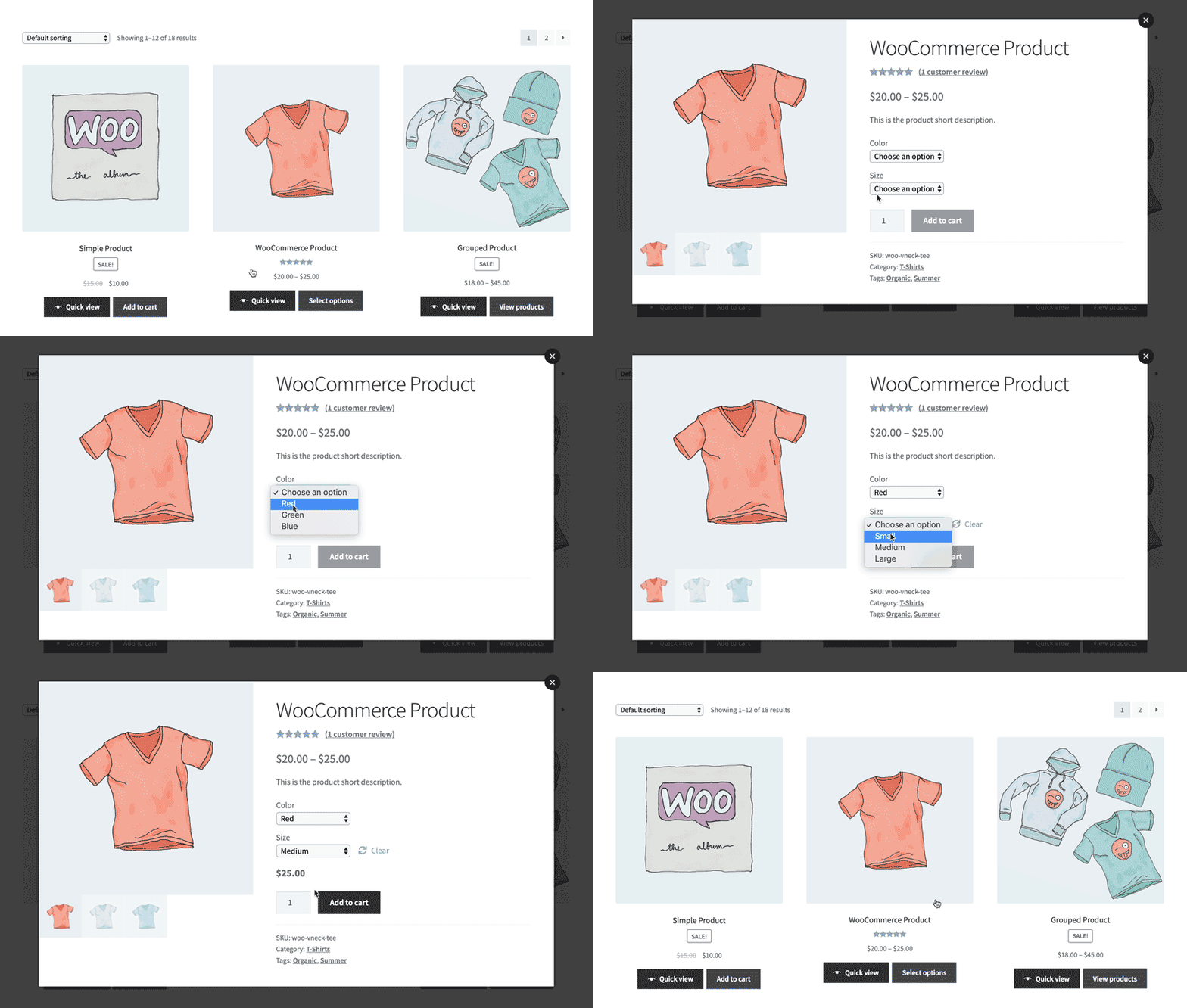
WooCommerce shop grid with Quick view buttons to help multi-vendor marketplace customers browse products faster

As you have seen, a product table layout is ideal for listing multiple sellers' products in a WooCommerce multivendor marketplace. You can make it even more effective by combining it with the WooCommerce Quick View Pro plugin.

This adds quick view links or buttons to the product table view. Customers use these to see extra images, read more information, choose options and add to the cart from a quick view lightbox. It's a great way to keep customers on the product table page, as there's no need to direct them to a separate page to learn about each product.

After adding a product to the cart, the quick view lightbox closes. This brings the customer straight back to their current place on the list of products, where they can continue browsing. As a result, they're likely to buy multiple products and spend more in your marketplace store.

Create a multi seller marketplace with product tables

Laptop showing a WooCommerce multi vendor marketplace table

WooCommerce multi vendor plugins are a fantastic way to transform your store into a complete marketplace with multiple sellers.

By adding WooCommerce Product Table to your multi vendor store, you can create improved layouts and increase sales. This benefits you and your product vendors, so get started today!

Use WooCommerce Product Table alongside YITH Multi Vendor Marketplace and list products from different vendors - the easy way.

WordPress video gallery being filtered and searched by tag

It's so easy to embed video in WordPress these days, but it's not so easy to create a video gallery listing all your videos in a grid – unless you use the right plugin. This article will teach you how to create a responsive WordPress video gallery - the easy way.

WordPress video gallery shown on a desktop monitorKeep reading to learn how to use the Document Library Pro plugin to create a searchable WordPress video gallery. While it isn't just for videos, it is one of the best WordPress video plugins around. It makes it easy to add a video grid or video portfolio to your website.
You'll learn how to add videos to your gallery using 3 different methods:

  • Embedding a video that is hosted elsewhere into WordPress, for example, YouTube videos or Vimeo videos.
  • Directly uploading video to your WordPress website.
  • Creating a video playlist.

We'll also look at the many different options and functionality for setting up your WordPress video gallery. You can choose what information to display about your videos, how to size them, how many WordPress tutorial videos to display on each page of the gallery, and more.

Your WordPress video gallery will be fully responsive and will resize to fit different screen sizes and mobile devices.

At the end of this step-by-step tutorial, you'll know how to create a professional-looking video gallery for your WordPress site. Your visitors will be able to watch videos directly within the WordPress video gallery, as well as search and filter to easily find their ideal videos.

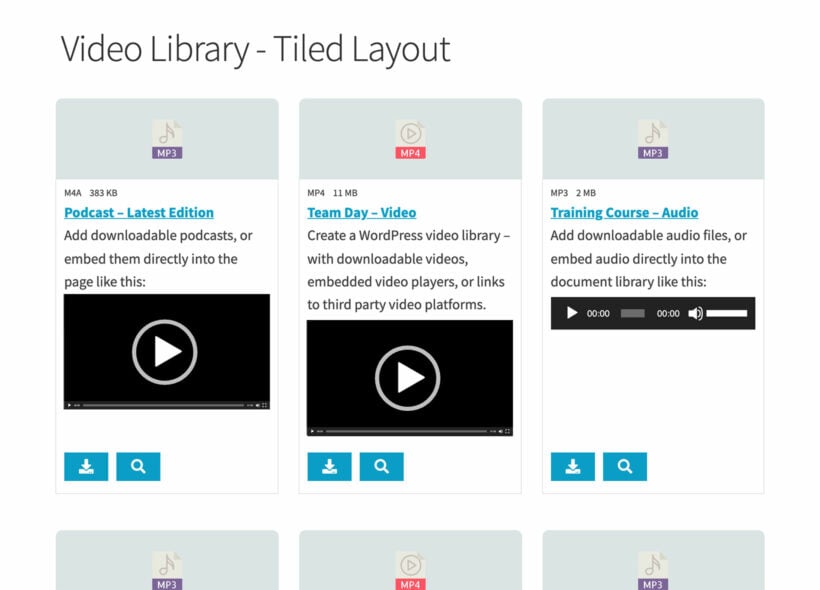
WordPress video library tile layout

Document Library Pro creates a WordPress video gallery in a choice of gallery layouts. The table layout lists each video on its own row of a searchable, filterable table. The grid layout displays each video within a tile, similar to Netflix.

You can use this WordPress video gallery plugin to embed any type of video into your WordPress site. This includes:

  • Any video hosting service YouTube, Vimeo, Dailymotion, Animoto, Blip, Cloudup, CollectHumor, Facebook videos, Flickr videos, TED talks, VideoPress, etc.
  • Types of video Long videos, short video snippets, promotional video, product demonstrations/reviews/unboxings, stock footage, educational videos, event coverage, how-to video tutorials, interviews, presentations, video commentary, vlogs, webinars.
  • All video genres Animations, behind-the-scenes footage, drone footage, movies, and films, non-fiction videos.

The videos in the gallery will autoplay in an online video player, directly on the video gallery page. You can also display videos on a separate WordPress page for each video, or allow users to click through to watch on video platforms like YouTube or Vimeo.

This WordPress video gallery plugin also lets users search, sort, and filter the gallery from the front end. As a result, visitors can quickly find the video(s) they’re looking for.

You can list all your videos in a single gallery, or you can list different videos on different pages on your WordPress site. It's super flexible and with over 50 options, it's the perfect WordPress video gallery plugin. The all-in-one plugin also provides a user-friendly player interface that lets you add SEO-optimized video galleries quickly.

1. Install the video gallery plugin

The first step to creating your WordPress video gallery is to install the Document Library Pro plugin. You need this in order to add WordPress tutorial videos and display them in a video gallery online. It will work on any WordPress website and any theme.

After installing the plugin, go to the settings page and enter the license key from your 'Getting Started' email. Next, go to the 'Document Libraries' tab and choose how you want your video galleries to look. Pay particular attention to these options:

  • Columns - There are lots of available columns. As a minimum, I recommend these for a WordPress video gallery: title, content:Watch Online. The title column will display the video name, and the content column will show the embedded video player. You can see that I added :Watch Online after the name of the content column. This will appear as the column header, so change this to anything you like. If you want people to be able to download videos - or click through to watch them like a YouTube video gallery - then add a link column too.
  • Clickable columns - If you want people to be able to click on the name of a video to watch it on a separate page, then leave this as it is. Add none to disable these links and keep people on the main WordPress video gallery page.
  • Shortcodes - Enable this option. This is essential in order for the main WordPress video gallery page to display embedded video players.
  • Filters - Choose 'Custom' and add doc_categories and/or doc_tags, depending on how you're planning to structure the video gallery. This will add a categories filter dropdown and/or a tags filter dropdown above the video gallery. It's a quick way for people to find specific types of video, for example by genre or year.
  • Lazy load - Enable this if you're listing lots of videos in the gallery. It loads each page of videos one at a time, which improves page load times.

2. Add videos to the gallery

Now the overall structure of your WordPress video gallery is in place, it's time to start adding videos and/or video playlists.

If you want individual videos to appear in their own row of your WordPress gallery as below, then you'll need to add each one as a separate 'Document' post. You can do this in the 'Documents' section of the WordPress admin.

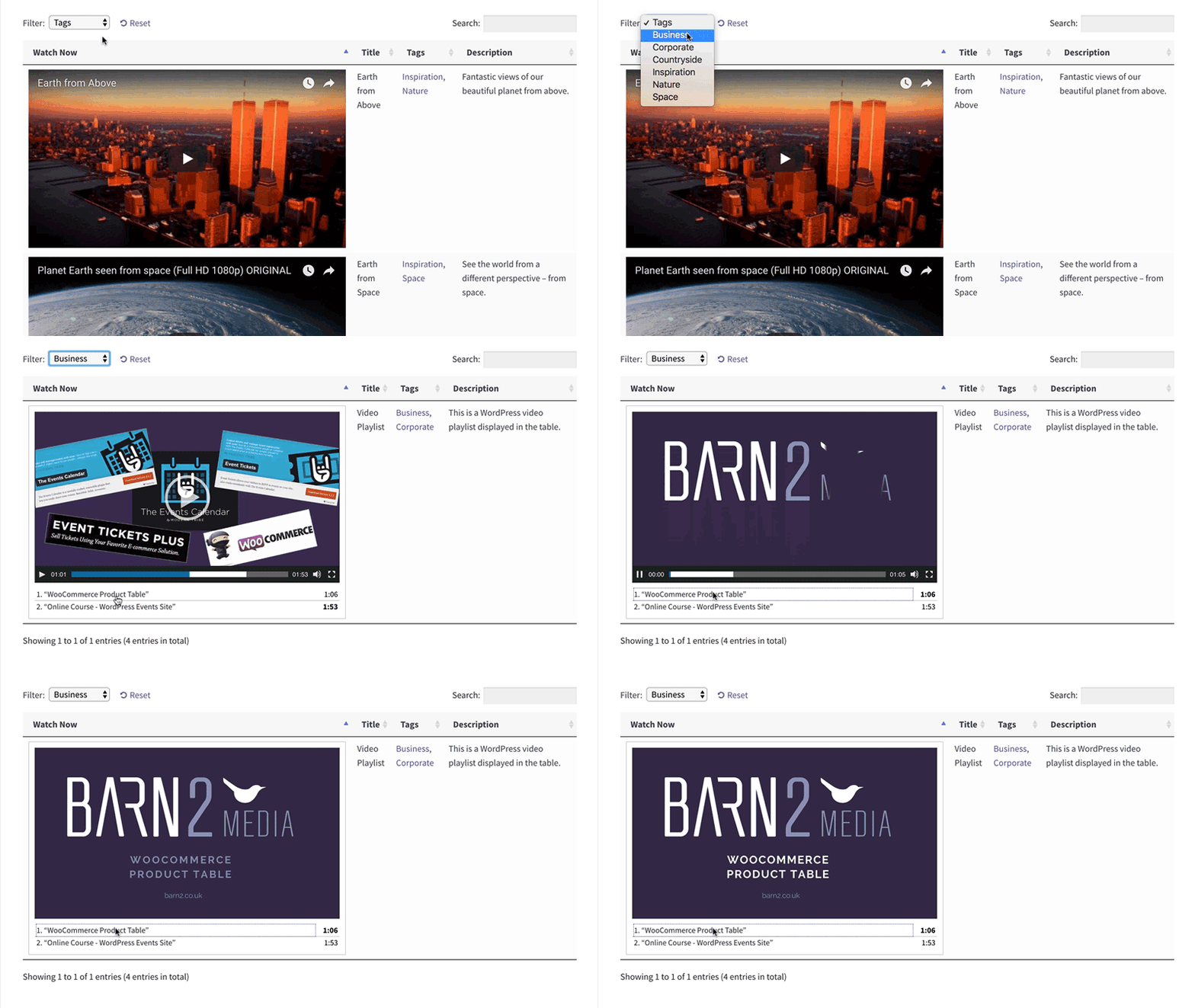
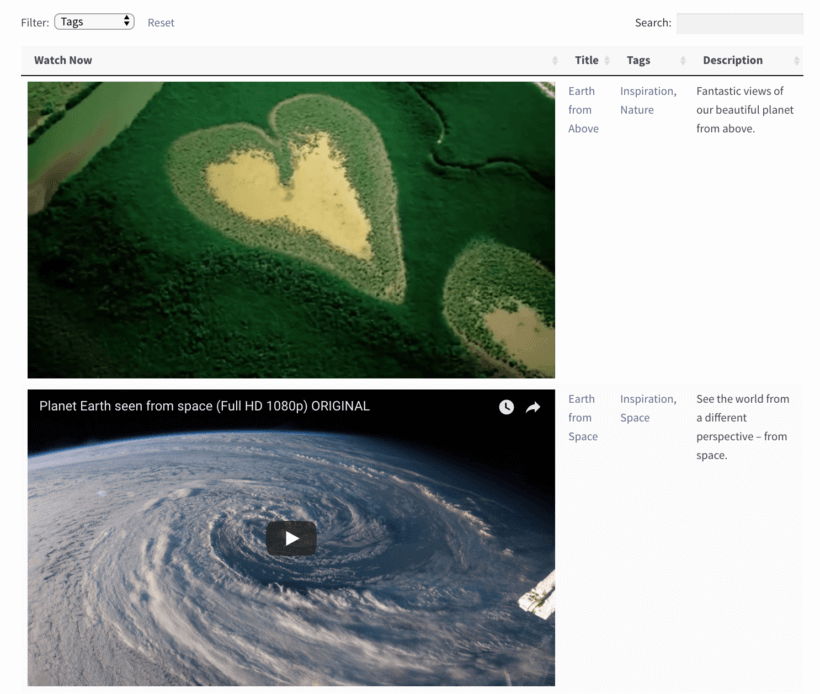
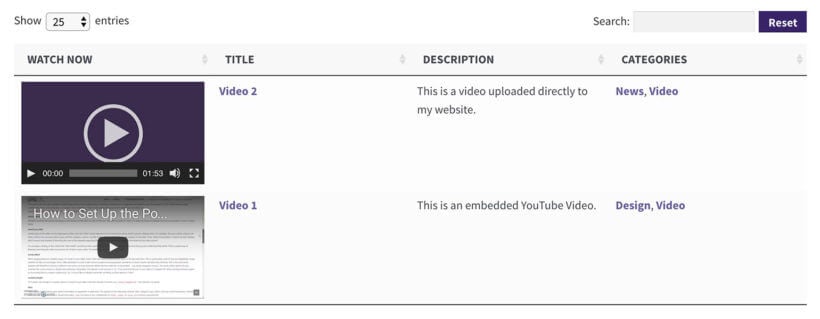
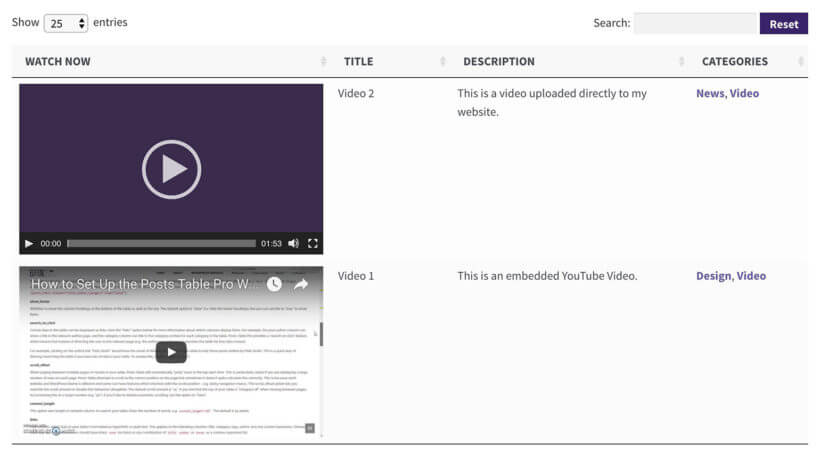
WordPress video gallery showing one video per row with descriptions
A WordPress video gallery with 1 video per row

If, however, you're planning to create video playlists then you'll need a separate Document post for each playlist, but not each video:

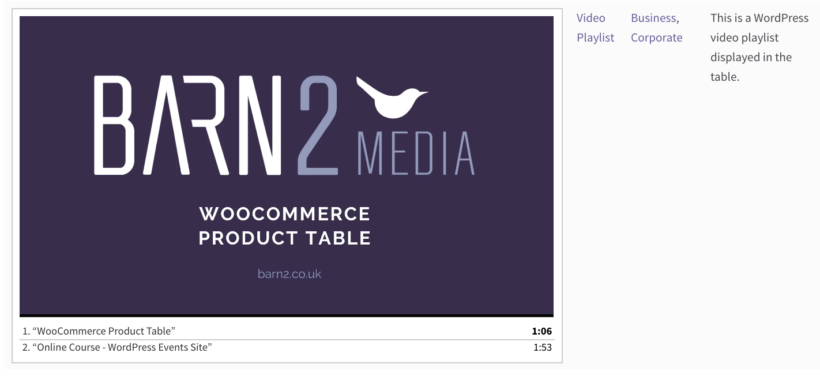
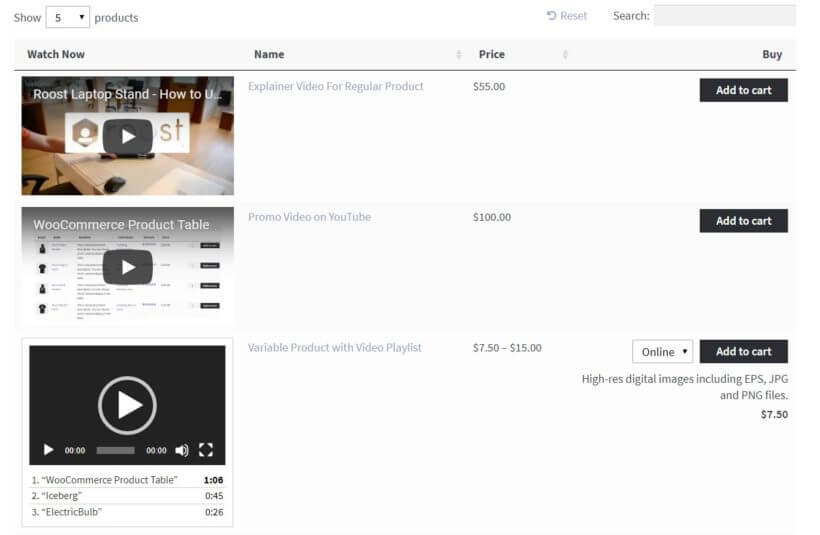
WordPress video gallery playlist
A video playlist in a WordPress video gallery

Note that you'll be able to include a combination of individual videos and playlists in your WordPress video gallery. For each 'Document', add either one or more videos. I'll tell you how to do this next.

Use these steps to add each video or playlist to the gallery:

  1. Go to Documents → Add New in the WordPress admin.
  2. Add a title for the video, plus any other information such as categories, tags, or an excerpt (which is useful for adding a short video description or summary).
  3. Next, embed your video in the main content area using one of the following 3 methods:
Method 1 - Embed a video from YouTube or Vimeo

The most reliable way to add a video to your WordPress video gallery is to first host it on a third-party video platform. YouTube and Vimeo are the most popular, but you can embed from any of the video services in this list. (It's fine to use other video platforms too or use self-hosted videos, but instead of just pasting the URL, you need to get the embed code and paste it into the 'Text' view on the Add/Edit Document screen.)

Using a specialist video host is a great choice because:

  • It will save space on your web hosting account.
  • Dedicated video hosts automatically create multiple versions of your videos behind the scenes. This means that your videos will play for more people, whatever technology or device they're using to access your website. You don't have to worry about writing any fancy code to check the user's device or serve alternate versions of your videos - it all happens automatically.
  • You get lots of extra features from specialist video hosts such as view counters, social sharing, annotations, mobile-friendly cards, monetization through advertising, etc.
  • If you use a public video website such as YouTube then people can also find your videos directly via the host. This will help to increase your traffic. If you'd rather your WordPress video gallery not be publicly available on the hosting site, then I'd recommend Vimeo. Vimeo has more privacy settings and you can protect Vimeo videos so they can only be viewed on your domain.

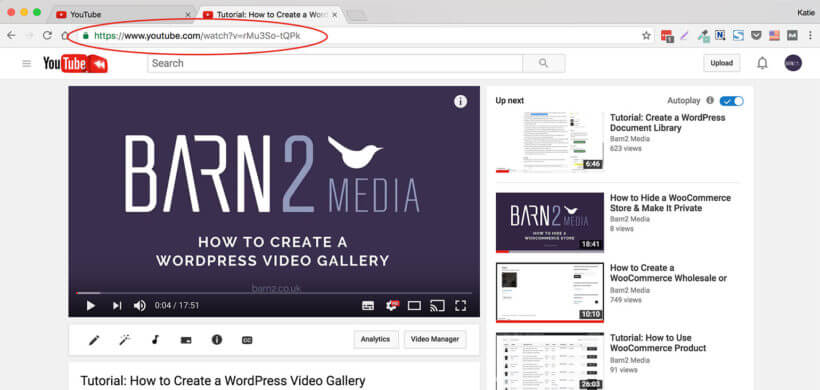
If you're embedding WordPress tutorial videos from one of the files in this list, you just need to embed the URL of your video directly into the post. To do this, view your video on YouTube, Vimeo, social media platform, or whichever site you're using, and copy the URL from the address bar at the top of your browser. To help you find the video URL, I've circled it in the screenshot below:

YouTube video page with the address bar URL circled for embedding

Then, simply paste the URL into the content area of your WordPress post. WordPress will instantly convert it into an embedded video player.

Alternatively, you can use the free or premium versions of Presto Player to upgrade the default WordPress video player:

Presto Player videos displayed in a WordPress video gallery table
The Presto Player plugin adds eye-catching videos to the Document Library Pro video gallery
Method 2 - Upload the video directly to the media library

If you prefer, you can host videos directly on your WordPress website and embed the media files:

  1. Click the Add Media button above the WordPress toolbar and upload your video file (e.g. MP4 or MOV).
  2. Select the video in the WordPress media library.
  3. Make sure the Attachment Display Settings section is set to Embedded Media Player and click Insert into post.

Again, WordPress will automatically embed a watchable video into your post.

Method 3 - Create a video playlist

Finally, you can add entire video playlists to your WordPress gallery. These have to be hosted in the WordPress media library.

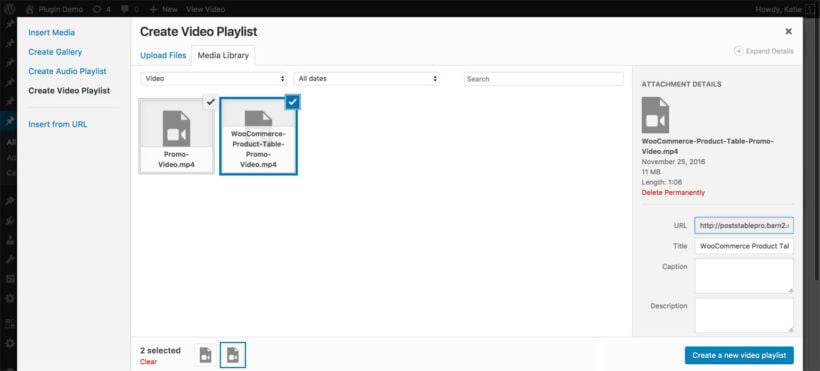
  1. Click Add Media above the WordPress toolbar.
  2. Click the Create Video Playlist option on the left. Note, this option will only appear if you already have video files in your media library. Upload some videos to WordPress if not.
  3. Tick all the videos you want to include in the WordPress video gallery playlist.
  4. Click the Create a new video playlist on the right.
  5. On the next screen, add the caption that should appear for each video. Tick the boxes to indicate whether to show the video list and images in the playlist. Then click Insert video playlist.

WordPress will embed the playlist directly into your page or post.

WordPress media library create video playlist screen
Where will the video players appear on my website?

Whichever method you use to add your videos and playlists, they will appear in 2 locations in your WordPress video gallery:

  1. On the main video gallery page, within the 'content' section. (As we saw above, you can rename this column to anything you like.)
  2. If you haven't disabled the clickable columns, then people can also click the video name to access a separate page for each video or playlist. The embedded video player will appear on this page. https://barn2.com/kb/dlp-column-widths/

Now all your videos are ready to go, you're ready to display your WordPress video gallery! The good news is that most of this has already been done for you. All you need to do is check it, make any tweaks, and add a link to your website menu so that people can find the video gallery page.

You can also create additional video galleries if you need more than one.

Viewing the video gallery page

WordPress video gallery table with thumbnails titles and categories

Click on the 'Pages' link on the left of the WordPress admin, and you'll see all your pages listed. One of these is called 'Document Library' and contains your WordPress video gallery. Rename this to something specific to videos, such as 'Video Library'.

Now view the page. You will see all your videos listed in a searchable table or grid with whichever settings you chose in Step 1.

Go back to the settings page and make any changes to tailor the video gallery to your requirements. You may also want to edit the WordPress video gallery page directly and add some options to the shortcode which has been added to the page. For example, there's a shortcode option that lets you change the column widths. I'll provide more information on customization options for the video sizes next.

Changing the size of each video

If you are using the table view then the best way to customize the size of your embedded video players is to adjust the column widths. The videos will automatically adjust to fit the available space.

By default, the Document Library Pro WordPress video gallery plugin sets the column widths automatically based on the content of each column. But for a WordPress video gallery, you might want to make the video player column wider so that people can see your videos more easily.

To customize the column widths in the video grid, you need to add width="" to the gallery shortcode. Between the quotation marks, you can add a number for each column to represent the percentage of the table each column will occupy. Note the numbers must add up to 100% and be separated by commas. In the example below, the 4 columns will take up 40%, 15%, 30%, and 15% of the table, respectively:

[doc_library columns="content:Watch Now,title,excerpt:Description,category" widths="40,15,30,15"]

(Note: In this shortcode, I have set the columns option to show you that the number of columns matches the number of widths. However, it's easier to set the columns on the WordPress gallery plugin settings page.)

The first column (content) gets 40% of the table width – the biggest width to give more space for the embedded video player. The second column (title) gets 15% as the video titles don't need much space. The third column (excerpt) is slightly wider to allow for more text. The final column (category) is also quite narrow.

WordPress video gallery with custom width columns for each video

Play around with the widths in your own video gallery to get the column sizes working as you want them.

Creating multiple video galleries

By default, all your videos are listed in one new gallery. If you prefer, then you can list different videos like WordPress training videos on different parts of your site.

You can add a video gallery to any post or page on your WordPress website, or even within a text widget.

Go to the page/post/widget where you want to add the gallery. In the main content area, add the following shortcode:

[doc_library doc_category="music"]

This will list all videos from the 'music' category. Edit the shortcode to include whichever category of videos you want to list in the gallery like WordPress training videos. You can then add as many shortcodes as you want, wherever you want.

The great thing about using Document Library Pro as your WordPress video gallery plugin is that it's not just for videos. You can get even better value for money by using it for other purposes elsewhere on your site. For example:

To use it for multiple purposes, go to Documents → Categories and create categories for each use case. For example, you might have a 'Video' category with various sub-categories for your video genres, and a 'Documents' category with sub-categories for your document types. You can then use the [doc_library category="videos"] shortcode lists different types of resources in different places on your site.

Once you've installed this WordPress video gallery plugin, you can use it as many times as you like. Be creative and get more for your money by using Document Library Pro in different ways!

WordPress video gallery listing videos with thumbnails, prices and add to cart buttons
A WooCommerce video store powered by the WooCommerce Product Table plugin

It is also possible to create a WooCommerce video gallery for an ecommerce site. Each video would be a 'product' and would be listed in a table with a preview of the video. People can watch the preview and then click a 'Buy' button to purchase the video - either as a digital download or a physical DVD.

To do this, you need to use our other plugin - WooCommerce Product Table. It has similar features to Document Library Pro but works with the free WooCommerce plugin so that you can actually sell your WordPress training videos online.

Now that you know how to create a fully featured, fully responsive WordPress video gallery, it's time to get creative. To get started, download the Document Library Pro plugin.

  • 100% flexible.
  • List any type of video.
  • Quick 10-minute setup.
  • Expert support and documentation.
  • Free 14-day trial - love it or you pay nothing!

Follow the steps in this tutorial to set up your WordPress video gallery in no time at all. Don't forget it's simple to make the exact video gallery you want, so have a play around and check out the knowledge base for even more ideas.

Illustration of a customer bulk adding products to a cart

If you're looking for a way to increase sales on your WordPress e-commerce website, it's time to consider a bulk add to cart WooCommerce plugin.

Customers can buy more quickly by adding multiple products to the cart at once. They simply tick a checkbox next to each product and click a button to add them all to the cart:

It's the perfect way to increase your WooCommerce store's conversions.

Today, I'm going to tell you how to use our popular WooCommerce Product Table plugin to add bulk add to cart buttons in WooCommerce.

Let's get started!

What is the bulk add to cart WooCommerce plugin?

WooCommerce Product Table is our bestselling WordPress plugin and works perfectly as a bulk add to cart plugin.

It lists products in a customizable table layout, with a tick box next to each item. There will be an 'Add Selected to Cart' button above and/or below your product tables.

You can create a single product table listing all your products with bulk add to cart checkboxes. Or you can create tables listing specific products only (e.g. by category). There are options to add tables anywhere on your site, or to replace the default layouts on the main Woo shop and category pages.

You can configure pretty much any aspect of your product tables. For example, you can choose which columns of product data display in the table. You can choose whether or not to show quantity selectors and product variations in the table. It's even possible to control how the table and quick add to cart buttons behave responsively on mobiles and tablets.

Here are just a few of the benefits of using bulk add to cart buttons:

  • Help site users find and add products to cart faster
  • Make it easier to add products to cart in bulk
  • Potentially increase conversion rate
  • Simplify and streamline the buying process

How to add bulk add to cart buttons in WooCommerce

  1. First, get WooCommerce Product Table and install it on your WP website. I'm assuming that you've already got a website with WooCommerce setup and some products.
  2. Go to Products → Product Tables.
  3. Next, paste your license key from the confirmation email, and set up your table as required.
  4. On the 'Add to Cart button' page, choose the 'Checkbox only' style to display a bulk add to cart checkbox next to each product. Choose 'Button and checkbox' if you want a add to cart button AND bulk tick boxes.
    Add to Cart settings in the WooCommerce Product Table builder
  5. Now it's time to display the table on your site. There are 3 ways to do this:
    1. The table builder lets you select one or more shop templates to display the table. For example, you can enable tables on shop and category pages.
    2. Add a 'Product Table' Gutenberg block to a page and select the name of your table.
    3. Add the shortcode [product_table id="1"] to the page. Replace "1" with the actual ID of your table on
    4. Products → Product Tables.
      Adding the Product Table block to a page in the WordPress editor
  6. Finally, view the page and you'll see your tables with WC bulk add to cart checkboxes next to each product.

Get the most out of quick add to cart options

WooCommerce quick add to cart plugin with variations

The whole point of a bulk add to cart Woo plugin is to make it quicker for people to buy from you. With that in mind, I'll give you some tips on how to encourage customers to add bulk products to the cart. Use these to get more sales by encouraging each customer to buy more products.

Are customers likely to add products to the cart in bulk?

First, you need to decide whether the products you sell will benefit from quick buy options such as a bulk add to cart WooCommerce plugin. Multi-select checkboxes are a major asset to many WooCommerce stores (including wholesale WooCommerce stores). However, they're not for everyone.

Customers are more likely to add products to the cart in bulk when you're selling relatively small, low-cost items; or products that are designed to be used together.

Examples of products that benefit from quick add to cart checkboxes

Low cost products

Low cost products sell better with a bulk add to cart WooCommerce plugin. This applies to any store where each product isn't a major buying decision with low value products. For example, stationery, cosmetics and make-up, food and drink, gifts and toys.

Subtle improvements like quick buy checkboxes can convince them to buy more. Further encourage this with postage discounts for bulk items, or quantity-based bulk discounts.

Make sure your customers know they can save money, and use a bulk add to cart WooCommerce plugin to make it quick and easy.

Build a box

Build a box page with bulk add to cart across multiple WooCommerce products

WooCommerce Product Table is popular for selling build-your-own products such as gift hampers or wine boxes.

The box contents are listed in a table. Customers use the quick add to cart buttons to bulk select the box contents. Once they've ticked the required items, they add all selected products to the cart at once.

Restaurant order form
Pizza menu order form with checkboxes to bulk add items to the cart

Many restaurants use WooCommerce Product Table as an online restaurant food ordering system.

They add their restaurant menu to a single page, with a separate product table for each section (e.g. starters, mains, sides). Each product table has bulk add to cart buttons with an 'Add Selected to Cart' button.

Customers tick all the food options from one table, add them to the cart in a single click, and then choose items from the next table. This is much quicker than clicking individual add to cart buttons for every product.

Related products and sets

If you're selling products designed to be used together, then WooCommerce bulk add to cart buttons will make the process more user-friendly. Perhaps you're selling kitchen units where customers choose their own combination from a set of items such as worktops, cabinets and doors.

Customers need to plan their entire purchase before adding to the cart. When they're ready to order, WooCommerce bulk buy checkboxes make it much quicker to buy.

Case study - using a WooCommerce add to cart plugin to sell items in bulk

Darren Bowen Photography sells a range of products printed with Darren’s unique artwork. To help customers quickly buy products there are two bulk ordering pages powered by WooCommerce Product Table. One for mugs and the other for iPad smart covers.

To buy in bulk, you simply select the quantities and use the “add to cart” function or check the “buy it” box. Once you’ve put everything you need in the cart, you can check your order before making your payment. And to keep things simple, there's an easy to use one-click checkout system.

Coffee mug bulk order form with quantity boxes and add to cart buttons

Keep reading to learn how to add similar WooCommerce bulk order forms to your own site.

Which WooCommerce products don't need bulk add to cart buttons?

As you can see, many types of product will sell best with a plugin that provides quick buy options. However, a bulk add to cart WooCommerce plugin isn't going to help you with major purchases such as selling furniture online. If each purchase is a major decision for the customer, then adding quick check boxes won't really encourage them to buy more.

Think about whether the types of product in your store lend themselves to a quick bulk add to cart format.

Show important buying information in the table

There's no point having a WooCommerce bulk add to cart plugin if customers still need to visit the single product page before they buy. The whole purpose of the quick add to cart checkboxes is to allow customers to add products in bulk directly form the main shop or product listings page.

This means that your WooCommerce product tables need to contain all the information that is needed to make purchasing decisions. You can do this by choosing which columns appear in the product table.

Joseph uses the WooCommerce Product Table plugin to include a quantity field in his product table:

Exactly What I Have Been Looking For
This plugin is absolutely fantastic. I have been looking for a plugin just like this for a while now. I so glad I discovered this one. I wanted a quick, nice way to have my many products listed in a table with a quantity field and an add to cart button. This plugin was the answer. I love the way you can customize the table to include only the columns you want and how you can order the table by a specific column. I would totally recommend this plugin.

The WooCommerce Product Table plugin supports all the standard product data that WooCommerce stores. Read the full list of available columns and choose your columns wisely. Add the product data that will actively encourage customers to buy without clicking elsewhere. You can even add extra data such as custom fields and taxonomies. These are ideal for adding any further information or downloadable documents that will help customers to reach a quick buying decision.

Add a quantity picker and variations

Customers will only use the plugin's bulk add to cart checkboxes if they can select product options directly from the product table view. This means that you need to make these options available alongside the quick add to cart buttons. This includes:

  • Activate the quantity selector on the WooCommerce Product Table plugin settings page. This lets customers choose a quantity before selecting the product and adding it to the cart.
  • Use one of the options to show variable products in the product table. You can show product variations as dropdown lists next to the bulk add to cart boxes. Alternatively, each variation can have its own row in the product table with a separate add to cart checkbox for each one.
  • If you're using the WooCommerce Product Options plugin with WooCommerce Product Table, then extra product options will appear next to the bulk add to cart check boxes. These two plugins work perfectly together, so this is a good way to add extra product options if variable products aren't right for you. For example, you can add extra options as checkboxes and radio buttons, or even add text fields where customers can add a personal message for each product. All this works directly on the product listing page, so customers can choose their options and add products to the cart in bulk.

Help customers find products faster

Built-in options

Bulk add to cart buttons are just one way to speed up the buying process in WooCommerce. It works because products become more visible, faster. The WooCommerce Product Table plugin comes with plenty of features to help customers find products more easily. All these improvements work together to truly improve your sales and increase conversions.

For example, add filter dropdowns or filter widgets to let customers quickly refine the list of products. They can choose their filters, view a list of products they're interested in, tick the boxes and add products to the cart in bulk. Keyword search above the product table offers another way to do this.

Performance and page load time is also important. If you have lots of products, you can use the lazy load option to load fewer products at a time. Lazy load lets you list hundreds or even thousands of products in a table. It minimizes load time and avoids potential speed and performance issues.

Advanced filtering plugin

WooCommerce product table with add-to-cart buttons and sidebar filters for category, color, and price

For stores that need bulk add to cart options with more advanced filtering, you can use WooCommerce Product Table with its sister plugin - WooCommerce Product Filters. This adds even more sophisticated filters to your bulk order forms, as you can see in the screenshot above.

WooCommerce cart displaying a category minimum spend warning to enforce bulk add-to-cart quantity requirements

The Product Table plugin makes it easy for customers to add bulk quantities and add several products to the cart at once. However, customers can still buy small quantities if they want.

If you only want to receive bulk orders, then you need to use WooCommerce Product Table with a minimum quantity plugin. It is designed to work alongside the Quantity Manager plugin, which lets you set different types of WooCommerce minimum quantity rules.

For example, you can set a minimum order quantity or value to prevent customers from placing small orders. Alternatively, you can set minimum quantities for the whole order or per category, product or variation.

Either way, WooCommerce Quantity Manager helps you to guarantee your profit margins by stopping customers from placing non-bulk orders.

WooCommerce Quick View Plugin with Product Table

Bulk add to cart plugins are all about helping customers to buy as quickly as possible. So what happens if you have too much information, or too many product options, to fit in the product table? Obviously, you don't want customers to have to visit the single product page. After all, this would slow down the buying process and defeat the purpose.

Instead, you can enhance your product tables with the WooCommerce Quick View Pro plugin. This handy plugin works hand-in-hand with WooCommerce Product Table and your bulk add to cart buttons. It adds quick view buttons or links to the product tables. Customers can view more product information and purchase options in a quick view lightbox. They can then either select variations and add to the cart directly in the popup, or they can quickly close it and use the bulk add to cart buttons in the product table.

Adding products to the cart in bulk lets customers order more quickly and easily. However, they can still lose time completing the standard multi-page WooCommerce cart and checkout.

To optimize the second half of the customer purchase process, I recommend installing WooCommerce Fast Cart. This plugin displays the WooCommerce cart and checkout in a popup after customers add products to the cart in bulk. They can complete their order from directly within the popup. This is so much faster than having to visit several pages after adding products to the cart.

On-page popup cart and checkout for adding products in bulk
Install WooCommerce Fast Cart for an on-page cart and checkout.

Now you can create your own WooCommerce bulk add to cart buttons!

Now you know everything about how to use a bulk add to cart WooCommerce plugin. It's the easy way for customers to add more than one products to the cart at once. As you have seen, it will really speed up the buying process on your store.

Research shows that faster customers can use an e-commerce shop, the higher your conversion rate and sales will be. Test the add to cart checkboxes on our WooCommerce quick order form demo. Get the plugin today and add bulk add to cart buttons to your WooCommerce store straight away!

WordPress staff directory listing employees in a searchable table

If your business is made up of more than a few individuals, you probably maintain a staff directory. This kind of listing is very useful internally, as it helps to keep everyone’s information in one place. It can also be beneficial to include it on your website, as long as you can find a way to organize it properly.

As with many tasks you’ll perform on your WordPress site, the best solution here is to install a dedicated WordPress staff directory plugin. With the right solution, such as Posts Table Pro, you can add a simple staff list to your site and customize it to suit your exact needs. You can even use custom fields and taxonomies to further refine and organize your directory.

In this post, we’ll talk about what to look for in a WordPress staff directory plugin. Then, we’ll introduce Posts Table Pro – a beginner-friendly yet powerful WordPress solution – and show you how to use it. Let's get started!

Why You Need a WordPress Staff Directory Plugin (And How to Choose One)

It's often smart to create a simple staff list of everyone who works for your company or organization. This directory generally contains names, contact information, profile pictures, and other pertinent details such as job titles. Having a hard copy of your staff directory handy is smart – and so is putting that information on your website.

An online staff directory is convenient, can’t be lost, and is easy to update. For WordPress users, the best way to create one is to use a WordPress staff directory plugin with the following features:

  • A way to easily add individual staff members and list them in one place.
  • Options for adding as many extra fields as you need.
  • Searching and/or filtering functionality, so users can find what they want quickly.

As with any plugin, it’s important to make your choice carefully. That’s why you’ll also want to pay attention to ratings and reviews, how frequently the WordPress staff directory plugin is updated, and what kind of support options are available.

You may also like: How to create a WordPress member directory.

Posts Table Pro

Fortunately, finding the best WordPress staff directory plugin isn’t hard. Our own Posts Table Pro is a flexible tool that meets all the above criteria. It helps you create a searchable and sortable staff list that can be tweaked to fit your precise needs, then displayed on your WordPress site.

Using a customizable shortcode, you can include as much information as you want in your staff directory, organize it all clearly, and enable users to quickly find the staff member they're looking for. What's more, with the purchase of this plugin you'll get access to expert support in case you need a little help getting started.

See a Posts Table Pro staff directory in action!

Key Features:

  • Supports custom post types, fields, and taxonomies - perfect for creating a staff custom post type with extra fields to record information about each person.
  • Includes search and sort features that are easy to use - perfect for helping people to find a specific person in the simple staff list.
  • Provides the option to embed media files - perfect for showing a profile photo or avatar of each staff member in the directory.
  • Offers plenty of flexibility and customization options - perfect for customizing your WordPress staff directory in any way you want!

Download Posts Table Pro Now!

How to Create a Staff Directory in WordPress Using Posts Table Pro (In 4 steps)

Now, let’s walk through how to actually set up your WordPress staff list. First, make sure you have a recent backup of your site in place. Then, you’re ready to begin!

Step 1: Create a Custom Post Type for Your Staff Page

A 'post type' is a unique format for content – WordPress default pages and posts are two examples. In this initial step, you’ll need to create a custom post type for your staff information. To do that, you can install the free Easy Post Types and Fields plugin:

Easy Post Types and Fields banner for creating a custom staff post type

This free plugin enables you to create all kinds of custom content and data on your site. Once you’ve installed and activated it, there will be a new Post Types tab in your dashboard. Click on Add New at the top of the screen, and follow the steps in the setup wizard.

Firstly give your custom post type singular and plural names.

Naming a staff custom post type in the setup wizard

Then, select the type of information you wish to display and click Create.

Selecting features for a custom post type to power a staff directory

You have successfully created a custom post type. You should see a new tab appear for your new custom post type in the left-hand menu of your WordPress dashboard.

Step 2: Add Custom Fields and Taxonomies for Staff Data

Next, it’s time to create the categories that will appear in your staff directory. Before moving on, list out all the information you’ll want to include, such as each person’s phone number, email address, department, job role, etc. Then, split your list into two categories. Some of the information will be static data that users will simply want to look up, such as contact details. Other information needs to be ‘filterable’. For example, users may want to sort the directory by department or job role.

First, let’s address static data, like phone numbers and email addresses. For these details, you’ll create custom fields. To add custom fields, go to Post Type → Manage in your WordPress dashboard. Click on the Custom Fields button for the post type you wish to update.

Click on Add New to add a new custom field to that post type and enter the Name, Slug and select the field type (text or visual editor).

Adding a custom field to store staff details for the directory post type

Click Add custom field button when you're finished. You've successfully added a custom field. Repeat the steps above if you want to add more custom fields.

For data that needs to be filterable, you’ll use custom taxonomies instead. To create custom taxonomies, go to Post Type → Manage. Click on the taxonomies button for the respective post type you wish to customize. Click on the Add New button.

Adding a Job Titles taxonomy for the staff post type

Enter the singular and plural names and the slug for your new taxonomy. When you are done, click on the Add taxonomy button.

If you want to add more filterable taxonomies, repeat the steps above.

Step 3: Enter the Data for Each Staff Member

At this point, it’s time to start entering data for your WordPress staff list. Go to the tab in your dashboard that’s named after the custom post type you created, and select Add New:

Entering a staff member's details with custom fields in WordPress

You’ll see the basic WordPress editor with a few new options. In the Title field, enter the name of the first individual in your directory. Then, add their contact details to the custom fields. On the right side of the screen, you can set a Department and Job Title for this individual (or use whatever custom taxonomies you created). Publish the entry when you’re done, and repeat this process for each team member.

If you've got more than a handful of staff to add, consider Setary. This bulk edit tool lets you paste names, emails and job titles straight into a spreadsheet view of your Staff post type instead of one-at-a-time in WP admin.

Step 4: Use Posts Table Pro to Display Your Staff Directory

The final step is to actually display the directory on your site. To do this, you'll need to install the Posts Table Pro WordPress staff directory plugin.

After purchasing Posts Table Pro, you will receive a confirmation email containing your license key and a download link to the plugin. If you don't receive this email, please submit a support request. To install the plugin, follow these five steps:

  1. Download the plugin by clicking the link in your order confirmation email. This will save a zip file to your computer.
  2. Go to your WordPress admin dashboard and navigate to Plugins → Add New → Upload Plugin.
  3. Click the "Choose File" button and select the posts-table-pro.zip file you just downloaded.
  4. Once the plugin is uploaded, click the "Activate" button to enable it.
  5. The Posts Table Pro setup wizard will open automatically, prompting you to enter your license key and complete the setup process.


Step 5: Customize Your Staff Directory

Staff directory with dropdown filters for departments and job titles
You can customize your staff directory to include dropdown filters

Upon installation, the plugin will open a setup wizard that will guide you through a step-by-step process to create your first table. Once you have created your first table, you can customize its appearance to suit your preferences. If you want to create new tables, simply go to Post Tables → Add New, where you can create as many tables as you need.

  1. Choose a name for the directory that is meant only for internal use and will appear on the list of tables in the WordPress admin. Next, select the desired post type to be displayed. In this case the custom post type for your staff that you created.
  2. On the page for adding posts or pages to the table, you can choose from posts, pages, and custom post types. The available options depend on the post type selected in the previous step. If your post type has custom taxonomies, they will also be shown for you to pick.
  3. You can specify which columns to show and their order. For your directory, you might want to include critical details like the names of your staff, phone numbers, email addresses, departments, and job titles. To add a column, you can pick the column type from the drop-down menu and click on "Add." The added columns appear in the column list above, and you can change their order by dragging and dropping the sort icon or the column title.
  4. You can add filters to your table that enable users to refine their selections. Filters appear as dropdown menus above the table, and you can add as many as you like. Each filter accepts more than one value at once, so visitors can narrow by department and job title together. The available filter options will vary depending on the post type selected on the first page. For instance, you can add departments and job titles as filters.
  5. Next, you can customize how your directory will be sorted.
  6. After creating your directory, the setup wizard will verify that you have completed the process and guide you on how to display the table on your WordPress site. You can display the table using the 'Post Table' block in the Gutenberg editor, or copy the shortcode from the table builder and paste it anywhere on your site, which allows you to put the table on any page, irrespective of its content.

Once you’re done, your directory will look something like this:

WordPress staff directory listing staff in a searchable table

Conclusion

Displaying your staff directory on your website is a smart way to make sure that information is available to anyone who needs it. Team members will be grateful for an easy way to get in touch with the right person. What’s more, creating a staff directory is simple with the right plugins.

If you’re looking for the best WordPress staff directory plugin, you’ll want to check out Posts Table Pro. This flexible solution enables you to display and customize your simple staff list, especially when used alongside the free Pods plugin. To get started, you’ll want to install both plugins and then:

  1. Create a custom post type for your staff page.
  2. Add custom fields and taxonomies for staff data.
  3. Enter the data for each staff member.
  4. Use Posts Table Pro to display your staff directory.
  5. Customize your staff directory.

Do you have any questions about how to use Posts Table Pro on your WordPress site? Ask us anything in the comments section below!

Get Posts Table Pro

Image credit: Pixabay.

Password protected events category viewed on a mobile phone

There are lots of plugins to organize or sell events on a WordPress website, but it's less obvious how to create WordPress password protected events.

Today, I'm going to tell you how to use Password Protected Categories to protect events. This is an easy-to-use plugin that lets you password protect events based on their category. It works with any WordPress events plugin, whether you're using Events Calendar Pro, Event Espresso, WP Events Manager, or something else.

Let's get started!

What is Password Protected Categories?

Password entry page locking a hidden events category

Password Protected Categories is a WordPress plugin developed by ourselves at Barn2 Media. It provides an easy way to hide and password protect any type of category in WordPress.

The plugin works with any WordPress custom post type, including Events. This means that you can use it as a WordPress password protected events plugin.

There are lots of ways that you can use Password Protected Categories to hide or protect your upcoming events:

  • You can list events in the public areas of your website, but require a password before users can view the event detail page or make a booking.
  • Another option is to list public courses or events in the public parts of your website, and create 1 or more private event categories that only people with the password can view. These will be hidden from public view - people in the public parts of your site will never know that your private event listings exist.
  • Alternatively, you can put all your events within 1 or more hidden event categories. This hides the entire events section of your website, while your normal web pages (Home, About, Contact, Blog, etc.) remain public.
  • Finally, you can create hidden event categories which only certain logged in users or roles can see.

Create a private or password protected events category in WordPress. It will instantly hide and protect all the events in the category and its sub-categories with the same password. This is much easier than password protecting individual events. It's more user-friendly because people only have to enter one password to unlock the entire category and all its events.

See password protected event categories in action on our plugin demo page.

Why would I want to password protect events?

Some people use a WordPress events booking website to promote events which are available for everyone to view and book. Others create a private events website to advertise events that only pre-approved people can access.

Here are some examples of why you might want to sell private events in WordPress:

  • A company or organization might want to create a hidden events area on their website to list staff-only events or workshops.
  • Training companies might offer training course dates to employees of a specific organization. They can list these events within a hidden password protected events category. Employees can enter the password to view the dates that are available to them, and make a booking without the public knowing that these events exist.
  • A members-only events site (e.g. a membership club or speed dating site) can use password protected events categories to take bookings for their events. Only people with access to each type of event can view them and make a booking.
  • Some websites list all their events publicly, but only pre-approved people can actually place a booking. When you click on an event, you are prompted to enter a password. This is a good way to recruit people into a club or membership organization, as they must join in order to book an event.

And of course, you can password protect events in WordPress even if you don't take bookings via your website. The important thing is that the event pages are private. It doesn't matter whether or not you accept bookings or if people can just turn up on the day.

Which WordPress events plugins does Password Protected Categories work with?

WordPress Password Protected Categories works with the vast majority of WordPress events plugins. Here's how to tell if it will work with your chosen events plugin:

  1. The plugin must have a custom post type which is used to store events. This applies to nearly all WordPress events plugins. If your events plugin has created a section called 'Courses', 'Events' or similar in the left hand side of the WordPress admin, then this means that there's a custom post type for events.
  2. The events custom post type must come with categories (also known as hierarchical taxonomies in WordPress). You can check this by looking under the 'Events' link in the left hand side of the WordPress admin. If there's a 'Categories' link, then this will work with the Password Protected Categories plugin.
Events plugin showing an Events section with categories
If your events plugin creates an 'Events' section (or equivalent) and comes with categories, then it will work with Password Protected Categories

If your events plugin doesn’t categorize events then you can easily achieve this by installing Easy Post Types and Fields and creating a custom taxonomy for the events post type.

Compatible WordPress events plugins

The following events plugins definitely work with Password Protected Categories:

This list is not exhaustive and it will actually work with most events plugins. If you're not sure, add a comment below and I'll check, or you can test it with Password Protected Categories and use our 30-day money back guarantee if there are any problems.

How to password protect events in WordPress

To start password protecting events, either watch the video or follow the instructions below:

  1. Password Protected Categories plugin settings screen
    First, install the Password Protected Categories plugin. (I'm assuming that your events plugin is already set up. If not, click here for some tips.)
  2. Go to Settings > Protected Categories and enter your license key.
  3. Choose your settings, such as the text for the password entry form. You can also choose the number of days before each user must re-enter the password to continue accessing the password protected events categories.
  4. Tick the 'Show Protected' box to display your password protected events in the public parts of your site. (This means that people can see your protected events, and will be prompted for a password when they try to view the single event page.) Leave it unticked if you want your protected events to be completely hidden from public view.
  5. Next, hover over the events section on the left of the WordPress admin, and click the Categories link. Add or edit the events category that you want to password protect. Find the 'Visibility' section and choose one of these options:
    • Password protected - Enter 1 or more passwords to hide the category page and its events behind a password protection screen. You can add a shared password for everyone, or add a different password for each person. (More info here.)
    • User or role protected - Choose this if you want to hide the category and its events from public view, so that only logged in users with a specific user role can see this.
Setting an events category to password protected in WordPress
  1. Add the shortcode [category_login] anywhere on your site to create a category login form. When someone enters a password on this page, the plugin will automatically direct them to the correct events category.

Can I protect multiple event categories with the same password?

Yes, you can create more complex event category structures, all protected by a single password. To do this, you need to create a single password protected 'Parent' category and password protect it. Next, add as many sub-categories as you like. Leave them set to 'Public'.

The plugin will automatically protect the password protected sub-categories and their events with the same password as the parent events category. Users can enter the password once and the entire section will be unlocked for them. Once they're in, they can navigate between multiple events as needed.

How to create a WordPress events website

I've written this tutorial for people who already have a WordPress events plugin set up on their site. If you haven't got this far, don't worry.

I recommend The Events Calendar plugin as the best way to create events in WordPress. You can use the free plugin to list events for information, or combine it with the Pro plugins from the same company to take bookings online with WooCommerce.

If you don't know how to do this, I've created an online course about how to create a WordPress events website using these plugins. It covers everything you need to know.

Does the plugin change my event layouts?

Password Protected Categories is a simple plugin to protect and hide any or all of your WordPress event categories. If you want to change the way your events are displayed, then I recommend our Posts Table Pro plugin.

WordPress events table displayed on a laptop
Posts Table Pro is a WordPress table plugin. Unlike most table plugins, it takes any type of WordPress content and lists it in an interactive table view with filters. It's ideal for listing events in a table because the table layout is perfect for displaying events. The table plugin lists each event date on a separate row of the table. You can show whichever columns of data you'd like, such as event image, name, description, date etc.

Check out our tutorial on how to create a table of events with Posts Table Pro and The Events Calendar plugin. If you're using a different WordPress events plugin such as Event Espresso then the instructions are similar. The only difference is that you need to use the name of the events post type created by your plugin instead.
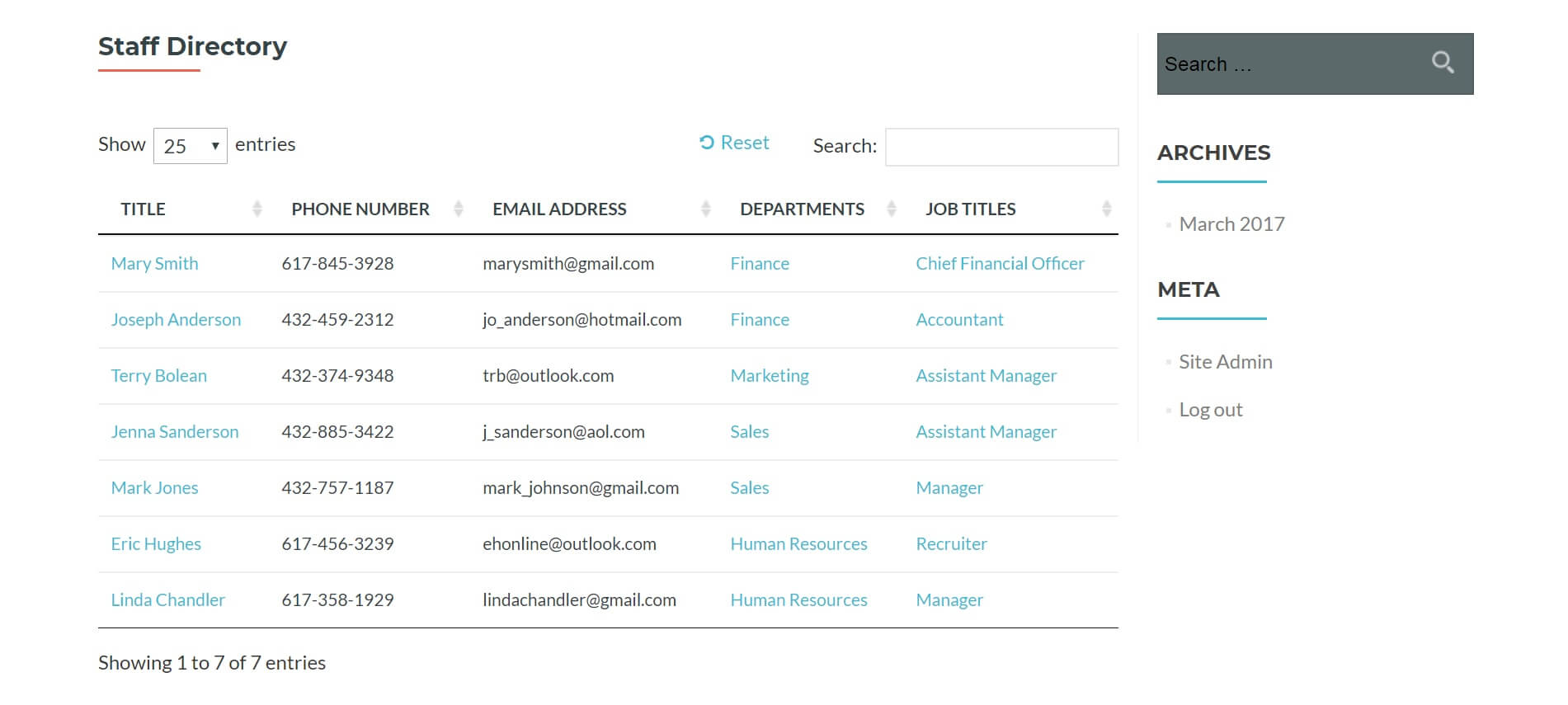

Password protected events WordPress plugin

So, now you know how to hide and password protect event categories - regardless of which WordPress events plugin you're using. Next, it's time to put it into practice.

Download Password Protected Categories and use it with your chosen WordPress events plugin. It just takes a few minutes to set up and will instantly hide all the courses or events in your protected categories.

Password Protected Categories comes with an in-depth knowledge base and full support from us at Barn2 Media. It comes with everything you need to get your password protected events up and running, so try it today.