




WordPress Private Pages for Subscribers

'As a website owner or blogger, one of the things you might want to do is create private pages in WordPress. These pages can either act as a private blog, useful resources exclusively for subscribers, or something entirely different.

One thing’s for sure, by using WordPress to create subscriber-only content, you’ll be able to:

  • Attract more signups 
  • Encourage website re-visits and 
  • Reward the loyal subscribers on your email list

The use cases of a WordPress Private Page

  • To run membership sites /exclusive communities and forums: Exclusive content can be made private with access only for community members. It is typically used by affiliate marketers, course creators and even brands that offer premium membership for exclusive offers.
  • For internal departmental use: Organisations like schools, universities and companies use private pages to store and maintain internal documents, coursework, sensitive information, private blogs etc.
  • For content that is a work-in-progress: A WordPress Private page is perfect for work that needs tweaks. It can be used when multiple people are designing or brainstorming together (like a product launch page), or for content that simply isn't ready yet.

By the end of this article, you’ll walk away knowing how to create private pages for your email subscribers and for specific user roles in WordPress. The best part? We’ll show you how to have it up and running in a matter of minutes using the WordPress plugin, Password Protected Categories.

Creating a WordPress private page for subscribers 

How it works

From the user's perspective, here’s how your WordPress subscriber only content will work:

  1. A site visitor signs up to your email list to gain access to your subscriber-only area.
  2. Once they’ve signed up, they’ll receive a welcome email which contains a URL and password to gain them access.
  3. They click the URL which takes them to a landing page. This page contains a simple form asking them to input a password.
  4. Once the password is entered and they click ‘Login’, they’ll have access to your subscribers only area.
  5. This subscribers area will contain resources, private articles and more in the form of either posts or pages within WordPress.

This tutorial contains step-by-step instructions for each of these stages, so continue reading to start creating WordPress subscriber-only content.

How to create WordPress private pages for your email subscribers

So let’s get to it. In this section, we’ll outline how to create your WordPress private pages in just 5 simple steps.

Note: This tutorial presumes you have an existing WordPress site set up.

Step 1: Install Password Protected Categories

To get started, get Password Protected Categories plugin from the Barn2 store: https://barn2.com/wordpress-plugins/password-protected-categories

Then follow these steps:

  1. Go to PluginsAdd NewUpload Plugin.
  2. Choose the zip file you downloaded, upload, and then click Activate.
  3. Once activated, you’ll need to enter your licence key.
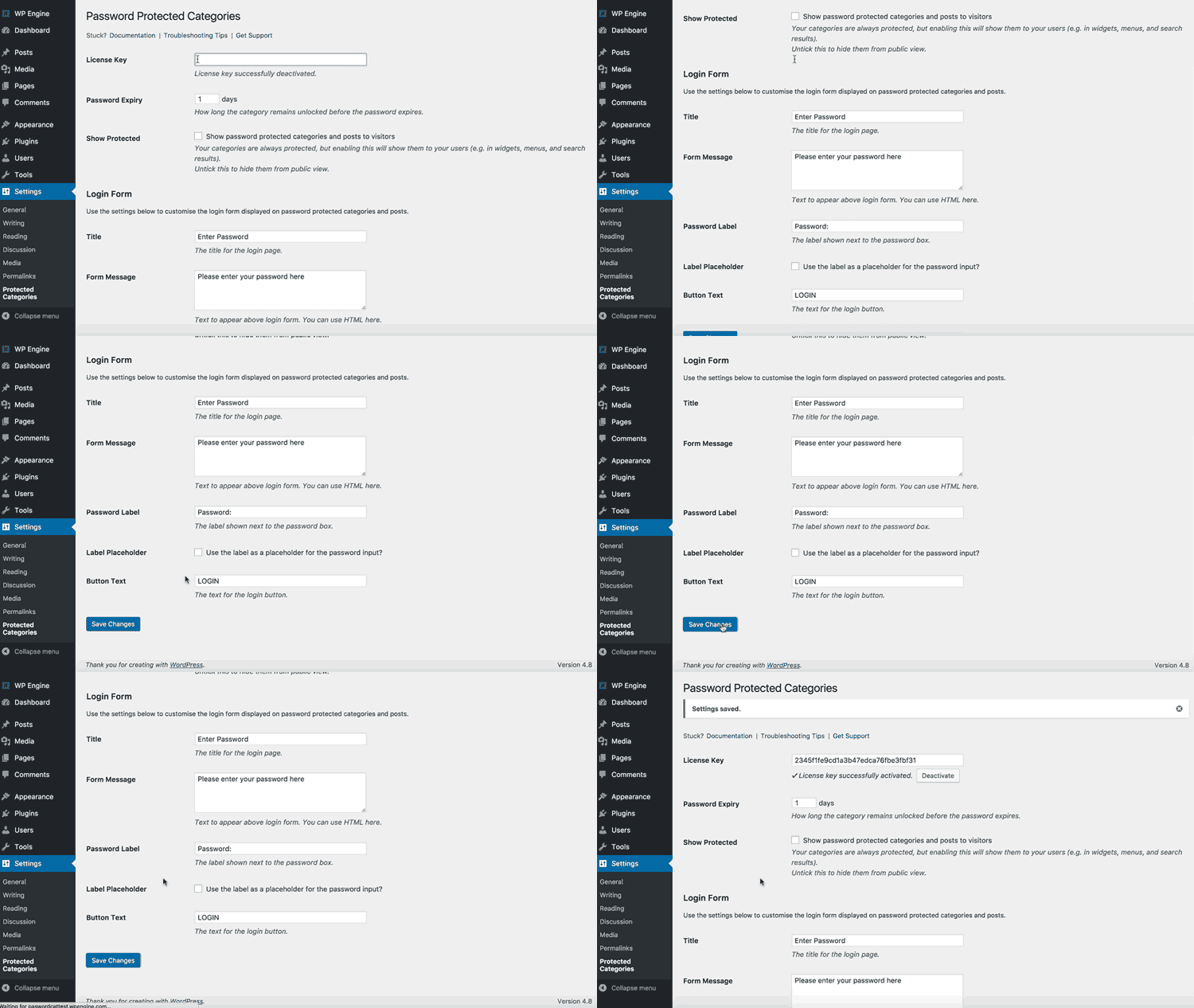
License key activation for Password Protected Categories WordPress plugin

Now that we have Password Protected Categories installed, we can move onto creating our private pages.

Step 2: Create your subscriber only categories

At this stage, you’ll want to decide if you’d like to have your private WordPress subscriber only content as pages or posts. If you’d like to have it as pages, you’ll need to install a free plugin to allow them to be categorized, as WordPress doesn't provide page categories by default. This guide will help you set it up.

Next, you’ll want to create the category page that’ll have all the subscriber-only pages or posts inside it. This will act as your private subscriber-only landing page.

  1. Go to Posts or PagesCategories.
  2. In the Add New Category section, give your new private subscriber area/category a name, slug and description (optional).
  3. Scroll down to the Visibility section and click the Password protected checkbox.
  4. Here you can add one or more passwords for your protected subscriber area. This will protect the category page and all the pages/posts inside it so that subscribers must enter the password to unlock them. 
  5. Click Add New Category and your new password-protected category will appear on the right-hand side of your screen with your other categories.
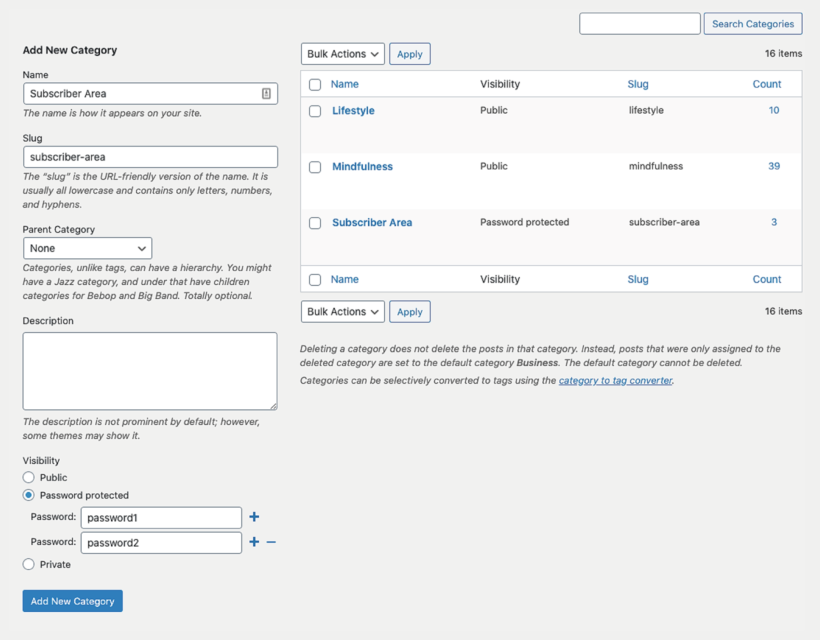
Creating a password protected Subscriber Area category in WordPress

Step 3: Create your subscriber login page

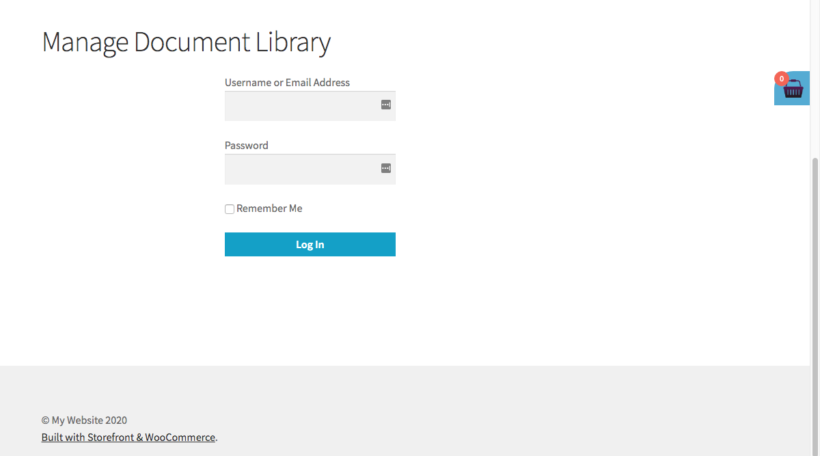
The login page will act as a password protected barrier stopping non-subscribers from accessing the private content. Essentially, it contains a simple form field that requires the visitor to fill in with a password and click ‘login’ to gain access.
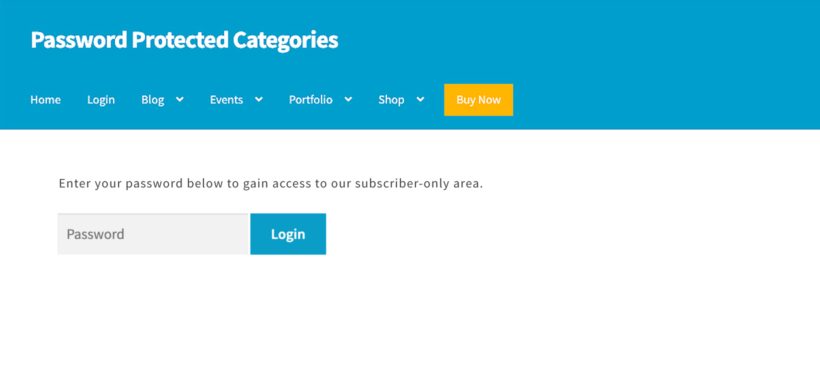
subscriber-only login

This step can be as simple or complicated as you’d like depending on your skill level. You can either:

  1. Link directly to the category page. This can be added to your navigation menu, website footer, or welcome email you send to new subscribers. You can find the link by going to: 

    1. Posts or PagesCategories.
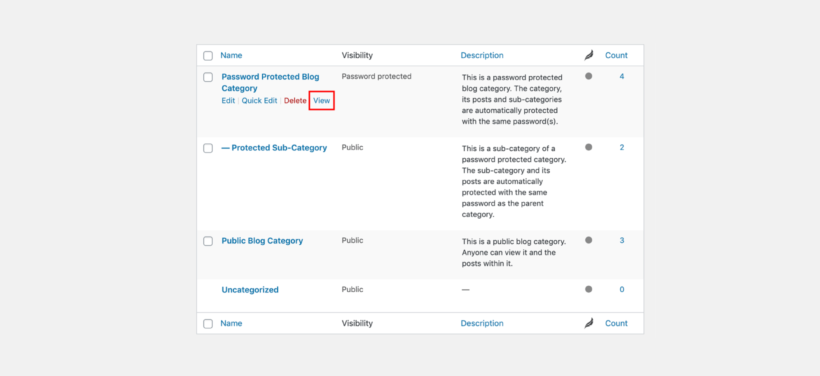
    2. Hover over your password-protected category and click View.
    3. Copy the URL of this page.
Clicking View to find the URL of a password protected category
  1. Create a subscriber area login page. This technique works well if you want to add extra information to your page or if you’re creating separate password-protected categories for different types of subscribers. 

    1. Go to PagesAdd New.
    2. Give your page a name.
    3. Paste the shortcode [category_login] into the page text area.
    4. Then, add whatever extra content you desire to the page, click Publish and you’re done.
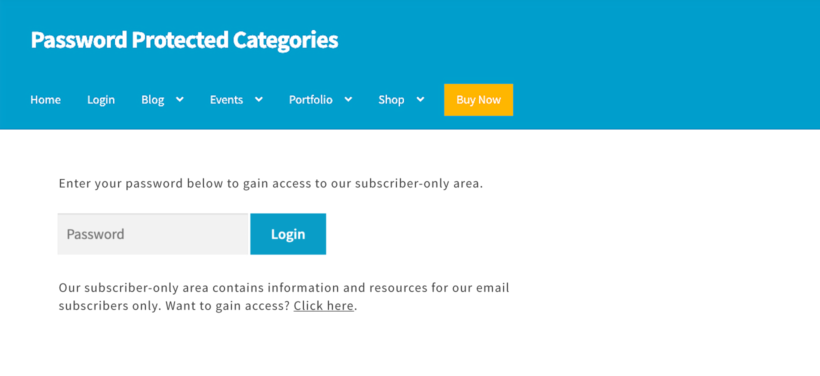
Creating a private page for subscribers login

Step 4: Create your WordPress private pages/posts

Now the category that hosts your private pages/posts has been created, it’s time to create the pages/posts themselves. This involves using WordPress to make pages visible to subscribers only. Again, the Password Protected Categories plugin makes this easy. 

This part is pretty straightforward and depending on how much content you want to add, will only take a minute:

  1. Go to Pages or PostsAdd New.
  2. Add your page/post content as you wish. This could be anything from private articles to downloadable resources, videos, pdfs and more.
  3. In the Document section on the right-hand side of your screen, scroll down to the Categories section.
  4. Check the new password-protected category you created earlier.
  5. Once ready, click Publish and your new page or post will be added to your password-protected page.
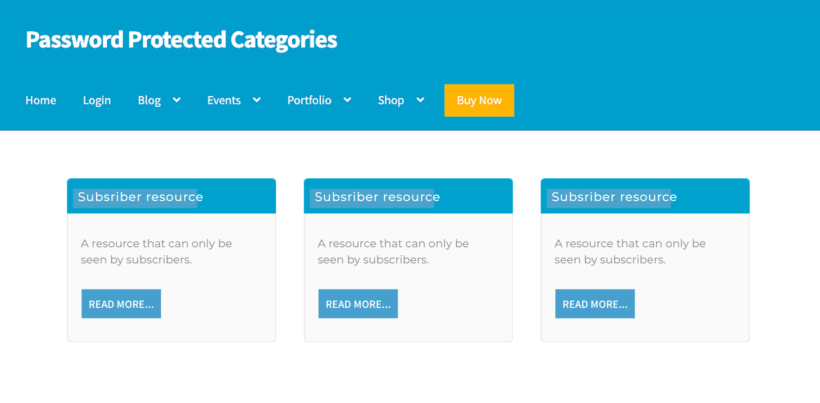
Subscriber-only resources displayed inside a password protected area

By default, Password Protected Categories hides these posts or pages from the public-facing areas of your site (e.g. widgets and navigation menus). If you’d like them to appear there, you can do so in the Password Protected Categories settings. Just go to SettingsProtected Categories. Scroll down to the Category Protection section and tick the checkbox next to Show protected categories? That way, people will see the login page if they try to access any WordPress subscriber only content.
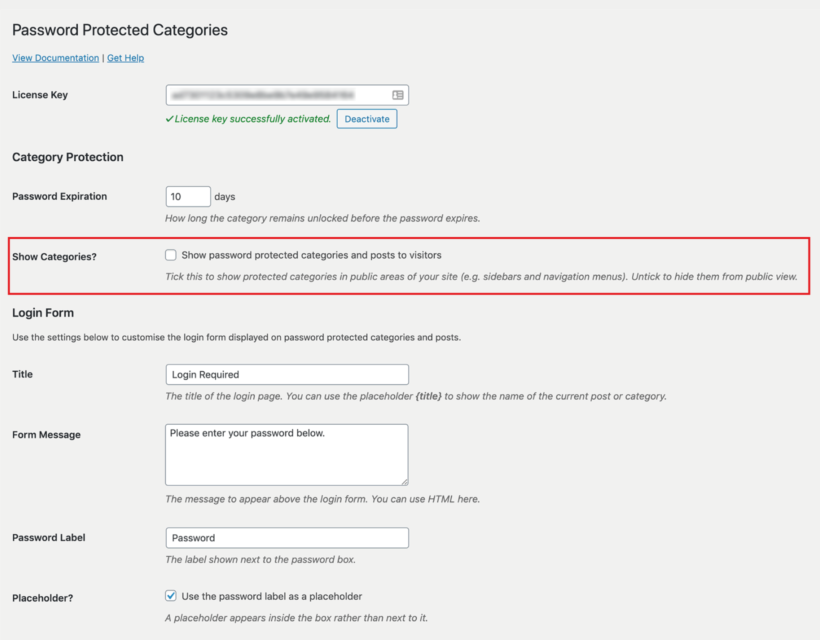
show private pages in WordPress

Step 5: Tell your subscribers

Now that you’ve created your private pages for subscribers in WordPress, it’s time to tell them about it. You’ll want to tell existing subscribers and have a way to incentivise new blog visitors to sign up too. Here’s how to do both.

Tell your existing subscribers

To tell your existing email subscribers, you’ll simply need to send them an email with a link to your newly created protected area. Within this email, you’ll want to add the page link and password so your subscribers can gain access to the hidden content. 

Incentivise new blog visitors to sign up

To encourage new blog visitors to sign up and gain access to the WordPress subscriber only content, you’ll want to add an email signup form to your website.
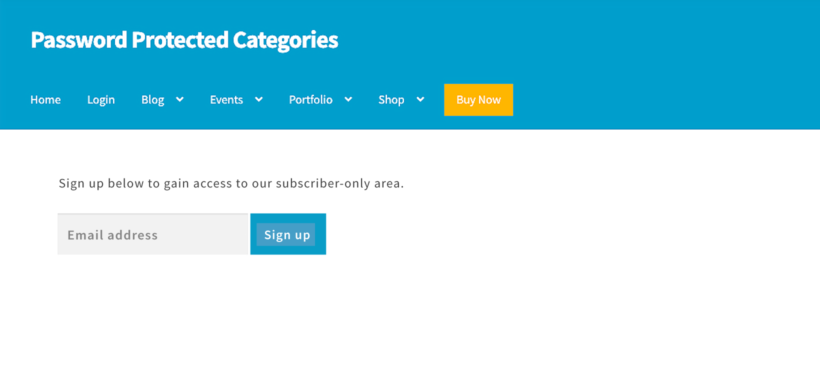
Email signup form giving visitors access to the subscriber-only area

We recommend MailChimp. You can use this to send notifications of your new private blog articles and resources to your subscribers. Find out how with our tutorial below, which includes instructions on how to:

Now that you have MailChimp up and running, you’ll need to create a welcome email. This will be sent to all new subscribers and will contain both the link to your subscriber-only area and the password.

To do this, open up your MailChimp dashboard and do the following:

  1. In your MailChimp account dashboard, click the Automate drop-down menu and click Email.
  2. Then, click the Subscriber Activity tab and click Welcome new subscribers.
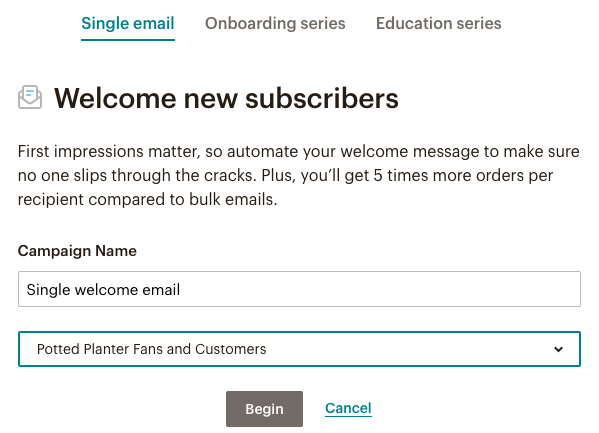
Setting up a single welcome email for new subscribers in Mailchimp
  1. In the Single email tab, enter a campaign name (this is just the name of your welcome email) and click the drop-down menu to choose your audience (previously called ‘list’ in MailChimp). If you need help with setting up your audience, read our tutorial here
  2. Once ready, click Begin.
  3. Next, you’ll be able to add your welcome email content. Make sure to add the URL of your private subscriber area and the password. 
  4. Once happy, click Start Sending and your new email subscribers will automatically be sent this new email once they sign up.
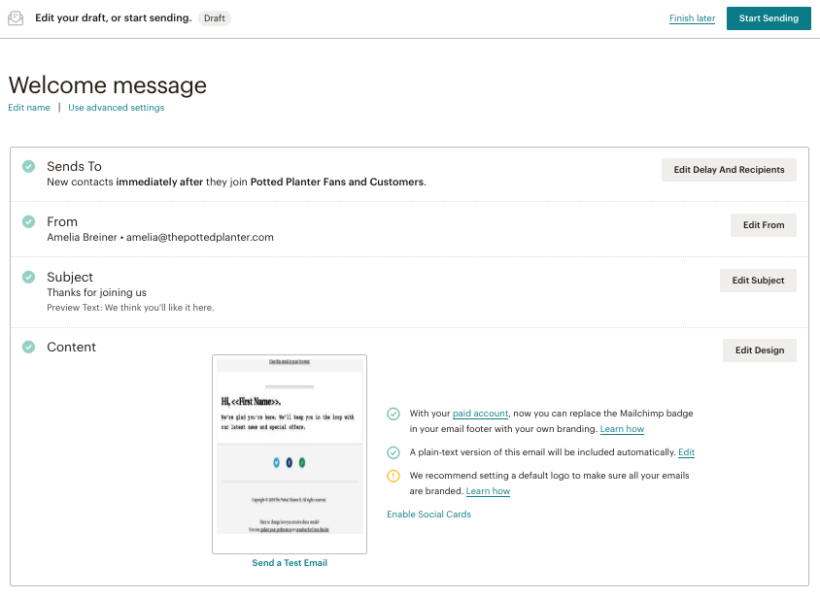
Configuring a welcome email automation for new subscribers in Mailchimp

Creating WordPress private pages based on
user roles

You won’t need any plugins for this, you can use default WordPress to make pages accessible only to the admin and editor user roles. Here’s how: 

  • Go to the Page settings on your WordPress Admin dashboard.
  • Navigate to “Visibility” in the Publish section located on the top right corner of the page and click on “Edit”.
  • A dropdown list will open with “Public” selected by default. Choose “Private” and click on “OK”.
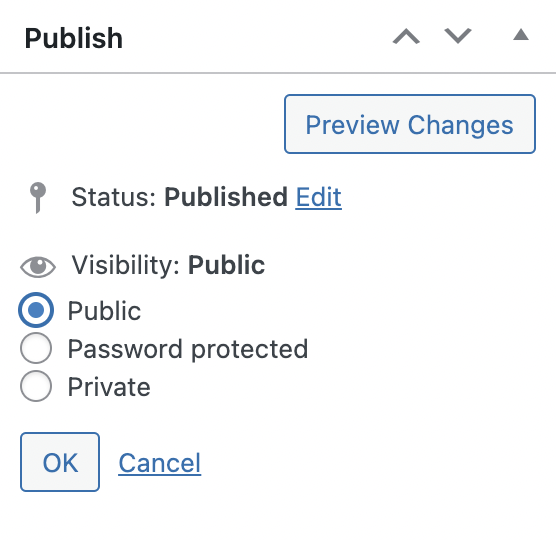
 Setting a WordPress page to private in the Publish visibility options

  • This page is now accessible only to those with the admin and editor user roles. Site visitors and those with other user roles, will be shown a simple “Page Not Found” message since they do not have the right permissions.
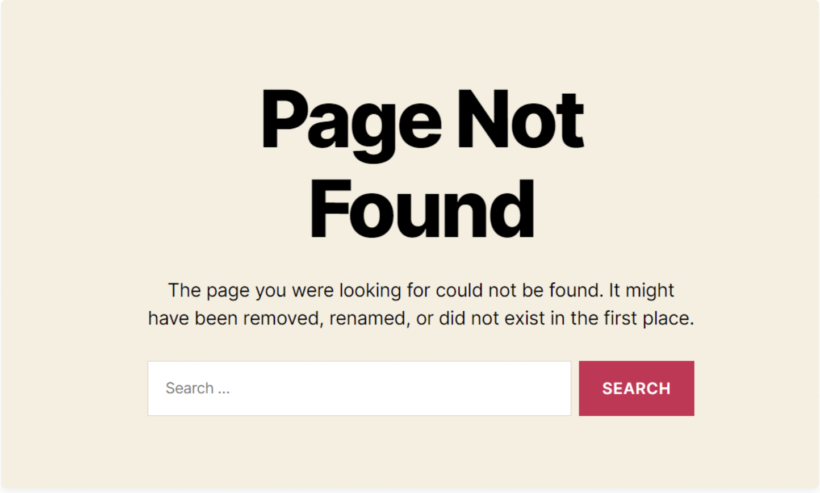
Page Not Found message shown to visitors without access to a private page

That’s it, you can now set up a private subscriber-only area and make pages private to admin and editor user roles. With a private subscriber-only area or private blog up and running, you’ll be able to encourage more email signups, automate sending out private content (including new product offers) and add new pages/posts within a matter of minutes.

Make this setup quick and risk-free with Password Protected Categories.
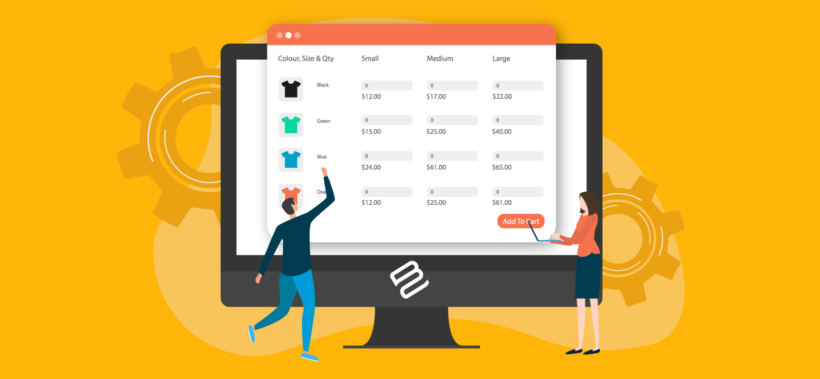
Create WooCommerce Bulk Variations Forms

One of the most effective ways to boost sales on your e-commerce store is by making it easy for customers to browse products, select a variation, and add it to the cart. For this, you need a WooCommerce bulk variations form. This acts as a quick order form, allowing people to buy variations more easily.

A WooCommerce bulk variations form can work on either the front or back end of your website:

  • A front end bulk variations form allows customers to choose quantities and add multiple variations to their shopping cart at once. This way, they don't have to spend time adding each WooCommerce variation one at a time or searching for the precise combination they want: every option is easily visible at a glance. For this reason, using a WooCommerce bulk variations plugin is a better way to sell variation products.
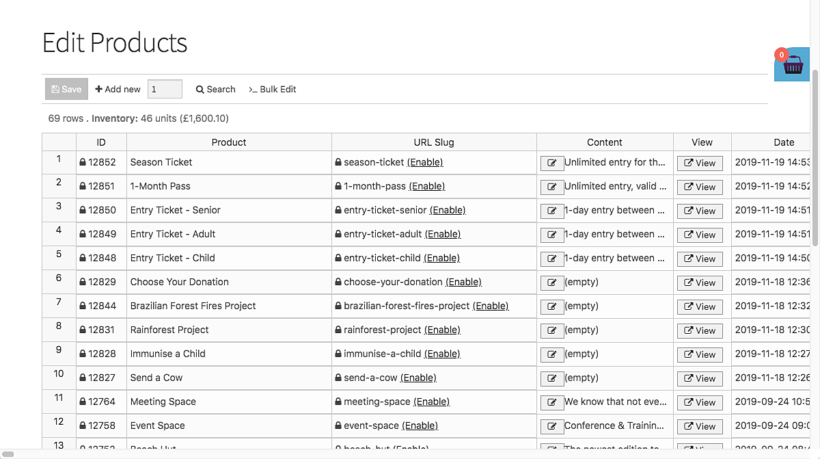
  • A back end bulk variations form speeds up store management for the merchant. It does this by listing your products and variations in a bulk editing spreadsheet form. You can either update variations by clicking directly within the spreadsheet editor; or by using a bulk edit form to apply mass updates.
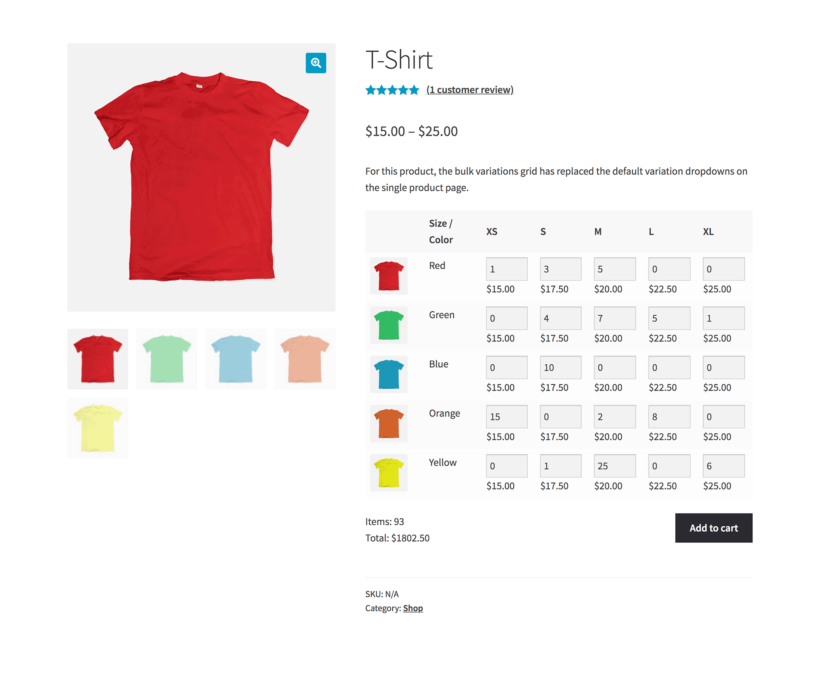
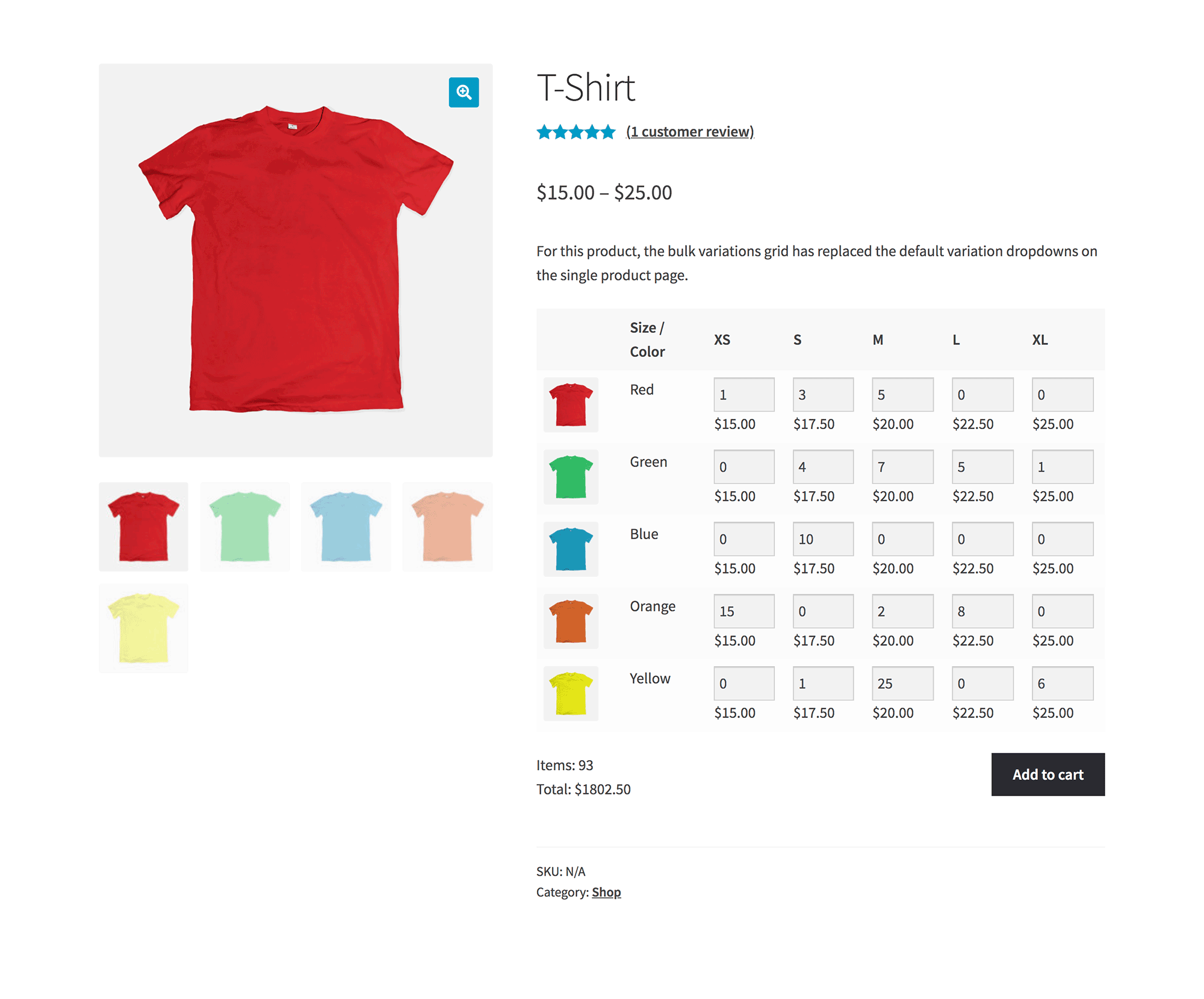
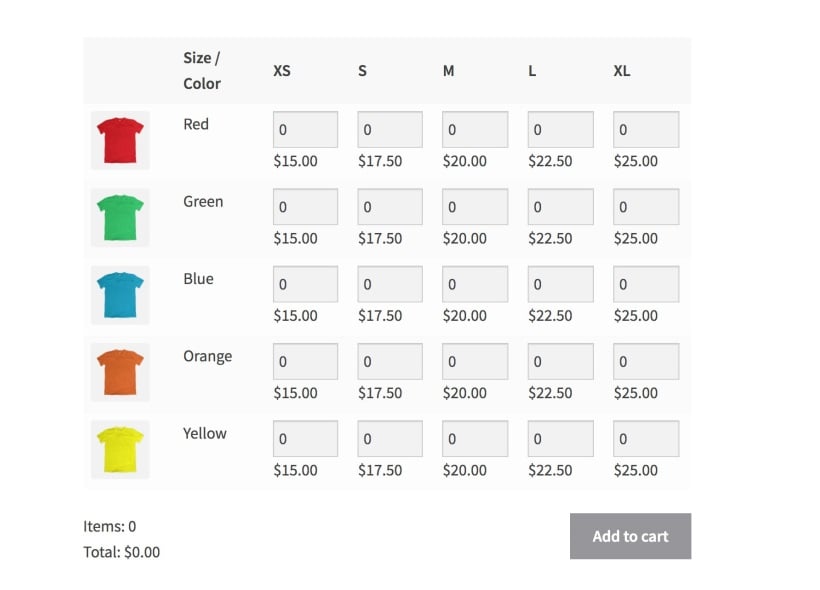
Single product page showing a WooCommerce bulk variations grid letting customers enter quantities for each colour and size combination
An example of a WooCommerce bulk variations form for a single product

In this article, we’ll show you how to create three different types of bulk variations forms for your WooCommerce store without any complicated messing around with PHP code. You'll learn how to list WooCommerce product variations in either a variations grid, table or spreadsheet layout, depending on your requirements.

The benefits of using WooCommerce bulk variations forms

Some online stores sell multiple variations of the same product. For example, clothing stores generally sell items in more than one size. Color and material are two other common variations. You might even consider offering e-books, albums, games, or movies as variations on a generic product.

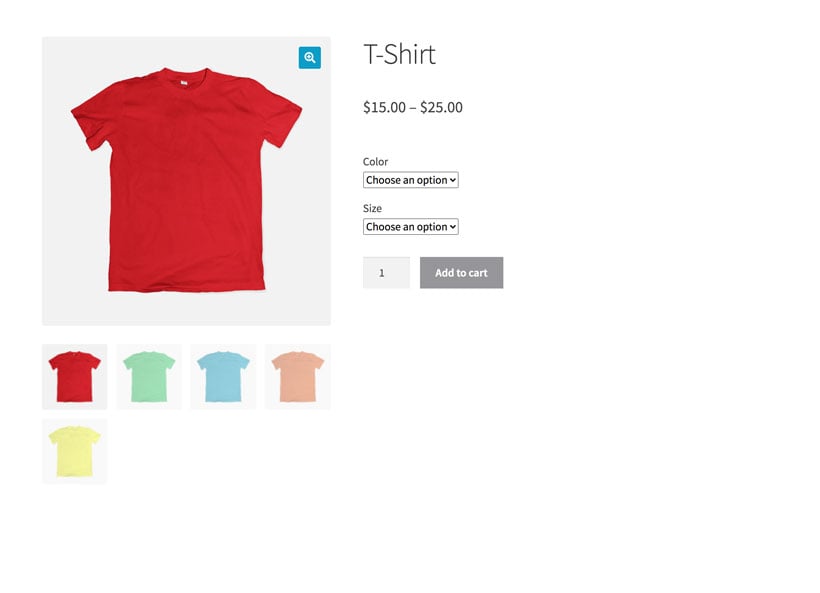
By default, WooCommerce forces you to select each variation individually. This takes ages for customers wanting to buy variations in bulk!

For example, imagine you wanted to buy lots of different sizes and colors of a t-shirt. Would you rather add each variation individually by using the size and color dropdowns and clicking the 'Add to cart' button lots of times? Or would you rather enter the required quantity for each variation from a bulk variations form and click the 'Add to cart' button once?

As you can see, the default variation dropdowns provided by WooCommerce can make the process long and complicated for customers buying lots of variations.

Displaying product variations in a WooCommerce bulk variations form offers many benefits to both you and your customers. As well as being able to buy variations in bulk more quickly, they can see all the variations at once and bulk edit their orders.

This way, customers can still see all the available variations in the order form and quickly add the ones they want to their cart in bulk from a single page.

And there are benefit for store owners, too!

The above benefits all focus on the customer. If you use the other type of WooCommerce bulk variations form - the spreadsheet editor - then it saves time for store owners instead. It's much faster to edit variations via a single form interface instead of editing each product individually.

To fully combine the benefits for customers and store owners, I recommend using one of each type of bulk variation form.

4 ways to list WooCommerce product variations

Next, I'll introduce you to 4 different ways to list WooCommerce product variations in a user-friendly form:

  1. Variations grid Lets customers quickly select multiple variations of a single product and add them to cart at once. [*For customers*]
  2. List variations in a table List product variations for one or more products on separate rows in an order form layout. This is great for SEO. [*For customers*]
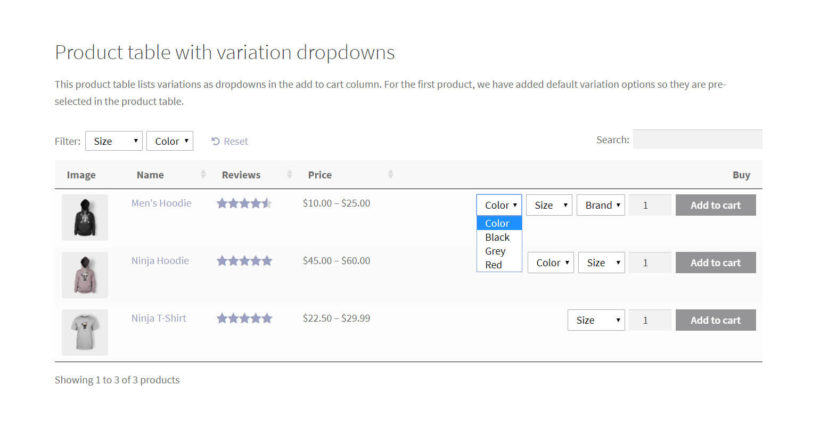
  3. List variable products in a table with dropdowns List product variations in dropdowns in a table layout, with a different product on each row. [*For customers*]
  4. Create variation forms for bulk editing Create a bulk editing spreadsheet with each variation listed on its own row. [*For store owners*]

Jump straight to whichever method you'd like to implement, or keep reading to learn more about each one.

Types of bulk variations forms

Creating a user-friendly WooCommerce bulk variations form allows customers to view and select the product variations they’d like to purchase. Alternatively, it can assist store owners by making it much faster to edit variations in bulk. Both types are essential for online stores that sell variable products.

I'll tell you more about each type next. After that, I'll provide setup instructions for each one.

#1: Variations grid

You need a variations grid if you want to enable customers to quickly enter quantities for multiple variations of a single item and add them to cart all at once. This is a must-have if you sell variable products to wholesale buyers, such as t-shirts. It's also useful if you sell by weight, with each weight option as a variation.

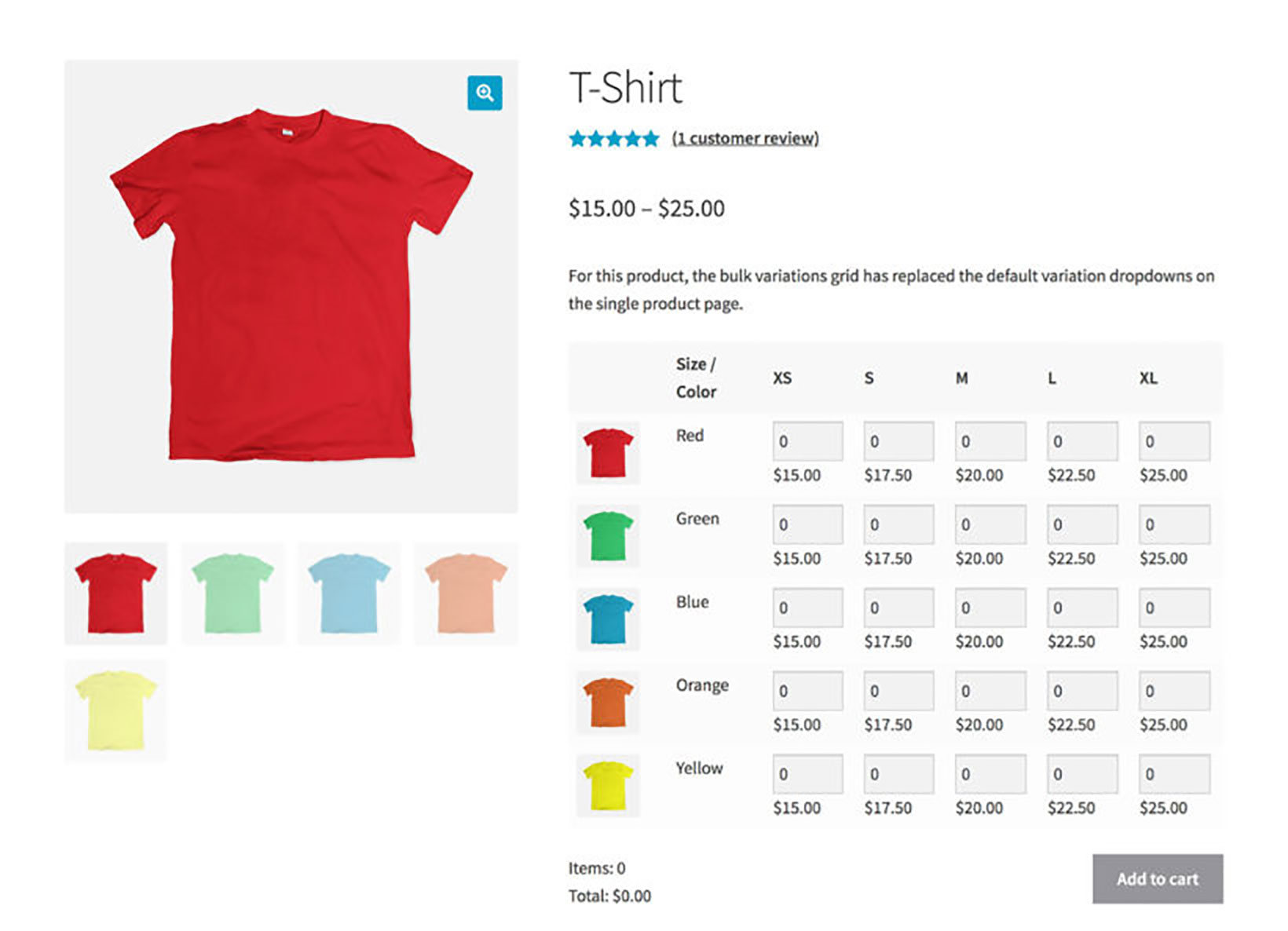
For this, you will need the WooCommerce plugin and the WooCommerce Bulk Variations plugin. It lets you list the variations for a specific product in a matrix-style grid layout. Each variation has a quantity box and price. It works for variable products with either 1 or 2 product attribute terms, which are used for variations.

WooCommerce bulk variations order form displaying a colour and size matrix for a variable t-shirt product

In this way, the WordPress plugin works as a WooCommerce bulk variations manager. Customers can simply:

  1. Enter the quantity they’d like to purchase of each variation.
  2. Click a single Add to Cart button to add the selected WooCommerce product variations (in the correct quantities) to their shopping cart.
  3. Proceed to the checkout page.

A WooCommerce bulk variations form created in a matrix-style layout simplifies the purchasing user flow and can help you boost sales. It also lets you bulk add variations to your WooCommerce store. Setting up WooCommerce bulk variations forms is the easiest way to implement differential pricing.

Here's how you can set up a bulk variations grid in WooCommerce →

#2: List variations in a table

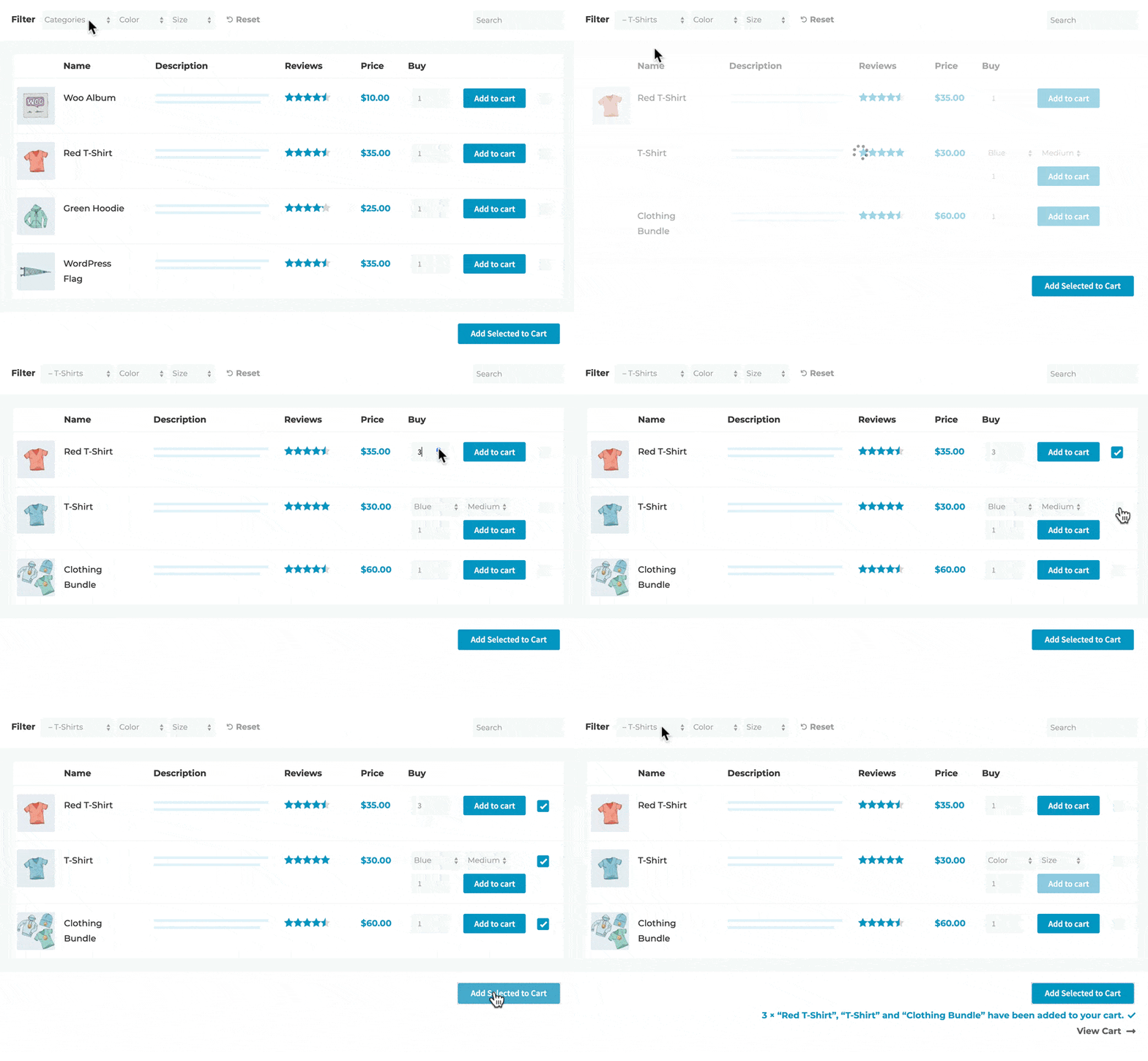
Another way to list WooCommerce product variations on the front-end is by listing them in a table layout with each variation on a separate row. The easiest way to create this sort of layout is by using the WooCommerce Product Table plugin.

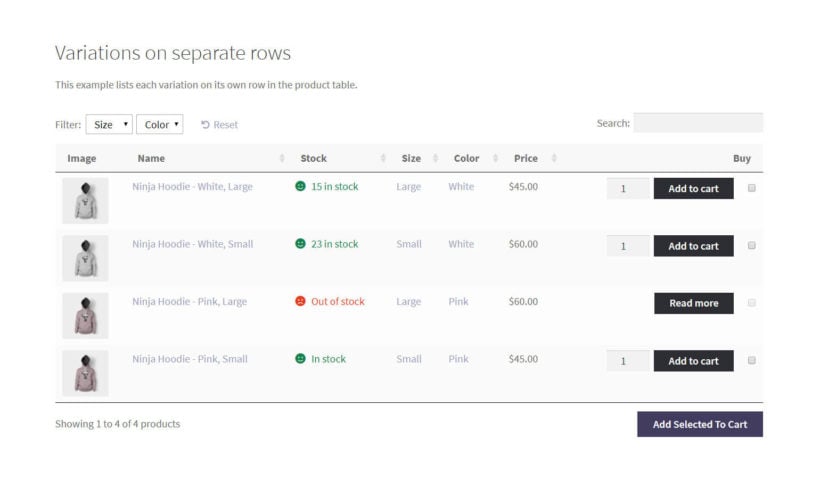
Product variations listed on separate rows in a product table

Whereas the WooCommerce Bulk Variations plugin is designed to list the variations for one product in each order form, this is the best option for you if you’re looking for a way to create an order form containing variations for multiple variable products. Customers can browse through all the product or variation images, filter products according to their needs, and then simply tick the checkbox next to the product variation they’d like to purchase, set the quantity, and add it to their shopping cart.

Another key benefit of using this approach is that it gives you the flexibility to display extra information about each product variation (such as the SKU and variation description). With WooCommerce Product Table, you can choose which columns to include in the table.

Here's how you can list product variations in a table layout →

#3: List variable products in a table with dropdowns

If you sell both variable products and simple products, you might consider listing them in a table layout with dropdowns. This is also ideal if you want the compatibility to sell the variations for multiple products in the same table - this time, each product takes up one row in the table regardless of the number of variations or extra product add-ons.

You can do this using the WooCommerce Product Table plugin. It's an easy way to list more than one variable product in the same order form with a single row per variable product.

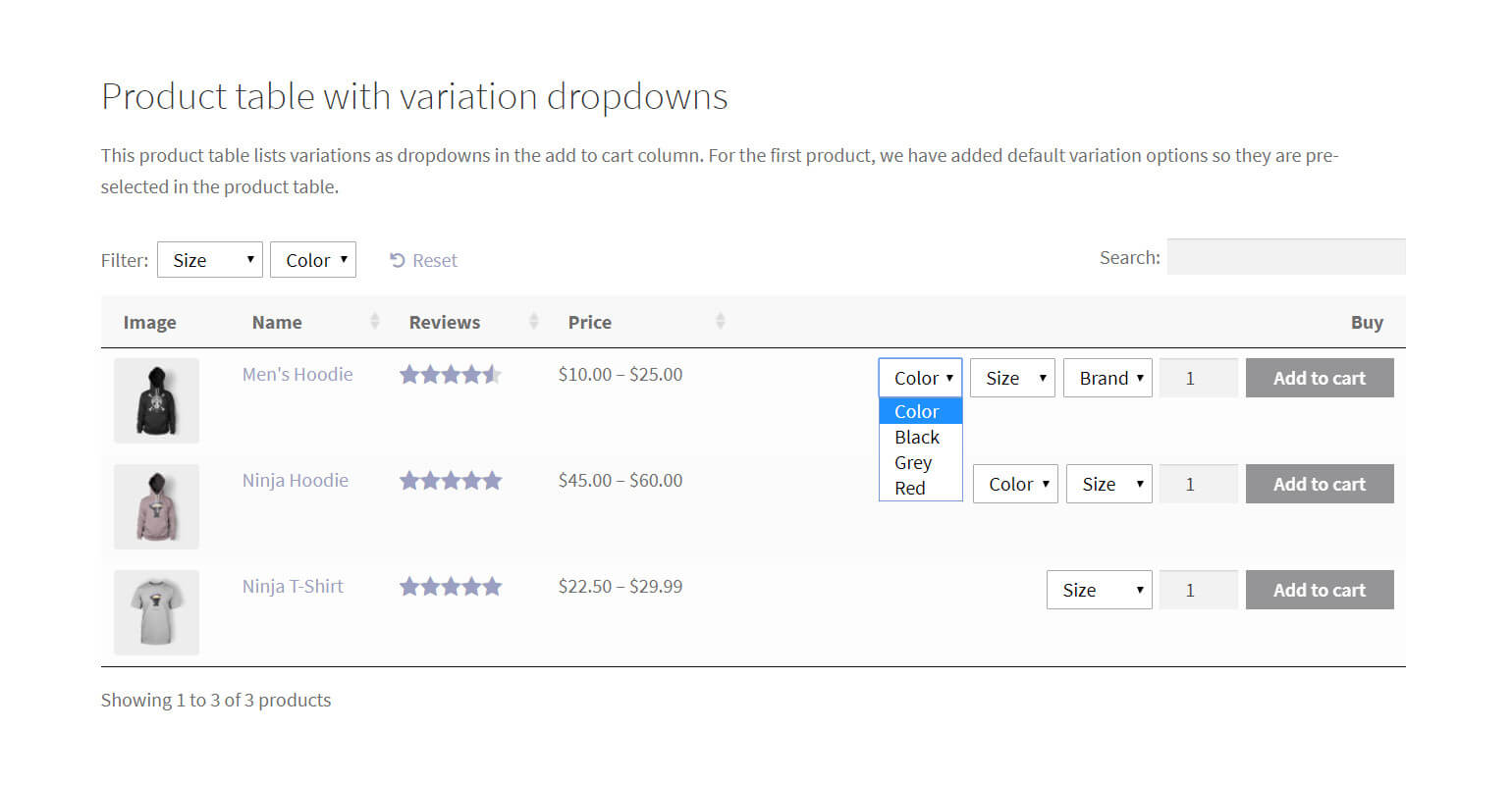
Variable products listed with variation dropdowns in a product table

This method also makes it easy for customers to identify variable product types as they’re the only ones with dropdowns next to them. Customers can browse the products, use the dropdown to select the variation they’d like to purchase, set the quantity, and add the variation to their shopping cart. When you add new products to your WooCommerce store, update products, or update prices, they will automatically appear in the product table.

Here's how you can list product variations in a table layout with dropdowns →

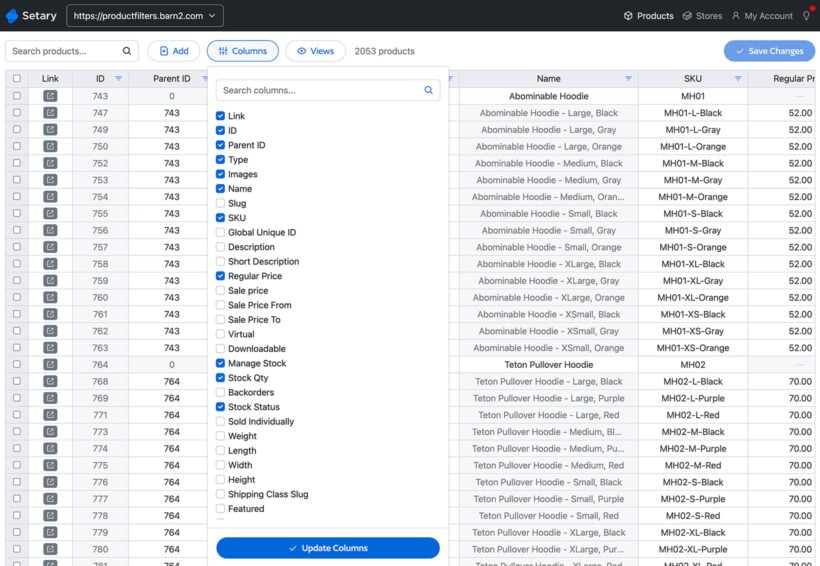
#4: List variations in a bulk editing spreadsheet

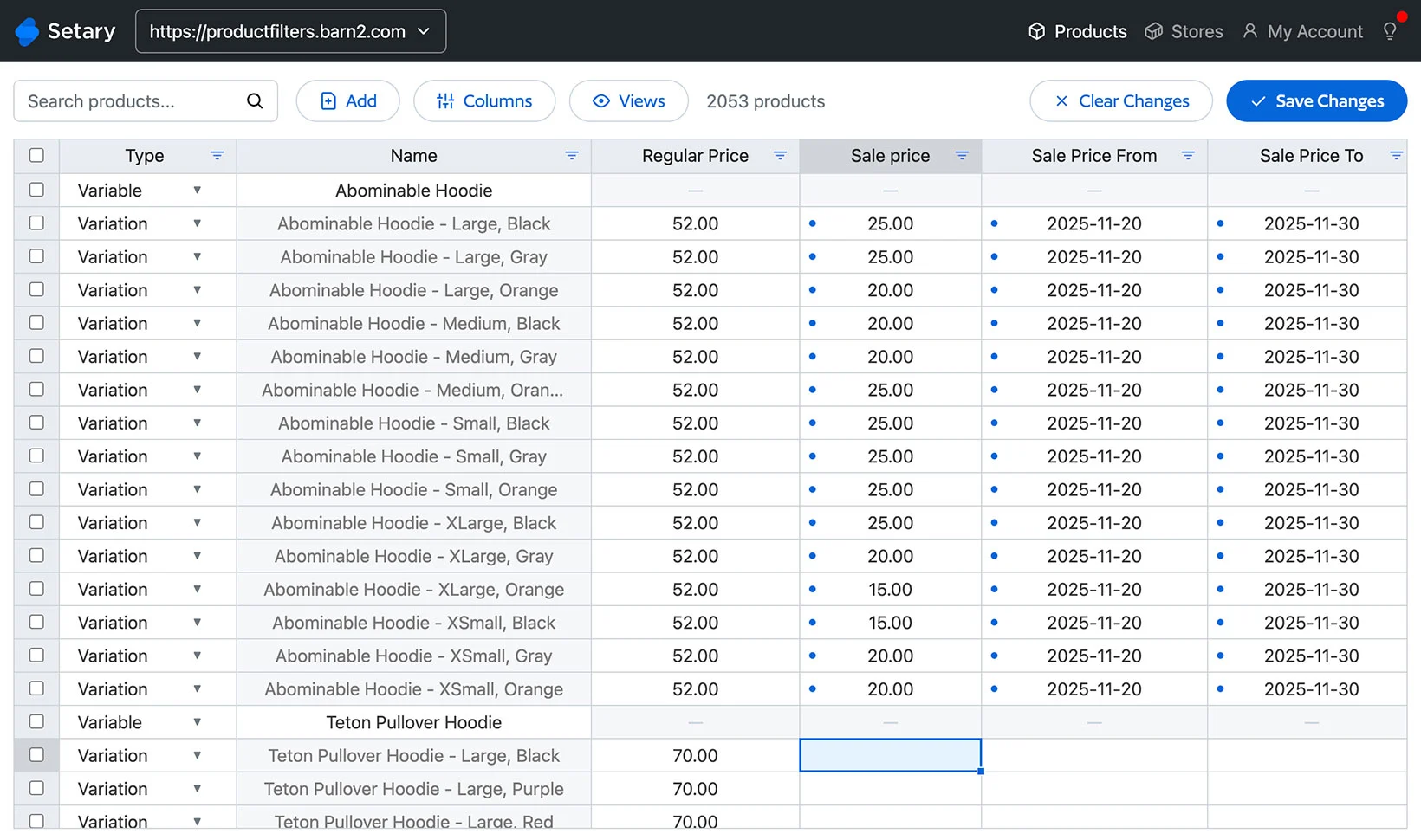
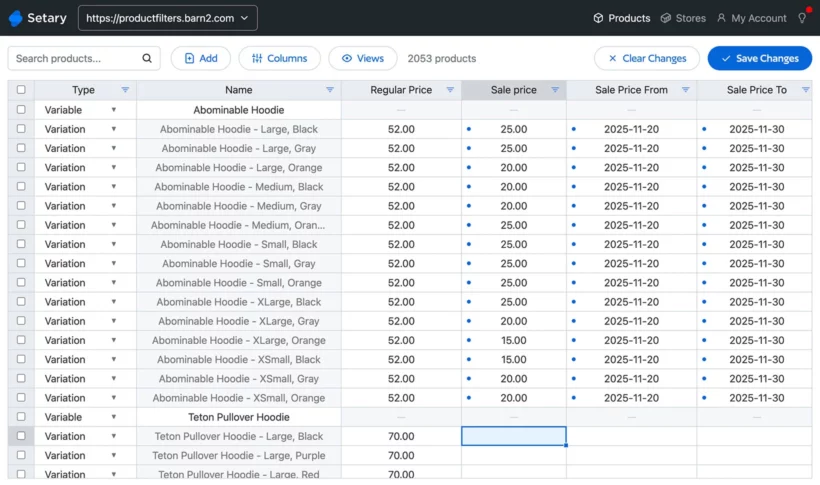
Setary spreadsheet listing WooCommerce variations with sale price and scheduled discount date columns for bulk editing

The first 3 types of bulk variation form make it easier for customers to select variations on the front end. Our 4th option - Setary - is different. Instead of benefitting customers, it saves time for store owners by displaying variations in a quick edit spreadsheet with bulk editing forms.

Setary is great because it makes it significantly faster to add, manage and delete variations in bulk. You can:

  • View each product and variation in your store on a separate row of the spreadsheet.
  • Add a row in order to quickly create a new product or variation.
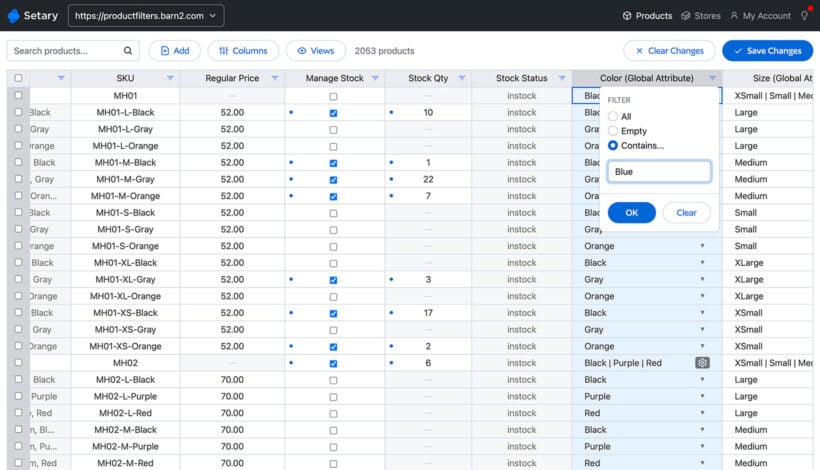
  • Use the advanced search and filters to select multiple products.
  • Make inline changes directly in the spreadsheet form.
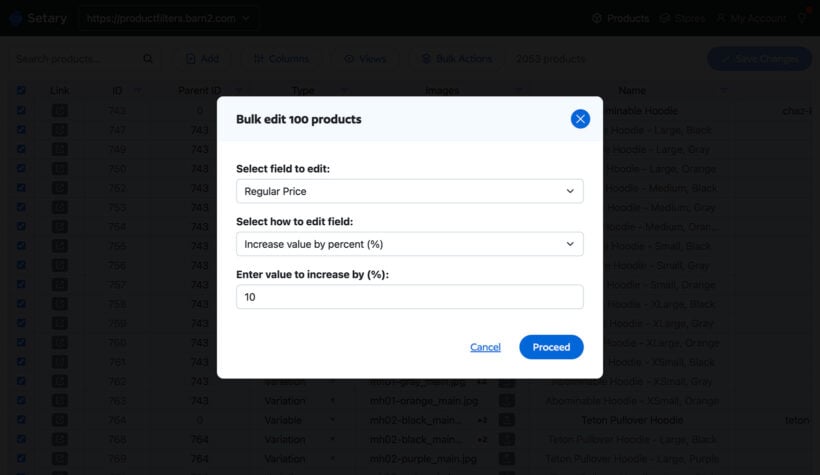
  • Select multiple variations and use the Bulk Actions forms to apply mass changes. There are lots of options here, such as making price increases or decreases, changing variation names, managing stock, setting variation images, and more.

Here's how you can list variations in bulk editing spreadsheet →

Option 1 instructions - How to create a WooCommerce bulk variations grid

Creating a WooCommerce bulk variations grid makes it quick and easy for customers to:

  • See the different variations available for a variable product.
  • View the regular price of the variation.
  • Enter the quantity they’d like to purchase of each variation.
  • Add multiple variations to the cart at once.

To get started, get the WooCommerce Bulk Variations plugin. Once you have it installed and activated on your WordPress website, head over to the variable product you’d like to enable bulk purchasing for. Or, to do it globally for all your variable products, enable it on the plugin settings page.

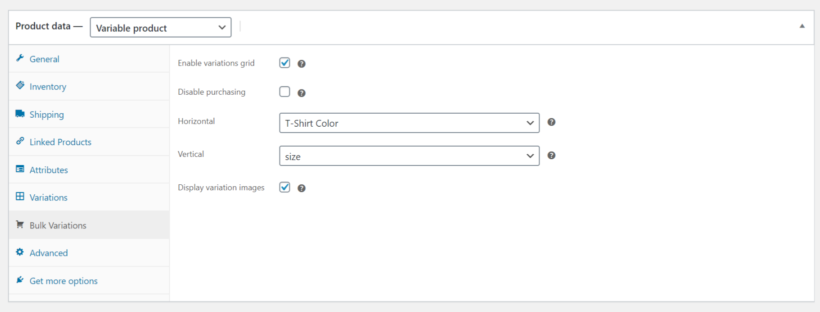
Scroll down to the Product data section on the Edit Product screen and click on the Bulk Variations tab. Tick the checkbox next to the Enable bulk variations grid option, as shown in the screenshot below.

Bulk variations grid settings with horizontal and vertical attributes selected

Next, select the variation attributes you’d like to display in the Columns and Rows of the price matrix using the dropdowns.

Finally, tick the checkbox next to the Display variation images option if you’d like to have product variation images appear in the matrix layout.

That’s it! When you preview the single product page on the front-end, it should look something like this:

Front-end product page with a bulk variations table replacing the standard variation dropdowns for a t-shirt

Option 2 & 3 instructions - How to list variations in a table layout

Using the WooCommerce Product Table plugin, you can list variable products in two different ways in a front-end table layout with search, sort, and filter options. You can either list each variation on a separate row or list variable products in the table with dropdowns.

The first thing you need to do is install and activate the WooCommerce Product Table plugin to your WordPress website. Once that’s done, ProductsProduct Tables to create a table.

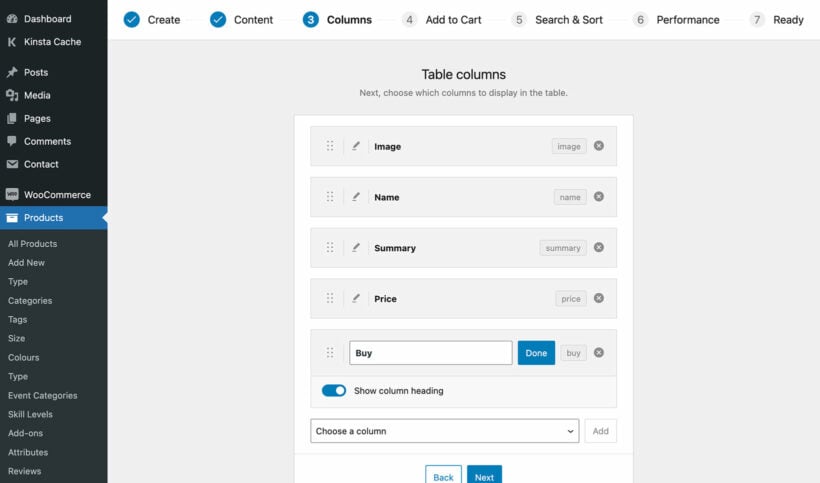
Use the Columns page to select the columns you’d like to include in the table layout.

Choosing which columns to show in the WooCommerce Product Table

Scroll down till you reach the Variations option and select the:

  • Separate rows in table (one per variation) option using the dropdown if you want to list each variation on a separate row.
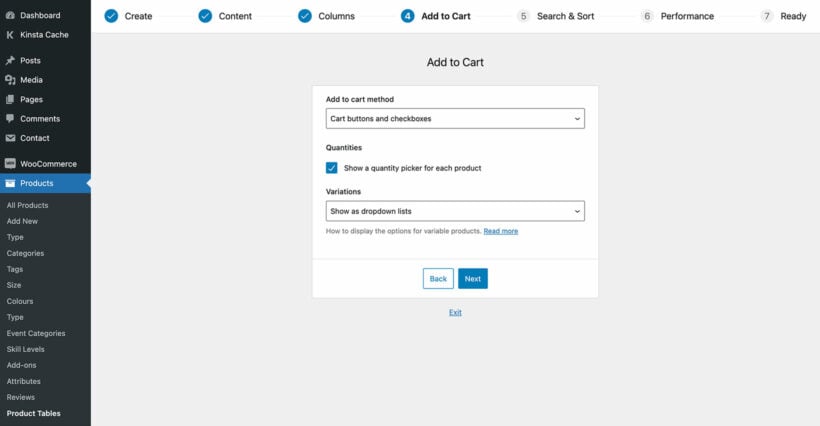
  • Show as dropdown lists using the dropdown to display a dropdown menu for variable products.
Add to Cart settings in the WooCommerce Product Table builder

Finally, add a 'Product Table' block to a page and select the table you just created. Alternatively, add the shortcode from the final page of the table builder.

For details, be sure to check out this in-depth tutorial on how to create a WooCommerce product variations table using the WooCommerce Product Table plugin.

Option 4 instructions - Create variation forms for bulk editing

Our final WooCommerce bulk variation form is Setary, the bulk spreadsheet editor. This is the fastest and easiest way for store owners to add and manage variations. It only takes a couple of minutes to set up, so you can start saving time straight away:

  1. Start by signing up for a free trial of your chosen Setary plan.
  2. Next, you'll be prompted to install the free Setary helper plugin.
  3. Your store's inventory will appear in the Setary bulk spreadsheet form, with each product and variation listed on its own row.
  4. Click within the form to make quick edits. Alternatively, use the filters to narrow down the list and then select multiple products and use the Bulk Actions form.
  5. Each cell that you've updated will appear with a blue dot alongside. Check you're happy with the changes in the bulk variations form, then click Save. This will instantly apply the changes to your live WooCommerce store.

Create your bulk variations form today

There are two types of WooCommerce bulk variations manager - one to help your customers, and one to help you:

  • The WooCommerce Bulk Variations or WooCommerce Product Table plugins create public-facing bulk variations forms which make it easier for customers to add variations to their cart. [*Recommended for helping customers*]
  • The Setary app provides a spreadsheet editor plus bulk edit forms for variations, making it easy to update your inventory from a single interface.[*Recommended for helping store owners*]

Both types of bulk variation forms can transform the experience for your customers and for you. For maximum results, use one of each type and start seeing the benefits straight away 🚀

Illustration of weighing and packing products to sell by weight

As an online business owner, there are many scenarios where you might need to sell by weight in WooCommerce. For example, you might sell fruits and vegetables from your farm, purchase dry fruits and nuts in bulk for resale, or grow various herbs - all of which need WooCommerce weight-based pricing.

Lots of store owners wonder: "How do I sell a product by weight in WooCommerce?" That's because it’s not immediately obvious how to use WooCommerce to sell by weight. The good news is that, with the right WooCommerce plugins, you can easily start selling products by weight.

In this article, we’ll walk you through two different ways to use WooCommerce to list products in a way that allows you to sell by weight. The methods we cover in this tutorial work equally well if you’re selling by other types of measurement such as volume, size, width, length, or dimensions.

Let's get started ⚖️

Why you might need to sell by weight in WooCommerce

There are several different types of products that store owners typically sell by weight. Here are a few examples:

  • Fruits
  • Vegetables
  • Dry fruits
  • Nuts
  • Flour, lentils, and beans
  • Meat

Store owners set the products up in a way that each product has a price per unit weight. For example, this could be in grams, ounces, or pounds. Customers can simply select the number of, say, grams they’d like to purchase of the product and proceed to checkout to place their order.

As an e-commerce store owner, you can sell by weight in WooCommerce with the right combination of plugins.

Two ways to sell by weight in WooCommerce

There are two different ways to sell by weight in WooCommerce:

  1. Allow customers to enter an exact weight to receive an exact weight-based price calculation.
  2. Add pre-set weight options as product variations.

Choose Method 1 if you need WooCommerce weight-based pricing with more flexible options. For example, if you want to sell different types of flour by the kilogram, you could simply add your product prices by weight instead of selling by quantity.

Alternatively, you can go with Method 2 to keep things simple and add each weight option as a separate variation. This is particularly useful for store owners that sell items at different weight quantities. For example, if you have three different weight options – 500 grams, 1 kilogram, and 5 kilograms. You would add products as variable products in WooCommerce.

Keep reading to learn more about each method and how to set it up.

Method 1: Price products by weight

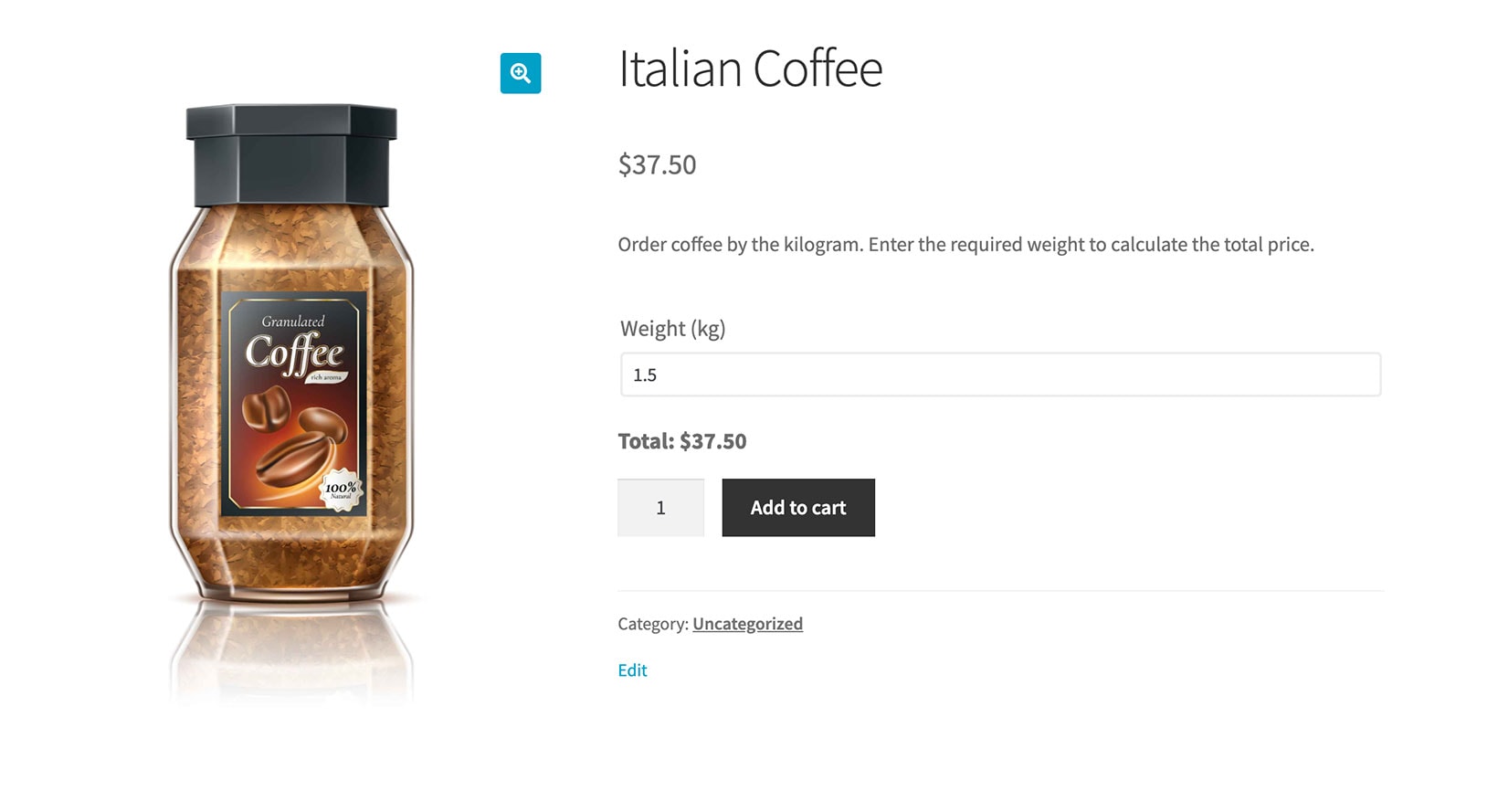
It's surprisingly easy to set up WooCommerce weight-based pricing. It works by replacing the standard quantity field with a weight input field. This lets you sell products by weight instead of quantity, like this:

How to add decimal quantities to WooCommerce products
A product sold by the kilogram

The great thing about this method is that it also supports decimal quantities, and minimum and maximum quantities. For example, you can allow customers to order coffee in any decimal value between 1 and 10kg.

You can do this with the WooCommerce Product Options plugin, which lets you replace the standard quantity field with custom product options. These offer more flexibility, such as the ability to order decimal quantities and display the weight on the product page.

How to add a product weight field to the product page

Step 1: Set up the product

First, you need to disable the quantity field on the main page, and enter the price for one unit of weight:

  1. Go to the 'Products' section of the WordPress admin and open the 'Edit product' page.
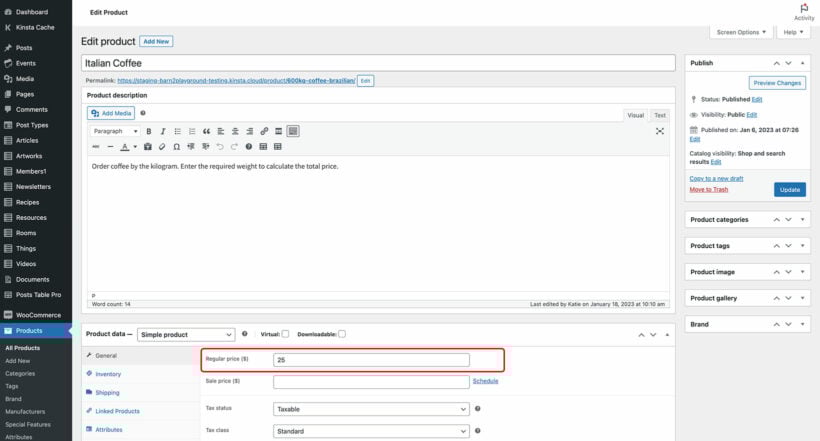
  2. Find the 'Product data' section and enter the basic product price. For example, if you are selling by kg then you should enter the cost for 1kg.
Entering the price for one kilogram when selling a product by weight
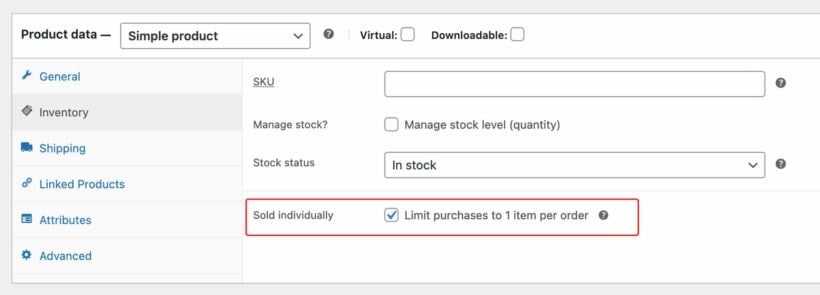
  1. Next, go to the 'Inventory' tab and tick the 'Limit purchases to 1 item per order' box. This hides the product quantity field. You need to do this because you'll be selling by weight rather than quantity. (We'll be adding a weight field in the next section.)
Sold individually setting enabled to remove the standard quantity box

Step 2: Add a weight field to the product

  1. Get the WooCommerce Product Options plugin and install it on your site.
  2. Go to Products → Options.
  3. Create a Options Group which you'll use to add the weight field, plus any other options you want to add to the product.
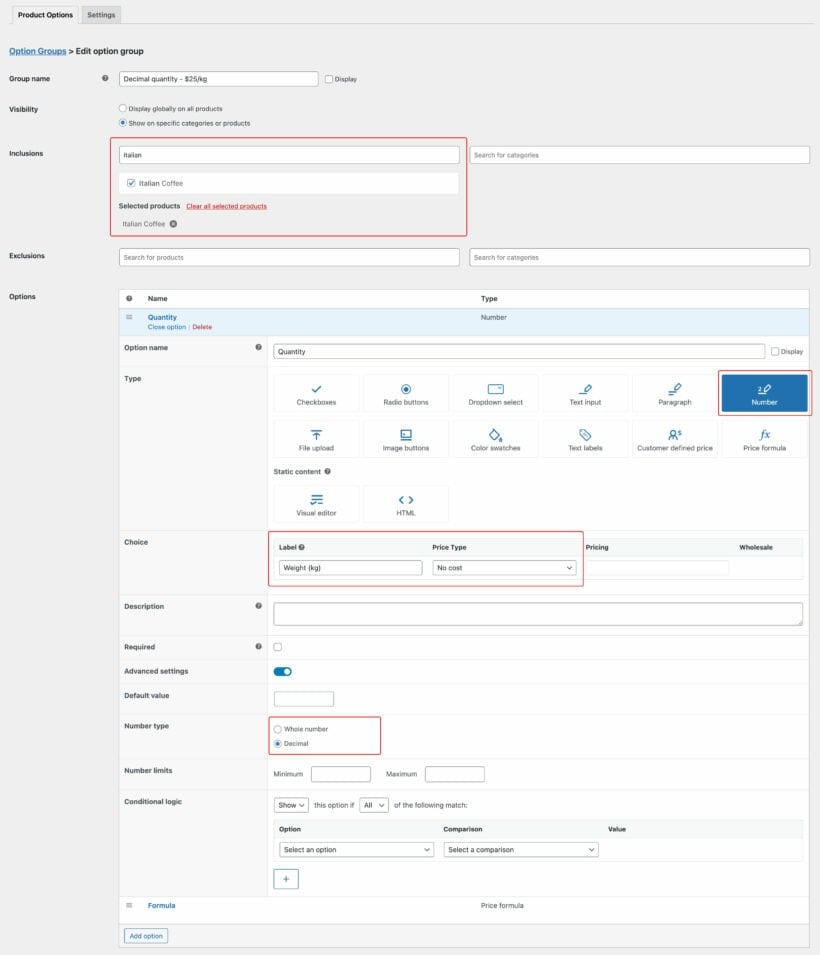
  4. Choose which products/categories you want to display the weight field on, or leave it to appear globally on all products.
  5. Click 'Add Option' and select the 'Number' field type.
  6. Enter a name for the weight field (e.g. "Weight") and untick the 'Display' box next to it.
  7. Underneath in the 'Choices' section, enter the label which will appear next to the weight field (e.g "Weight in kilograms"). Leave "No cost" selected for the price because we'll be a proper price formula in a minute, instead of adding a static price here.
  8. Set the field to 'Required' to force customers to enter a weight.
  9. Next, open the 'Advanced settings' to display some additional options:
    • If you want customers to be able to select partial weights (e.g. 1.5kg) then use the 'Decimal' number type to allow this.
    • Set a minimum and maximum weight that customers can enter, if needed.
Adding a decimal number option so customers can enter a weight in kilograms
  1. Save the option group.

Step 3: Add the weight-based pricing to WooCommerce

Now you've added the weight field, you need to create a price formula which will calculate the weight-based pricing:

  1. In the same Option Group that you created in Step 2, click 'Add option' again and select 'Price formula' this time.
  2. Add a name for the option, such as "Weight calculation", and untick the 'Display' box again.
  3. Select the Price Formula option type.
  4. Create a price formula which will calculate the price based on the weight that the customer enters. To do this, click on the name of the number field which appears underneath the 'Formula' field, and also the 'Price' field which will retrieve the price for 1 unit of weight which you entered in Step 1. Enter the multiplication symbol between the two variables so that the formula looks something like: [Weight] * [product_price]. Use mathematical operators, brackets etc. to add extra complexity to the formula as needed.
    Setting up a price formula to calculate WooCommerce product price by weight
  5. Use the 'Price display suffix' field to enter some text to indicate that the main price you entered for the product is based on weight. For example, if you entered the price for 1kg on the 'Edit product' screen then you should enter "per kilogram" or "per kg" to make this clear to customers. This will appear after the price for 1kg at the top of the product page.
  6. Finally, visit a product page and test the pricing by weight. Enter a number in the weight field and make sure the correct price is shown below. Keep making changes until you're completely happy.

Method 2: Add weight options as variations

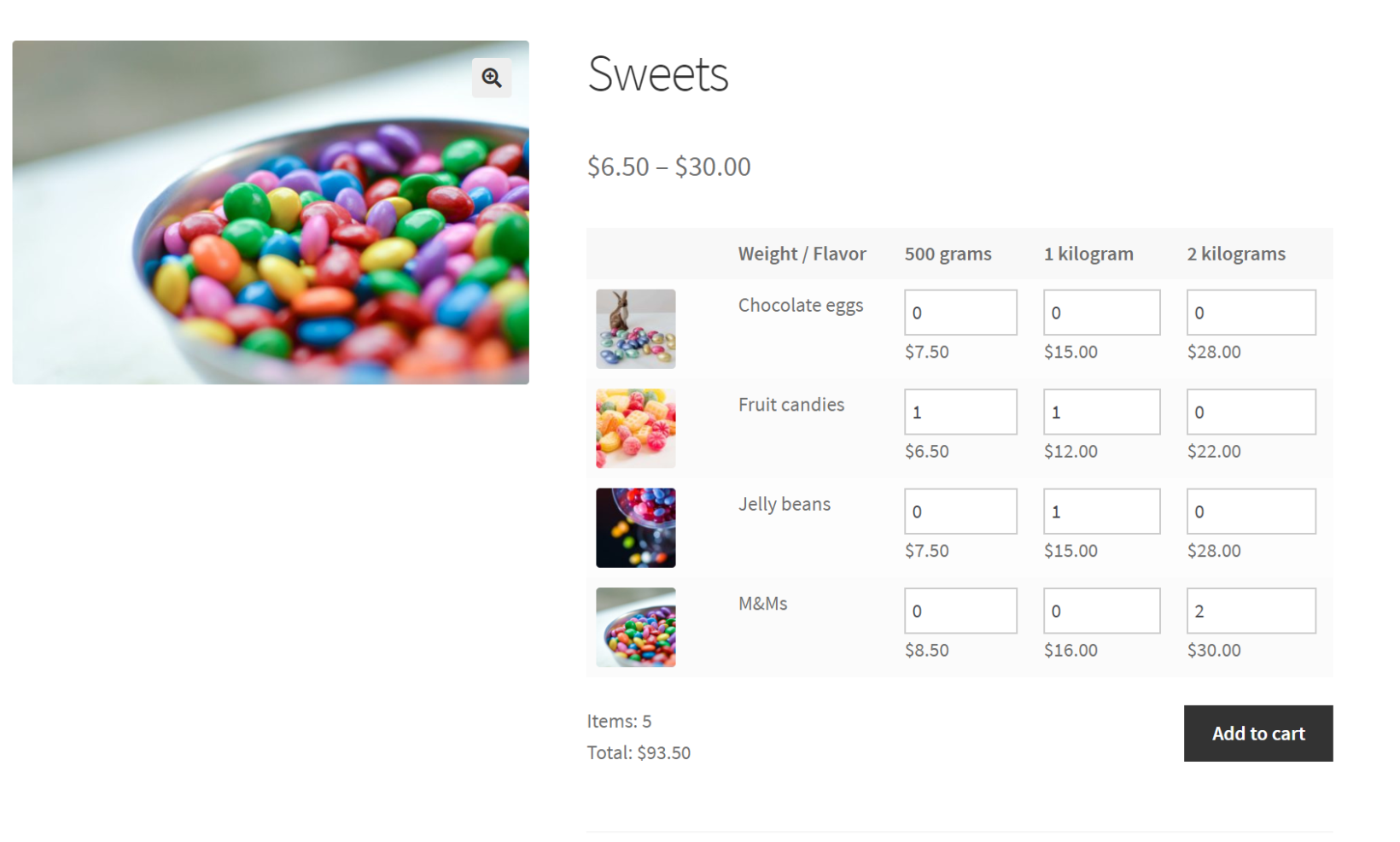
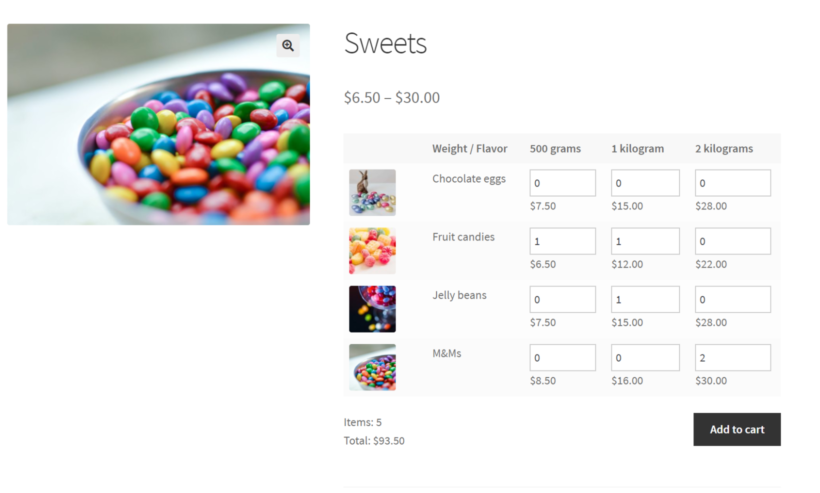
You can use the WooCommerce Bulk Variations plugin to add each weight option as a product variation. This plugin lets you list all the variations in a matrix layout directly on the single product page.

Customers can enter the required quantity of each option and order the exact amount they want. They can mix and match multiple variations to reach the total weight volume they require.

For example, let’s say you’d like to sell sweets online. You might set up the following weight options as variations to sell by weight in WooCommerce:

  • 500 grams
  • 1 kilogram
  • 2 kilograms

So, if a customer would like to purchase 1.5 kilograms of sweets, they could add the 500 grams variation and the 1-kilogram variation to their shopping cart at the same time and proceed to the checkout page. In this way, the plugin supports custom weight measurements. You just need to create a variation for each possible step within the price range.

WooCommerce Bulk Variations price matrix

Setup instructions

  1. Get the WooCommerce Bulk Variations plugin and install it on your WordPress site.
  2. Activate your license key in the plugin setup wizard, which will open automatically.
  3. Next, go to Products → Add New and create a WooCommerce product which you will sell by weight.
  4. Go to Product Data → Attributes and add all the attributes that you would like customers to select from. For example, in the case of sweets, this may be flavor and weight. Enter all the possible options for each attribute, such as all the different weights that you sell in. Tick the 'Use for variations' box for each attribute, then click 'Save attributes'.
    Add weight attribute to WooCommerce product
  5. Open the 'Variations' tab underneath and click 'Generate variations'. This will create a variation for each combination of attributes. Go through each one and enter a price, add an image, and so on. (Tip: Use the filters above the list of variations to quickly select multiple variations and apply the same changes to each one.)
    Sell WooCommerce variations by weight
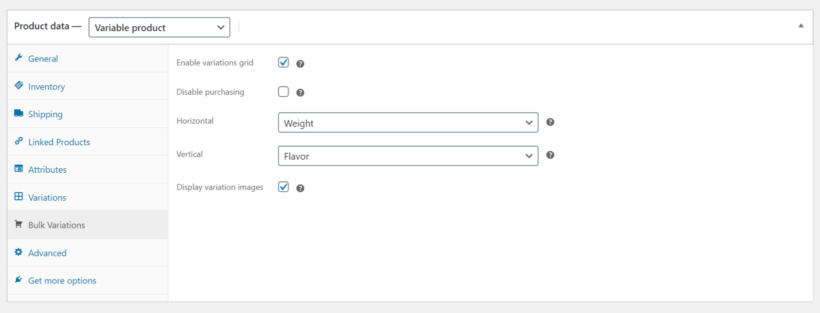
  6. Now open the 'Bulk Variations' tab and configure the following settings:
    • Make sure the Enable variations grid checkbox is ticked.
    • Set the Horizontal option to the attribute you want to display in columns for the variations grid.
    • Set the Vertical option to the attribute you want to display in rows for the variations grid.
    • Make sure the Display variation images checkbox is ticked.
    WooCommerce Bulk Variations settings
  7. Click the Publish button to add the product to your store.

On the front-end, the WooCommerce Bulk Variations plugin will display the variations along two dimensions in a grid with all the weight options.

Bonus: Selling by weight on the main Shop page

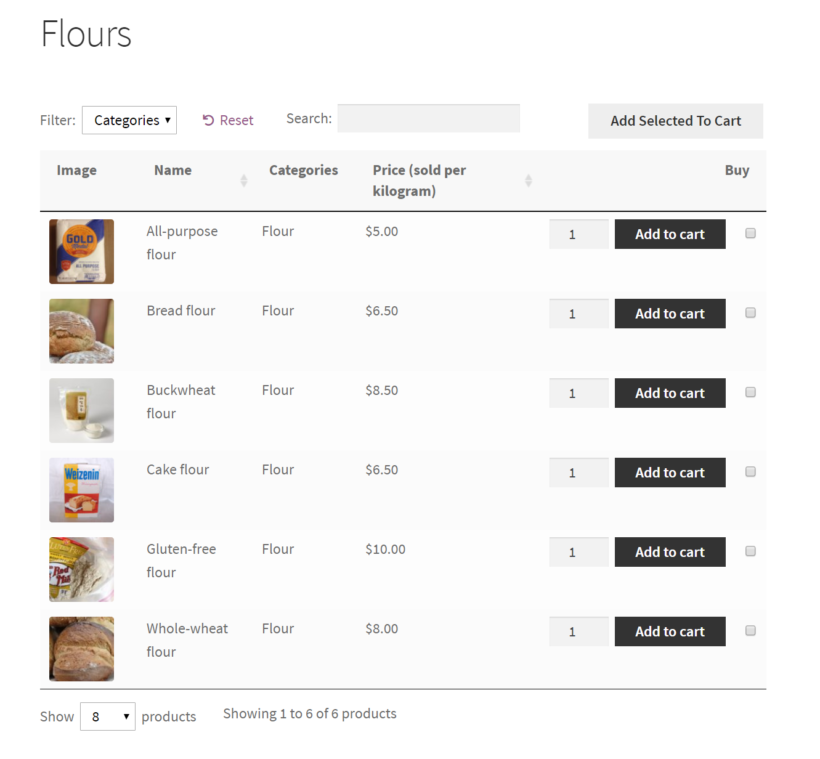
Both methods for selling WooCommerce products by weight focus on what it looks like on the single product page. For even more convenience, you can use WooCommerce Bulk Variations or WooCommerce Product Options with our other plugin, WooCommerce Product Table. This displays products in a much clearer layout on the main Shop page, like this:

WooCommerce Product Table to sell by weight

This makes it very clear to customers that the products are priced by weight. That's because we have renamed the 'Price' column in the table to clearly show that each price is based on weight, rather than by quantity.

Case study: Provenance Meat

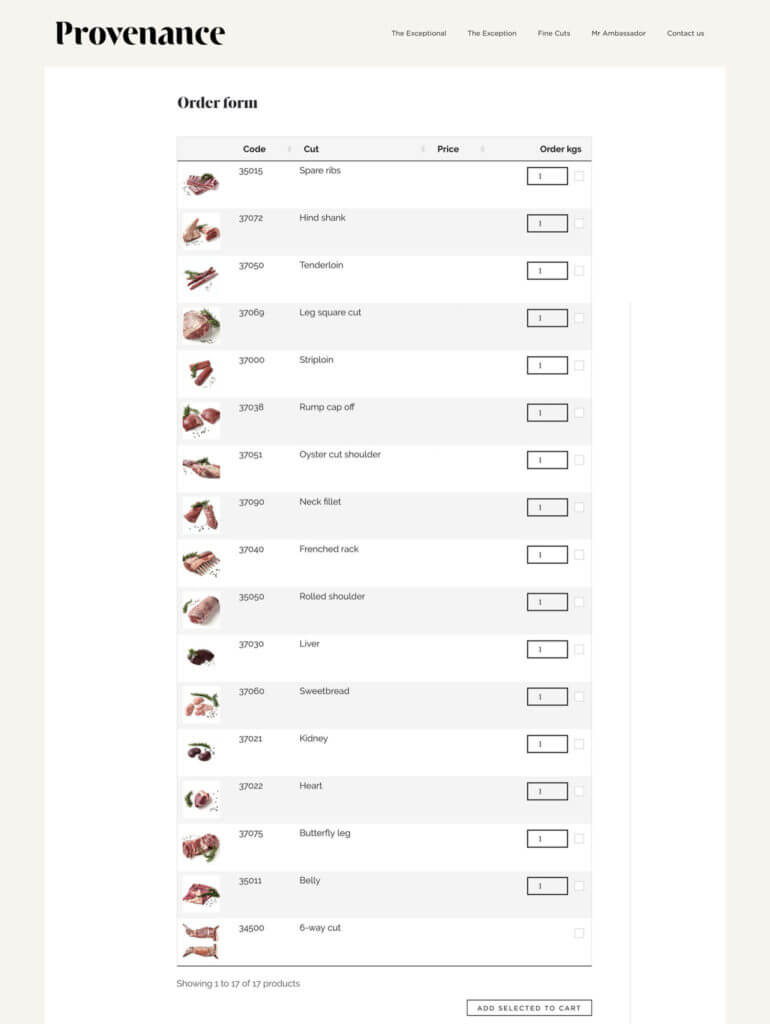
Selling by weight is particularly useful if you’re selling meat. It gives customers full flexibility to place orders based on the exact amount they’d like to purchase whether it’s 1.5 kilograms or 1.675 kilograms. Here's an example of how Provenance Meat uses WooCommerce Product Table:

Provenance meat order form listing cuts sold by weight in kilograms

Start selling WooCommerce products by weight

In this tutorial, we've looked at several methods for selling by weight in WooCommerce. Read about each one, and choose the combination of plugins that best suits your needs:

  • WooCommerce Product Options - Replace the standard WooCommerce quantity field with a purpose-built weight field. It supports decimal quantities, min/max quantities and more, making it ideal for selling by weight.
  • WooCommerce Bulk Variations - Create a variation for each weight option, and display them in a user-friendly order form on the single product page.

Both plugins come with a full 30-day money back guarantee. Try out your chosen plugin and start selling by weight today!

Illustration of a virtual restaurant food delivery service

The possibility for virtual eateries or "ghost kitchens" has dramatically grown as internet usage has increased. Fortunately, you can set up and run a virtual restaurant in WordPress quickly and easily.

In this complete guide, you will learn how to build your own virtual restaurant website, which you will own 100%. This will save you lots of money compared to using a hosted restaurant ordering system such as Uber Eats, Grubhub, or DoorDash.

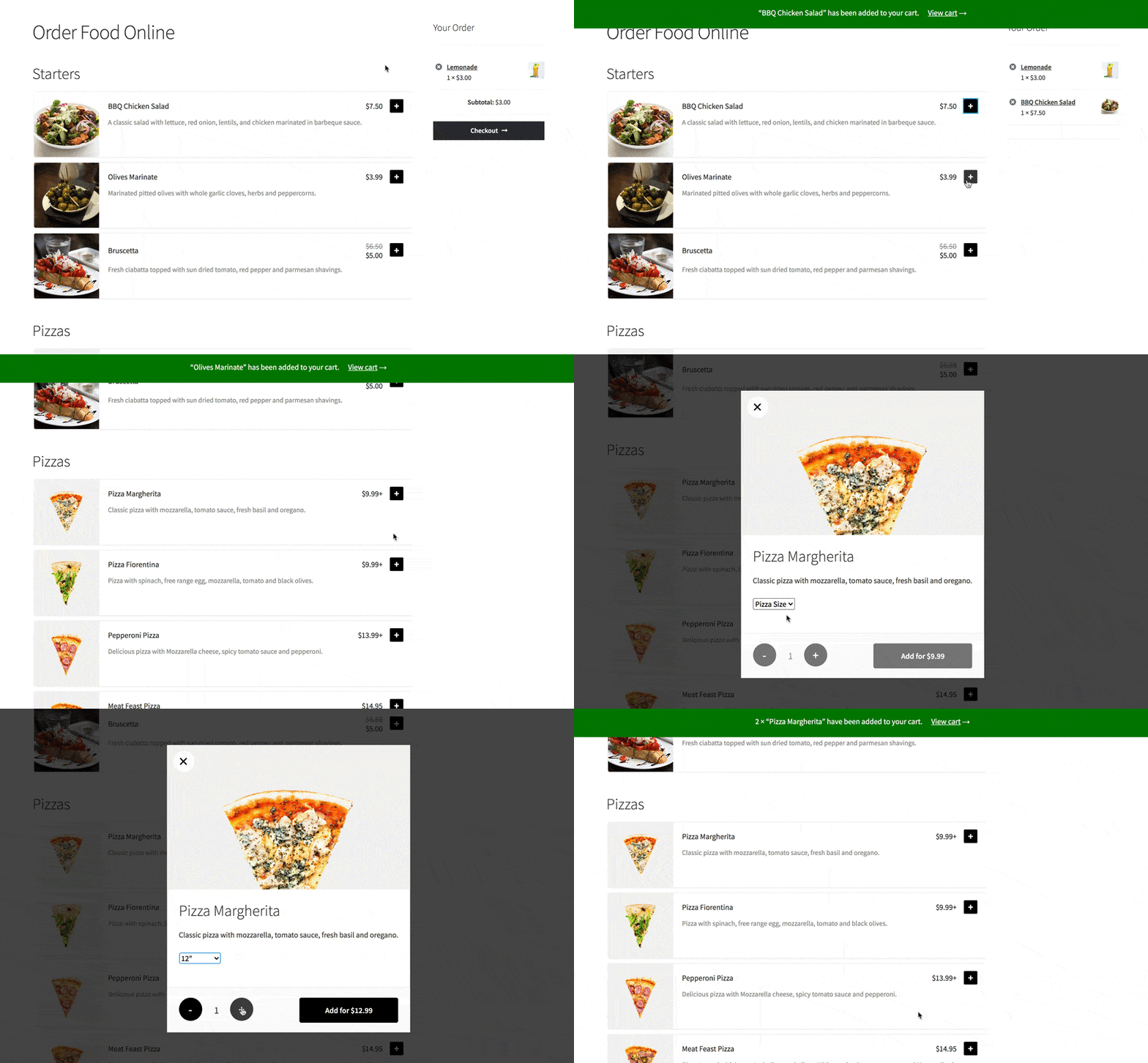
We’ll show you how to set up a virtual restaurant in WordPress using the WooCommerce Restaurant Ordering plugin. It only takes 10 minutes and by the time you're done, your virtual restaurant site will look something like this:

Virtual restaurant ordering page with starters and pizzas listed by category and a live order summary panel

What is a virtual restaurant?

Most people place an emphasis on both quality and convenience. These are services that a virtual restaurant can easily offer if it is set up on the appropriate principles and adheres to the suggested procedures for serving its customers. At times, this has been the only way to keep their business running and continue trading.

A virtual restaurant (also called a ghost kitchen, ghost restaurant, or cloud kitchen) is a restaurant that offers delivery options only. Generally speaking, virtual restaurant services are facilitated through web apps and third-party delivery companies like the Postmates food delivery app. However, you can also create a virtual restaurant website with WordPress and WooCommerce.

This restaurant concept is hugely popular in most large cities like New York, Los Angeles, and Chicago. Kitchen United, for example, is a popular virtual kitchen and restaurant brand.

This foodservice business model allows restaurateurs to cut down on traditional expenses that come with offering a dine-in experience. In fact, adapting the virtual restaurant or ghost kitchen approach helped several restaurant businesses stay operational during the global coronavirus crisis. Now it's here to stay.

How does a virtual restaurant work?

Customers can go to the restaurant’s website to view menus and place their orders online. Once a customer places their order, the virtual restaurant kitchen is immediately notified, and kitchen staff begins preparing the order.

The establishment then delivers the food directly to the customer or uses a third-party food delivery service to deliver the meal to the customer’s location. Some virtual restaurants offer both online payment options and cash on delivery. Once the food is delivered, patrons can enjoy it in their own dining room.

Benefits of online-only restaurants

As compared to the traditional restaurant business model, virtual restaurants have their own set of benefits.

For starters, restaurant owners can mitigate the costs associated with finding an ample restaurant space with room for dining in and instead use that budget to create a kitchen that focuses on improving food preparation processes. Additionally, you can also opt for a shared kitchen setup.

In addition to this, virtual restaurant owners can change their menu items whenever they’d like. This is especially useful if a particular ingredient becomes unavailable or is temporarily inaccessible. This also means that you can experiment with your menu and swap out dishes that aren’t popular with your customer base.

Not to mention, studies indicate that customers favor home-delivery dining options, which makes a strong case for setting up a virtual restaurant.

Types of food that sell best from virtual restaurants

One of the key benefits of running a virtual restaurant is that you can use the wealth of dynamic customer data available to you to your advantage. For example, you might search for the different types of foods and meals that sell best from virtual restaurants and pizzerias in your area on Google.

Best takeout food

Here are some popular examples:

  • Chinese and Japanese food – sushi, noodles, spring rolls
  • Indian food – BBQ, chicken tikka masala, naan
  • Mexican food – tacos, burritos, nachos, taco salad
  • Pizza – make your own pizza with different toppings and crust sizes
  • Mediterranean food – shawarmas and Greek salad
  • Fast-casual food – burgers, sliders, wraps, fried chicken, and fries

How to set up and run a virtual restaurant

The first thing you need to do is set up an attractive, easy-to-use website for your virtual restaurant complete with an order form and delivery slots.

For this, we recommend using WordPress and WooCommerce, so you have full ownership of your virtual restaurant website. This isn’t possible with a hosted solution like Uber Eats, Deliveroo, and Just Eat.

If you don’t already have a WordPress website, you’ll need to choose a hosting company to make your website available to patrons. We recommend going with a reliable web hosting provider like Kinsta.

Once that’s done, we’ll show you how to set up a virtual restaurant using the WooCommerce Restaurant Ordering and WooCommerce Opening Hours and Delivery Times plugins. Together, these fantastic plugins provide everything you need to build a WooCommerce virtual restaurant.

Here’s a complete video tutorial you can follow:

Step #1: Create your virtual restaurant website

If you don’t already have a WordPress website set up, you’ll need to create one on a hosting account. We recommend Kinsta as they’re a managed WordPress host that’s perfect for running a website for your virtual restaurant.

The best part is that you can install WordPress directly from your Kinsta account. Once you’ve entered your domain name, location, and site title, you can configure your login credentials and install WooCommerce to enable e-commerce features.

The WooCommerce Setup Wizard is incredibly intuitive and walks you through the process of setting up e-commerce features for your virtual restaurant website. Since you’ll be offering food delivery options, it’s important to configure your shipping zones and delivery areas carefully.

If you deliver food to a single area and charge the same delivery costs then you only need to create one shipping zone. However, if you’re going to deliver food to multiple areas and charge different costs depending on the area, you’ll need to create multiple shipping zones.

WooCommerce lets you choose from three different delivery options including flat rate, free shipping, and local pickup.

Later, I'll also show you how to add delivery slots and opening hours for your virtual restaurant.

Step #2: Add a food menu

The next step is to add each food item as an individual WooCommerce product. To keep things organized, start by creating different categories for your menu items similar to how you’d do it on a paper menu. For example, your categories might be Starters, Main Courses, and Desserts.

Once that’s done, head over to Products → Add New from the WordPress admin panel to add each food as a product. At the bare minimum, you should enter a title, brief description, image, and price of the food item. Select the appropriate category for the food item. Consider adding nutritional information and allergens to the product description.

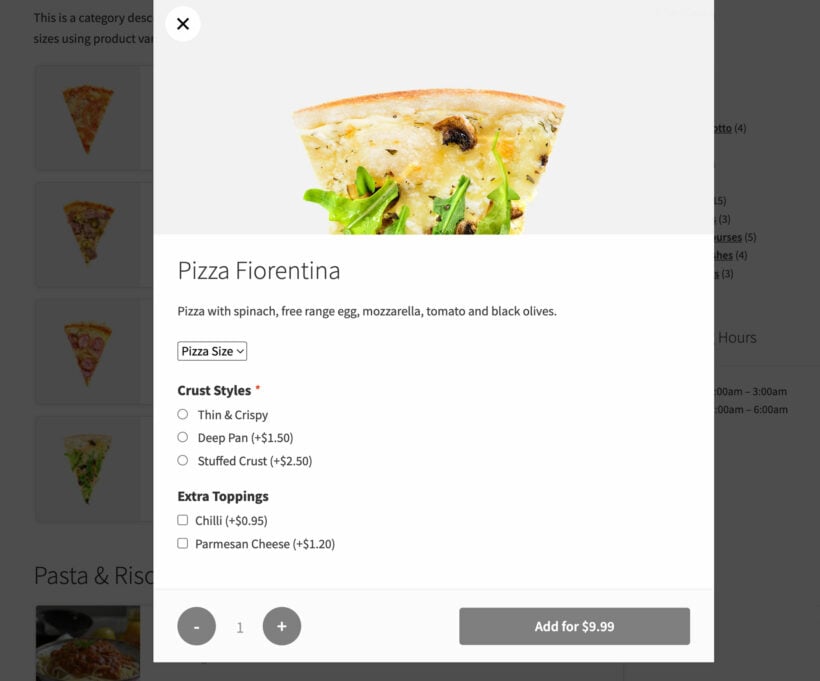
If you’re thinking of selling make your own pizzas or need a way to offer a choice of options for a dish, you’ll need to create a variable product or add-on fields. Variations let customers choose from a dropdown, whereas add-ons are great for selling optional extras such as pizza toppings or sandwich fillings.

Virtual restaurant product lightbox letting customers choose pizza variations and add-on toppings before ordering
Customers can choose variations and add-ons from a lightbox

Step #3: Create a food order form using WooCommerce Restaurant Ordering

To let customers place orders, you’ll need to create an order form using the WooCommerce Restaurant Ordering plugin. You’ll receive the plugin files and license key in an email.

  1. Install the plugin to your WordPress website and activate it.
  2. Next, head over to WooCommerce Settings Products Product table from the WordPress dashboard and activate the plugin license.
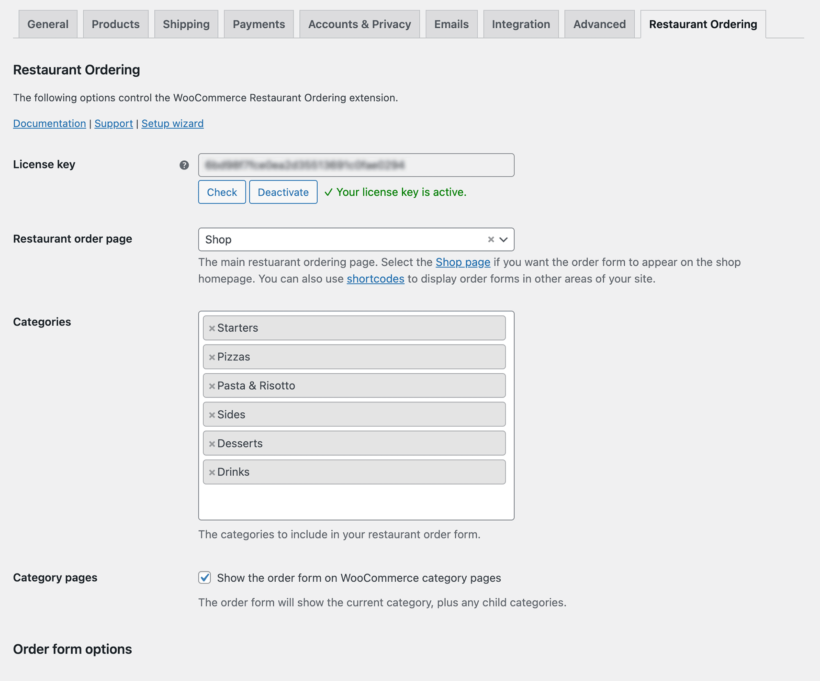
  3. Now, go through the different settings available with the WooCommerce Restaurant Ordering plugin to configure your food order form. This includes adding opening hours. You can ignore these if your virtual WooCommerce restaurant is open 24/7. But if you only want to accept orders while you're open, then this is a must.
Restaurant Ordering settings selecting the order page and menu categories
Control your virtual restaurant order system on the plugin settings page

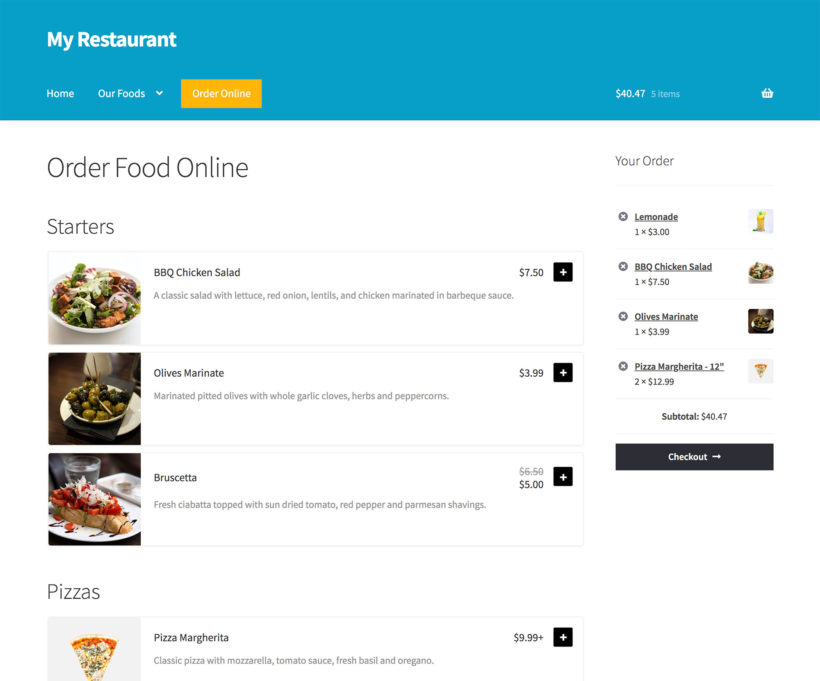
Finally, go to the list of Pages in the WordPress admin and find the page called 'Restaurant Ordering'. Rename this to whatever you like, e.g. 'Order Food Online'. This page lists all the food products that you added in step 2, divided by category:

Virtual restaurant main ordering page showing starters and pizzas by category with a live order sidebar

Your main restaurant ordering page is created automatically

If you'd rather list different categories on different pages, then you can do that using the restaurant ordering shortcode.

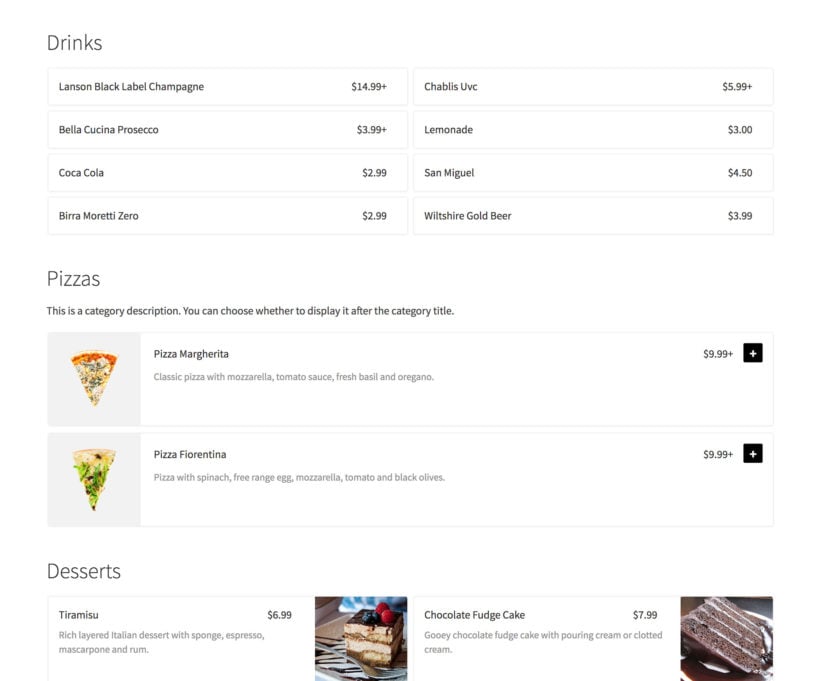
Virtual restaurant menu using different layouts per category including a list view for pizzas and a grid for desserts
Use the shortcode if you need different settings for each category

Add a cart

Most virtual restaurants display a cart on the food ordering page. This shows the items in your order and makes it easy to click through to the checkout.

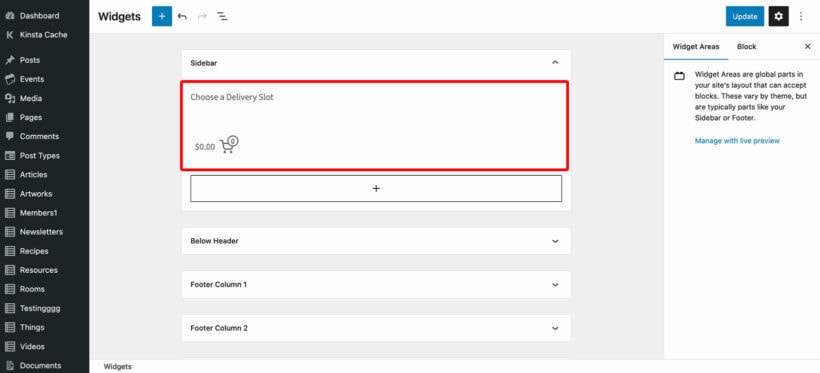
The easiest way to do this is to add a sidebar to the restaurant ordering page. Most themes come with page templates that include a sidebar. You can then go to Appearance → Widgets and add the 'Cart' widget to the sidebar.

Adding a cart widget to the sidebar in the WordPress widgets editor

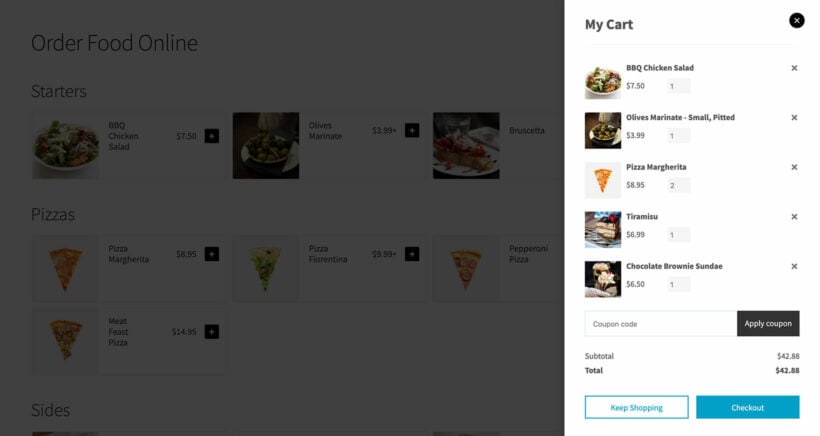
If you don't want a sidebar and prefer to keep your page full-width, then you can add a floating popup cart using the WooCommerce Fast Cart plugin.

WooCommerce restaurant floating cart
Add a floating side cart with WooCommerce Fast Cart

Step #4: Set opening hours and delivery times

If you’re offering food delivery options at your virtual restaurant, you’ll need an easy way to manage customer expectations and delivery orders. You can do this with the WooCommerce Opening Hours and Delivery Times plugin.

Once you have this WordPress restaurant plugin installed and activated on your website, follow the plugin’s instructions to configure your opening hours, delivery dates and time slots. Here are some of the main features you’ll want to use for your virtual restaurant site:

  • Delivery dates and time slots – You can add delivery slots based on the way you choose to structure food deliveries.
  • Maximum number of deliveries per time slot – This option lets you better manage kitchen capacity by adding a limit to the number of delivery orders per slot.

Set up your virtual restaurant today

If you’re looking for ways to keep your restaurant running with minimal costs, consider setting up a virtual restaurant (or ghost restaurant) that serves solely as a delivery base or offers takeout. You can do this whether you have a physical restaurant or not. Virtual restaurants are hugely popular in the restaurant industry.

Start by installing the WooCommerce plugin on your WordPress website. Next, add food items as individual products in WooCommerce. Finally, use the WooCommerce Restaurant Ordering and WooCommerce Opening Hours and Delivery Times plugins to create a front-end order form with a table of available delivery time slots.

Ready to set up your virtual restaurant and grow your bottom line? Get WooCommerce Restaurant Ordering today!

Stacked rolls of paper representing managing out of stock products

The coronavirus crisis has had a huge impact on e-commerce stores. WooCommerce store owners have suddenly faced large numbers of out of stock products, and difficulties ordering supplies. However, even though stock problems due to COVID-19 are out of your control, there's still plenty you can do to keep customers happy.
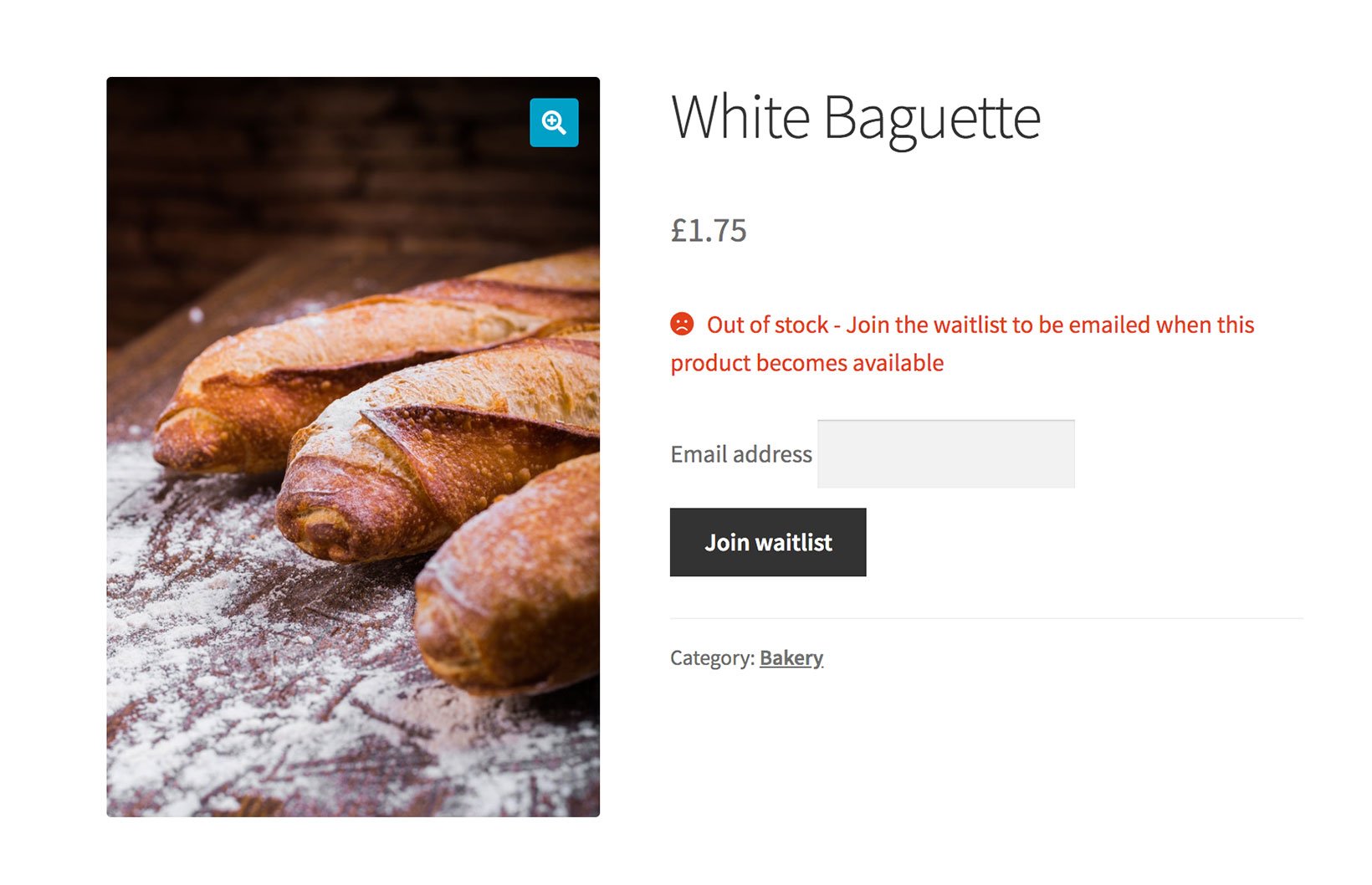
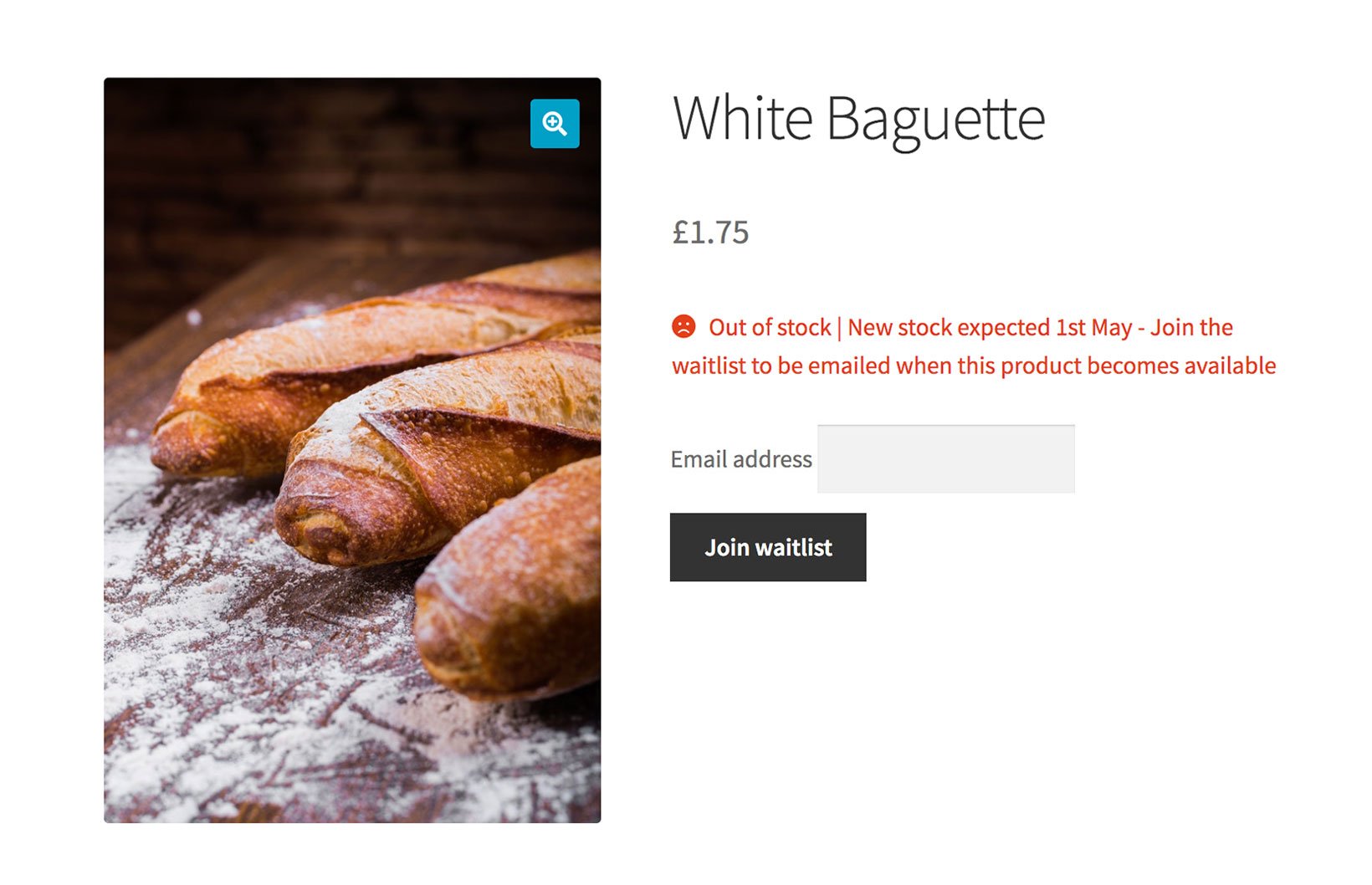
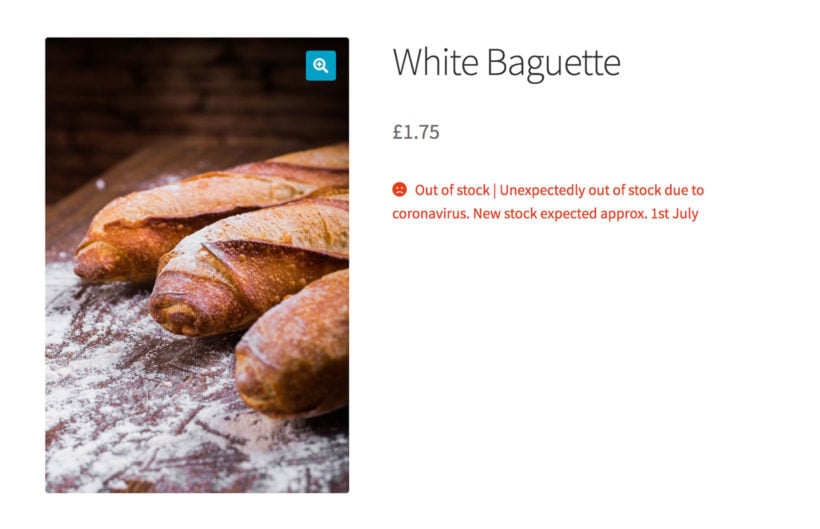
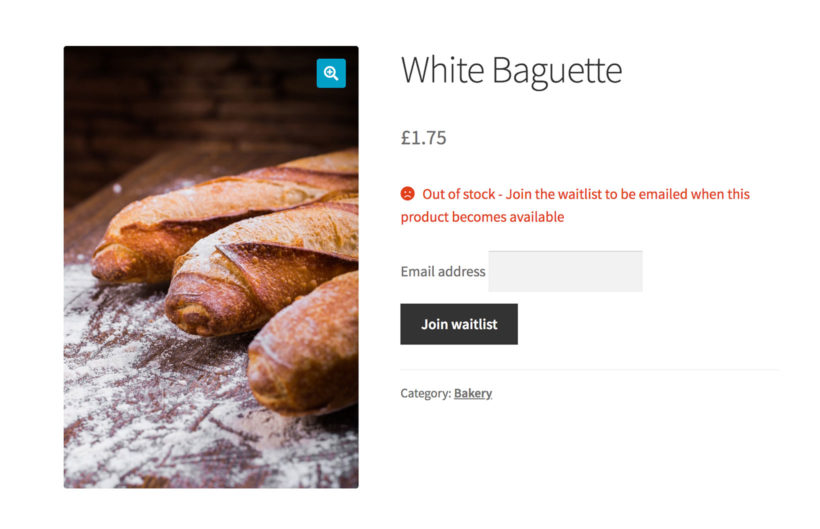
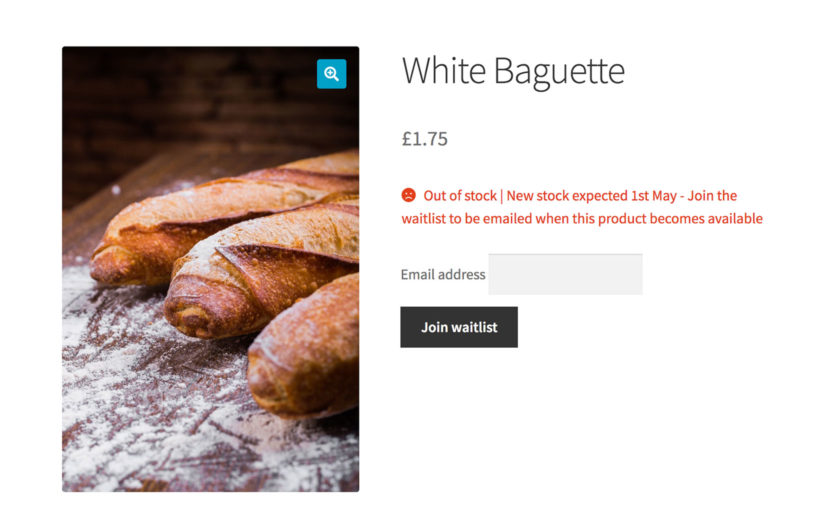
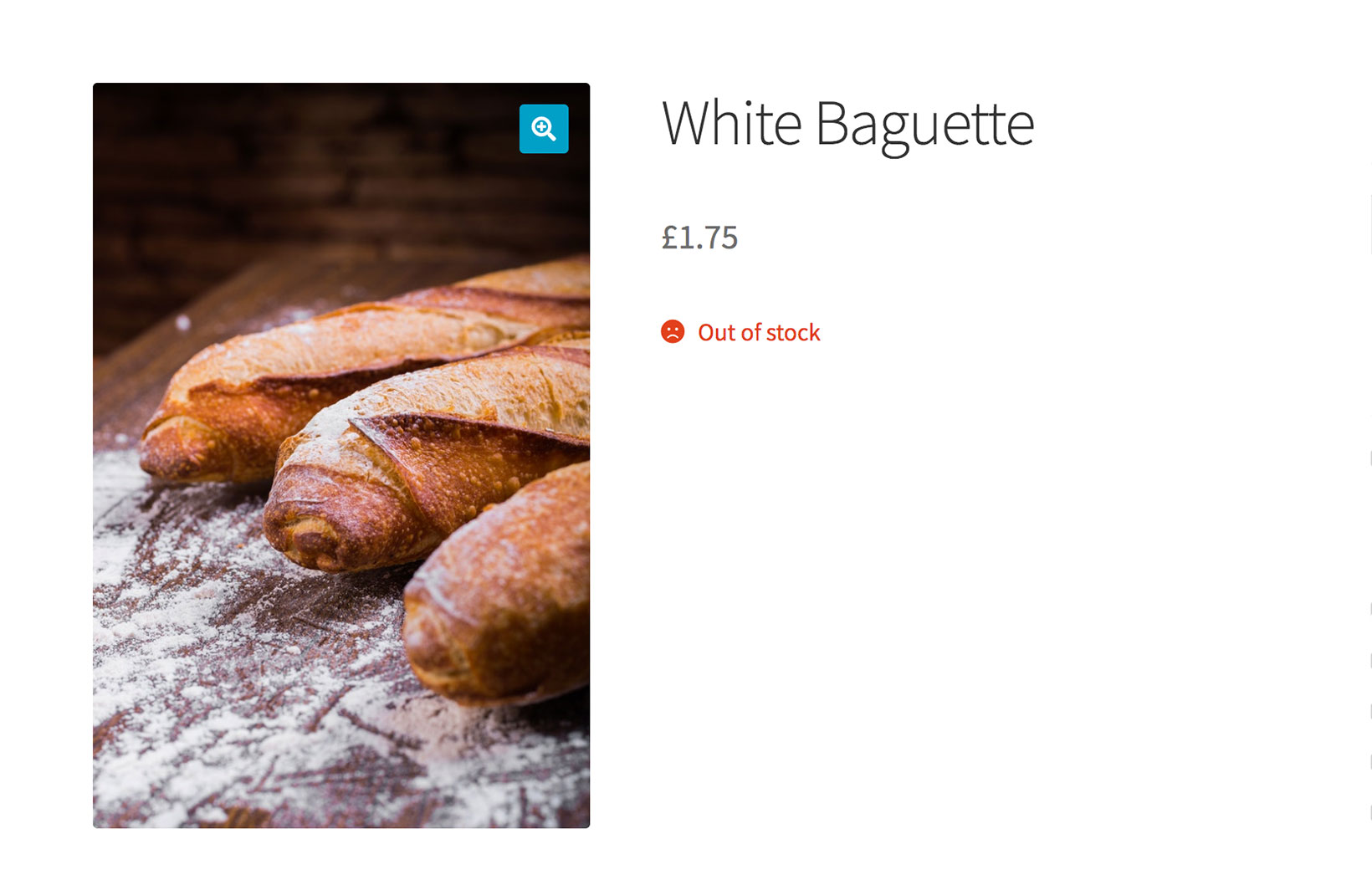
Think about it from the customer's perspective. You've visited an e-commerce website, but the product you need is out of stock. Which of these messages would you prefer to see?

How frustrated would you feel to see an 'Out of stock' message without any further information? The customer wants to know when the product will be back in stock - this helps them to decide whether to shop elsewhere. And if you don't have this information, then they need you to notify them when the product is back in stock.

Fortunately, there are some excellent WooCommerce plugins that can improve the way you handle temporarily out of stock products and variations. You can these as standalone solutions, or you can combine them and use the plugins together.

#1 - Add a notice to temporarily out of stock products

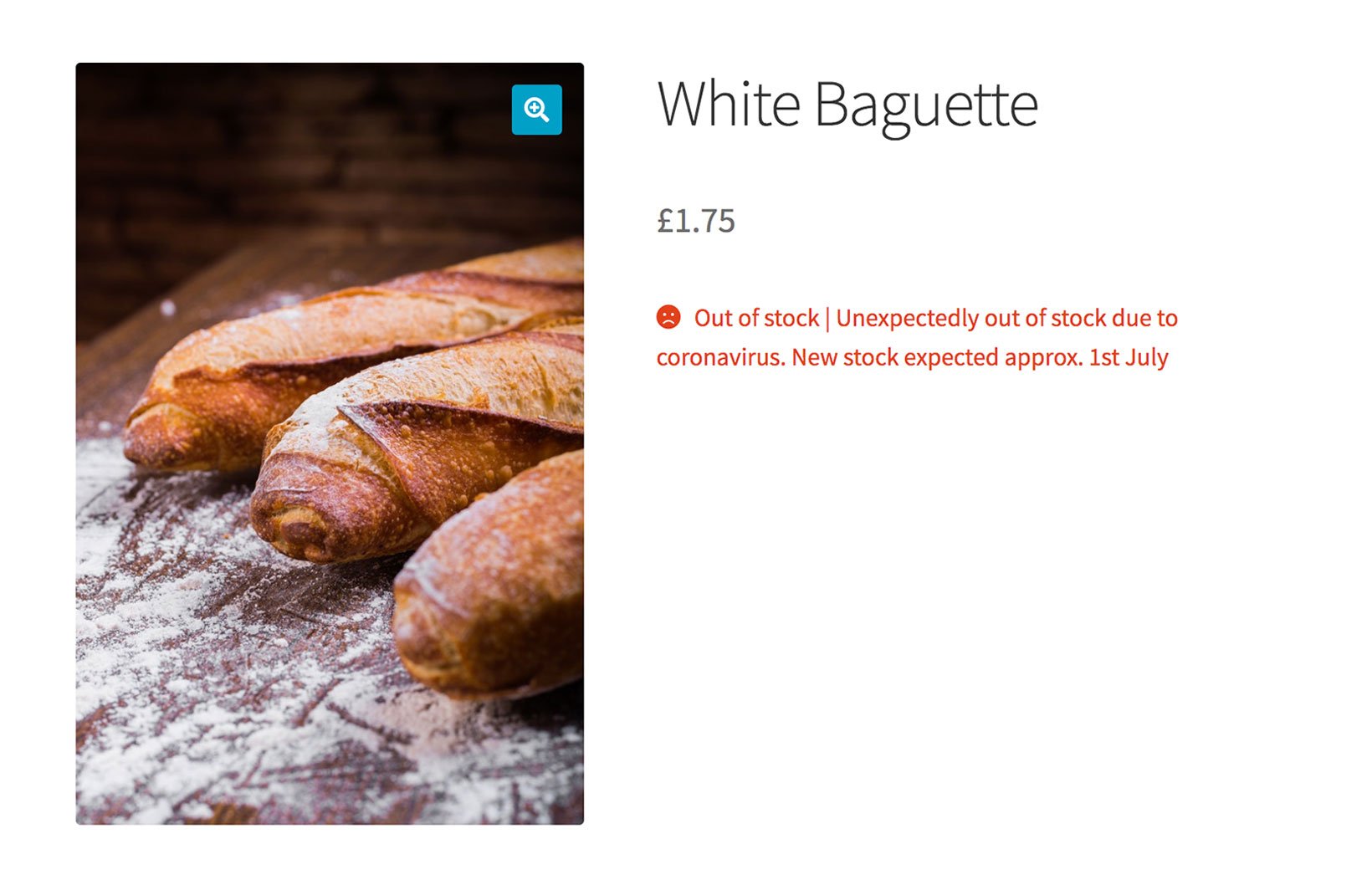
Out of stock product with lead time

The WooCommerce Lead Time plugin lets you add a custom text message which appears next to the stock information on the product page. You can add the same message for all products, or you can add a custom message for each product.

This is how to set it up:

  1. Install WooCommerce Lead Time.
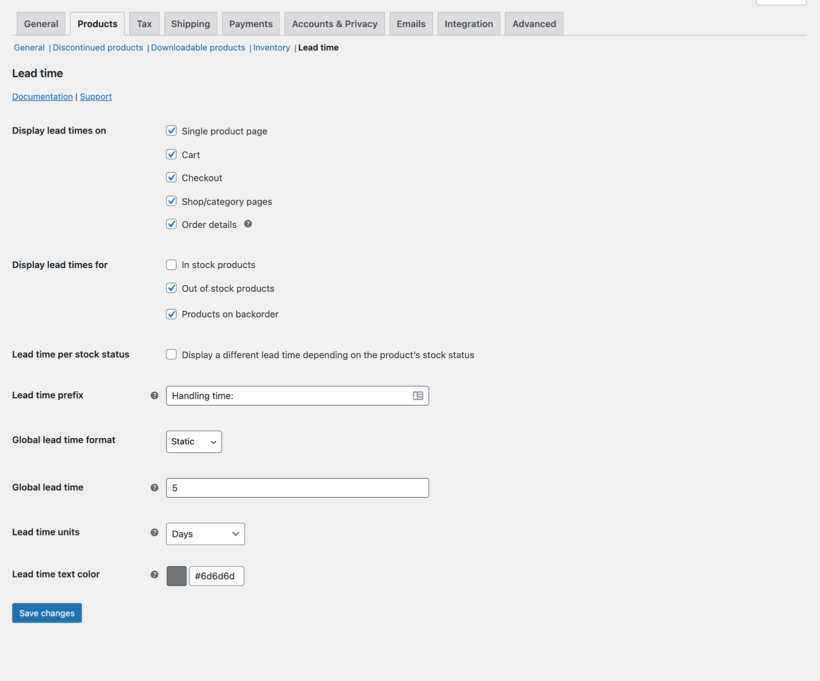
  2. Go to WooCommerce → Settings → Products → Lead time.
  3. Activate your license key (you'll receive this in the order confirmation email) and choose the plugin settings:
    1. Tick the boxes to display the message on backorder and/or out of stock products only.
    2. If you like, enter a prefix to appear before the lead time text for each product (e.g. you might set this as 'Stock expected on:'
    3. If you want to show the same message for all out of stock products, then enter a global lead time.
    4. Save your changes.
Configuring a global lead time in the WooCommerce Lead Time settings
Set a global lead time and wording on the settings page

If you've entered a global lead time message, then this will appear for all products with the stock statuses that you selected on the settings page. Alternatively, you can add a different message for each product on the 'Edit Product' screen under Product Data → Inventory.

If you know when the product will be back in stock, choose the 'Dynamic' lead time option. This lets you select the expected availability date from a calendar. The WooCommerce Lead Time plugin will then display a countdown displaying the number of days or weeks until the product will be back in stock.

Alternatively, enter a static lead time with whatever text you want to display on the page.

For more advice, check out the plugin knowledge base.

#2 - Add a WooCommerce email when back in stock plugin

WooCommerce email when back in stock

The YITH WooCommerce Waiting List plugin displays an email field and 'Join waitlist' button for out of stock products. Customers can enter their email address to receive an email when the product is available again.

A 'Notify me back in stock' WordPress plugin an excellent way to avoid losing their business. They're less likely to buy from your competitors because they know they will hear from you when the product is back in stock.

How to set it up:

  • Get the YITH WooCommerce Waiting List plugin and install it on your WordPress site.
  • As soon as you activate the plugin, the 'Email when back in stock' option will appear for all your out of stock products. Simple!

You can also see the plugin documentation for further information.

Get the plugin

Use both plugins together for best results

Of course, you can provide an even better experience for your customers by providing helpful information about when the product is due back in stock, and by allowing them to sign up to be notified.

The two plugins work perfectly together - you can use WooCommerce Lead Time to add the availability notice, and WooCommerce Waitlist for the email signup:

Out of stock message and email when back in stock

Can I just un-publish unavailable products?

No, absolutely not! If your search engine position is important for your store, then you should leave out of stock products online.

Unpublishing them will affect your SEO by temporarily removing them from search results - and it may not be easy to regain your previous ranking for the product. It's better for SEO to keep the products online, while providing clear and helpful information to your customers using the tips in this article.

This will help to retain your search engine position, while minimizing the number of lost sales for you. After all, if customers can see the products and sign up to be notified when they become available, then you may not have lost the sale after all.

Discontinued products

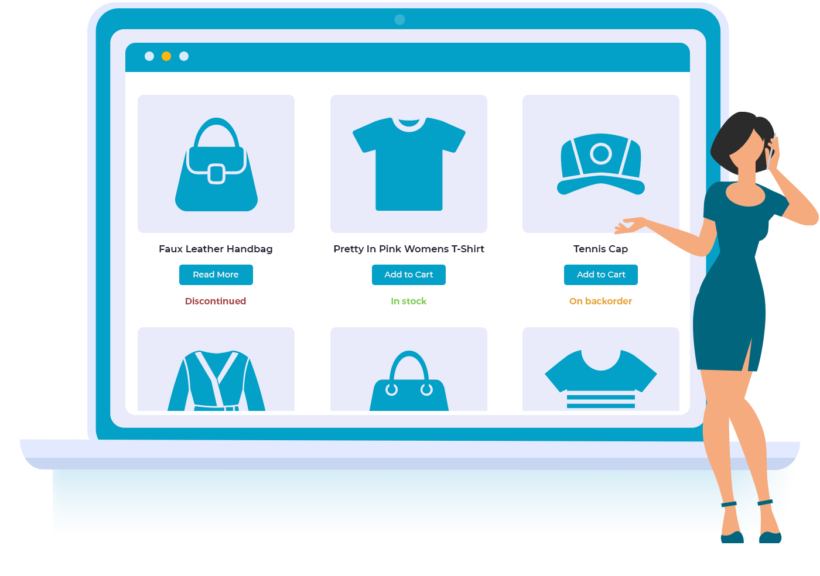
WooCommerce store showing discontinued, in stock and backorder product statuses

Before we finish, it's worth mentioning that there's a difference between products which are temporarily and permanently out of stock. The advice about is about temporarily out of stock products which will become available again soon.

The situation is very different for end-of-life products which will never come back into stock:

  • Customers need to know that the product will never be available again.
  • You don't want to lose the SEO value of your discontinued product pages.
  • Store owners need to view and manage discontinued products separately from out of stock products in the WordPress admin and stock reports.
  • You need to recommend alternative products to avoid losing the sale.

The WooCommerce Discontinued Products plugin is the perfect solution for managing end-of-life products. Use it for permanently out of stock products, while using the advise from earlier in this article for products which will be available again soon.

Where to get the plugins

There's plenty you can do to help your customers when products are unexpectedly and temporarily out of stock. You can:

Improving your out of stock messaging won't change the world, but it's one small step that you can take to help people to get the supplies they need during the coronavirus crisis.

WooCommerce price matrix

If you sell to wholesale buyers or stock variable products, a WooCommerce price matrix can help you list product variations in a grid or matrix layout. This makes it easier for customers to view variations at a glance, see pricing, and quickly add variations to their shopping cart.

In this article, we’ll take a closer look at what a WooCommerce price matrix is and how you can use it to list product variations in a variety of different ways using WooCommerce Bulk Variations. We’ll also share some examples of products you can list in a WooCommerce price matrix.

What is a WooCommerce price matrix?

A WooCommerce price matrix lets you list WooCommerce product variations in a grid or matrix layout instead of a simple price list. There are 3 easy ways to list variations in WooCommerce:

  1. Price matrix - list all the prices for a specific variable product.
  2. Variations order form matrix - list all the variations for a specific product with quantity boxes and add to cart button.
  3. List prices for multiple products in a table - list prices for multiple products in a table layout.

What sort of products should you list in a WooCommerce price matrix?

A WooCommerce price matrix is perfect for listing products that have one or two variation attributes (e.g. 'size' and 'color'). The price matrix makes it easy for customers to see the available variations at a glance and make an informed buying decision. One attribute (e.g. 'size') appears along the horizontal axis of the matrix, and the other attribute (e.g. 'color) appears along the vertical axis, with the variations in the middle.

Here are some examples:

  • Clothes (such as t-shirts) and shoes available in different colors and sizes.
  • Furniture with color and material variation attributes.
  • Tech products (like smartphones) with color and storage variations.
  • Printer inks with compatible printer models and ink color variations.
  • Custom jewelry with metal and stone variations.

Put simply, if you sell products that have one or two variation attributes, listing them in a WooCommerce price matrix is the best way to increase variation visibility and make it easier for customers to quickly purchase variations in bulk.

And the great news is that you can do this in minutes with the WooCommerce Bulk Variations plugin.

If you want to list prices for more than one product in the same matrix, then you'll need the WooCommerce Product Table plugin instead.

Different ways to list variations in WooCommerce

Here, we’ll step through some of the different ways you can list variations on your store using WooCommerce plugins:

#1: Price matrix

A WooCommerce price matrix simply displays the variation’s product price in a grid or matrix layout. This is perfect for creating a price matrix in WooCommerce for displaying product variation information only without giving customers the option to purchase directly from the matrix.

For example, you might want to display a price matrix in the short description on the single product page, with the usual variation dropdowns and add to cart button underneath.

The product variations in a price matrix layout are listed in a grid or matrix with a separate price for each variation, without a quantity box.

Here’s how you can set up a price matrix layout using WooCommerce Bulk Variations:

  1. From the Product data section on the Edit Product screen, navigate to the Bulk Variations tab and tick the checkbox next to the Enable bulk variations grid.
  2. Tick Disable purchasing.
  3. Select the variation attributes to display in the Columns and Rows of the price matrix using dropdowns.

Tip: You can also enable the variations grid for individual products, or use a shortcode to insert it anywhere on your site.

#2: Variations matrix layout

If you sell to wholesale buyers, then you might consider displaying quantity selectors in the matrix along with pricing information. This way, customers can quickly enter the number of each variation they’d like to purchase and add multiple variations to their cart in one go.

With WooCommerce Bulk Variations, the product variations are displayed in a matrix-style grid with a separate quantity box for each one along with pricing information. Customers simply enter the quantity they wish to purchase for each variation and click a single Add to Cart button to add selected variations to the cart at once.

Here’s how you can set up a variations matrix layout using WooCommerce Bulk Variations:

  • From the Product data section on the Edit Product screen, navigate to the Bulk Variations tab and tick the checkbox next to the Enable bulk variations grid
  • Make sure that the Disable purchasing checkbox is unticked.
  • Select the variation attributes to display in the Columns and Rows of the price matrix using dropdowns.

#3: Product table layout

WooCommerce price catalog table listing product names and prices

With WooCommerce Bulk Variations, if you want to list the prices for more than one product on the same page, then you can use a shortcode to add as many matrixes as you like. There will be one price matrix for each product.

If you need to list prices for multiple WooCommerce products in the same matrix, then you'll need the WooCommerce Product Table plugin instead. This lists the prices for simple or variable products with one product on each row of the table. For variable products, you can either list each variation on its own row, or you can have one product per row with variation dropdowns.

Bonus tip: Manage variations more easily

I expect you've noticed that it takes forever to edit the prices, images etc. of variations in WooCommerce. For example, let's say that a t-shirt shop has 15 variations in the 'Large' size and wants to change all their prices to $50. To do this, the store owner has to edit each of the 15 variations individually.

You can save lots of time by using the bulk management features that come with the WooCommerce Bulk Variations plugin. These let you select specific variations and apply bulk actions to them together.

If you've followed Method 1 or 2 of this tutorial then you have already installed WooCommerce Bulk Variations. Go right ahead and use its variation management features.

If you're using Method 3 then you can still use WooCommerce Bulk Variations to bulk-edit variations. The only difference is that you will also be using WooCommerce Product Table to display the variations. As a result, you need 2 plugins in total. One for the front end, and one for the back end.

Where to get the WooCommerce price matrix plugin

Listing WooCommerce product variations in a matrix makes it quick and easy to see the price of each variation. Depending on which variable products you’re selling, you might create a:

  • Price matrix for WooCommerce products
  • Variations matrix layout
  • List variations in a pricing table
  • List variable products in a table with dropdowns

Ready to create a price matrix for your WooCommerce products? Install the WooCommerce Bulk Variations plugin today!

Illustration of a WooCommerce vegetable subscription box signup

Companies that sell subscription boxes ship products to their customers at regular intervals for a recurring fee. In other words, customers sign up for a subscription to receive a package of goods, say, once a month. As an online business owner, you can create and sell a WooCommerce subscription box through your WordPress website.

WooCommerce subscription boxes are a great way to build a stable business because they allow sellers to generate predictable recurring revenue. Once you set a price for your subscription box, you’ll know exactly how much you’ll earn based on the number of subscribers you have.

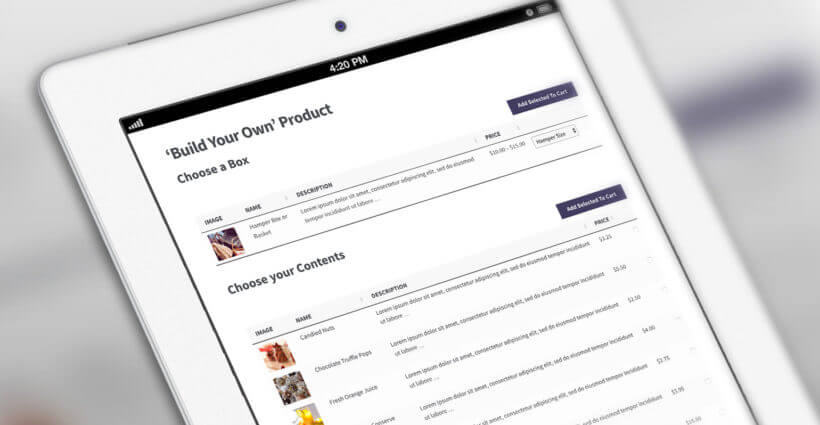
Build your own box page suited to a WooCommerce subscription box

In this article, we’ll show you how to create a subscription box website on WooCommerce in two different ways - both using the WooCommerce Product Table plugin. You can choose to sell WooCommerce subscription boxes with pre-defined content or set up a build-your-box type of subscription box.

But before we begin, let’s take a look at some examples of subscription boxes and how to get started planning your WooCommerce subscription box business.

Examples of WooCommerce subscription boxes

When it comes to selling WooCommerce subscription boxes, there are a few different things you need to consider. First, you have to decide what sort of subscription boxes you’ll be selling.

Here are some popular examples:

  • Vegetable boxes. These can be curated or create-your-own style subscription boxes that contain farm-fresh vegetables. Curated boxes typically contain a selection of seasonal vegetables whereas custom subscription boxes give customers the option to choose which vegetables they’d like to add.
  • Cosmetics boxes. These are typically personalized subscription boxes that include a variety of cosmetics products such as foundation, lipstick, eyeliner, and mascara. Since cosmetics are long-lasting products, you can sell them at three-month (quarterly) intervals.
  • Snack packs. Snack packs are incredibly popular with customers. You can sell all sorts of snacks – fitness snacks, healthy snacks, oriental snacks, candy packs, organic snacks, or gluten-free snacks.
  • Coffee deliveries. Coffee subscription boxes are typically personalized subscription boxes that let customers choose their preferred coffee brand, bag size, creamer, and filter options.
  • Shaving supplies. These typically include razors, wipes, shaving creams, and other toiletries that are replenished on a monthly basis. Dollar Shave Club is a great example of a subscription box service.
  • Hand-curated wines and beers. Customers can subscribe to a hand-curated wine or beer crate that contains an assortment of bottles.

Monthly subscription boxes are pretty common though the interval depends entirely on the type of products you’re selling. For example, if you sell vegetable boxes or fitness bars, you might consider offering one-week and two-week replenishment options. And if you’re selling beauty products (like razors or toiletries), you might offer a bi-monthly or monthly replenishment option.

Planning your WooCommerce subscription box business

Before you begin designing your WooCommerce subscription box store, it’s important to take a step back and plan out the subscription model.

If you’re just starting out, the most profitable (and efficient) way to sell subscription boxes is to offer one or more options with predefined contents. The reason is that it saves you time on packing. Put simply, your subscription box becomes a product rather than a service.

However, when your subscription box business starts to take off, you can also consider offering build-a-box style subscriptions. This allows customers to select the products they’d like to add to their subscription box from a list of available items. Then, the custom subscription box company fills each pack individually and ships it to the customer.

As we mentioned above, in this tutorial, we’ll show you how you can create both types of subscription boxes:

  • Predefined subscription boxes where you ship the same box to all of your customers
  • Mix and match subscription boxes where customers select the contents of their weekly (or monthly) box

In both cases, customers will receive their selected subscription boxes on a regular basis.

With the right plugins, WooCommerce is the perfect e-commerce platform for selling subscription boxes through your WordPress site. The main idea behind both approaches is the same. You want to create a custom subscription box order form that presents available options to customers and lets them choose their subscription box. We’ll show you how you can create an order form using the WooCommerce Product Table plugin.

Method #1: How to sell WooCommerce subscription boxes with predefined contents

If you’re just starting out, you might want to sell WooCommerce subscription boxes with predefined contents. For this, you’ll need a way to set up an order form in WooCommerce and accept recurring payments from customers (i.e. subscribers).

Selling WooCommerce subscription boxes with pre-defined contents

We recommend using the official WooCommerce Subscriptions plugin along with the WooCommerce Product Table plugin.

WooCommerce Subscriptions allows you to sell products on a daily, weekly, monthly, or annual basis. This way, customers will be billed automatically at their chosen intervals using the selected payment gateway (such as PayPal or Stripe). In addition to this, it offers advanced features like free-trials and one-time sign-up fees.

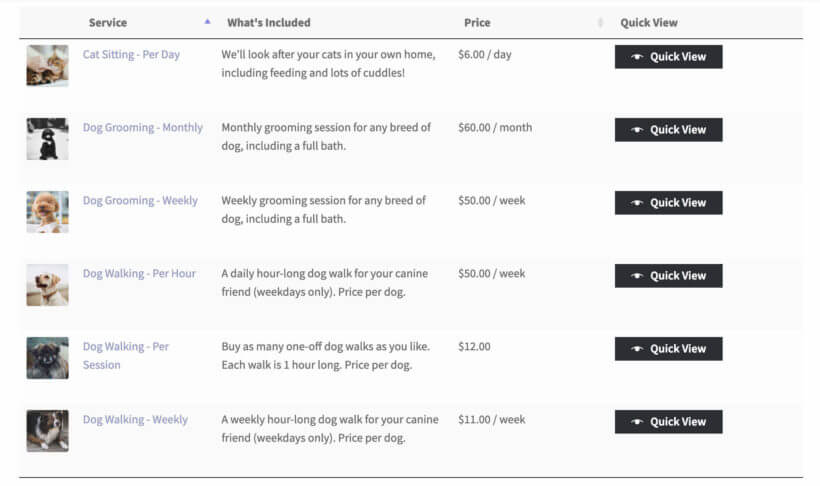
Subscription box services listed in a one-page order form with quick view buttons

The WooCommerce Product Table plugin lets you create a searchable, sortable order form with filter options. This makes it easy for customers to see important subscription box details at a glance and make their selection. You can use it to:

  • Show extra data about each subscription box in a column directly in the order form. This way, customers don’t have to click through to the single product page to learn more about each subscription box.
  • Display add to cart buttons in the product table so customers can set the quantity, add the subscription box to their cart, and proceed to checkout.
  • Add filter options directly above the AJAX-based table so customers can quickly find the subscription products they’re looking for.

To take things further, you can integrate WooCommerce Product Table with WooCommerce Quick View Pro which allows you to showcase your subscription box (and its contents) in quick view lightboxes. This allows you to deliver a better shopping experience and make it easier for prospective subscribers to make a buying decision faster.

Handling variable subscriptions

WooCommerce Quick View Pro is also great for online store owners that need to sell variable subscription products. Instead of adding an add to cart column to your product table, you can add quick view buttons. Customers can then click on the button to select variations and purchase variable subscriptions.

Alternatively, you can use the All Products for WooCommerce Subscriptions plugin to sell variations directly in the add to cart column of the product table. This way, you can add subscription options to WooCommerce variable products.

Method #2: How to sell build-a-box WooCommerce subscription boxes

Selling mix and match WooCommerce subscription boxes gives customers the option to choose their own products. You can implement this in 2 different ways, depending on whether you want customers to choose the same products to receive each time; or whether you want them to be able to change their order each week.

Let customers choose their regular products

First, we'll look at an easy way to let customers choose which products to include in their regular subscription. They choose their products as part of setting up the subscription, and then receive the same products each time.

Typically, the process goes something like this:

Build your own vegetable subscription box

  1. Customers start by choosing a box size. For example, if you’re selling a vegetable subscription box you can have two sizes – Small and Large. This lets you set a base price for your subscription box.
  2. Next, customers can choose their subscription box contents using an order form. They can select as many products as they’d like, choose variations, and set quantities. Once that’s done, they can add all products in one go.
  3. Optionally, customers can choose any finishing touches such as decorative filling. For example, if you sell snack subscription boxes, you can let customers choose between shredded crinkle paper filling or packing peanuts.
  4. Finally, the proceed to checkout and select a payment method such as PayPal, Stripe, or credit card.
Excellent plugin
I am not a developer and have built my own site and wanted to offer a 'build your own hamper' service. This plug in works brilliantly and I had it up and running really quickly. It is particularly helpful that it works with variable products. And I love the demo video - very very helpful. There is tons of easy to search documentation that helped me with pretty much all the questions I have. I highly recommend this plug-in, especially if you are a website-building novice!

Allow subscribers to change their order each week/month

What if you want customers to be able to change which products are included in their regular subscription; or to choose which products to receive each time? For example, if you're selling a recipe box subscriptions (like Hello Fresh, Blue Apron, etc.), then subscribers need to be able to choose their recipes each week.

This is a more complex requirement, but you can achieve it by combining several plugins. They are all plugins from reputable companies which work well together:

  1. Use the WooCommerce Subscriptions plugin to sell your subscriptions. For example, you might have a product called ‘Weekly Recipe Box – 3 Recipes’ (with variations to choose the number of people per recipe). This would set up recurring billing for a fixed payment amount every week.
  2. In a private area on your WordPress website (which you can create with our WooCommerce Protected Categories plugin), you should add the products for the customer to choose from. These might always be the same products, or they might change each week. You can then use WooCommerce Quantity Manager to restrict how many products your subscribers can order from that category. If you set the price for each product to 0.00, then they can order their products each time without paying any extra. Alternatively, you can charge surcharges for higher value products by adding this as the product price. The subscriber will be charged this when they complete the WooCommerce checkout to confirm their products for that week.
  3. Finally, you can use the Follow Ups plugin to automatically send a weekly email reminder. Include information about how to access the hidden category containing the available products,  and the deadline for confirming their products.

Each week, the customer will log into their account, view the hidden category, select them from the product table, and check out to confirm their selection. Unless they have ordered surcharge products, they won't be charged for this because the payment comes from their weekly subscription instead.

As with all subscription boxes, if the customer forgets to confirm their products for the week, then you will select the box contents for them based on their preferences.

Advanced features

When selling subscription boxes, there are various advanced features you can add to your e-commerce store. This can help you deliver a better shopping experience to customers.

How to allow customers to choose the shipping frequency

One of the most important aspects of selling WooCommerce subscription boxes is letting customers choose the shipping frequency. This means how often they want to receive it.

As we mentioned above, most subscription boxes are sold on a monthly basis. However, some sservices let customers set their own shipping frequency. For example, if you sell vegetable boxes or snacks, you might want to give customers the option to receive a new one every week or every two weeks.

The easiest way to let customers choose the shipping frequency is by creating a variable subscription with the different options available as variations. For example, your variations might be a weekly variation, a bi-monthly variation, and a monthly variation.

How to allow customers to choose their billing frequency

Depending on the sorts of subscription boxes you sell, you might want to let customers choose their billing frequency. For this, you will need to set up a billing schedule.

This is great for when you want to give customers more payment options. You can also leverage this to offer special discounts to customers who pay for their subscription boxes months in advance.

You can set this up in WooCommerce by offering different billing frequencies as subscription box variations. For example, your variations might be weekly, monthly, or six months at a time. To incentivize customers to pay for six months at a time, you could offer that variation at a 10% discount. Then, customers can choose to pay using the preferred payment gateway.

How to choose which day of the week to receive your order

If you sell vegetable subscription boxes or recipe boxes, you might want to let customers choose which day(s) of the week to receive their order. For example, customers subscribed to your vegetable box might want to receive a new delivery every Wednesday.

You can use the Checkout Field Editor plugin to collect this information from customers on the checkout page.

How to add a delivery note

Many times, customers want to leave some sort of delivery note for the delivery driver. This allows them to make special requests or provide delivery instructions. The easiest way to let customers leave a delivery note with their subscription box order is by using the Checkout Field Editor plugin. This way, you can collect this information from customers on the checkout page.

How to set up gift subscriptions

If you want to be able to let customers send subscription boxes as gifts to their friends and family, you might consider setting up gift subscriptions. For this, you would need to create special gift subscription boxes with limited-time subscription periods.

You can do this by using the WooCommerce Subscriptions plugin with some additional features:

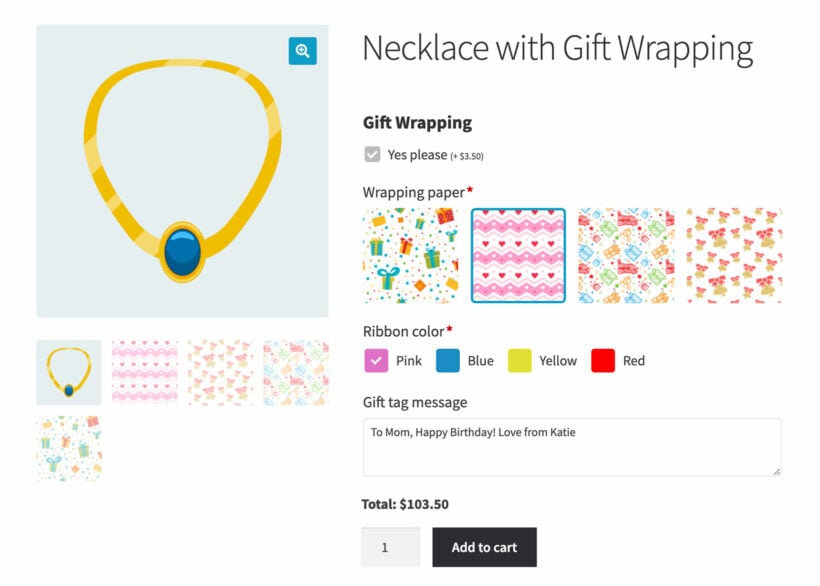
  • Use the Product Options plugin to add a gift message field to the product.
    Gift wrapping options added to a product with swatches and a text field
    A product with gift wrapping options added using the WooCommerce Product Options add-on
  • Use the standard WooCommerce checkout form to collect a different billing and shipping address. The customer would enter the recipient’s address into the shipping address fields. This way, the subscription box will be delivered to the gift receiver.

Bonus: reducing customer churn rates and boosting retention

Although subscription boxes can have predictable recurring revenue streams, they can also have high customer churn. In fact, more than a third of customers cancel their subscriptions in less than three months and more than half cancel within six months.

As a savvy business owner, you can cut down on customer churn by offering discounts to customers who sign up for a longer-term subscription. For example, you could offer a 10% discount to subscribers who opt for the yearly subscription instead of the monthly subscription. You can use the WooCommerce Subscriptions plugin to offer a variety of subscription options. This can help you reduce customer churn rates and boost retention.

Where to get the plugins

If you’re looking to launch a successful e-commerce business, a subscription box service business model that generates recurring revenue is the way to go. It’s more profitable and efficient than selling one-off products through your WooCommerce store. Done right, selling subscription boxes can help you increase your average order value and boost sales.

Using the WooCommerce Product Table plugin for WordPress, you can sell WooCommerce subscription boxes with predefined content or with flexible mix and match options. And to take things to the next level, you can use a variety of other WooCommerce plugins to integrate advanced options.

Ready to start generating recurring revenue selling WooCommerce subscription boxes? Get the WooCommerce Product Table subscription plugin today!

Laptop and tablet showing WooCommerce products edited from the front end

WooCommerce Product Table is perfect for creating a simple product list or quick order form. Keep reading to discover 2 easy ways to allow your users to edit the products in the table directly from the front end of your website, or from a user-friendly spreadsheet view. At the end, you'll know how to create the ultimate WooCommerce product front end editor.

Used alone, WooCommerce Product Table is a great way to list products. However, the table is for displaying public information which isn't editable from the front end.

We've previously told you how your users can submit products to your WooCommerce store and display them in a product table. Since then, lots of you have requested a way to allow your staff or customers to edit the products in the table from the front end, without having to access the WordPress admin. If you want to allow users to edit products from the table, then you need to follow this tutorial. We will show you how to create an editable frontend table for your WooCommerce store using either of these tools:

  1. Setary is a user-friendly spreadsheet app for WooCommerce. It makes it easy for customers to update products and variations, either directly in the spreadsheet or by using bulk edit forms.
  2. WP Sheet Editor is a WordPress plugin which allows WordPress users to edit the products in the table directly from the front end of your website.
Front end spreadsheet editing WooCommerce products in editable rows

Why do I need a WooCommerce front end editor?

Normally, you can only edit WooCommerce products via the WordPress back end. This involves visiting multiple product pages and can be time-consuming if you have lots of changes to make. A front end spreadsheet-style editor significantly speeds up your product and inventory management.

A WooCommerce product front end editor can help with many different scenarios. For example:

  • Your employees might need to edit products, but you don't want to let them loose in the WordPress back end. Instead, keep it simple by providing a front end product editor that only a specific user role can access.
  • If you're creating a WooCommerce multi-vendor marketplace then you can list each vendor's products in a different table or order form. You can then add a front end editor to allow your vendors to edit their own products without having to use the WordPress admin.
  • Perhaps you allow users to upload their own products to your store. Add a WooCommerce front end editor so that each user can edit their own products, but not anyone else's.

Keep reading to learn how to use WooCommerce Product Table to create non-editable order forms so that customers can buy products more quickly. After that, I'll show you how to integrate a front end or spreadsheet-style editor to your store so that relevant people can edit products outside of the WordPress admin.

1. Create the product table

Front-end product order form with filters, quantity boxes and add to cart buttons

The first step is to list some or all of your products in a product table view. This is the view that your customers will see when they visit your store. Later, you'll learn how to add an 'Edit' button which will take logged in users to the WooCommerce product front end editor (depending on their role).

To set it up, get WooCommerce Product Table and follow the instructions in the 'Getting started' email.

The plugin knowledge base is hugely comprehensive. It includes instructions on everything you need, including which columns to include in the table, how to add filters to help people to find products more easily, how to display product variations, and more.

You can either create a table containing all your products, or you can create tables listing specific products (e.g. products from a specific brand or vendor only).

2. Install a front editor or spreadsheet plugin

For this section, you have a choice of 2 plugins to choose from:

  1. Setary - the user-friendly spreadsheet app for WooCommerce. No WordPress logins required.
  2. WP Sheet Editor - the WordPress plugin which adds a front end spreadsheet editor to your site, which is only accessible to certain user roles.

2a. The Setary bulk editing spreadsheet app

I love Setary because it's just so easy to set up. As you can see by how short the following instructions are, it's far easier to configure than WP Sheet Editor!

  1. Choose a Setary plan and start your 7-day free trial.
  2. Follow the onscreen prompts to install the Setary helper plugin on your WordPress site.
  3. Next, the Setary app will open with all your products and variations listed in the spreadsheet.
  4. Use the 'Columns' option to choose which columns to include.
    Setary Columns panel open in the front-end product editor, letting you choose which product fields to display
  5. Use the advanced filters and search box to select specific products to edit.
    Setary filter controls used to select specific products to edit in the WooCommerce front-end product editor
  6. Select multiple products and use the 'Bulk Actions' button to apply quick bulk actions via a form.
    Editing WooCommerce products from a front end style spreadsheet in Setary
  7. You can also use the 'Views' option to save time by saving your favorite filter combinations for future access.

2b. WP Sheet Editor's frontend editor plugin

WP Sheet Editor is a collection of plugins that provide an easy-to-use front end table editor for any information that is stored in the WordPress database - including WooCommerce products. Their Universal Frontend Editor plugin creates a spreadsheet-style WooCommerce front end editor for the products in your table.

  1. First, buy and install the plugin on your WordPress site.
  2. In the WordPress admin, go to Frontend Sheet → All Spreadsheets:
    WordPress admin menu with All Spreadsheets highlighted under Frontend Sheet
  3. Once there, click on Add New to create a new table editor for your WooCommerce products:
    Spreadsheets admin screen with the Add New button highlighted
  4. Now you need to enter the editor title. This title is private and is only used for identifying the editors in the backend. You may call it something like Manage Products.
    Naming a new spreadsheet editor Manage Products in WordPress
  5. Then, select the post type you want to edit with it. In this case, you need to select Products. Next, click Save changes:
    Selecting Products as the post type to edit on the front end
  6. After that, you'll see that the plugin will generate a shortcode - copy this for later.
  7. Next, you need to decide which tools to include in the WooCommerce frontend editor. Think about what you want people to be able to edit from the front end, and only include tools they actually need. In the settings for your spreadsheet, select which tools to show on the Primary toolbar and the Secondary toolbar of the editor:
    Choosing primary and secondary toolbar tools for editing products on the front end
  8. After selecting the tools that will appear on the toolbar, you need to select the columns you'll display on the spreadsheet-style inline product editor. The list of columns automatically detects all the fields that are available for your products. This includes fields added by other plugins, such as YITH WooCommerce subscriptions, Advanced Custom Fields, all the WooCommerce extensions, etc. So you can easily enable, disable, sort, or rename any field.
  9. You can create multiple editors for different users based on their needs. For example, you might add one editor with full columns for shop managers, and a simple editor with fewer columns for employees. I generally recommend having the same columns in your public-facing product table and the front end editor. That way, users will see the information in the same format as they switch between the main product table and the spreadsheet editor views.
    Columns manager arranging enabled and disabled fields for the product editor
  10. Once you're done configuring the frontend editor, click on Publish to finish.
  11. Finally, we need to create a page and add the WooCommerce product front end editor to it. To do this, copy the shortcode from step 6, above. Now go to Pages → Add New to create a new page for the frontend editor:
    Editing a WordPress page and pasting the spreadsheet editor shortcode
  12. Once here, just enter the page title (we'll call it Edit Products), paste the shortcode in the page content, and select a Full width page template (if your theme has one). Finally, click on Publish.

Note. If you have a marketplace with multiple vendors, the frontend editor integrates with Dokan, WooCommerce Frontend Manager, and WooCommerce Marketplace. The integration works like this:

  • Vendors will view and edit products created by them only.
  • The editor settings have the option to display a button inside the marketplace dashboard. This allows vendors to launch the inline spreadsheet editor from their own dashboards, as well as by using the other methods discussed in this tutorial.

Now, it's time to integrate the new frontend editor with the public-facing product table that you created in Step 1.

3. Add an 'Edit' link to the product table

In Step 1, we used WooCommerce Product Table to list products in a public-facing table view. In step 2, we set up either the Setary or WP Sheet Editor spreadsheet-style editors.

Now, we need to add an 'Edit' link so that people can get from the table view to the front end product editor.

To do this, we'll add a button titled Edit store above the product table so that users can log in to start editing products right there.

  1. Go to the page where you used WooCommerce Product Table to add a product table, and add a new link or button. This should either link to the Setary app, or the page where you added the WP Sheet Editor shortcode.
    WordPress page with an Edit Store button linked above a product table shortcode
  2. Finally, Update the page to add the button to it.

Optional - Hide the 'Edit' link from normal customers

You might want everyone to be able to see the 'Edit' link, as it provides a simple way for guests to log into their account before editing the products in the table. Alternatively, you can hide it from public view so that only certain logged in users see it.

There are a few options for hiding the edit link:

  • Instead of adding an 'Edit' link to the same page as your product table, you can give certain users a direct link to the page containing the frontend product editor.
  • You can add the edit link to a more subtle location such as the footer.
  • Or if you prefer, you can install the Advanced Access Manager plugin. This plugin comes with shortcodes which you can use to make the button visible to users with a specific role, and hidden from everyone else. This is a neat compromise because you can still add the Edit link above your product table, but only the appropriate people can see it.

4. Test out the WooCommerce product front end editor

After these steps, users will be able to see the Edit Store button above the product table.

Front end product table with an Edit Store button above it

And when they hit that button, they will be asked to log in to start editing the products. For Setary, they will have to log into the Setary app. For WP Front End editor, it will be your WordPress login page:

WordPress login form shown before users can reach the front end editor

After they log in, users will be able to use the frontend editor:

Logged-in user editing products from the front end spreadsheet view

5. Who can use the WooCommerce frontend editor?

Only logged in users with the correct permissions can see the WooCommerce frontend editor, so you don't need to worry about customers accidentally accessing it.

For Setary, you must be logged into the Setary app. You can give access to whichever of your colleagues and/or clients need to edit products. It doesn't matter whether or not they have WordPress admin logins.

For WP Sheet Editor, the WooCommerce products frontend editor is available only for logged-in users. Logged out users or guests will see a login form when they click the 'Edit' button. It uses the default permissions from WordPress, so the products can be edited by these roles:

  • editor
  • administrator
  • shop manager
  • any user role that has the "edit_products" capability

You can create new user roles with the free user role editor plugin and assign it with the "product" capabilities. This is helpful if you want to allow users to edit products without having permission for anything else.

Just want users to edit their own products?

If you've set up your site to allow users to upload their own products, then you might want them to be able to edit these products but not anyone else's. This isn't possible with Setary, so if you need this then you should use a different tool instead. Here are some options:

  • WP Sheet Editor has an option to allow users to add new products to the table, as well as existing existing ones. If you use this to accept front end product submissions, then each user will automatically only be able to edit their own products in future.
  • If you're using Dokan, WooCommerce Frontend Manager or WooCommerce Marketplace, then logged in product vendors can only view and edit their own products.
  • If you're using Gravity Forms to allow front end product submissions, then you can use the free User Role Editor plugin to edit the appropriate user role, adding the capability "edit products" and removing the capability "edit others products".

Where to get the plugins

You'll need 2 plugins to list information in an interactive table with frontend editing capabilities:

  1. WooCommerce Product Table - creates the product table that your public visitors will see.
  2. Setary - add and edit products via a spreadsheet editor with bulk edit forms so that users with Setary access can edit the products in the table.
  3. Universal Frontend Editor - creates a spreadsheet editor so that logged in users with the correct role can edit the products in the table.

Get the plugins today, and then follow this tutorial to set it all up!

Laptop and monitor showing a document library edited from the front end

Our Posts Table Pro and Document Library Pro plugins display any type of information from a WordPress website in a searchable table. Our colleagues at WP Sheet Editor have integrated with our plugins to provide a user-friendly way to edit the contents of the table from the front end of your website. Keep reading to learn how to add a frontend editor to your tables.

Posts Table Pro is popular for creating a blog post index, member directory, and more. Document Library Pro is popular for listing documents, publications, or other resources such as audio and video. Both plugins work by taking your posts (or any custom post type) and displaying them in an interactive table on the front end of your website. You can either add the content from the WordPress admin, or you can use it with a forms plugin to allow your users to submit information themselves.

However, until now, there was no way for your colleagues or users to edit the contents of the table directly. Thanks to the developer behind the Universal Frontend Editor plugin, this is now possible by adding a user-friendly front-end editor to your tables. 

Whether you're using our table plugins to list posts, pages, products, documents, articles, courses or something else, keep reading to learn how to let your staff or users edit the contents of the table - all without using the WordPress back end.

1. Create a table using Posts Table Pro or Document Library Pro

Before adding the WordPress frontend editor, you must set up Posts Table Pro or Document Library Pro and use it to start listing information. Get whichever plugin best meets your needs and set it up using the instructions in the 'Getting Started' email. Add some posts/documents and list them in a table on your website.

Once you have done this, you need to follow these simple steps to add a front-end editor to the table(s). This means that your colleagues and/or users can edit information from the WP front end, without having to log into the WordPress admin. I'll tell you how to do that next.

2. Install WP Sheet Editor's Frontend Editor plugin

WP Sheet Editor is a collection of plugins that provide an easy-to-use table editor for any type of WordPress information. It comes with more than 11 plugins for editing posts, pages, custom post types, documents, WooCommerce products, WooCommerce coupons, posts, taxonomies, and more.

In this tutorial, we will use one plugin from WP Sheet Editor: The Frontend Editor plugin. Buy and install the plugin on your WordPress site, and then continue with this tutorial:

Get Universal Frontend Editor

3. Create the frontend editor

Next, it's time to create a new frontend editor. Go to Frontend Sheet → All Spreadsheets.

WordPress admin menu with All Spreadsheets highlighted under Frontend Sheet

After that, click Add new to create a new spreadsheet:

Spreadsheets admin screen with Add New highlighted to create an editor

Now you need to add the spreadsheet name. This is private and used for identifying the frontend editors in the WordPress backend. You can use any name. In this example, we'll call it Manage Document Library:

Naming a new spreadsheet Manage Document Library in WordPress

Next, you need to select which post type you'll edit using this new frontend editor. Go to the What information do you want to edit on the frontend? section.

Note: If you haven’t created your custom post type yet, then you can easily do so with the free Easy Post Types and Fields plugin. Check out this step-by-step custom post types tutorial

Here you'll see a list of all the post types on your WordPress site. In this case, we need to select Documents and then click on Save changes. You should select whichever post type you're listing in the table. If not, then you can just select posts or pages and use those instead.)

Selecting which post type the front end editor will manage

After that, a shortcode will appear below. Copy this to your clipboard - you need this for the next step:

Choosing Documents as the post type for the front end editor

Add the front end editor to a page

Next, you need to create the page where the editor will be displayed. Users will be taken to this page when they click the 'Edit' button above your Posts Table Pro or Document Library Pro table.

Go to Pages → Add New. Once there, add a page title and enter the shortcode in the content. Make sure the page uses a full-width template - this allows plenty of space for the editable table in the frontend.

New full-width WordPress page holding the spreadsheet editor shortcode

Next, finish off this page as follows:

  1. Copy the URL of the page - you'll need to link to it in Step 5, later.
  2. Add a link or button back to the page where you've added the Posts Table Pro or Document Library Pro table. That way, users can easily return to the public-facing version of the table after editing the information within it.
  3. You might also want to mark this page as 'noindex' so that people won't access it directly from search results. You can do this using any WordPress SEO plugin such as Yoast.

4. Configure the frontend editor

Once you've created the page with the frontend editor, you can configure the visibility options. This controls who can access it and edit the contents of the table.

a) Select the toolbar tools

Decide which tools to include in the frontend editor. This will depend on how you plan to use it. For example:

  • You can use it for clients to manage information from the WordPress front end editor. In this scenario, they need advanced options for searching and bulk editing.
  • You can use it for employees or normal users to submit information (e.g. document, events or posts) from the front end. In this case, you need simpler options.

In the settings for your spreadsheet, select which tools to show on the Primary toolbar and the Secondary toolbar of the editor:

Choosing which toolbar tools to show in the front end editor

For the Secondary toolbar, you can display the Help options with links to tutorials on how to use the editor.

For the Primary toolbar, you'll be able to show or hide these options:

  • Add new - Users can add new items using the spreadsheet.
  • Search - Users can filter the items by keyword, status, category, tag, modified date, comment count, etc.
  • Bulk Edit - Edit thousands of items in seconds. You deactivate it if you want users to edit items using the cells only.
  • Locate cell - Locate the cell containing a value.
  • Locate column - Locate columns quickly. Useful when you have many columns to avoid scrolling too much. Enter a name and the plugin will find the column.

For a simple editing experience, you can activate the "Search" and "Add new" options and deactivate the rest.

b) Select the columns you want to see on the editor

Use the Columns visibility and Custom Fields section to enable or disable the columns and sort them.

If this frontend editor is for high-level users like clients or employees managing full products or documents, you can let them edit all the fields.

If the frontend editor is for normal users or guests then you can limit the columns. You can just show the document name, content, and link columns.

Generally, you'll probably want to show the same columns that you selected when you set up your WordPress table in Posts Table Pro/Document Library Pro. That will be more intuitive for your users because they will view the main table first, and then click to access the inline spreadsheet editing view. They will therefore expect to see the same columns in both views.

The Columns manager will automatically detect all the fields from the post type (e.g. documents) that you're using for the front-end editor. You can view them in the list and enable, disable, sort, and rename them easily:

Columns manager enabling and disabling fields for the front end editor

For example, if you're adding front end editing to a WordPress document library, then you might rename the Title column 'Document'. To do this, just click on the Edit button in each column, and you'll see the popup that will allow you to change the column name:

Renaming a table column using the popup in the columns manager

If there are any columns that you don't want users to be able to edit, simply don't include these in the frontend editor spreadsheet.

5. Integrate the WordPress frontend editor with the public document library

You can easily integrate the frontend editor with the table that you created using Posts Table Pro or Document Library Pro in Step 1.

Simply add an 'Edit' link above or below the table. This should link to the front end editor page that you created in Step 3.

In this case, we've used the Gutenberg editor to create a button linking to the frontend editor page which we created in Step 3:

Adding an Edit Documents button linking to the front end editor page

Bonus tip - Hide the 'Edit' link from public users

You might want everyone to be able to see the 'Edit' link, as it provides a handy way for guests to log into their account before editing the contents of the table. However, you might want to hide this so that only certain people see it.

There are several ways to do this:

  • Of course, you don't have to include an 'Edit' link on the same page as your Posts Table Pro table. Instead, you can send your editors a direct link to the page where you added the front end inline spreadsheet editor. Alternatively, you can add the link to a more subtle location such as the footer.
  • You can also install the Advanced Access Manager plugin and use its shortcodes to only show the button to logged in users with a specific role. That way, you can still have an 'Edit' button on the same page as your Posts Table Pro table, but only certain people will see it.

6. Use the frontend editor

When people view the table that you created using Posts Table Pro or Document Library Pro, they will see the button to edit the contents:

Front end document table with an Edit Documents button above it

When they click on the Edit Documents button, they will be asked to log in in order to see and use the frontend editor (unless they're already logged into their account):

Login to access WordPress front end editor plugin

After they log in, they will see the frontend editor with the tools and columns that you selected. They can quickly edit the information using the spreadsheet interface right on the frontend. No need to access the WordPress backend!

Editing document records in a front end spreadsheet without the WordPress backend

7. Who can use the frontend editor?

The WordPress front end editor is available only for logged in users. Guests will see a login form when they click the 'Edit' button.

The Universal Frontend Editor plugin uses the standard user roles that come with WordPress. When you create accounts for your users, you should choose an appropriate role depending on how much you want them to edit:

  • Subscriber and guest - Not allowed to use the editor.
  • Contributor - Can view and edit their own posts only, but they can't upload images.
  • Author - Can view and edit their own posts only, they can upload images.
  • Editor - Can view and edit all posts and pages.
  • Administrator - Can view and edit everything.

For example, a user with an 'Author' role can use the frontend editor and only edit the posts that they created. This is a good way to allow each user to manage their own information.

Where to get the plugins

You'll need 2 plugins to list information in a table with frontend editing capabilities:

  1. Either Posts Table Pro or Document Library Pro - creates the searchable table that your public visitors will see.
  2. Universal Frontend Editor - creates a spreadsheet-style editor so that logged in users with the correct role can edit the contents of the table.

Get the plugins today, and follow the steps in this tutorial to set it all up!