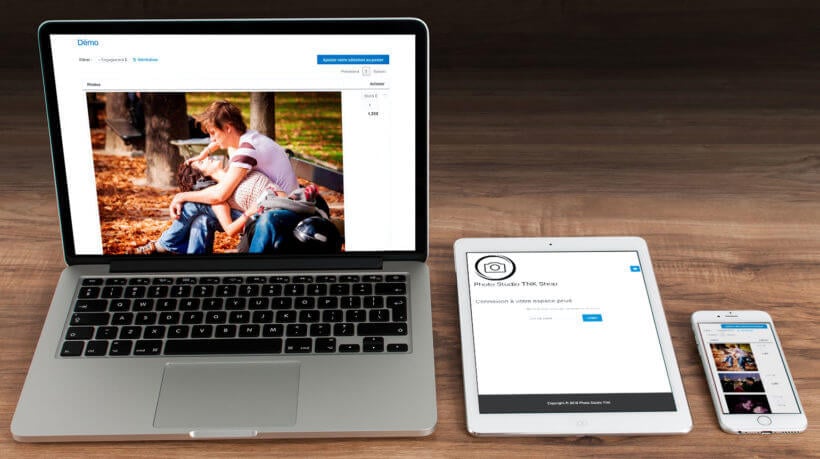







Waiter taking a table order, illustrating a WooCommerce POS setup

If you’re looking for a simple solution for taking customer orders at the counter or table using a tablet or iPad, this article is just the thing you need.

Here, we’ll show you how you can create a WooCommerce POS ordering system for your business. Whether you run an online store, physical store, retail store, restaurant, spa, local coffee shop, or hotel – a WooCommerce POS plugin (or "WooCommerce point of sale plugin") can help you streamline business operations.

Having software that enables you to take customer orders is incredibly important – regardless of what sort of business you’re running. It enables your staff to quickly enter customers’ orders into a single ordering system – not multiple versions for in-store and online, or worse, something on paper. It’s more accurate and more efficient, especially for cashiers.

A WooCommerce POS system will simplify the order-taking process and make it easier for your waiting staff or behind-the-counter staff (cashiers) to add and remove items from the order list, select variations, place orders for customers, and instantly send it through for processing.

By the end of this post, you'll know how to set this all up. 

You can also watch a video version of this post below.

What we'll cover

I’ll show you step-by-step how you can use WooCommerce with the WooCommerce Product Table plugin to create a one-page ordering system that enables your staff to take customer orders. They’ll be able to use this system on different types of devices including mobile devices like iPads or Android tablets/phones.

WooCommerce POS front-end table layout ordering system

I’ll start by showing you how to install and set up the WooCommerce Product Table plugin on your existing WordPress website.

Then, you’ll learn how to use the plugin to create an easy-to-use, one-page POS ordering form. This form will enable your waiting staff to easily view, select, and customize the customer’s orders.

And, lastly, we’ll go over some tips about how you can optimize your order taking process using advanced features like routing orders to the right department.

Let’s get started.


Why you need a WooCommerce POS tool to take orders

Touchscreen point of sale terminal at a retail checkout

Most stores take customer orders using a static computer screen. All of the items in the customer’s order are recorded and forwarded to the relevant departments. Unfortunately, there are a number of problems associated with this approach to taking orders:

  • The software used by these stores is outdated and difficult to use. You need something that’s up-to-date and easy-to-use, like WooCommerce and WordPress.
  • As there is a limited number of counters, either customers or the waiting staff have to stand in queues to pay for their items. This can be a real pain for anyone that has to wait for a long time in order to make a purchase.
  • Desktop computers occupy valuable space at the counter and on desks.
  • If you sell online as well, you'll need to maintain two order systems!
  • Setting up multiple POS systems means you need to maintain inventory and stock data across both systems. This can lead to inaccuracies.

The solution is to set up a WooCommerce point-of-sale system to quickly input the customer’s order, calculate the total amount owed, and collect payment information using an iPad or Android tablet.

Using WooCommerce for your point of sale system gives you a web-based, state-of-the-art solution. It's inexpensive, and it's easy to set up. If you're already using WooCommerce for selling online, then even better – integrating WooCommerce POS with your existing store will offer a huge saving of time, simplicity, and money for store owners.

How your business can benefit from an automated WooCommerce POS ordering system

So, what are the benefits of WooCommerce POS?

If you run a business that requires waiting staff to take customer orders or requires customers to place their own orders at the counter, you’ll be able to speed up the order placing process using a WooCommerce POS integration on your WordPress website. It’s easy to set up and uses the popular WooCommerce plugin with some minor modifications and additional plugins.

The best part is that a POS WooCommerce system is highly customizable. You get the freedom and flexibility to set up POS products the way you want. This way, you can create an intuitive interface that's easy for staff to use.

In addition to this, you can store all sales and inventory data for POS products in your custom WooCommerce point of sale system. This enables you to make informed business decisions in a timely manner such as preventing out-of-stock situations.

Related: Check out our complete guide on how to build a WooCommerce B2B wholesale store!

Which point of sale integrates with WooCommerce?

There are plenty of POS products that integrate with WooCommerce. Some examples include Square Point of Sale and wePOS. Although these are viable options, we recommend building your own WooCommerce POS system.

The main benefit of custom POS products for WooCommerce is that you have full control over its functionality and ease of use. You get to choose which features to include and which ones to leave out. This will depend on the types of products you sell and the technical expertise of your sales staff.

We're going to show you step-by-step how to create an easy-to-use, one-page POS system. This form will enable your waiting staff to easily view, select, and customize the customer’s orders in a way that aligns with your business requirements.


What you’ll need to get started

WooCommerce is the most popular e-commerce platform that you can use to sell just about anything. Whether you’re organizing your online store’s items, creating an online shopping cart, placing orders, or checkout pages, it’s got you covered. It’s a free plugin that can be installed to any WordPress site.

Along with a WordPress website and WooCommerce plugin, you’ll also need the WooCommerce Product Table plugin to turn your normal WooCommerce store into a WooCommerce point of sale product that's highly customizable and functional.

Introducing the WooCommerce Product Table plugin

You need the WooCommerce Product Table plugin to be able to display products in a user-friendly, one-page table layout that’ll also serve as an order form. Your front-of-house staff will be able to use this on any device to take orders.

Your front-of-house staff, waiting staff, or even customers themselves will be able to run a product search, sort, and filter the products they’d like to purchase and place orders. Any point of sale system needs to be fast, and using WooCommerce Product Table ensures there's no waiting around. Your uses will be able to:

  • View and choose product variations or add-on options directly from the order form.
  • Use the quantity selector to purchase more of the same items in one go.
  • Add extra notes about the order. For example, custom monograms or what color crinkle cut paper to include in the gift hamper.
  • Make a note of the customer’s order number which will be directed to the back-end for processing.

How it works

Confirmed orders are automatically sent to your back-end staff via email and are displayed on a computer screen. Additionally, you can pair your WooCommerce POS system with a WooCommerce order printing plugin (we'll recommend one later) that enables you to print out this information as a receipt.

When a customer places an order, they’ll be directed to the purchase page where they can choose the payment method of their choice, including PayPal and credit cards.

Advantages of using WooCommerce Product Table

Using a WooCommerce Product Table plugin enables you to handle variable products. You can quickly find and select the variants that your customers want to purchase using the product table’s search, sort, and filter tools.

And the best part is that all of this works in real time and is responsive across different devices.

How to create a WooCommerce POS point of sale system using WooCommerce Product Table

Once you’ve set up your WordPress site and installed a WooCommerce-ready theme, you can get started creating your own point of sale ordering system. This ordering system will enable your customers to easily add items to their shopping cart, and pay for the cart items using the payment method of their choice at the counter or at the table using an iPad/tablet.

Here, you’ll learn how to create a WooCommerce POS system that consumer-facing stores can use for taking orders. You can follow the steps outlined below from start to finish or jump straight to a specific step:

  1. Add items as WooCommerce products
  2. Install and activate the WooCommerce Product Table plugin
  3. Configure the Product Table settings
  4. Create a one-page WooCommerce POS order form for waiting staff
  5. Simplify the checkout process for staff

Step 1: Add items as WooCommerce products

If you don't already use WooCommerce, you'll need to start by adding your products.

WooCommerce offers built-in tools to help you handle product inventory and store management. Once you’ve installed the WooCommerce plugin, add your store’s items as WooCommerce products. Here’s what you need to do to add new products (including variable products) to your WooCommerce store:

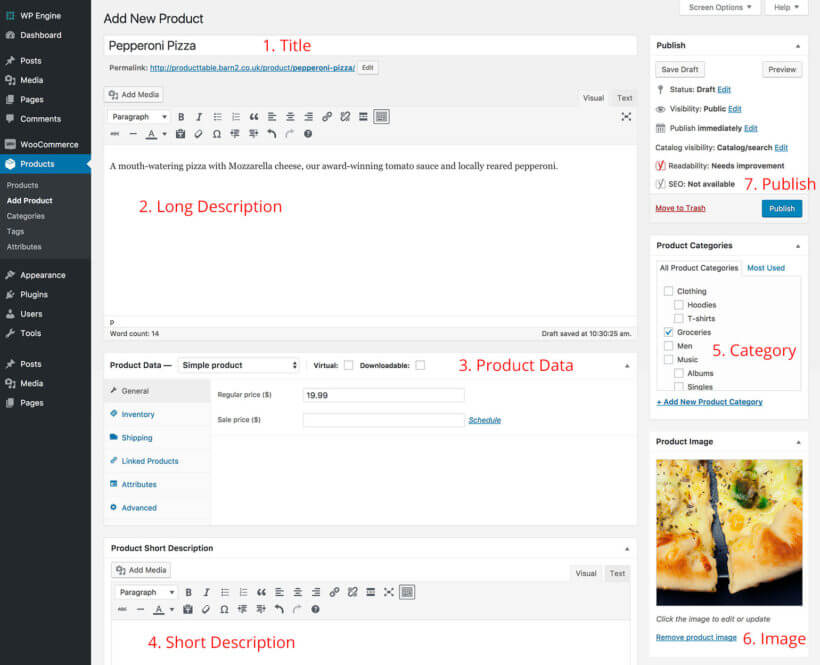
Add new product screen in WooCommerce with sections numbered

Go to Products → Add New from the WordPress dashboard and enter the following product details:

  • Name Here you’ll enter the item name that’ll appear in your WooCommerce POS ordering system.
  • Product description Fill in the detailed description of the item in the main text editor.
  • Product data This is where you’ll enter the price, type, attributes, SKU, and variants of the product.
  • Short description Enter a short description of the item if you want.
  • Categories This helps organize your items into categories and keeps all the products nicely arranged in a systematic way. For example, if you were selling clothes, you could create categories like T-shirts, Hoodies, and Accessories.
  • Tags Similar to categories, tags enable your staff to further organize your items, and enables them to locate particular items. For instance, you can create tags like, For Men, For Women, and Baby items.
  • Product image Here you’ll provide your product’s image to display in your order form.
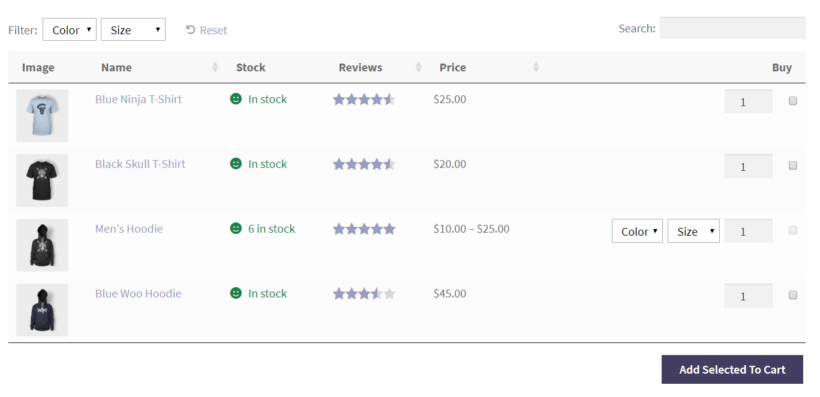
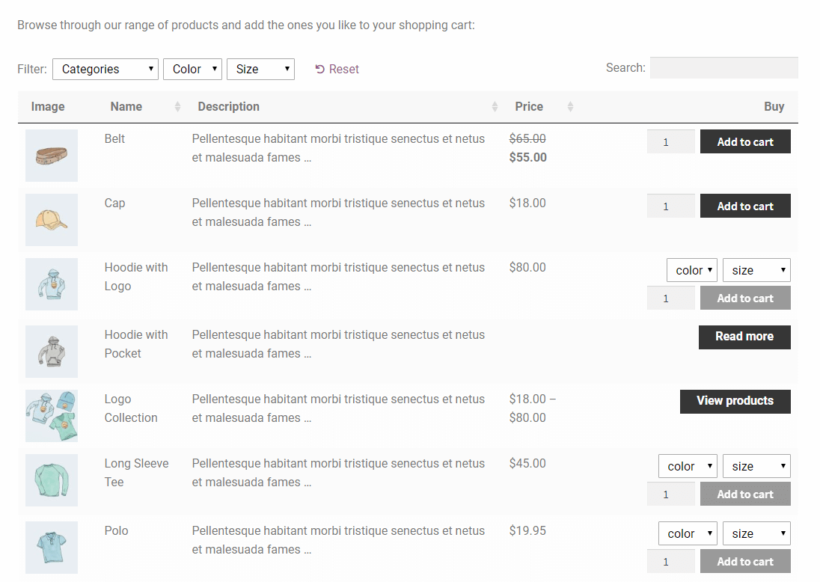
Order form listing variable products with colour and size dropdowns

If any of your products don’t have options or choices, simply select the ‘Simple Product type’ in the ‘Product Data’ section. Use ‘Variable Products’ for adding choices. For example, if you’re selling t-shirts, you could add variations for the different available colors (blue, green, gray) or sizes (small, medium, large).

Click on the Publish button. Repeat the same process until you’ve added all of your products to WooCommerce.

Use Product Add-Ons for accepting customer requests

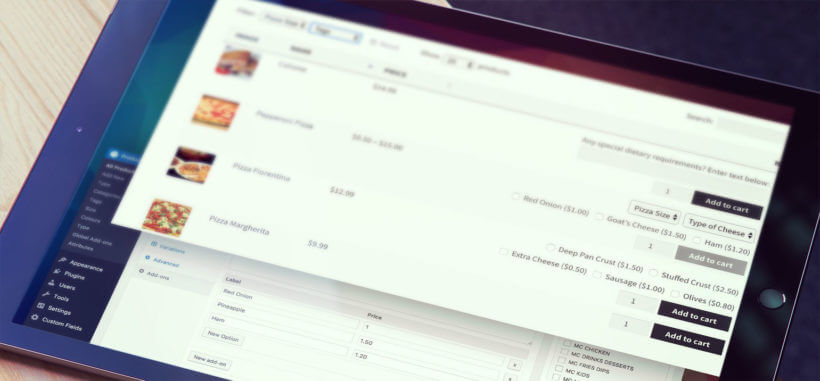
Pizza ordering table with product add-ons shown on a tablet for in-store salesYou can also add text boxes and other fields to your order forms using the Product Options plugin. This is a great addition to robust POS products that aim to deliver a personalized user experience. They enable you to collect additional information from your customers like special requests or preferences. This information will be automatically directed to your back-end staff along with the order.

An extra product options plugin gives you more flexibility compared to the product variations. That's because it lets you add checkboxes and various other options.

Step 2: Install and activate the WooCommerce Product Table plugin

Now you’re ready to display your products in one-page WooCommerce POS order form:

  1. Get the WooCommerce Product Table plugin and find your license key from the confirmation email.
  2. Go to Plugins → Add New from the WordPress dashboard and upload the plugin’s zipped file to your site. Click the Activate button.
  3. Navigate to Products → Product Table and click 'Add New'.

Step 3: Create a WooCommerce POS order form

Use the product table border to create a WooCommerce POS order form to meet your requirements.

3a. Select your products

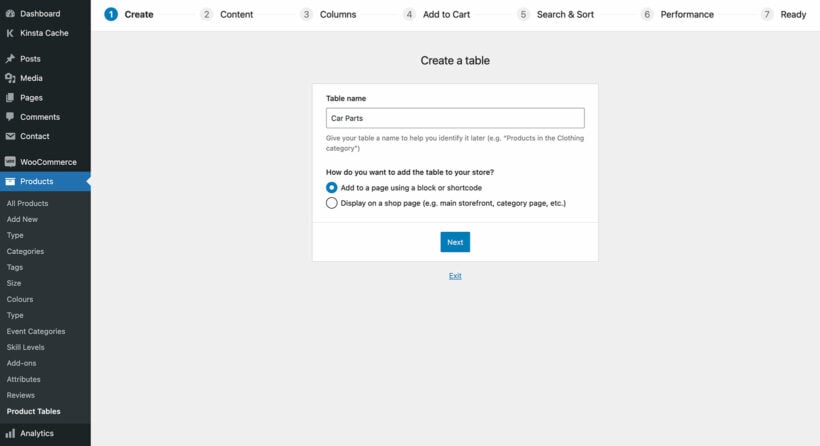
First step of the WooCommerce Product Table builder choosing how to add the table

The first page lets you choose which method you'll use to create the table product. We want our WooCommerce POS system to be separate from the public-facing website, so leave this set to "Add to a page using a block or shortcode".

On the next page, you can choose for the WooCommerce POS order form to include all your products or specific items only.

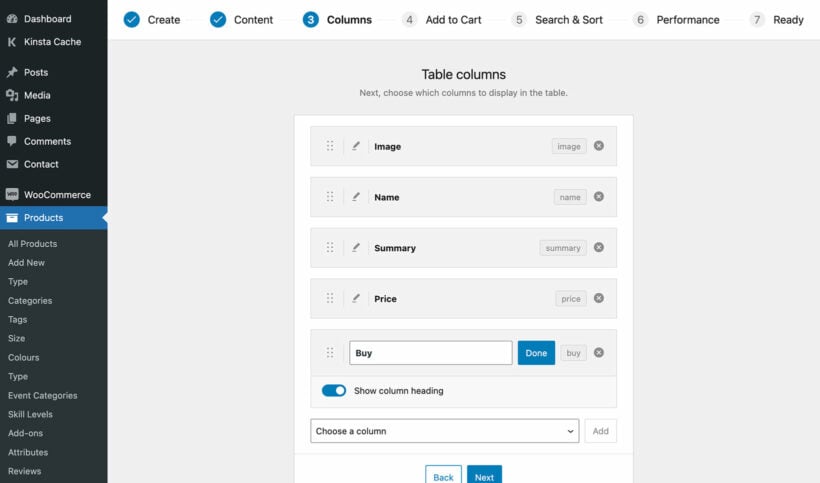
3b. Decide which columns you want to include in the POS order form

As you’re creating an order form to be used by your staff, choose columns that’ll make it easier for them to find exactly what they’re looking for. For starters, display columns for the product’s name, price, and add to cart button. You can also add an image of the product to make it easier for users to identify the product they’re looking for in the order form.

Choosing which columns to show in the WooCommerce Product Table

Similarly, you can add other columns like product’s SKU in your POS order form. This helps staff members easily reference exact items and help your back-end staff find the correct item. Additionally, you can create a stock column to keep your customers updated about product availability. This will also help you monitor stock levels and restock them before they run out (this alone is a huge benefit for your inventory management, and a great reason to use this system).

Here's a complete list of available columns that you can choose to display in your WooCommerce POS order form.

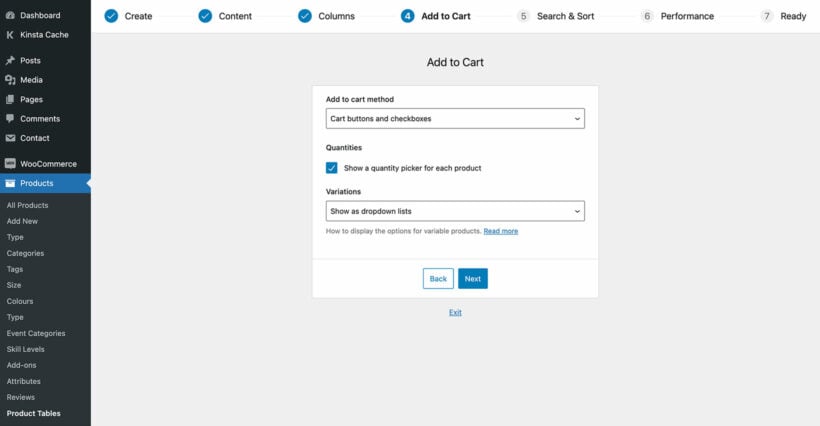
3c. Enable add to cart checkboxes

There are several options that can be configured from the WooCommerce Product Table’s settings page. Our main goal is to make it easier for users to find products and add them to the shopping cart. For this reason, I’d recommend using the Add to Cart page to enable the quantity field, variation dropdowns, and multi add to cart checkboxes.

Add to Cart settings in the WooCommerce Product Table builder

Make it easy to quickly find products

Employees using a WooCommerce POS system need to find products very quickly. By default, the POS order form will include a search box at the top. This lets customer’s easily search for an item quickly using the product name or SKU.

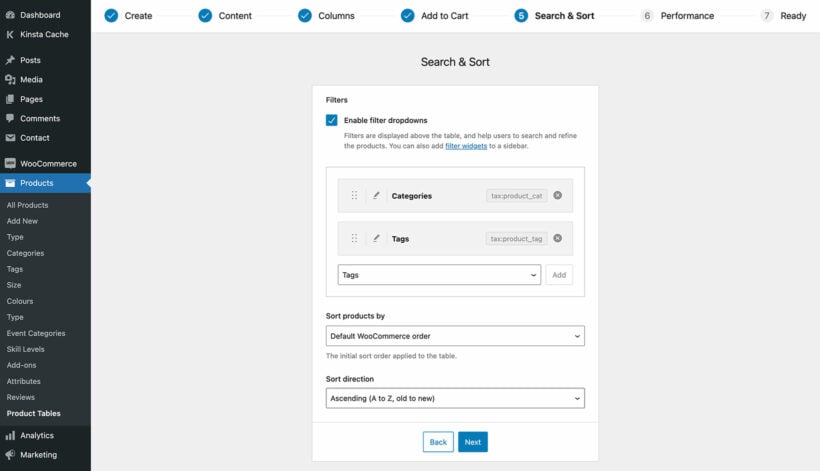
You can make products even more findable by enabling filter dropdowns too:

Adding filter dropdowns in the product table Search and Sort step

Set the Search box option as Above table.

You can also add relevant filters for information you’ve already added about your products, like categories or tags. This will allow users to quickly find specific types of items. You can do this by setting the Product filters option to Custom and adding categories, tags in the Custom filters option.

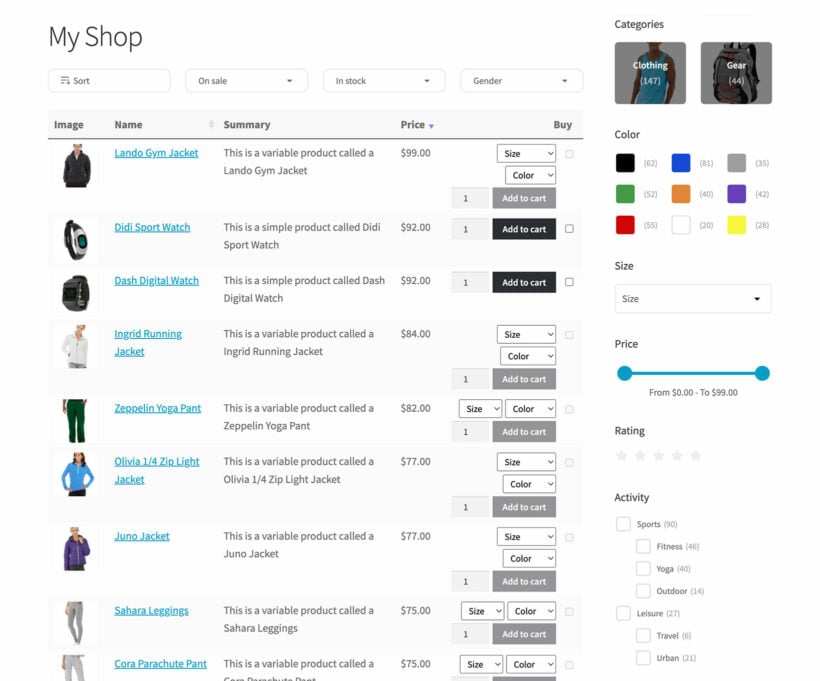
Here’s a complete list of filter options you can set for your POS order form. Or even better, you can create even more advanced filtering options by using WooCommerce Product Table alongside the WooCommerce Product Filters plugin.

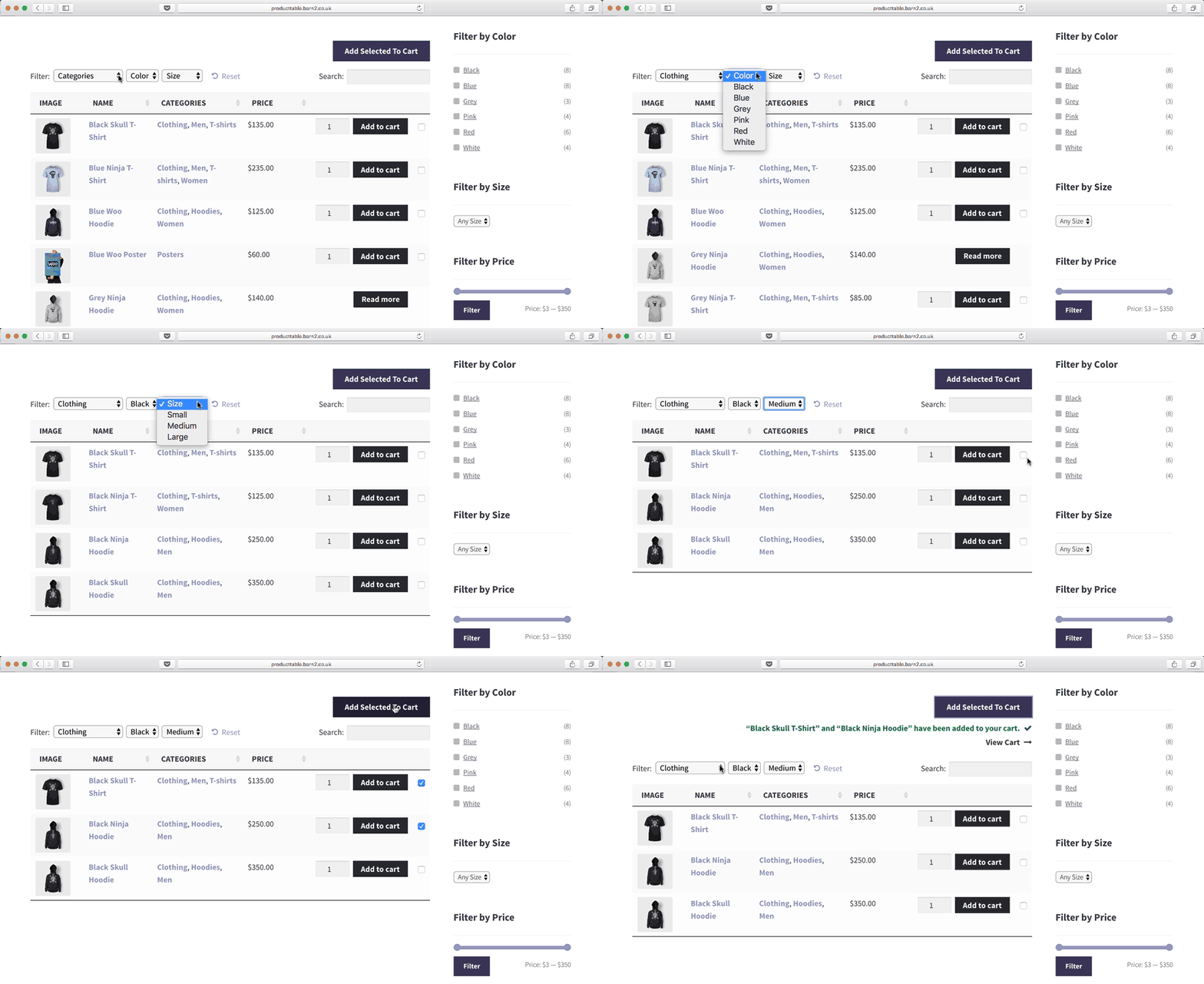
WooCommerce product table combined with sidebar filters for fast product searching at point of sale
Use WooCommerce Product Table with the Product Filter plugin for even faster product searching

Step #4: Create a one-page WooCommerce POS order form

By now you’ve set up the WooCommerce Product Table plugin on your WooCommerce website and configured its settings. Next, we’ll create a simple, one-page order form for your users to take orders at the counter or table using a tablet/iPad. To do this, we’ll add the WooCommerce Product Table plugin’s shortcode to the ordering system page:

Head over to Pages → Add New from the WordPress dashboard to create a new page for your WooCommerce order form. Your customers and/or waiting staff will use this one-page order form to select items, add them to the shopping cart, and place the order:

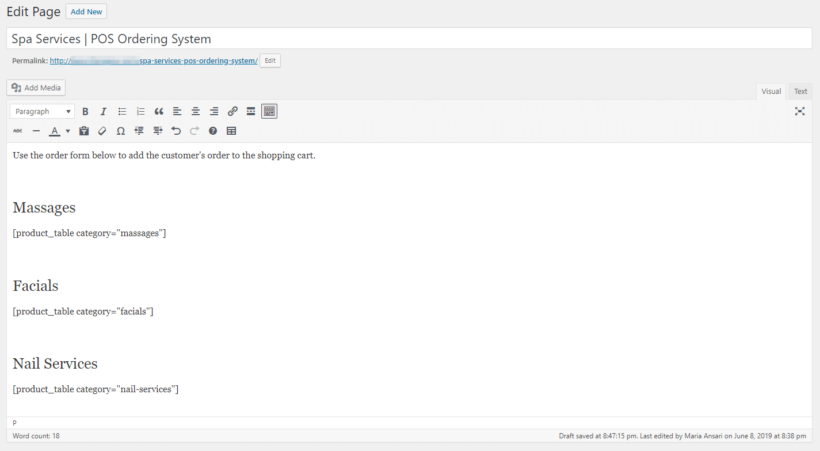
Building the spa services order form page with product table shortcodes
  1. Give the new page a title. For example, Spa Services | POS Ordering System.
  2. You can also add an introductory description in the text box.
  3. Create relevant sub-headings (Massages, Facials, or Nail Services) for each section of your order menu.
  4. Add the shortcode [product_table category="category-slug"] under each sub-heading. This will display all your products from the relevant category. And if you want to display products categorized under Massages, add the shortcode [product_table category="massages"].
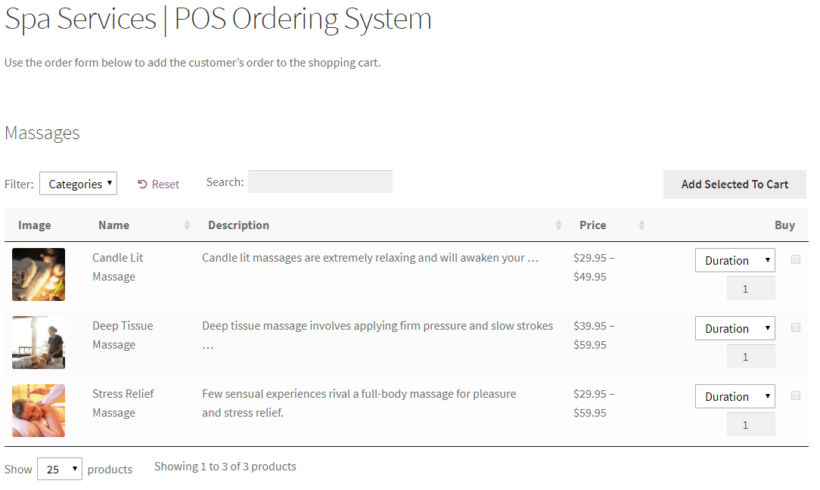
  5. Publish the page and hit Preview to see how it looks on the front-end.
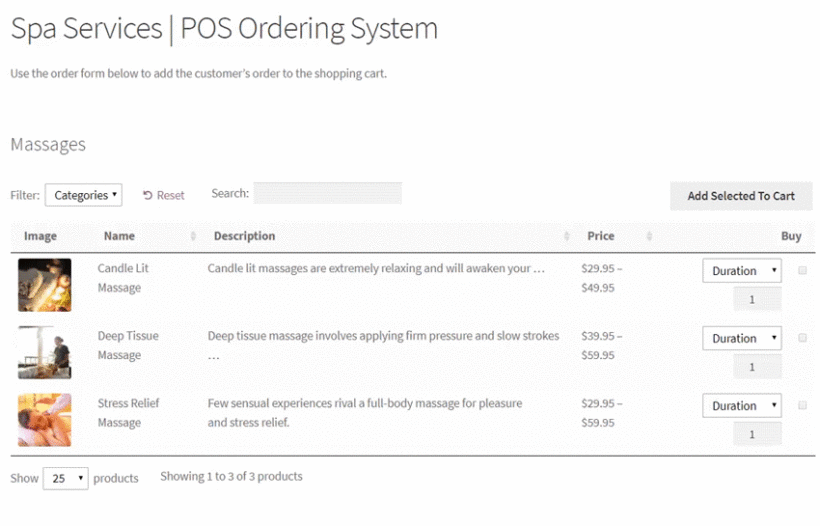
Preview of front-end POS ordering system in WooCommerce

Step #5: Simplify the checkout process

WooCommerce requires your waiting staff to complete the necessary checkout fields, and click the Place Order button to place a customer's order. This is because WooCommerce is designed to take online customer’s orders, which wouldn’t work for other businesses such as spas and restaurants. We need to make sure there’s an option for waiting staff to take orders on behalf of the customer.

We’ll configure the checkout page to accept payments after placing the order. This will allow your waiting staff to place an order without making the payment. Here’s a quick tutorial explaining how it’s done:

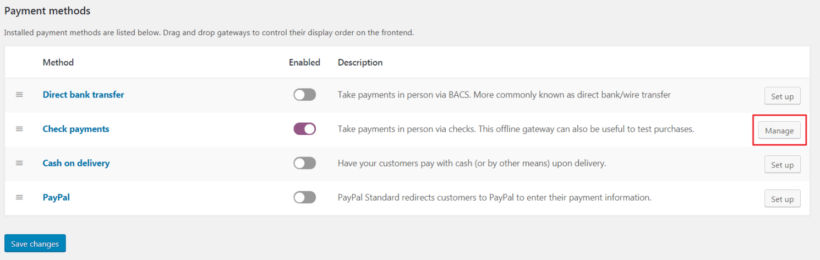
WooCommerce payment methods with the Check payments Manage button
  1. Navigate to WooCommerce → Settings → Payments from the WordPress admin panel.
  2. Pick an offline method Check payments or Cash on delivery. This allows your waiting staff to place the order without actually collecting payment from the customer.
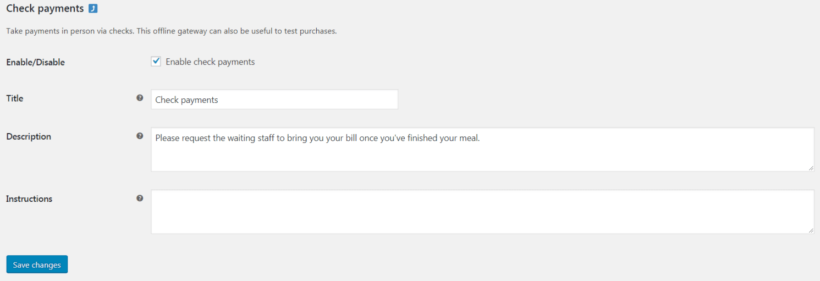
  3. You can rename the payment method or add a relevant description by clicking the Manage button. For example, if you’ve selected ‘Check payments’, then you can rename this to something like ‘Payment required at the end of services’.
  4. Click the Save changes button.
Renaming the Check payments gateway title and description in WooCommerce

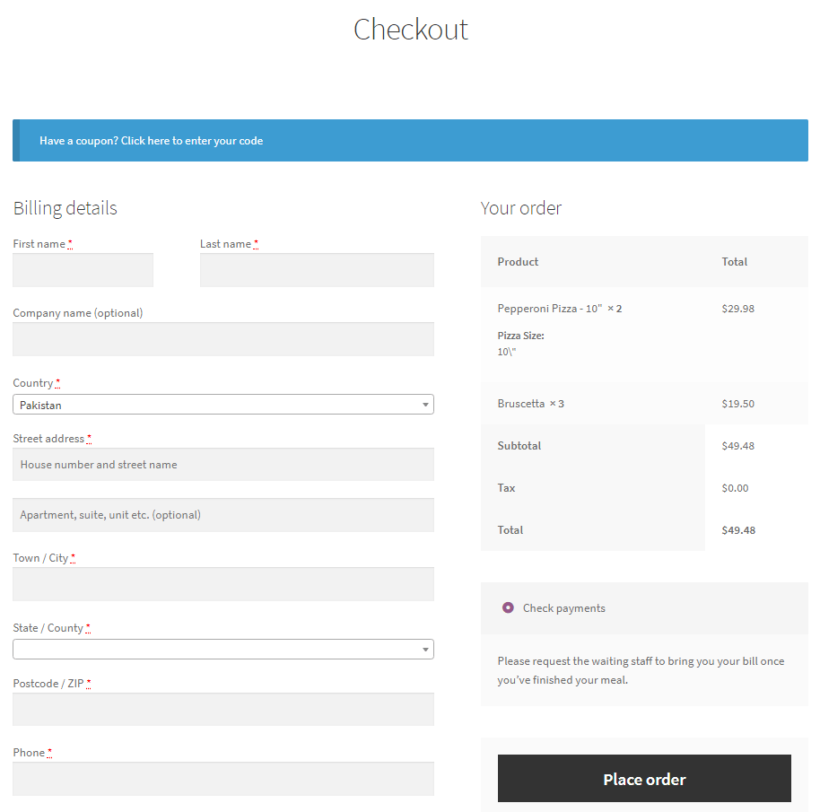
Here’s what your checkout page should look like:

WooCommerce default checkout page

WooCommerce has the default option set to ask your waiting staff for the Billing details. You can remove the Billing details fields by using the YITH WooCommerce Checkout Manager plugin. This will also make your checkout process faster for your staff. Another way is to create a shared user account for staff members to use and enter the default billing details for your business. This will auto-populate information for each order, so your staff can ignore this page, and just click the ‘Place order’ button to complete the order.

Bonus tips

By now,  you've learned how to create a one-page point of sale system in WooCommerce. Keep reading for a selection of bonus tips on how to fine-tune the POS order process to suit your organization.

Collect extra information from the customer

You can make it easier for your waiting staff to take POS orders at the table or the counter using an iPad/tablet by adding extra fields to your order form. To do this, you’ll have to add an extra field or two, to help them take note of any additional information. These could include:

  • Customer’s name (great for ensure you retain new customers; you could send this to a CRM or similar)
  • Token or voucher number
  • Customer’s table/room/station/parking spot number

The YITH Checkout Manager plugin lets you add, edit, and remove the fields shown on the WooCommerce checkout page. This makes it the ideal tool for adding an extra field to the checkout form.

Accept payment by credit card

You can let your customers make a credit card payment directly into the WooCommerce POS system by adding an online payment gateway such as Stripe. This allows your customers to add their credit card information directly into the checkout page. I

f you want to be able to scan their card, you’ll need to use a separate card reader and process payment outside of the WooCommerce POS order system. Similarly, you can also leverage barcode scanning options with a barcode scanner (use a plugin such as this to generate barcodes).

Protect your WooCommerce POS system and hide it from public view

You may want to add your WooCommerce POS order system to an existing WooCommerce site. This is an extremely efficient setup, as you'll have all your orders and inventory management in one place. But – you don't want the public being able to use your custom system.

In this case, you’ll have to hide your POS ordering system from public view. It should only be accessible to staff members who take customer orders at the table or from behind the counter.

You can do this by password protecting your page containing the POS ordering system. As a result, only staff members with the correct password will have access to it.

However, your products will still appear on the rest of your website, for instance, in the search results. You can use the WooCommerce Private Store plugin to add extra security which will hide everything related to your WooCommerce order system from public view.

Go to the WooCommerce Private Store plugin settings, and choose the same password you used to protect the ordering system. This enables all your staff members to unlock the ordering page and all other parts of WooCommerce using a single password.

Managing orders

Once you've set up the WooCommerce telephone ordering system, you need to plan how to manage the orders. Next, I'll share some tips on how to adapt the WooCommerce order process to make it easier for staff.

Automatically mark orders as complete

Out of the box, WooCommerce requires users to select payment options and enter payment information before they mark orders as complete. However, this might not suit your specific buying process (for example because you’ll be handling your payments outside of the website - e.g. at the end of the massage services).

The YITH Order Status Control plugin offers functionality that will let you automatically mark all your orders as complete. This way customer orders will be sent straight to the back-end staff without any further manual steps.

Forward orders to the right department and print receipt

You can now automatically send new orders to staff involved in the order process.

There are two default ways for back-end staff to view new orders:

  1. WooCommerce will automatically send new orders to the email address given in the settings.
  2. If they’ve access to WordPress admin, they can keep the WooCommerce orders page open and refresh it regularly to view new orders.

Alternatively, there are two easy plugins that improve the order notifications:

Automatically print new orders

Print out new orders automatically by pairing the WooCommerce-based ordering system with a GPRS printer. This will ensure that all customer orders are instantly printed for your back-end staff as soon as they’re placed.

Depending on the store setup, you can either print the receipt to give to the customer, or print the receipt for immediate processing by another team. You do this with the Bizprint plugin.

Send new orders to different email addresses

Use the WooCommerce Multiple Email Recipients plugin to send order notifications to different email addresses, depending on which product or category has been ordered. This is a huge time-saver if different departments are responsible for processing different types of product.

Set up your own WooCommerce POS ordering system

Setting up an efficient (and accurate) POS ordering system for customers and staff is simple and easy.

The WooCommerce and WooCommerce Product Table plugins together enable you to create a searchable, sortable, and customizable point of sale order form for your business. A point of sale for WooCommerce system makes it easy for your staff members to take orders at the counter or table using different devices (including mobile devices) like iPads or Android tablets/phones.

You can upgrade your existing ordering system by pairing it with some of the useful WordPress plugins we mentioned in this post.

What are some of the features you look for in a WooCommerce POS ordering system to make it easier for customers and staff members to place orders using an iPad/tablet? Let us know by commenting below!
A red origami paper boat leading a row of blue boats

Since building WooCommerce Lead Time - the first ever WordPress plugin to show product dispatch times on the product page - we've been researching how different ecommerce stores display this information. We're sharing this with you so that you can show product dispatch times on your own WooCommerce site.

Keep reading for a sneak peek at how some high profile sites are displaying dispatch times. This can be a fantastic way to get inspiration for your own site!

1. Etsy handmade and personalised products

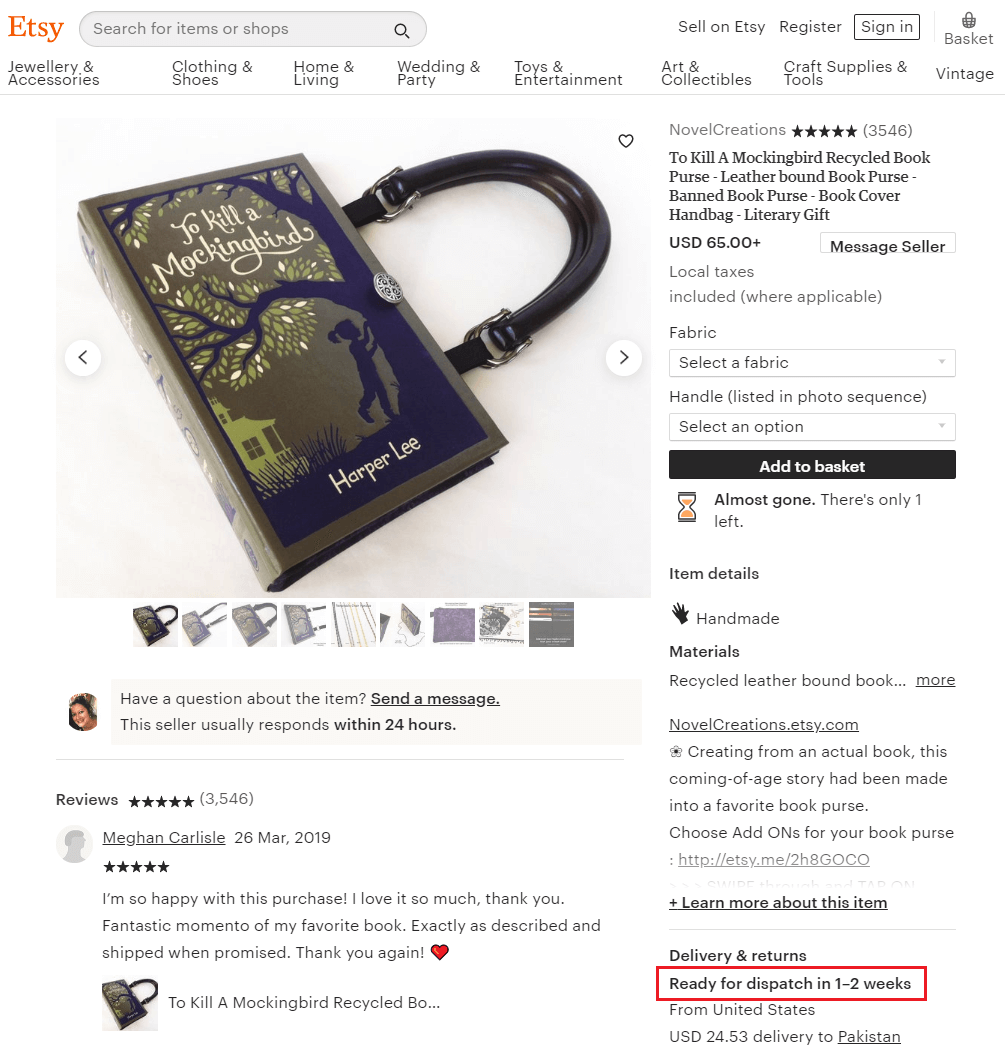
Etsy's expected dispatch time for products

Etsy brings together independent sellers and craftspeople from all over the world. The items are typically handmade or made to order, so Etsy displays a dispatch time on the product page. This provides clear information on how long the customer can expect to wait for their order.

Etsy show the estimated dispatch time alongside the other product information, close to the add to basket button. They use the wording 'Ready for dispatch in...', which is generic enough to work for the wide range of products on Etsy.

If you sell a wide range of e-commerce products on your WordPress site, then this wording could work for you too.

2. Made.com non-stock furniture

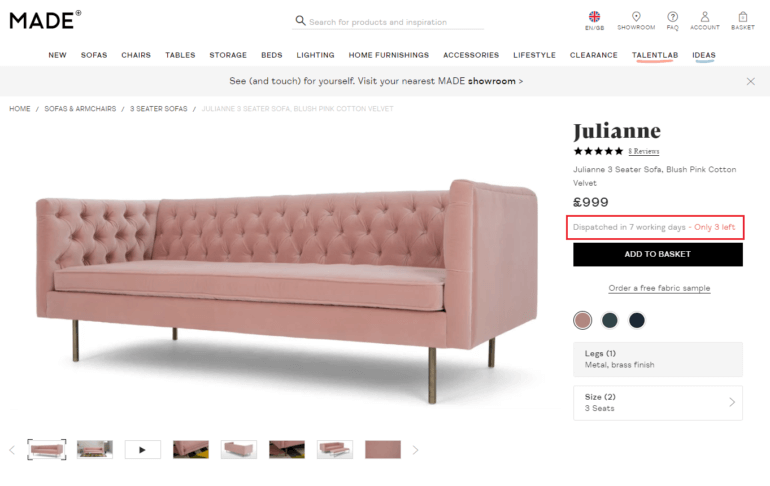
Made.com sofa page showing a dispatch time of seven working days

Furniture store Made.com sells furniture with varying lead times. They display the dispatch time immediately above the add to basket button on the product page. This makes it clear how long the customer should expect to wait, so they can make an informed decision on whether to place an order.

3. Personalized products on Amazon

Amazon personalized product with dispatch time

Amazon sells just about everything under the sun, including personalized products with longer lead times. Marketplace sellers can choose to display lead times on their products.

The extra information appears with the stock status, making it clear that there is a processing time on top of the delivery time. Wording such as "Usually takes between 1 and 2 days to create" reassures the customer that the product is genuinely personalized to order, while letting them know the expected dispatch time.

Add dispatch times to your own WooCommerce products!

I hope these examples provide some new ideas on displaying WooCommerce dispatch times for your own products! To add the same information to your own site, get the WooCommerce Lead Time plugin today.

Illustration of a WooCommerce store collecting online donations

As an online store owner, there are many reasons why you might want to add charitable donations to your e-commerce checkout page. It helps you support a worthy cause and motivates customers to donate a fraction of their cart value. One way to do this is by using a WooCommerce donation plugin.

In this article, we’ll show you:

  • How you can add charitable donations to your online store using a WooCommerce donation plugin.
  • An easy way to list a range of donation products or options for customers to choose from.
  • How you can add donations to your checkout page using WooCommerce extensions.
  • How to let people choose between a selection of donation products before directing them to the checkout.

Let’s put everything into context before we begin.

Why you might want to offer charitable donation options to your customers

Did you know that it’s easier to find donations in retail verticals as compared to other spaces? This is mostly due to the fact that, at checkout, customers have their card or cash out and are ready to pay for their order. According to a recent survey, 71 percent of consumers said that they had made donations to charities at the register.

Another reason for adding donations to your checkout is that people prefer to do business with companies that give back to society and feel positive about them. According to a study, 65 percent of customers remembered the last retail business that asked them for donations, whereas 60 percent said that the experience made them feel positive about the retailer.

It’s easy to see that customers favor businesses that collect donations for a worthy cause and associate more trust with those brands. This is precisely why charity websites, as well as e-commerce stores wanting to make a difference, should encourage customers to make a donation at checkout.

This is incredibly easy to do with a WooCommerce donation plugin. Another reason for using a WooCommerce donation plugin to accept donations at checkout is that it can serve other purposes too. For example, it can also be used to enable a restaurant’s ordering system to take tips online or by service-based businesses that need a way to implement Buy me a cup of coffee!.
3 ways to offer charitable donation options

WooCommerce donation table offering a choice of charity projects and amounts

There are 3 main ways to offer charitable donation options through your website:

  1. Percentage of your order valueThis is calculated by taking a percentage of the customer’s order value. For example, 2% or 5% of their total purchase. This is a great option for store owners that want to donate a portion of their sales to charity.
  2. Fixed sum This involves asking customers to donate a fixed amount (for example $5 or $2.99) or in multiples of a base amount (for example $5, $10, $15, etc…) regardless of their order value.
  3. Offer a choice of donation productsAlternatively, you can list a range of donation options in a table before the customer visits the checkout page.

Of course, if you're a nonprofit website, you might consider taking things a step further and accepting recurring donations. Now that we’ve discussed the importance of offering charitable donation options to your customers, let's talk about how you can let customers choose which charity they’d like to support.

How to select a charity to collect donations for

As an online store owner, you might want to gather donations for multiple charities or non-profit organizations that use WooCommerce. This way, you can give your customers the option to select which charity they’d like to donate to. Letting customers donate to a charity of their choice can help you gather more donations and make customers more likely to leave a donation at checkout.

To do this, you’ll need to set up drop-down options on the checkout page that let customers pick a charity of their choice. You’ll also have to keep track of how many donations were collected for each charity. For example, Charity A got $250 at the end of the month, Charity B got $150, and Charity C got $125. This will be done in the back-end though some WooCommerce donation plugins let you display progress bars on your site’s front-end, as well.

Best way to encourage customers to donate

While there are many ways you can ask for donations from paying customers, we recommend that you follow tried-and-tested methods when speaking to prospective donors. This is because customers who leave a donation will only be able to interact with your website unlike a real-life scenario where you can talk to them face-to-face.

Here are some of the best practices for encouraging customers to donate to charities:

  • Share the impact of donations You need to let people know how their donations will make a difference. For instance, sponsoring children’s education, building a community center, or feeding the homeless. In simple words, let them know where their money will go.
  • Use social proof Social proofing is all about everyone does it, you should too!. When people see other customers making donations to a worthy cause, they’re motivated to do the same.
  • Give customers control over donation amount You should let your customers choose how much they’d like to donate. Some customers might want to donate $5 while others might want to donate $1.99 – every little bit helps!

Now that we have a better understanding of why you might want to accept donations from customers at checkout, let’s take a closer look at how you’d go about doing this in WordPress.

How to add charitable donations to your checkout page

It’s easy for customers to make donations when they’ve reached the checkout page since they already have their card (or alternative payment option) ready to go. It’s often easy for them to make a relatively small donation compared to their cart value. For example, if they purchase products that add up to $22.99, they might leave a donation of $2 without hesitation.

Another benefit of adding a donation option to your checkout page is that you don't need to create a new donation button. Instead, customers can pay for their order and donate to a charity in one go.

It’s worth mentioning, however, that you should make charitable donations an opt-in option. In other words, customers who want to donate should be able to do so by ticking a checkbox or entering the donation amount. And the rest of them can proceed to complete checkout without having to opt-out manually. They shouldn’t have to untick a checkbox as that would negatively affect their shopping experience.

GiveWP: The best WordPress donations plugin

GiveWP is a free WooCommerce donation plugin that makes it easy for WordPress site owners to accept donations regardless of whether they’re using WooCommerce or not.

GiveWP donation plugin homepage

This WooCommerce donation plugin is designed to help WordPress users easily create donation forms. You can quickly add fundraising campaigns to your e-commerce site as stand-alone web pages, display donation forms in your theme’s sidebar as widgets, or embed them using a shortcode.

GiveWP offers several options to customize the donation form templates along with extensive documentation to help you personalize the look and feel of your website. You can use GiveWP forms as widgets or add them to the checkout page. The plugin also lets you accept recurring donations from customers.

How to use GiveWP with WooCommerce

You can use the Donation Upsells for WooCommerce add-on to use the GiveWP plugin with your WooCommerce-based online store. This way, you can add donation options to your WooCommerce checkout (or cart) based on your GiveWP forms and form options.

One of the key benefits of using this add-on is that all payments made during the checkout process will be processed with the WooCommerce payment gateway you’ve enabled. In addition to this, the donation details you gather through your donation form will be saved in your GiveWP donation records in the back-end for reporting and donor management purposes.

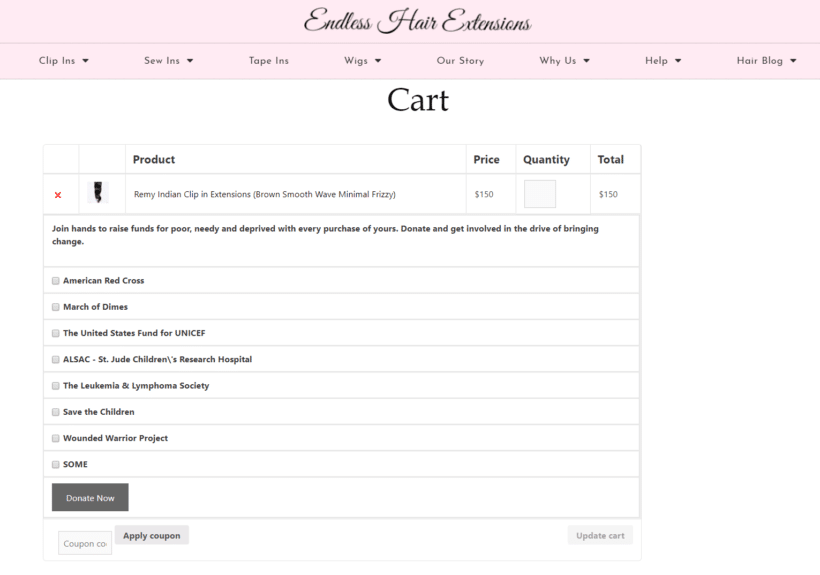
The plugin delivers a seamless donation experience to your customers. When they click to view their shopping cart, they'll see a donation option directly under the products they've added to cart. This way, they can select which charity they'd like to donate to and select a donation amount. This will depend on how you've configured the plugin.

Here's an example of a website using the Donation Upsells for WooCommerce add-on to accept charitable donations at checkout:

Cart with charity donation checkboxes added below the product

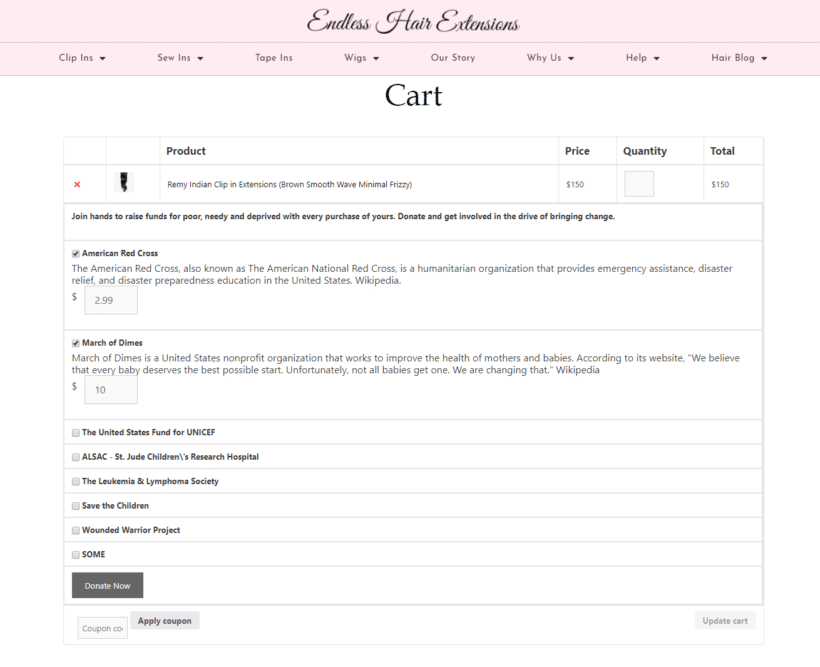
Notice how customers can choose which charity they'd like to donate to and enter their donation amount. Customers can also choose to donate to multiple charities in one go.

Donate to multiple charities

How to use GiveWP without WooCommerce

You can use the GiveWP plugin to accept donations even if your website doesn’t use WooCommerce. This is especially useful for online store owners that:

  • Use other e-commerce plugins (like Easy Digital Downloads) for selling products, or
  • Website owners that don’t use a WooCommerce plugin at all but would like to be able to accept charitable donations.

GiveWP offers several payment gateways right out of the box. These include PayPal Standard and Stripe in addition to offline donation options.

Let customers make a donation on the product page

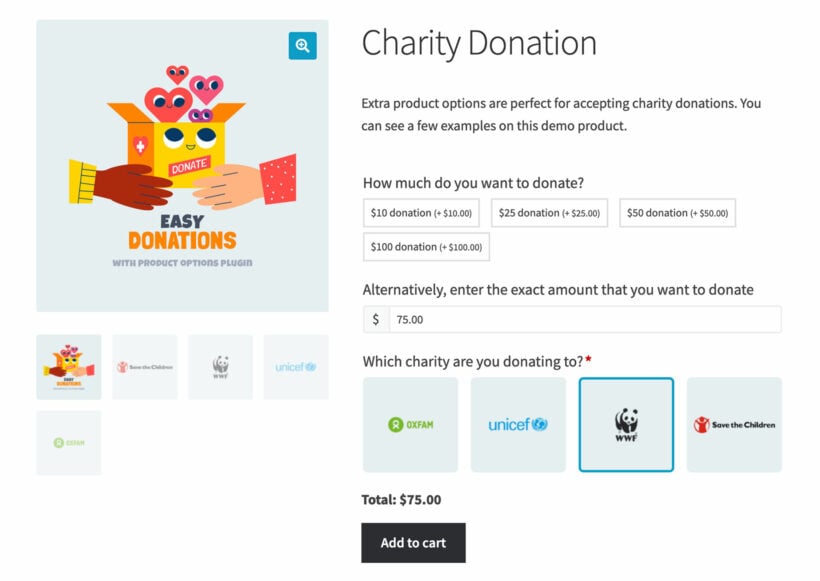
WooCommerce donation form letting customers donate on the product page

The WooCommerce Product Options extension lets you set up donations in a way that lets customers decide how much they’d like to donate. In other words, instead of setting a fixed donation amount, you can let customers donate as much as they’d like.

It also gives you the option to configure donation amounts in multiples of $10, $20, and $50. This is in addition to a name your price option which simply allows customers to enter their own donation amount. 

This perhaps the easiest way to accept donations at the checkout page. It gives you the option to:

  • Suggest a price.
  • Enforce a minimum acceptable donation amount.
  • Let customers decide how much they'd like to donate.

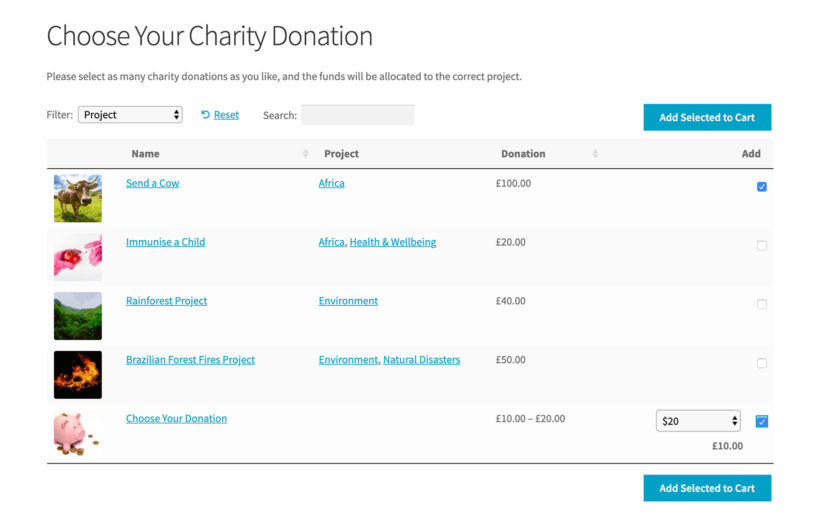
How to sell a choice of donation products before the checkout

Selecting from preset donation products before reaching the checkout

So far, we've talked about how to let customers to make a donation at the checkout. But what if you want to give customers a choice of donation options?

For example, maybe you offer a choice of charities or projects to donate to. Maybe you sell charity gifts, such as 'Send a Cow' or 'Pay to immunise a child'. If so, then it's best to create a quick order form listing all the donation options before taking customers to the checkout page.

You can easily do this with the WooCommerce Product Table plugin. This handy plugin takes your donation products and lists them in an interactive table with search box and filters. Customers can quickly find and select the projects or charities they want to donate to, and then add them to the cart. They can then check out as usual and pay for the donation products along with any other products in their cart.

How to set it up

It's easy to list donation products with WooCommerce Product Table:

  1. Install the plugin on your WordPress site. (Make sure you install the free WooCommerce plugin too.)
  2. Go to Products → Add New and add all your donation products. Use 'Simple Products' for donations that don't come with any options; or 'Variable Products' if you're offering a choice. For example, if you're selling a 'Choose Your Donation' product then use variations to list the available donation amounts.
  3. Go to the WooCommerce Product Table settings page (WooCommerce → Settings → Products → Product Tables). Enter the license key from your order confirmation email, and choose your options. To sell charity donation products, we recommend the following options:
    • Choose columns that will give people the information they need to know. For example, an image illustrating what the donation will be used for, the name, the price, and add to cart column.
    • Choose the add to cart 'checkbox' style. This lets people quickly select multiple donation options and add them to the cart together. This encourages them to donate more.
    • If you've created any variable donation products, then select the 'Dropdown' variation option.
    • If you have a long list of donations, use filters to help people to find projects they care about more easily.
  4. Create a new page and add the shortcode [product_table]. This will list all your products in a table. If you've created a specific category for your charity donation products then use the category option to list those products only.

Where to get the plugins

Customers are more willing to buy from companies who support charities. The easier you make it for them to leave a donation, the more likely they’ll be to do so!

We explained how you can collect donations for charities at the checkout using a WooCommerce donation plugin like:

Are you thinking of using a donations plugin? Will you let customers enter their own donation amount or set a fixed donation amount? Let us know by commenting below.

Illustration of an online store set up to sell fonts

If you're a graphic designer, learning how to sell fonts online is a great way to generate some passive income from your skills.

There are plenty of font designer marketplaces that will happily sell your fonts for you like MyFonts, Fonts.com, etc...but those resellers will typically take half your sales as a commission and might require that you exclusively sell through them.

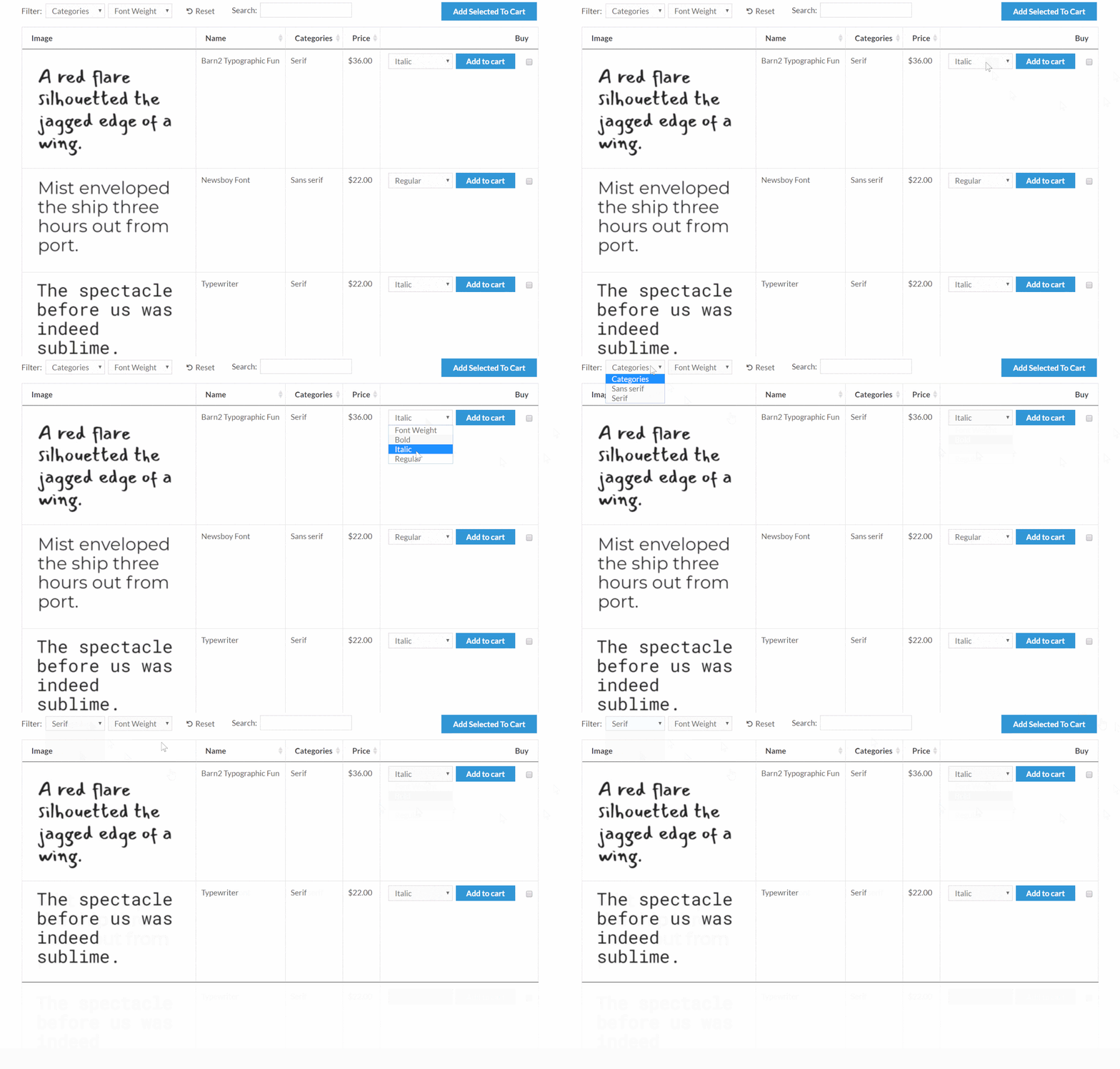
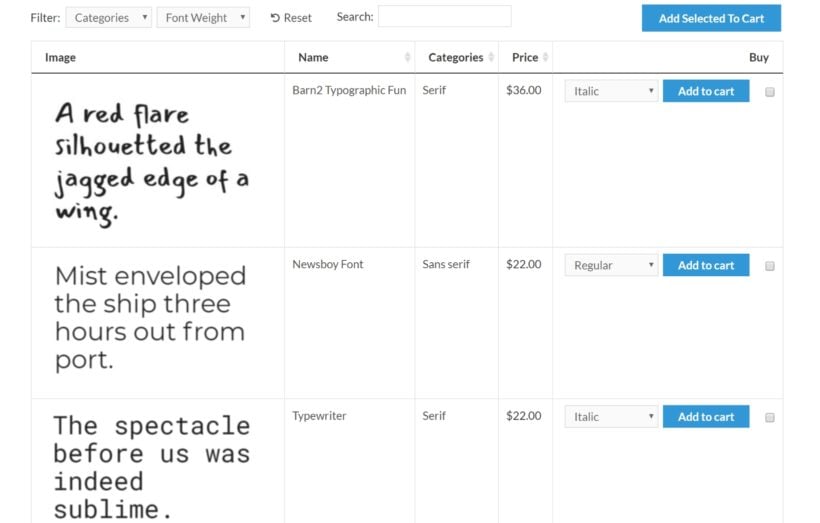
WordPress and WooCommerce provide a better way to sell fonts online that cuts out the commission and gives you full control. With the right WooCommerce plugins, you can create a store that's optimized specifically for fonts. You'll get a convenient table layout, complete with font previews and Ajax category filters to help your shoppers find the right font:

Example of table to sell fonts online

In this tutorial, I'll show you how to use WooCommerce Product Table and WooCommerce Quick View Pro to sell print or web fonts online with WooCommerce.

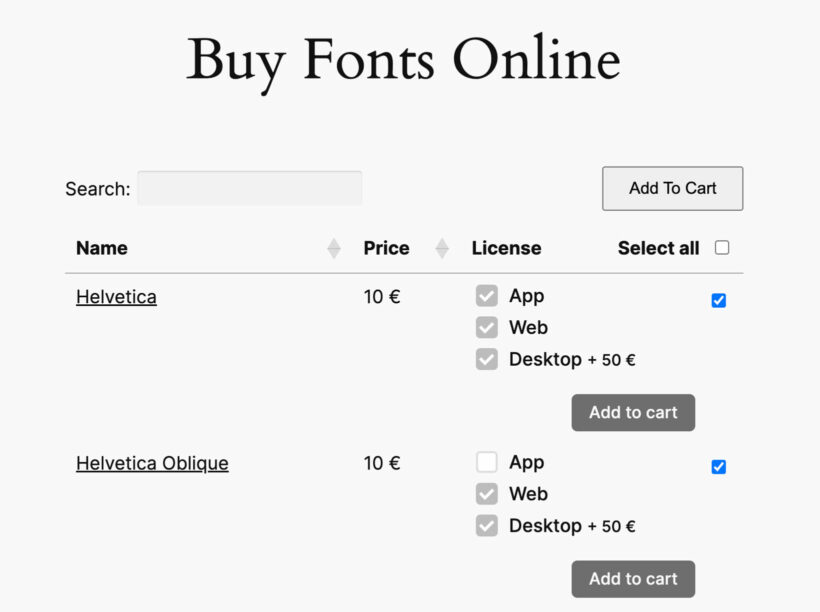
At the end, I'll also show you how to add the WooCommerce Product Options plugin to display the font license options as checkboxes like this:

Sell fonts in WooCommerce with checkboxes

Why WooCommerce Product Table is the best way to sell fonts online

WooCommerce is the world's most popular way to create an ecommerce store and is fully capable of selling both physical and digital products. It makes a great option for a solo font designer, font shop, or type foundry.

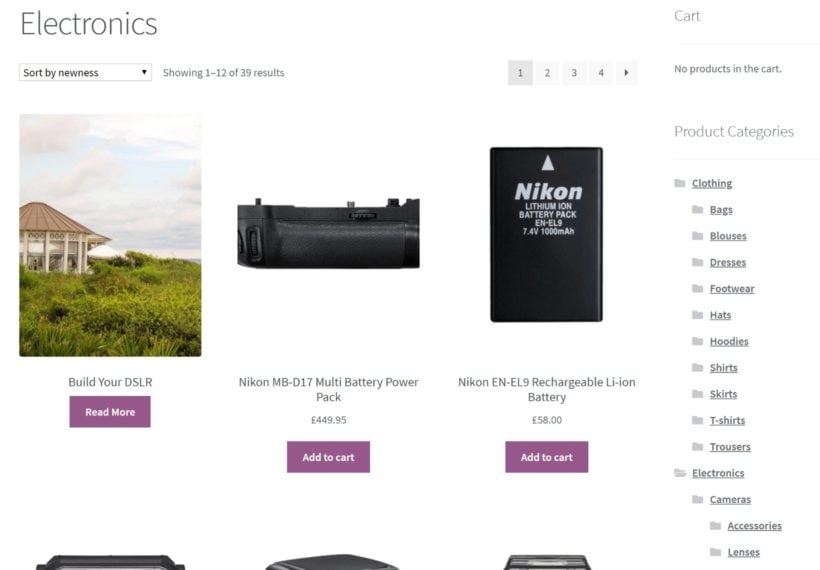
However, the default styling of most WooCommerce themes displays products in a more "traditional" ecommerce layout that looks something like this:

Traditional WooCommerce example

Now, that might work great if you're selling physical products. But if you're selling your own fonts, that kind of shop layout...

  • Doesn't display the important information about a font, like how it looks, its different font weights, etc.
  • Wastes space and makes it hard for shoppers to browse all your available fonts.

WooCommerce Product Table is a flexible plugin that fixes those issues by letting you display your fonts in a table layout like you saw above:

Example of table to sell fonts online

This gives you a compact way to help people shop your fonts. Visitors can:

  • See a graphic preview of the font to see kerning, glyphs, ligatures, calligraphy, etc.
  • Choose different weights for each font family from a drop-down.
  • Use checkboxes to add multiple fonts to their carts.
  • Use filters to find specific types of fonts. For example, serif font vs sans serif font, or OpenType fonts.
  • View license options.
  • Plus whatever else fits your business - the plugin gives you full control over what information you display.

Integrate your table layout with product quick view

If you want to display more information about each typeface than the table layout allows, you can add a product quick view button to the table that lets shoppers browse more information in a lightbox.

For example, you could use this product quick view to show:

  • A description of the typeface and its inspiration.
  • More detailed licensing information.
  • More images of your typography in action (or different font weights in action).
  • Font bundles or upsells.
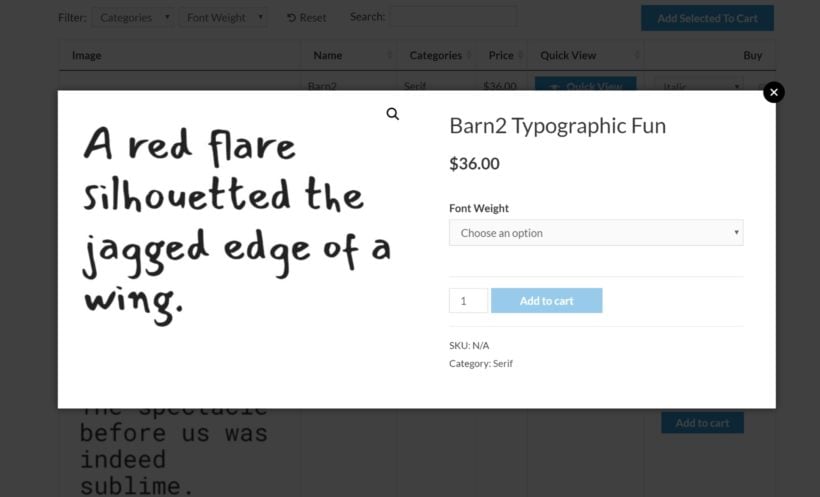
Font product quick view

How to sell fonts online with WooCommerce: Step-by-step

Below, we'll take you step-by-step through how to sell fonts online with WooCommerce and WooCommerce Product Table.

To begin, we'll assume that you already have a fresh WordPress/WooCommerce install. If not, you'll first want to install WooCommerce and complete the setup wizard.

1. Add new fonts as WooCommerce products

To manage your fonts, you'll use the regular WooCommerce product system. The simplest approach is to create one unique WooCommerce product for each new font family that you want to offer. You can then add different font weights or licensing options as product variations within that product.

To do that, go to Products → Add New.

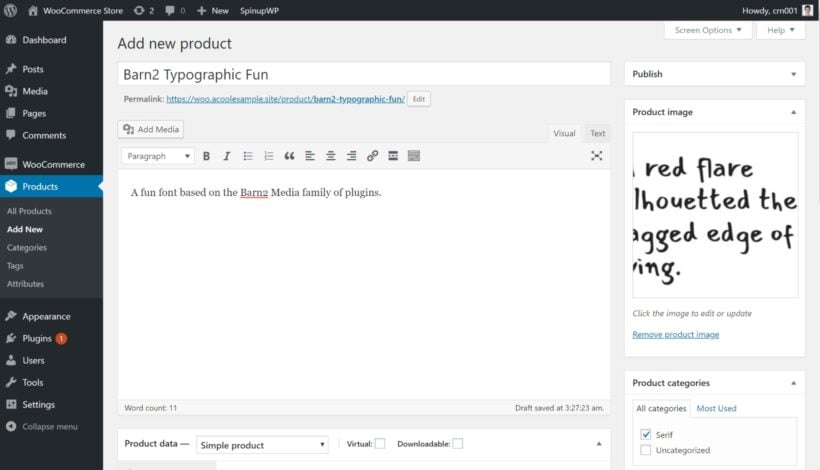
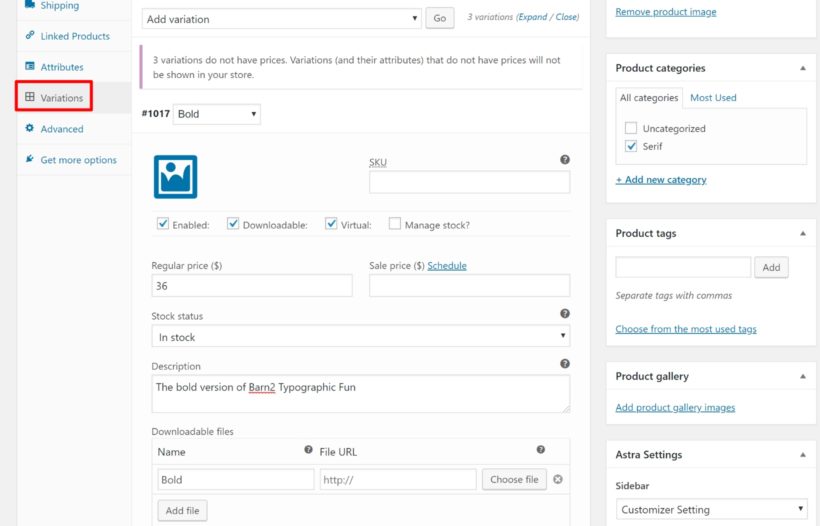
First, enter basic details like the font family name and description. You can also use product categories and tags to add other pertinent information, like whether the font family is serif or sans serif.

You can also add an image to preview how the font looks - the way that Google Fonts handles things is a good starting point:

Add font as WooCommerce product

Next up:

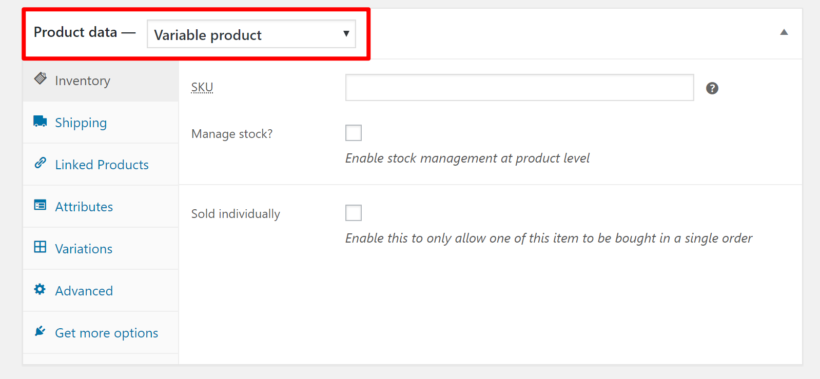
  • Scroll down to the 'Product data' box
  • Choose 'Variable product' from the drop-down (unless you're only selling a single font weight - then you can use simple product)
Choose product type

From there:

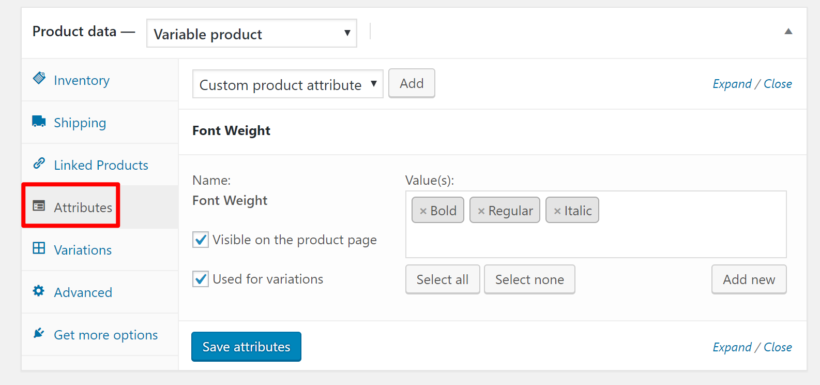
  • Go to the 'Attributes tab' and select your attributes (you can set these up by going to Products → Attributes).
  • Select the 'Used for variations' box.
  • Click 'Save Attributes'.
Add attributes

To finish setting up the variable product:

  • Go to the 'Variations' tab.
  • Select 'Create variations from all attributes' from the drop-down and click 'Go'.
  • Check the 'Downloadable' and 'Virtual' boxes for each variation.
  • Enter the price. If you want to offer free fonts or other freebies, you can mark it as zero.
  • Upload the font file in whatever format you want to offer.
Configure product variations

Once you've configured all of your variations, publish your product. Then, repeat the same process for all the different font families that you want to offer.

2. Configure WooCommerce Product Table

Once you've added all your font families as WooCommerce products, you're ready to create the front-end interface that you'll use to sell fonts online.

Install and activate the WooCommerce Product Table plugin. Then, go to Products → Product Tables to create a list of the fonts you're selling.

The easiest way is to enable the 'Display on a shop page' option. This will replace the standard layout on all your main shop pages (which is terrible for selling fonts!) with a font-friendly product table view:

First step of the WooCommerce Product Table builder choosing how to add the table

You can explore all of the plugin's settings, but here are the specific settings you'll definitely want to configure.

First, use the 'Columns' page to configure what information you want to display for each font. You can include basic columns like this:

Choosing which columns to show in the WooCommerce Product Table

And you can also include other product data, like custom fields or taxonomies. View all the column options.

Next, go to the 'Add to Cart' page:

  • Choose Button and checkbox from the 'Add to cart method' dropdown. This will allow shoppers to select multiple fonts to add to their cart. That's important if you sell whole font families a la carte.
  • Choose how to handle variations. You can either display each font weight as a separate row in your table. Or, you can display a drop-down next to each font family that lists all of the weights.
Add to Cart settings in the WooCommerce Product Table builder

Displaying variations as separate rows makes it easier for shoppers to purchase multiple font weights, while using the drop-down lets you display more font families in less space.

Finally, add some product filters. You can use these to let shoppers filter by font category/tag (e.g. serif vs sans serif) and/or attribute (e.g. font weight):

Adding filter dropdowns in the product table Search and Sort step

3. View your font shop page

Once you've finished creating the table, visit your store's main shop page or a category page. You should see the table that will help you sell fonts online:

Product table listing fonts with type previews and add to cart buttons

4. Add product quick view buttons (optional)

If you want to display more information about each font, you can add a product quick view column to your table using the WooCommerce Quick View Pro plugin.

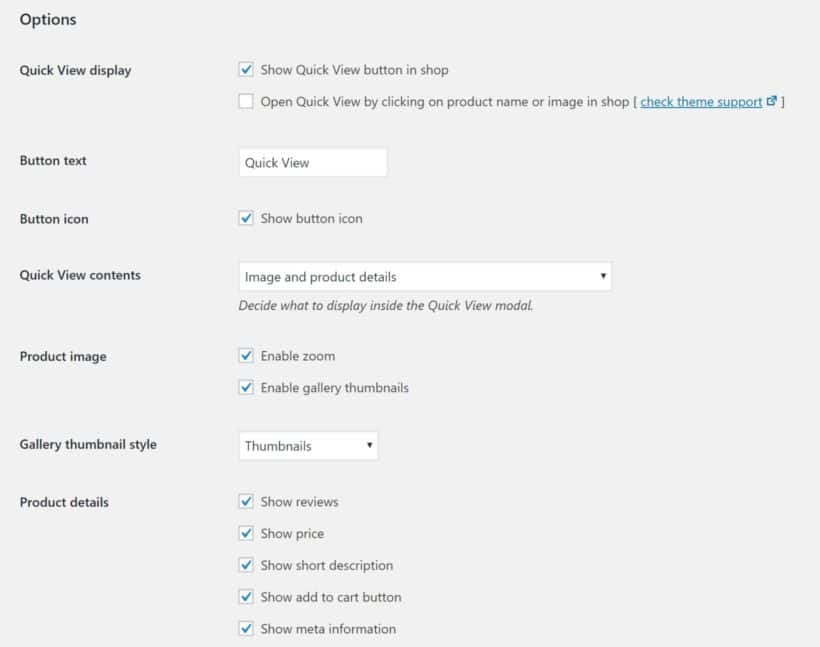
Once you've installed and activated the plugin, you can then go to WooCommerce → Settings → Products → Quick view to configure how the quick view box works:

Configure WooCommerce Quick View Pro

Then, you can add a Quick View your product table to achieve this effect:

Font product quick view

Tips for selling fonts more effectively

Once you've set up your basic online font store, you'll want to consider implementing some more advanced sales tactics to boost your revenue and sell fonts online more effectively.

Display font license options as checkboxes

Above, I showed you how to list each font license option as a separate row of the table. But what if you want to list each font on a row, with options to select a license?

Product variations as useful for letting customers select a license option. However, you can only select one variation at a time. That's not much use because customers often buy multiple font licenses at once (e.g. web and desktop).

The solution is to use the WooCommerce Product Options plugin to display the font license options as checkboxes, like this:

Sell fonts in WooCommerce with checkboxes

Simply install WooCommerce Product Options, go to Products → Product Options and create a 'License' option group with the checkboxes.

Choose which products the license options will appear on. These will then appear in the 'Buy' column of the product table.

Sell font bundles

People who purchase fonts online love bundles - there are even entire sites dedicated just to selling font bundles. For example, you could bundle different font weights together or fonts that pair well together.

The WooCommerce Product Bundles plugin lets you bundle together as many fonts as you want. You can then display your bundle options in the product quick view box in your fonts table. The bundles will not display in the table itself - but they will appear in the quick view box if you use WooCommerce Quick View Pro.

Create upsells

Another good option is font upsells, which let you recommend a similar font/bundle in place of the font a shopper is looking at.

You can create font upsells using the built-in Linked Products feature in WooCommerce and display them in your product quick view box.

Launch your WooCommerce font store today

By creating your own WooCommerce store to sell fonts online, you eliminate the middleman and ensure you don't have to give up 50% of your sales as a commission to a third-party font marketplace.

However, if you want to use WooCommerce to sell fonts online, you'll also want to use some extensions to create a more optimized font shopping experience.

WooCommerce Product Table lets you create an optimized, table-based shop layout page to display your fonts. You'll be able to share previews, list pertinent details like font weight and type, and allow shoppers to purchase multiple fonts at the same time.

Get started today and create your own WooCommerce store to sell fonts online!

Do you have any questions about how to sell fonts online with WooCommerce and WooCommerce Product Table? Ask away in the comments!

Close-up of a person checking the time on a wristwatch

If you're displaying WooCommerce product lead times in your store, it's important to adapt it to your specific needs.

While the WooCommerce Lead Time WordPress plugin has 'lead time' in its title, that doesn't mean that you have to use these exact words on your site!

The purpose of the plugin is to tell customers how long they'll be waiting before the product is sent. There are many possible ways to do this, depending on what types of products you sell, and the setup of your business.

Alternative ways to describe WooCommerce product lead times

Here are some examples of popular alternatives to 'lead time', with advice on when to use each one:

Available on

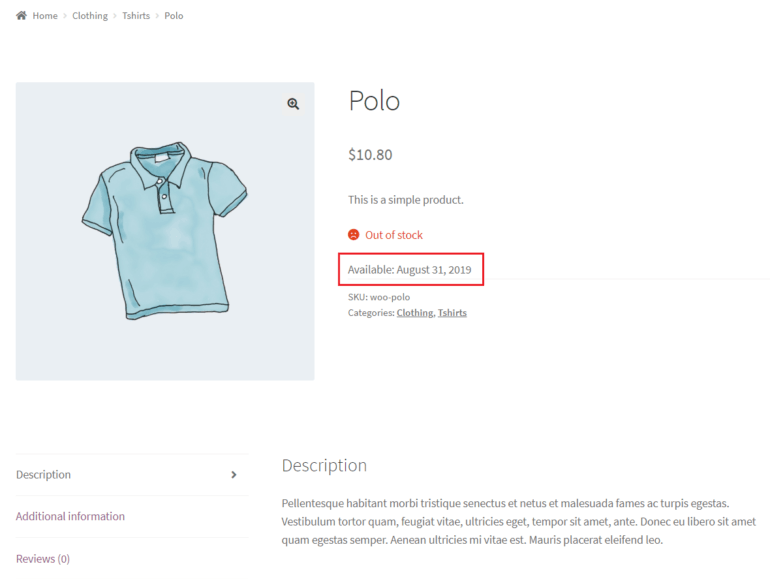
Use this for non-stock products, for example if you are awaiting an order from the supplier. This is a good option for products that are normally in stock, where you have chosen to display the lead time text for out of stock or backorder products only. When the product goes out of stock, you can add the date when it will become available again. This tells the customer when to come back and place their order, resulting in more sales for you!

Ready for despatch in

Popular with websites selling handmade or made to measure products like Etsy, this wording is good for products that need some manual work to get them ready to send.

Handling time

Consider using this wording if you're showing WooCommerce product lead times for items that require some sort of handling or processing to get them ready for sending.

For example, you might use this for custom hampers or gift boxes which you compile based on the customer's selections.

Processing time

This text has a similar meaning to 'Handling time', but sounds slightly more formal because it removes the human element that is implied by 'Handling time'.

Made to order

You guessed it! This wording is good for made to order products. It indicates the reason for having to wait, which helps the customer to understand and reassures them that the product is worth waiting for.

You could also use 'Handmade' or 'Built to order'. They're both good alternatives for showing WooCommerce product lead times for this type of item.

Waiting time

This indicates how long the customer will be waiting before the product is dispatched.

Personally, I find it slightly negative. Customers don't want to view themselves as waiting! As a result, I would suggest choosing something that positively indicates when the product will be sent, rather than how long the customer must wait. However, it might work for some scenarios.

Delivery time

You can also use WooCommerce Lead Time to indicate predicted delivery times on the product page.

For example, you might add a note saying 'Standard delivery times' or 'Delivery time: 2 weeks'. Customers get frustrated at having to add products to the cart just to find out the delivery time, so showing it in the lead time field is an excellent solution.

Lead time

Of course, sometimes 'Lead time' is the best wording. Use it for non-stock products where there will be a wait before it becomes available to despatch. For example, this might include made to order products.

Are you managing stock?

When you choose your lead time label, remember that a stock message might be displayed next to it.

If you're actively managing stock for a particular product, then the stock text 'In stock', 'Out of stock' or 'On backorder' will appear before your lead time text. This might affect how you choose to word the lead time message.

How to set it up

Before we close, here's a quick video tutorial on how to display lead times for your WooCommerce products:

Where to get the WooCommerce Product Lead Times plugin

If you haven't started displaying WooCommerce product lead times in your store yet, then get the plugin today. You can set it up in minutes. Customers will instantly be able to make a more informed decision based on your lead times.

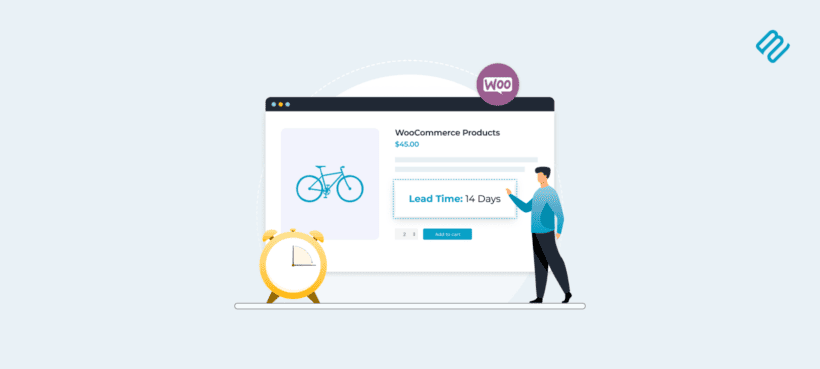
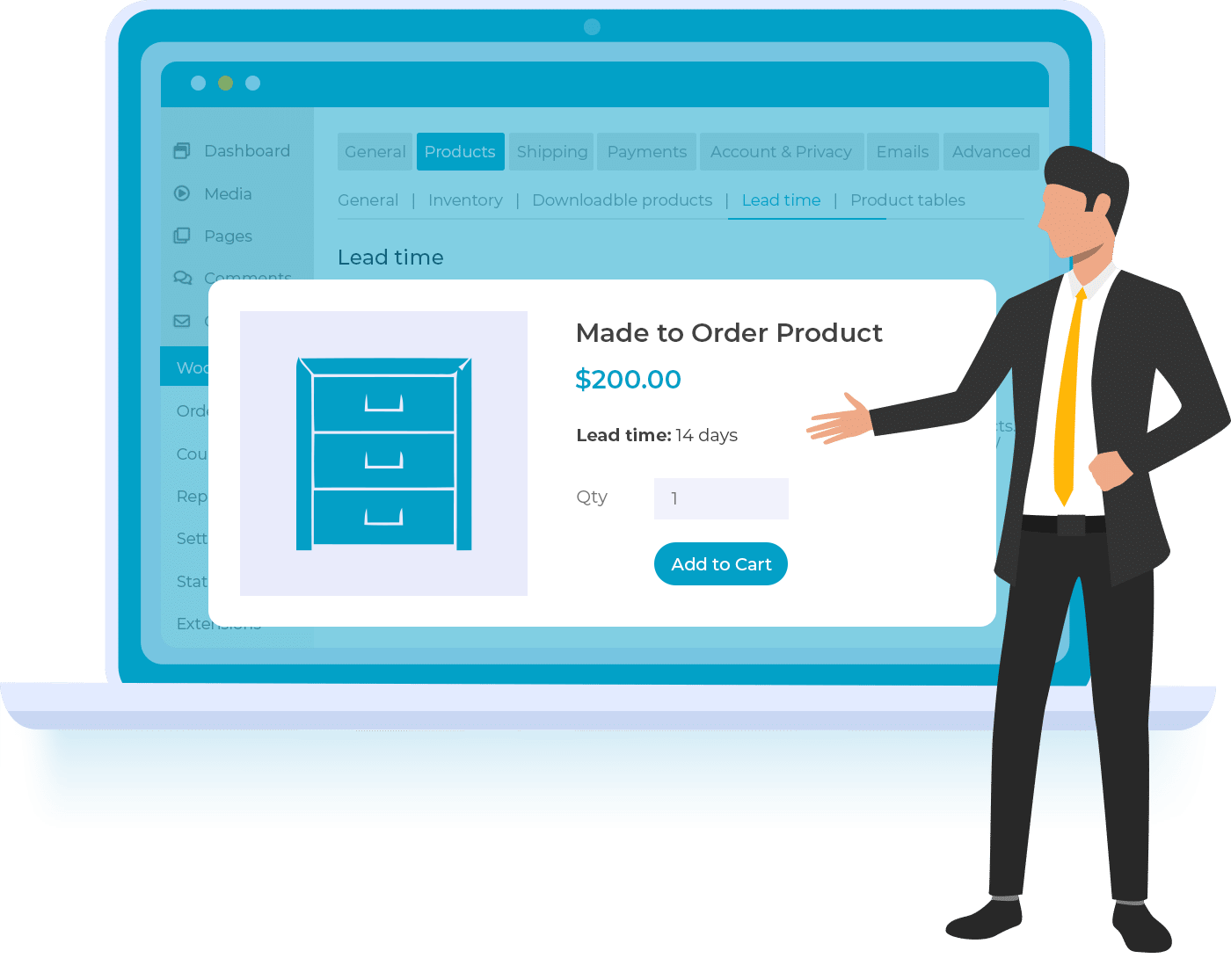
WooCommerce product page showing a 14-day lead time below the price

Customers are much more likely to order from your ecommerce online store if they know how long they'll be waiting to receive the product. That's where the WooCommerce Lead Time plugin comes in.

Typically, before customers buy anything online, they check to see:

  • If the product is in stock.
  • The approximate date of arrival of their order.
  • Expected delivery date and/or delivery time.
  • Available shipping methods.

This is one of the most significant parts of the customer's purchase user flow and greatly influences their buying decision.

Out of the box, WooCommerce lets you mark products as in stock, out of stock, or on backorder. However, there's no way to add information to indicate when the customer will receive their order. This is called displaying a WooCommerce lead time, and is not available in WooCommerce as it comes.

Fortunately, you can easily do this using the WooCommerce Lead Time plugin. This is the only plugin which provides an easy way to add a lead time to the single product page in order to let customers know when the product will be sent.

Keep reading to discover:

  • Why you should display a lead time on product pages.
  • What types of products need lead time information.
  • How to set it up using the WooCommerce Lead Time plugin.
  • And how to display lead time information in other parts of your online store.

Why should I display a lead time on product pages?

Lead time is the waiting period between order and delivery. Most ecommerce online stores sell items that aren't always in stock for any reason. This might be because they're made to order or simply because the store doesn't hold all of their products in stock at all times. As a result, store owners (and customers) can benefit from showing an estimated waiting time on WooCommerce product pages.

Think about the situation from the customer's perspective. Have you ever been shopping online and looked for information about when the item will be sent? Have you ever struggled to find this information? I bet you have!
Have you ever been shopping around and ordered from one website rather than another simply because it told you when you would receive your order?

That's right - customers need to know the wait time, and might not order unless they have this vital information. This is important for all online purchases, and becomes even more essential when buying with a specific deadline in mind such as a birthday gift or anniversary.

Key benefits

WooCommerce Lead Time plugin showing a made-to-order product card with a 14-day lead time displayed

Here are some of the main benefits of displaying handling times for WooCommerce products:

  • Improves customer experienceDisplaying the lead time enhances customer experiences. It simplifies the purchasing user flow. It minimizes uncertainty about your WooCommerce backorders. It increases transparency. It helps build trust with your customers.
  • Customers can make informed decisionsWhen your stock runs out but will be available soon, you can share the approximate time of arrival with customers. The customer can decide whether the estimated date works for them.
  • No need to call for product availabilityDisplaying the estimated time on product pages saves customer service representatives from manually looking up lead times. Customers won't have to call support staff. They can find out when the product will be available directly through your website.

Clearly displaying the lead times of your WooCommerce products helps reduce cart abandonment rates. It removes friction from the checkout process. It improves the customer's buying experience.

What types of products need lead time information

Product lead time information is essential for physical products. Any physical product would benefit from having lead time displayed. It's less relevant for digital products which are emailed to the customer immediately, although a lot of stores display a message like "Instant Delivery" to reassure customers. However, this isn't the main use case for displaying a WooCommerce lead time.

According to industry studies, the average lead time for ecommerce orders is around 2-3 days. Research shows that 67.77% of US shoppers value two-day shipping when making online purchases. Understanding these benchmarks helps you set competitive lead times for your products.

Here are examples of products which will benefit more than most from displaying lead time information.

Scenario 1: Made-to-order or handmade items 🛋️

Made-to-order products are items created after a customer places an order. If you sell products which are made to order - for example made-to-measure or handmade goods - then it's essential that customers know the waiting time.

Let's say, for example, that an online store selling handmade carpets made to order may require a 6 week lead time. You'll need to let customers see this preparation or processing time on the product page. As a result, the customer can decide whether or not the time frame works for them.

Here's how Etsy displays a lead time notice "Ready for dispatch in 1-2 weeks" on one of its product pages:

Etsy's expected dispatch time for products

Scenario 2: Stores that don't hold all items in stock 📆

Non-stock items are products not kept in inventory. Lots of stores only order products after they receive an order. They don't hold inventory in stock. They may order in regular batches. This is common for large furniture items like sofas, and for small stores without a warehouse. Non-stock items may take longer to arrive with the customer, so you need to display the lead time.

Made.com sofa product page showing a dispatch lead time of seven working days

It's also important to keep in mind that the order dates might vary per product. Factors like the supplier's location and processing times typically influence expected order dates.

Scenario 3: Out of stock or backorder products 🙁

Out of stock products are normally held items that are temporarily unavailable. This is different from non-stock products. It means that the product is normally held in stock, but is temporarily unavailable.

Fluctuations in product demand - or problems with supply - happen all the time. When product orders are high, you might run out. You need a way to let customers know when a popular product is expected to become available again. For example, if you sell t-shirts and a particular SKU is out of stock, you'd want customers to know when the next batch will arrive. This way, potential customers will be in a better position to make an informed decision on whether they should place the order.

Polo shirt product page showing an availability date as the lead time

To deal with this, you could display an Out of stock | Available: August 31, 2019 WooCommerce Lead Time message on the single product page.

However, I think you can do even better than this! Instead of marking products as out of stock, I recommend selecting the 'Backorder' status and displaying the lead time. That way, the customer can still place the order while knowing how long they will be waiting. This is a way for you to guarantee the sale, so they don't look elsewhere - everyone wins!

Products with fast despatch times 🏃‍♂️

Fast despatch products are items shipped within 24-48 hours. And conversely, you can improve your conversion rates by displaying a lead time on products that are in stock and will be despatched quickly.

This is a less obvious use case for a WooCommerce lead time plugin, but can have real benefits. Displaying a short lead time will impress customers. It will make them much more likely to buy from you. For example, imagine how much customers will like to see a message saying "Order before 4pm, and we'll send your order today" on a product 🚀.

As you can see, all sorts of ecommerce products can benefit from having the lead time displayed. Next, I'll tell how how to add this to your WooCommerce online store.

Introducing WooCommerce Lead Time

WooCommerce Lead Time is a lightweight plugin that allows you to display information about when the customer can expect to receive their order. This makes it easy for customers to decide whether they should place an order right away or wait.

There are two ways of setting the lead time:

  1. Static lead time - Add some static text which will be displayed on the product page. You can add different text for each stock status. The message will change automatically when a product goes out of stock or is put on backorder. This is useful for showing information about permanent lead times, for example "Handling time: 2 working days".
  2. Dynamic lead time - Alternatively, you can select a date from a calendar. The WooCommerce Lead Time plugin automatically displays the number of days or weeks until it becomes available. This is useful for products that you are expecting in stock on a particular date.

Either way, you can set lead times globally or per product, category, or even variation. That way, you can either share lead time information across multiple products, or have more fine-grained control if each item has a different wait time.

How to add lead times to your WooCommerce products

The WooCommerce Lead Time plugin makes it easy to display waiting times on the single product page. Here's how to set it up:

Initial setup

  1. Install WooCommerce Lead Time on your WordPress website.
  2. Run the setup wizard to configure your initial settings.

Configure global lead times

How to set default lead times and labels for all products:

  1. Navigate to WooCommerce → Settings → Products → Lead Time.
  2. Configure these global settings:
    • Default lead time text: Enter your standard message (e.g. "Ships within 2-3 business days").
    • Prefix text: Set what appears before the lead time (e.g. "Waiting time:").
    • Text color: Choose a color to match your theme or to stand out nicely.
    • Display options: Choose whether to show lead times for all stock statuses.
  3. Save changes.

How to show different messages for different stock statuses:

  1. In the Lead Time settings, find the "Stock Status Messages" section.
  2. Set specific messages for each status:
    • In Stock: e.g. "Ships same day if ordered before 2pm".
    • Out of Stock: e.g. "Expected back in stock: 19 June, 2026"".
    • On Backorder: e.g. "Ships in 3-4 weeks".
  3. Enable or disable lead time display for each status.
  4. Save your configuration.

Override lead times for specific products

How to set custom lead times by category:

  1. Go to Products → Categories.
  2. Click on a category to edit it.
  3. Fill in the lead time for that category (this overrides the global setting).
  4. Save the category.

How to set custom lead times by product or variation:

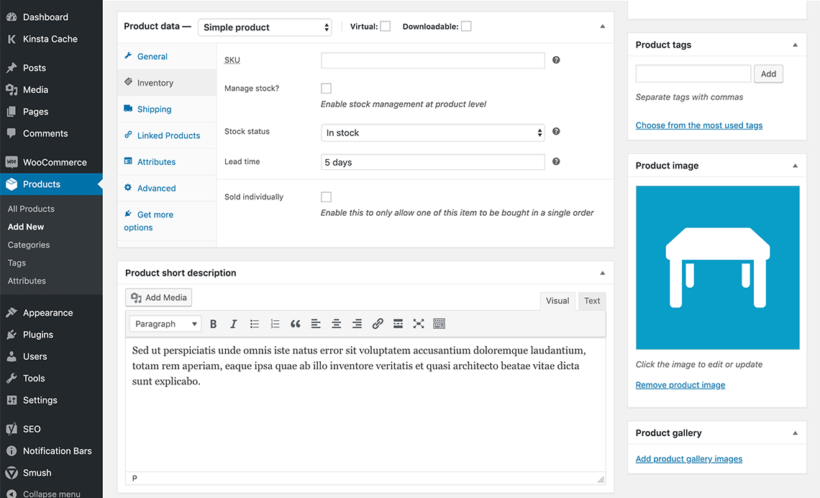
WordPress Edit Product screen with the Lead Time field set to 5 days in the General tab
  1. Go to Products in the WordPress dashboard.
  2. Click to edit a specific product.
  3. Scroll down to the 'Product Data' section.
  4. For simple products: Click the 'Inventory' tab and enter the lead time.
  5. For variable products: Click the 'Variations' tab and set lead times for each variation.
  6. Update the product.
Note: Lead times follow this hierarchy: Individual product/variation settings override category settings, which override global settings. This gives you maximum flexibility in managing your delivery expectations.

How the WooCommerce waiting time looks on the front end

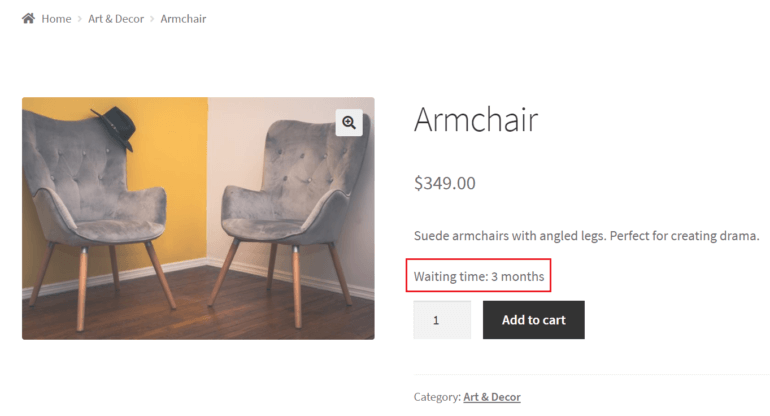
Once you have added a lead time, it will look like this on your WooCommerce product pages:

WooCommerce lead time displayed on the front-end

If you have enabled the option to manage stock for the product, then the handling time note will appear after the stock availability text, on the same line. For example, it might be: 'On backorder | Waiting time: 3 months'.

3 ways to display lead time information elsewhere in your store

So far, we've learned how to use the WooCommerce Lead Time plugin to display waiting times on individual product pages. However, that's not the only place that you can display this information.

Before we finish, I'm going to tell you 3 other ways to display the product lead time in your WooCommerce store.

On your main shop pages

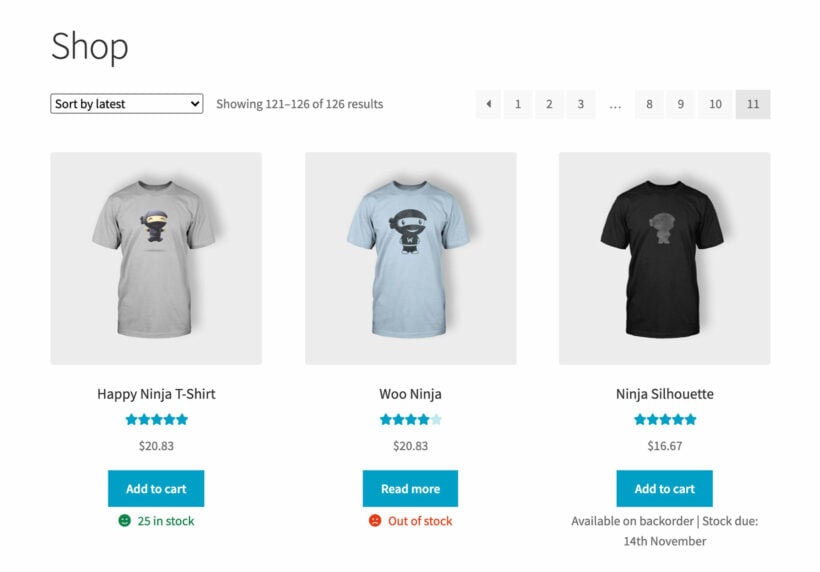
Shop page lead times are waiting time displays on category and archive pages. Sometimes, the waiting time is so important to customers' buying decisions that it's worth displaying it before the customer even clicks on a product. If that applies to your store, then you can enable an option in WooCommerce Lead Time to also display lead times on your shop pages. This adds is to your main shop page, category pages, and so on - in addition to the single product page.

Stock statuses displayed on the main WooCommerce shop page

Configuring shop page display

  1. Go to WooCommerce → Settings → Products → Lead Time.
  2. Enable "Display on shop pages".
  3. Choose the position (before or after price).
  4. Save changes.

In a one-page product order form

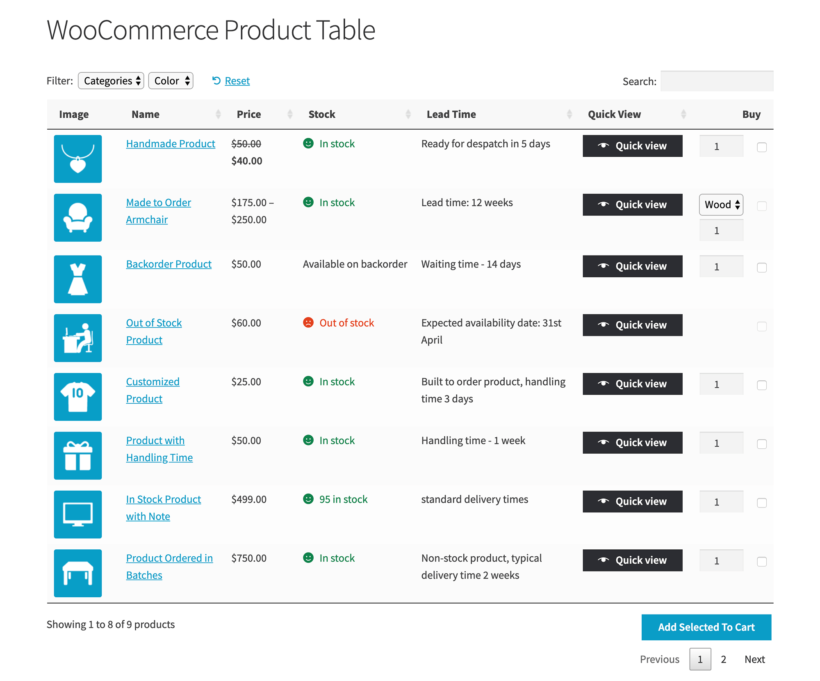
A one-page order form is a table layout displaying multiple products. The default shop page layout doesn't suit every type of products. Some products sell better if you list them in a quick one-page order form. This displays extra information about each product. It includes a 'Buy' column so shoppers can quickly add multiple items to their cart.

You can do this with the WooCommerce Product Table plugin. It integrates with WooCommerce Lead Time. You can display the waiting time for each product in a dedicated 'Lead time' column of the order form.

WooCommerce Product Table with a dedicated Lead Time column showing despatch and delivery times per product

In a quick view product lightbox

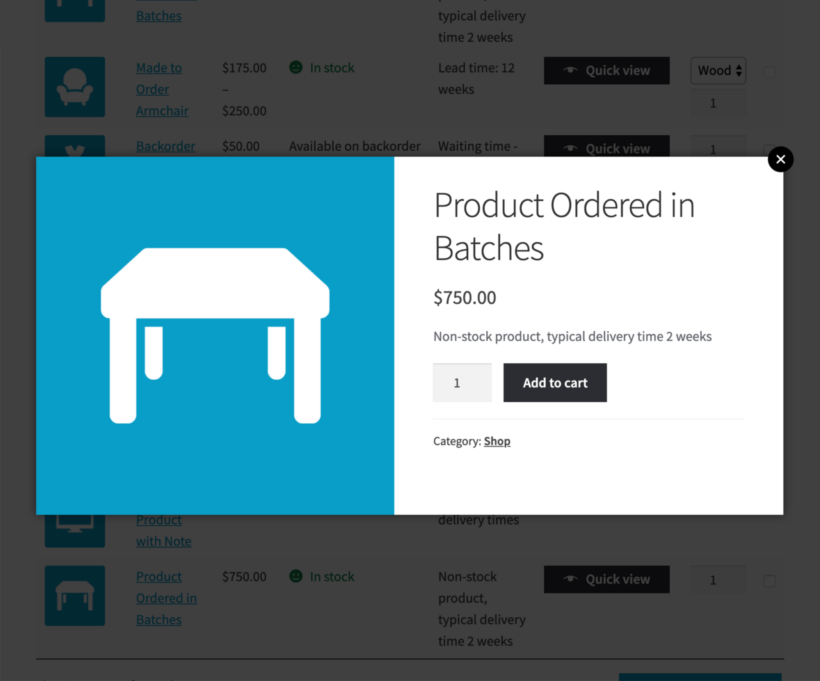
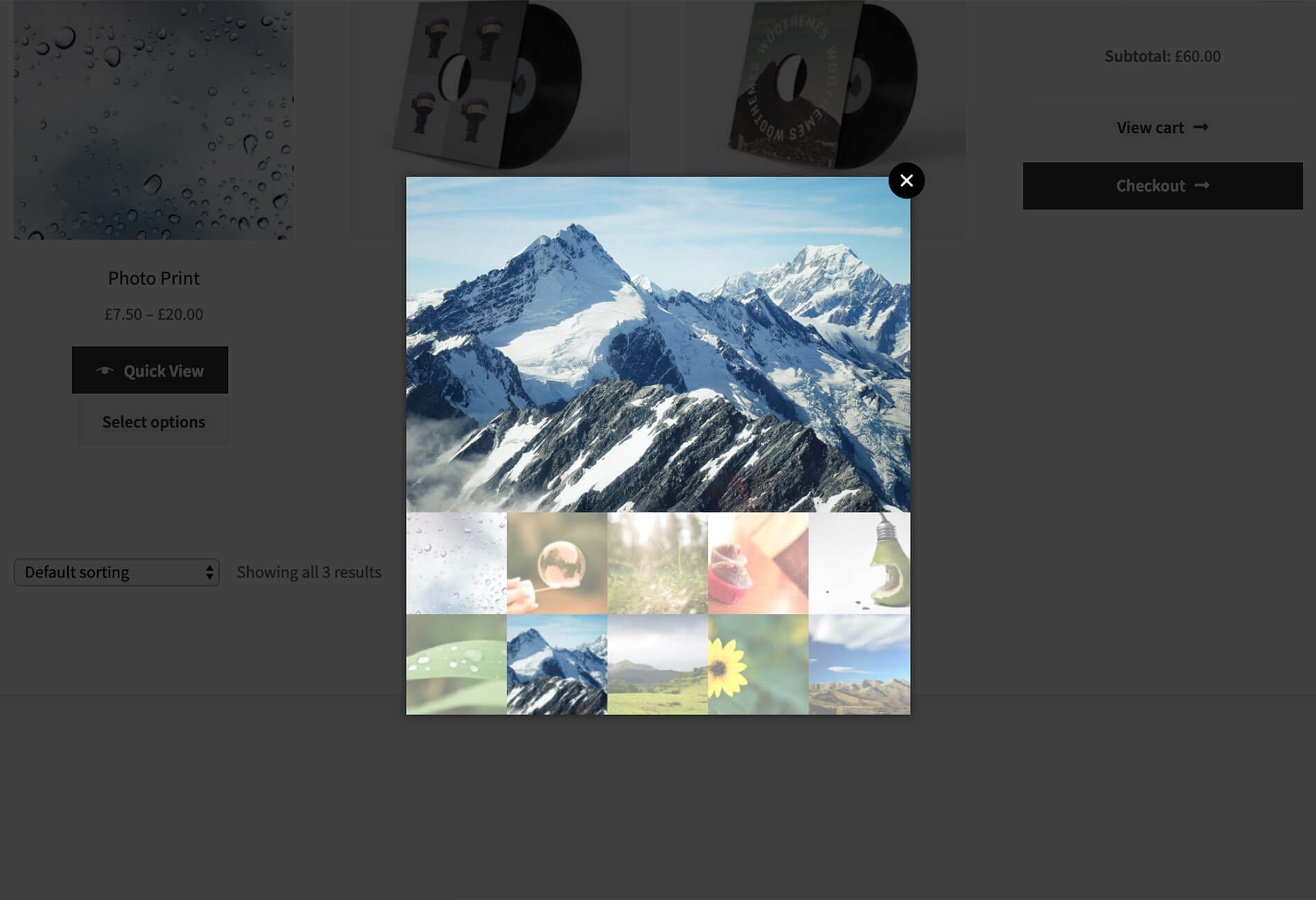
A quick view lightbox is a popup showing product details without page navigation. You can launch quick view lightboxes from the main shop page. Customers can learn more about each product without having to visit a separate page. The WooCommerce Quick View Pro plugin integrates with WooCommerce Lead Time. It displays the lead time directly in the product lightbox. It therefore provides another way for customers to view lead time information away from the product page.

Lead time information displayed in a WooCommerce quick view popup

Managing lead times during peak seasons

Peak season management is adjusting delivery expectations during high-demand periods. The holiday season brings unique challenges for lead time management. November and December show a 55% increase in sales compared to September. During peak season from October through December, standard delivery times can increase significantly.

Holiday season considerations

Adjusting lead times for peak periods

  • Black Friday and Cyber Monday require 1-2 additional processing days.
  • December 15-25 typically adds 2-3 days to standard shipping.
  • International orders may experience 5-7 additional days during holidays.
  • Consider updating lead times 2-3 weeks before major sales events.

Communicating seasonal delays

  1. Update your global lead time messages in early November.
  2. Add banner notifications about holiday shipping cutoffs.
  3. Create specific lead time messages for peak season products.
  4. Send email updates to customers about expected delays.
Pro tip: Start preparing your lead time adjustments 3-6 months ahead for major sales events like Black Friday. Update your WooCommerce Lead Time settings to reflect realistic delivery expectations during peak periods.

International shipping lead time considerations

International lead times are delivery estimates for cross-border shipments. Understanding and displaying typical delivery timeframes helps you set realistic expectations for your global customers.

Typical delivery times by region

  • North America to Europe: 5-10 business days standard, 2-3 days express.
  • US to Asia-Pacific: 7-14 business days standard, 3-5 days express.
  • Within EU: 3-7 business days standard, 1-2 days express.
  • To remote locations: 14-30 business days standard.

Additional factors affecting international delivery

International orders require extra time for:

  • Customs documentation preparation (1-2 days).
  • Customs clearance at destination (2-5 days).
  • Local delivery after clearance (1-3 days).
  • Potential delays during peak seasons or holidays.

Bear all this in mind when displaying lead times for the different locations that you ship to.

Best practices for international lead times

Since WooCommerce Lead Time displays the same message regardless of customer location, consider these approaches:

  • Set conservative estimates: Use your longest typical delivery time to avoid disappointing customers.
  • Use range-based messaging: Display "International delivery: 7-21 business days" to cover most scenarios.
  • Add shipping information pages: Link to detailed shipping times by country in your footer or FAQ.
  • Offer shipping method choices: Let customers choose between standard and express options at checkout.
  • Include helpful details: Add "plus customs processing" to your lead time message for transparency.

Lead time glossary

  • Lead time: The period between order placement and delivery to customer
  • Processing time: Duration needed to prepare an order for shipment
  • Transit time: Days required for carrier to deliver after dispatch
  • Handling time: Time to pick, pack, and prepare orders
  • Backorder: Product temporarily out of stock but still purchasable
  • Stock status: Current availability state of a product (in stock/out/backorder)
  • Dynamic lead time: Automatically calculated delivery date based on current date
  • Static lead time: Fixed text message about delivery timeframe
  • Dispatch time: When an order leaves your warehouse or fulfillment center
  • Cut-off time: Daily deadline for same-day order processing

Start displaying lead time information today!

By using the WooCommerce Lead Time plugin on your WooCommerce-based online store, you'll be able to:

  • Let customers know when the product will be back in stock before the reach the checkout page.
  • Build trust with customers, increase transparency, and help them make informed purchasing decisions.
  • Improve the customer experience your online store delivers.
  • Allow customers to place orders for products that are currently out of stock or on backorder.

WooCommerce Lead Time is the only plugin out there that displays waiting times. Install it today, and empower your customers to make more informed buying decisions.

Do you agree that displaying product lead times on your single product pages can improve customer experience? Let us know by commenting below.

There are many reasons why you might want to change the default number of WooCommerce products per page on your store’s main shop page. For example, you may be selling lots of (or very few) products, you may want to display more information with each product, or you might want to change the layout of the WooCommerce shop page.

And, of course, there are many benefits of changing the number of products per page on your product site. Depending on the type of products you sell, it could enhance the visual appeal of your website, increase product visibility, or streamline the purchasing user flow.

WooCommerce product table showing a set number of products per page with filters

Unlike other tutorials, I'll show you how to change the number of WooCommerce products per page without having to code. This is a non-technical guide that explains how you can change the default number of products per page using a plugin.

We'll do it using the WooCommerce Product Table plugin, which displays your products in a conversion-boosting order form. You get full control over every part of the order form including - you guessed it - the number of products per page.

Why you might want to change the number of WooCommerce products per page

Most WooCommerce stores use the default page layout that displays 3 to 4 products per row. For each product, there’s typically a large product image, product name, price, and an add to cart button to go with it.

While this may work for small stores that sell a dozen or so products, it isn’t the ideal solution for every online store. This is partly because the default shop page layout can make it difficult for shoppers to find what they’re looking for. Shoppers can quickly get up due to having to scroll through so many pages of products. As a result, everyone loses!

You don’t need code to change the number of WooCommerce products per page

Typically, you’d have to mess around with code to change the number of WooCommerce products per page. This involves modifying your theme's functions.php file and using a variety of advanced functions (such as cols or add_filter). The problem with this is that it's not an easy and intuitive option for users who aren't particularly tech literate.

Another way to change the number of WooCommerce products per page is to use your active theme’s built-in settings or customization options. However, not all themes have built-in settings for changing the number of WooCommerce products per page.

Thankfully, with WooCommerce Product Table, you can easily change the number of products per page without having to code. It’s an incredibly easy option for users who aren’t particularly tech-savvy, or those using themes that don’t come with built-in options to change the default number of WooCommerce products per page.

Next, I'll show you how to use WooCommerce Product Table to list any or all of your products in a quick order form with the number of products per page that you require.

How to change the number of WooCommerce products per page

For the purpose of this tutorial, we’ll assume you already have a WooCommerce-based online store set up with some products added to it.

Step 1: Install and set up WooCommerce Product Table

Get the WooCommerce Product Table plugin and install it on your WordPress site. The table builder will open when you activate the plugin for the first time. We'll need this for step 2.

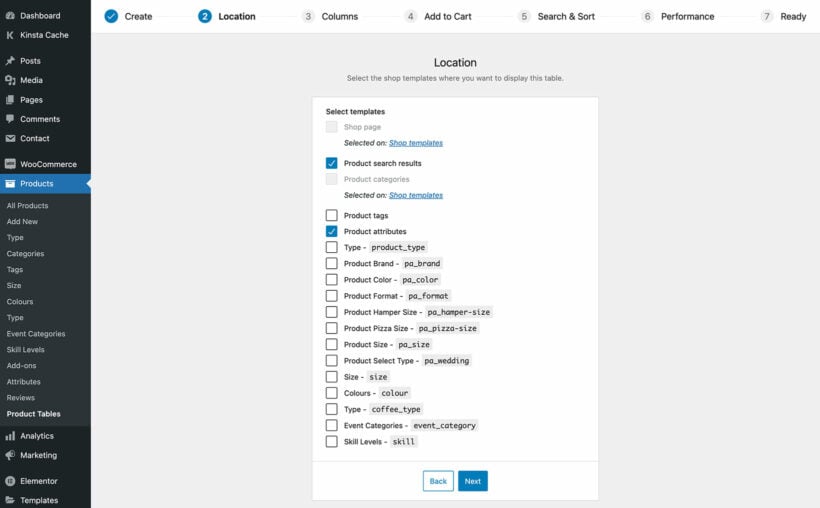
Step 2: Choose which templates to change the number of products per page

On the first page of the table builder, select the 'Display on a shop page' option:

First step of the WooCommerce Product Table builder choosing how to add the table

Use the next page to choose exactly which shop pages you want to change the number of products per page. Generally, I'd recommend ticking all the boxes:

Selecting which shop templates display the product table

Proceed through the remaining steps to create your product order form. For example, you can choose which columns of product data to include.

Step 3: Edit number of products to display on the front-end

WooCommerce Product Table allows you to control the number of products that appear in the front-end table as well as how many products are displayed on each page of the table.

Head over to the WooCommerce Product Table plugin’s settings page by going to Products → Product Tables → Settings. Change the following options:

Products per page

The 'Products per page' option lets you control the number of products that will be displayed on each page of the product table. The default number of rows per page is 20. Setting it to -1 will display all the products on a single page.

Product limit

The 'Product limit' option lets you control the maximum number of products that’ll be displayed in the product table. The default number of products is 500.

If you need to display a few dozen products at a time in your product table, I’d recommend enabling the lazy load option to deliver optimal performance. That way, you can have a high number of products in the overall table (even if you have a low number of products per page).

Pagination

WooCommerce Product Table will, by default, add pagination buttons at the bottom of your table. You can choose to show or hide this on the settings page, or disable it to force all products to display at once.

You're now all set to change the number of WooCommerce products per page!

When you've finished, view your shop pages and you'll see a product table with the customized number of products per page like this:

Change the number of WooCommerce products per page

Examples of stores that would want to change the default number of products per page

Here are some examples of online stores that might benefit from changing the number of products per page on their main shop page:

  • Stores that sell many products. Stores that sell lots of products need to be able to effectively showcase dozens of products per page. These include wholesale stores where shoppers frequently purchase the same products. Since they already know the products they’ll be buying, they shouldn’t have to click through to individual product pages for each item.
  • Stores that sell a handful of products. Micro stores that sell a handful of products (i.e. between 5 to 10 products) might want to showcase only 2-3 products per page. This enables them to improve both the visual appeal and usability of their online store. For example, Casper’s product page displays only three different types of mattresses.
Three products on store page
  • Online course and memberships. Online course instructors and membership site owners might want to display course previews along with important course details. Typically, an online course site or membership site sells 3-4 courses (or membership tiers). Displaying a preview of course content in a table layout is a great way to attract students and boost sales.
Displaying video content in a table layout

Next, we’ll explain some of the different ways you can change number of products on your main shop page.

How you're changing the number of WooCommerce products per page

The WooCommerce Product Table plugin lets you change the number of WooCommerce products per page without having to code. This is a great way to enhance your main shop page’s usability, increase product visibility, and improve the purchasing user flow.

Do you agree that changing the number of WooCommerce products per page can help you improve your conversion rate? Let us know by commenting below.

Illustration of a WooCommerce shopper seeing a personalised discount message

WooCommerce customer-specific pricing is a powerful strategy where you charge unique pricing to specific users in your online store. Discover the easy way to set it up - no technical knowledge needed!

In the bustling world of e-commerce, where every click counts and customer loyalty is paramount, businesses are constantly seeking innovative ways to enhance user experiences. Customer-specific pricing is a strategy that can significantly impact sales and customer satisfaction. Imagine tailoring your product prices to individual shoppers, offering personalized discounts and creating a sense of exclusivity - all while boosting your bottom line. It’s not just a dream; it’s a powerful reality 🔥

Keep reading to discover how to add WooCommerce customer-specific pricing to your store. We'll do it using Discount Manager, an easy-to-use WooCommerce plugin that makes it easy to add and display flexible pricing rules and custom fixed prices per customer.

What is WooCommerce customer-specific pricing?

As online retailers, we’ve all faced the dilemma: How do we cater to diverse customer needs without compromising profitability? Traditional pricing models treat everyone the same. However, in reality, each customer brings a unique set of preferences, behaviors, and purchasing power. A first-time buyer may need an extra nudge, while a loyal VIP deserves special treatment. And what about those high-volume wholesale clients who keep our revenue flowing?

It's ideal for any website that wants to charge different amounts to different types of customer. For example, WooCommerce wholesale stores often need to charge different amounts to retail and wholesale user roles, or even different amounts to each wholesale customer.

For businesses with established client relationships, you can create entirely customized fixed pricing contracts. Each client receives their own fixed pricing structure that reflects their unique agreement with your business. This approach is particularly valuable for service-based businesses or companies with long-term clients who purchase regularly. WooCommerce Discount Manager makes this easy by allowing you to assign specific discount rules to individual user accounts, ensuring your most valuable business partners always see their negotiated rates.

WooCommerce Discount Manager - the best customer-specific pricing plugin

Product page showing a personalised 50 percent discount message for a returning customer

Now you know why customer-specific pricing is so important, I'll tell you how to achieve it in your own store.

The best user-specific pricing plugin is WooCommerce Discount Manager. This powerful plugin lets you add simple or advanced pricing rules to WooCommerce.

You can choose from a choice of 6 discount types, each with plenty of options:

  • Select which products and categories the pricing will apply to.
  • Set the start and end dates for the special pricing, or run it permanently.
  • And most importantly - select which individual user accounts and/or user roles the pricing will apply to.

Unlike other WooCommerce customer-specific pricing plugins, Discount Manager actually lets you display unique information to each individual user. This helps to create a truly personalized user experience, boosting customer loyalty.

Next, I'll tell you how to set up user-specific pricing with the WooCommerce Discount Manager plugin.

How to charge custom fixed prices per customer in WooCommerce

To learn how to implement customer-specific pricing, either watch the video or follow the step-by-step written tutorial below:

Step 1: Install WooCommerce Discount Manager

  1. First, buy WooCommerce Discount Manager and download the plugin zip file to your computer.
  2. Go to Plugins → Add New in the WordPress admin and install and activate the plugin.
  3. The plugin setup wizard will open automatically. Use it to activate the license key from your order confirmation email.

Now the plugin is installed on your WooCommerce site, it's time to set up customer-specific pricing.

2. Create customer specific pricing rules

  1. Go to Marketing → Discounts and click the 'Add Discount' button.
  2. Choose the type of discount that you'd like to create for the user. There are several to choose from, each of which has a helpful explanation and examples. For example, you can choose a simple percentage pricing change, discounts based on the quantity ordered, and so on. All of these work with customer-specific pricing, so choose whichever one best fits the type of pricing rule you require.
    WooCommerce Discount Manager add discount type
  3. Next, fill in the information about how the customer-specific discount should work. This includes adding a name for the pricing rule, choosing how the user-based price will work, and selecting which products and categories it will be used on. The exact options depend on which type of discount you're creating.
  4. In the 'Applies to' section, select the individual user accounts or/roles that should receive the special pricing. For example, in the below screenshot I have selected a user called Ben. You can select as many users as you like, or entire user roles in order to give the same customer-specific prices to multiple people.
    Customer-specific discount rule assigned to a named customer
  5. In the 'Availability' section, you can optionally set dates when the customer-specific discount will run. For example, to give a personalized discount to Shanaz during her birthday month, you would select the start and end of that month.
  6. If you'd like to display a notice on the product page, then fill in the 'Product page content' and choose a location for it to appear:
    Display customer specific pricing message in product page content
  7. If required, you can also add a 'Cart notice' which will appear on the cart page for all users who the pricing rule applies to.
  8. Save the discount.
  9. Repeat the above steps for each customer-specific discount that you wish to create. There's a 'Duplicate' option for each discount to save you time. Simply copy an existing discount and change the details for the next user as needed.

Pro tip for setting customer specific prices for groups

When we talk about WooCommerce customer-specific pricing, it's easy to assume that you should create a separate pricing rule for each individual user. Before you do this, think about whether that's the most efficient way to charge different prices per product for each user.

For example, if you have several users who you want to give the same special pricing, then here are some easier ways to achieve the same result:

If you do this, then you should word the product page content and cart notice in a generic way that applies to all users who receive the group discount. For example, don't mention their individual names in it like I did in my screenshot above!

What sort of WooCommerce sites need user-specific pricing?

At first glance, charging different prices to specific users sounds a bit strange and unfair. However, personalized pricing is actually common practice in the ecommerce world.

Here are some examples of where a WooCommerce shop might need customer-specific pricing:

Loyal VIP customers

Give preferential rates to top-tier customers who consistently make high value purchases. Offer them a personalized discount or a custom price for specific products. For instance:

  • SuperVIP Jane gets 15% discount on all items.
  • Platinum customer Mark receives a fixed price of $50 for a premium product.

High-volume buyers

Recognize users who consistently order in bulk. Tailor pricing based on their historical order quantities. For example:

  • Wholesale partner Alex orders 100 units of a product regularly, so they get a 10% discount.
  • Bulk buyer Sarah purchases 500 units, earning a 20% discount.

Subscription-Based Pricing

Convert one-time purchasers into recurring revenue by offering subscription options for your products or services. With WooCommerce Discount Manager, you can create special pricing rules for customers who commit to regular purchases. For example:

  • When customers sign up for monthly deliveries, offer a 10% discount on products.
  • Or provide exclusive pricing tiers for subscription members.

Early adopters or beta testers

When launching a new product or feature, offer special pricing to users who participate in testing or provide valuable feedback. These users might receive a unique discount code or reduced price on all orders. This might be a permanent personalized discount, or it might be for a fixed period such as 6 months.

Referral program participants

Encourage users to refer others by offering personalized discounts. For instance:

  • Refer-a-friend Lisa receives a 10% discount for referring new customers.
  • Ambassador Mike gets a fixed price on a specific product for promoting your brand.

Birthday discounts

Celebrate users' birthdays by sending them a personalized coupon code. For example:

  • Birthday Girl Shanaz receives a 25% discount during her birthday month.

Dynamic pricing

Implement algorithms that automatically adjust prices based on market demand, inventory levels, or customer behavior. For example, you could set up rules that increase prices for high-demand products during peak seasons, or automatically lower prices for slow-moving inventory. The WooCommerce Discount Manager plugin supports this through its flexible rule system, allowing you to create dynamic pricing scenarios that respond to changing business conditions.

Customer-specific products

If you sell user-specific products, such as branded items to a school or sports team, then you might need customer-specific pricing too.

Behavior-driven discounts

Monitor user behavior (e.g., time spent on site, items viewed) and offer personalized discounts. For instance:

  • Frequent browser Alex gets a 5% discount after browsing specific products extensively.

Start charging custom fixed prices per user today 🚀

As you can see, user-specific pricing is a powerful way to reward your best customers while making your ecommerce store more profitable. Discount Manager is the best WooCommerce customer-specific pricing plugin because it has everything you need to tailor your product pricing per user:

  • Choice of 6 flexible discount types.
  • Select which individual user accounts and roles each pricing rule applies to.
  • Display customer-specific information on the front end.
  • No-risk 30-day money back guarantee.
  • Detailed documentation, plus access to expert support.

Illustration of selling photos online with a camera and dollar signs

If you're a photographer, learning how to sell photos in WooCommerce gives you a simple, affordable way to connect with customers and potential clients and grow your online revenue. Having your own online store makes you look more professional and ensures you don't have to pay a commission to a third-party just to sell your photos.

WooCommerce is a great solution for selling photography because it includes all the features you need to manage, display, and deliver your photos. However, while the core WooCommerce plugin includes all the basics, you'll want to use some add-ons to more effectively sell photos on WooCommerce, which is a big part of what we'll cover in this post.

Specifically, you'll learn how to more effectively display your photos in an easy-to-browse table layout, and you'll also learn how to restrict access to your photography, which is especially important if you're doing any kind of client-specific work.

Here's an example of what you'll be able to create by the end of this post:

Sell photos on WooCommerce with a table layout

Two plugins to help you sell photos in WooCommerce

In this tutorial on how to sell photos on WooCommerce, you'll see two plugins play big roles on your photography WordPress site.

WooCommerce Product Table

First, there's the WooCommerce Product Table plugin. This plugin lets you display your photos in an SEO-friendly, customizable table layout, rather than the default WooCommerce shop layout. You can control exactly which product details to display, and also add other helpful features, like sort and filter options.

This table approach has a few big benefits for WooCommerce photography websites:

  • Larger images - rather than relying on tiny thumbnails, a table photo gallery layout lets you display larger images without forcing people to click through to the single product page or open a lightbox gallery. This creates a much more efficient experience for people to browse lots of photos.
  • More details - you can display relevant photo details - like resolution or file format - without forcing people to visit the single product page. You can also let customers choose their preferred variation.
  • Bulk add to cart - shoppers can use checkboxes to select all the photos they want and bulk add them to their cart for an easier checkout or client proofing process.

WooCommerce Product Table works with physical products, digital products, and any WordPress photography theme.

Check out a demo of a WooCommerce photography store built with the WooCommerce Product Table plugin.

WooCommerce Protected Categories

Second, there's the WooCommerce Protected Categories plugin, which lets you restrict access to categories of photos. This is great for professional photographers who don't want the public to have access to some or all of their photos. Some of the benefits here are that you can...

  • Use passwords to restrict access, which means you don't have to force people to create a WordPress account just to browse photos.
  • Create different passwords for different categories, which lets you create a private area for each individual client.
  • Automatically redirect shoppers to different categories of photos based on the password they enter.

What kinds of photos can you sell on WooCommerce?

There are a lot of different types of photos you can sell on WooCommerce, and the exact approach that you use to set up your store should depend on what type of photos you want to sell.

For example, if you want to sell event photos, you might want to keep your photos private and only for people who attended the event. On the other hand, if you're selling stock photos, you probably want to keep your store public.

Here are some common types of photos and the best way to approach how to sell photos on WooCommerce for each type:

  • Stock photos - you can use WooCommerce Product Table to create easily-browsable lists of images. You'll also want to use filters to help shoppers find the stock photos they need.
  • Editorial images - you could either create a public store or restrict access to specific clients with WooCommerce Protected Categories.
  • Client-specific photos - if you're selling any type of client-specific photos (events, portraits, school photos, etc.), you'll want to pair WooCommerce Product Table with WooCommerce Protected Categories to create private client areas.
  • Digital art prints - you can use WooCommerce Product Table's features to display variations right in your table. For example, you can let people choose different image resolutions.

Further reading: The Best Print-on-Demand Plugins for WooCommerce.

How to sell photos on WooCommerce: Step-by-step guide

Next, let's get into how to sell photos on WooCommerce using the methods we've discussed above.

First, you'll learn how to use WooCommerce Product Table to display your photos in a customizable list view. If you want to sell photos publicly, that might be the only WooCommerce extension you need.

Second, if you have a use case where you need to make some or all of your photos private, you'll also learn how to use WooCommerce Protected Categories to restrict access to your photos on a category-by-category basis.

Finally, we'll also share some general tips for selling photos on WooCommerce, including how to add sidebar filters, add a product quick view feature, and bulk upload images as WooCommerce products.

1. Set up WooCommerce and add photos as products

If you haven't already, you'll want to start by installing the free WooCommerce plugin from WordPress.org and running through the setup wizard. Then, go to Products → Add New to add the first photo that you want to sell.

Fill in all the details, paying special attention to the 'Product data' box (like marking your photos as digital downloads). Also, make sure to use the featured image uploader to add your photo:

Add photos as WooCommerce products

If you want to sell variable photos - like different resolutions or file formats - you can choose 'Variable Product' from the drop-down. You'll be able to display these variations in your table layout in the next step.

Make sure to repeat the process for all your photos. If you have hundreds or thousands of photos that you want to sell, we'll share a method to bulk upload photos as products later on.

2. Display photos as a shopper-friendly table

Once you've added your photos as WooCommerce products, you're ready to display them with WooCommerce Product Table. Here's an example of what you'll be building:

Sell photos on WooCommerce with a table layout

If you haven't already, purchase the plugin and then install and activate it at your store.

Then, go to Products → Product Tables to create a table listing your photo products.

While it's good to consider all the settings, there are a few key choices to make when using the plugin to sell photos on WooCommerce.

Choose which photos to include

First step of the WooCommerce Product Table builder choosing how to add the table

The first page lets you choose how you will add the table to your site. Either enable it on your main shop page templates, or choose to add it to a page manually.

If you choose the manual option then on the next page, you can choose which photo products to include. For example, you might want this table to list photos from a specific category or tag only. (If you do this then you would later create more tables, each listing different photos.)

Configure columns and image sizes

Choosing which columns to show in the WooCommerce Product Table

First, use the 'Columns' page to control what information to display for each photo in your table. You have a range of options, but a good starting point for a WooCommerce photography store is something like: Image, Name, Price and Buy.

If you want to display additional information about each product, you can add columns for categories, tags, attributes, and even custom fields.

Click on the pencil icon of the image column and then open the 'Advanced' toggle. Use the image size option to choose the image size that you want to use. You can either enter exact dimensions in pixels or choose from the default WordPress theme thumbnail sizes.

Configure add to cart settings

Add to Cart settings in the WooCommerce Product Table builder

On the next page, you can use the Add to cart column settings to control:

  • Bulk add to cart functionality.
  • How to handle product variations. For example, you could add a drop-down selector to let shoppers choose a variation.

Add search and filter options

Adding filter dropdowns in the product table Search and Sort step

Next, you can use the 'Search & Sort' page to add product filters. For example, you could let visitors filter by a photo's categories or tags. You can also add a search box if desired:

The filters that come with WooCommerce Product Table are pretty useful for selling photos online. For even more advanced filtering, you can use it with the WooCommerce Product Filters plugin. This adds a wider range of filters, including image-based filters, color swatches, and more.

Display front-end table

If you chose the option in the table builder to enable the product table on your main shop page templates, then you can skip this step. Alternatively, to create your front-end table layout, you can add the 'Product Table' block to a page, or paste the shortcode from the final page of the table builder. That way, you can add the table of photo products anywhere on your site:

Sell photos on WooCommerce with a table layout

Finally, if you want to add more filter options, WooCommerce Product Table also includes dedicated Ajax filter widgets that you can add to your sidebar to let visitors filter the table by price or product attributes:

WooCommerce Ajax filter widgets for photos

You can add these widgets by going to Appearance → Widgets.

3. Hide photos/create client-specific areas

If you want to restrict access to certain photos and/or create client-specific areas, you can use the WooCommerce Protected Categories plugin to privately sell photos on WooCommerce.

Once you install and activate the plugin, go to WooCommerce → Settings → Products → Protected categories to configure its settings.

Here, you can choose whether or not to still display hidden photos in your public-facing store. If you're selling client-specific photos, you probably want to disable this because you don't want private image thumbnails appearing on your main store page.

You can also control the password entry page, which is where shoppers will log in:

Add to cart options

Then, go to Products → Categories and either...

  • Edit an existing category that you want to restrict access to.
  • Create a new category that you want to restrict access to.

For example, if you just photographed a wedding, you could create a dedicated category just for that wedding party.

Then, use the 'Visibility' settings at the bottom to restrict access. You can either add a password or restrict access to specific users or user roles:

WooCommerce Password Protected categories to sell photos

Once a visitor enters the password, they'll be taken straight to the associated category of photos, which creates a great user experience.

More tips for how to sell photos on WooCommerce

Beyond WooCommerce Product Table and WooCommerce Product Categories, there are also some other helpful WooCommerce photography plugins to help you sell photos on WooCommerce.

Add a product quick view

If you want to display more product details and even larger images without forcing visitors to go to the single product page, you can consider adding a product quick view to your photos' table layouts.

The WooCommerce Quick View Pro plugin integrates with WooCommerce Product Table to let you create a user-friendly quick view feature complete with product details, gallery images, variations, and more:

Quick view popup showing a product with gallery thumbnails, options and description

Use Product CSV Import Suite for bulk photo uploads to WooCommerce

If you need to upload hundreds or thousands of photos as individual WooCommerce products, the Product CSV Import Suite plugin is a great way to save time. It'll let you bulk upload photos as WooCommerce products and configure the proper product details (like adding all the photos from a wedding to that wedding party's dedicated category).

Learn how to bulk import photos as WooCommerce products.

Automatically add an image watermark

If you're concerned about image theft, you can use the YITH WooCommerce Watermark WordPress plugin to automatically add a watermark to your product featured image. To remove the watermark, visitors will need to purchase the image.

Case study on how to sell photos on WooCommerce: Photo Studio TNK

Photography gallery and client login shown across laptop, tablet and phone

Photo Study TNK is a wedding photography studio run by Thierry in Paris, France. Thierry uses WooCommerce to sell photos directly to his clients by using WooCommerce Product Table to display his photos in a list view.

He also adds each client's photos to a dedicated category and then uses WooCommerce Protected Categories to ensure that clients can only see their own photos.

Get started with selling photos on WooCommerce today

With WooCommerce Product Table and WooCommerce Protected Categories, it's easier than ever to sell photos on WooCommerce.

You can create a more user-friendly way for people to browse your photos via WooCommerce Product Table's table layout. And if you need to restrict access to photos on your WordPress website, you can use WooCommerce Protected Categories to create different protected categories and automatically send visitors to the right category after they enter the password.

Pick the approach that works best for you and you're ready to sell photos on WooCommerce today!