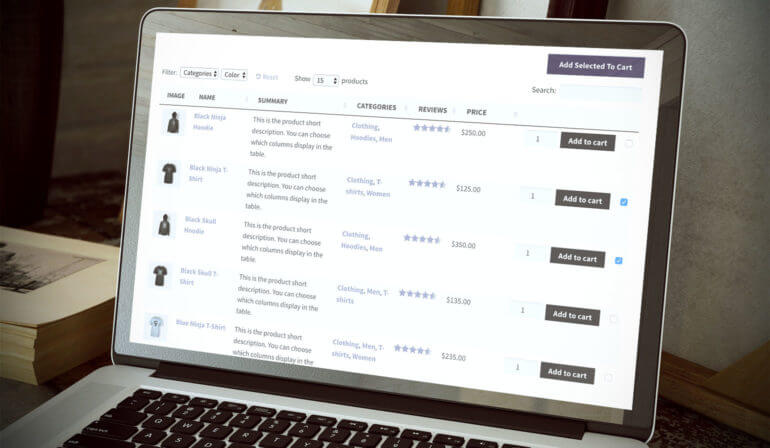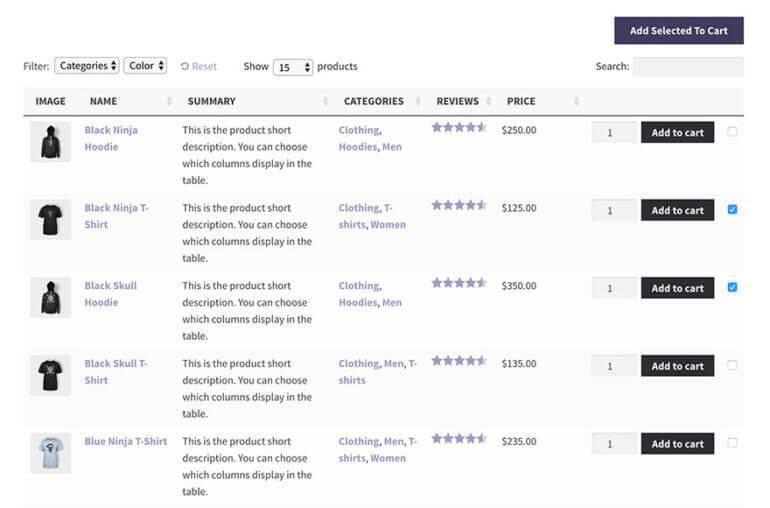

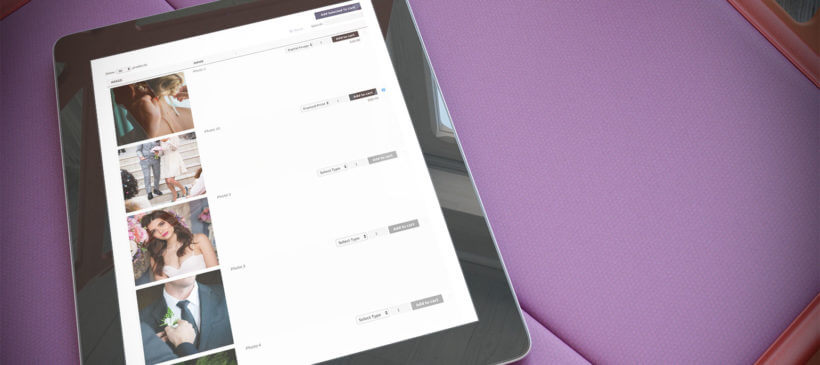
WooCommerce photo gallery displayed in a product table layout

'WooCommerce is great for selling all kinds of products. That's why it powers over 41% of all e-commerce websites. If you're a photographer wanting to sell photos in WooCommerce then you can benefit from a WooCommerce gallery plugin.

In this tutorial, I'll show you how to use the Product Table plugin to create a professional-looking WooCommerce image gallery.

Your customers can search, sort and filter the table to quickly find the images they like. They can select product variations or other options, and add photos to the cart directly from the WooCommerce gallery. You can display any information you like about your products, all within the image gallery view. And if you implement the bonus tip later in this article, then you can also display the full product image gallery in a quick view lightbox. It's the perfect way to sell more photos.
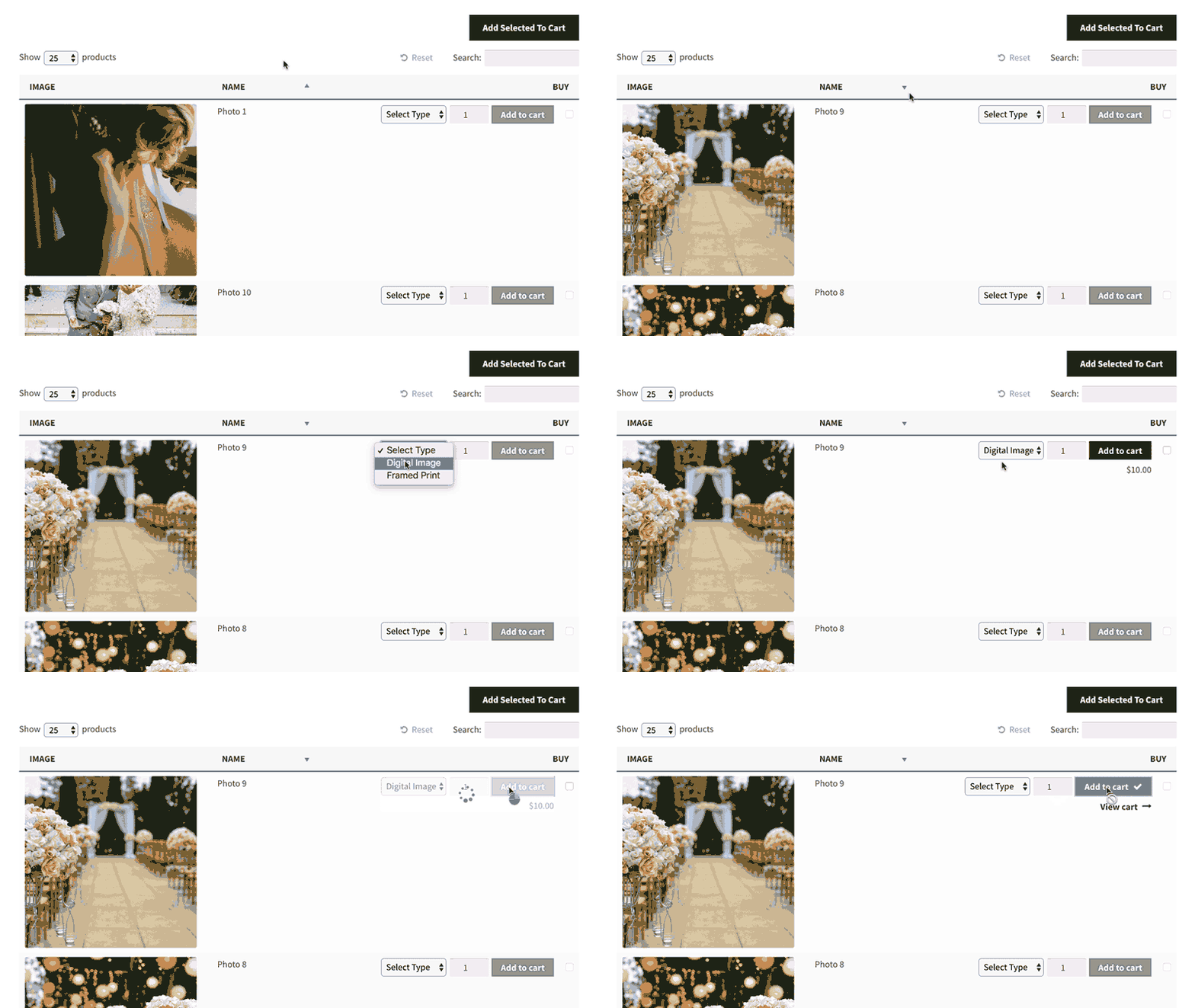
Photo gallery shown as a WooCommerce product table with add to cart buttons

Are you a photographer wanting to securely sell photos to specific clients? Check out our WooCommerce for photographers tutorial.

A WooCommerce image gallery is perfect for any website with highly visual products. If images are essential to your sales then a product gallery is a great way to show them off.

Most WooCommerce stores have a layout that consists of a grid of images with the product name, price, reviews and add to cart button. This may not be the best way to appeal to your customers. For example, if you sell variable products then customers have to click through to the single product page to choose options and add to the cart.

With a photography product, you don't really need the single product page as there's no text-based description. It's better to display all the data you need in the WooCommerce gallery where customers can make quicker buying decisions.

Here are some examples of websites that would benefit from a WooCommerce image gallery.

WooCommerce photography website

If you're selling photos or other images on a WooCommerce website then you can display them in a WooCommerce gallery. The gallery can include all the information you want to provide about your images. This might include name, price, variation options, dimensions, frame options etc.

By displaying all this information on a single page in a WooCommerce gallery, customers can choose all the photos they want without clicking elsewhere. Ideally, they should be able to select multiple photos and add to cart in a single click. This helps to increase the value of each sale - simply by having a gallery of products.

Graphic designer website selling images online

A graphic designer might sell image files using WooCommerce. This could be photos, icons, vector graphics, illustrations, PSD's or logos.

Displaying images in a WooCommerce gallery is a great way to showcase your work while providing all the data your customers need. You could include a big column for the image preview, plus information such as image size, file format, options, price and add to cart button.

Any WooCommerce website where images are important

So far, I've focussed on the most obvious uses for a WooCommerce gallery. However a table layout with images can benefit any WooCommerce website where photos of your products are important.

You can choose the size of the images in the table view, and what other information you want to display. By presenting your products in a one-page WooCommerce gallery layout, customers can see everything at a glance. This helps them to find what they want and reduces your bounce rate and lost sales.

Whether you need a one-page order form with photos or a WooCommerce product catalogue, a WooCommerce gallery view can make a big difference.

1. Install WooCommerce

First, create a WooCommerce website as usual. If you don't know how to set up WooCommerce, here's a link to the official documentation. This covers a huge range of topics such as adding products and categories, payment options and shipping.

2. Install WooCommerce Product Table

Once you have an e-commerce website set up, it's time to install the Product Table plugin for your WooCommerce gallery layout.

  1. Get WooCommerce Product Table, download the plugin files and copy your license key.
  2. In the WordPress admin, go to Plugins → Add New. Upload, install and activate the plugin.
  3. Go to Products → Product Table → Add New. Now you're ready to create your first product gallery!

3. Create your WooCommerce product gallery

Use the table builder to set up the product gallery in WooCommerce. There are plenty of gallery options and it will walk you through the process step-by-step.

For example, you can:

  • Change your columns WooCommerce Product Table can display most types of product data in the image gallery. You can choose which columns display in the table view. For a product gallery, you might want to display product descriptions, categories, tags, attributes or extra data as custom fields or taxonomies.
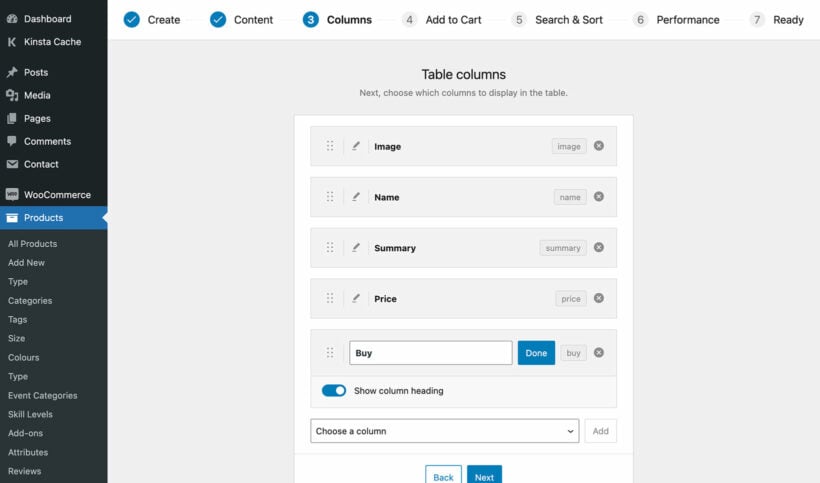
    Choosing which columns to show in the WooCommerce Product Table
  • Disable links to the single product pageYour WooCommerce gallery should include all the information that customers need about your photos, as well as the image itself. This means that you may not want them to be able to access the single product page. By default, the gallery image and product name in the table will link to the single product page. To disable these links, click on the pencil icon for each column and disable the links.
  • Let customers choose the quantityEnable quantity fields on the 'Add to Cart' step to add a quantity selector dropdown next to the add to cart button. This lets customers buy multiple copies of each photo, which can increase your sales. For example, if you're a school photographer then this can encourage customers to buy a copy for each family member.
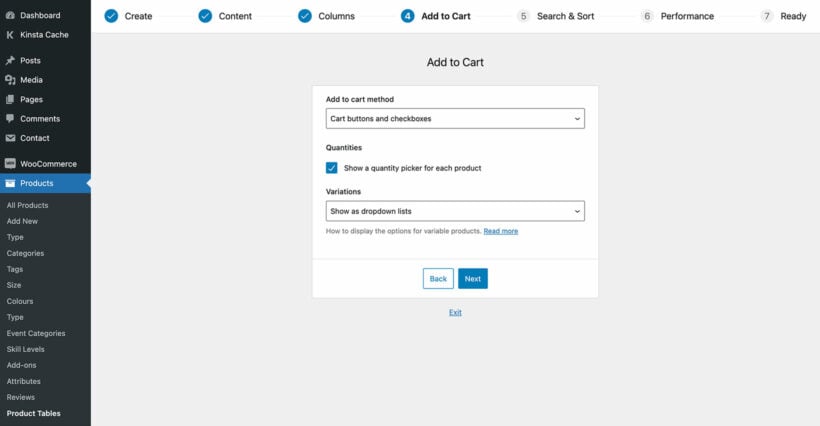
    Add to Cart settings in the WooCommerce Product Table builder
  • Change the image sizeFinally, go to Products → Product Tables → Settings. Here, I recommend adding 300x300 (or similar) to make the images bigger. By default, your photos will appear quite small in the WooCommerce gallery. Set the number of pixels to enlarge them.

3. Create a page for your WooCommerce gallery

  1. WooCommerce photo gallery shown as a product table on a phoneIn the Pages section of WordPress, create a page for your WooCommerce gallery view. You can skip this step if you used the table builder to enable the gallery view globally on your main shop page templates.
  2. Either add a 'Product Table' block if you use the block editor, or get the shortcode from Products → Product Tables and add that to the page.
  3. Save the page and view it. You will see your products displayed in a WooCommerce gallery table with columns for image, name and add to cart button.
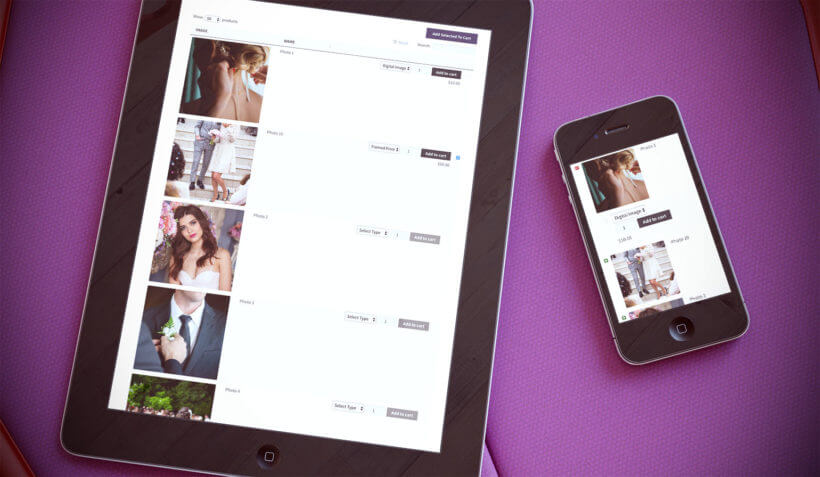
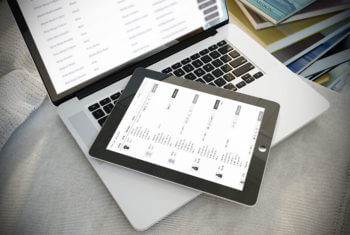
WooCommerce gallery product table shown on a tablet and phone

Top 10 Tips - How to use product tables to optimize your WooCommerce conversion rate.

With WooCommerce Product Table, you can list products in a table-based gallery. If you'd like to show multiple images for each product, then you can do this by using it with its sister plugin - WooCommerce Quick View Pro.

When you use both plugins together, customers can click on a product image, title or quick view button to view the full WooCommerce product image gallery in a lightbox popup:
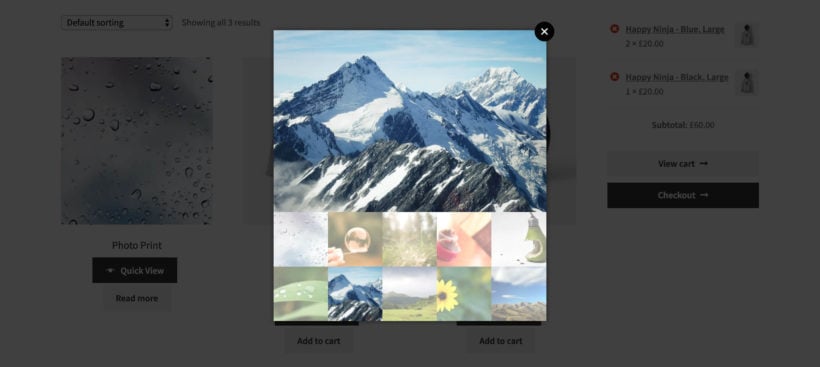
WooCommerce product image gallery opened in a lightbox popup

By default, the WooCommerce gallery lightbox shows thumbnail images. Customers click on the thumbnails to navigate between the gallery images. If you prefer, then you can switch to bullet navigation and slide between the images. It's also possible to add product information, variations and add to cart buttons to the gallery.
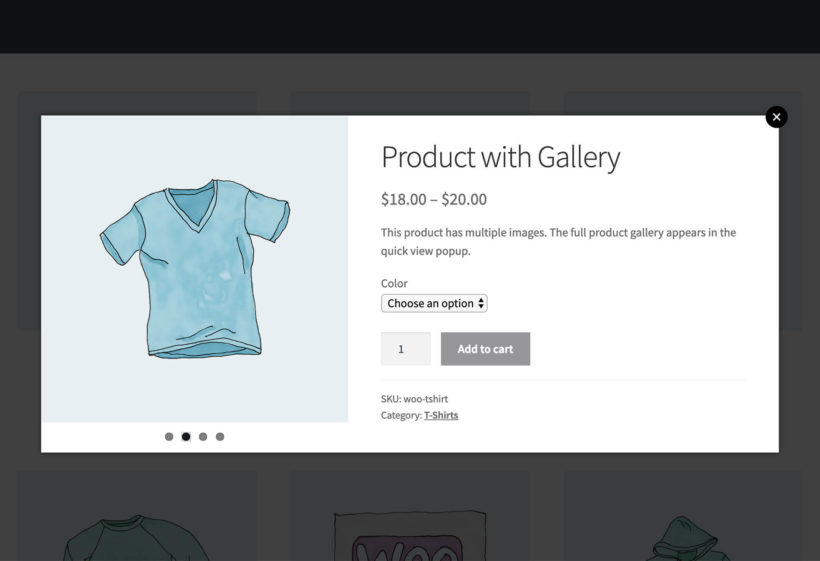
WooCommerce product gallery in a lightbox with bullet navigation dots

Adding quick view to your WooCommerce gallery is the perfect way to sell more photos. It increases the value of each sale because customers remain on the list of images, and are not taken to a separate page for each product. This encourages them to buy more images from you, increasing your profits.

Once you've installed WooCommerce Quick View Pro, it's easy to add quick view buttons to the WooCommerce product gallery. Just edit your table at Products → Product Tables and add a 'Quick View' column.

If you'd like to test drive the WooCommerce image gallery that I created for this tutorial, check it out here.

WooCommerce Product Table is a neat way to create WooCommerce galleries, with a grid of product images alongside other data and buy buttons.

Do you use galleries in WooCommerce on your website? I'd love to know what method you use. Please leave your comments below.


Illustration of a rocket launching to represent growing WooCommerce sales

This article has been kindly written for us by Jamil, SEO specialist from CloudWays.

According to a recent report by eMarketer, global retail e-commerce sales are expected to reach $4 trillion by 2020. These trillions explain how online shopping is ready to take over the traditional retail stores.

There are a number of e-commerce platforms and WooCommerce tops this race with a market share of over 40%. Part of the reason lies in the simple fact that WooCommerce is so customisable, ideal for small to large online businesses and startups. As I write this, WooCommerce has been downloaded 45K to 50K times per day, and has more than a million active users.

It seems that the internet is flooded with tricks for boosting your WooCommerce store. Here is my selection of WooCommerce tips to help you stay on top of the fierce online shopping game.

WooCommerce banner promoting it as the most customizable eCommerce platform

Use an eye-catching WooCommerce theme

The first impression is often the last impression and the first thing that a visitor sees on your online store is the theme and the layout. Based on the theme, the visitor makes a snap decision about whether to continue with the purchase or close the tab!

Web visitors expect an eye-catching store with a very intuitive UI/UX. My advice is that the design should be visually appealing yet simple, so that the widest range of users can interact with the store without thinking twice.

For WooCommerce store owners, themes fall into three options: Free, Paid and Custom. Pick the option that suits your pocket but keep one thing in mind; the theme should be attractive enough to make sure that the visitor enters the sales funnel! If you're looking for an affordable WooCommerce option with a choice of good themes, check out Barn2 Media's MySimpleSite and MySimpleStore services.

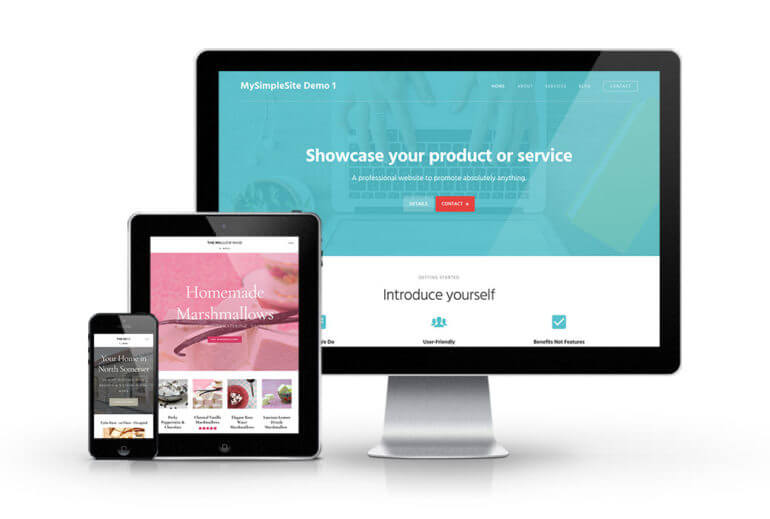
Affordable WordPress website shown on desktop, tablet and phone

A friendly user-experience

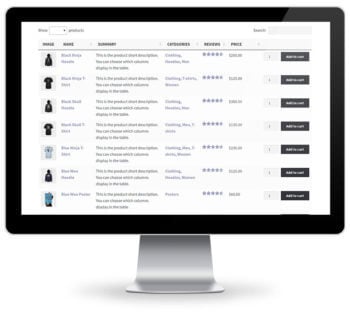
WooCommerce products shown in a user-friendly table layoutAccording to many experts, a friendly experience is the key to more sales and popularity of the store. Visitors should feel at ease while shopping at your store. Navigation plays a huge role in providing a precise and relaxed environment for your visitors.

Visitors always need to know three important pages: the one they were on, the one they are on and the one that they will go to after clicking a particular link on your store. This can be achieved via breadcrumb links and intuitive navigation menus.

An important plugin to use for your store is WooCommerce Product Table. This plugin presents your product descriptions in separate boxes on the store, along with other information such as product name, price, reviews, attributes, variations and even add to cart buttons. This really helps the shoppers get instant information about the products so they can make quicker buying decisions.

Discover 10 ways to use product tables to optimise your WooCommerce conversion rate.

A fuelled-up web store

Any e-commerce business depends upon reliability and speed. Most customers will not wait around for slow loading online stores. Thus it is vital that you continuously monitor the load time of the store to ensure a high speed website.

Picking the right WooCommerce hosting is the best way of ensuring the speed of the store. When shopping for a host for your store, you should look for reliable and persistent performance and availability of (free and paid) plugins and themes that help in making your web store blazing fast.

P.S. You should always keep an eye on plugins and themes that could slow down your web store.

Security above all

Security is the ultimate requirement for any web store. An insecure web store simply means no sales.

Online stores are a goldmine of customer information including personal information and credit card numbers. Even the rumour of a breach could permanently destroy the reputation of an online store!

You have to make sure that your WooCommerce store is secured with an SSL certificate. Other ways to secure your store include setting up a complex password for the site’s administrator account, updating the WooCommerce store to the latest version and regular backups of the store.

Engaging and clear product descriptions

Visitors can be converted into customers through clear and engaging product descriptions. The product description is a selling pitch, so it should be unique and attractive.

Another important thing to remember is that you should never mislead your visitors about a product. This is because they will not visit your store again after a bad experience. In fact, this could often result in a vicious social media campaign.

To avoid this situation, your product descriptions should perfectly reflect the products. Research the popular trends and check out your competitors' product descriptions for inspiration. Remember that SEO-based descriptions help in getting your product rank higher in Google.

Impressive product images

The right picture gives customers the right vibe about a product.

Customers do not buy products after reading the engaging product descriptions. Rather, they look at the images to check out the quality of the products. Therefore, your product images should be of top quality and should attempt to capture all details of the product.

Your images should show different aspects of your product. The good thing about WooCommerce is that it supports 360-degree images which offers a very detailed visual description of the product.

Create product videos

Today, the Internet is all about videos. Product videos are the latest trend in the e-commerce industry.

Potential customers always check out product videos because a one-minute video can provide the information that hundreds of pictures simply can’t.

The good thing about product videos is that you can produce a video once and then promote it on several platforms such as Youtube, Snapchat, and WhatsApp.

Focus on store SEO

Optimising your WooCommerce store for search engines is one of the most effective practices of generating more traffic and sales. Always make sure your online store integrates the latest trending keywords to get your pages and products listed on the very first page of Google.

Your store’s interlinking structure should be stable as Google looks for the authority of your store. A sitemap is an essential aspect of the SEO strategy for a WooCommerce store. Each page should be optimised individually. Similarly, using keywords in product descriptions is good.

However, remember that excess of everything is bad. Google penalises web stores filled with keywords.

Live chat

The customer is the king, and customer support is the key to success for any web store. You should provide your customers prompt pre- and after sales services and work toward resolving their queries promptly. If your customers feel valued, they are more likely to return for more shopping and recommend you to others.

Live Chat is a premium WooCommerce plugin that helps in improving customer experience. It saves customers' time because they can contact your store immediately without much waiting. There are also several other plugins that integrate live chat capability straight into your WooCommerce store to make your web store more reachable.

Sell to existing customers!

It's all well and good trying to attract new customers. But it's well documented that your efforts will get the best value for money by focussing on getting repeat business from existing customers. Users Insights have written a good article about how to increase your WooCommerce sales from returning customers.

Refund policy and/or money-back guarantee

This tip relates to all e-commerce stores in general, as well as WooCommerce shops. A well-defined refund policy means that customers at your store can feel easy about their purchases. If they do not like the product, they can easily return the product without any issues.

Similarly, if you feel confident enough, you could offer a money-back guarantee at your store. This is the ultimate offer you could make, but remember that you have follow through and be good for your words.

Customize your checkout page

As an online store owner, your goal is to deliver a seamless shopping experience to your customers. One way to achieve this is by creating a frictionless checkout process.

You can customize your WooCommerce checkout page to make it easier for your customers to make purchases. If shoppers have to click through multiple pages to buy products, they’ll likely end up abandoning their shopping cart in favor of another store.

Another feature to include is allowing your customers to easily add multiple products to their shopping cart. This makes it simpler for them to choose product variants without having to click through to the single product page.

A secure checkout is one of the most important factors in delivering a great shopping experience. You want to be able to let customers know that their contact and billing information is safe. One way to achieve this is by offering a secure (and popular) payment gateway at checkout.

Read more about customizing your check out page.

Final thoughts

WooCommerce is a wonderful platform for e-commerce stores. If you implement the above WooCommerce tips and tactics in your store, you can see a significant increase in revenues and customer base.

Consider every point of the marketing sales funnel. Each step of the journey should be designed to increase your store sales.

How about saving some money? Use the coupon code "BARN2MEDIA" to get free hosting credit of $10 for Cloudways, a managed cloud hosting platform. If you want your Woocommerce store to perform at optimum speed, you can try Cloudways.

About the author

Jamil is an SEO Specialist at Cloudways, a managed cloud hosting platform. A Digital Marketer, HubSpot Inbound Marketing Certified. Loves WordPress, cricket and sprinting.

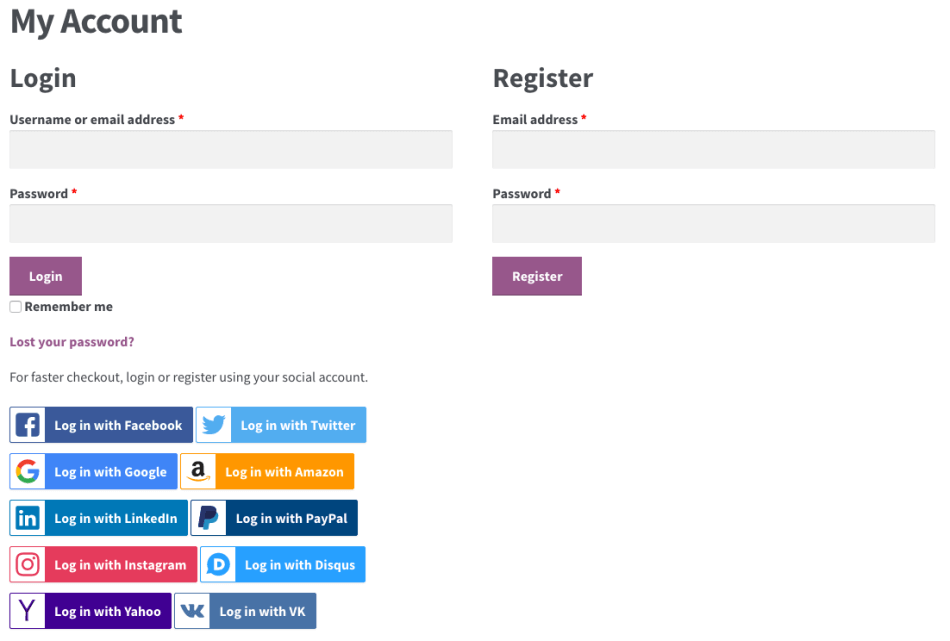
WooCommerce account login and register page with social login buttons

This ultimate guide contains everything you need to know about WooCommerce login for your customers. We'll look at the different ways you can let customers log into a WooCommerce online store, and why.

I'll tell you how to set up a WooCommerce login straight out of the box, with or without compulsory registration and social login. I'll also share some handy login plugins to create a hidden or private WooCommerce store that only logged-in customers can access. You will learn how to:

  • Add user login to your WooCommerce store (no plugin needed).
  • Make users log in before purchasing (no plugin needed).
  • Hide your entire store from logged-out users using the WooCommerce Private Store plugin.
  • Restrict specific products and categories to logged-in users using the WooCommerce Protected Categories plugin.
  • Send your customers WooCommerce auto-login links using the free URL-Based Login plugin.

Read on, or watch this video to see how each login method works.

Importance of a customer login for WooCommerce

  1. Personalized user experience: WooCommerce customer login allows you to provide a personalized experience to your customers. They can easily access their order history, saved payment methods, and shipping details, which can save them time and effort.
  2. Increased security: With a WooCommerce customer login, you can secure customer data by allowing access only to registered users. It also allows you to monitor and track user activity to prevent any fraudulent or suspicious activity.
  3. Targeted marketing: A WooCommerce customer login feature allows you to track customer behavior and preferences, which can be used to create targeted marketing campaigns. You can also offer personalized discounts and promotions to customers based on their purchase history.
  4. Improved customer engagement: WooCommerce customer login feature can help you create a loyal customer base. You can send personalized emails, update them on new products or services, and gather feedback on their experience.
  5. Simplified checkout process: When WooCommerce customers log in, they can save their payment and shipping details, making the WooCommerce checkout process faster and more convenient. This can increase customer satisfaction and encourage repeat business.

What are the different types of WooCommerce login?

By 'WooCommerce login', I'm talking about the process where customers log into your online store. It's quite a vague term and there are several ways to set it up. Which one you choose depends on how you want your store to work.

  1. Public WooCommerce store with guest checkout - This is the most common WooCommerce setup. Anyone can browse your products and there is no hidden WooCommerce content. Customers can buy products as a guest without having to log in, or they can optionally create a WooCommerce account during checkout.
  2. Public WooCommerce store with mandatory user accounts - Lots of WooCommerce stores can be browsed by anyone, but customers must register or log in to their WooCommerce account in order to purchase.
  3. Customer portal with protected product categories - Instead of (or as well as) individual customer accounts, you can password-protect parts of a WooCommerce store or restrict them to specific users or user roles. Anyone can buy from the public areas of your shop, while only customers with the right credentials can access your protected categories. Once a customer logs into your protected categories, they can view and buy the hidden products inside.
  4. 100% private WooCommerce store - Some websites want to hide a whole WooCommerce store from public view so that customers must log in or enter a password to access it.
  5. WooCommerce auto-login links - Let customers log in more easily by clicking on a personal login URL. No more usernames or passwords!

With nearly 2 million using WooCommerce sites according to the latest WooCommerce stats, there are plenty of people looking for all these login options.

Option 1 - Public WooCommerce store with guest checkout

Most WooCommerce stores let anyone view and buy their products, whether or not they're logged in.

How to enable guest checkout in WooCommerce

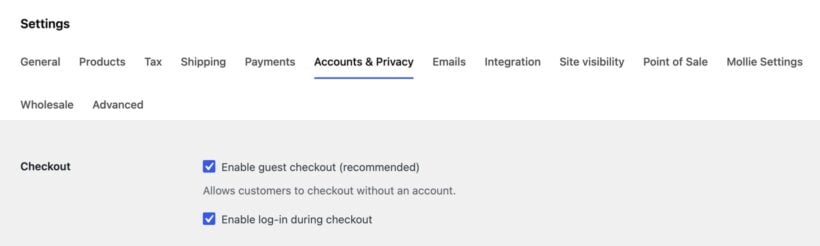
  1. Log into the WordPress dashboard and navigate to WooCommerce → Settings → Checkout.
  2. You'll see a box with the label 'Enable guest checkout'.
  3. Tick this box and customers will be able to purchase without logging in or creating a user account.
WooCommerce Accounts and Privacy settings with the Enable guest checkout checkbox ticked

How to prevent user account creation in WooCommerce

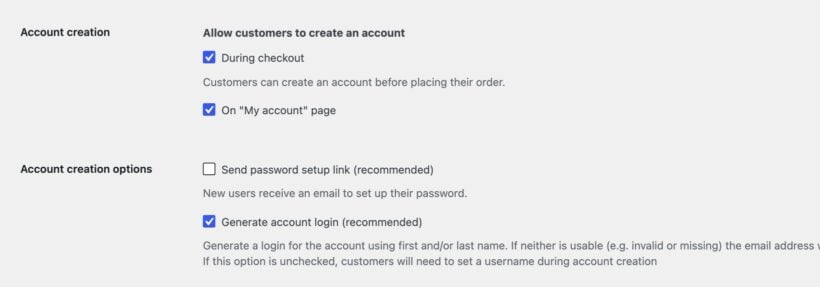
If you like, you can prevent customers from creating user accounts at all. To do this, go to WooCommerce → Settings → Accounts. Untick the boxes to enable registration on the Checkout and My Account pages. This will prevent customers from registering for your site at all, so you don't need to provide a login page.

WooCommerce Accounts and Privacy settings showing account creation checkboxes for checkout and the My Account page

Check out this free Helpie WooCommerce FAQ plugin which helps to create an FAQ section on your WooCommerce product page to easily answer customers' questions about the products.

Option 2 - Public WooCommerce store with mandatory user accounts

How to add a Register/Login page to WooCommerce

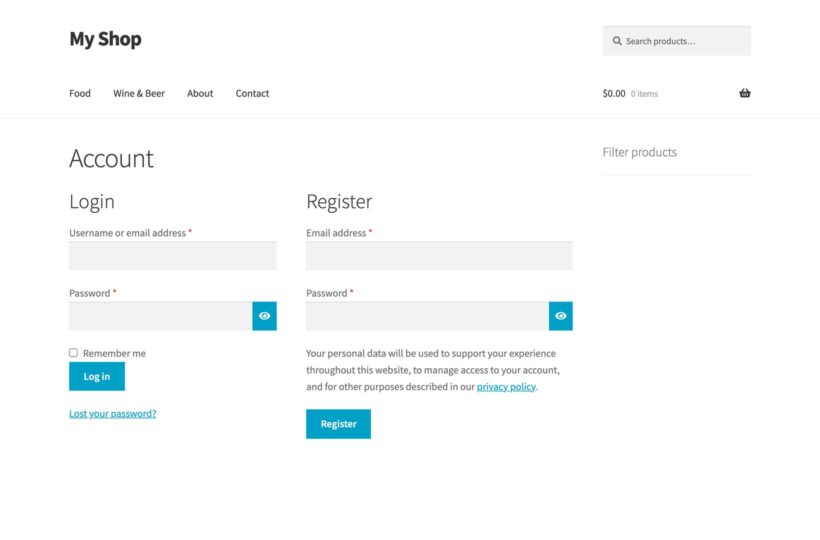
WooCommerce Account page with side-by-side login and register forms for customers to sign in or create an account

When you first install WooCommerce and run the Setup Wizard, there's an option to automatically create all the essential pages for your store. Do this, and you'll see a 'My Account' page in your list of pages (along with other new pages for shop, cart, and checkout).

The WooCommerce login shortcode [woocommerce_my_account] will appear on the page. You can use this page as your register/login page, for example by linking to it from your header or sidebar.

The WooCommerce login/register form works as follows:

  • Guest users will see the WooCommerce login form, possibly with a registration form. To include the registration form on the login page, go to WooCommerce → Settings → Accounts and tick 'Enable registration on the "My Account" page'.
  • Logged-in users will see their Account page, with their order history, profile, and other information.

You can add the WooCommerce login shortcode[woocommerce_my_account] anywhere else on your website to create extra login forms. There are other plugins available to do this such as Sidebar Login and Woocommerce Login / Signup Lite. These let you create more complex WooCommerce login forms. However, you only need an extra plugin if the built-in WooCommerce login shortcode isn't suitable for you.

Tip: If you want to control where users are redirected after they log in, try Peter's Login Redirect. It's easy to set up and we've used it on lots of our client's websites.

How to force WooCommerce customers to log in or register before they buy

  1. In the WordPress dashboard, go to WooCommerce → Settings → Checkout.
  2. Untick the 'Enable guest checkout' box. This will force users to create an account when they buy from your WooCommerce store.

You can further configure how user accounts are created in WooCommerce → Settings → Accounts. This WooCommerce page has several settings such as whether to include a registration form on the checkout page and whether to automatically generate WooCommerce customer login usernames and passwords.

There's also a box to display a login reminder on the checkout so that existing customers can log in. This is really useful if guest checkout is disabled, as you need to make it easy for customers to log in.

Note: If a customer completes checkout without logging in then an account will be created for them behind the scenes. They will receive the login details by email so that they can log in the next time they purchase from you.

WooCommerce social login

WooCommerce social login
As well as the standard WooCommerce login facility, you can let customers log in with their social media accounts. With WooCommerce's social login, you create a public store as usual so that anyone can browse your products. As part of the checkout, they can log into your website using their social media accounts.

You might offer social login in addition to - or instead of - the option to register directly on your WooCommerce website.

Research suggests that over 77% of customers prefer to log into WooCommerce or other websites using social media. This is hardly surprising given that it saves them the hassle of creating a new WooCommerce account for your website and remembering their logins. (And of course, WordPress insists on secure passwords these days so they can't just log in with an easy-to-remember password!)

Back in 2014, I wrote about a 'deadly embrace' caused by WordPress social login plugins. At the time, the available plugins conflicted with built-in WordPress user accounts. Things have improved since then but if you're considering social login then I recommend you use the official WooCommerce extension. This offers the best chance of creating a user-friendly WooCommerce social login for your website.

How to add social login to a WooCommerce store

To add social login to your WooCommerce website, I recommend the official WooCommerce Social Login plugin. Once you've purchased the plugin, follow the instructions in the knowledge base to enter your license key and set it up.

Given the issues I previously identified with social login, I recommend thorough testing before it goes live. Make sure your WooCommerce login process works seamlessly. In particular, test the following aspects of the login process:

  • First time WooCommerce logins using each social network.
  • Repeat logins using the same social network.
  • Repeat logins using a different social network. (i.e. what happens if a customer forgets which social network they logged in with previously?)
  • Register using social login and then try logging in directly on the website using the Lost Password link.

Basically, try to break it and send a support request to WooCommerce if you discover any problems. Social login is a great idea but needs thorough testing to get right, as customers may forget how they previously logged into your WooCommerce store.

Get WooCommerce Social Login

Option 3 - Login portal with WooCommerce protected categories

Protected category shop page with a login box for customersOptions 1 and 2 are about letting customers log in to a public WooCommerce store. They might have to log in to purchase, but anyone can browse the store and see the products. You can also create a WooCommerce login system where customers have to log in or enter a password in order to see your products or other store content.
The WooCommerce Protected Categories plugin creates a login portal where different customers can see different products. It locks down one or more of your product categories so that no one else can see them. Customers must log into WooCommerce with the correct credentials to see the products inside their portal.

You can create separate categories for different groups of customers, and you can even create customer-specific products. Each customer logs in and views the restricted products that they have access to.

Who needs protected product categories?

You can use WooCommerce Protected Categories in several ways:

  • Show products from protected categories in the public areas of your store. When someone clicks a protected product, they must enter the password or login to view the single product page or purchase. This lets you display all products in the public store, while only pre-approved customers can buy protected ones.
  • Hide protected categories and products from the public store. Alternatively, you can hide protected WooCommerce categories and their products from public areas of your store. Authorized users can log in and be directed to the correct hidden category. This is perfect WooCommerce wholesale stores or customer-specific products where you sell different products to each customer.
  • Hide your entire WooCommerce store. Finally, you can put ALL your products within one or more protected categories. This way, customers have to log in before they can view your products or buy. (Tip: While it's possible to hide your whole store with this plugin, you might prefer Option 5, below. Both plugins let you create a WooCommerce hidden store)

How to create protected categories in WooCommerce

You can read full setup instructions in the plugin knowledge base. Here's a quick guide to get you started:

  1. First, get WooCommerce Protected Categories.
  2. Install and activate the plugin.
  3. Go to WooCommerce → Settings → Products → Protected Categories and enter your license key.
  4. Change any settings such as customizing the text on the password WooCommerce login page, and hide protected categories from the public areas of your store.
  5. Now, go to the product category that you want to hide behind the WooCommerce login page. You'll find this in Products → Categories. The plugin has added a new 'Visibility' section with options to password protect the category or make it private. Choose 'Protected' and either password protect the category, or restrict it to specific users or roles.
  6. Repeat step 5 for all the categories you want to protect.

Finally, test your WooCommerce protected categories from different customer login scenarios. For example, try it when you're logged in and out of the website. Also, try it before and after you log in to a category.

Option 4 - Create a login-only store

WooCommerce store login screen shown on a laptop and tablet

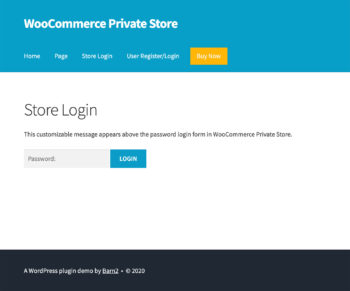
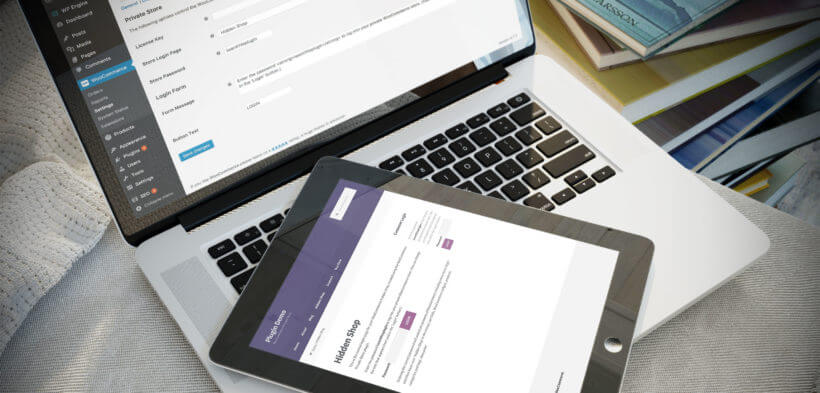
WooCommerce Private Store forces customers to log in to your WooCommerce store before they can see your shop page, products, categories, or any other store content. It's a simple but effective plugin to hide WooCommerce from public view, without affecting the public parts of your site.

By logging into their user account or entering a simple password on the WooCommerce private store login page, customers can unlock the store and access the products and other content inside. Your public users won't even know you have a WooCommerce store unless you decide to link to the WooCommerce login page. (In which case, they will be able to see the WooCommerce login page but none of the content behind it.)

How to hide your whole WooCommerce store behind password protection or a user login form

The plugin knowledge base contains full setup instructions for WooCommerce Private Store. I've also provided details below. Setting it up literally just takes a few minutes:

  1. Buy the plugin from https://barn2.com/woocommerce-private-store.
  2. Go to WooCommerce → Settings → Products → Private Store.
  3. Enter your license key and change any settings such as customizing the WooCommerce login form text. Either choose a password to password protect WooCommerce, or tick the 'Logged In Users' option to automatically unlock it for logged-in users or specific roles.

Once you've saved the settings page, your whole e-commerce store will be protected. Customers will have to log in or enter the password before they can see ANY WooCommerce content such as the main shop page, products, categories, etc. Your WooCommerce content will also be blocked from search engines, so it's a simple yet secure way to make WooCommerce private.

WooCommerce Protected Categories or Private Store?

I realize that the plugins mentioned in options 4 and 5 are quite similar. You can use them in similar ways but they can also be used very differently in terms of WooCommerce login options. Check out my article on which WooCommerce protection plugin to use.

Option 5 - WooCommerce auto-login by URL

Finally, you might want an easier way for your WooCommerce store's customers to log in.

WordPress and WooCommerce auto login plugins provide a dynamic link that automatically logs customers into their accounts. This saves customers from having to remember or store usernames and passwords. All they need is their personal auto-login URL.

You can use this option with options 1, 2, 4, and 5 listed above.

For full instructions, check out our separate step-by-step tutorial on how to set up WooCommerce auto-login URLs.

What type of WooCommerce login do you use?

As you can see, there are many types of WooCommerce login designed for different types of stores. I hope this guide has helped you to choose the right login method for your WordPress site and to set it up properly.

How do you allow customers to log in to your site? Are there good WooCommerce plugins I've missed? What pitfalls did you come across and what would you advise other WooCommerce users? Please add your comments below.

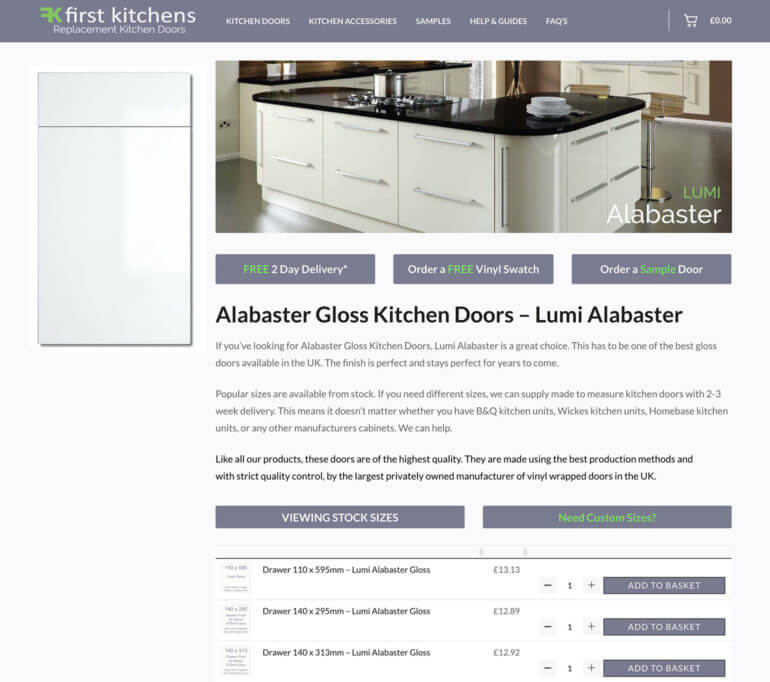
First Kitchens store shown using a WooCommerce product table across devicesWith more and more people using our bestselling WooCommerce table plugin, we're enjoying seeing all the innovate uses that people are finding for it. Here are 3 very different examples of how real customers are using the WooCommerce Product Table WordPress plugin.

  1. The first example uses it as a WooCommerce wholesale plugin, with the table view only available to approved trade users.
  2. The second example adds WooCommerce tables to the single product page. The table lists kitchen parts, letting customers mix and match to order a complete kitchen.
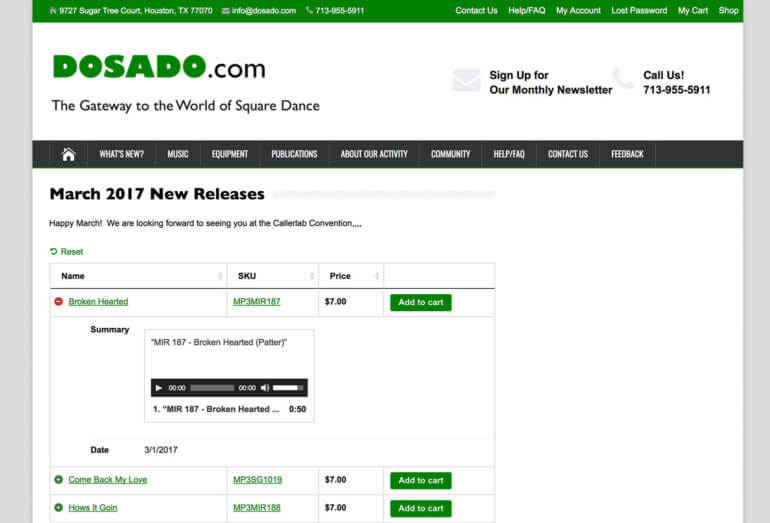
  3. The final example uses WooCommerce tables to create a music store, with embedded audio samples to listen to before buying the music online.

Learn how to improve your WooCommerce conversion rate with WooCommerce Product Table.

1. Davora - WooCommerce Wholesale Store

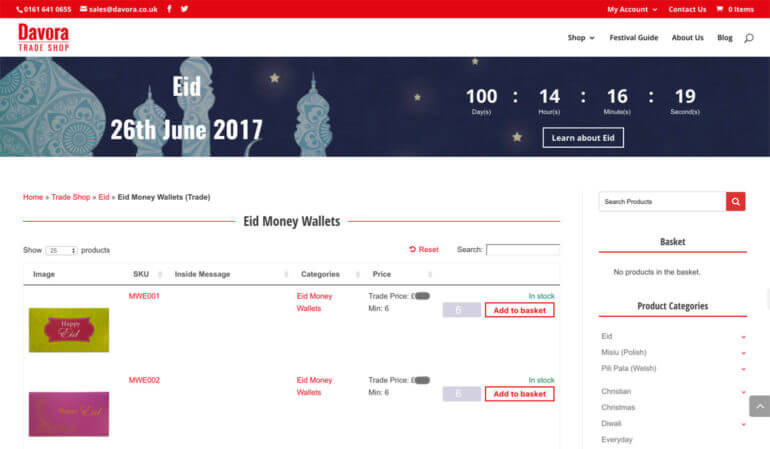
Davora wholesale trade shop listing products in a WooCommerce order form table

Davora are an e-commerce website selling ethnic and minor season greetings cards. As well as their public WooCommerce store, they use Wholesale Suite's 'Wholesale Pricing' plugin to display wholesale prices in a separate trade area. This lets them control how products are sold to wholesale users, for example with separate trade pricing and minimum order quantities.

When you log into the trade store, you can navigate to a product category. The products in each category are listed in a searchable, sortable table created using WooCommerce Product Table. WooCommerce Product Table is fully compatible with Wholesale Suite's pricing plugin so they can be used together.

It's very similar to the advice in our tutorial on how to create a WooCommerce order form.

Davora have done some custom development work to automatically display product tables on category pages for trade users, while public customers see the normal category layouts. (The knowledge base includes some basic guidance on how to add product tables to category archive templates.)

Tutorial - WooCommerce Wholesale Plugins: The Ultimate Guide

2. First Kitchens - WooCommerce table for optional product add-ons

First Kitchens product page listing door options in a WooCommerce table

First Kitchens have a beautiful WordPress website with WooCommerce tables within the main description on the individual product pages. They use the tables to list the available add-ons for their kitchen parts. A product list offers a more structured way to display extra product options than using variable products or an Extra Product Options extension.

Until we saw the First Kitchens website, it hadn't occurred to us that anyone would ever add a product table to the single product page! After all, most WooCommerce sites only list 1 product on the individual product page! However when we saw the tables in action, we saw that it makes perfect sense and is an ideal way to sell kitchens online. A classic example of how people are using the WooCommerce table plugin in innovative new ways!

Tutorial - WooCommerce Product List View plugin: The Ultimate Guide

3. Dosado - WooCommerce Music Store

Dosado music store listing tracks in a WooCommerce table with audio previews

Dosado are a square dance website with a WooCommerce music store where fans can buy their music.

They use our WooCommerce table plugin to list their music products in a responsive jQuery table. The table has columns for name, SKY, price and add to cart. They have cleverly adjusted the column widths to add an expandable cross. This can be clicked on to expand the table to reveal 2 hidden columns. These contain the date and include an embedded audio file so that you can listen to a sample of the music before buying.

Dosado have multiple WooCommerce tables on their site. There's a separate table of products for each month, and also on other locations around the site. This has allowed them to create an entire WooCommerce website without any of the standard built-in category layouts. The result is much better suited to a music store.

Audio samples are an excellent way for music stores to improve conversion rates and increase sales. Dosado have achieved this in a subtle way that doesn't take up too much vertical space, while providing plenty of useful information in the WooCommerce table.

Tutorial - Create a WooCommerce Directory to Sell Music & More

Next steps

So, you've seen 3 innovative ways in which 3 websites are using WooCommerce table plugins. Here are some next steps for you to follow:

  1. Get WooCommerce Product Table for your own website. Use the knowledge base to find your own innovative ways to use it.
  2. Become an affiliate and earn 30% commission for recommending our plugins.
  3. Already using our WooCommerce table plugin, or something similar? Add a link to your own website in the comments below. We'd love to see how you're using tables in WooCommerce!

GET THE PLUGIN

This article will help you choose the best WordPress client area plugin to create a WooCommerce private area.

It compares 2 plugins: WooCommerce Private Store and WooCommerce Protected Categories. We'll look at both plugins, their features and what sort of websites they are intended for.

This will help you to choose the right plugin for your own WooCommerce client area. You can then get your chosen plugin and start setting it up!

Quiz - Help me choose a plugin!

WooCommerce private area plugins - a quick summary

WooCommerce Private Store hides all elements of WooCommerce, so your whole store will be private and hidden behind a single password. You can have a shared password for everyone, or a separate password for each customer. Alternatively, you can automatically unlock your WooCommerce customer area for logged in users or specific user roles.

WooCommerce Protected Categories hides specific categories within your store, and the products within those categories. The rest of your store can remain public. There are several ways to protect categories with this plugin. You can password protect categories, or make them visible to certain logged in users or roles.

Here's a video guiding you through both WooCommerce private area plugins. You can also read the information below to help you choose the right one.

Which private area plugin is best for you?

To choose a WordPress client area plugin for your WooCommerce site, read these 2 lists. Think about which list best applies to you.

Do you:

WooCommerce Private Store login form locking the whole shop
  • Sell the same products to all your customers?
  • Want to complete a completely hidden WooCommerce private shop, with no public area? The rest of your website such as the homepage will still be public, but all elements of your shop will be private.
  • Need the convenience of a simple password to unlock your whole store which you can give your customers?
  • Want your WooCommerce store to be hidden from guest users and visible to logged in users?
  • Require all parts of WooCommerce to be 100% hidden from your menus, widgets, site search, search engines, sitemaps etc. including the main shop page, categories, products and tags? (Note: You can still have a public link to the login page, or you can hide this too.)

If this is you then I recommend WooCommerce Private Store.

Do you:

  • Sell different products to different customers?
  • Want public AND private areas of your WooCommerce store?
  • Need to password protect specific categories, or hide categories so that only specific users or roles can see them?

If this is you then I recommend WooCommerce Protected Categories.

How do I use these plugins?

The first port of call is to read the WooCommerce Private Store documentation and WooCommerce Protected Categories documentation. We've also provided some useful tutorials on using the WooCommerce private area plugins in different ways:

It's time to create your own WooCommerce private area

I hope this article has helped you to choose a WooCommerce private area for your store.

WooCommerce Private Store WooCommerce Protected Categories

WooCommerce products shown in a table layout with quantity and add to cart

Our bestselling WooCommerce table plugin has yet another new feature! The new version of WooCommerce Product Table lets your customers select multiple products in the table and add them to the cart. All in a single click!

Whether you need a WooCommerce order form, online food ordering system for a restaurant or any other type of product table, multiple add to cart is a great idea.

Read our full tutorial: How to select and add multiple products to the WooCommerce cart from one page.

Didn't the WooCommerce table plugin already have Add to Cart buttons?

Yes. Previously, your WooCommerce tables could include an 'Add to Cart' column. Each row of the table had a separate Add to Cart button for each product.

This was very popular, but could be time-consuming for customers wanting to buy lots of products. Quite a few of our WooCommerce Product Table customers have requested a multiple add to cart feature. They wanted to select multiple products and add them to the cart at the same time.

Now you can do this too.

WooCommerce product table listing items in columns with add to cart

How do the multiple add to cart boxes work?

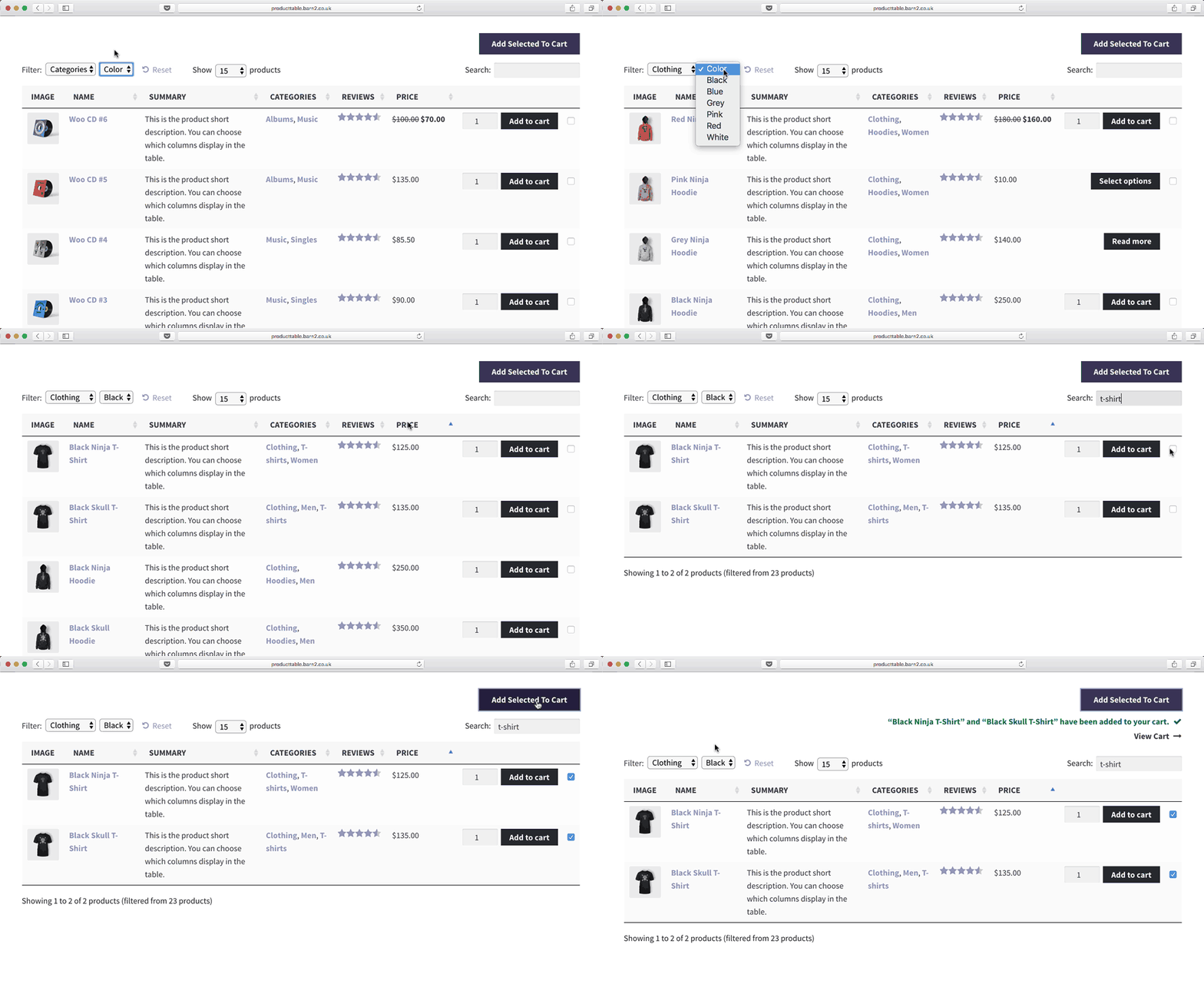
If you activate the new multiple add to cart boxes in your WooCommerce table then a check box will appear alongside each product. It will be added to the 'Add to Cart' column for each product.

Customers can tick as many products as they like. Once they've ticked them all, they can click 'Add Selected to Cart' to add them all to their WooCommerce shopping basket.

Depending on your WooCommerce settings, a success message will appear at the top of the page. Customers can click to view their cart and check out as usual. (All this is handled by WooCommerce - all the WooCommerce table does is control how products are displayed and added to the cart.)

You might be using plugin to change your Add to Cart behaviour such as Ajax Add to Cart. If so, it will work for your multiple add to cart button as well as the other buttons in your WooCommerce store.

WooCommerce product table with checkboxes to add multiple items to cart

Can customers select variations from the WooCommerce table?

Absolutely - we added support for variable products in a previous release of the WooCommerce table plugin. Customers can use the multiple add to cart option to buy simple or variable WooCommerce products.

If you activate the variations option in the product table then each variation appears as a dropdown in the Add to Cart column. Customers can choose their variations, view the correct price, tick the check box and use the 'Add Selected to Cart' button above the table.

If you need other types of option, then you can also use WooCommerce Product Table with the official Product Options plugin.

Does my product table have to use the new multiple add to cart?

No. Your WooCommerce table can work in any of these ways:

  • You can have a check box alongside each product with an 'Add Selected to Cart' button above the WooCommerce table.
  • If you prefer, you can have an 'Add to Cart' button next to each product (as it was before).
  • Alternatively the table can have both the check box, multi add to cart AND individual Add to Cart button for each product!
  • Instead of an add to cart column, you can display a custom field in the WooCommerce table. You can add a link or button to the custom field for each column, instead of the default add to cart button. (e.g. you could use this to add a 'Request Quote' button linking to a page with contact form.)
  • You don't have to have an add to cart column at all.

The WooCommerce table plugin really is that flexible!

How can I add multiple add to cart boxes to my WooCommerce table?

You can find full instructions in the WooCommerce Product Table knowledge base. The 'Add to Cart' option lets you choose whether to display the new check boxes, buttons or both. This only works if you're displaying the add-to-cart column in your WooCommerce table.

Read our full tutorial: How to select and add multiple products to the WooCommerce cart from one page.

Where can I test the product table?

You can see the new multiple add to cart feature in action on the WooCommerce Product List Demo Site. The main demo features a product table with both Add to Cart options active.

Browse around this site to see the different combinations. This will show you the flexibility of the WooCommerce table plugin before you buy.

Where can I get the WooCommerce Product Table plugin?

Our bestselling WooCommerce table plugin is available on the Barn2 Media website. Get it today - your product tables can be up and running in minutes.

And if you want to earn money for recommending the plugin to others, check out our WordPress plugin affiliate scheme.

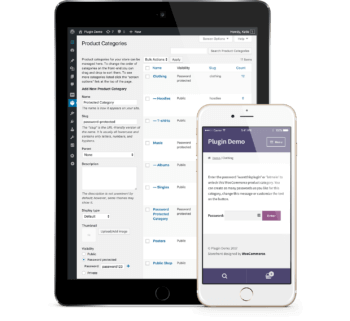
Customer login page shown on a mobile phoneWe've added a new WooCommerce customer login feature to our popular plugin 'WooCommerce Password Protected Categories'. It lets you create a hidden or private product category for each customer.

This means that you can now choose between 2 plugins to create a WooCommerce login:

  • WooCommerce Password Protected Categories - Perfect for protecting specific areas of your WooCommerce, which will run alongside your public shop. With this plugin, different customers can access different product categories. Or you can give multiple customers access to a single password protected category - the choice is yours.
  • WooCommerce Private Store - Make WooCommerce private by hiding your entire online store from public view. With this plugin, all your customers will have access to the same products within your private WooCommerce shop.

This post is about how to use WooCommerce Password Protected Categories to create individual customer logins, with different products categories for each customer.

Read the complete guide to all the WooCommerce login options.

What sort of websites need a WooCommerce customer login plugin?

A WooCommerce customer login plugin is suitable for any online store that has different products for different customers. Here are 2 case studies to illustrate how customer-specific products might be used.

Client login for a photographer's website

Professional photographers can use WooCommerce Password Protected Categories to sell the images from their photoshoots. It works like this:

  1. The photographer undertakes a photoshoot for a specific client. This might be wedding photography, a family photoshoot or corporate photography.
  2. After the photoshoot, the photographer creates a password protected WooCommerce category for that client. They add each photo as a product in this category (depending on their pricing structure etc.).
  3. The photographer notifies the client that their photos are available on the website and gives them the password for their WooCommerce category.
  4. The client visits the website and clicks a 'Client Login' link. This shows them the WooCommerce customer login form added by the plugin.
  5. The client enters the password into the login form and are automatically redirected to the category containing their photos. They can browse the photos and order online. If they give the password to others, such as their wedding guests, then they can order photos from the protected category too. The photos will remain private and hidden from public view. Only people with the password will ever know the hidden products exist.

Check out our tutorial of how to create a hidden WooCommerce store.

Company branded workwear for an industrial clothing seller

Another popular use case is company-branded workwear. An industrial clothing manufacturer may have a public WooCommerce store selling specialist clothing such as fire retardant workwear. Most of their customers probably use the public categories, but they may have deals with certain companies to provide branded versions of their products. For example, a company might order personalised versions of their workwear with its logo and brand colours, for an agreed price.

You can use WooCommerce Password Protected Categories to add the personalised clothing as products in a password protected category which is only available to the relevant company. They can click a 'Trade Login' link on the website, enter their password and be directed to the WooCommerce category with their branded workwear. The company can then order the customised items - and products from the public site at the same time, if they wish - without anyone else knowing they exist.

Check out our tutorial on how to create a WooCommerce wholesale store.

How does the customer login form work?

The WooCommerce Password Protected Categories plugin now includes an option to create a central customer login page.

How do you create a customer login page?

There are 2 ways to create your WooCommerce customer login page. This is also covered in the Password Protected Categories knowledge base.

Method 1 - Select your client login page

  1. Go to the plugin settings page at WooCommerce > Settings > Products > Password Protected Categories. (find this at: /wp-admin/admin.php?page=wc-settings&tab=products&section=protected-cats)
  2. Click on the dropdown list next to 'Category Login Page'. Select the page where you want your WooCommerce customer login form to appear.
  3. Scroll down and click 'Save changes'.

Selecting the category login page in the plugin settings

This will automatically add a shortcode to the page you have selected and the customer login form will appear.

Method 2 - Add the category login shortcode

For an even more flexible option, simply add the following shortcode to any page, post or text widget:

[category_login]

This will add a login form where customers can enter the password for their protected WooCommerce category.

Edit page screen with the category login shortcode added

A lot of sites will want to use the shortcode to create a WooCommerce sidebar login widget. This lets people log into their private category wherever they are on your website:

Protected category shop page with a sidebar login form

You can even customise the login form wording...

You can add other content above or below the shortcode as needed. Just go to the page, post or widget where you added the login form and add your other content.

You can also customise the message that appears within the customer login form as follows:

[category_login message="Add your custom message here."]

...And add private sub-categories for each customer

The above instructions tell you how to create a single WooCommerce product category for each customer. The plugin also lets you divide the private shop for each customer into sub-categories. For example:

  • A photographer might create a main category for each customer, with a sub-category for each of their photoshoots.
  • An industrial clothing seller might have a main category for each company they provide branded workwear for. This might be sub-divided into categories for office wear, heavy duty wear etc.

To create customer-specific sub-categories:

  1. Create a main top level category for each customer. Do this in Products > Product Categories in the WordPress admin. Select 'Password protected' and choose a password.
  2. Next, add all the sub-categories for that customer. Select the main category for that customer as the 'Parent'. Leave the sub-categories set to Public.
  3. Add the customer's unique products to the relevant category and sub-categories.
  4. You also need to set up your WooCommerce category pages to display sub-categories so that customers can navigate to their other categories. Do this in WooCommerce > Settings > Products > Display (find it here: /wp-admin/admin.php?page=wc-settings&tab=products&section=display). Under 'Default Category Display', choose 'Show subcategories & products' if you want the customer's main page to show both products and sub-categories. Or choose 'Show subcategories' if you just want their sub-categories to appear so that they have to click on one to view the products within.
  5. Click 'Save changes'.

WooCommerce display settings for showing shop subcategories

How did people create customer-specific products before?

Most WooCommerce stores have various products which are available to the public. We developed the WooCommerce Password Protected Categories plugin nearly a year ago to let people protect or hide some or all of their product categories.

The plugin has proved very popular. It's used for various types of website ranging from WooCommerce wholesale stores to shops with customer-specific products.

Until now, the only way to create customer-specific products was to give each client a secret link to their password protected category. This worked fine, but a lot of plugin users have asked us for a central WooCommerce customer login page. This is now available and I hope this article helps you to create your own login page for customers to access hidden categories.

Where can I test the WooCommerce customer login plugin?

We've added a WooCommerce Login page to the Password Protected Categories plugin demo. If you enter the password 'letmein' then you'll be directed to the Clothes category. The password 'teatime' will direct you to the Food category.

GET THE PLUGIN

Product table with attribute and variation dropdowns on a laptopSince its launch in October 2016, our WooCommerce product display plugin has quickly become our bestselling WordPress plugin. It displays products in a sortable table view. Today we've launched a new version of the product display plugin which supports product attributes and variable products.

More customers have requested support for attributes and variations than any other feature, so we've made this a priority. It comes hot on the heels of other improvements to our WooCommerce table plugin.

As well as displaying WooCommerce products in a searchable table view, you can now:

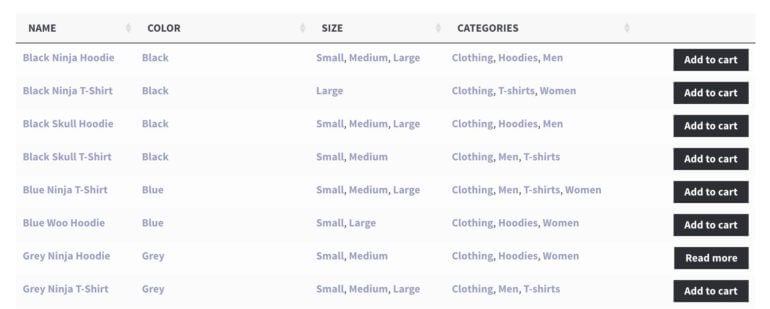
Display product attributes as separate columns in the table

Previously, you could display most product data such as title, description, price and featured image in the table, but not attributes. You can now include each attribute as a separate column in the product table.

We understand that all WooCommerce websites use product attributes in different ways. To make it applicable to everyone, you can list exactly which attributes are displayed in each product table. This means that you can display some attributes but not others.

If you have multiple product tables on your WooCommerce website then each one can list different attributes. For example, you might have an e-commerce clothes website with one product table for men's shirts and another for women's dresses. The table for men's clothes can include a 'Collar Size' column and the women's product table can have a column for 'Dress Size'.

Product table with separate columns for color and size attributes

See it in action on the new product attributes page on the plugin demo.

View and select variations directly from the product table

We've thought long and hard about the best way to present variable products in the table. Very few WordPress product display plugins support variations, and we don't think any of them get it right. For example, we saw one plugin that displays each variation as a separate row in the table. This would have been easier for us to develop (!) but I think it's the lazy option. It takes up a huge amount of space and isn't a neat solution. Some WooCommerce stores have dozens of variations, so it's important to display each product within a single row of the table.

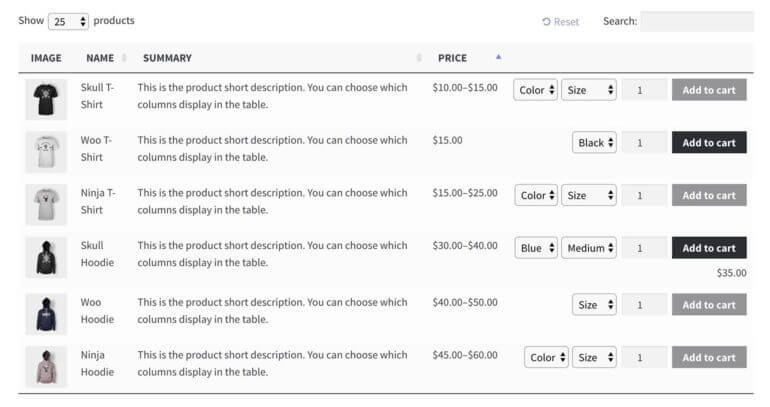
The new version of our WooCommerce product display plugin can list each variation as a dropdown list alongside the 'Add to 'Cart' button. Customers can select their variations, select the quantity and add to cart cart straight from the product table.

When you select a variation, the actual price for that variation appear under the Add to Cart button. If you're managing stock for each variation then the stock status or stock level will appear too.

Product table with size dropdowns and per variation prices

If you have more variations than can fit in a table then you don't have to enable the variations option. By leaving it disabled, the 'Add to Cart' button for variable products will change to 'Select options'. Customers can click through to choose their variations and buy from the single product page.

You can see this in action on the variations page on the demo site for the WooCommerce product display plugin.

Note: Since this article was published, we have also added support for Product Add-Ons. This lets you add even more product options in your WooCommerce tables.

Display attributes and variations as filter dropdowns above the table

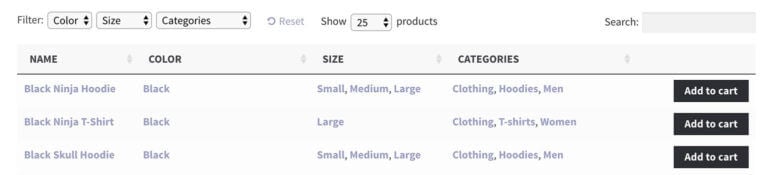
If your WooCommerce store has many products then you can help customers find what they want by letting them filter by attribute or variation. The new version of WooCommerce Product Table lets you display filters above the table with dropdowns for attributes, variations, categories or tags.

Adding filters="true" to the product table shortcode will display all possible filter dropdowns above the table. Alternatively, you can choose which filters appear. For example you may want the product table to include filters for the size attribute but not color.

Product table filtered by color size and category attributesYou can see this in action on the new product attributes page on the product display plugin demo.
WooCommerce Product Table plugin banner

Perfect for WooCommerce order forms, restaurant ordering systems & more

These new features are perfect for many different types of WooCommerce product displays. You might have a WooCommerce order form and want to include attributes or variations. Maybe you're a restaurant using it for an online food ordering system. You might be using product tables with our Password Protected Categories plugin to create a WooCommerce wholesale store. Do you want to list WooCommerce products in a simple layout? Maybe you want to create a WooCommerce product directory with extra product data.

Whatever you need WooCommerce product tables for, these new features will help the plugin to display products in whichever way you need. If you like it, join our WordPress plugins affiliate scheme and each 30% commission for recommending our WooCommerce product display plugin!

Attributes & variations not enough?

If you want to display even more product data in your WooCommerce tables, you can also show custom fields and taxonomies. Check out our tutorial on how to Display Extra WooCommerce Product Data with Custom Fields & Taxonomies.

How to get WooCommerce Product Table

We'll be contacting everyone individually who has requested support for product attributes and variations.

To get WooCommerce Product Table for your own website, simply buy the plugin and start setting it up. Your new way of displaying products could be ready within a few minutes! You can also sign up as affiliate and get 30% commission for recommending the table plugin!

GET PLUGIN BECOME AN AFFILIATE

WooCommerce shipping zones list for separate UK country regions

In WooCommerce, it's surprisingly difficult to charge different shipping costs to England, Wales, Scotland, Northern Ireland, Republic of Ireland and the Channel Islands.

It's all very well and good for countries like the US where you can set the shipping cost for each state individually. But WooCommerce treats UK countries such as England, Scotland and Wales as a single country, even though postage costs to each country can vary.

Sadly, there are no WooCommerce plugins to do this for you. This tutorial will teach you how to charge separate shipping rates for each UK country.

It's quite a fiddly process so if you can't be bothered to do it yourself, skip to the end of this article and sign up to be notified when we release a new WordPress plugin for WooCommerce shipping to different UK countries.

1. First, select which countries you sell to

The easy bit is to set up shipping for the Republic and Ireland and the Channel Irelands Jersey and Guernsey. The reason this is easy is because they're separate countries. This means that you don't have to set add postcode areas for each one.

  1. Go to WooCommerce > Settings in the WordPress admin and find the 'Selling Location(s)' option.
  2. If you sell to customers worldwide, set this to 'Sell to All Countries' or 'Sell to All Countries, Except for...'
  3. If you only sell to specific countries, enter them here. Make sure you enter United Kingdom, Republic of Ireland, Jersey and Guernsey as they're treated as separate countries in WooCommerce.
  4. Add the same information for the 'Shipping Location(s)' field below.
  5. Scroll down and click 'Save changes'.

This will tell WooCommerce which countries you accept orders from and where you will ship your products. Lots of people enter 'United Kingdom' thinking that it includes Jersey and Guernsey, not realising that people from the Channel Irelands can't order from them.

WooCommerce settings selling and shipping to specific countries including UK, Jersey and Guernsey

2. Add a Shipping Zone for each postage rate

Next, go to the Shipping tab in the WooCommerce settings. You need to create a separate shipping zone for each group of areas that will have its own postage costs. For example:

  • If postage to England & Wales is £10 and postage to the other countries is £20 then you should add 2 shipping zones - 1 for England/Wales and 1 for elsewhere.
  • If each country or region will have different postage rates then you should add each one as a separate shipping zone - e.g. England, Wales, Scotland, Northern Ireland, Republic of Ireland, Scottish Isles, Isle of Man, Channel Islands etc.

If any of these areas will have the same postage cost then you can group them into the same shipping zone. This keeps it simple - if England and Wales have the same shipping rate then there's no need to add them as separate shipping zones.

The below screenshot lets you charge different shipping rates for England & Wales, Scotland & North Ireland, the Scottish Isles & Isle of Man, and the Channel Islands and Southern Ireland - so we added 4 shipping zones.

WooCommerce shipping zones set up for UK regions by postcode

Now it's time for the complicated bit. You need to tell WooCommerce how to determine which customer is in which shipping zone. Unfortunately this doesn't happen automatically.

  1. Hover over a shipping zone and click 'Edit'.
  2. In the 'Regions' column, you will see a box titled 'Select regions within this zone'. This should only be used for entire countries that have a single shipping rate - for example if all Isle of Man postcodes will have the same shipping cost then select 'Isle of Man' here.
  3. Click in the box to view a list of all the countries that you ship to. Select the countries that should be used for that shipping zone. This puts that entire country within a single shipping zone, so DO NOT select any countries that you're dividing into multiple shipping rates. For example, if you are charging separate postage for England and Scotland then don't add United Kingdom into this box - instead, you need to add the individual postcode areas (see step 4).
  4. If you need to divide a country across multiple shipping zones then click the 'Limit to specific ZIP/postcodes' link. A box will appear underneath where you can add the postcodes for that shipping rate. At the end of this article, I've provided a list of UK postcodes divided by area/country. This will hopefully save you a lot of time.

Adding UK postcodes to a WooCommerce shipping zone region

3. Add your Shipping Methods

Once you've added your WooCommerce shipping zones, it's time to add all the shipping methods. Each shipping zone needs one or more shipping method.

To add a shipping method, click the + icon on the right of the shipping zone.

Adding a flat rate shipping method to a WooCommerce shipping zone

Select the type of shipping method and click 'Add shipping method'. This will add the method to the 'Shipping Method(s)' column on the WooCommerce Shipping Zones page.

Next, click on the shipping method you just created and fill in all the information to set it up.

WooCommerce flat rate shipping settings for an England and Wales zone

Repeat the process to create all the shipping methods for each zone.

4. Test your WooCommerce shipping rates

Finally, you need to thoroughly test your shipping rates. To do this, log out of your website and add a product to the cart. Go through to the checkout and use the shipping calculator to test the postage from various countries and postcode areas.

If something isn't working properly, it can be tricky to figure out what has gone wrong. Something must be wrong with the logic somewhere - for example you might have accidentally added the same area to 2 shipping zones.

Some common pitfalls:

  • If the customer's default location in WooCommerce > Settings is set to 'Geolocate' then it's hard to accurately test the postage as the website can detect your location. Switch off this setting to test it more accurately.
  • Are you using wildcards incorrectly? For example, you might have entered E* to cover all the East London postcode areas. If you do this then ALL customers whose postcode starts with an E will be charged the England postage, even if they're in a different shipping zone - e.g. Edinburgh, which is EH*. To solve this problem, you need to add the 2-digit version of all the 1-digit postcodes that share a first letter with a postcode in a different shipping zone. In this example, you need to add E1*, E2*, E3* instead of just E*.
  • If a customer in the Isle of Man (for example) selects their country as 'United Kingdom' then they will be charged UK postage. This is fair enough, as they quite rightly think of themselves as within the UK. If this happens, it's worth adding the postcodes for the other countries into the relevant shipping zone just in case. For example, you can select 'Isle of Man' AND add the Isle of Man postcode areas (IM*) to the Isle of Man shipping zone. This will allow you to charge the correct postage whether an Isle of Man customer selects their country as 'United Kingdom' or 'Isle of Man'.

5. Checklist - have you missed anything?

As you can see, it's quite fiddly to set up different shipping rates for each UK country/region. This checklist will help you ensure you haven't missed anything:

  • Have you added all the separate UK countries individually on the WooCommerce > Settings page?
  • Make sure you've created a separate shipping zone for each country/region that will have its own postage rate.
  • Have you accurately selected the correct countries and postcodes for each shipping zone?
  • Test the shipping costs from various countries and areas.

Would you like a plugin to set up shipping to different UK countries?

I completely understand that the process outlined in this article is very fiddly and difficult to get right. We're developing a WordPress that will do all this for you. If you're interested, please add your email address below and we'll let you know when it's available.

Or if you just want to charge different rates for each country, check out our tutorial on using WooCommerce to charge a different shipping rate per country.


List of postcode areas by UK country

To help you add your postcode areas, here's a list of UK postcodes divided into country.

We created this by collating the postcode lists on several Wikipedia pages and can't guarantee the accuracy, but hopefully it will save you time on defining the areas for your shipping zones. Please get in touch if you have any corrections to the list.

England and Wales postcode areas

AL*
B1*
B10*
B11*
B12*
B13*
B14*
B15*
B16*
B17*
B18*
B19*
B2*
B20*
B21*
B22*
B23*
B24*
B25*
B26*
B27*
B28*
B29*
B3*
B30*
B31*
B32*
B33*
B34*
B35*
B36*
B37*
B38*
B39*
B4*
B40*
B41*
B42*
B43*
B44*
B45*
B46*
B47*
B48*
B49*
B5*
B50*
B51*
B52*
B53*
B54*
B55*
B56*
B57*
B58*
B59*
B6*
B60*
B61*
B62*
B63*
B64*
B65*
B66*
B67*
B68*
B69*
B7*
B70*
B71*
B72*
B73*
B74*
B75*
B76*
B77*
B78*
B79*
B8*
B80*
B81*
B82*
B83*
B84*
B85*
B86*
B87*
B88*
B89*
B9*
B90*
B91*
B92*
B93*
B94*
B95*
B96*
B97*
B98*
B99*
BA*
BB*
BD*
BH*
BL*
BN*
BR*
BS*
CA*
CB*
CF*
CH*
CM*
CO*
CR*
CT*
CV*
CW*
DA*
DE*
DH*
DL*
DN*
DT*
DY*
E1*
E10*
E11*
E12*
E13*
E14*
E15*
E16*
E17*
E18*
E19*
E2*
E20*
E3*
E4*
E5*
E6*
E7*
E8*
E9*
EC*
EN*
EX*
FY*
GL*
GU*
HA*
HD*
HG*
HP*
HR*
HU*
HX*
IG*
IP*
KT*
L1*
L10*
L11*
L12*
L13*
L14*
L15*
L16*
L17*
L18*
L19*
L2*
L20*
L21*
L22*
L23*
L24*
L25*
L26*
L27*
L28*
L29*
L3*
L30*
L31*
L32*
L33*
L34*
L35*
L36*
L37*
L38*
L39*
L4*
L40*
L41*
L42*
L43*
L44*
L45*
L46*
L47*
L48*
L49*
L5*
L50*
L51*
L52*
L53*
L54*
L55*
L56*
L57*
L58*
L59*
L6*
L60*
L61*
L62*
L63*
L64*
L65*
L66*
L67*
L68*
L69*
L7*
L70*
L71*
L72*
L73*
L74*
L75*
L76*
L77*
L78*
L79*
L8*
L80*
L9*
LA*
LD*
LE*
LL*
LN*
LS*
LU*
M*
M1*
M2*
M3*
M4*
M8*
M9*
M11*
M12*
M13*
M14*
M15*
M16*
M17*
M18*
M19*
M20*
M21*
M22*
M23*
M24*
M25*
M26*
M27*
M28*
M29*
M30*
M31*
M32*
M34*
M35*
M38*
M40*
M41*
M43*
M44*
M45*
M46*
M60*
M61*
M90*
M99*
ME*
MK*
N*
N1*
N2*
N3*
N4*
N5*
N6*
N7*
N8*
N9*
N10*
N11*
N12*
N13*
N14*
N15*
N16*
N17*
N18*
N19*
N20*
N21*
N22*
N81*
NE*
NG*
NN*
NP*
NR*
NW*
OL*
OX*
PE*
PL*
PO*
PR*
RG*
RH*
RM*
S1*
S2*
S3*
S4*
S5*
S6*
S7*
S8*
S9*
S10*
S11*
S12*
S13*
S14*
S17*
S18*
S19*
S20*
S21*
S22*
S25*
S26*
S32*
S33*
S35*
S36*
S40*
S41*
S42*
S43*
S44*
S45*
S49*
S60*
S61*
S62*
S63*
S64*
S65*
S66*
S70*
S71*
S72*
S73*
S74*
S75*
S80*
S81*
S95*
S96*
S97*
S98*
S99*
SA*
SE*
SG*
SK*
SL*
SM*
SN*
SO*
SP*
SR*
SS*
ST*
SW*
SY*
TA*
TF*
TN*
TQ*
TR*
TS*
TW*
UB*
W1*
W10*
W11*
W12*
W13*
W14*
W2*
W3*
W4*
W5*
W6*
W7*
W8*
W9*
WA*
WC*
WD*
WF*
WN*
WR*
WS*
WV*
YO*

Scotland and North Ireland postcode areas

AB*
BT*
DD*
DG*
EH*
FK*
G1*
G2*
G3*
G4*
G5*
G6*
G7*
G8*
G9*
IV*
KW*
KY*
ML*
PH*
TD*

Scottish Isles postcode areas

HS*
KA*
PA*
ZE*