WooCommerce sample data and demo products: Free CSV downloads and setup


Discover the best place to download a large data set of dummy WooCommerce products with sample data.
If you work with WooCommerce, you sometimes need to create a demo site containing a large number of sample products for testing purposes. For example, you might need to do this in order to test the performance of a theme, plugin, or hosting setup. There's no point in testing performance on a site that only has a few products - it's much more valuable to test on a large site that replicates the biggest ecommerce stores on the market.
I ran into this problem myself when we were building our WooCommerce Product Filters plugin. One of the plugin's main goals was to provide lightning-fast filtering regardless of the number of products. As a result, we needed a demo site containing a large number of sample products. This would allow us to test the plugin's performance with more products, and create a plugin demo site that would showcase the plugin's capabilities more accurately.
Keep reading to learn about how to import the sample product data that comes with WooCommerce itself, and also where you can download a much bigger set of dummy products.

Related tutorial: How to bulk edit large numbers of products in WooCommerce.
What is WooCommerce sample data?
WooCommerce sample data is a set of demo products packaged as a CSV file you can import into a WooCommerce store. The data includes names, descriptions, images, categories, prices, and stock values.
WooCommerce ships with a 25-product sample CSV in the plugin's sample-data folder. Larger third-party sets exist for testing performance, theme layouts, or filtering at scale.
Does WooCommerce itself come with sample product data?
All WooCommerce installations come with 2 sample data files containing dummy products which you can import: sample_products.csv and sample_products.xml.
These sample data files contain 25 products divided into clothing, music and accessories categories. You might recognise them from the many demo sites that use them around the world, including many of our own plugin demos:

To import these demo products to a WordPress site which runs WooCommerce:
- Find the files in the woocommerce/sample-data folder of the main WooCommerce plugin.
- Import them via Tools → Import.
- Select the WordPress or WooCommerce importer and follow the onscreen instructions.
There are full instructions in the WooCommerce documentation.
As I mentioned above, this free sample data set only contains 25 products. It's a useful way to visualize a WooCommerce store before you start adding actual products. However, it's not much use if you need to create a demo WooCommerce store with a large number of sample products.
Fortunately, I found an excellent free sample product data set that you can use for this.
Large sample data set of WooCommerce products
GloverVentures has created a large data set of dummy WooCommerce products and kindly made it freely available to download and use.
The sample data set contains:
- 105 simple products
- 294 variable products with 1,848 variations in total
As you can see, that's far more than you get with the default WooCommerce sample products!
GloverVentures' demo site of the sample products isn't currently working. However, we use it on the WooCommerce Product Filters demo so you can see it in action there. It looks like this, with a large range of sporty clothing and accessories split across multiple categories:
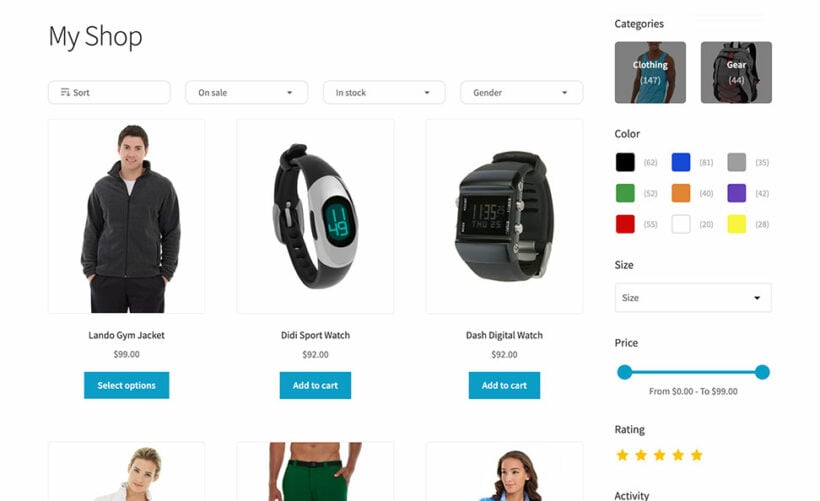
The only problem with the data set is that all the attributes are added directly to each product, instead of being created as global attributes. This caused problems for our WooCommerce Product Filters plugin because the filters only work with global attributes, so we had to do quite a bit of rework. However, if you don't need your attributes to be global then the data set should be perfect for you.
You can download the large WooCommerce sample data set directly from the GloverVentures website. That page also contains full setup instructions.
How to display WooCommerce demo products on your store
Once you've imported the sample products, you need to choose how to display them on the front end. WooCommerce gives you the default shop page out of the box, but it isn't the only option.
The right layout depends on what you're testing. Use the default grid for general theme work. Use a filtered shop page for sites with lots of variations and attributes. Use a product table when you need a dense list view that customers can scan quickly.
Option 1: The default WooCommerce shop page
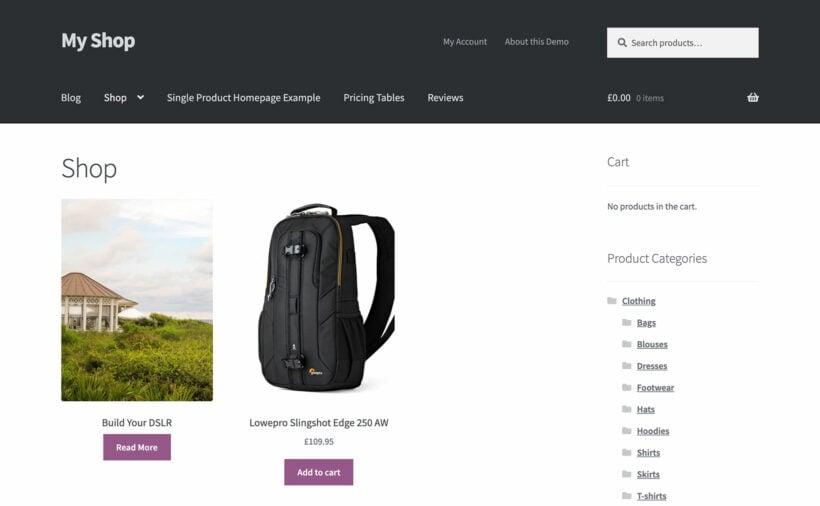
This is what you get automatically after importing the sample data. WooCommerce creates a Shop page with a grid of products showing the image, title, price, and add to cart button.
It's a good starting point for testing themes, page builders, and basic styling. However, the grid layout falls short once you have hundreds of demo products to navigate.
Option 2: Add filtering with WooCommerce Product Filters
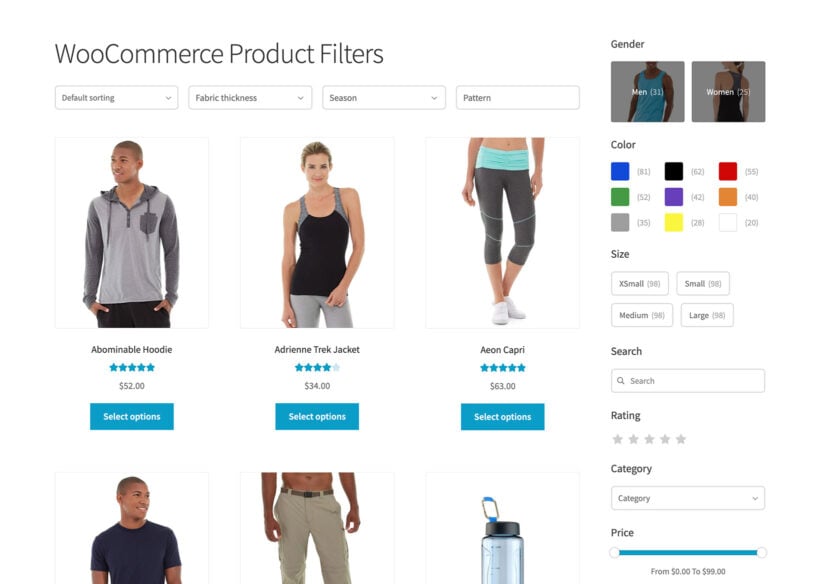
Large demo data sets are where filtering becomes essential. The GloverVentures set has nearly 300 variable products with thousands of variations, and the default shop page makes them hard to browse.
WooCommerce Product Filters is the easiest way to fix this. It adds AJAX filters for attributes, categories, prices, and stock status, so customers can narrow results without reloading the page.
This is the exact setup we use on our Product Filters demo, which runs on the GloverVentures sample data.
Option 3: Show demo products in a table layout
Some demo stores need a denser layout than a grid. For example, you might be testing a B2B catalog, a wholesale order form, or a technical product list where customers compare specs side by side.
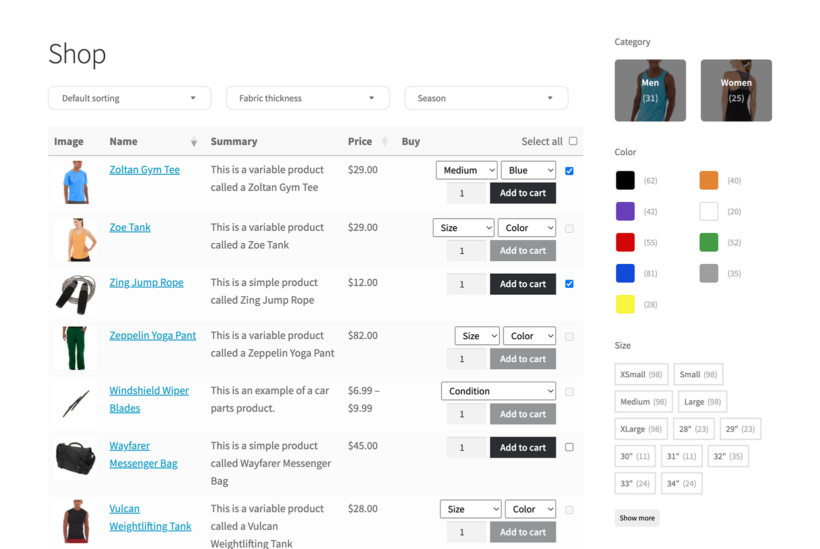
WooCommerce Product Table replaces the grid with a sortable, searchable table. You choose which columns to show, such as image, SKU, attributes, price, and quantity.
Common reasons to use a table layout with demo products include:
- One-page order forms for wholesale or B2B stores.
- Spec-heavy catalogs where customers compare attributes.
- Restaurant and food ordering layouts.
- Display-only WooCommerce catalog without add to cart buttons.
The table loads fast even with hundreds of products, which makes it useful for stress-testing performance on a large sample data set.
Frequently asked questions
Is there a free WooCommerce sample data CSV?
Yes. WooCommerce includes a free sample CSV with 25 products in the plugin's sample-data folder. For larger demo stores, the GloverVentures dataset offers 105 simple products and 294 variable products free to download.
How do I import the WooCommerce sample data file?
Go to Tools → Import in WordPress, select the WordPress or WooCommerce importer, upload the sample CSV from woocommerce/sample-data, and follow the prompts. The full WooCommerce documentation walks through each step.
What is the difference between WooCommerce sample data and a demo store?
Sample data is the raw product information – names, prices, images, categories. A demo store is what visitors see when that data is displayed on the front end through the WooCommerce shop page, a product filter, or a custom layout such as a product table.
Can I display the imported sample products in a table view?
Yes. WooCommerce Product Table renders any imported product set as a sortable, filterable, searchable table, which is useful when the default shop grid is not the right layout for testing or for the live store.
Do you know of any other free product sample data sets?
If you know of anyone else who has published a large dataset of WooCommerce demo products, please let me know in the comments below. I would love to add it to this article to give people a choice!
2 Comments
Working with WP 7.0 and WC 10.8.1 -> importing is now under:
tools -> import opens «WooCommerce products (CSV) - Import products to your store via a csv file.»
That worked for me best.
Hi Kaspar,
Thank you so much for sharing that update!
It is incredibly helpful for other users to know that with the latest versions of WordPress and WooCommerce, the import process is now located directly under Tools → Import → WooCommerce products (CSV). We really appreciate you taking the time to share what worked best for you on your site!
Cheers! -Nikki