4. Posts Table Pro settings page
The Posts Table Pro plugin settings page is at Post Tables → Settings in the WordPress Dashboard. It includes a range of options for setting the defaults in your tables. These will apply to all the tables that you create. (You can override these using the options for each individual table.)
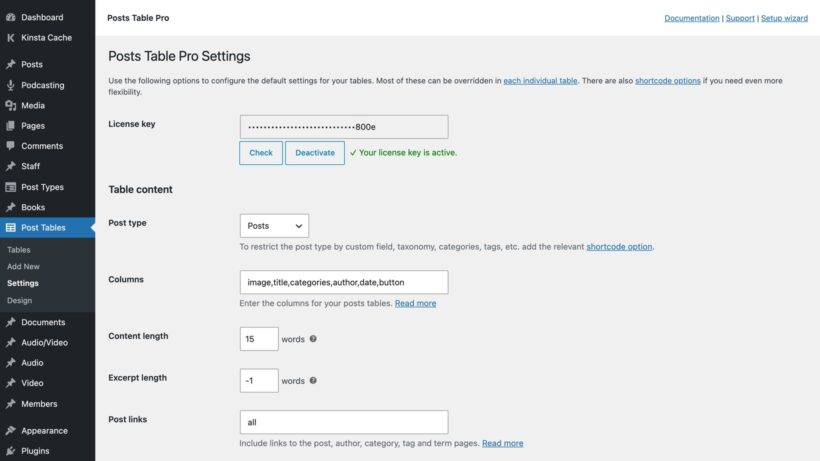
License key
Enter your license key here. This is essential for the plugin to work.
Table content
Post type
Select the post type that you wish to display in your tables, e.g. 'post', 'page' or a custom post type.
Please note that the dropdown lists all the available post types on your website. Please note that some of these may be added automatically by other plugins and it may not be appropriate to list them in a table.
If you haven’t created the post type that you will be displaying in the table yet (e.g. Articles, Members, or Resources), you can easily do this with the free Easy Post Types and Fields plugin.
Columns
Add a comma separated list (without spaces) of the columns to appear in the table.
The available columns are: id, title, content, excerpt, image, date, author, categories, tags, and status. You can also add columns for any custom field or taxonomy.
Example: title,content,date
Content length
If you are using the content column, then this option controls the number of words that will appear in the table. Enter a whole number.
Excerpt length
If you are using the excerpt column, then this option controls the number of words that will appear in the table. Enter a whole number.
Post links
Choose whether items in the table are clickable. The following columns can be formatted as links: id, title, categories, tags, author, image, and any custom taxonomy.
Enter all to add links to all possible columns, none to disable all links, or add a comma separated list (without spaces) of the specific columns that should be clickable.
Image size
This option controls the size of the featured image in the image column. Enter the required image size in pixels, e.g. 50×70 will set the image to 50 pixels wide by 70 pixels high.
Button text
If you have included a 'button' column then this option controls the text that appears on the button, for example 'Read Post' or 'VIEW'.
Sorting
Sort by
Choose an option for how the table will be sorted when it first loads. (Customers can also sort the table by clicking on any column header.)
If you select Other, a Sort column field appears where you can enter the name of any column in your table that isn't in the list — for example a categories column or a custom field.
Sort direction
Choose whether the table will be ordered in ascending or descending order. Leave this set to Automatic to use descending order for date-based sorting and ascending order for everything else.
Multi-column sorting
Tick this box to allow visitors to sort the table by more than one column at a time. This is useful when two fields matter together, such as price and rating, or date and category.
Search and filter
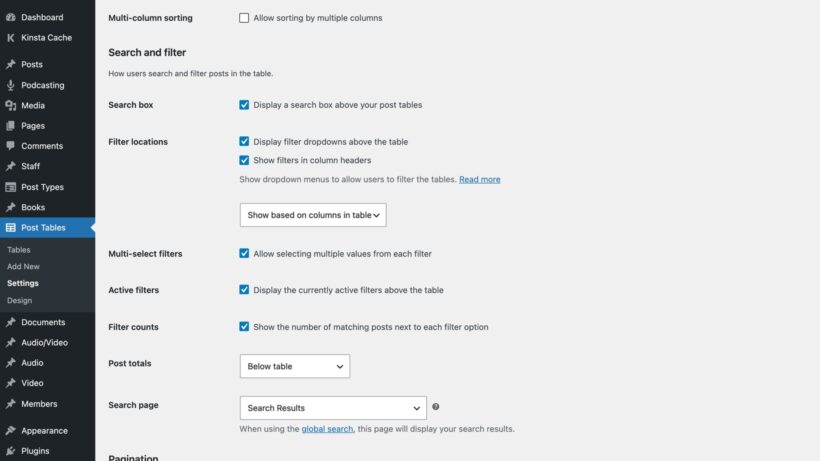
Search box
Tick this box to display a keyword search box above your tables.
Filter locations
This option controls where the filter dropdowns appear. You can add filters for categories, tags, author or any custom taxonomy. Tick one or both locations:
- Display filter dropdowns above the table – shows the filters in a row above the table.
- Show filters in column headers – shows a filter inside the heading of each relevant column.
Then choose which filters to display:
- Show based on columns in table – the filters are added automatically for any categories, tags or custom taxonomy columns in your table.
- Custom – add a comma separated list (without spaces) of the specific filters to display.
Multi-select filters
Tick this box to let visitors select more than one value from each filter at once, instead of being limited to a single choice per filter.
Active filters
Tick this box to display a summary of the currently applied filters above the table, so visitors can always see exactly what they are looking at.
Filter counts
Tick this box to show the number of matching posts next to each filter option, so visitors can see what's worth selecting before they click.
Post totals
Positions, shows or hides the post totals (e.g. ‘Showing 1 to 10 of 50 posts’).
Search page
Select a page which will be used to display search results. This will only be used if you have added a standalone search box to your site - if you are just using the search box which appears above the table then the results appear within the table rather than on a separate page.
Pagination
Posts per page
Enter a whole number to control how many posts appear on each page of the table. If there are more posts than the number of rows per page then pagination links will appear linking to the other pages.
Posts per page selector
Positions, shows or hides the ‘Show [x] posts’ dropdown.
Pagination buttons
Positions, shows or hides the pagination buttons.
Pagination type
Choose a style for the pagination buttons. This can be any combination of Previous or Next links, plus actual page numbers.
Infinite scroll
Tick this box to load more rows automatically as the visitor scrolls down the page, instead of using the numbered pagination buttons. It works particularly well for browsing-style tables where visitors are scanning rather than searching for something specific.
When infinite scroll is enabled, the standard pagination options above are replaced by the Container height setting below.
Container height
When infinite scroll is enabled, you can optionally set a fixed height for the scrolling area of the table. The default is 70vh (70% of the height of the browser window), but you can enter any CSS length unit.
How to change the container height for infinite scroll
Advanced
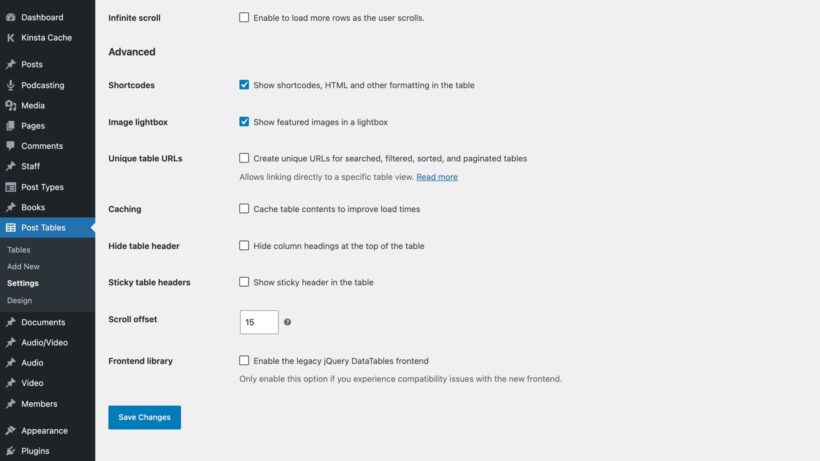
Shortcodes
Tick this box if you want content added by other shortcodes to appear within the table. For example, you might be adding a button shortcode to add other types of button; embedded audio or media players; icon shortcodes; etc.
Image lightbox
Ticking this option will make the featured image in the image column open in a lightbox/popup when someone clicks on it. If you untick this box then clicking on an image will take visitors to the single post page instead. If you wish to disable this behavior then you can do so using the 'Post links' option, above.
Unique table URLs
Tick this box to give each table a unique URL that reflects its current state. The URL captures the active search, filters, sorting, and pagination, which means visitors can link directly to a specific table view.
This is useful in lots of scenarios. Someone can bookmark a specific filtered view to come back to later, a support agent can send a customer a link to an exact list of options, or a team can share an internal directory pre-filtered to the right department.
Caching
This option allows the contents of your posts tables to be cached to improve performance and speed up page load times.
If you tick the 'Caching' box then you can also set the 'Cache expiration' time to control how often the cache is cleared. Enter a whole number of hours.
Cache expiration
This option appears when caching is enabled. Your data will be refreshed after this length of time. Enter a whole number of hours.
Hide table header
Enable this to remove the top row of the table completely. We only recommend doing this if your table columns are self-explanatory and don't require labels, and if customers don't need to be able to click on the table headings to change the sort order.
Sticky table headers
Enable this to keep the top row of the table visible when the user scrolls down. We recommend enabling this if your tables contain a lot of posts per page so that people can always see the table header.
Tip: If your theme has a sticky header and the height doesn't work well with the sticky header in Posts Table Pro, then you can fix this using the scroll offset option.
Scroll offset
When paging between multiple pages of results in your table, Posts Table Pro will automatically “jump” back to the top each time. This is particularly useful if you are displaying a large number of posts on each page. The plugin attempts to scroll to the correct position on the page but sometimes it doesn’t quite calculate this correctly. This is because each website and WordPress theme is different and some can have features which interfere with the scroll position – e.g. sticky navigation menus.
The Scroll Offset option lets you override the scroll amount or disable this behavior altogether. The default scroll amount is 15. If you find that the top of your table is “chopped off” when moving between pages, try increasing this to a larger number (e.g. 50). If you’d like to disable automatic scrolling, then enter "false".
Frontend library
Posts Table Pro uses a modern table library to display your tables. If you experience compatibility issues with the new frontend, you can tick this box to switch back to the legacy jQuery DataTables frontend. We only recommend enabling this option if you need it for compatibility.
Clear Cache
A 'Clear Cache' button appears next to the 'Save Changes' button. This removes any cached data. We recommend clearing the cache after making changes to the table so that you and your customers can instantly see the changes, instead of waiting for the cache to clear on its own.
More posts table options
The plugin settings page lets you set defaults for the most widely used options. You can override these and use additional options directly in the posts table shortcode. Please see the complete list of shortcode options.
Next steps
Next, it's time to choose a template and tweak the design of your tables.