Setting up the wholesale bundle
Our WooCommerce Wholesale Bundle contains five plugins. Each one handles a different part of your B2B store so you can mix and match them as needed:
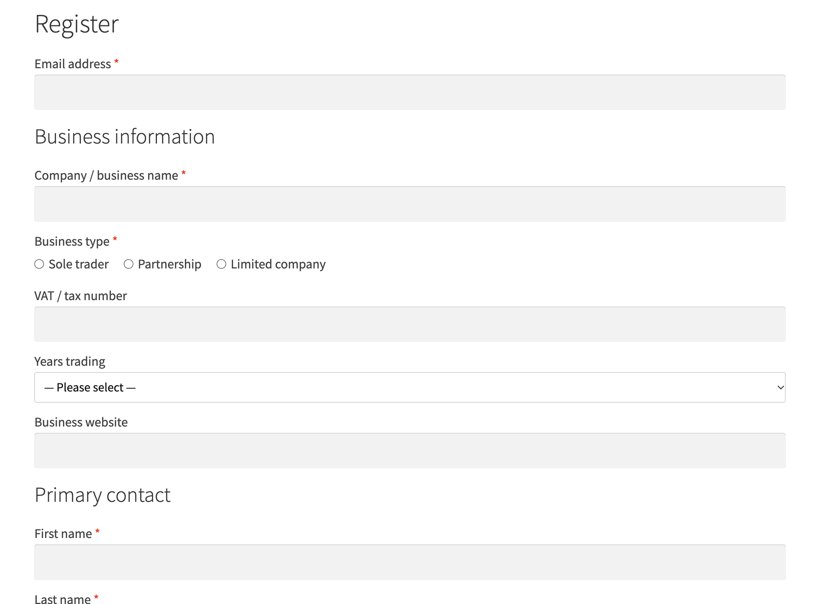
- WooCommerce Wholesale Pro creates the wholesale roles, the wholesale prices and the registration form, and gives your trade customers their own version of the store.
- WooCommerce Product Table lists your products as an order form, so a buyer can add multiple items to the cart from a single page.
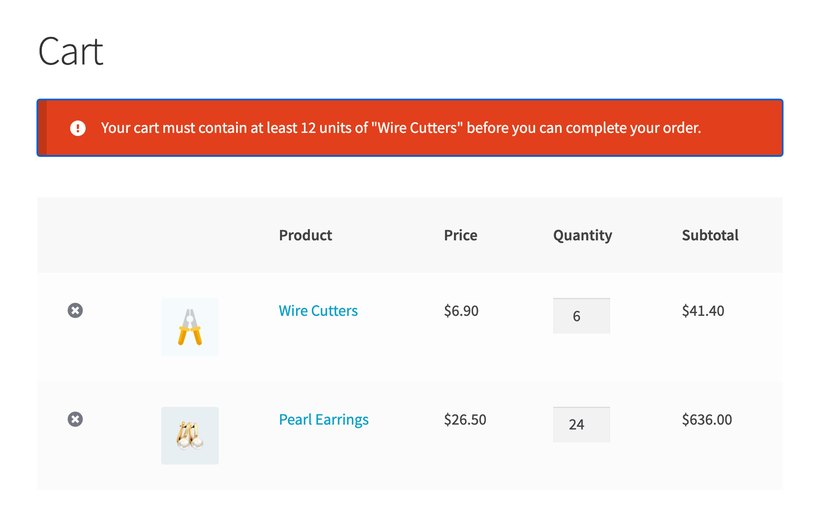
- WooCommerce Quantity Manager lets you set minimums, maximums and multiples that B2B buyers can order in.
- WooCommerce Discount Manager gives bigger role-based discounts based on the cart quantity.
- WooCommerce Bulk Variations replaces the variation dropdowns on the product page with a grid so that buyers can select quantities and add multiple variants to the cart at once.
Install the plugins
Download all five from the 'Your Plugins' page in your account, then install them one at a time. A setup wizard opens each time, and you enter the same license key for each plugin.
We recommend installing WooCommerce Wholesale Pro first, followed by whichever of the remaining plugins you need in any order. Each step below links to the full instructions for that plugin.
1. Set up your wholesale store
Set up Wholesale Pro first, because the other four plugins all act on the prices and the user roles it creates. The setup wizard covers most of it: Your wholesale roles, how the discount is calculated, and which pages the wholesale store uses.
After the wizard, decide how people will become wholesale customers. You can add them manually, approve each application by hand, or let the plugin approve them automatically. You can also move existing customers into your new wholesale roles. Our Wholesale registration and user management article covers the registration form, the approval emails and the roles.
Set your wholesale prices next. You can set a percentage for a whole role (either globally or by category), a price per product, or edit them in bulk if you have a large catalog.
2. Add a wholesale order form
If a trade buyer is ordering 30 lines at a time, clicking into 30 separate product pages is a huge time-waster. The WooCommerce Product Table plugin lists the products as a table with a quantity box on every row.
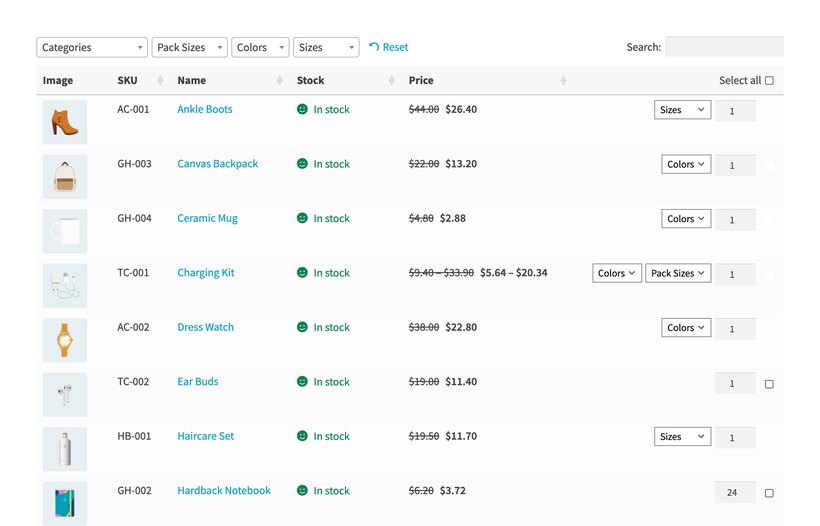
Create a table at Products → Product Tables, choose your columns, and select which store templates the table will be used on. You can either show the table view to all customers, or wholesale users only. Our Creating product tables article covers everything you need.
3. Set minimum and maximum order quantities
The WooCommerce Quantity Manager plugin lets you set up rules to control the quantities that trade customers (or even all customers) can buy. For example, wholesale stores often set minimum purchase quantities, either based on quantity or order value. Some also set quantity increments, for example to force specific products to be sold in multiples of 5.
You can set quantity rules for the whole store, for a category, or for one product, and select which role(s) each rule applies to.
- Global rules apply to the whole store.
- Category rules suit a catalog where the case size varies by product type.
- Product and variation rules override both.
4. Reward wholesalers for spending more
The WooCommerce Discount Manager plugin lets you set additional quantity-based discounts, overriding the basic role-based pricing that you created in WooCommerce Wholesale Pro. For example, you could give 10% off for 10 to 24 units, 20% off for 25 to 49, and 30% off for 50 or more (orders below 10 would continue using the basic role-based price you set with Wholesale Pro).
You can either give the discounts silently, or display tiered discount tables on the product page to encourage wholesalers to buy in bulk.
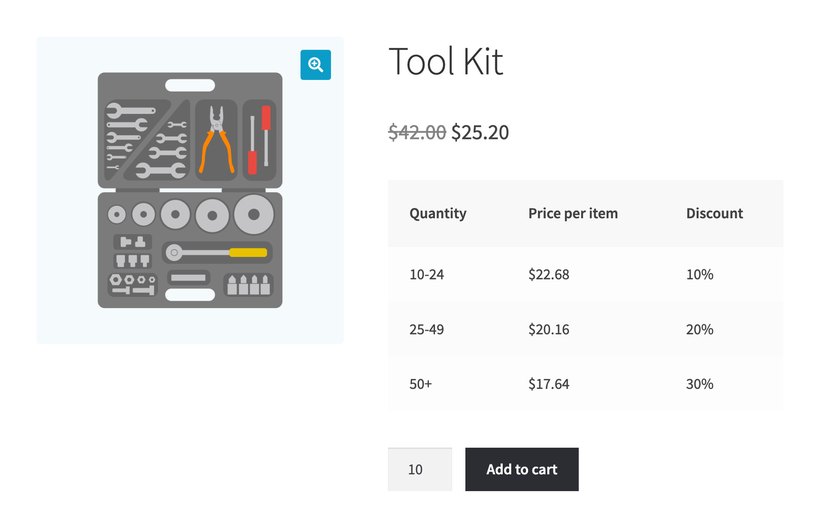
Create a discount at WooCommerce → Discounts, pick the products or categories it applies to, then add your tiers. Restrict it to your wholesale roles so retail customers keep paying the retail price.
Our Installing WooCommerce Discount Manager article covers the discount types and the settings.
5. Let customers order every variation at once
The WooCommerce Bulk Variations plugin replaces the variation dropdowns on the single product page with a grid. For example, a buyer ordering a size run types 12, 24 and 36 into three boxes and adds the lot to the cart in one click, instead of adding each variation one at a time.
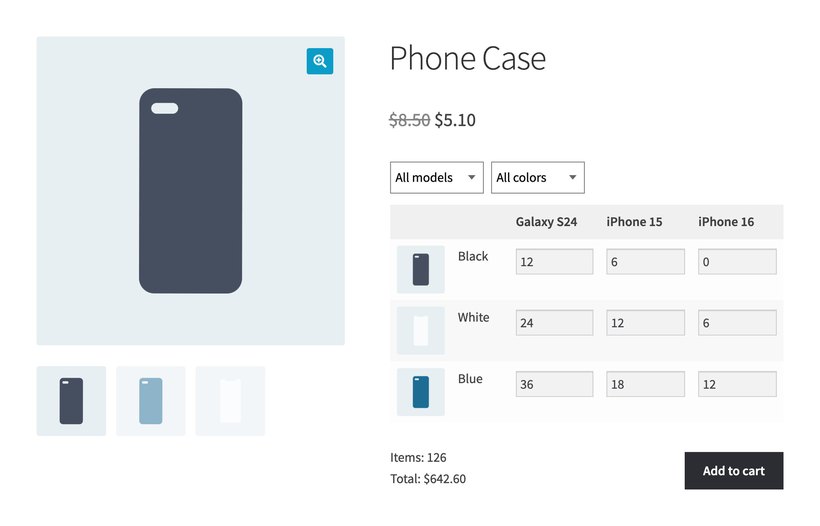
Enable the grid globally for all variable products in the setup wizard, or per product in the 'Bulk Variations' tab of the Product data box on the 'Edit Product' screen. Our Creating variation grids article covers the layout, the variation images and the filter dropdowns.
You can show the grid to wholesale users only if you don't wish to show it to retail customers.
Where to get help
Each plugin has its own section in the knowledge base, and you can get in touch if you can't find the answer there. If you're short of time, our plugin setup service covers all five.