Posts table filters
The Filters option in Posts Table Pro lets you add filter lists which visitors use to narrow down (i.e. search) the table by selecting an item. Filters can appear as dropdowns above the table, or inside the column headers. They filter the contents of the table after it has loaded.
If you want to create tables listing specific posts based on their category, date, tag, custom field, etc. before the table loads, please refer to that article.
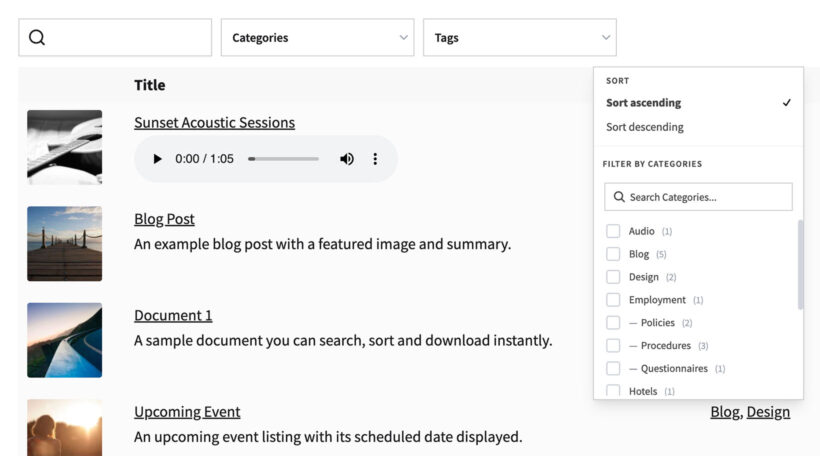
Available filters
You can create filters for the following columns:
- Categories
- Tags
- Custom taxonomies
You cannot show filters for custom fields. This is because custom fields are designed to store unique data, and you should use custom taxonomies for data that is used for organizing and grouping posts. You can easily create custom taxonomies using our free Easy Post Types and Fields plugin.
How to add filters
Use the 'Filters' option in the table builder (or the 'Filter locations' option on the plugin settings page) to choose where the filters appear. Tick one or both locations:
- Display filter dropdowns above the table – shows the filters in a row above the table.
- Show filters in column headers – shows a filter inside the heading of each relevant column.
Then choose which filters to display:
- Show based on columns in table – If your table contains columns for categories, tags, or any custom taxonomy, then these will appear automatically as filters.
- Custom - This option allows you to manually choose which filters to display. When you select this, a dropdown appears so that you can add one or more filters.
To turn filters off, simply untick both locations.
Filters in column headers
As well as (or instead of) showing filters above the table, you can display filters inside the headers of filterable columns. Columns that support filtering (such as categories, tags, authors, or other filter-enabled fields) display a filter icon in the column header. Visitors can click the icon to open a dropdown and filter the table.
When a filter has 9 or more options, a search box appears at the top of the dropdown so visitors can quickly find the option they want. For shorter lists (fewer than 9 options) the search box is hidden, as it isn't needed.
Multi-select filters
By default, each filter accepts a single value at a time. Enable the Multi-select filters option to let visitors select more than one value from each filter at once.
Active filters
Enable the Active filters option to display a summary of the currently applied filters above the table. This means visitors always know exactly which filters are in effect and what they are looking at.
Filter counts
Enable the Filter counts option to show the number of matching posts next to each filter option. Visitors can see how many results each option will return before they select it.
Positioning the filters
The filters that appear above the table are shown above it by default, but if you have positioned the search box below the table, then these filters will also appear below the table.
How to rename the filters
To edit a filter name in the table builder, click the pencil icon next to the filter. Change its name to whatever you like.
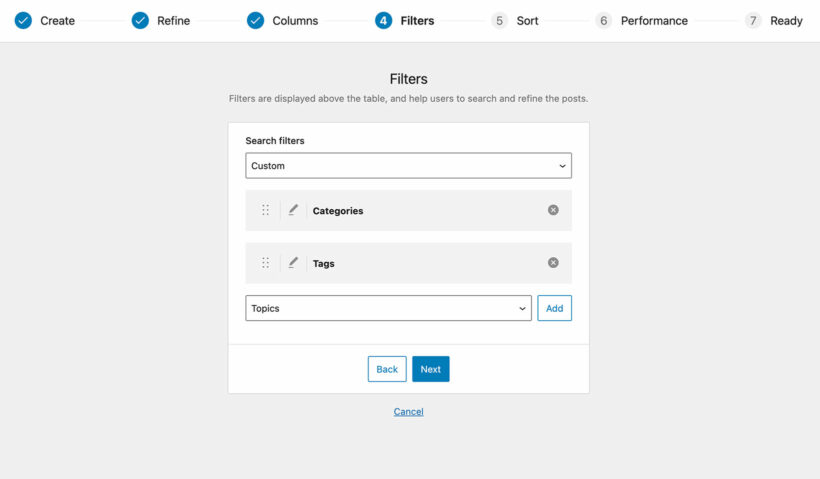
Click the pencil icon to edit a filter name
The heading for each filter is set using the following logic:
- If you have added a name for the filter using the method described above, this takes priority.
- If you don’t set a custom heading, but the filter also appears as a column in the table, then renaming the column will also rename the filter.
- If neither of the above apply, the filter heading will come from WordPress itself (e.g. the name of the custom taxonomy).
FAQ
Can I add filter widgets to the posts table?
We have integrated Posts Table Pro with the FacetWP plugin to allow you to add filter widgets to the posts table. Please see our separate article about how to set this up.
Can I show the filters on their own before the loading the table?
Unfortunately not. The filters are designed to refine the items in the table, and not to perform a filter before the table first loads.
Can I list categories and sub-categories as separate filters?
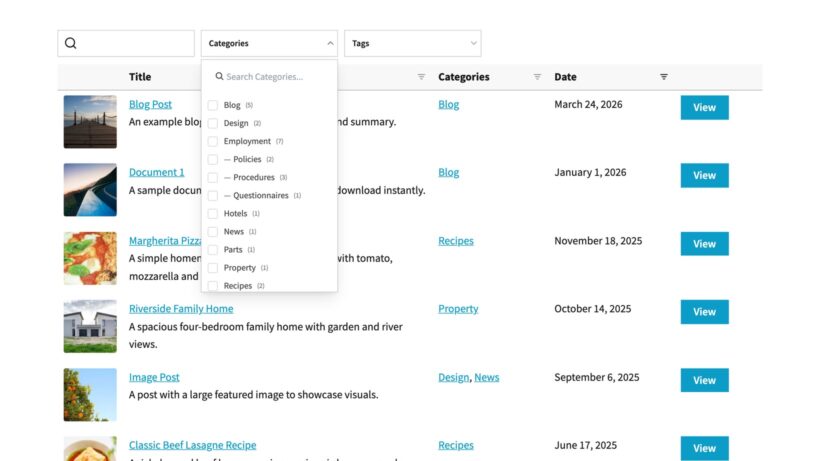
Posts Table Pro lists all categories (or taxonomies) in a single dropdown list.
The list is nested and hierarchical so that you can see which are the parent categories and which are child categories.
Can I control the order of the dropdown items?
The filter dropdown lists are ordered alphabetically and there are no option to change them. If you have a developer, you can use the posts_table_search_filter_get_terms_args hook to override the order options passed to the get_terms function used to retrieve the list of filter items.
If you're using the filters to list something where alphabetical sorting isn't appropriate (e.g. dates), then you could add numbers before each item to control the order. For example, if you're using categories to filter by month, then you could name your categories '01 - January', '02 - February', and so on.
Can I filter by custom fields?
Posts Table Pro doesn't currently provide a search filter for custom fields. If you need a filter for this data, we recommend you store this as a custom taxonomy instead, as this can be filtered.
If you don't know how to create custom taxonomies then we recommend the Custom Post Type UI, Pods or Toolset plugin. These let you create custom taxonomies for any post type. You can then list the custom taxonomies and their terms as filters above the table.
Can I add checkbox filters?
There's no feature to add checkboxes to the filters. The dropdown filters are very flexible — you can add as many as you like, and you can enable the Multi-select filters option so that visitors can choose more than one value from each filter.
Alternatively, you can add checkbox filters by using Posts Table Pro with FacetWP.
The categories filter isn't showing
If the categories filter isn't showing, it may be that you are displaying a custom post type in your table.
The categories filter only appears when you are showing regular WordPress posts and does not work for custom post type categories (e.g. event categories or document categories) because these are custom taxonomies.
If you are categorizing your custom post type, then you need to create a taxonomy filter instead of a categories filter.