Adding embedded audio, video, PDF viewers, 3D models and other content to the document library
You can use the Document Library Pro plugin to display any type of document, including downloadable or embedded audio and video files, along with other multimedia content such as media playlists or image galleries. For example, you might want to include an MP3 music player or embedded YouTube/Vimeo videos directly on the main document library page, so that people can watch and listen without having to click to another page.
This article will tell you how to add embedded media files to your documents - either to the main document library page, or on the individual page for each document. In addition to this, you can use the Document Link feature to link each document to a downloadable audio/media file, or to third party websites such as YouTube or SoundCloud.
Keep reading to find out which viewer to use if you want to show the document's own file on the page, such as a PDF or a 3D model.
1. Choose where to add your embedded audio/video/multimedia files
First, you need to decide which field to use to store your embedded audio or media players. You can add them to any text-based field in the document library, such as:
- The main content/description
- The document excerpt (not recommended because by default, excerpts can only display plain text)
- A text or WYSIWYG custom field
The main content field is the simplest place to add your embedded media players. This appears on the single document page, and also in the content column of the document library.
2. Add your audio or video embeds
Next, you need to add the embedded audio, video or multimedia file for each document. Go to edit the document and add an embedded audio or video file (or other type of multimedia content) to the appropriate place.
Some tips:
- If you wish to host the audio/video in your WordPress Media Library, then you can click the 'Add Media' button and upload it directly. WordPress will automatically embed it as a fully functional media player using the built-in Audio or Video shortcodes, or the Playlist shortcode if you are creating a playlist. This is a good way to display audio files, but we recommend using a third party hosting service (e.g. YouTube or Vimeo) for video due to the larger file sizes and the need for cross-compatibility on all devices.
- If your multimedia files are hosted externally then you can use any of the embeds that are supported in WordPress.
- You might also be able to use video players provided by another plugin, although you will need to check the Document Library Pro compatibility list to see if it will work correctly in the document library. For example, the free and premium versions of Presto Player provide eye-catching videos that work nicely in the document library:

- You can also embed other types of content, such as a Google Doc or a page turning flipbook. For example, you can do this using a plugin such as EmbedPress or a flip book service that offers embed codes.
3. Enable the 'Shortcodes and media' option
Go to the Document Library Pro plugin settings page and tick the 'Shortcodes and media' option. This tells the plugin to display the embedded multimedia content correctly, instead of as plain text.
4. Create and view the document library
View the document library and make sure the embedded media players are working correctly.
Showing the document's own file on the page
You can use the same steps to show the document's own file on its single document page, next to the download button. For example, a manufacturer might show the spec sheet for a part, or a 3D model of it that people can rotate.
To do this, add a viewer to the document's main content field, as in step 2. Then select the document's file from the Media Library.
The built-in document preview already opens PDFs, images, audio, video and Microsoft Office files in a popup. Use a viewer if you want the file to appear on the page itself, or if the preview doesn't support the file type.
PDF files
We recommend the free PDF Embedder plugin. Add the PDF Embedder block to the document's content, then select the PDF from the Media Library. Visitors can move between pages and zoom in without leaving the page:
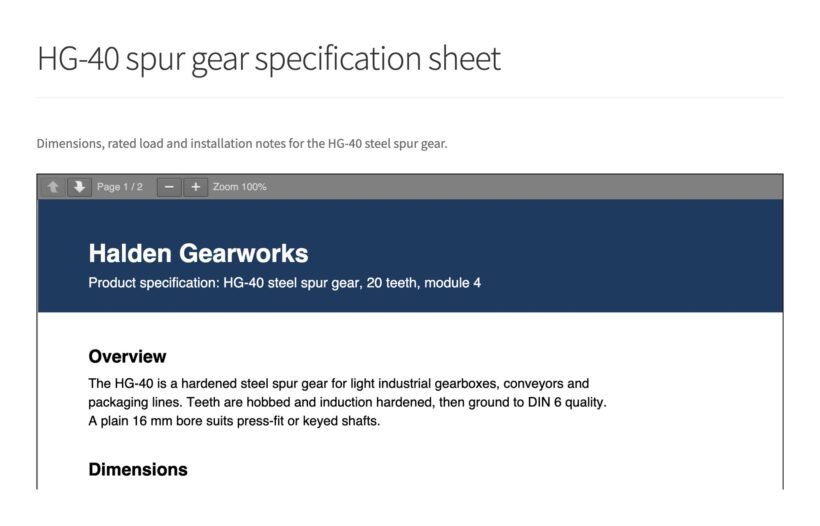
For other options, such as flipbooks, see our guide to the best WordPress PDF viewers.
Word, Excel and PowerPoint files
Browsers can't display Word, Excel or PowerPoint files on their own. Instead, you need an online viewer from Microsoft or Google. See how to show Word, Excel and PowerPoint files for the options and their limits.
CAD drawings and 3D models
The free 3D Viewer plugin displays STL, OBJ, GLB and STEP files as a model that visitors can rotate and zoom. Add the 3D Viewer block to the document's content and select the file from the Media Library. If the Media Library won't accept the file, enable its file type in the 3D Viewer settings first.
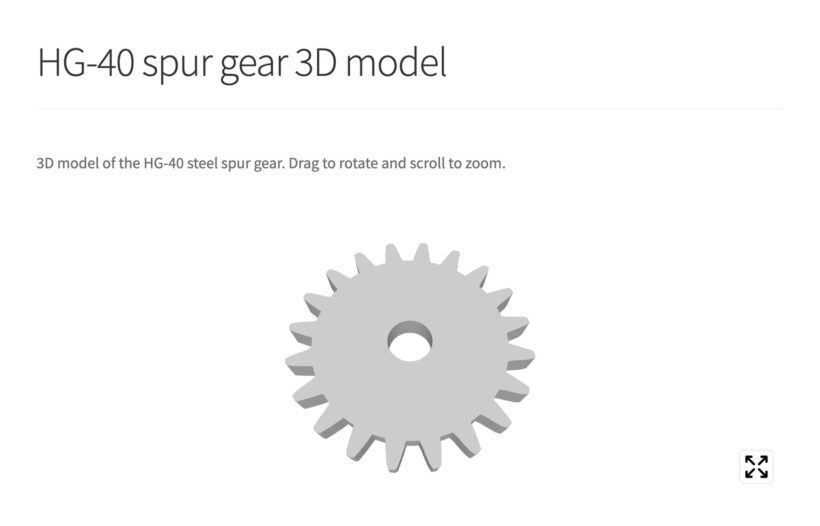
We don't know of a WordPress plugin that can display DWG or DXF drawings on a commercial site. Instead, export a PDF or STEP copy from your CAD software and show that on the page. Keep the original DWG file as the document's download for people who have CAD software.
Images
Add the image to the document's content with the WordPress Image block. Most browsers can't display TIFF or HEIC files. For those, add a JPEG or PNG copy to the page and keep the original as the download.
Viewers and protected documents
If you use file protection, whether a viewer works depends on where it opens the file:
- In the visitor's browser - PDF Embedder, 3D Viewer and the WordPress Image, Audio and Video blocks all work like this. They show protected files to anyone who's allowed to see the document.
- On another company's server - Microsoft's Office viewer and Google's document viewer work like this. They can't open protected files. Only use them for public documents.
- From a copy hosted elsewhere - Embeds from Google Drive, OneDrive and YouTube work like this. Your site's protection doesn't cover that copy. Anyone with the link can open it.
Protecting a document moves its file to a private folder and changes its web address. As a result, if you change who can see a document after adding a viewer, edit the document and select the file in the viewer again.