How to add and edit wholesale prices in bulk
WooCommerce Wholesale Pro lets you set wholesale prices automatically by applying a percentage discount for each wholesale role (either globally or per category); or you can manually set wholesale prices for each product or variation.
If you set percentage-based wholesale prices globally or by category then there's no need to bulk edit them because they are calculated automatically. However, if you set exact wholesale prices per product then you may wish to save time then you might like an easy way to add and update the prices in bulk. This article explains how to:
- Use the Setary app to bulk edit product-specific wholesale prices.
- Use WooCommerce' built in features to bulk edit the variation prices for individual products.
Bulk-update wholesale prices across multiple products
Setary provides the best way to bulk add or update product or variation-specific wholesale prices.
Setary is a bulk product editor, in which you apply changes quickly and easily using a spreadsheet-style interface. Each product and variation appears on its own row in the spreadsheet, so you can quickly make changes without having to visit multiple pages.
This is how to use Setary to bulk edit wholesale prices:
- In the WordPress admin for your store, go to WooCommerce → Settings → Wholesale → Roles and make sure product-specific pricing is enabled for your wholesale roles.
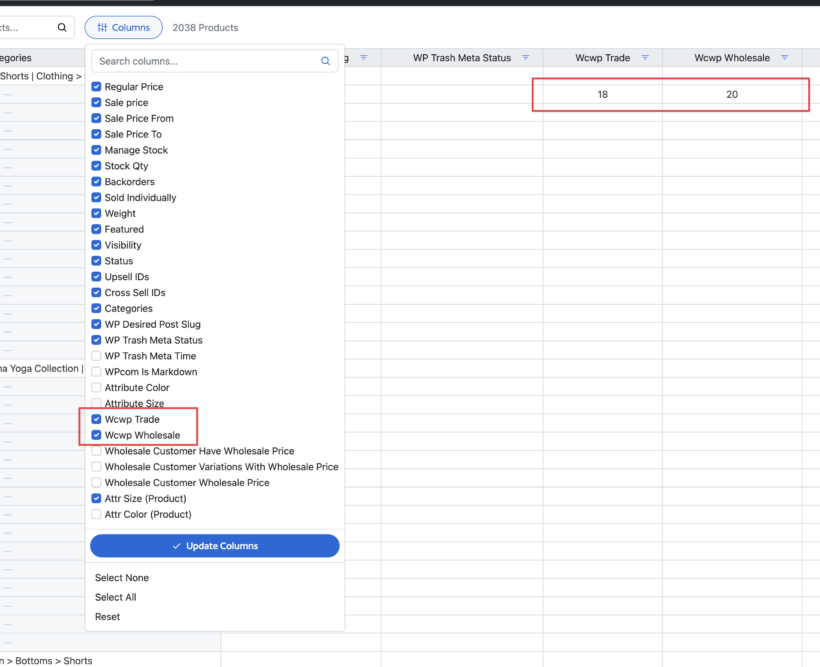
- Next, log into Setary and use the 'Columns' option to display columns for your wholesale roles. For example, in the screenshot below, you can see that we have enabled columns for the 'Wcwp Trade' and 'Wcwp Wholesale' roles, which were created using WooCommerce Wholesale Pro.
- In the spreadsheet editor, use these columns to bulk add and edit the wholesale prices for each product and variation.
Bulk-update wholesale variation prices
If you only need to update the wholesale prices for variations on a specific product, then you can do this using WooCommerce's bulk variation editor:
- Go to the 'Edit Product' screen for the relevant product.
- Open the 'Variations' tab in the Product Data section.
- Select the variations that you wish to bulk-edit the prices for. (Tip: Install our WooCommerce Bulk Variations plugin for an easy way to select variations based on specific data such as their attribute values. It adds filters to the Variations tab which you can use to filter the list before applying bulk actions.)
- Open the 'Bulk actions' dropdown and select 'Set wholesale prices'.
- In the next window, change the price as needed.