Can I change the styling of the document library?
Document Library Pro comes with some built-in styling and is designed to look good with most themes. Where possible, it takes styles from your theme such as the fonts.
Built-in styling options
Document library pages
The Design tab of the plugin settings includes options to select a pre-built template for the table or grid view, and then customize it as needed to suit your brand identity.
Single document pages
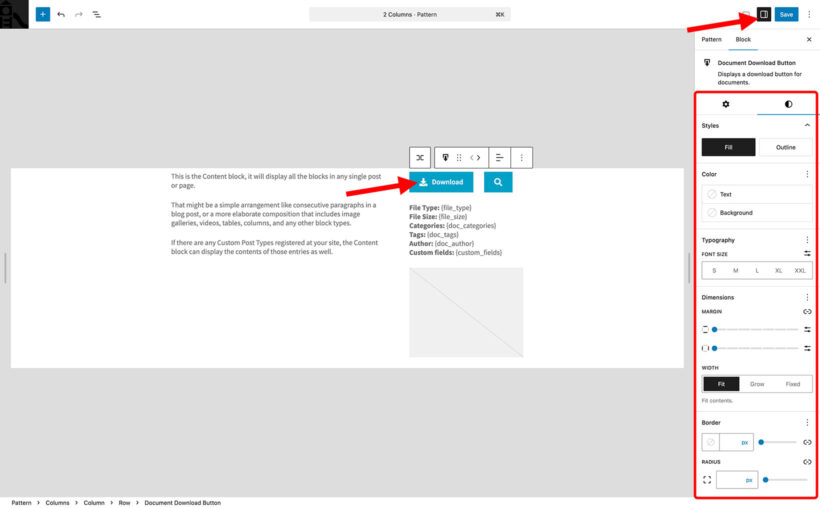
Use the block settings to restyle any elements of the single document page. The following example explains how to restyle the download and preview buttons which appear on the single document page, but you can equally change elements of other blocks such as changing font sizes.
Either make the styling changes globally for all documents by editing the layout, or customize the button for an individual document on the 'Edit Document' page for that document. Either way, the instructions are as follows.
- In the block editor, click on either the Download or Preview button.
- The 'Block' sidebar should appear. If it doesn't click the 'Settings' icon at the top right of the page.
- In the 'Block' sidebar, open the 'Styles' tab.
- You will see a range of styling options.
Adding custom styling
You may wish to style your tables in more specific ways. You can do this by adding custom CSS to your theme or child theme. (Never add it directly to the plugin.) Our developer documentation contains a list of CSS selectors that you can use. If you don't know how to do this then your developer will be able to make the changes for you, or you can request a quote from our plugin customization service.
Troubleshooting styling issues
If something doesn't look right then there may be an issue with your theme. For example, this might happen if the theme is badly coded or coded in a non-standard way. Try switching to a default theme (e.g. TwentySeventeen) to check whether it's a theme issue.
Styling works differently in the cloud version
The styling advice in this article applies to the WordPress plugin, which can inherit your theme styles and use custom CSS. The cloud version has no WordPress theme, so check the Document Library Pro: WordPress plugin or cloud version? comparison if you need to style a cloud-hosted library.