Can I import/export data to display in Posts Table Pro?
Posts Table Pro simply lists your WordPress pages, posts, or custom post types in a table. You can add the data manually from the WordPress admin, or import it from a spreadsheet or CSV file.
For example, if you are creating a WordPress document library then you might have too many documents to upload manually. In this case, you can import the documents to whichever post type you are using for your document library.
How to import
There are two main ways to bulk import data for display in Posts Table Pro. Choose the one that best fits your workflow.
Option 1: Import with Setary (recommended)
Setary is the easiest way to add or update content for Posts Table Pro. It loads your WordPress site as a spreadsheet, so you can paste data straight from Excel or Google Sheets into any post type.
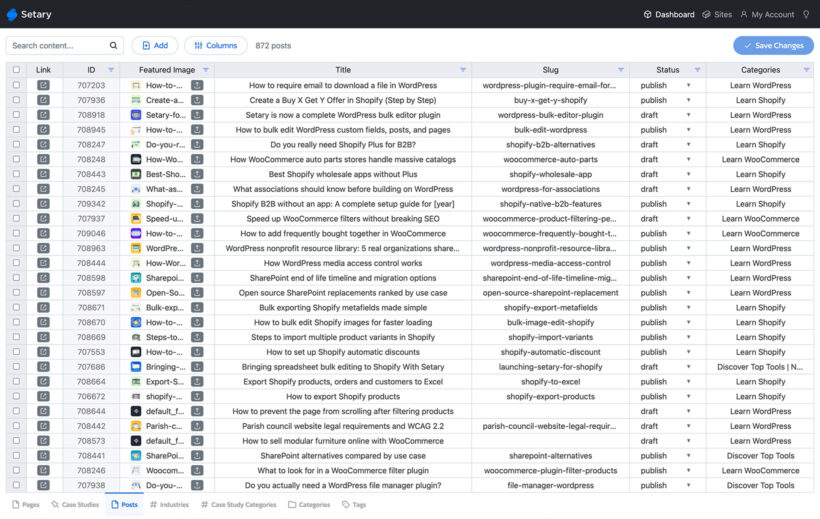
You can use Setary to:
- Create new posts, pages, or custom post type records in bulk by typing or pasting into the spreadsheet.
- Edit titles, content, custom fields, categories, tags, and taxonomies across hundreds of records at once.
- Update content displayed in your posts table without clicking into each record individually.
Setary works with any post type registered on your site, including the custom post type you're using for your document library or product catalog. There's no need to format a CSV or configure a separate import tool. For the full steps, see our guide to bulk editing data for Posts Table Pro.
Option 2: Import with a dedicated import plugin
If you prefer to work from an existing CSV, Excel, or XML file, you can use a traditional WordPress import plugin instead.
For standard WordPress posts, use the built-in WordPress importer under Tools → Import. For custom post types, use a plugin such as WP All Import.
Before the import, prepare a spreadsheet, CSV file, or XML file with the data to be imported. Once the records are imported, Posts Table Pro will display them automatically.
Will my posts table display imported records?
Posts Table Pro will display your posts or custom post type records correctly whether you add them through the WordPress admin, through Setary, or through a CSV or XML import. The plugin can list any records that are stored in the wp_posts database table.
How to export
You can also export the data displayed in your posts table.
For ongoing edits and exports, Setary is again the simplest option. It lets you view and edit your data as a spreadsheet directly, so there's often no need to export at all.
If you need a static export file, use the built-in WordPress export tool under Tools → Export, or a plugin such as WP All Export. If you are displaying custom post types in Posts Table Pro, make sure that the export plugin supports custom post types.