New in WooCommerce Product Filters: Show variations as separate products

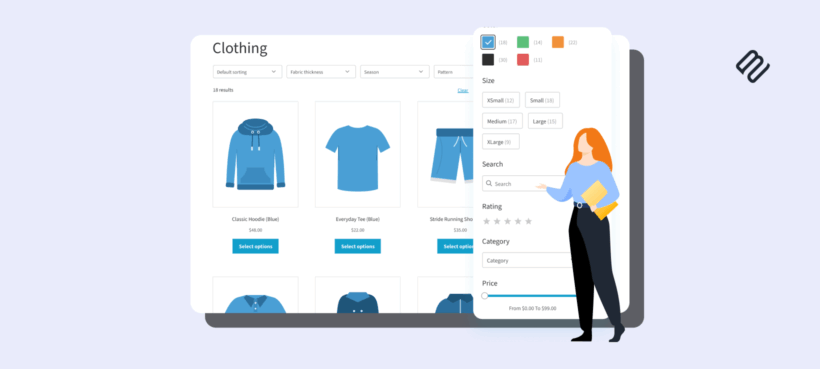
WooCommerce Product Filters can now show variations as separate products on your shop and category pages, either all the time or only after a customer filters. This release also brings text input filters to attributes, categories, tags, brands and custom taxonomies.
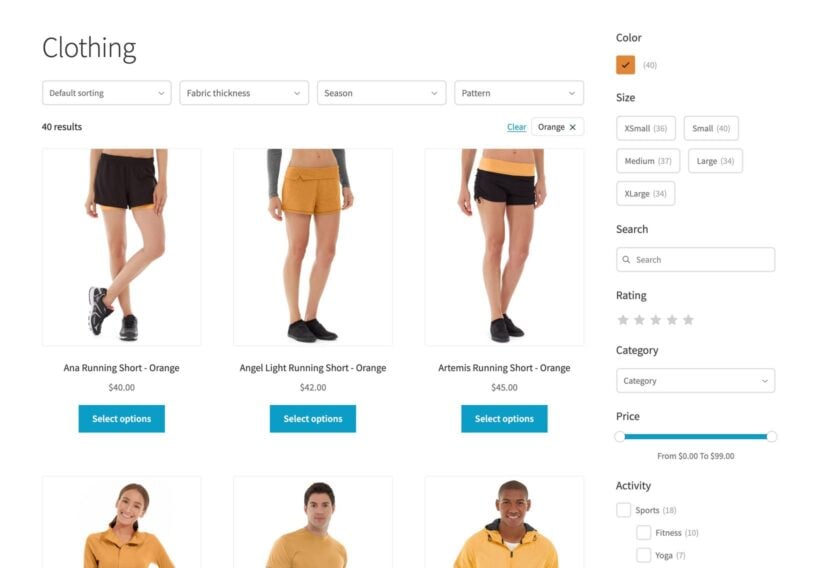
A customer ticks "Blue" in your color filter. Your t-shirt comes in blue, so it appears in the results. But the product card still shows the green shirt from your main product image. The customer has to click through, find the blue option and select it again before they can buy. Some of them don't bother.
WooCommerce shows variable products as a single card on the shop page, so this has always been a problem. Until now, fixing it meant adding another plugin or switching to a table layout. From version 2.2.0, WooCommerce Product Filters can show variations as separate products on its own, with no extra plugin. We believe this makes it the only WooCommerce filter plugin that does this natively. And the best news is that you can even display variations as individual products before the customer starts filtering.
The new variations feature is opt-in. If you already use WooCommerce Product Filters, nothing changes on your store until you switch it on.
What's new in WooCommerce Product Filters 2.2.0
There are two new features:
- Show variations as separate products. Each variation (or group of variations that share an image) can appear as its own product card, with its own image and price. You choose whether this happens always, or only once a customer has filtered.
- Text input filters for more types of data. Customers can type into a filter to match attribute terms, categories, tags, brands, custom taxonomy terms and custom field values. Matching is partial, so "cotton" finds "Organic cotton".
I'll go through both below.
Show variations as separate products
You'll find the new settings in the WordPress admin under Products → Filters → Settings, in a section called Variations display. The settings apply to your whole store.
Always, or only after filtering
The Show single variations setting has three options:
- Disabled - The default. Variable products appear as normal, with one card per product.
- Always display variations as separate products - Your shop and category pages show variations as separate cards from the moment a customer arrives, even before they filter. The plugin hides the parent product card.
- Display variations as separate products after filtering - Customers see your normal product cards when they first land on a page. As soon as they apply a filter, the matching variations appear as separate cards.
When a customer applies a filter, only the variations that match appear in the results. If a customer filters for blue, they see the blue t-shirt, not every color.
Which one should you choose? "After filtering" is a good fit for most stores. Your shop page stays tidy while customers browse. The extra detail appears once they've filtered for what they want. Choose "Always" if customers come to your shop to browse individual variations. For example, you might want to show off every color of a product as a distinct look in the grid.
Changing the sort order on its own doesn't count as filtering. With "after filtering", customers who only sort the products still see normal product cards.
Variations that share an image are grouped together
The feature is built around variation images, because a separate card needs its own image to be useful. Variations that share the same image appear together as one card. For example:
- A t-shirt has nine variations: Blue, red and green, each in small, medium and large.
- Each color has its own image, and all three sizes of a color use that image.
- In the results, the customer sees three cards: One blue, one red and one green, instead of nine near-identical cards.
When a card covers more than one variation, it shows a Select options button. This takes the customer to the product page with the options they've already chosen (such as "Blue") pre-selected. If a customer's filters narrow a card down to a single variation they can buy, the card keeps its normal add to cart button. "Select options" also appears if customers can't buy a variation.
Each variation needs an image for this to work. If any visible variation of a product doesn't have its own image, that product simply appears as a normal product card. So before you switch the feature on, it's worth checking that your variable products have variation images.
Choose how variation titles look
The Variation title format setting controls the product name on each variation card:
- Parent name + attributes - The default. The card shows the product name followed by the attributes that all the variations on that card share. In the t-shirt example, the blue card's title would be "T-shirt - Blue". It doesn't add the size, because the card covers all three sizes.
- Parent product name - The card keeps the original product name, such as "T-shirt".
I'd stick with the default unless you have a good reason not to. Without the attributes, a grid can end up with several cards that all say "T-shirt", which looks like duplicate products.
Where variations appear
Separate variations appear in:
- The main shop page
- Product category, tag and other product taxonomy archive pages
- Filtered results from WooCommerce Product Filters
- The WooCommerce
[[products]]shortcode - The Query Loop block
- The WooCommerce Product Filters product list widgets for Elementor, Divi, Bricks and Avada
If you use WooCommerce Product Table, this setting doesn't affect your tables. Product Table has its own option to list each variation on a separate row, and you can keep using that alongside your filters. Learn more about using the two plugins together.
You might list products some other way, such as with a page builder's built-in product widget or a different product block. If so, test it on a staging site before you rely on it.
A few things to know
- Counts and pagination. Product counts and page numbers are based on the cards customers see. As a result, grouped variations don't inflate your totals or repeat across pages.
- Out-of-stock variations. The plugin hides out-of-stock variations from the results, unless you've switched on the Out of stock products setting on the plugin settings page.
- Indexing. When you first switch the feature on, the plugin re-indexes your products in the background. You'll see an admin notice until the re-index finishes. On a large catalog, this can take a while, so give it some time before you check the front end.
- License. You'll need an active license key for WooCommerce Product Filters.
- Already using Iconic's discontinued Show Single Variations plugin? If that plugin is active on your site, the new setting stays inactive. WooCommerce Product Filters keeps working with it as before. If you'd rather use the built-in option, deactivate the other plugin first, then choose your settings in the Variations display section.
How to show variations as separate products
- Make sure you're running the latest version of WooCommerce Product Filters.
- Check that your variable products have an image for each variation.
- Go to Products → Filters and click the Settings tab.
- Scroll to the Variations display section.
- Under Show single variations, choose "Always display variations as separate products" or "Display variations as separate products after filtering".
- Choose a Variation title format.
- Click Save Changes.
- Wait until the re-index notice disappears, then visit your shop page and try a filter, such as a color.
For more detail, see [LINK: KB article on variations display, if published] and our guide to filtering by variation.
Text input filters for attributes, categories and more
The second new feature lets customers type into a filter.
Until now, the "Text input" filter style was only available for custom field filters. Most custom field searches also only found an exact match. In version 2.2.0, we've extended text input filters to attributes and taxonomies, and they now find partial matches.
How text input filters work
A text input filter shows a box where customers type a word, and the products update to match. You can create one for:
- Categories
- Attributes
- Tags
- Brands
- Custom taxonomies
- Custom fields (when you're using Advanced Custom Fields 5.0 or later)
Matching is partial. The filter looks for terms or values that contain what the customer typed, so "cotton" matches both "Organic cotton" and "Recycled cotton blend". This makes text input filters useful when a filter would otherwise have a very long list of options. Here are a few examples:
- A fabric store with dozens of materials, where scrolling a checkbox list would be slow.
- A parts store where customers already know the part number, stored in a custom field.
- A bookstore with a large "Author" taxonomy.
How quickly the results update depends on your filter mode:
- If filters apply as soon as the customer makes a selection, the results update half a second after they stop typing. That way, the products don't jump around with every letter.
- If customers click a button to apply the filters, the results update when they click "Apply Filters".
Customers can type up to 100 characters. Text input isn't case sensitive on standard WordPress installs. The typed text also appears in the page URL, so customers can bookmark or share the filtered results.
How to add a text input filter
- Go to Products → Filters and add or edit a filter group.
- Add a filter and set Type to "Filter".
- Choose what to Filter by, for example Attribute, Category, Tag, Brand, a custom taxonomy or Custom field.
- Set the Filter style to "Text input".
- Save the filter group.
The plugin uses the filter name you enter as the placeholder text in the box. Pick something that tells customers what to type, like "Search materials".
A text input filter searches all the terms in its category, attribute or taxonomy, even if you've used Select specific terms. Typing a parent category name also finds products in its sub-categories.
For step-by-step instructions, see creating filters and filtering by custom field.
Text input filters vs. the Search filter
A text input filter only looks at one type of data, such as your "Material" attribute or a "Part number" custom field. It's a quick way to narrow down a single filter. It isn't a full product search.
If you want customers to search your products by keyword, add the separate Search filter to your filter group as well. Plenty of stores use both.
Already using WooCommerce Product Filters?
Update to the latest version from Dashboard → Updates or the Plugins page, in the same way as any other update. Both new features are opt-in:
- Variations keep appearing as normal product cards until you change the Show single variations setting.
- Your existing filters keep their current styles. Text input is simply a new option in the Filter style list.
Give customers the exact product they filtered for
When customers filter for something specific, they want to see that exact thing in the results. Showing variations as separate products means customers need fewer clicks to reach the right product. Text input filters help when you have more options than anyone wants to scroll through.
If you're still deciding how to display variations, I've also written a guide to showing WooCommerce variations as single products, which compares this approach with a product table layout.
Frequently asked questions
Do I need another plugin to show variations as separate products?
No. WooCommerce Product Filters does this on its own from version 2.2.0. You just need an active license key.
Will updating change how my shop looks?
No. The Show single variations setting is disabled by default, so your store looks exactly the same until you choose to switch it on.
Why is one of my variable products still showing as a single card?
Check that every visible variation of that product has its own image. If any of them doesn't, the product appears as a normal product card. Also allow time for the background re-index to finish after you first switch the feature on.
Does this work with WooCommerce Product Table?
The Variations display setting doesn't change your product tables. WooCommerce Product Table has its own option to show each variation on a separate row, and the filters work with that.