Which products can have a bulk variations grid?
With the WooCommerce Bulk Variations plugin, you can create a variations matrix for products that have 1 or 2 attributes which are used for variations. Use these steps to set up your products in a way that enables them to use the bulk variations grid.
1. Select the 'Variable product' type

Select 'Variable product' from the dropdown at the top of the 'Product data' section of the Add/Edit Product screen.
2. Create your variation attributes
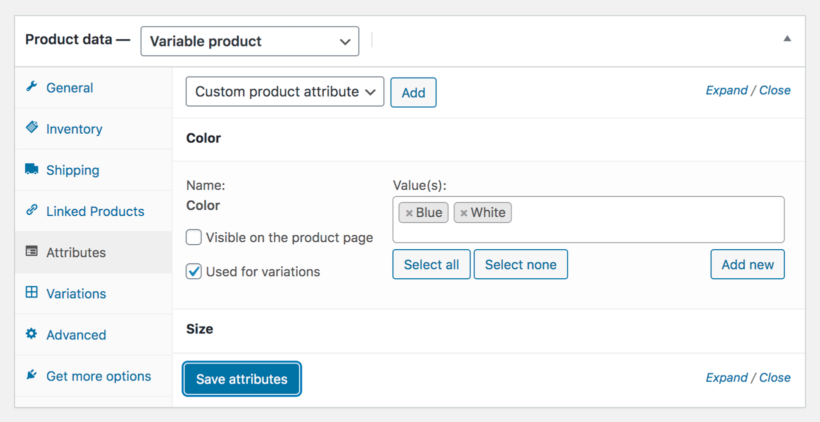
Still in the 'Product data' section, open the 'Attributes' tab. Create as many product attributes (e.g. color and size) as you like, tick the 'Used for variations' box, and click the 'Save attributes' button.
3. Create variations

Still in the 'Product data' section, open the 'Variations' tab. Create as many variations as you like. Make sure you add a price and tick the 'Enabled' box for each variation - this ensures that they are purchasable.
4. Check the 'Bulk Variations' tab appears
You can easily check whether a product is setup correctly. Once you have completed the above steps, a 'Bulk Variations' tab will appear under the 'Variations' tab in the 'Product data' section of the Edit Product page (you can see this in the Step 3 screenshot, above).
If you can see this tab, then it means the product is eligible to use the bulk variations grid. Use the options on it to control the grid and select which variation attributes will appear in the rows and columns of the grid. If you have 3 or more attributes which are used for variations then the additional ones will appear as dropdowns within each cell of the grid.
5. Enable the variations grid
Finally, you need to enable the variations grid - either globally, or for specific products only. Please see our article on creating variations grids.