How to protect WooCommerce product categories in bulk
WooCommerce Protected Categories lets you protect product categories individually on the category edit screen. If you need to apply protection settings to a lot of categories at once, you can use the third-party app Setary to edit them all in a spreadsheet view.
This article explains how to set this up.
Step 1: Enable product categories in Setary
In your WordPress admin, go to Settings → Setary. Tick the box for 'Product categories' and save your settings.
Step 2: Open the product categories tab in Setary
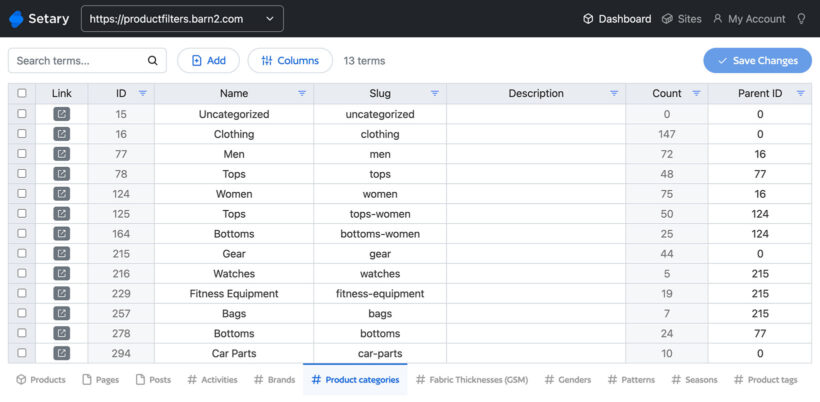
Go to the Setary app and log in. Click the 'Product categories' tab along the bottom of the spreadsheet.
Step 3: Show the protection columns
- First, edit one of your product categories in the WordPress admin and set its visibility to "Protected". Add a password and select one or more users and user roles who can access it. This is necessary in order for the protection fields to be visible in Setary.
- Now in the Setary spreadsheet editor, go to the Product Categories tab.
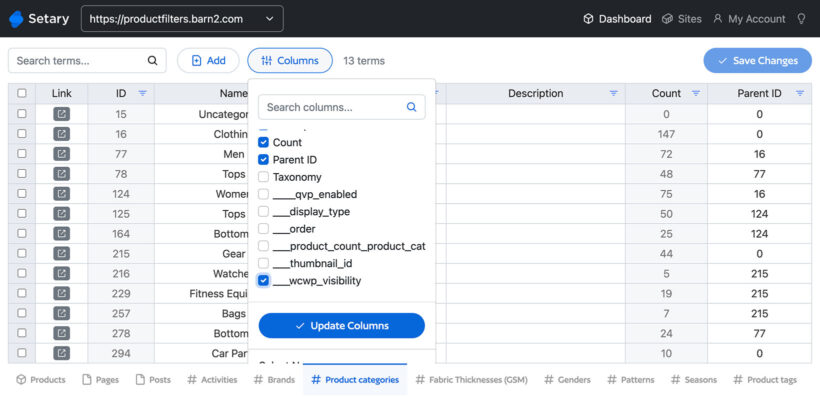
- Click the 'Columns' button at the top of the spreadsheet and make sure these four columns are visible:
- Visibility
- Password
- User roles
- Users
Step 4: Set protection on each category
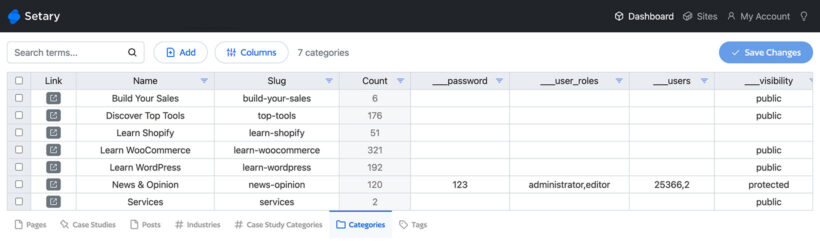
Edit the cells in each row to apply the protection you need:
- Visibility - enter
publicorprotectedin lowercase. A category must be set toprotectedfor the other columns to take effect. - Password - enter the password customers will use to view the category.
- User roles - enter the user roles allowed to access the category, comma-separated and in lowercase. For example:
administrator,shop_manager,customer. - Users - enter the user IDs allowed to access the category, comma-separated. For example:
25366,2. You can find a user's ID in the URL of their edit user page in the WordPress admin.
You can use any combination of password, user roles, and specific users on the same category.
Step 5: Review and save
Each cell you've changed shows a blue dot next to it. Review the blue dots, then click 'Save changes' to update every category at once.
Your protection settings will now apply across all the categories you edited.