WooCommerce Live Preview 3.0: Layered image previews

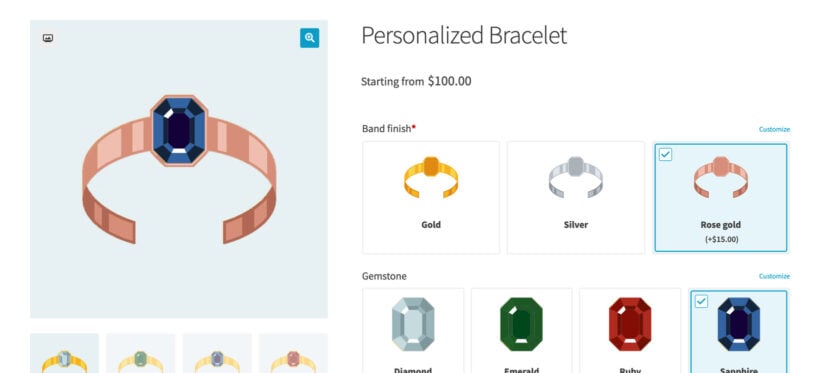
WooCommerce Live Preview 3.0 adds layered image previews, so your customers can click through your designs and see a mockup of the finished product.
Imagine you sell a cuff bracelet in three band finishes and four stones. To show every combination, you'd have to photograph 12 bracelets. Add some size options and you're into the hundreds! As a result, most stores don't bother and just show one photo with a list of options alongside, and no way for the customer to preview their selections.
Version 3.0 of our WooCommerce Live Preview add-on changes that. You upload one image per choice, and it stacks the ones your customer picks on top of the product photo. And instead of 100's of images, you just add seven and let your customers layer them to create the perfect bracelet.
How layered previews work
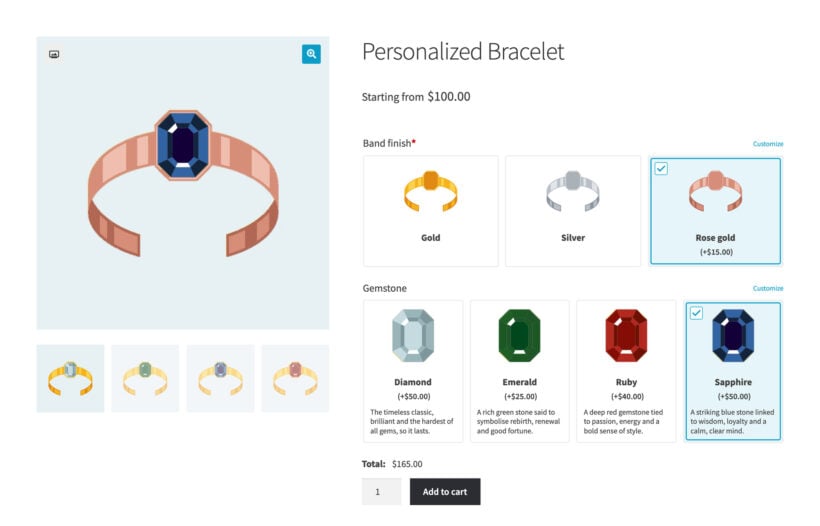
You draw a printable area on your product photo and choose which option fills it. The bracelet in the screenshot above has two: One over the whole bracelet for the band finish, and a small one over the bezel for the stone.
Each choice in those options carries its own image. When your customer picks rose gold, the plugin draws the rose gold band into its area. When they pick a sapphire, the sapphire goes into the bezel. The product image updates on the page as they go.
Most plugins that do this need an image on every product variation, so the work grows with every combination you add. A printable area belongs to the image rather than the variation. Seven files cover all 12 bracelets here.
Live Preview draws on your own photographs rather than rendering a model your customer can turn around. If your customer needs to look at the back of the product, you need a 3D configurator instead.
Why we added layered images to WooCommerce Live Preview
Sadly, a few months ago our friends at Iconic discontinued their WooCommerce product configurator plugin and folded it into Kadence Shop Kit, so you can't buy it on its own any more. We knew how useful this plugin was to ecommerce merchants. For example, its demo showed how to select a different face and strap for a watch and see an instant preview of your chosen combination:

After that plugin was discontinued, we knew it was important to continue providing this feature to merchants. Our live preview plugin already allowed users to preview their own text and images. The natural next step was to allow them to mix and match images added by the merchant, creating custom combinations of predefined options.
Before building this feature we cla carefully reviewed all the feature requests we'd received. We discovered that the most popular use case would be custom apparel - four customers had even asked for a refund because we couldn't offer layered images yet. If you sell clothing, I recommend starting with the graphic and the garment color. The shopper picks a design from your catalog and a shirt color, and both appear on the garment in front of them. Any t-shirt designer runs on those two options.
You can use the same setup for stationery with ink and envelope colors, guitars with a body and a headstock, furniture, personalized pillows and prints, and semi-custom handmade goods where your own components combine.
More new features for Live Preview
While layered images are the headline feature of version 3.0, we launched it alongside a long (and I mean long!) list of other enhancements.
The preview now appears directly on the product page
Until now, your customer had to open a window to see their previewed design. In 3.0, the product image itself updates as they make customizations. Set the printable areas up fully and the preview appears on its own, with no link for them to click.
The window is still there when they need the room to drag and resize an uploaded photo, and you can still change the wording of the link that opens it.
Color swatches feed the preview
A color swatch can now recolor the artwork your customer has already picked, so choosing a thread color turns their chosen logo that color. A swatch can also fill a printable area of its own.
Pick between two blending methods:
- Recolor replaces the color channels, which suits line art and vector shapes.
- Tint lays the color over the image and keeps the detail, which suits a photograph.
The front and the back in one order
Every image in your product gallery can carry its own printable areas and its own preview. A customer designs the front of a t-shirt on one image and the back on another, and each side goes through to the cart as its own preview.
Variations with their own image galleries work too, and the preview follows your customer when they switch variation.
Artwork that follows a curved surface
An uploaded image can bend to the perspective of its printable area, so a logo wraps onto a mug or a cap instead of lying flat across it. Engraved and personalized gifts use it for a monogram that follows the curve of a tumbler.
A rebuilt printable area editor
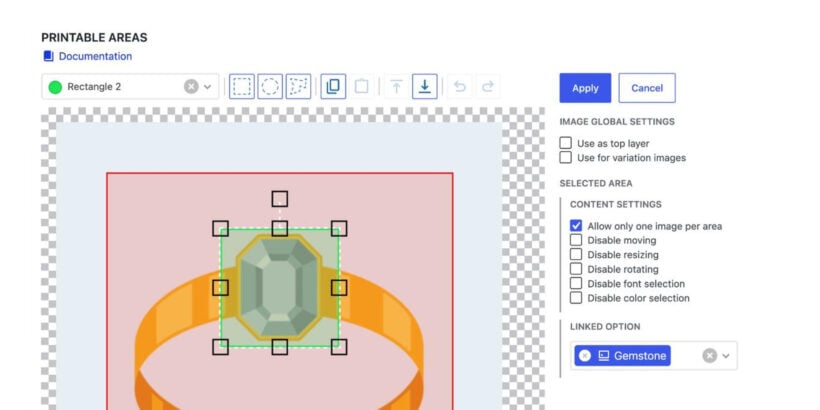
You only set the areas up once, and the editor is much faster now. It has a zoom lens, undo and redo, copy and paste, and bulk paste and delete across several images. Each area gets its own color and its own name in a dropdown, so you can tell them apart on a busy product.
There's a details panel for typing in exact position, size and rotation, layer ordering with a Bring image to foreground option, and an Edit printable areas button on the attachment screen. Images that already have areas are marked with an icon, and you can filter your media library down to just those.
Previews in the cart, and an Apply button
Customers see their design when they go back and change their options from the cart page. And changes they make in the preview window now take effect only when they click Apply, so Cancel puts the product back the way it was.
Get WooCommerce Live Preview 3.0
Live Preview is an add-on for our WooCommerce Product Options plugin. Existing customers can read the full changelog and update from the WordPress dashboard. New customers can buy the Product Options and Live Preview bundle, and All Access Pass customers already have it.