






















Which option should I choose?
Pick the option that matches what your customers need to do on the product page.
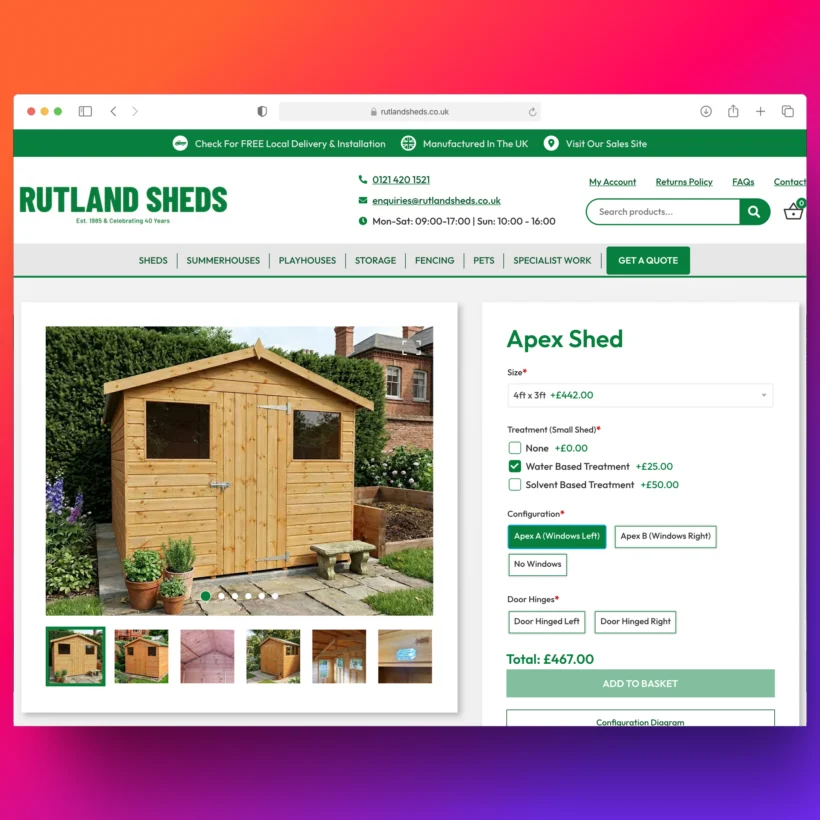
- Product Options adds the fields themselves: text boxes, numbers, file uploads, color swatches, image buttons and the rest, with a price against each one. Choose this if you only need extra fields on the product page.
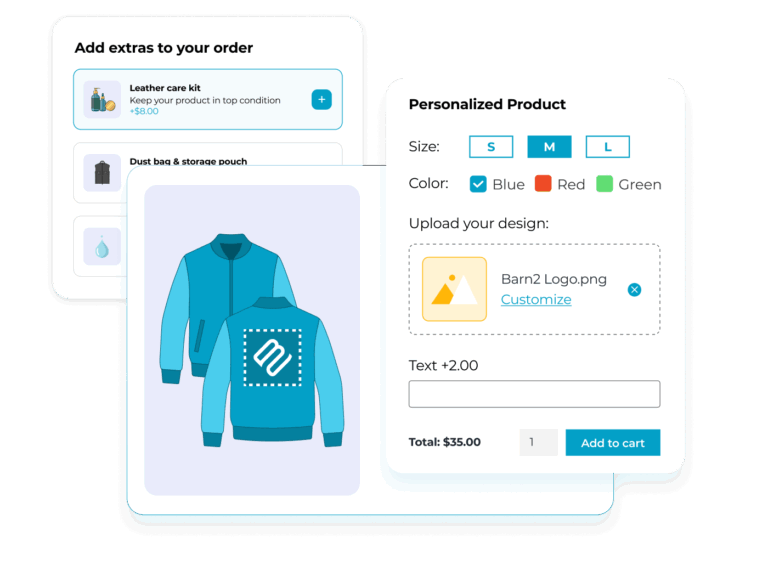
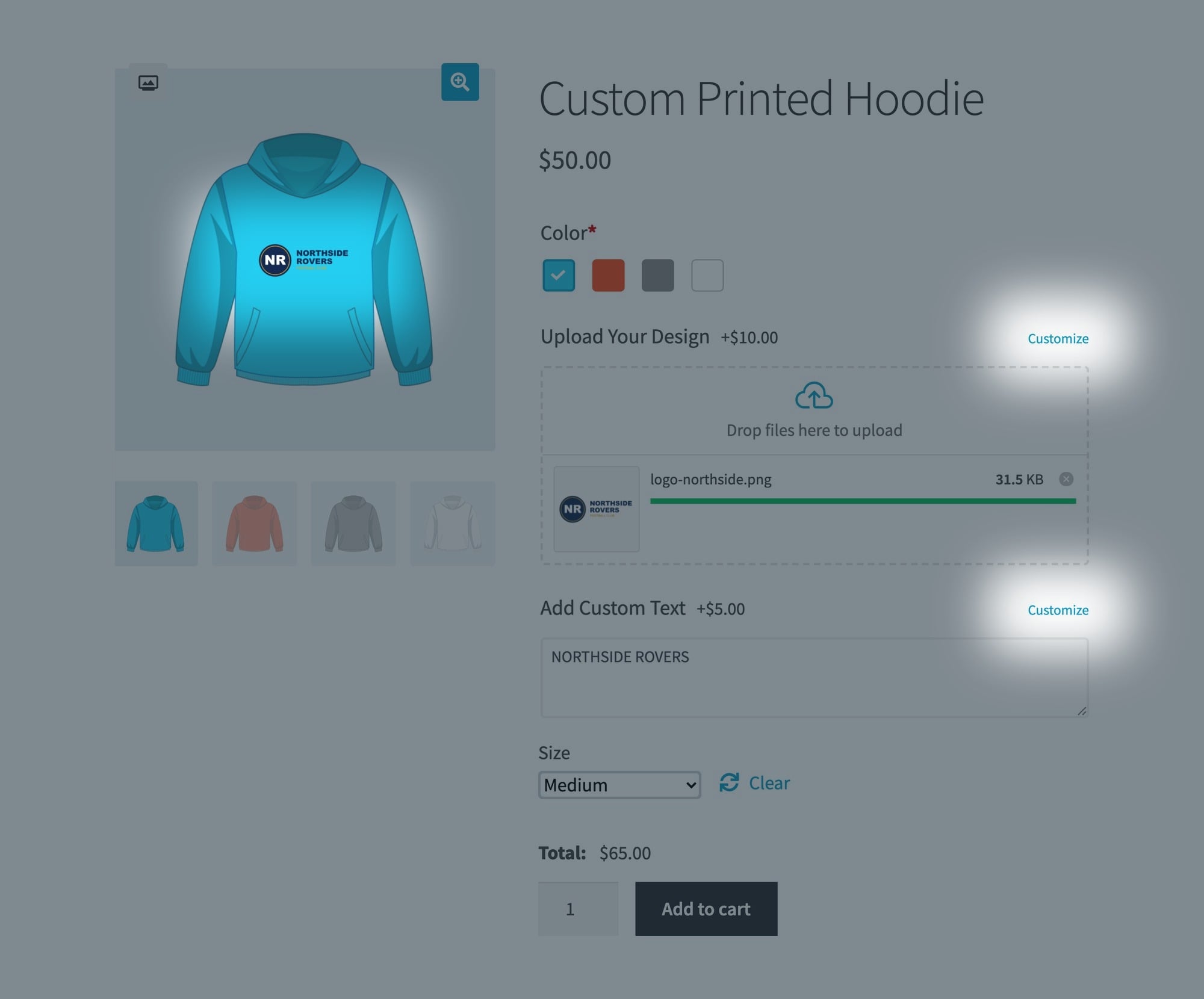
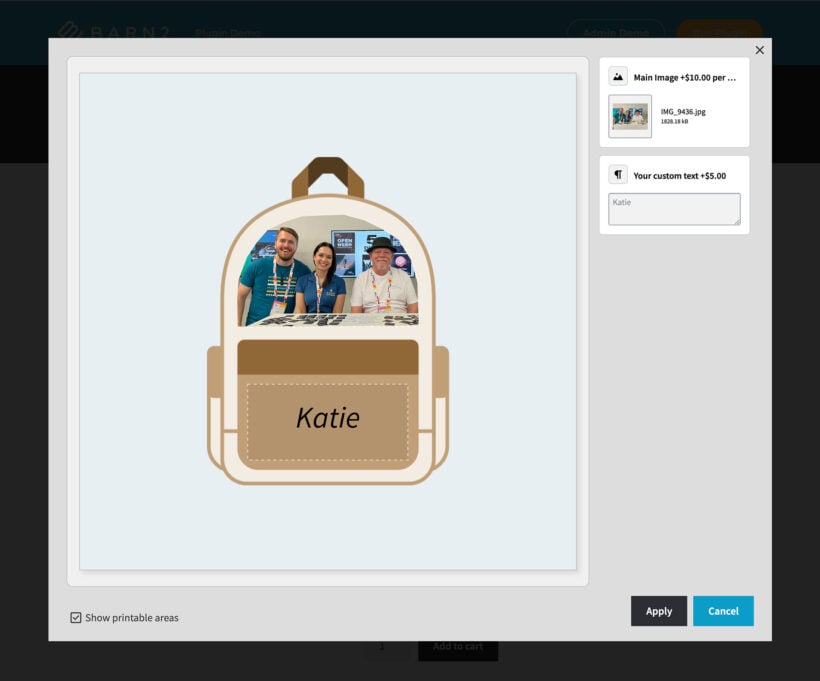
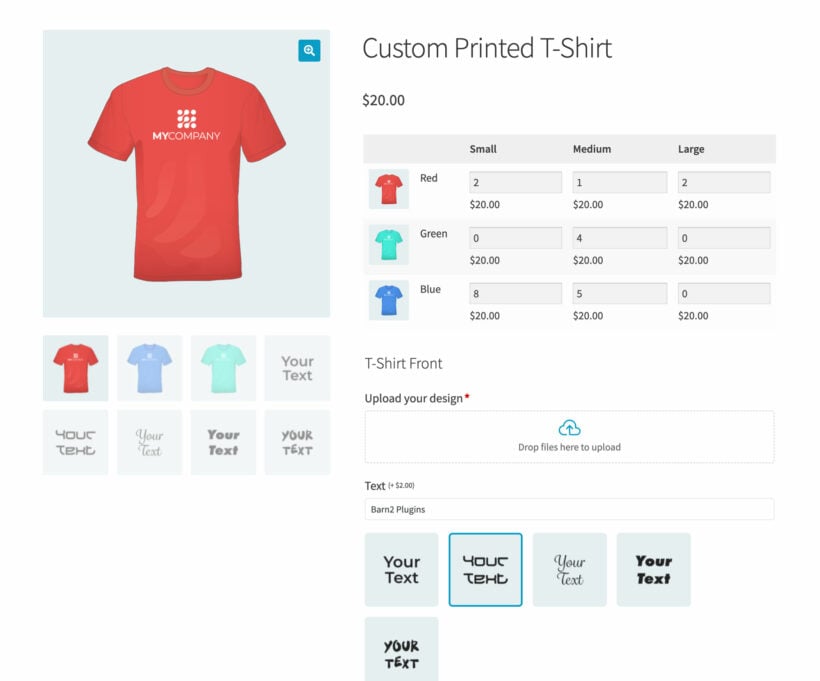
- Product Options + Live Preview also draws the customer’s own text and artwork onto your product image. You need this when someone uploads a logo or types a name and wants to see it on the product before paying.
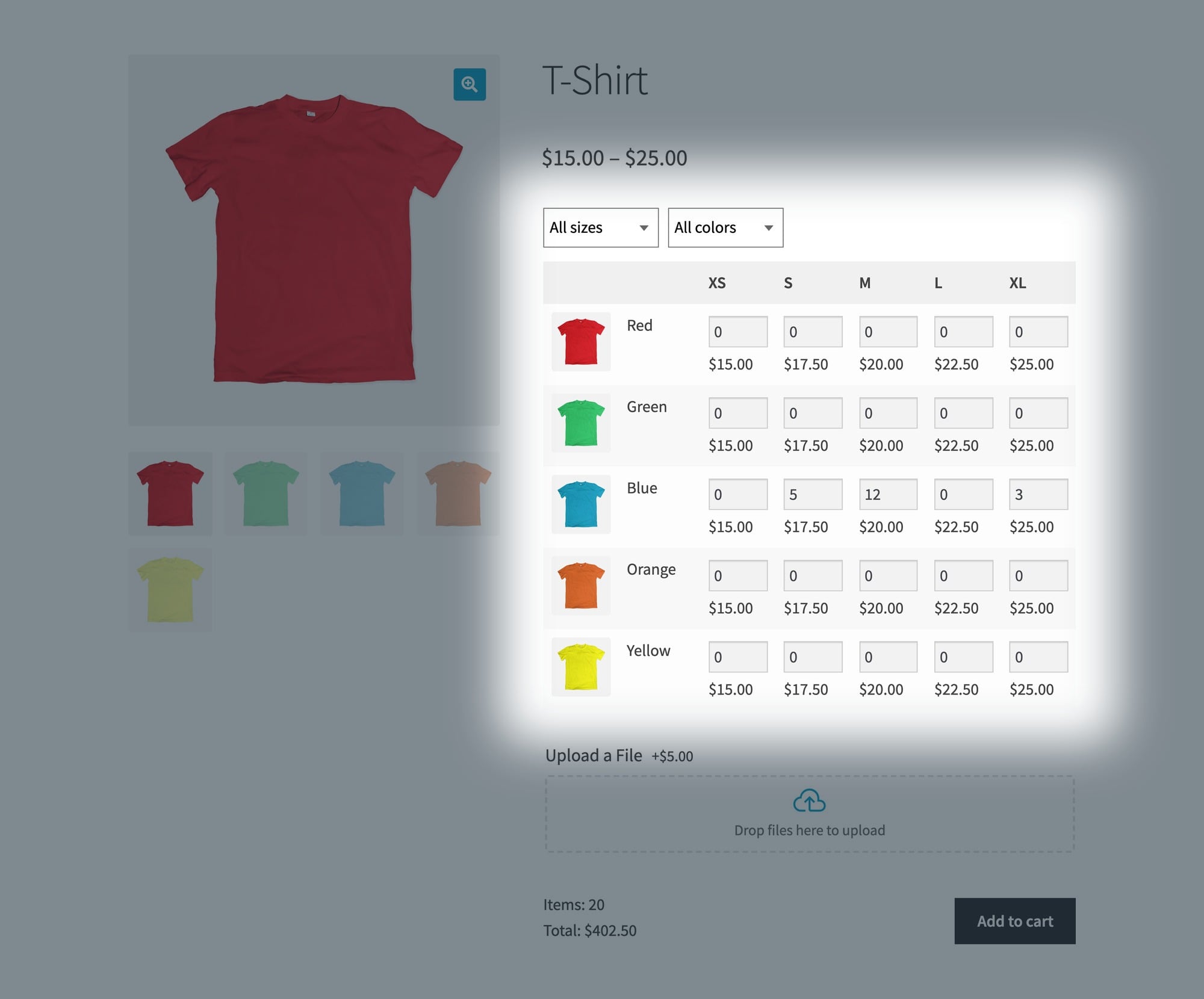
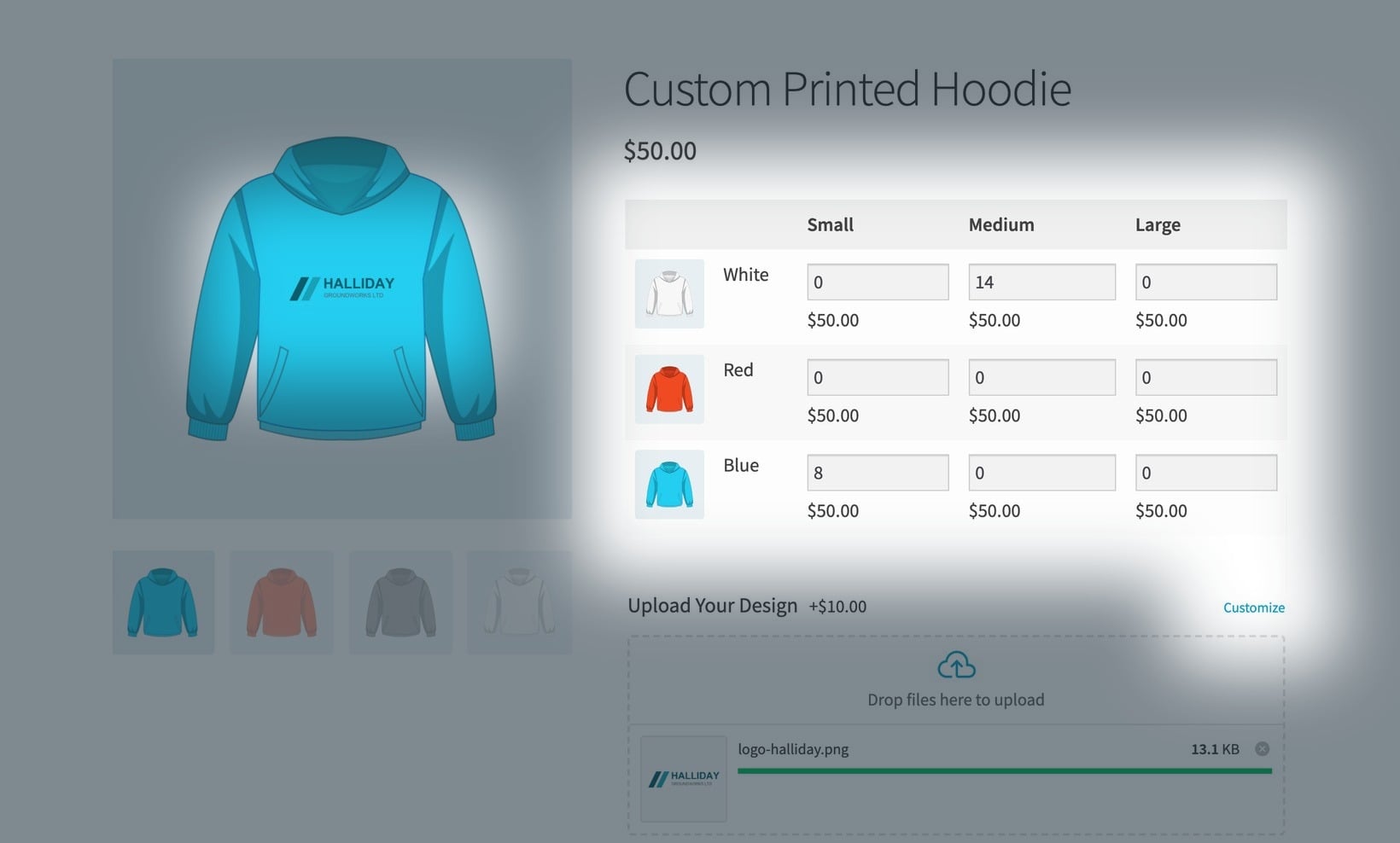
- Product Options, Live Preview + Bulk Variations also replaces the size and color dropdowns with a grid of quantity boxes. For example, a club ordering a full kit can then put five small, 12 medium and three large in one order.
- All Access Pass gives you every plugin we make, which works out cheaper once you want three or more of them.
Can you set up WooCommerce Product Options for me?
Yes, and it's free. Our team can set up the WooCommerce Product Options plugin for you at no charge.
Just fill in our free setup form and tell us what you need. We'll set up your first product options to get you started, and choose the settings that work best for your business. That way, you'll have your product options up and running in no time ☺️ If you’d rather talk it through first, book a setup call.
What are the different types of extra product fields?
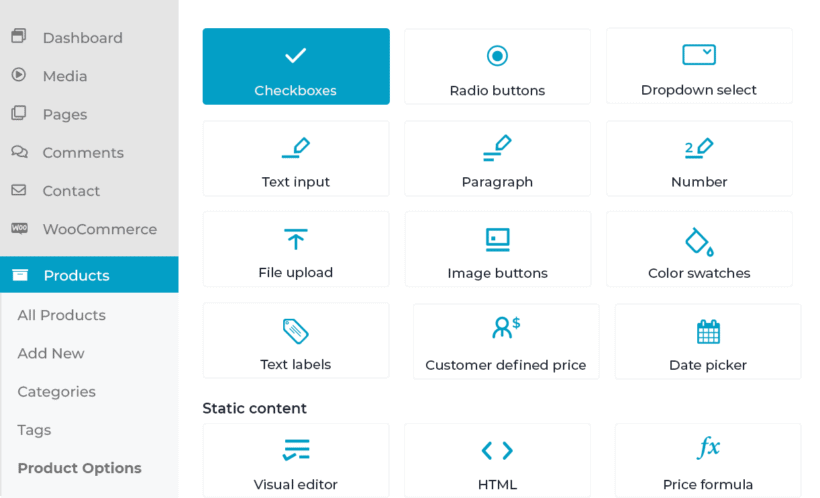
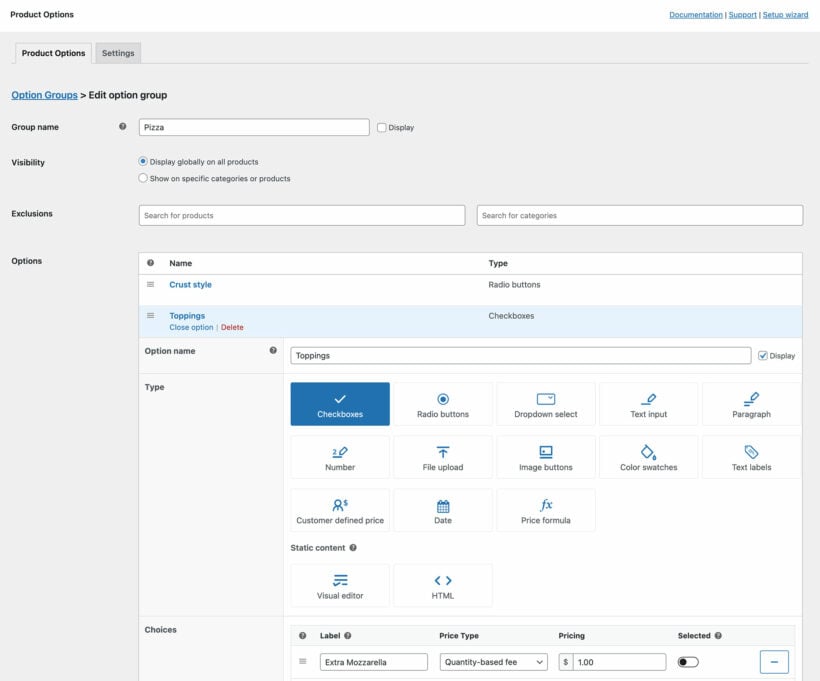
The extra product options plugin comes with multiple custom option fields that you can easily add to your products:
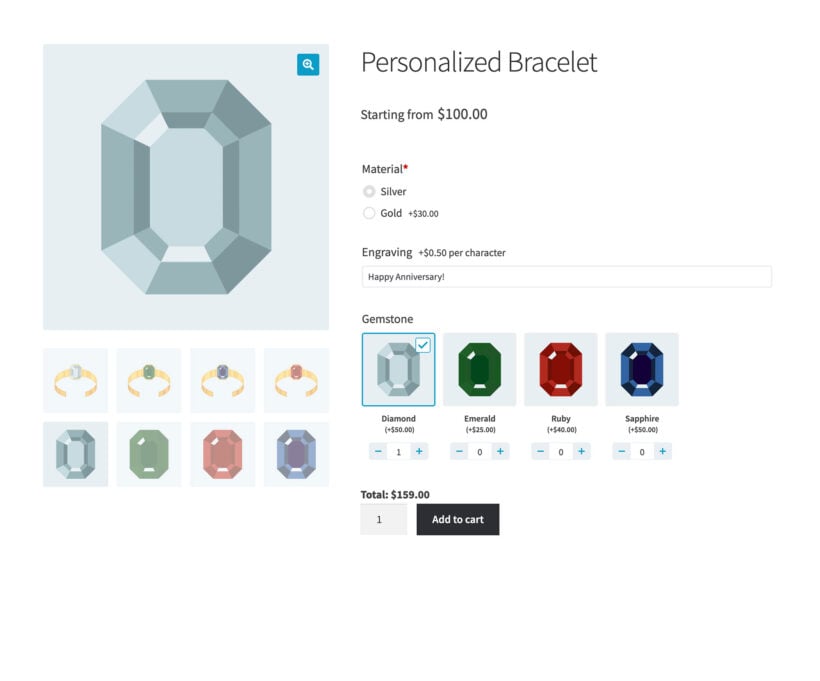
- Text: Allows customers to enter custom text.
- Checkbox: Allows customers to select multiple options for products.
- Radio button: Allows customers to select one of the multiple extra options available.
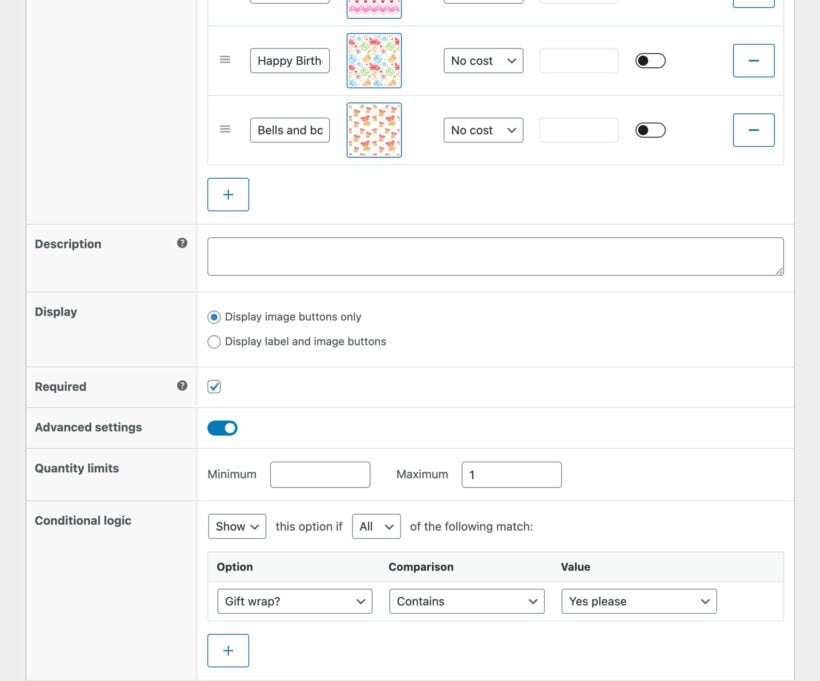
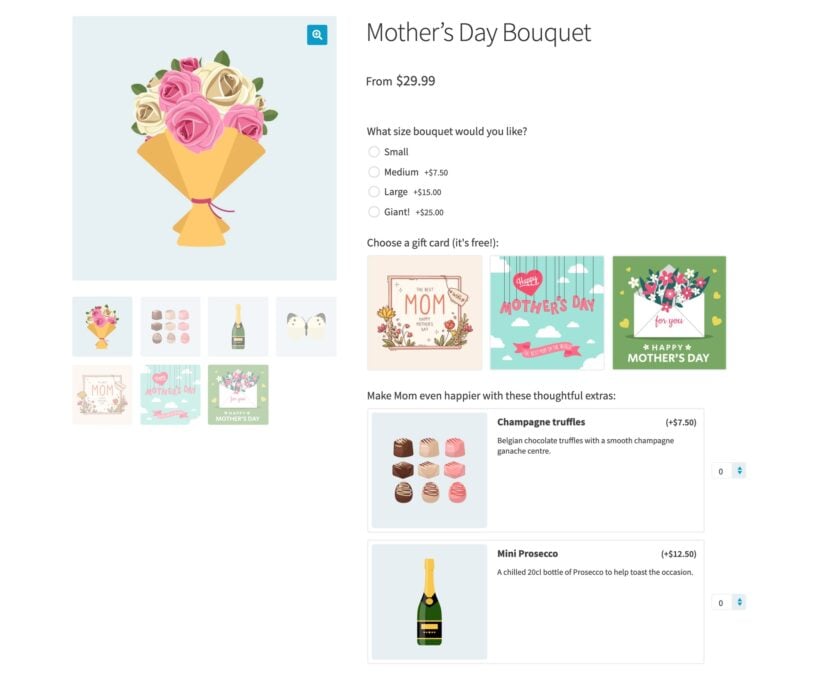
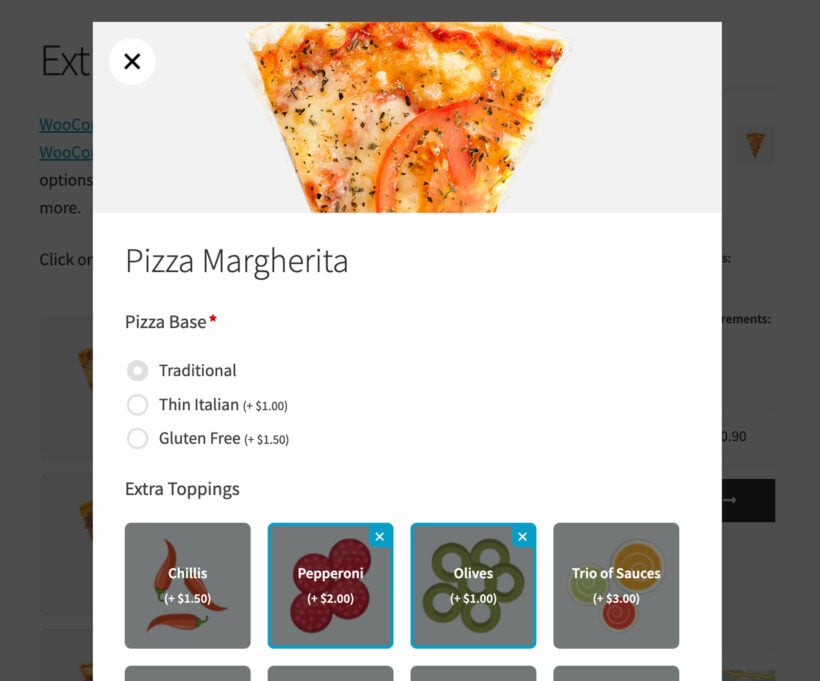
- Image buttons: Display clickable images for customers to choose from. (Note: You can also display images alongside other option field types such as checkboxes and radio buttons.)
- Text area: Allows customers to enter a message related to the order.
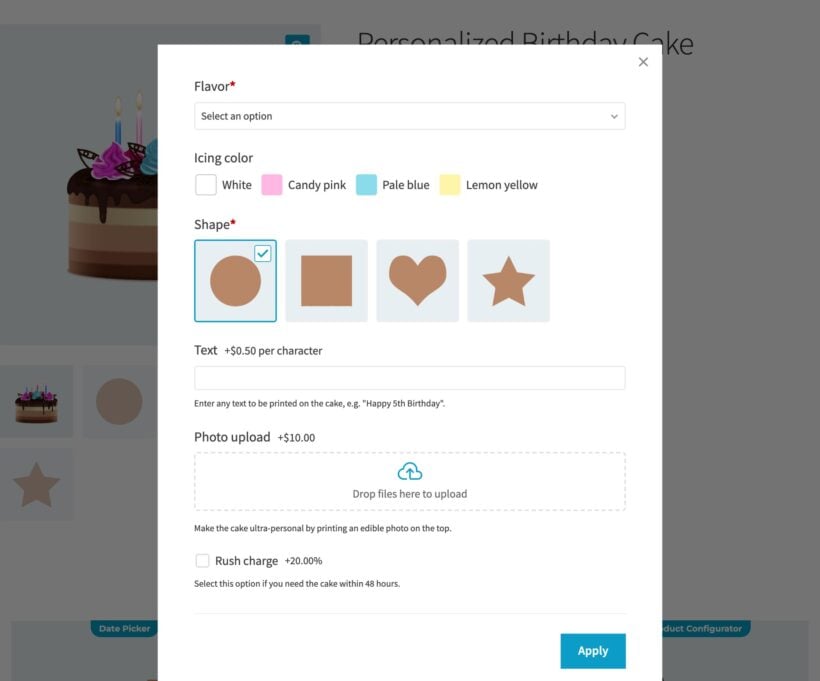
- File upload: Allows customers to upload files while placing the order.
- Number: Collect numeric information such as a phone number, measurements or dimensions.
- Color swatches: Allows customers to select a color for the product. For example, t-shirts, hats, and shoes.
- Dropdown: Allows customers to select a product option from a dropdown menu.
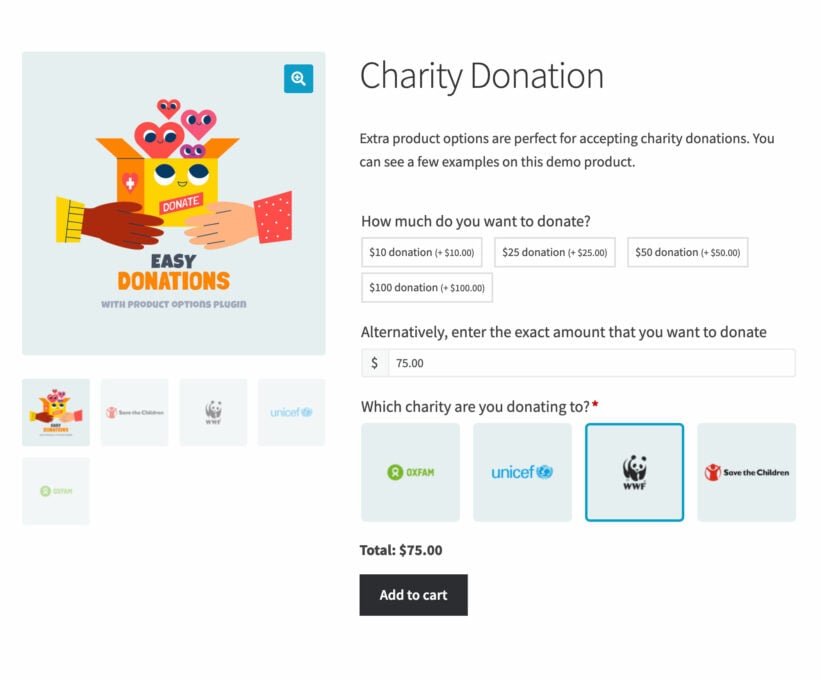
- Customer-defined pricing: Allows customers to name their own custom price.
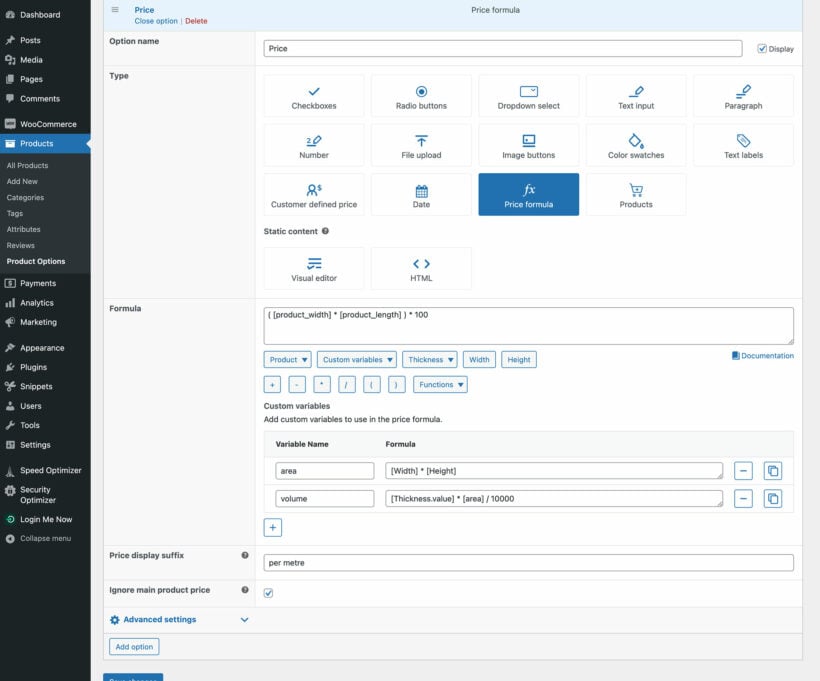
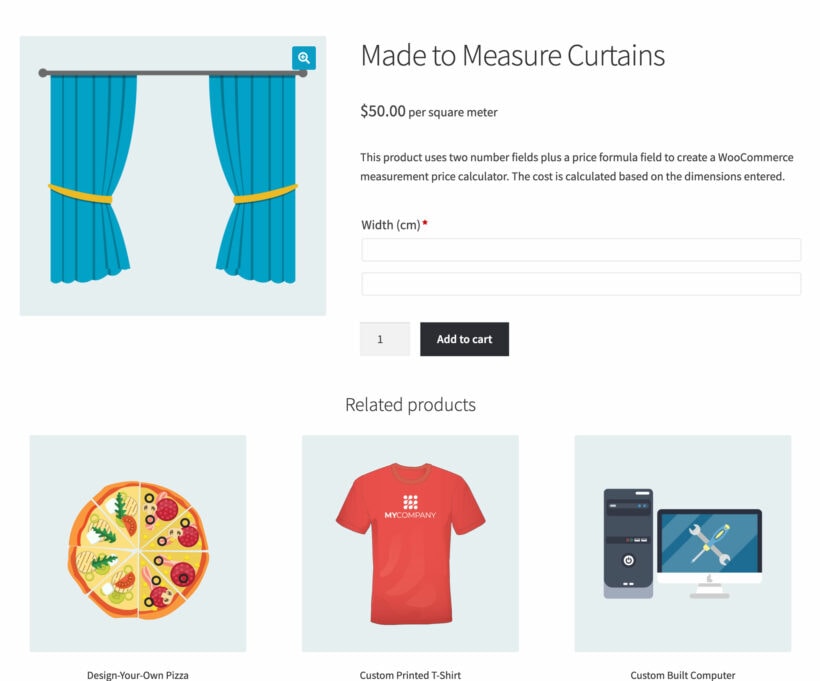
- Price formula: Create a WooCommerce price calculator with a custom formula to calculate the price based on the information submitted by the customer. For example, this is perfect for creating a measurement price calculator for products priced by size, weight, or area.
- Date: Lets customers select a date and/or time.
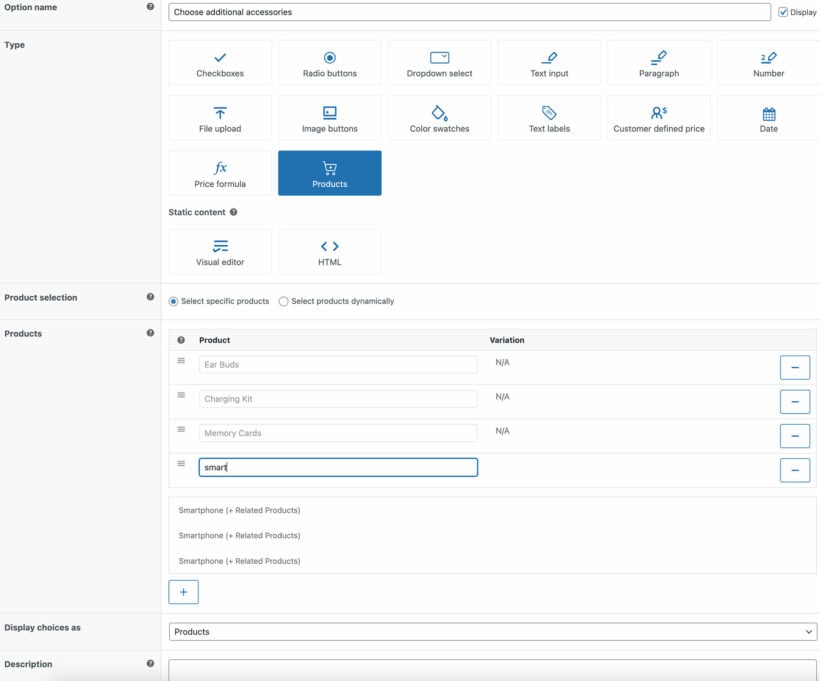
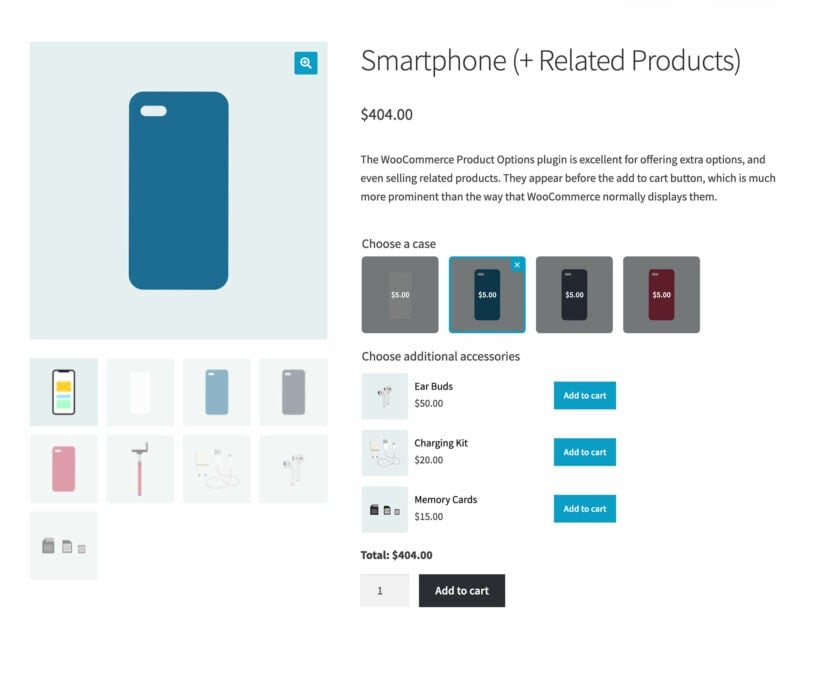
- Products: Select individual products or products from a specific category to appear as product options.
All of the above styles are available when you create options directly in WooCommerce Product Options. If you prefer to select existing variations and attributes to display as options, then you can choose between the checkbox, radio button, dropdown, image button, color swatch and text label styles.
In addition, WooCommerce Product Options comes with two field types which you can use to structure your custom product options. Use these to add instructions, headings between different types of option, and so on:
- Visual editor: Display static information such as headings or introductory sentences.
- HTML: Enter HTML code to appear on the front end.
Yes - Lots of people use WooCommerce Product Options to replace the default variation dropdowns with more customer-friendly field types.
WooCommerce Product Options provides 2 ways of creating product options:
- Create options directly in the plugin's user-friendly interface, or;
- Select existing variations to display as checkboxes, radio buttons, dropdowns, image buttons, cards with descriptions, color swatches or text labels.
If you've already set up all your product options as attributes and variations, there's no need to recreate them. Instead, you can just select them in the WooCommerce Product Options interface and display them in more engaging ways.
You can continue using all the other features that you get with WooCommerce variable products. For example, you can use the built-in WooCommerce stock management, variation SKU's, and so on.
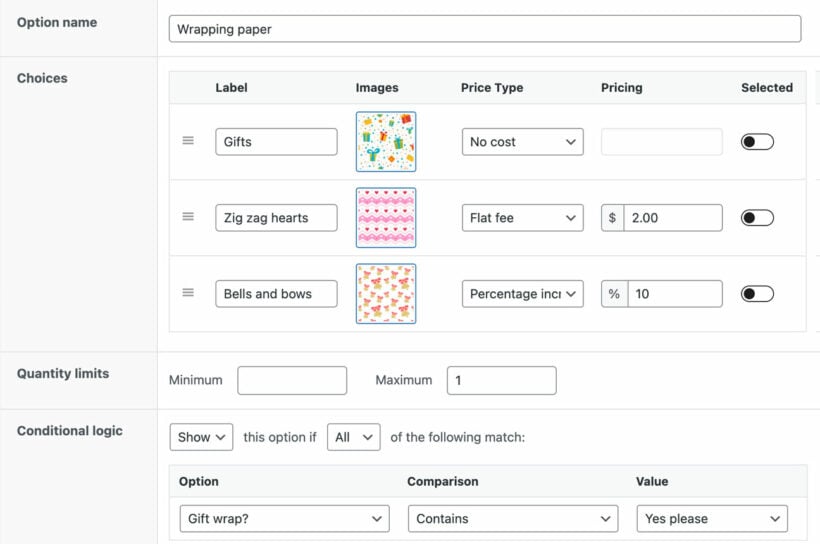
Absolutely - just tick the 'Selected' option next to each product option that you would like to be pre-selected by default. That way, the customer doesn't need to bother selecting it manually.
This is a great idea for mandatory/required options, or optional extras that you want to encourage customers to add to their cart.
WooCommerce Product Options is an incredibly flexible plugin and people use it in a wide variety of different ways. Here are our suggestions if you're wondering whether product options will work for your specific use case:
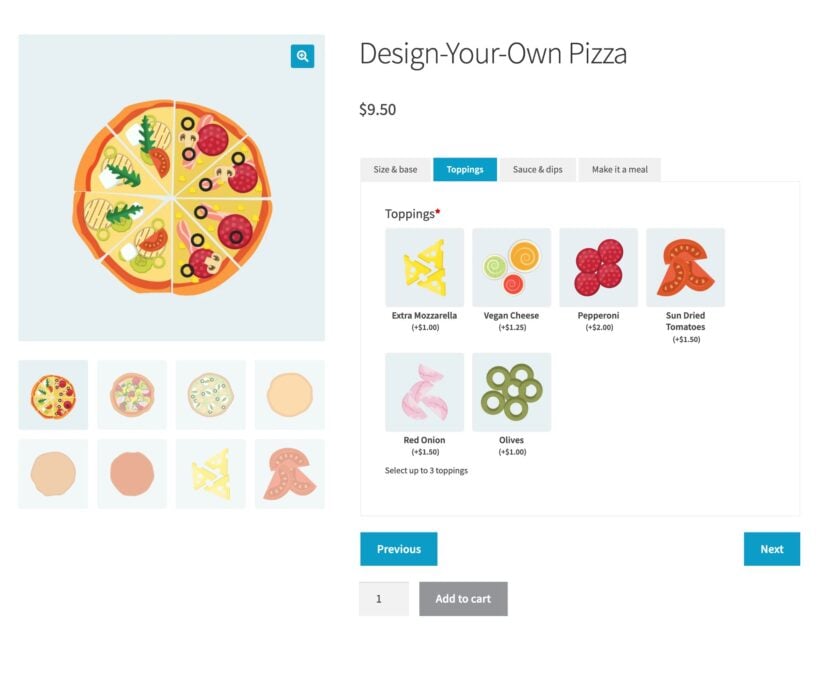
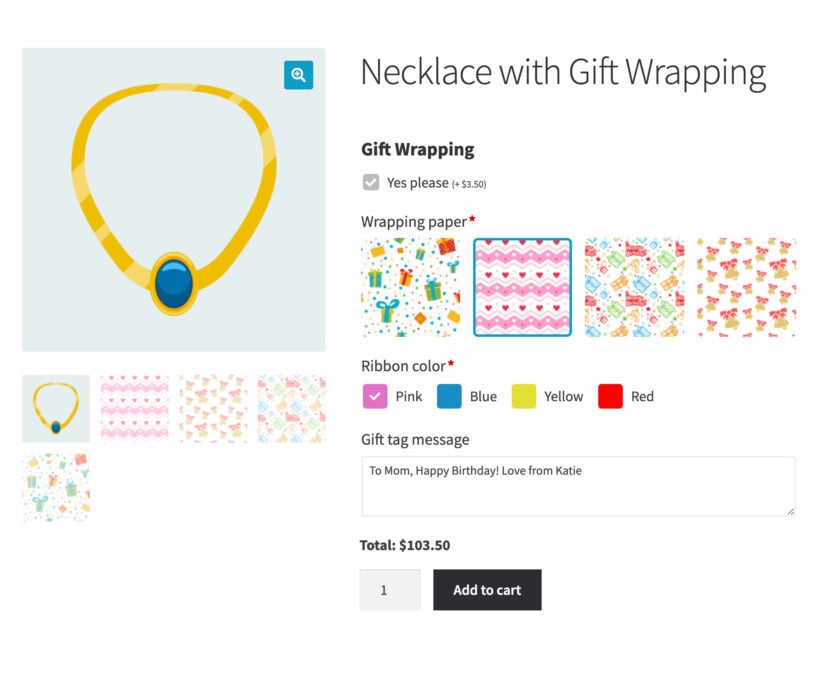
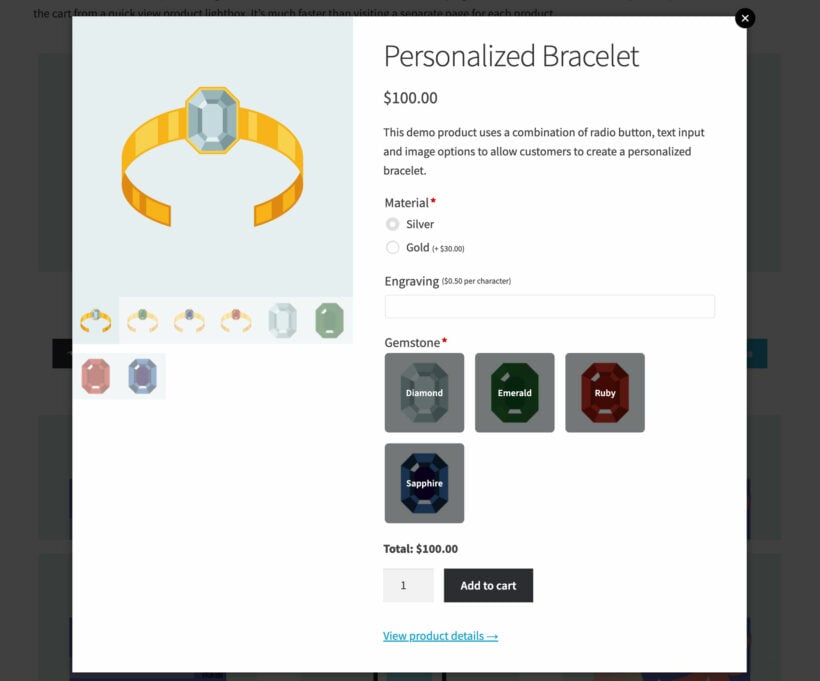
- View the different products on the demo site. Think about how the example products and their extra options could be tailored to your requirements. For example, the demo provides examples of printed clothing with uploaded artwork, measurement price calculators, personalizable products, and custom pizza toppings. It also includes different types of products, such as custom printing, made-to-measure products, personalized gifts, food and drink, and training courses/events.
- Read through the list of WooCommerce custom product field types below, and consider which ones would best suit your needs.
- Browse the WooCommerce Product Options blog. We've published tutorials about how to use product options for a wide range of use cases.
- Sign up for a free admin demo where you can play around with adding and editing extra product options for WooCommerce.
- If you're still unsure, the best way forward is to test WooCommerce Product Options on your own site. We offer a full 30-day money back guarantee so you can get a refund if it doesn't work in the way you are hoping.
- We're also happy to provide personalized advice - just get in touch via the Support Center with details of how you'd like the product options to work.
How do file uploads and live previews work?
Add a file upload field and customers can send you their artwork with the order. You choose how many files they can upload, the maximum file size and which file types you accept. You can also increase the price based on the number of files uploaded.
With the Live Preview add-on, the uploaded image and any custom text appear on your product image while the customer fills the form in. You mark the printable areas on the photo, so the artwork stays clear of a zip or a seam, and the customer drags it into place. The preview follows the customer into the cart.
Will the options make my product page long and cluttered?
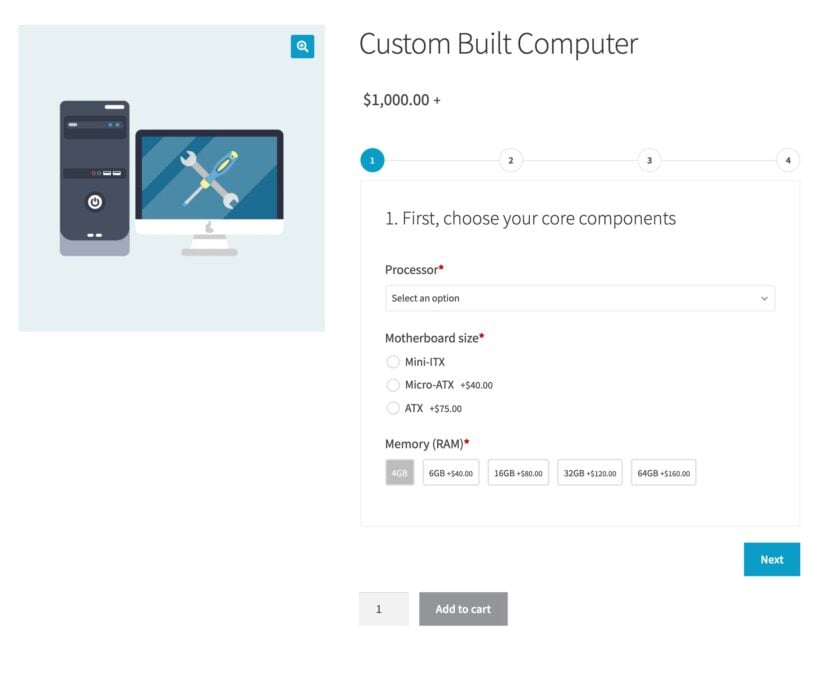
By default, WooCommerce Product Options displays your product options on the product page above the quantity picker and add to cart button. To save space, it comes with 3 alternate layout options: tabs, a step-by-step layout, or within a popup. You can customize the names of the tabs and the popup button.
We recommend using these space-saving layouts if your product options would otherwise take up a lot of vertical space. For example, a multi-step layout is perfect for a product configurator because it takes the customer through one stage at a time.
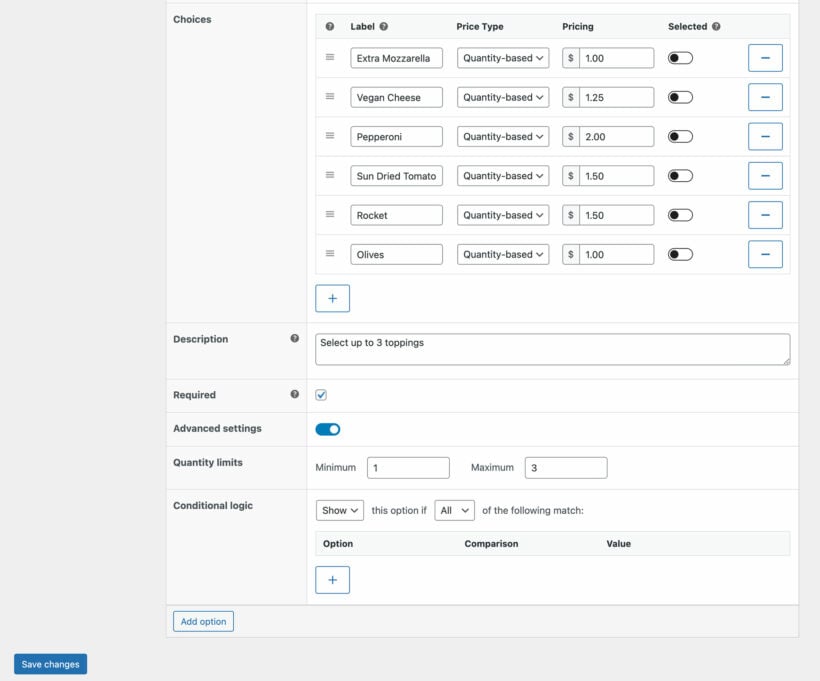
Conditional logic keeps the page even shorter. Each field can stay hidden until the customer picks something that makes it relevant. For example, a ‘Squad number’ box only appears once someone ticks ‘Add a number’.
Displaying extra product options conditionally is one of WooCommerce Product Option's most unique features. You can show or hide fields depending on which other options or variations are selected.
Simply assign conditional logic to an option and make it show/hide depending on the input in another field. You can trigger conditional logic based on which other options the customer selects, or which variation attributes they select if you're using variable products.
For example, imagine that you're selling printed t-shirts with customization options, such as uploading a logo or typing a name. You can keep the product page neat and tidy by adding a single 'Customization' field. Use conditional logic to hide the image upload and text fields until the customer chooses the 'Customization' option. Creating dependent fields like this is much cleaner than displaying them to all customers.
Can I charge an additional fee for product options?
Yes! Our WooCommerce product add-ons plugin provides a choice of variable pricing options. Use these to change the product price in a range of flexible ways:
- Flat fee: This adds a predefined flat fee to the product price. You can use this to increase or decrease the total price of the product.
- Quantity-based fee: Increases the price depending on the number of product options added. Again, you can use this to increase or decrease the total price of the product.
- Percentage increase: Increases the product's price by a predefined percentage value.
- Percentage decrease: Decreases the product's price by a predefined percentage value.
- Character count: Increases the price depending on the number of characters entered in the text field.
- File count: Charge based on the number of files that the customer uploads to the product.
- Customer-defined price: Adds a price field, so that customers can enter an amount to be added to the product price. Perfect for creating a WooCommerce Name Your Price field, for example, to collect charity donations or tips/gratuities.
- Price formula: Calculates a custom price based on the information provided by the customer.
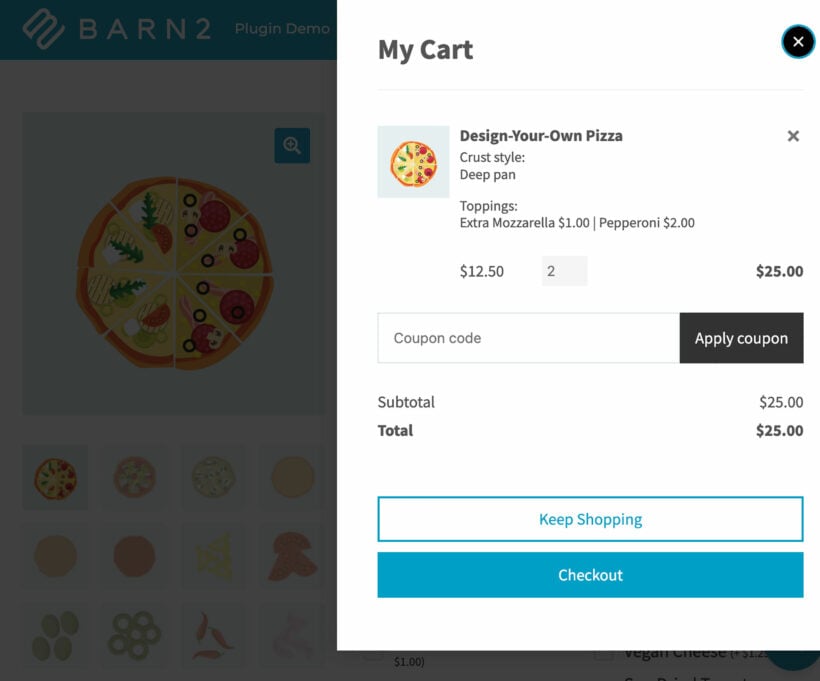
The price for each extra product option for WooCommerce appears alongside the field (unless you choose to hide it). In addition, the total for the product with all the selected options and quantities will appear above the add to cart button. That way, customers know exactly how much they will pay.
Tax will be added to the cost of the WooCommerce extra product options if this is required based on the overall tax settings for your store.
Note: The above applies when you create product options directly in the plugin. If you're displaying existing variations as options then the variant price will be used instead.
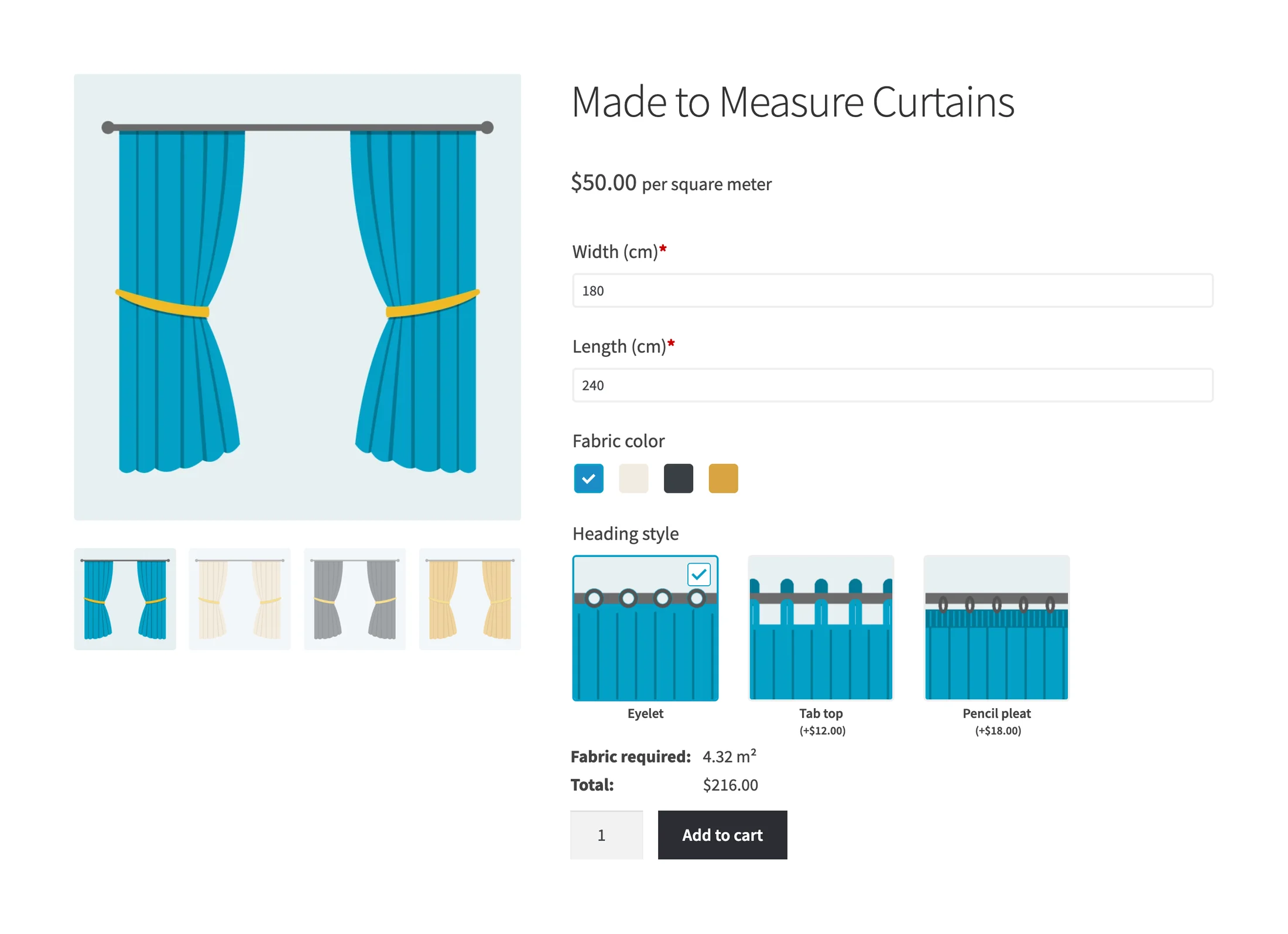
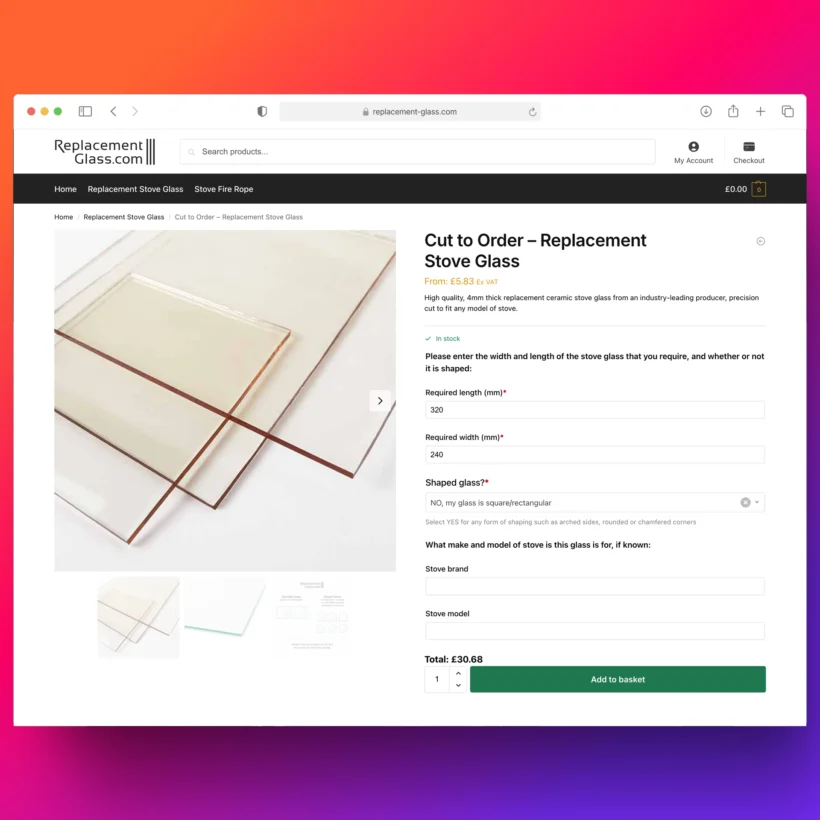
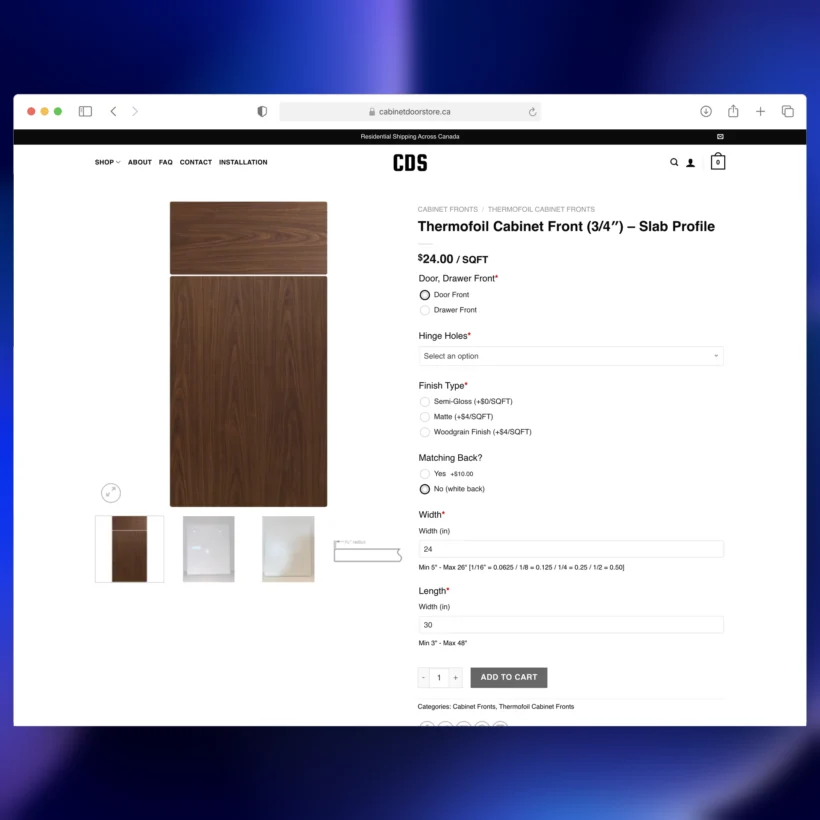
Use the price formula field type to add a measurement price calculator to any product. This is an excellent way to sell made-to-measure or cut-to-size products.
For example, you might add number fields for 'Width' and 'Length'. Then, you might create a custom price formula which multiples the width and length by the price per meter to calculate the correct cost for the product.
The WooCommerce price formula can be as simple or as advanced as you like. You can use other options and any type of product data as variables. It works with a wide range of mathematical and logical operators so that you can customize it to meet any requirement. This makes it perfect for a wide range of advanced use cases where you need to charge custom prices for WooCommerce products.
Can customers choose a date, and is this a booking calendar?
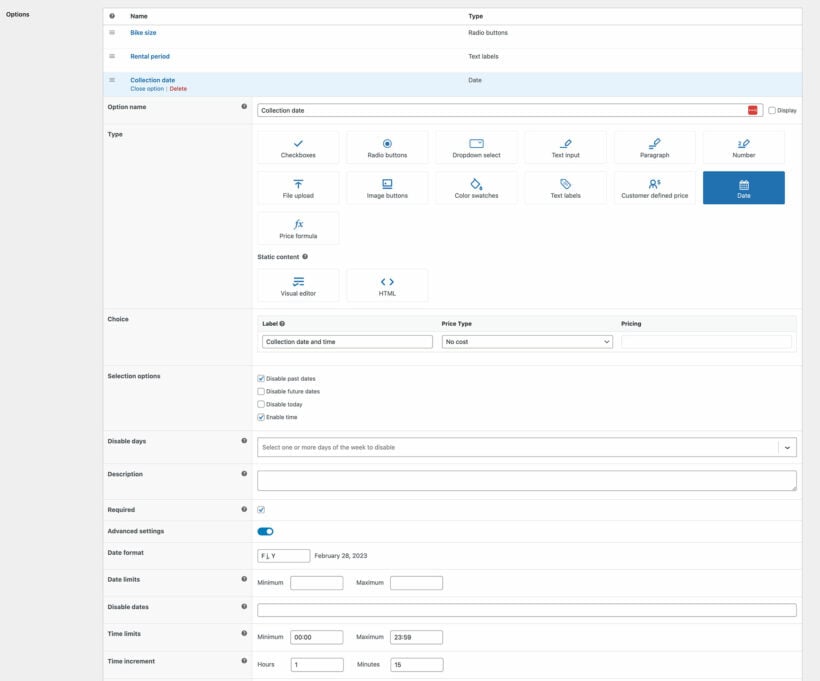
WooCommerce Product Options makes it easy to add a date picker field to any product. Customers choose the date and/or time from a calendar before adding the product to their cart.
You can control which dates are available, for example by disabling dates in the past or future, disabling the current date, and marking specific dates as unavailable.
This is a date field rather than a booking system. It records the date your customer wants. It doesn’t hold availability, and two people can pick the same slot.
Is it possible to share fields across multiple products?
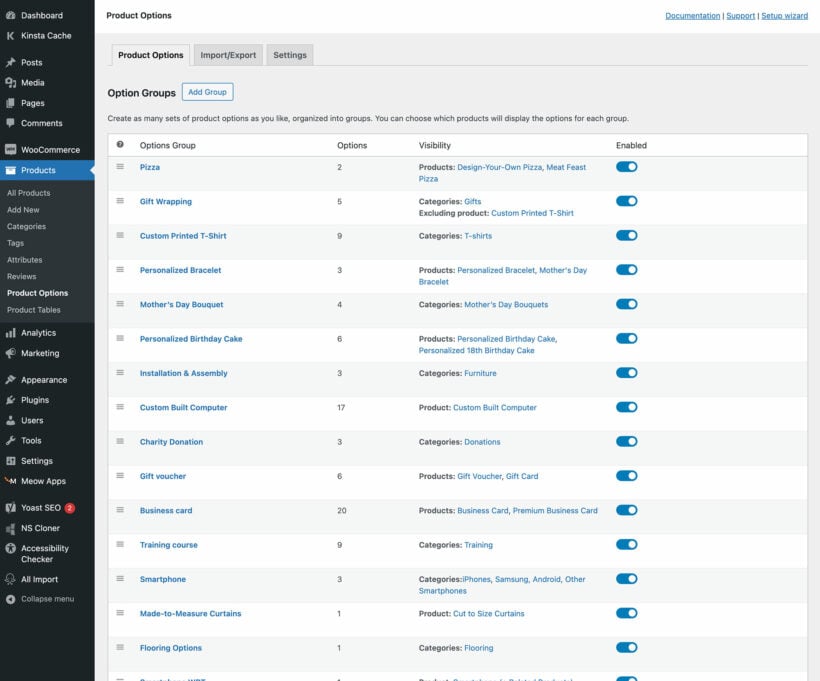
Yes. Your extra product options are structured into option groups. This makes it easy to assign each group of options to any product or product category. Alternatively, make a group visible globally and then exclude it from specific products or categories. You can also select which of your WordPress user roles can (or can't) see each option group.
This means that if you have lots of products in the same category, there's no need to update them individually. Instead, simply edit the options in the group, and all your products will update instantly. Re-using option across multiple products saves you a lot of time and effort when adding and updating product option fields.
Absolutely! With WooCommerce Product Options, you can add an unlimited number of extra custom fields to each product.
Either display the same fields on all your products, or different fields on different products and categories.
Can I display other products as options?
Our WooCommerce custom product options plugin has a neat feature which lets you display other products from your store as options, instead of adding the option fields manually. For example, imagine that you print t-shirts, caps and tote bags, and want to display your most popular matching items as additional upsell options on the product page.
You can do this by adding the 'Products' option type and either selecting individual products to display, or an entire category. Either way, your chosen number of products will be displayed in a choice of styles on the t-shirt product page. Customers can then add the matching items to their cart at the same time as the t-shirt, helping to increase your average order value.
Can I manage stock for product options?
Yes, there are 2 ways to do this:
- Display variations as options - WooCommerce itself lets you manage inventory for product variations. As a result, if you display variations as options (instead of creating the options directly in our plugin) then you can manage stock.
- Use the 'Products' option type - This is where you select other products (or products from a specific category) to appear as options, instead of adding the options manually. For example, you might have a made-to-measure blind and select a 'fitting bracket' and 'cleaning kit' product to appear as options on the blind product page. Since they are real products elsewhere in your store, they are covered by WooCommerce's stock management.
Will it work with my theme and other plugins?
WooCommerce Product Options works with any well-coded WordPress theme. The product options inherit the font size and color from your theme, so they fit your store design. You do not need a developer, custom code, or changes to your theme template files.
Our theme compatibility page lists the themes we test with. If you do hit a styling or compatibility issue, our support team will help.
WooCommerce Product Options is fully compatible with all Barn2 plugins, and with most plugins from other companies. The WooCommerce Product Options compatibility guide lists the plugins we have tested with it.
Yes - if your website has AJAX add to cart enabled (either via your theme, custom code or a plugin such as Ajax add to cart for WooCommerce) then customers can add products to the cart without reloading the page. WooCommerce Product Options is compatible with AJAX add to cart and the product options will be added to the cart correctly.
Does it work in my language?
WooCommerce Product Options is designed to work with any WordPress translation plugin such as WPML, WeGlot and TranslatePress. This makes it easy for you to translate the extra product fields into any language and use it on multilingual websites.
What are the minimum requirements for running the plugin?
WooCommerce Product Options is fully tested with the latest versions of WordPress and WooCommerce. We always recommend running the most up-to-date version, but we also support older installations:
- WooCommerce 7.2 or greater (tested to 11.0.1)
- WordPress 6.1 or greater (tested to 7.0.4)
- PHP 7.4 or greater (tested to 8.5)
- MySQL 5.7.8 or greater / MariaDB 10.3 or greater
What offers are available for WooCommerce Product Options?
Several offers are available if you are a nonprofit or wish to buy multiple plugins:
- Multi-buy discount - Add any two or more Barn2 plugins to your cart and get 40% off automatically at checkout. The most expensive plugin stays at full price, and every other plugin is reduced by 40%. No coupon needed.
- All Access Pass - For the best possible value, get our All Access Pass which gives you VIP access to our entire plugin suite including WooCommerce Product Options.
- Charity discount - Registered nonprofits get 15% discount off.



Complicated Booking forms sorted
By Jeremy Opperman on
Plugin and Plugin support are great, I encountered a issue that support and developer fixed and updated very quickly. The mathematical equations and variables are easy to logically understand. Great plugin to solve complicated product options.