Collecting email addresses before downloads
The Advanced plan of Document Library Pro includes a lead capture feature which allows you to require users to enter their details before they can download documents from the library.
When lead capture is enabled, clicking a document download button opens a popup form. The user must complete the form before they can access the file.
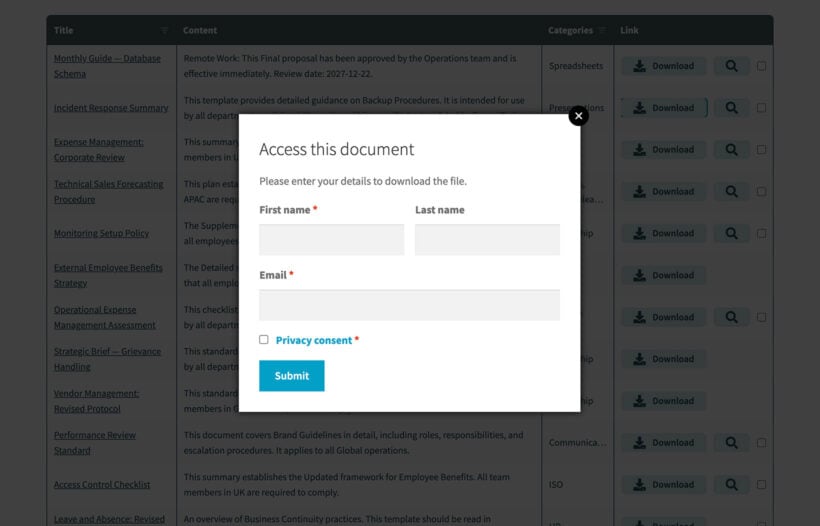
How to enable lead capture
You can enable and configure lead capture at Documents → Settings → Lead capture.
Tick Enable lead capture and enter the Recipient email address. This is where the plugin will send a notification each time someone completes the form.
Lead capture settings
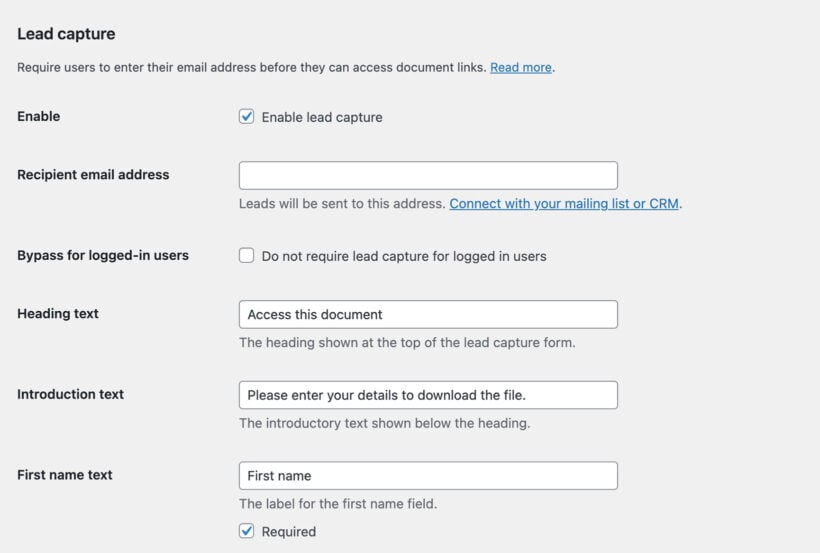
The settings allow you to control who sees the form, what information is collected, and the text shown in the popup.
Recipient email address
Enter the email address that should receive lead notifications. Each time a user submits the lead capture form, the plugin will email you with their details.
Bypass for logged-in users
Tick Do not require lead capture for logged in users if you want logged-in users to download documents without completing the form. This is useful if you only want to capture leads from new visitors.
Form text
You can customize the text shown in the popup form:
- Heading text - The title shown at the top of the form.
- Introduction text - The text shown below the heading.
- First name text - The label for the first name field.
- Last name text - The label for the last name field.
- Email address text - The label for the email address field.
- Privacy consent text - The label for the privacy consent checkbox, leave blank to disable.
- Submit button text - The label for the submit button.
- Confirmation message text - The message shown after the form is submitted.
- Download button text - The label for the download button shown after submission.
Use the Required checkboxes to choose whether to force users to complete the First name, Last name, and Privacy consent fields in order to submit the form.
Privacy consent
The lead capture form includes an optional privacy consent checkbox.
Enter a label in the Privacy consent text field at Documents → Settings → Lead capture. This text appears next to a checkbox on the popup form. If you leave this field blank, the privacy consent checkbox will not be displayed.
When users click the privacy policy link in the lead capture form, they are taken to the page set as the Privacy Policy in WordPress at Settings → Privacy, where you can select or create the page that contains your site’s privacy policy.
You can also tick Required to prevent users from downloading documents unless they actively check the consent box.
It is your responsibility to ensure that the wording complies with your local data protection laws, including GDPR or other applicable regulations.
What happens after someone submits the form?
After the user submits the form, they will see your confirmation message and a download button. Clicking the download button will start the file download. The user now has full access to the document library without having to re-submit the form.
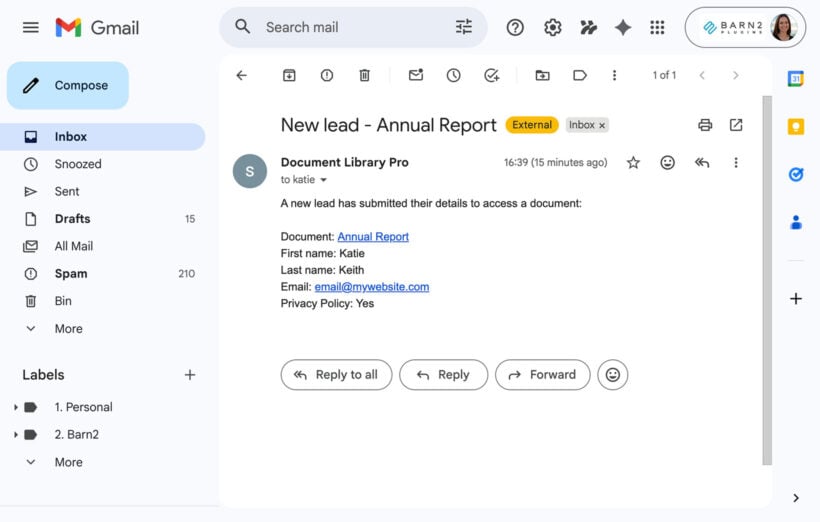
At the same time, Document Library Pro will send an email to the recipient address containing the details that the user entered. This includes the name of the document that they were trying to download when the lead capture form appeared, and the details captured by the form:
Integrating with mailing lists and CRMs
Whenever someone submits the lead capture form, Document Library Pro sends an email to the address specified at Documents → Settings → Lead capture. You can disable this email by leaving the field blank.
If you would prefer to automatically add leads to your mailing list or CRM, you can connect the lead capture form to your chosen platform. You can do this with any provider using integration plugins, automation tools, or custom code.
For full technical details including action hooks, filters, and example code for WP Fusion and automation tools, see our lead capture developer guide.
Option 1: Connect using WP Fusion
WP Fusion allows you to automatically send lead capture data to a wide range of CRMs and mailing list platforms including ActiveCampaign, HubSpot, Mailchimp, and many others.
- Install and activate WP Fusion.
- Connect WP Fusion to your CRM under Settings → WP Fusion.
- Enable contact creation for new email addresses in WP Fusion.
- Add the WP Fusion integration snippet provided in the developer guide to your theme’s functions.php file or a code snippets plugin.
Once this is in place, WP Fusion will:
- Create or update the contact in your CRM when someone submits the lead capture form.
- Sync first name, last name, email address, and consent status.
- Apply tags (for example, a general “Document Download” tag or document-specific tags).
- Store downloaded document titles in custom fields if configured.
From there, you can use your CRM’s automation features to:
- Add the contact to a mailing list.
- Start an email sequence.
- Notify your sales team.
- Trigger follow-up actions based on the document downloaded.
Option 2: Connect using Zapier or automation tools
You can also connect lead capture to external platforms using automation tools such as Zapier or Uncanny Automator.
Typical setup:
- Use the lead capture action hook to trigger a custom WordPress event.
- Connect that event to your automation tool.
- Map the lead fields (email, first name, last name, document title, etc.) to your mailing list or CRM.
This allows you to:
- Add contacts to your mailing list automatically.
- Apply tags based on the document downloaded.
- Trigger email sequences or sales notifications.
- Store downloaded document titles in custom fields.
Tracking lead capture submissions
The author of the Conversion Bridge plugin has integrated with the lead capture form in Document Library Pro so that you can track and report on form submissions. For example, you can fire a conversion event in your analytics platform (e.g. Google Analytics) when a visitor submits a lead capture form to access a document. They have provided full documentation on how to do this.
Anti-spam protection
The lead capture form includes built-in anti-spam protection to prevent automated submissions.
It uses a custom honeypot field, the same approach used for the front end document submission form. This field is hidden from human users but visible to bots. If it is completed, the submission is automatically treated as spam.
In addition to the honeypot, the plugin tracks how quickly the form is submitted. If the form is submitted too soon after the page loads, currently less than 3 seconds, it is considered to have been submitted by a bot and will be treated as spam.
These measures help reduce unwanted submissions without requiring third-party CAPTCHA services. We've also provided developer hooks allowing you to add additional CAPTCHAs if required.
What can users access before entering their email address?
The only aspect of the document library which requires users to enter their email address is the document download buttons. All other aspects of the library will be available as usual, including:
- Viewing the documents and their data in the document library.
- The document preview buttons. (Therefore, we recommend disabling document previews if you don't wish for people to be able to preview documents.)
- Accessing links to the single document page, if enabled.
If you require additional access controls for your document library then these are available under Documents → Access Control (Advanced plan only). For example, you can use the access control settings to prevent people from accessing the library at all until they login or enter a password. Alternatively, the "Show protected documents?" option lets you prevent people from accessing the download links, single document page or document previews until they have entered a password or logged in.
How long can users access the document library?
After submitting the form, people can access the document library without being shown another lead capture form as follows:
- Logged in users - They will never see the form again.
- Non logged in users - Access is stored in a cookie which is stored on the user's browser. If they visit the document library from a different browser or device then they will have to submit the lead capture form again.
The cookie is stored for 10 years by default. You can change this using the following filter hook:
add_filter( 'dlp_lead_capture_cookie_expiration', function ( $cookie_expiration ) {

// Time in seconds for the lead capture cookie expiration.
$cookie_expiration = 10 * YEAR_IN_SECONDS;

return $cookie_expiration;
} );
If you're not sure how to use this then see our guide on using code snippets.