How to use SaveTo Wishlist with WooCommerce Fast Cart
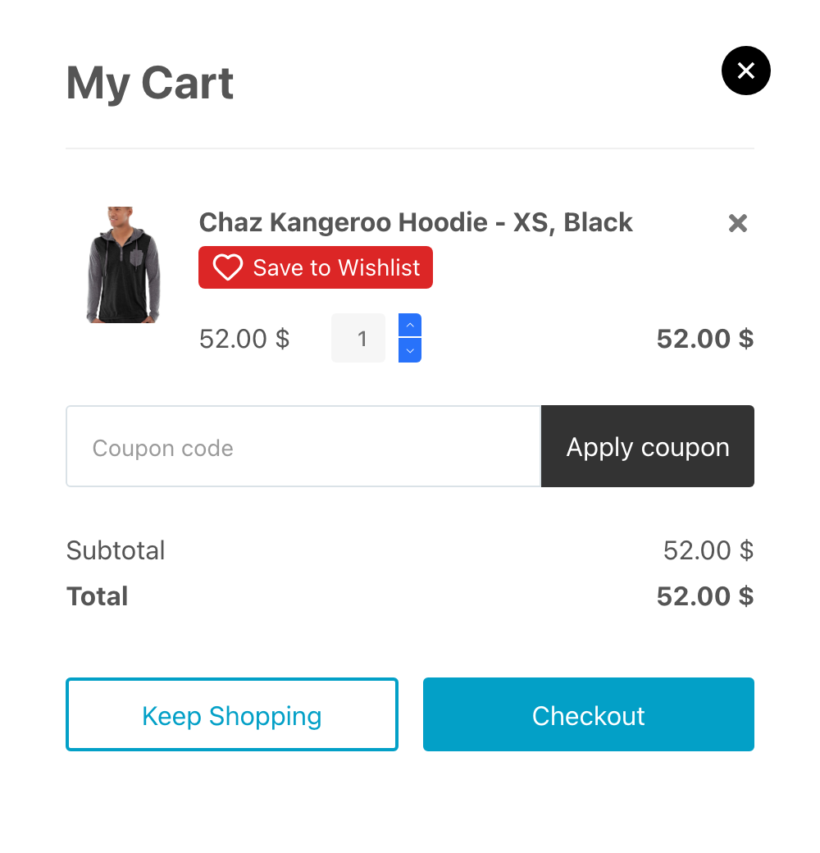
SaveTo Wishlist adds a "Save to Wishlist" button to each product in the WooCommerce Fast Cart slide-out popup. Shoppers can save items for later while reviewing their cart, without removing anything from the cart or leaving the page they're on.
This guide explains what the integration does, what you need to use it, and how to control the button.
What the integration does
When both plugins are active, SaveTo Wishlist adds its standard wishlist button after each eligible product name inside the Fast Cart popup. Customers can save a product to their wishlist while the cart is still open.
Saving a product does not remove it from the cart or change its quantity. The button is added per product, so it saves individual items rather than the whole cart.
What you need
To use the integration, you'll need all of the following installed and active:
- WordPress 5.8 or newer.
- WooCommerce 4.0 or newer.
- SaveTo Wishlist (free) 1.0.9 or newer.
- WooCommerce Fast Cart.
There's no separate connection process. Once SaveTo Wishlist detects that WooCommerce Fast Cart is active, the integration is available automatically.
Setting up the integration
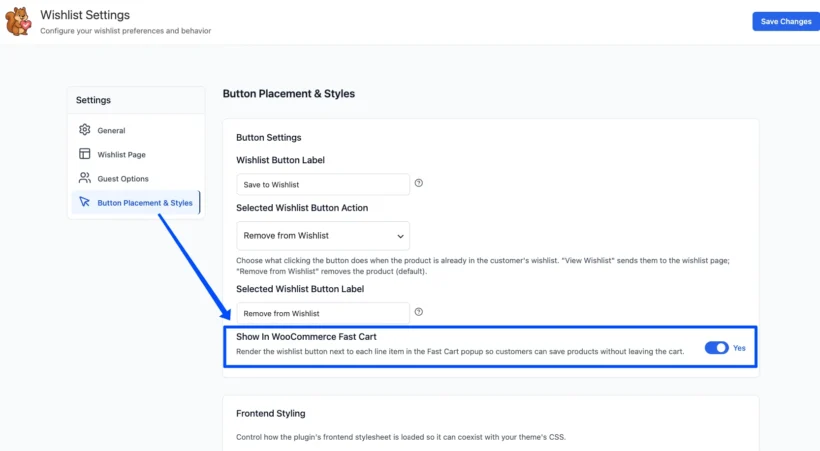
The wishlist button appears in Fast Cart automatically, so there's nothing to switch on. To check the setting or configure the button:
- Install and activate WooCommerce, SaveTo Wishlist and WooCommerce Fast Cart.
- Go to SaveTo Wishlist → Settings → Button Placement & Styles.
- In the 'Button Settings' section, make sure 'Show in WooCommerce Fast Cart' is set to 'Yes'.
- Configure the button design under the 'Product Page' settings (see below).
- Choose your confirmation behavior under SaveTo Wishlist → Settings → General.
- Open Fast Cart on your store and test an item while logged in. If guest wishlists are enabled, test it again while logged out.
Styling the button
The Fast Cart wishlist button uses SaveTo Wishlist's 'Product Page' button configuration, not the 'Cart Page' style. That means it inherits whichever Product Page option you've chosen: 'Use Presets', 'Custom Settings' or 'Theme Default'.
To change how the button looks, go to SaveTo Wishlist → Settings → Button Placement & Styles, open the 'Product Page' section, and adjust the style options there. With 'Theme Default' selected, the button takes its appearance from your active theme rather than SaveTo Wishlist's own colors and sizing.
Confirmation behavior
When a customer saves a product, SaveTo Wishlist follows the 'Add to wishlist button' behavior set under SaveTo Wishlist → Settings → General:
- RedirectThe customer is sent to your configured wishlist page.
- PopupA confirmation popup appears over the page.
- FadeThe button changes to confirm the save, with no redirect.
Logged-in customers and multiple wishlists
Logged-in customers save products to their account wishlist. If you've enabled multiple wishlists, the standard list selector appears in Fast Cart so they can choose which wishlist to save to. If a product is already saved, the button shows your configured "selected" state.
Guest wishlist support
Logged-out visitors can use the Fast Cart button too, as long as guest wishlists are enabled. This is controlled under SaveTo Wishlist → Settings → Guest Options with the 'Disable Guest Wishlist' setting.
Leave 'Disable Guest Wishlist' switched off to allow guests to save products. Turn it on to hide the button from logged-out visitors, in which case only logged-in customers see it. The multiple-list selector is not shown to guests.
Showing or hiding the Fast Cart button
You can turn the Fast Cart button on or off independently of your other wishlist buttons. Go to SaveTo Wishlist → Settings → Button Placement & Styles, find 'Show in WooCommerce Fast Cart' in the 'Button Settings' section, and set it to 'Yes' or 'No'.
This setting is separate from SaveTo Wishlist's standard cart settings ('Add cart products to wishlist' and 'Cart item selection'), which do not control the Fast Cart button.
Troubleshooting
- The button doesn't appearCheck that WooCommerce, SaveTo Wishlist 1.0.9+ and WooCommerce Fast Cart are all active, and that 'Show in WooCommerce Fast Cart' is set to 'Yes'.
- Guests can't see the buttonGo to SaveTo Wishlist → Settings → Guest Options and check that 'Disable Guest Wishlist' is switched off.
- The 'Show in WooCommerce Fast Cart' setting is missingThis setting only appears when SaveTo Wishlist detects WooCommerce Fast Cart as active. Confirm Fast Cart is installed and activated.
- The button doesn't match your designThe Fast Cart button uses the 'Product Page' button style, not the 'Cart Page' style. Review your Product Page settings.
Frequently asked questions
Do I need SaveTo Wishlist Pro for this?
No. The Fast Cart integration is included in the free SaveTo Wishlist plugin from version 1.0.9. Pro and a separate add-on aren't required.
Does saving a product remove it from the cart?
No. Saving adds the product to the customer's wishlist without removing it from the cart or changing its quantity.
Can guests save products from Fast Cart?
Yes, as long as guest wishlists are enabled. If you turn on 'Disable Guest Wishlist', the button is hidden from logged-out visitors.
Can I hide the wishlist button in Fast Cart without affecting my other buttons?
Yes. Set 'Show in WooCommerce Fast Cart' to 'No' under SaveTo Wishlist → Settings → Button Placement & Styles. Your other wishlist buttons are unaffected.