Can I show a free shipping progress bar in the Fast Cart?
WooCommerce Fast Cart shows your standard WooCommerce shipping options inside the popup cart, but it does not include a built-in free shipping progress bar. The good news is that you can add one using a free plugin and a single Fast Cart action hook, so customers can see how close they are to free shipping without leaving the popup.
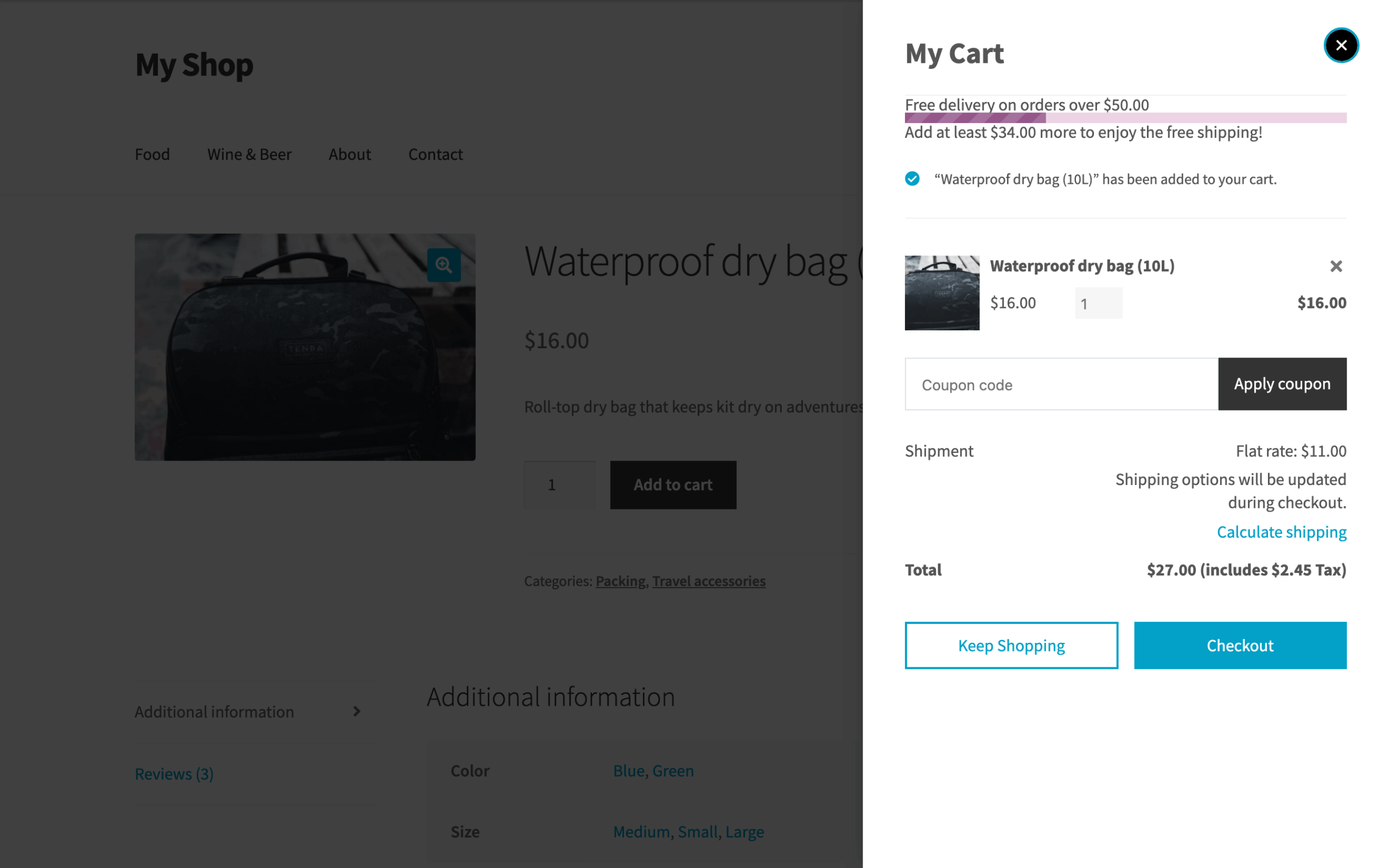
This guide shows you how to display a free shipping bar at the top of the Fast Cart popup, like this:
Before you start
You will need a way to add code snippets to your site, such as a code snippets plugin or a child theme. If you have not done this before, see our guide on how to add code snippets.
Step 1: Install a free shipping bar plugin
Fast Cart provides the popup, and a separate plugin provides the bar itself. We tested this with the free WPC Free Shipping Bar for WooCommerce plugin, which gives you a [wpcfb] shortcode that you can place anywhere. Install and activate it from Plugins → Add New.
You can use a different free shipping bar plugin if you prefer. The main requirement is that it provides a shortcode, because that is what lets you drop the bar into the Fast Cart popup.
Step 2: Set your free shipping threshold
The bar counts up to the minimum order amount on your WooCommerce free shipping method. Go to WooCommerce → Settings → Shipping, open your shipping zone, then add or edit a Free shipping method. Set "Free shipping requires" to "A minimum order amount" and enter your threshold, for example 50.
Step 3: Show the bar by shortcode only
By default, the WPC plugin adds the bar to several places automatically, which can make it appear more than once in the popup. To keep things tidy, go to WPClever → Free Shipping Bar and set each of these to No:
- Show on mini-cart widget
- Show on cart page
- Show on checkout page
The bar will then appear only where you place it with the shortcode.
Step 4: Add the bar to the Fast Cart popup
Add the following snippet to your site. It uses Fast Cart's wfc_before_cart hook to output the shortcode at the top of the popup cart:
add_action( 'wfc_before_cart', 'barn2_fast_cart_free_shipping_bar' );
function barn2_fast_cart_free_shipping_bar() {
    echo do_shortcode( '[wpcfb]' );
}
Step 5: Add a small CSS tweak
Fast Cart resets the height of elements inside its popup, which can flatten the coloured progress bar so that only the text shows. Add this CSS in Appearance → Customize → Additional CSS so the bar displays at its full height:
.wc-fast-cart .wpcfb-progress-bar,
.wc-fast-cart .wpcfb-progress-amount {
    height: 10px;
}
That is all you need. When a customer adds a product, the Fast Cart popup opens with a free shipping bar at the top, and it updates automatically as they add or remove items.
Tip: You can change the bar's colours, wording and style on the same WPClever → Free Shipping Bar settings page.