Search and filter indexing
Document Library Pro uses a search index to make searching, filtering, and sorting faster, especially on sites with lots of documents.
When a document library uses the current frontend, Document Library Pro does not need to run expensive WordPress queries every time a visitor searches or filters the document library. Instead, it keeps a separate index of the document data that is useful for document libraries. The document library can then look up matching documents from the index and return results more quickly.
Indexed search only applies to the current frontend. If your site is still using legacy mode, then Document Library Pro does not use the index.
The index is built in the background. Most site admins do not need to start it manually. You may notice an indexing message in the WordPress admin after installing or updating Document Library Pro, or after a large content import.
How the index works
Document Library Pro creates plugin-specific database tables and fills them with searchable information from the documents that Document Library Pro is allowed to display.
The index is split into several parts:
- Search data stores searchable words from document titles, content, excerpts, authors, categories, and tags.
- Filter data stores the taxonomy terms and custom field values that are needed for document library filters.
- Sort data stores normalized values for columns that are faster to sort from a prepared index.
- Status data records whether each document has been queued, indexed, skipped, or failed.
Search words are normalized before storage. For example, HTML and shortcodes are stripped, words are lowercased, very short words are ignored, and accented words are stored in a way that helps searches match both accented and non-accented text.
The index is separate from your documents. It does not replace or edit the original document content. If the index is rebuilt, Document Library Pro clears and recreates the index records while leaving the documents themselves unchanged.
File content indexing
Document Library Pro can also index the text inside document files themselves. This lets visitors find documents by searching for words that are inside the uploaded file, not only words stored in the document title, content, excerpt, taxonomy terms, or custom fields.
The plugin processes file content in the background, in batches, so it does not slow down page loads. It stores the extracted text separately from the main search index tables, in the <prefix>_dlp_dv_file_content table.
Only files uploaded to the WordPress Media Library are read for file content indexing. If a document points to an external URL, the plugin does not read that file. This is intentional behavior, not a fault.
The plugin reads the text layer inside a file. Scanned documents and image-only PDFs do not have a text layer, so there is no text for the plugin to index. OCR is not performed.
Supported file types
File content indexing supports these file types:
- Word files, including
docx,docm,dotx, anddotm - Excel files, including
xlsx,xlsm,xltx,xltm, andxlam - PowerPoint files, including
pptx,pptm,ppsx,ppsm,potx,potm,ppam,sldx, andsldm - OpenDocument files, including
odt,ods,odp,odg,odc,odb, andodf
Legacy binary Office files are not supported. This includes doc, xls, and ppt files.
Protected and encrypted PDFs
Document Library Pro cannot index the text within some PDFs because the contents are encrypted. PDF files can have two separate passwords:
- An open password is required to open the file.
- A permissions password locks printing, copying, or editing.
Both methods prevent the PDF from being indexed by Document Library Pro. Many people who add a print or copy restriction do not realize that this also encrypts the file.
PDF files that cannot be indexed will still appear in your document library, and are still searchable by their title, description, categories, and other document data. However, searching for text that only appears within the PDF will not return any results.
To make the contents searchable, you should re-save or re-export the PDF without security restrictions. There is no way to keep the restriction and have the contents indexed.
File content Site Health checks
Go to Tools → Site Health → Info and open the Document Library Pro section. Site Health reports these file content indexing values:
- File content indexing status
- Failed file parses count
- PDF parser available
- ZipArchive available
- DOMDocument available
- Supported file extensions
PDF files need the PDF parser. Office and OpenDocument files need ZipArchive and DOMDocument. If any required item says No, ask your hosting company to enable the PHP extension.
Troubleshooting file content indexing
If file content is not appearing in search results, check these points:
- Check that the file type is supported.
- Check that the file was uploaded to the WordPress Media Library, rather than linked from an external URL.
- Check that the file is not a scan or an image-only PDF.
- Check whether the PDF has printing or copying restrictions.
- Go to Tools → Site Health → Info and check the Document Library Pro section for failed file parses or missing PHP extensions.
- Rebuild the index.
When the index is created or updated
The index is created automatically when Document Library Pro prepares its search index database tables. This normally happens during plugin setup, update, or upgrade checks in the WordPress admin.
Document Library Pro also keeps the index up to date after content changes. It watches common WordPress events such as these:
- Saving or updating a document
- Changing a document status
- Trashing or deleting a document
- Changing document terms
- Changing document meta, including Advanced Custom Fields data where relevant
Small changes are queued shortly after the edit, rather than being processed immediately during the page load. This keeps the WordPress admin responsive while still keeping the index current.
During a full rebuild, Document Library Pro processes documents in batches. The default batch size is 25 documents, and each batch respects time and memory limits so that large sites can index gradually.
What happens while indexing is running
Indexing runs in the background using Action Scheduler, the same background job system used by many WordPress and WooCommerce extensions. Visitors can continue using the site while indexing runs.
If a document library is loaded while a full rebuild is still running, Document Library Pro can fall back to regular WordPress queries until the index is ready. This avoids showing incomplete indexed results while the rebuild is in progress.

Where to find Action Scheduler
To view the background indexing jobs, go to Tools → Scheduled Actions in the WordPress admin. This menu item is sometimes not visible to some users, but it is still accessible. If you don't see it, you can still try to visit it directly by going to:
/wp-admin/tools.php?page=action-scheduler/
Document Library Pro indexing jobs are grouped under dlp_dv_indexer. If the Scheduled Actions screen is busy, search or filter for hooks beginning with dlp_dv_.
| Hook | What it does |
|---|---|
dlp_dv_run_batch |
Processes the next batch during a full index rebuild. |
dlp_dv_process_post |
Re-indexes one changed document. |
dlp_dv_process_posts |
Re-indexes a small group of changed documents, such as after bulk edits or imports. |
dlp_dv_index_cleanup |
Runs weekly cleanup for stale or orphaned index data. |
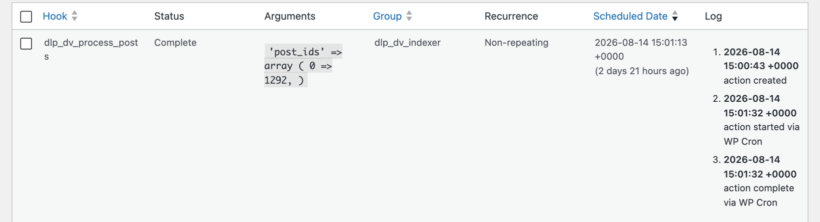
Completed actions are normal. Pending or running actions mean indexing is waiting to run or currently running. Failed actions can indicate a server error, a timeout, or a problem with a specific document.
Where to find Site Health information
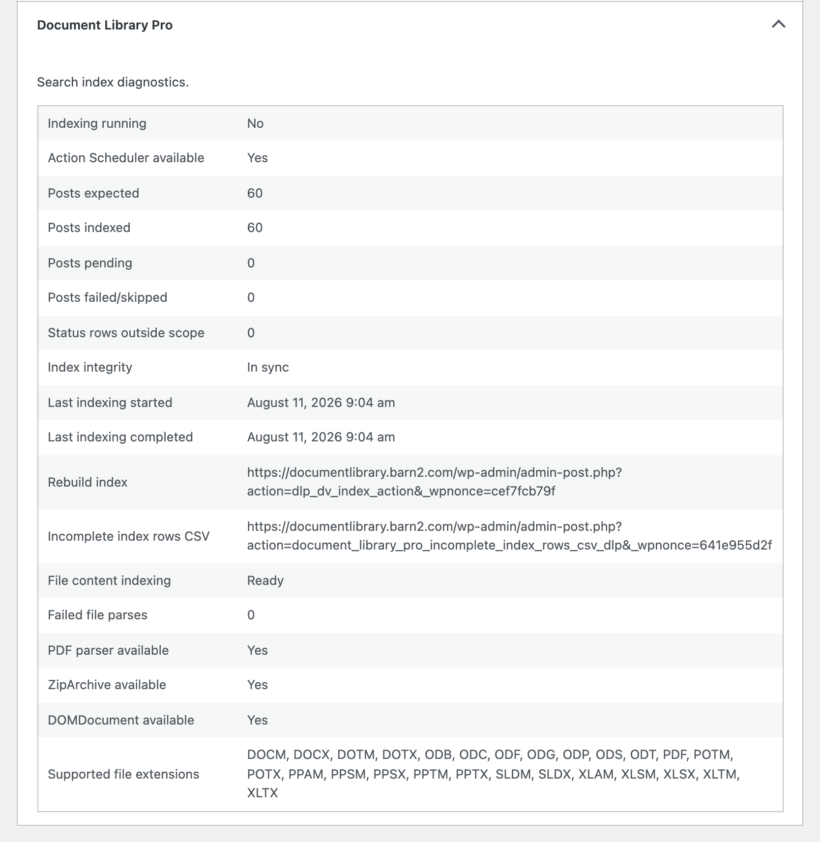
Document Library Pro adds indexing diagnostics to WordPress Site Health. Go to Tools → Site Health → Info and look for the Document Library Pro section.
This section can help the support team diagnose indexing problems. It includes these values:
- Whether indexing is currently running
- Whether Action Scheduler is available
- How many documents are expected in the index
- How many documents are indexed, pending, failed, or skipped
- Whether the index appears to be in sync
- When indexing last started and completed
- A rebuild URL that an administrator can use if a full rebuild is needed
Admin notices you may see
Document Library Pro only shows indexing notices to administrators. These notices are there to explain background work or highlight something that needs attention.
Indexing in progress...
This notice appears while a full rebuild is running. It shows how many documents have been indexed, the total number of documents, and the percentage complete. It also includes a Cancel button if you need to stop the current rebuild.
Search index needs attention.
This warning appears when the index appears incomplete, out of sync, or stalled. Use the Rebuild Index button to queue a fresh full rebuild. The Dismiss link hides that specific warning for your user account.
If the notice continually reappears after rebuilding, this means you have some documents which cannot be indexed. You can dismiss the notice in this case because the documents are not indexable.
Search indexing is unavailable.
This error appears if Action Scheduler is not available, which means Document Library Pro cannot rebuild the index in the background. Check that the plugin installation is complete and that no required dependency has been removed or disabled.
No notice
If the index is healthy and no rebuild is running, Document Library Pro does not show an indexing notice.
Troubleshooting
The progress notice stays visible for a long time
Large sites can take longer to index. Check Tools → Scheduled Actions for pending or failed actions in the dlp_dv_indexer group. If actions are pending but not running, make sure WP-Cron is working on the site.
The index warning says documents are pending but no jobs are queued
Click Rebuild Index in the warning. This cancels any stuck pending indexing jobs and queues a fresh rebuild.
Some documents failed or were skipped
Check the Document Library Pro section under Tools → Site Health → Info. It can show failed or skipped document counts. Support may ask for this information if a specific document repeatedly fails to index.
Technical details
The admin progress notice polls the Document Library Pro index status endpoint at document-library-pro/v1/index/status.
The default database tables use the WordPress database prefix followed by the Document Library Pro index table name. On a standard site using the wp_ prefix, the tables are:
wp_dlp_dv_tokenswp_dlp_dv_search_indexwp_dlp_dv_filter_indexwp_dlp_dv_sort_indexwp_dlp_dv_index_statuswp_dlp_dv_file_content
Indexing progress is stored in WordPress options such as dlp_dv_indexing_running, dlp_dv_indexing_progress, dlp_dv_indexing_started, and dlp_dv_indexing_completed. The database schema version is stored in dlp_dv_db_version.
Developers can customize parts of the indexing behavior with plugin hooks, including the index scope, batch size, search tokens, filter index meta keys, indexed search usage, and Site Health fields. These hooks should be used carefully because changing the index scope or indexed values can require a full rebuild.