Code snippet: How to bundle add-on products with the main product
The 'Products' option type in WooCommerce Product Options allows shop managers to use products they have on their store as optional add-ons to any product. This is particularly useful when a store needs WooCommerce to handle the stock of those optional products. For example, a store selling smartphones may offer optional accessories like power adapters, earbuds, or phone cases, as in this product example. The "Products" option type becomes the best choice when a store needs to manage the stock of each accessory, not just the main product.
When adding a product to the cart along with its add-ons, WooCommerce Product Options uses a "hierarchical arrow" to represent the relationship between the main product and all its add-ons, as shown in the following screenshot.
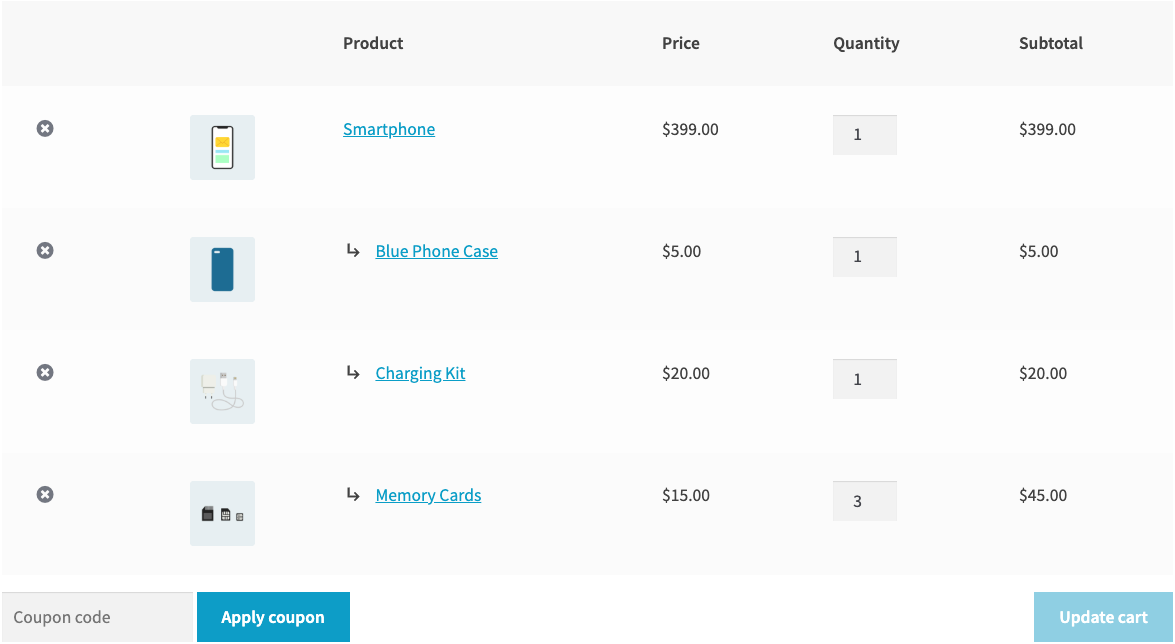
By default, this relationship is not binding. If shoppers remove the main product ("Smartphone", in the example above), all its add-ons remain in the cart. They just lose their dependency because the main product they were originally added to is no longer in the cart. Similarly, add-ons can be removed or quantities can be changed without any restrictions.
There are situations when a store needs to enforce a stricter relationship between the main product and its add-ons. For example, a store may not want its shoppers to be able to purchase accessories at a certain price without also buying the main product. In those situations, the behavior in the cart that we have just described doesn't work because shoppers are free to remove main products or add-ons without any restrictions.
In those scenarios, it may be desirable to enable a different strategy where:
- Add-ons cannot be removed from the cart on their own.
- Removing the main product automatically removes all its add-ons.
- Updating the quantity of the main product automatically updates the quantity of each add-on proportionally.
To address those configuration requirements, WooCommerce Product Options offers two different filter hooks that allow developers to alter the default behavior of the plugin.
Enabling a bundle-like logic for product add-ons
In this section, we will illustrate how to use the correct filter callbacks to enable a bundle-like logic for product add-ons. The two filters we are going to use are wc_product_options_update_addons_with_parent and wc_product_options_addons_use_cart_quantity.
Update addons with parent
This filter determines whether add-ons are going to be removed automatically when the main product they were originally added to the cart with is removed. Since the default behavior is that add-ons stay in the cart when the main product is removed from it (i.e. false), changing the default behavior corresponds to just returning true in the filter callback, or - more concisely – to use the __return_true function. The simple code snippet below activates this logic for the whole store:
add_filter( 'wc_product_options_update_addons_with_parent', '__return_true' );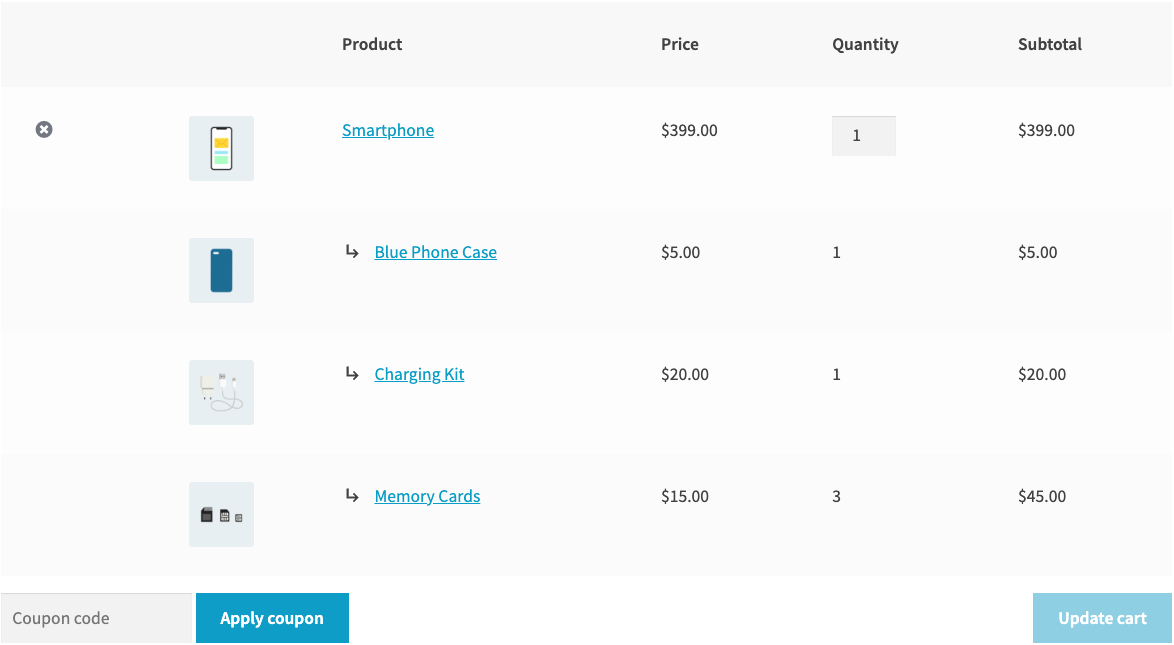
Of course, you can fine-tune the logic behind this callback so that, for example, this logic is enabled only on certain products or categories. Thanks to the fact that the filter passes the add-on cart item key and object and the main product cart item key and object to the callback function, you can shape the logic the way you prefer. As an example, the following code snippet enables the bundle-like logic only on products belonging to the "Smartphones" category.
add_filter( 'wc_product_options_update_addons_with_parent', 'my_wpo_update_addons_with_parent', 10, 5 );
function my_wpo_update_addons_with_parent( $shall_update, $addon_cart_item_key, $addon_cart_item, $parent_cart_item_key, $parent_cart_item ) {
    if ( ! has_term( 'smartphones', 'product_cat', $parent_cart_item['data']->get_id() ) {
        return $shall_update;
    }

    return true;
}
Alter the add-on quantities using the main product quantity
Let's consider a different example. A chocolate store sells gift boxes, allowing shoppers to customize the content with chocolate bars that the store also sells individually. This is another use case where the "Products" option type comes in handy.
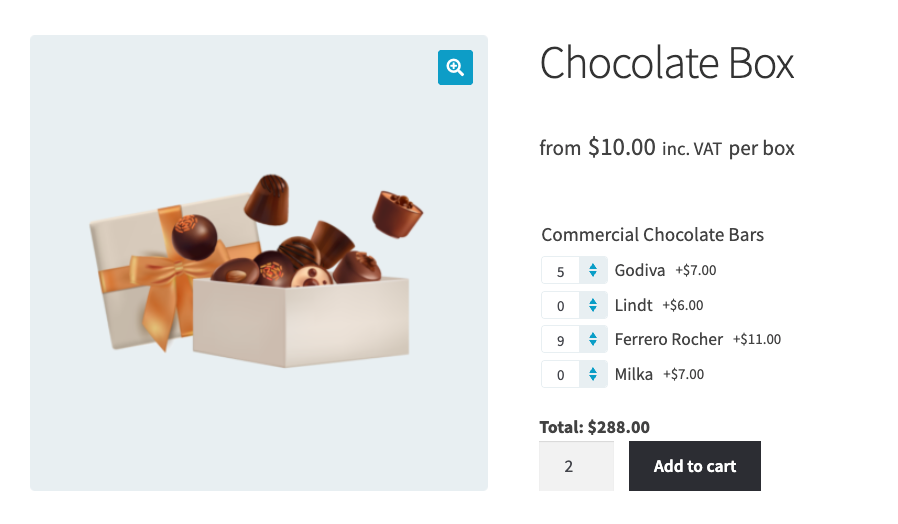
After customizing the content of the box, it would be reasonable for the shopper to expect that increasing the quantity of the main product – the whole box – would automatically multiply the quantity of each add-on so that the cart will contain the correct number of items. But that is not how the "Products" option type works by default. To make it adopt that logic, the wc_product_options_addons_use_cart_quantity can be used.
add_filter( 'wc_product_options_addons_use_cart_quantity', '__return_true' );This is the simplest implementation that enables this logic for the whole store, but similarly to the other filter, the callback function can use the same parameters to fine-tune under which conditions the logic is used. When this behavior is enabled, the quantity of each add-on will be multiplied by the main quantity before being added to the cart. Also, when updating the quantity of the main product in the cart, the quantity of each product addon will be updated proportionally.