How to filter by variation
The WooCommerce Product Filters plugin normally filters whole products rather than individual variations. This article describes several methods for using it to filter by product variation too.
Method 1: Filter by attribute
WooCommerce Product Filters comes with built-in attribute filters. Since variations consist of one or more attributes, you can effectively use attribute filters to filter by variation.
For example, if a T-Shirt product has a 'Red' color attribute then filtering for Red will display the product. However, the filtered results will only show the overall T-Shirt product - it won't just show the variations that have the 'Red' attribute. The customer will need to visit the single product page and select Red before adding it to the cart.
To display specific variations in the filtered results, you'll need to use Method 2 or 3 instead.
Method 2: Use WooCommerce Product Table to list each variation individually in a table
Our WooCommerce Product Table plugin has an option to list each variation on its own row of the table. You can use this with WooCommerce Product Filters to add advanced filters above or beside the table.
When customers perform a filter, the variations are shown individually in the filtered results. That way, customers can immediately add a variation to the cart without having to re-select it on the product page.
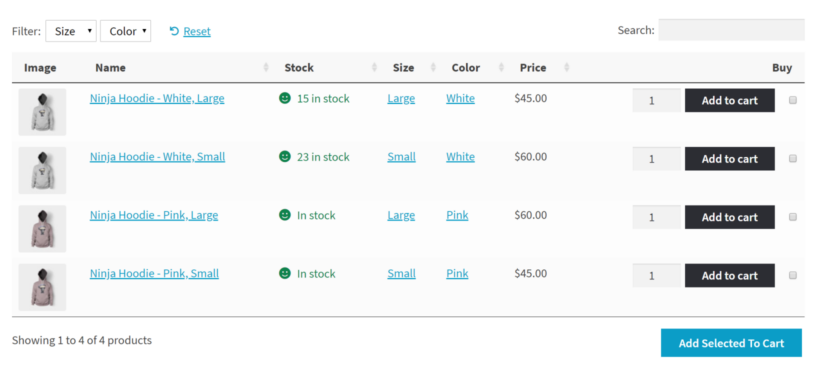
Setup instructions
By default, WooCommerce Product Filters indexes products but not individual variations. If it knows that WooCommerce Product Table is installed then it will index each variation so that you can filter by them. There are two ways to do this:
- If you install WooCommerce Product Table before WooCommerce Product Filters then the filter plugin will detect the presence of Product Table, and index the variations automatically.
- If you installed Product Filters before Product Table, then you need to trigger a re-index. To do this, simply go to Products → Filters and save any filter group. The plugin will then detect the presence of Product Table and index the variations.
Method 3: Use Show Single Variations to display variations individually in your usual store layout
WooCommerce Product Filters has a built-in Show single variations setting. The setting shows variations as separate products in your usual store layout.
You can show them this way all the time, or only after the customer filters. Choose this at Products → Filters → Settings.
When a customer filters by 'Red', only the red variations appear.
Each variation needs a variation image.