


Finding the best WooCommerce quick view plugin for your online store can be a daunting task – especially if you’re not sure what to look for. While there are several options out there for WordPress-based websites, we’ve shortlisted some of the best offerings for this comparison.

With this in mind, in this article, we’ll compare YITH WooCommerce Quick View vs Flatsome Quick View vs WooCommerce Quick View Pro by highlighting the standout features on offer with each plugin and evaluation them against a pre-defined criteria.

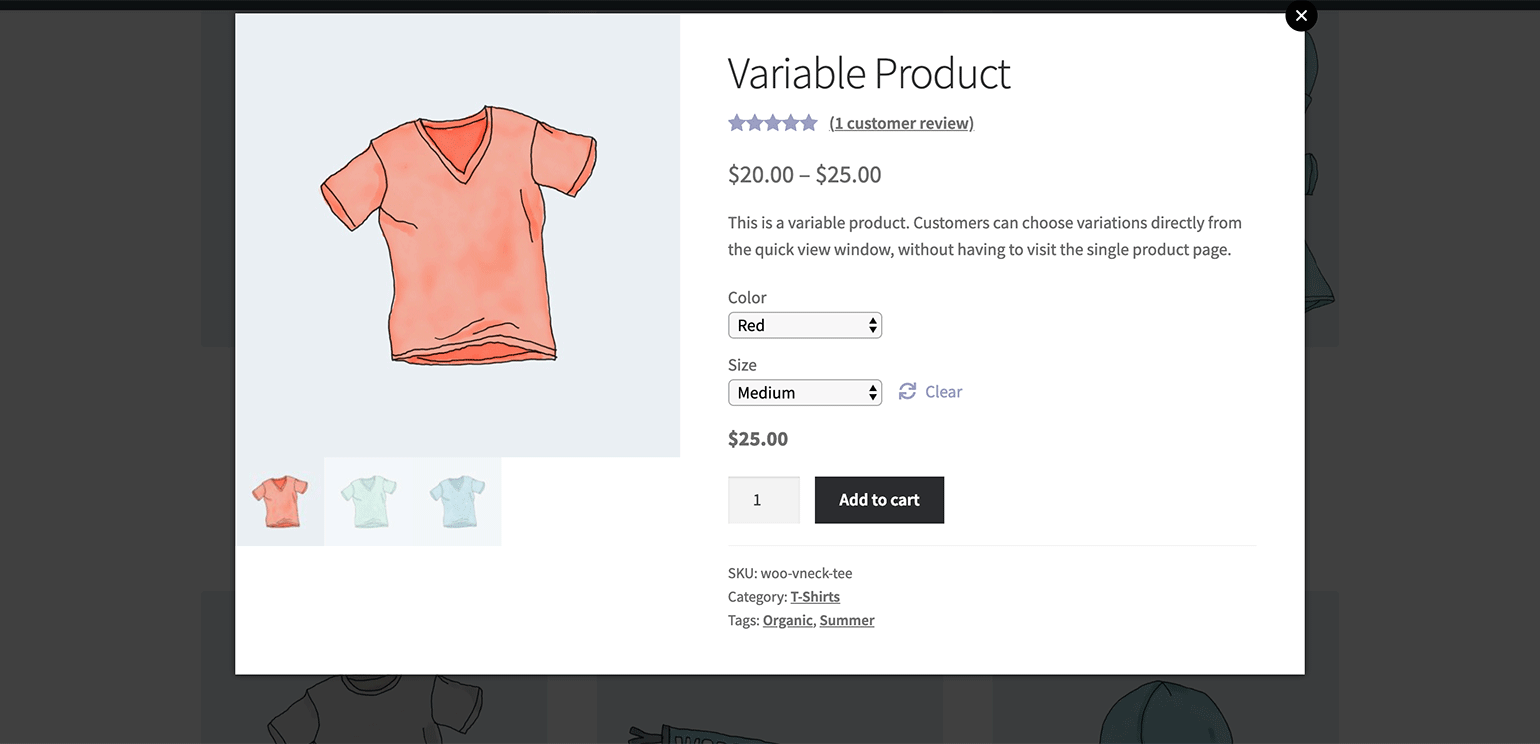
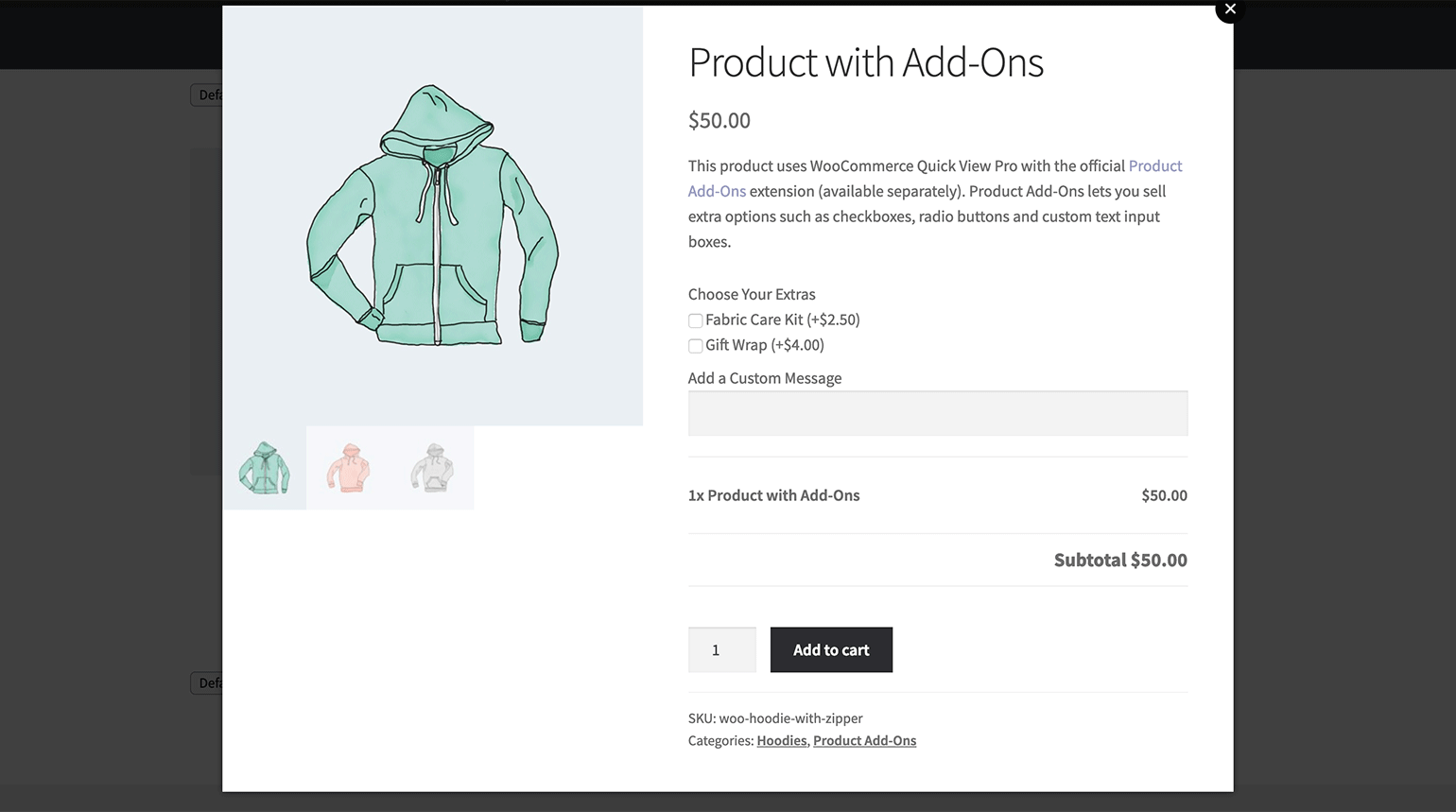
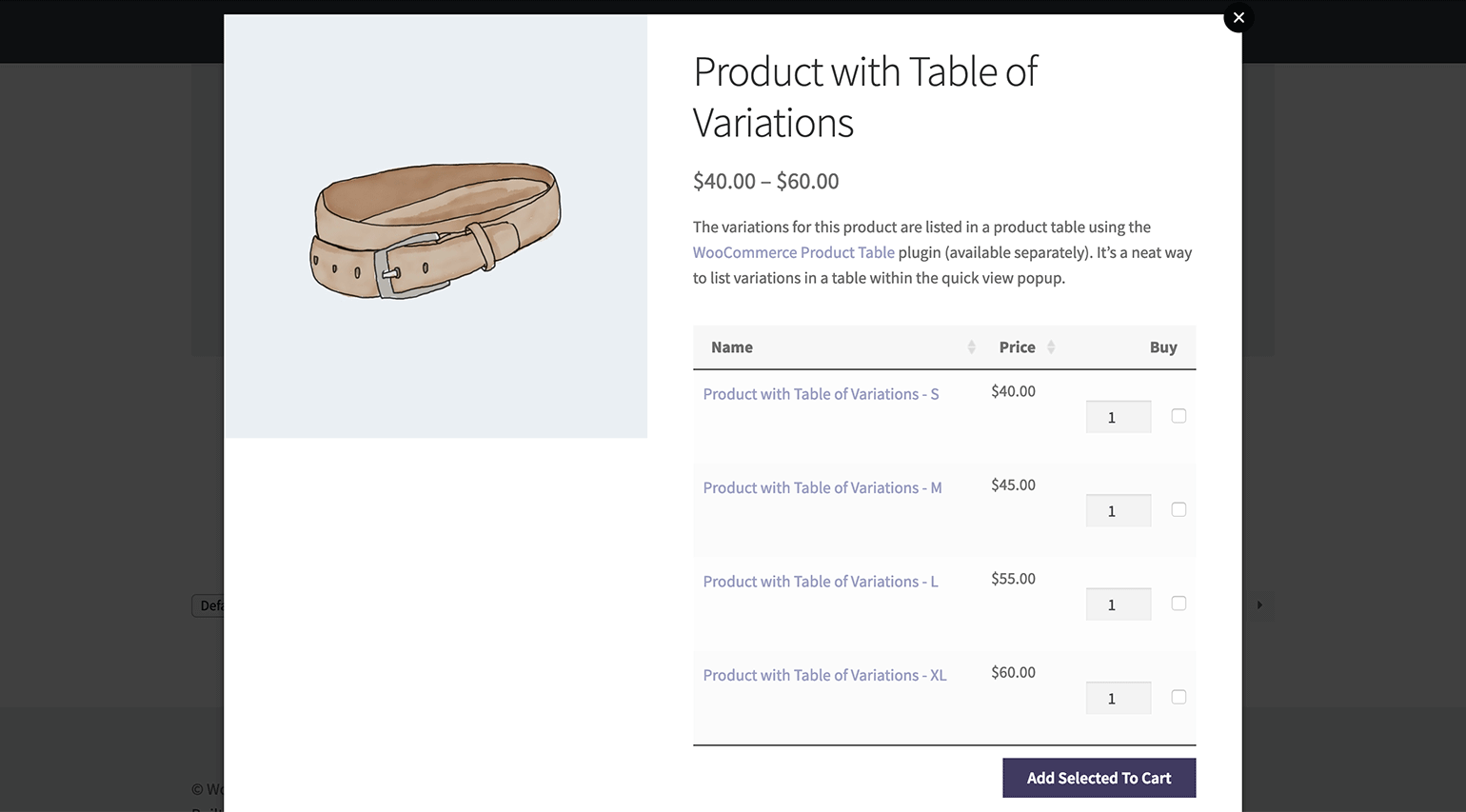
An example of the WooCommerce Quick View Pro plugin in action

Why do you need a WooCommerce quick view plugin?

A WooCommerce quick view plugin makes it easy for your customers to learn more about your products directly from the main shop page. In fact, there are many reasons why you might consider implementing quick view functionality in your online store.

For instance:

  • Provide quick access to important product details such as the product’s image, descriptions, pricing, reviews, and specifications.
  • Make it easy for customers to select product variations, set quantity, and add products to their shopping cart. In other words, customers can add products to cart without having to leave the main shop page.
  • Allows users to simplify the buying user flow and deliver enhanced customer shopping experiences.

By using a quick view WooCommerce plugin to add quick view functionality to your online store, you won’t have to worry about editing any of your website’s (or theme’s) core files – such as the functions.php file. In addition to this, you’ll be able to customize the quick view modal window from the plugin’s settings screen instead of having to mess around with CSS files.

Features to look for in a WooCommerce quick view plugin

Here are some of the main features you should look for in a quick view WooCommerce plugin:

  • Ease of use How easy is it to set up the WooCommerce quick view plugin? Are there many settings options that you need to configure?
  • Launching the quick view lightboxHow will customers launch the quick view lightbox e.g. on hover or on click? Do customers click the product name (and image) or a dedicated button to launch the quick view lightbox?
  • Quick view lightbox contentWhat sort of content can you add to the WooCommerce quick view lightbox? Does the plugin let you decide which details to include and which ones to leave out? Can customers add products to cart using the quick view lightbox?
  • Customization options How customizable is the quick view lightbox plugin in terms of design and layout? What sorts of customization options are available to you?

By now you should have a pretty good understanding of what a WooCommerce quick view plugin is, why you might consider adding one to your online store, and what features to look for. Next, we’ll compare some of the best WooCommerce quick view plugin solutions to help you pick the right option for your online store.

Choosing the right WooCommerce quick view plugin

Though there are certainly other quick view plugins out there (such as WooCommerce Quick View Ultimate), we’ll compare YITH WooCommerce Quick View vs Flatsome Quick View vs WooCommerce Quick View Pro against the evaluation criteria we established in the previous section to help you choose the best offering for your website.

Specifically, we’ll cover:

  1. Ease of use
  2. Launching the quick view lightbox
  3. Quick view lightbox content
  4. Customization options

Factor #1: Ease of use

One of the first things you’ll need to consider is how easy the plugin is to use and get started with. Ideally, you want a quick view lightbox plugin that works seamlessly out of the box without requiring you to mess around with too many configuration options.

WooCommerce Quick View Pro

The WooCommerce Quick View Pro plugin is incredibly easy to get started with. Once you install and activate it to your site, a Quick View button will be added directly below each product image. Once a customer clicks on the button, it will launch quick view in a product lightbox.

One of the standout features on offer with WooCommerce Quick View Pro is that it essentially creates a lightbox with quick view functionality. This is great for displaying product add-ons, variations, attributes, and additional product details. So, if you want to let customers be able to view products and product details in a popup window (product lightbox) with quick view functionality then WooCommerce Quick View Pro is worth considering.

This quick view plugin has plenty of settings and configuration options, which we'll discuss in a minute. However, you can keep it simple and activate the default options in seconds.
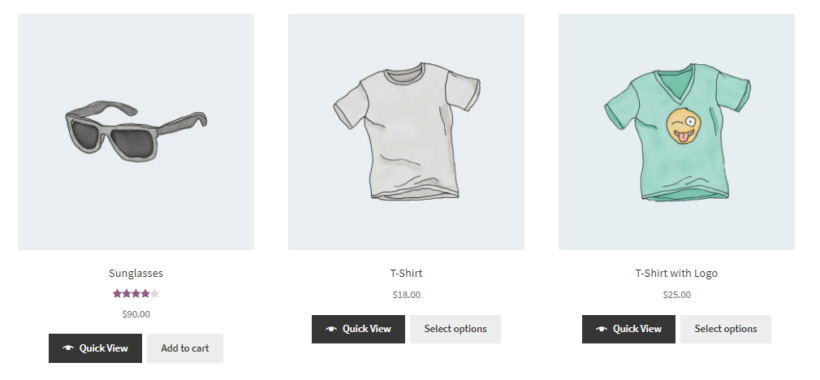
WooCommerce Quick View Pro default preview with quick view buttons

Since WooCommerce Quick View Pro is developed by Barn2 Media, you can rest assured that you're using a reputable quick view plugin and expect to receive high-quality support directly from the developers.

YITH WooCommerce Quick View

The YITH WooCommerce Quick View premium plugin automatically enables quick view functionality on your online store once you activate it. You’re able to enable quick view functionality on mobile and wishlists.
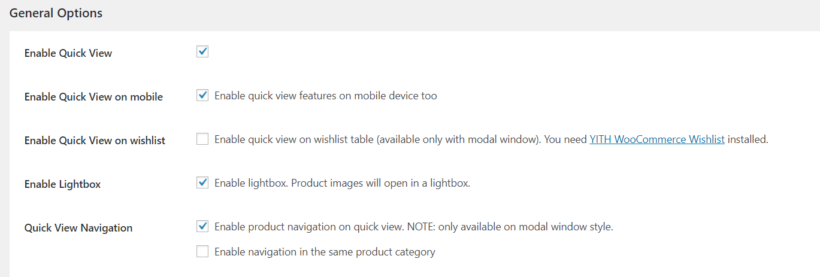
YITH WooCommerce Quick View general settings

It’s also important to note that YITH Quick View separates quick view functionality and lightbox functionality. What this means is that, if you want to have quick view show up in the lightbox, you’ll also have to make sure that the Enable Lightbox option is ticked.

The plugin’s settings let you set general options for the plugin which include how customers interact with it on the front-end and it’s overall look and feel. In addition to this, you’re also able to configure the quick view button options and decide which product details to display.

Flatsome Quick View

The Flatsome theme comes with a number of built-in features and extensions – including Flatsome Quick View – that enhance how WooCommerce products appear on your online store’s front-end. It might look something like this:
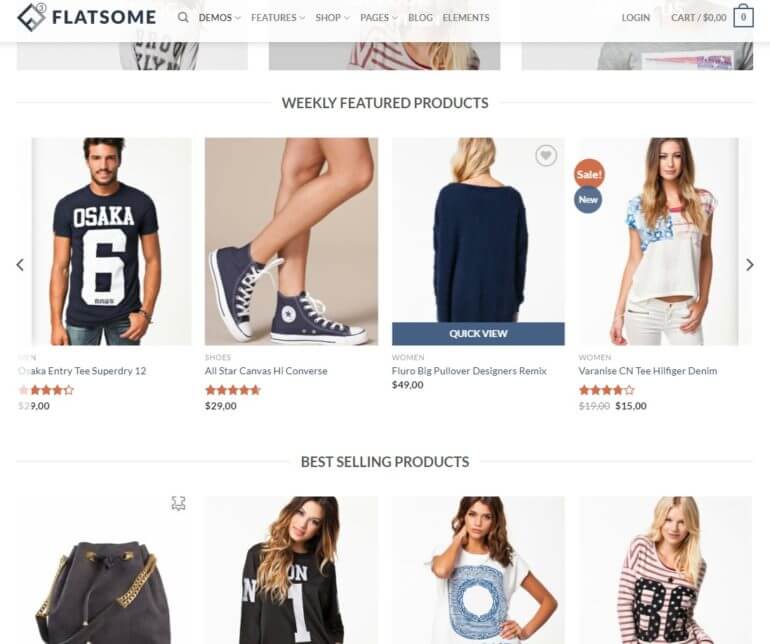
Flatsome Quick View default preview on hover

Flatsome’s Quick View functionality is enabled out of the box. What this means is that once you have the theme installed and activated to your site, your main shop page should have quick view functionality enabled automatically.

The big downside of Flatsome quick view is that it only works if you're using the Flatsome theme. This means that it doesn't function as a standalone WooCommerce quick view plugin. It's just for people who are already using Flatsome.

With Flatsome, you only have the option to disable quick view functionality. You can do this by going into the Theme Options section and navigating to the Shop/Category Page settings.
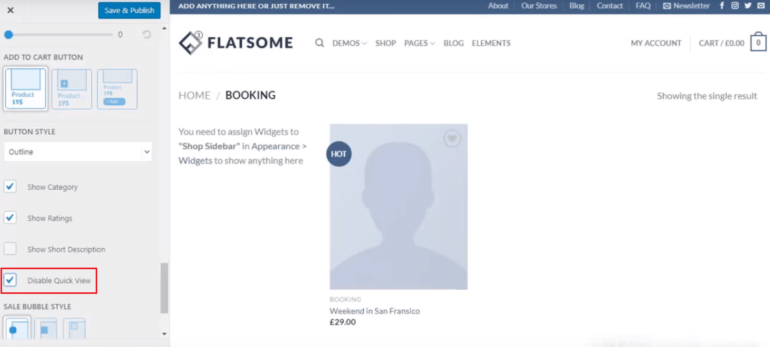
Disable the Flatsome Quick View feature

Verdict: WooCommerce Quick View Pro is the easiest to get started with!

Factor #2: Launching the quick view lightbox

It’s also important to consider how customers will launch the quick view lightbox since it directly affects the user experience your site delivers.

WooCommerce Quick View Pro

WooCommerce Quick View Pro gives users the option to decide how customers can launch the quick view lightbox. You can choose to:

  • Display a Quick View button in the main shop page and category pages.
  • Let customers open quick view by clicking on the product image.
  • Let customers open quick view by clicking on the product name.

This makes for a more intuitive and user-friendly option. The key benefit here is that customers can browse your entire shop and view product details without having to navigate to the single product page.
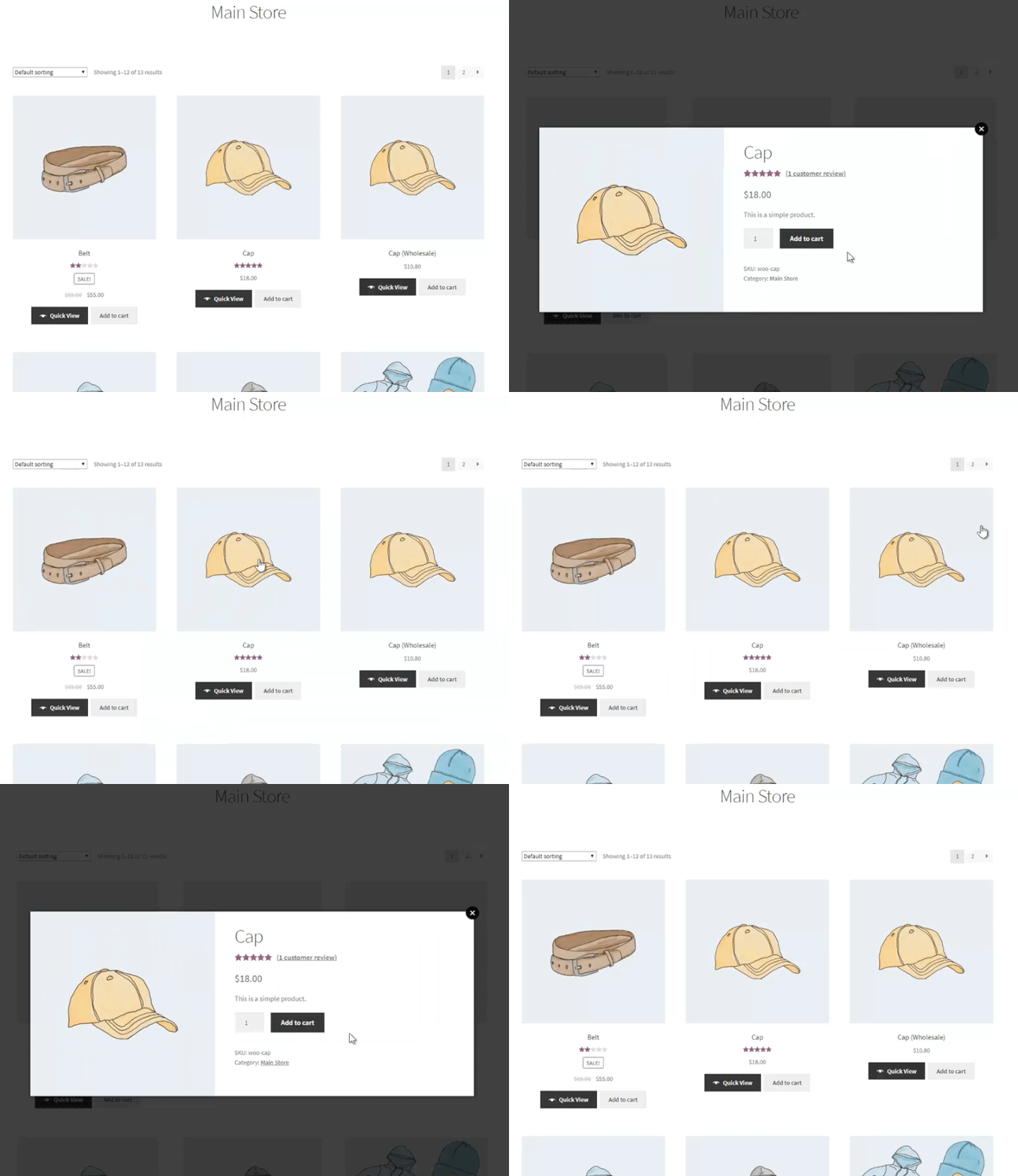
Launching product quick view lightbox by clicking on the product name, image, and quick view button.

Enabling the option to open quick view by clicking on the product name or image will automatically disable links to the single product page. Additionally, if you’re looking for a way to disable links to single product pages, you could simply replace them with quick view links.

YITH WooCommerce Quick View

With YITH WooCommerce Quick View, customers will have to click the quick view button in order to view products in quick view mode. You can choose to display the quick view button:

  • After the Add to cart
  • Inside the product image.
  • Display an icon after the Add to cart button.
  • Display an icon inside the product image.

For example, if you wanted to display the quick view button inside the product image, it might look something like this:
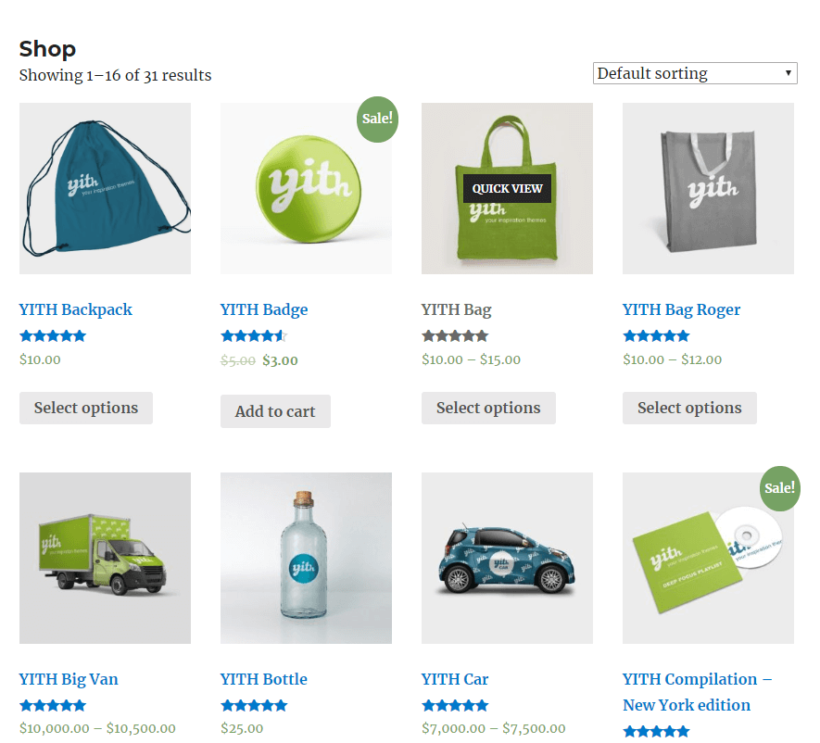
YITH WooCommerce Quick View with quick view button inside product image

However, you’re not able to replace the product’s image link or product name with quick view. What this means is that customers will be redirected to the single product page if they click the product image or product name – this doesn’t always deliver an intuitive user experience.

Flatsome Quick View

Quick view functionality is baked into the Flatsome theme. In other words, you don’t have the option to change how customers interact with it.
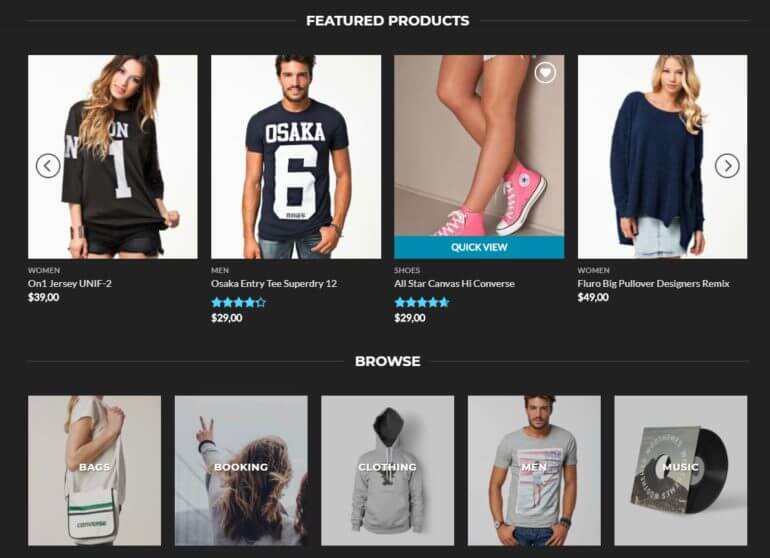
Flatsome Quick View with quick view button on hover

Out of the box, Flatsome Quick View appears when customers hover over the product image – regardless of which template or demo you’re using.

Verdict: WooCommerce Quick View Pro gives you the best functionality options, and is therefore my choice. You can even use it with Flatsome theme - simply install WooCommerce Quick View Pro, and disable the Flatsome quick view in the Customizer.

Factor #3: Quick view lightbox content

The idea behind integrating quick view functionality into your WooCommerce-based online store is so customers are able to quickly learn more about your products. For this reason, it’s important to consider what sort of information and content you can display in the quick view lightbox.

WooCommerce Quick View Pro

WooCommerce Quick View Pro gives users the option to choose which product details they’d like to display in the quick view lightbox. In addition to this, the WooCommerce Quick View Pro plugin lets users decide whether they want to display image only, product details only, or both image and product details.
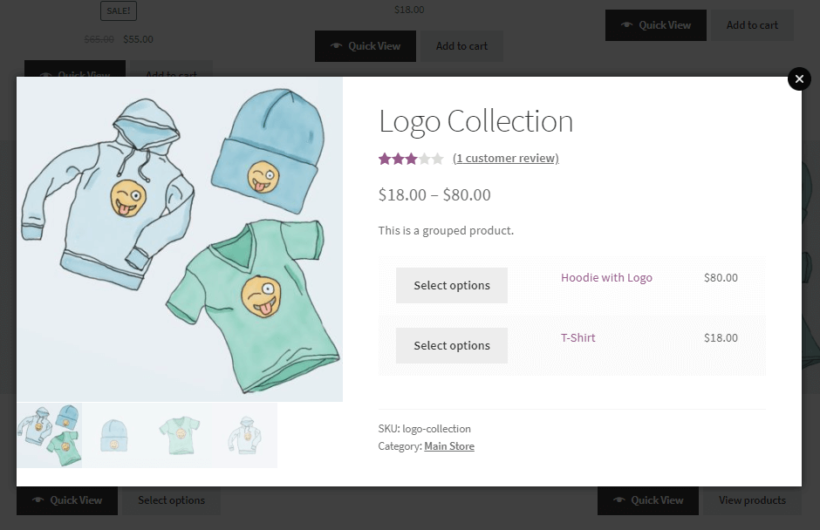
WooCommerce Quick View Pro with purchasing options in lightbox quick view

You can choose to display any combination of details from:

  • Reviews
  • Price
  • Short description
  • Add to cart button
  • Meta information

In the case of image only or both image and product details, the lightbox will also display the product name, image, and full product gallery. You have full control over what information to display in the quick view lightbox.

YITH WooCommerce Quick View

YITH WooCommerce Quick View allows users to configure both Content Options and Share Options from the plugin’s settings screen. You’re able to select which elements you’d like to show in the quick view lightbox including product image, name, rating, price, excerpt, add to cart, and meta.
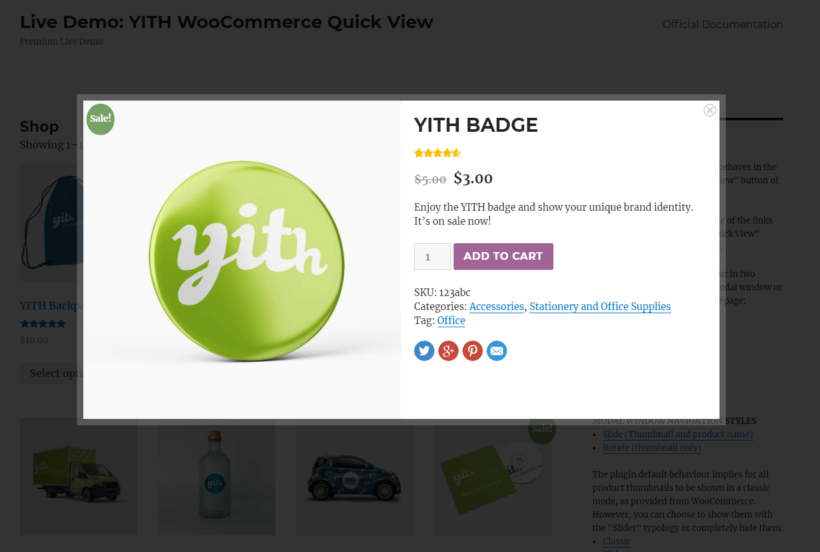
YITH WooCommerce Quick View lightbox contents

In addition to this, you can also choose to show share links for products. For example, you might consider displaying social share buttons to let customers share your product with their friends and followers on Facebook, Twitter, or Pinterest.

Flatsome Quick View

Flatsome Quick View is a pre-configured feature which means you have limited options when it comes to deciding which content to display in the quick view lightbox.
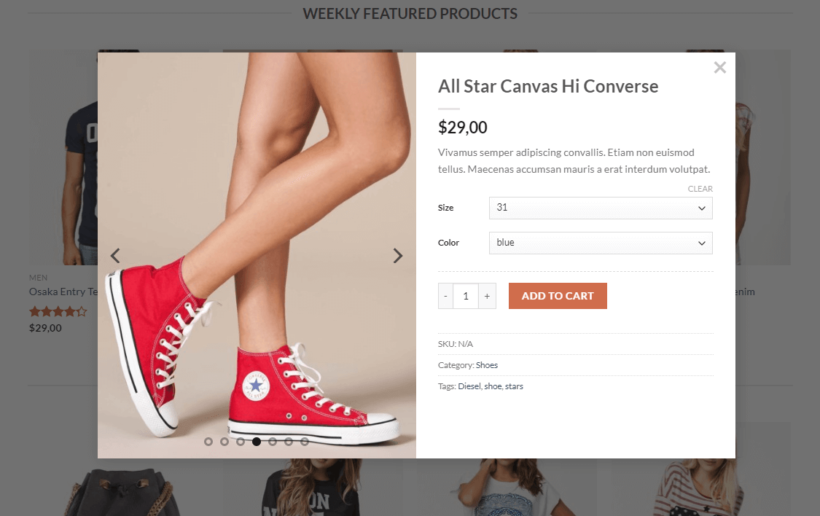
Flatsome Quick View lightbox contents

Out of the box, the feature displays product image, name, price, description, purchasing options, and meta. You can choose to show or hide the product category, ratings, and description.
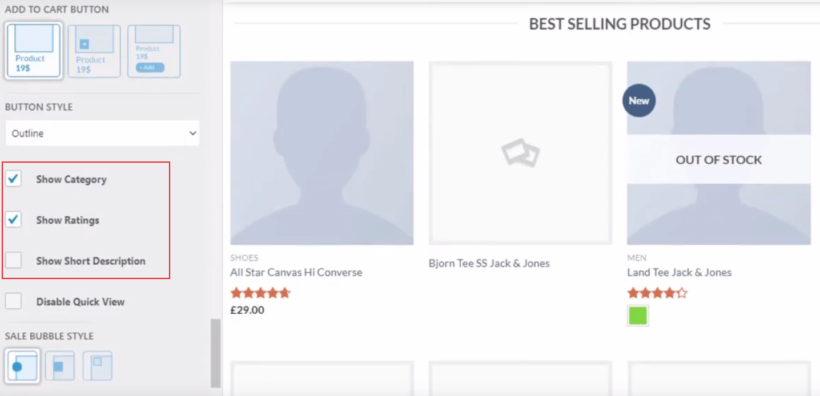
Flatsome Quick View lightbox content settings

Verdict: WooCommerce Quick View Pro has by far the most options for what to display in your lightbox, and this will be a deciding factor for many.

Factor #4: Customization options

Ideally, your quick view lightbox plugin should let you customize the front-end preview so that it fits your brand and allows you to deliver the best possible user experience. In the context of quick view functionality, this typically means evaluating the button design and layout options available to you.

WooCommerce Quick View Pro

Aside from setting a custom button label and choosing to show or hide the button icon, WooCommerce Quick View Pro gives users several layout customization options.

Displaying image and product details in a quick view lightbox with WooCommerce Quick View Pro

With WooCommerce Quick View Pro, users can choose between three different layout options:

  • Images onlyThis is great for image-centric products where the customer might be more interested in viewing the product image (with zoom!) and image gallery as opposed to product details. This is great for anyone selling photography, icon packs, or graphic design vectors.
  • Product details only If you’re selling products that need the focus to be on product details and specifications – such as hardware goods or computer parts – then you can choose to display product details only.
  • Images and product detailsThis is great for when you need to display both product images (with zoom functionality) and product details. For example, if you’re selling clothes then customers might want to see the product image, gallery, and available variations.

With WooCommerce Quick View Pro, you’re also able to decide which gallery thumbnail style to go with. You can choose between clickable Thumbnails and Bullets. Finally, you can also enable image zoom to let customers preview products properly when they hover over the product image in the quick view lightbox.

Note: WooCommerce Quick View Pro is the only quick view plugin to integrate with Product Options and WooCommerce Product Table.
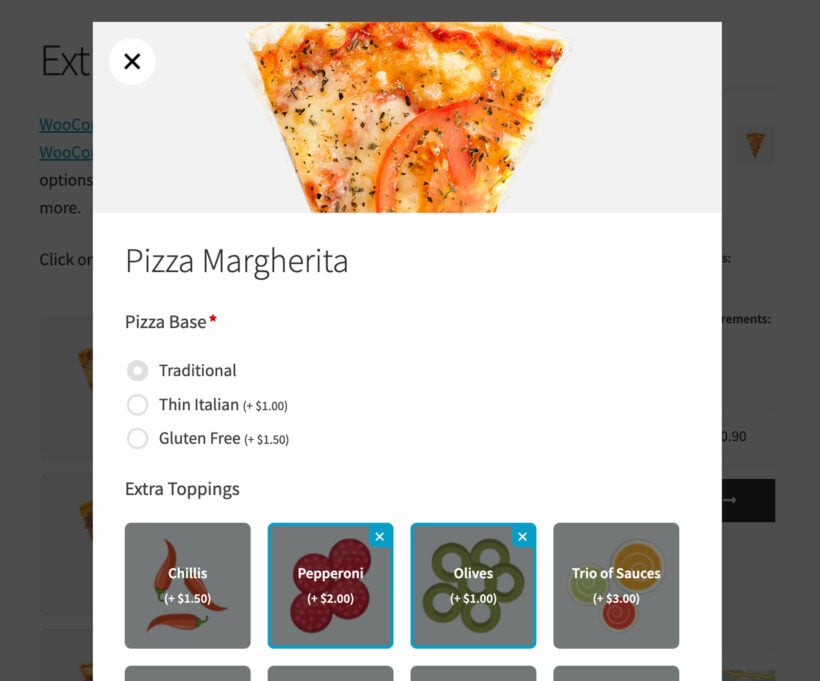
WooCommerce restaurant order form with extra options
Using WooCommerce Quick View Pro with the Product Options plugin

YITH WooCommerce Quick View

YITH WooCommerce Quick View allows users to choose between displaying a quick view button or a quick view icon. In addition to this, users can also set a custom button label and decide where they’d like to position it i.e. after the add to cart button or inside the product image.
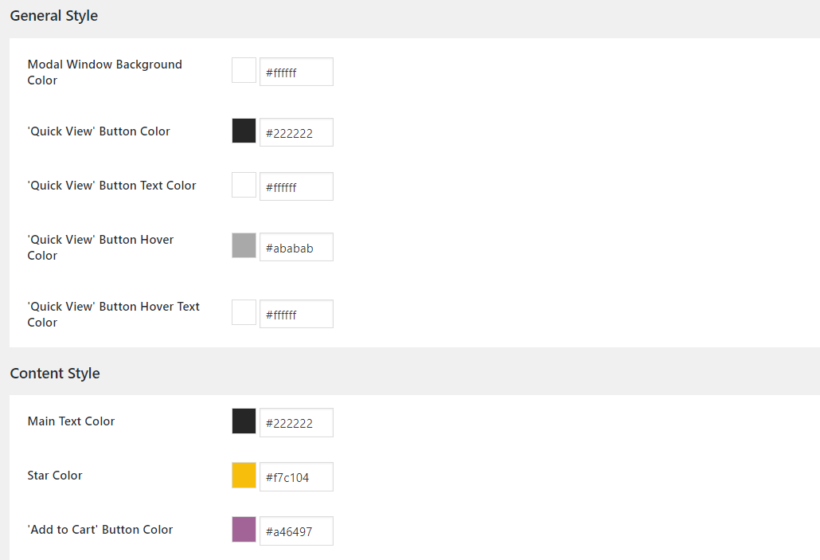
Customization options available with YITH WooCommerce Quick View

Users are able to set colors for just about every element of the quick view lightbox from the plugin’s settings screen. For example, you can change the modal window background color or the add to cart button color to match your brand.

Aside from this, YITH WooCommerce Quick View lightbox doesn't offer many customization options or alternative layouts. You can customize the styling, but not the layout. For example, you can't use the YITH quick view to show a product image lightbox without text, or text-only.

Flatsome Quick View

Flatsome Quick View doesn’t give users the option to customize the quick view functionality. In fact, the only configuration options available are to show or hide the product category, ratings, and description in the quick view lightbox or disable quick view entirely. That said, if you absolutely must change the look and feel of your Flatsome Quick View, you’d have to do so using custom CSS.

Verdict: WooCommerce Quick View Pro offers a fully customizable experience.

Conclusion

With the right WooCommerce quick view plugin, you’ll be able to deliver enhanced user experiences by making it easy for customers to learn about your products and add products to cart without having to visit the single product page.

Let's quickly recap the main features you should look for in a WooCommerce quick view plugin:

  • How easy is it to set up the plugin and get started?
  • What are the options available to you for launching the quick view lightbox?
  • How much control do you have over the quick view lightbox content?
  • How customizable is the plugin in terms of design and layout?

WooCommerce Quick View Pro fits the criteria to a tee. It's incredibly easy to get started with (all you have to do is activate the plugin!) and gives you several options to decide how customers will launch the quick view lightbox. In addition to this, you'll be able to decide exactly what content to display in the quick view lightbox. Finally, you're also able to choose from three different pre-built layout options.

You can use WooCommerce Quick View Pro with any theme. For example, if you prefer it to the Flatsome quick view then you can simply disable the quick view option in Flatsome and use WooCommerce Quick View Pro instead.

We compared some of the best WooCommerce quick view plugin solutions and, hopefully, you’re in a good position now to make informed decision.

What are some of the features you look for in a WooCommerce quick view plugin? Let us know in the comments section below.
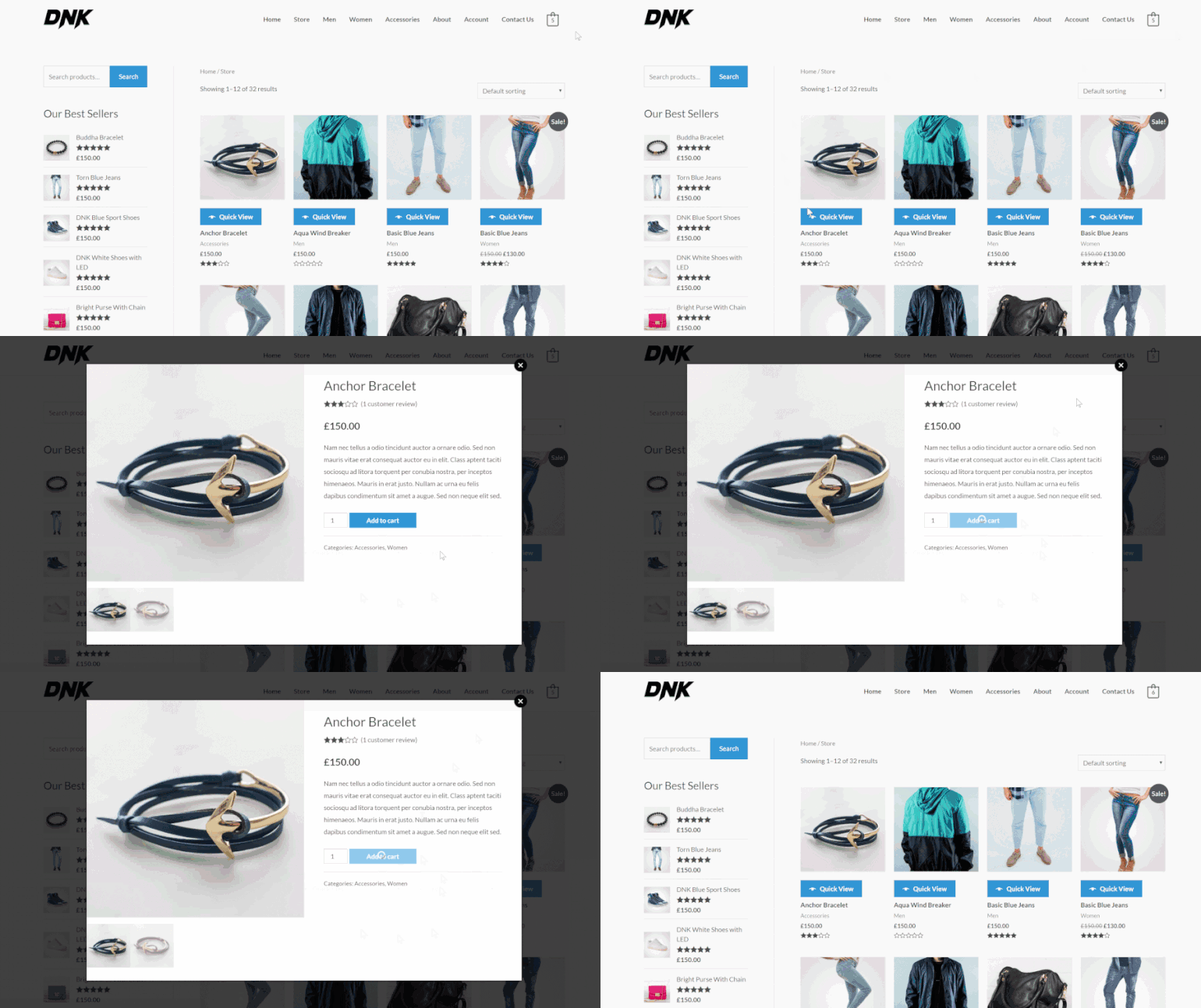
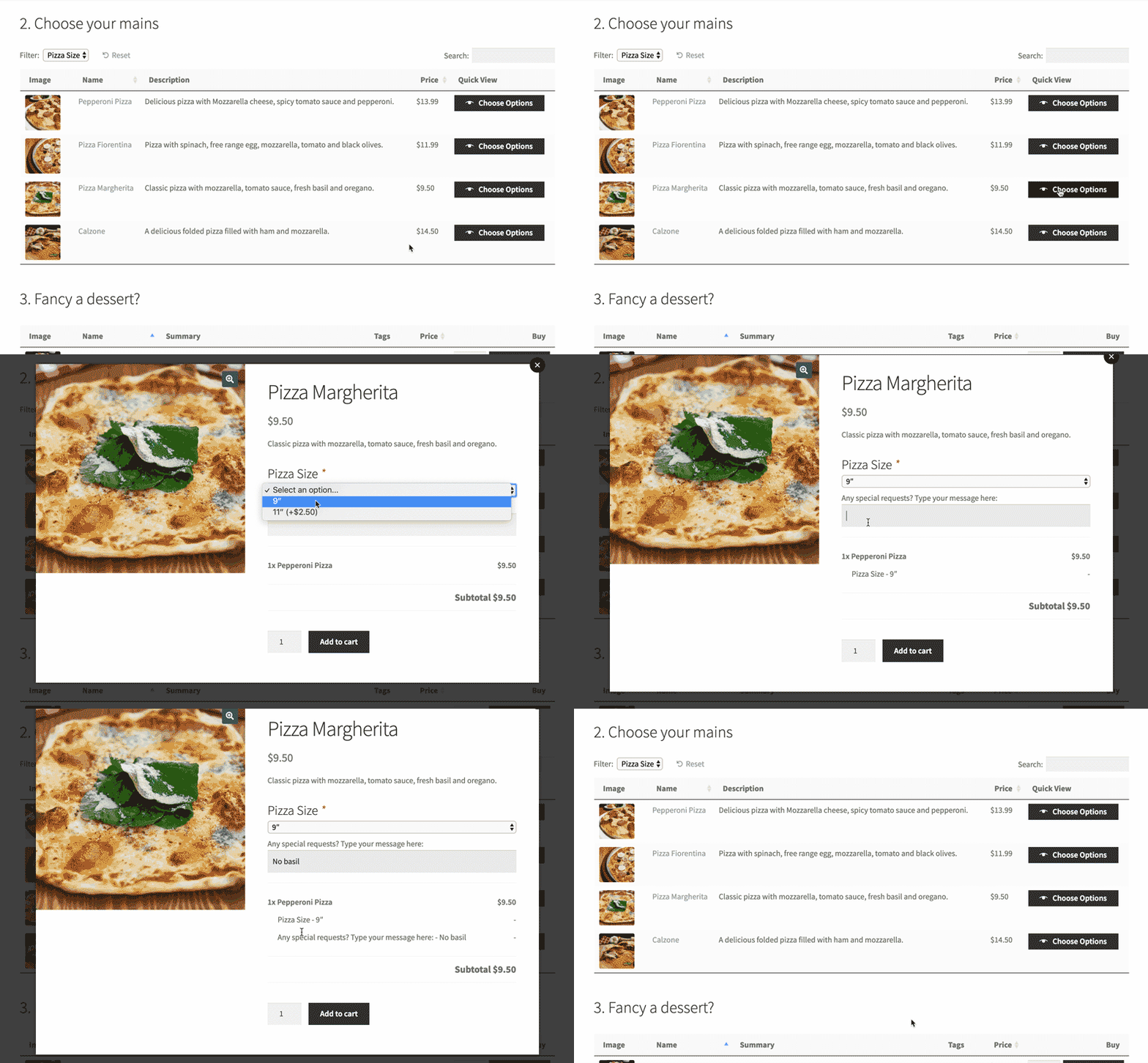
Looking for quick view popups or product lightboxes? Learn everything you need to know about WooCommerce quick view plugins, how to use them, and how to choose the best one for your store.

Most major ecommerce stores outside of the WordPress space have some sort of quick view functionality on their shop pages. WooCommerce does not include native quick view functionality. Instead, shoppers have to visit a separate page to learn about and buy each product.

The solution is to use the best WooCommerce quick view plugins to add something like this to your store. These plugins provide quick view buttons, modal windows, and AJAX add-to-cart functionality that work with any WooCommerce theme.

WooCommerce Quick View Example

In this article, I'll start by looking at the benefits of a WooCommerce quick view plugin and how it can help different types of ecommerce store.

Then, I'll show you how to use the WooCommerce Quick View Pro plugin to add quick view buttons and lightboxes to your shop pages.

Let's get started!

What are WooCommerce quick view plugins?

A WooCommerce quick view plugin displays product details in a modal window or lightbox that opens directly on shop and category pages. Customers trigger the quick view popup by clicking a button, product image, or product name without requiring page navigation. WooCommerce does not include native quick view functionality, requiring third-party plugins to add this feature to online stores.

Overall, product quick views are a popular tactic used by 48% of the top 50 US ecommerce sites, according to the Baymard Institute.

Why use quick view?

Adding quick view functionality to your WooCommerce store provides several key benefits:

  • Reduces bounce rate by letting customers compare products without multiple page loads.
  • Speeds up purchasing decisions with instant access to product details and variations.
  • Improves mobile shopping experience by minimizing navigation friction.
  • Increases conversion rates by keeping customers engaged on product listing pages.
  • Enables faster browsing with next and previous product navigation within the popup.

What information does quick view display?

A custom quick view WooCommerce plugin usually displays information like:

  • Full product gallery.
  • Short product description.
  • Product variations and attributes.
  • Quantity picker and add to cart button.
  • Extra product information such as reviews, price, categories, tags, and SKU.

How customers trigger quick view

Quick view can be triggered through three common methods depending on plugin configuration.

Hover activation: Quick view opens automatically when cursor hovers over product image or information without clicking.

Button click: Dedicated quick view button appears on product listing requiring explicit customer click to trigger popup.

Image or title click: Product image or title opens quick view instead of navigating to individual product page.

Button click implementation shows higher customer engagement than hover activation, making it the preferred trigger method for most stores.

What types of store can benefit from WooCommerce quick view plugins?

WooCommerce quick view plugins are the perfect way to present additional information without taking up more space or sending users to a separate product page. Because the information is hidden until a customer actually needs it (i.e. they click a button or link to open the quick view), it doesn't clutter up your product lists.

Here are some great examples of stores that will benefit from a WooCommerce quick view WordPress plugin.

Show a WooCommerce product gallery lightbox without forcing people to leave the page

Most WooCommerce product list views show a single image for each product. The best WooCommerce quick view plugins create product gallery lightboxes where shoppers browse all images with zoom features without loading a new page. Customers can quickly switch between gallery lightboxes for different products to make purchasing decisions.

This approach works whether you're using the regular WooCommerce shop and category pages, or a WooCommerce list view plugin.

Display food add-ons for a WooCommerce restaurant ordering system

WooCommerce restaurant quick view plugin

If you're using WooCommerce as a restaurant ordering system, quick view plugins solve the challenge of balancing a clean menu with customization options. Pizza delivery shops with 10+ different toppings can present a streamlined menu and let customers customize orders using the product quick view. You'll still get that nice one-page ordering that restaurants need without compromising on usability.

You can add toppings and other options like this by using the WooCommerce Product Options plugin.

Move add-ons, attributes, and variations into the WooCommerce quick view

A WooCommerce quick view plugin displays product add-ons, attributes, and variations in modal windows without visiting individual product pages. The custom quick view lightbox lets you display more product information and extra buying options while keeping your shop pages clean.

You can even display product variations as a table in the quick view lightbox. To do this, use the WooCommerce Quick View Pro and WooCommerce Product Table plugins together. That way, you can display variations as a table in the quick view window.

Key features of WooCommerce quick view plugins

When evaluating quick view plugins, look for these core features that ensure smooth functionality and positive user experience.

  • AJAX add-to-cartAllows customers to add products to cart directly from popup without page reload.
  • Variable product supportEnables selection of product variations (size, color, options) within quick view modal.
  • Mobile responsivenessEnsures popup displays correctly and functions smoothly on smartphones and tablets.
  • Product navigationProvides next and previous buttons to browse between products without closing popup.
  • Customization optionsAllows control over button placement, popup content, styling, and trigger method.
  • Theme compatibilityWorks with standard WooCommerce themes without requiring custom code or modifications.
  • Product type supportSupports simple, variable, grouped, and external or affiliate products in quick view.
  • Responsive layoutsMost quick view plugins offer fully responsive layouts ensuring smooth mobile device and tablet functionality.

With these evaluation criteria in mind, let's compare the most popular WooCommerce quick view plugins available today.

Comparing the best WooCommerce quick view plugins

WooCommerce does not include native quick view functionality in its core software. The WooCommerce.com marketplace offers a premium quick view extension developed by Kestrel for official integration. Third-party developers like YITH, ShapedPlugin, and Barn2 provide alternative quick view solutions with different feature sets and pricing structures.

Quick comparison table

Plugin Price Best for Key strength
Quick View Pro (Barn2) Premium / Bundle Advanced users needing Product Table integration External/affiliate product support + order form integration
YITH Quick View Free / $69.99/yr Stores wanting free option with premium upgrade path Product navigation arrows in premium version
WooCommerce Official Premium only Users prioritizing guaranteed compatibility Official WooCommerce marketplace support
ShapedPlugin Free / $39/yr Budget-conscious stores needing solid features Best price-to-feature ratio
WPC Smart Free / Premium Small stores starting with basic features Simple setup with shortcode support
Addonify Free / Premium Minimalist approach with lightweight code Fastest loading times

Which quick view plugin is right for your store?

Use this guide to match plugins to your specific store type and needs:

Restaurant or food stores: Quick View Pro (Barn2) works seamlessly with Product Table for one-page ordering forms with customizable menu items and add-ons.

Wholesale or B2B stores: Quick View Pro (Barn2) integrates with Product Table to create quick order forms where buyers can view details and add multiple items rapidly.

Fashion or apparel stores: YITH WooCommerce Quick View offers product navigation arrows in premium version, letting customers browse collections without leaving the page.

Small businesses on a budget: WPC Smart Quick View or Addonify provide solid free versions with essential features and optional premium upgrades.

Stores selling external or affiliate products: Quick View Pro (Barn2) fully supports external and affiliate products, while other plugins have limited support.

Users prioritizing official support: WooCommerce Quick View (Official Extension) guarantees compatibility and marketplace backing from WooCommerce.com.

Stores needing best value: Quick View for WooCommerce by ShapedPlugin offers strong features at $39 per year, the most competitive premium pricing.

Consider compatibility and performance

Compatibility considerations matter because poorly optimized quick view plugins can conflict with caching systems, page builders, and other WooCommerce extensions. Plugins with regular updates and documented theme compatibility are less likely to cause performance issues or site conflicts.

Look for plugins that use AJAX efficiently and don't add excessive HTTP requests or JavaScript files. Well-optimized quick view plugins maintain fast page load times by loading popup content only when triggered rather than on initial page load.

Detailed plugin reviews

1. WooCommerce Quick View Pro (Barn2)

Price: Premium plugin with bundle available with Product Table.

Works best for: Advanced users needing extensive customization, Product Table integration, and support for all product types including external and affiliate products.

Key features:

  • Supports all product types including external or affiliate products.
  • Integrates with WooCommerce Product Table for order forms.
  • Three lightbox layouts (images only, details only, both).
  • Extensive control over displayed content and button positioning.
  • Mobile-responsive design works on all devices including smartphones and tablets.

Pros and cons:

  • Most comprehensive feature set for complex stores.
  • Unique Product Table integration for one-page ordering.
  • Full external and affiliate product support.
  • No free version available for testing.
  • Higher price point than some alternatives.

2. YITH WooCommerce Quick View

Price: Free version available. Premium $69.99 per year for advanced features.

Works best for: Stores wanting a feature-rich solution with extensive customization, free option for testing, and premium upgrade path for navigation features.

Key features:

  • Responsive lightbox with product images, descriptions, prices, add-to-cart.
  • Premium adds navigation arrows, social sharing, sliding panel option.
  • Multiple display styles (modal, sliding panel, on-page preview).
  • Integrates with other YITH products.

Pros and cons:

  • Free version lets you test before purchasing premium.
  • Product navigation arrows in premium version.
  • Established plugin with large user base.
  • Free version lacks navigation and advanced features.
  • No Product Table integration.

3. WooCommerce Quick View (Official Extension)

Price: Premium only, available through WooCommerce marketplace.

Works best for: Users prioritizing guaranteed compatibility with WooCommerce core and professional marketplace support.

Key features:

  • Official WooCommerce marketplace extension.
  • Works out-of-the-box with most WooCommerce themes.
  • AJAX add-to-cart with variable product support.
  • Professional design and regular updates.

Pros and cons:

  • Official WooCommerce backing and support.
  • Guaranteed compatibility with WooCommerce updates.
  • Professional development and maintenance.
  • No free version for testing.
  • Fewer features than some third-party options.

4. Quick View for WooCommerce (ShapedPlugin)

Price: Free version. Pro version $39 per year for advanced layouts.

Works best for: Budget-conscious stores needing solid features with the best price-to-feature ratio in premium category.

Key features:

  • Freemium plugin with solid free version.
  • Customizable button positions and modal effects.
  • Mobile-responsive with product variation support.
  • Premium adds gallery sliders, custom CSS or JS.

Pros and cons:

  • Most affordable premium option at $39 per year.
  • Lightweight and fast-loading.
  • Good free version for basic needs.
  • Limited support for external or affiliate products.
  • Fewer integrations than established plugins.

5. WPC Smart Quick View

Price: Free version. Premium adds advanced options.

Works best for: Small to medium businesses needing free solution with good customization and shortcode support for manual placement.

Key features:

  • Lightweight and easy to configure.
  • Multiple button positions and modal effects.
  • AJAX add-to-cart and mobile-responsive.
  • Shortcode support for manual placement.

Pros and cons:

  • Completely free version available.
  • Simple setup process.
  • Shortcode flexibility for custom implementations.
  • Limited advanced features in free version.
  • Basic documentation compared to premium plugins.

6. Addonify WooCommerce Quick View

Price: Free version. Premium adds customization options.

Works best for: Stores prioritizing minimalist interface, lightweight code, and fastest loading times.

Key features:

  • Simple, clean quick view popup with essential features.
  • Freemium model with free version for small stores.
  • Lightweight plugin with minimal resource usage.
  • Easy setup with straightforward settings panel.

Pros and cons:

  • Fastest loading times due to minimal code.
  • Simple interface perfect for beginners.
  • Free version sufficient for basic stores.
  • Fewer customization options than competitors.
  • No product navigation features.

Feature comparison table

Feature Quick View Pro (Barn2) YITH WooCommerce (Official) ShapedPlugin WPC Smart Addonify
AJAX Add-to-Cart
Variable Products
Mobile Responsive
Next or Prev Navigation ✓ (Premium) ✓ (Pro) ✓ (Premium)
External or Affiliate Products Limited Limited Limited
Product Table Integration
Free Version
Pricing Premium / Bundle Free / $69.99 per yr Premium only Free / $39 per yr Free / Premium Free / Premium

Most quick view plugins offer fully responsive layouts, ensuring the popup works well on mobile devices and tablets regardless of which solution you choose.

Tutorial: How to set up the best WooCommerce quick view plugin

The setup workflow for quick view plugins follows a standard pattern across most solutions. Install plugin --> Activate --> Configure settings --> Customize appearance --> Test on shop page. This tutorial demonstrates Quick View Pro setup including button placement, lightbox content, and Product Table integration. Follow these steps to add quick view functionality to your WooCommerce store.

Next, we get to the practical part of this article: the WooCommerce Quick View Pro setup tutorial.

Below, you'll learn how to use WooCommerce Quick View Pro with:

  • The regular WooCommerce shop and archive pages.
  • Order forms or product list views that you've created with the WooCommerce Product Table plugin.

Either watch the video, or follow the written instructions underneath.

Step 1: Install and activate WooCommerce Quick View Pro

As soon as you install and activate the WooCommerce Quick View plugin on your WooCommerce store, it automatically adds product quick view features. By default, it adds a Quick View button to the main shop page and category archives.

You can see an example of the default button below:

WooCommerce quick view button on product listing

When users click that button, the quick view lightbox opens and displays the short description, add to cart button, image gallery, extra metadata, price, reviews, and additional product data as required.

Step 2: Choose how shoppers open quick view

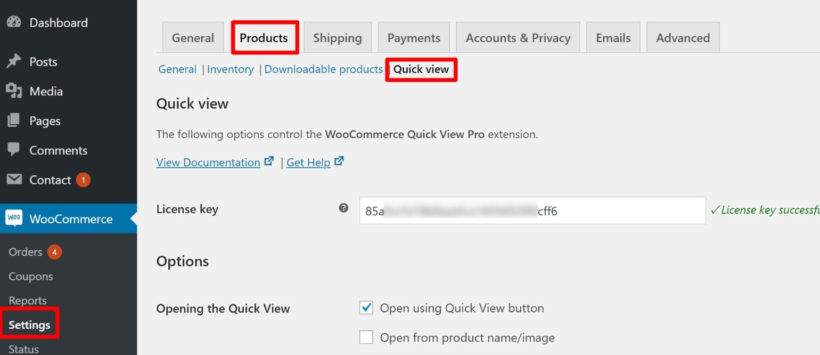
To access WooCommerce Quick View Pro's settings, use the plugin setup wizard or go to WooCommerce --> Settings --> Products --> Quick view.

Access quick view settings

The first setting that you'll want to configure is how shoppers actually open the quick view popup. You can choose whether or not to use the dedicated quick view button. If you do want to use the button, you can also change the button text and turn the button icon on or off.

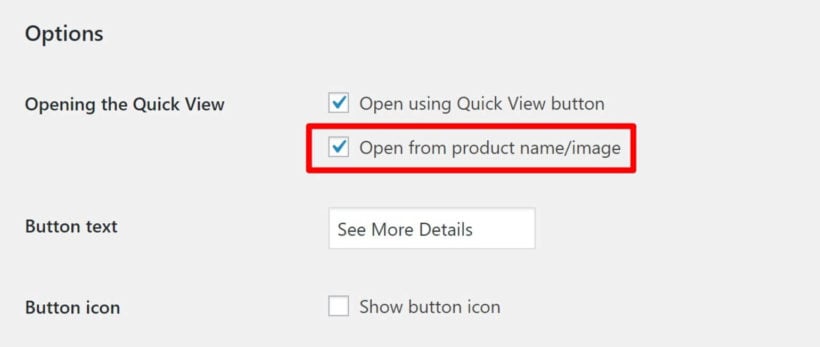
Beyond that, you can also choose whether or not to open the quick view when a shopper clicks on the product's title or image by checking the box for Open from product name/image.

Open woocommerce quick view from product title

Step 3: Choose what information displays in the product quick view box

You can control what product information displays inside the quick view box and how shoppers can interact with that information. Use the dropdown to control whether to display only product images, only product details, or both images and product details.

Further down, you can also control which specific product details to include in the lightbox.

Using WooCommerce Quick View Pro with WooCommerce Product Table

Next, let's cover how to use the WooCommerce quick view plugin with our WooCommerce Product Table WordPress plugin. This is a super-popular combination because customers love creating quick product order forms complete with quick view buttons.

WooCommerce Product Table lets you display some or all of your products in a flexible list view. A few popular use cases are restaurant order forms, wholesale stores, and audio or video stores.

When both WooCommerce quick view plugins are active, you'll see a new Quick View Pro option in the WooCommerce Product Table settings. You can access these settings by going to WooCommerce --> Settings --> Products --> Product tables.

When you check this box, all of the product page links in your table will open the quick view box instead of linking to the individual product page. That means shoppers can click on the name of the product to open more information, or use the add to cart button if they want to add the product straight to their carts.

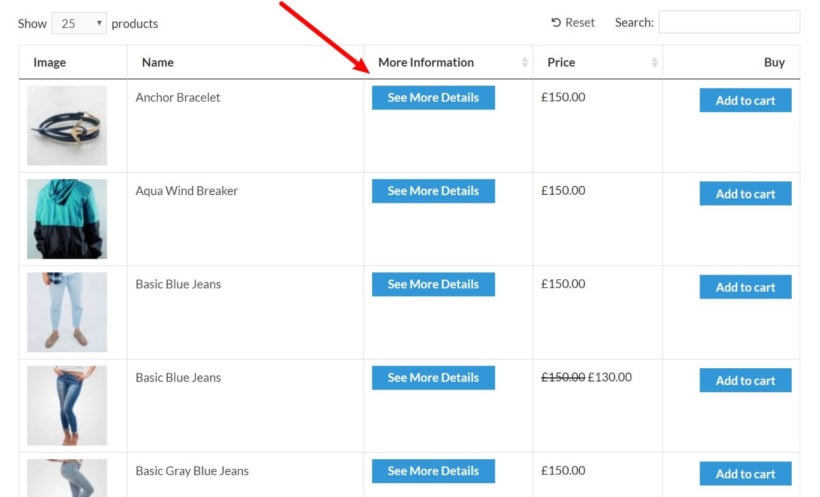
Beyond that setting, you also get a new quick-view column option that you can add to your table. If you include the quick-view column, it will add a persistent quick view button for each product.

Product quick view column

If you want to change the button text, you can use regular WooCommerce Quick View Pro button settings. You can also use those settings to customize what information is included in the product quick view box.

For more details on using quick view with Product Table, check out our tutorial on quick view shortcode implementation for advanced placement options.

Get the best WooCommerce quick view plugin today

Ecommerce quick views are a great way to let shoppers view more information without forcing them to visit the individual product page.

Almost half of the top 50 ecommerce stores use quick view functionality. About 45% of shoppers are likely to make use of quick view functionality.

It doesn't matter whether you're using the regular WooCommerce shop pages or you've created product list views with our WooCommerce Product Table plugin. Either way, WooCommerce Quick View Pro adds a flexible product quick view box in just a few minutes. We've designed it to be one of the best WooCommerce quick view plugins available today, and we hope you like it.

Frequently Asked Questions

Are there known performance issues with quick view plugins?

Quick view plugins can conflict with caching plugins, JavaScript libraries, or themes that override WooCommerce hooks. Test by disabling other plugins one by one to isolate conflicts if quick view button doesn't appear.

Poorly optimized plugins may add extra HTTP requests or JavaScript that slows page load times. Quick View Pro is tested with major WooCommerce themes and includes troubleshooting documentation for display issues.

How does quick view actually help my WooCommerce store?

Quick view reduces bounce rate by eliminating page loads required for product comparison. Customers make purchase decisions faster with instant product preview rather than navigating between pages. Mobile shoppers benefit from reduced navigation friction since all product information displays without leaving product grid.

How does WooCommerce Quick View Pro compare to YITH?

Both YITH and Quick View Pro are premium plugins with similar core features including AJAX add-to-cart and customization. Quick View Pro uniquely integrates with WooCommerce Product Table to display quick view buttons in product order forms. See our detailed plugin comparison table above for feature-by-feature analysis.

Do you have any questions about how to use WooCommerce quick view plugins at your store? Let us know in the comments!